Android
How to View and Manage Your Previously Downloaded Apps on Android and iPhone
Can't remember what app you installed a month ago? Here's how to view previously downloaded apps on your Android and iPhone.
By Pankil Shah
Quick Tips
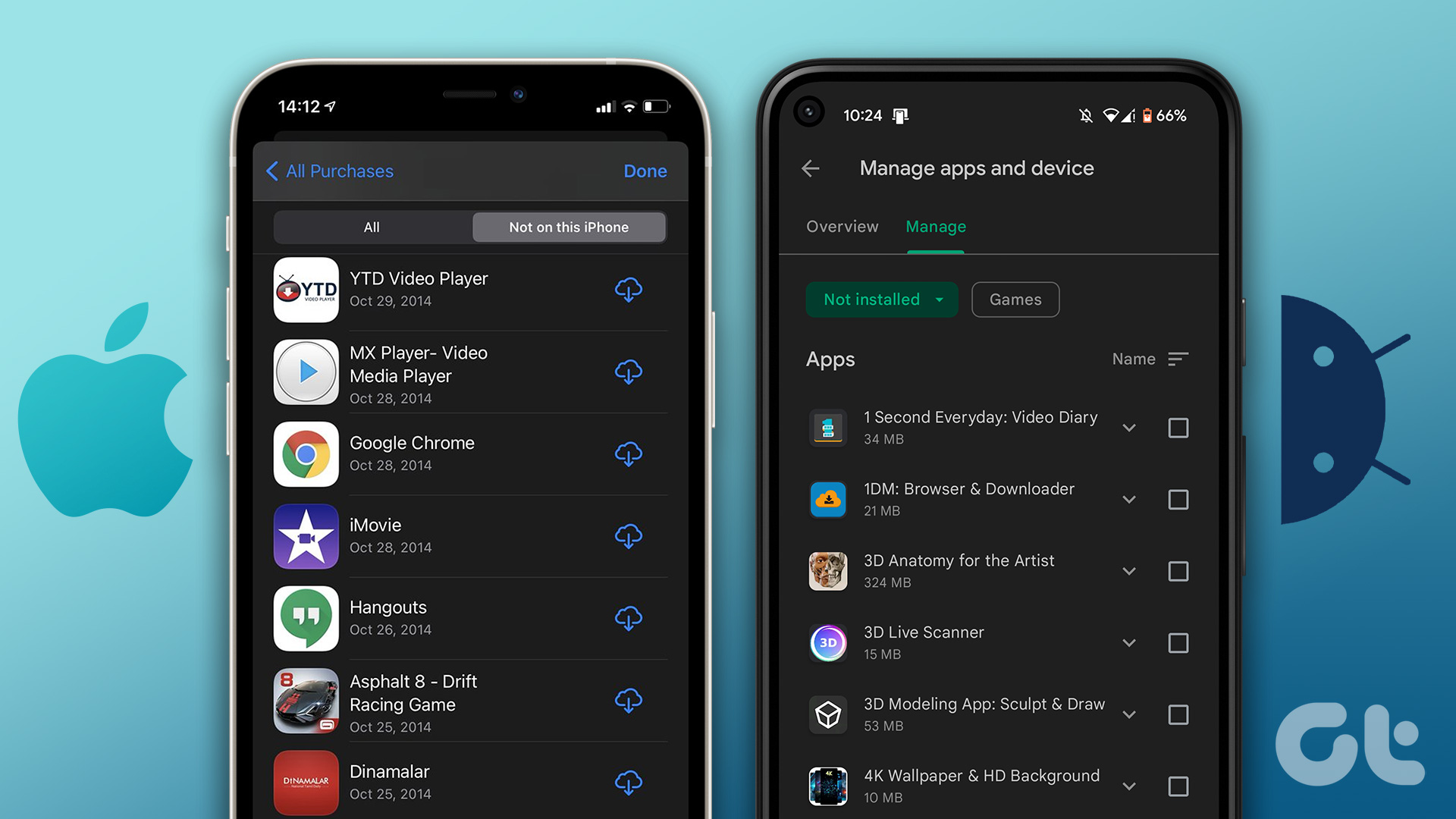
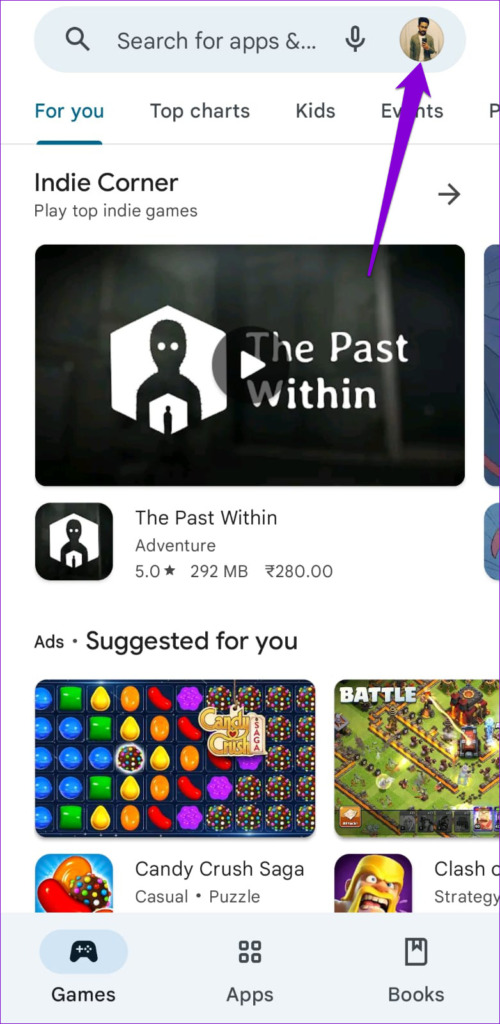
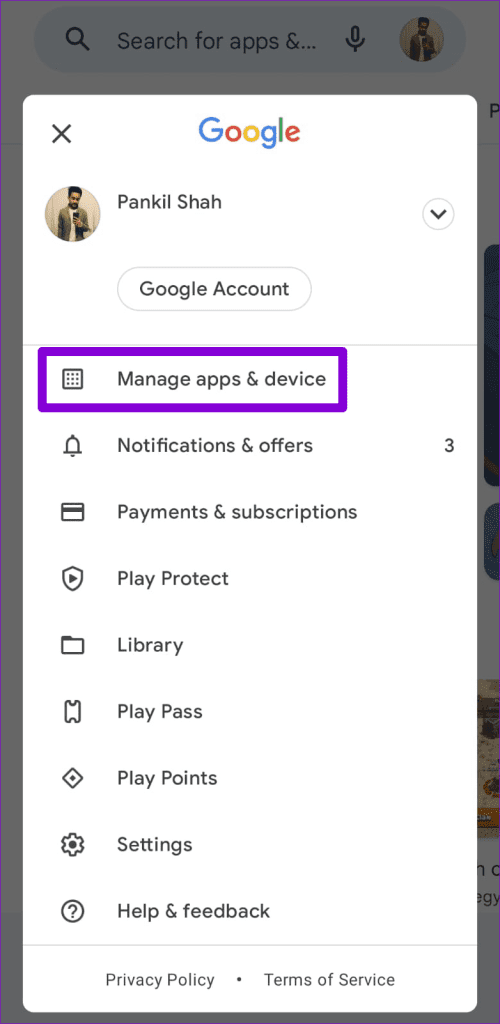
To view your app download history in the Google Play Store, tap the profile icon at the top right and select Manage apps & device.
To view your app download history in the App Store, tap the profile icon and select Purchased.
Both Android and iOS allow you to remove specific entries from your app download history.
How to View Your App Download History on Android
Google Play Store makes it easy to access your app download history on Android. The following steps will allow you to view a complete list of apps and games downloaded using your Google account.
Step 1: Open the Google Play Store > tap the profile icon at the top-right corner > select Manage apps & device .
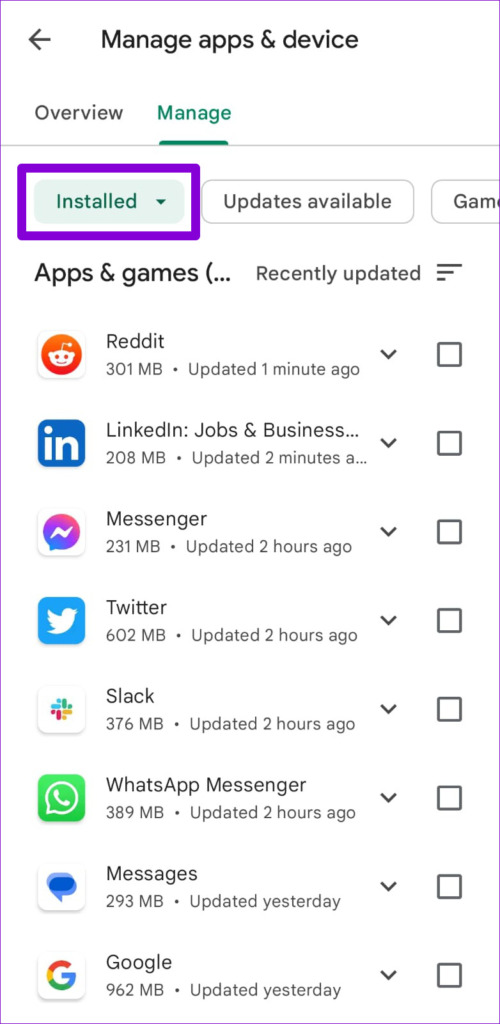
Step 2: Switch to the Manage tab. Under Installed, you’ll see a list of apps on your phone.
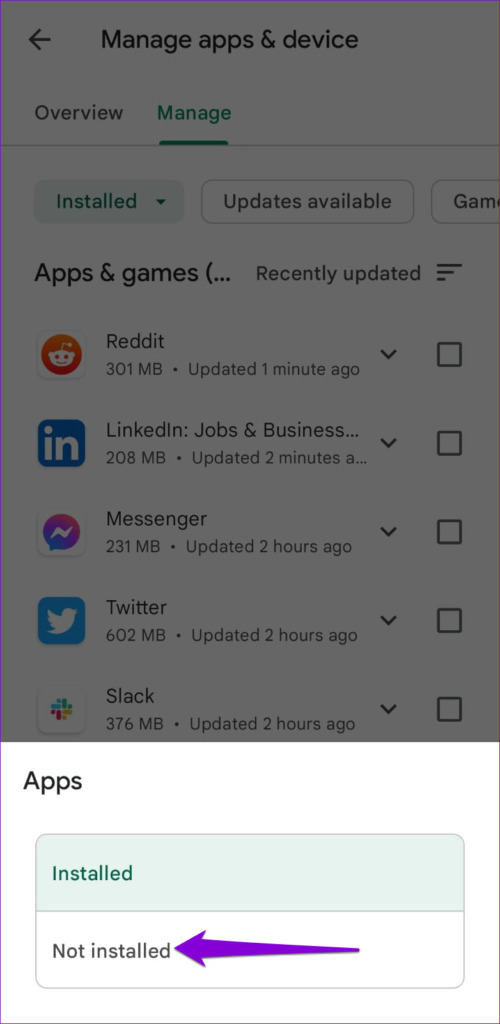
Step 3: Tap Installed and select Not installed to see a list of apps that are no longer on your phone. This list will include any apps or games you’ve downloaded on other devices using the same Google account.
If you’ve been an Android user for a long time, you may have a long download history of apps and games. If you only want to view a list of your purchased apps and subscriptions on Play Store, use these steps instead.
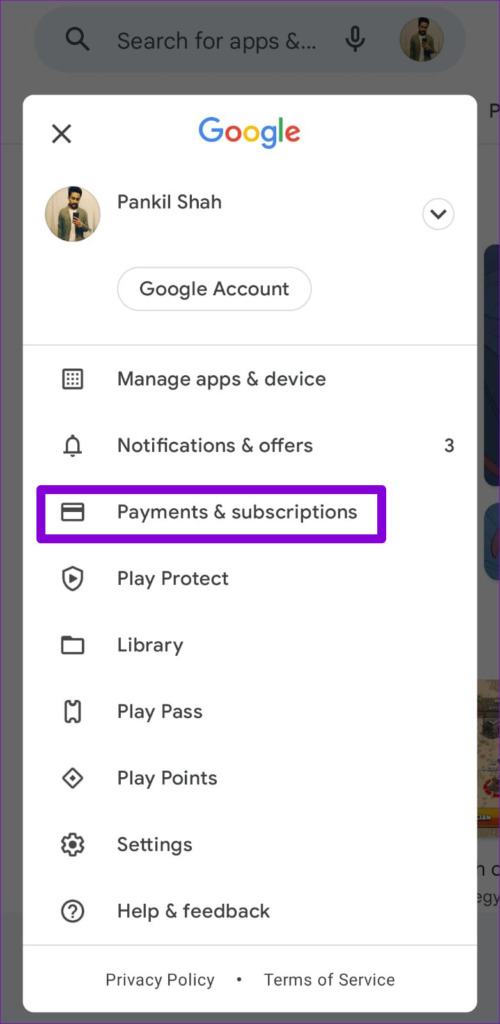
Step 1: Open the Play Store on your phone > tap your profile icon at the top right corner > select Payments & subscriptions .
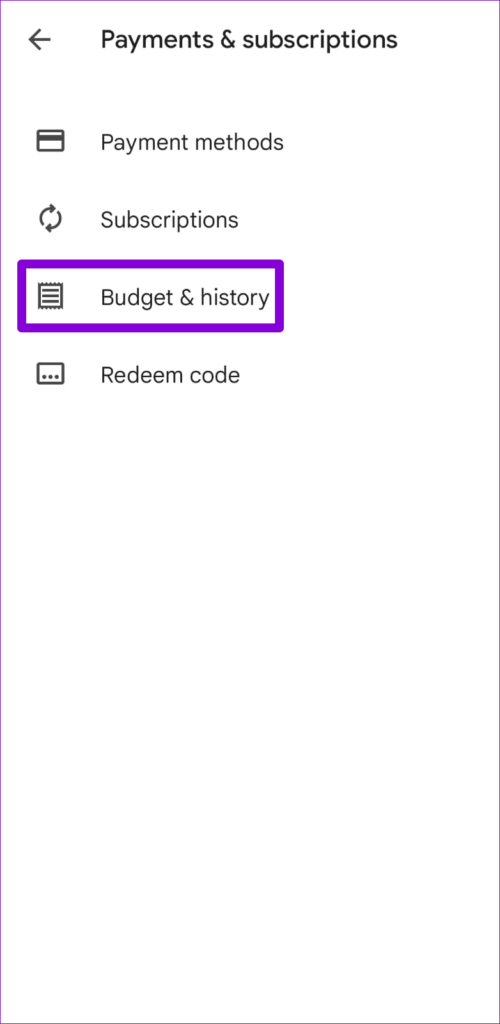
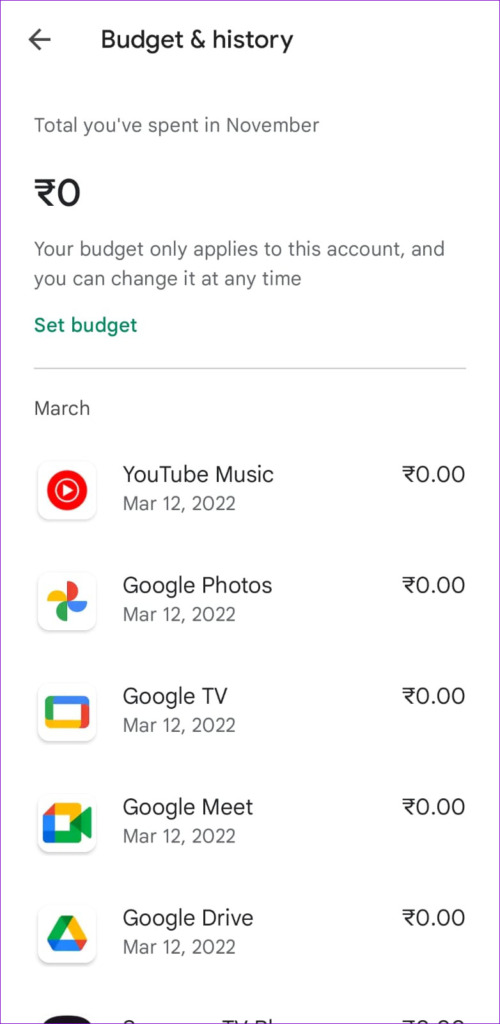
Step 2: Tap on Budget & history to view all the purchased apps and games.
How to Remove Apps From Download History on Android
Google Play Store lets you remove apps and games from your download history. This is useful if you want to avoid specific apps appearing on the list.
Step 1: Open the Play Store > tap your profile icon at the top-right corner > select Manage apps & devices .
Step 2: Under the Manage tab, tap on Installed and select Not installed .
Step 3: Select the apps you want to remove from the list using the checkboxes and tap the Remove icon at the top-right corner. Then, select Remove to confirm.
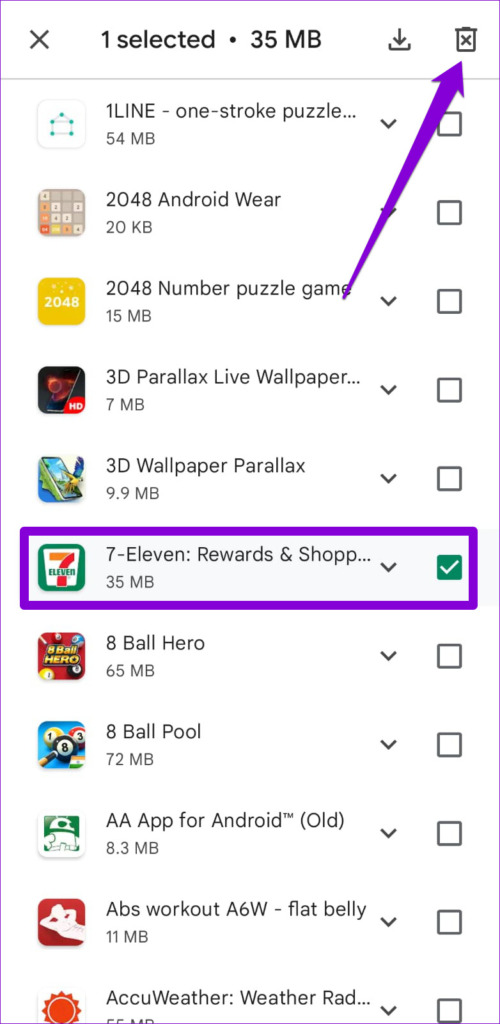
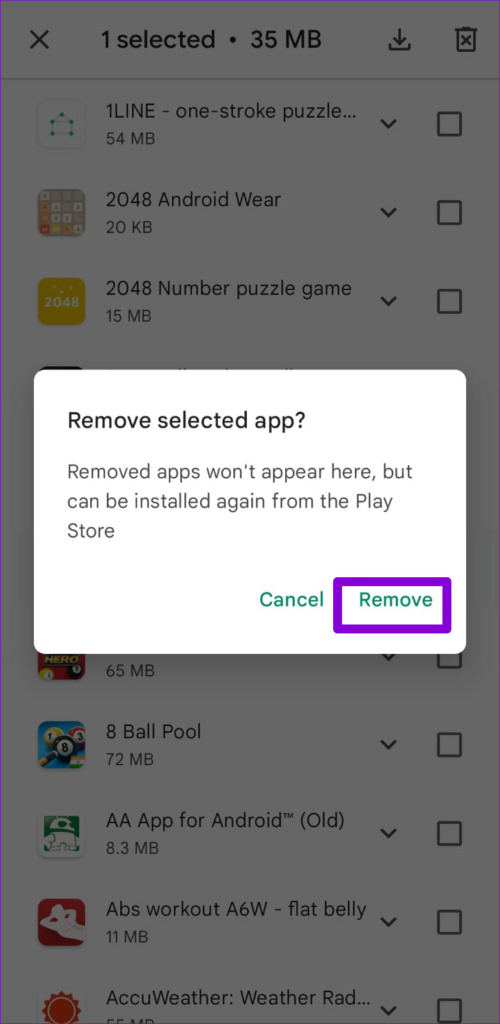
The selected apps will no longer appear in the download history, but you can always re-download those apps and games later.
How to View Your App Download History on iPhone
Fetching your app download history on iOS isn’t too difficult. You can use the following steps on both your iPhone and iPad.
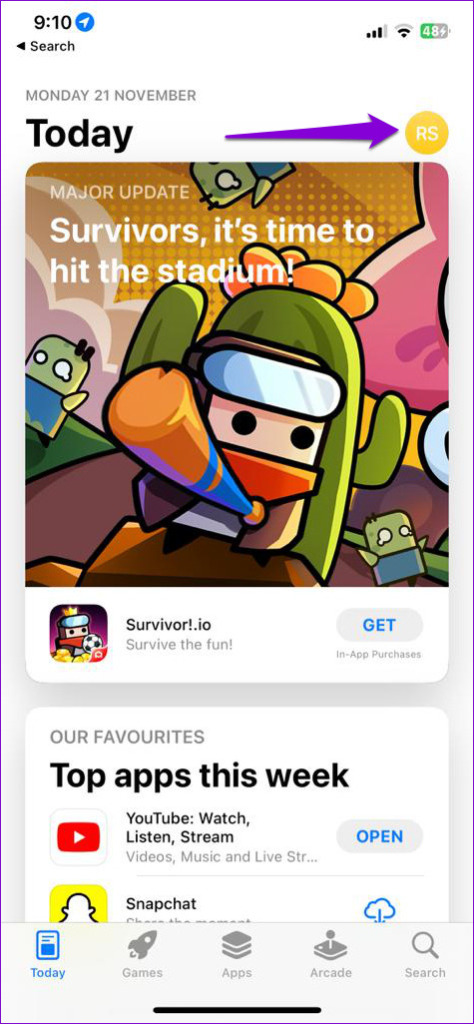
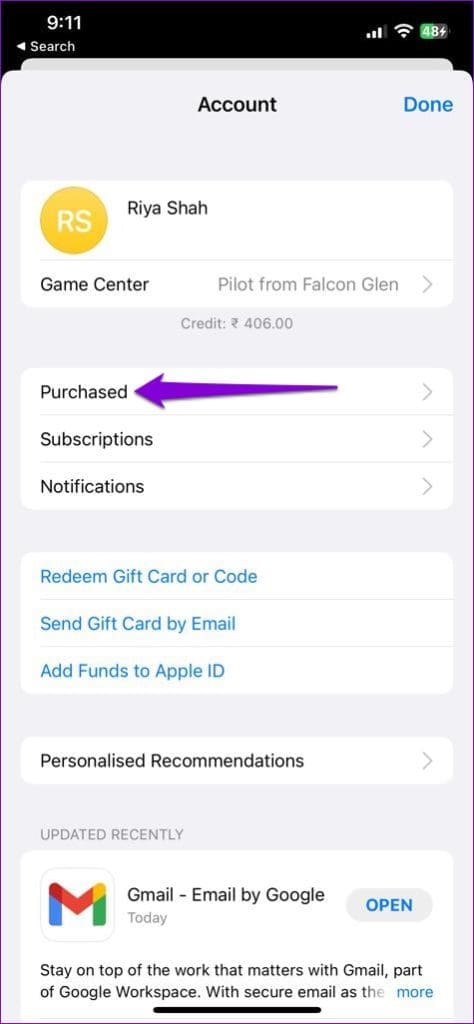
Step 1: Open the App Store > tap on your profile icon at the top right > select Purchased .
Step 2: You’ll find your app download history and dates under the All tab. You can use the top search bar to find a specific app’s purchase date.
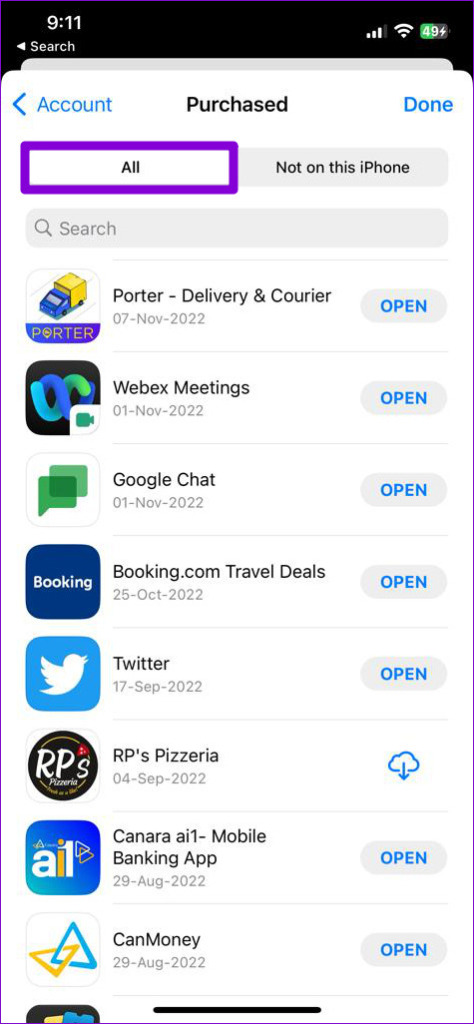
The “Not on this iPhone” tab displays a list of apps that aren’t currently installed on your device. This includes any apps you may have downloaded on other devices using the same account.
How to Hide or Unhide Apps From Purchased History on iPhone
If you don’t want certain apps to appear in your app download history on your iPhone, it’s easy to hide them. You may want to do this if you frequently share your device with your kids or other family members. Here’s how to do it.
Step 1: Open the App Store > tap on your profile icon in the top right > select Purchased .
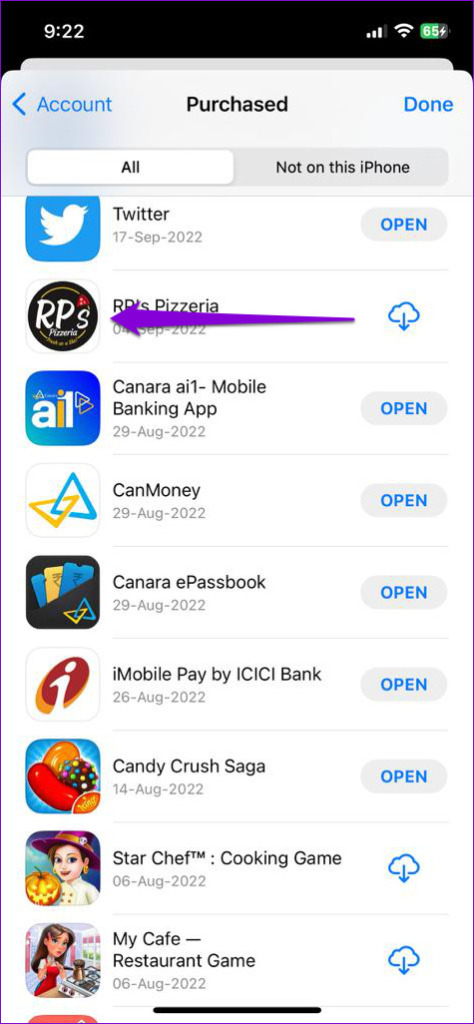
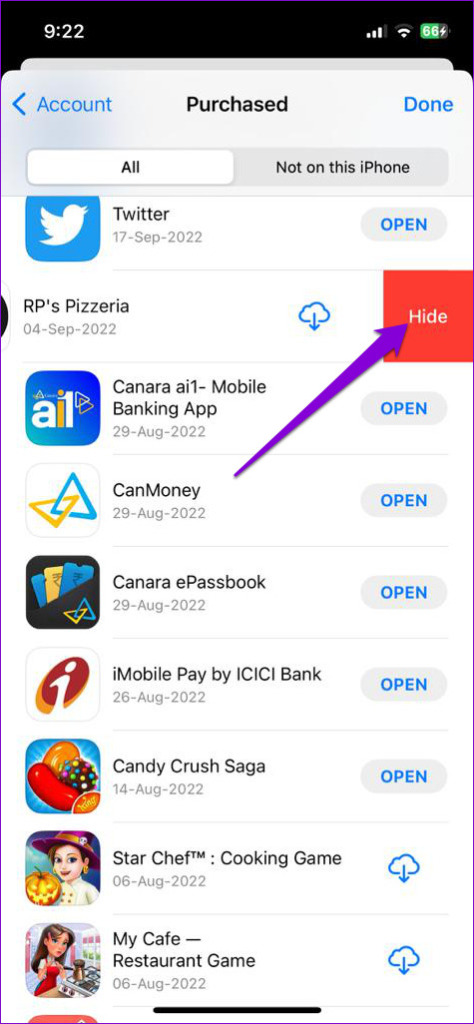
Step 2: Scroll down or use the search bar to locate the app you want to hide. Swipe left on the app name and tap on Hide .
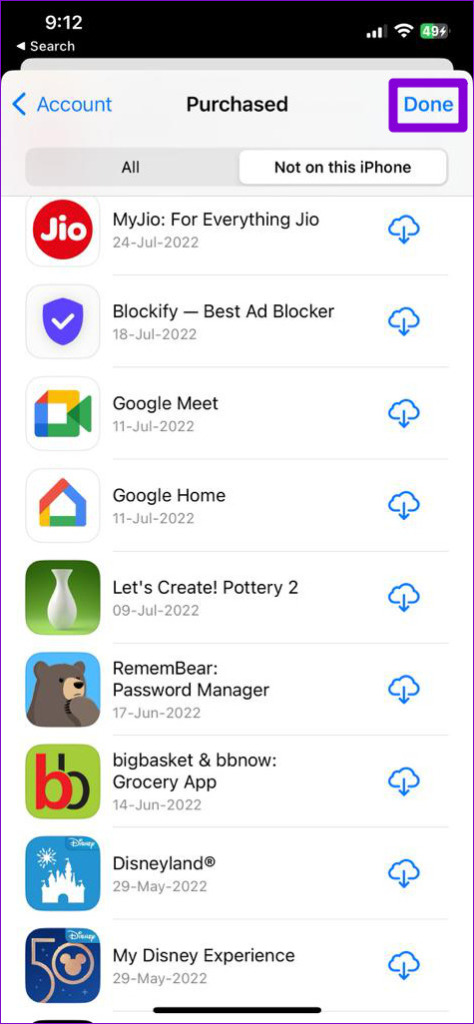
Step 3: Tap Done at the top right corner.
If you accidentally hide an app or game from your download history, here’s how to unhide it.
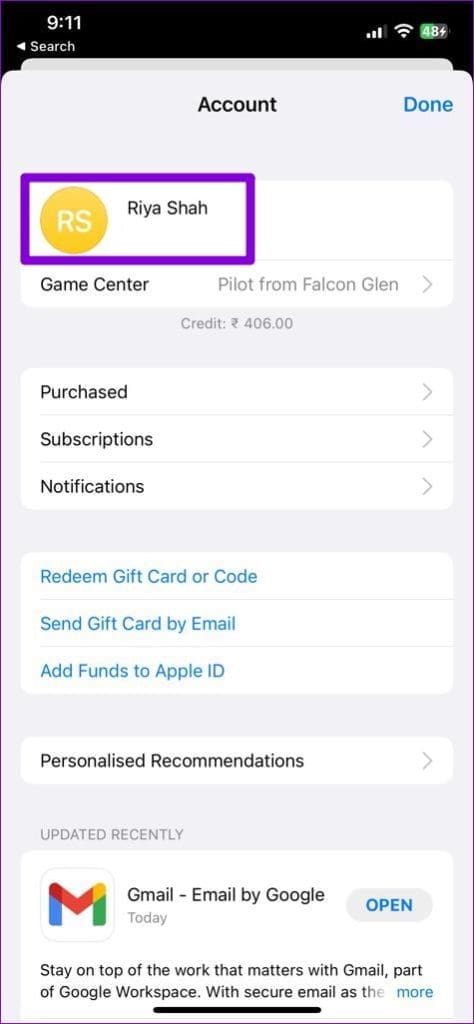
Step 1: Open the App Store > tap your profile icon at the top right > tap your name at the top.
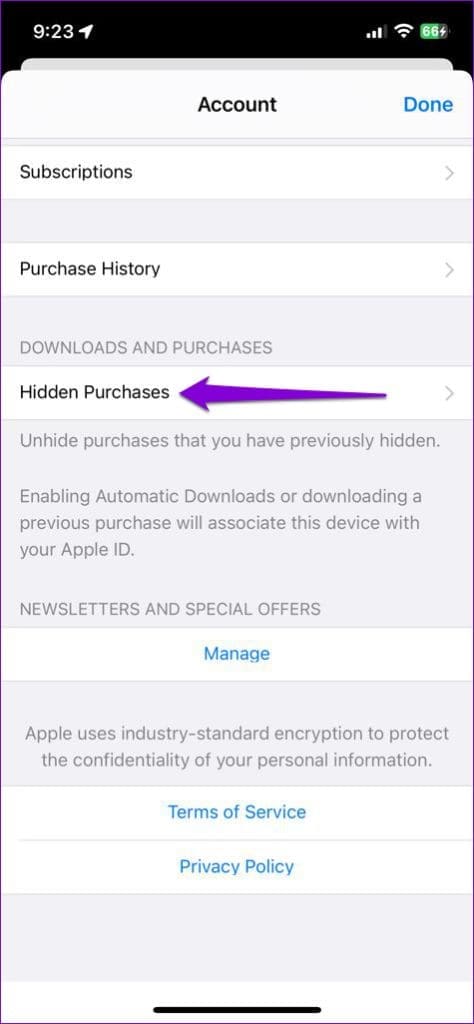
Step 2: Scroll down to the Downloads and Purchases section and tap on Hidden Purchases .
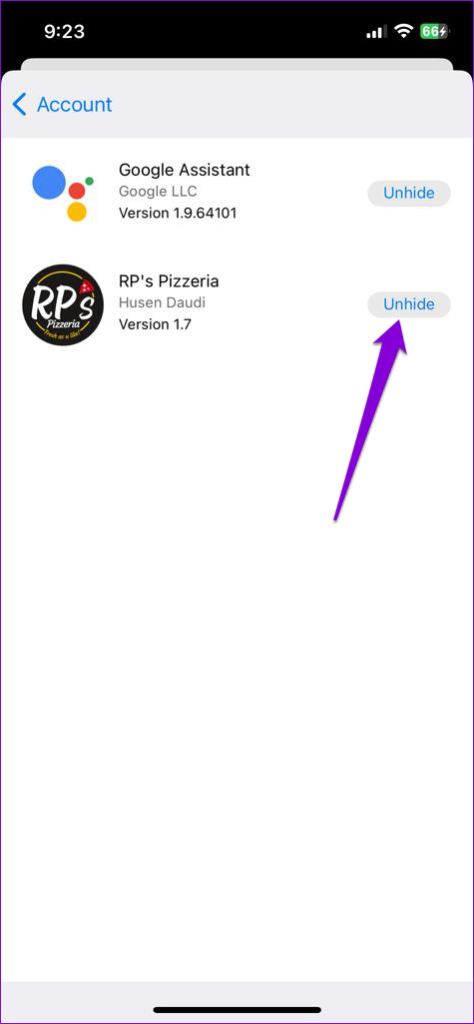
Step 3: Tap the Unhide button next to a hidden app to unhide it.
Was this helpful?
Submit Cancel
Thanks for your feedback!
Keep reading