Android
12 Best Nothing Phone (1) Tips and Tricks You Should Know
Here are some of the best Nothing Phone (1) tips and tricks you should use to get the best software experience out of your new smartphone.
By Sumukh Rao
Key Highlights
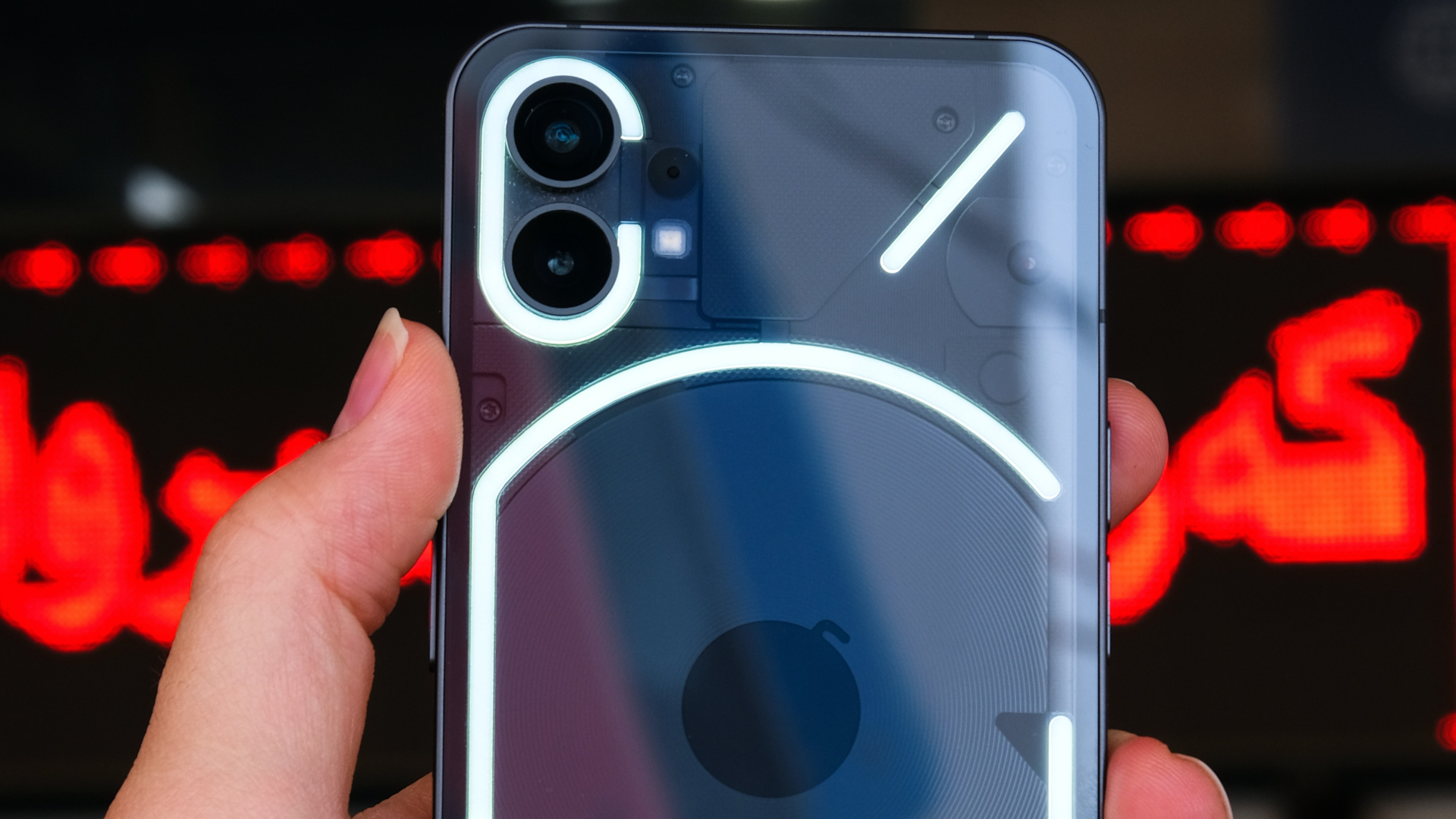
The Nothing Phone (1) has a few tricks up its sleeve — especially involving the glyph lights on the rear.
You can use the lights for music visualization or as a camera flash.
Wireless battery sharing and Screen Attention are also useful features included by Nothing.
1. Enable Music Visualization
There are several features of the Glyph lights on the Nothing Phone (1) that are available right out of the box. However, there is one easter egg that enables a hidden feature – Music Visualization. When enabled, the Glyph lights will sync to the music you’re playing on the phone to give a cool effect. Here’s how to enable the secret feature.
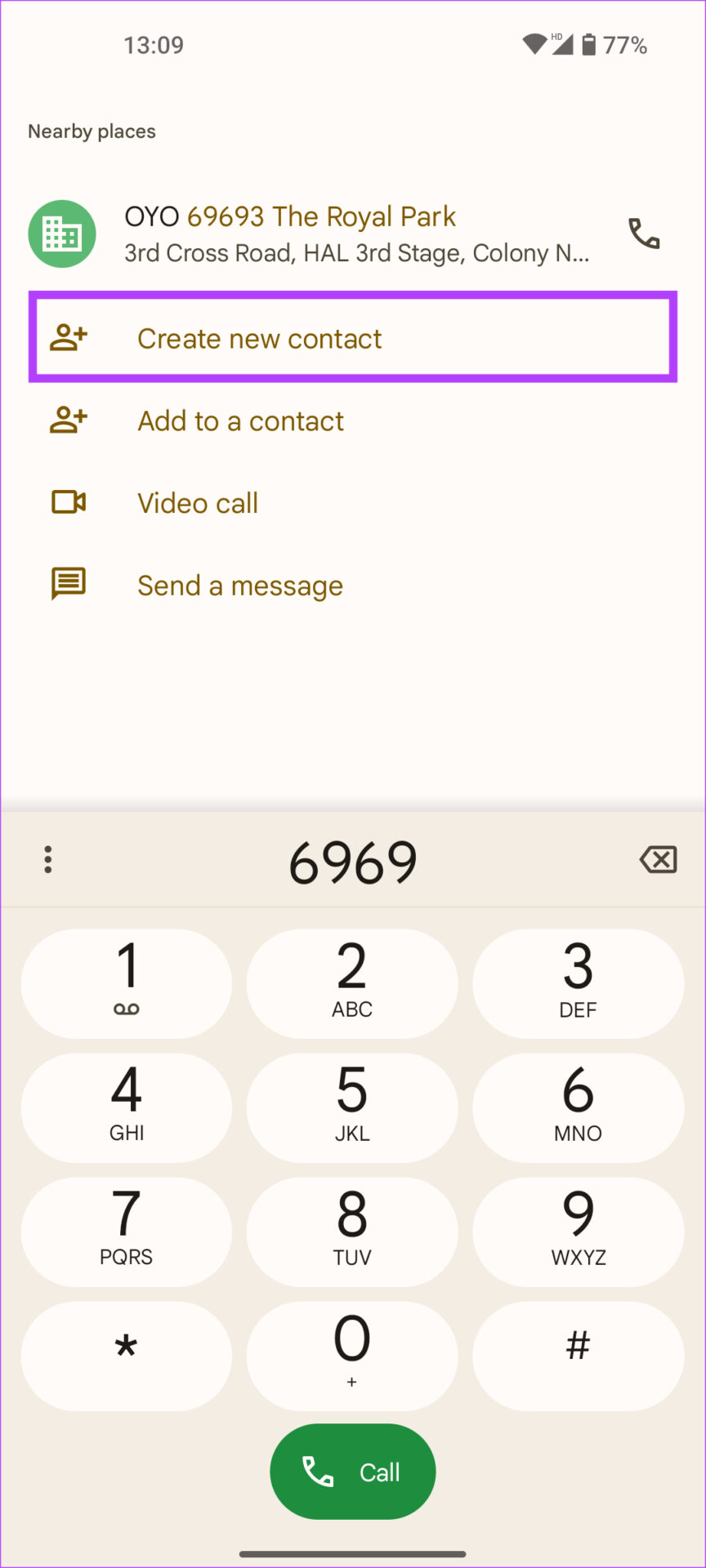
Step 1: Open the Phone app on your Nothing Phone (1). In the dialer, enter any random number and select Create new contact at the top.
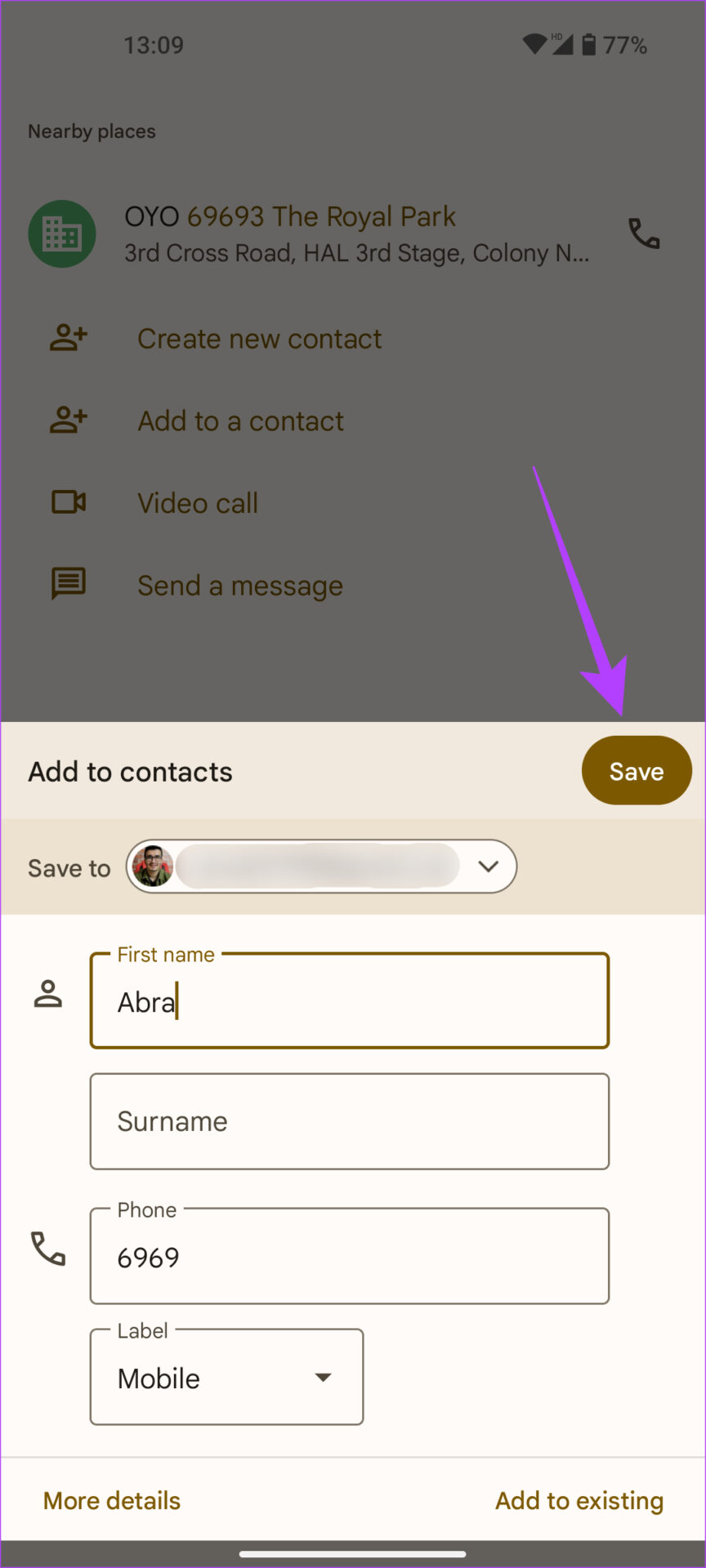
Step 2: When prompted, enter the First name of the contact, and enter Abra . Leave the rest of the fields blank and tap on Save .
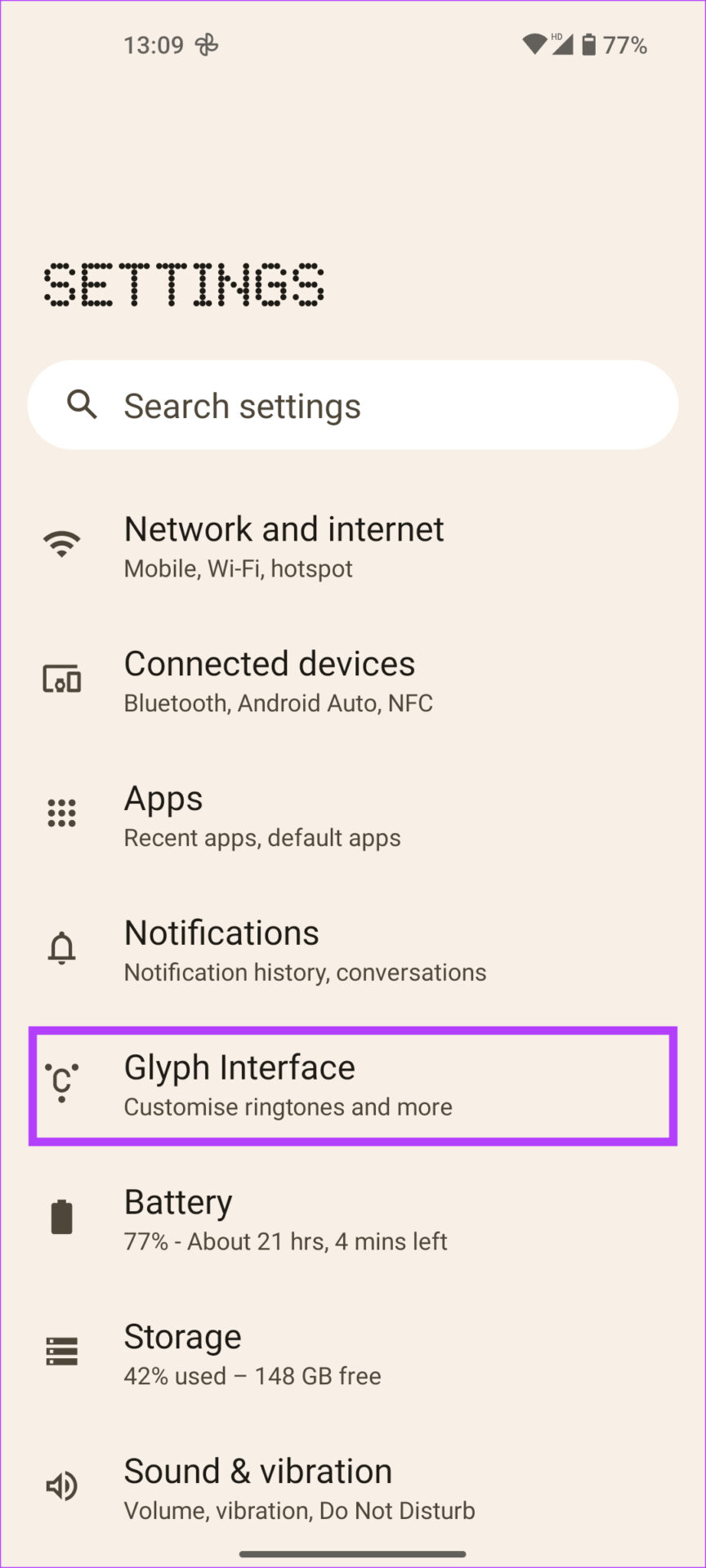
Step 3: Now, open the Settings app and select Glyph Interface .
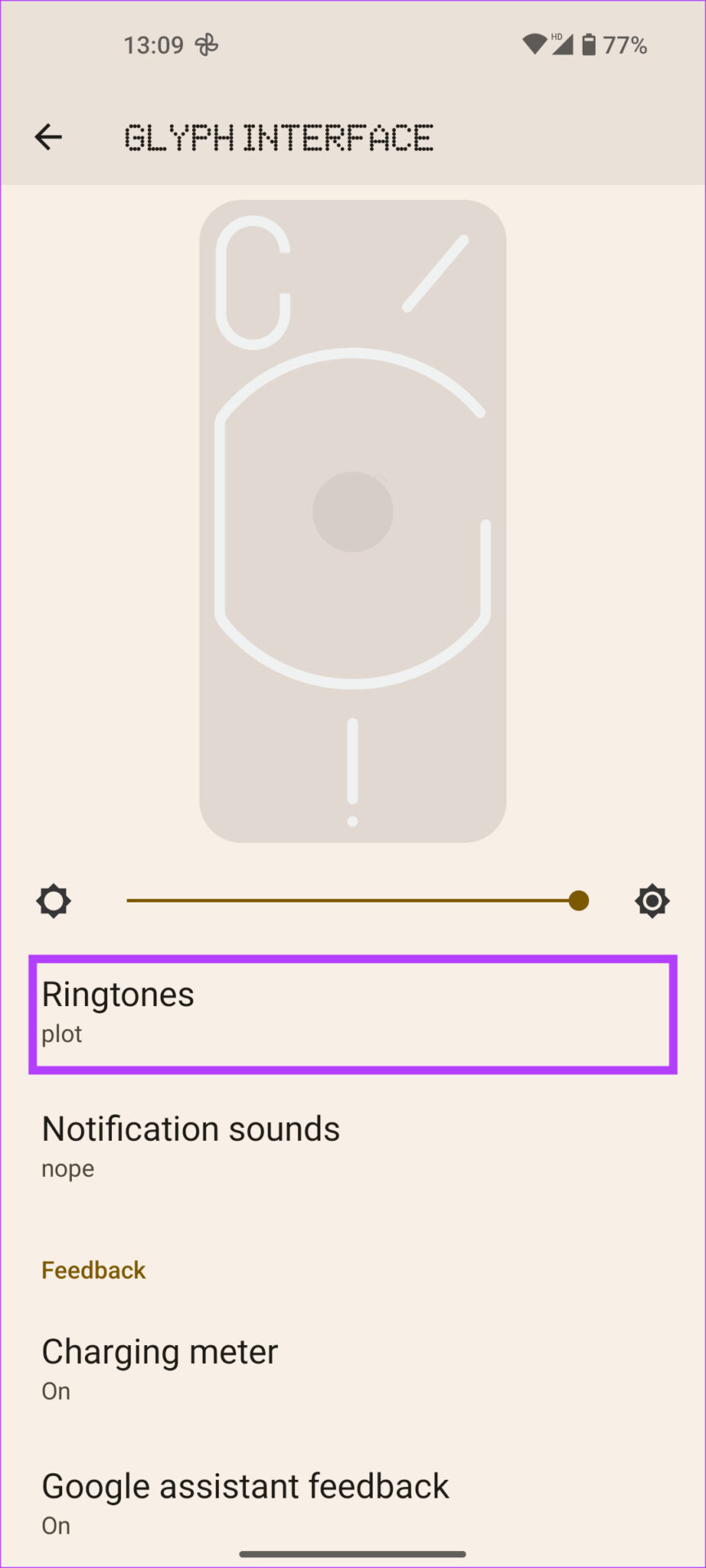
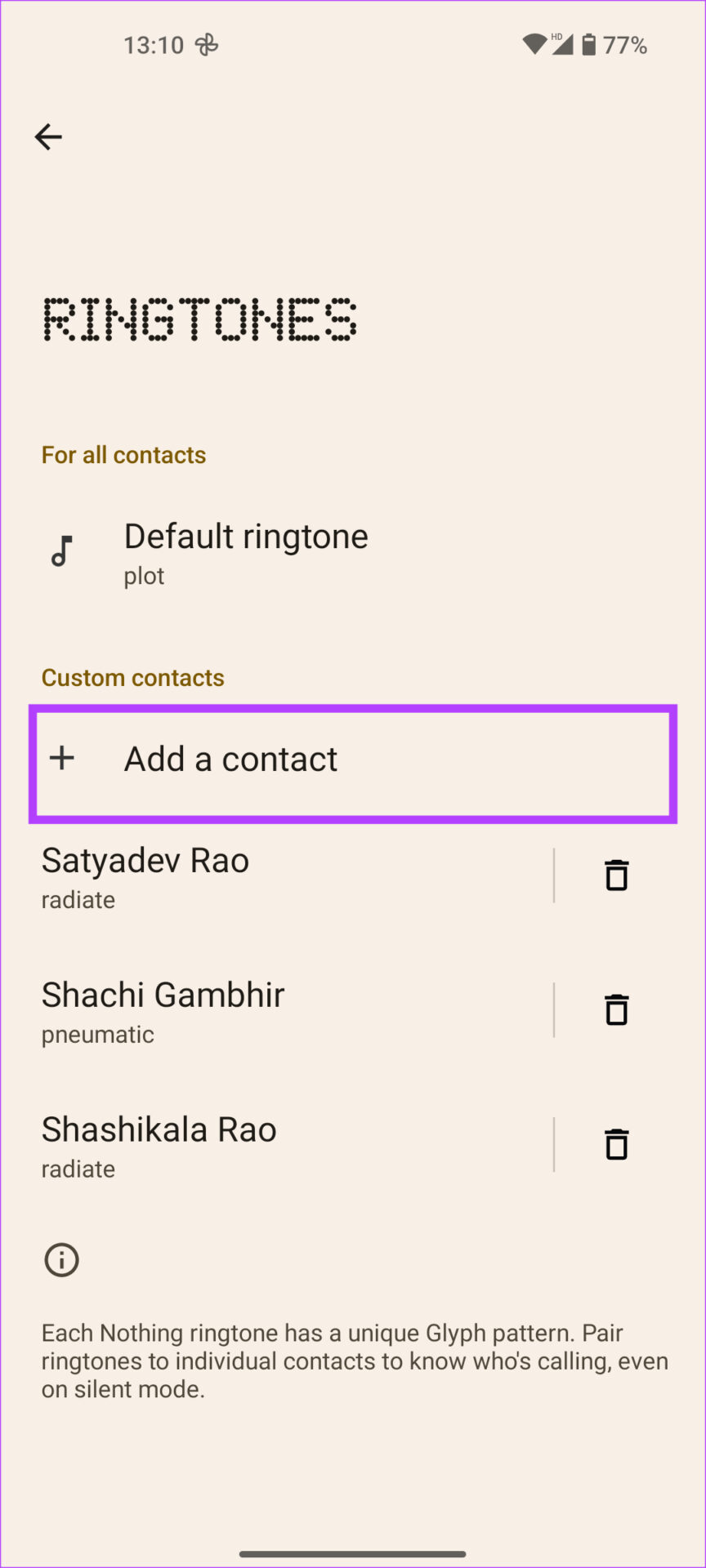
Step 4: Tap on Ringtones and select Add a contact under Custom contacts.
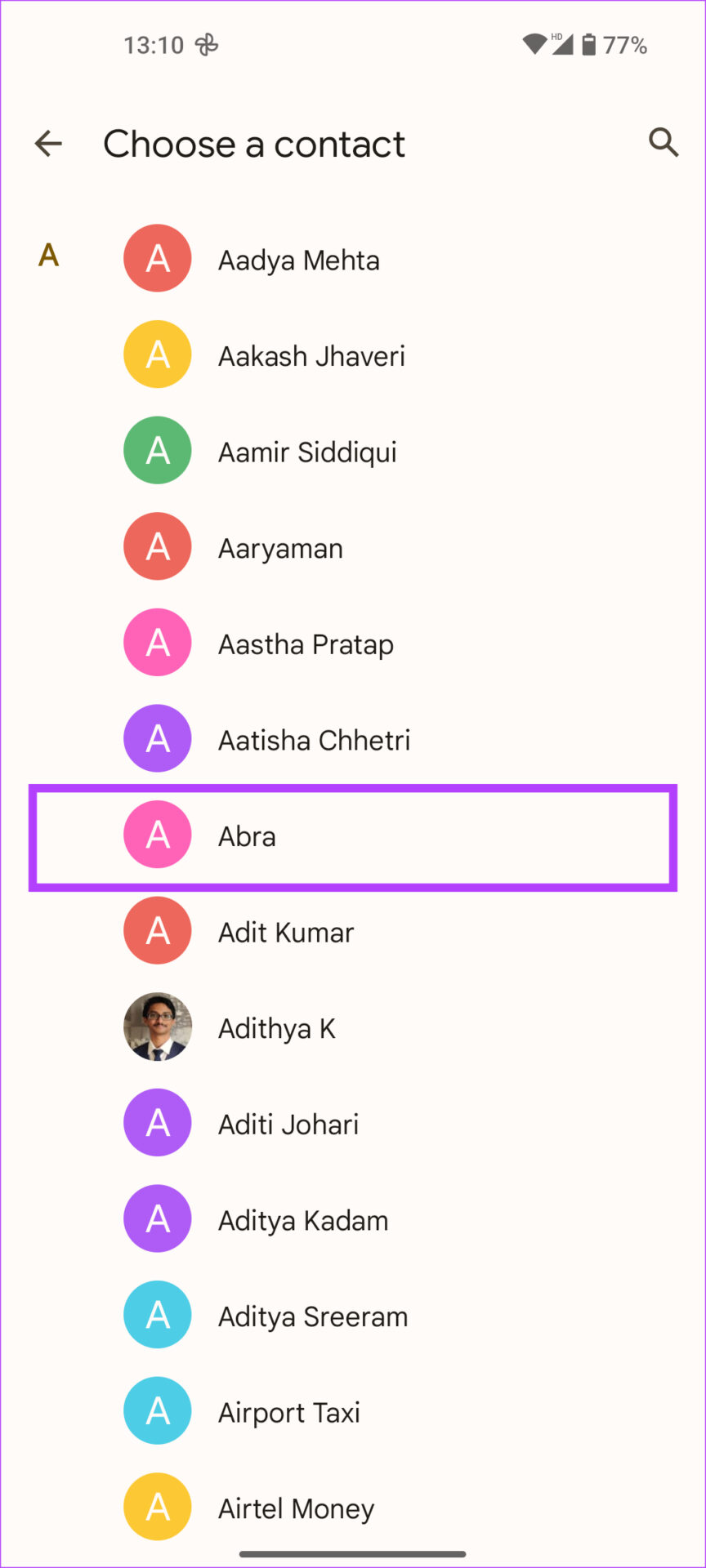
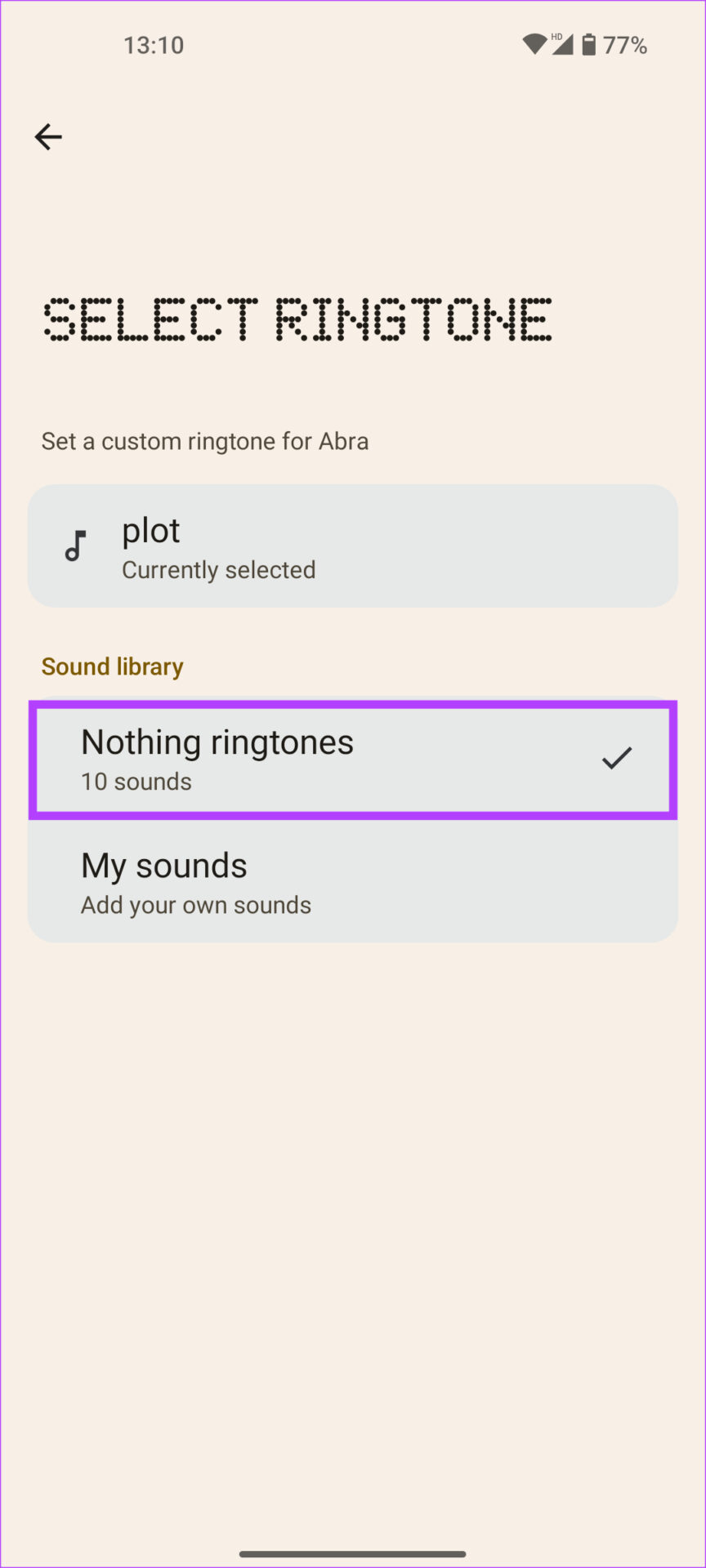
Step 5: When asked to choose a contact, select Abra . Tap on Nothing ringtones . Pick a ringtone and tap on Save to set the ringtone.
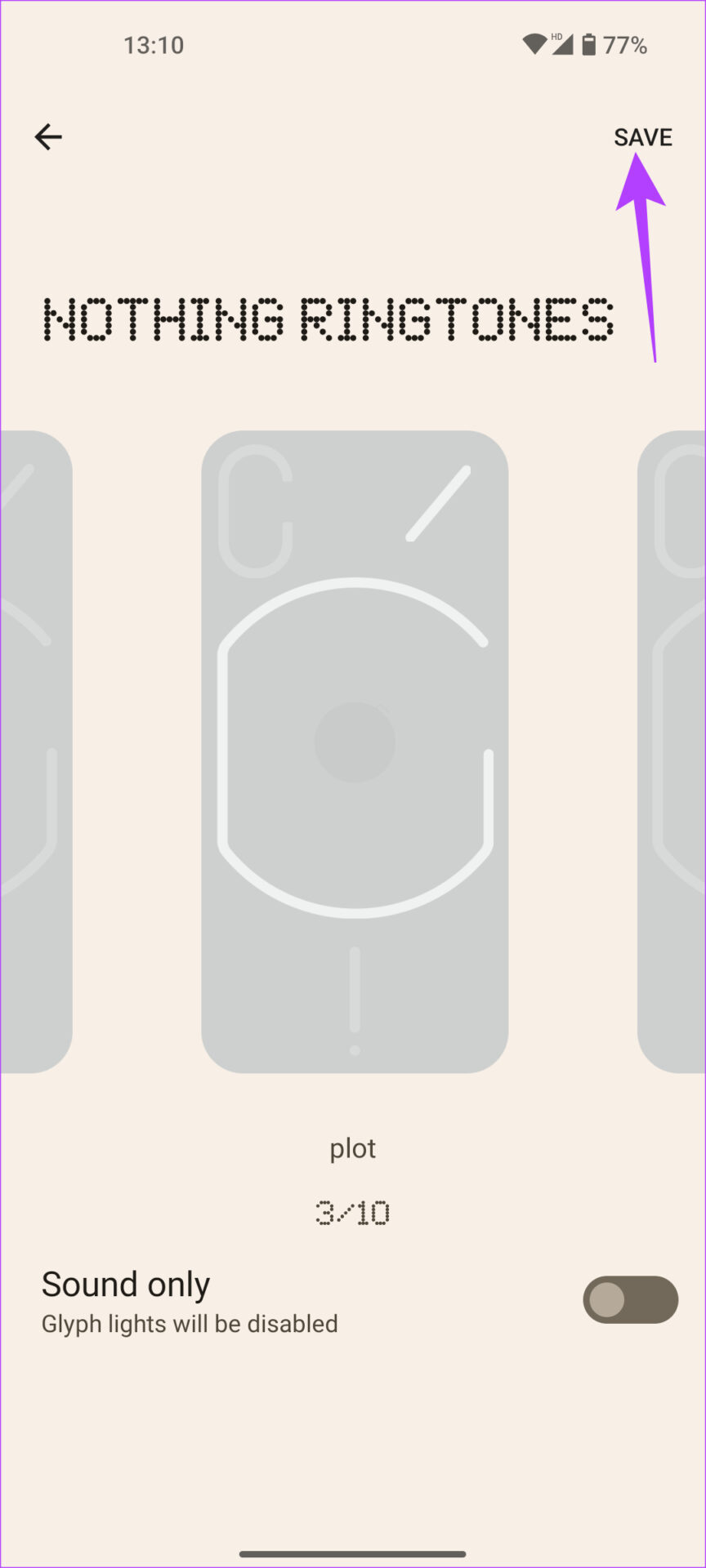
That will unlock the Music Visualization option on your Nothing Phone (1). Next, enable it.
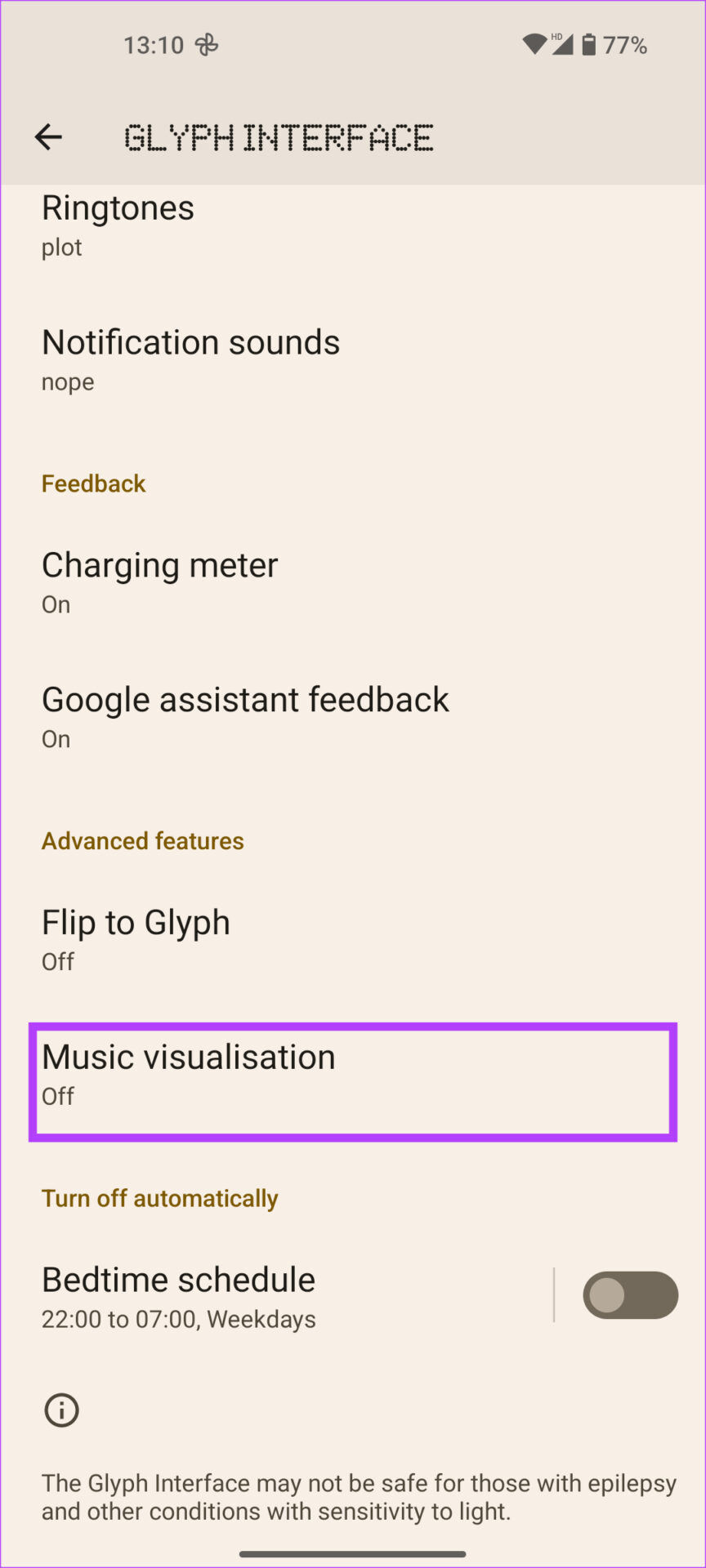
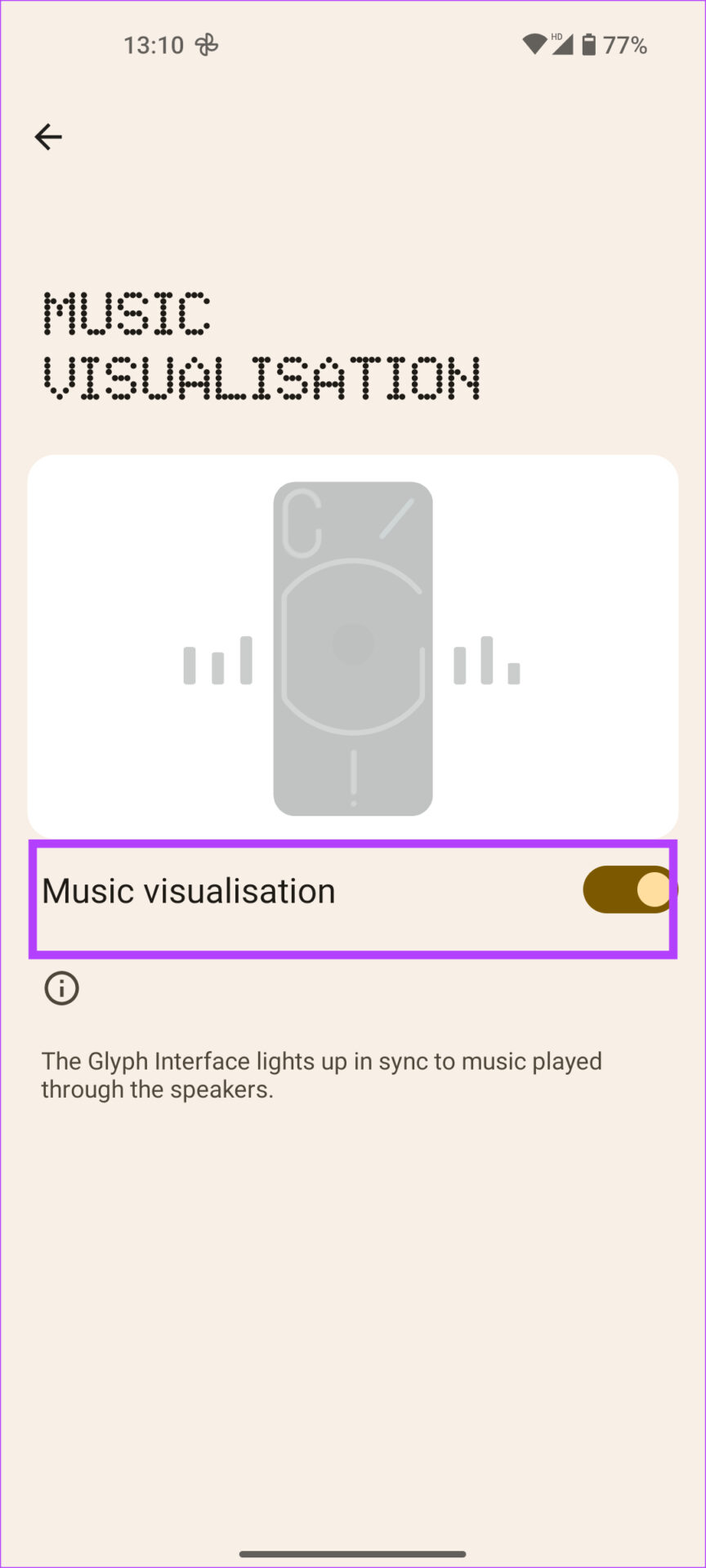
Step 6: Head back into the Glyph Interface settings and tap on Music visualization . Toggle on the feature.
2. Use Glyph Lights in the Camera App
Here’s a practical use case of Glyph lights on Nothing Phone (1). If you click photos in the dark, use the Glyph lights to brighten the scene. They are softer and more diffused than the camera flash, making them a better alternative. They’re also useful when clicking macro shots since they require more light.
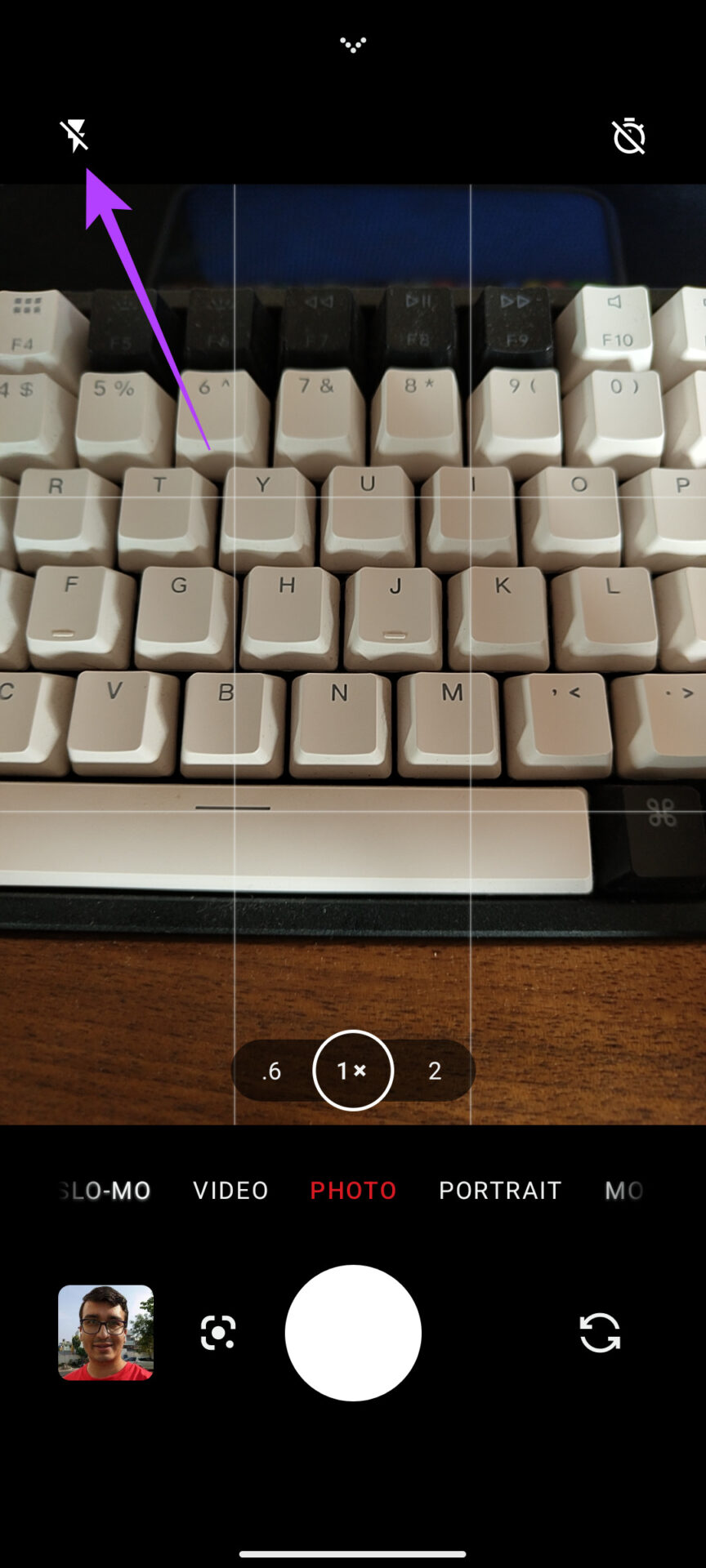
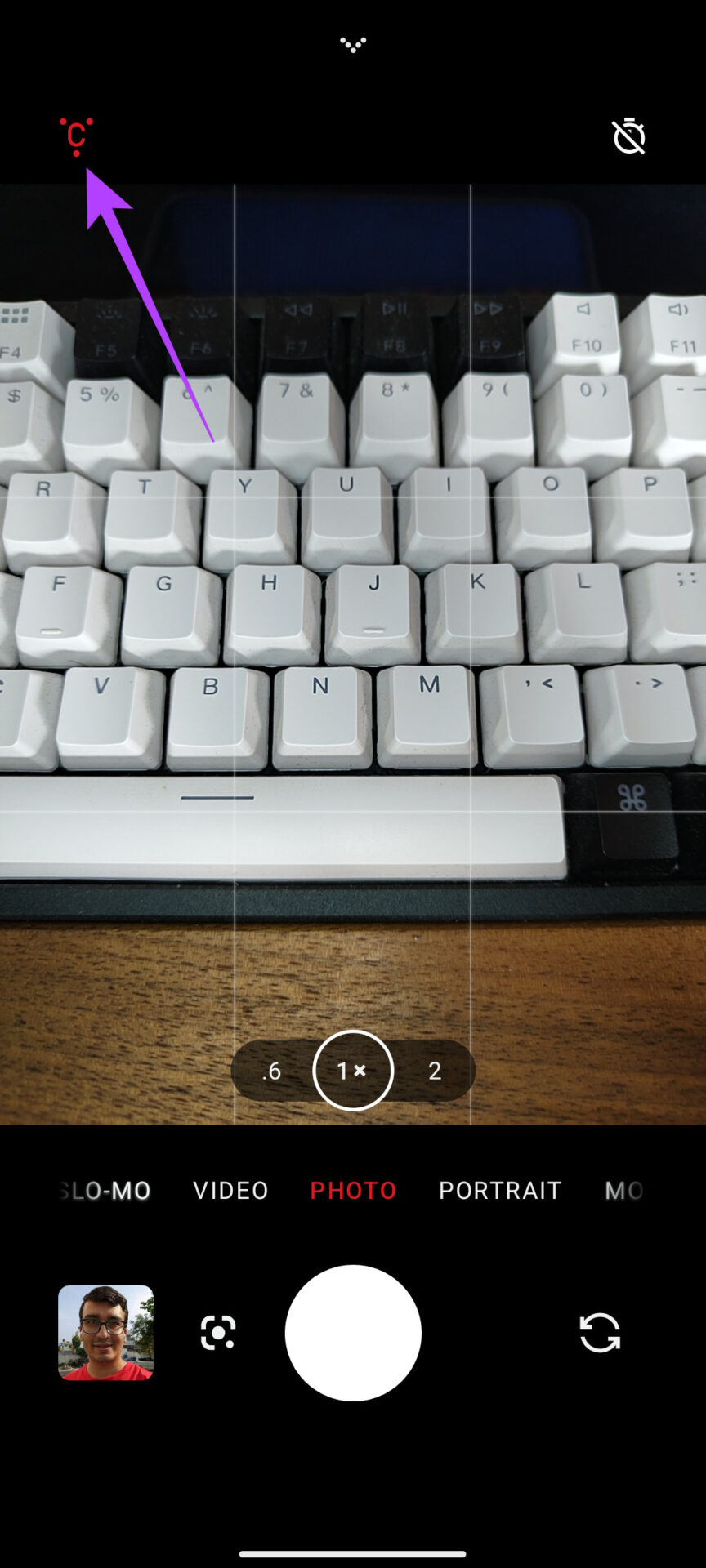
Step 1: Open the Camera app on the Nothing Phone (1). Switch to the mode you want to use and tap on the flash icon at the top-left corner.
Step 2: Tap it multiple times till you arrive at the Glyph lighting mode.
3. Always On Display
If you haven’t used Always On display before, it’s a feature that keeps your phone’s screen, no points for guessing, always on. You can frequently check the time, date, pending notifications, etc.
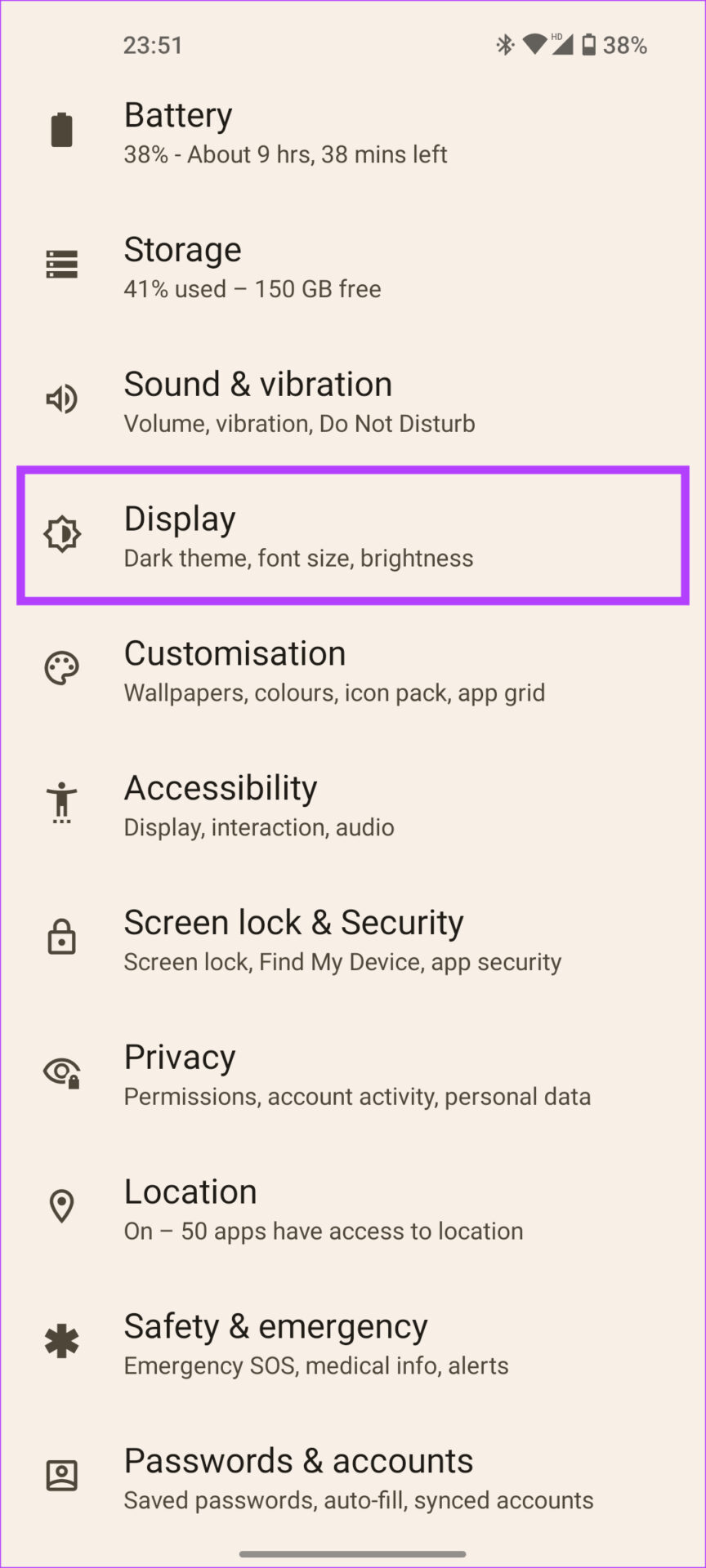
Step 1: Open the Settings app on your phone and navigate to Display .
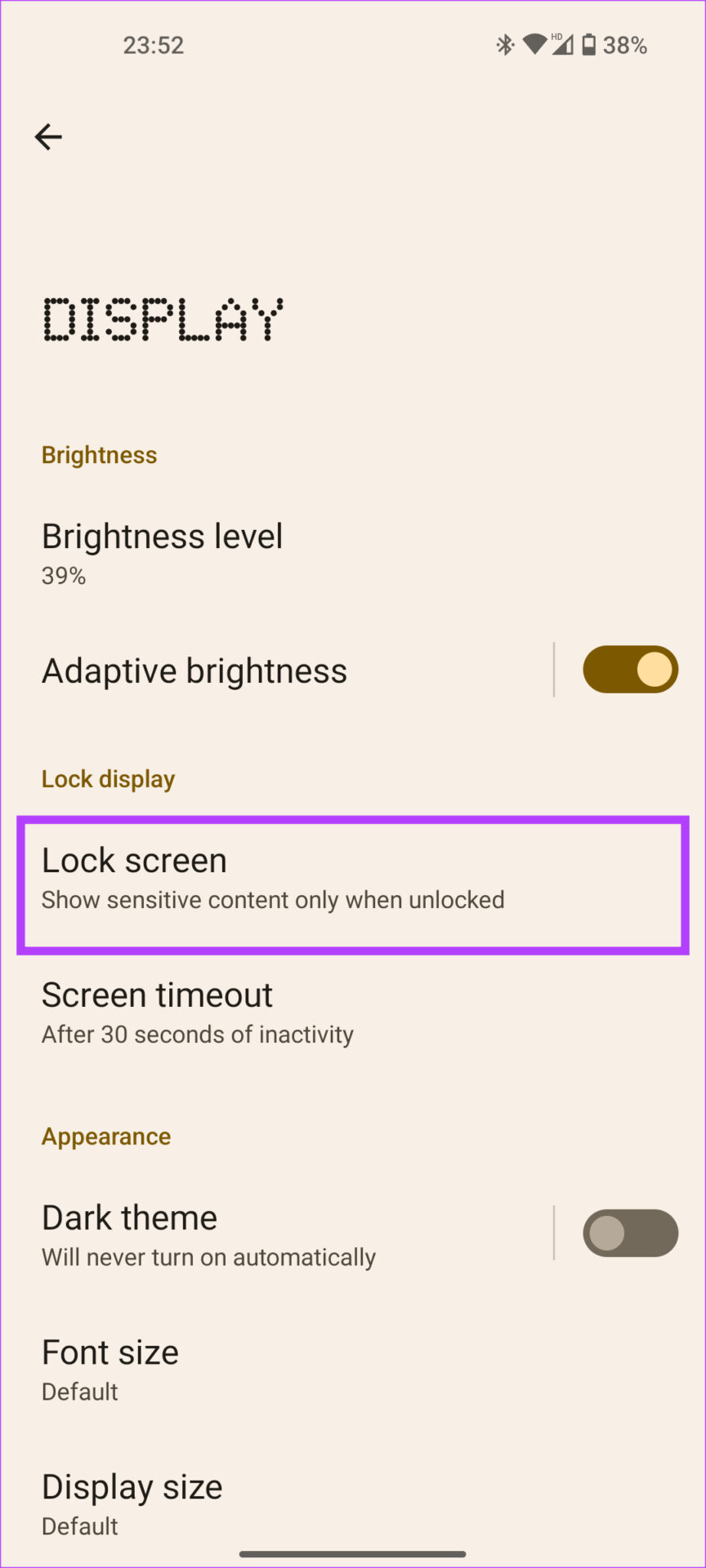
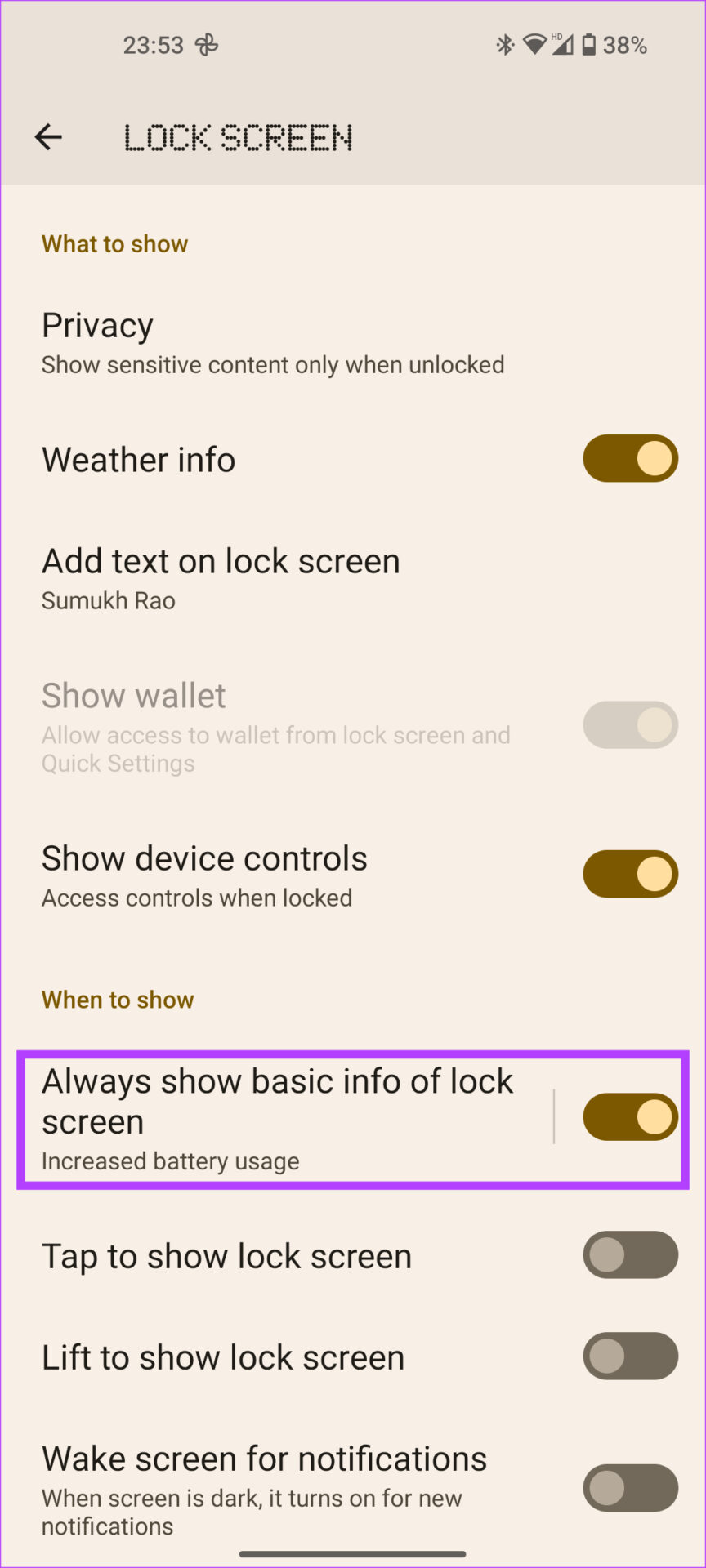
Step 2: Tap on Lock screen and toggle on Always show basic info of lock screen .
4. Show the Fingerprint Scanner Icon
The Nothing Phone (1) has an in-display fingerprint scanner to unlock the device. When the screen is turned off, it can be difficult to locate the fingerprint scanner. So, Nothing has given the option to show the fingerprint icon every time we move the phone slightly. This makes it easy to find the scanner and unlock the phone. Here’s how to enable it.
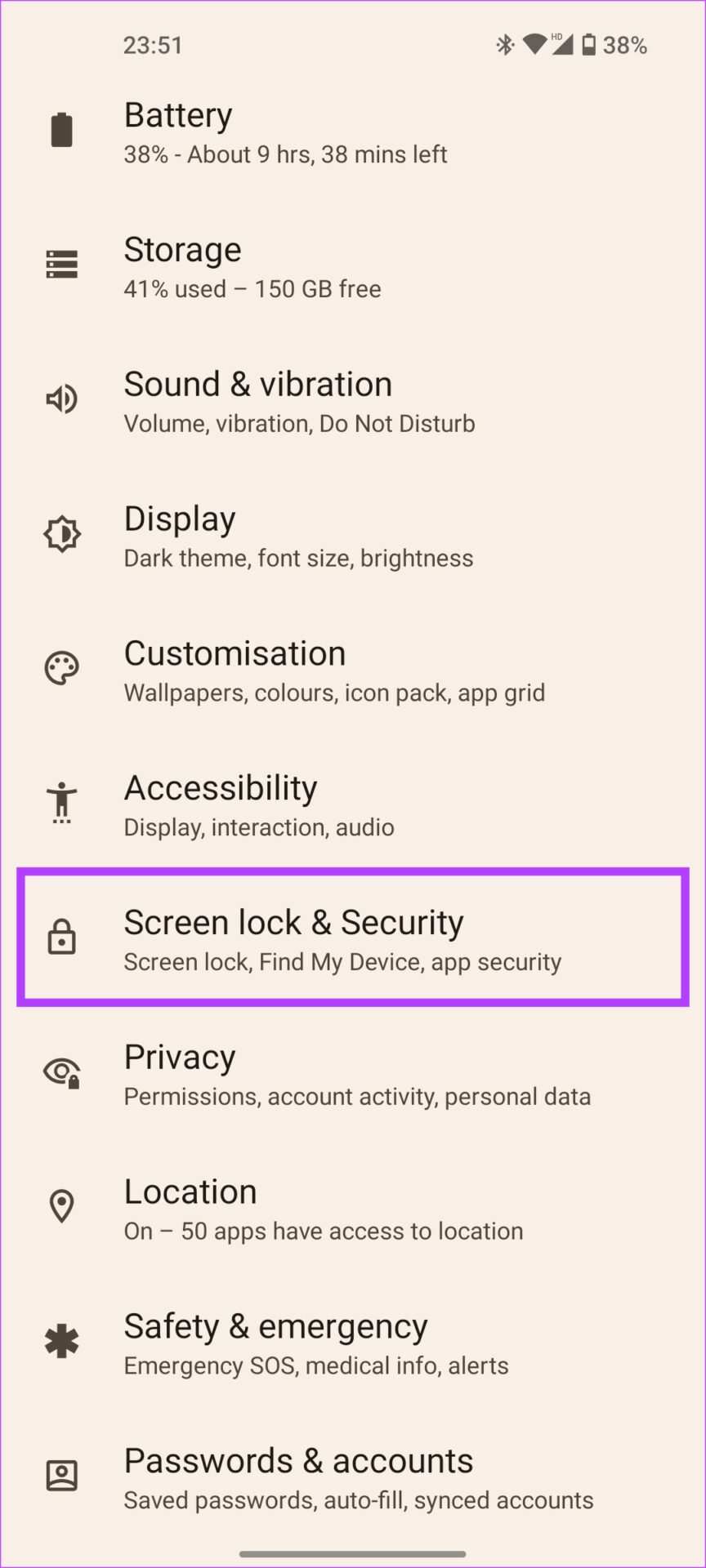
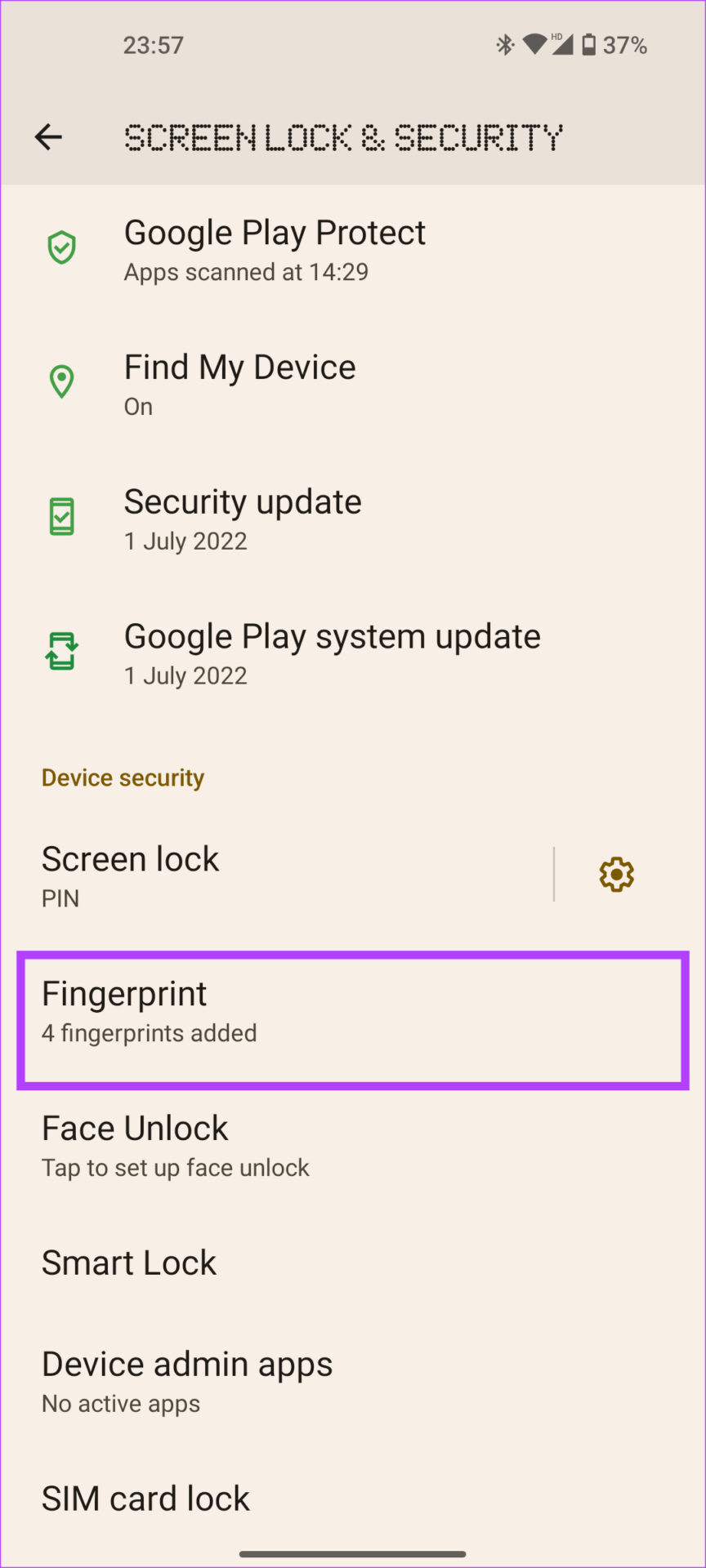
Step 1: Open the Settings app on your phone and navigate to Screen lock & Security .
Step 2: Tap on Fingerprint and enter your PIN to access the menu.
Step 3: Enable the toggle for Show fingerprint icon .
5. Link and Control Your Tesla
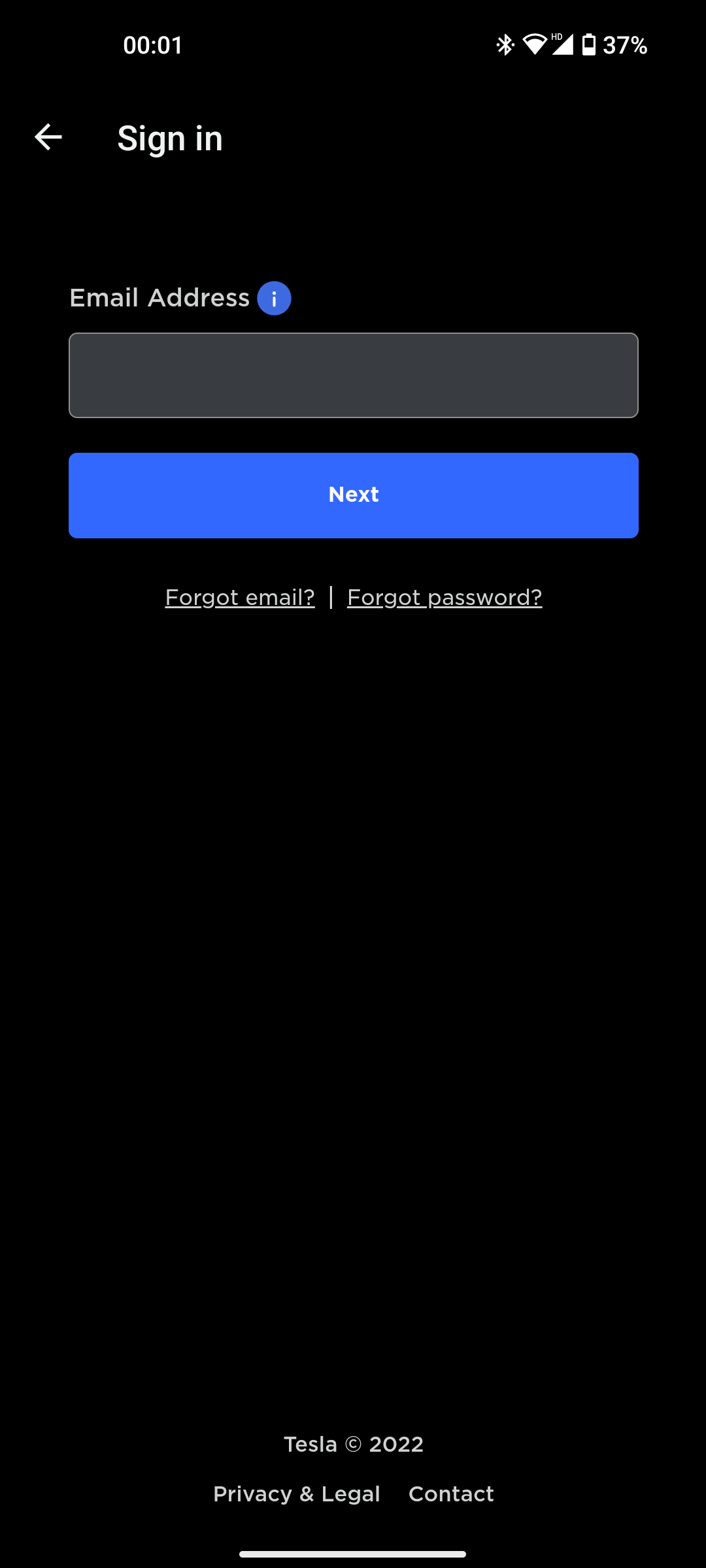
Nothing has worked with Tesla to integrate a feature into the Nothing Phone (1) that natively allows you to control your car from the phone. If you have a Tesla, here’s how to set this up.
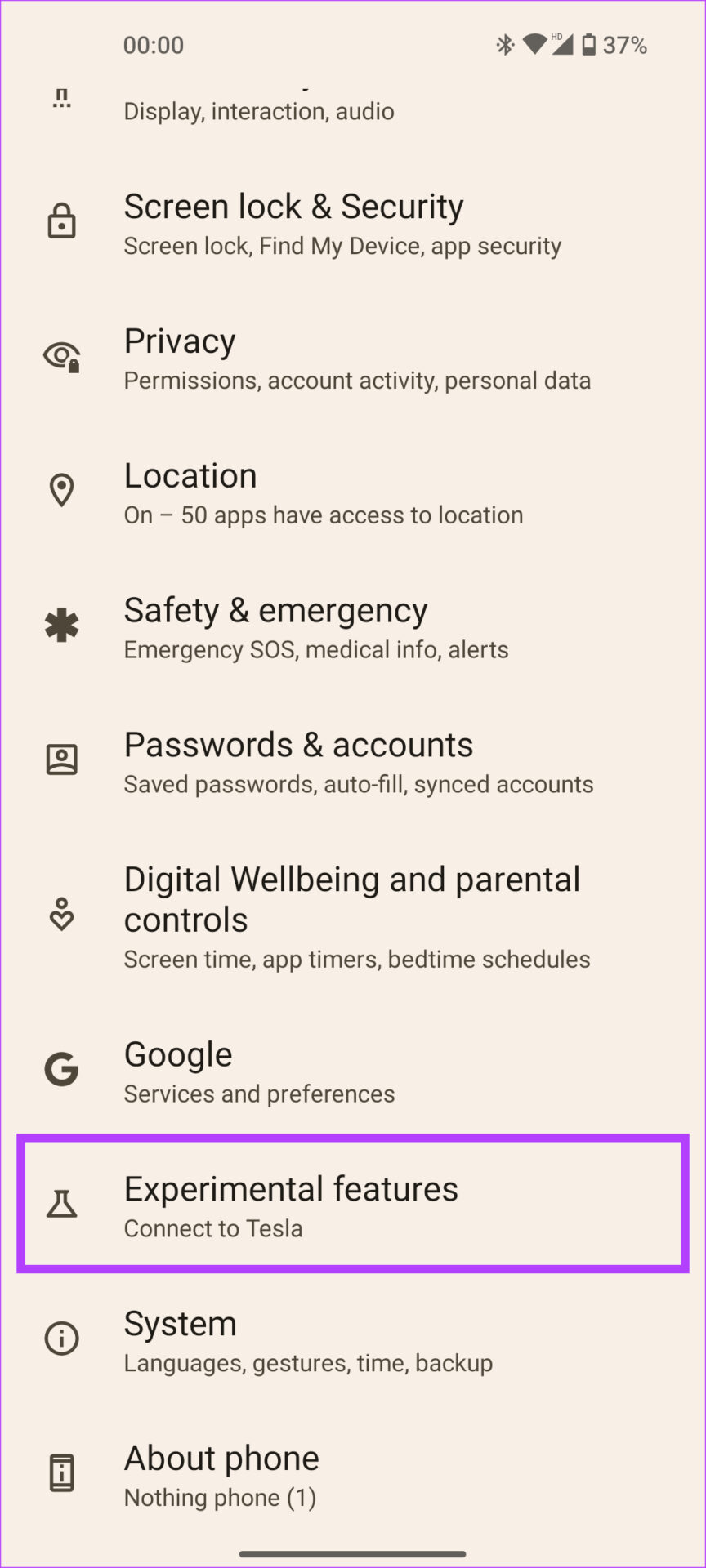
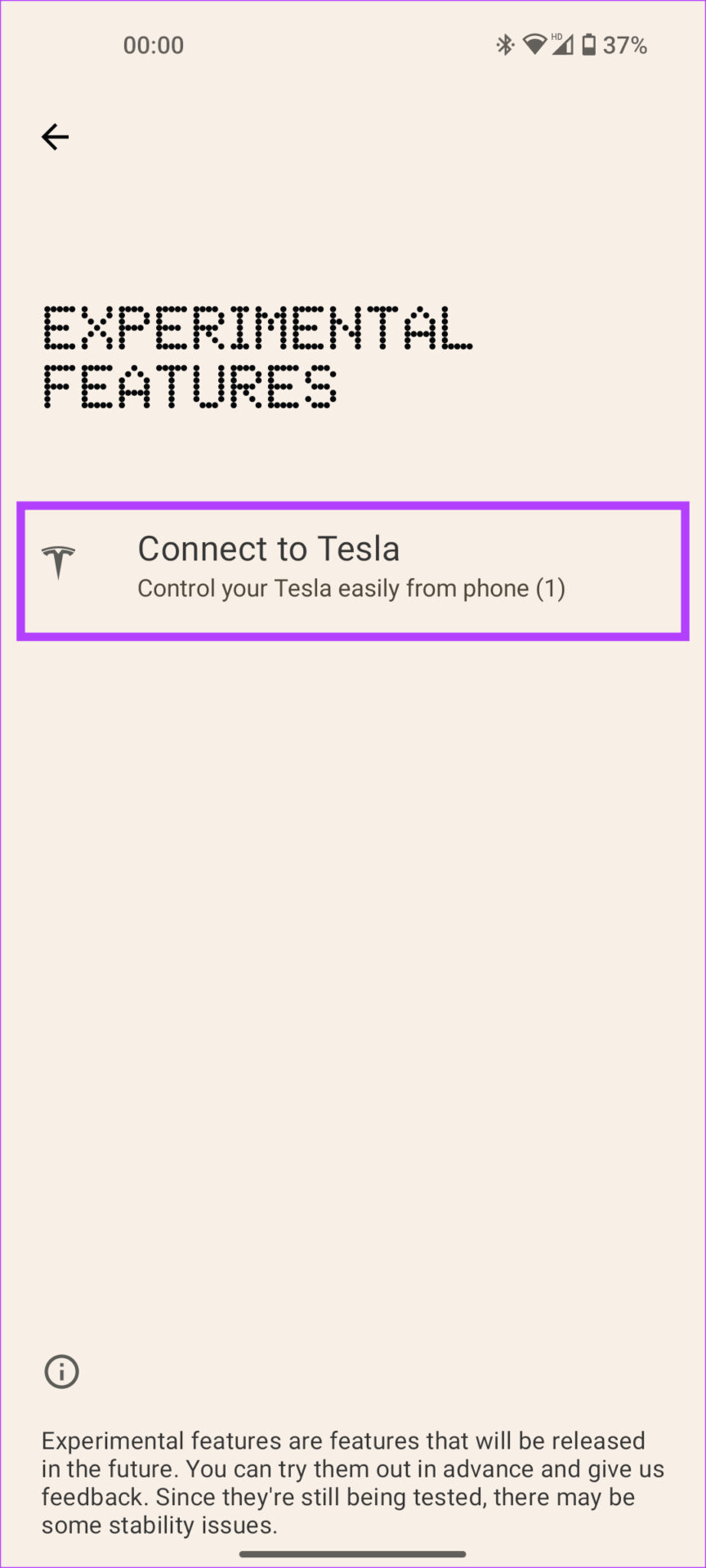
Step 1: Open the Settings app and go to Experimental features . Select Connect to Tesla .
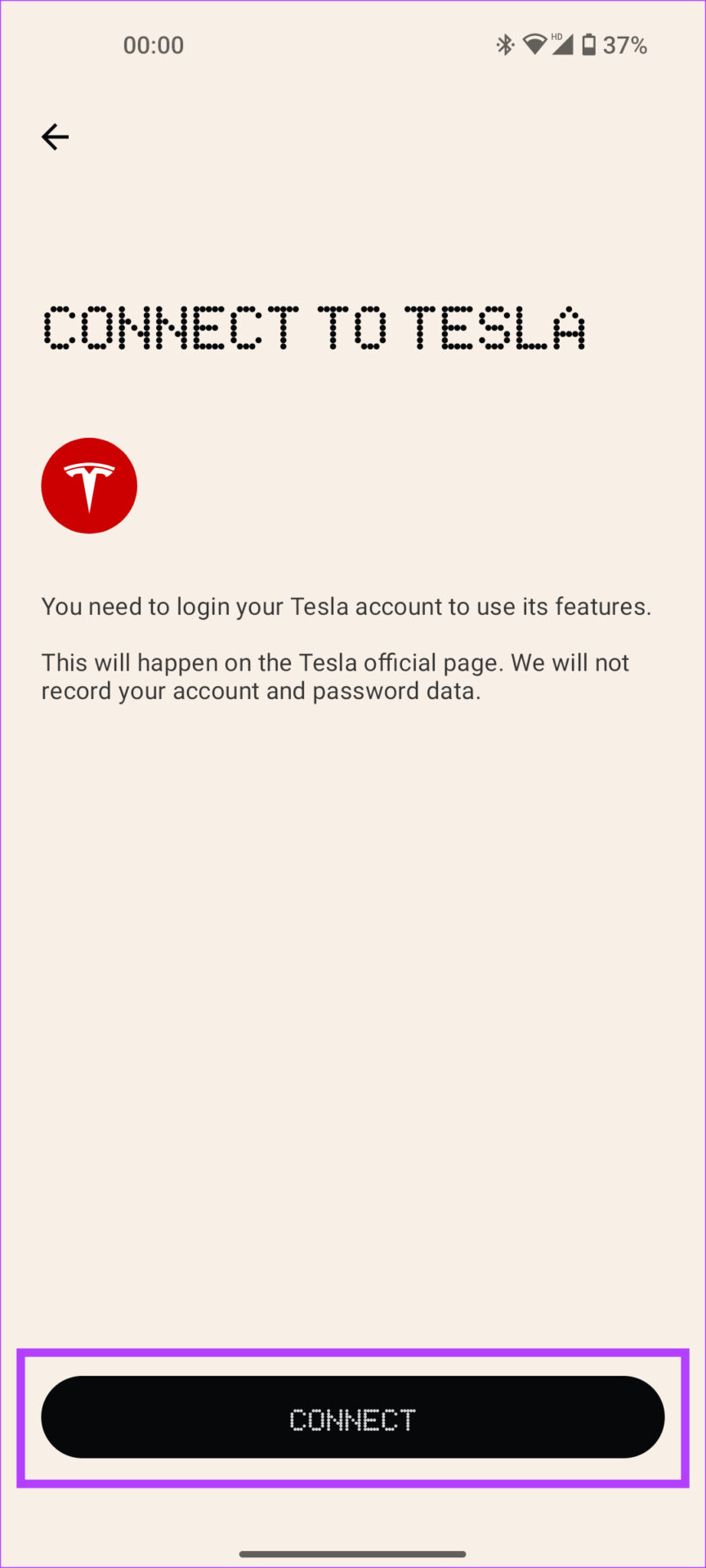
Step 2: Tap on Connect once again and log in with your Tesla account.
6. Customize the Home Screen and UI
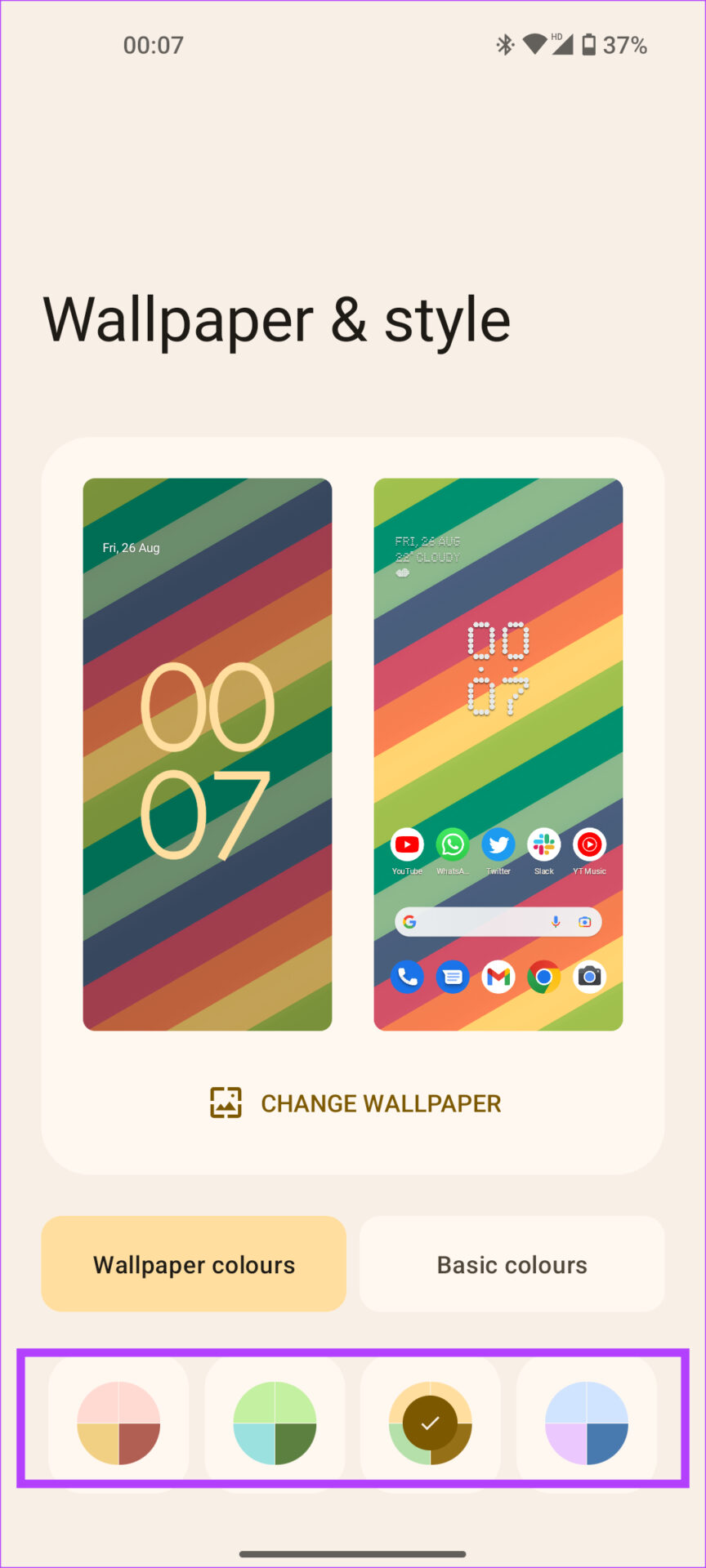
Android 12 introduced the Material You design language, with colors across the UI matching the wallpaper in use. The Nothing Phone (1) allows you to change the UI colors and use custom icon packs in the launcher.
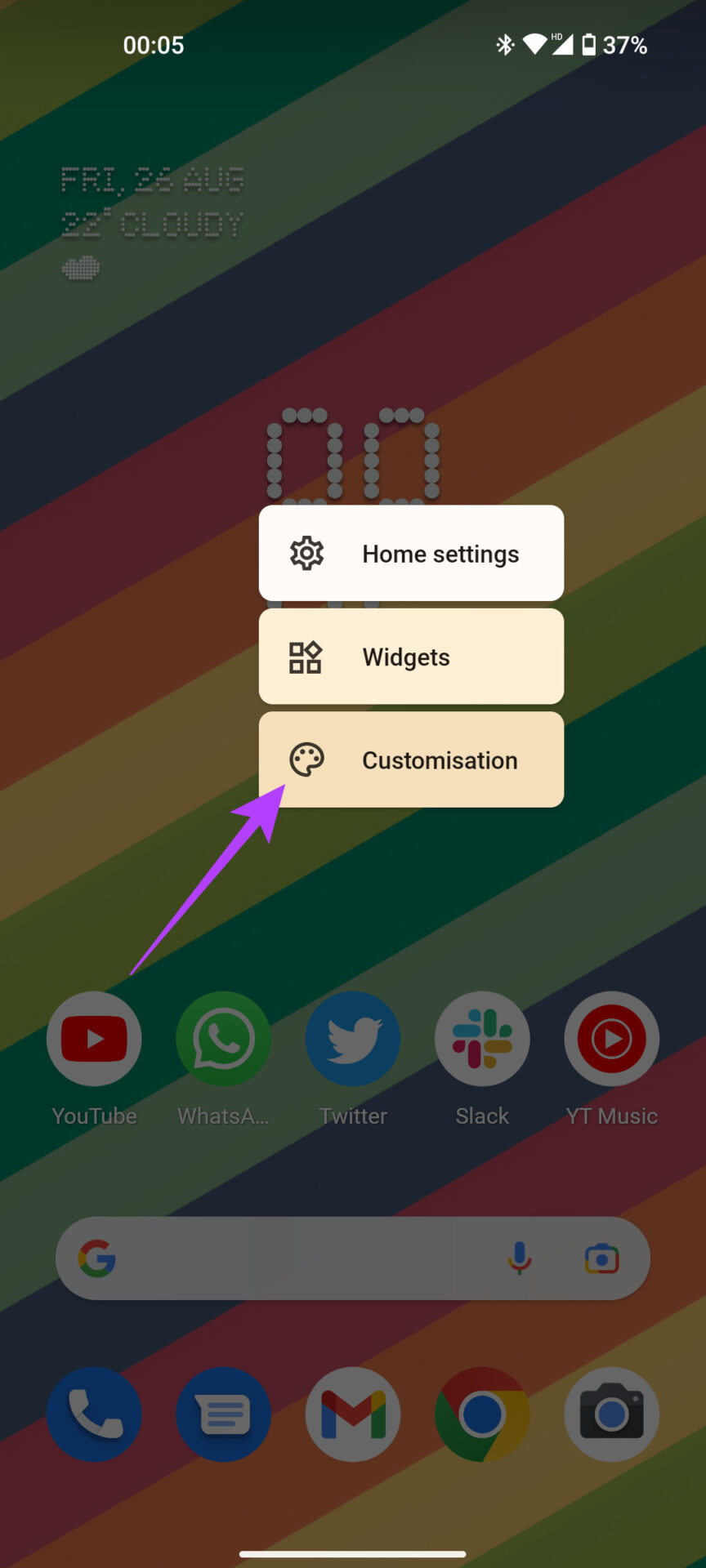
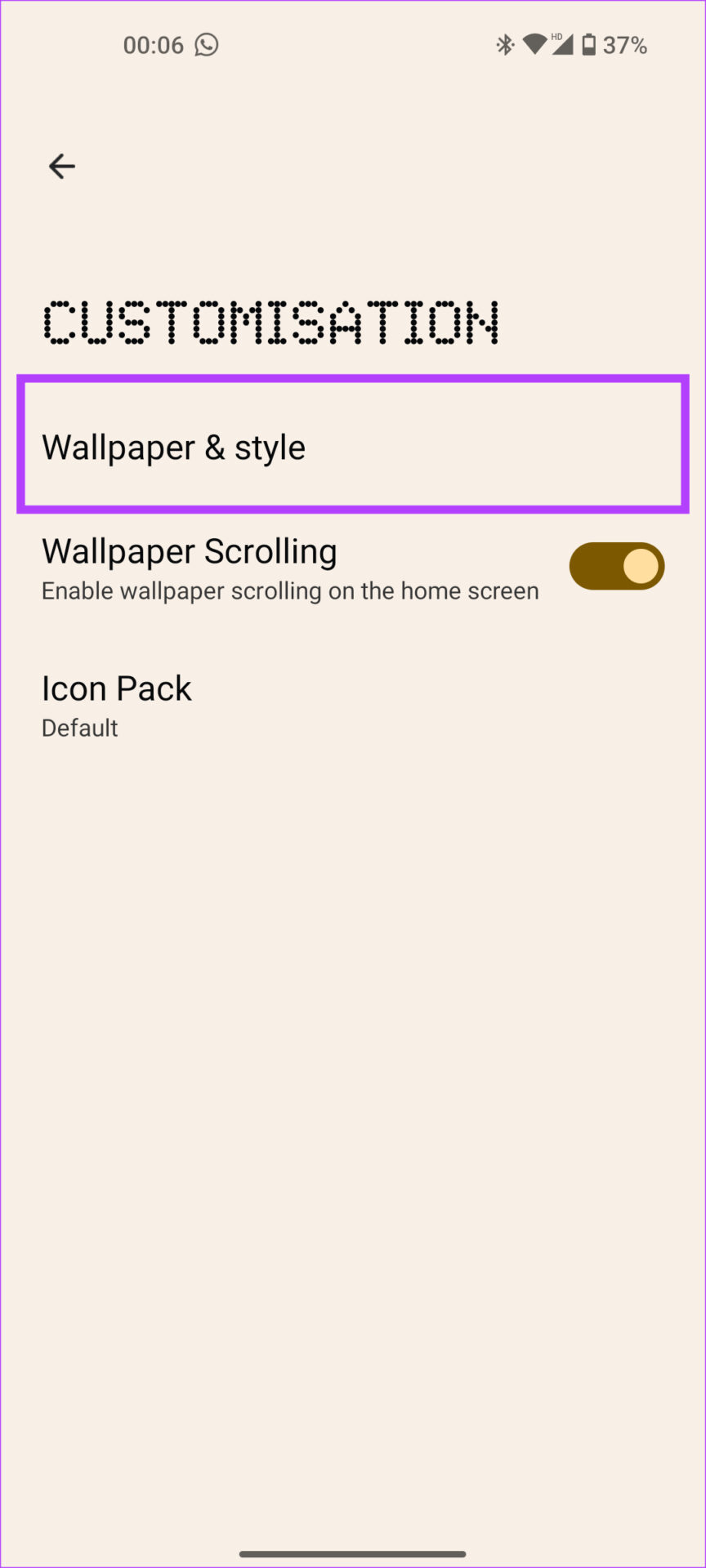
Step 1: Long-press on any empty space on your home screen and select Customization . Tap on Wallpaper & style .
Step 3: You can see a color palette at the bottom. Choose the one you like the most, and it will be set across the UI.
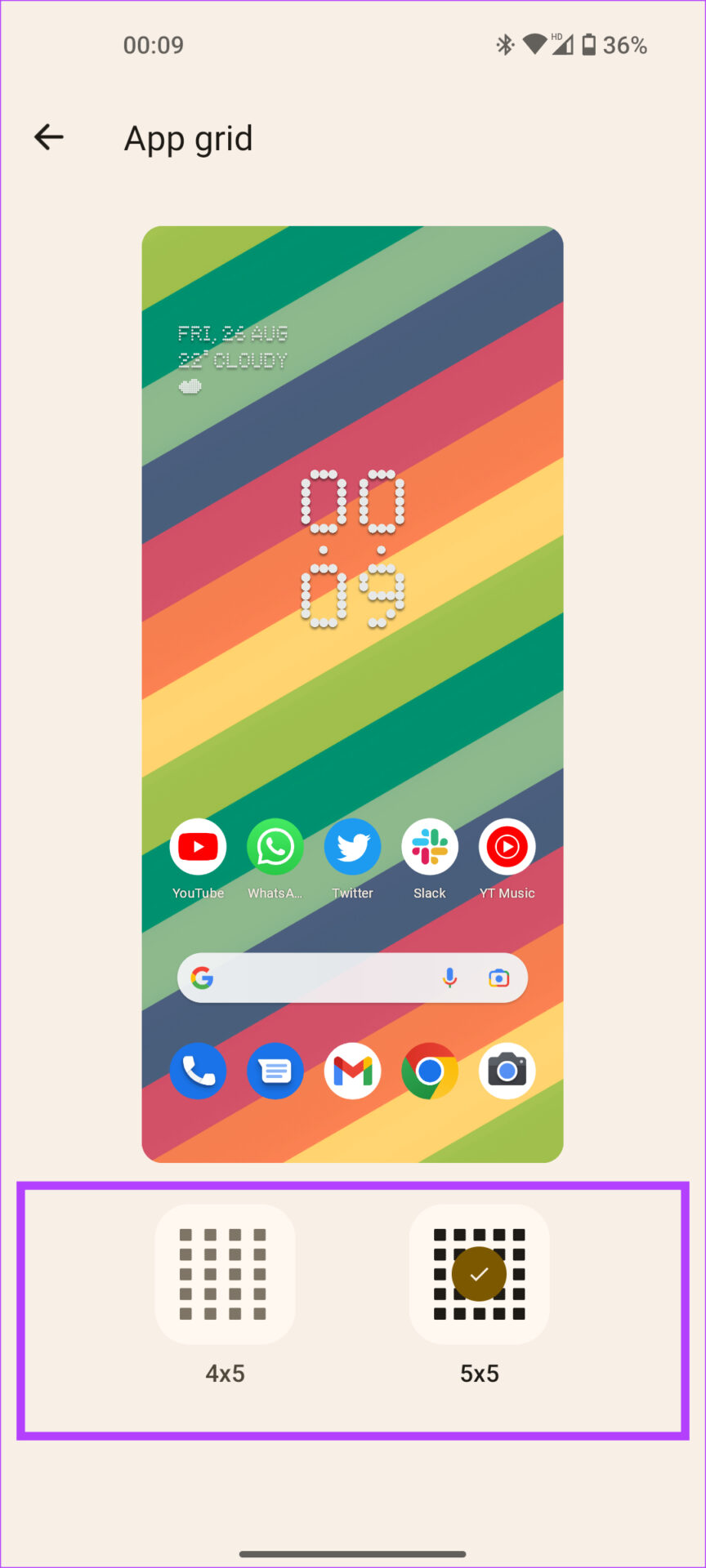
Step 4: Scroll down and tap on App grid . You can choose the number of apps you want to see on the Home Screen.
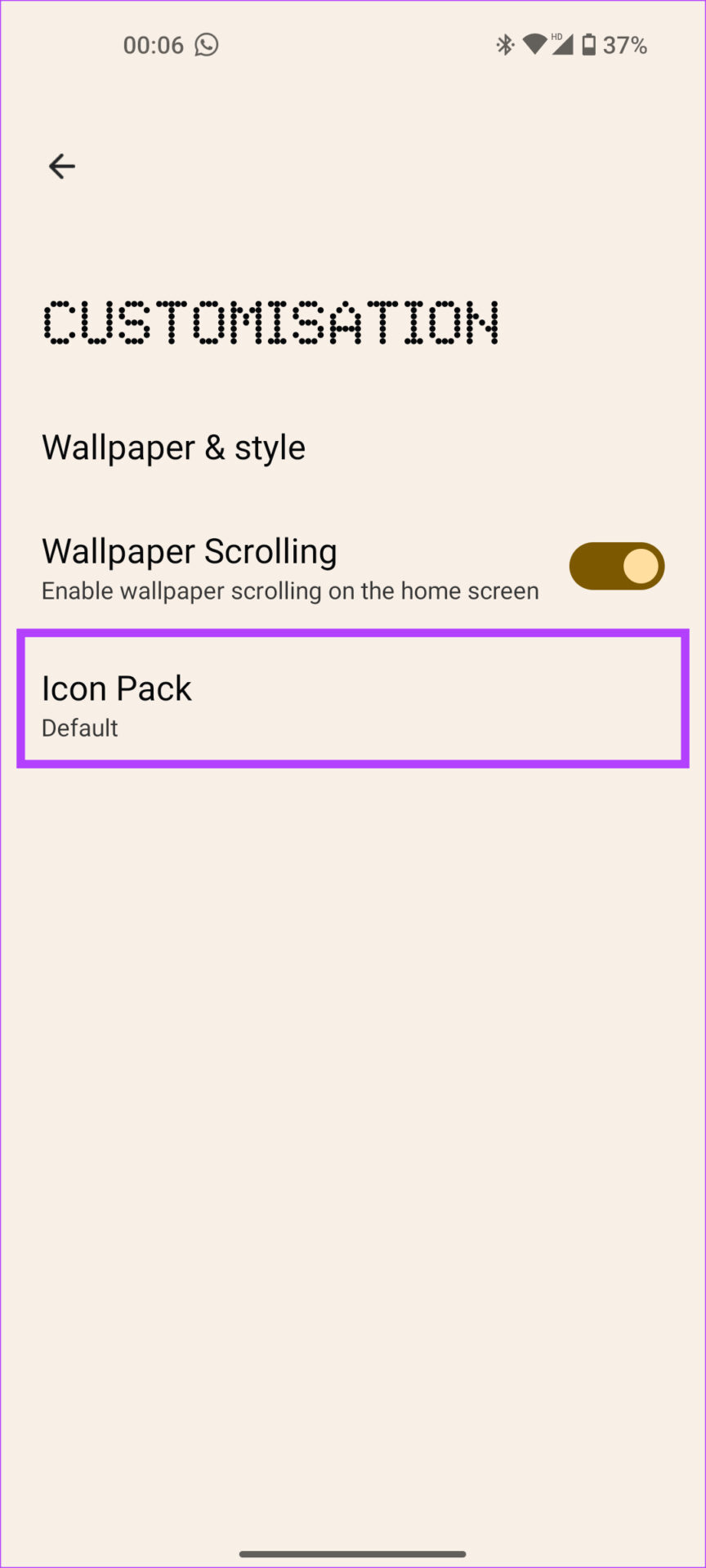
Step 5: If you wish to change how your icons look, select the Icon Pack option.
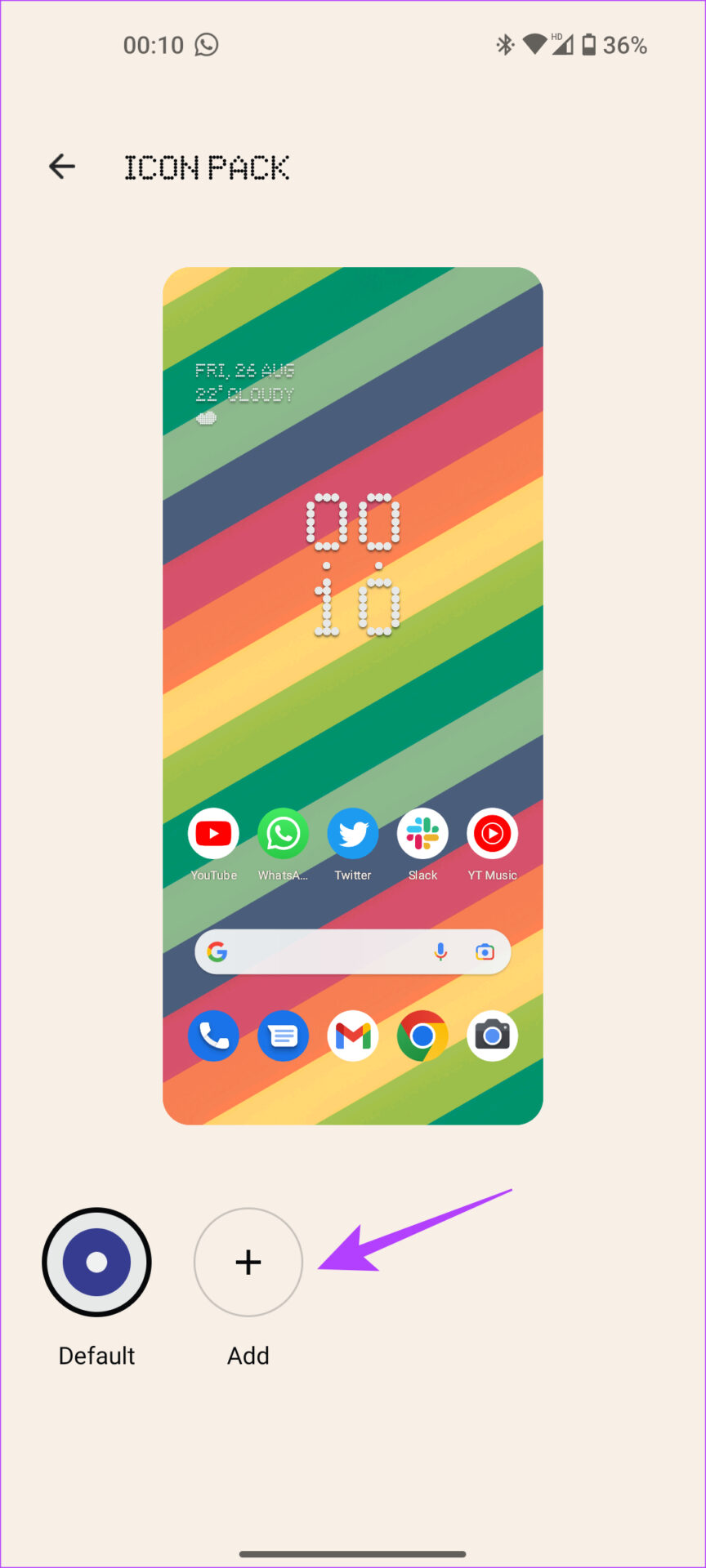
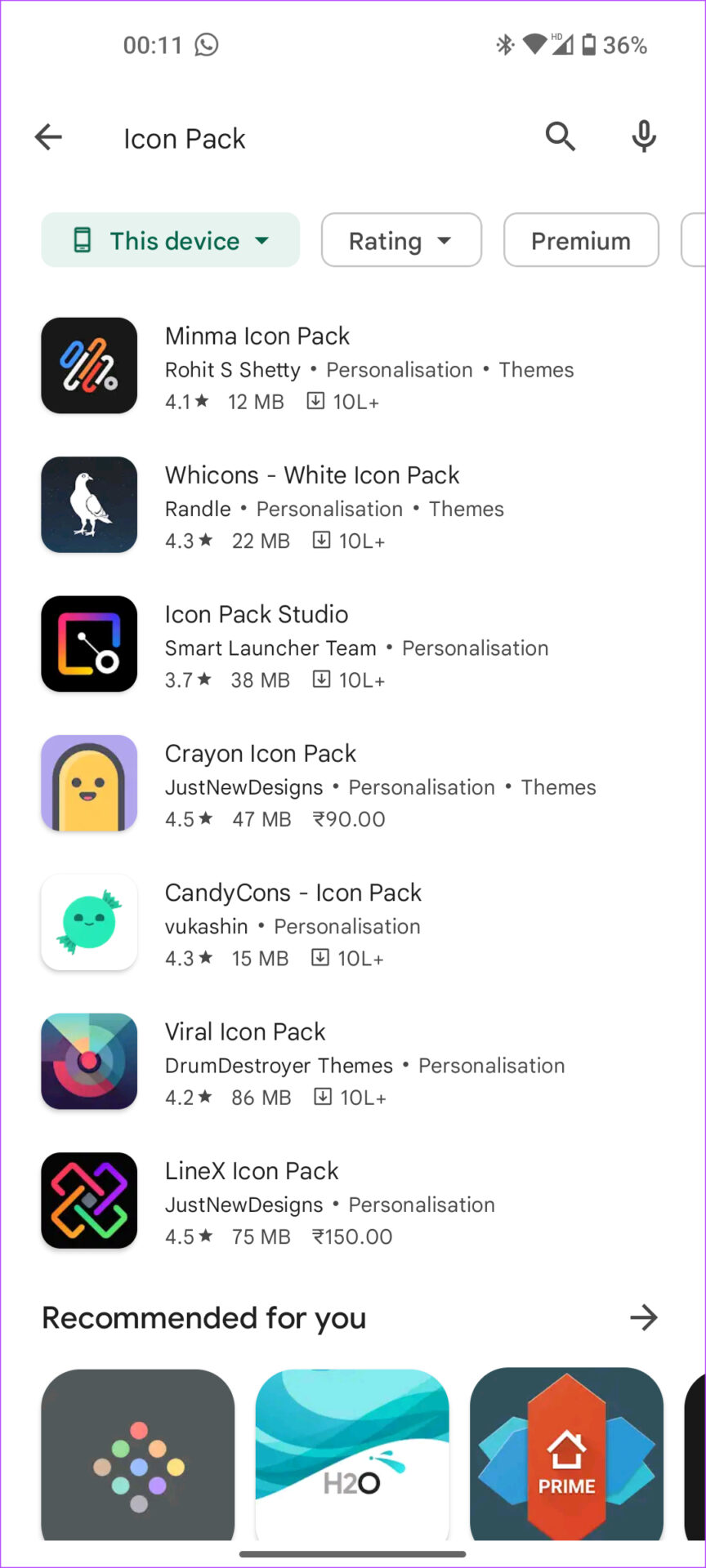
Now, you can select an icon pack that you’ve already installed or tap on the Add button to see the list of icon packs on the Play Store.
7. Use Game Mode While Gaming
Smartphone gaming is more popular than ever. If you spend long hours on COD mobile or enjoy the visuals on Genshin Impact on your Nothing Phone (1), do it with the Game Mode enabled. This will help keep distractions at bay while gaming.
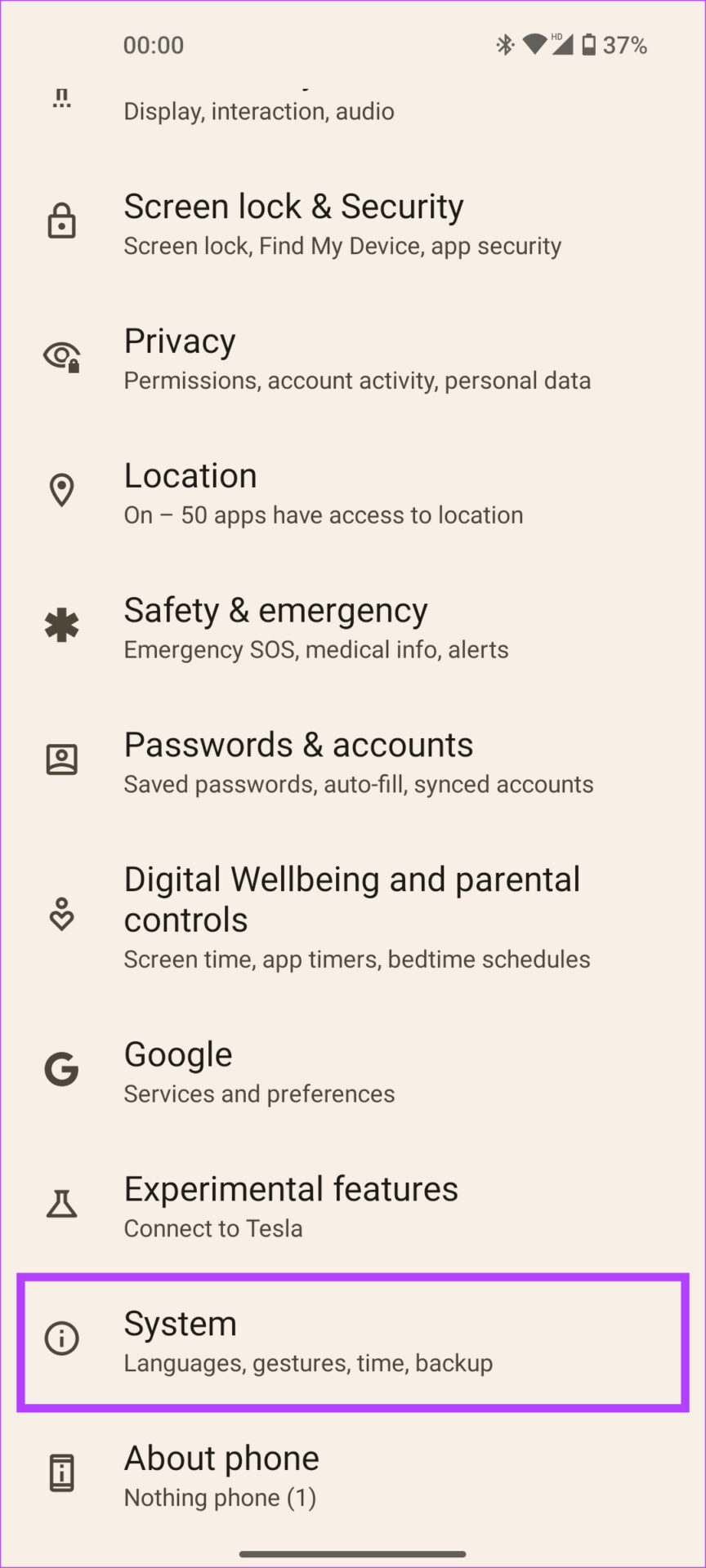
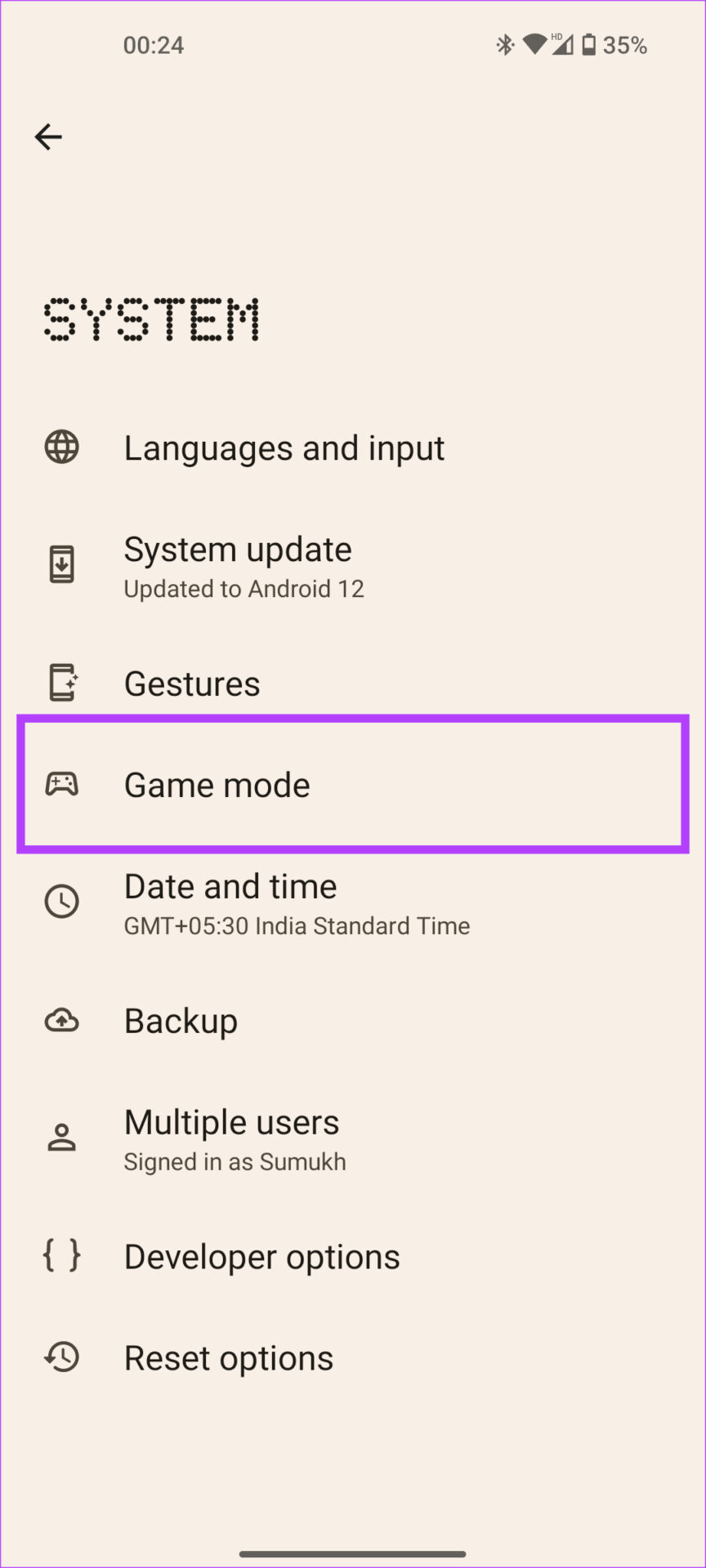
Step 1: Open Settings on your phone and go to System . Select Game mode .
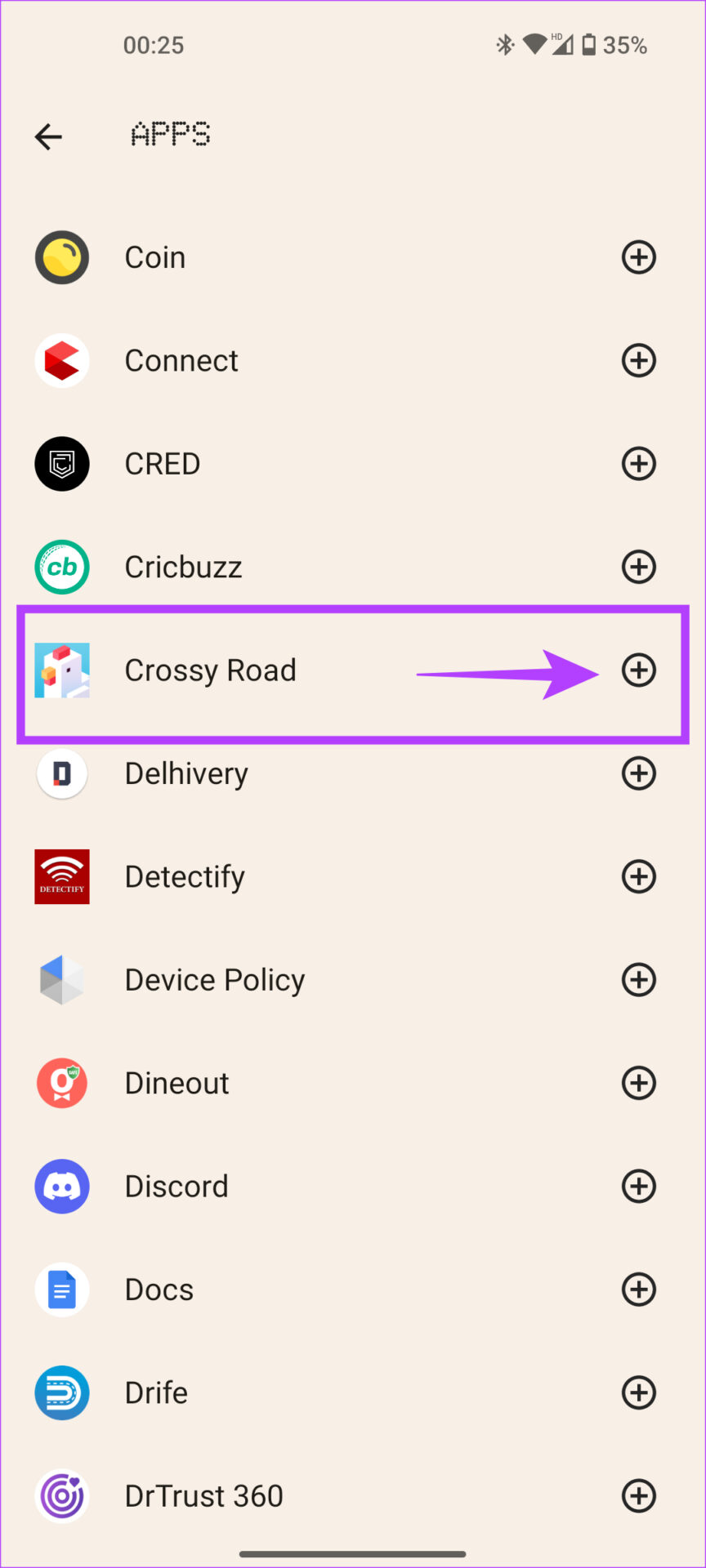
Step 2: Navigate to Apps . Choose the Add apps option and select all the games you want to enable Game mode by tapping on the + icon.
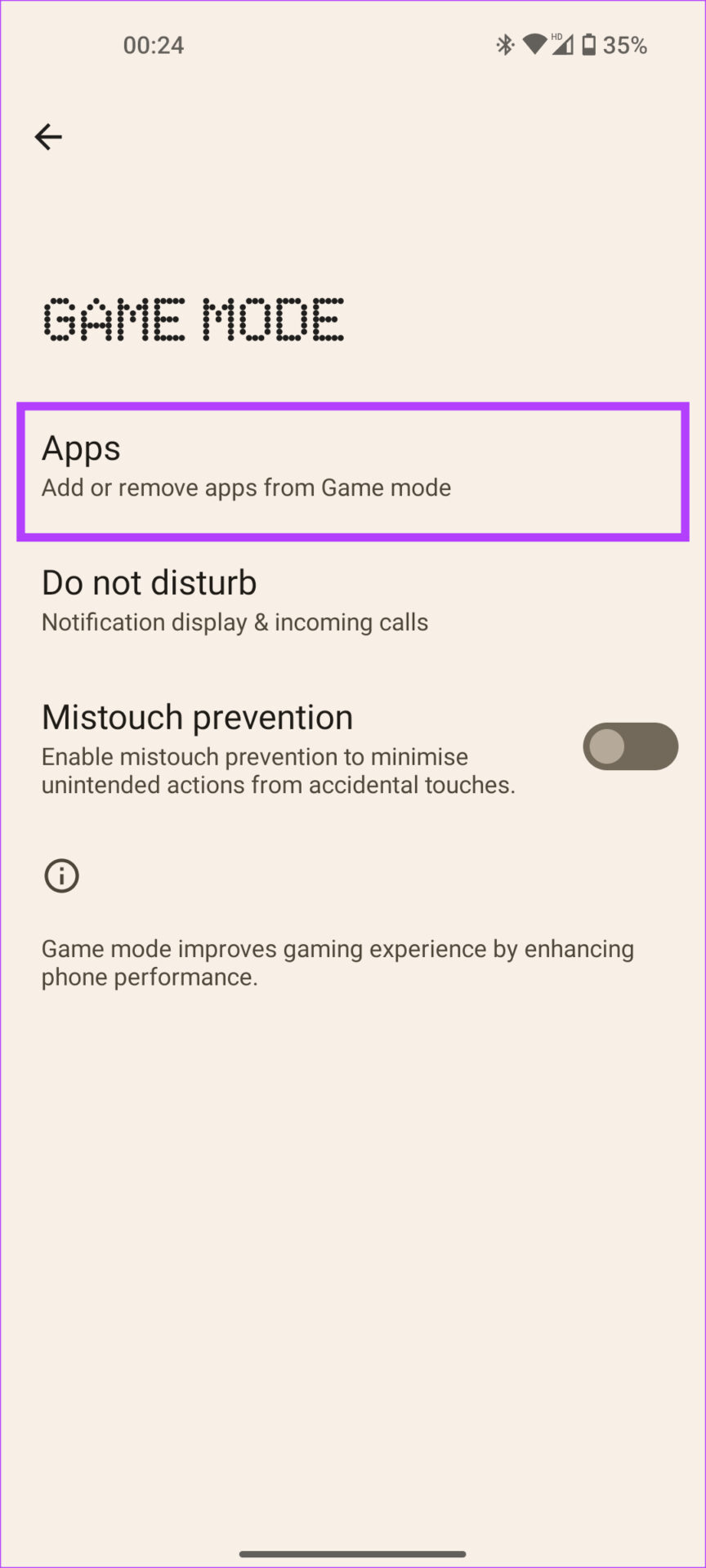
Also, enable the Mistouch prevention toggle while at it to avoid activating swipe gestures when gaming.
8. Enable Screen Attention
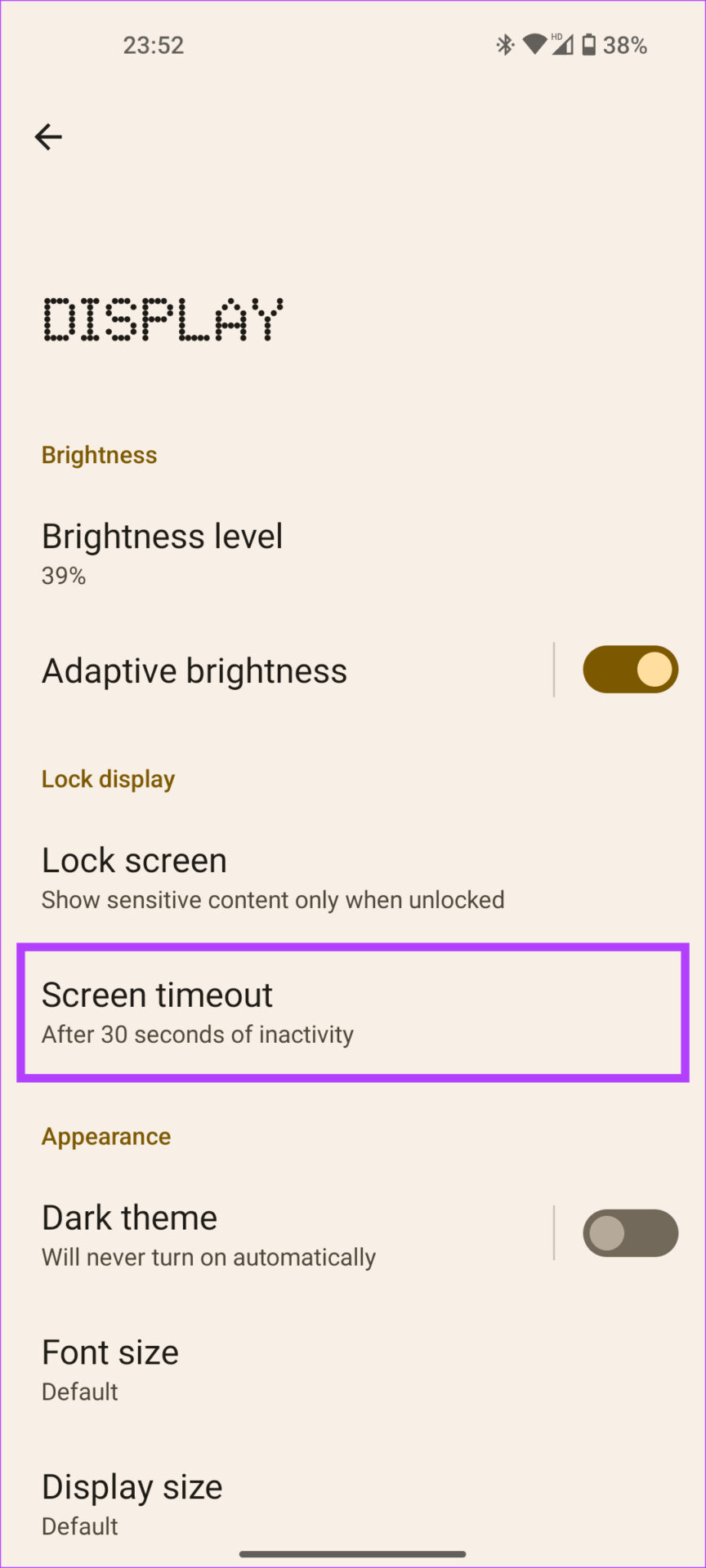
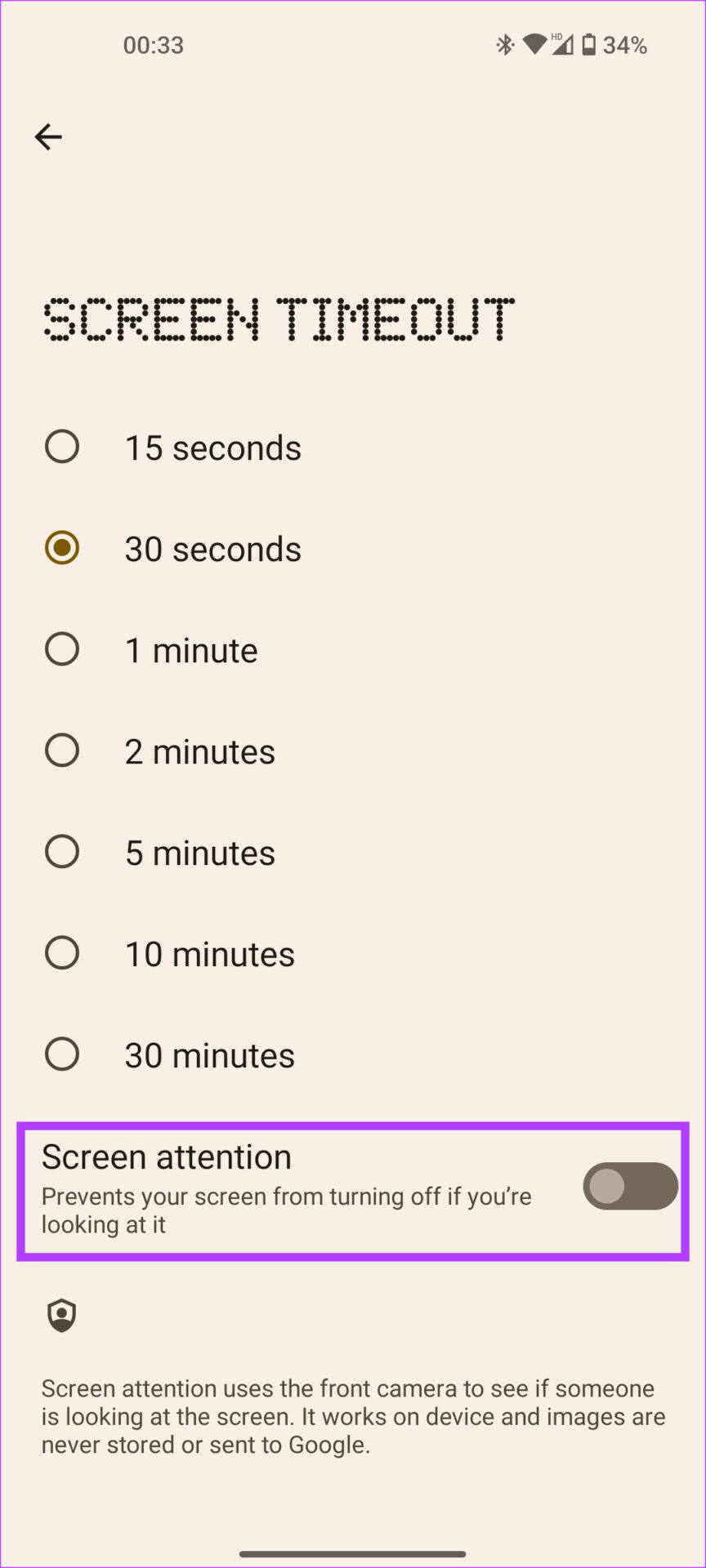
Screen attention is a Nothing Phone (1) feature that keeps the screen on until you’re looking at it. This is handy if you don’t want your phone’s display to turn off while reading an article like this. Here’s how to enable it.
Open the Settings app and go to Display . Tap on Screen timeout and toggle on Screen attention .
9. Charge Other Phones Wirelessly With Battery Sharing
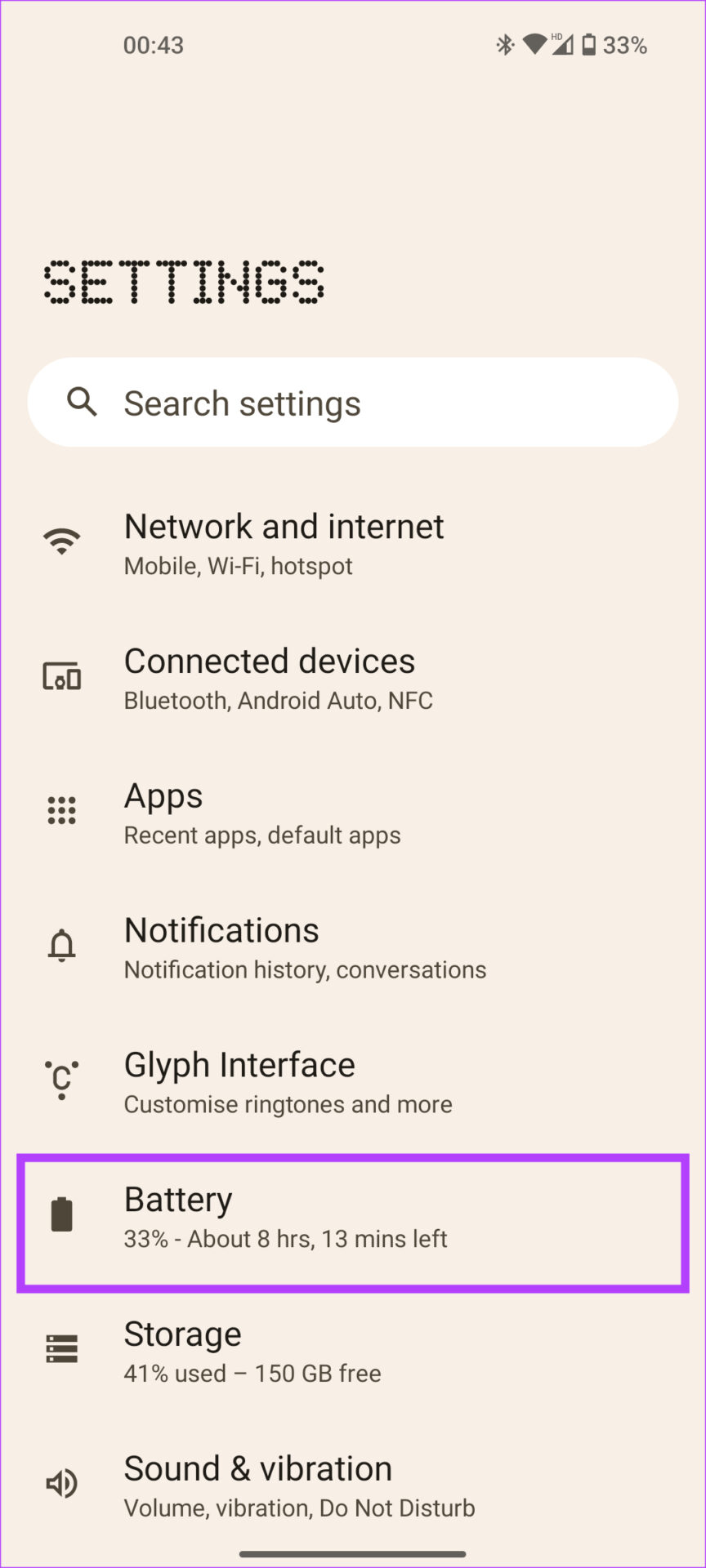
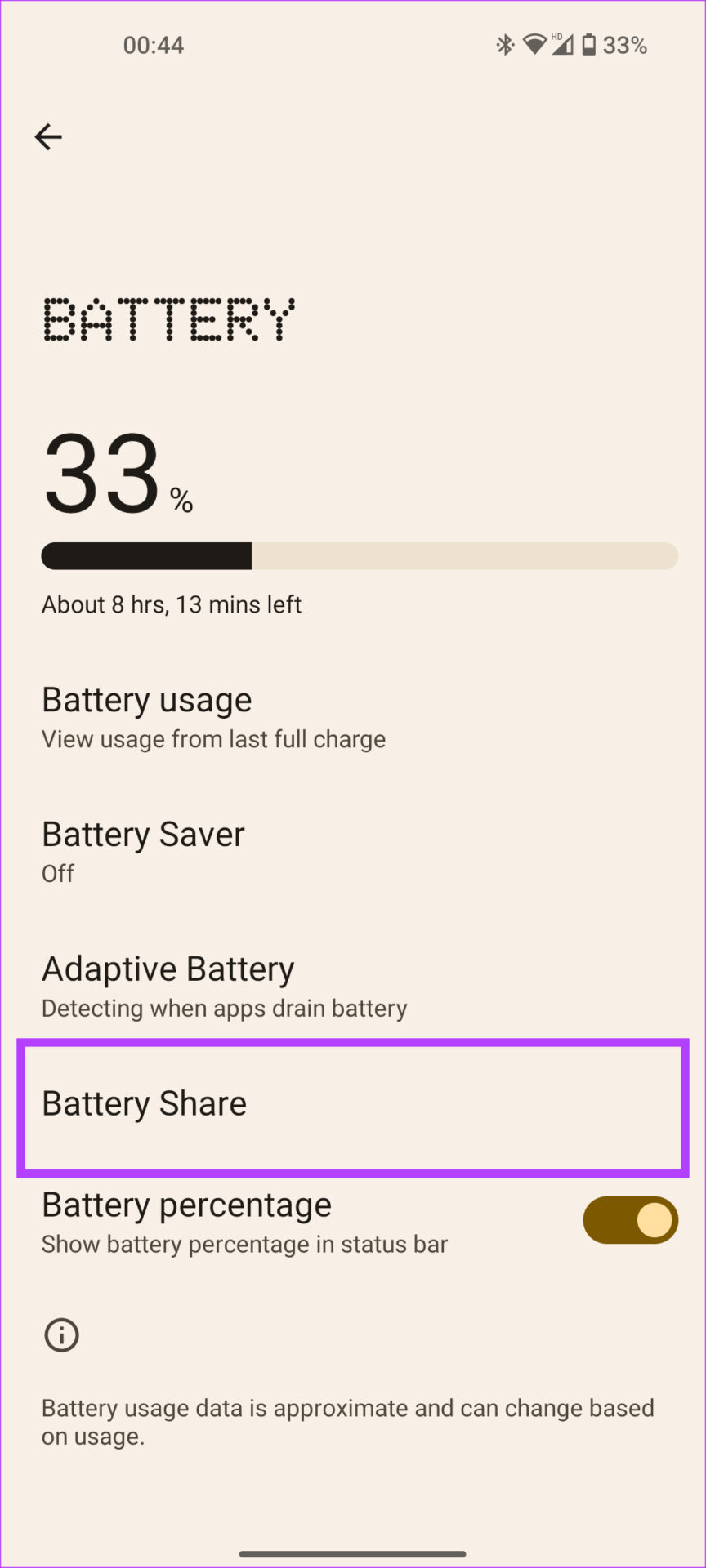
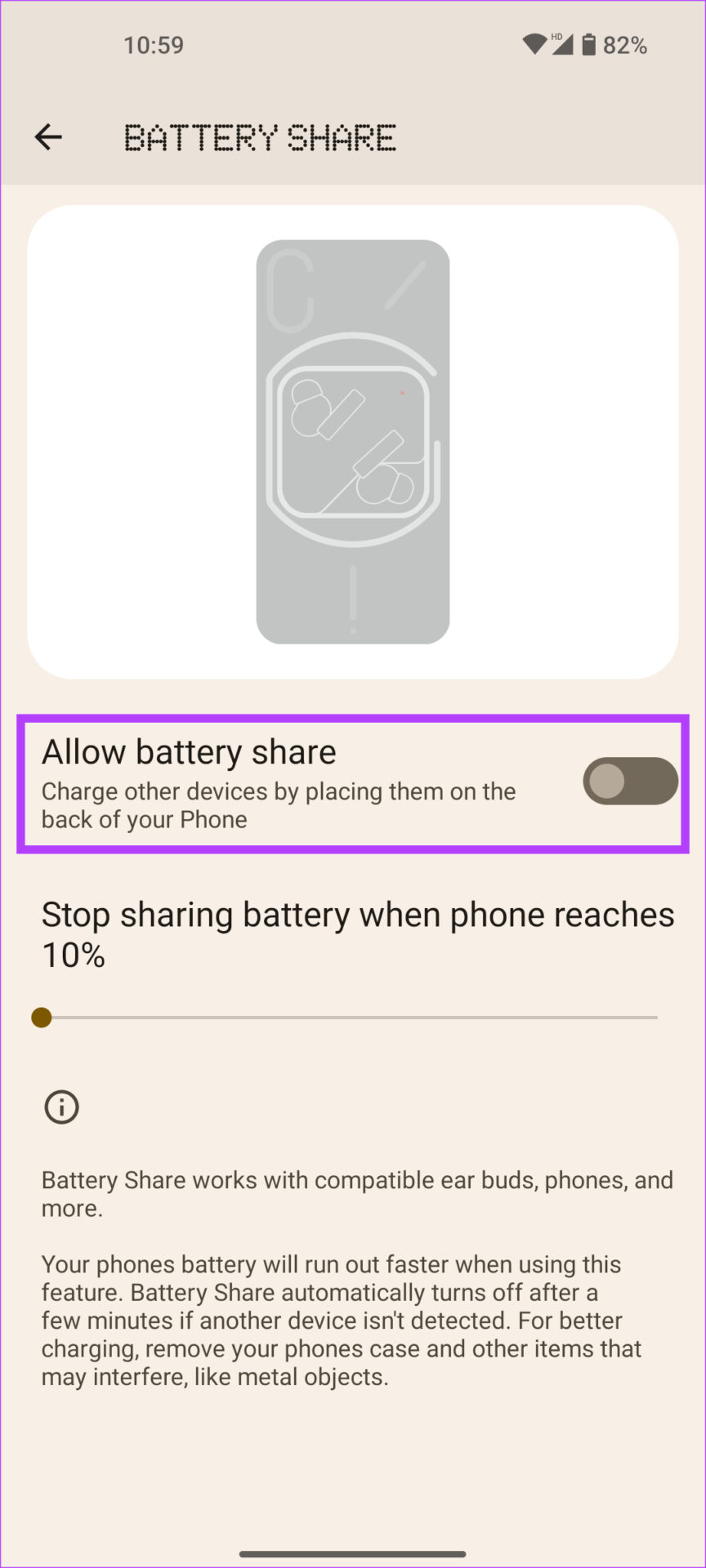
The Nothing Phone (1) is one of the few devices at its price point to offer wireless charging. However, besides wireless charging, the device also supports reverse wireless charging, or, as Nothing likes to call it, Battery Share. Once enabled, place the phone you want to charge on the back of the Nothing Phone (1), and it will begin to get juiced up!
Open Settings on your phone and navigate to Battery . Tap on Battery Share and toggle on Allow battery share .
10. Lockdown Mode
Ever wonder how anyone can unlock your phone using your fingerprint while asleep? Lockdown mode prevents exactly that. When enabled, unlock the phone using your PIN, and only then can you use your fingerprint to unlock the phone next time. Here’s how to access Lockdown mode.
Press the power button + volume up button simultaneously on your Nothing Phone (1). This will bring up the power menu. Tap on Lockdown .
11. Quickly Open the Camera With a Gesture
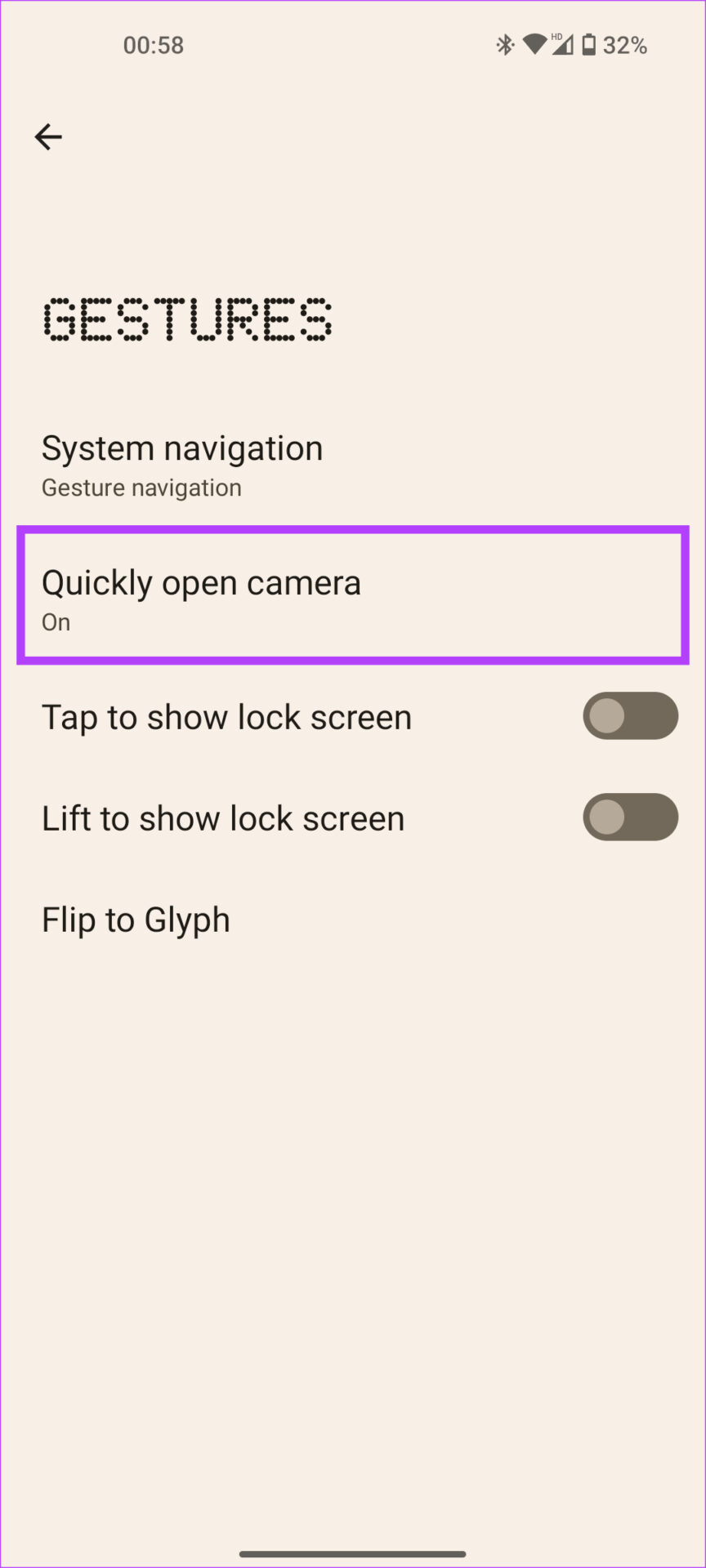
No matter what you’re doing on your phone, you can open the camera in a jiffy using a gesture on your Nothing Phone (1). Enable it by following the below steps.
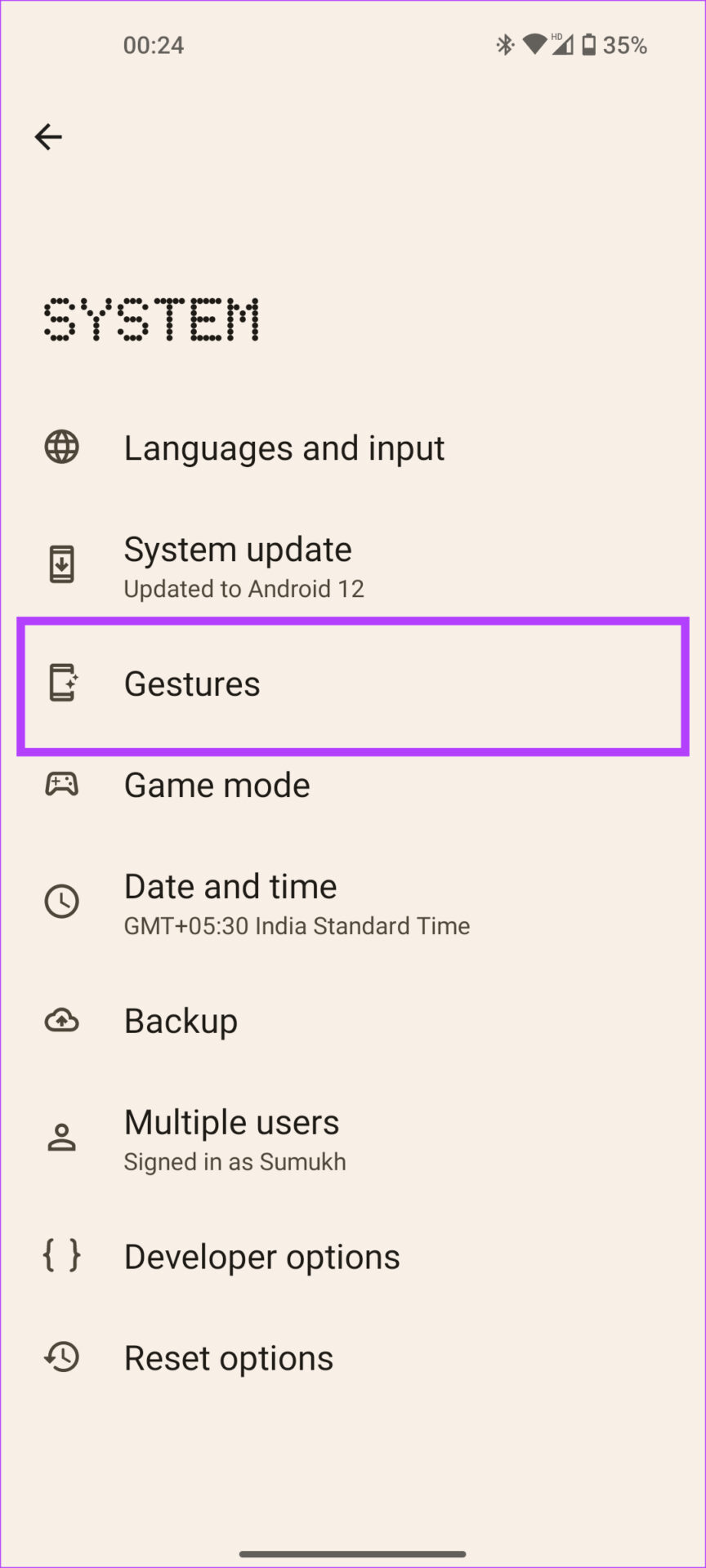
Open the Settings app on your phone and go to System . Select the Gestures option and tap on Quickly open camera to enable it.
12. Automatically Record Calls From Specific Numbers
Many users use Call recording regularly. While you can record calls via the Phone app on the Nothing Phone (1), you also get the option to automatically record calls from specific numbers. Here’s how to set it up.
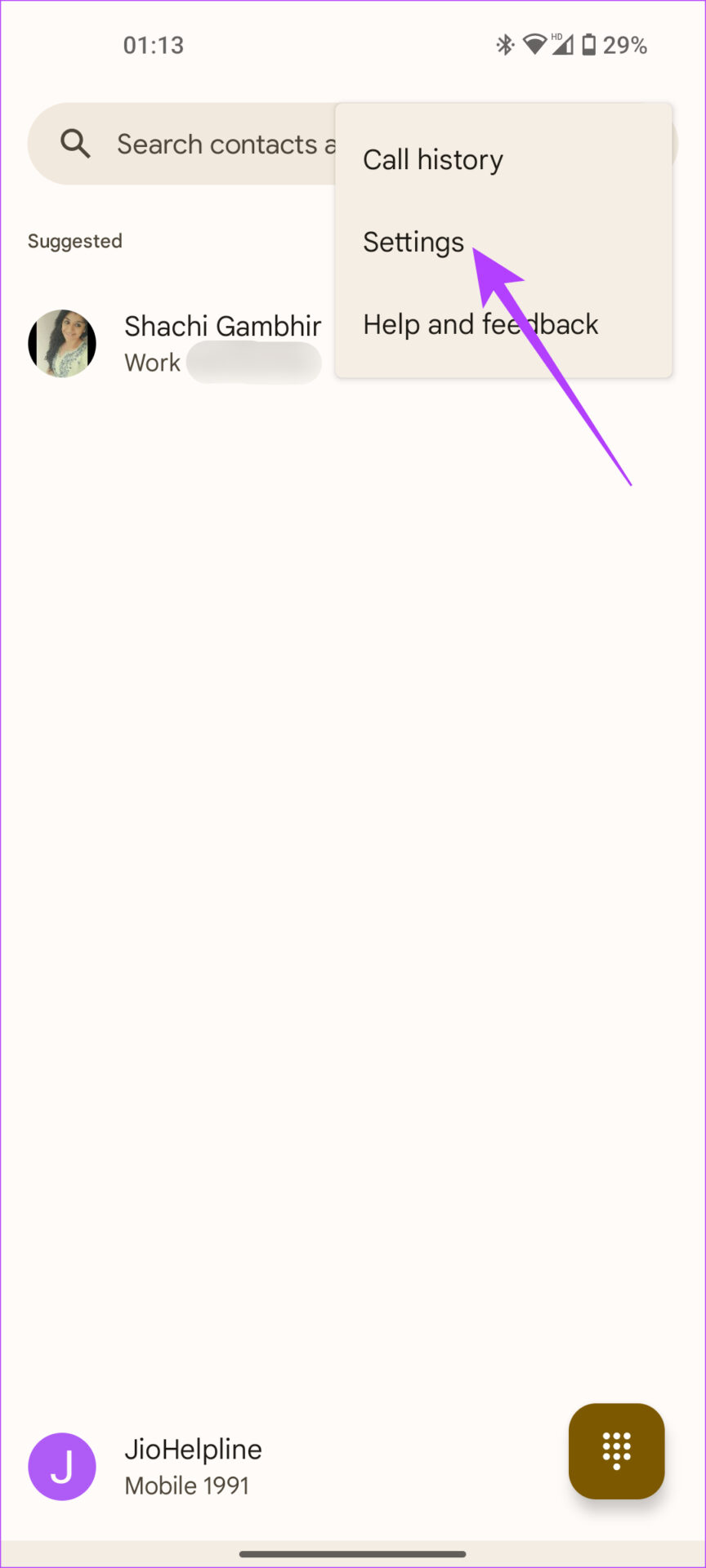
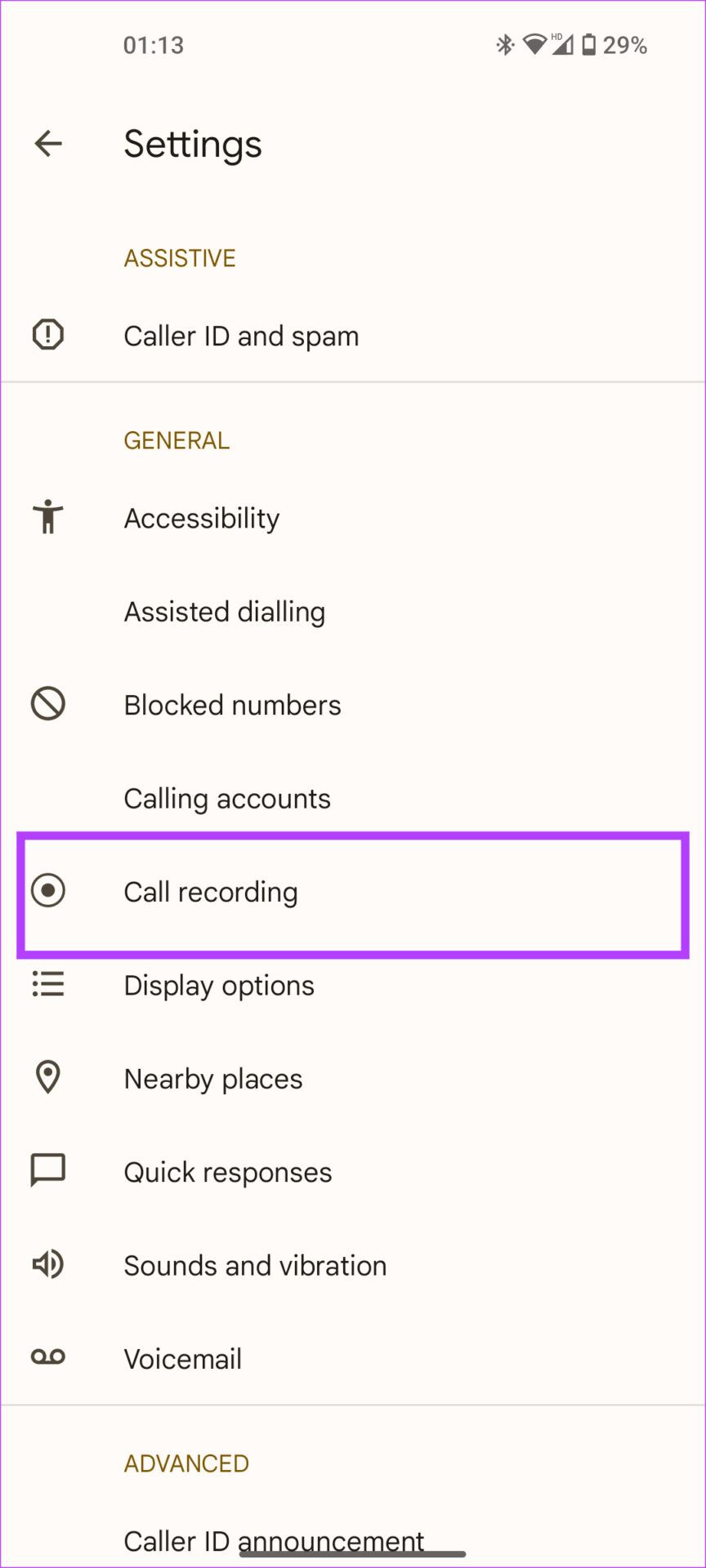
Step 1: Tap on the three-dot menu at the top-right corner of the Phone app and select Settings .
Step 2: Under General , choose Call recording .
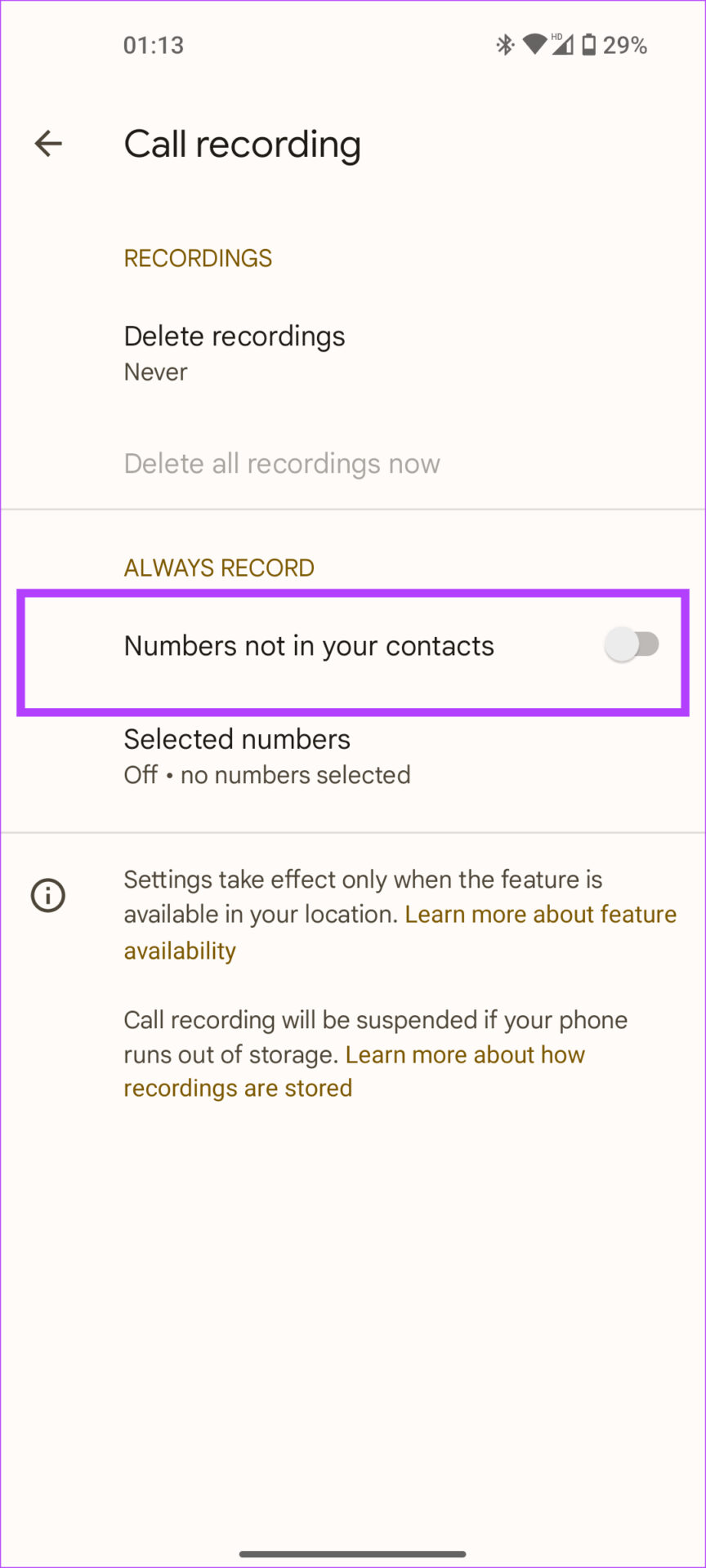
Step 3: Here, you will find the Always Record section. To record calls from all unknown numbers, toggle on Numbers not in your contacts .
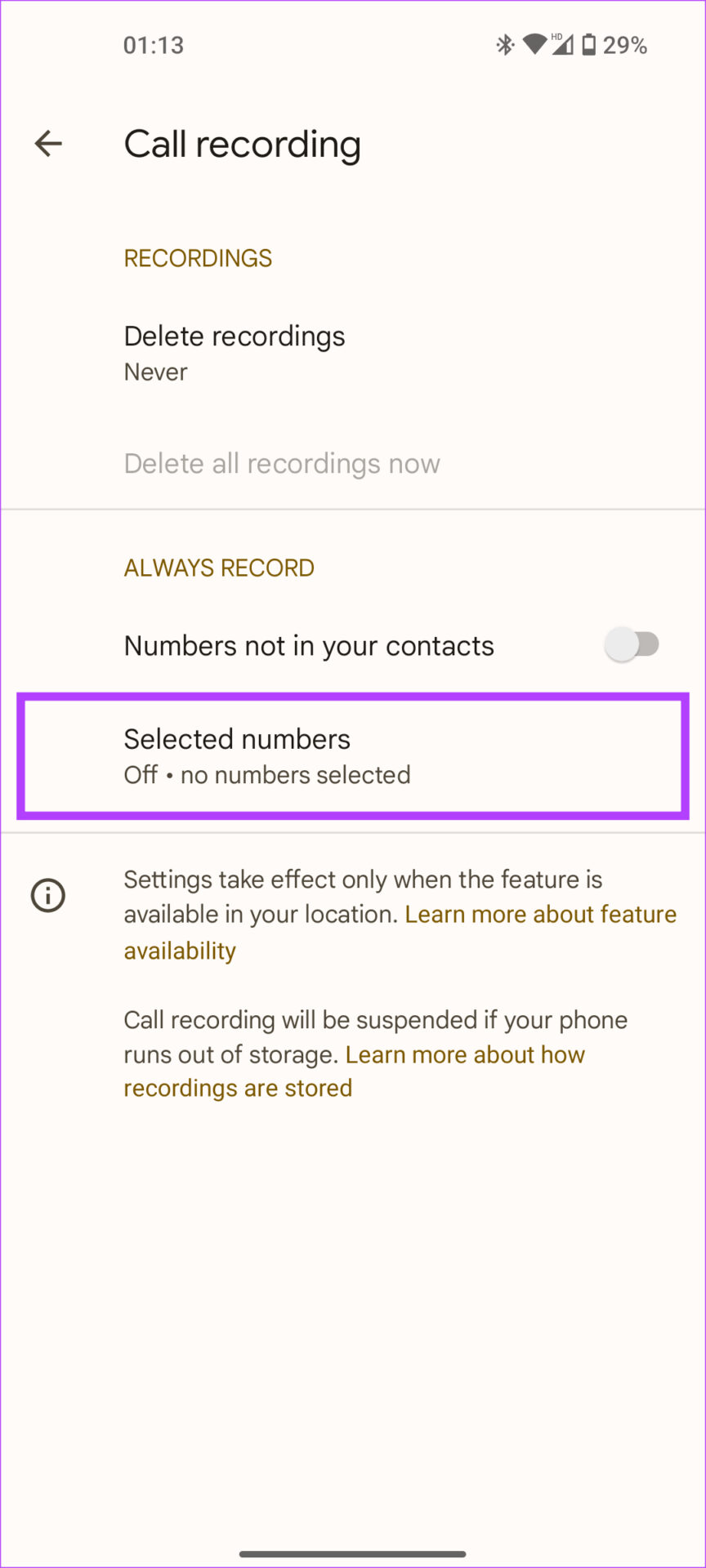
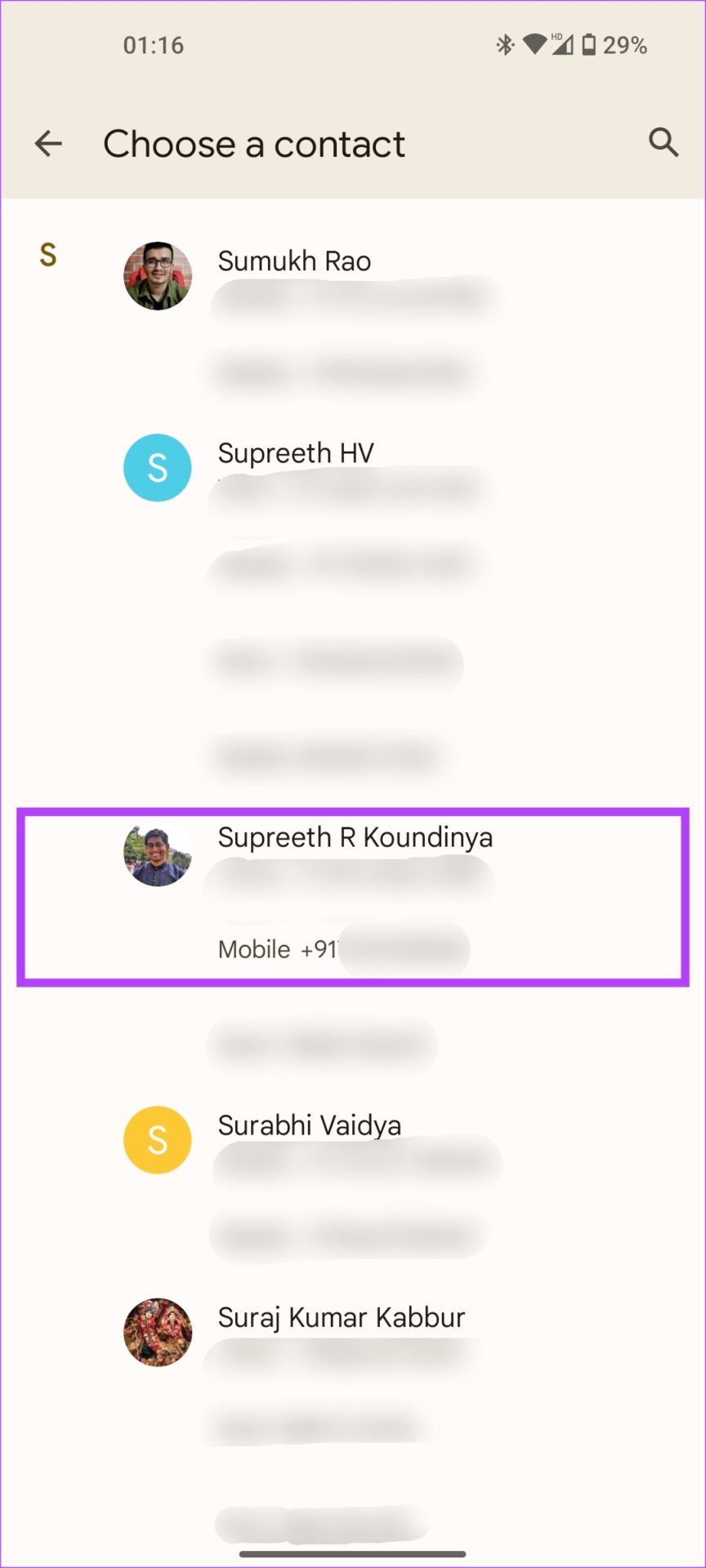
Step 4: To automatically record calls from specific contacts, choose and pick a contact. Ensure the Always record selected numbers toggle is enabled.
Was this helpful?
Submit Cancel
Thanks for your feedback!
Keep reading