Android
How to Fix Google Photos Not Backing up on iPhone and Android
Having issues backing up your device photos to Google Photos? Read this guide to fix Google Photos not backing up on iPhone and Android.
By Parth Shah

Quick Fixes
Turn on Backup from the Google Photos app > profile icon > Backup.
Disable battery optimization for Google Photos from Android Settings > Apps > Installed apps > Google Photos > App battery usage.
Enable Unrestricted data usage on Android from the Google Photos app info > Mobile data and Wi-Fi.
Common Fixes
Check Google Photos server status : Visit Downdetector to check an active Google Photos service outage.
Inspect your Google Photos storage : Open the Google Photos app and tap your profile icon at the top right to check your account storage.
Disable Battery Saver or Low Power Mode : Swipe down from the top right to open the Android notification panel, and tap the Battery Saver toggle to turn it off. On iPhone, open the iOS Control Center and tap the Low Power Mode toggle to disable it.
Clear Google Photos cache and app data on Android : Long-tap the Google Photos app icon to open App info, select Storage and cache, and tap Clear cache followed by Clear storage.
Update or reinstall Google Photos : Open the Google Play Store or the Apple App Store, search Google Photos, and tap Update (if available).
Fix 1: Ensure Backup Is Enabled in Google Photos
Google Photos can’t upload your device’s media if its backup setting is disabled. Access in-app settings to enable it.
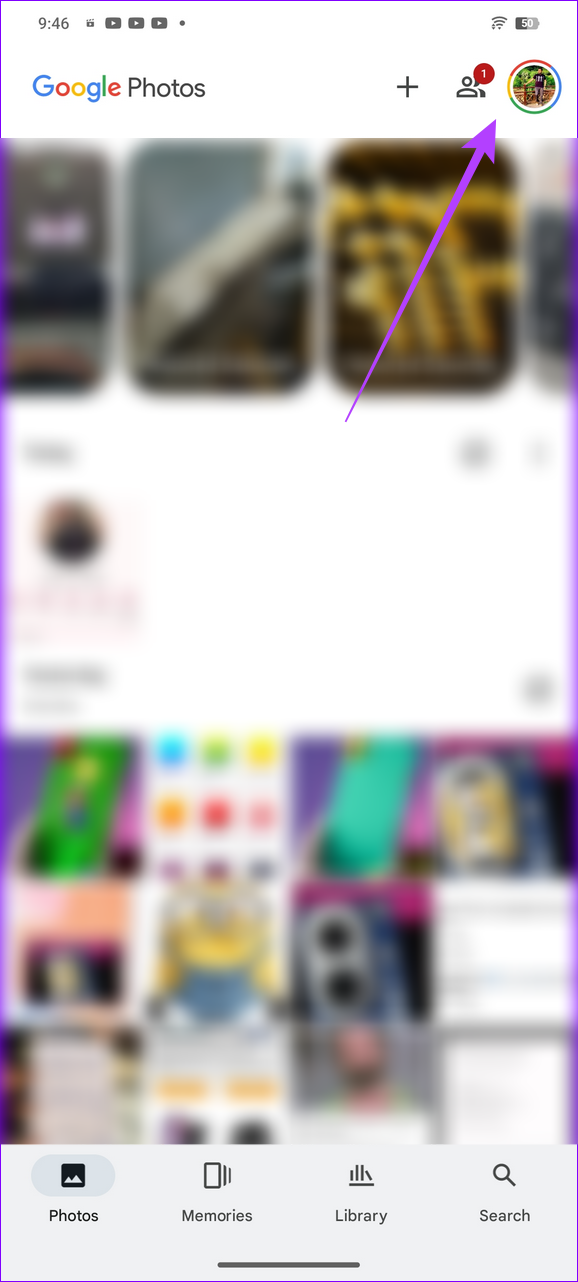
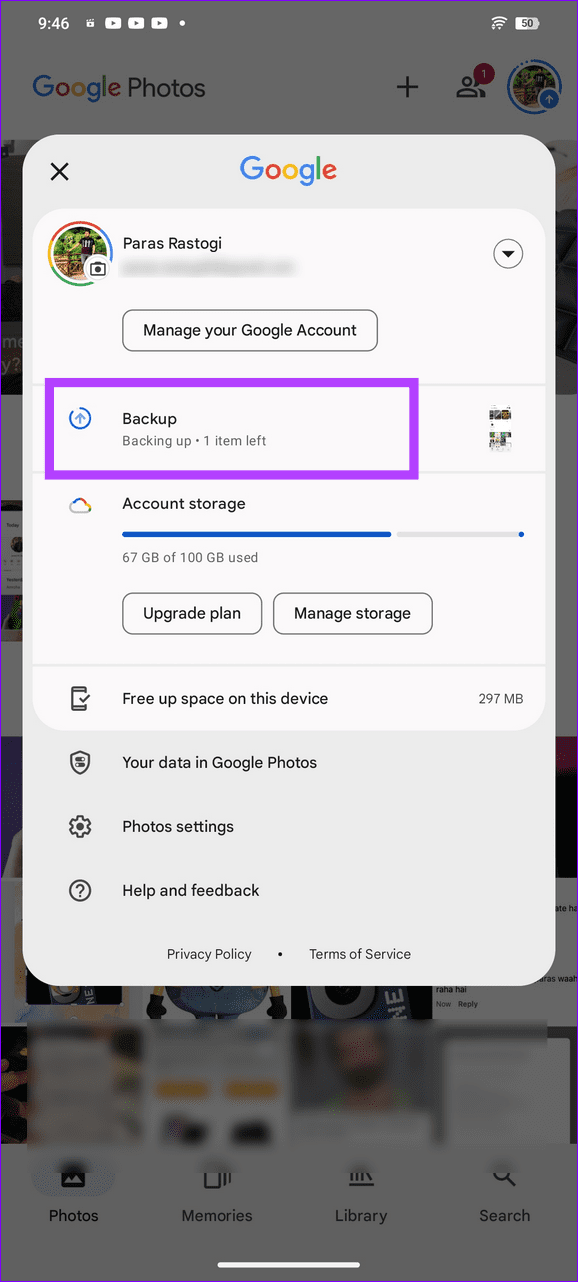
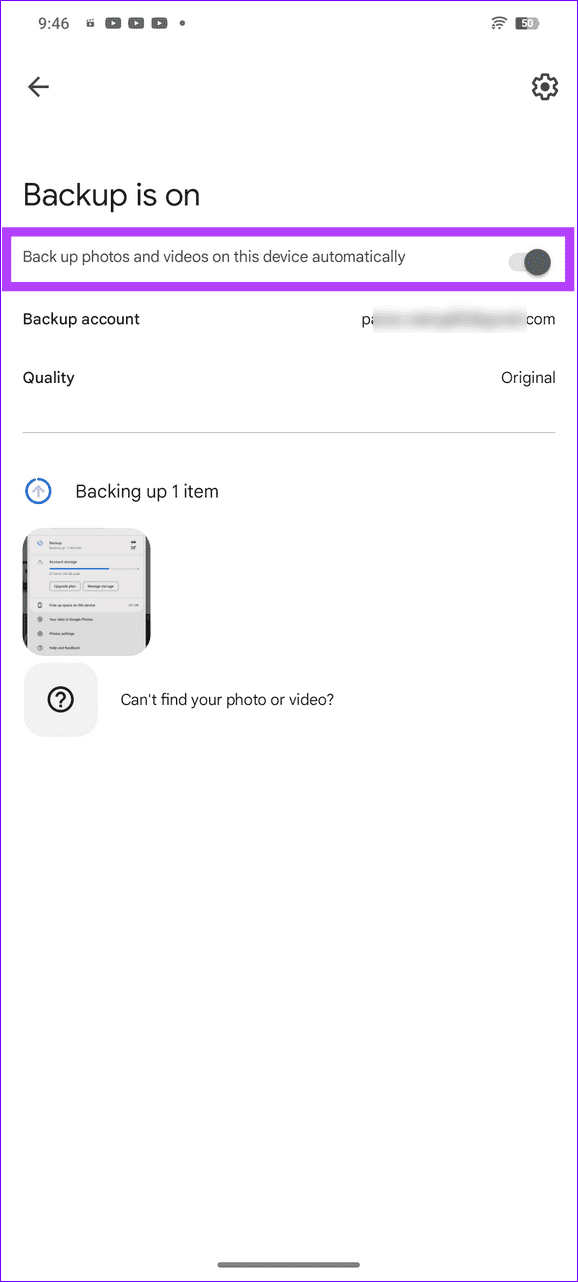
Step 1: Open the Google Photos app, tap your profile icon at the top right, and select Backup .
Step 2: Turn on Back up photos and videos on this device automatically .
Fix 2: Add Device Folders for the Backup (Android)
If certain photos on your Android phone aren’t uploading to Google Photos, its folder might be disabled under the app settings. Check backup settings to include it manually.
Step 1: Tap your account profile at the top right in the Google Photos app and select Backup .
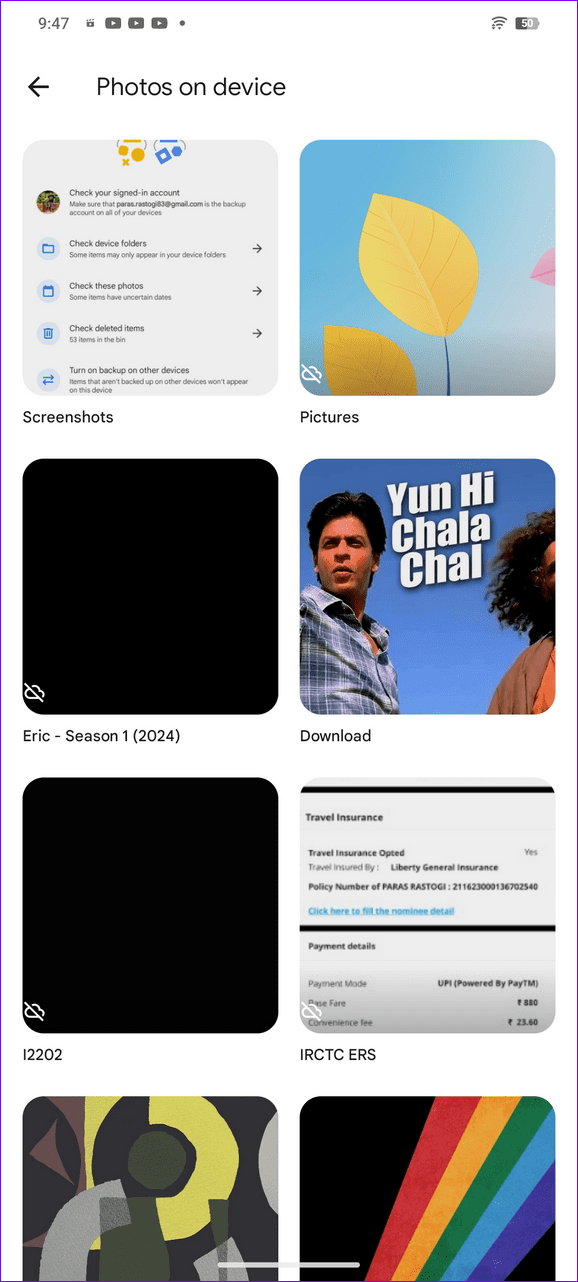
Step 2: Select Can’t find your photo or video and tap Check device folders .
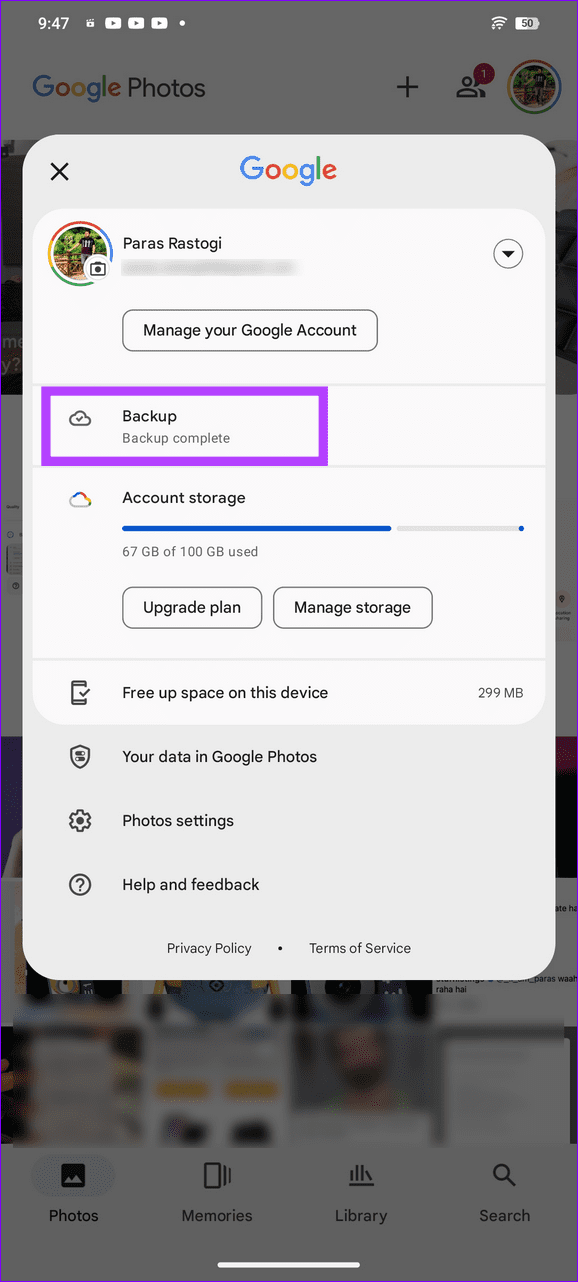
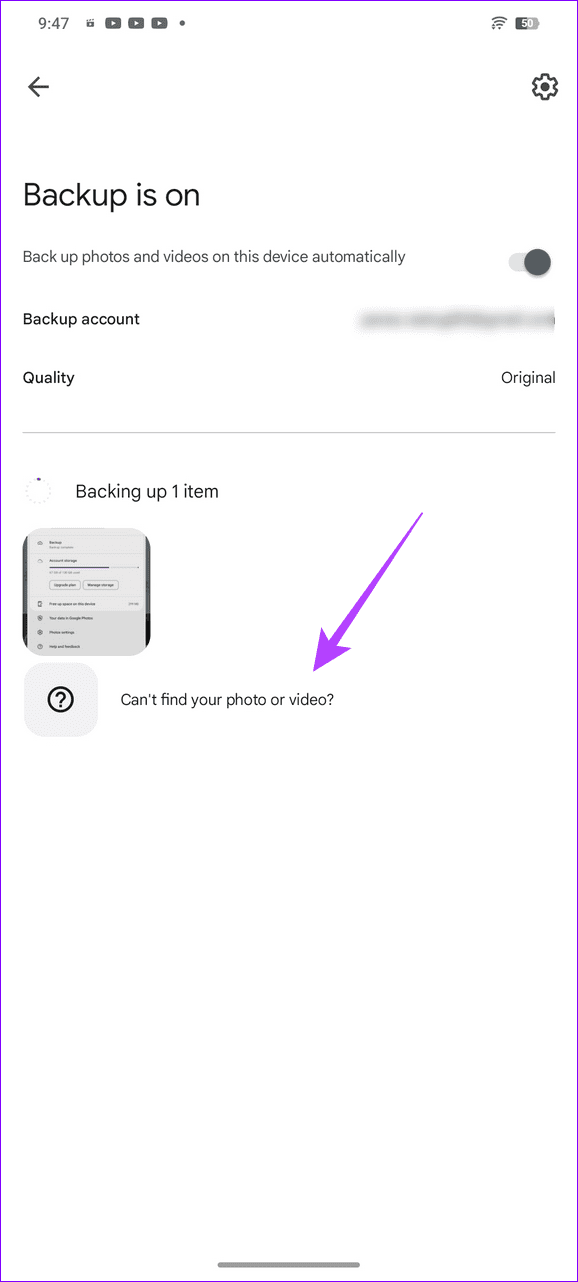
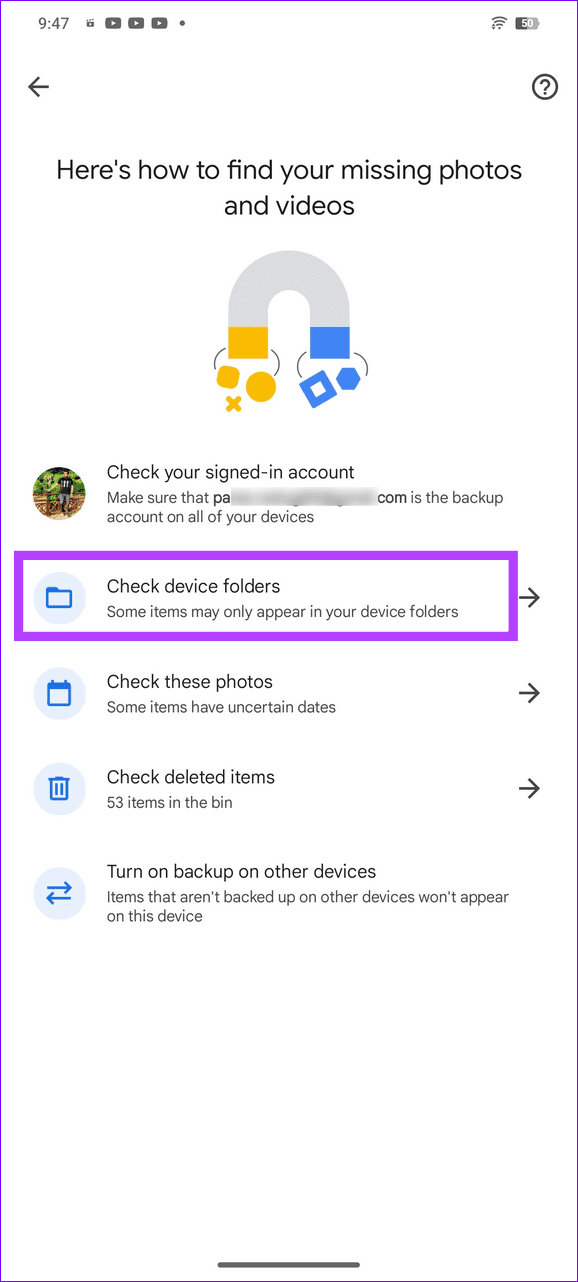
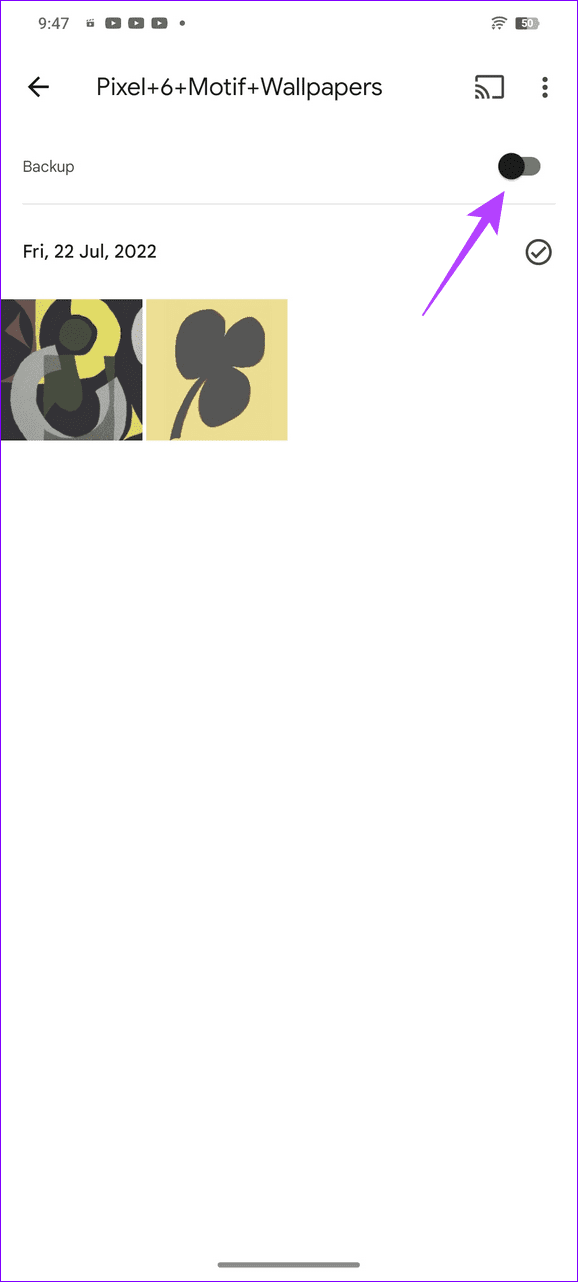
Step 3: Open the folder you wish to include in the backup and toggle on Backup .
Fix 3: Allow Backup Over Mobile Data
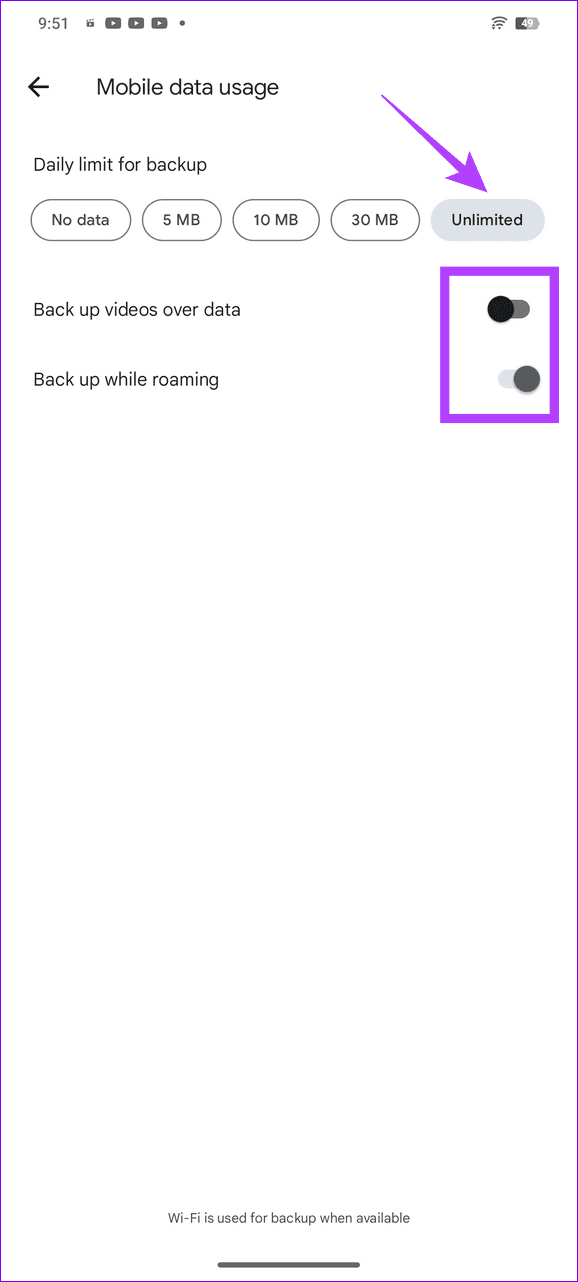
If you’ve set up a mobile data restriction for uploading photos, Google Photos may pause the backup after a certain limit or not backup device media. Open the app settings to enable mobile data usage and set an unlimited backup limit.
Android
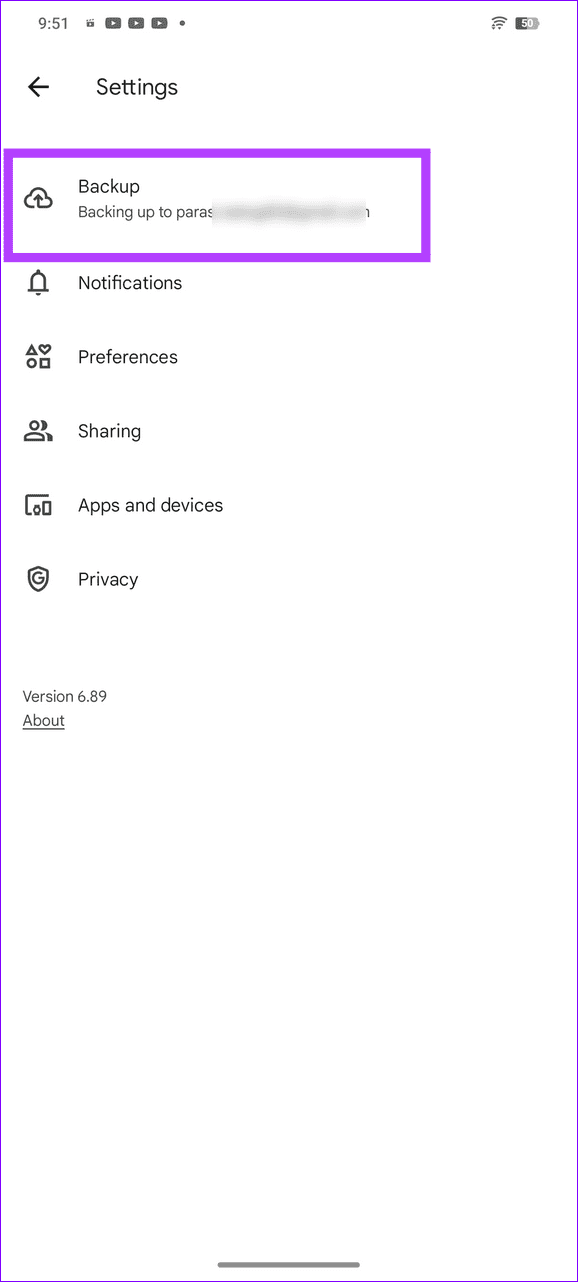
Step 1: Open your profile settings from the top-right of Google Photos and select Photos settings .
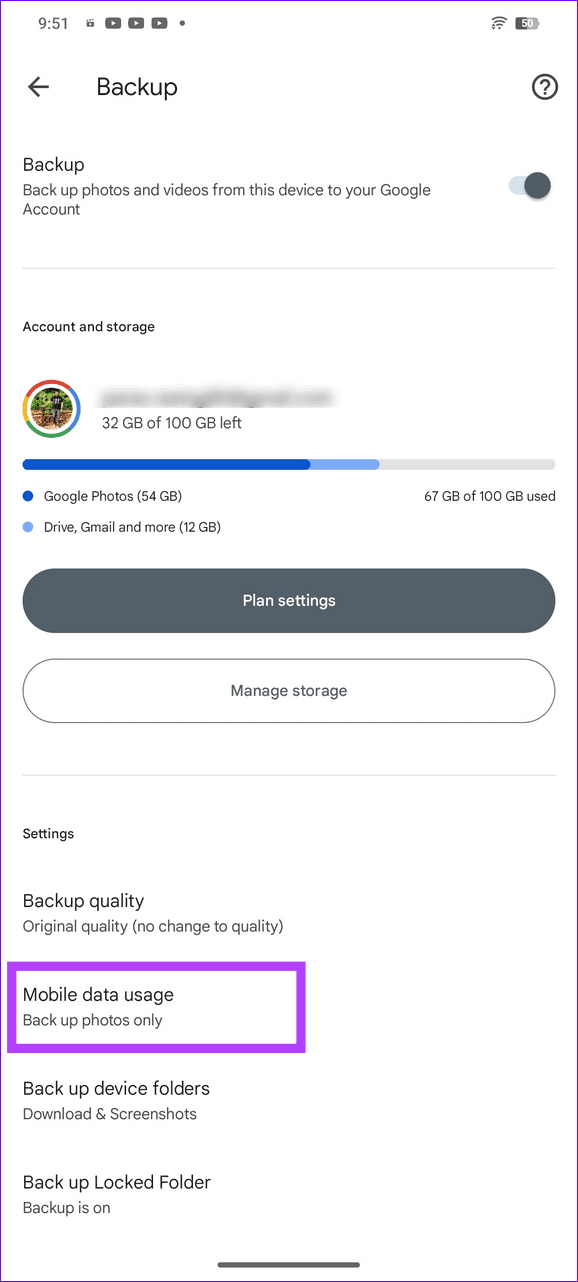
Step 2: Select Backup > tap Mobile data usage .
Step 3: Set an Unlimited daily limit for backup > enable Back up videos over data and Back up while roaming .
On iOS
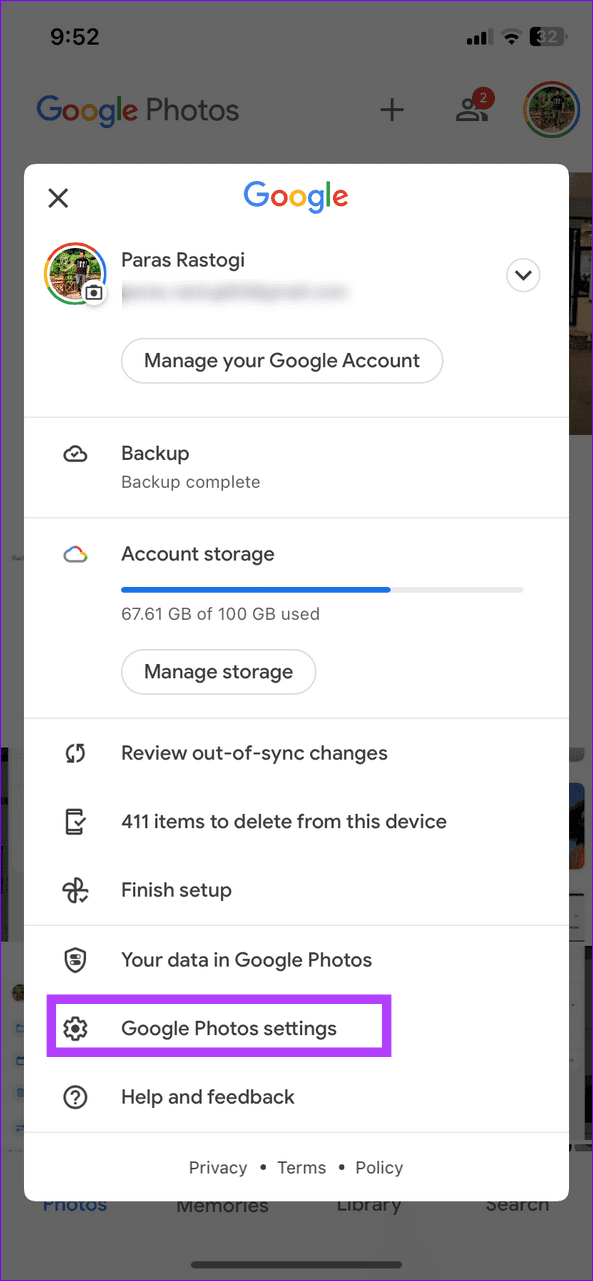
Step 1: Tap your profile icon at the top right in the Google Photos app and select Google Photos settings .
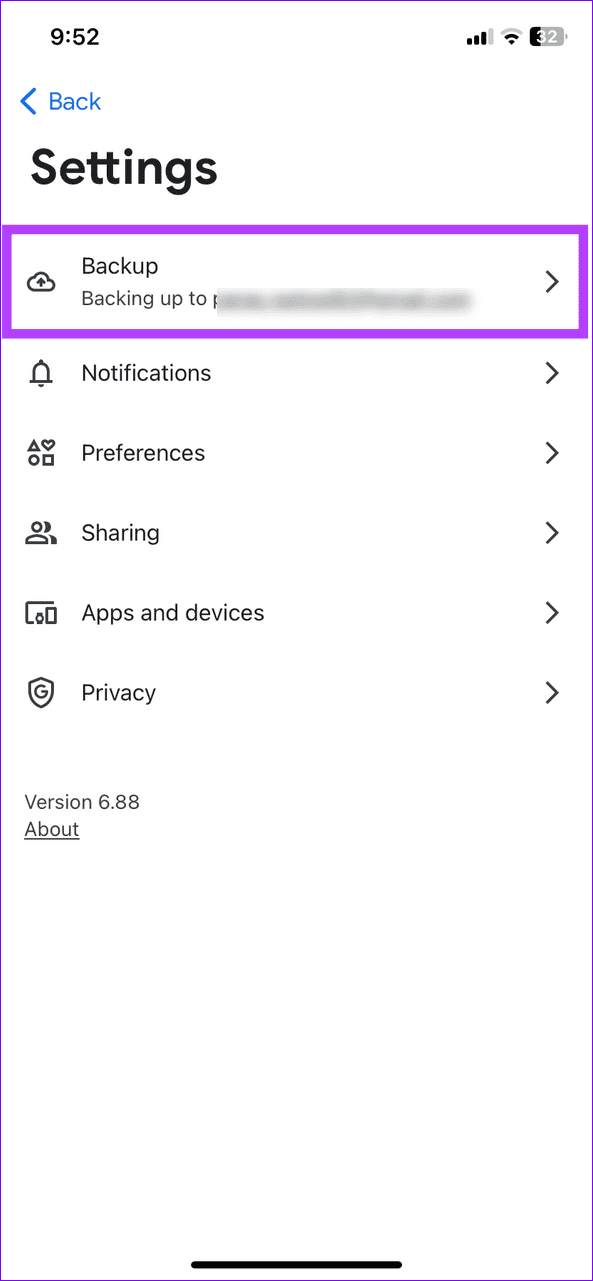
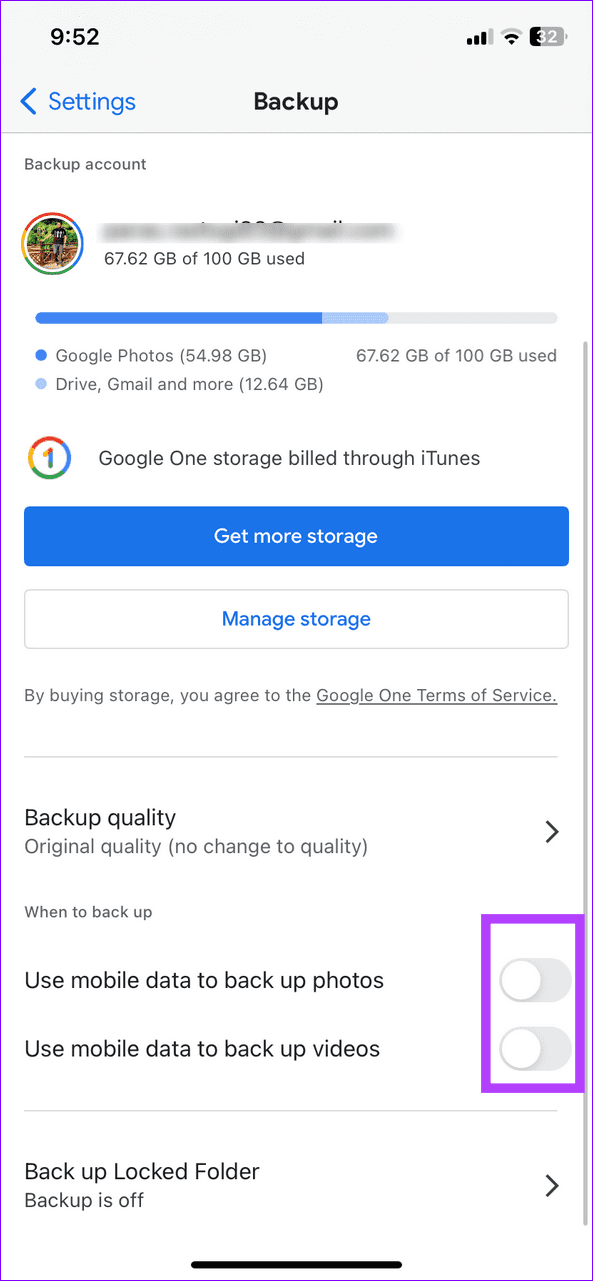
Step 2: Select Backup and toggle on Use mobile data to back up photos and Use mobile data to back up videos .
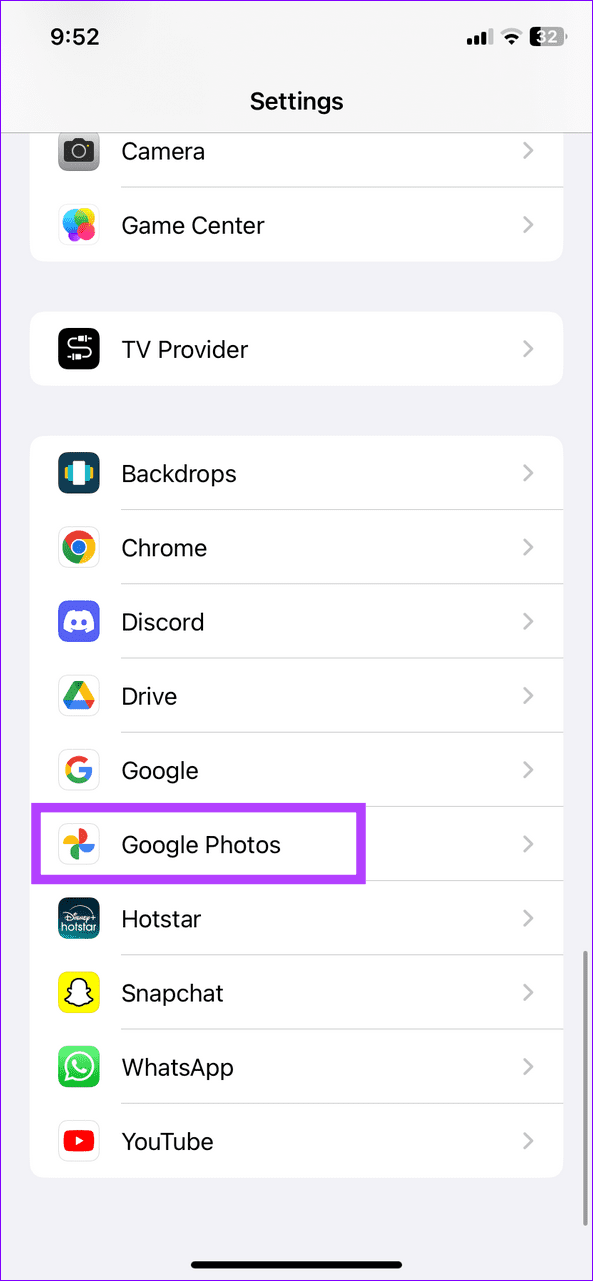
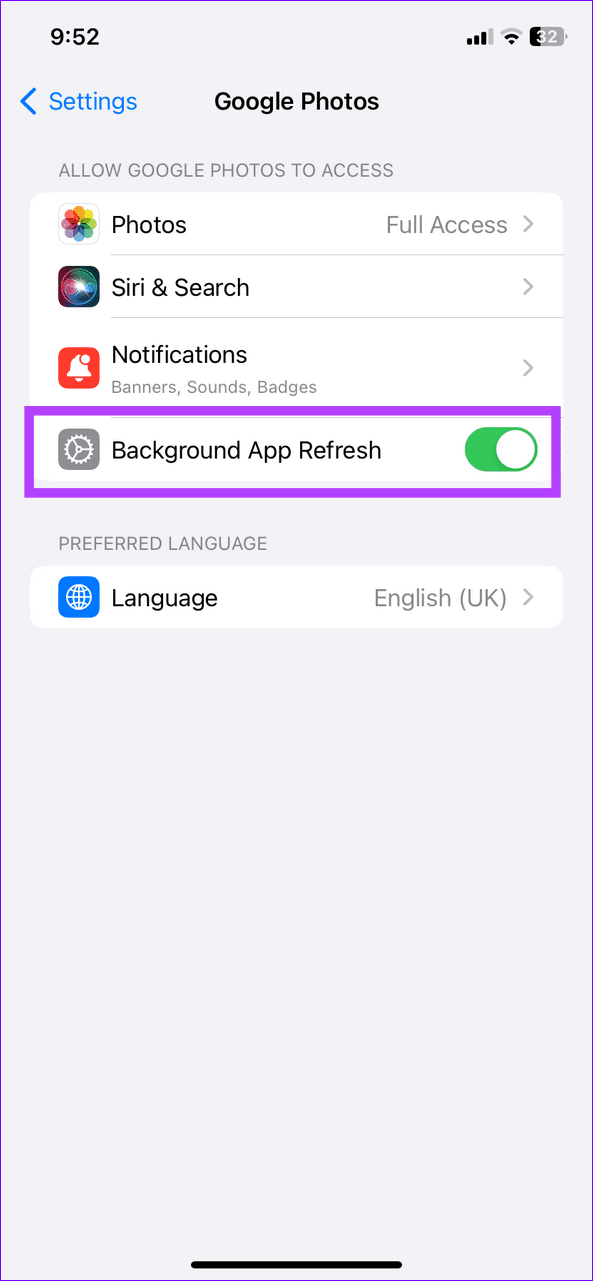
Fix 4: Enable Background App Refresh for Google Photos (iOS)
If Google Photos halts back up when you exit the app on your iPhone, missing background permissions are the underlying culprit. Head to iPhone Settings to enable background refreshing for Google Photos.
Open iPhone Settings, select Google Photos , and turn on Background App Refresh .
Fix 5: Disable Battery Optimization for Google Photos (Android)
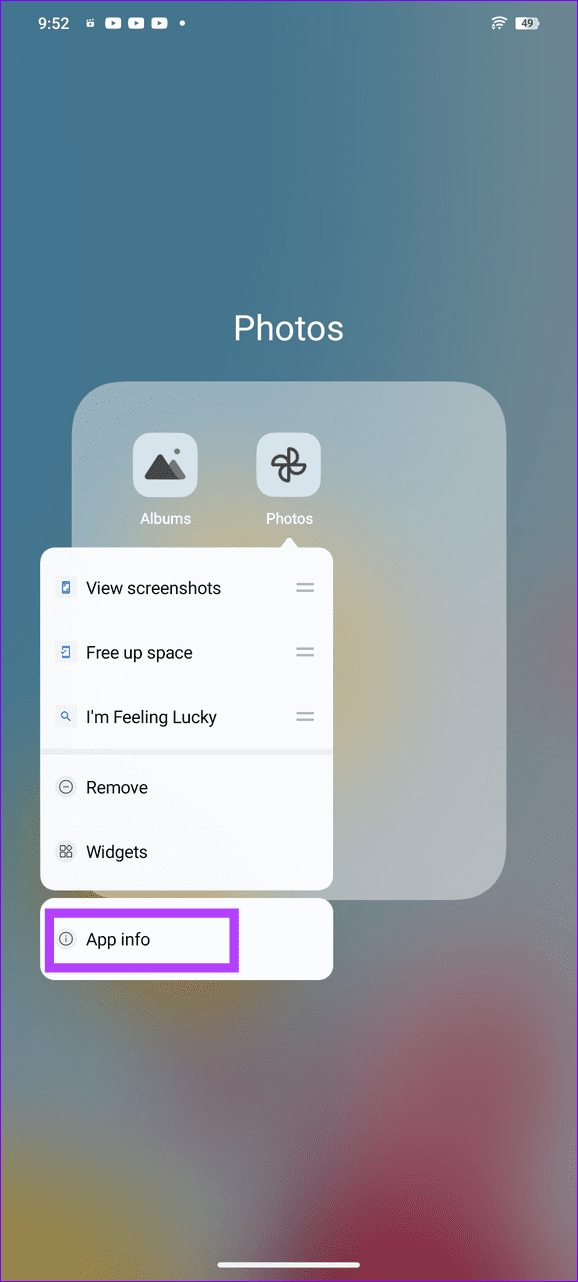
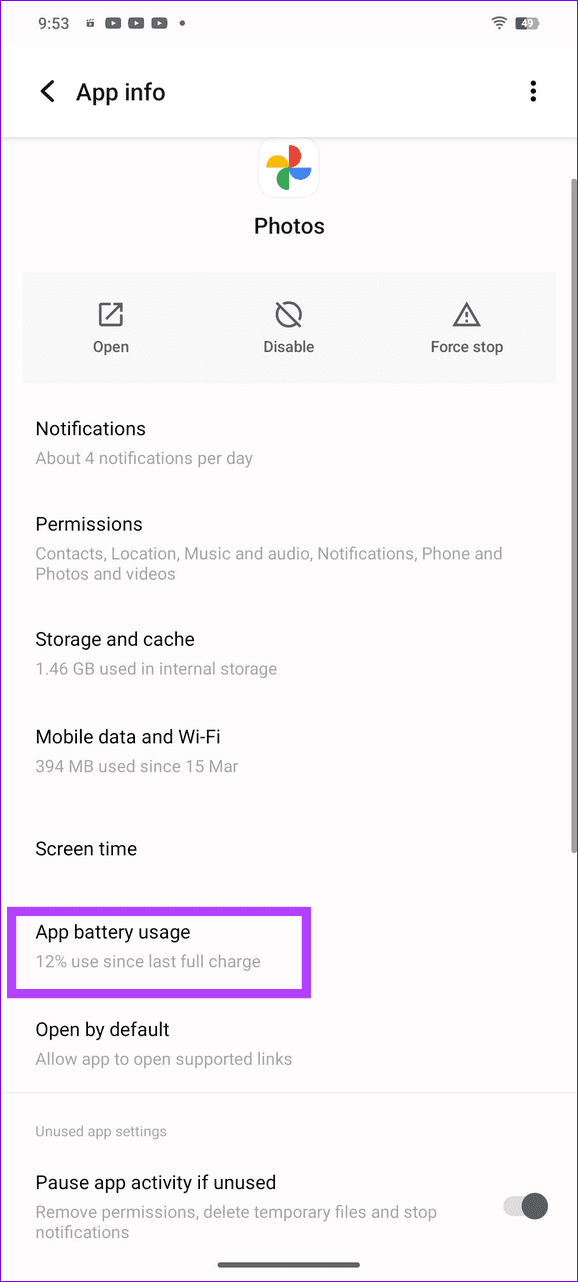
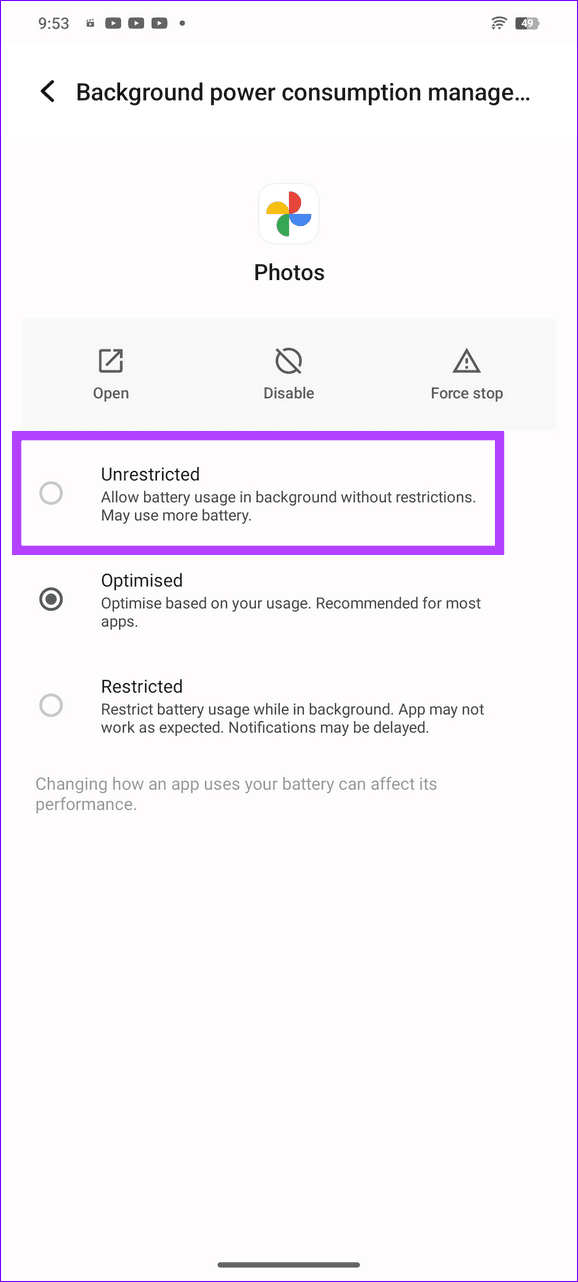
Android optimizes apps to conserve battery by default, which may restrict Google Photos from running in the background. To ensure continuous photo backups, head to Google Photos settings and enable the Unrestricted policy.
Step 1: Long-tap the Google Photos app icon > tap App info > select App battery usage .
Step 2: Enable the Unrestricted setting for its background power consumption.
Fix 6: Enable Unrestricted Data Usage (Android)
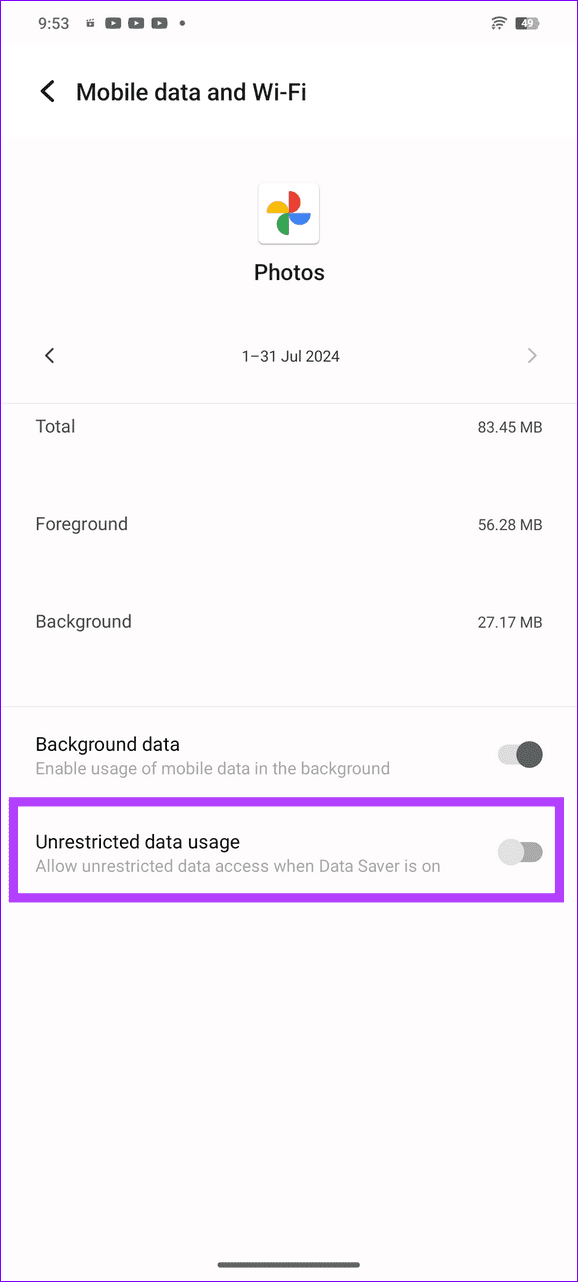
Lastly, enable the unrestricted data usage setting for Google Photos to allow media backups even when data saver mode is on.
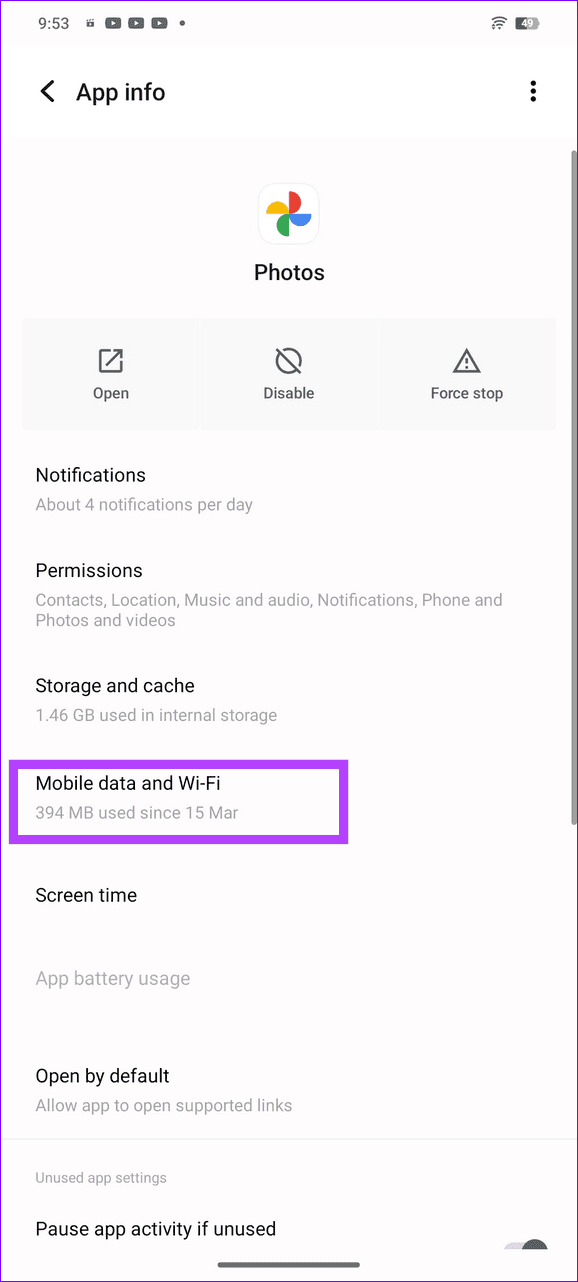
Step 1: Open Google Photos app settings from its App info and select Mobile data and Wi-Fi .
Step 2: Toggle on Unrestricted data usage .
Was this helpful?
Submit Cancel
Thanks for your feedback!
Keep reading