Android
3 Ways to Fix Telegram Keeps Crashing on Android and iPhone
Telegram keeps stopping on your phone? Try these troubleshooting tips to fix Telegram app crashes on Android and iPhone.
By Pankil Shah

Quick Tips
Update the Telegram app on your Android or iPhone and restart it.
Ensure Telegram has all the necessary permissions to run on your Android or iPhone.
Consider clearing the Telegram app cache to fix issues caused by temporary app files.
Try Basic Fixes
Force stop and reopen Telegram: When an app on your phone starts misbehaving, the first thing to do is force close it and open it again. In most cases, it is good enough to fix any temporary glitches and prevent app crashes.
Update the Telegram app: App updates usually bring new features, improvements, and, most importantly, bug fixes. Updating the Telegram app from the Play Store or App Store can help if a bus causes the issue.
Fix 1: Check App Permissions
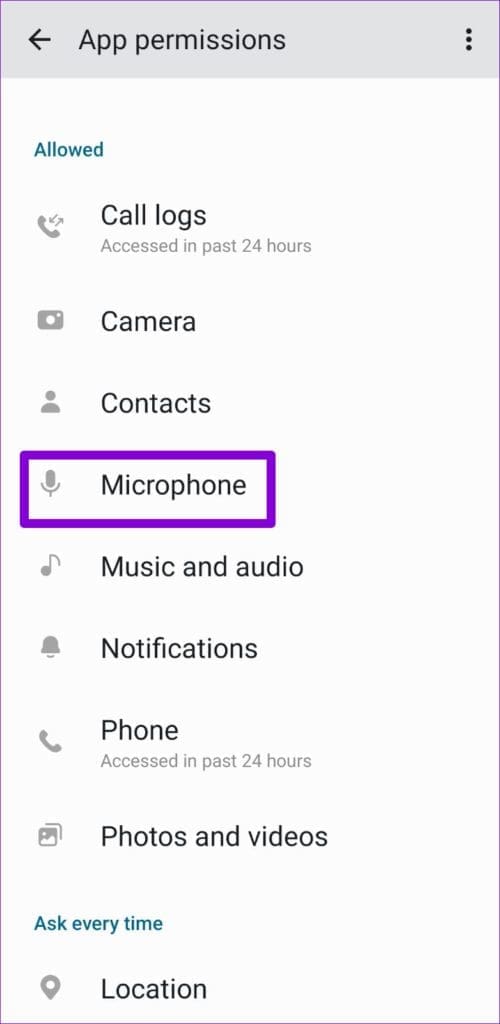
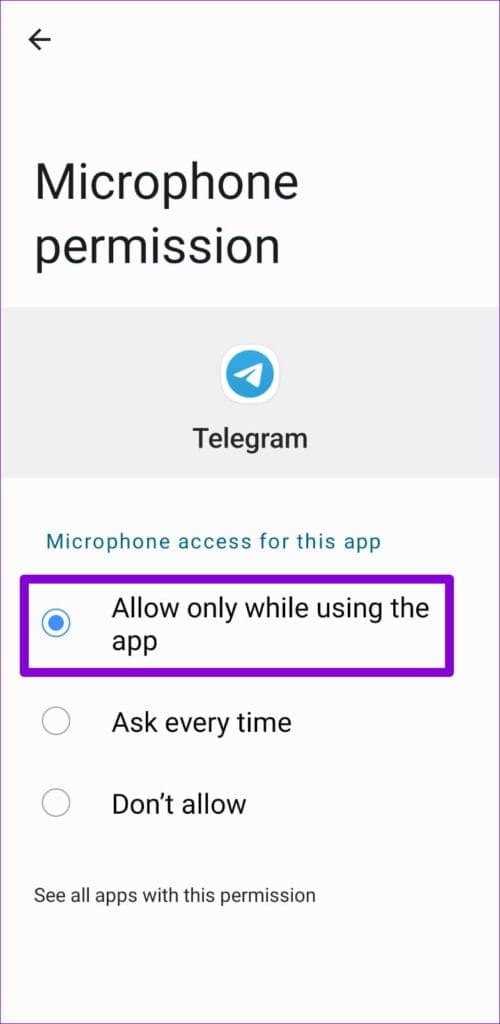
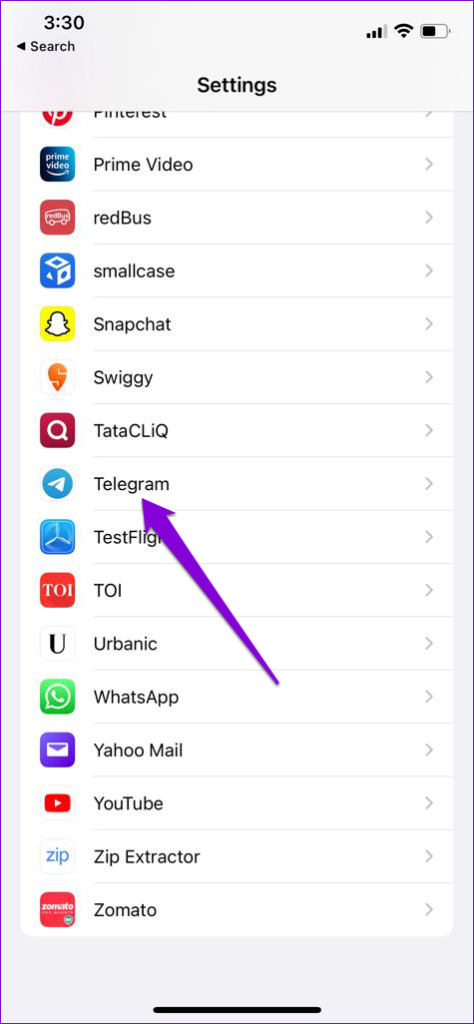
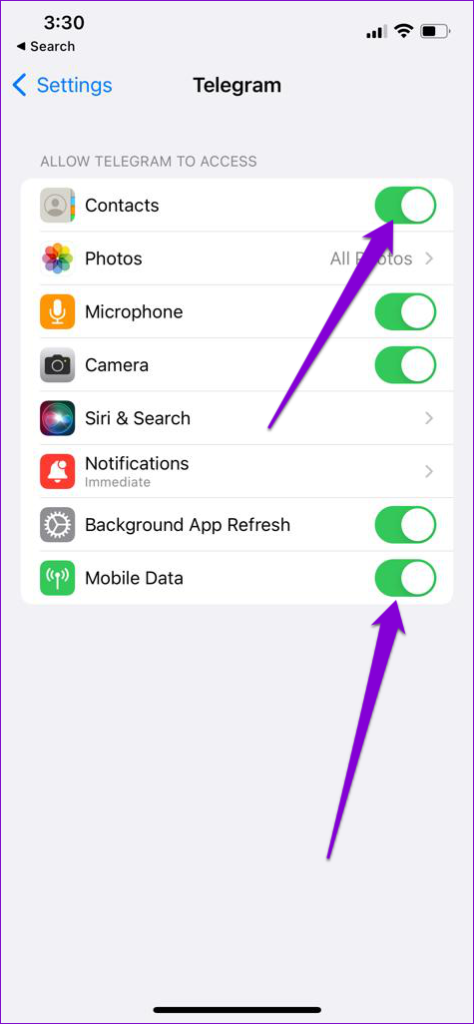
If Telegram does not have the required permissions, it may fail to perform certain tasks or crash unexpectedly. You can go through Telegram’s app permissions on your phone to ensure it has all the necessary permissions.
On Android
Step 1: Long-press on the Telegram app icon > tap the info icon > Permissions .
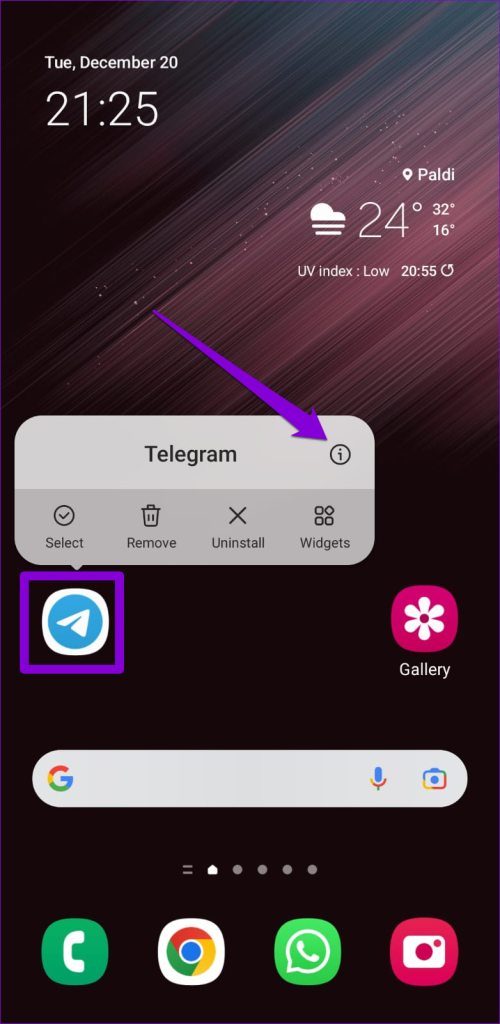
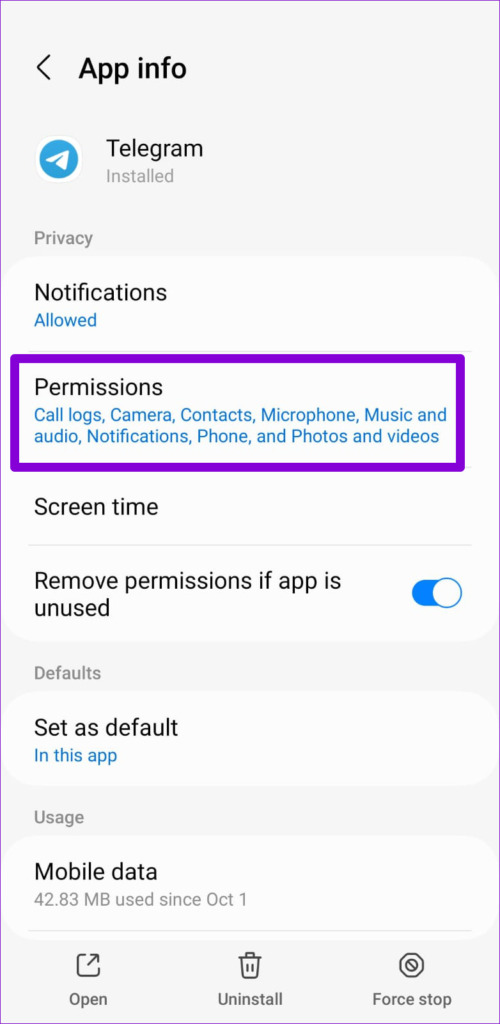
Step 2: Allow all the essential permissions one by one.
On iPhone
Step 1: Launch the Settings app on your iPhone > scroll down and tap on Telegram .
Step 2: Go through each permission and use the respective toggles to allow it.
Fix 2: Clear Telegram Cache
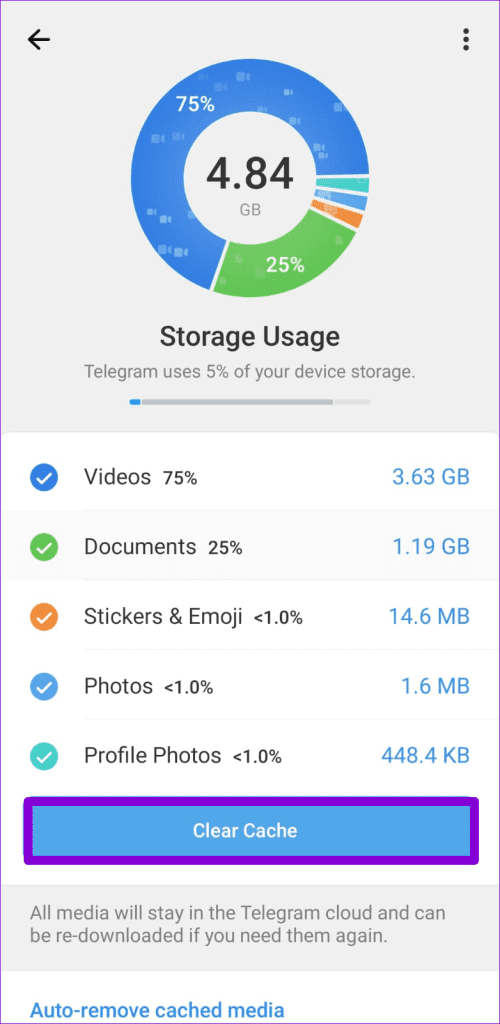
Apps like Telegram tend to gather a significant amount of cache data during their usage. But once this data gets old, it hurts more than it helps. Fortunately, Telegram carries an option to clear cache data within the app. Here’s how to access it on your Android or iPhone.
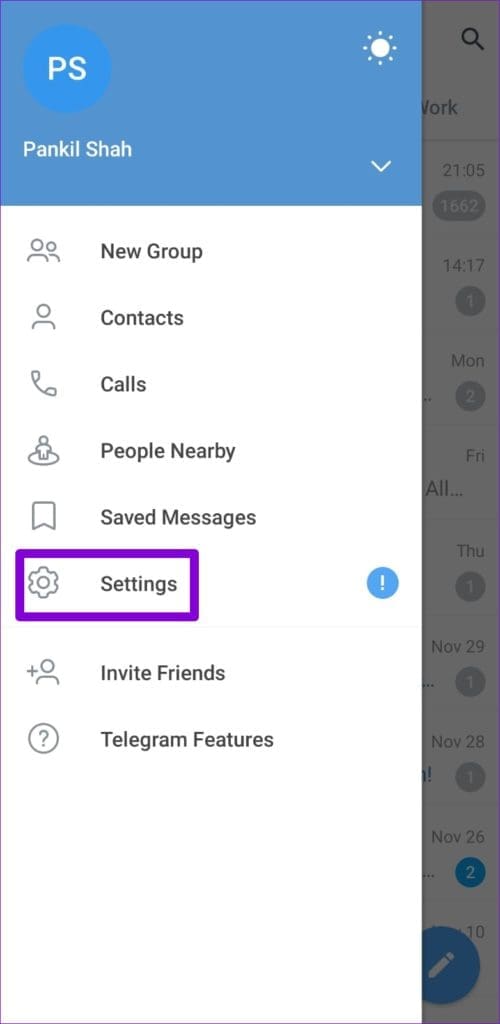
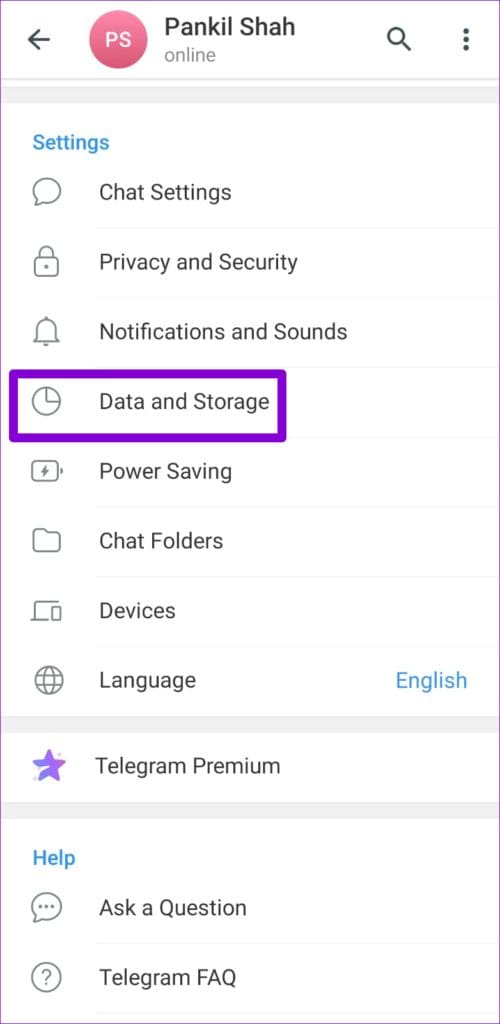
Step 1: Open Telegram on your phone > tap on the three horizontal lines at the top left > select Settings > go to Data and Storage .
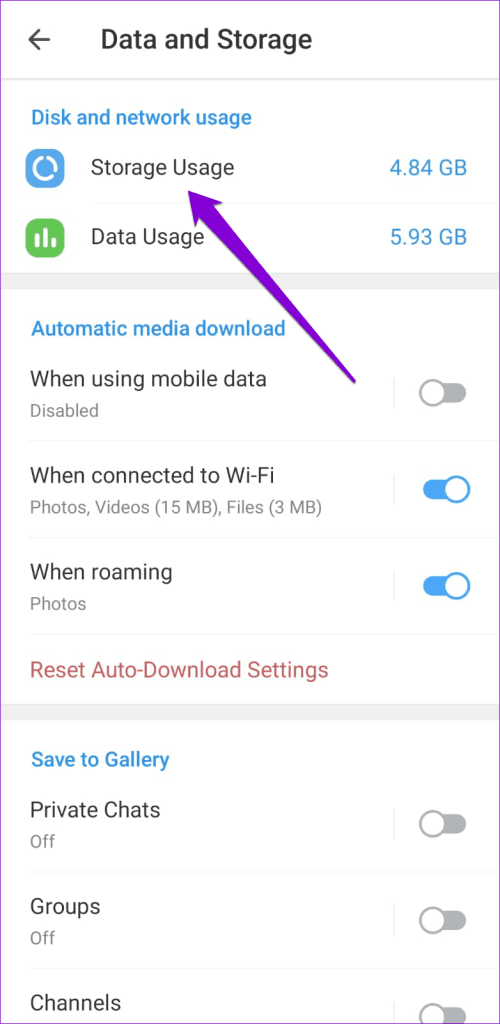
Step 2: Go to Storage Usage . Under Device storage, tap Clear Cache .
Fix 3: Reset Google Play Services (Android)
Google Play Services is an essential app that works behind the scenes to connect all your apps, Google services, and Android together. If Google Play Services encounters a problem, it may cause other apps, including Telegram, to freeze or crash abruptly. Here’s how to fix it.
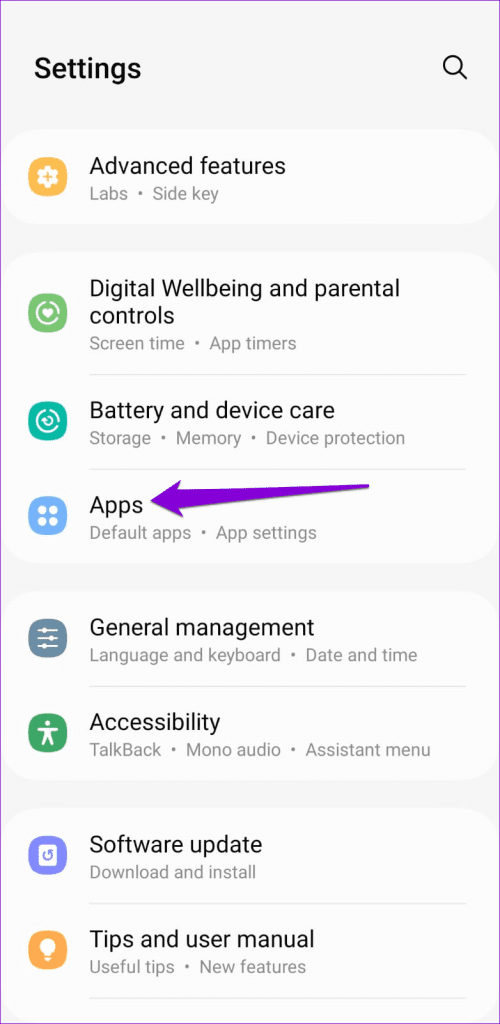
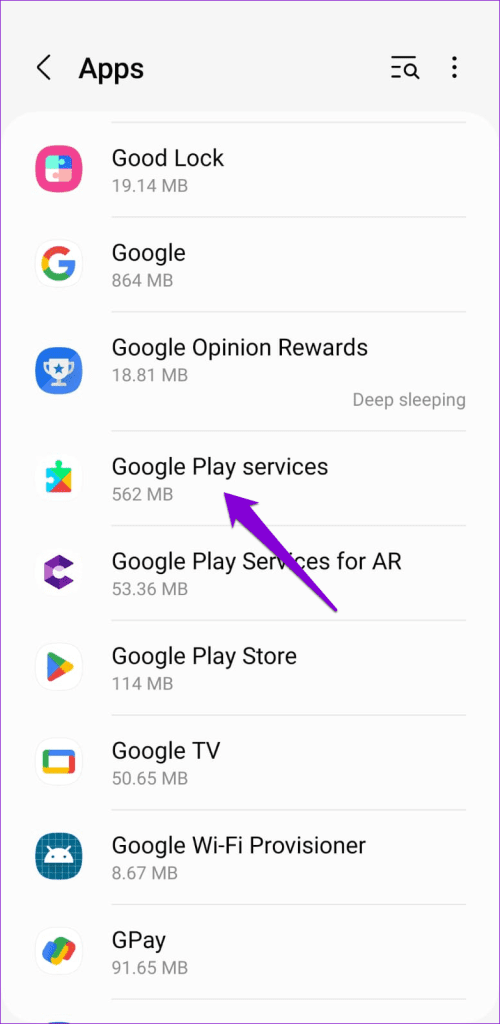
Step 1: Open the Settings app > go to Apps > scroll down to find and tap on Google Play Services .
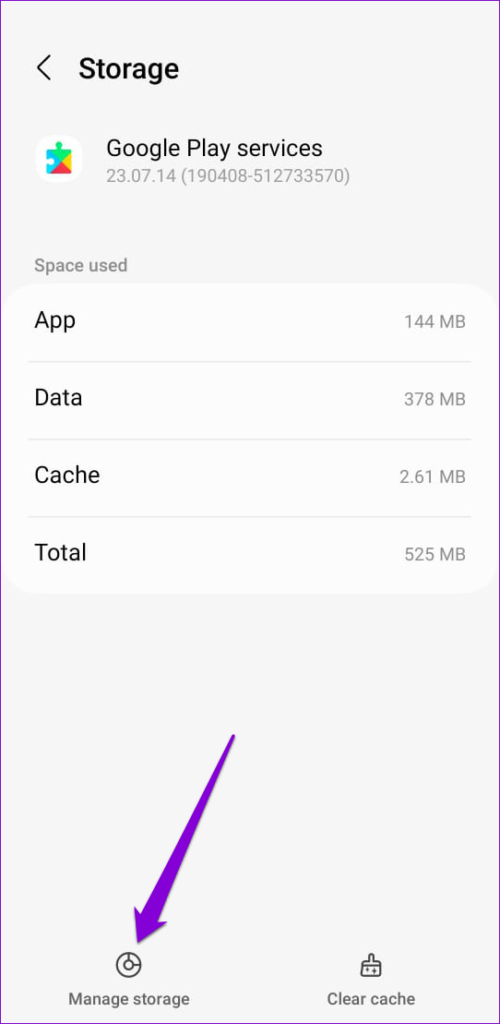
Step 2: Select Storage .
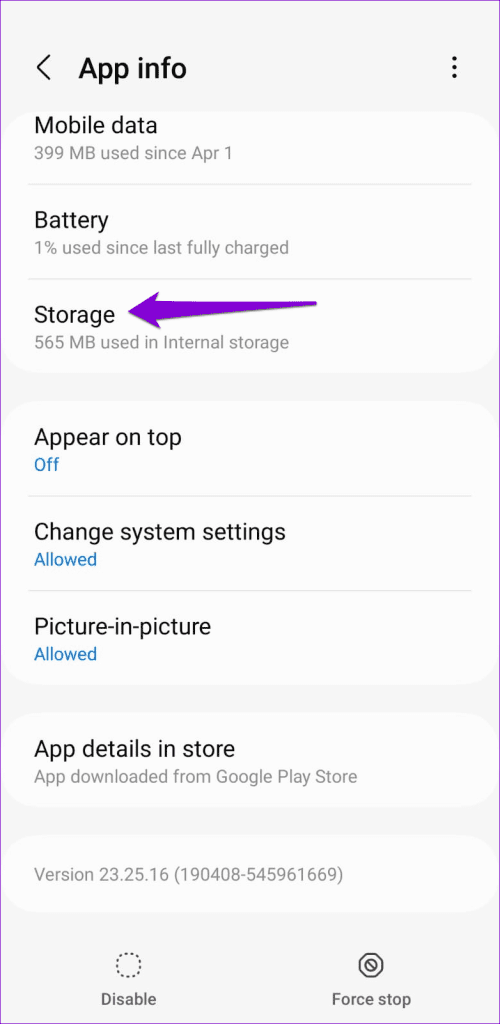
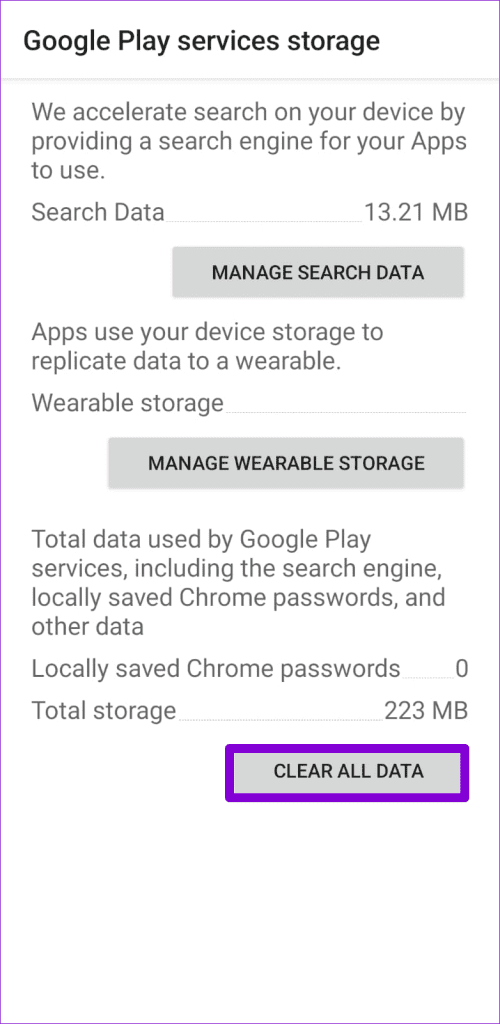
Step 3: Tap Manage storage > select the Clear All Data button.
Was this helpful?
Submit Cancel
Thanks for your feedback!
Keep reading