Android
3 Ways to Fix Android Not Sending Video Messages
Do you keep facing errors while sending videos on your Android phone? Here are the best ways to fix Android not sending video messages.
By Parth Shah
Quick Tips
Your mobile plan must have provisions to send MMS. Otherwise, you can’t send video messages.
Ensure RCS is enabled in the Messages app to send video messages via data or Wi-Fi.
If you repeatedly face issues sending video messages, clear the cache for the Messages app.
Basic Fixes:
Check your mobile plan: Most mobile operators charge a certain amount to send MMS to the recipient(s). So, check your mobile plan and ensure your number has MMS facilities.
Enable and disable Airplane mode: Turning Airplane mode on and off can refresh your device’s network connection. Once done, try sending the video message again.
Close and restart the Messages app: Closing and restarting the Messages app can help eliminate temporary app glitches causing video messages to fail on Android.
Check for app updates: Regular app updates can help prevent bugs. So, check and install the latest app updates for the Messages app. Then, try sending the video message again.
Fix 1: Enable Unrestricted Data Usage for Messages
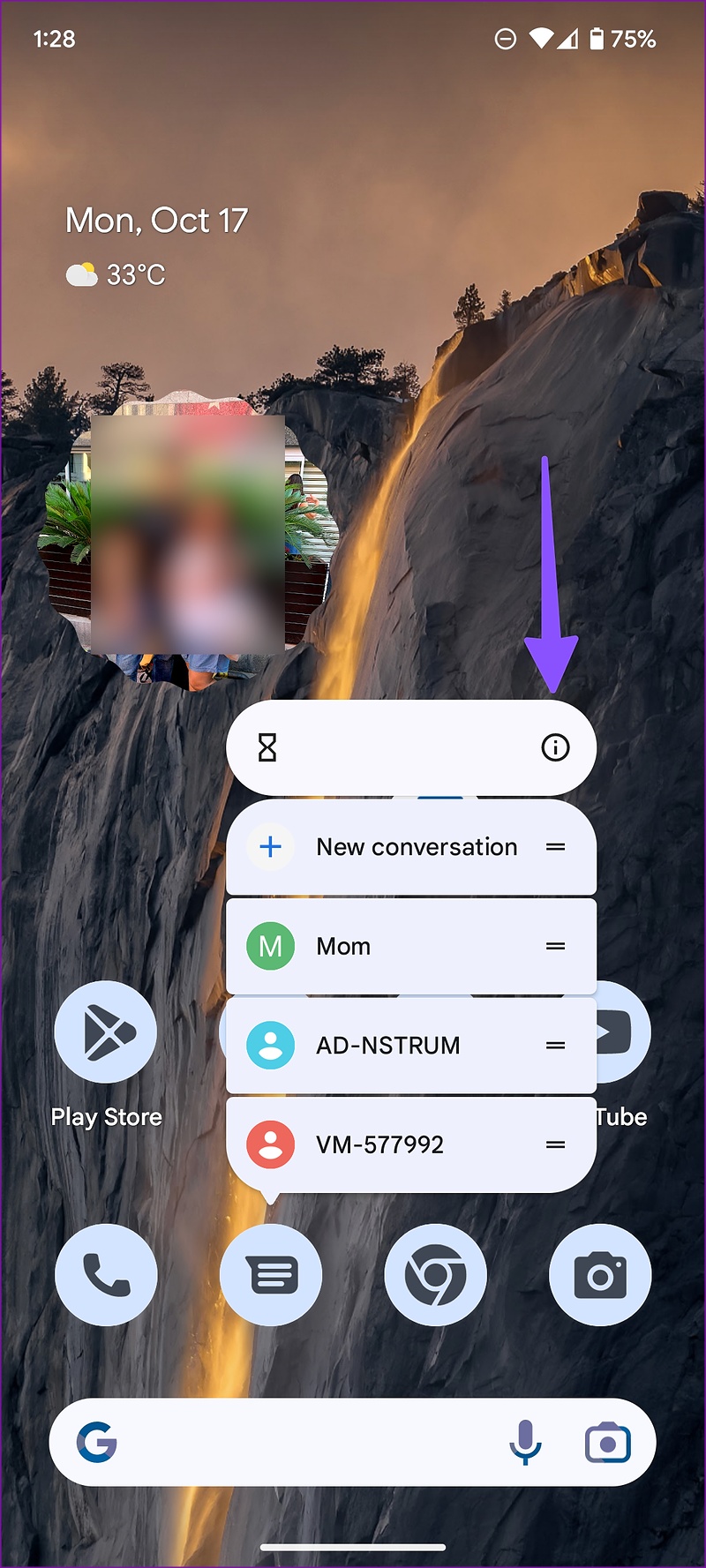
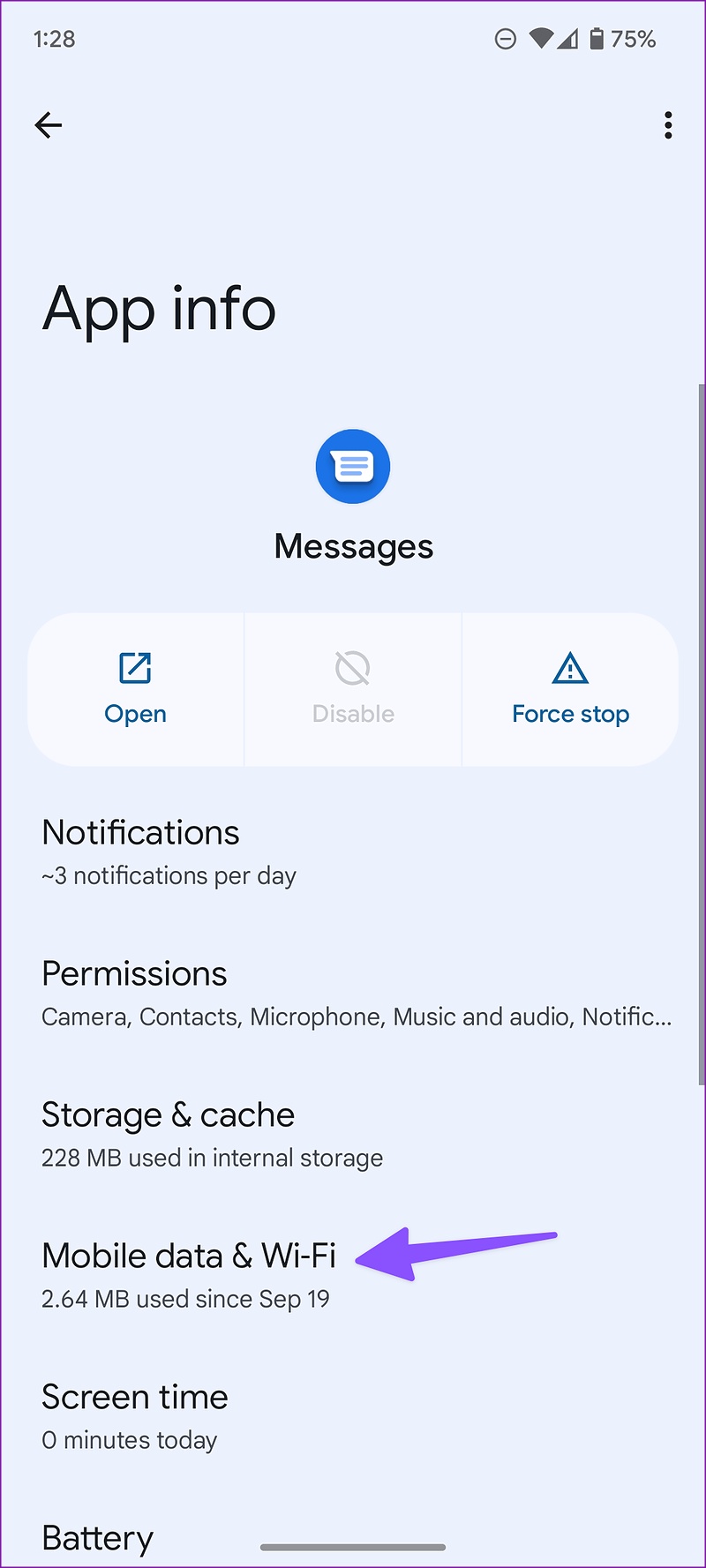
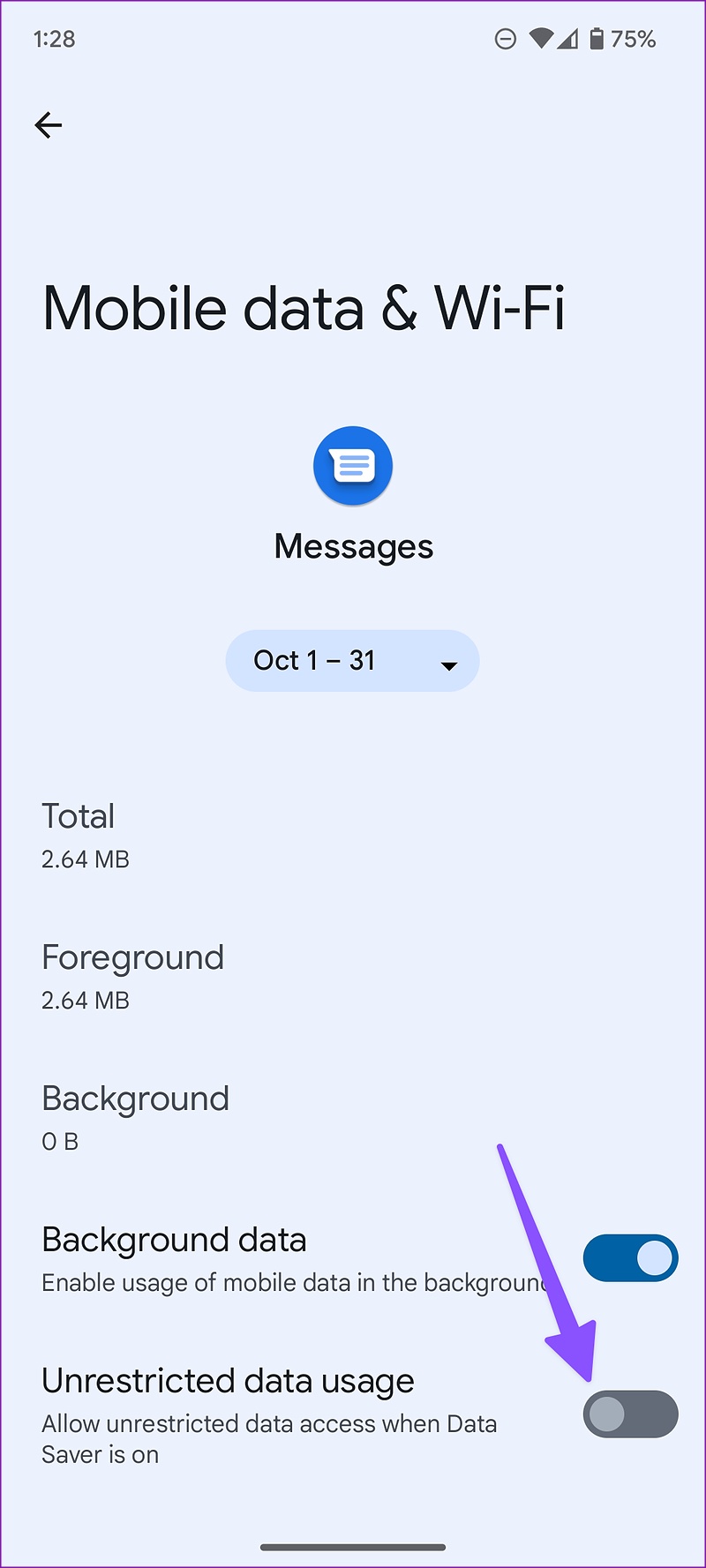
Messages app may fail to send videos if your Android device’s data saver mode is enabled. This will happen as your phone prioritizes data saving over sending the message. In this case, allow unrestricted data usage for the Messages app and check again. Here’s how.
Step 1: Long-press the Messages app and tap on the i icon . Here, tap on Mobile data & Wi-Fi .
Step 2: Enable the toggle for Unrestricted data usage from the following menu.
Fix 2: Enable RCS Chats
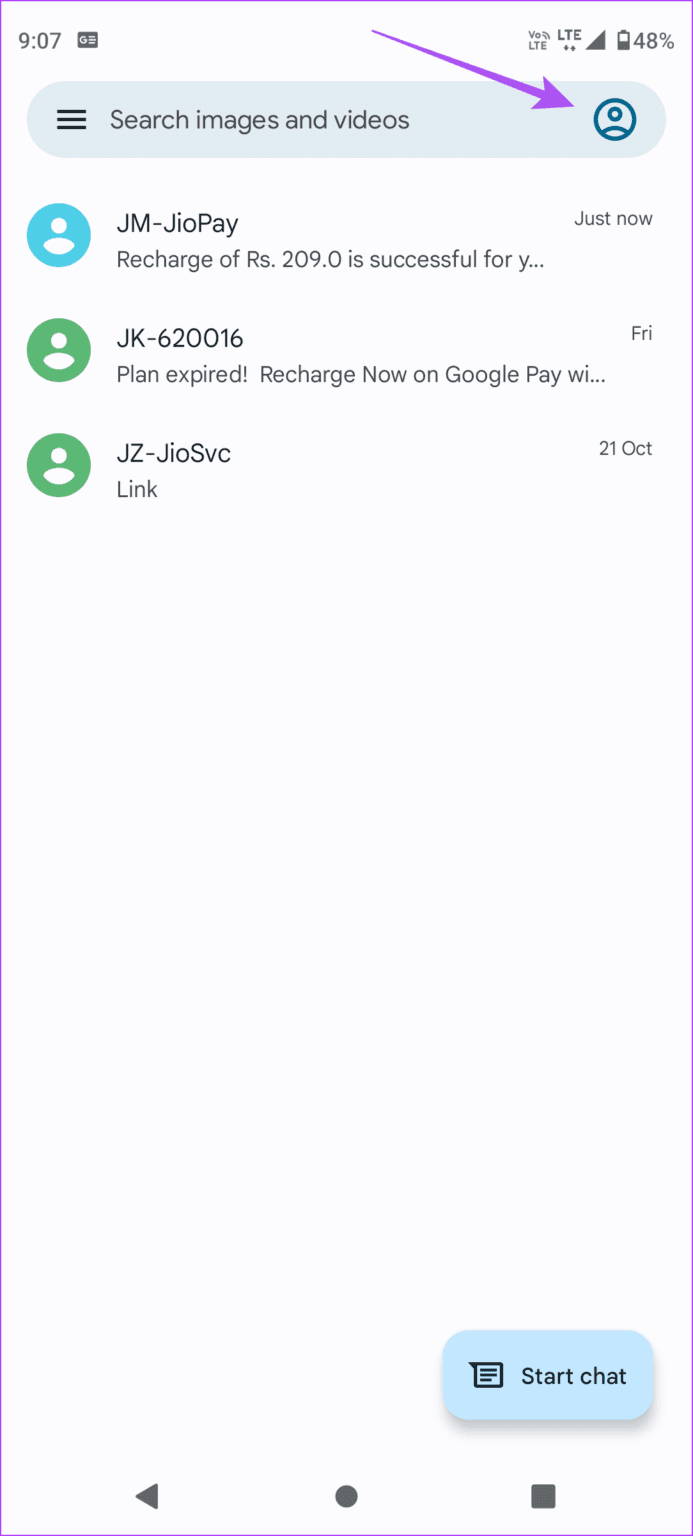
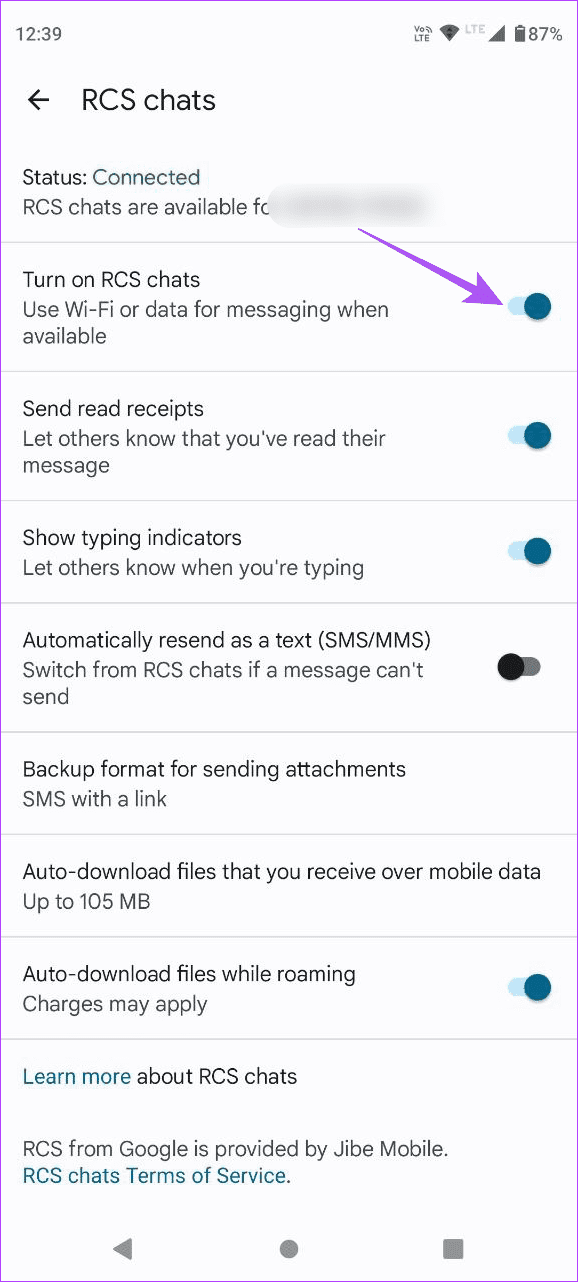
When you enable RCS chat features in Messages, the app uses Wi-Fi or data for messaging whenever available. This can be helpful if you frequently face network issues or want to send large video messages. Here’s how to enable it in the Messages app.
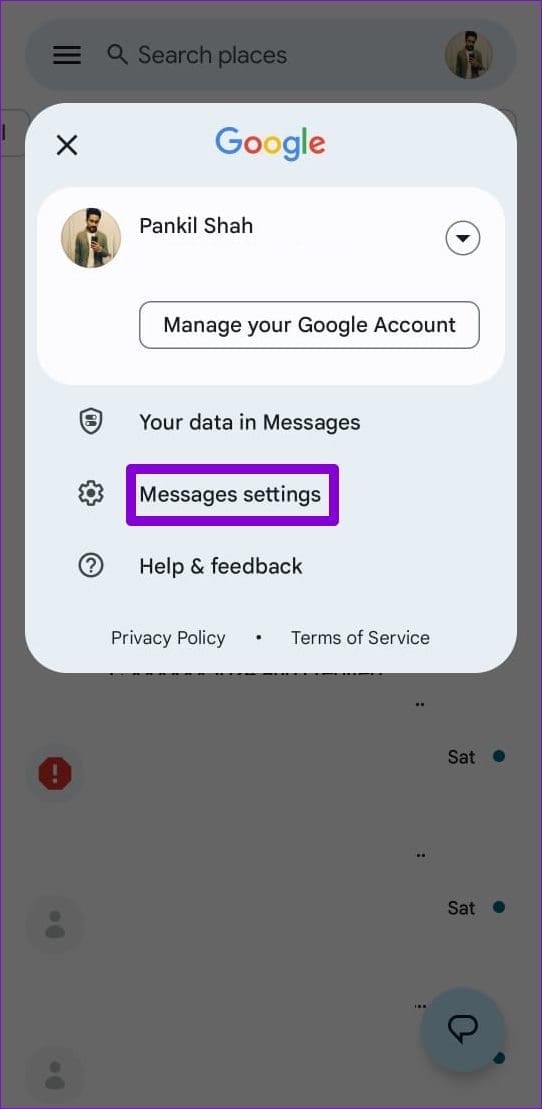
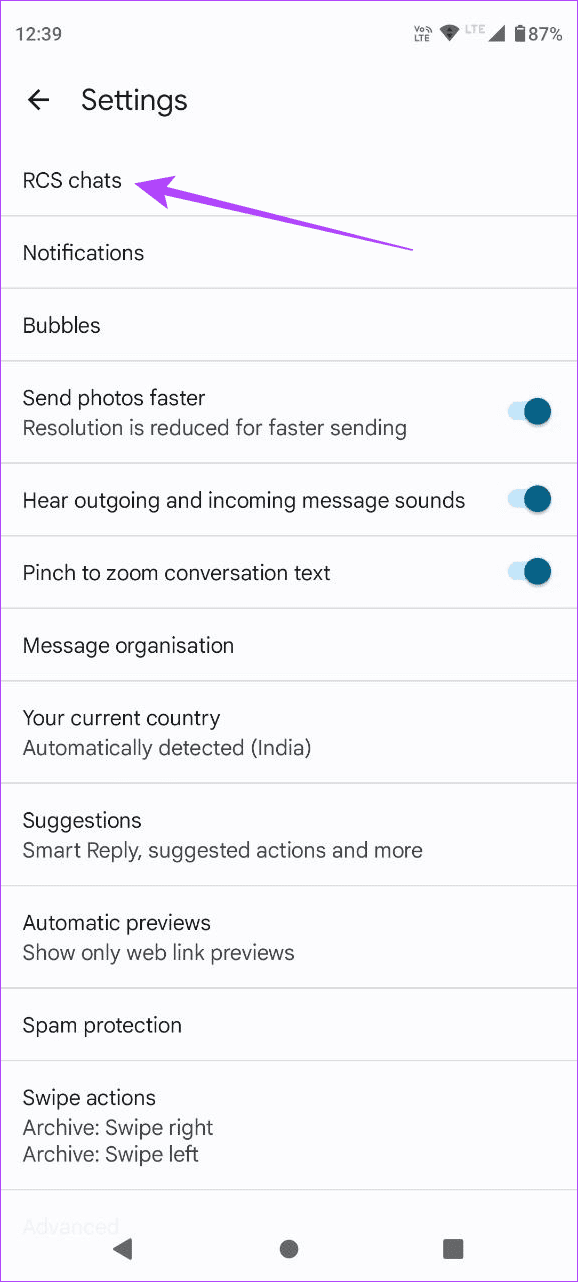
Step 1: Open the Messages app and tap your profile icon at the top-right corner. Then, tap on Messages settings .
Step 2: Here, tap on RCS chats . Turn on the toggle for Turn on RCS chats .
Fix 3: Clear Messages App Cache
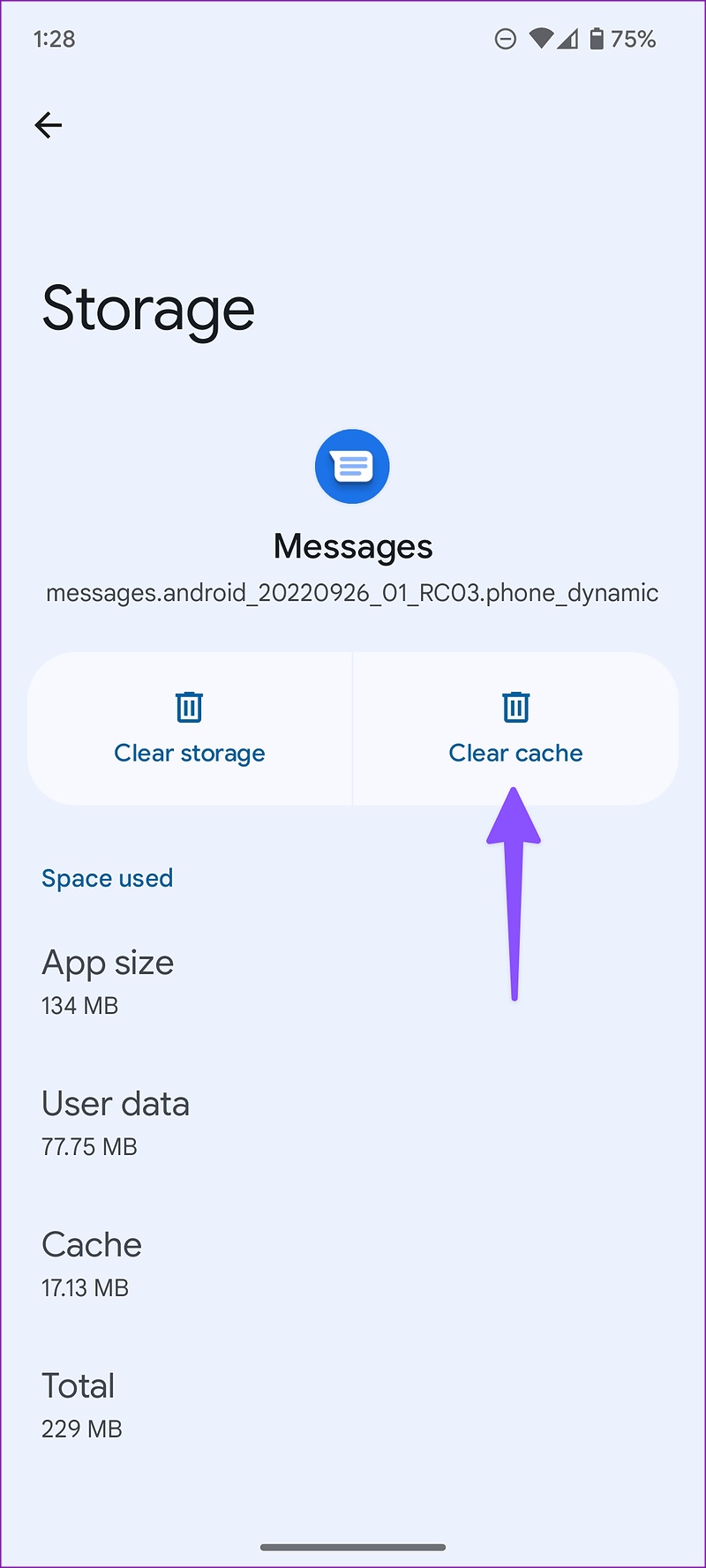
Due to a corrupt Messages app cache, you might face issues when sending video messages. When this happens, it’s time to clear the Messages app cache and try again. Here’s how.
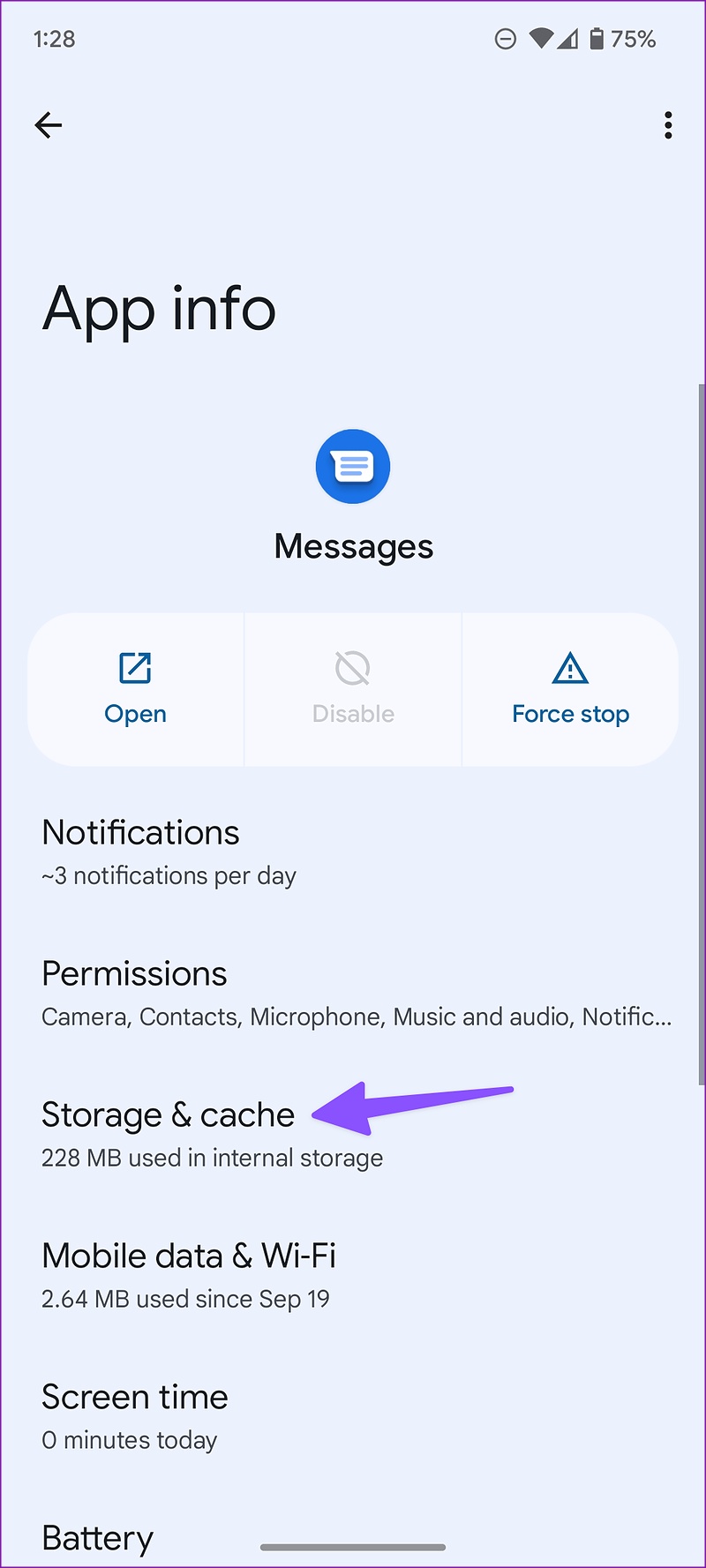
Step 1: Long-press the Messages app and tap on the i icon . Then, tap on Storage & cache .
Step 2: Here, tap on Clear cache .
Bonus: Send the Video Message Another Way
Use third-party messaging apps: Certain third-party messaging apps, like WhatsApp or Telegram, allow you to send video messages. The allowance is relatively bigger than your traditional messaging app and can be convenient for sending multiple videos.
Generate a shareable link via Google Photos: If your contact isn’t available on any messaging platforms, generate a shareable link for the relevant video via Google Photos. Then, send that link via email or social media.
Was this helpful?
Submit Cancel
Thanks for your feedback!
Keep reading