Android
2 Ways to Block Apps From Accessing Internet on Android
Are you concerned about apps sending your private data to other locations? Here's how you can block internet access to apps to prevent it.
By Sumukh Rao
Quick Tips
On some Android skins, you can disable mobile data and Wi-Fi access for individual apps through the Settings app.
You can also use a third-party app like NetGuard to block internet access for specific apps on your Android device.
Method 1: Use In-Built Settings to Block Internet Access
Some custom skins on Android have an in-built option to disable internet access for apps . Here’s how you can access it.
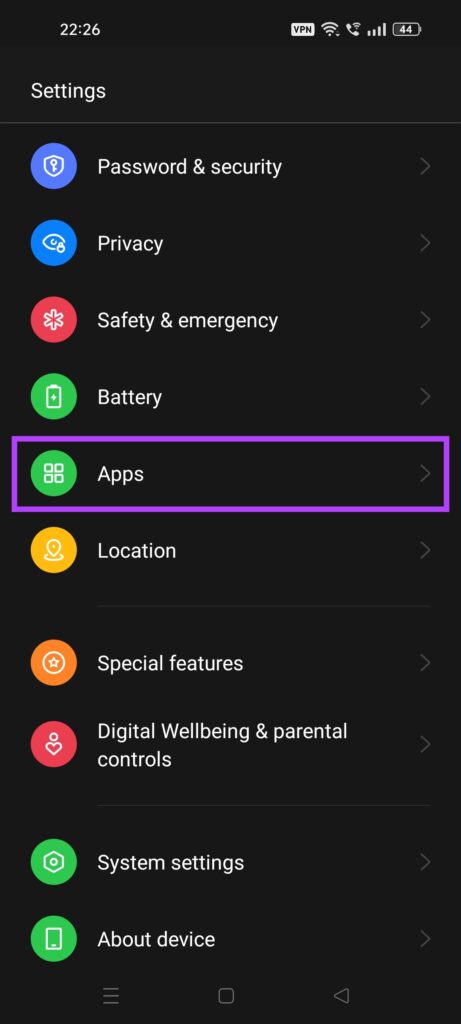
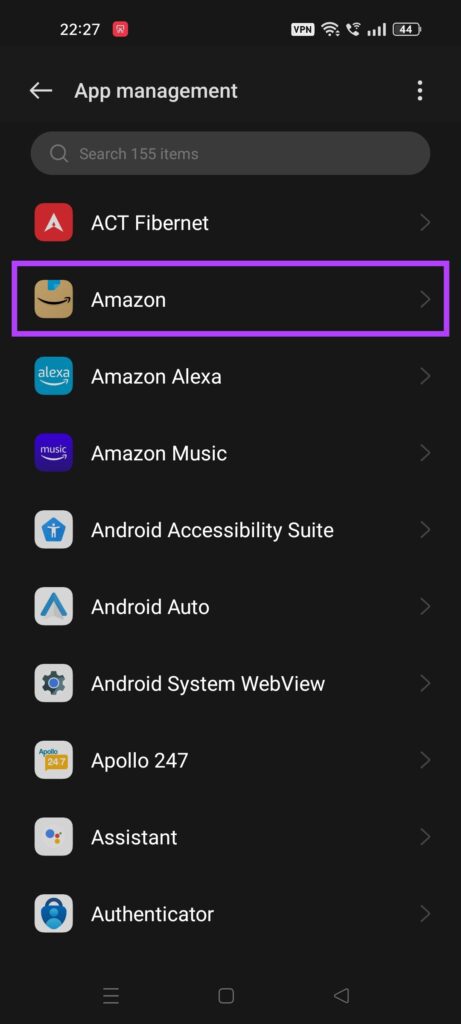
Step 1: Open the Settings app on your phone and head to Apps > App management .
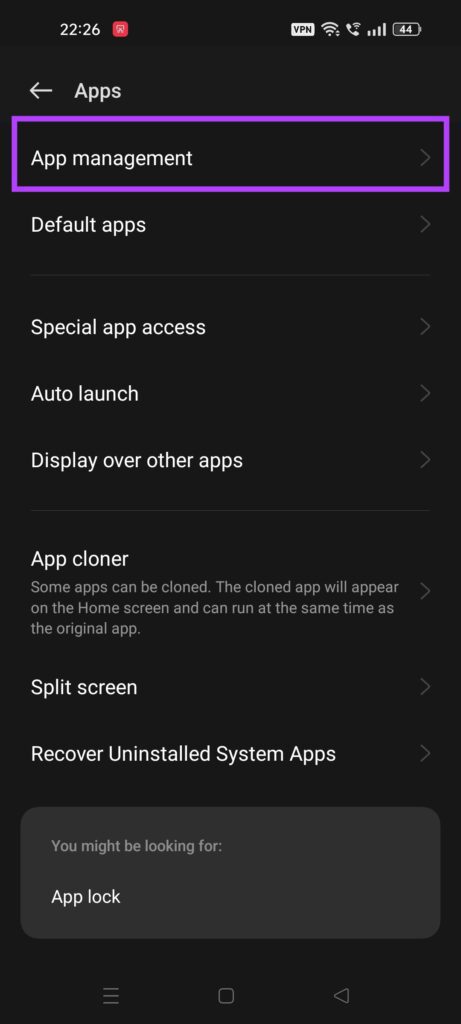
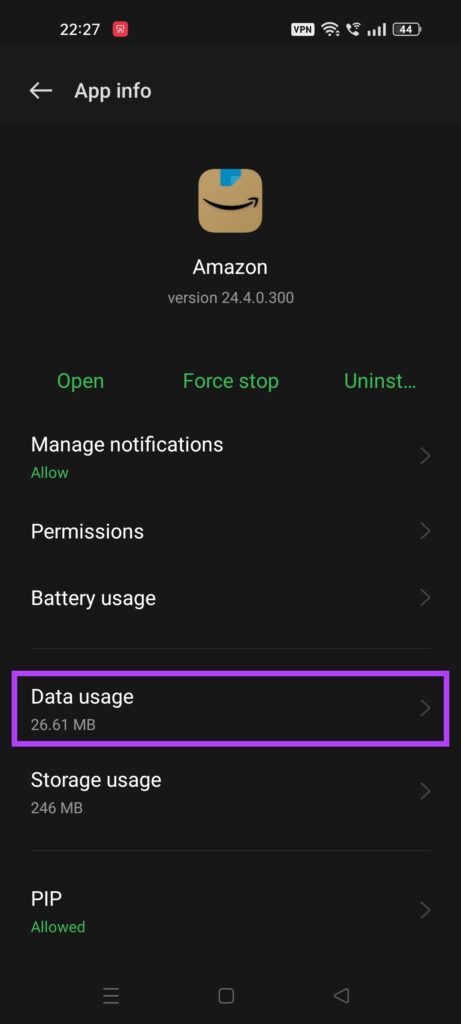
Step 2: Find the app you want to block internet access. Tap on it.
Step 3: Select the Data usage option. Then, turn off the Disable mobile data and Disable Wi-Fi toggles.
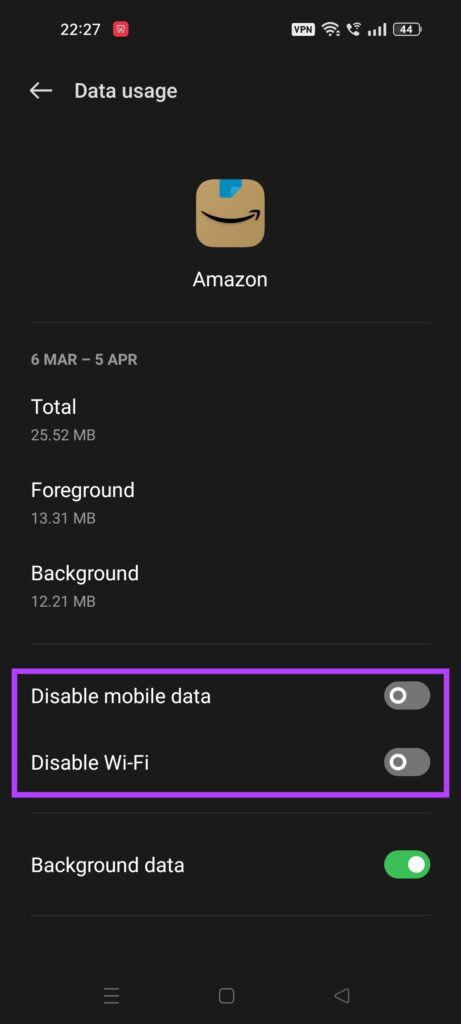
While this is the best way to block internet access from apps, this option isn’t present on all phones and versions of Android. Hence, the next best solution is to use a third-party app that works universally on all phones.
Method 2: Use the NetGuard App
NetGuard is a free app that you can download from the Play Store. It helps you block internet access to apps on your phone. Here’s how you can use it.
Step 1: Head to the Play Store on your phone and download the NetGuard app .
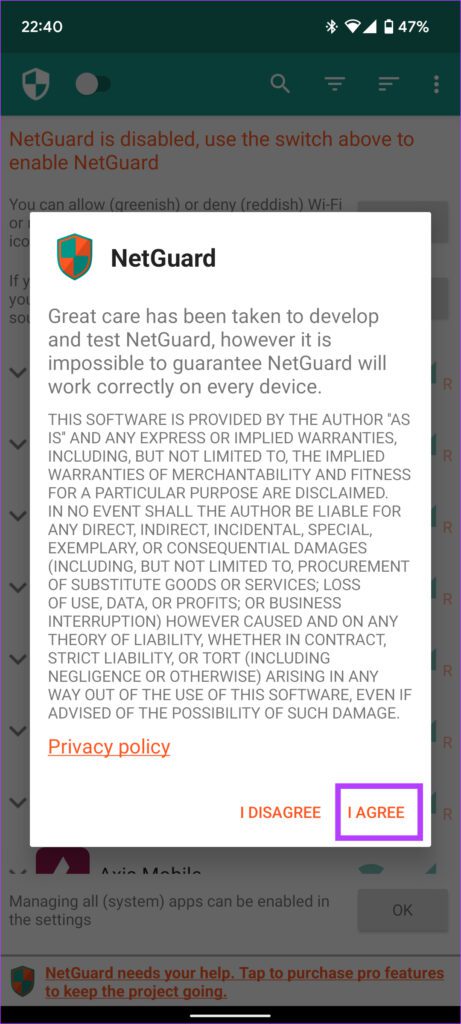
Step 2: Open the app once installed and select I Agree .
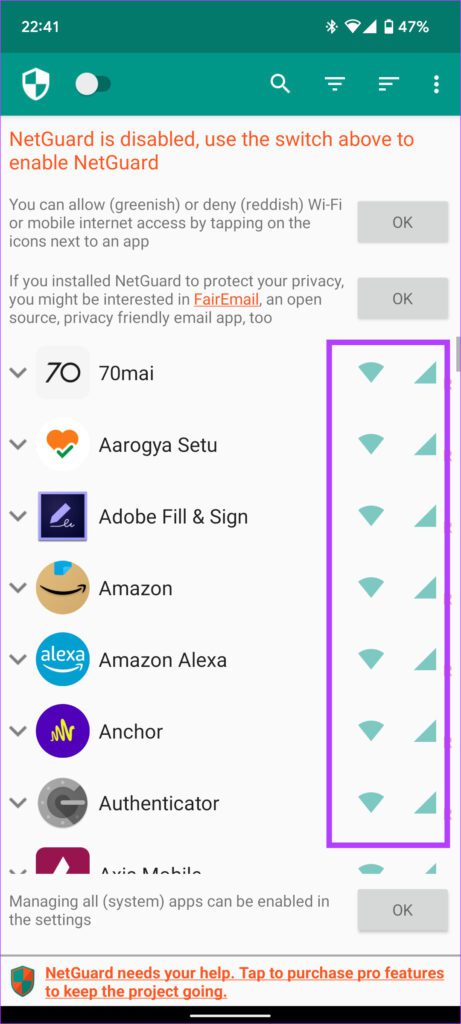
Step 3: All the apps installed on your phone will be listed and you will see two green icons listed next to each app.
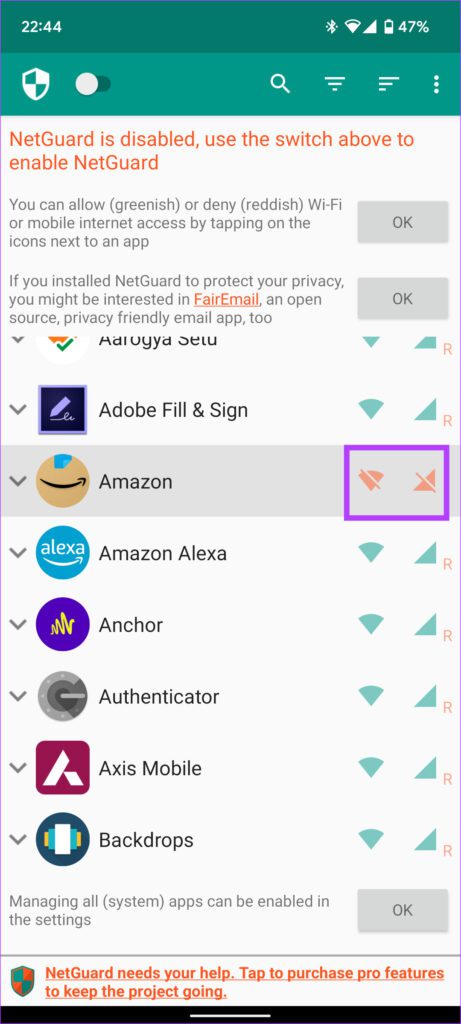
Step 4: Tap the respective icons next to the app you want to disable internet access to. If you want to disable internet access completely, tap on both icons.
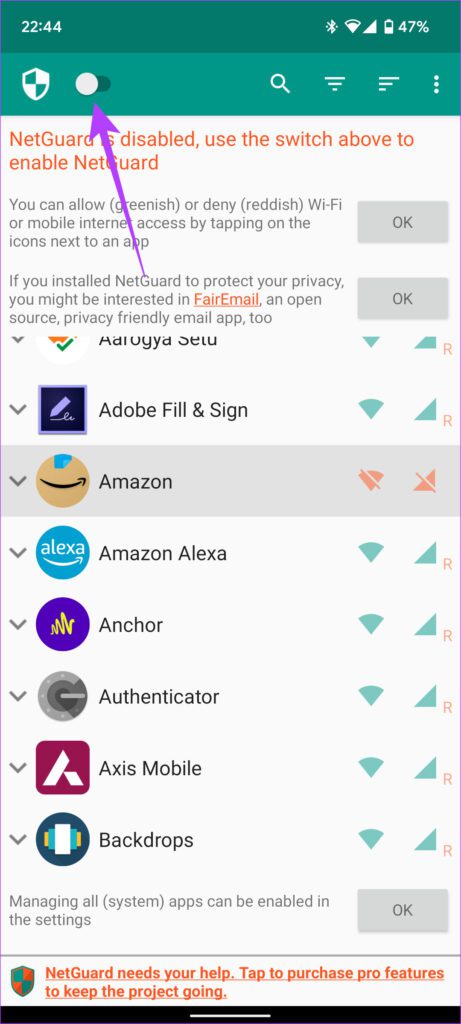
Step 5: Tap on the switch in the top-left corner to enable NetGuard and hit OK .
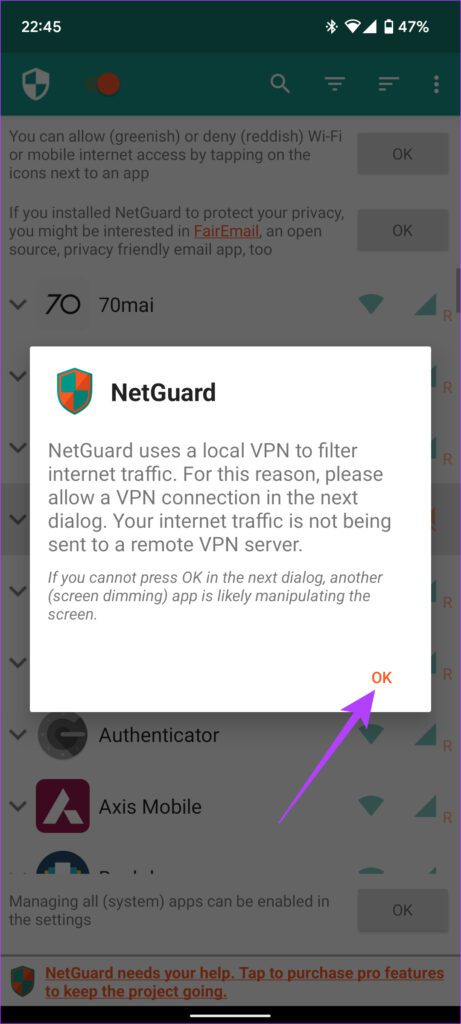
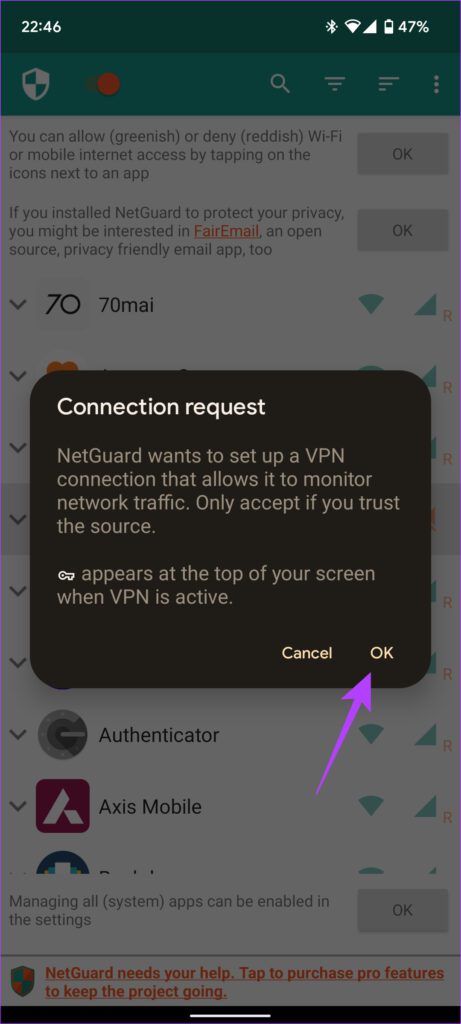
Step 6: You will now see a connection request telling you that NetGuard is trying to set up a VPN connection. Tap on OK .
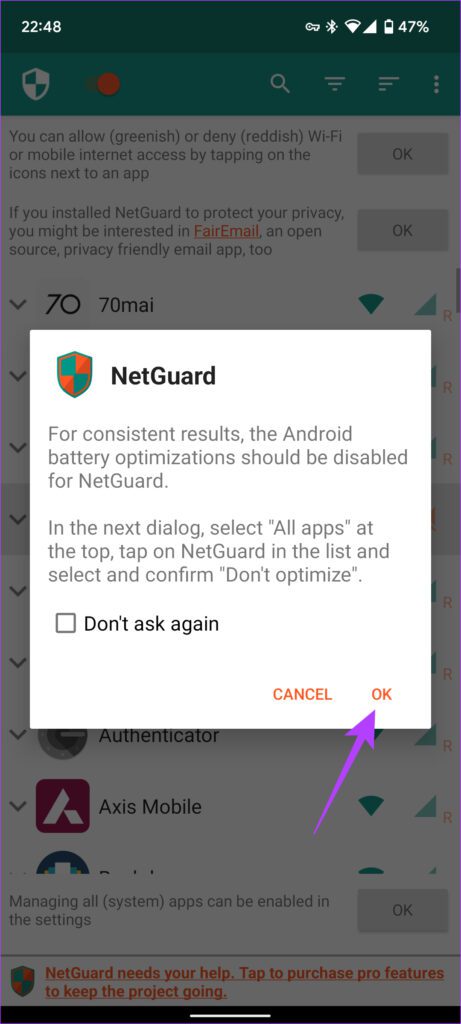
Step 7: Another prompt will now pop up asking you to disable battery optimization. Select OK to proceed.
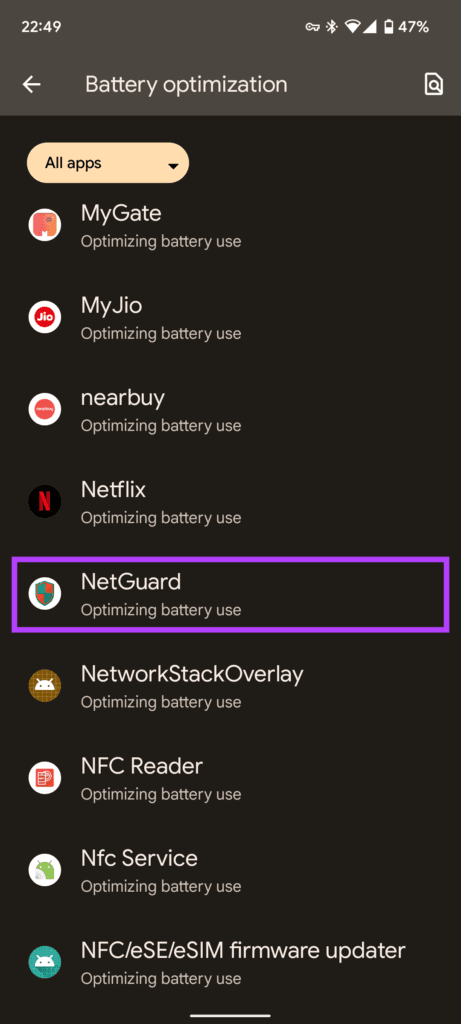
Step 8: In the screen that opens, use the drop-down menu to select All apps .
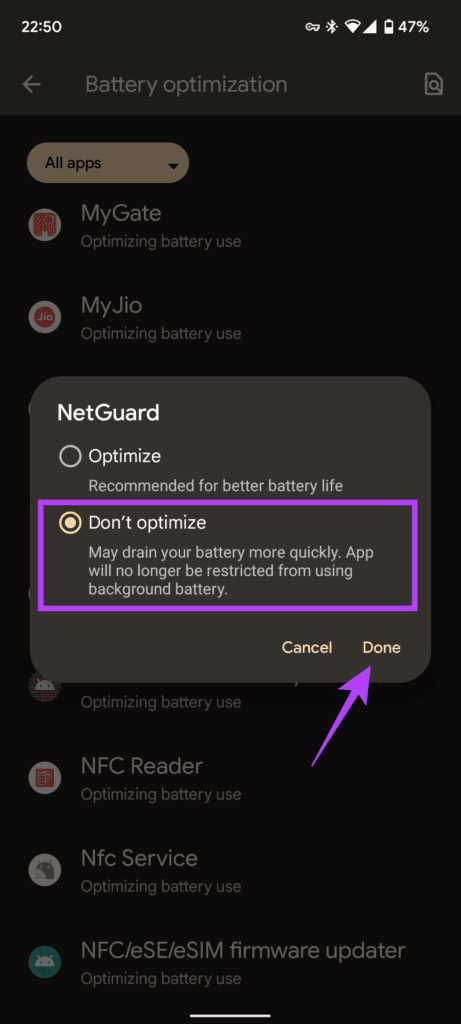
Step 9: Tap on NetGuard , select Don’t optimize , and hit Done .
You will now see that NetGuard is active and the selected app does not have internet access. You can verify that NetGuard is active by looking for the key icon in the notification center indicating that a VPN is active.
Was this helpful?
Submit Cancel
Thanks for your feedback!
Keep reading

![9 Pet Care Apps in 2024 [Free and Paid]](https://bcdn.seocloud.biz/seo-articles/82a3ce5485f5bc506feb1226aca9bcb4/cover.jpg)