Android
7 Ways to Fix Camera Failed Error on Samsung Galaxy Phones
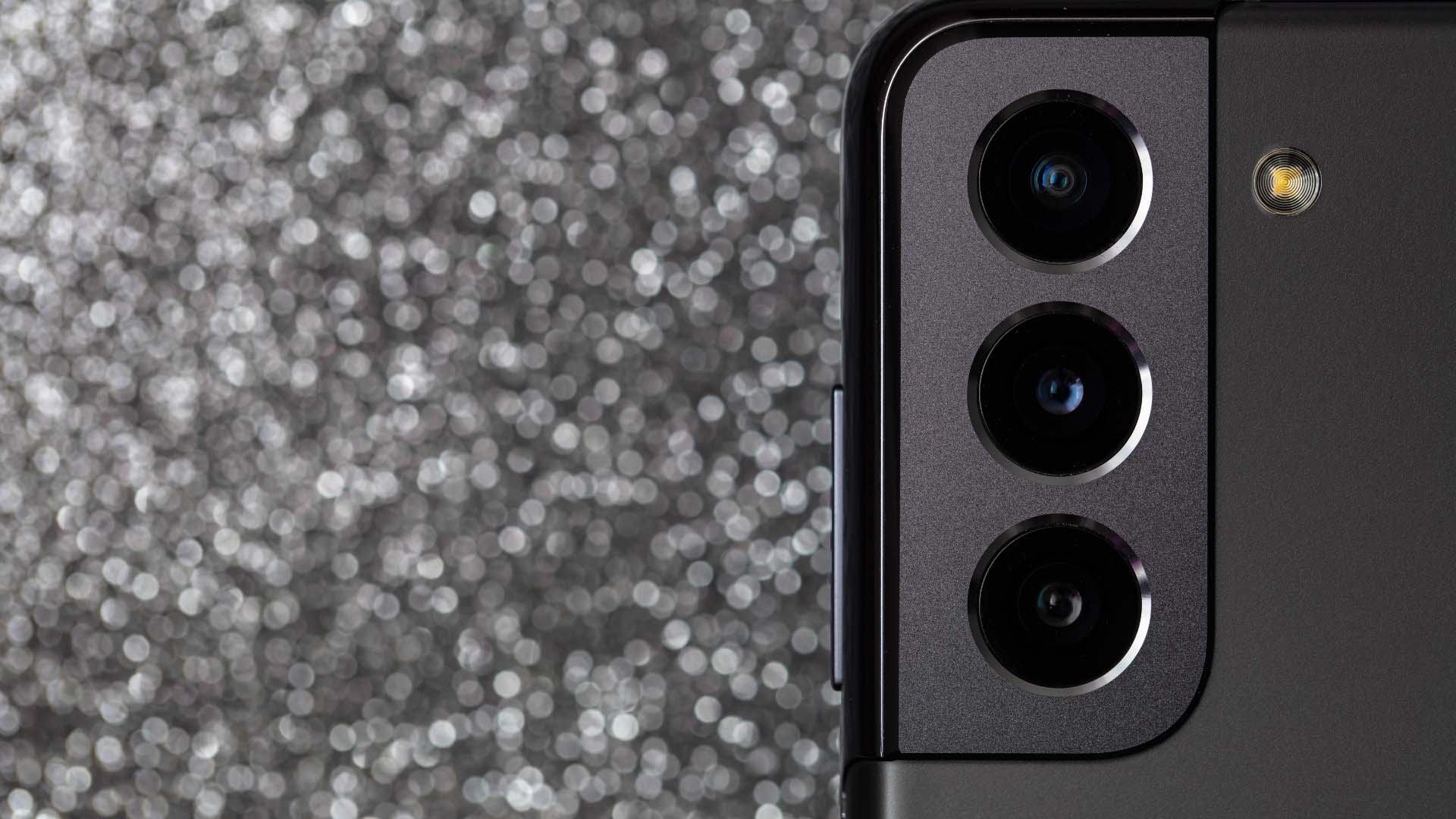
Are you facing issues with lag in the Camera app on Samsung? Here are the ways to fix the camera failed error on Galaxy phones.
By Parth Shah
Quick Solutions
Check the internal storage of your Samsung phone and try force stopping the Camera app.
You can clear the Camera app cache and restart your Samsung phone in Safe Mode.
If nothing works, update One UI and the Camera app version.
Fix 1: Check Internal Storage and Phone Temperature
You must have sufficient internal storage on your Samsung Galaxy phone for the Camera app to store new photos and videos.
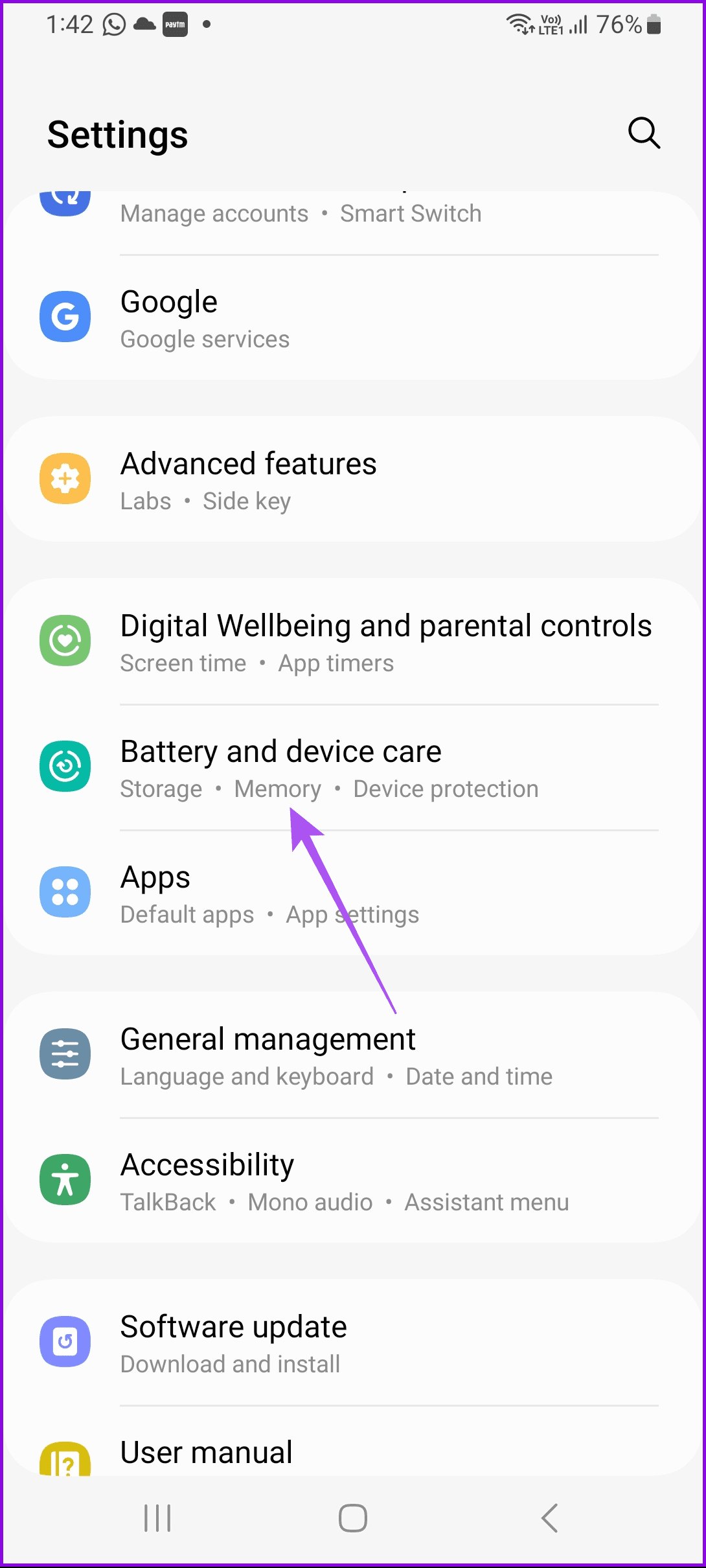
Step 1: Open Settings and go to Battery and Device Care .
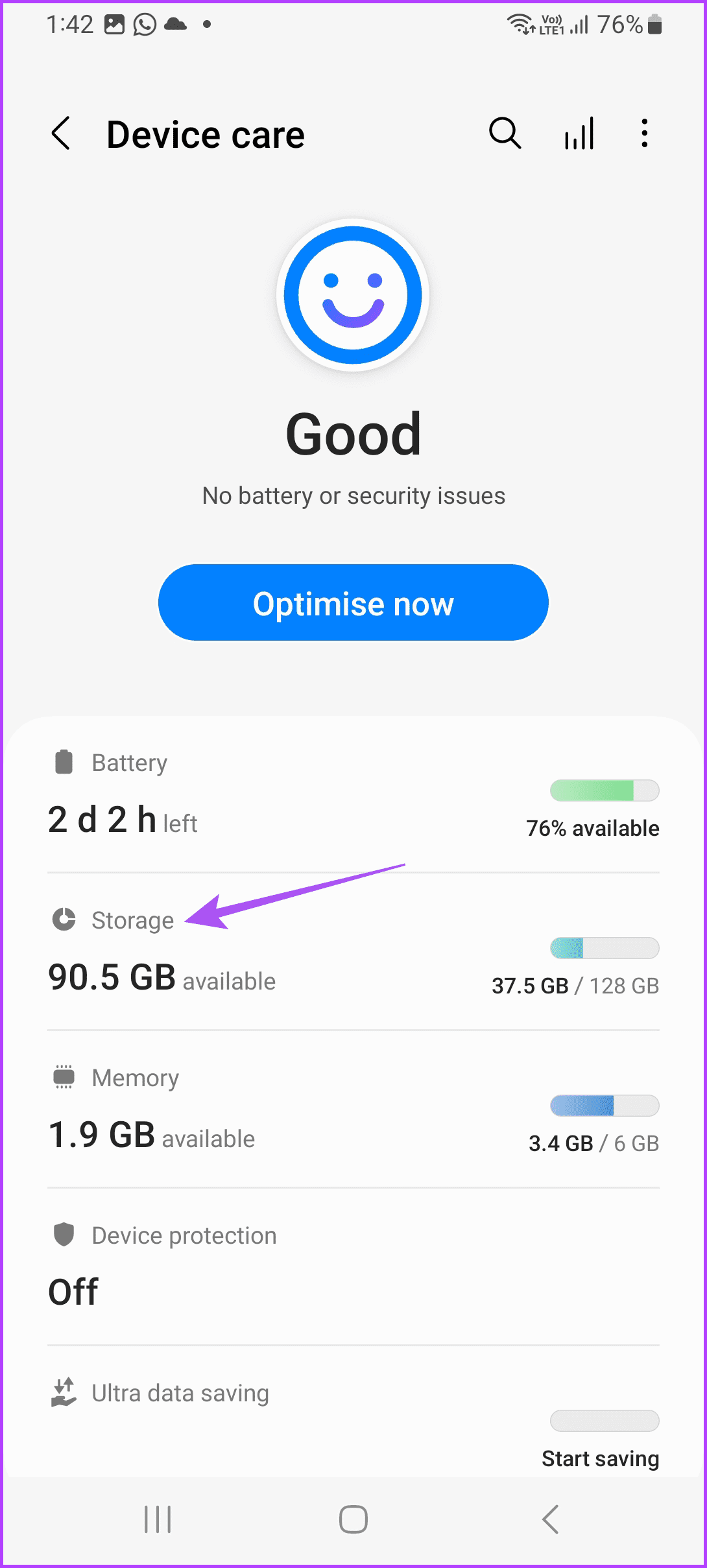
Step 2: Select Storage from the following menu. Check how much space remains on your device.
Similarly, if your phone is heating up due to extended usage, it is a probable reason behind the camera failed error. So, avoid using your phone for some time to let it cool down.
Fix 2: Reset the Camera App
This will restore all Camera permissions to default on your Samsung Galaxy phone.
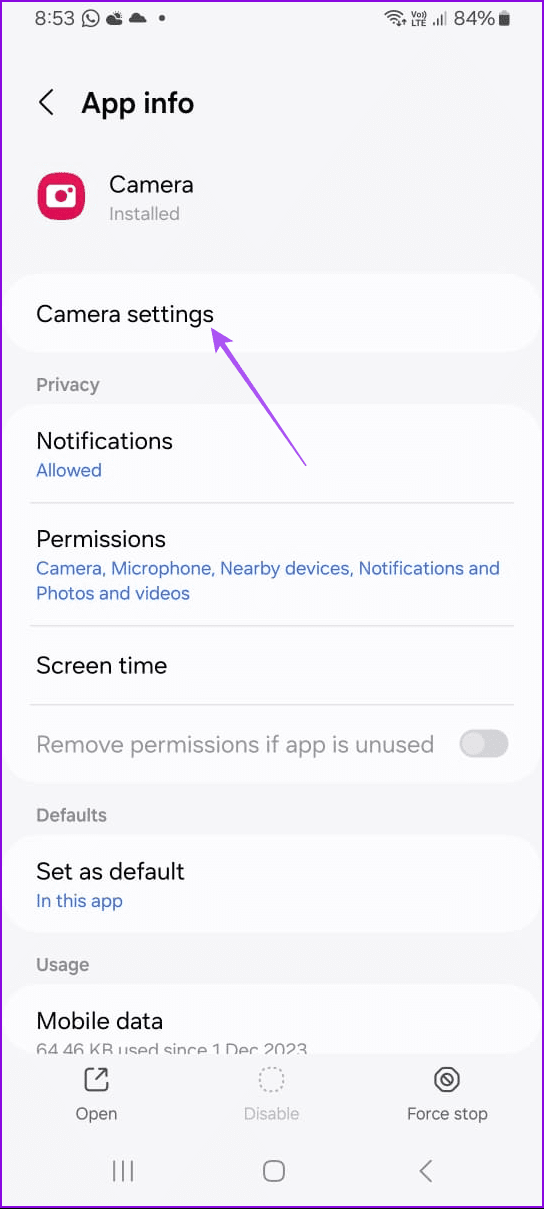
Step 1: Long-press the Camera app icon and tap on App Info .
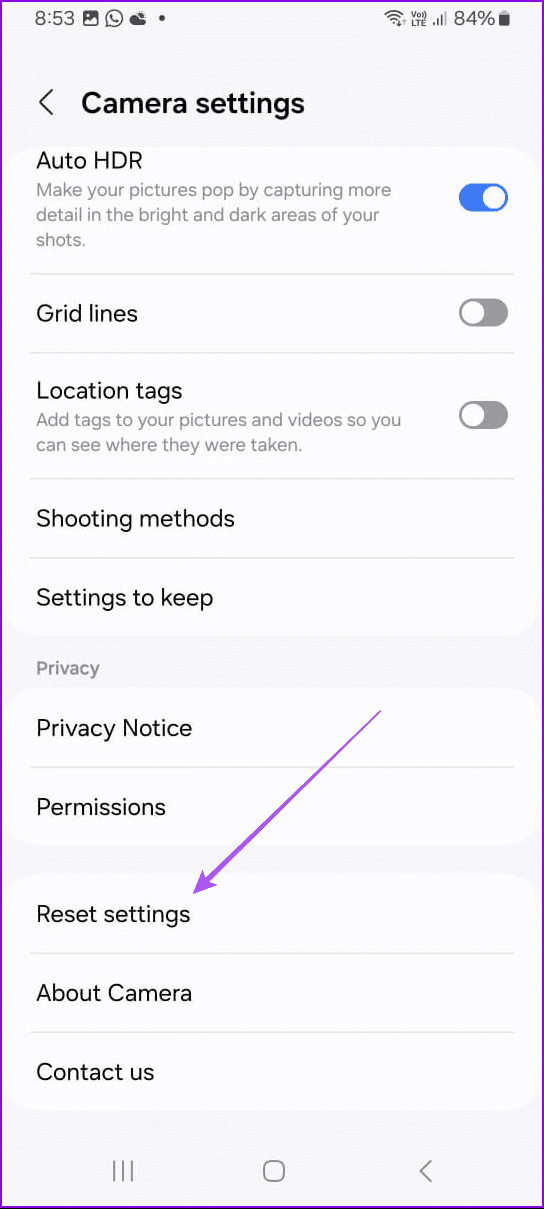
Step 2: Select Camera Settings and scroll to the bottom. Tap on Reset Settings and confirm your choice.
Fix 3: Check Camera App Permissions
When installing different apps, they ask for permission to access the camera. If you have denied permission to any particular app that requires accessing the camera, the Camera app might not work as expected.
Step 1: Long-tap on the Camera app icon and launch the App Info menu.
Step 2: Select Permissions and tap on Camera .
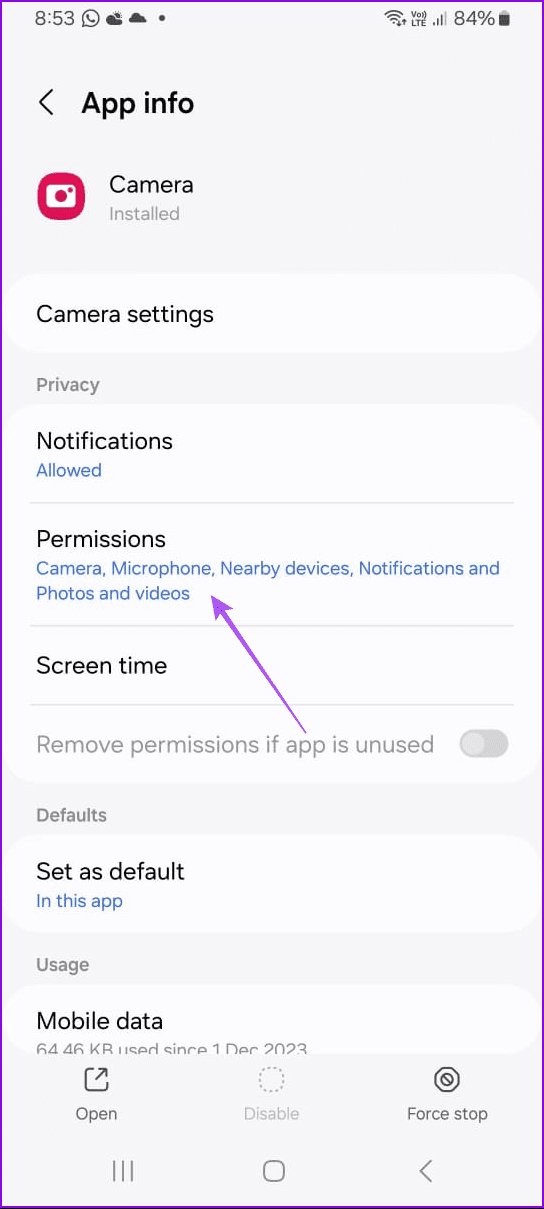
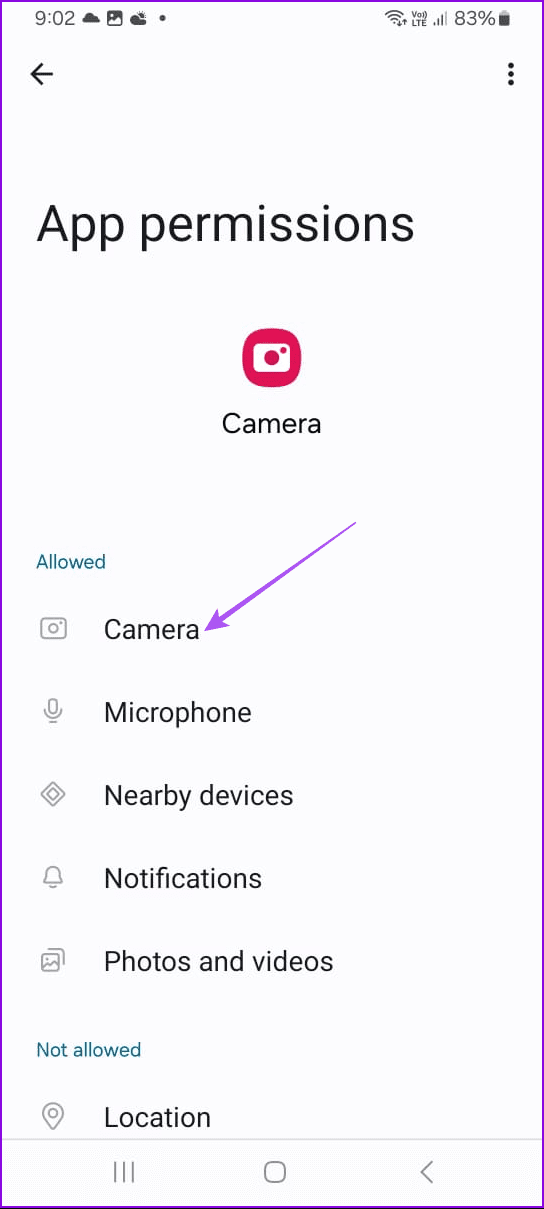
Step 3: Select the radio button beside the Allow only while using the app option, and you’re good to go.
After that, close App Info and enable system-wide camera access. Swipe down on the home screen to open the quick toggles menu. Enable the camera toggle , and you’re good to go.
Fix 4: Force Stop Camera App
You might reboot the phone to fix minor glitches with system functions. Similarly, you can restart the Camera app to troubleshoot lag and random errors. Here’s what you need to do.
Long-press on the Camera app icon and tap on the i button at the top. Open Camera info and select Force Stop .
Return to the home screen and tap on the Camera app to relaunch it.
If any other app actively uses the camera interface in the background, you might face problems with the primary Camera app on Galaxy phones. So, we suggest force quitting them.
Fix 5: Clear Camera App Cache
Like many other Android apps, the Camera app also collects cache data in the background to help improve app loading speeds and overall performance. However, a corrupt cache can lead to camera failed errors, so you must clear that cache.
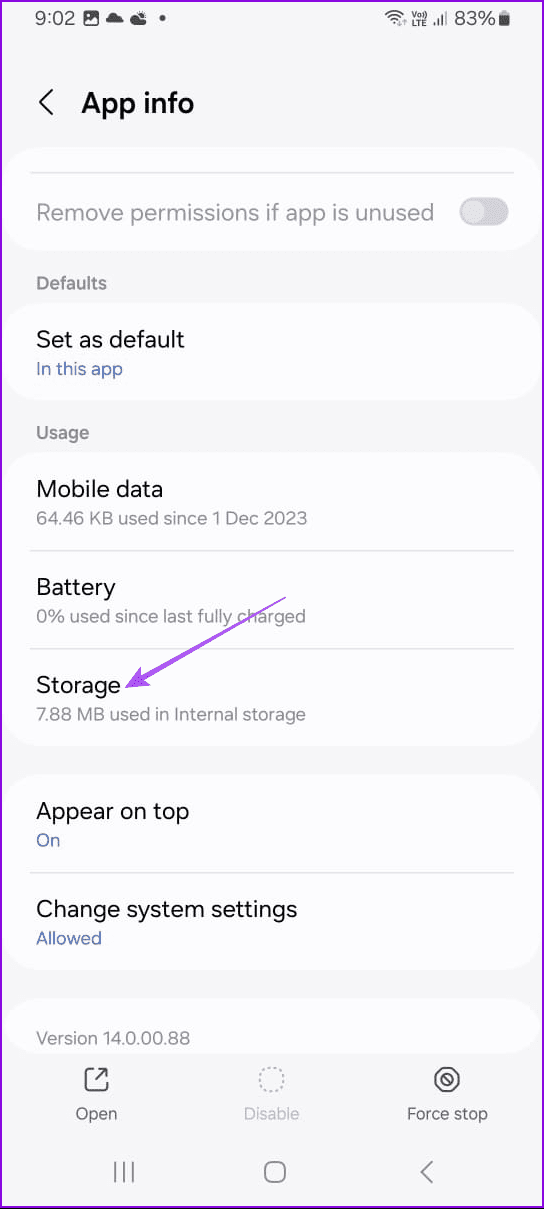
Step 1: Long-tap on the Camera app icon and open the App Info menu.
Step 2: Go to Storage and select Clear Cache at the bottom-right corner.
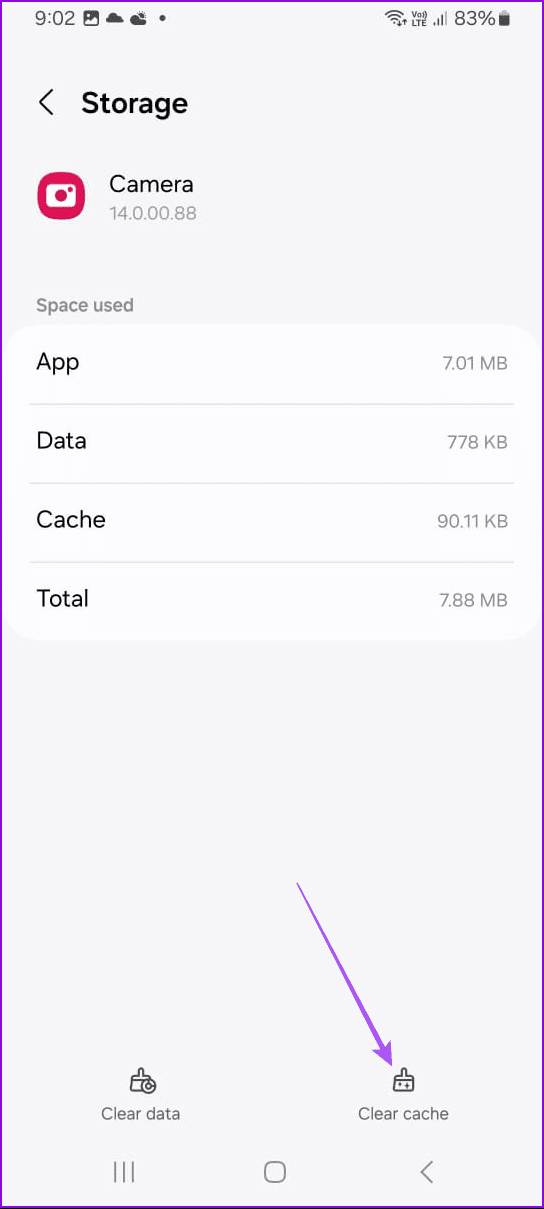
After this, try using the Camera app for a while to see if it still throws the error.
Fix 6: Restart Your Phone in Safe Mode
One of the third-party apps on your Samsung device might be responsible for the issue. You can check and fix the same using Safe Mode.
Step 1: Turn off your phone completely. Then, press and hold the power button until the logo appears.
Step 2: When the logo appears, press and hold the volume down button until your phone boots into safe mode.
Fix 7: Update One UI and Camera App
A laggy camera interface or camera failure error might be caused by a buggy Android build on your Galaxy phone. Lately, Samsung has improved its software update game. Also, monthly security patches arrive regularly.
We recommend installing all the latest security patches and pending updates, if any. Go to Settings > Software Update and install the latest One UI update. A new version of the Camera app should also be installed.
Was this helpful?
Submit Cancel
Thanks for your feedback!
Keep reading