Android
4 Ways to Fix Gestures Not Working on Android
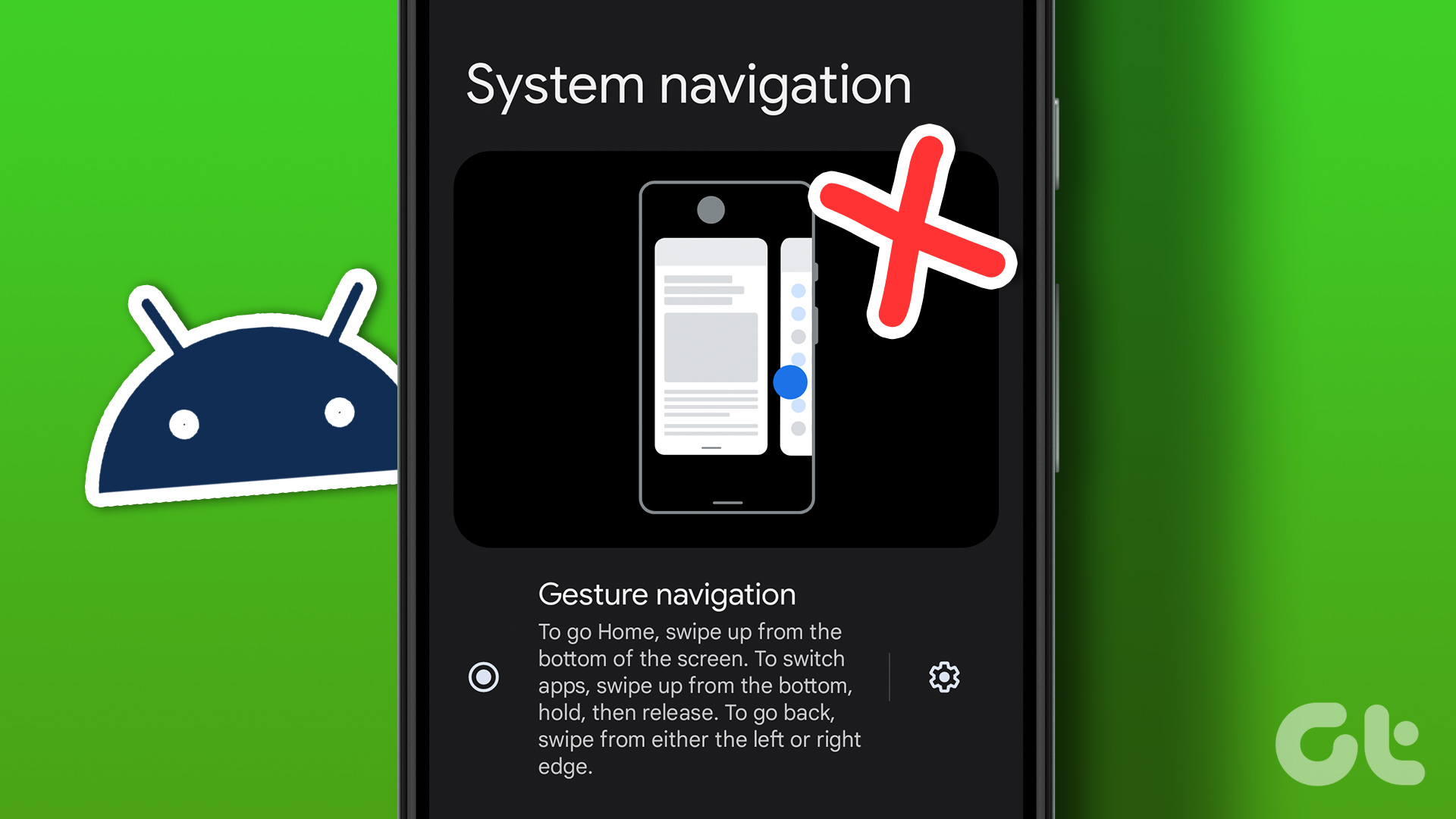
If your Android phone not responding to gestures, here are some troubleshooting tips to get them working again.
By Pankil Shah
Quick Tips
If you can’t use gestures, such as double-tap to wake, pinch to zoom, or palm swipe to capture screenshots, try restarting your phone first.
Adjust the sensitivity of the gesture you’re trying to use.
You can boot your Android phone into Safe Mode to check if a third-party app is preventing gestures from working.
Try Basic Fixes
Remove the screen protector and case: Using a low-quality screen protector from an unknown brand may affect the touchscreen’s functionality. Similarly, thick cases can sometimes prevent your phone from detecting back-tap gestures. To avoid this, remove any thick screen protector or case from your phone and use gestures again.
Install Android updates: An Android phone running an early iteration of a major system software release is prone to bugs and performance issues. Download and install pending Android updates and see if that gets gestures working again.
Fix 1: Ensure Gestures Are Enabled
On Android, you can enable or disable gestures as you see fit. You must ensure that your preferred gestures are enabled in the Settings app.
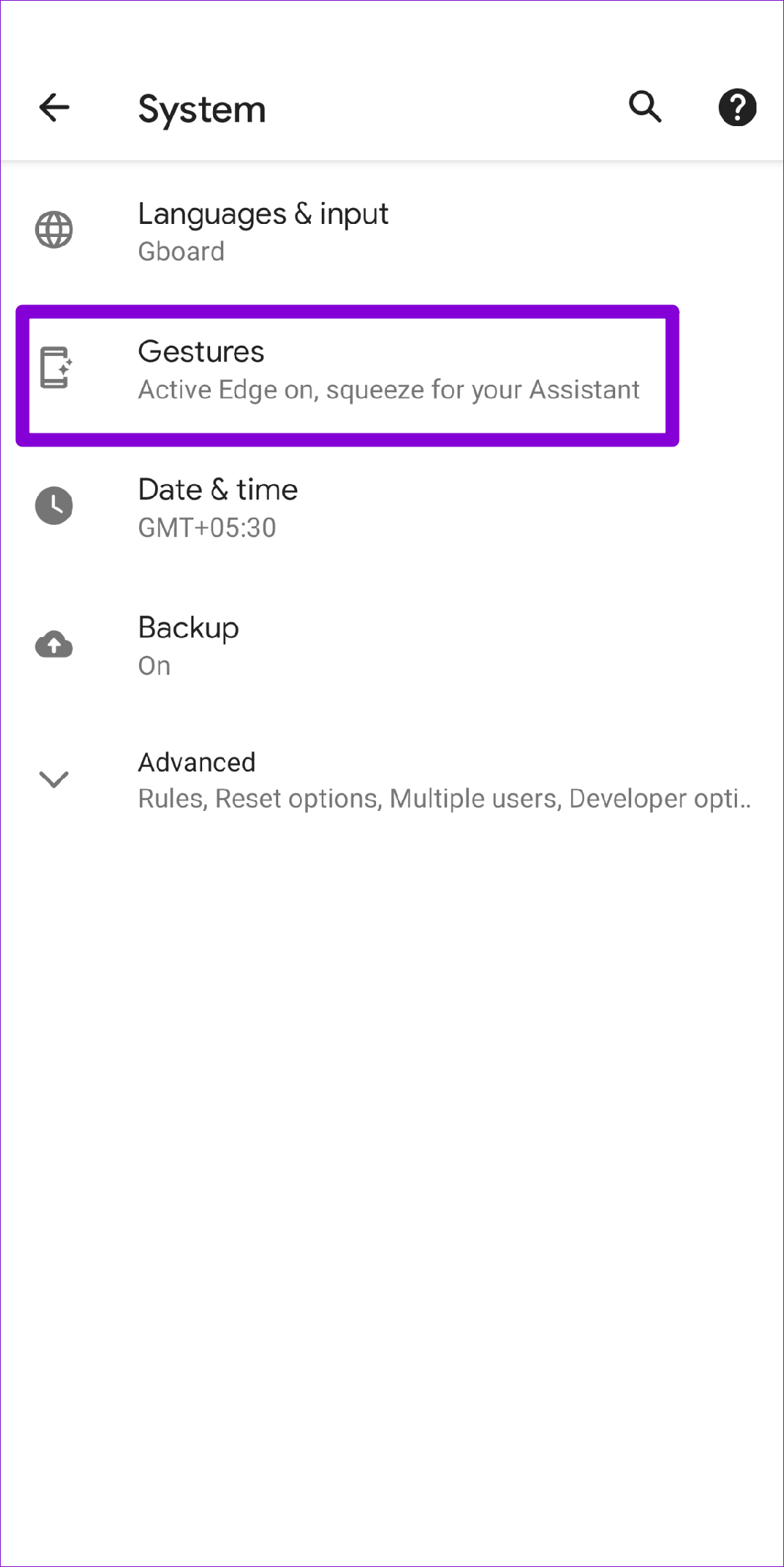
Step 1: Open the Settings app on your phone and navigate to System > Gestures .
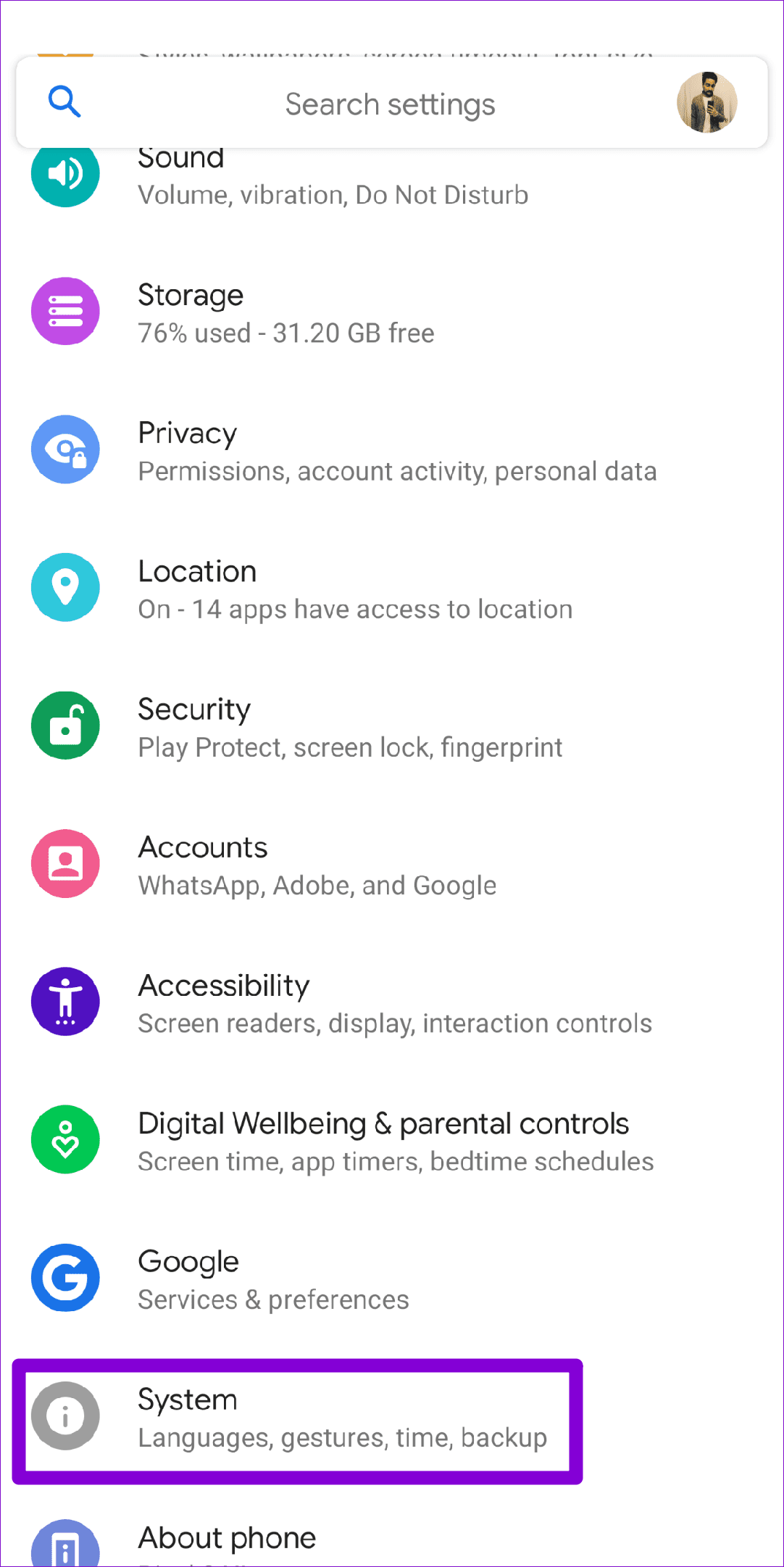
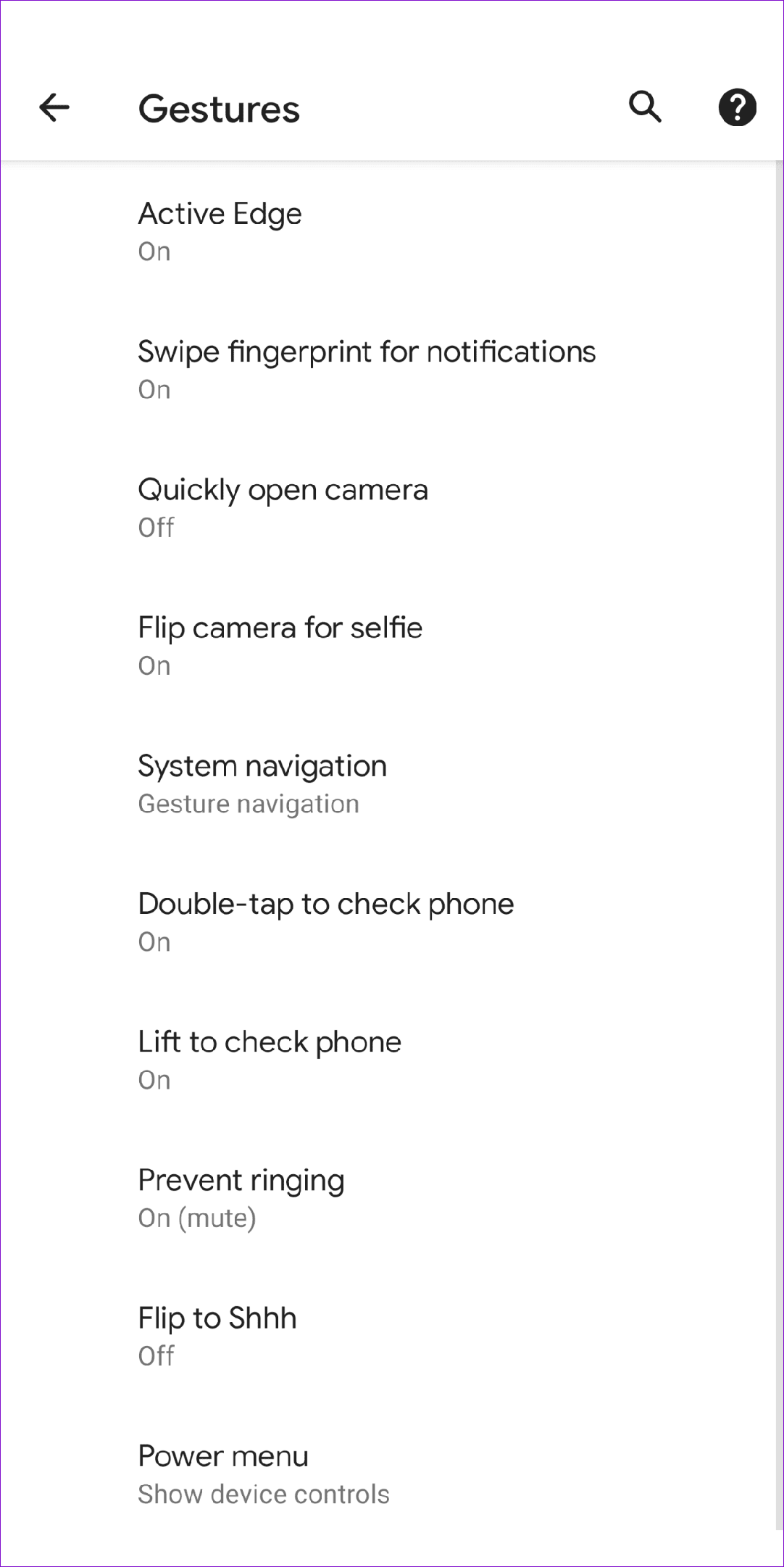
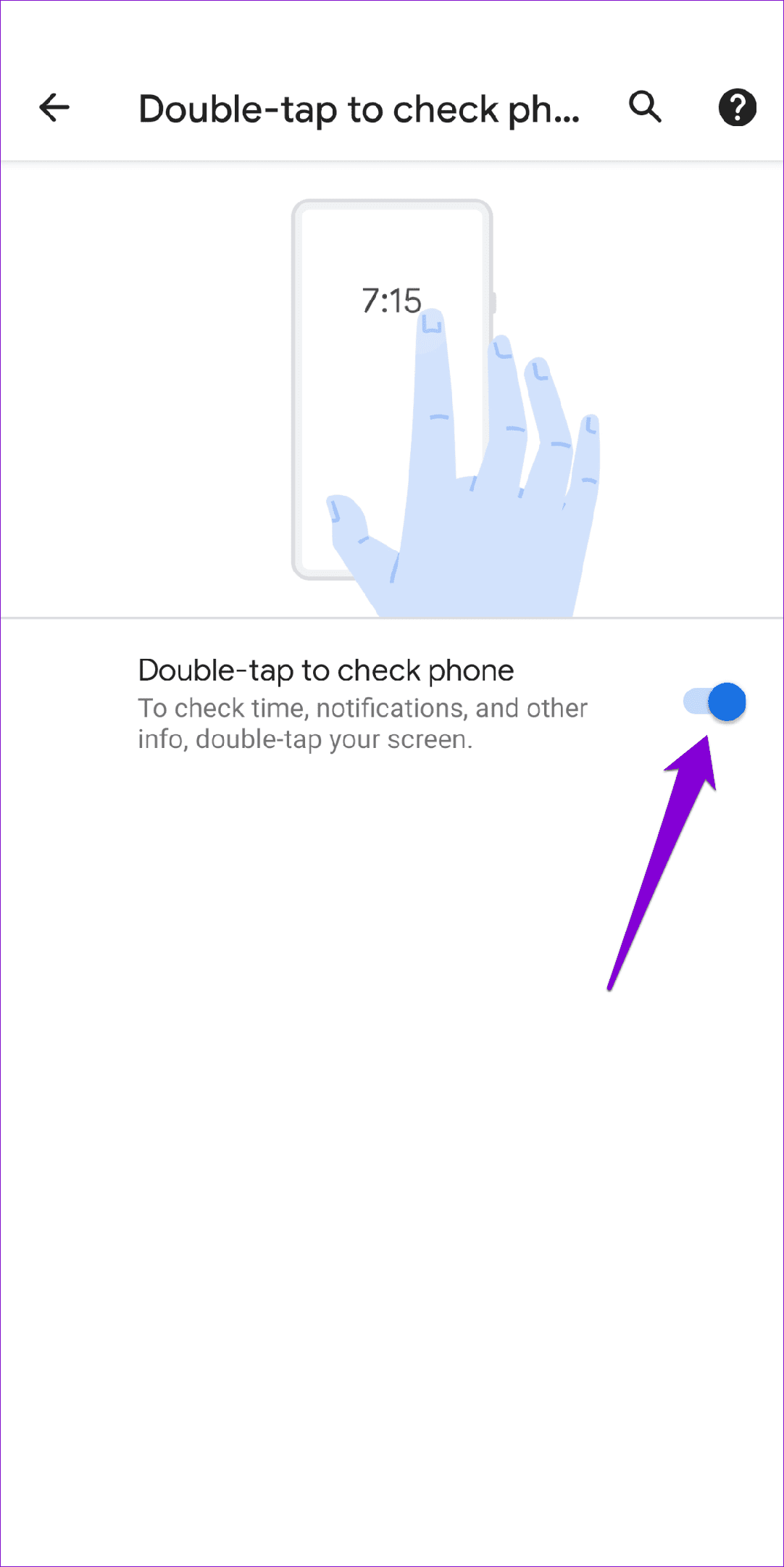
Step 2: Enable all the gestures you want to use one by one.
Fix 2: Use Gestures Correctly
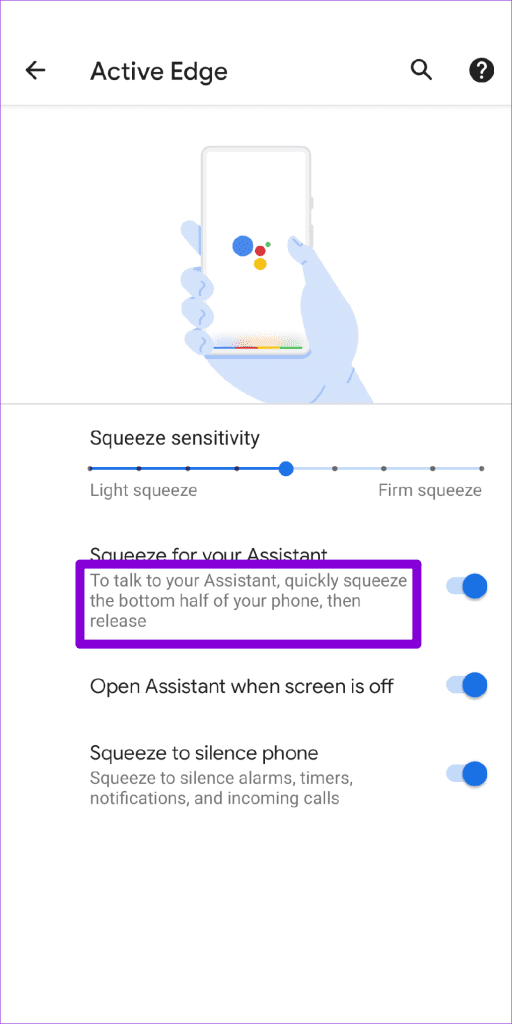
Using certain gestures on Android may require some practice, so ensure you’re using them correctly. You can check the exact method for gestures from the Settings menu. Head over to System settings and tap on Gestures . Select the gesture you want to use to read its description.
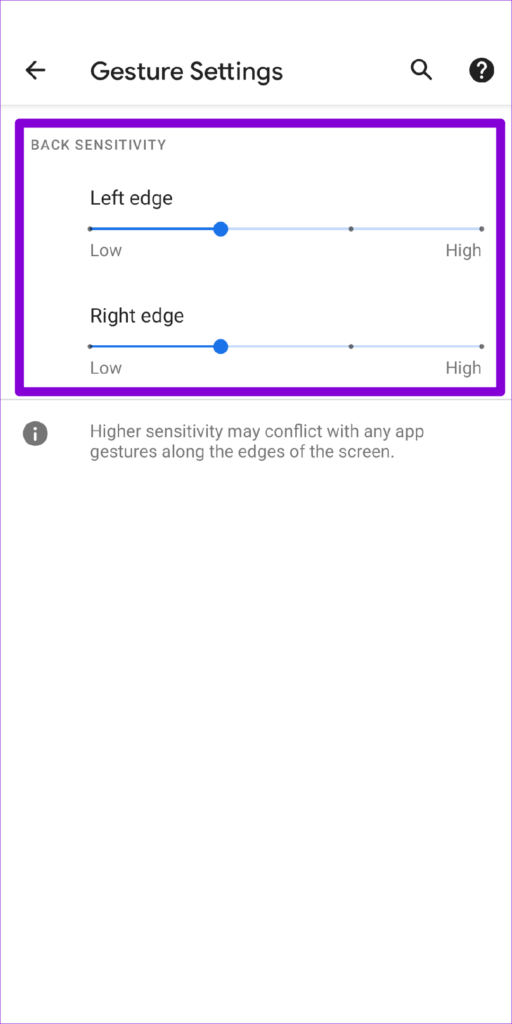
Additionally, you can try modifying the sensitivity of a gesture to see if that helps. For instance, if you’re having trouble using the back gesture while swiping from the edge of the screen, increasing gesture sensitivity might help.
Fix 3: Clear Launcher Cache
Your phone’s default launcher app creates temporary files during its usage. It’s not uncommon for these files to become corrupted over time, leading to various issues, including the one discussed here.
You can try removing the launcher app cache to see if that helps.
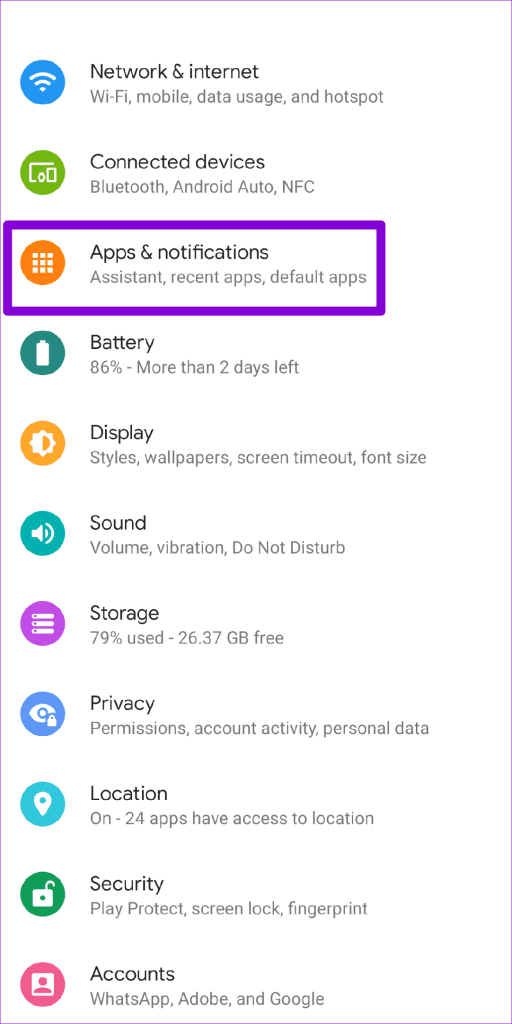
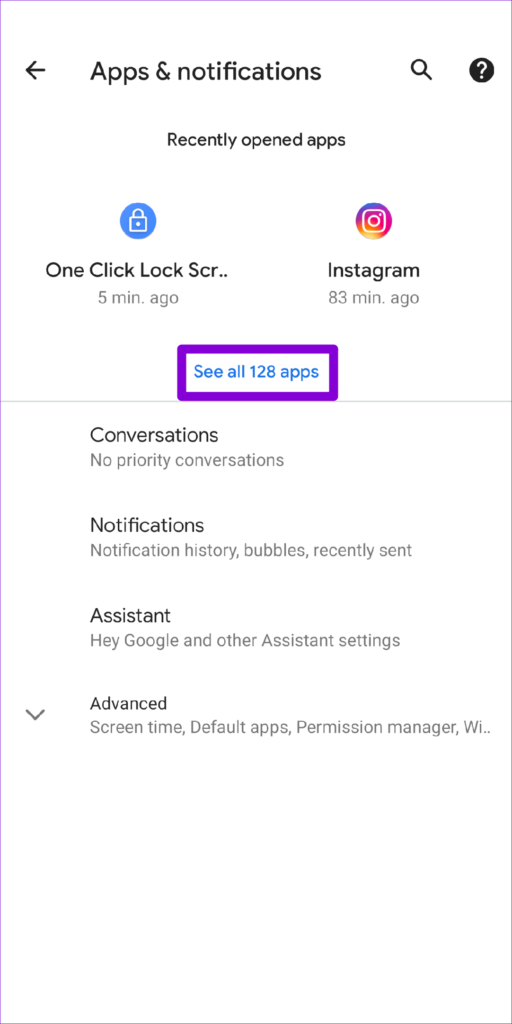
Step 1: Open the Settings app on your phone and navigate to Apps & notifications . Then, tap See all apps .
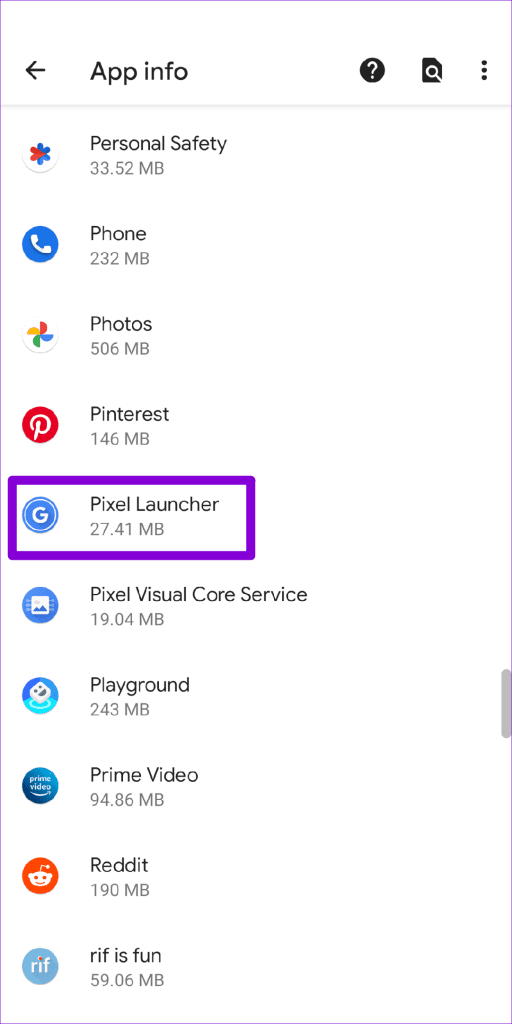
Step 2: Scroll down to locate and tap on your phone’s default launcher app.
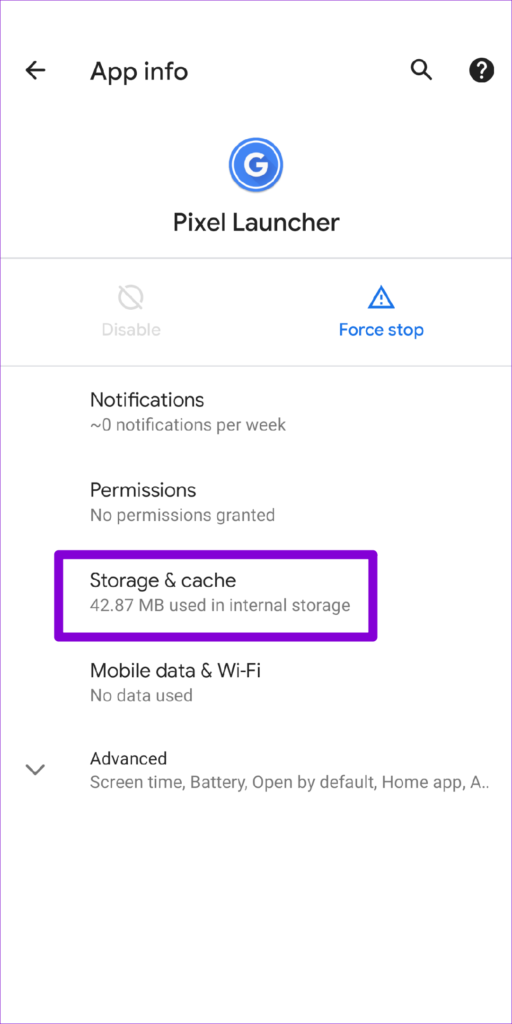
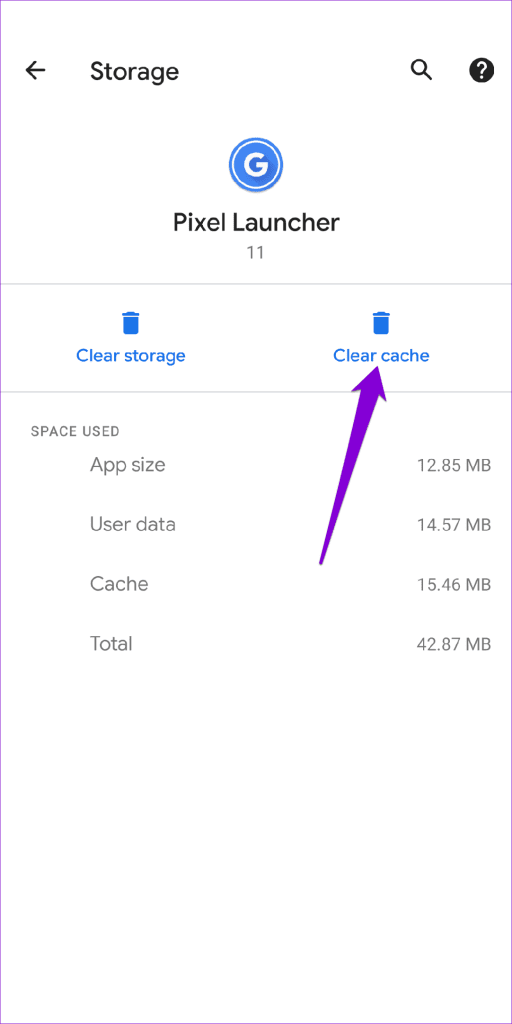
Step 3: Tap on Storage & cache and tap the Clear cache option from the following screen.
Fix 4: Try Safe Mode
Booting your Android phone in Safe Mode can help you determine if the gestures-not-working issue is caused by a third-party app running in the background.
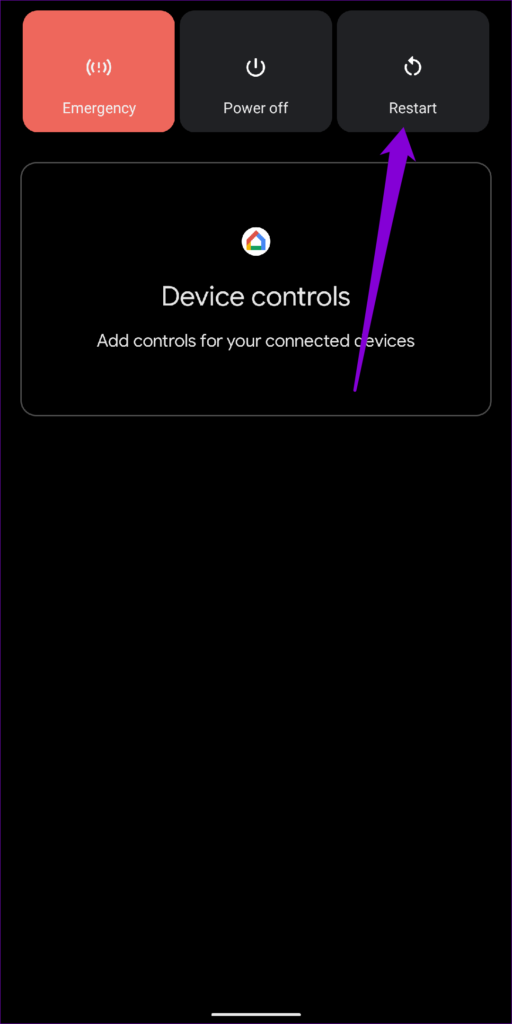
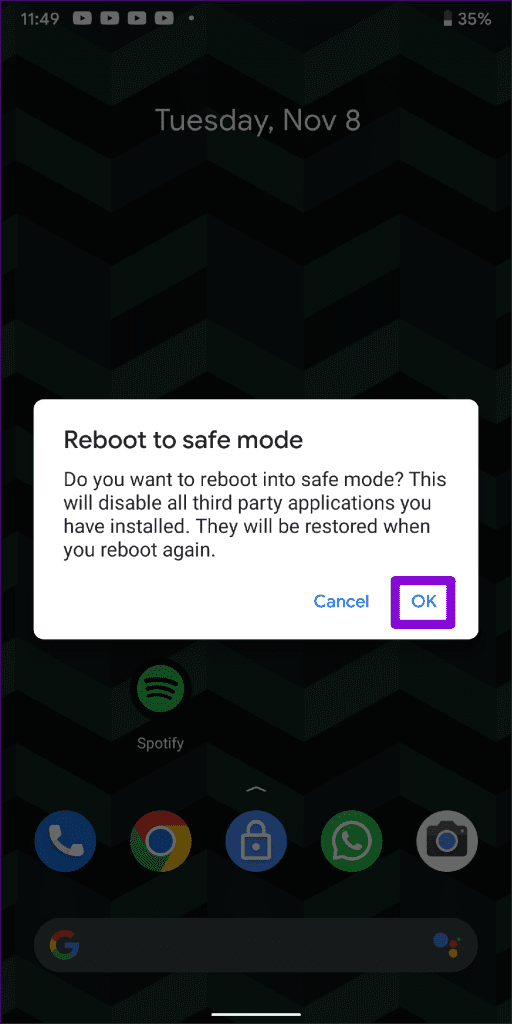
To boot your phone in Safe Mode, press and hold the power button to access the power menu. Long-press on the Restart option and choose OK when prompted.
If the gestures are working fine in Safe Mode, you can remove any recently installed apps from your Android phone to fix the issue.
Was this helpful?
Submit Cancel
Thanks for your feedback!
Keep reading