Android
4 Ways to Fix Google Play Services Draining Battery on Android
Is Google Play Services responsible for abysmal battery life on your Android phone? Here's how you can fix Google Play Services draining battery on Android.
By Parth Shah
Quick Tips
Clear cache from the Google Play Services app.
Update the Google Play Services app from the Play Store.
If the issue has only occurred recently, check and uninstall any recently downloaded apps.
Basic Fixes
Check recently installed apps: If you observed an increase in battery drain only recently, uninstall any newly downloaded apps.
Enable battery optimization for apps: Tap and hold the app icon, select app info, go to Battery Usage, and ensure you don’t select Unrestricted Battery usage unless necessary. Always use the Optimized Battery Usage option.
Restart device : Restart your Android device to fix any temporary bugs and issues.
Update Android device: Update your Android device to the latest available version for a bug-free experience.
Fix 1: Clear Cache
Cache and junk files accumulated within the Google Play Services app may cause issues.
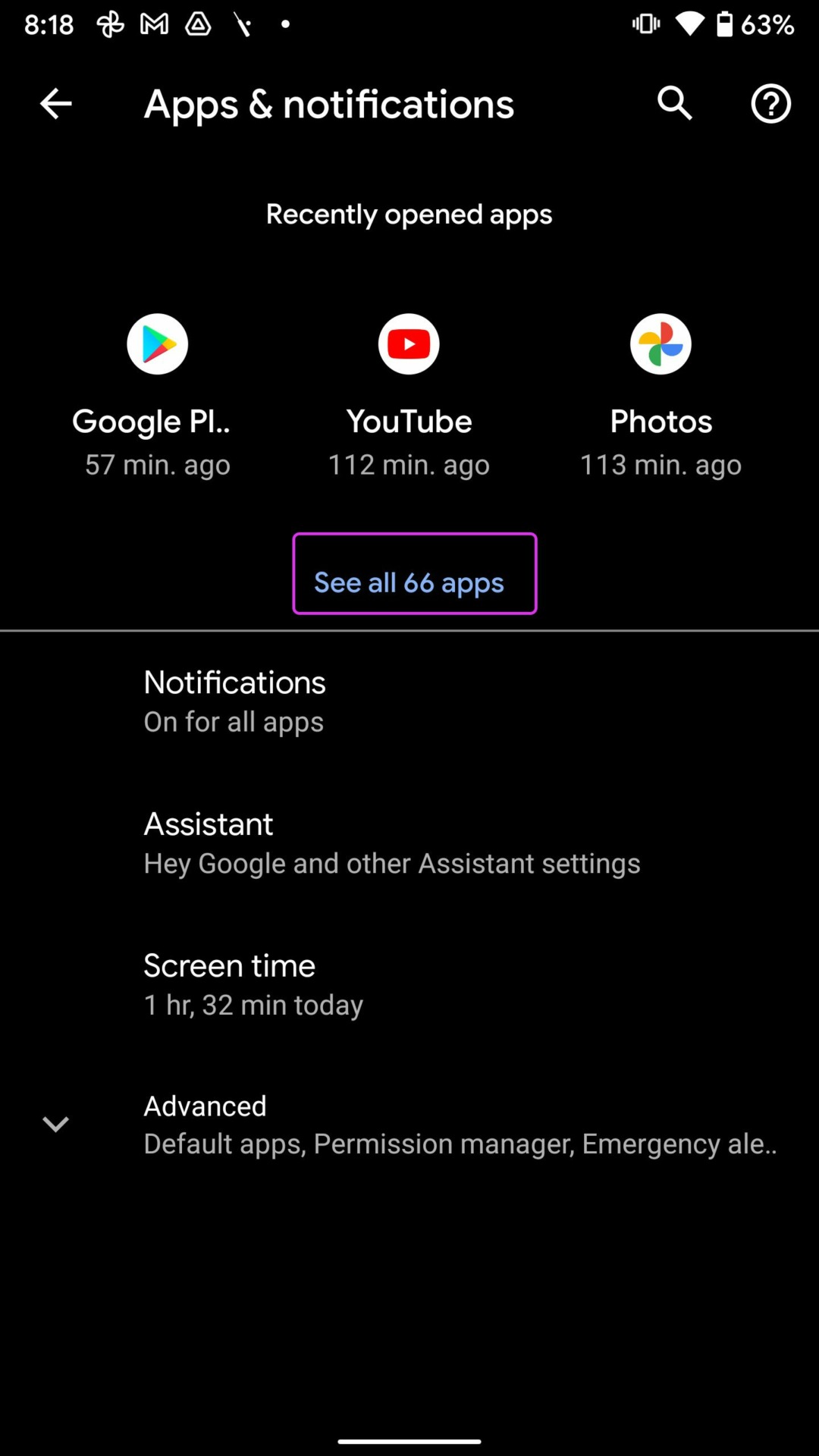
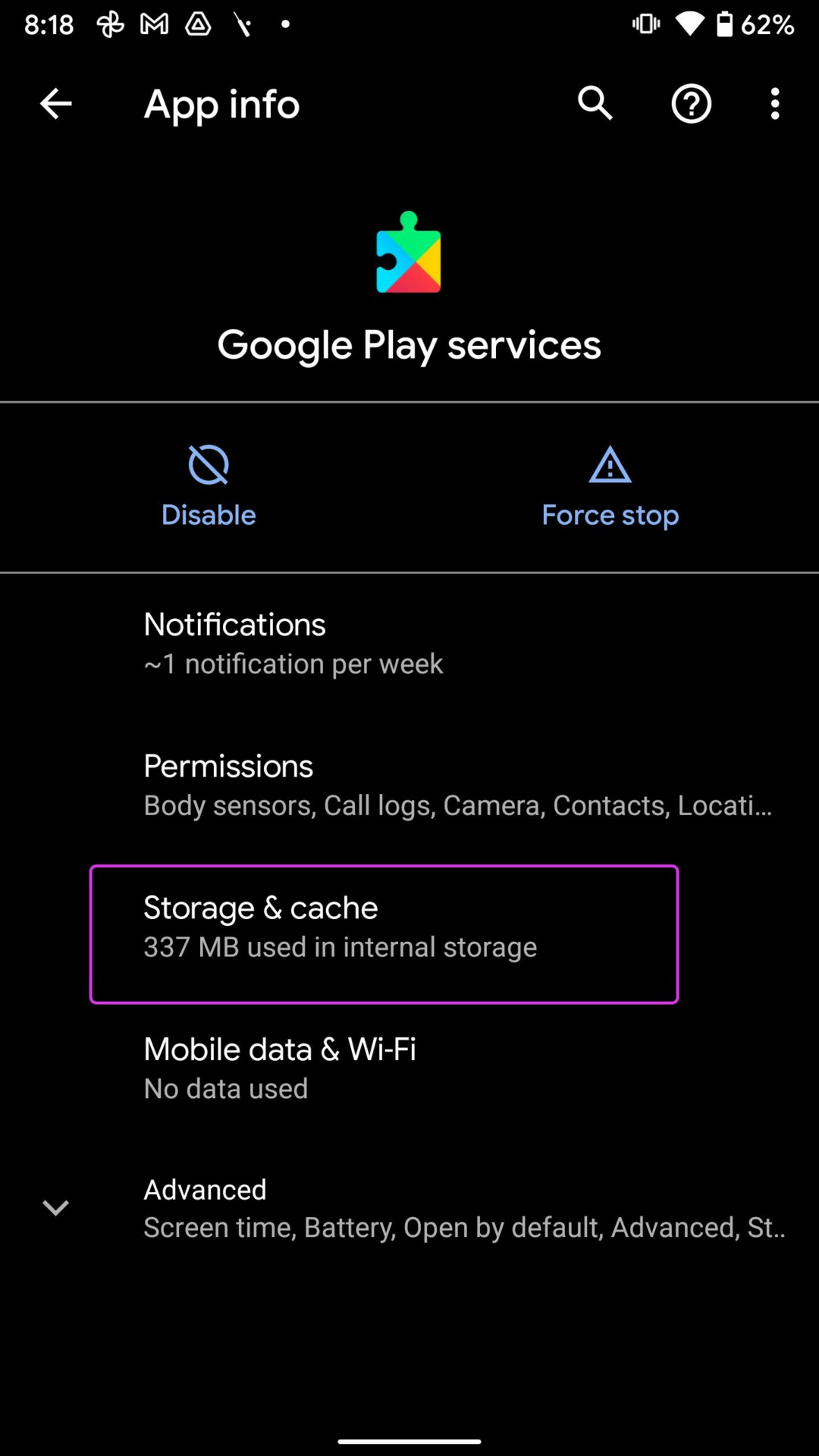
Step 1: Open Settings > Apps > See all apps , and select Google Play Services from the list.
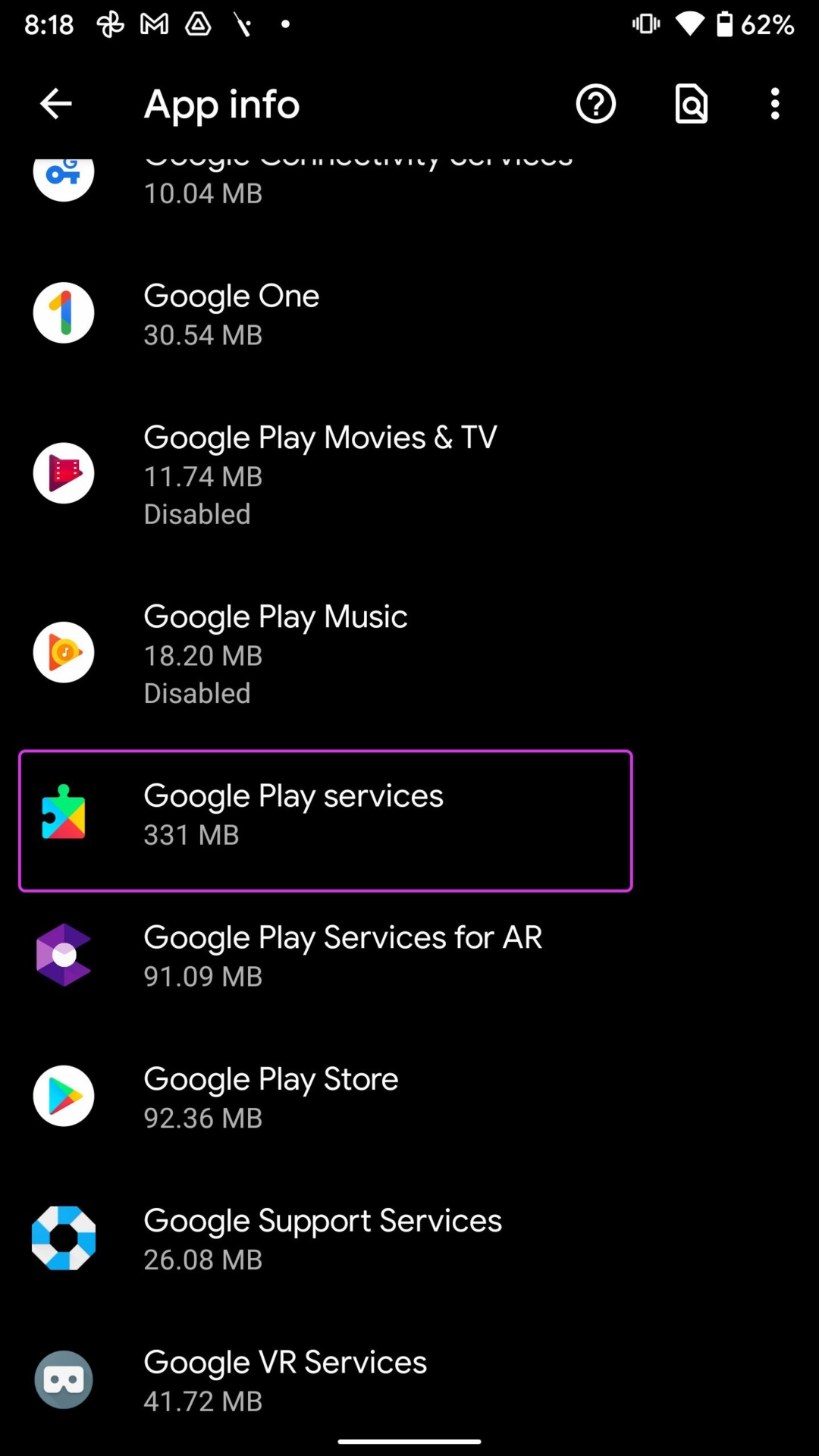
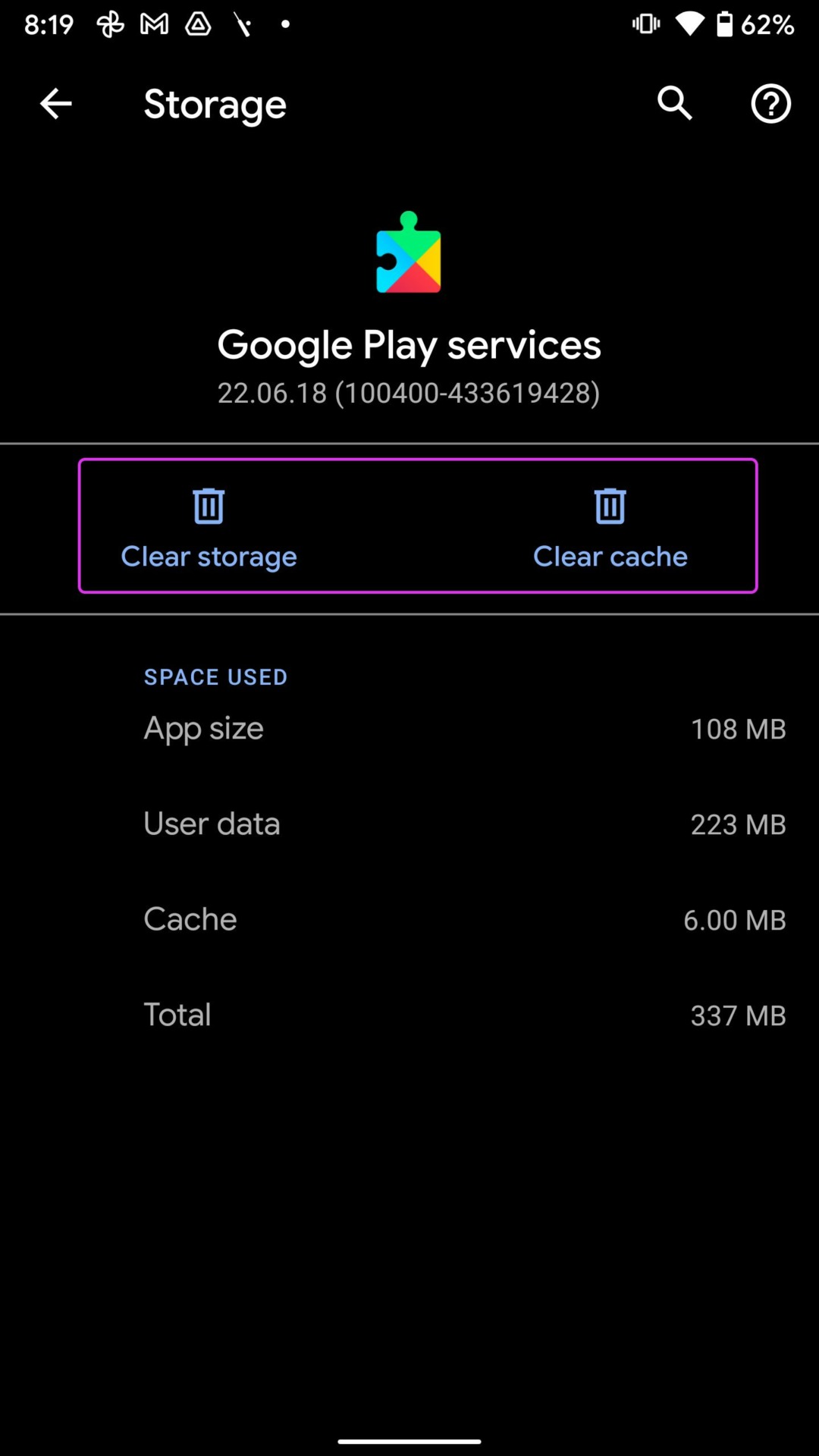
Step 2: Tap on Storage and Cache , and tap on Clear Cache .
Fix 2: Uninstall Updates
A recent update to Google Services may be causing the problem. Here’s how to remove the update.
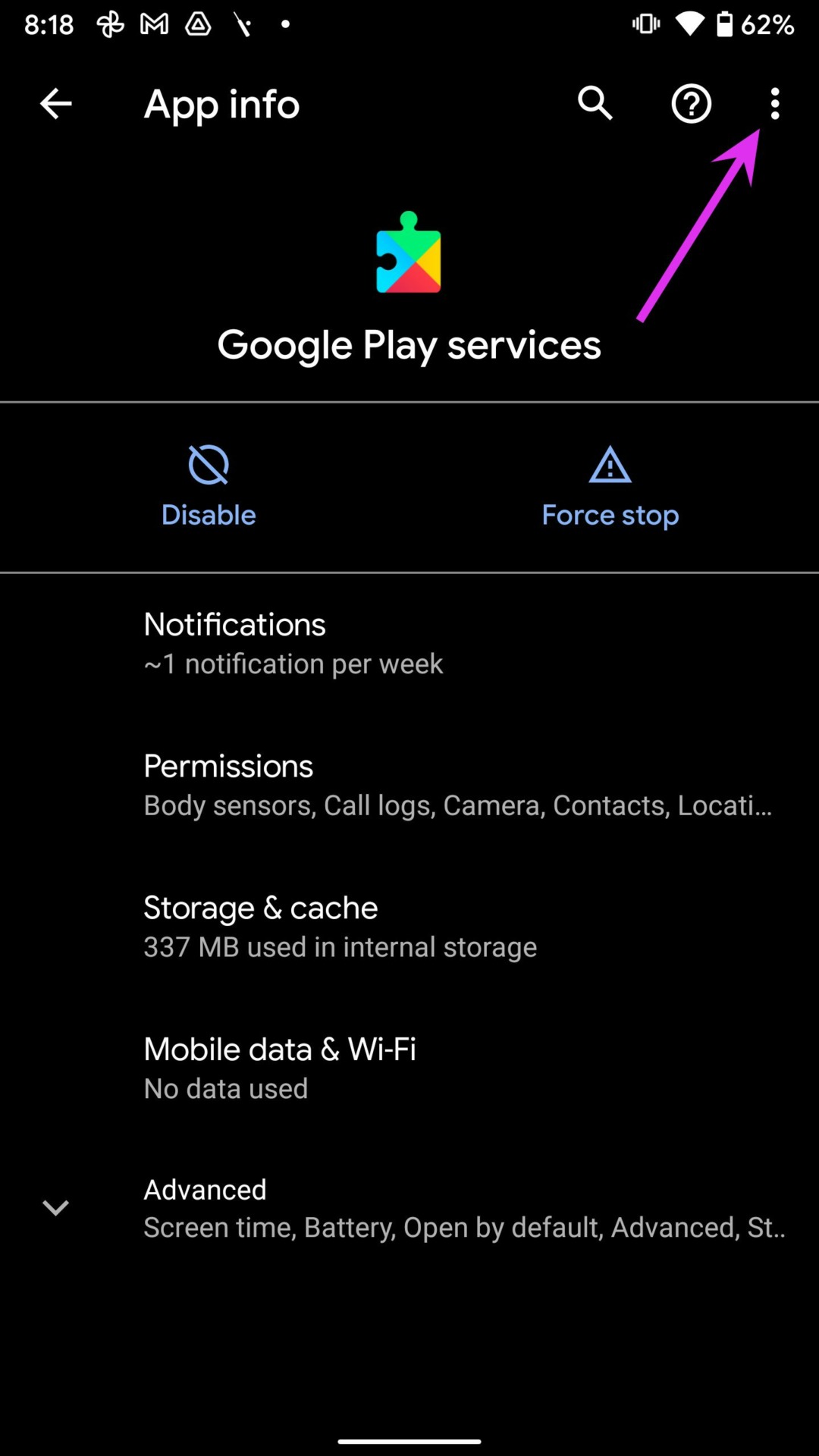
Step 1: Open Settings > Apps > See all apps , and select Google Play Services from the list.
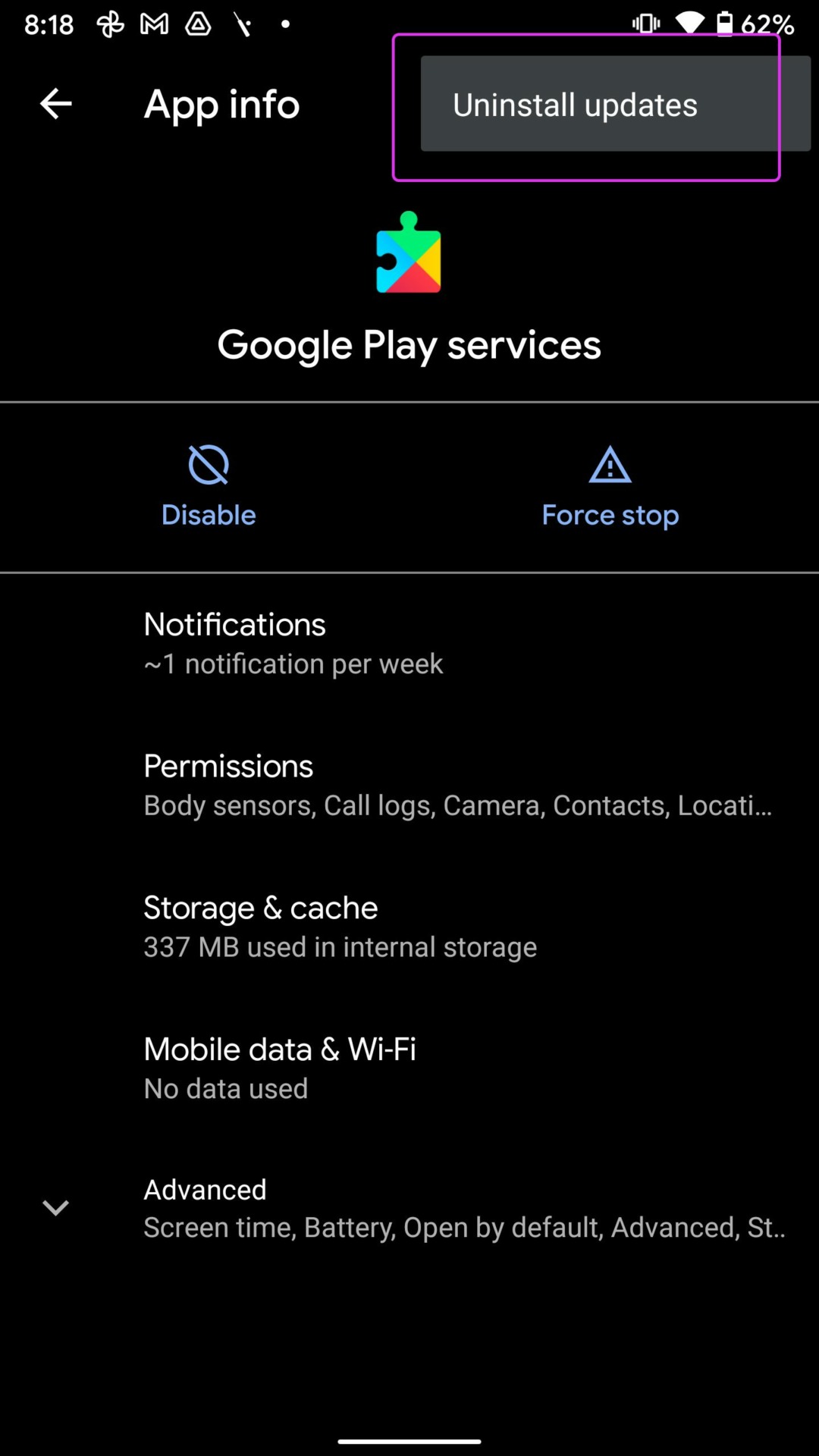
Step 2: Tap on the three-dot menu at the top and select Uninstall updates .
Fix 3: Manually Update Play Services
Try updating Google Play Services to the latest version to try and fix the issue.
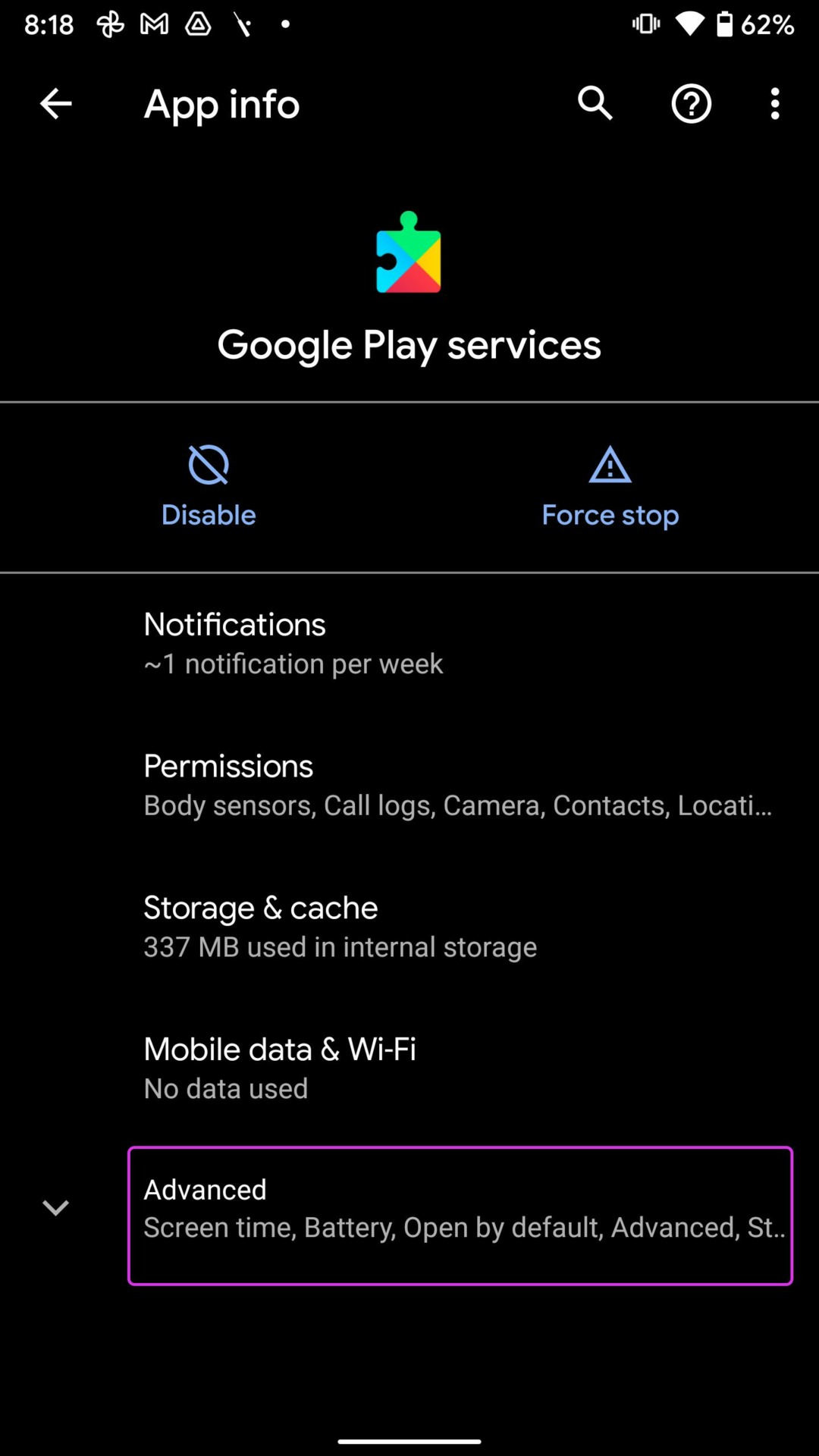
Step 1: Open Settings > Apps > See all apps , and select Google Play Services from the list.
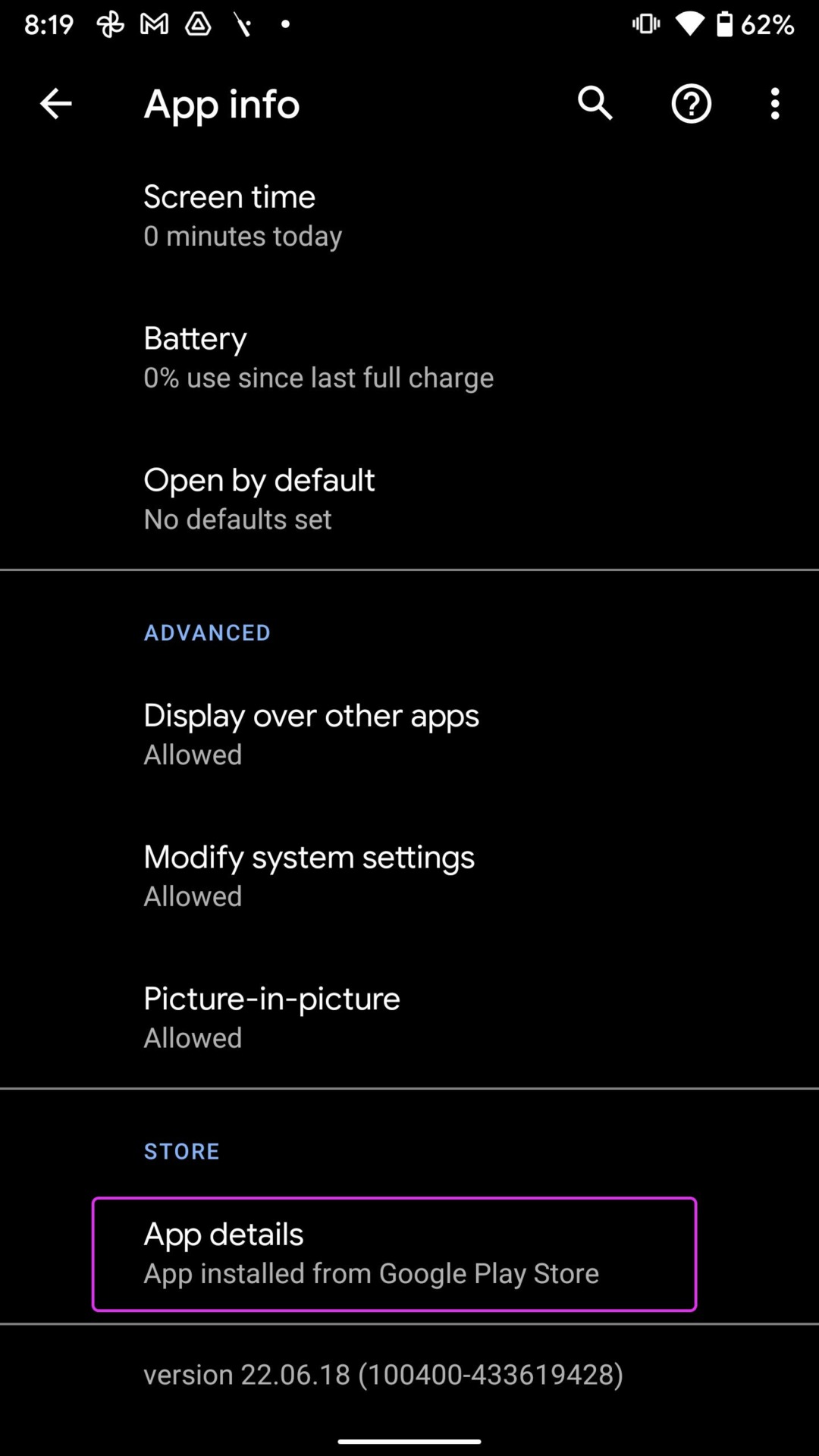
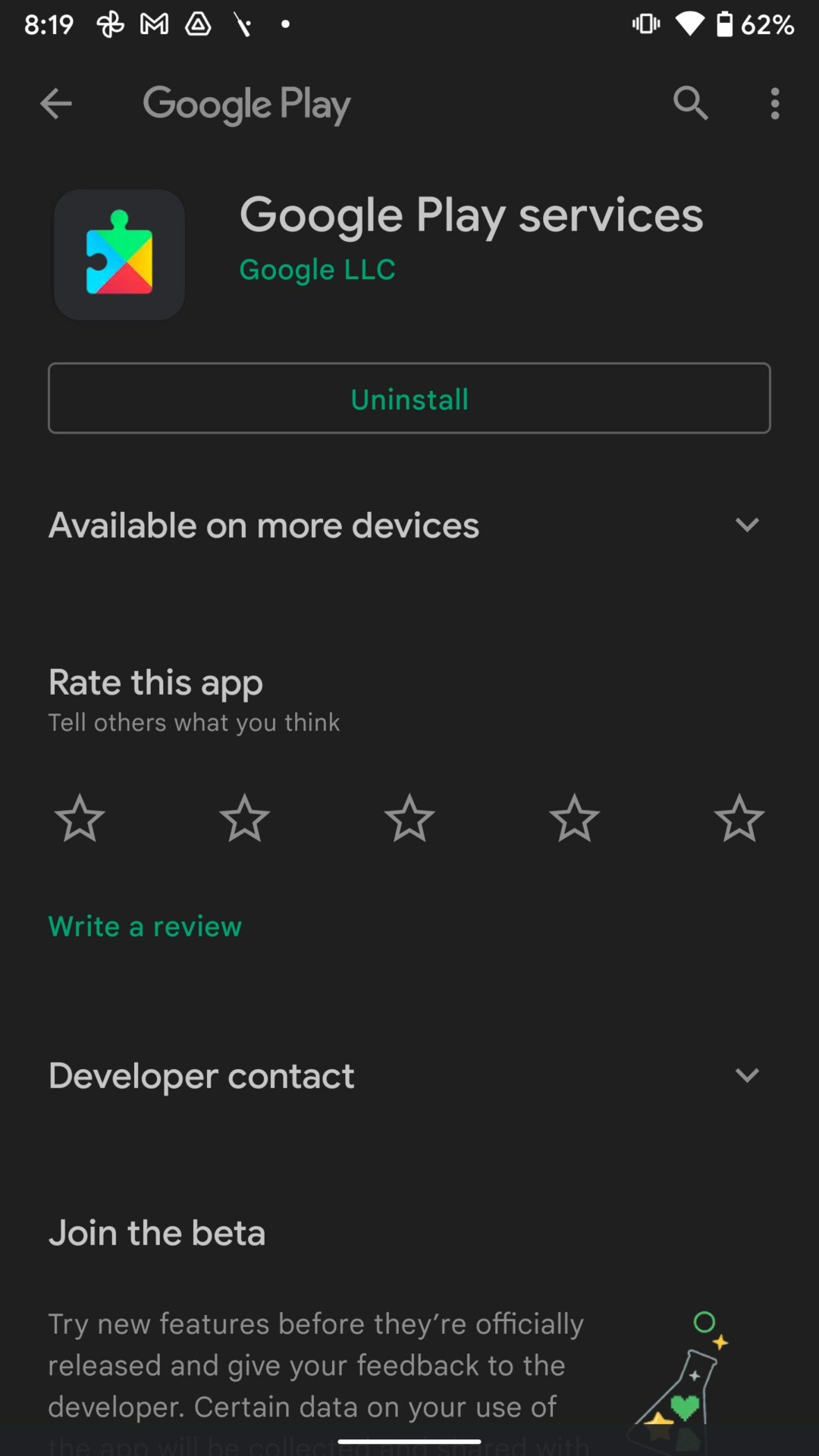
Step 2: Expand the Advanced menu. Select App details and it will open Play Services in the Play Store.
If there is any update available, install it and track battery usage.
Also Read: How to fix Google Play Services won’t update
Fix 4: Turn Off Google Location Accuracy
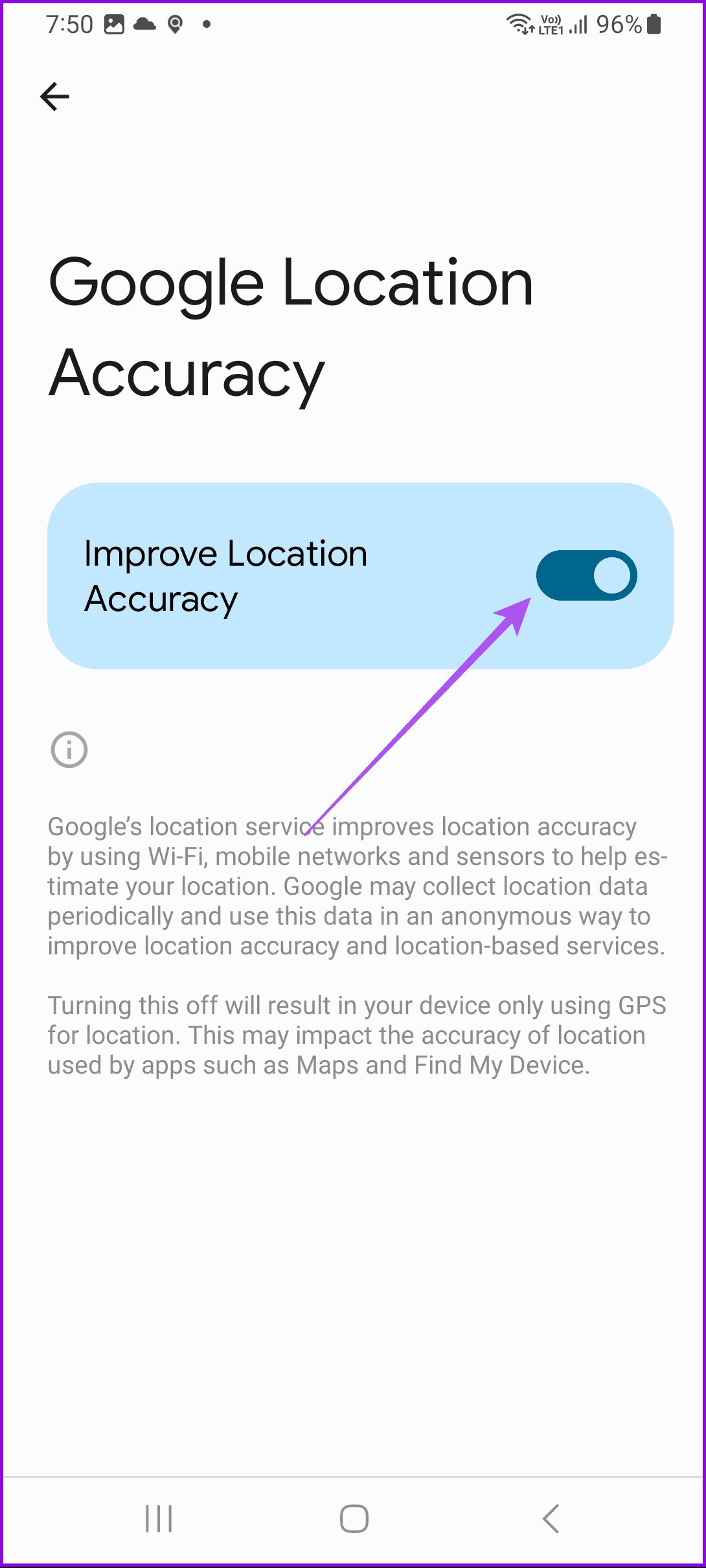
Apps use Play Services to perform various activities, and ones that involve using your location can have an impact on your battery. It may not seem practical to disable location services entirely but turning off Improve Location Accuracy might help.
When apps need to access your location precisely, you will receive a pop-up to enable it.
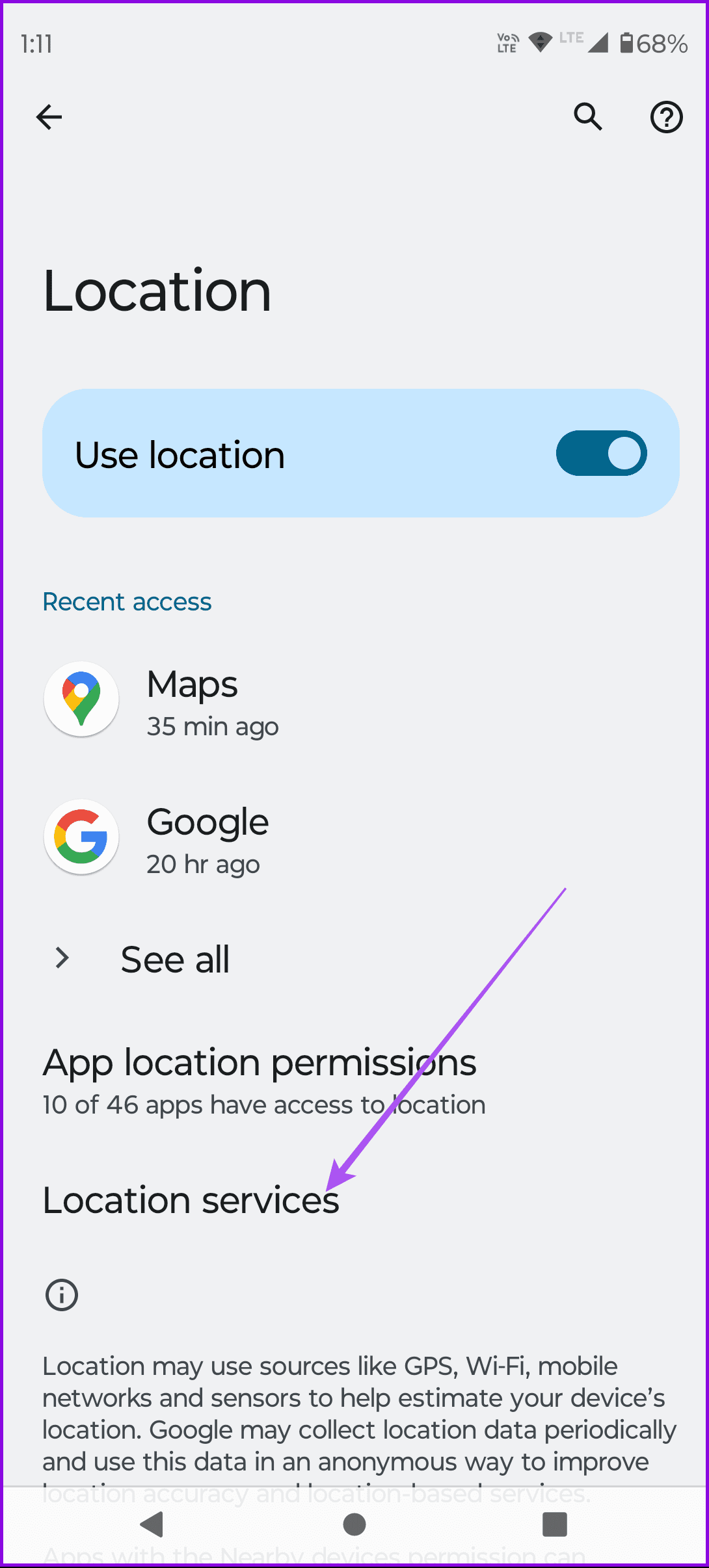
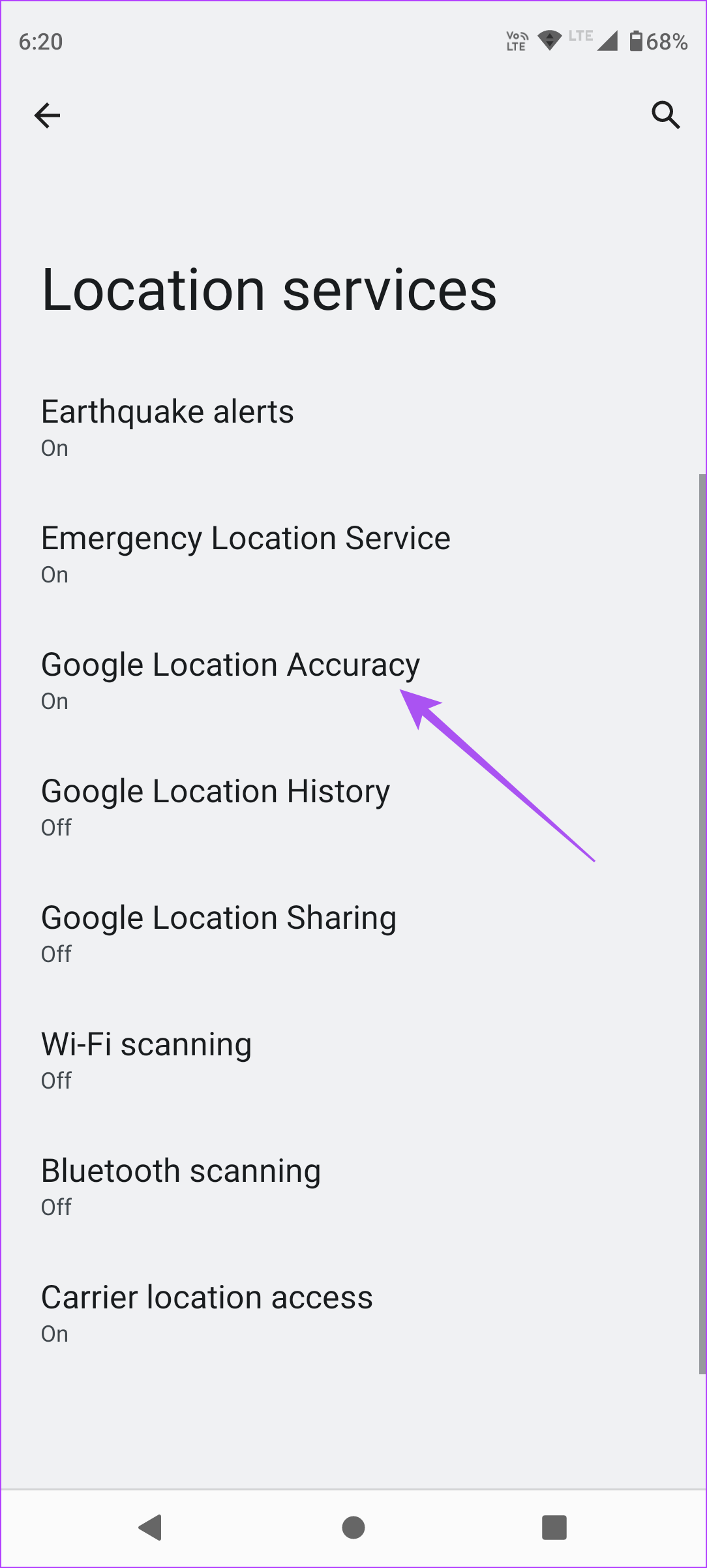
Open Settings > Location > Location Services > Google Location Accuracy and turn it off.
Was this helpful?
Submit Cancel
Thanks for your feedback!
Keep reading