Android
7 Ways to Fix Google Play Store Not Showing Installed Apps
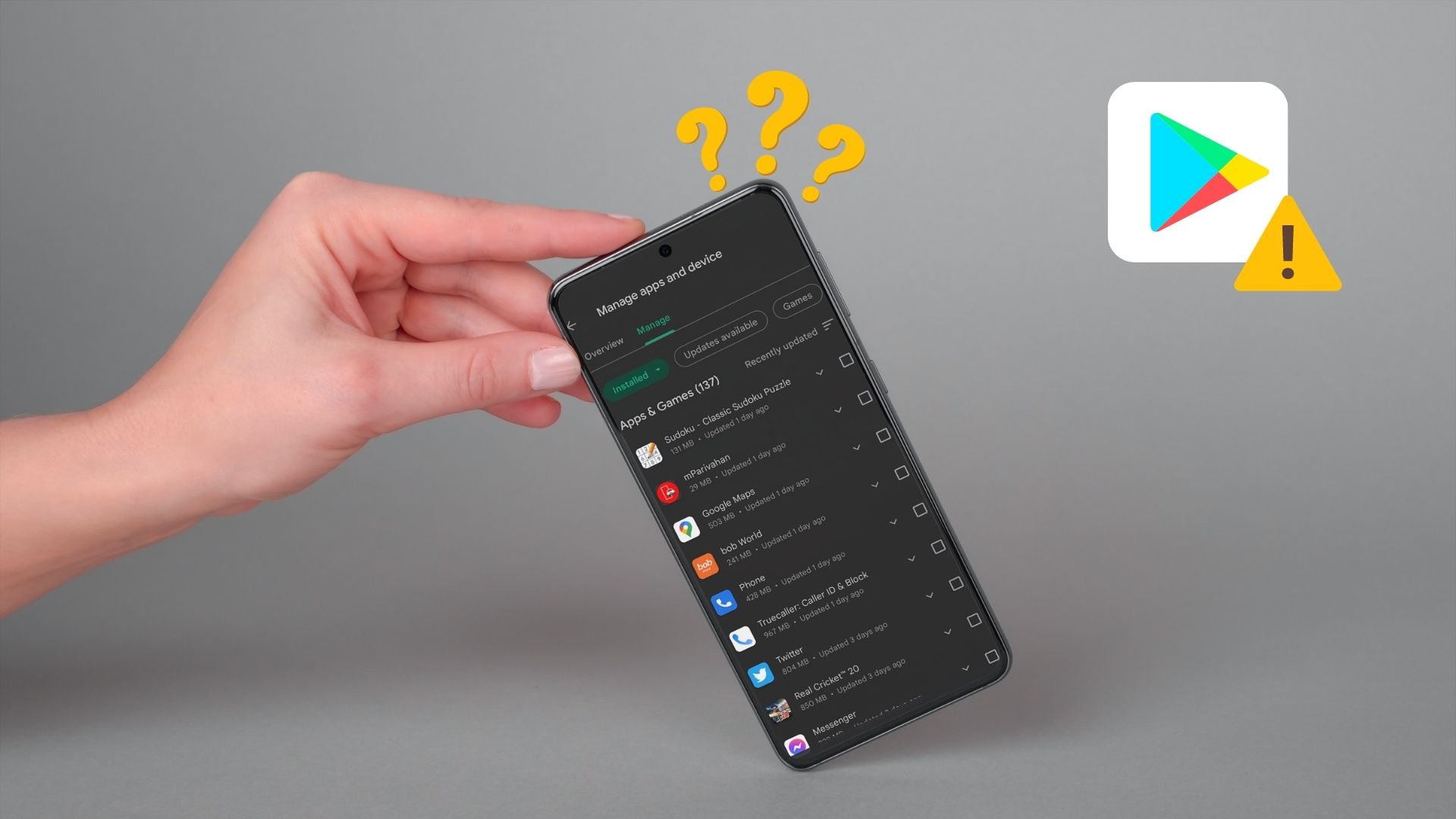
Is Play Store not showing the apps installed on your Android phone? Here are some troubleshooting tips that'll help.
By Pankil Shah
Quick Tips
Enabling parental controls can prevent the Play Store from displaying certain apps, so ensure you turn them off.
You can remove and re-add your Google account to force Play Store to sync all data.
If the Play Store is not showing one or two apps, they may have been removed.
Fix 1: Turn Off Parental Controls on Play Store
Parental control on Play Store allows you to prevent unauthorized transactions and hide inappropriate apps on Play Store. If you’ve previously enabled parental controls on Play Store, it could be why it’s not showing some of your installed apps. Here’s how to turn them off.
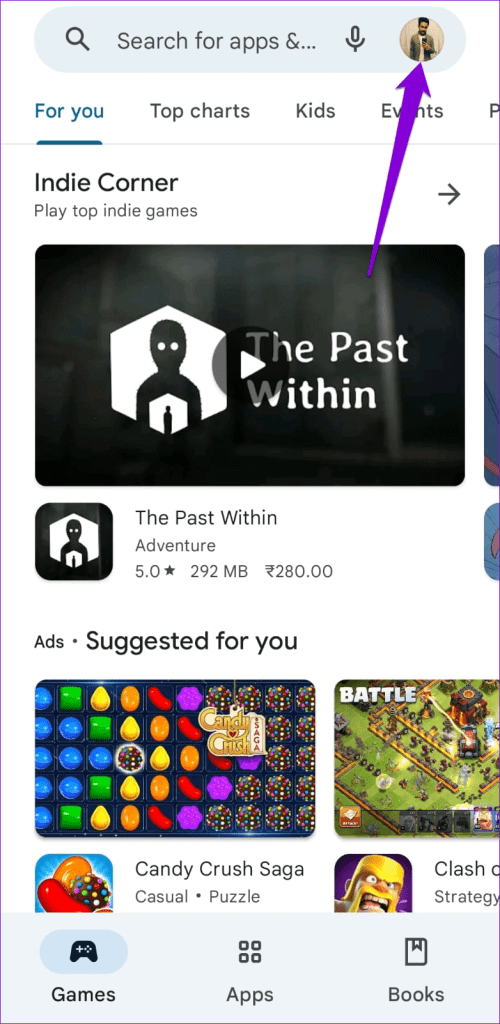
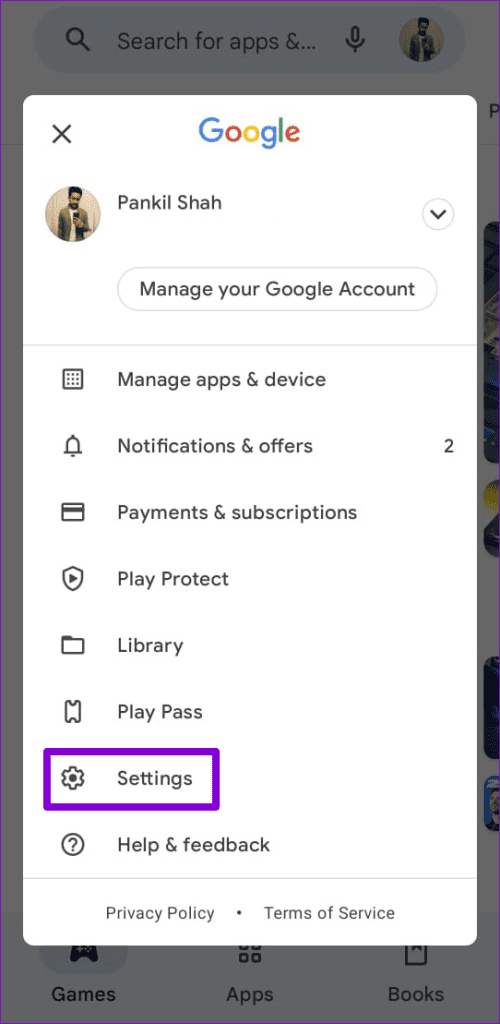
Step 1: Open Google Play Store. Tap the profile icon at the top right corner and select Settings .
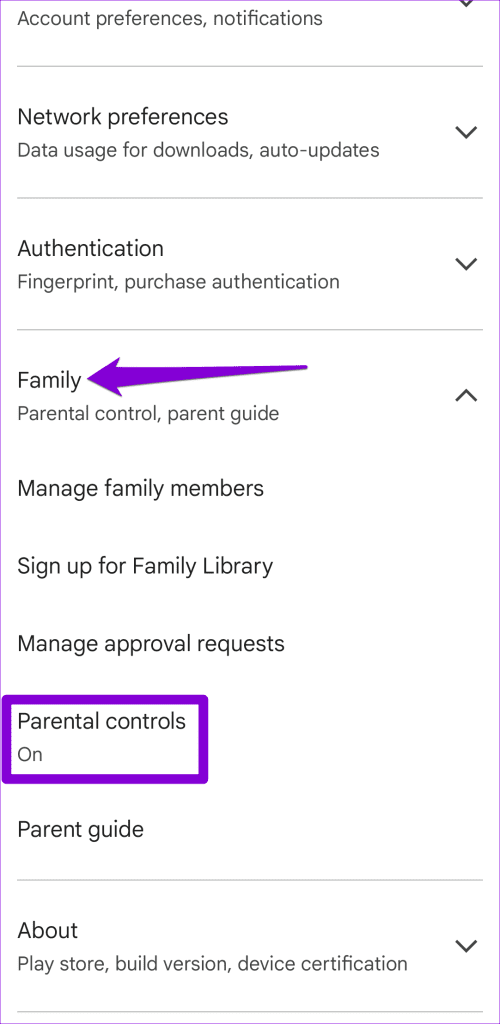
Step 2: Expand Family settings and tap on Parental controls .
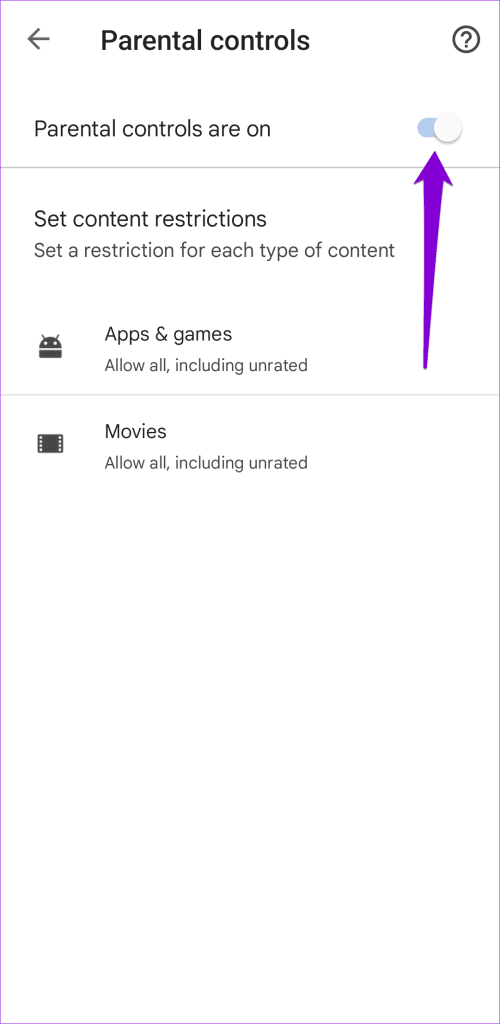
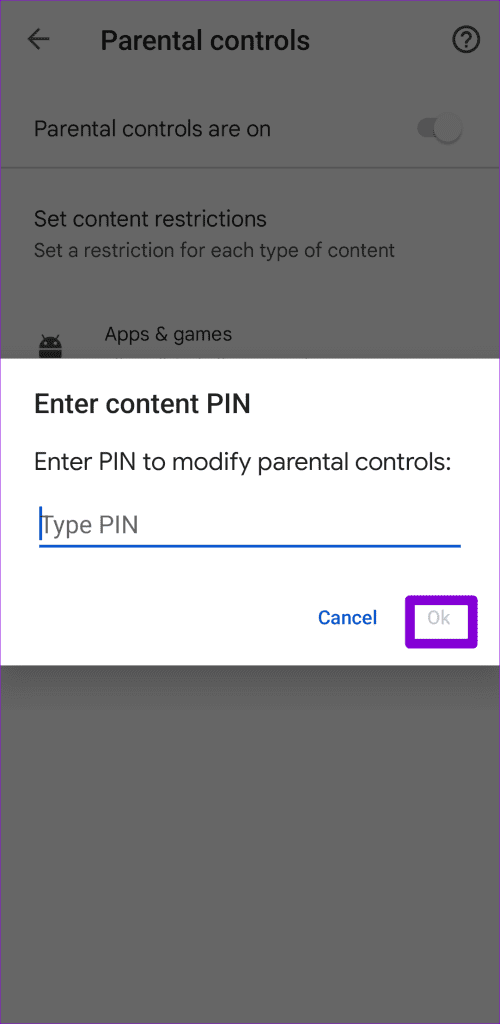
Step 3: Turn off the switch next to Parental controls , enter the PIN, and hit Ok to confirm.
Fix 2: Clear Play Store Cache
Another reason Google Play Store may not show installed apps is corrupted cache data. Here’s how to get rid of it.
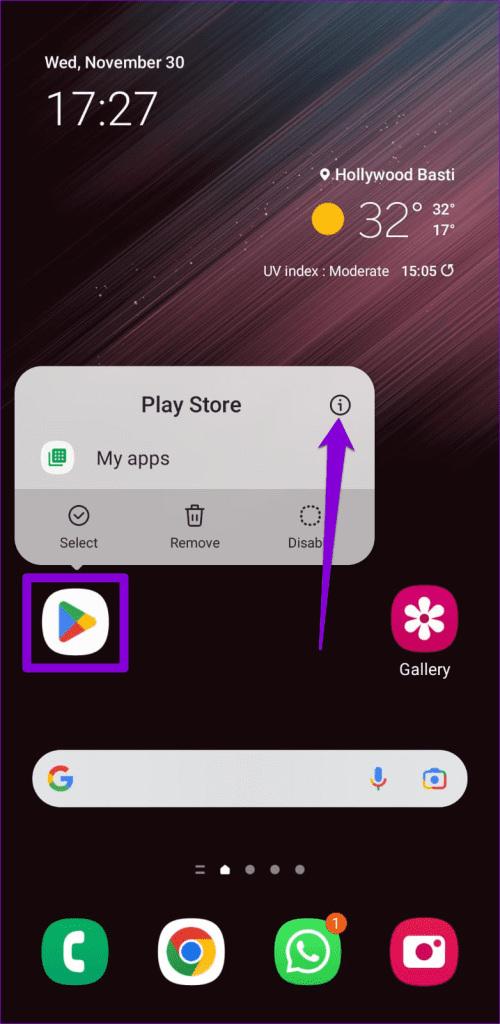
Step 1: Long-press the Play Store app icon and tap the info icon from the pop-up menu.
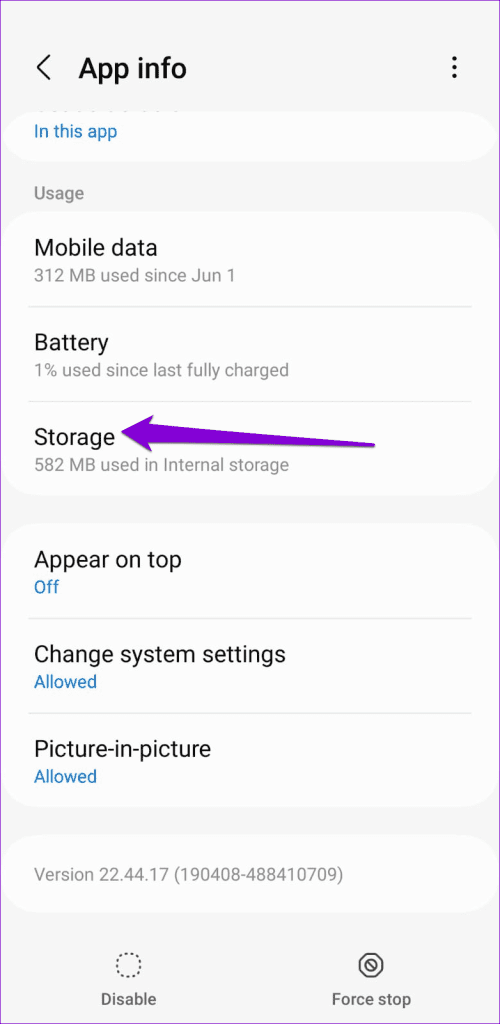
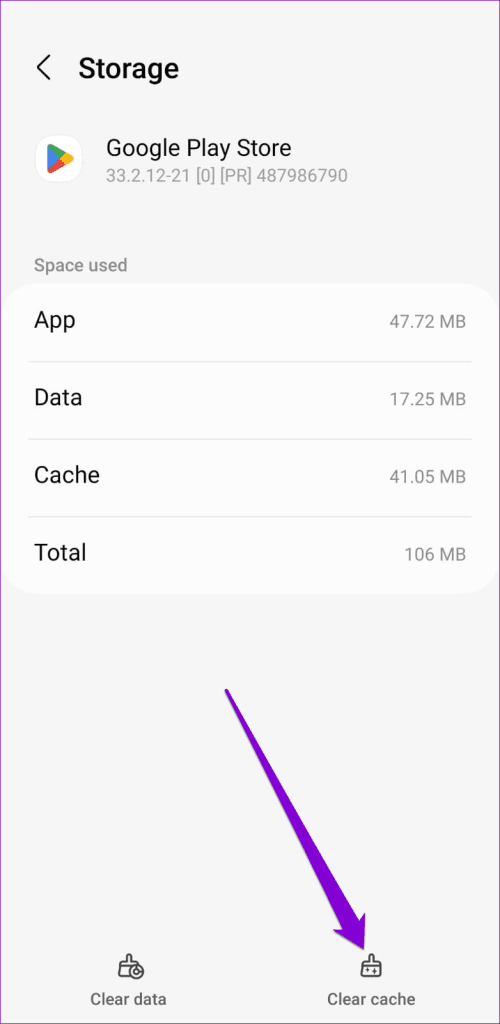
Step 2: Go to Storage and tap Clear cache at the bottom.
Restart the Play Store app to see if it shows your installed apps.
Fix 3: Remove and Re-Add Google Account
Signing out of the Google Play Store and signing back in can help re-establish its connection with the server, potentially fixing the issue.
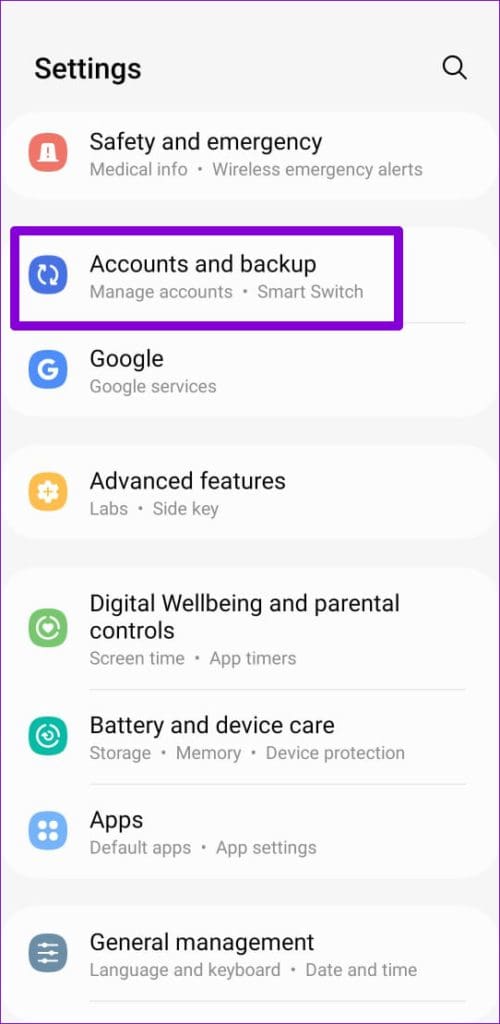
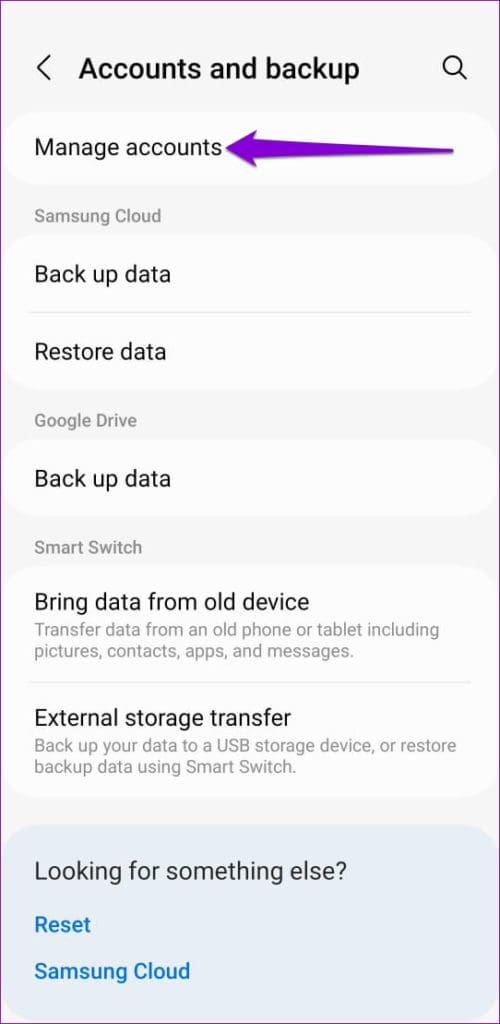
Step 1: Open the Settings app on your phone and go to Accounts and backup > Manage accounts .
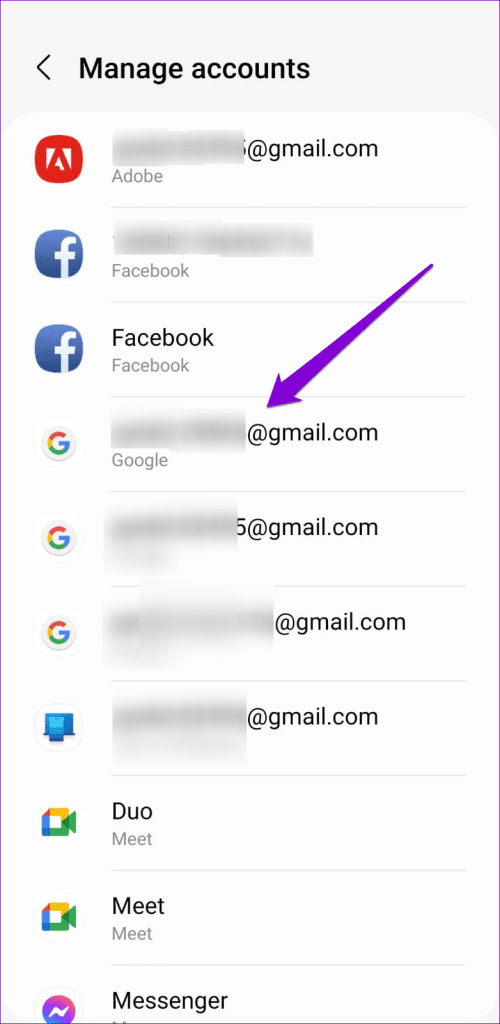
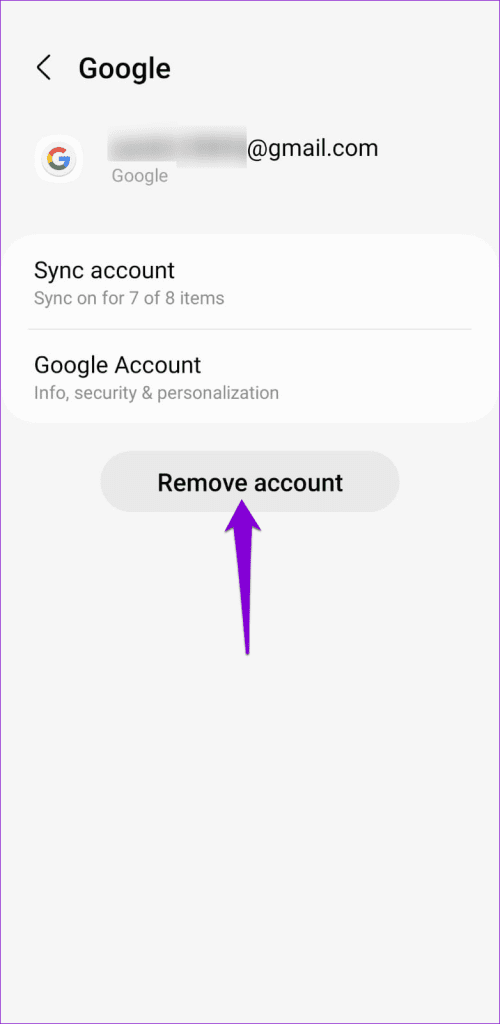
Step 2: Select your Google account and tap on Remove account . Hit Remove account again when prompted.
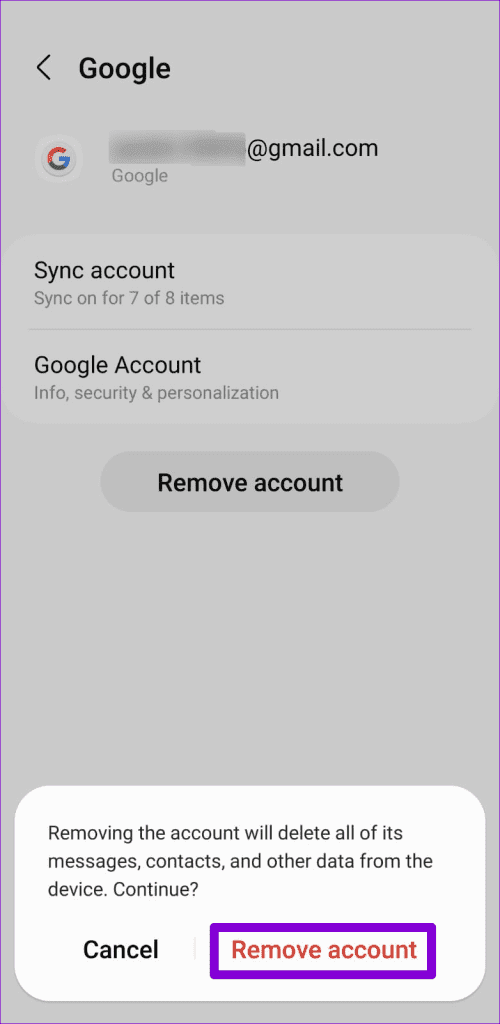
Step 3: Go back to the Manage Accounts page, tap Add account , and sign in with your Google account again.
Fix 4: Enable Automatic Date and Time
Google servers depend on your phone’s date and time to sync data. If your Android device has the wrong date or time, the Play Store may display incomplete or inaccurate data. To avoid this, follow these steps to configure your Android to use network-provided time.
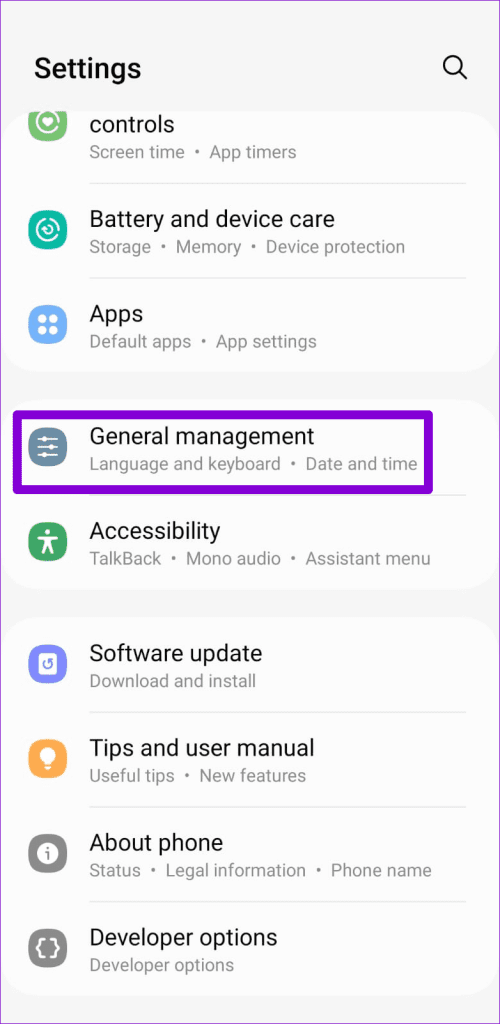
Step 1: Open the Settings app on your Android and navigate to General Management .
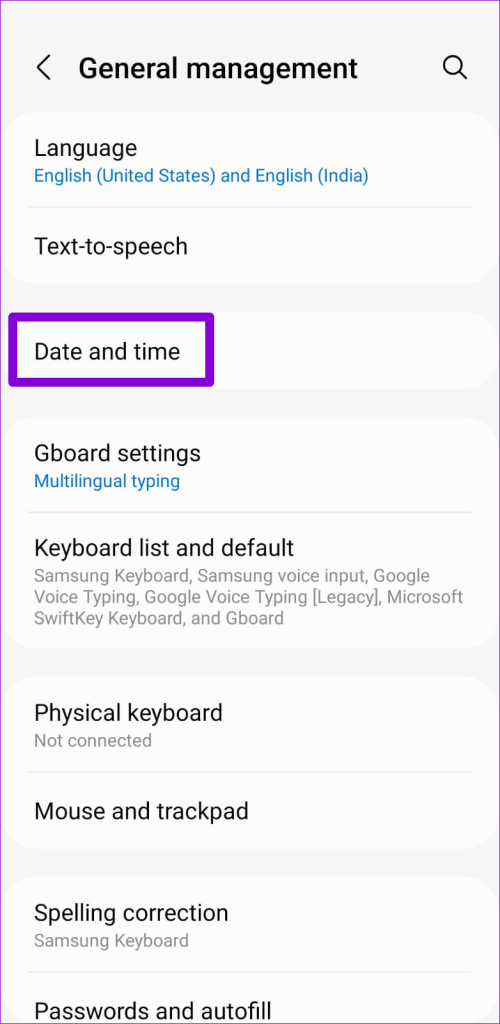
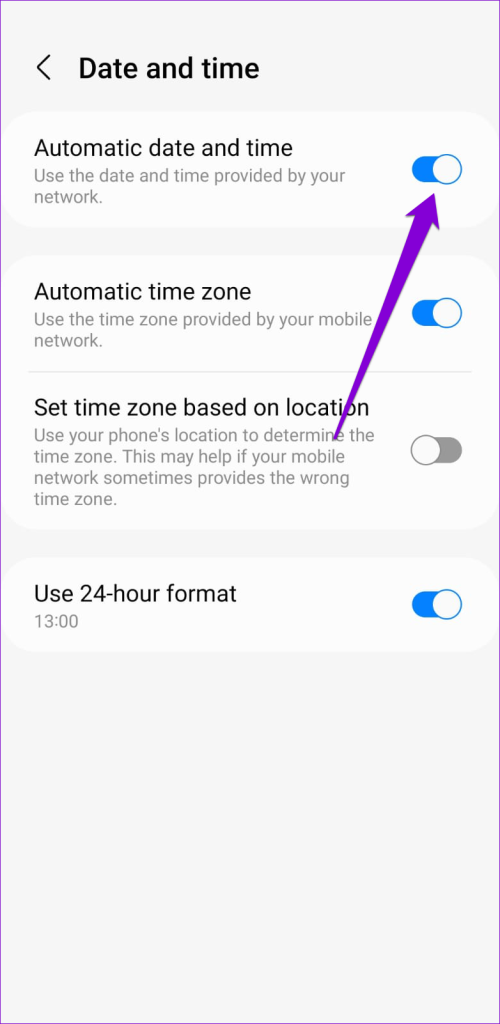
Step 2: Tap Date and time and turn on the toggle for Automatic date and time .
Fix 5: Uninstall and Reinstall Google Play Store Updates
If Play Store still fails to show your installed apps, you can try removing its updates on your phone. This will reset the Play Store to its original state, fixing any issues.
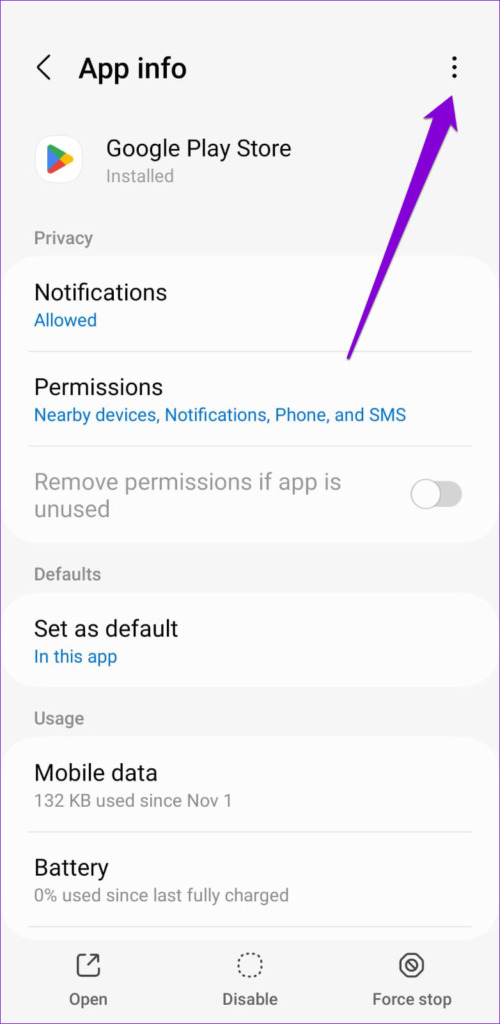
Step 1: Long-press on the Play Store icon and tap the info icon from the resulting menu.
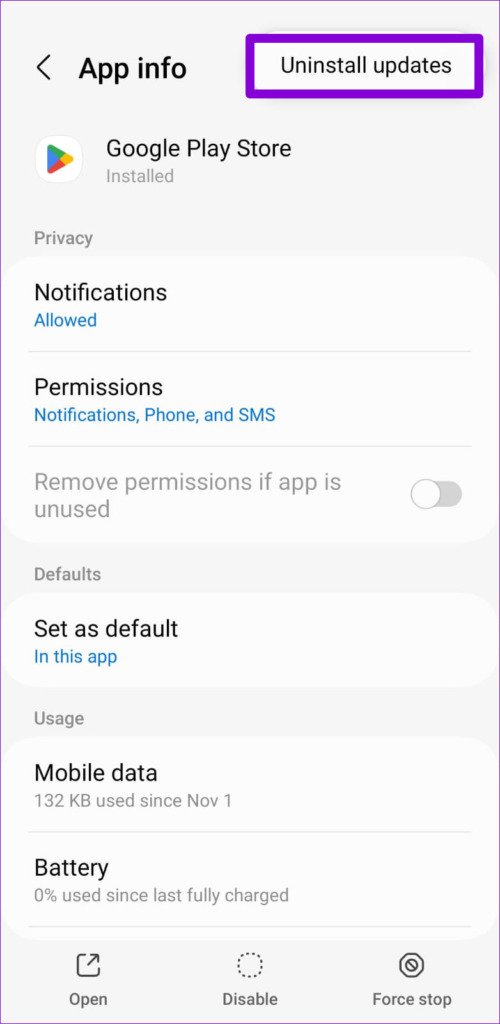
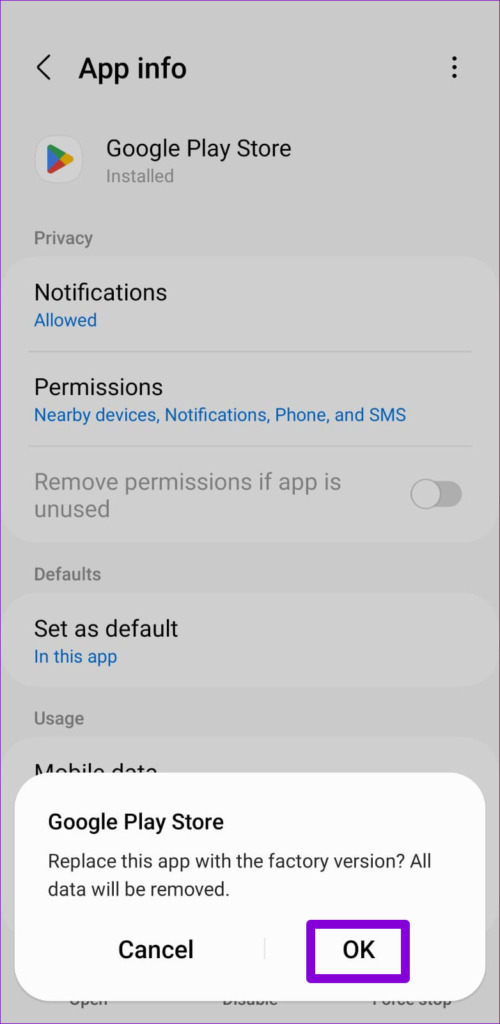
Step 2: Tap on the three-dot menu icon at the top and select Uninstall updates . Hit OK to proceed.
If this solves your problem, you can update the Play Store manually later.
Fix 6: Reset Google Play Services
Google Play Services works tirelessly in the background to connect apps, Google services, and Android. So, if the Google Play Services is not working correctly, other apps may not work as intended. You can try resetting Google Play Services to see if that fixes the issue.
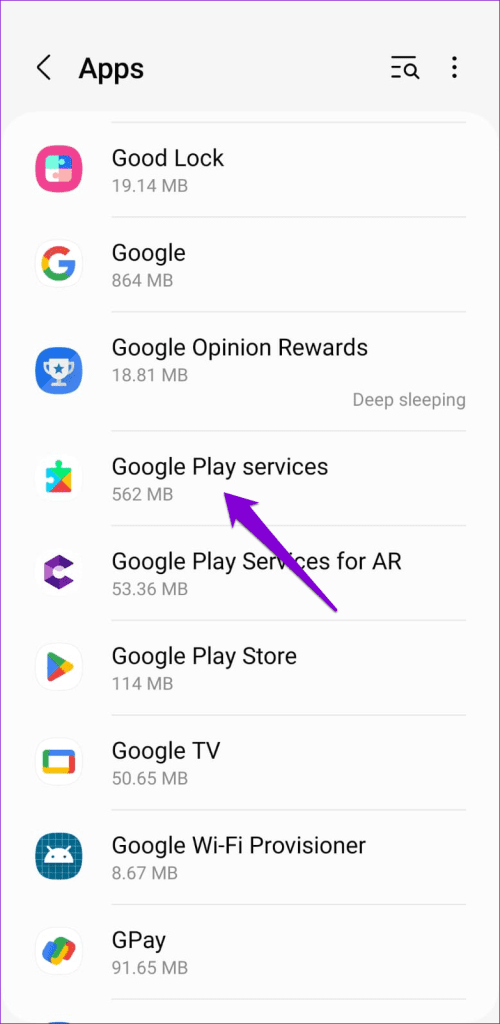
Step 1: Launch the Settings app and navigate to Apps .
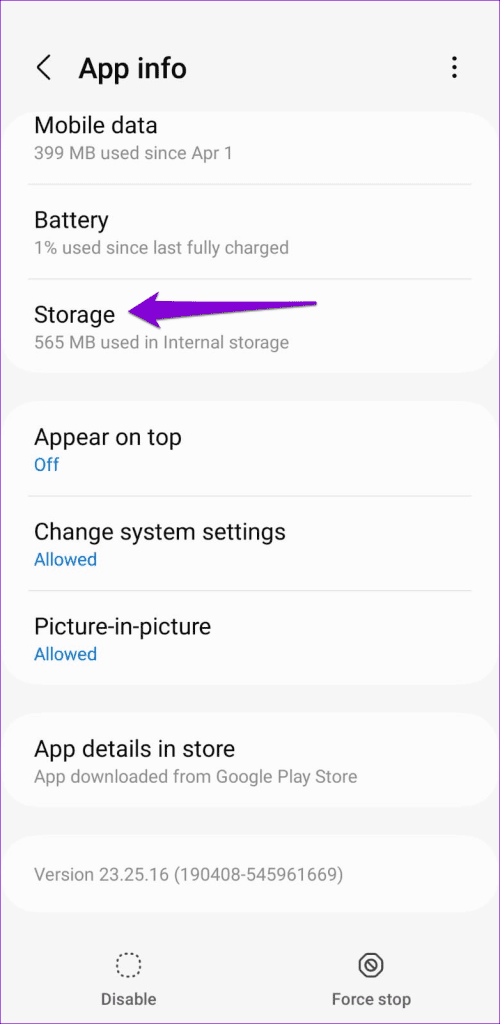
Step 2: Scroll down to find and tap on Google Play Service . Then, select Storage .
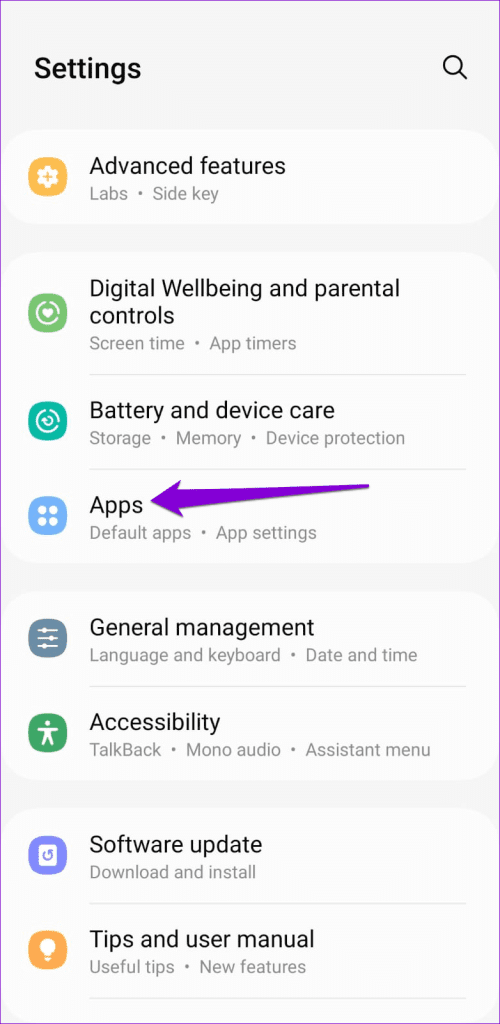
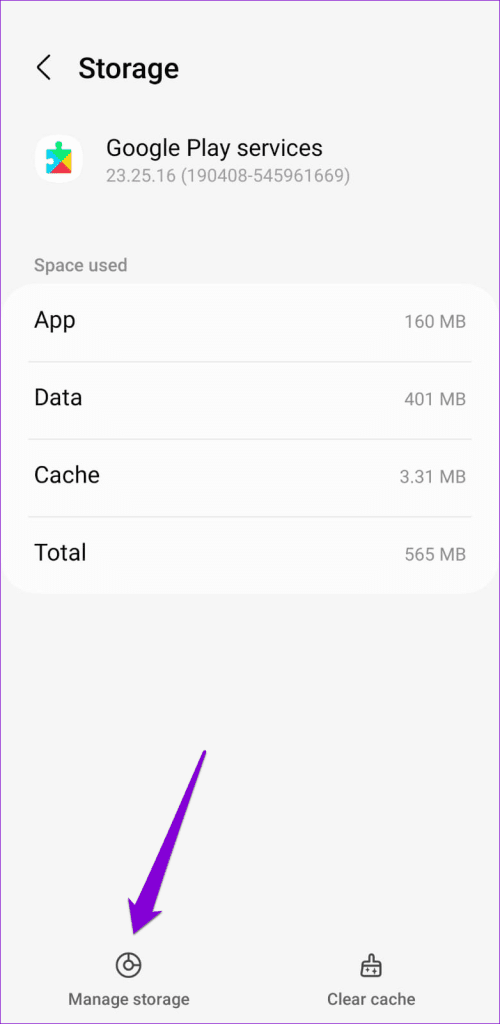
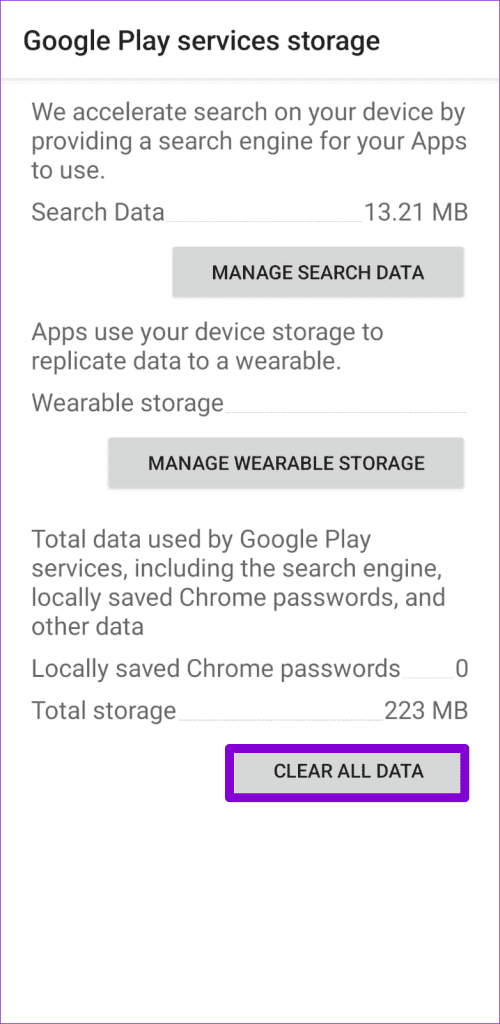
Step 3: Tap on Manage Storage at the bottom and hit Clear All Data .
Fix 7: Check if the App is Removed
If only one or two apps don’t appear on the App Store installed apps list, the app was likely removed from the Play Store either by the developer or Google. A quick way to verify this is by opening the Play Store on your desktop and searching for the app.
Was this helpful?
Submit Cancel
Thanks for your feedback!
Keep reading