Android
5 Ways to Fix Location Services Not Working on Android
Is your phone failing to detect your location? Try out these tips to fix the GPS or location services not working issue on Android.
By Pankil Shah
Quick Tips
Toggle airplane mode on your Android phone to refresh the network connection.
If location services are not working in a specific app, ensure the app has the necessary location permissions.
Ensure that Google Location Accuracy, Wi-Fi, and Bluetooth scanning are turned on.
Fix 1: Enable Google Location Accuracy
When your Android phone fails to determine your location accurately , you may face issues while using apps like Google Maps, Uber, and such. To fix this, enable the Google Location Accuracy option.
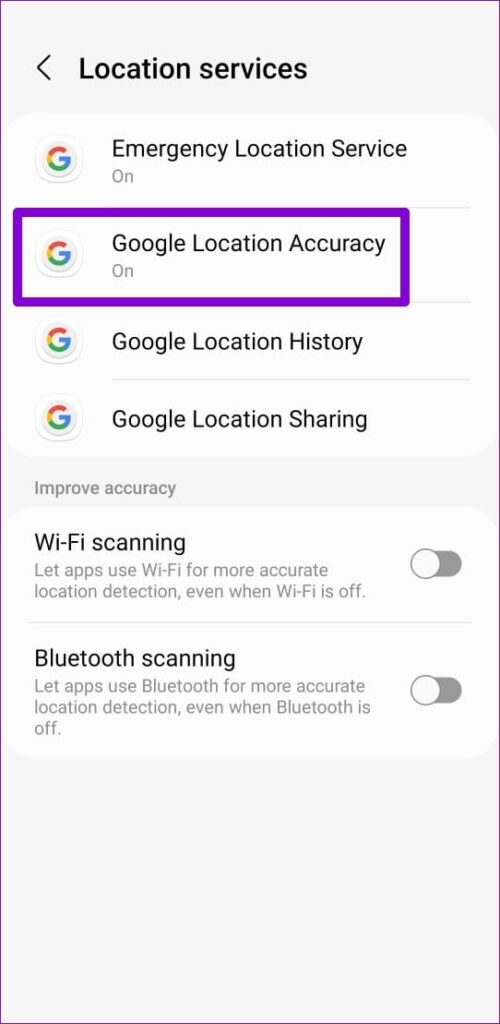
Step 1: Open the Settings app > head to Location > Location services .
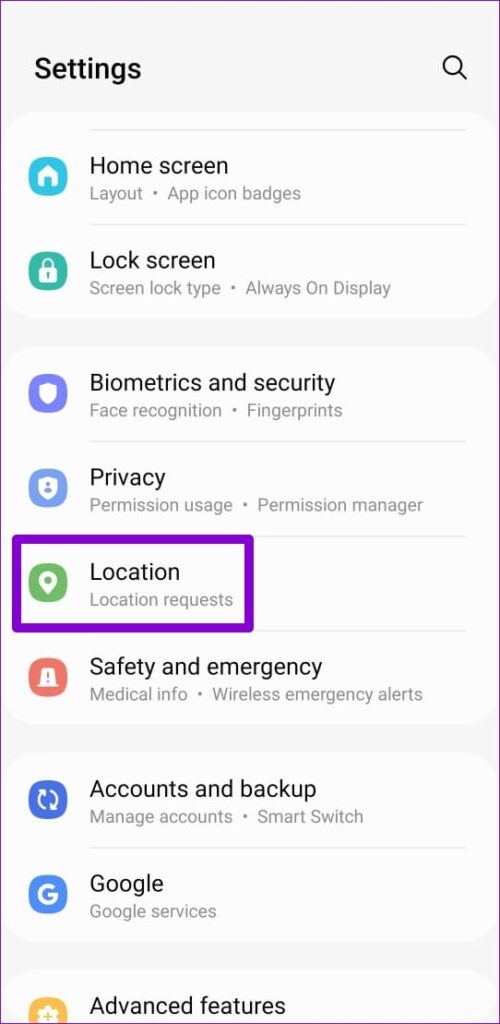
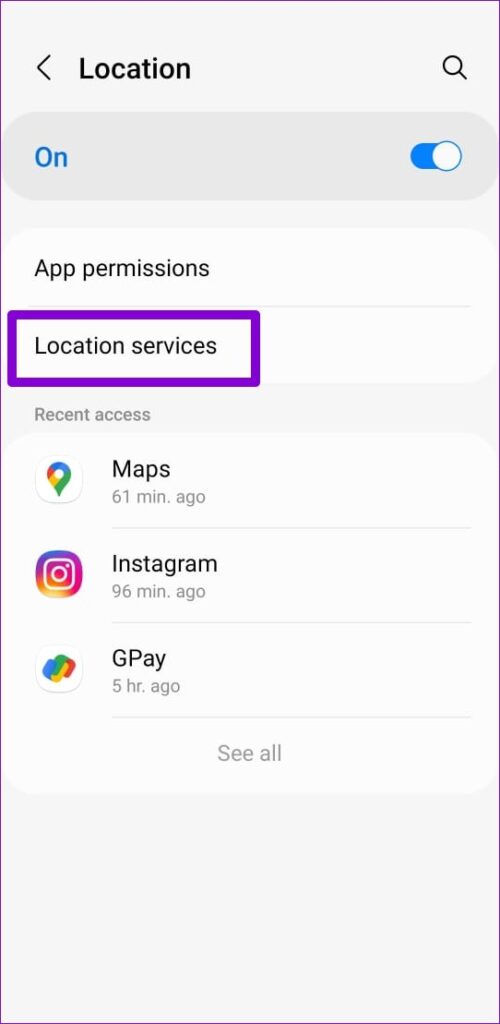
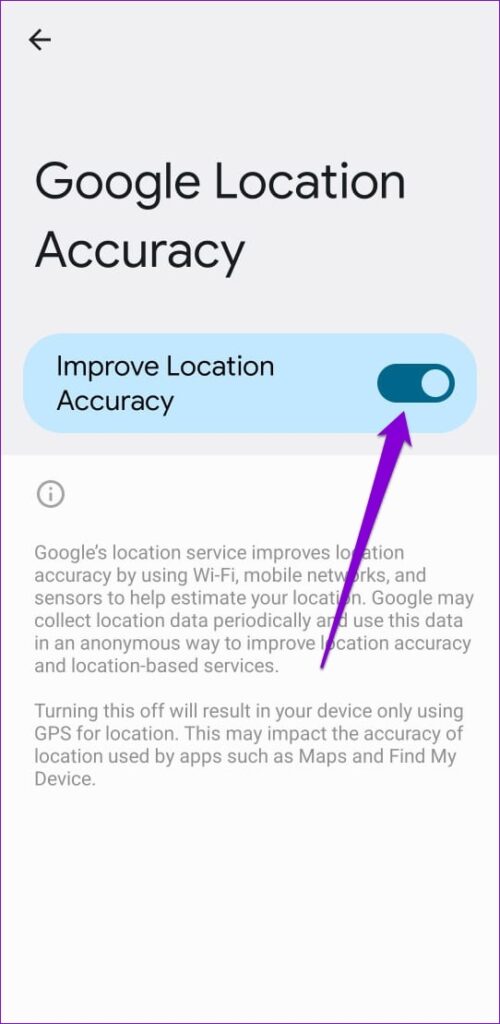
Step 2: Tap on Google Location Accuracy > enable the toggle for Improve Location Accuracy .
Fix 2: Enable Location Permission for Apps
If the location not working issue is limited to one or two apps, review location permission for those apps on your Android phone. Here’s how to go about it.
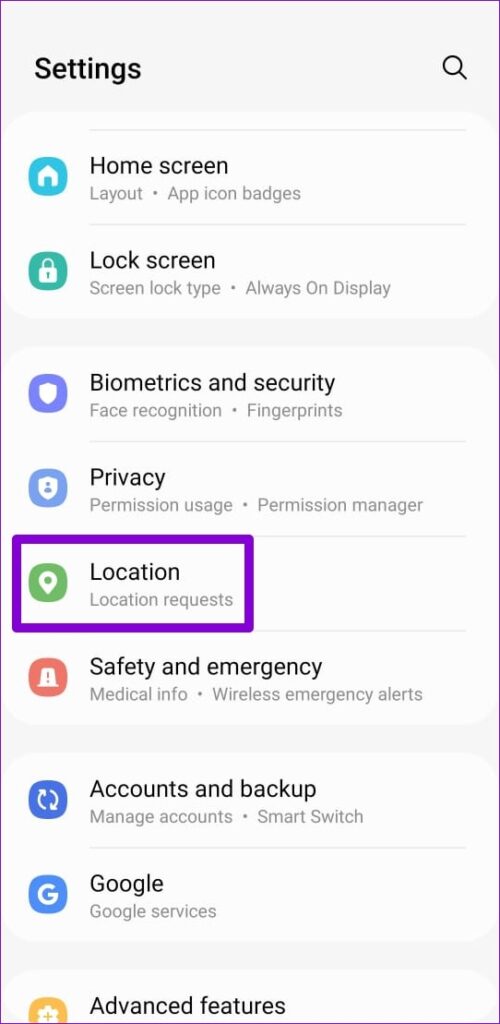
Step 1: Launch the Settings app on your phone > scroll down to tap on Location .
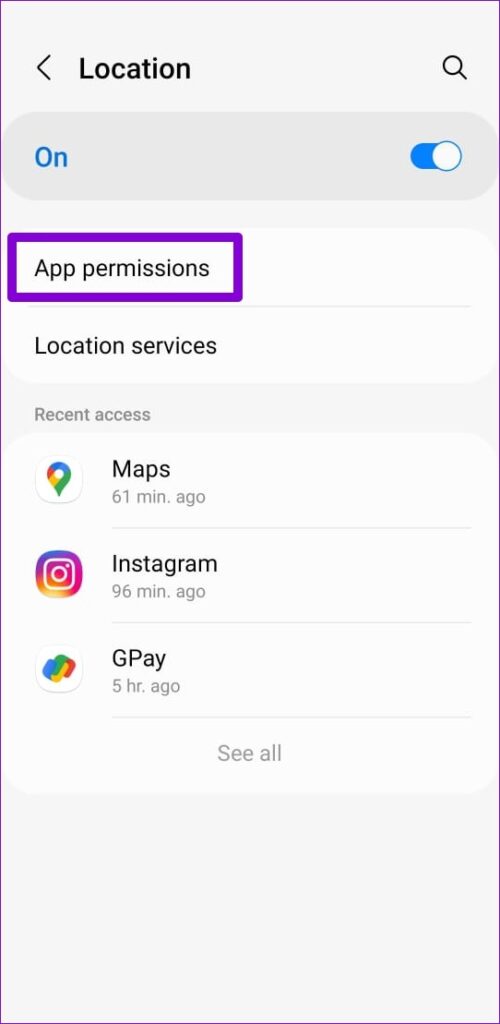
Step 2: Tap on App permissions to see a list of apps categorized by their location access.
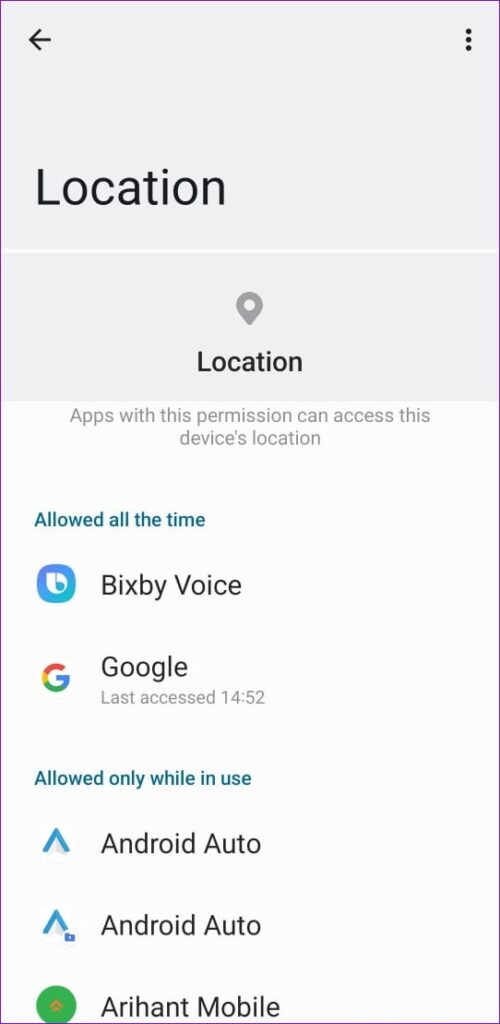
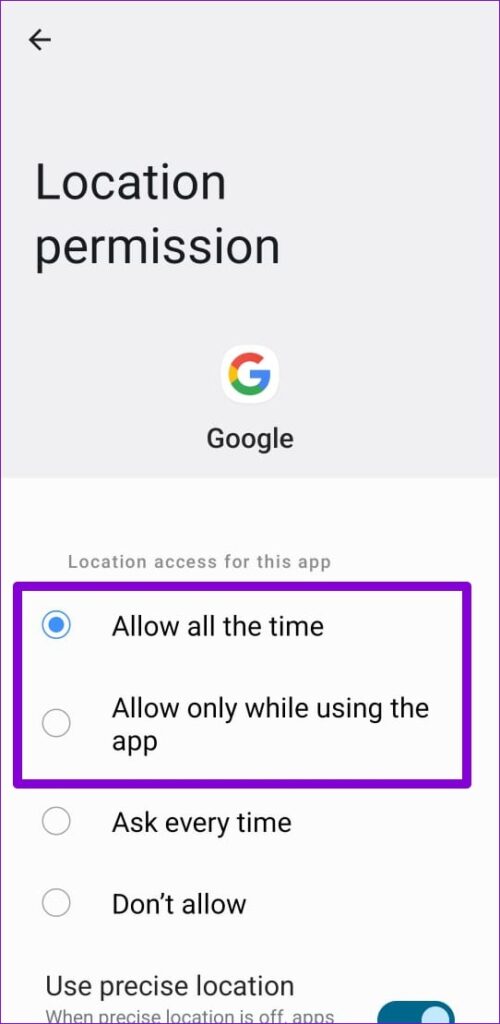
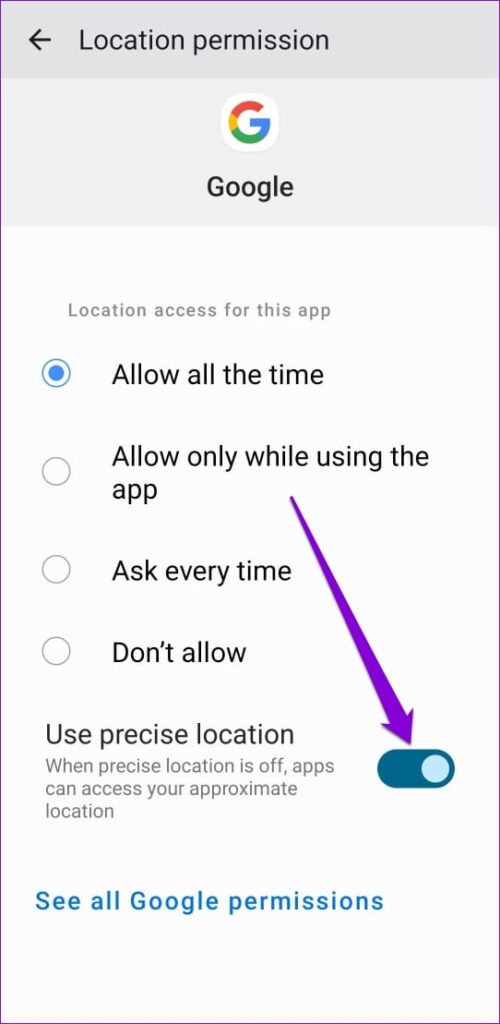
Step 3: Tap on the app that’s having trouble detecting your location. Set the location permission to Allow all the time or Allow only while using the app . Also, ensure you don’t deny the app access to your precise location.
Fix 3: Enable Wi-Fi and Bluetooth Scanning
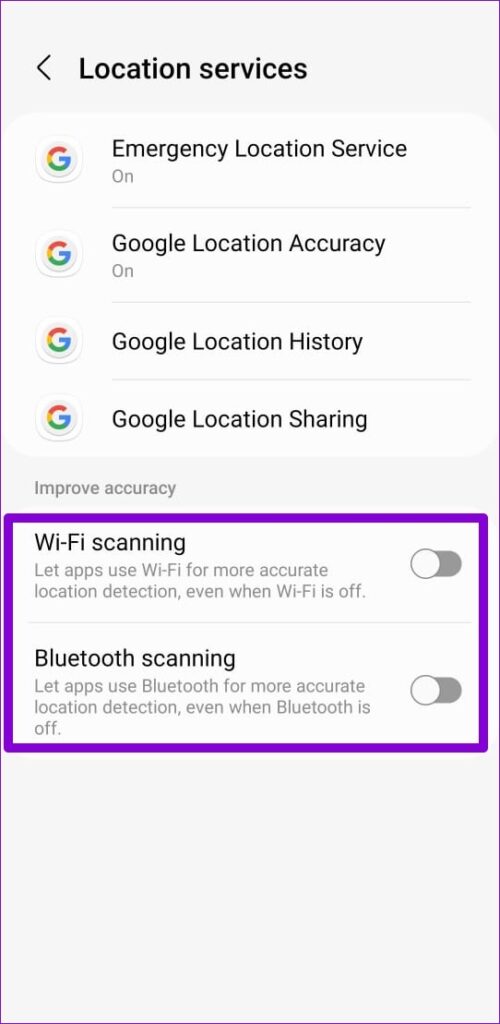
Another thing you can do is enable your Wi-Fi and Bluetooth scanning on your Android. This will allow your phone to use the nearby Wi-Fi networks and Bluetooth-enabled devices to detect your location accurately.
Step 1: Open the Settings app on your phone and go to Location > Location services .
Step 2: Toggle on Wi-Fi scanning and Bluetooth scanning .
Fix 4: Correct Date and Time
Is your Android set to an incorrect date or time ? If so, you may encounter difficulties while using location-based apps and encounter the “Could not retrieve your location” error. To avoid this, configure your Android to use the network-provided date and time.
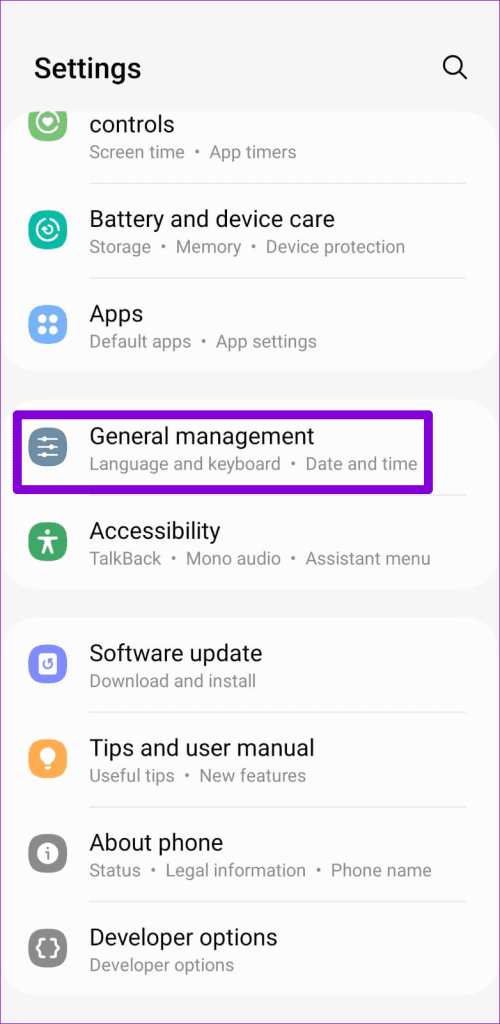
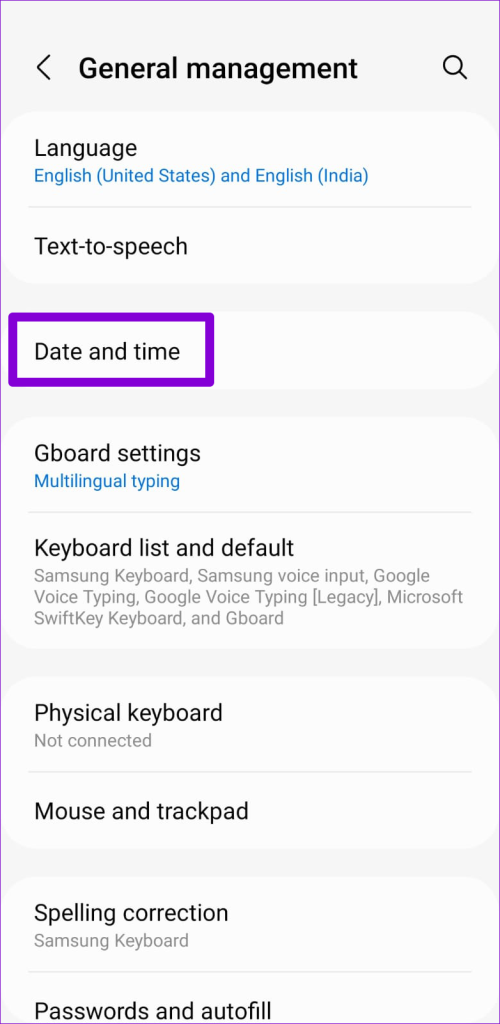
Step 1: Open the Settings app > head to General management > Date and time .
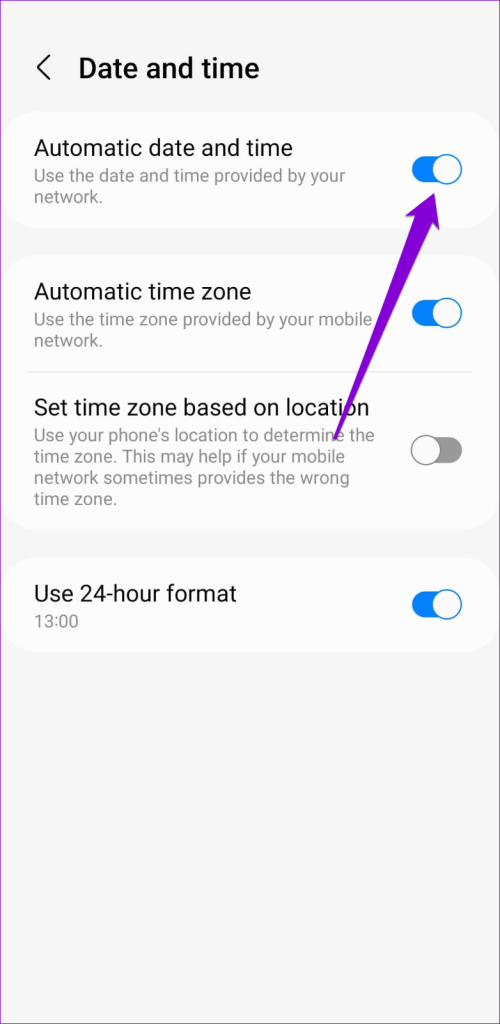
Step 2: Turn on Automatic date and time .
Fix 5: Try Safe Mode
If GPS or location services are still not working despite enabling all the right settings, try booting your Android phone into Safe Mode. Doing so will disable all third-party apps and non-essential services on your phone, allowing you to determine if one of them is causing the problem.
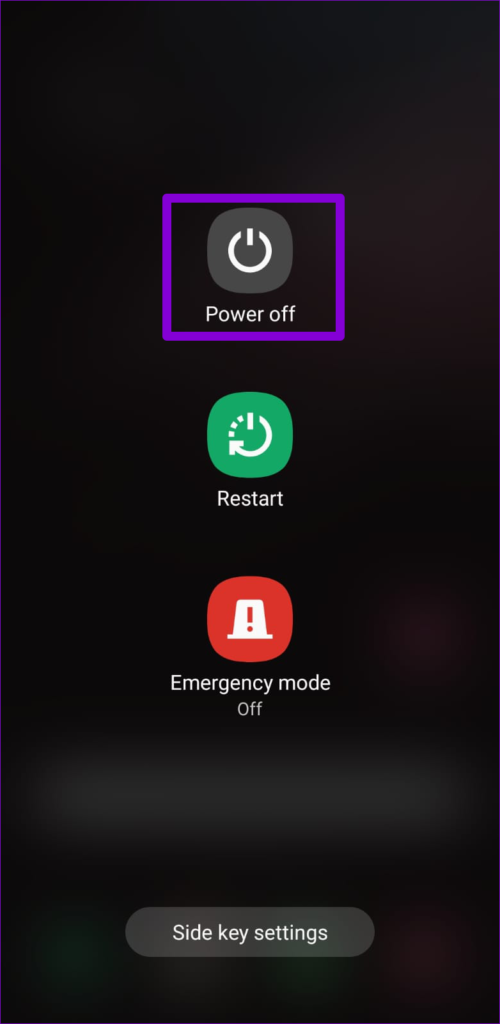
Step 1: Press and hold the power button on your phone. Then, long-press on Power off .
Step 2: Tap the green icon to boot your phone in Safe Mode.
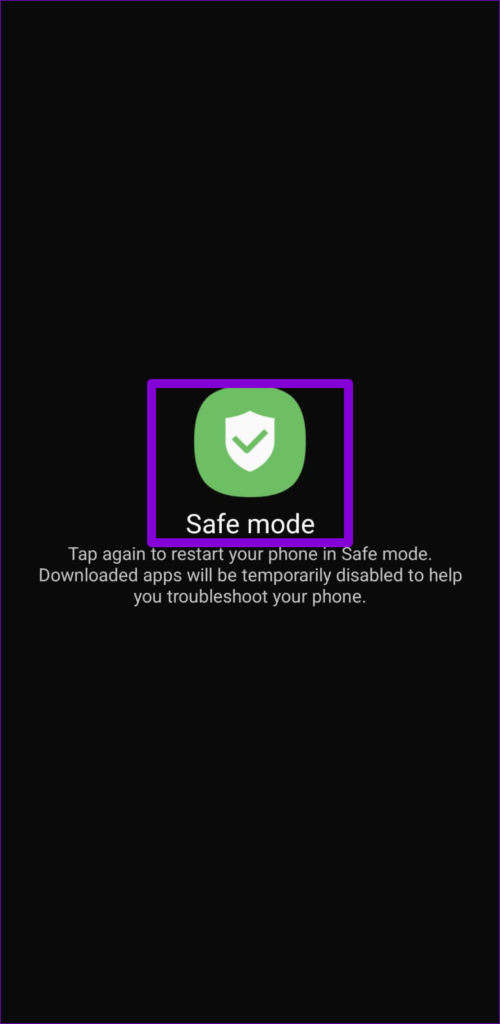
Since Safe Mode disables all your third-party apps, you must use Google Maps to see if the location services are working.
If the location services work fine in Safe Mode, one of the third-party apps may be causing the problem. Apps or games you installed recently are more likely to have caused the issue. You must go through these apps and remove them one by one. After that, restart your phone to exit Safe Mode and check if the location services are working.
Was this helpful?
Submit Cancel
Thanks for your feedback!
Keep reading