Android
6 Ways to Fix Notifications Not Working on Samsung Galaxy Phones
Not receiving any notifications on your Samsung phone? Try these tips to fix notifications not working issue on your Samsung Galaxy phone.
By Pankil Shah
Quick Tips
Ensure that the Do Not Disturb mode is turned off and isn’t configured to run at specific hours.
Disabling sleeping apps and resetting app preferences can help resolve notification-related issues.
If notifications are not working for a specific app, ensure it is allowed to run in the background on your phone.
Try Basic Fixes
Disable power saver mode: When you enable power saver mode, apps may not work efficiently in the background and fail to show any notifications. To avoid missing out on notifications on your Samsung device, consider disabling the power saver mode.
Disable data saver mode: Similar to power saver mode, enabling data saver mode can prevent apps from fetching new information and displaying notifications. Hence, it’s best to turn off data saver mode when you don’t need it.
Install app and software updates: Using an older version of an app can lead to such issues. Hence, it’s best to update your apps if you haven’t already done so. While you’re at it, install any pending software updates as well.
Fix 1: Check Notification Settings
It’s a good idea to review the notification settings on your phone and ensure app notifications aren’t disabled. Here’s how to check.
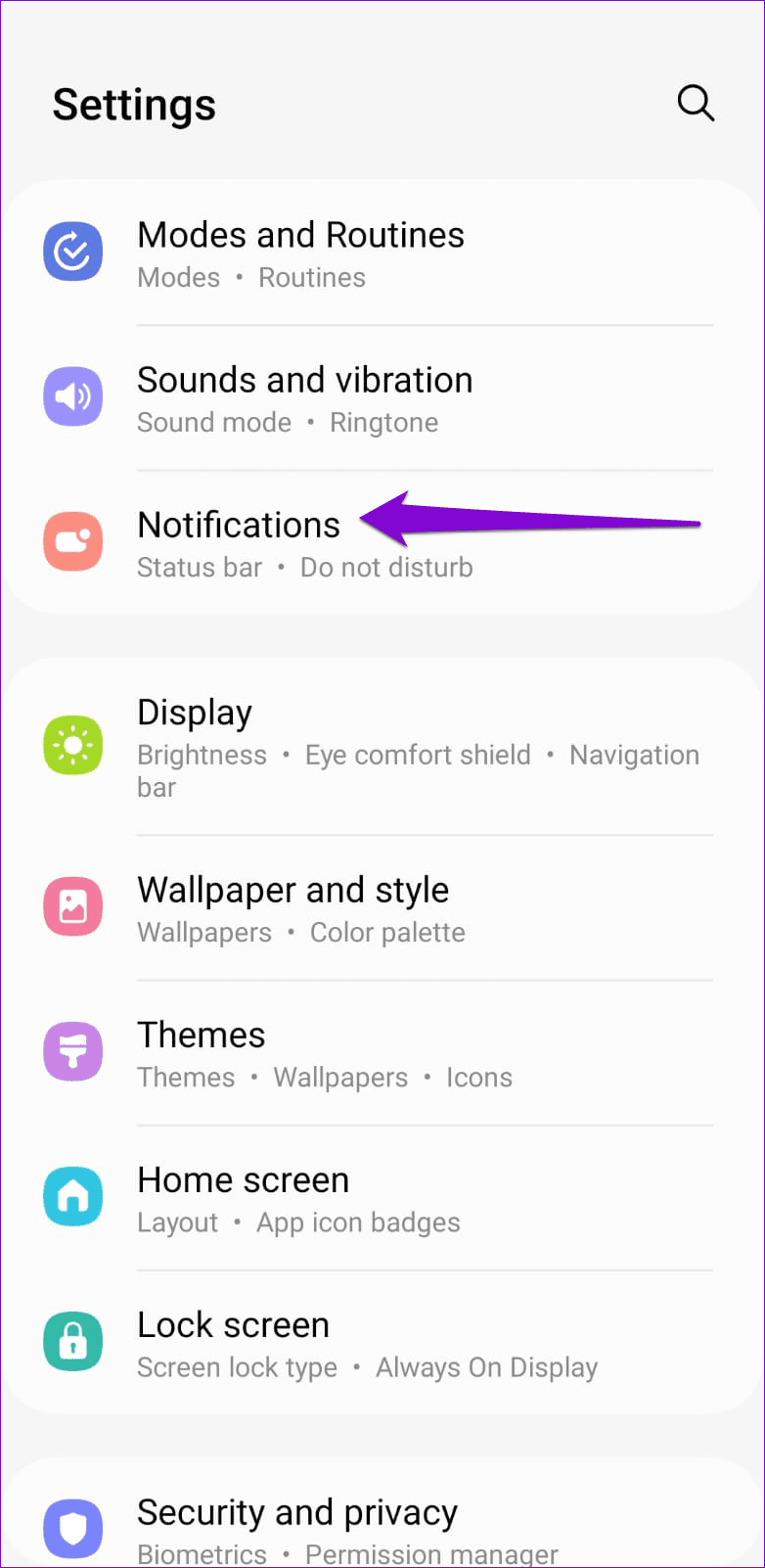
Step 1: Launch the Settings app and go to Notifications .
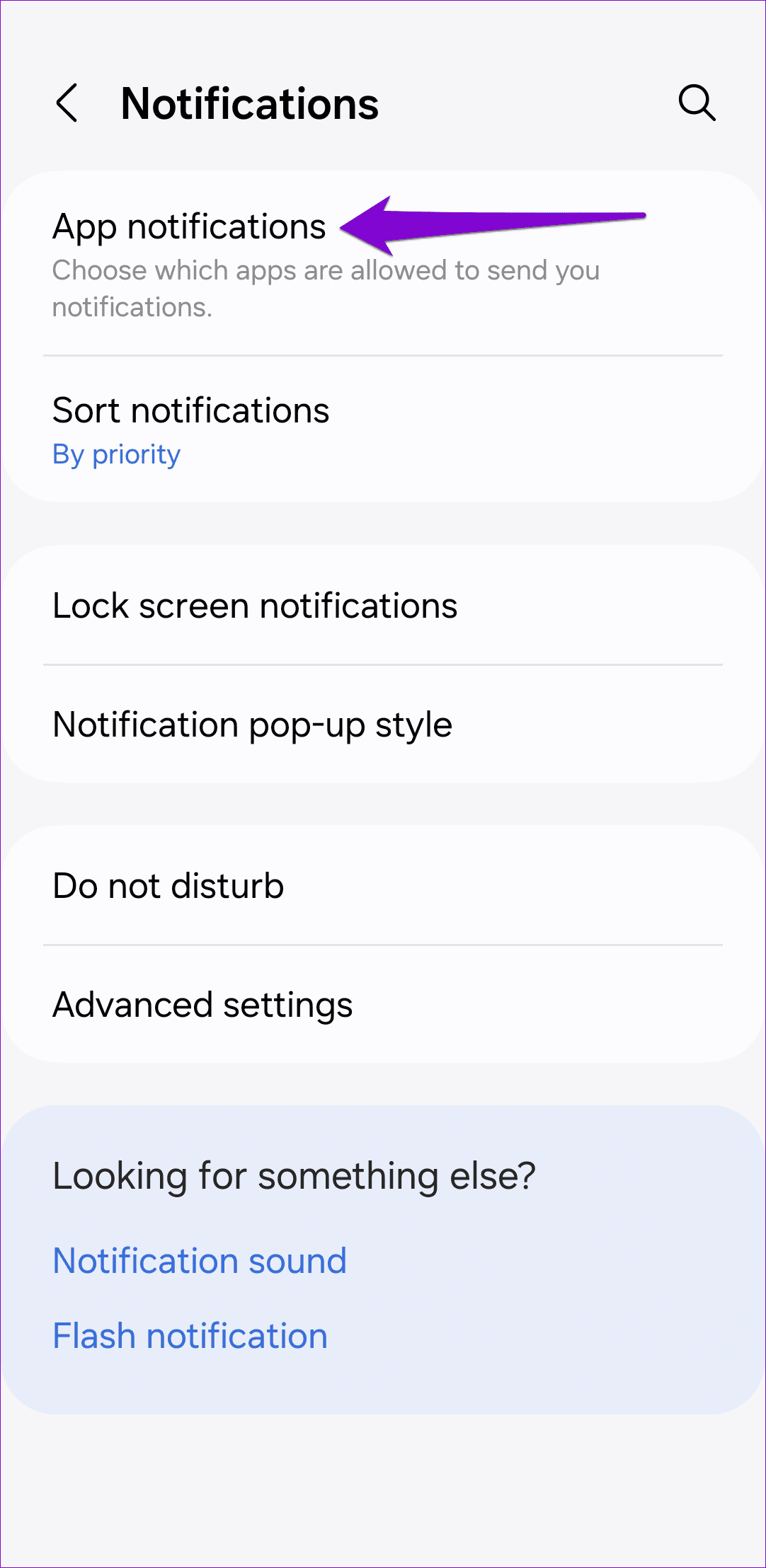
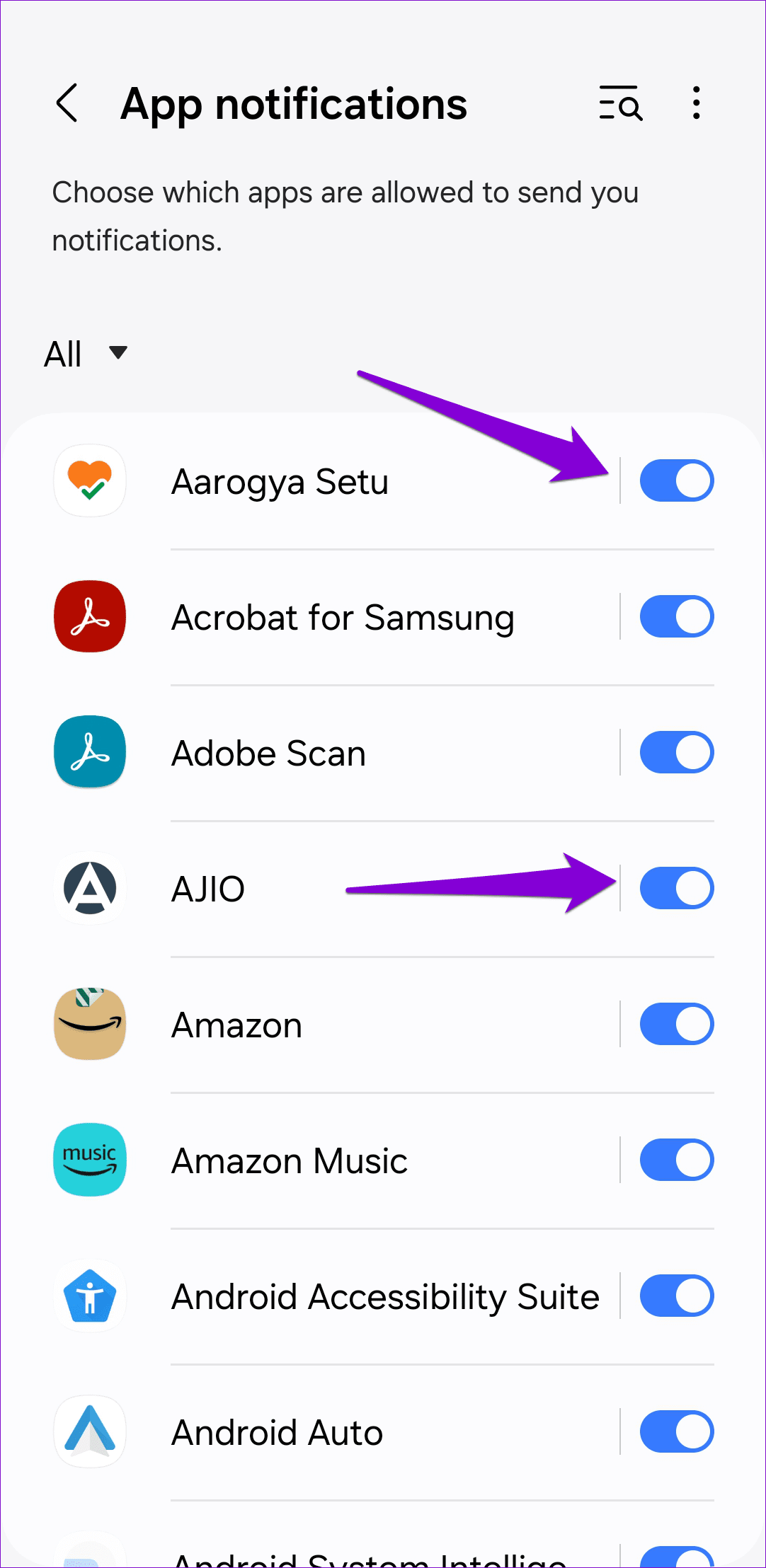
Step 2: Tap on App notifications and use the toggles in the following menu to enable notifications for your apps.
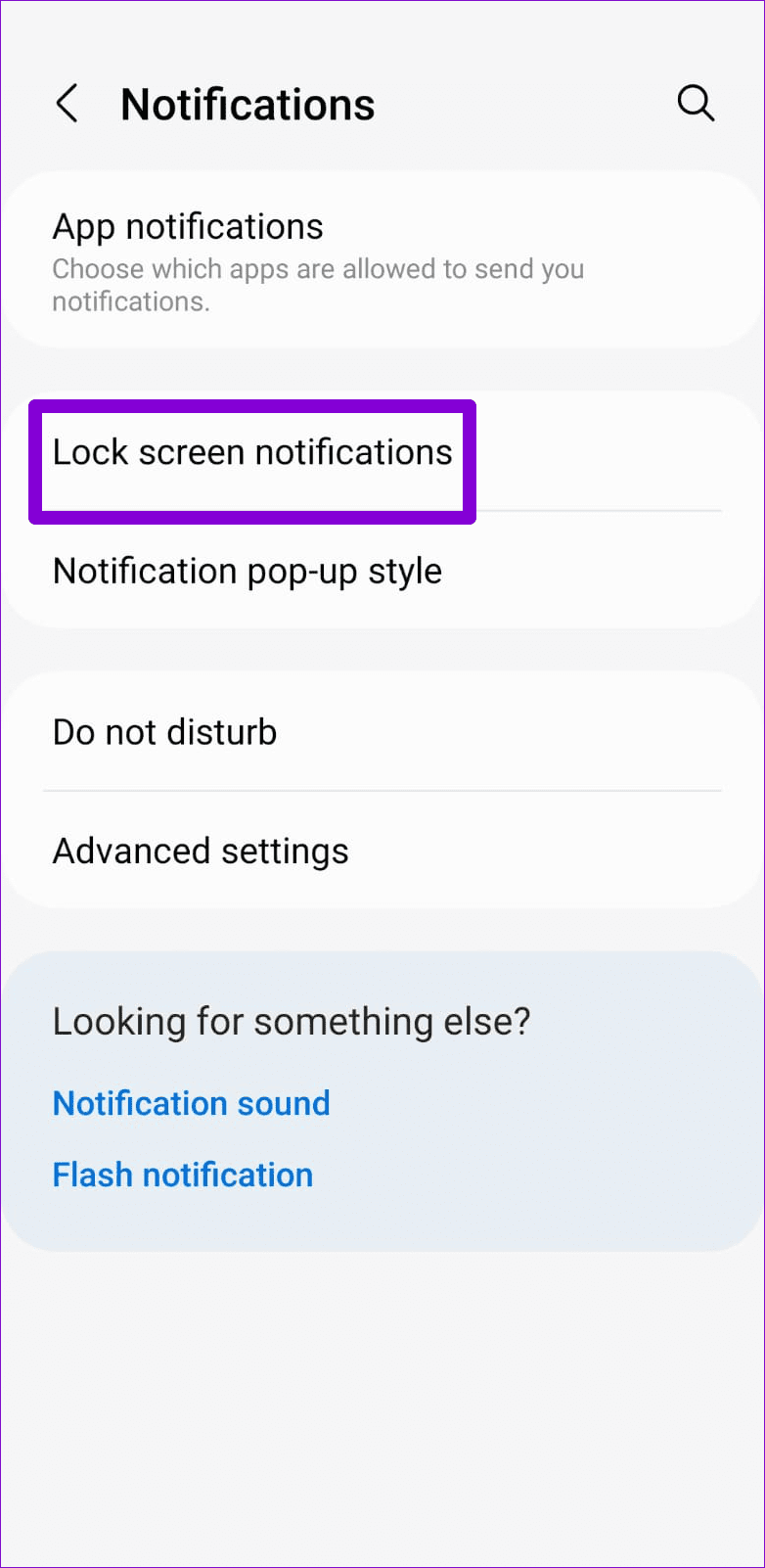
Step 3: Return to the Notifications page, tap on Lock screen notifications , and enable the toggle in the following menu.
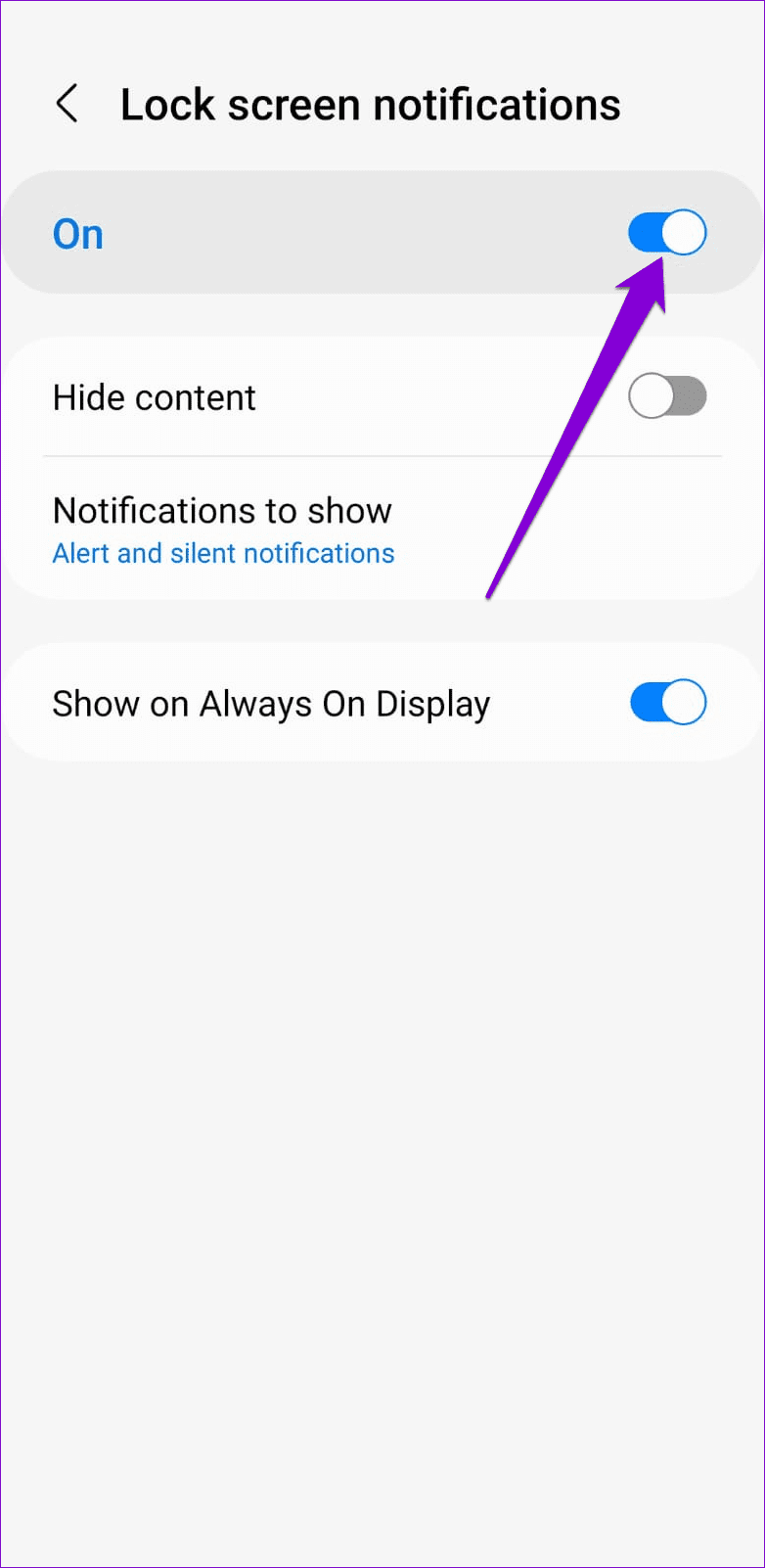
Aside from the system settings, apps like Gmail and Instagram also offer the option to set notification preferences within the app. Therefore, if the notification not working issue is specific to certain apps, be sure to check their in-app settings as well.
Fix 2: Turn Off Do Not Disturb
Do Not Disturb is a useful feature on Android that allows you to turn off notifications entirely. This feature may lead you to believe that push notifications are not working on your Samsung phone. To avoid this, make sure to disable Do Not Disturb on your phone.
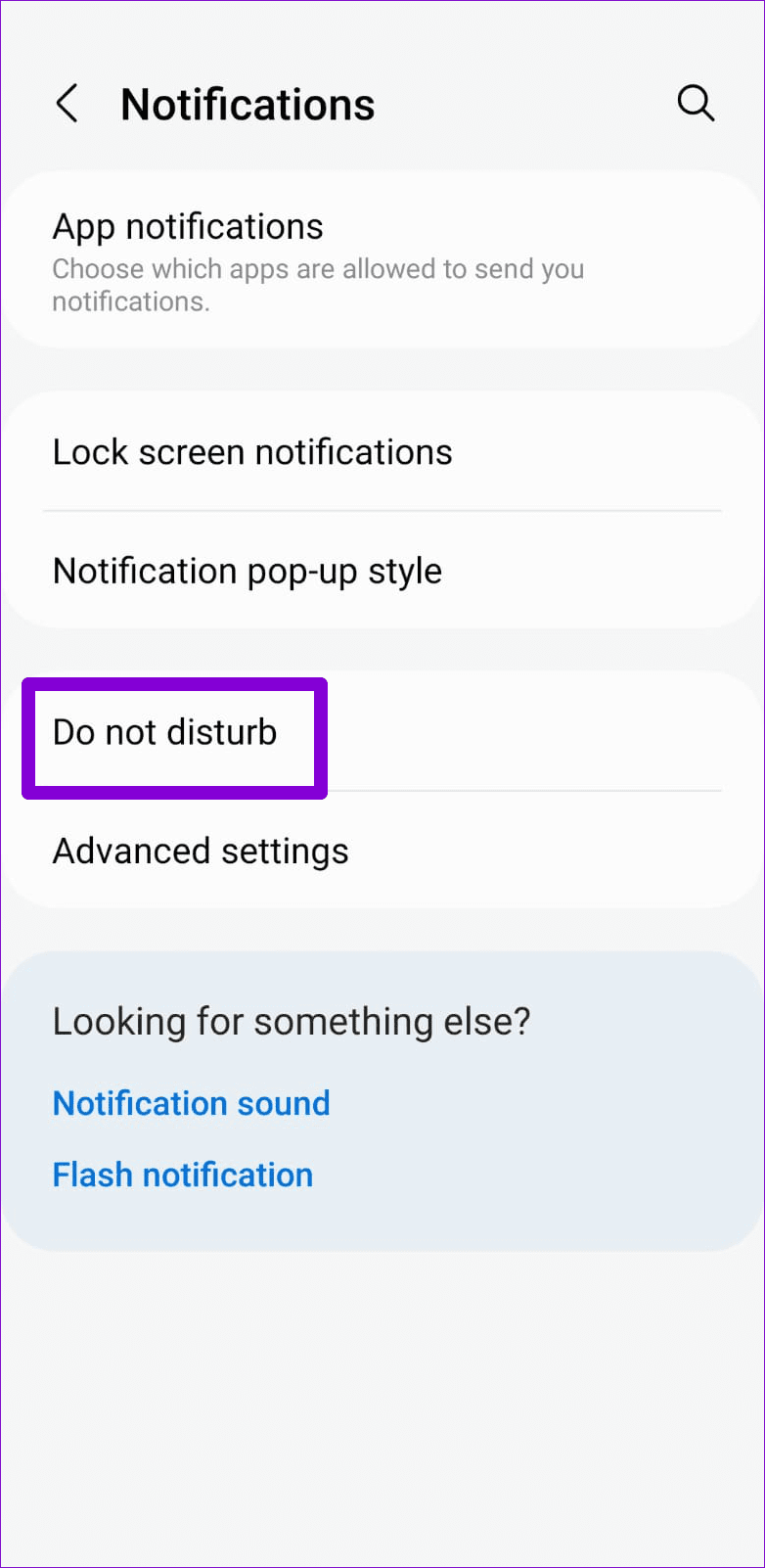
Step 1: Open up the Settings app and tap on Notifications .
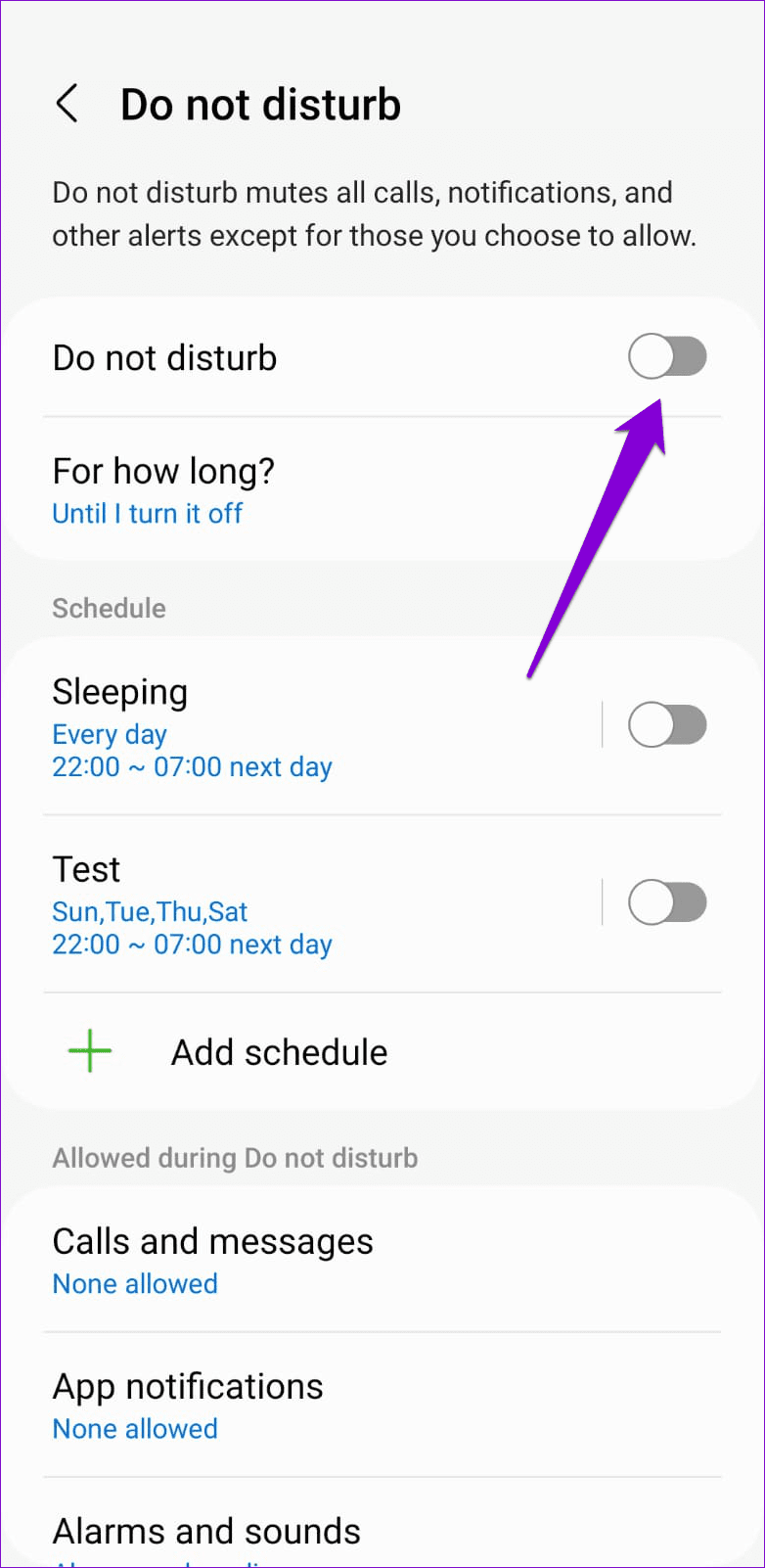
Step 2: Scroll down to select Do not disturb . Then, turn off Do not disturb and make sure it isn’t scheduled to turn on automatically.
Fix 3: Prevent Apps From Sleeping
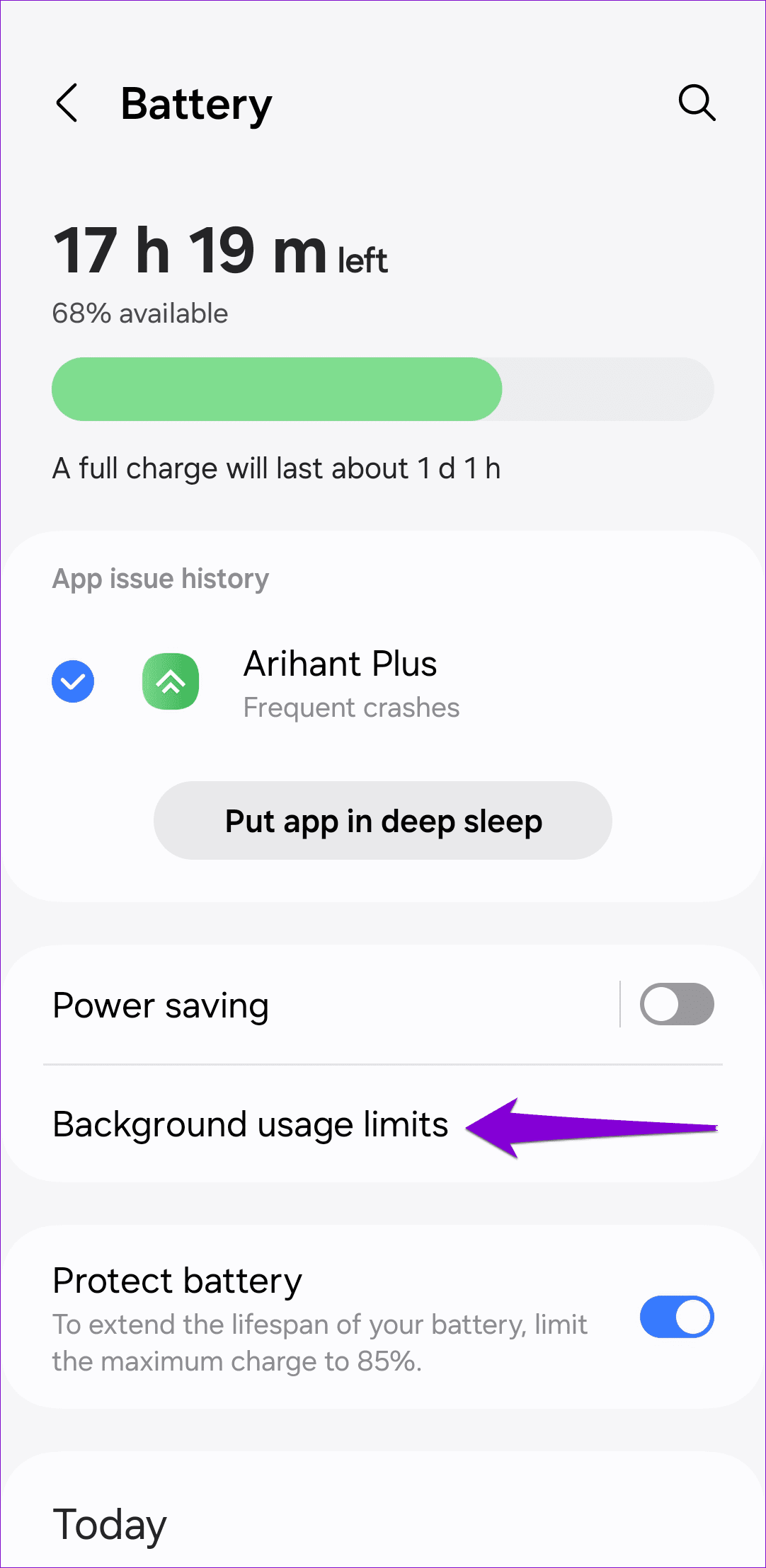
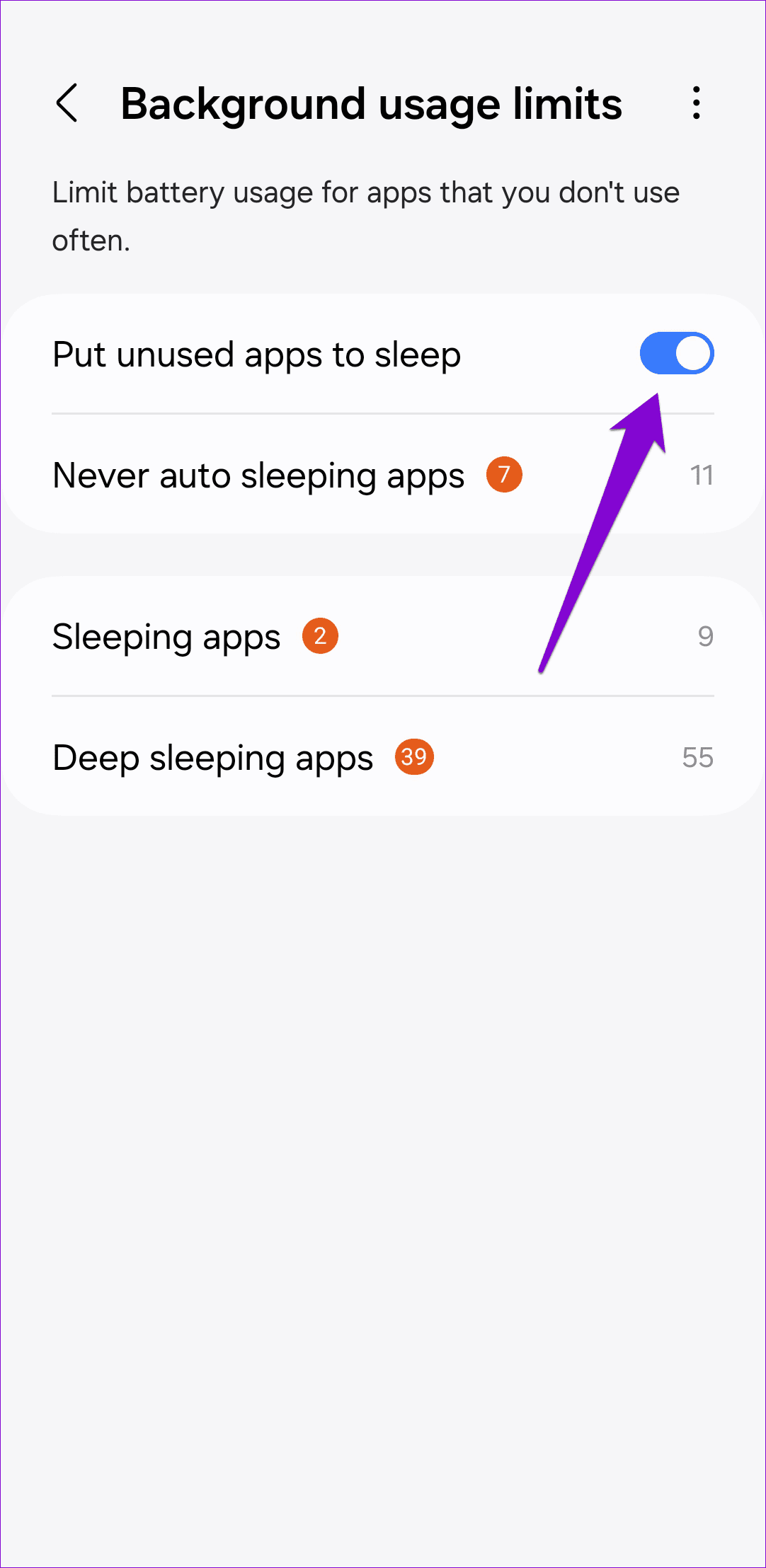
Another way One UI conserves battery is by putting some of your less frequently used apps to sleep. However, this may result in delayed notifications for those apps. Here’s what you can do to fix that.
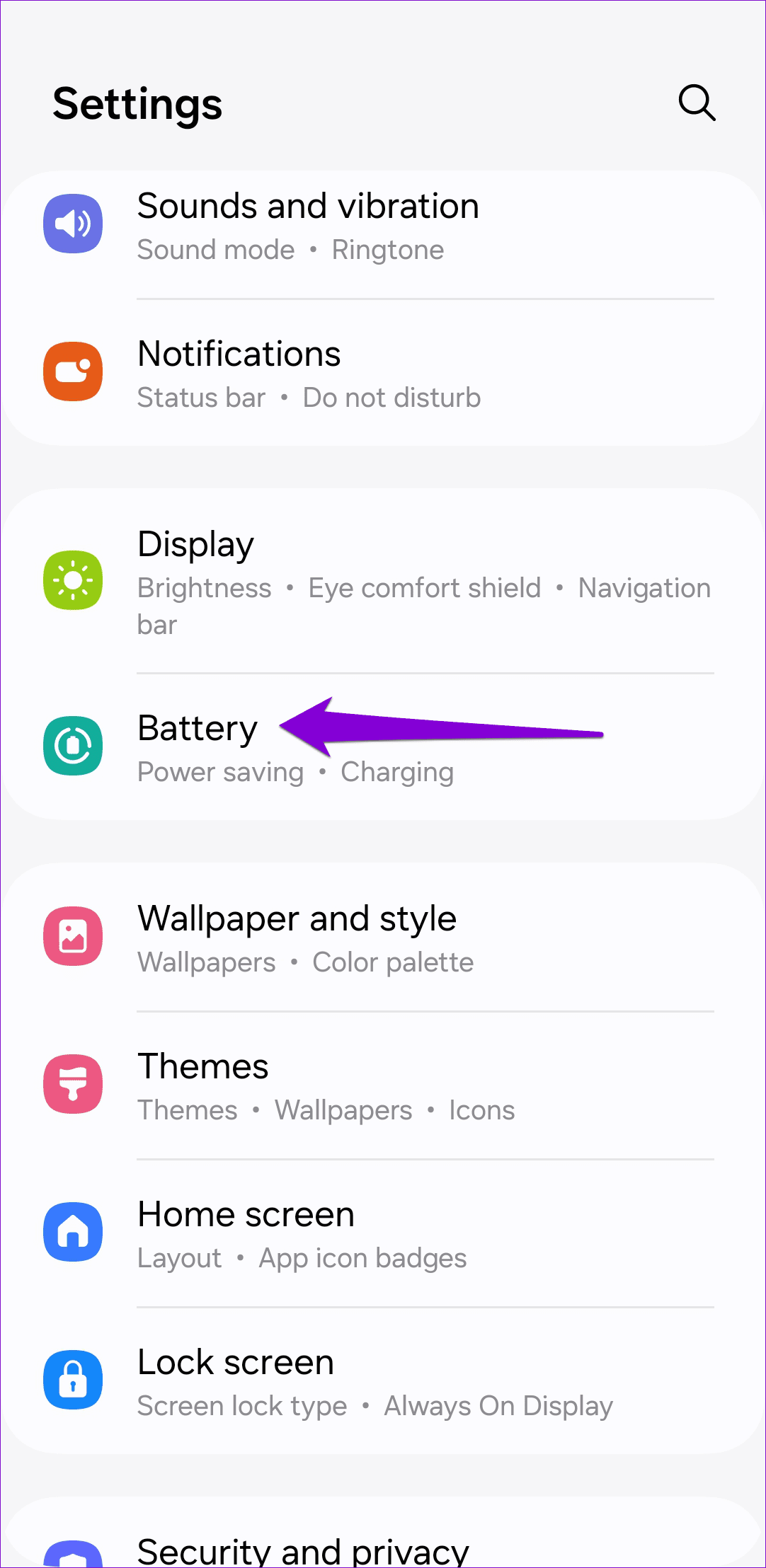
Step 1: Launch the Settings app and select Battery .
Step 2: Tap on Background usage limits and turn off the Put unused apps to sleep option.
Fix 4: Modify App Permissions
If you’re still not getting text messages, emails, or other app notifications on your Samsung phone, you can consider reviewing individual app permissions to ensure that your apps aren’t restricted in any way. Here’s how.
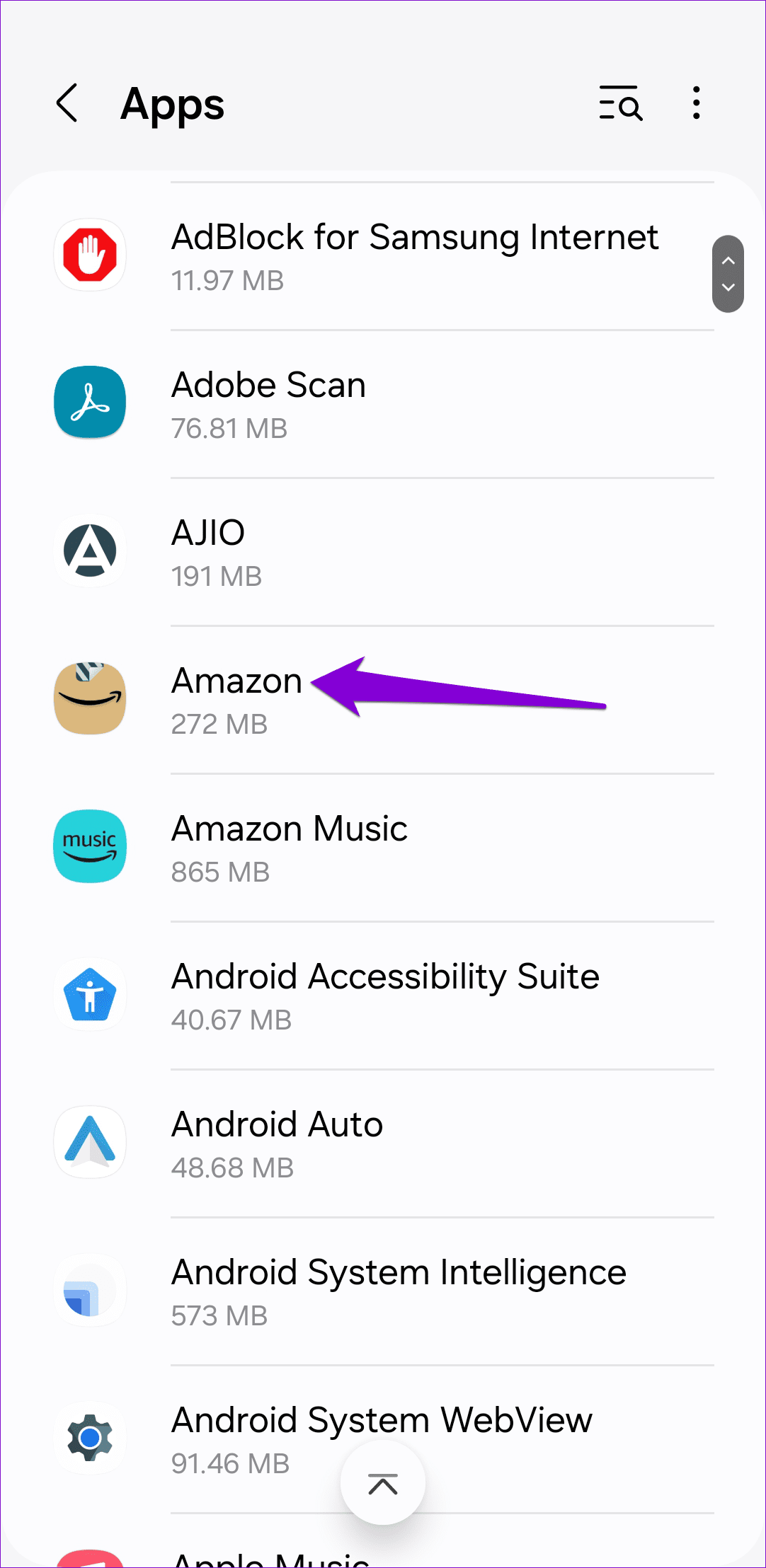
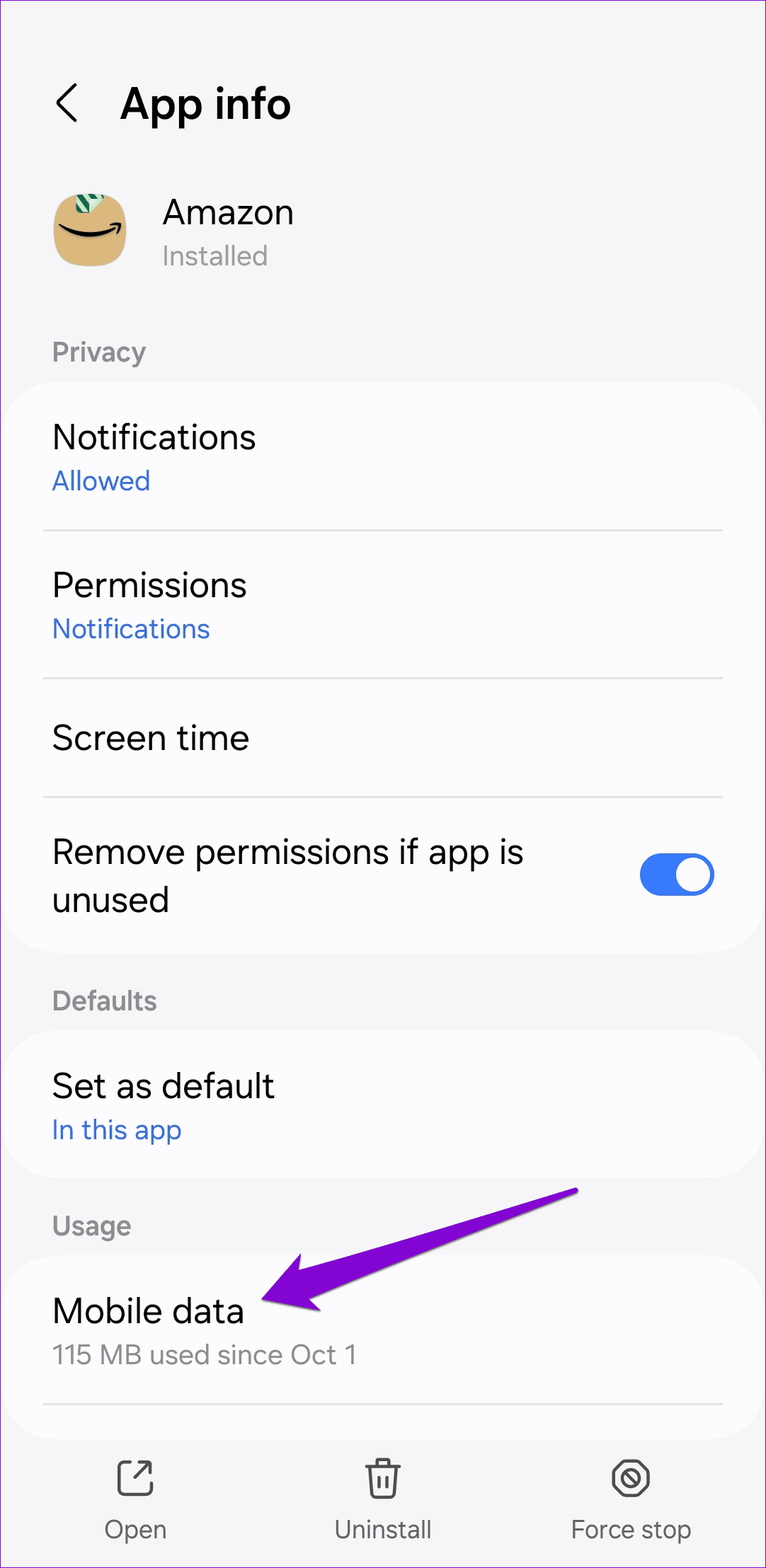
Step 1: Open the Settings app and navigate to Apps . Then, tap the troublesome app to open its app info.
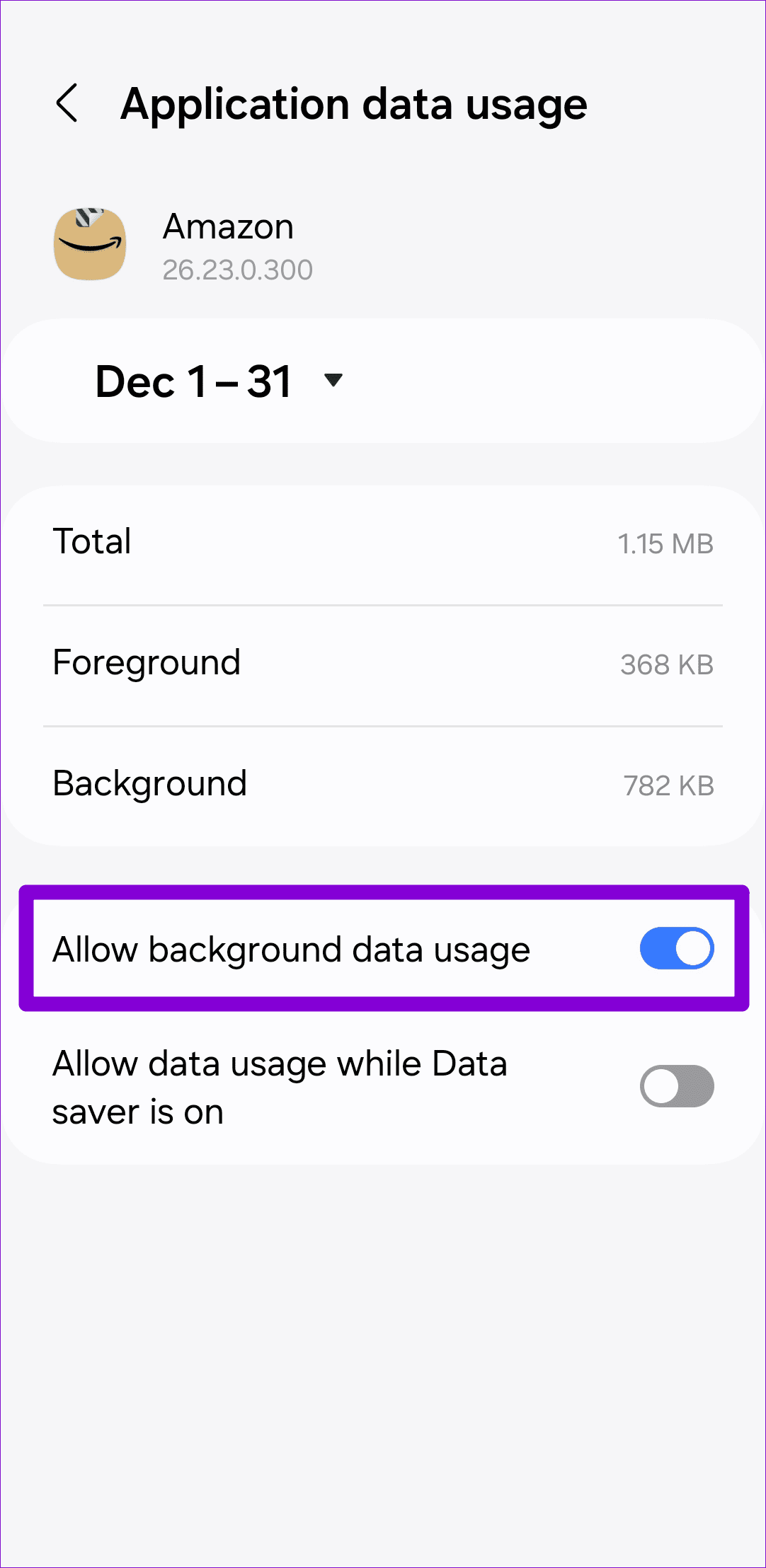
Step 2: Go to Mobile data and ensure that the Allow background data usage toggle.
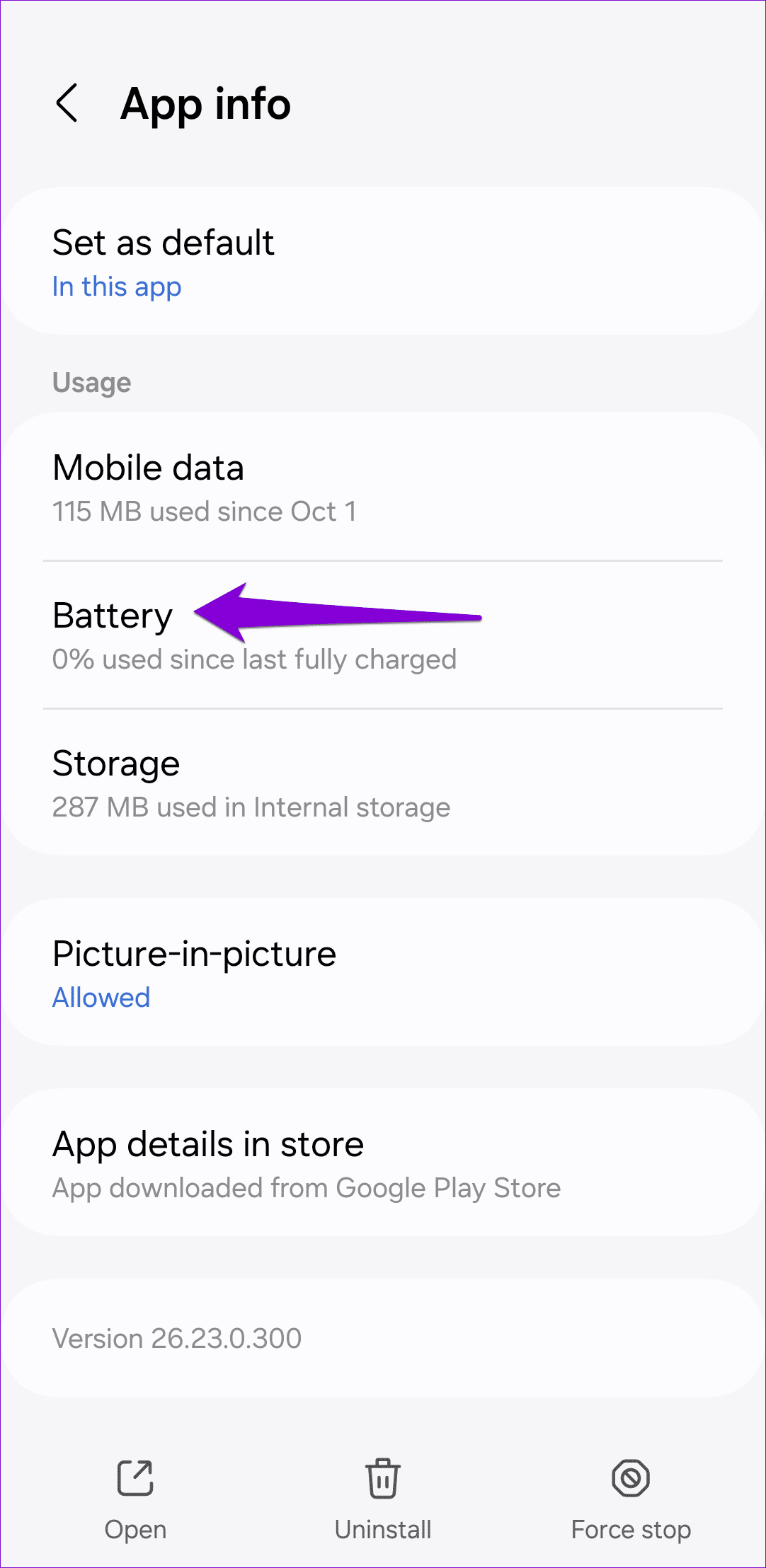
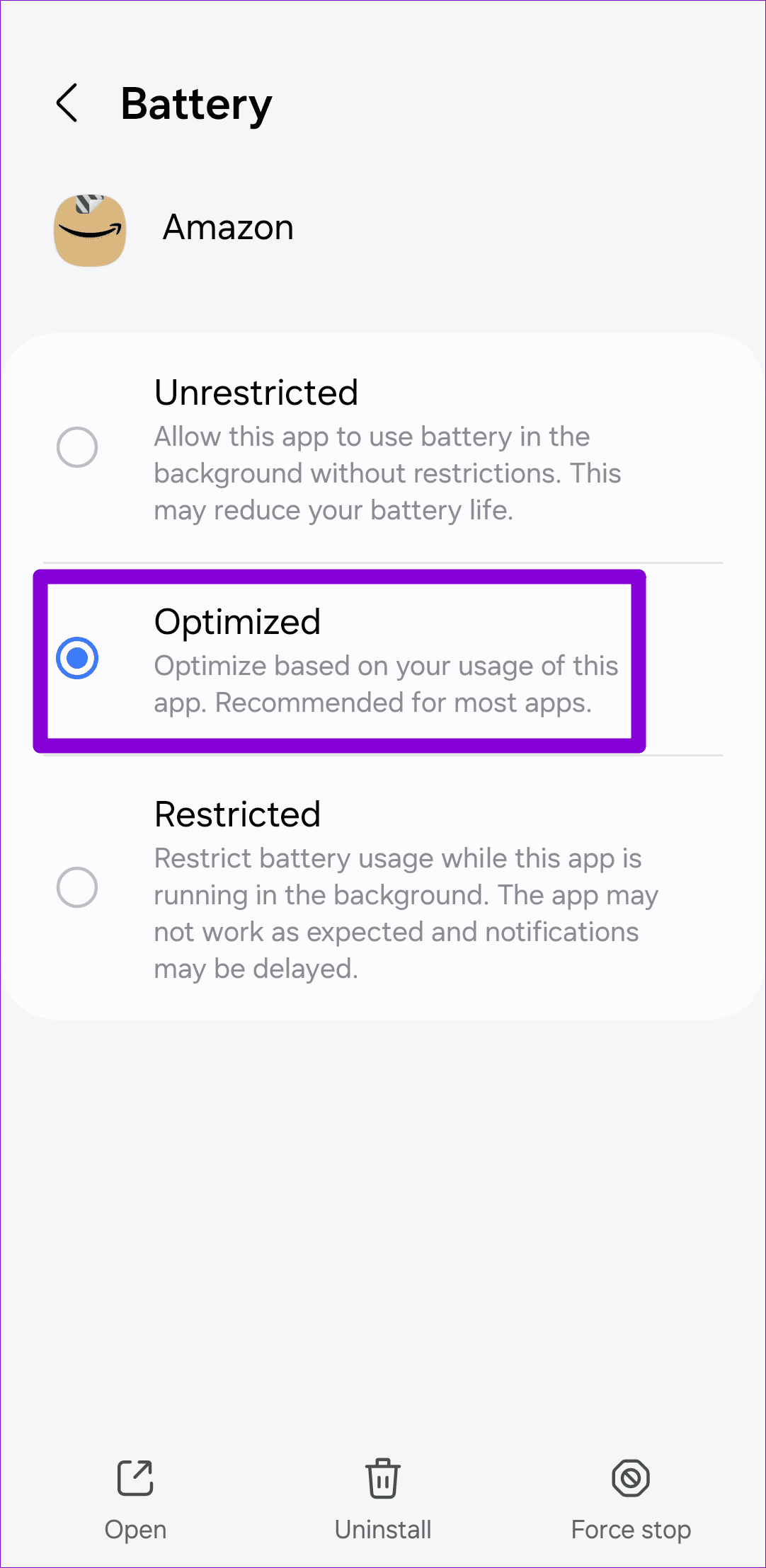
Step 3: Return to the app info page, go to Battery , and select Unrestricted or Optimized from here.
Repeat the above steps for all the apps that are failing to deliver notifications.
Fix 5: Clear App Cache
If the notification not working issue is specific to certain apps, you can attempt to fix it by clearing the cache for those apps on your Samsung phone. Here’s how:
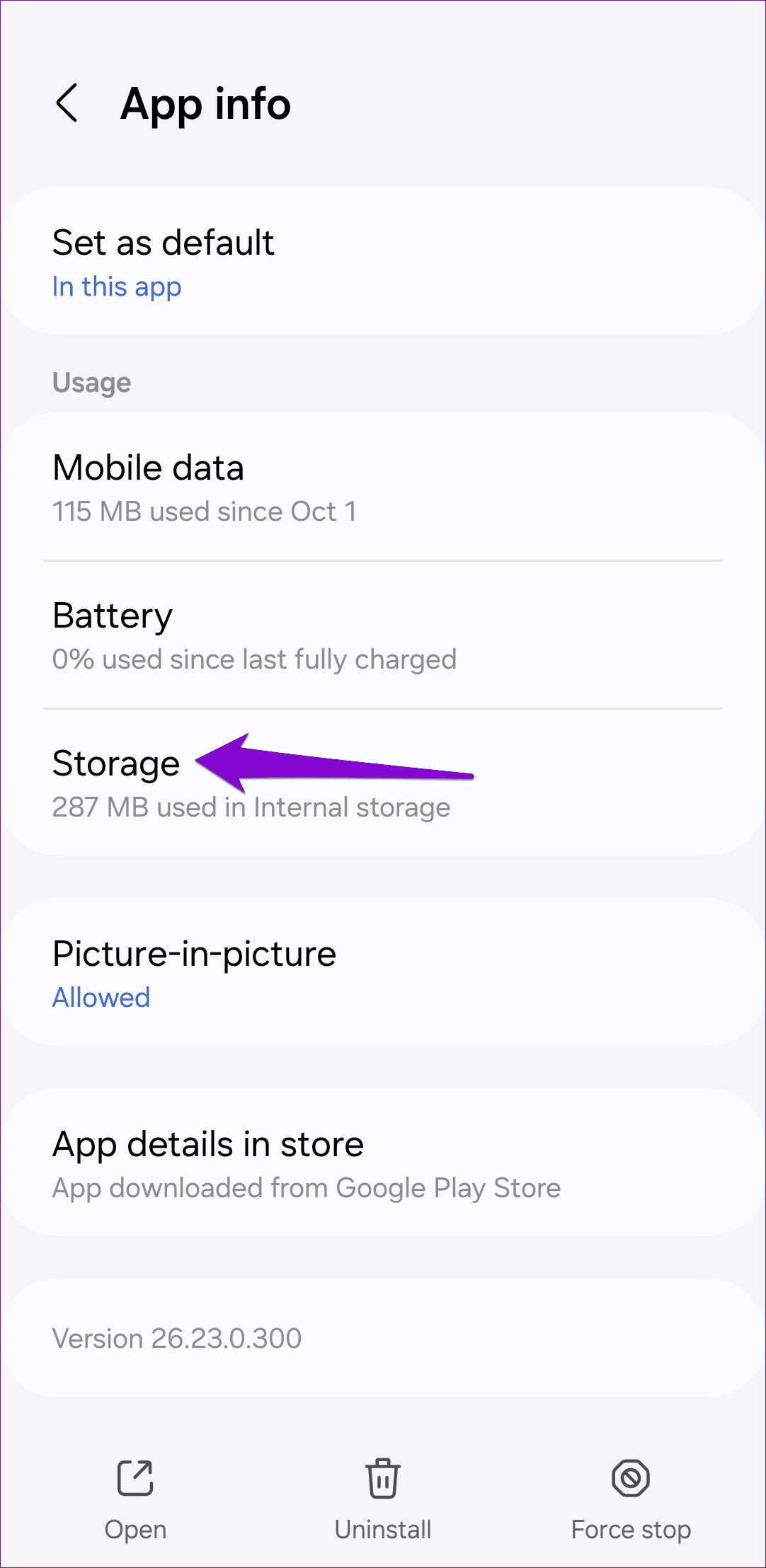
Step 1: Open the Settings app, navigate to Apps , and select the app for which notifications are not working.
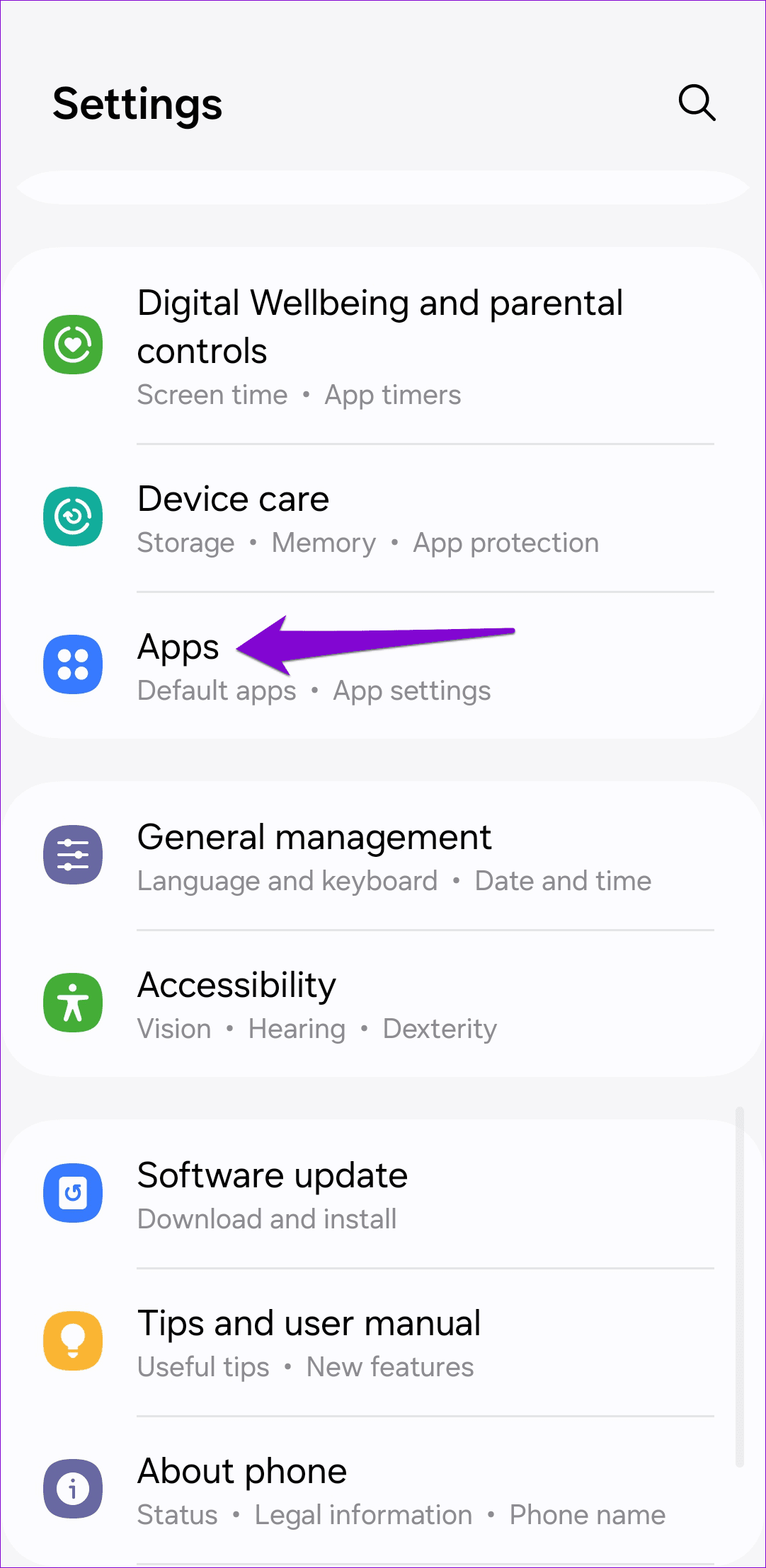
Step 2: Select Storage and tap the Clear cache option at the bottom.
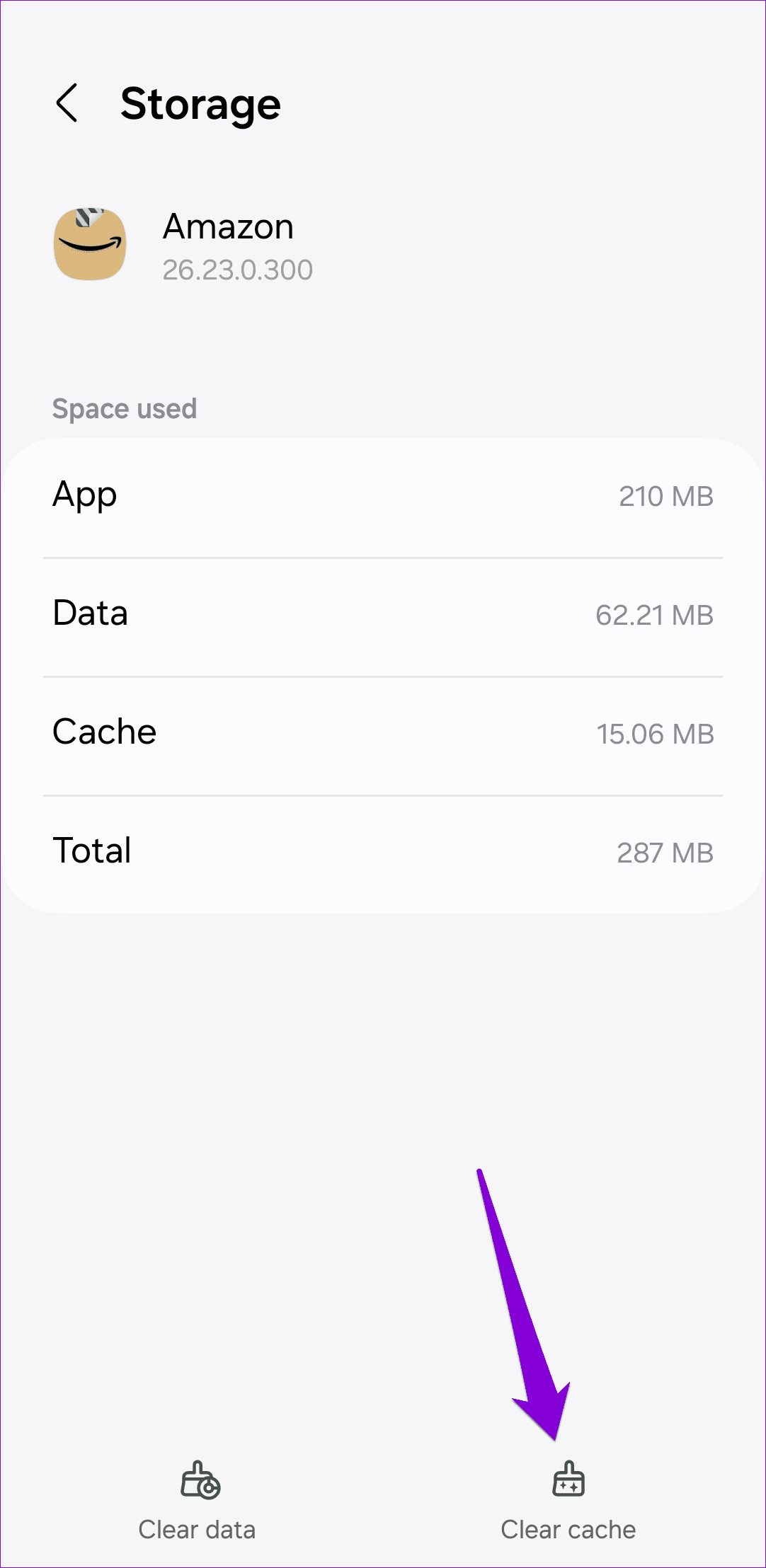
Repeat the above process for all the problematic apps and see if that helps.
Fix 6: Reset App Preferences
Notification issues in One UI can also occur if you have disabled any system apps or changed their permissions. Instead of going through all of your system apps one by one, it’s easier to reset app preferences on your Samsung Galaxy phone and start over. Here’s how to do that.
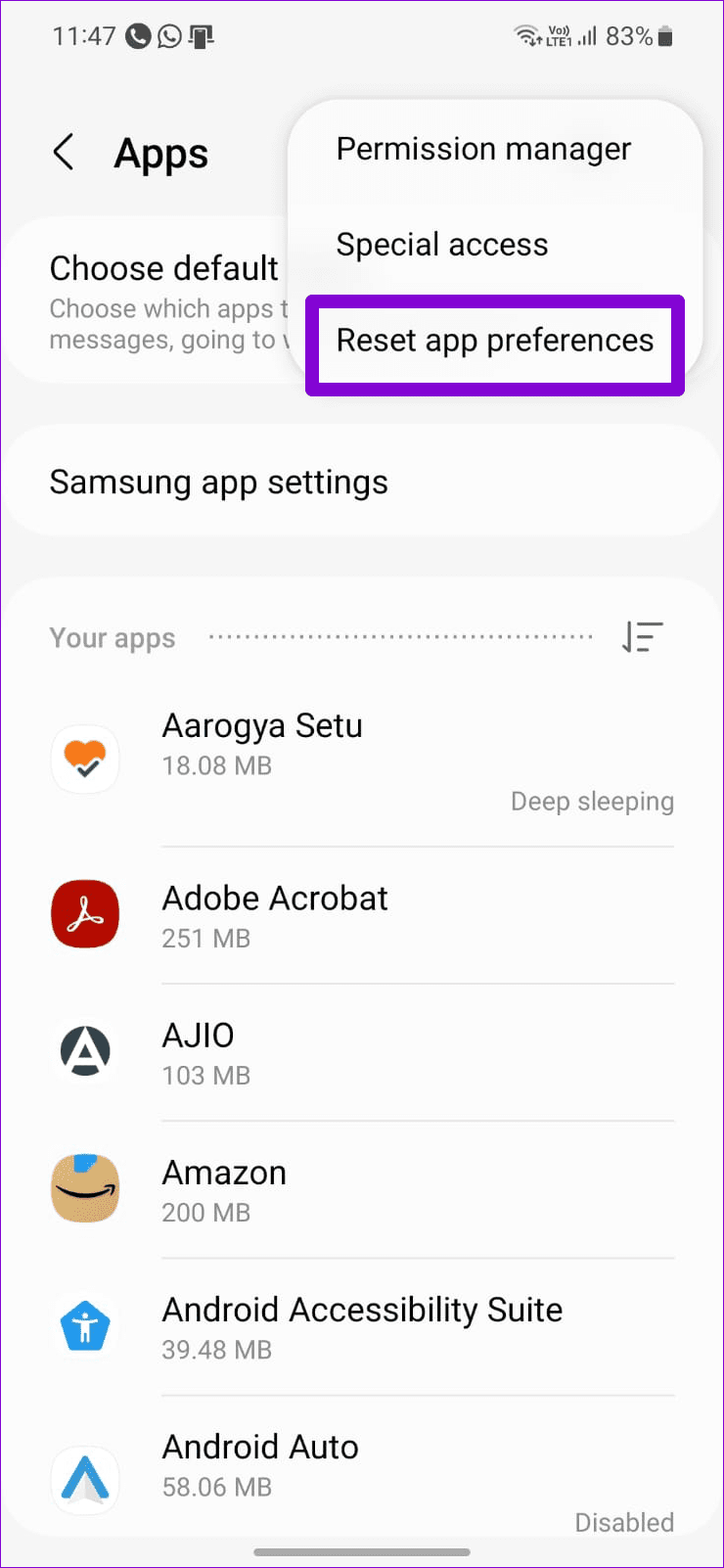
Step 1: Open the Settings app and tap on Apps .
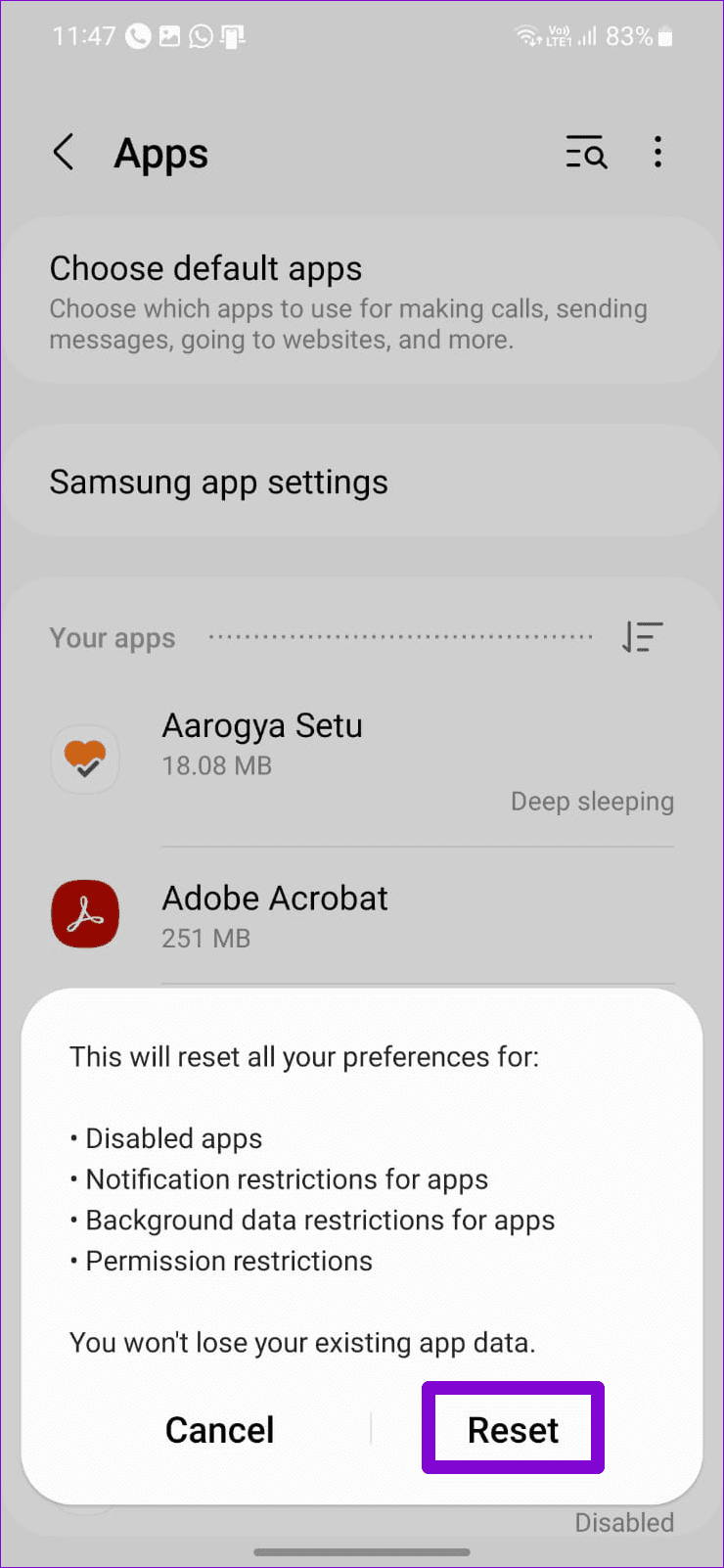
Step 2: Tap the three-dot menu icon in the top right corner and select Reset app preferences . Then, select Reset to confirm.
Was this helpful?
Submit Cancel
Thanks for your feedback!
Keep reading