Android
6 Ways to Fix Samsung Internet Browser Keeps Opening Automatically
Does the Samsung Internet browser keep popping on your phone? Apply these troubleshooting tips to fix the issue for good.
By Pankil Shah

Quick Tips
Blocking website pop-ups in the Samsung Internet browser and clearing its existing cookies data can help fix this problem.
Scan your phone using the Device Protection feature or boot it into Safe Mode to check if a malicious app is causing the issue.
If Samsung Internet isn’t your primary browser, consider disabling or uninstalling it from your phone.
Fix 1: Block Pop-Ups
Blocking pop-ups on Samsung Internet is one of the most effective ways to stop the browser from opening on its own. Hence, it’s the first thing you should do.
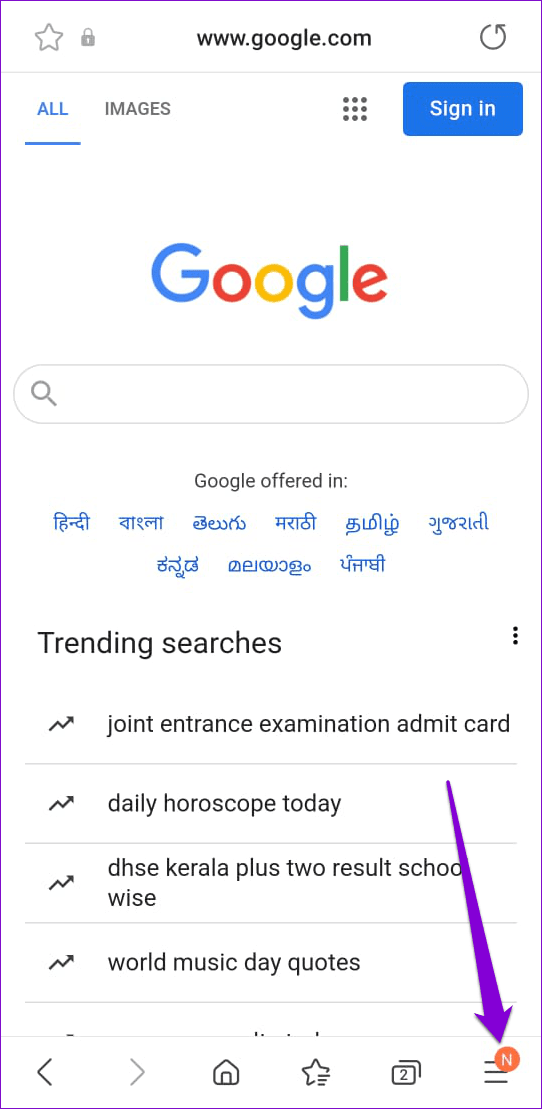
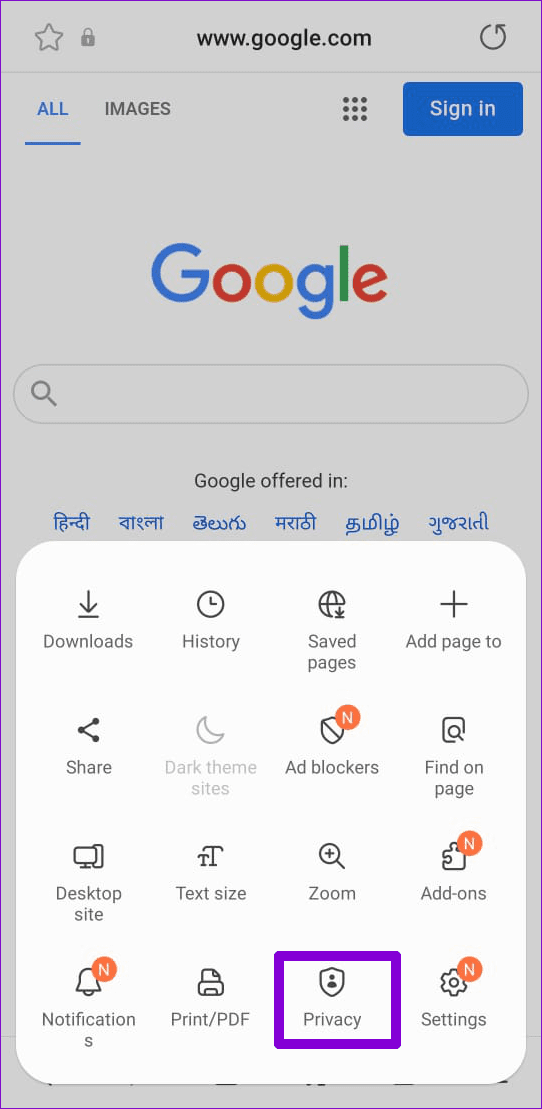
Step 1: In the Samsung Internet browser, tap the menu icon (three horizontal lines) at the bottom right and select Privacy .
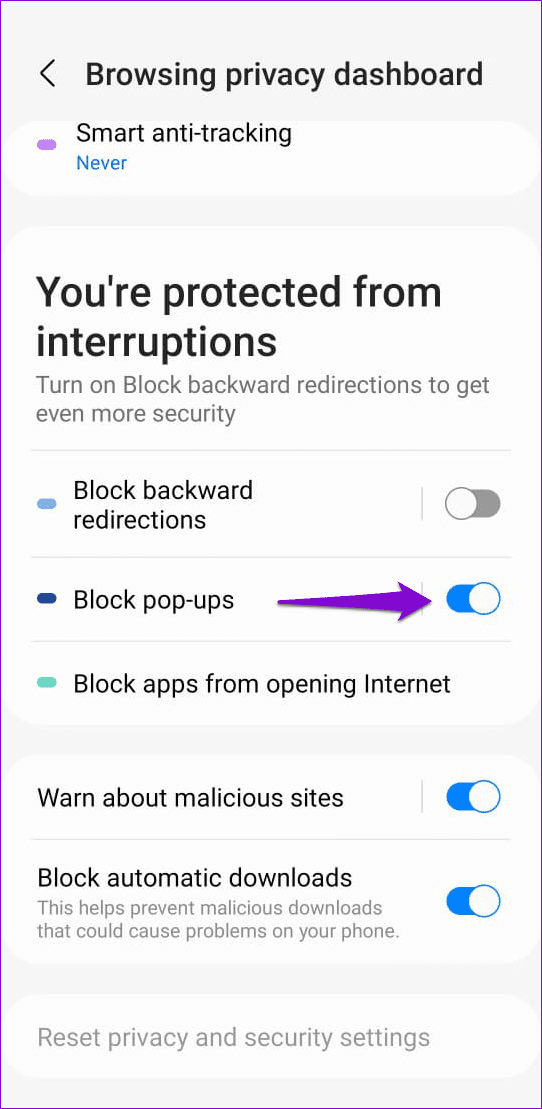
Step 2: Turn on the toggle for Block pop-ups .
Fix 2: Clear Cookies and Site Data
Existing cookies and site data stored by Samsung Internet can cause it to misbehave at times and open random websites. You can try clearing the existing browser data to see if that solves the issue.
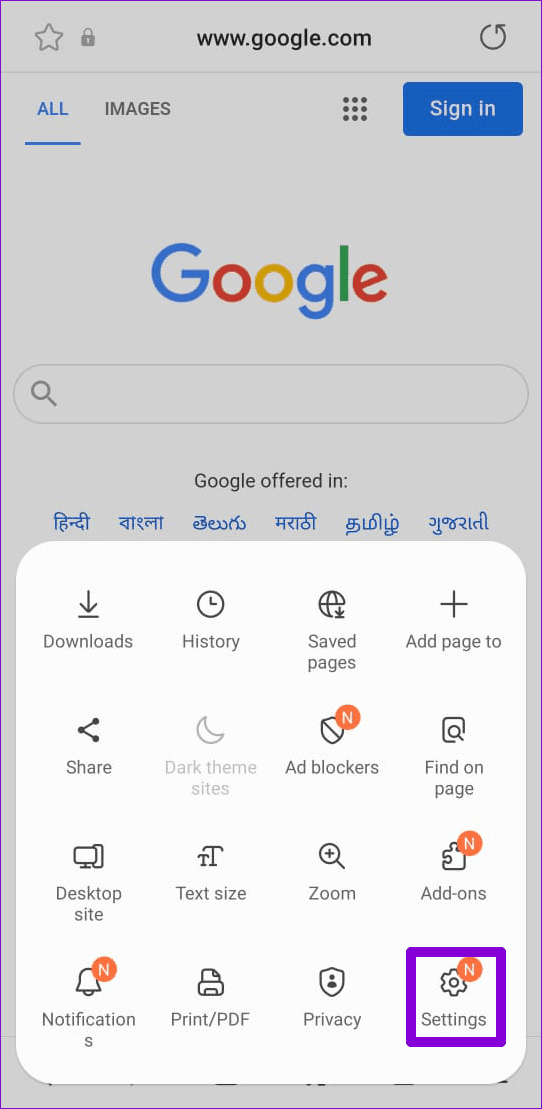
Step 1: Open the Samsung Internet browser > tap the menu icon at the bottom right > select Settings .
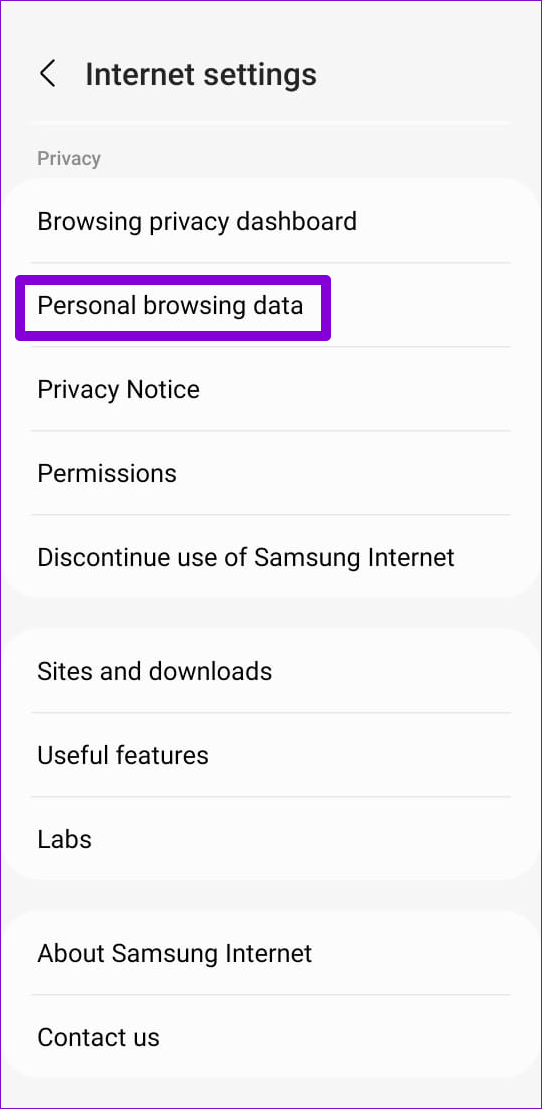
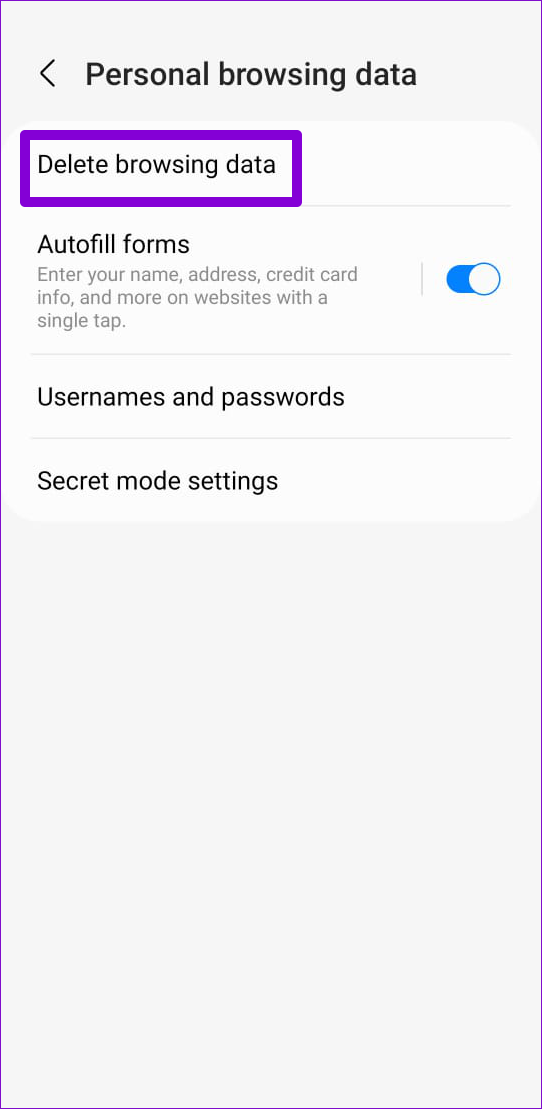
Step 2: Go to Personal browsing data > Delete browsing data .
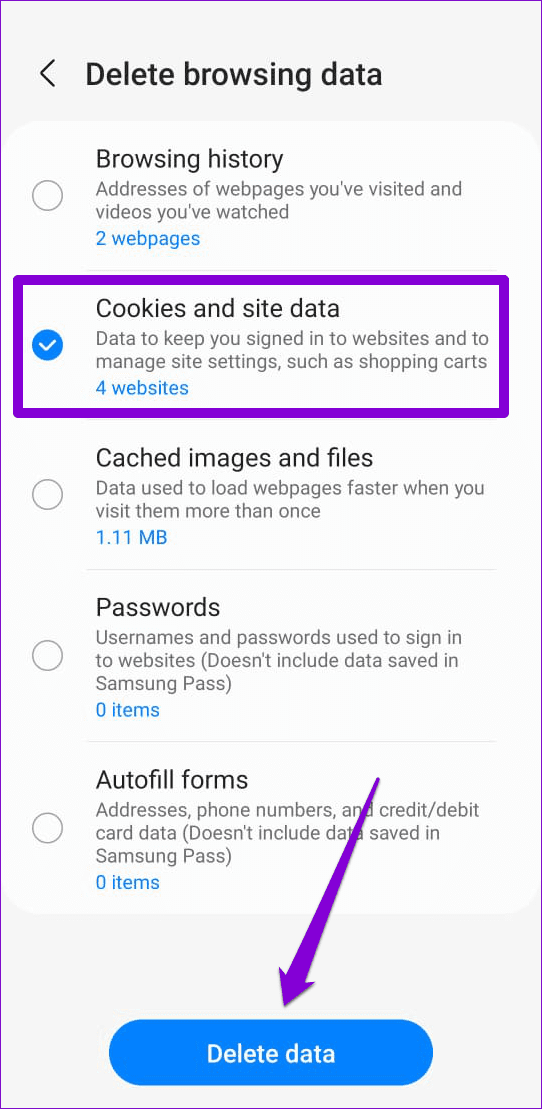
Step 3: Select Cookies and site data > tap Delete data at the bottom > choose Delete when prompted.
Fix 3: Scan Your Phone Using Device Protection
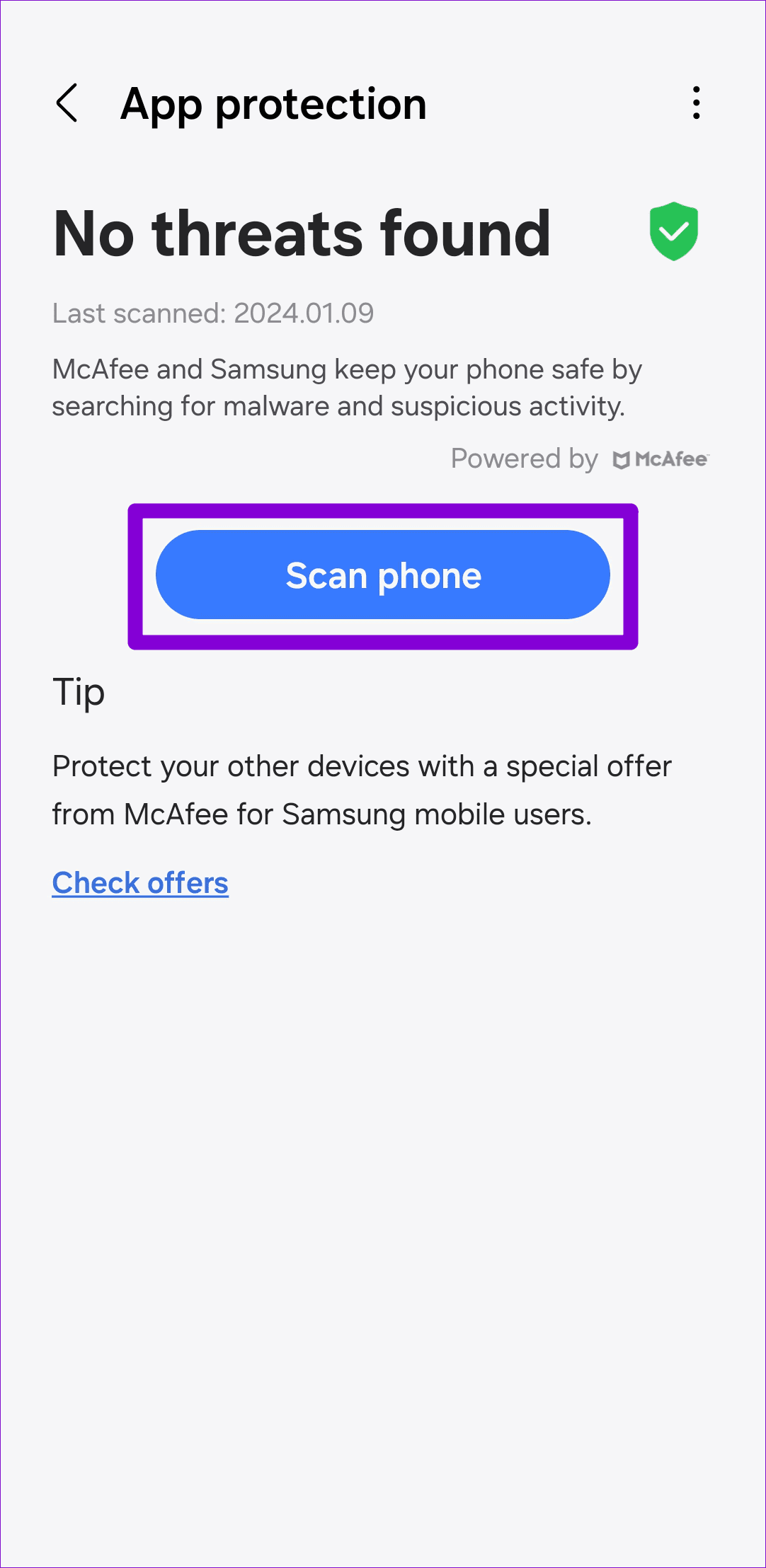
Such issues can also arise if your Samsung Galaxy phone is infected with malware. To rule out this possibility, scan your phone for malware using the Device Care feature.
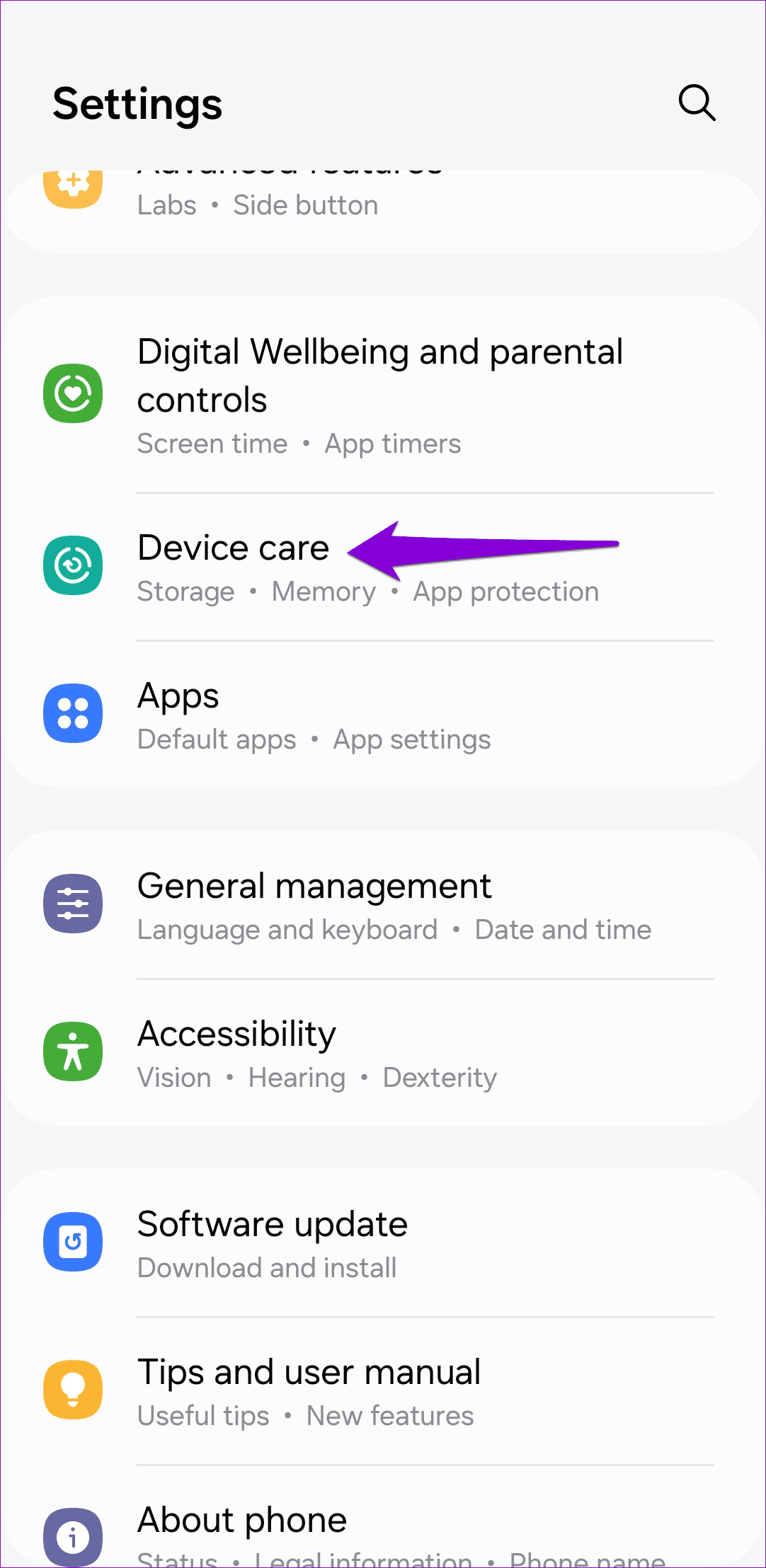
Step 1: Open Settings on your phone > tap on Device care .
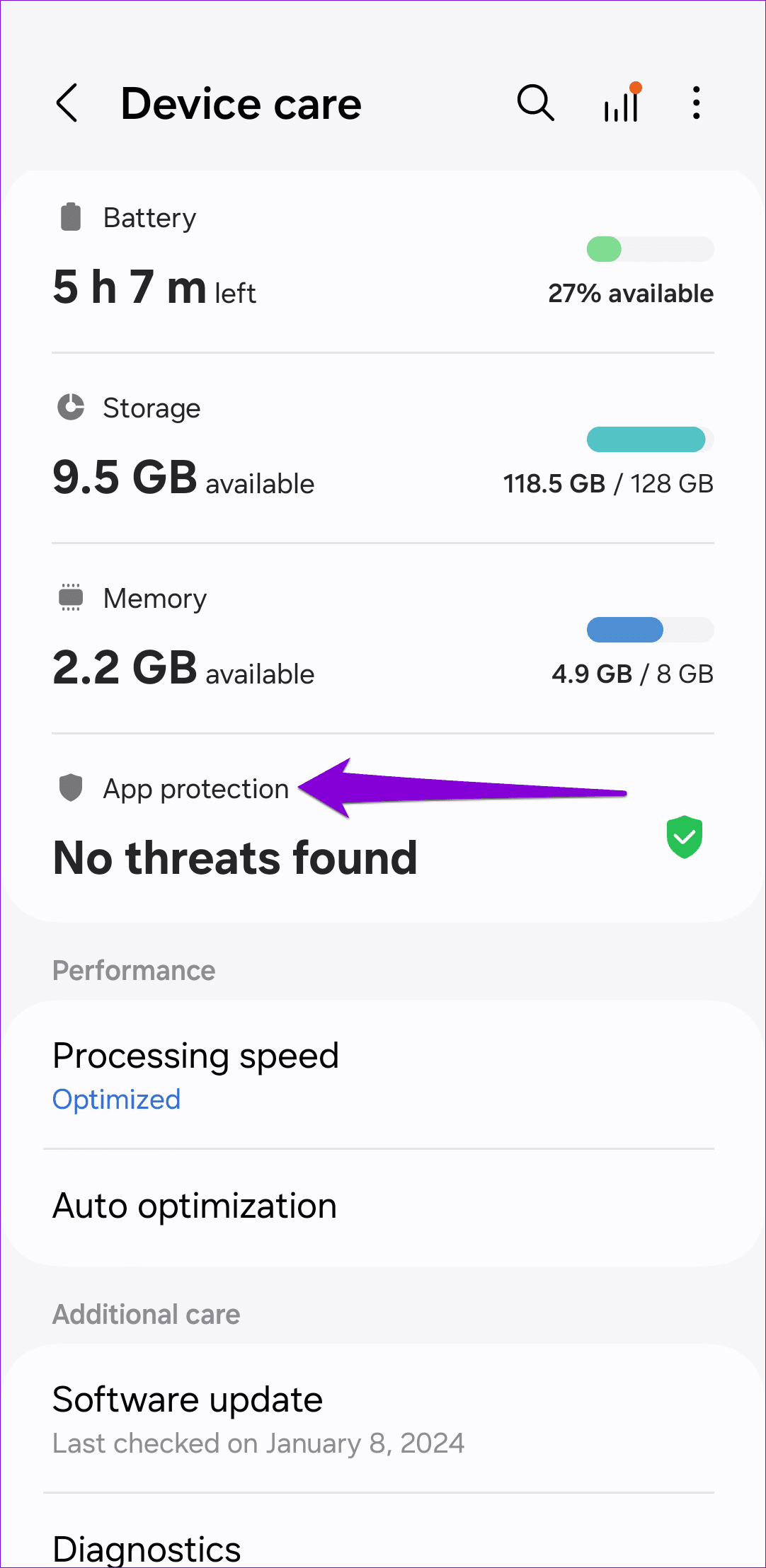
Step 2: Go to App protection > tap Scan phone to initiate a scan.
Fix 4: Delete Samsung Internet Cache
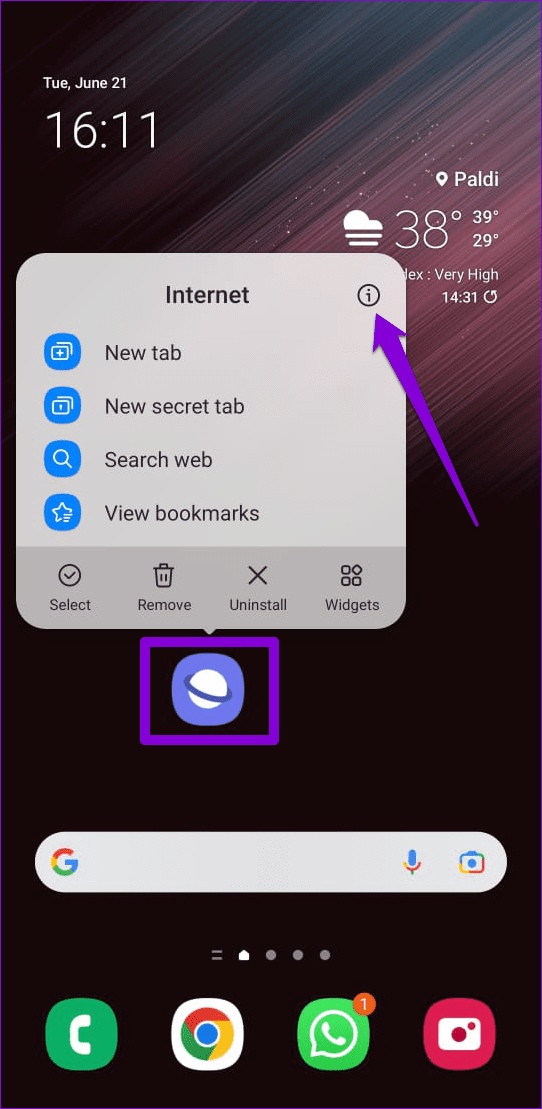
Like any other app, Samsung Internet also collects cache data on your phone. Although this data helps the browser run smoothly, it can also cause problems if it becomes old or corrupt. If that’s the case, clearing Samsung Internet’s cache data should solve the problem.
Step 1: Long-press on the Samsung Internet app icon > tap the info icon from the menu.
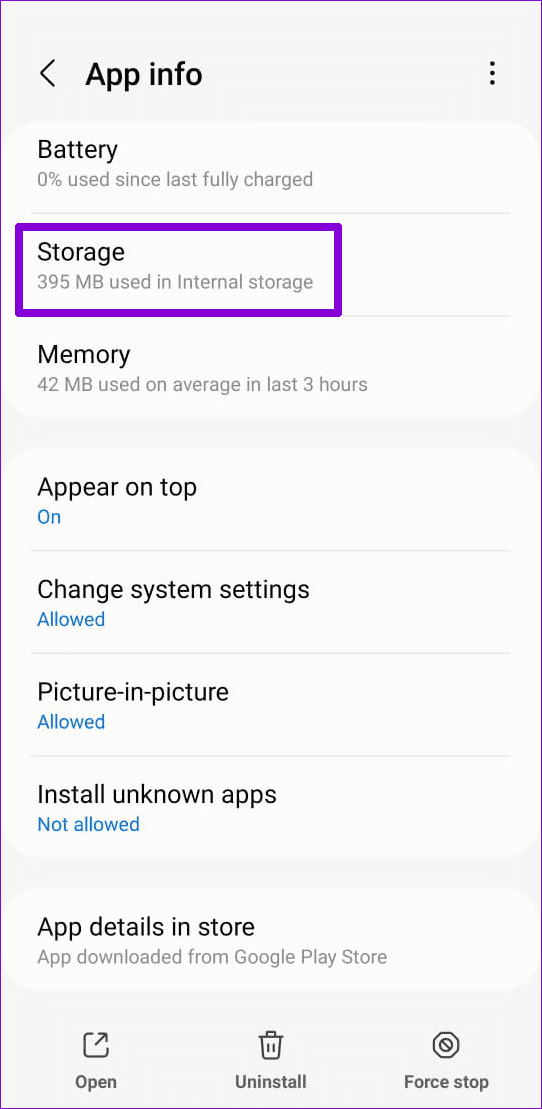
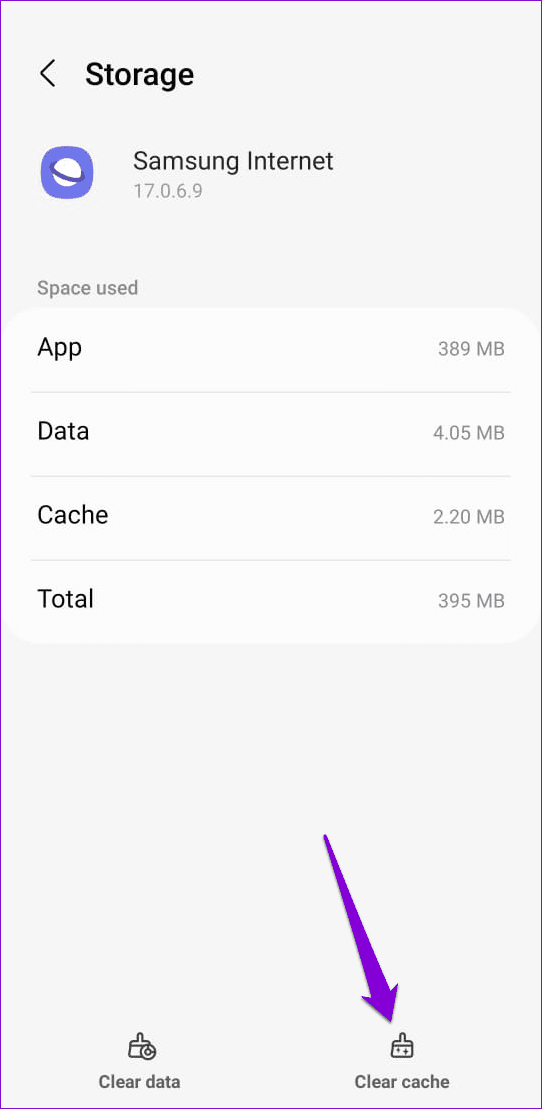
Step 2: Go to Storage > tap Clear cache at the bottom right.
Fix 5: Disable Samsung Internet
If Samsung Internet isn’t your primary browser, consider disabling it on your phone. This should prevent it from running in the background and resolve your issue.
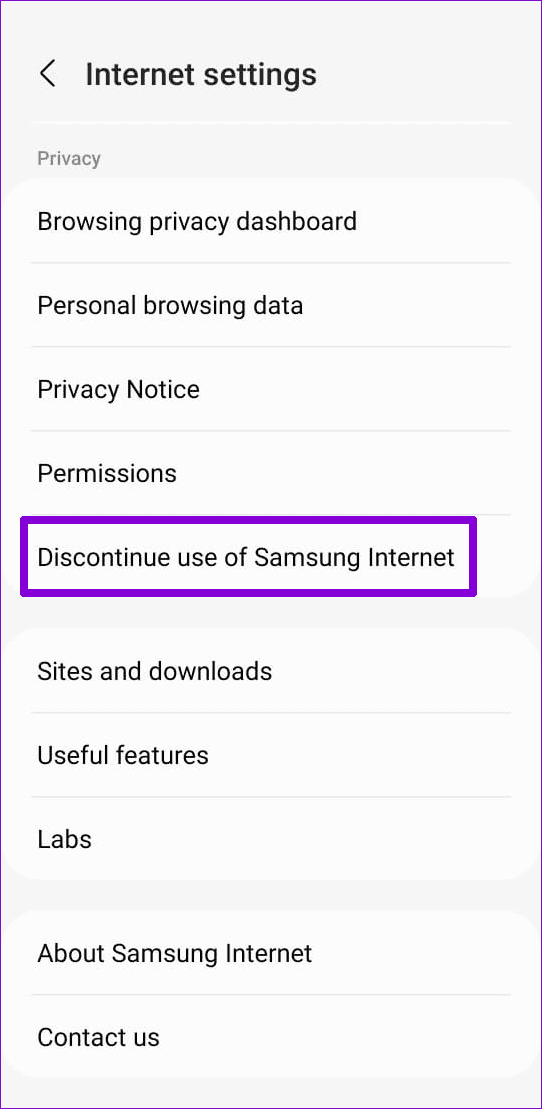
Step 1: In the Samsung Internet browser, head to Settings > Discontinue use of Samsung Internet .
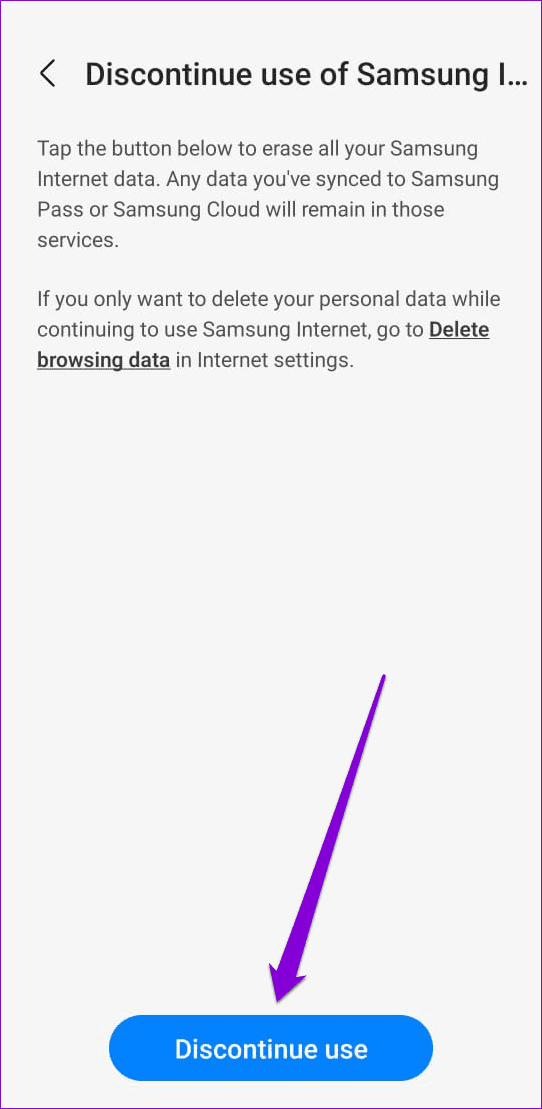
Step 2: Tap Discontinue use > choose Discontinue when prompted.
Fix 6: Boot Into Safe Mode and Uninstall Recently Installed Apps
If you don’t want to disable or uninstall Samsung Internet, consider booting your phone into safe mode. This will let you determine whether a rogue third-party app is causing the Samsung Internet browser to keep popping up.
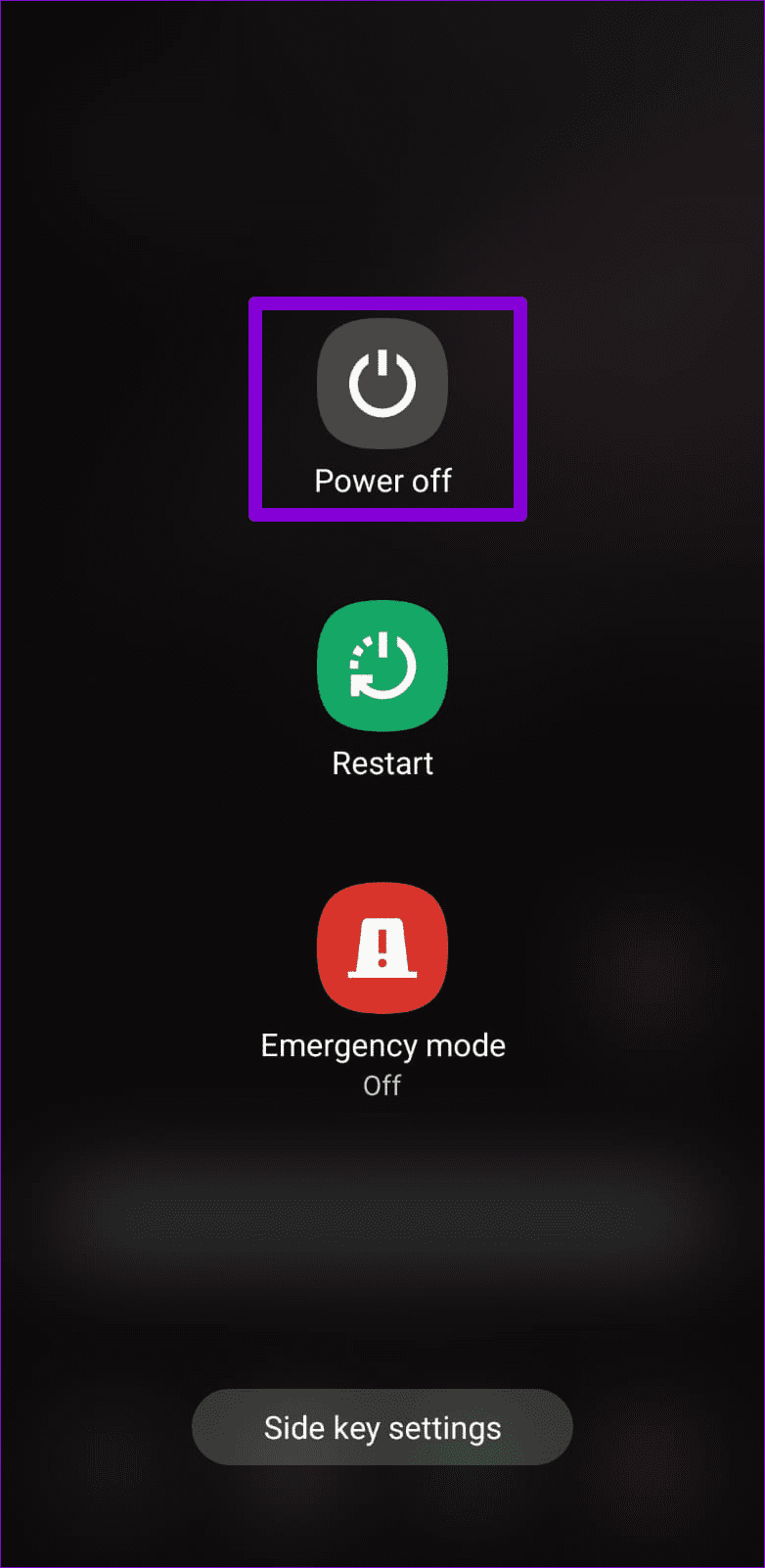
Press and hold the power button on your phone > long-press the Power off option > tap the green checkmark to enter safe mode.
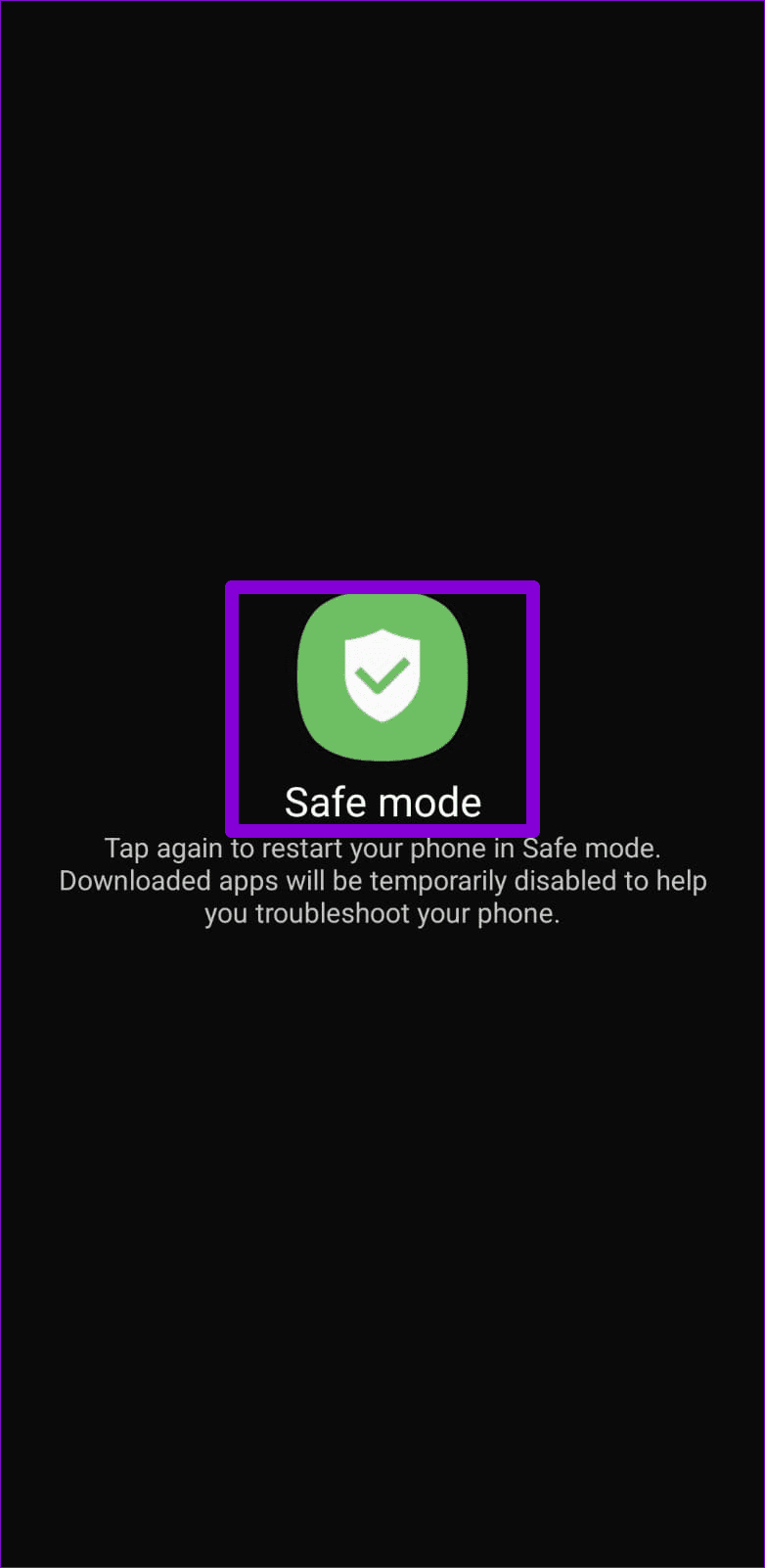
Use your phone in safe mode for a few minutes and observe if Samsung Internet opens automatically. If it doesn’t, one of your third-party apps may be causing the issue. So, you can attempt to resolve it by uninstalling recently installed apps one by one until the problem is fixed.
Was this helpful?
Submit Cancel
Thanks for your feedback!
Keep reading