Android
4 Ways to Fix Slow Google Maps on Android and iPhone
Is Google Maps too slow on your phone? Try out these troubleshooting fixes to speed up Google Maps app on your Android and iPhone.
By Pankil Shah
Quick Tips
In most cases, restarting the Google Maps app or your phone can help fix temporary performance issues.
Clearing the cache is an effective solution for various issues with Google Maps, including this one.
Ensure you haven’t enabled battery or data saver mode on your phone.
Basic Fixes
Update Google Maps app: Keeping your apps updated helps them run smoothly and rules out incompatibility issues. Hence, it’s a good idea to update Google Maps on your Android or iPhone before trying other things.
Disable battery and data saver mode: If you’ve been using your phone in power saver mode to increase its battery life, it can prevent apps like Google Maps from running smoothly. Similarly, data saver also interferes with Google Maps’ ability to fetch data quickly. Hence, it’s best to turn off these options.
Fix 1: Enable High Location Accuracy
Enabling high location accuracy allows Google Maps to calculate your location as accurately as possible. If you’ve disabled this feature to save battery or data, you may notice that the Google Maps app operates a bit slower than usual.
On Android
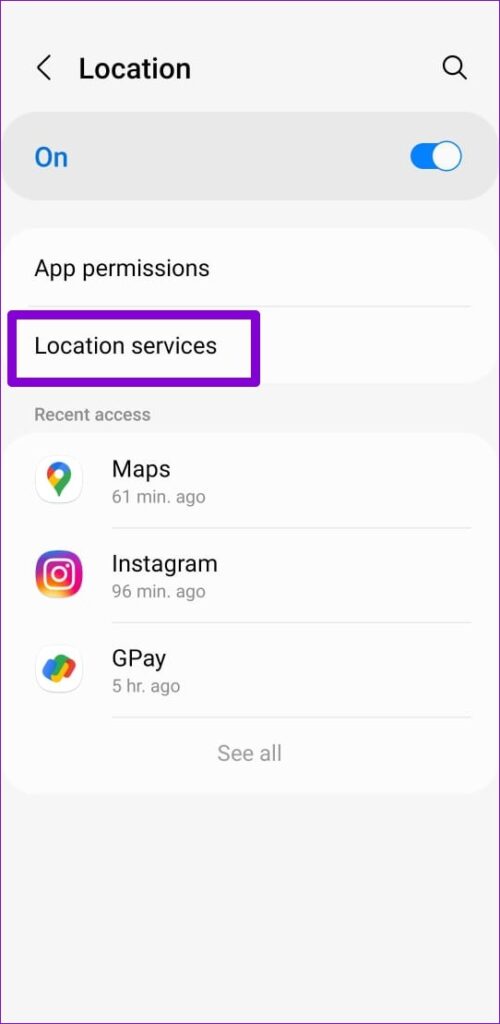
Step 1: Open the Settings app on your phone and go to Location > Location services .
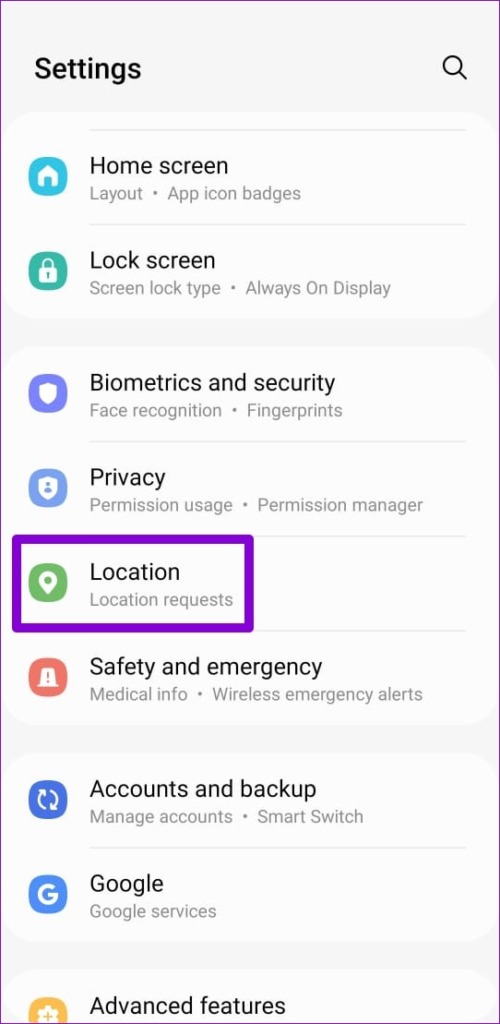
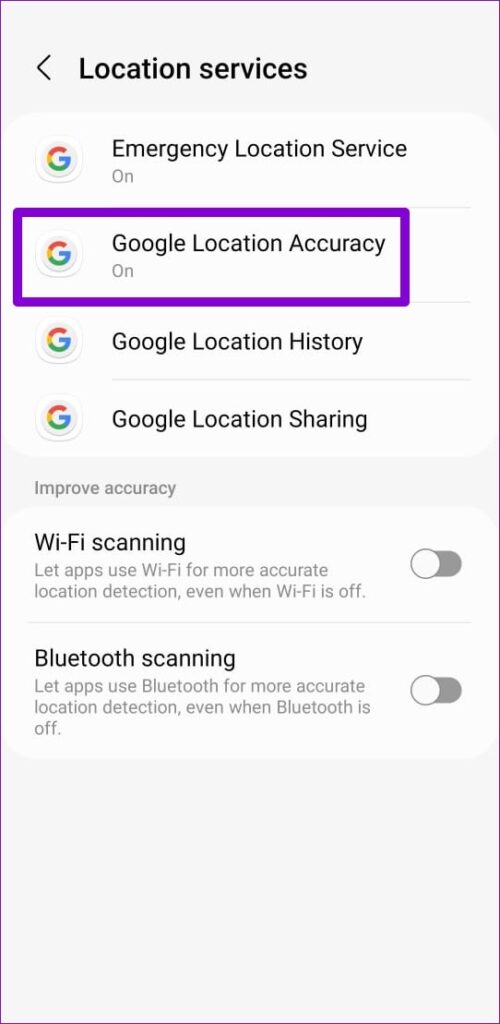
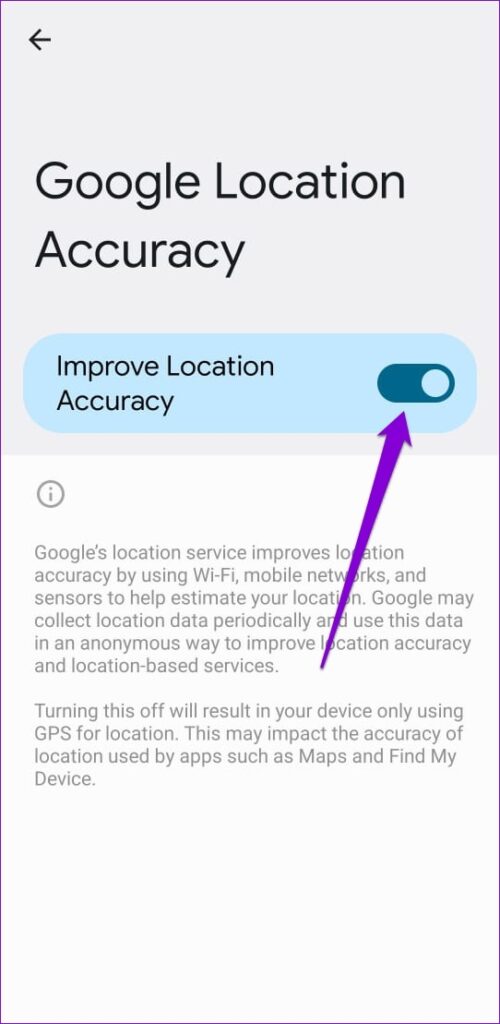
Step 2: Tap on Google Location Accuracy and toggle on Improve Location Accuracy .
On iPhone
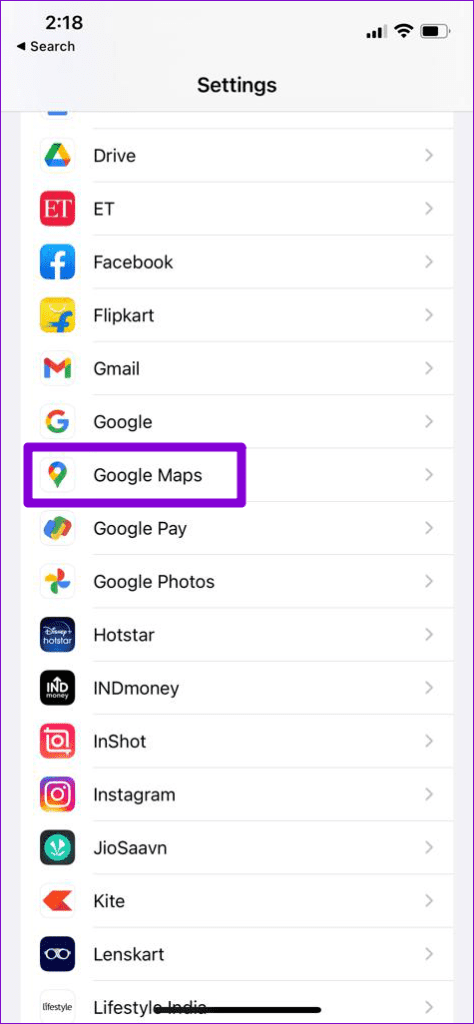
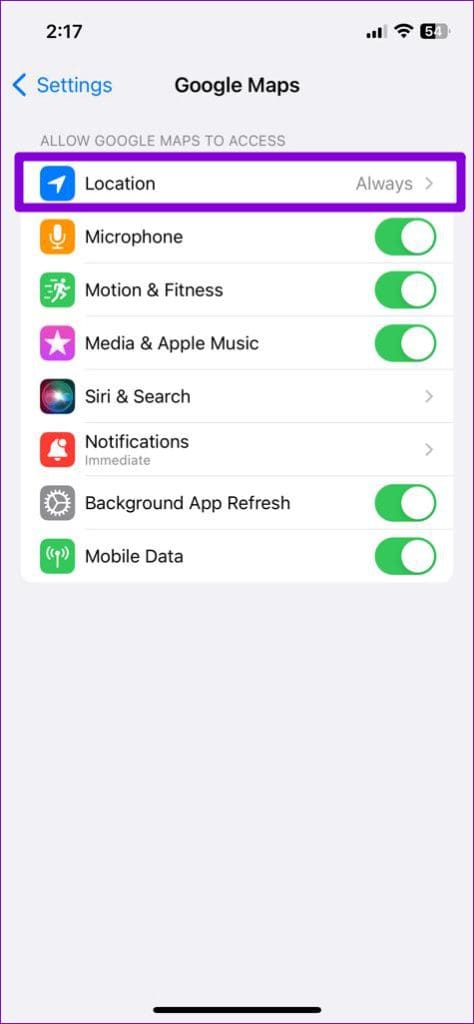
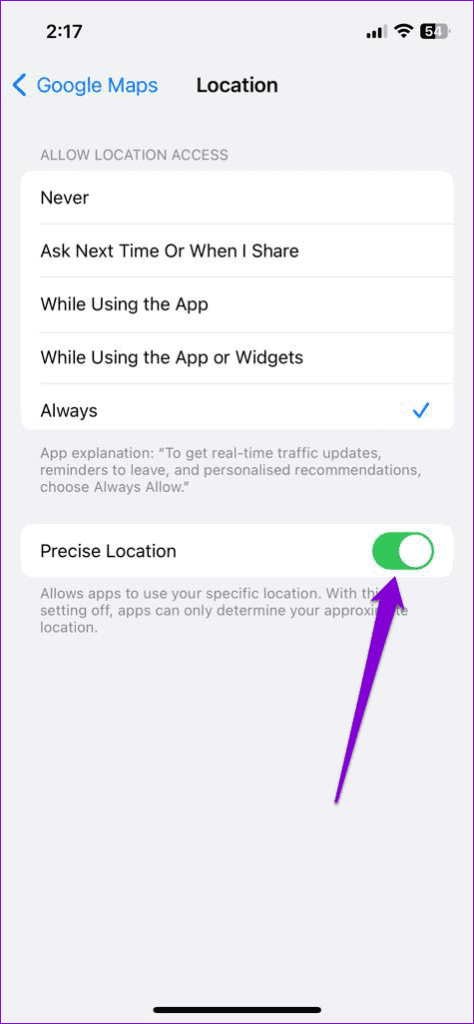
Step 1: Open the Settings app and scroll down to tap on Google Maps .
Step 2: Tap on Location and enable the Precise Location toggle.
Fix 2: Turn off Satellite View
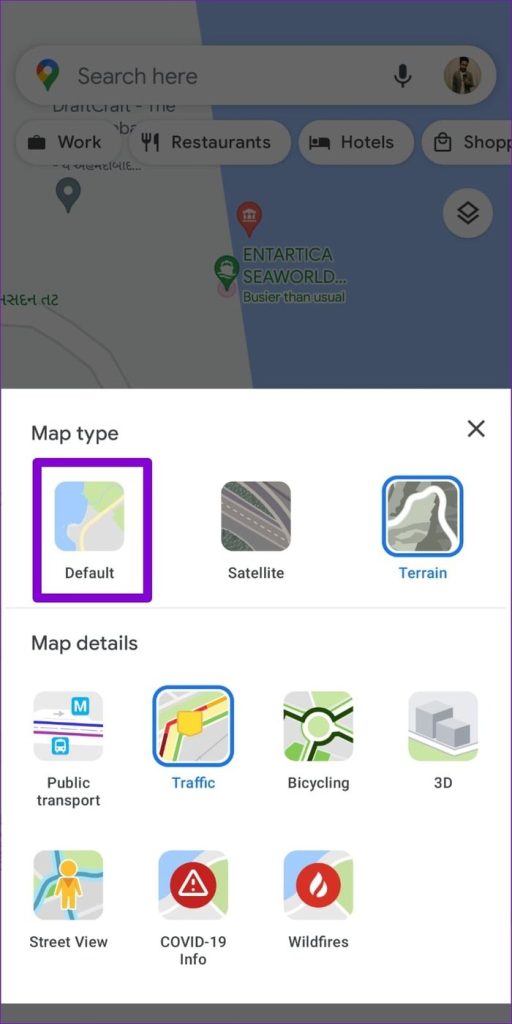
The satellite view on Google Maps is known to be one of the most demanding features in terms of data and processing power. So, unless you’re using a high-end flagship device that can handle it well, it’s best to use the default view for smoother performance.
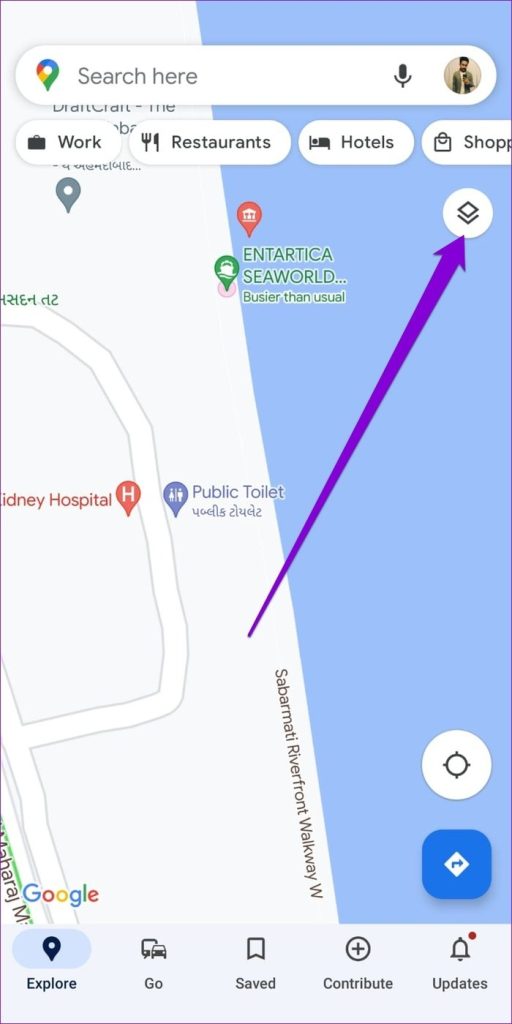
Step 1: Open Google Maps and tap the squared icon on your right.
Step 2: Switch the view type to Default and see if that speeds up Google Maps.
Fix 3: Clear Google Maps Cache
Overwhelming or outdated cache data can also interfere with Google Maps’ performance on your phone, causing it to run slowly at times. In most cases, you can fix such issues by clearing the existing Google Maps cache.
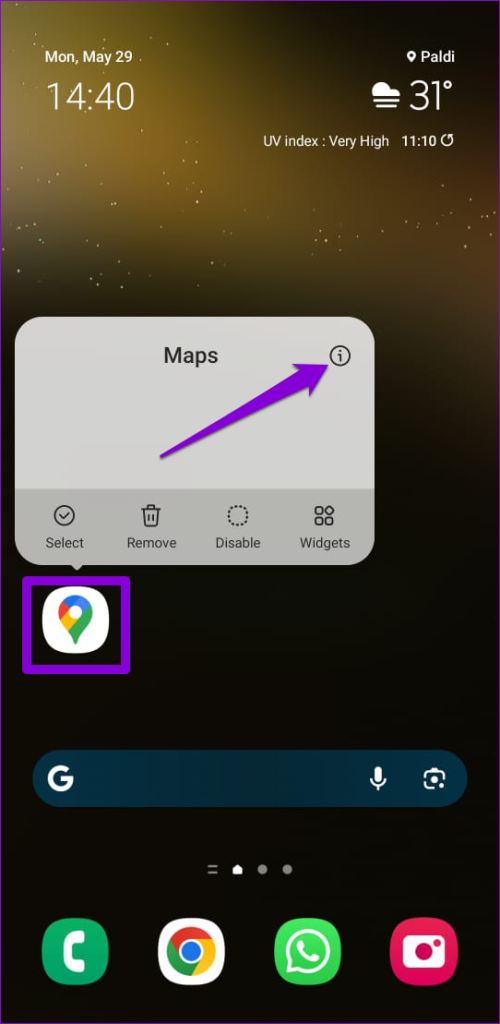
Step 1: Long-press the Google Maps app icon and tap the info icon from the resulting menu.
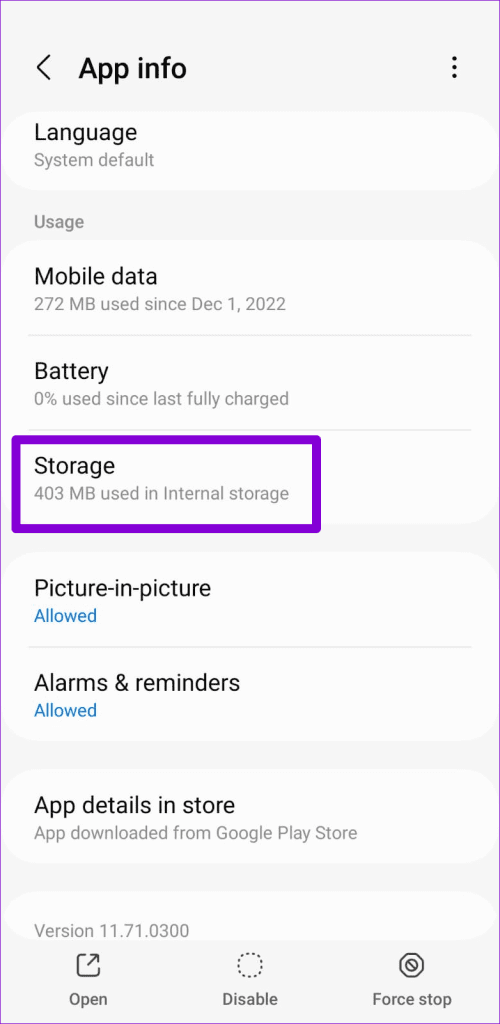
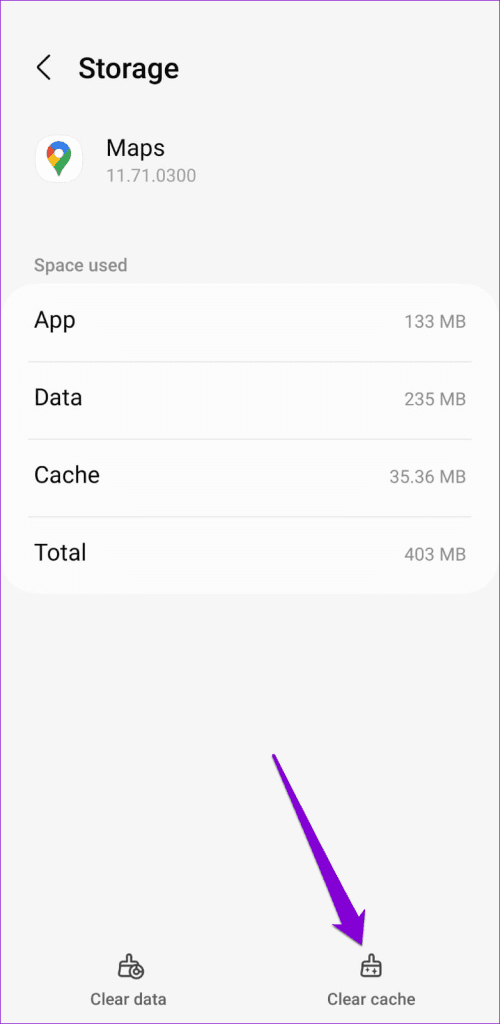
Step 2: Go to Storage and tap on Clear cache .
Fix 4: Use Offline Maps or Switch to Google Maps Go
If you only intend to use Google Maps in a particular city area, consider downloading maps for offline usage . This will enable you to use Google Maps without an active internet connection.
Google Maps is known to be resource-intensive, demanding significant RAM and processing power for optimal performance. If you’re using an older Android device, consider switching to Google Maps Go , a lighter version of the app that offers essential features while consuming fewer resources.
Was this helpful?
Submit Cancel
Thanks for your feedback!
Keep reading