Android
How to Fix Snapchat Memories Not Loading on Android and iPhone
Snapchat not showing memories? Here's how to fix the memories not loading issue on Snapchat on Android and iPhone.
By Pankil Shah

Quick Tips
Ensure your internet connection is working properly and that Snapchat servers are not facing an outage.
Signing out of your Snapchat account and signing back in can help resolve such problems.
Consider clearing the Snapchat cache to fix issues with outdated or corrupt temporary files.
Try Basic Fixes
Check if Snapchat is down: If the internet connection seems to be working, ensure that the Snapchat servers are up and running. For that, use a third-party tool like Downdetector .
Update the app: An outdated Snapchat app could also give you problems. Hence, it’s a good idea to update the Snapchat app from Play Store or App Store .
Fix 1: Sign Out and Sign In
Another thing to do is sign out of your Snapchat account and sign back in. This will force the Snapchat app to reconnect with its servers, which might fix the issue. Here’s how to do it.
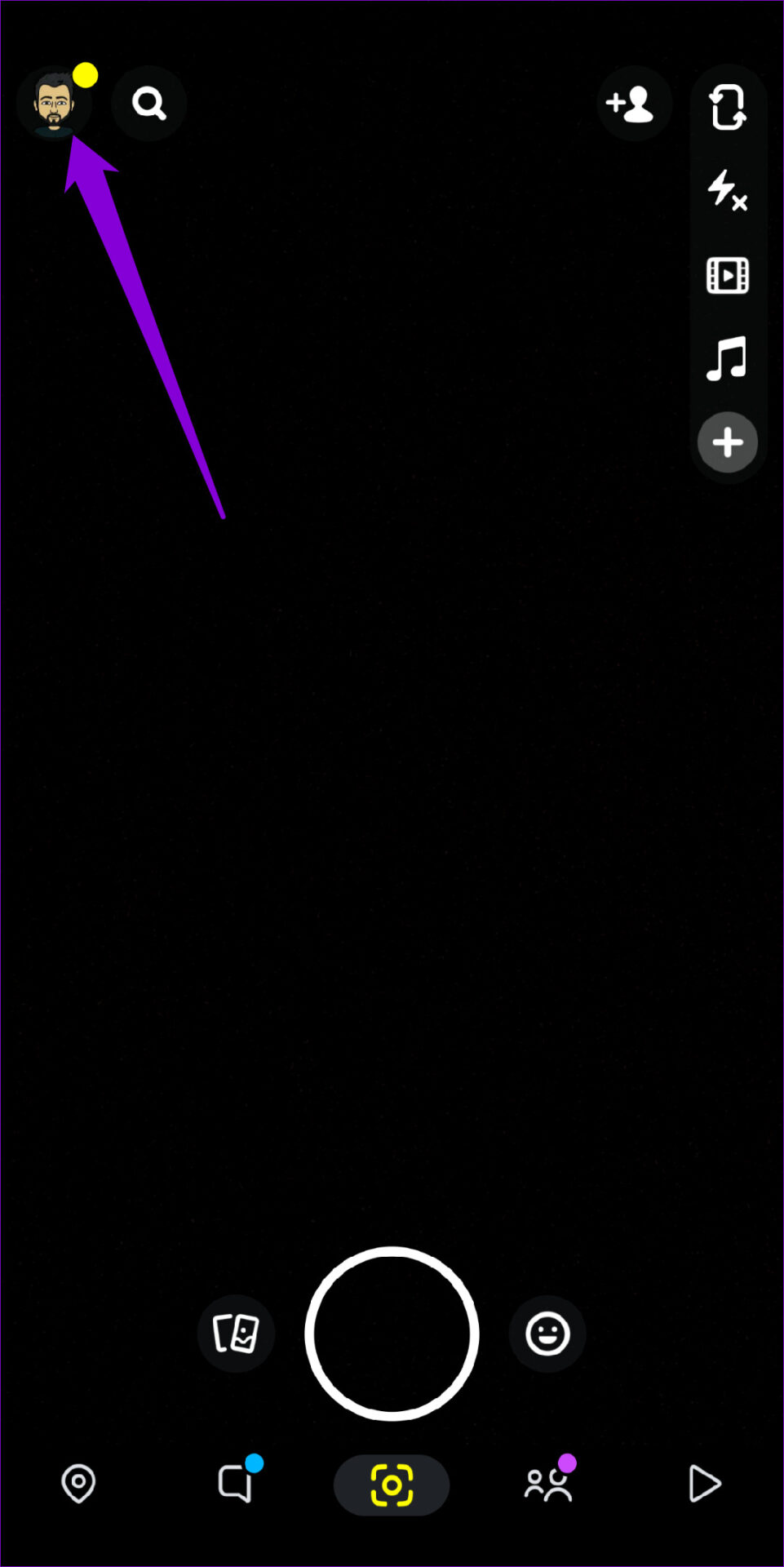
Step 1: Tap the profile icon at the top left corner > tap the gear icon at the top right corner.

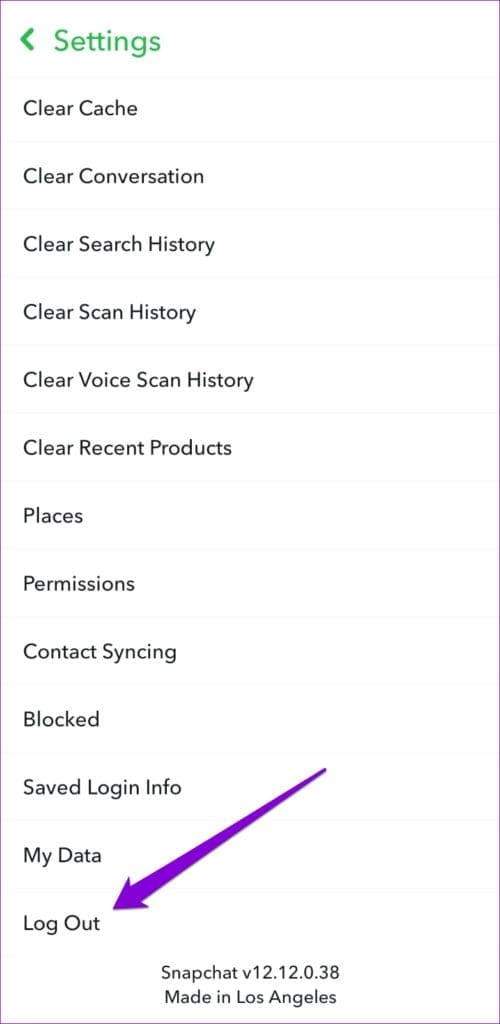
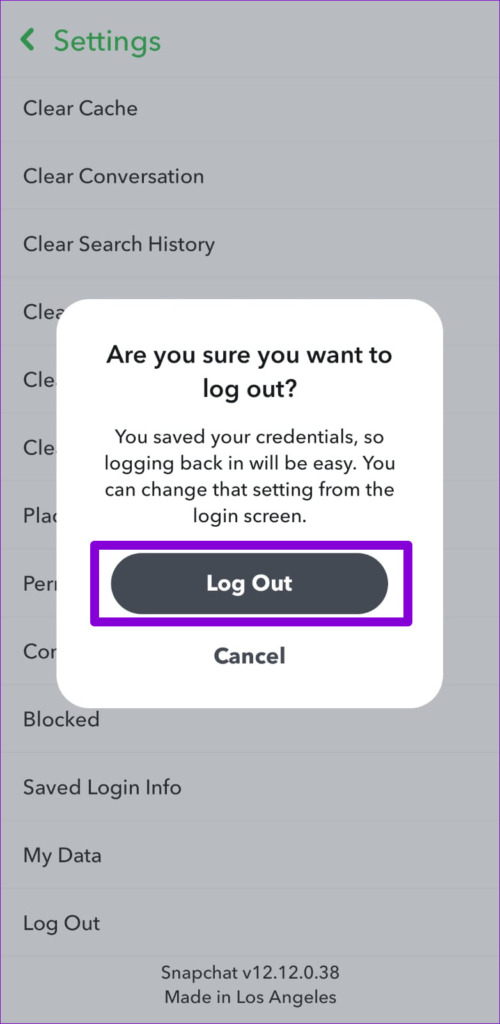
Step 2: Scroll to the bottom of the page > tap Log Out > select Log Out again to confirm > restart the app > sign back in to see if you can send snaps now.
Fix 2: Clear Snapchat App Cache
Whenever you load memories, filters, stickers, stories, etc., on Snapchat, this data gets stored as a cache on your phone’s local storage. This helps Snapchat avoid downloading the same content from the server repeatedly. If that cache data on your phone becomes inaccessible or corrupted, the Snapchat app might fail to load memories.
You can try clearing the Snapchat app cache on your Android or iPhone to fix this.
Step 1: Open the Snapchat settings menu.
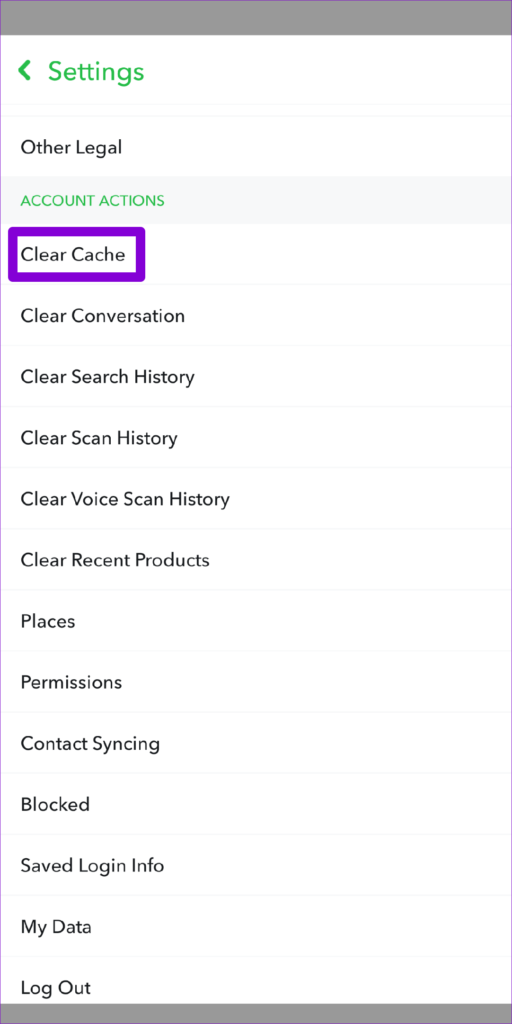
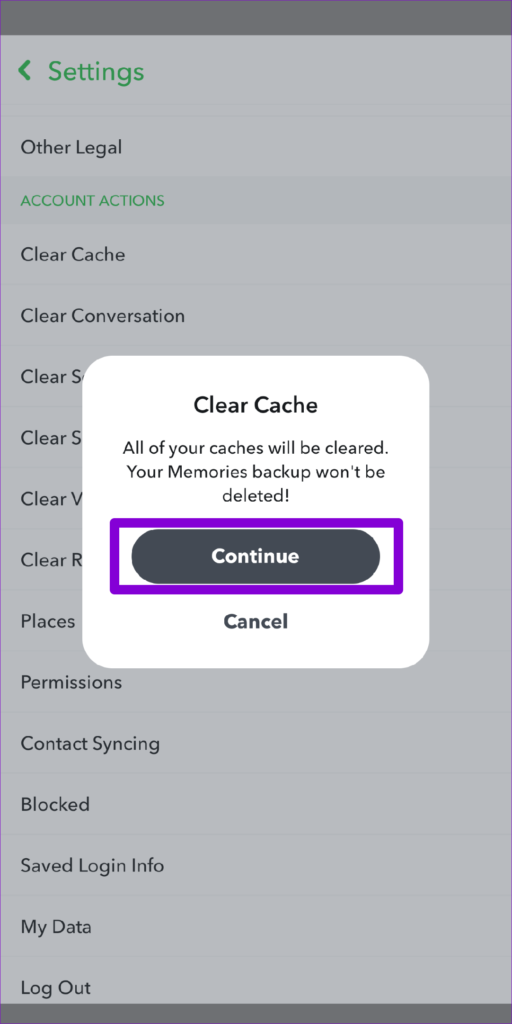
Step 2: Scroll down to Account Actions and tap Clear Cache . Choose Continue when prompted.
Was this helpful?
Submit Cancel
Thanks for your feedback!
Keep reading