Android
5 Ways to Fix WhatsApp Status Couldn’t Send Error
WhatsApp status not uploading? Try out these troubleshooting methods to fix the WhatsApp status 'Can't send this video' error on your phone.
By Pankil Shah
Quick Tips
Review your WhatsApp Status visibility settings and ensure that the photo or video you’re trying to upload is in a supported file format.
Allow WhatsApp to run in the background and verify that your phone’s date and time settings are correct.
If the “Couldn’t Send” error persists, consider clearing WhatsApp’s cache data.
Try Basic Fixes
Try another image or video: Uploading another image or video will help verify whether the issue is related to the specific media file. You can also try posting a written status update to see if that works.
Check if WhatsApp is down: Issues with WhatsApp’s servers can also result in such errors. You can visit a website like Downdetector to see if others face similar issues.
Update WhatsApp: If the issue is occurring due to an outdated app build or bugs, updating the app should help fix it. Head to the Play Store (Android) or App Store (iPhone) to update WhatsApp and see if that helps.
Fix 1: Check the File Format
If the image or video you’re trying to share is in an unsupported format or if it’s too large, you might encounter a “Couldn’t Send” error while uploading it.
For instance, if your video is in an unsupported format, you’ll need to convert it into one of the supported formats, such as MP4, MKV, or MOV, and then upload it again.
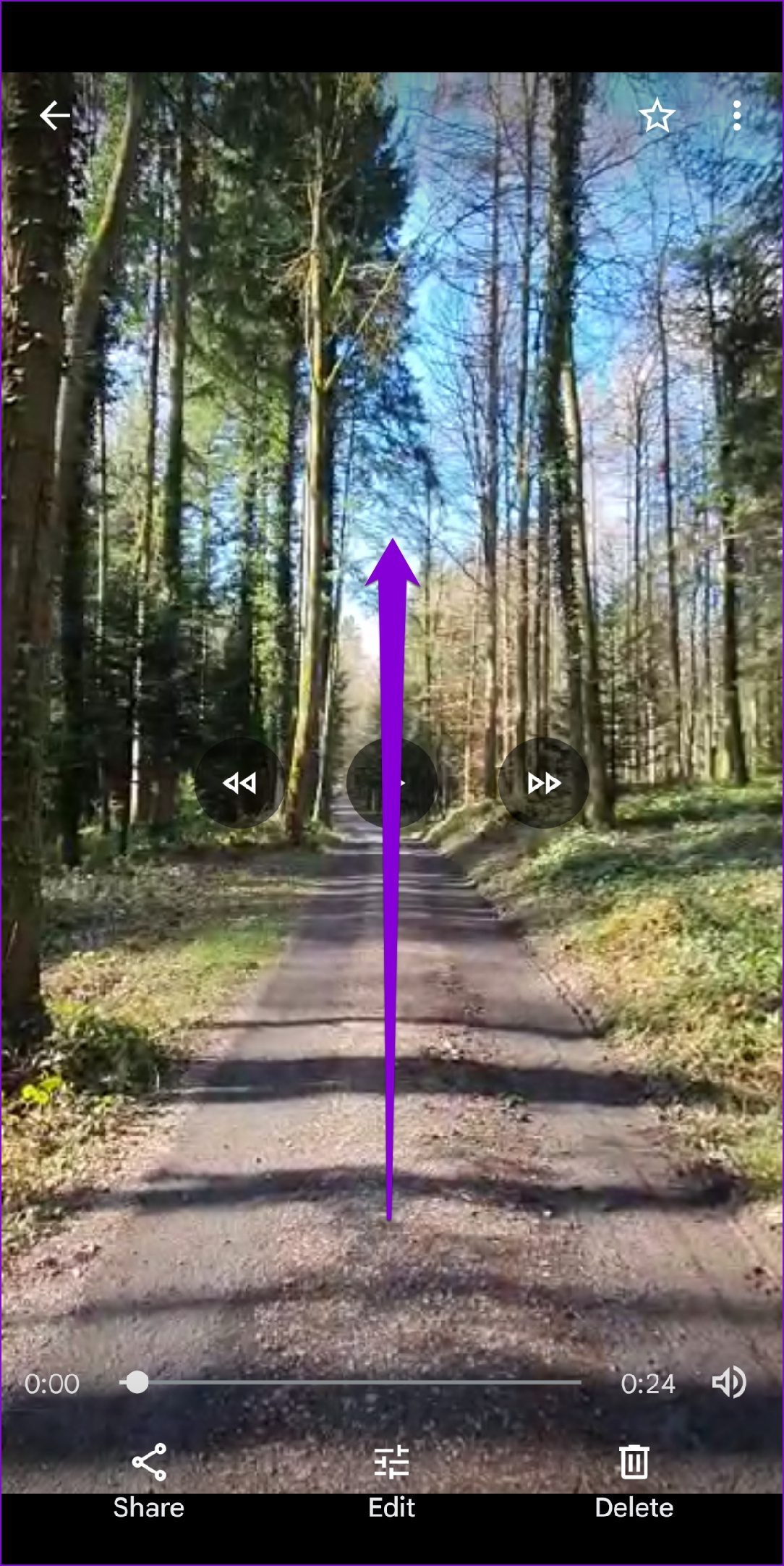
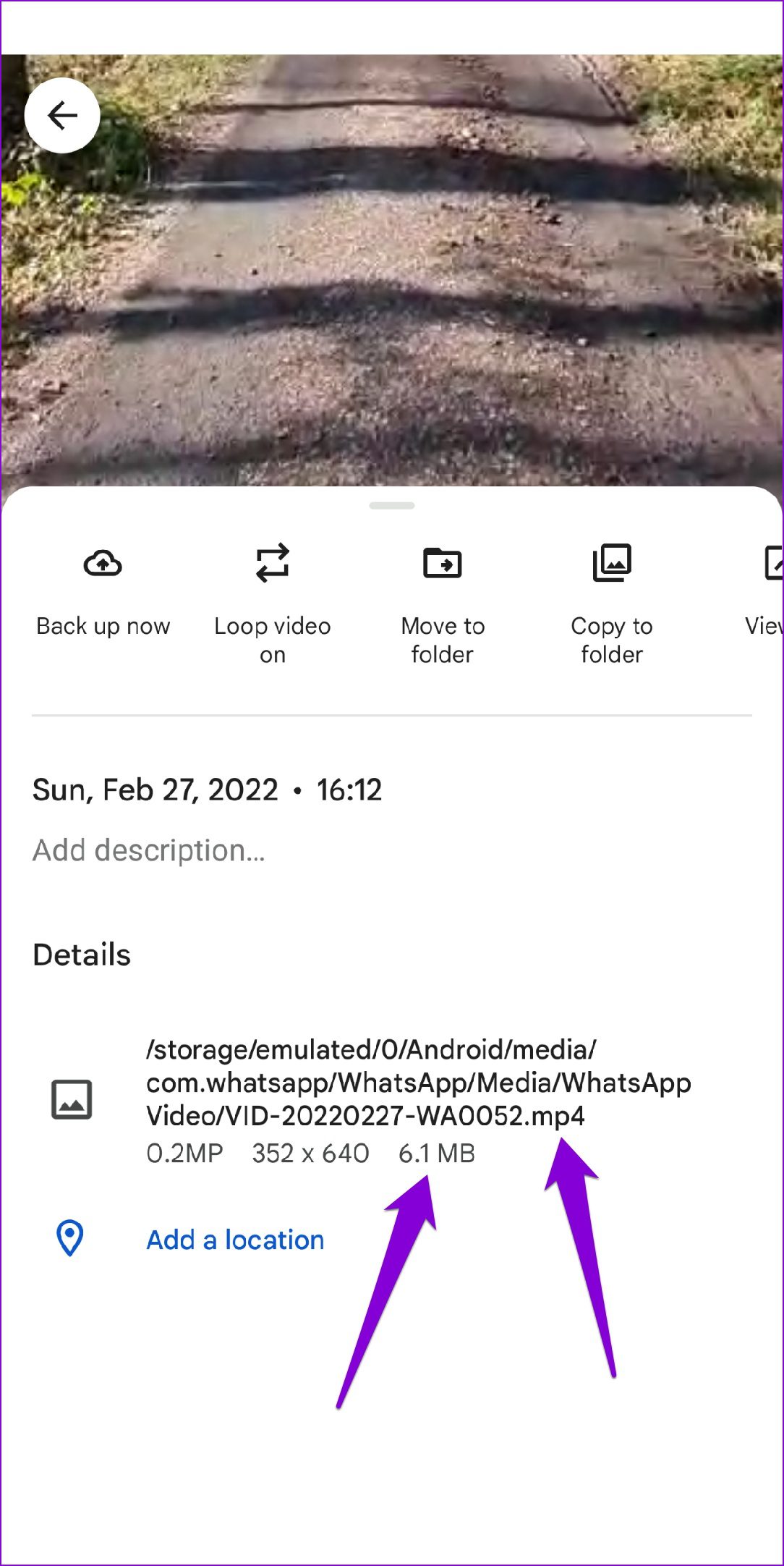
To check the format of a video on Android, open it in the Google Photos app and swipe up to view its format and size.
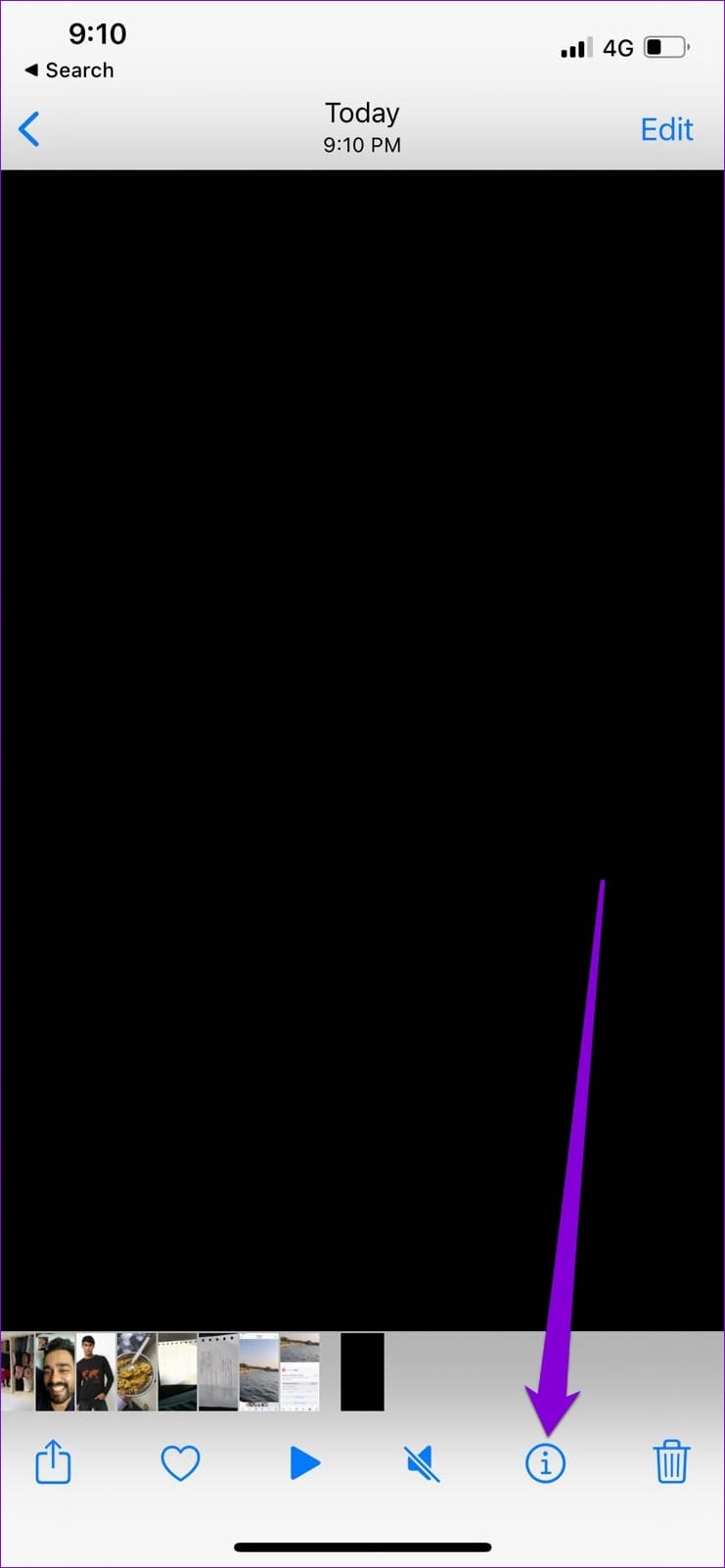
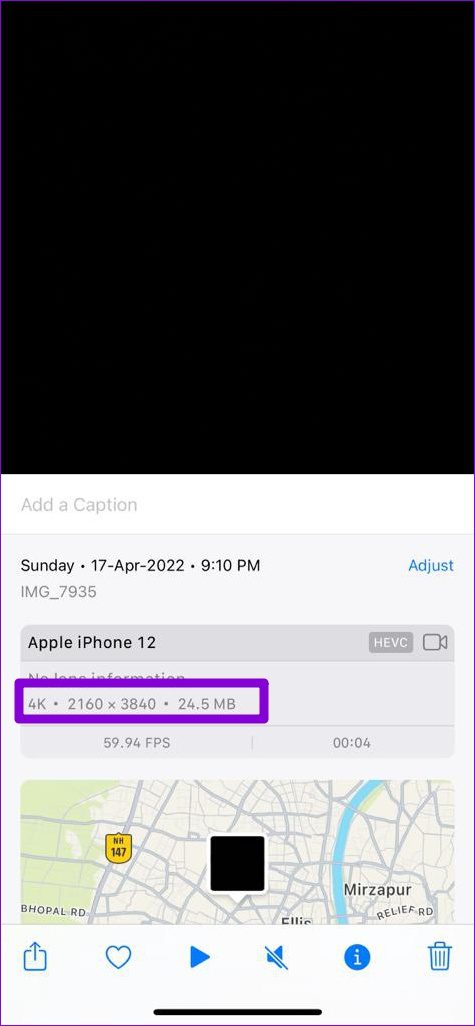
Similarly, if you’re using an iPhone, open your video in the Photos app. Tap the info button at the bottom and check the video size and format.
Fix 2: Check App Permissions
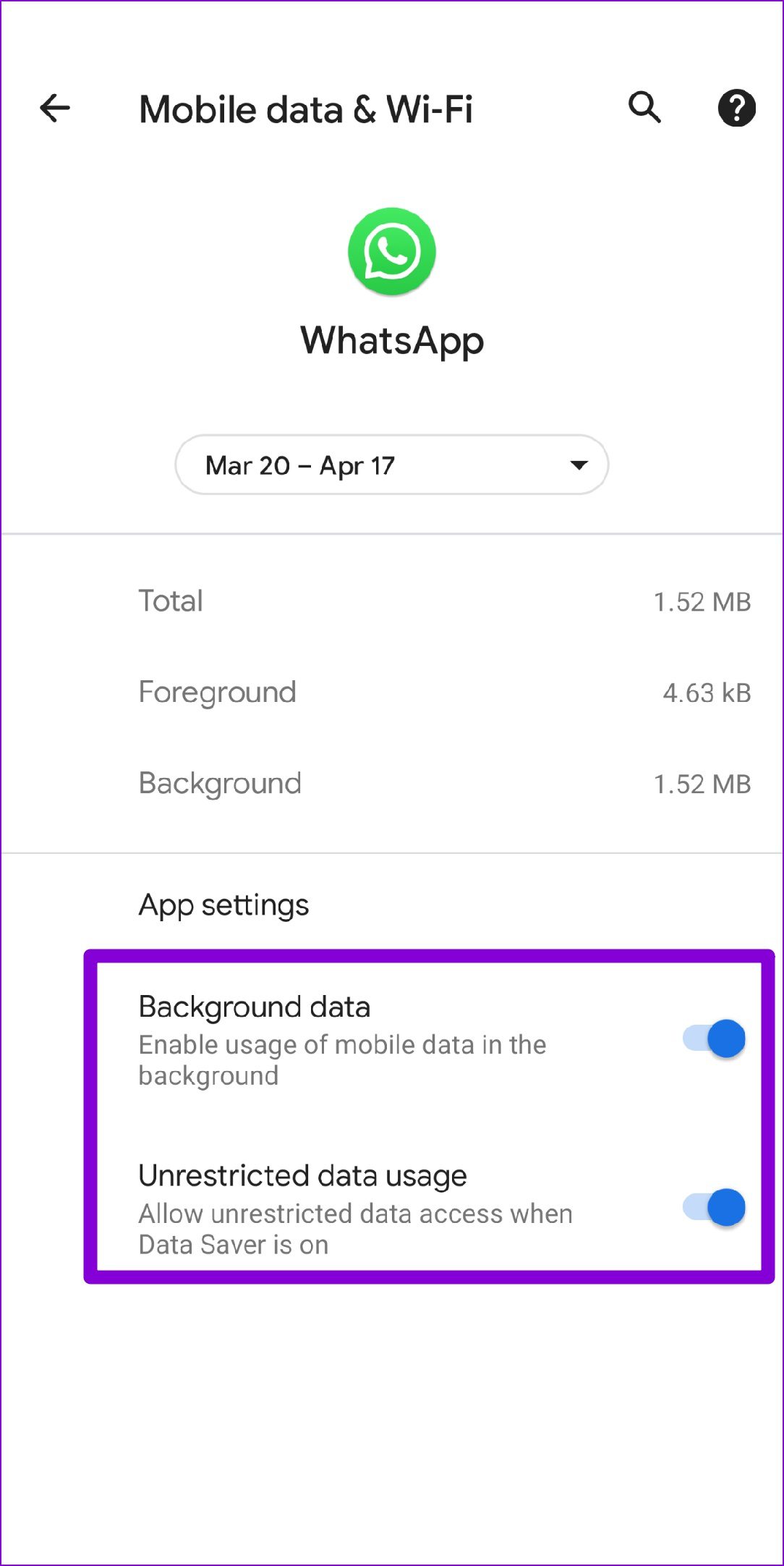
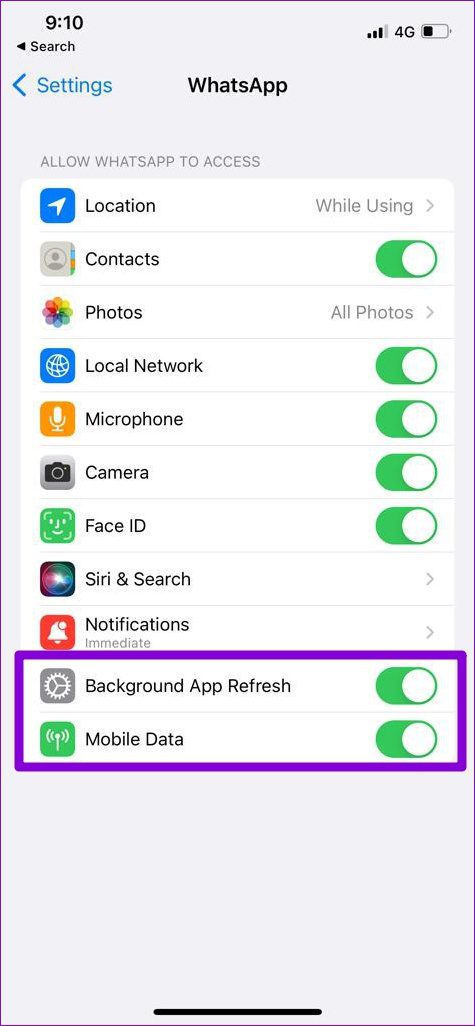
Have you denied WhatsApp permission to use mobile data in the background or restricted its battery usage? If so, your phone may suspend the uploading process once you minimize the app. Here’s how you can fix that.
Android
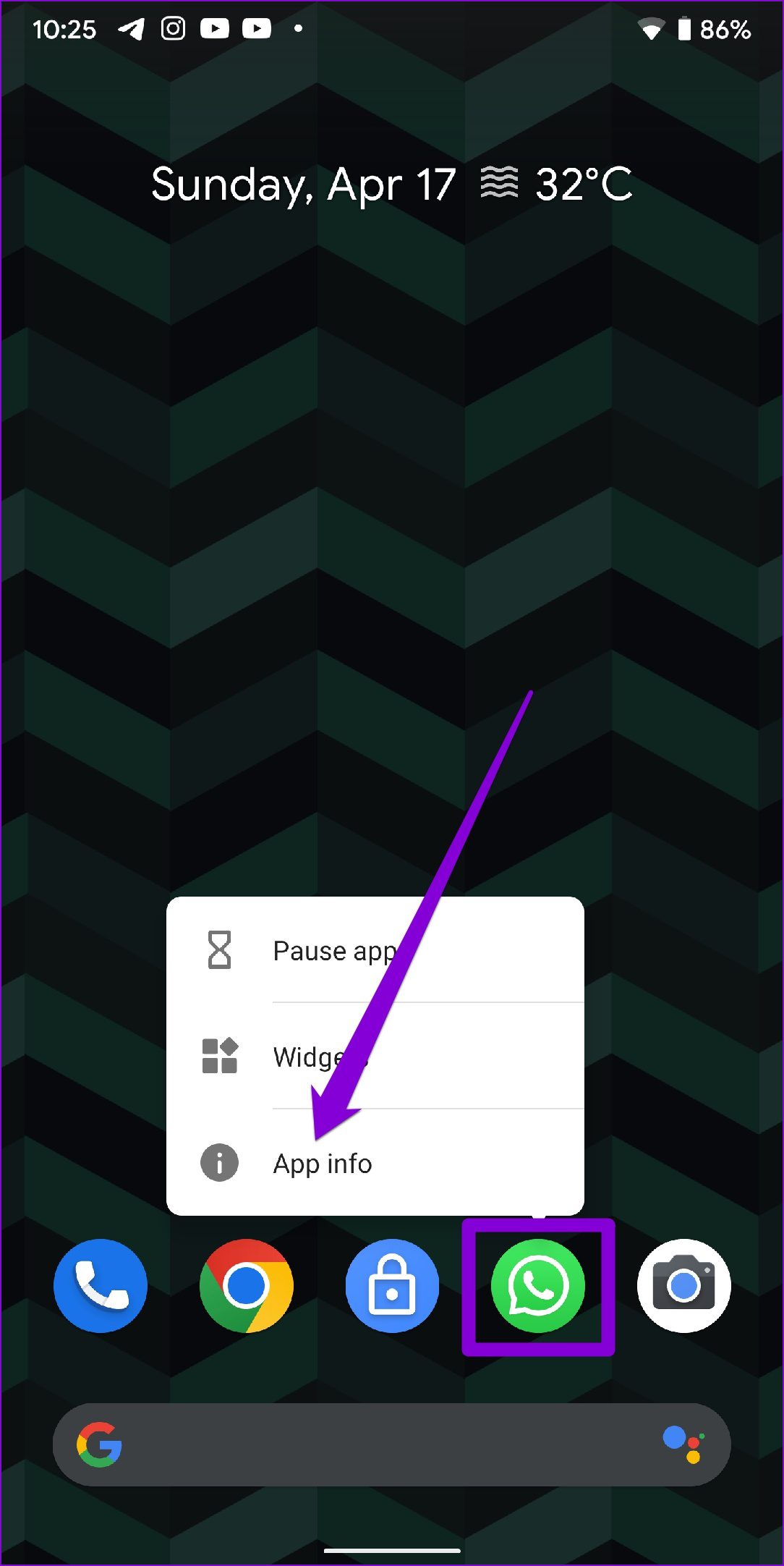
Step 1: Long-press the WhatsApp icon and select App info from the menu that appears.
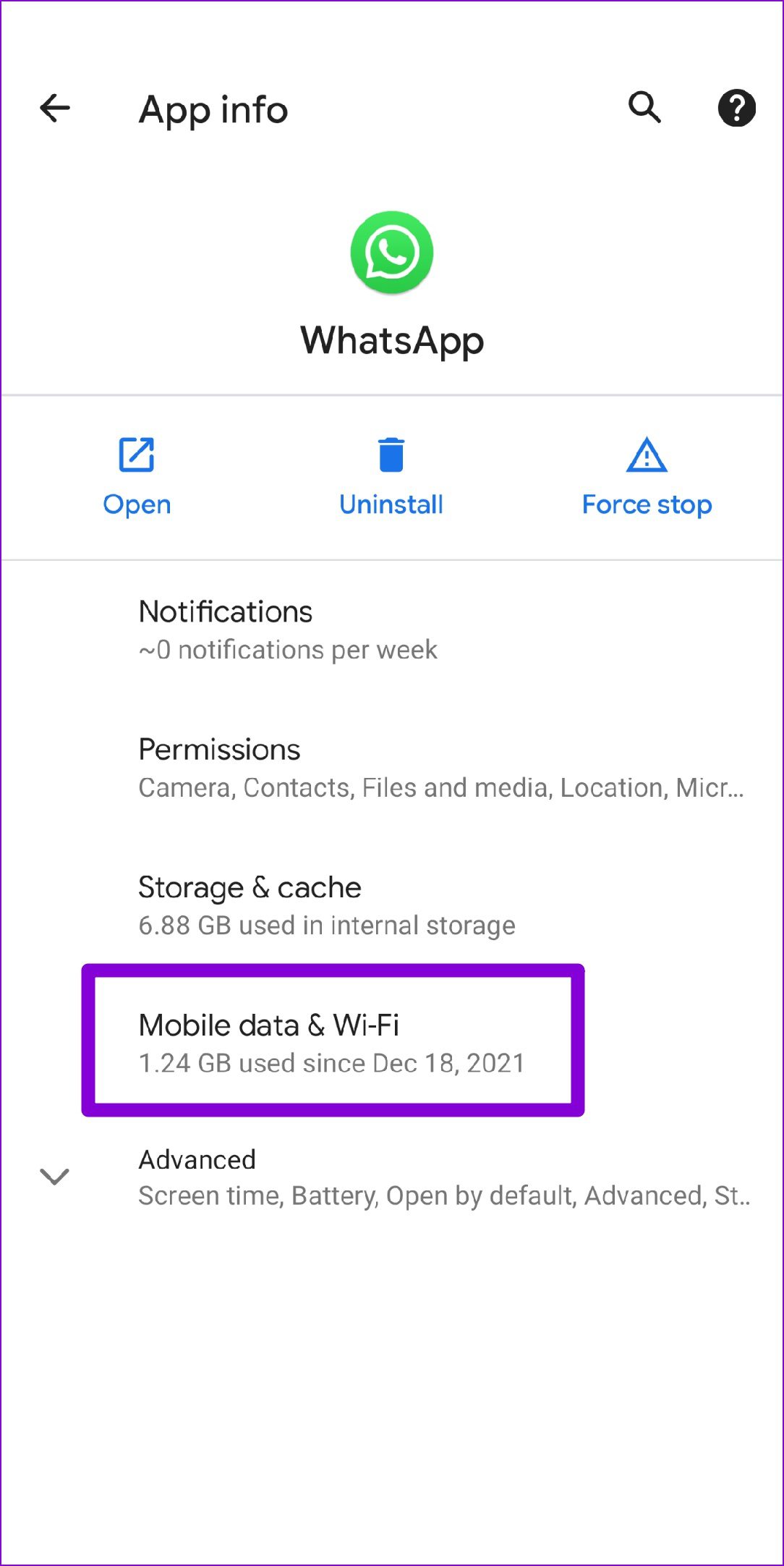
Step 2: Go to Mobile Data & Wi-Fi . Toggle on the switches next to Background data and Unrestricted data usage .
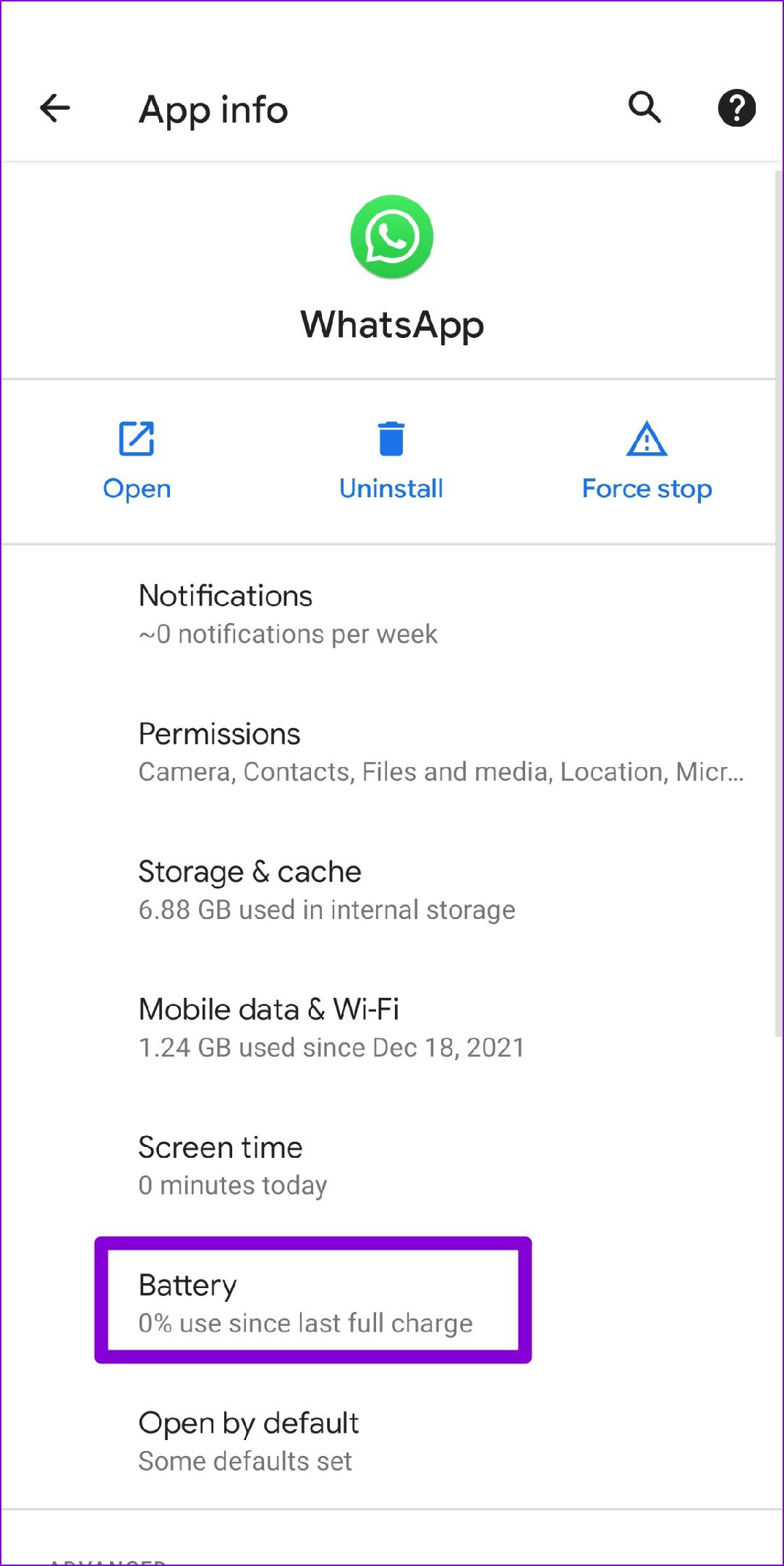
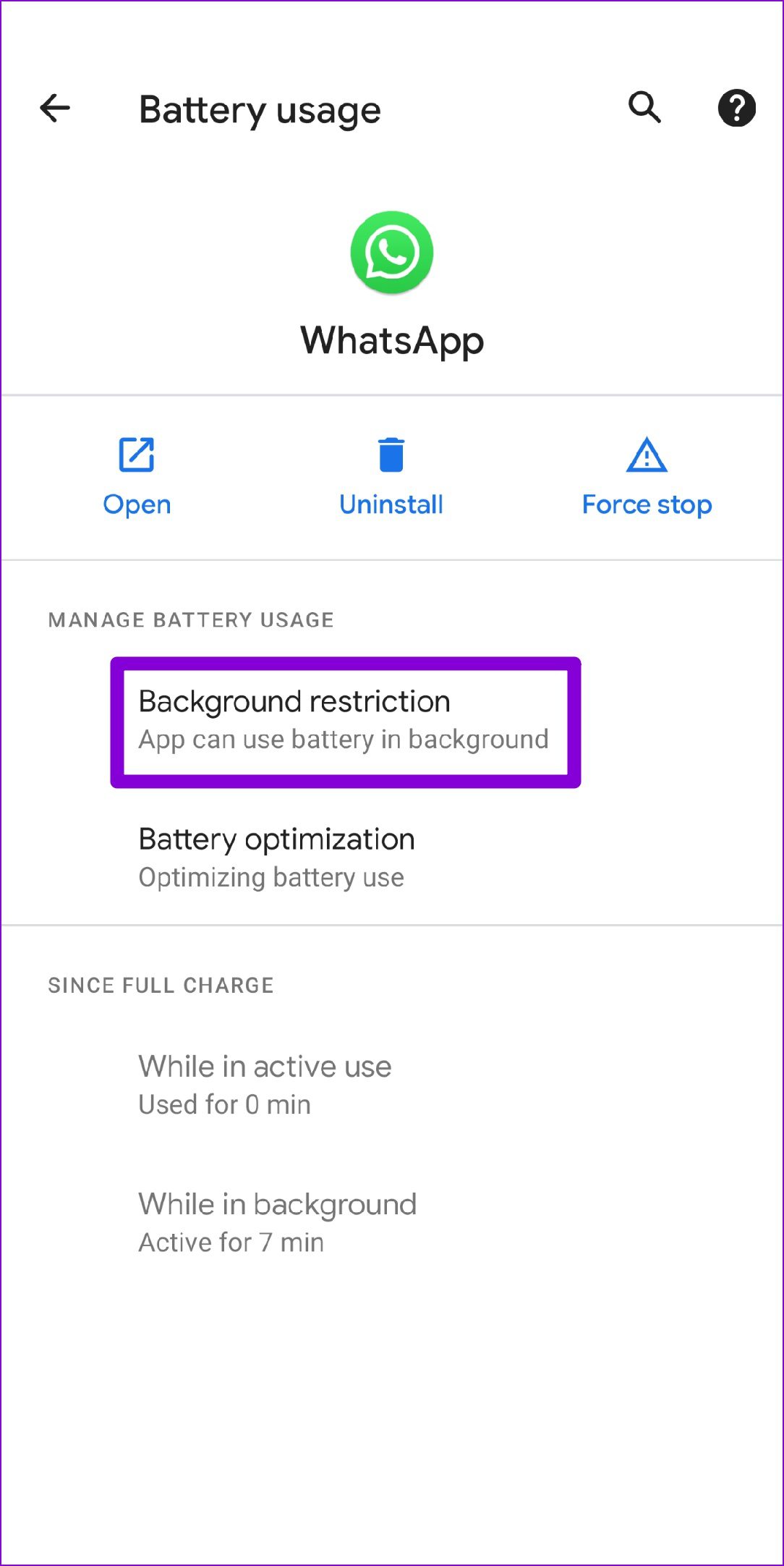
Step 3: Return to the app info page, tap on Battery , and remove any restrictions.
iPhone
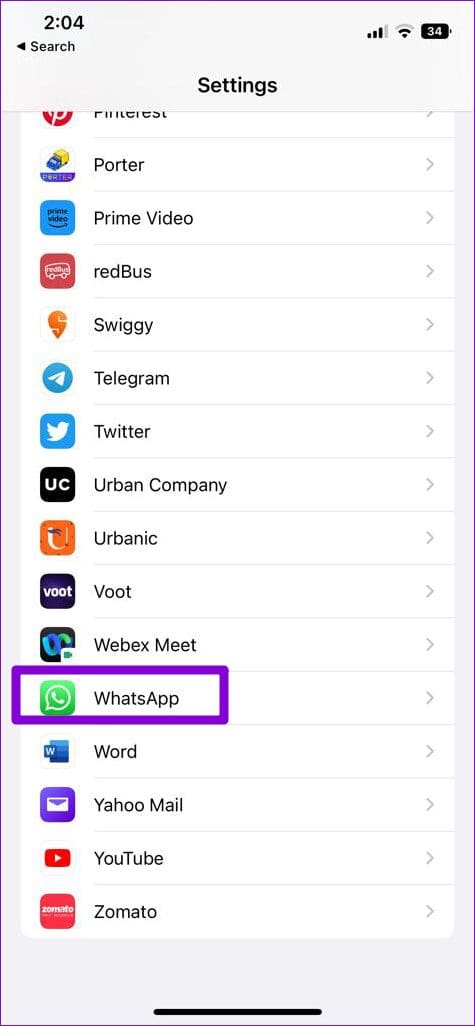
Step 1: Open Settings on your iPhone and scroll down to tap on WhatsApp .
Step 2: Enable the toggles next to Mobile Data and Background App Refresh .
Fix 3: Change WhatsApp Status Visibility Settings
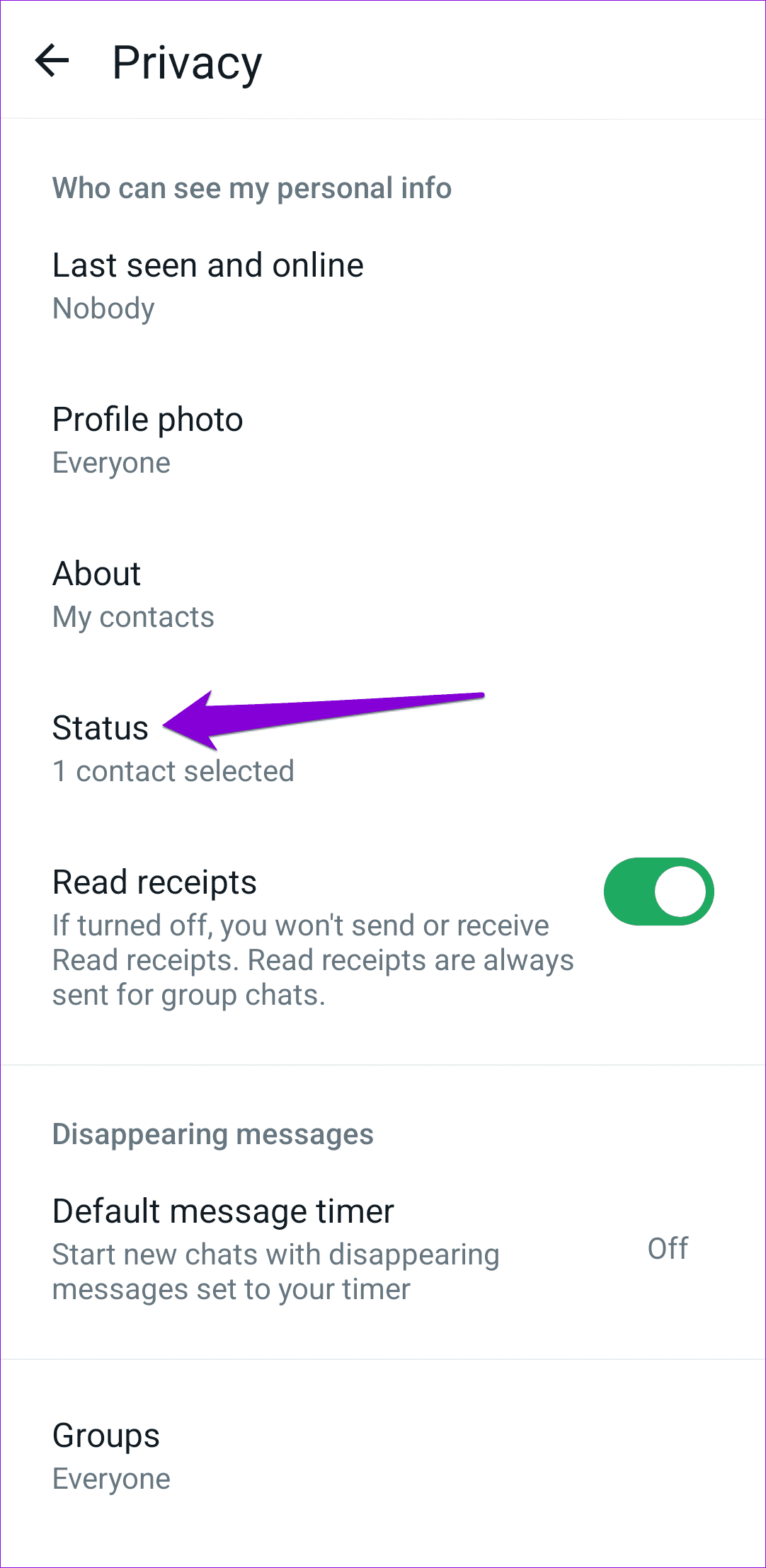
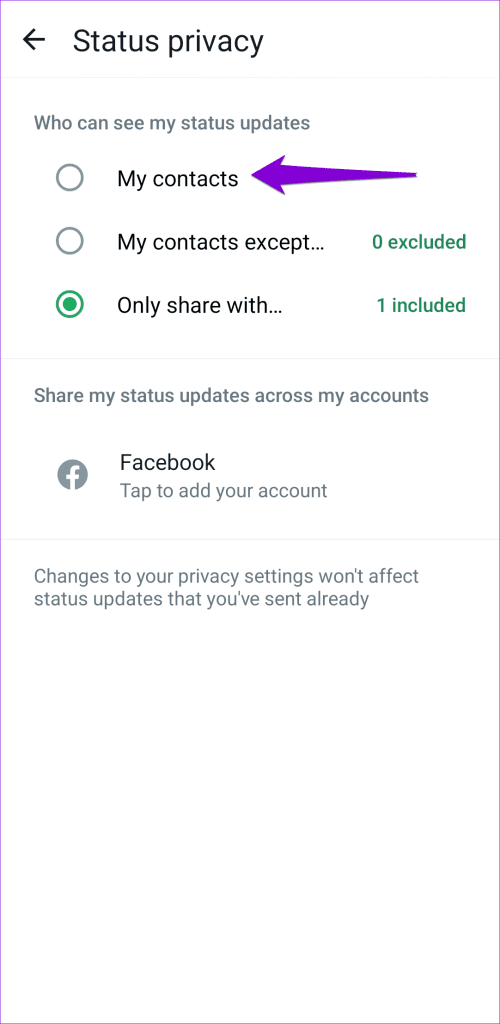
At times, WhatsApp may keep asking you to reupload the status if you’ve set the visibility to specific contacts only. You can temporarily set WhatsApp status visibility to “My Contacts” and see if that solves the issue.
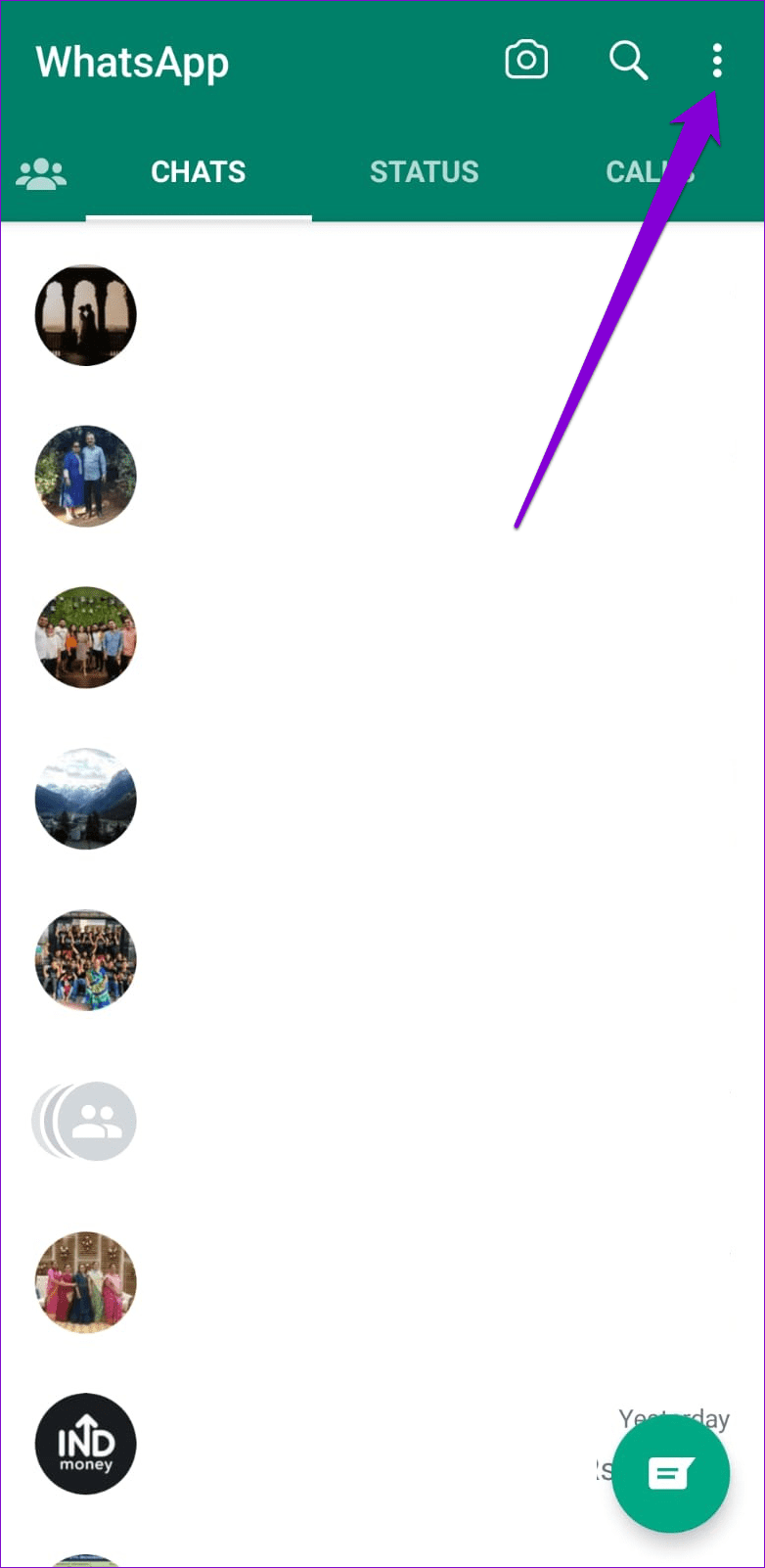
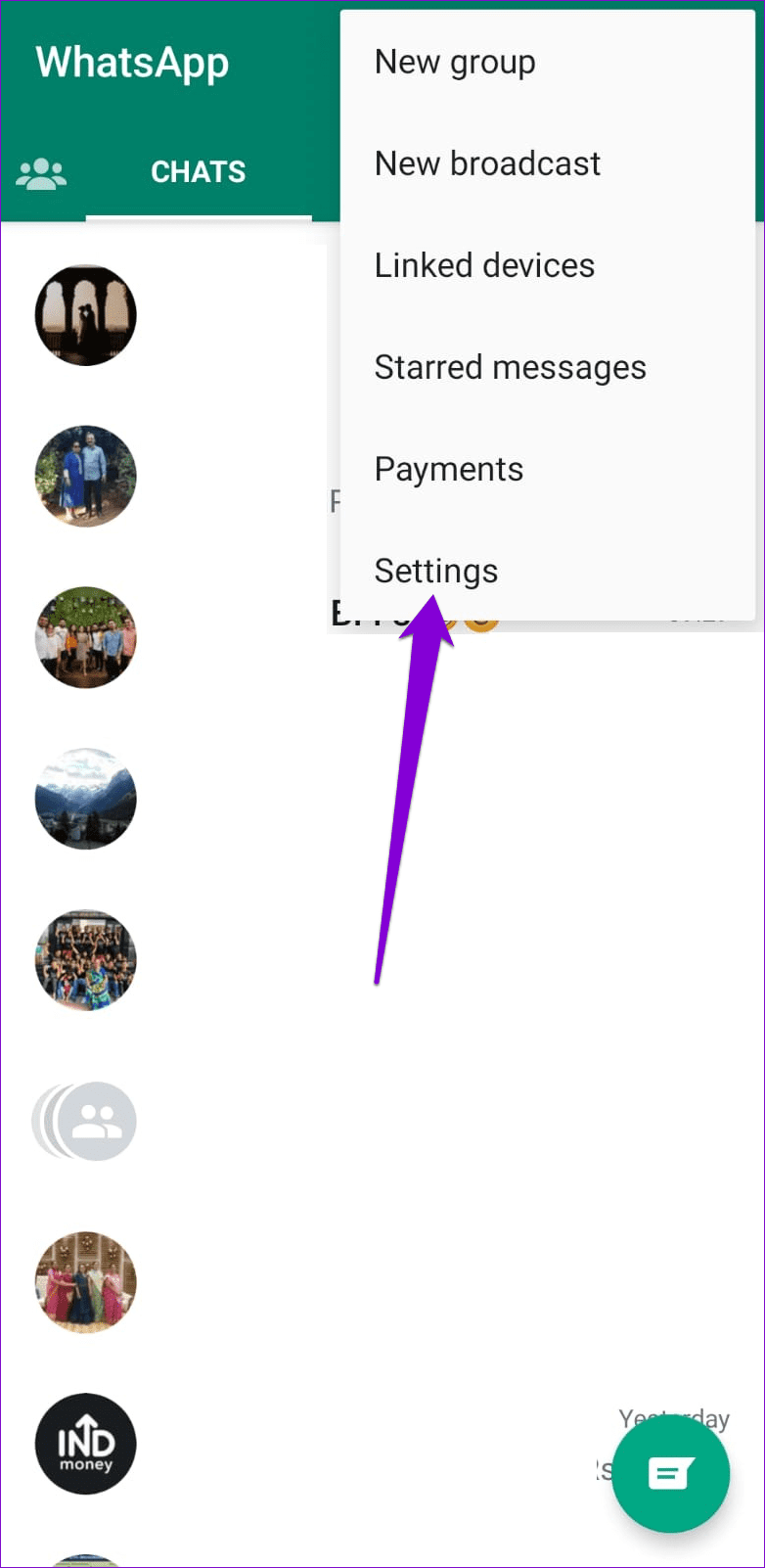
Step 1: Open WhatsApp, tap the three-dot menu icon in the top right corner and select Settings .
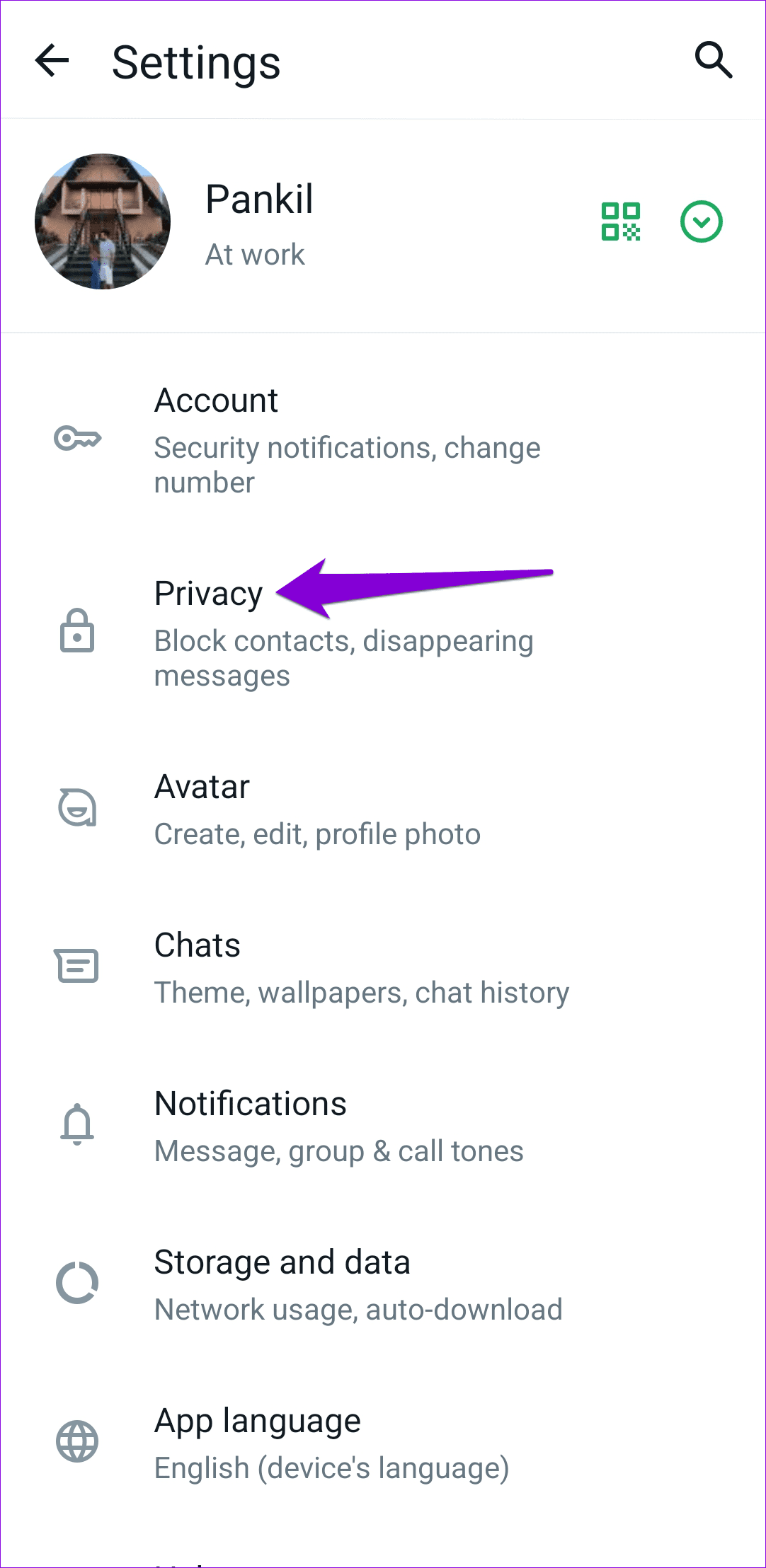
Step 2: Go to Privacy > Status and select My contacts .
Fix 4: Correct the Date and Time on Your Phone
WhatsApp relies on the date and time on your phone to connect and sync data with its server. If your phone is set to an incorrect date or time, WhatsApp might fail to connect with its server and throw the “Can’t send this video. Choose a different video and try again” error.
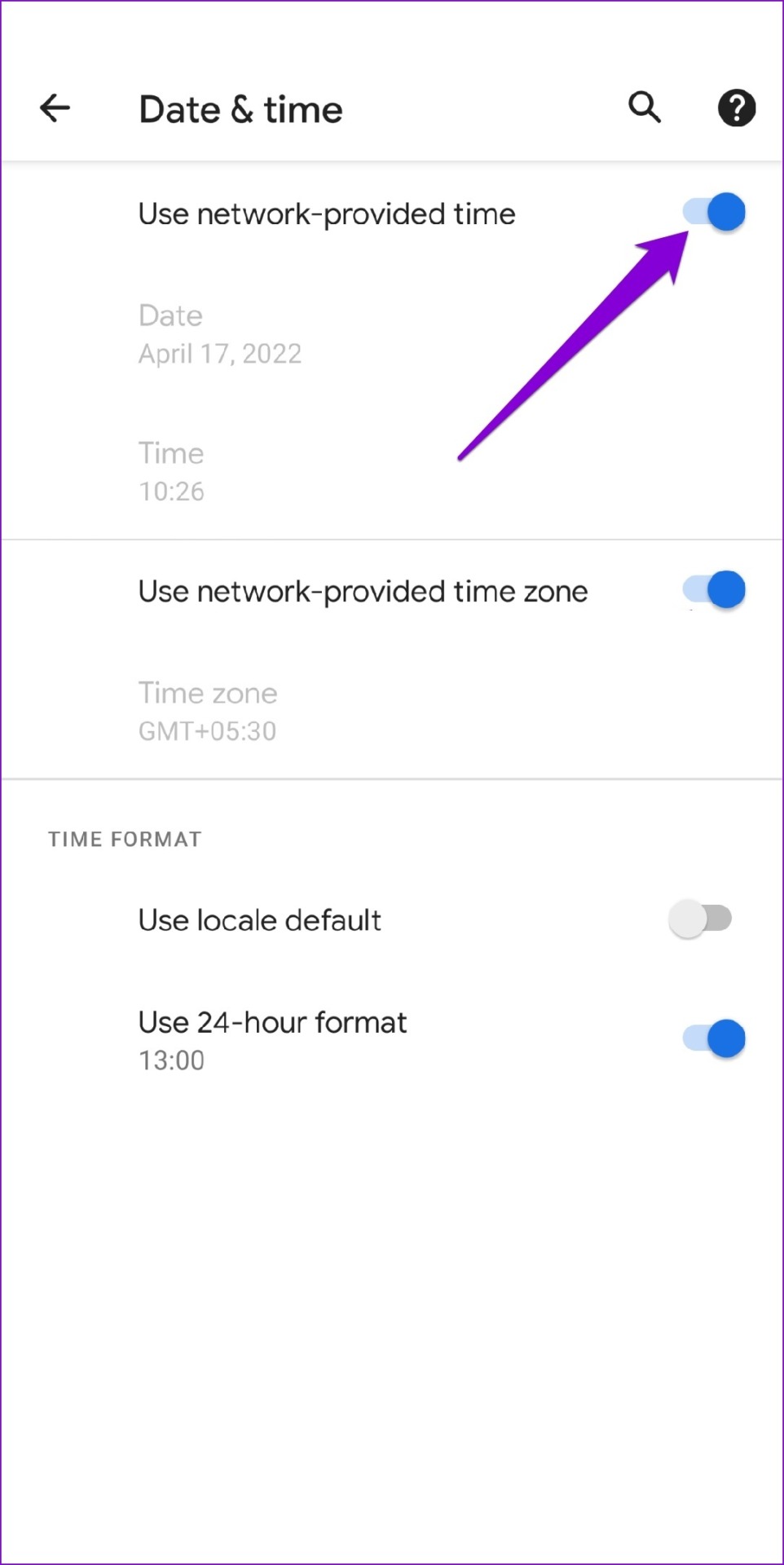
To fix this, you can configure your phone to use network-provided time. Here’s how.
Android
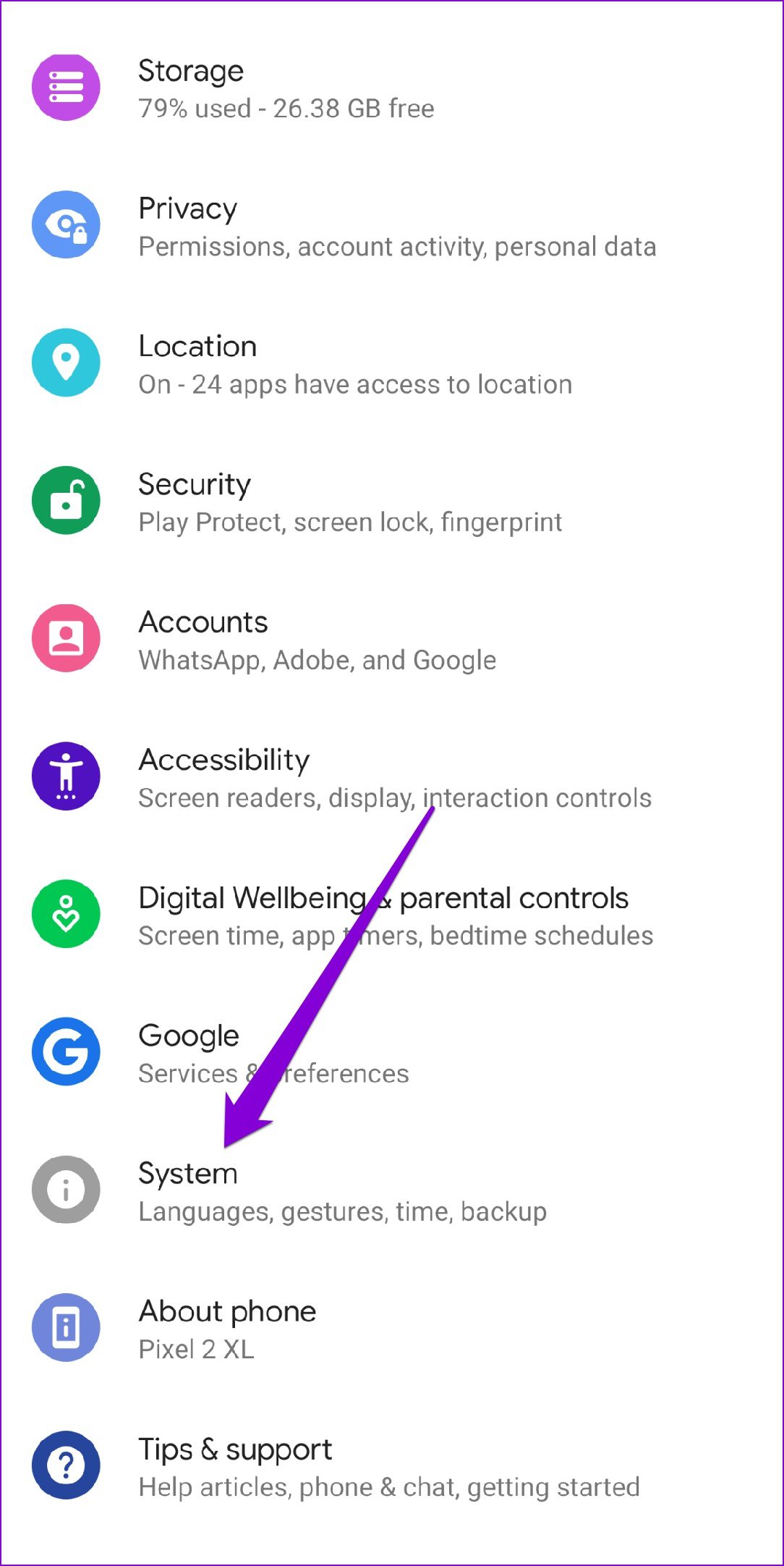
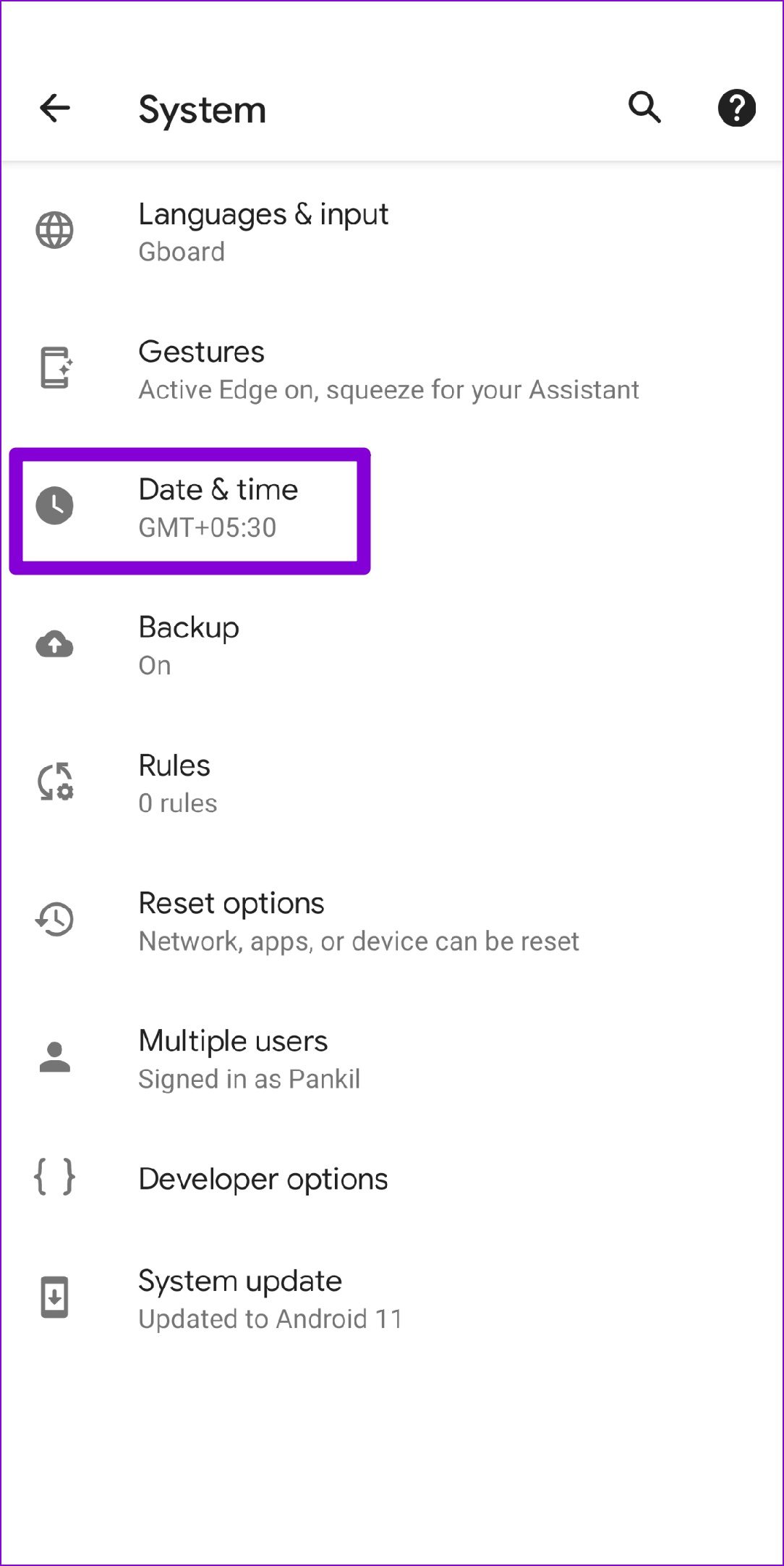
Step 1: Open the Settings app on your Android and navigate to System .
Step 2: Tap on the Date and time option and toggle on the switches next to Use network-provided time .
iPhone
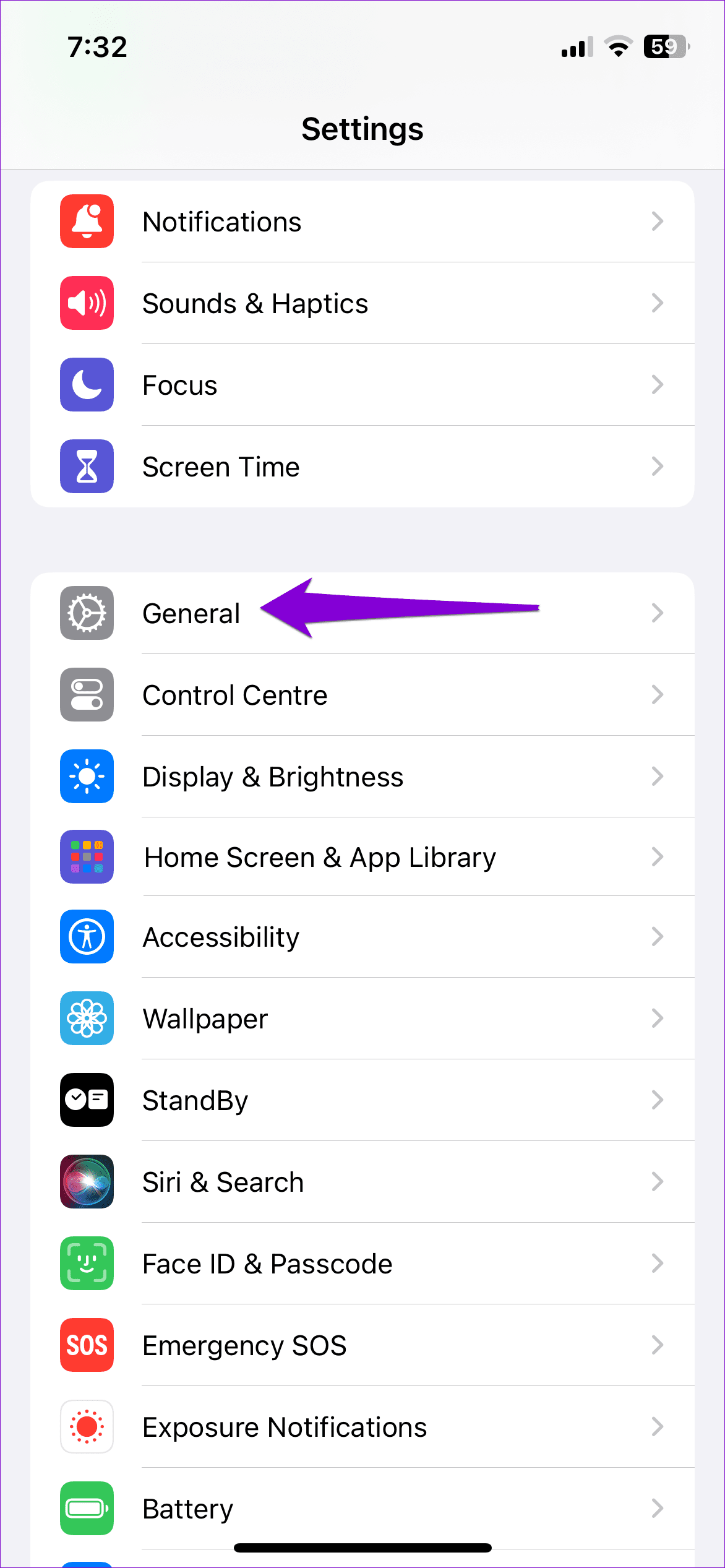
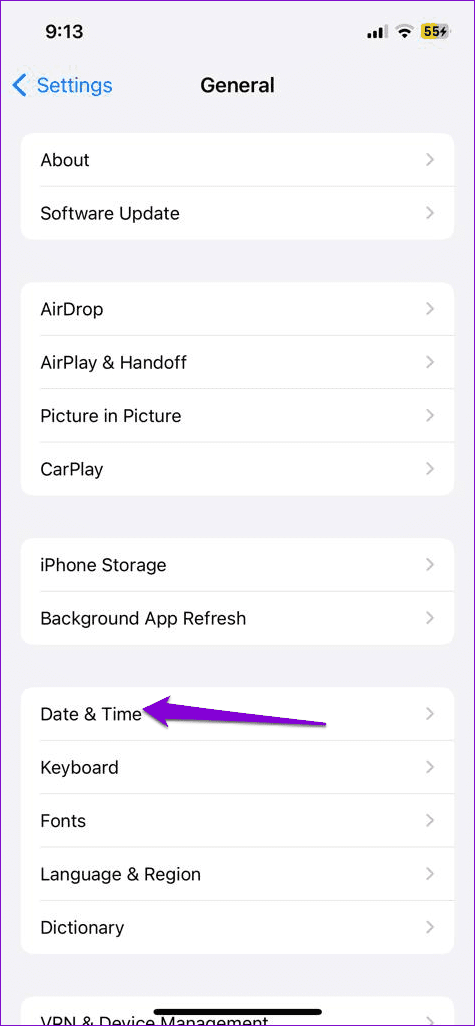
Step 1: Launch the Settings app on your iPhone and navigate to General .
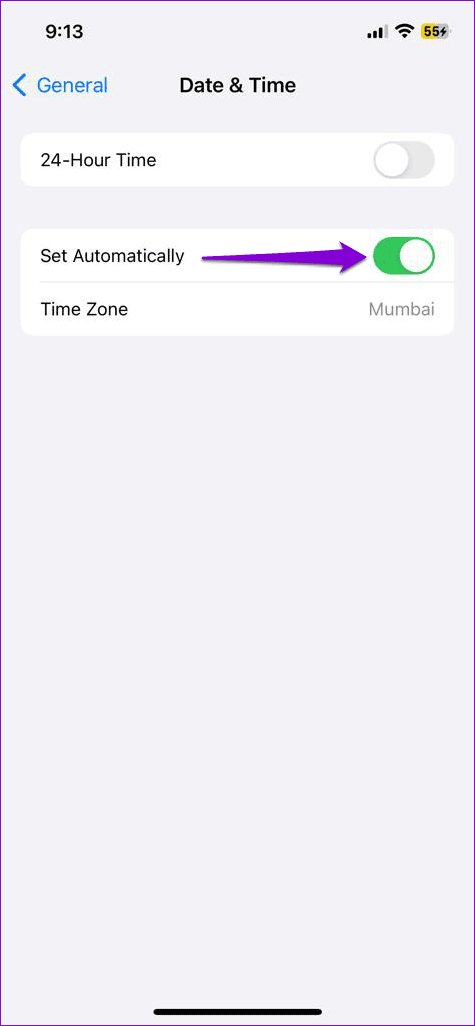
Step 2: Tap on Date & Time . Toggle on the switch next to Set Automatically .
Fix 5: Clear WhatsApp Cache (Android)
Another reason why WhatsApp may fail to function properly is if the existing cache data collected by the app has become old or corrupted. To fix this, you’ll need to clear WhatsApp’s cache data using these steps:
Step 1: Long-press the WhatsApp icon and select App info from the menu that appears.
Step 2: Go to Storage & cache and tap on the Clear cache option.
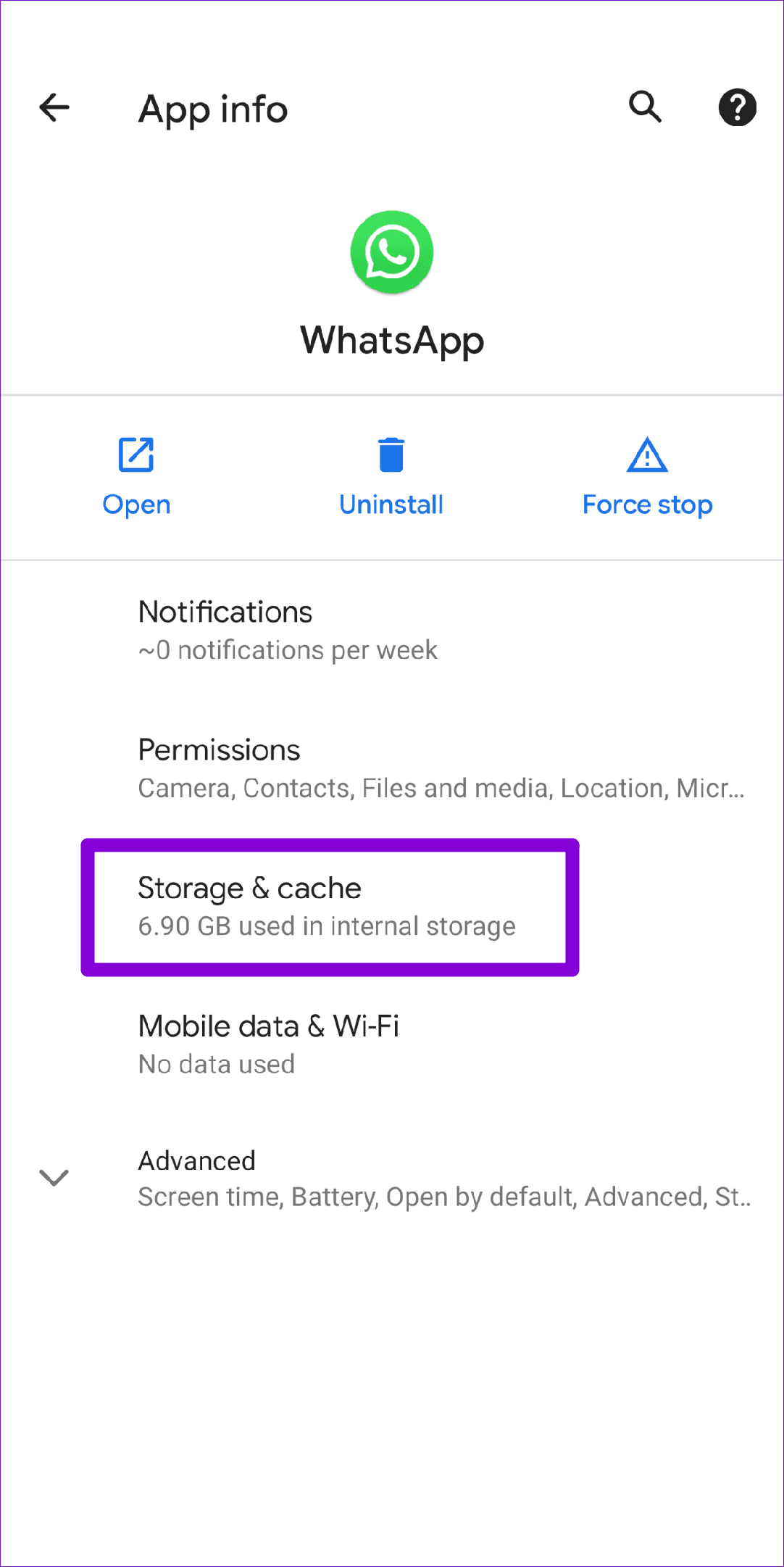
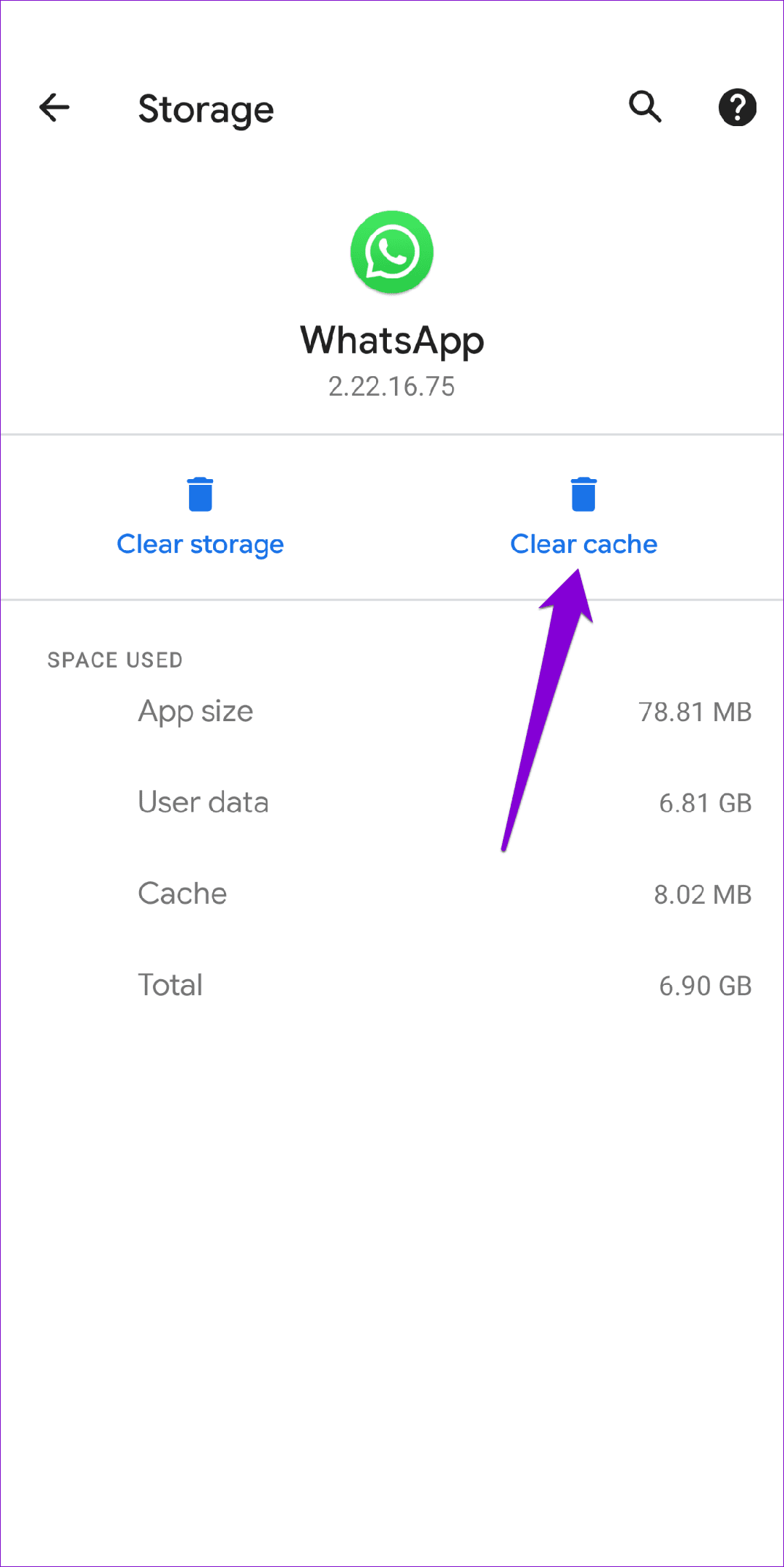
After that, force-stop WhatsApp and reopen it. Then, try uploading the status one more time.
Was this helpful?
Submit Cancel
Thanks for your feedback!
Keep reading