Android
4 Ways to Setup Speed Dial on Android
Do you want to call your frequently contacted people quickly? Here's how to set up speed dial on your Android to do so.
By Pankil Shah

Quick Tips
Stock Android and Google Dialer don’t come with a native Speed Dial feature.
However, there are workarounds to quickly call your contacts.
Additionally, Samsung phones feature a Speed Dial feature hidden inside the settings.
Method 1: Add Contact to Favorites
Your Android phone lets you create and manage a list of your favorite contacts so that you can contact them quickly without shuffling through the address book. You can add contacts to this list and call them directly.
Note : While the screenshots have been taken from a Samsung phone, the features of the contact book or address book remain nearly the same on all Android phones with custom skins.
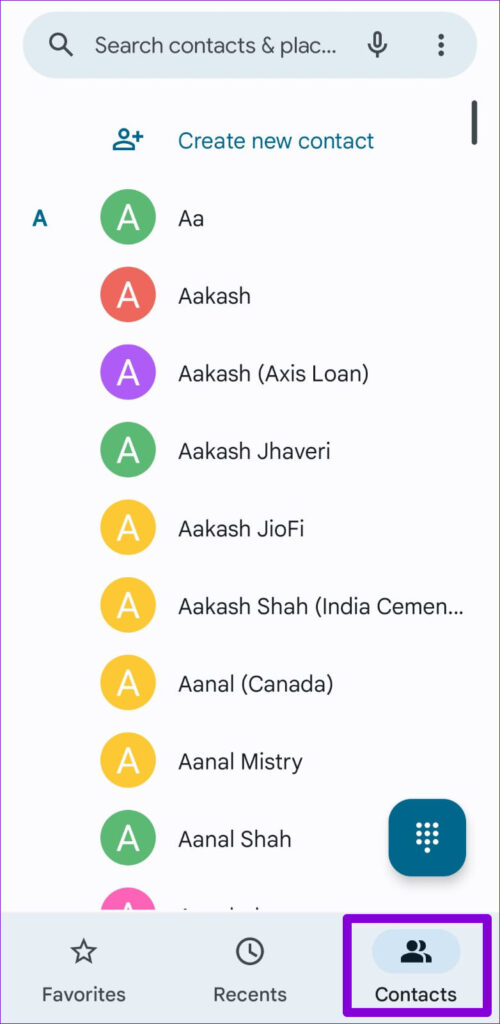
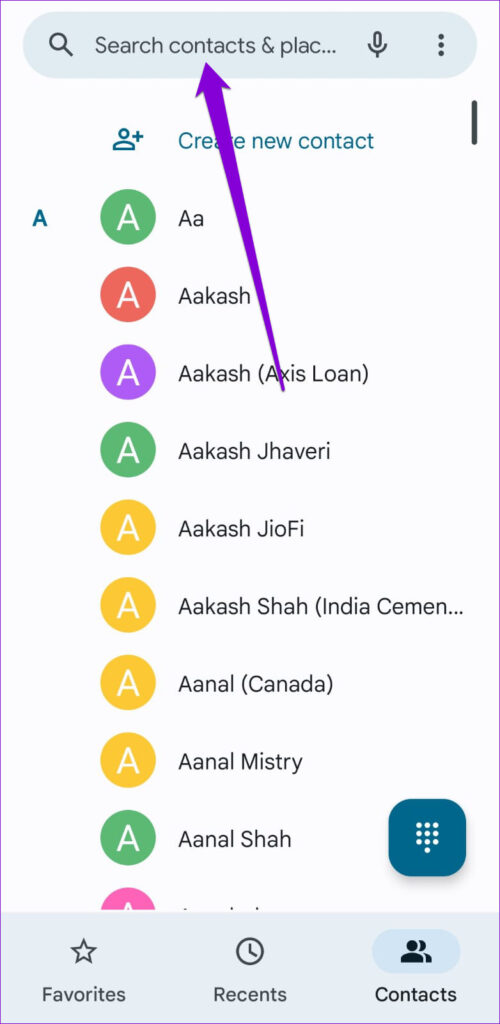
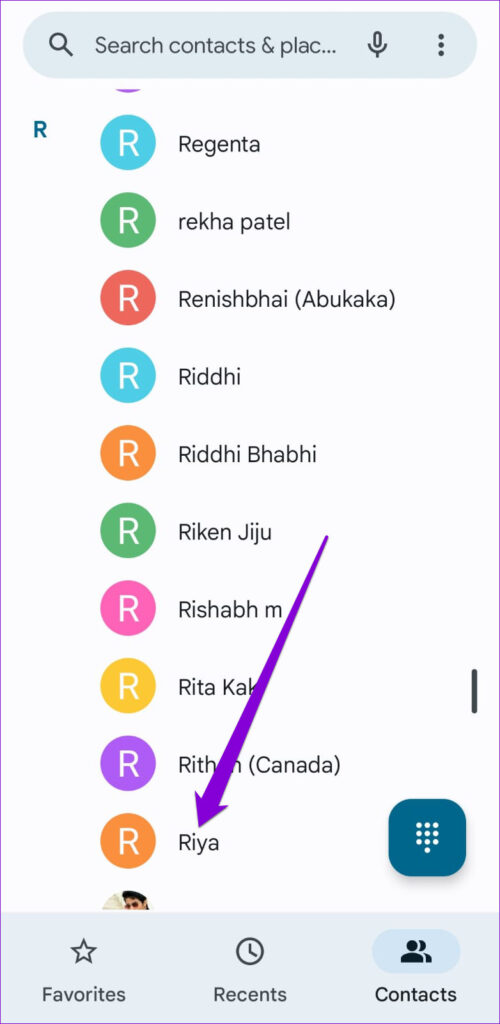
Step 1: Open the Phone app > navigate to the Contacts tab . Locate the contact you wish to add as a favorite using the search tool. Once located, just tap on the contact name to view its info.
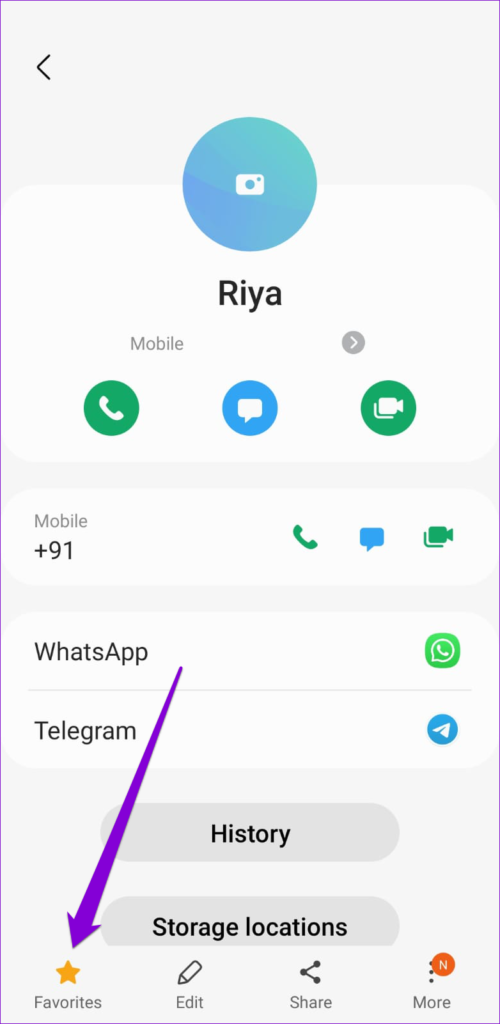
Step 2: Now, tap on the star icon at the bottom left corner to add the contact to Favorites.
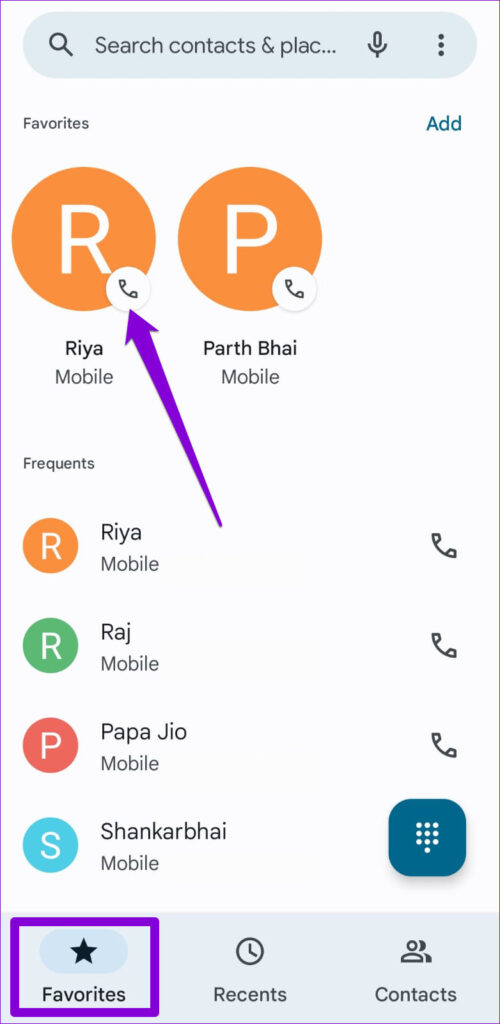
Once added, your contact will show up in the Favorites tab in the Phone app. You can now tap on the contact’s name to place a call directly.
Method 2: Add Contact Widget to Home Screen
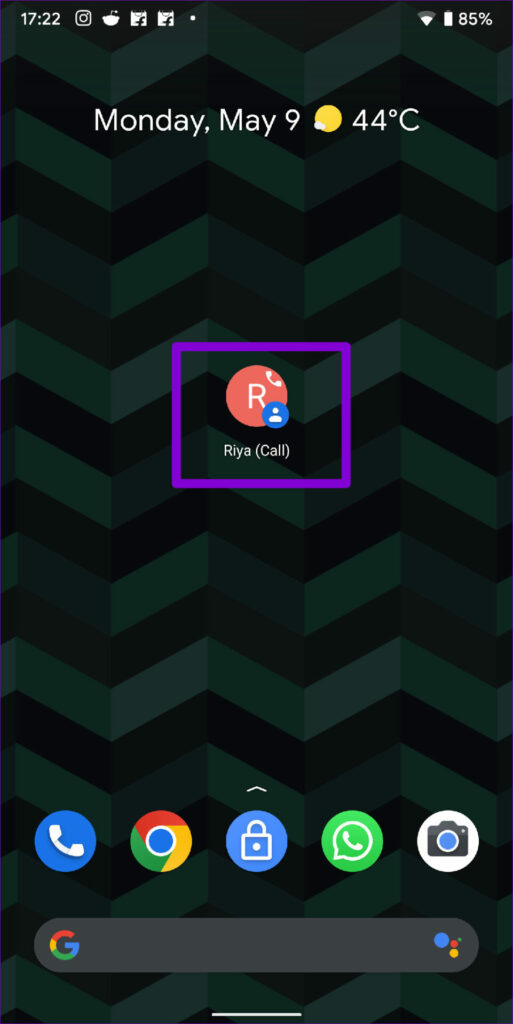
If you set up the speed dial for someone who isn’t comfortable with smartphones or an elderly grandparent, you might want to add contacts directly on the phone’s Home Screen. For this, use the Direct dial widget on Android and add the favorite person’s contact to the Home Screen. Here’s how.
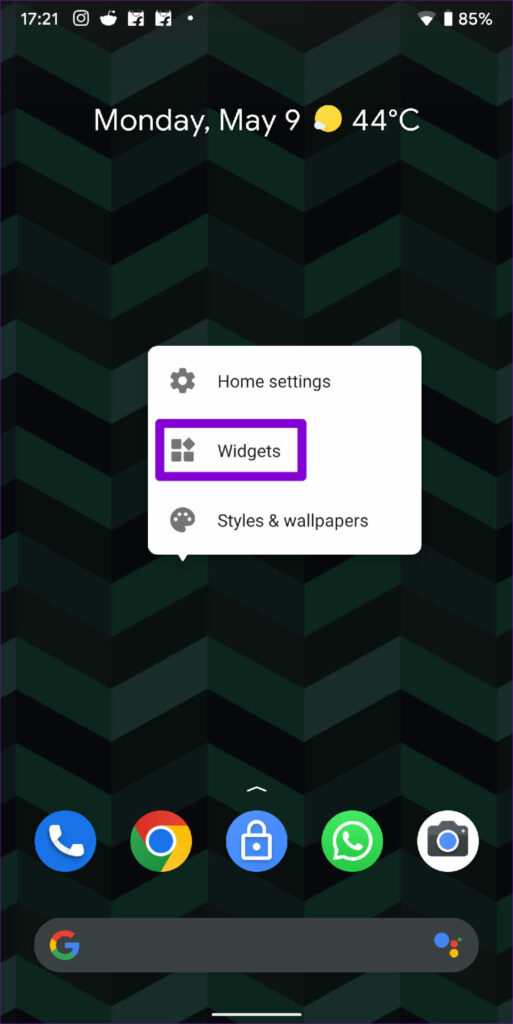
Step 1: Tap and hold anywhere on a space on the Home Screen and select Widgets from the menu.
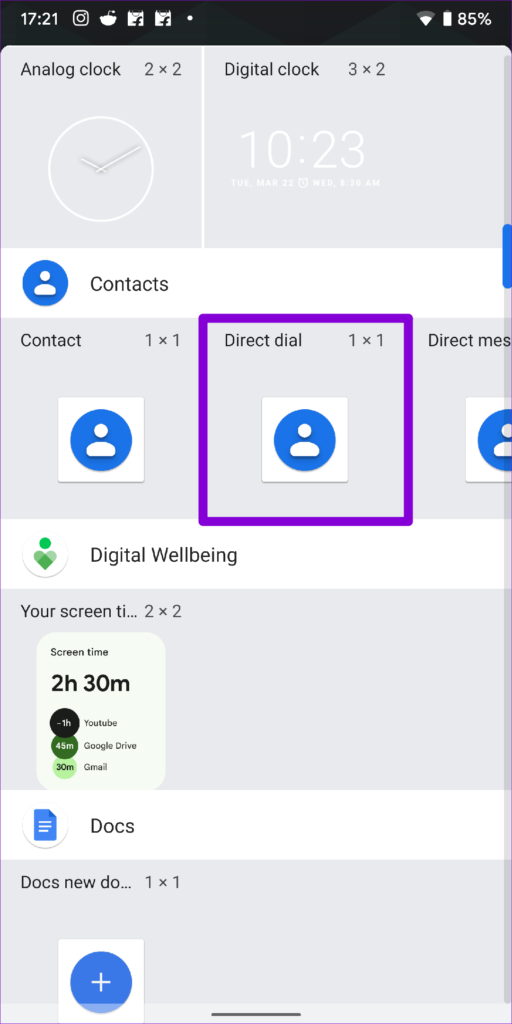
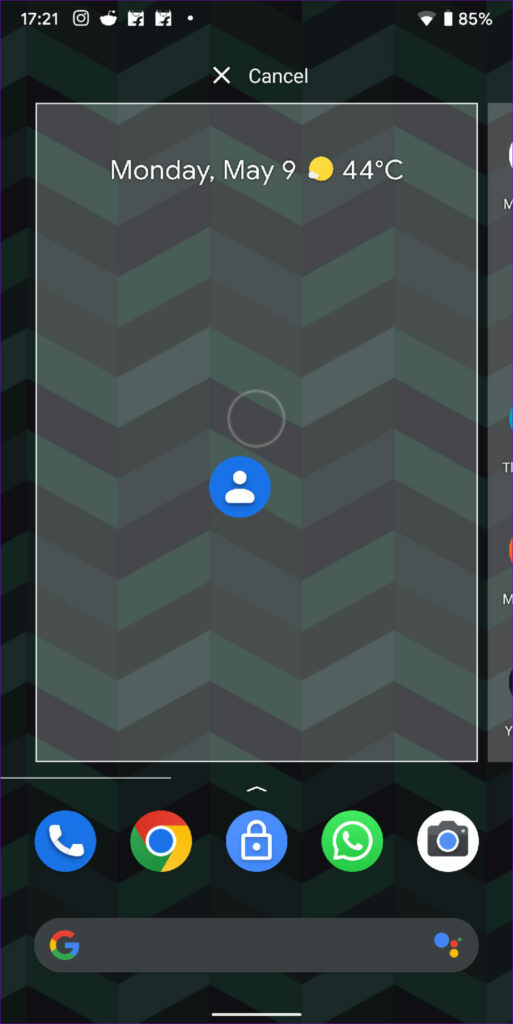
Step 2: Scroll through the list to find the Direct dial widget under Contacts. Tap and hold the widget to place it on the Home Screen.
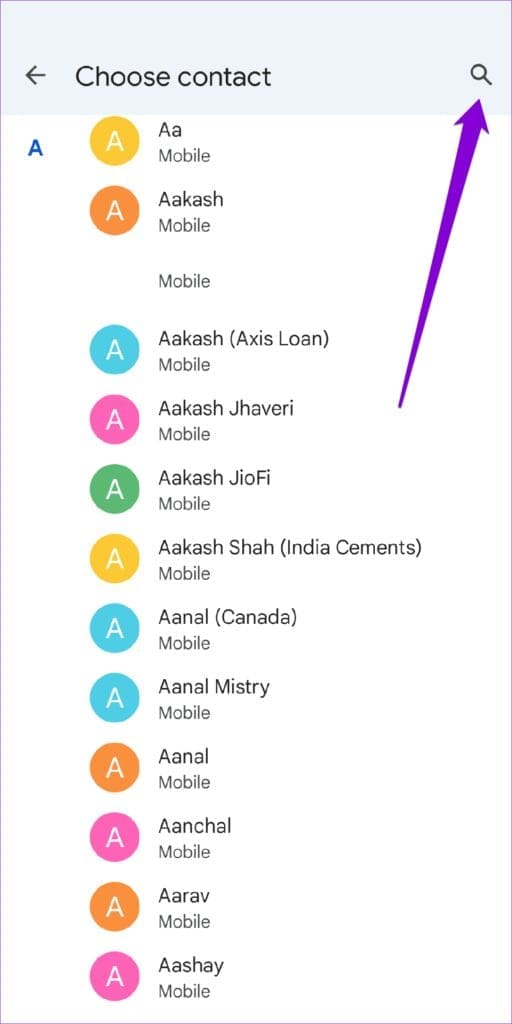
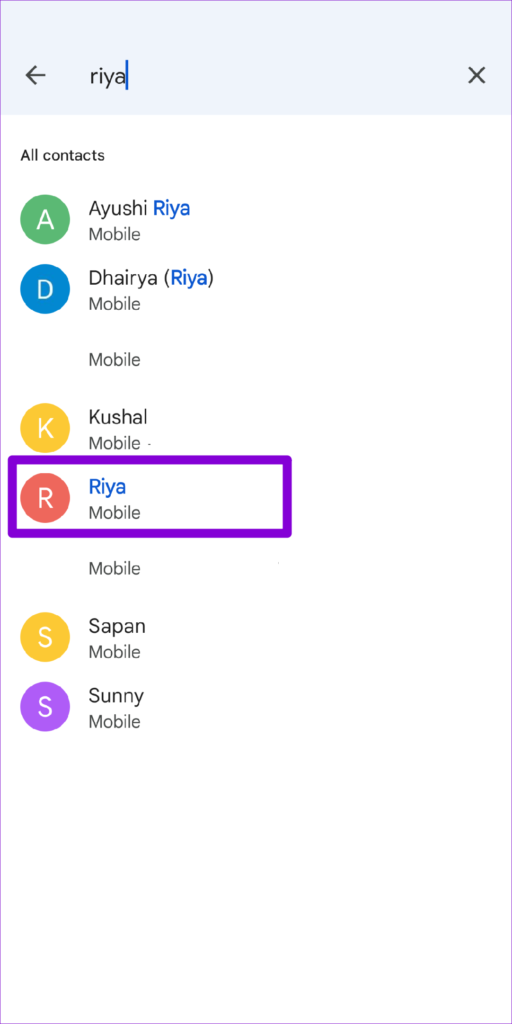
Step 2: Now, the widget will ask you to pick a contact for the direct dial widget. Scroll through the list and select the contact .
Step 3: The selected contact should reflect in the widget. You can now tap the widget to call the person.
Similarly, you can follow the steps above to set up a direct dial widget for other contacts.
Method 3: Set Speed Dial Number in the Phone App (Samsung Galaxy Phones)
Unlike other Android smartphones, the Phone app on the Samsung Galaxy phone carries a handy speed dial feature. Here’s how to use it to set up speed dial for your favorite contacts.
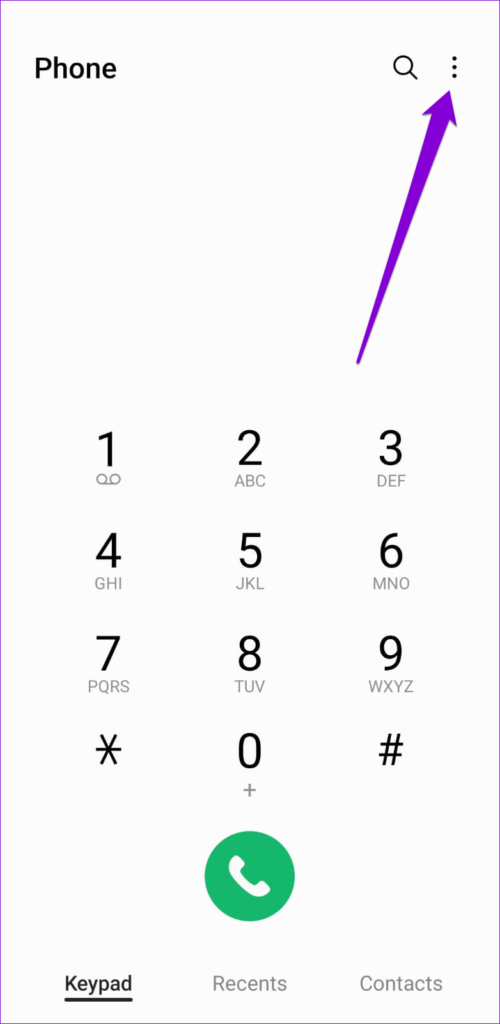
Step 1: Open the Phone app on your Samsung Galaxy phone and tap the three-dot menu icon at the top right corner.
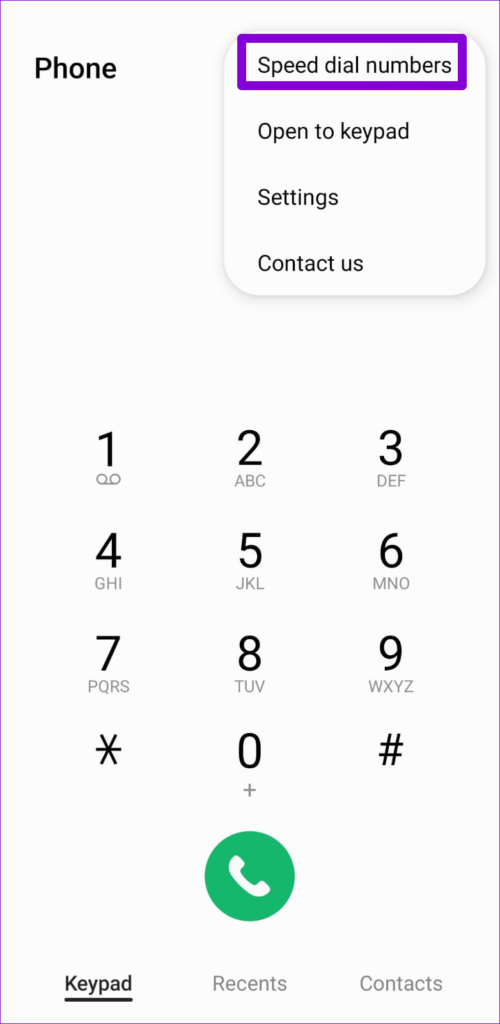
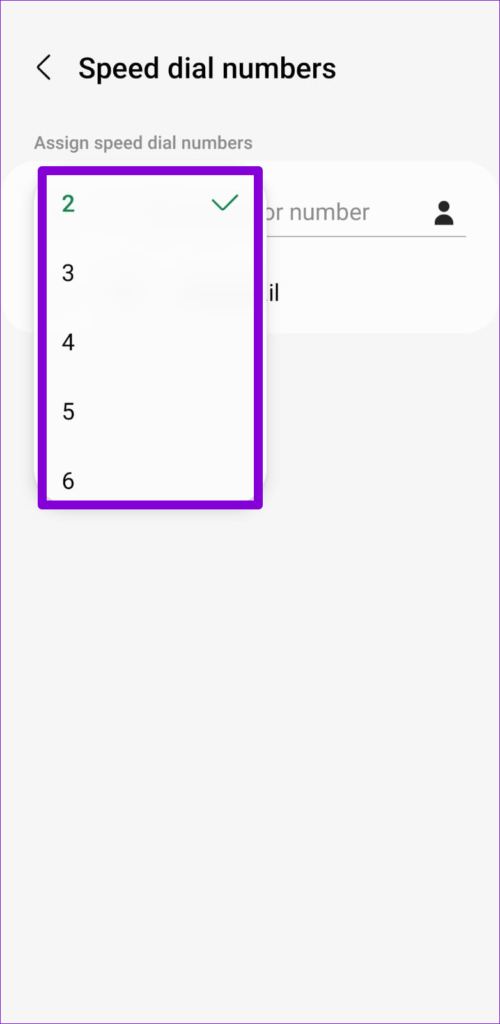
Step 2: Select Speed dial numbers . Now, use the drop-down menu to select a number for the contact.
Step 3: Next, type the name or phone number of the contact you wish to set up speed dial for.
Alternatively, tap the contacts icon > select a number from your contact list.
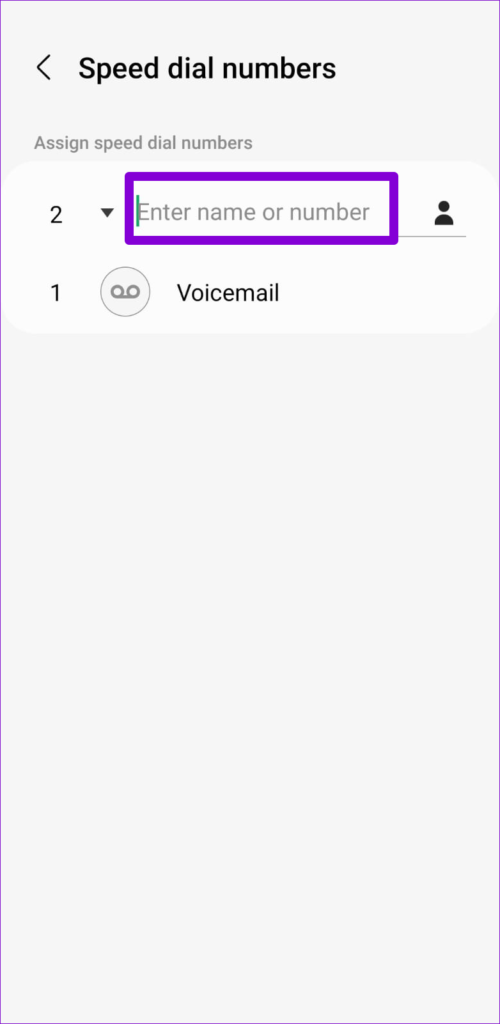
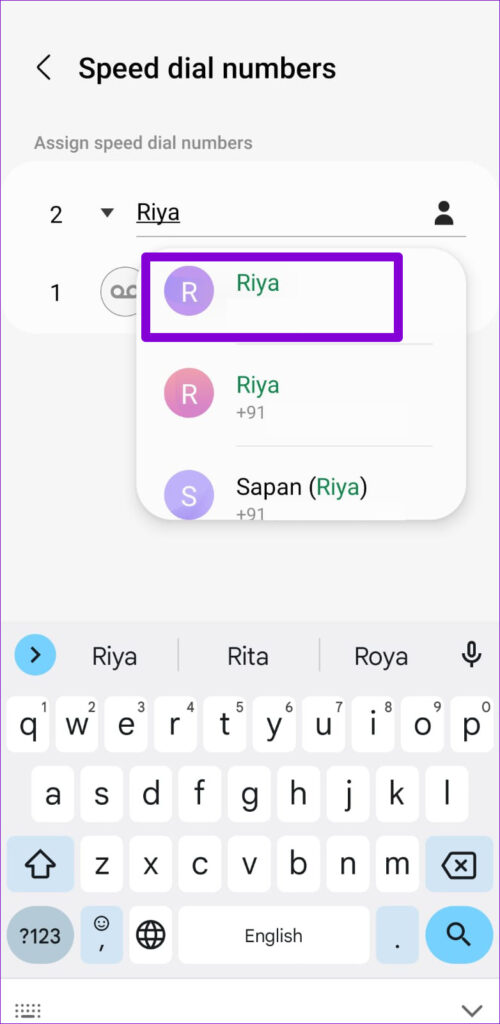

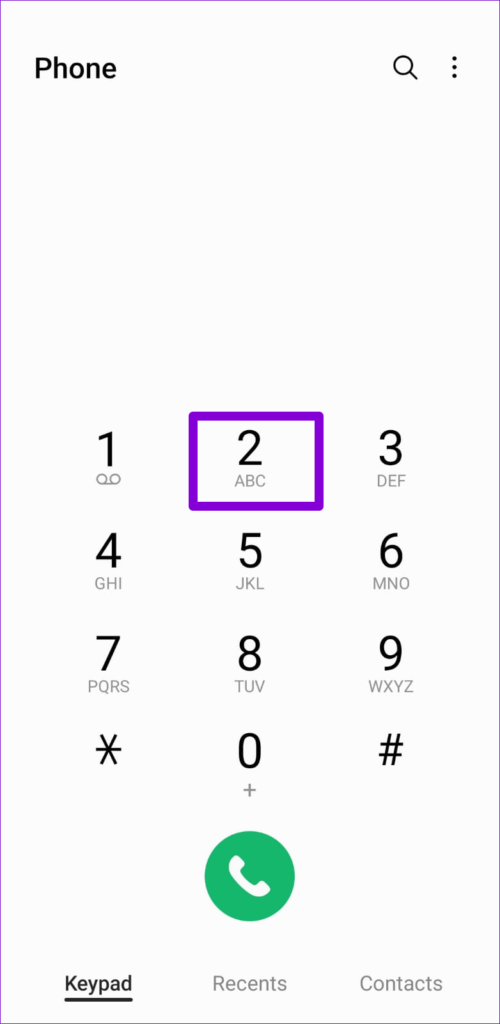
Step 4: After selecting it, the app will add the contact to the speed dial numbers. Long-press the assigned speed dial number on the keypad to place a call quickly.

Method 4: Use Google Assistant
The virtual assistant on your Android phone can also help you dial a number quickly. And the best part is that you don’t need to set up speed dial for each contact.
However, to place a call by voice command, you must ensure that you’ve enabled Google Assistant on your phone .
Enable Google Assitant
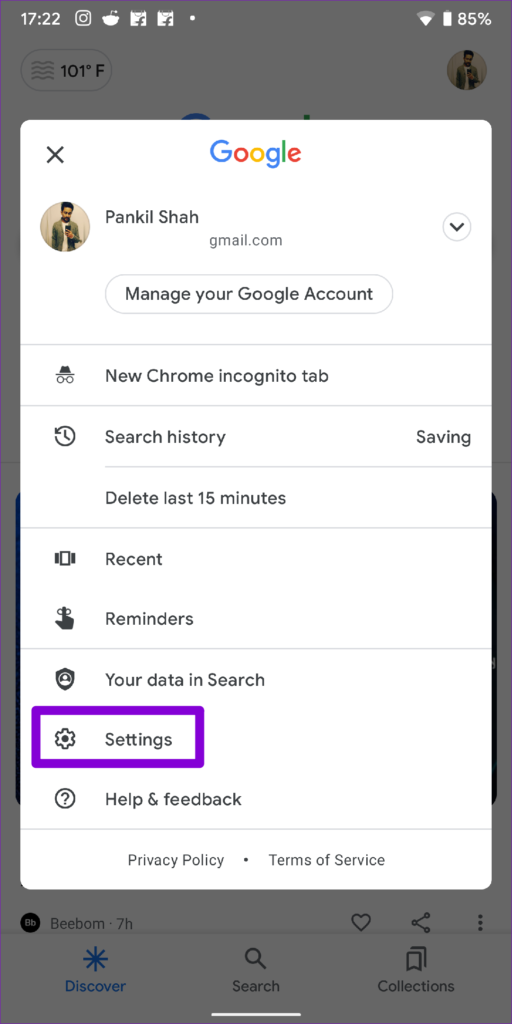
Step 1: Open the Google app on your phone > tap on your profile picture at the top right corner > select Settings .
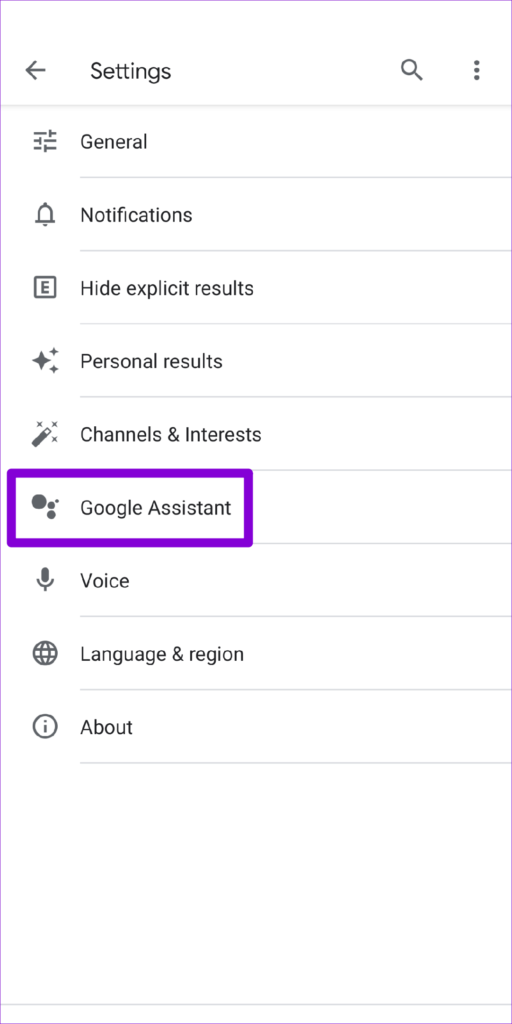
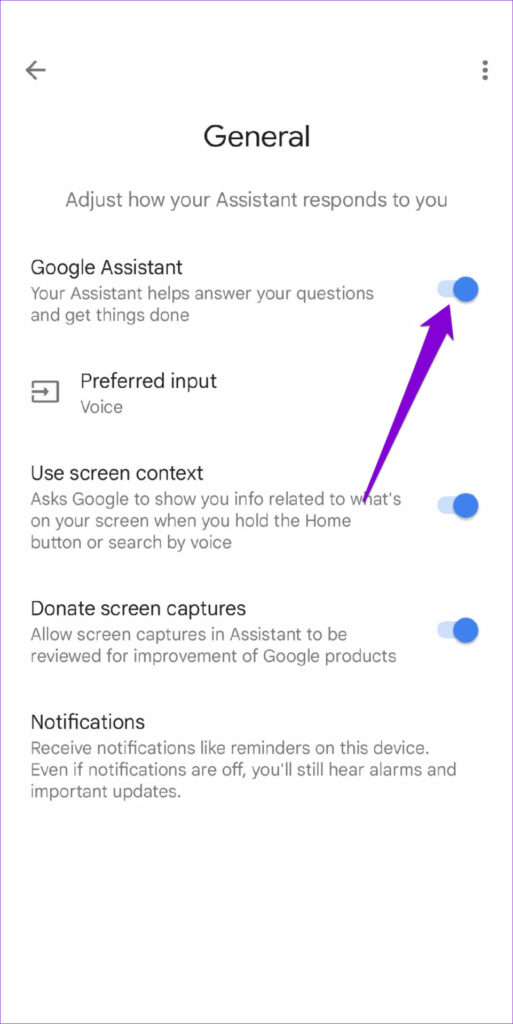
Step 2: Here, tap on Google Assistant > scroll down and tap on General > enable the toggle for Google Assistant .
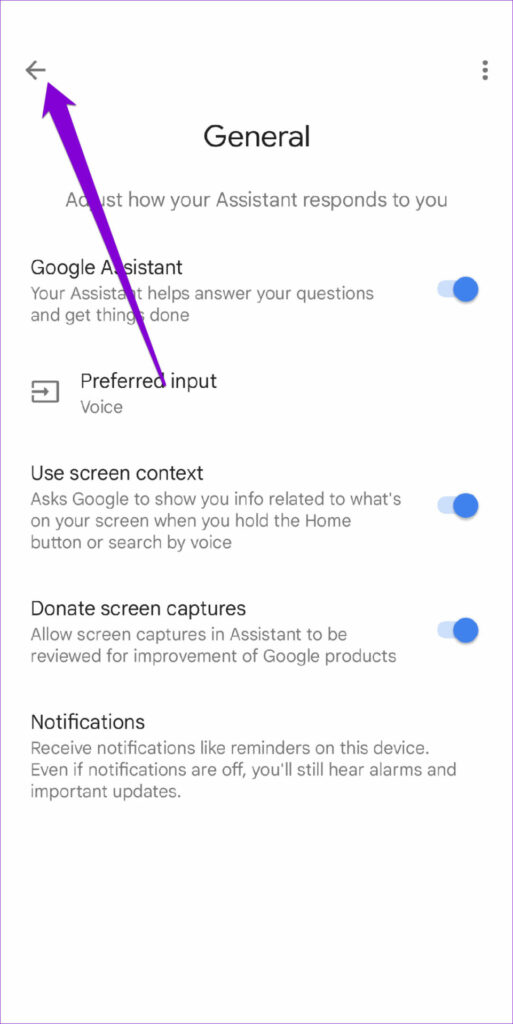
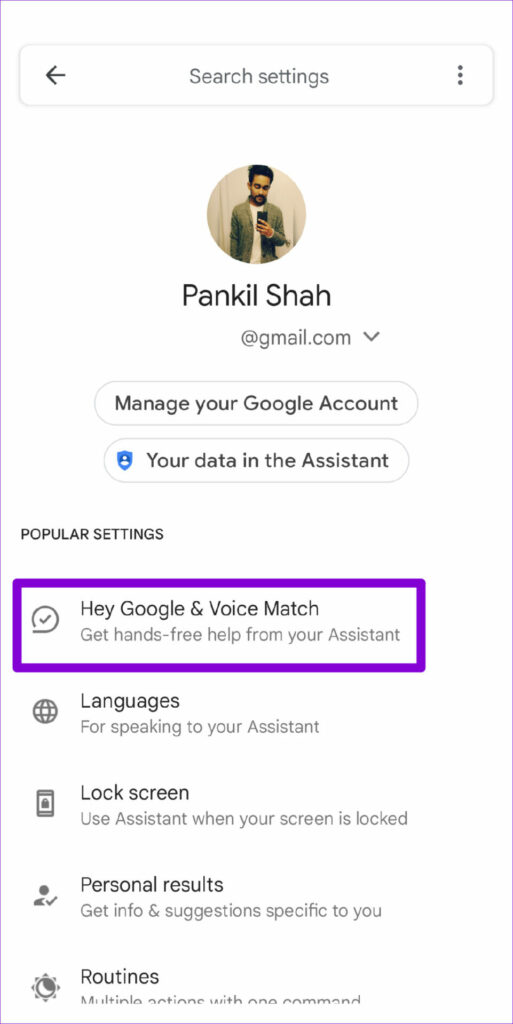
Step 3: Once done, return to the Google Assistant settings page and tap on Hey Google & Voice Match .
Step 4: Here, enable the toggle for Hey Google . And you’re all set. You can ask Google Assistant to call someone for you.

Use Google Assistant to Make a Phone Call
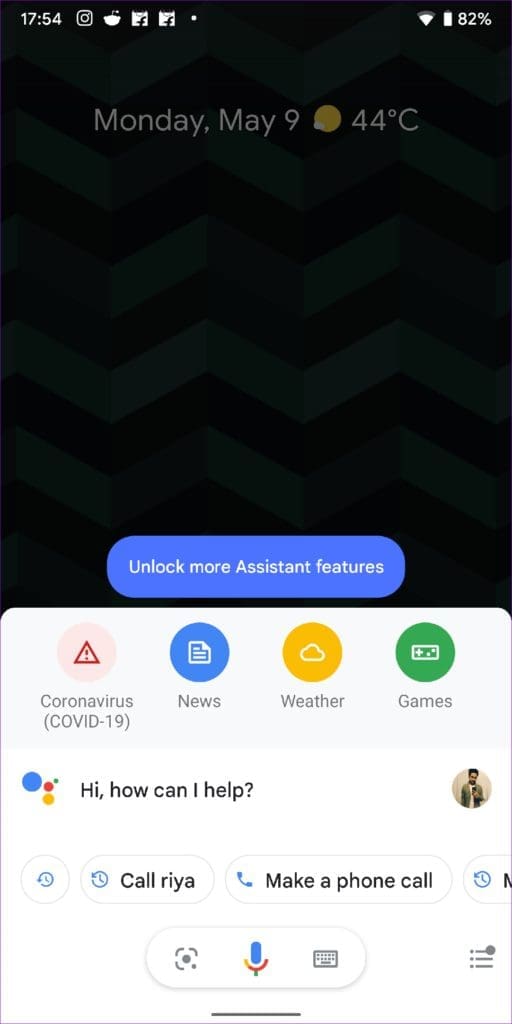
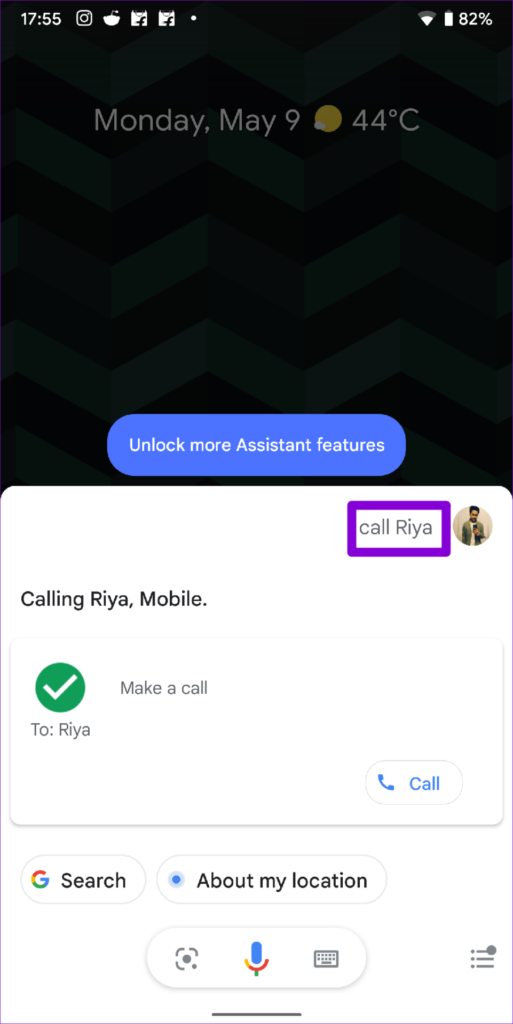
You can summon the Google Assistant with ‘Hey Google’ or ‘OK Google’ wake words. When Google Assistant shows up, speak to it like ‘Call [contant name].’ Google Assistant will call the number associated with the contact name.
Was this helpful?
Submit Cancel
Thanks for your feedback!
Keep reading