Android
How to Turn off Dynamic Lock Screen (Or Glance) on Android
Does your Android device change wallpapers automatically? Here's how to turn off dynamic lock screen or glance on Android.
By Chinmay Dhumal
Quick Tips
Glance lock screen displays ads on your phone’s screen, which can get annoying.
Thankfully, you can disable Glance quickly on all smartphones.
1. Disable Glance on realme Phones
This method will work on all ColorOS devices, including OPPO and OnePlus.
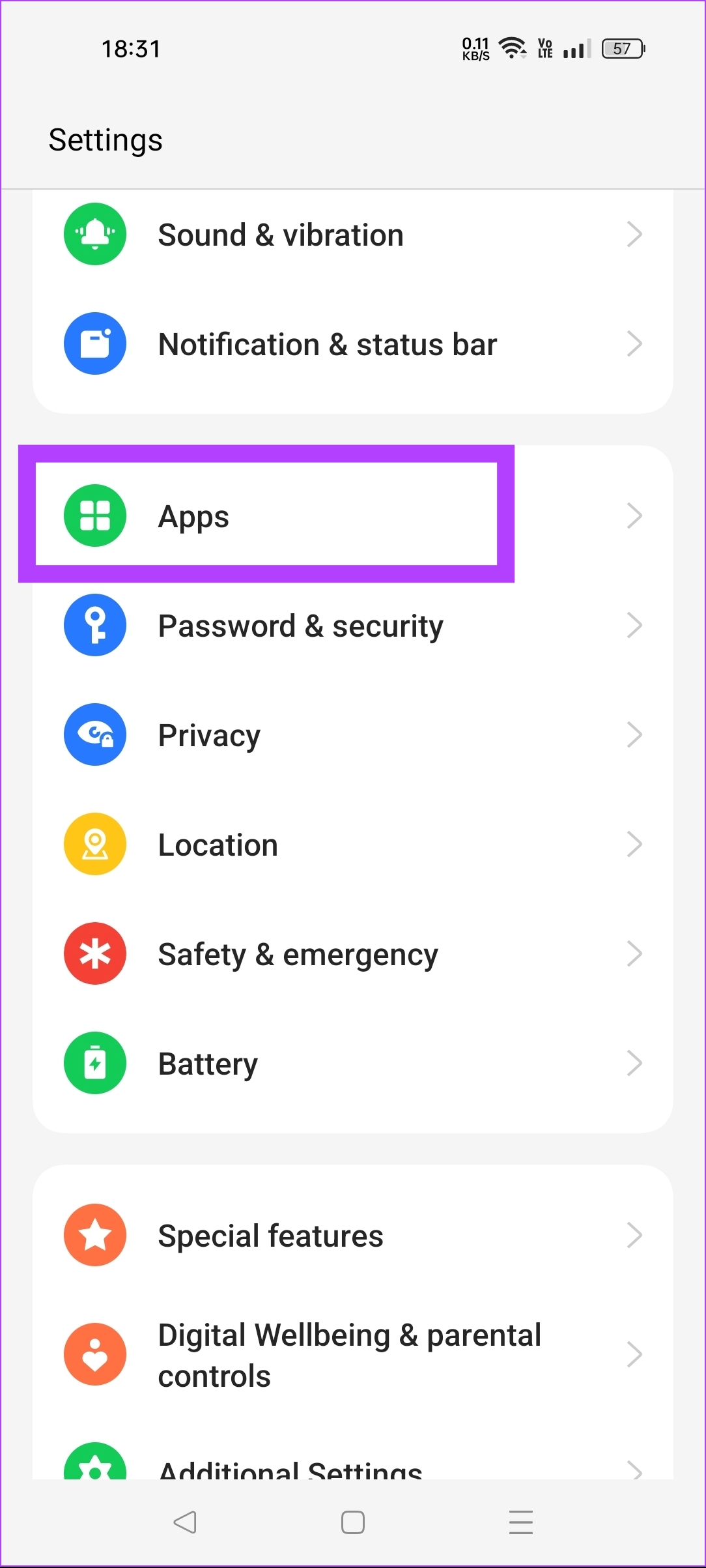
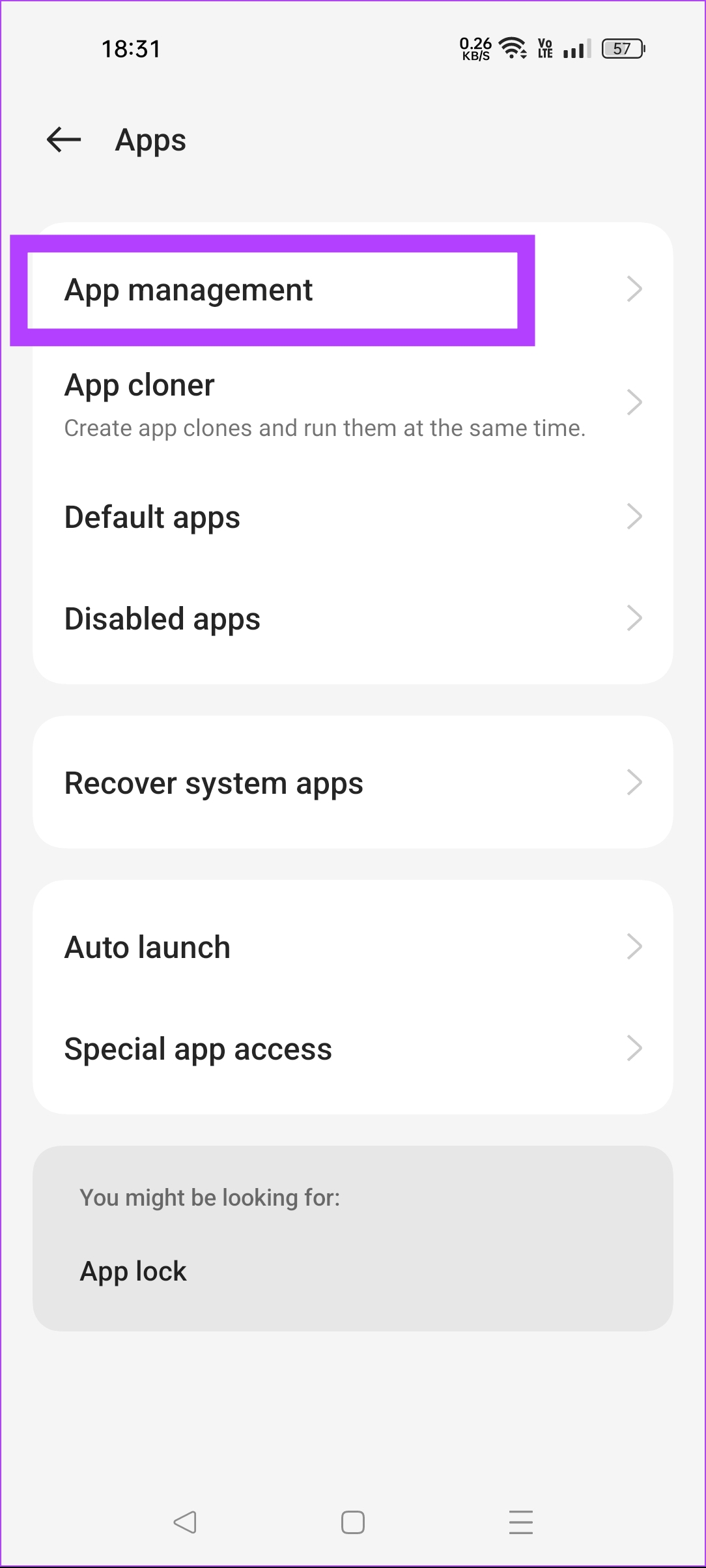
Step 1: Open the Settings app on your phone. Scroll down and tap on Apps > App management .
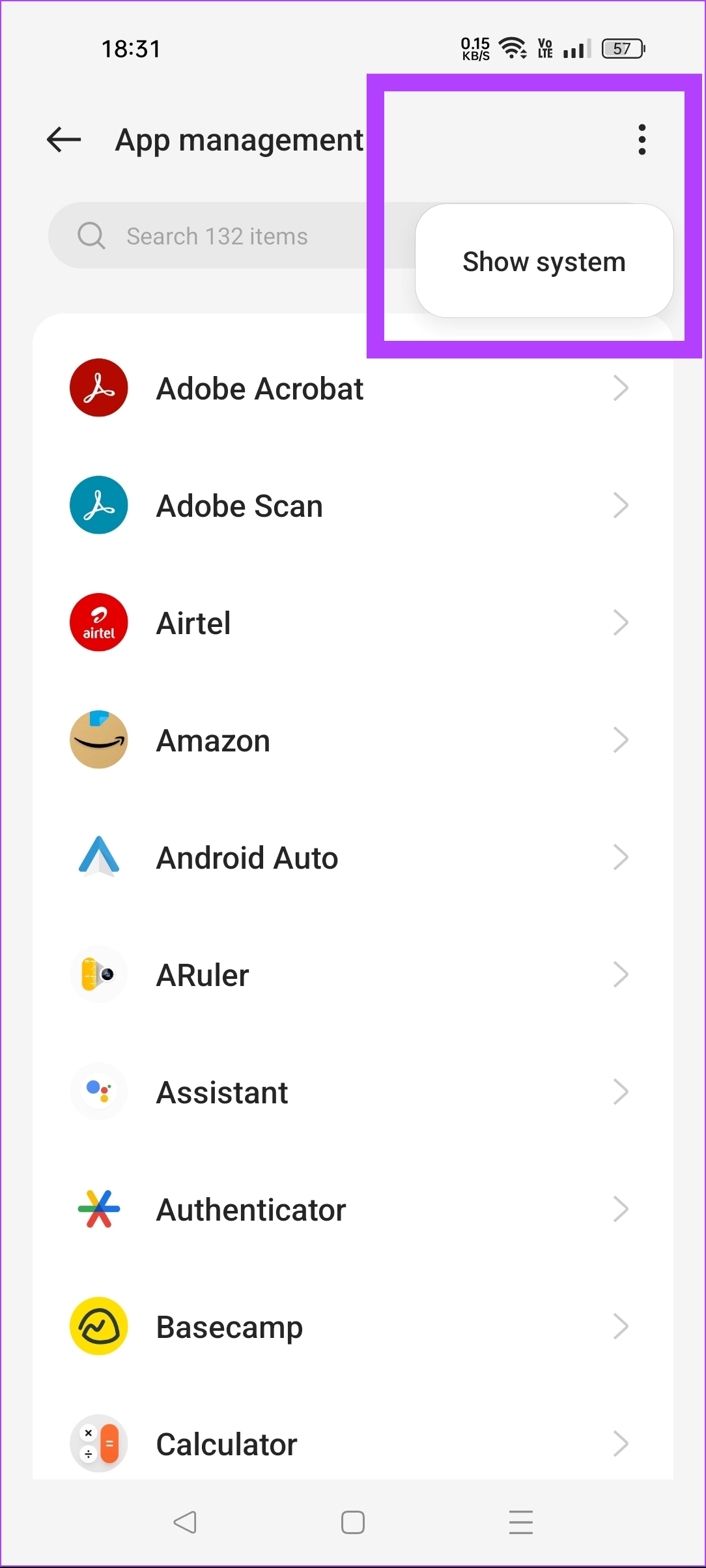
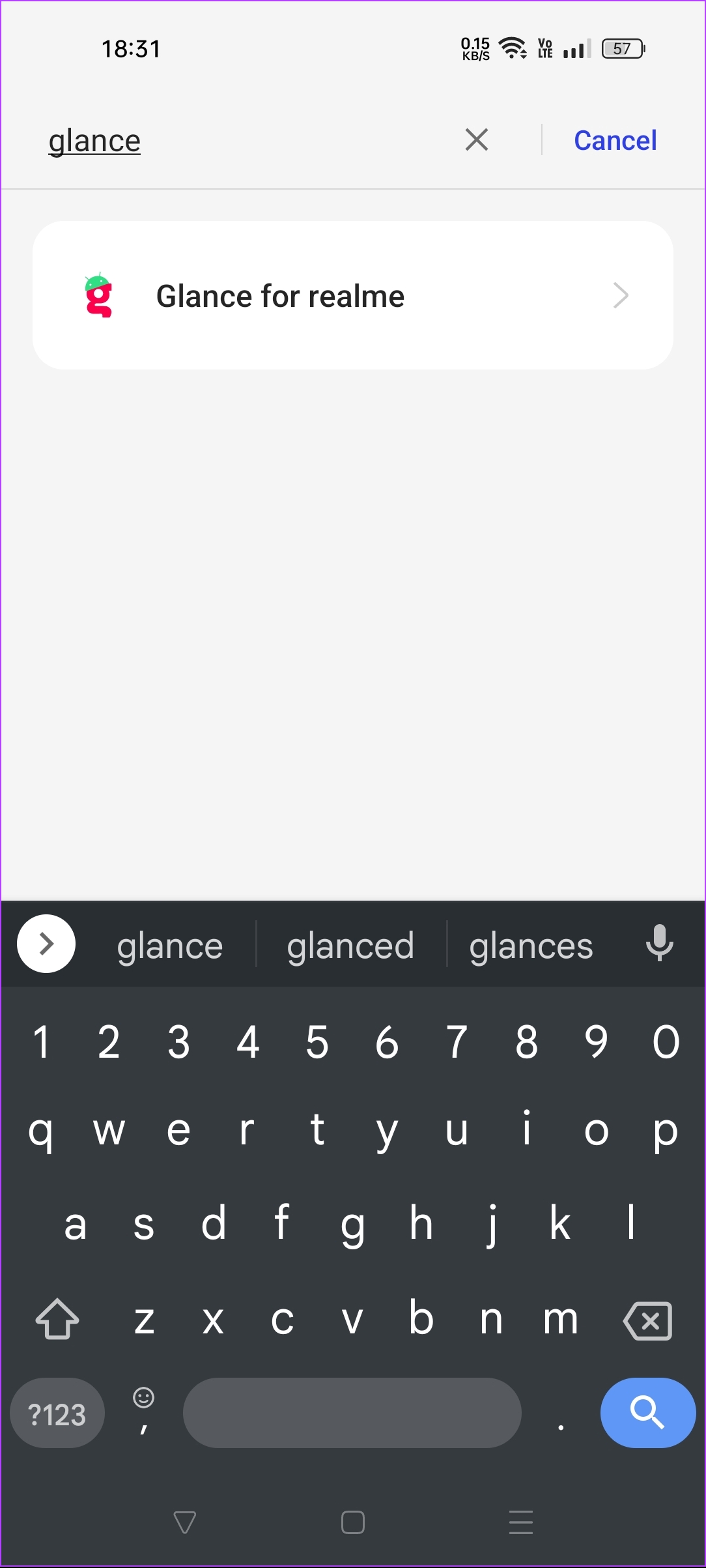
Step 2: Tap on the three dots icon > select Show system > type Glance in the search bar > tap on Glance for realme > Disable .
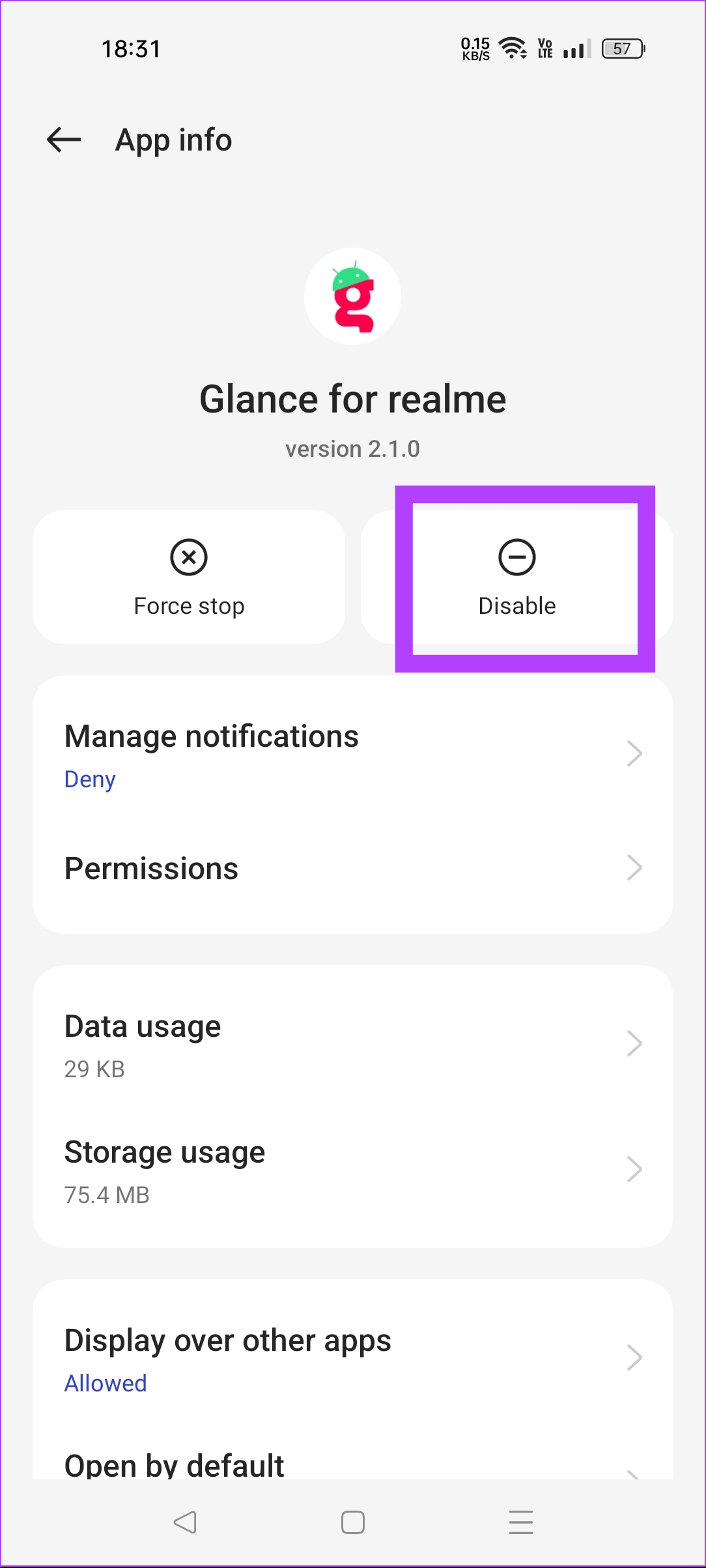
Note: OPPO devices will not have the word realme here, but don’t worry, as the process is the same on all ColorOS devices
2. Disable Glance on Xiaomi Phones
You can use this method to turn off Glance on POCO, Redmi, or any MIUI devices .
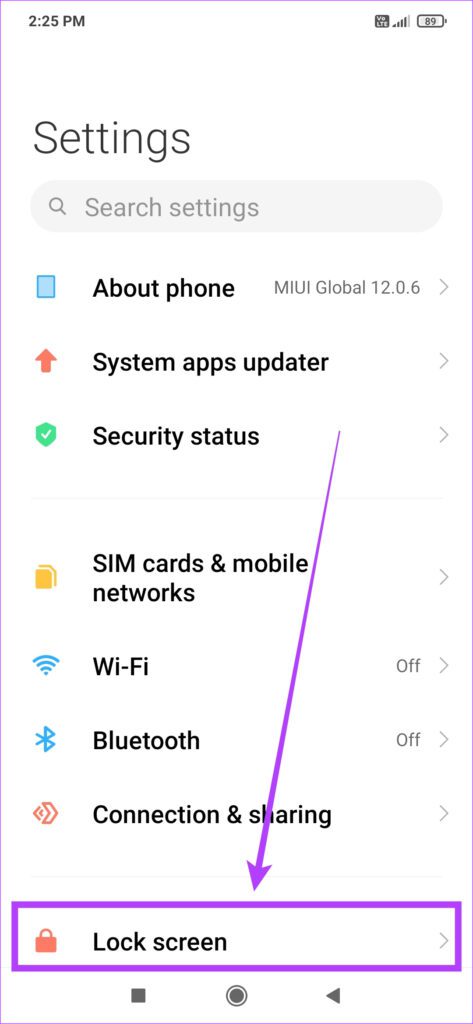
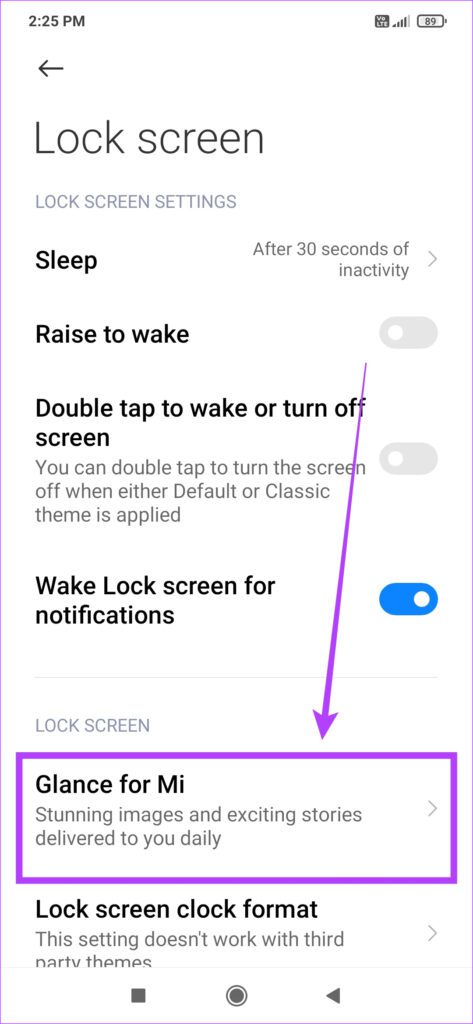
Step 1: Open the Settings app on your phone. Scroll down and tap on Lock screen . Now, select the Glance for Mi option.
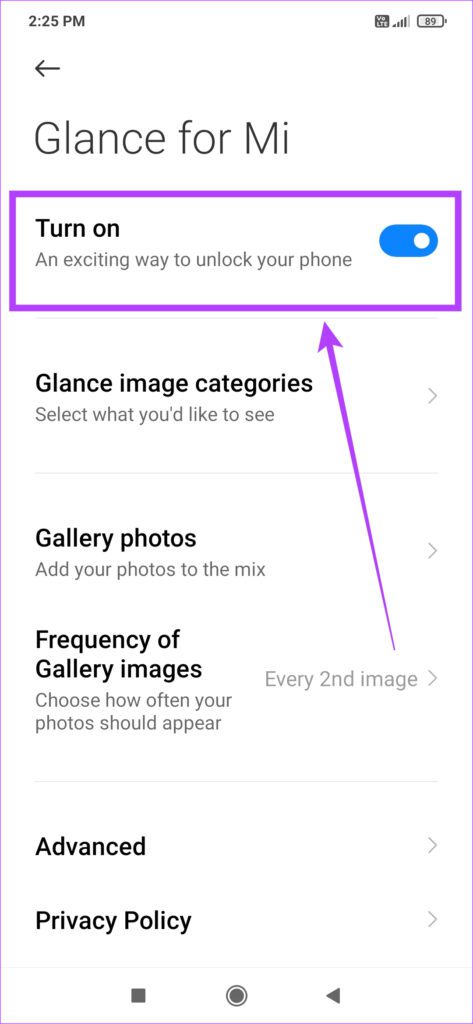
Step 2: Disable the Turn on toggle.
Also Read: Customize your Android lock screen with cool tips and tricks
3. Disable Glance on Samsung Galaxy Phones
Step 1: Open the Settings app on your Samsung mobile. Scroll down and tap on Wallpaper and style > Change wallpapers .
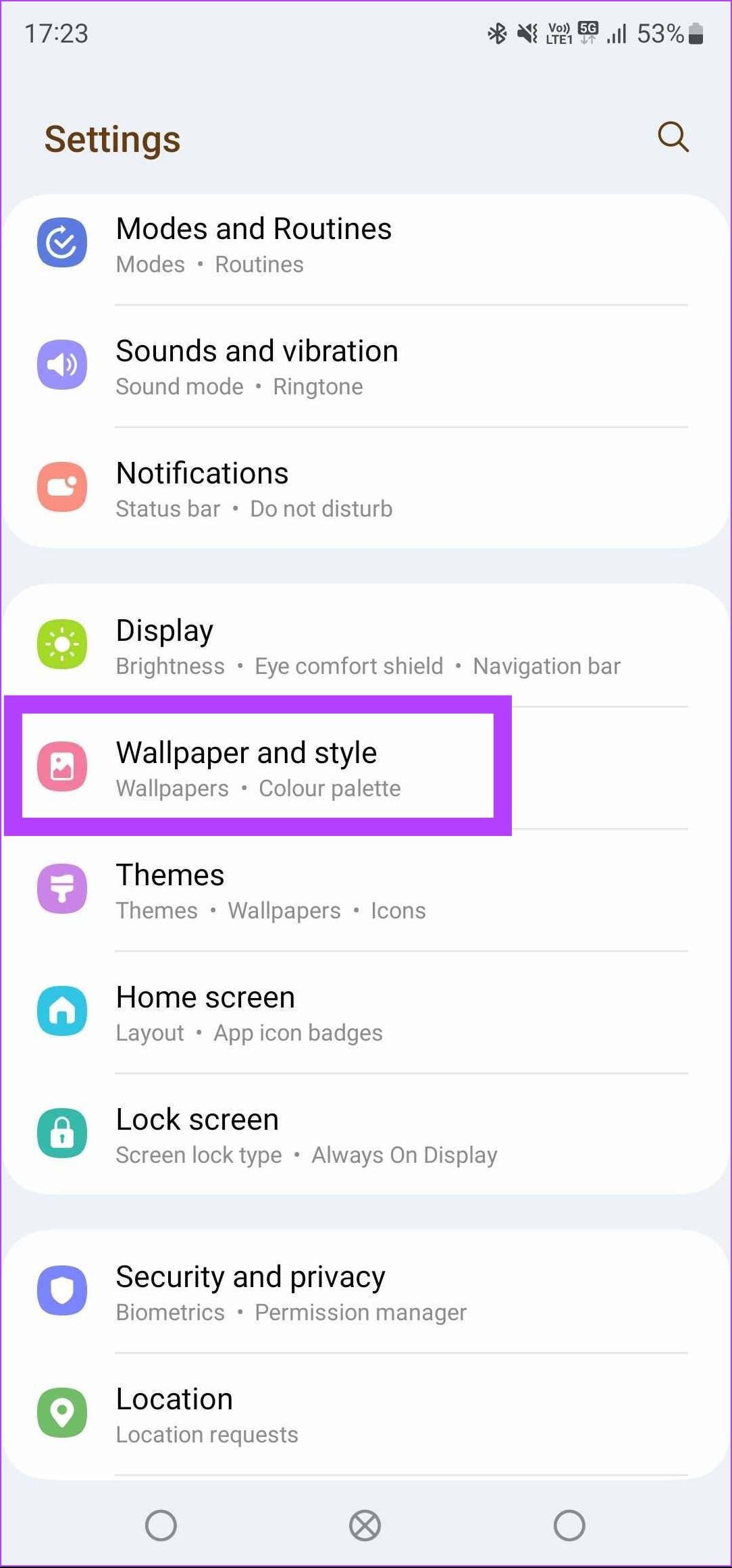
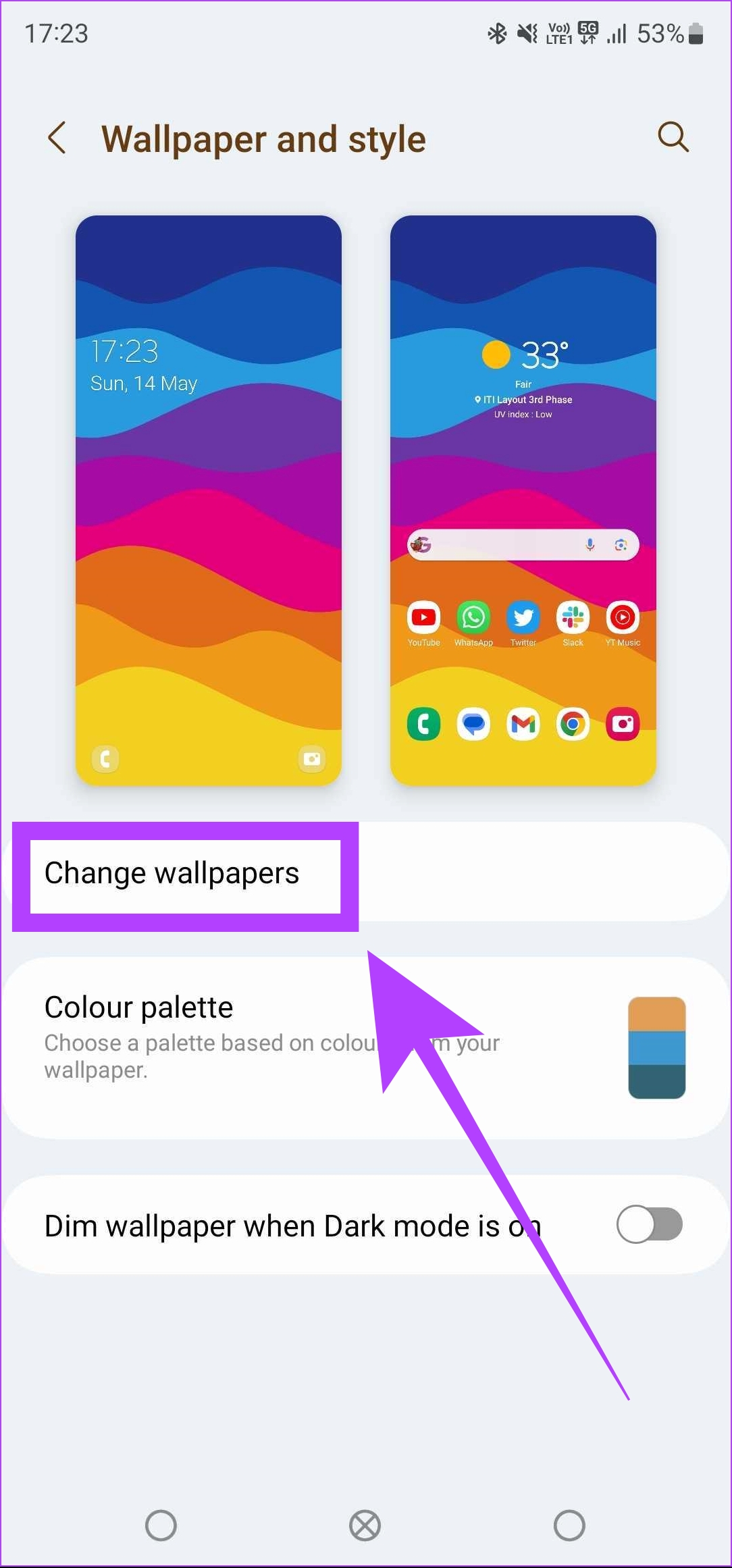
Step 2: Select Wallpaper services . Now, choose None .
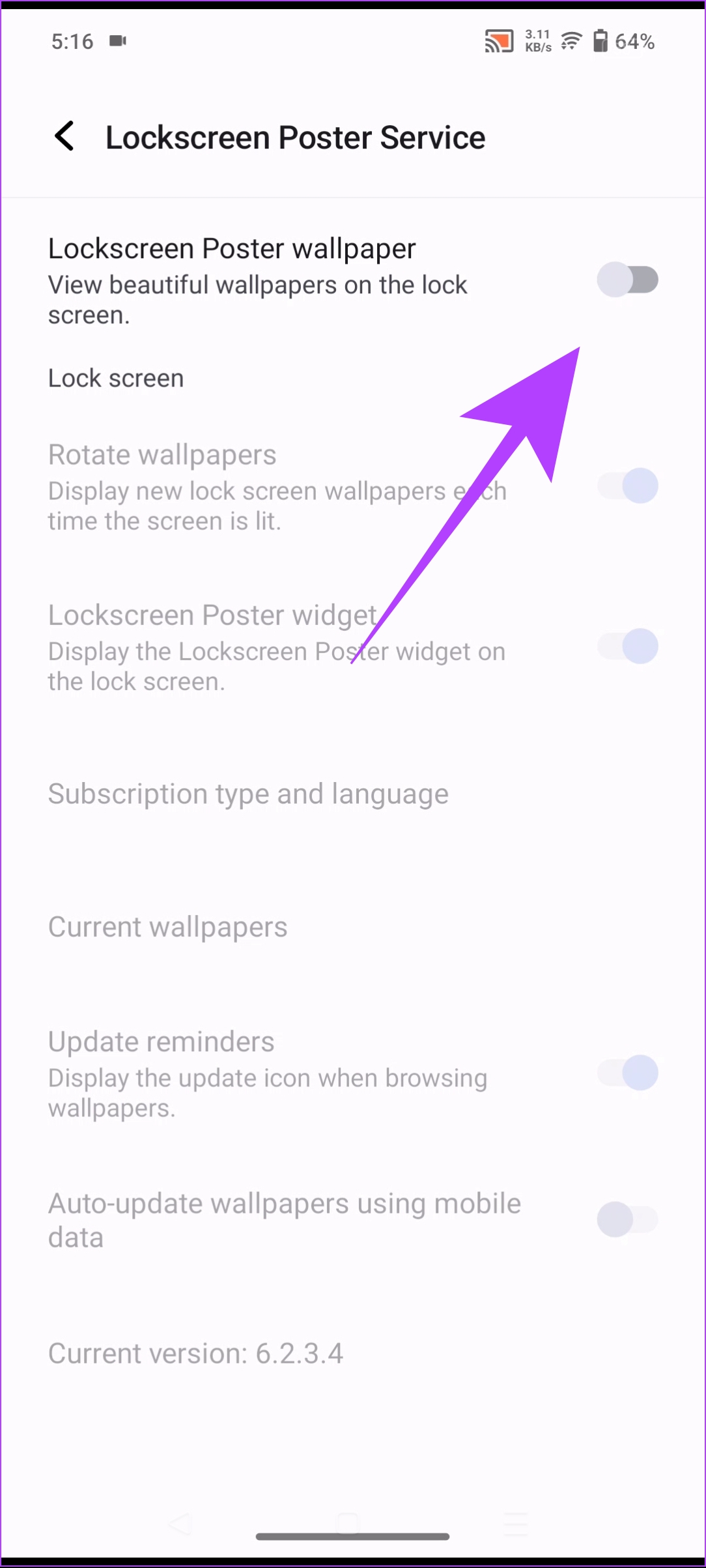
4. Turn off Lock Screen Poster on vivo and iQOO Devices
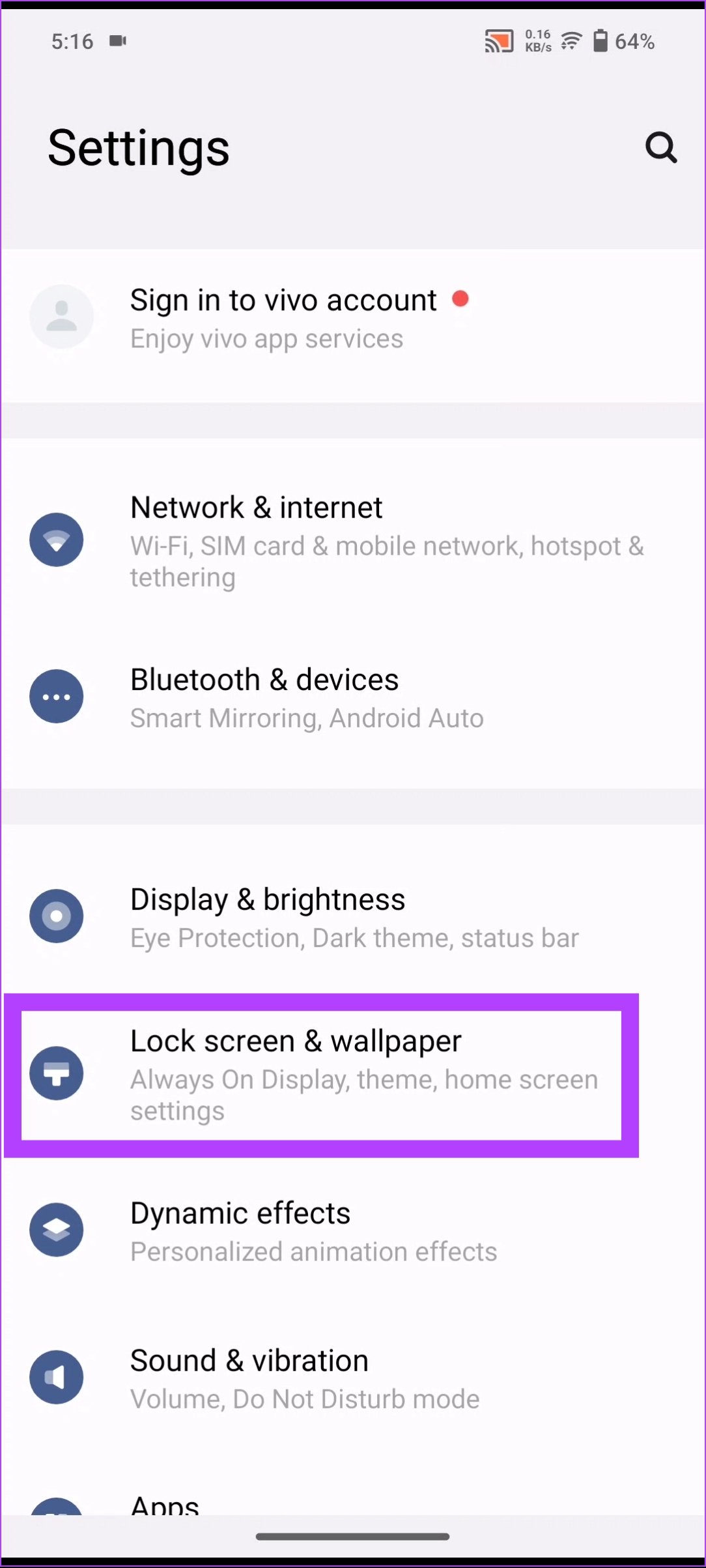
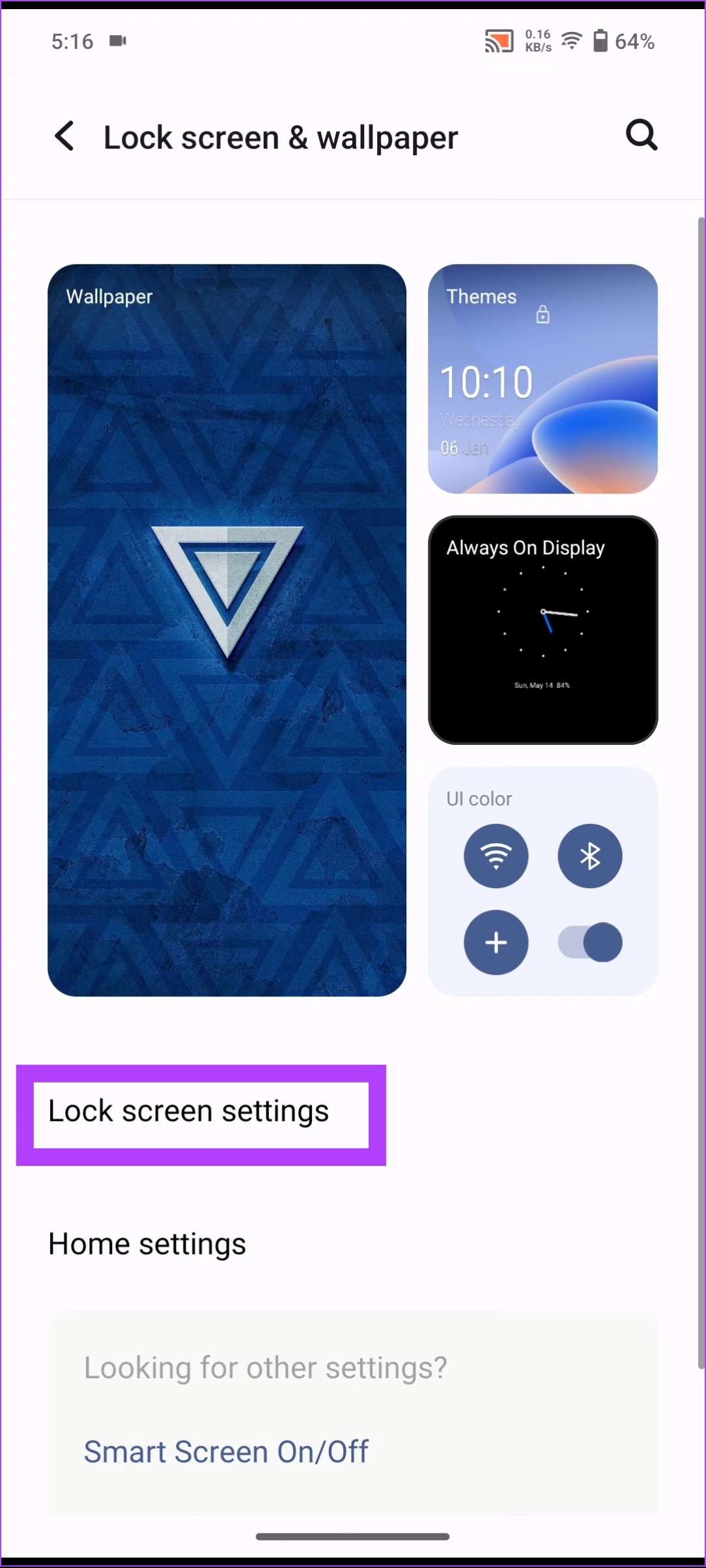
Step 1: Open the Settings app on your device. Search for Lock screen and wallpaper and tap on it. Now, tap on Lock screen settings .
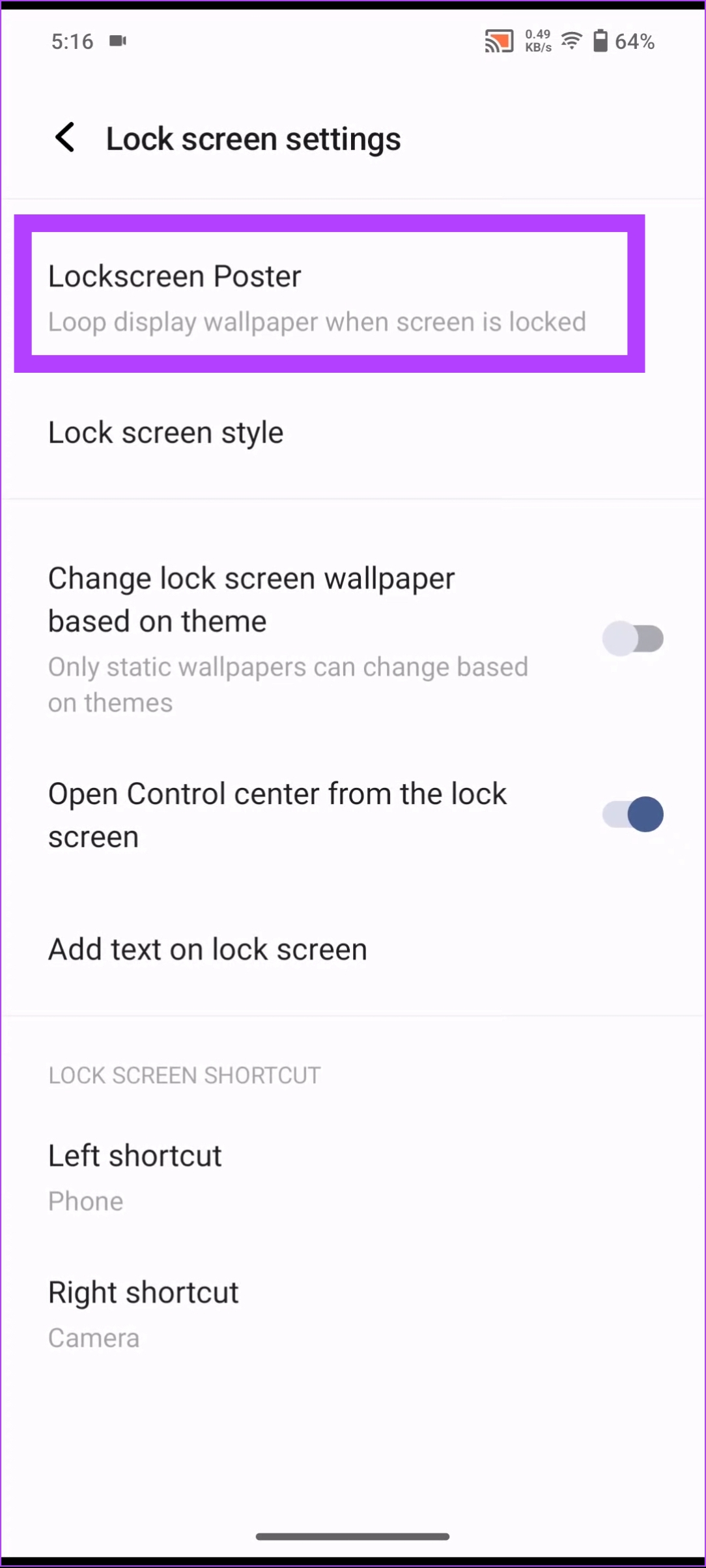
Step 2: Select Lockscreen Poster . Disable the toggle for Lockscreen Poster wallpaper .
FAQs
1. Can we uninstall Glance permanently from our Android phone? Yes, you can permanently uninstall Glance from your Android device. However, you will need a computer.
2. How to fix Glance getting reactivated after every reboot? The only solution to this problem is to uninstall the Glance app completely. Unfortunately, if you have a Vivo or Samsung phone, you cannot fix this issue. You must keep disabling Glance or Dynamic wallpaper after every reboot.
3. Can we disable ads while keeping Glance active? No, you cannot disable the lock screen ads that come with Glance. If you want Glance’s lock screen customization features, you must endure occasional ads and pop-ups.
Was this helpful?
Submit Cancel
Thanks for your feedback!
Keep reading