Android
How to Turn On or Off Dark Mode on Samsung Galaxy Phones
Wondering how to turn on or off dark mode on Samsung phones? Check out different ways to do so along with fixing the phone stuck on dark mode.
By Mehvish
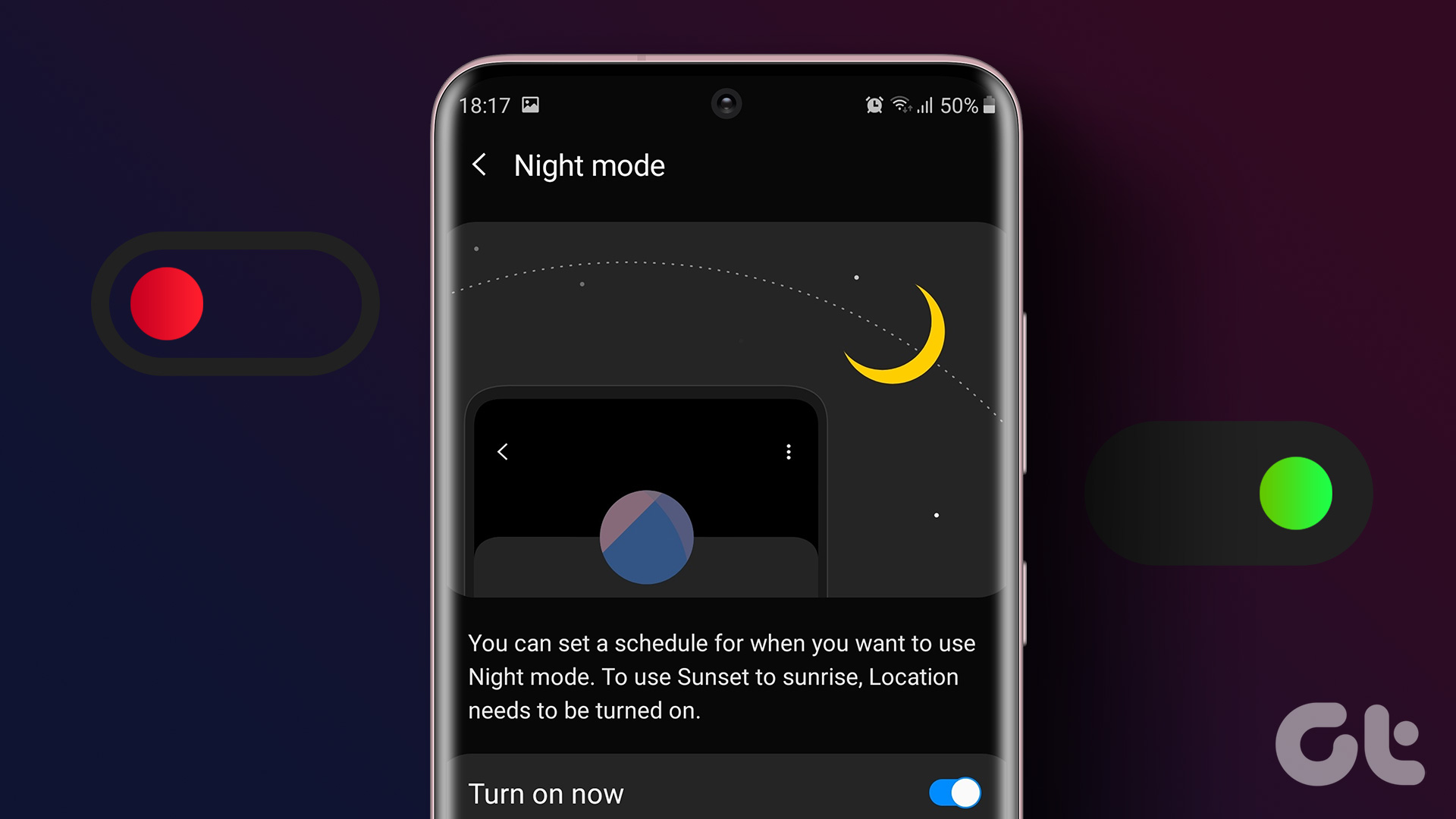
On any device, dark mode turns your screen’s background black and the text white. Dark mode is a blessing for many users. But, on the other hand, it’s a major curse for others who don’t enjoy having a dark screen on their phones. Whether you want to enable dark mode or turn it off on Samsung Galaxy phones, this article will help you with both. Scroll down to find different ways.
Turning dark mode off on Samsung is quite easy. However, sometimes, your phone might be stuck in dark mode even after following the regular methods of turning it off. To troubleshoot that, we have also covered how to fix if your Samsung Galaxy phone is stuck in dark mode.
How to Turn On Dark Screen on Samsung Galaxy Phones
You can turn on dark mode on your Samsung phone in three ways.
Method 1: Enable Dark Mode From Settings
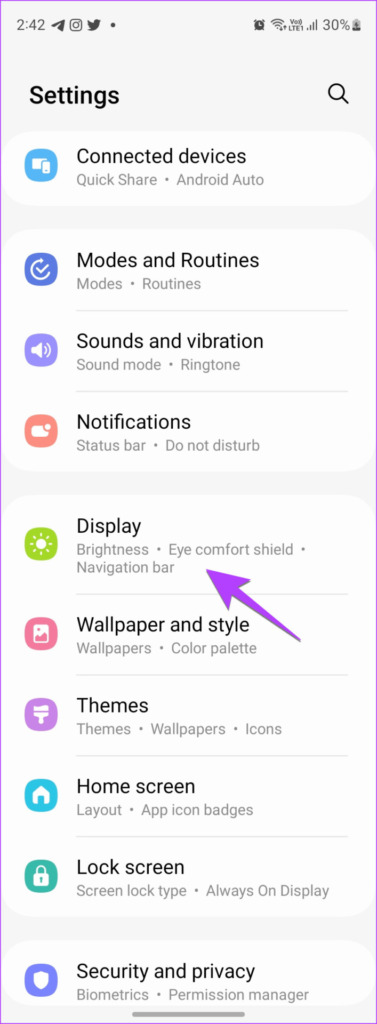
Step 1 : Open Settings on your phone.
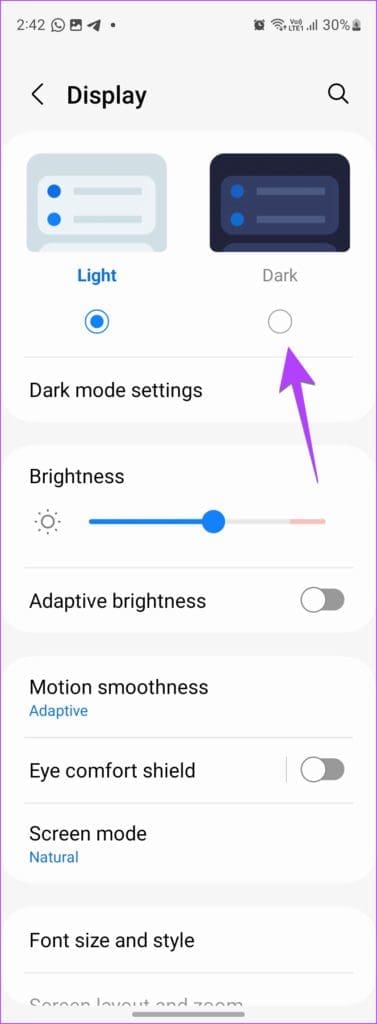
Step 2: Go to Display.
Step 3: Select the selection circle under Dark to enable dark mode for your Samsung phone. Your phone’s screen will instantly turn black and all the supported apps like Samsung Messages will also go dark.
Method 2: Turn on Dark Mode at Scheduled Time
You can also schedule the dark mode to activate between sunset and sunrise or choose a custom time.
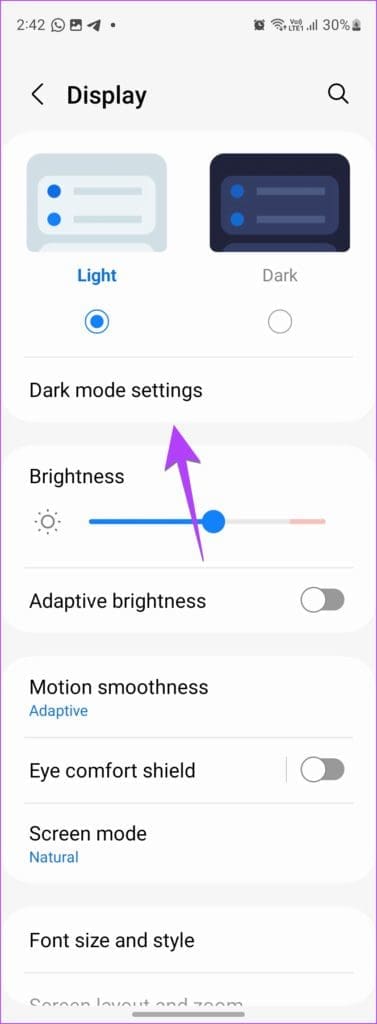
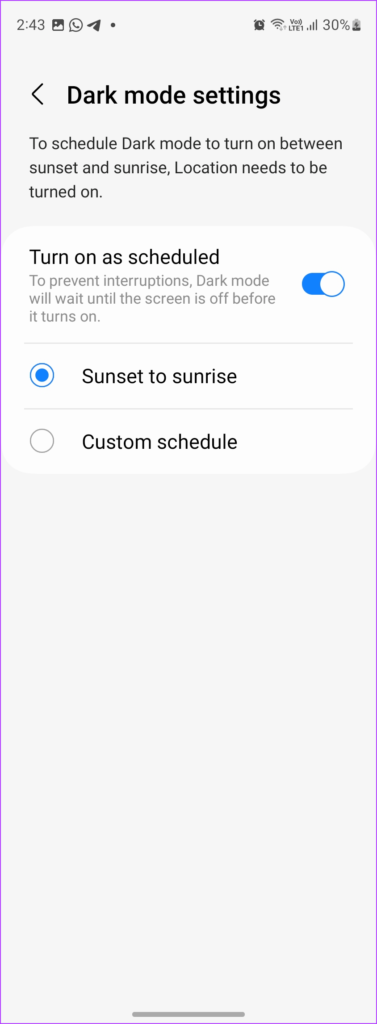
Step 1: Go to Settings > Display > Dark mode settings.
Step 2: Enable the toggle next to ‘Turn on as scheduled’. Choose Sunset to sunrise or select Custom schedule and set the custom start and end times for dark mode.
Method 3: Enable Dark Mode from Quick Settings
If you like to enable or disable services on your phone from Quick Settings, you can do the same for Dark mode.
To enable night mode for Samsung from Quick settings, follow these steps:
Step 1 : Swipe down twice from the top to open the Quick Settings panel.
Step 2: Swipe left in the Quick Settings panel until you find Dark mode. Tap on it to activate Dark mode on your Samsung Galaxy phone.
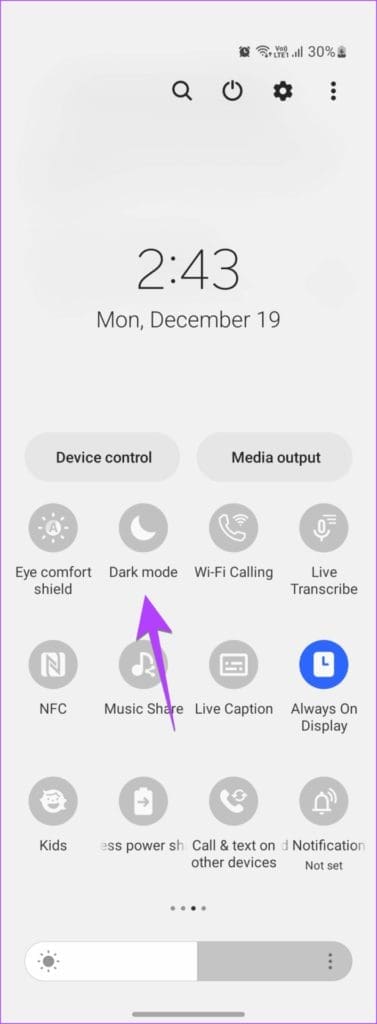
Tip: If you don’t find the Dark mode tile, swipe to the last screen of Quick Settings. Then, tap on the (+) button and drag Dark mode from the top to the bottom panel. Check out other tips to use Quick Panel on Samsung.
How to Turn off Dark Mode on Samsung Galaxy Phones
Follow these ways to turn off dark mode on your phone.
Method 1: Turn off Night Mode From Settings
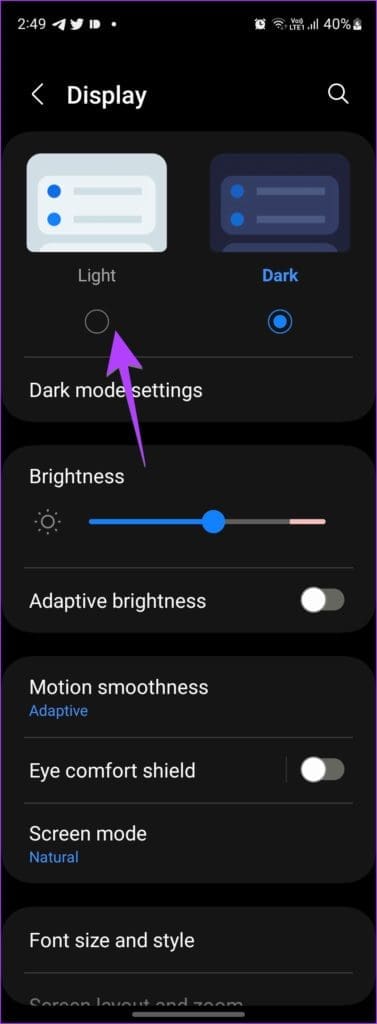
Step 1 : Go to Settings > Display on your Samsung phone.
Step 2: Tap on the selection circle under Light to turn off dark mode.
Method 2: Turn off the Automatic Mode of Dark Mode
If the dark mode keeps getting activated automatically on your phone, you might have enabled the scheduling feature.
To turn it off, go to Settings > Display > Dark mode settings. Turn off the toggle next to ‘Turn on as scheduled’.
Method 3: Turn off Black Screen From Quick Settings
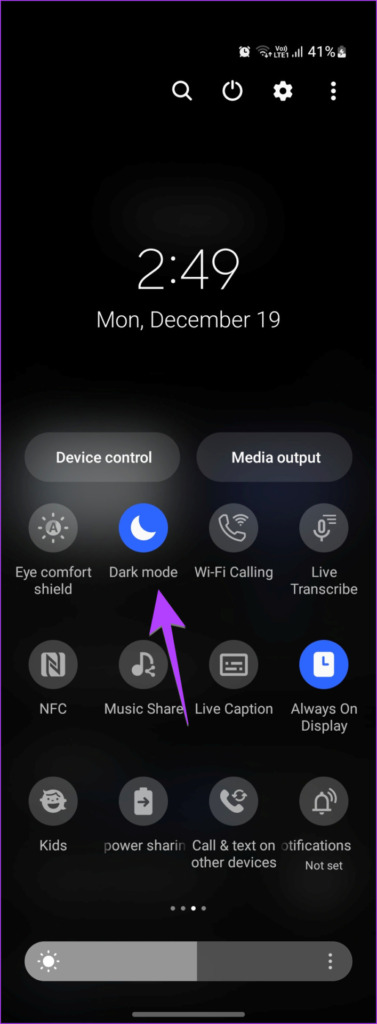
Swipe down twice to open the Quick Settings panel on your phone. Tap on the Dark mode tile to turn off night mode on your Samsung Galaxy phone.
Method 4: Turn off Dark Mode Using Bixby
First, activate Bixby either by saying Hey Bixby command or by long-pressing the Power button. When Bixby is activated, say ‘Turn off Dark mode.’
How to Fix Samsung Galaxy Phone Stuck on Dark Mode or Grayscale
If your Samsung Galaxy phone is stuck in Dark mode or grayscale, you must turn off the following settings.
1. Turn off Accessibility Settings
Many accessibility settings can be responsible for the black-and-white or washed-out colors of your Samsung phone.
To get your screen back to normal on a Samsung Galaxy phone, go to Settings > Accessibility > Visibility enhancements.
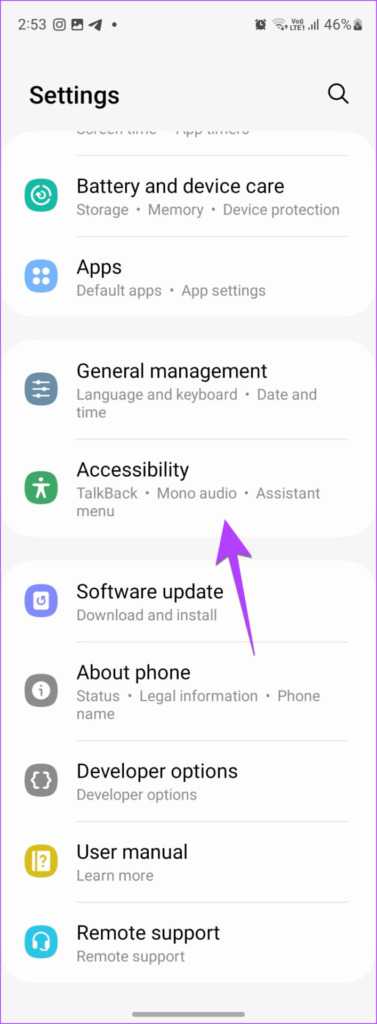
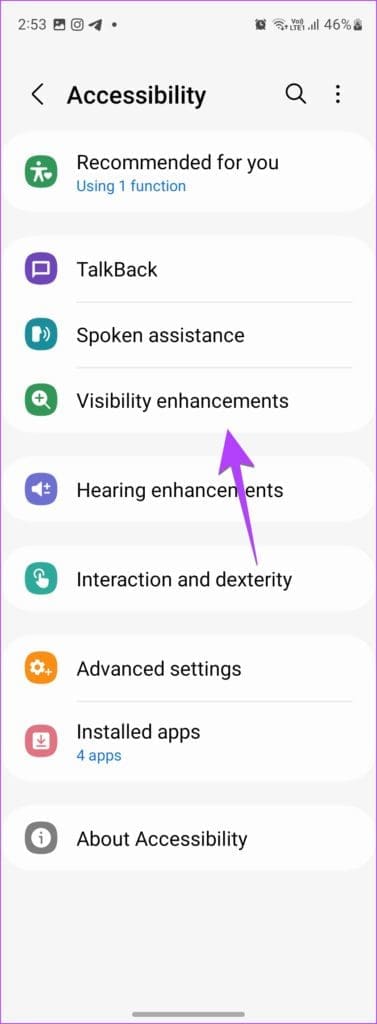
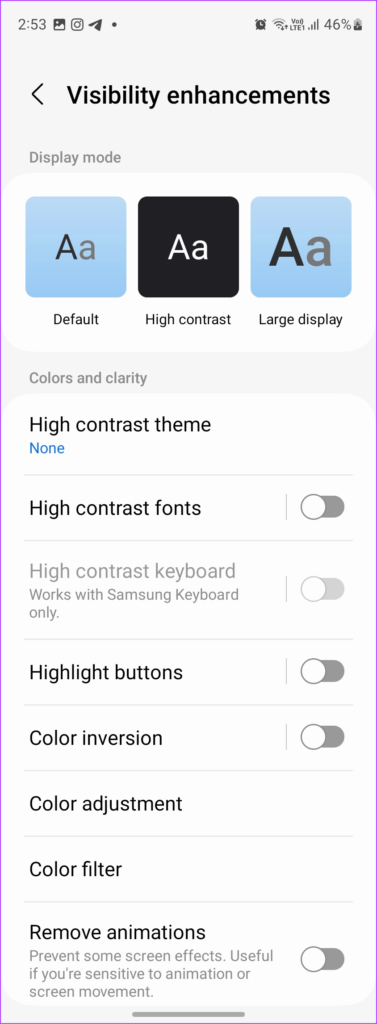
Then, make the following changes:
Select Default under the Display mode.
Select None in the High contrast theme.
Turn off the toggle next to Color inversion.
Tap on Color adjustment and turn it off on the next screen.
Turn off the Color filter.
2. Turn off Sleep Focus or Bedtime Mode
If your screen turns gray or dark, especially at night, it could be due to sleep focus or bedtime mode being enabled on your phone. These modes are designed to help reduce eye strain by making your screen gray or dark.
To turn off grayscale or dark mode on your Samsung Galaxy phone, follow these steps:
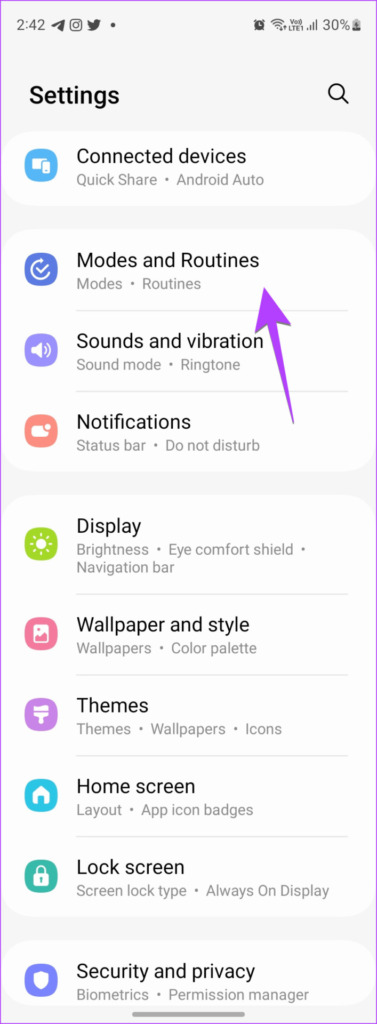
Step 1: Open Settings on your phone.
Step 2 : Go to Modes and Routines followed by Sleep.
Note: If your phone doesn’t have Modes and Routines, go to Settings > Digital wellbeing > Bedtime mode or Wind down . Turn it off on the next screen. Also, turn off its scheduling feature.
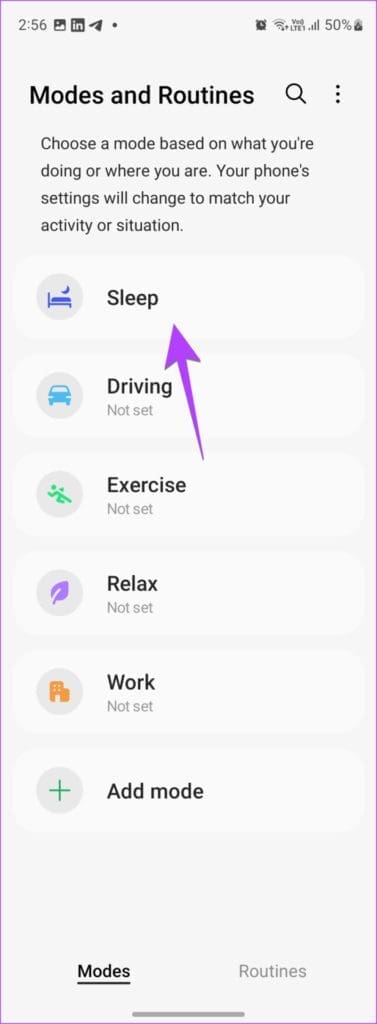
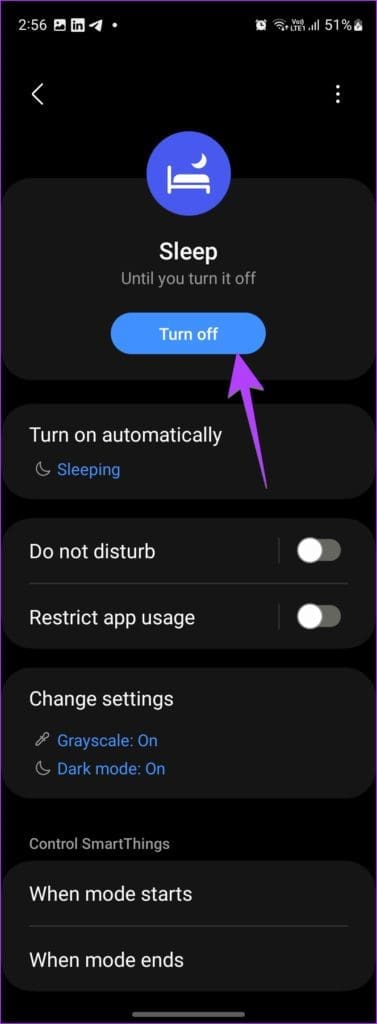
Step 3: If you see the Turn off button, that means the Sleep mode is active. Tap on it to disable Sleep mode and eventually dark mode.
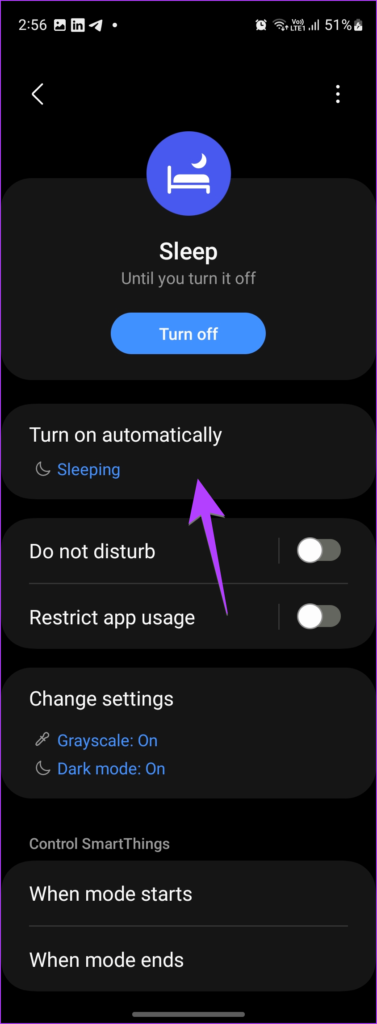
Step 4: Take a look at the Turn on automatically section and check if any condition is mentioned. Tap on it and turn off the set conditions so that grayscale due to dark mode isn’t activated automatically.
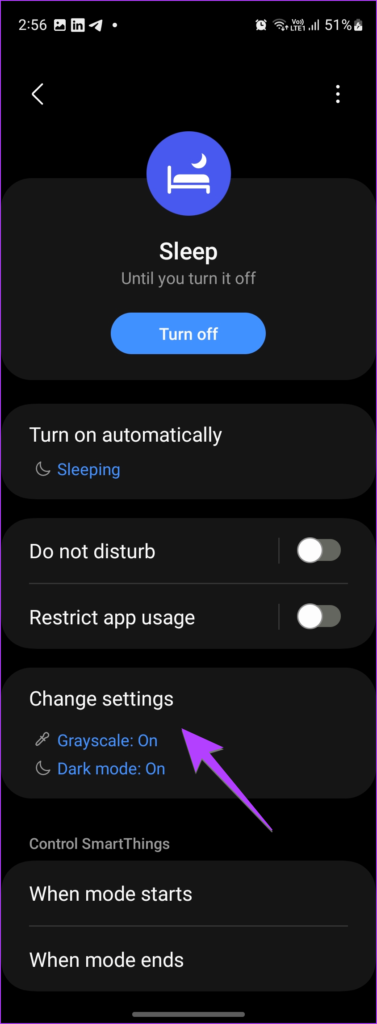
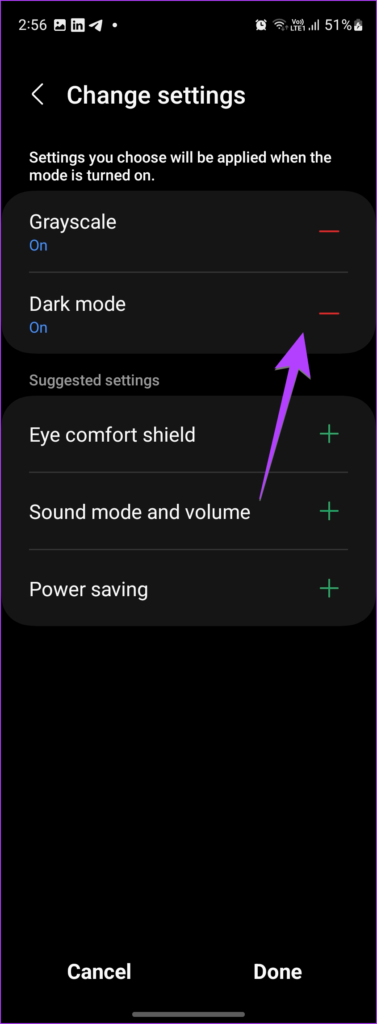
Step 5: If you want to use the Sleep mode but without enabling grayscale or dark mode on your Samsung Galaxy phone, tap on Change settings. Then, press the red (-) remove icon next to the desired settings like Grayscale or Dark mode. Press the Done button.
Pro Tip: If you have a Samsung Galaxy watch, you might have turned on Bedtime mode on the watch and that would have activated it on the phone. To stop syncing Bedtime mode between your watch and phone, open the Galaxy Wearable app on your phone. Go to Watch settings > Advanced features > Bedtime mode. Turn off the toggle next to Sync Bedtime mode.
3. Turn off Dark Themes
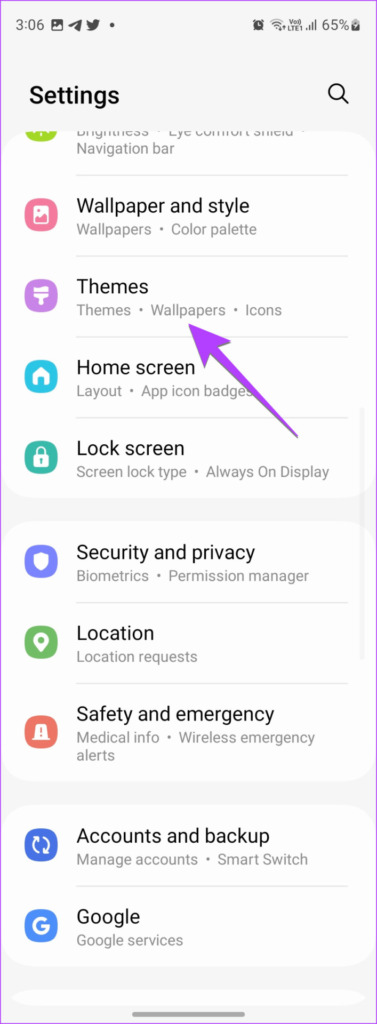
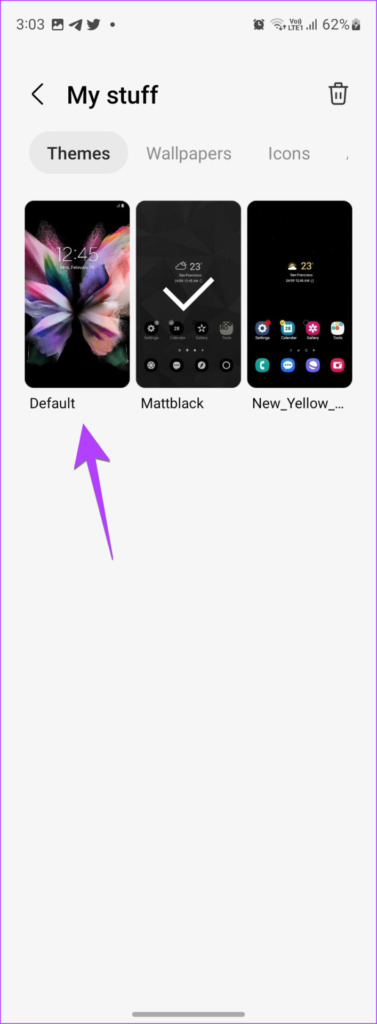
Another reason for your Samsung Galaxy phone being black or dark could be due to dark themes. You must restore your theme to the default one to get rid of the black screen and icons.
Step 1: Go to Settings > Themes.
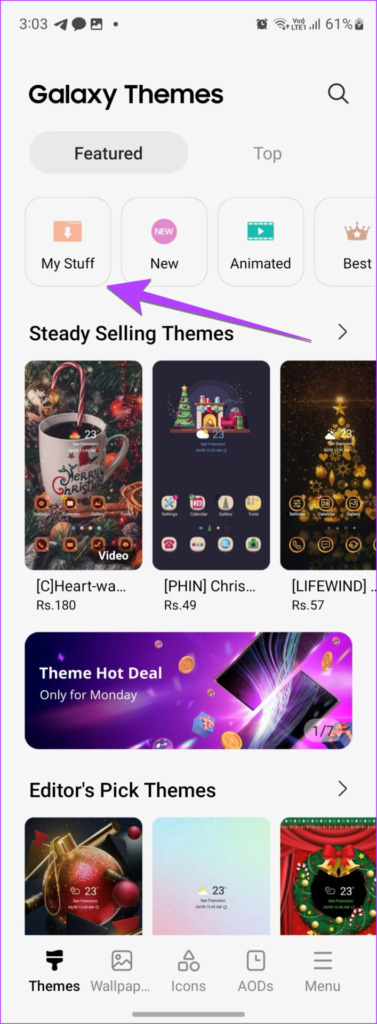
Step 2: Tap on My stuff and select the Default theme.
Tip : Check out Samsung Themes tips and tricks to use it like a pro.
4. Turn off Power Saving Mode
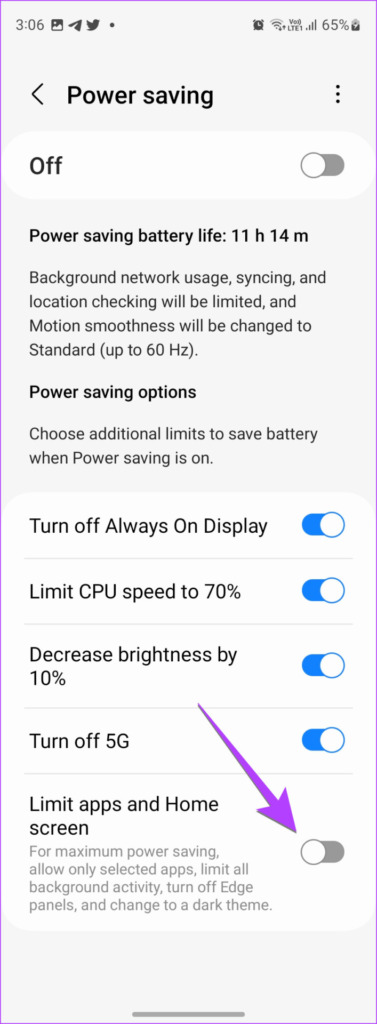
The Power saving mode of Samsung Galaxy phones comes with a feature to maximize power saving capability. It limits apps, background activities, and enables dark mode. Therefore, you must check and disable this feature or turn off power saving altogether.
Step 1 : Go to Settings > Battery and device care > Battery.
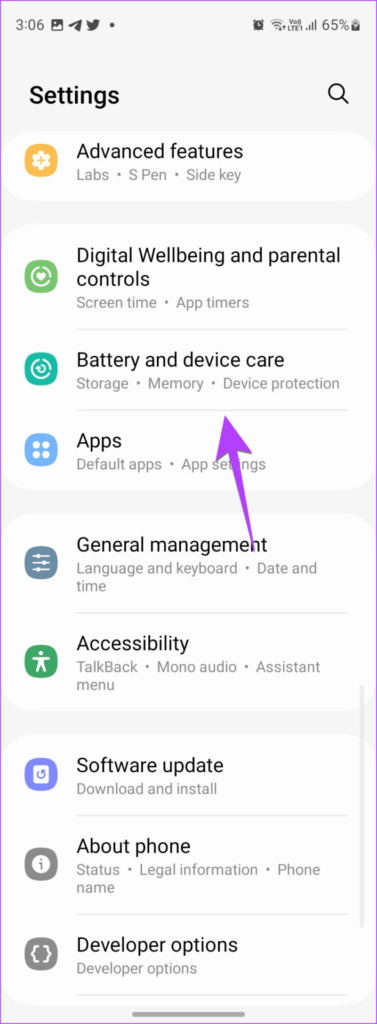
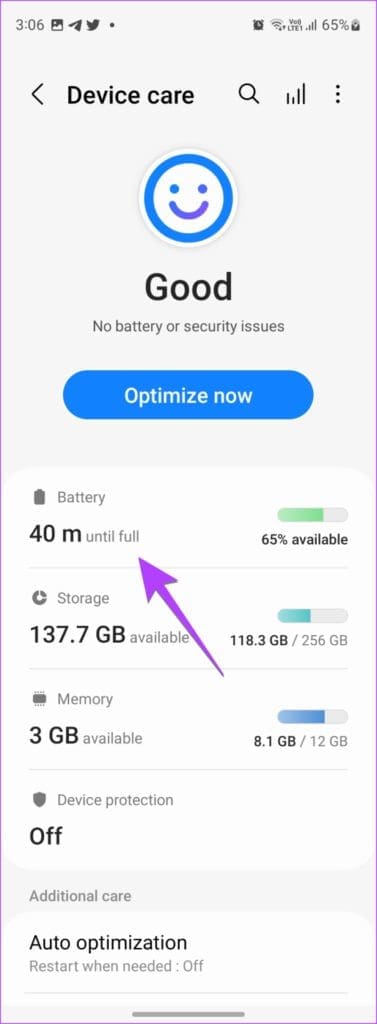
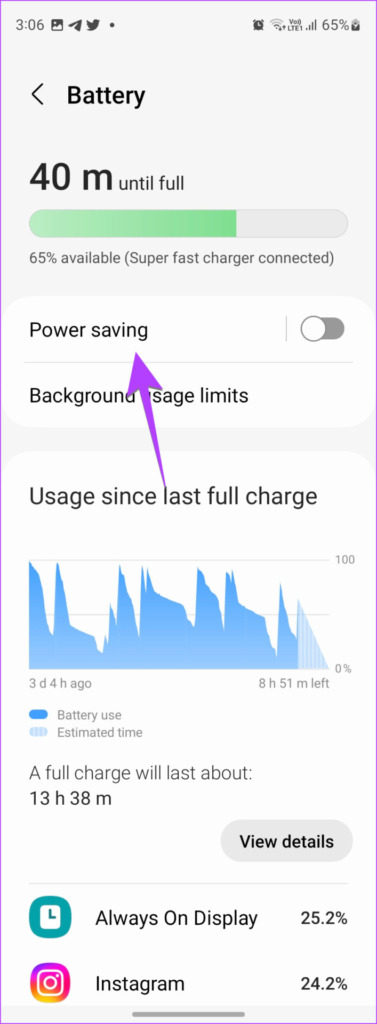
Step 2: Tap on Power saving. Turn it off on the next screen. Or, turn off the toggle next to ‘Limit apps and Home screen’ to only turn off dark mode.
Tip: Check out different ways to fix battery drain issue on Samsung Galaxy phones .
FAQs About Samsung Dark Mode
1. How to turn dark mode on or off on Samsung Internet? In the Samsung Internet browser , tap on the three-bar icon and go to Settings > Webpage view and scrolling > Dark mode. Turn it on or off on the next screen.
2. How to enable dark mode for third-party apps on Samsung Galaxy phones? If an app doesn’t support dark mode, you can force dark mode on it. To do so, go to Settings > Developer options. Enable the toggle next to Force dark mode.
Customize Your Samsung Galaxy Phone
That’s how you can turn dark mode on or off on Samsung Galaxy phones. In addition to dark mode, you can customize other aspects of your phone such as the share menu , navigation bar , and app drawer .
Was this helpful?
Submit Cancel
Thanks for your feedback!
Keep reading