Android
Two Ways to Link an Android Device to Windows 11
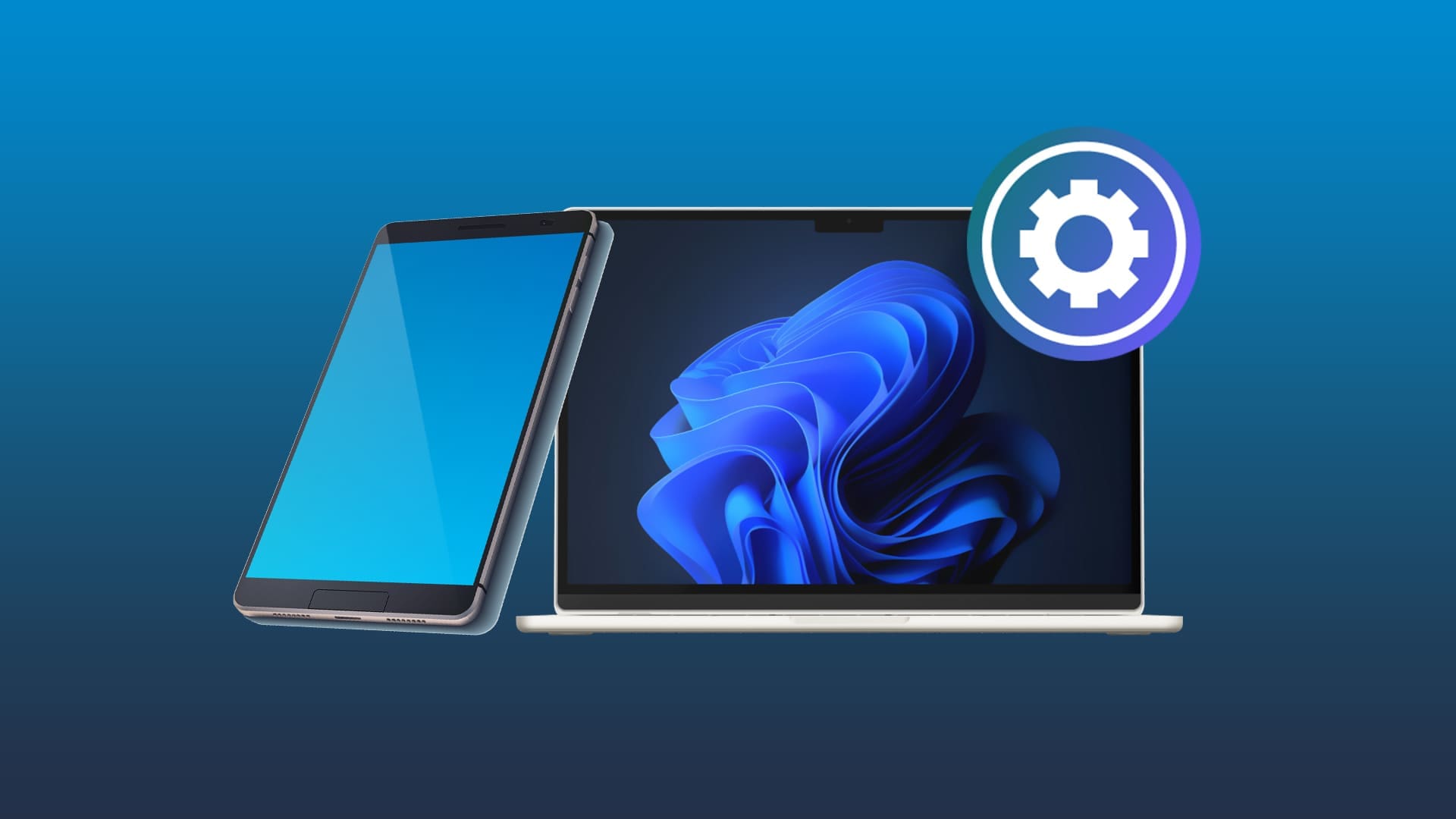
Have you ever wondered how to link Android device to Windows 11? Discover the two main methods, each giving you a different level of Windows access to your Android device.
By Lloyd Ingram
Quick Tips
Using Phone Link is an easy way to set up a permanent connection between Android and Windows 11 devices.
You need to make sure you hit the minimum specs for Phone Link to work – Android 7.0 or higher.
Use a USB cable to connect if you don’t want your Windows 11 device to have full access to your Android device.
You can do a lot of interesting things when you link your Android device to your Windows 11 PC. Pulling photos from your phone gallery is just the start. Running apps, sending texts, and seeing your notifications as they come in are all possible if you know how to link Android device to Windows.
Method 1. Use Phone Link
If you have a Windows 11 PC, you should automatically have Phone Link installed on your device. Your Android device will also need to be running Android 7.0 or later, which shouldn’t be a problem as long as you’re keeping up with updates. Finally, both devices have to be connected to the same Wi-Fi network for this method to work.
Got all of that in place? Great – here are the steps:
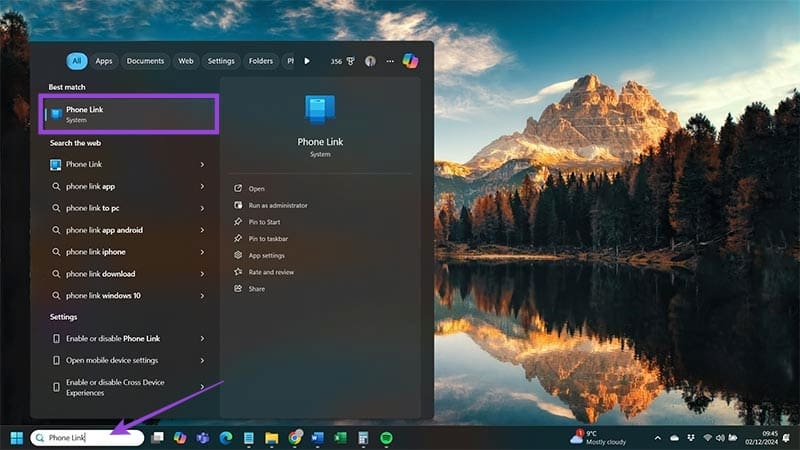
Step 1 . Type “Phone Link” into the search box in your Windows taskbar and select the app from the results.
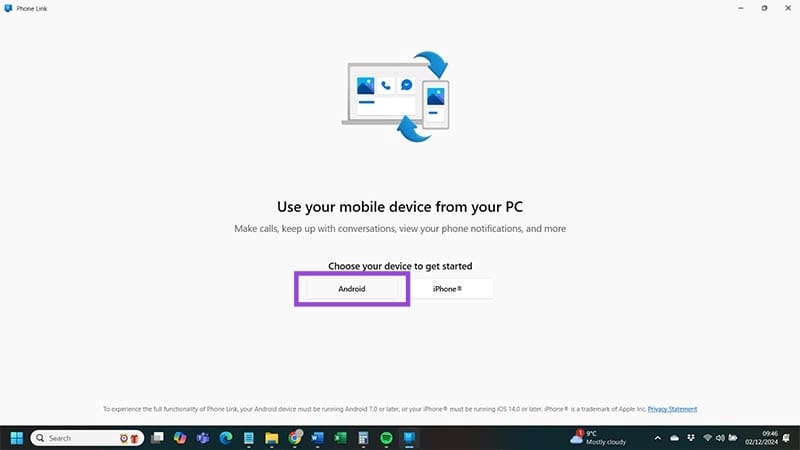
Step 2 . Choose your device type from the two options presented. In this case, you’re going for “Android.”
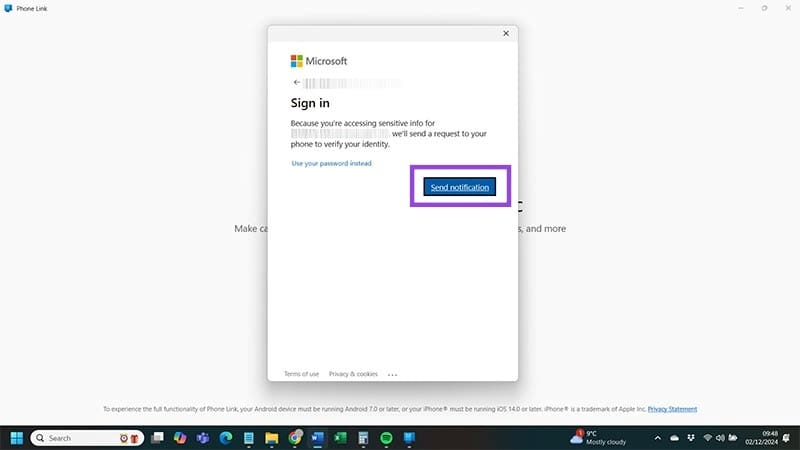
Step 3 . Hit the “Send notification” button to sign into your Microsoft account using Phone Link and receive a request to your phone to verify who you are.
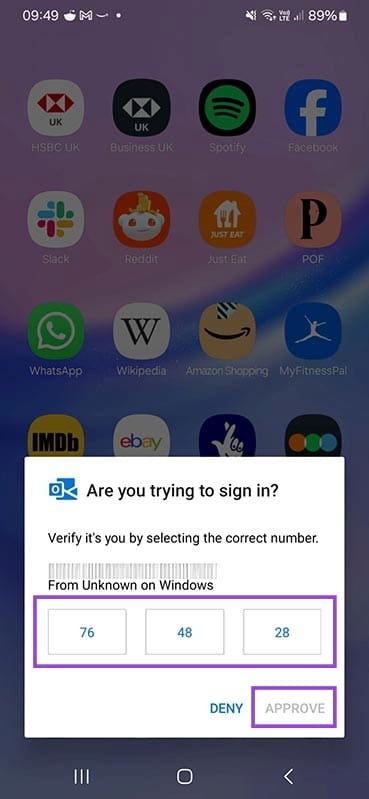
Step 4 . Phone Link will give you a two-digit number on your Windows 11 device and send a notification to your phone. Hit the notification and select the number you see on Windows before hitting “Approve.”
Step 5. Check your Windows device again and you should see a QR code. Use your Android device’s camera – you may need to download a QR code scanning app – to scan the code.
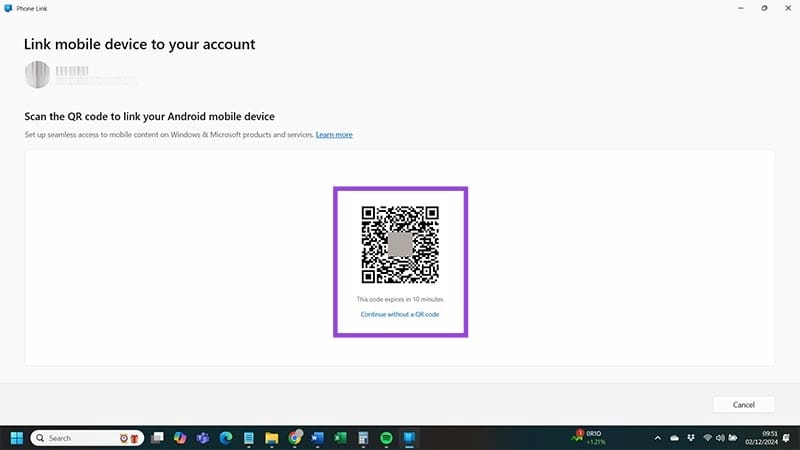
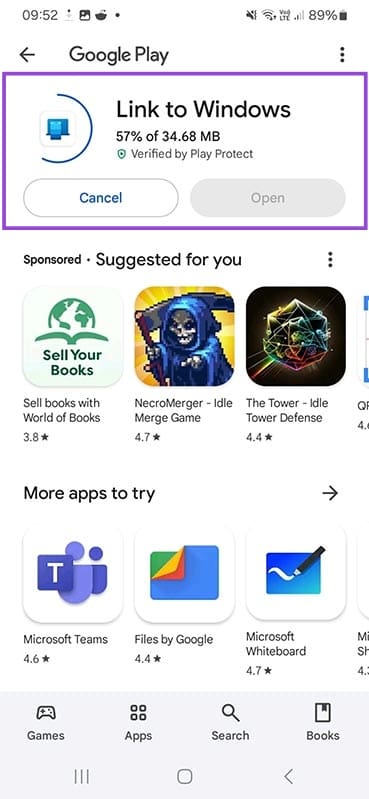
Step 6 . Install “Link to Windows” on your Android device when prompted and hit the “Continue” button.
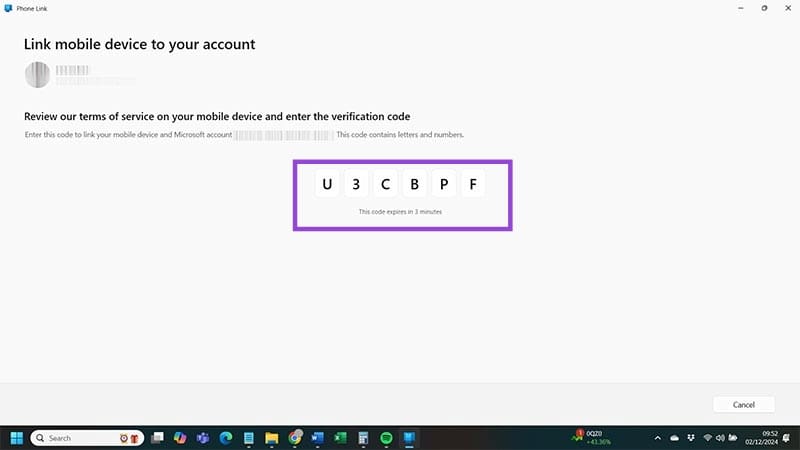
Step 7 . You’ll see another code pop up on your Windows 11 device’s screen. Enter that code into your Android device.
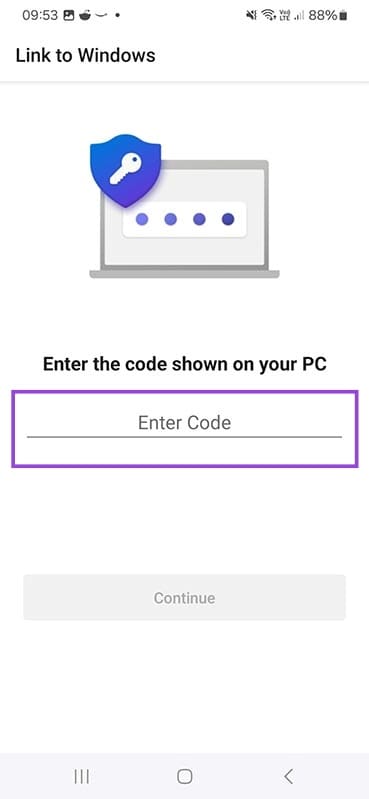
Step 8 . Run through the various permission requests that “Link to Windows” throws at you after you’ve entered the code. Use this to give Phone Link as little (or as much) access as you want. When you’re finished, hit the “Done” button on your Android device.
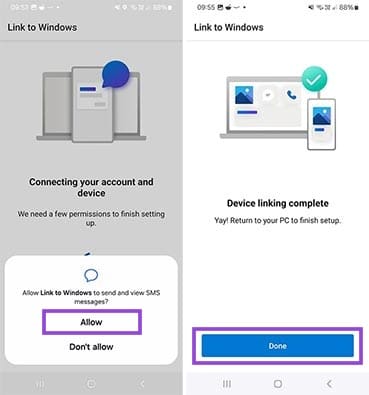
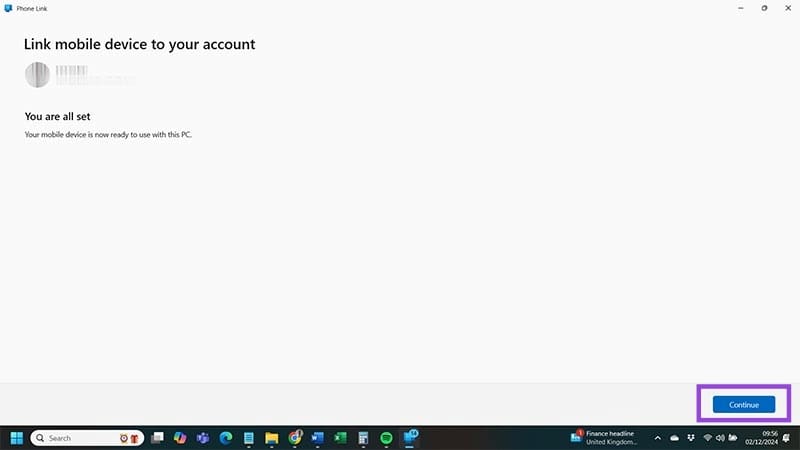
Step 9 . Voila – you’re all done. All that’s left is to hit the “Continue” button and you’ve linked your Android device to your Windows 11 device using “Phone Link.”
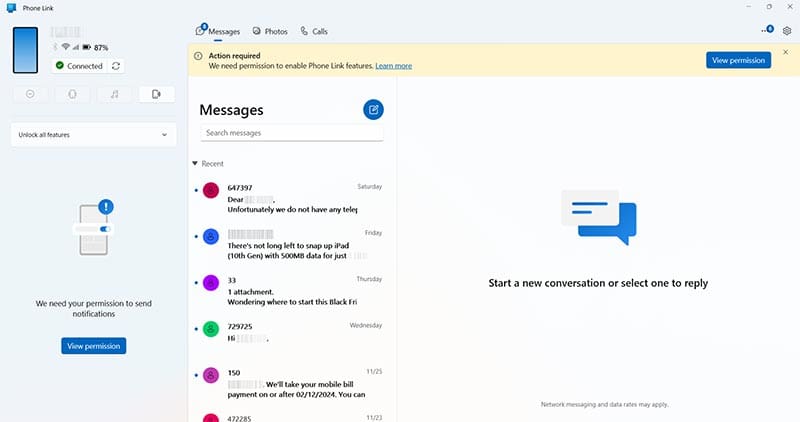
Method 2. Use a USB Cable
Maybe you don’t want a full-on link between your Android and Windows devices. You only want to link the two so you can send a few files over and don’t want to see your phone notifications popping up on your Windows device. There’s an easy way to do that as long as you have a USB cable. You’re charging cable should do the job.
Step 1 . Unlock your Android device using your PIN, fingerprint, or whatever other method you choose to lock.
Step 2 . Grab your USB cable and connect it to your Android device before plugging it into your Windows device.
Step 3 . Click on “Select what happens with this device” when the notification pops up in the bottom-left of your screen.
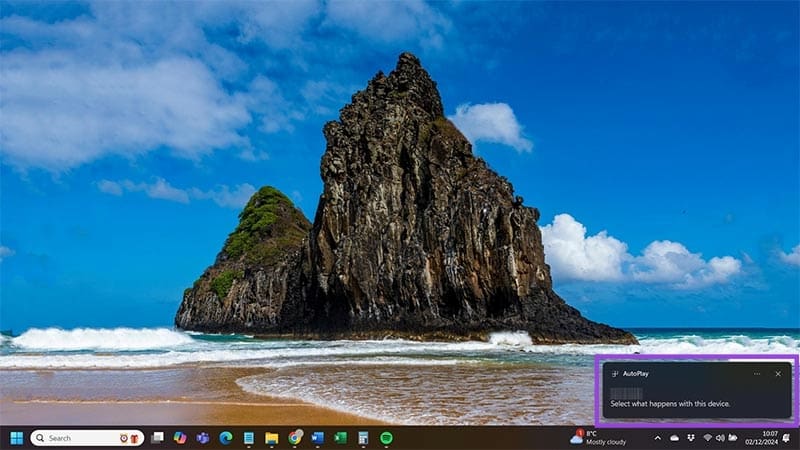
Step 4 . Now that you have a connection, select what you want to do from the box that should appear at the top-right of your screen. “Open device to view files” is your choice if you want to browse your Android device on Windows. But you can also use this connection method to import all of your photos and media from your phone to your OneDrive account.
Step 5 . You should also be able to see your connected Android device if you head to the “This PC” in File Explorer. Note: You’ll only be able to see the files for which you provided permission when you first connected your Android device to your Windows 11 device.
Was this helpful?
Submit Cancel
Thanks for your feedback!
Keep reading