Android
5 Ways to Fix Apps Not Updating on Android
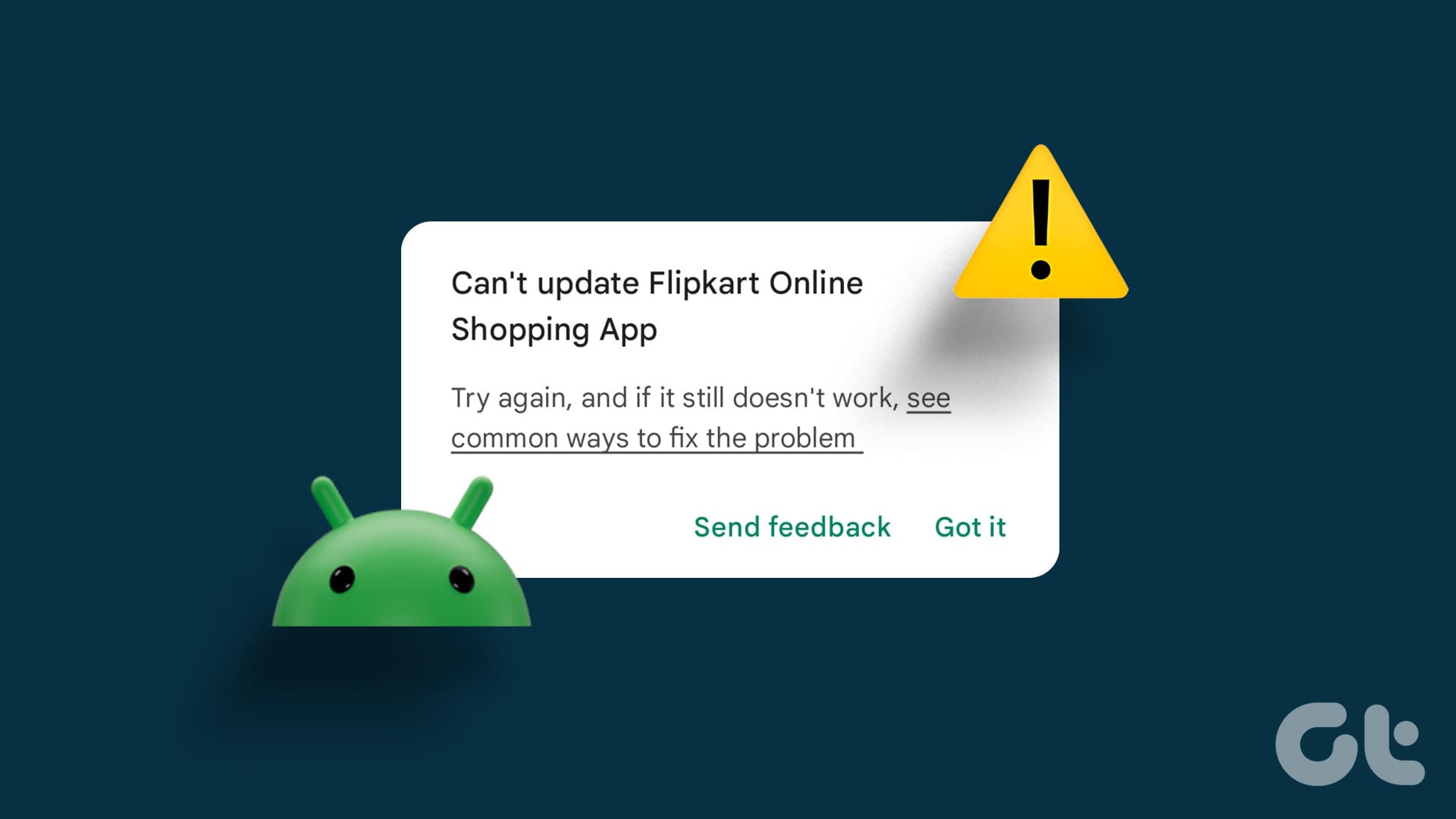
Are you facing issues updating apps or games on Android? Here's how you can fix the problem, and install the latest updates!
By Parth Shah
Quick Tips
If apps aren’t updating automatically, search for the app on the Play Store and update it manually.
Clear cache from the Play Store app to remove junk files that may cause issues.
Ensure there’s enough storage space left on your device to accommodate new downloads.
Basic Fixes
Check network connection: Ensure there’s no problem with the network connectivity on your Android device.
Check storage space: Ensure there’s enough storage space left to download updates for apps.
Restart device: Restart your Android device to fix temporary bugs and glitches.
Close unwanted apps: Close unwanted apps to free up memory and other resources to update apps.
Fix 1: Enable Unrestricted Data for Play Store
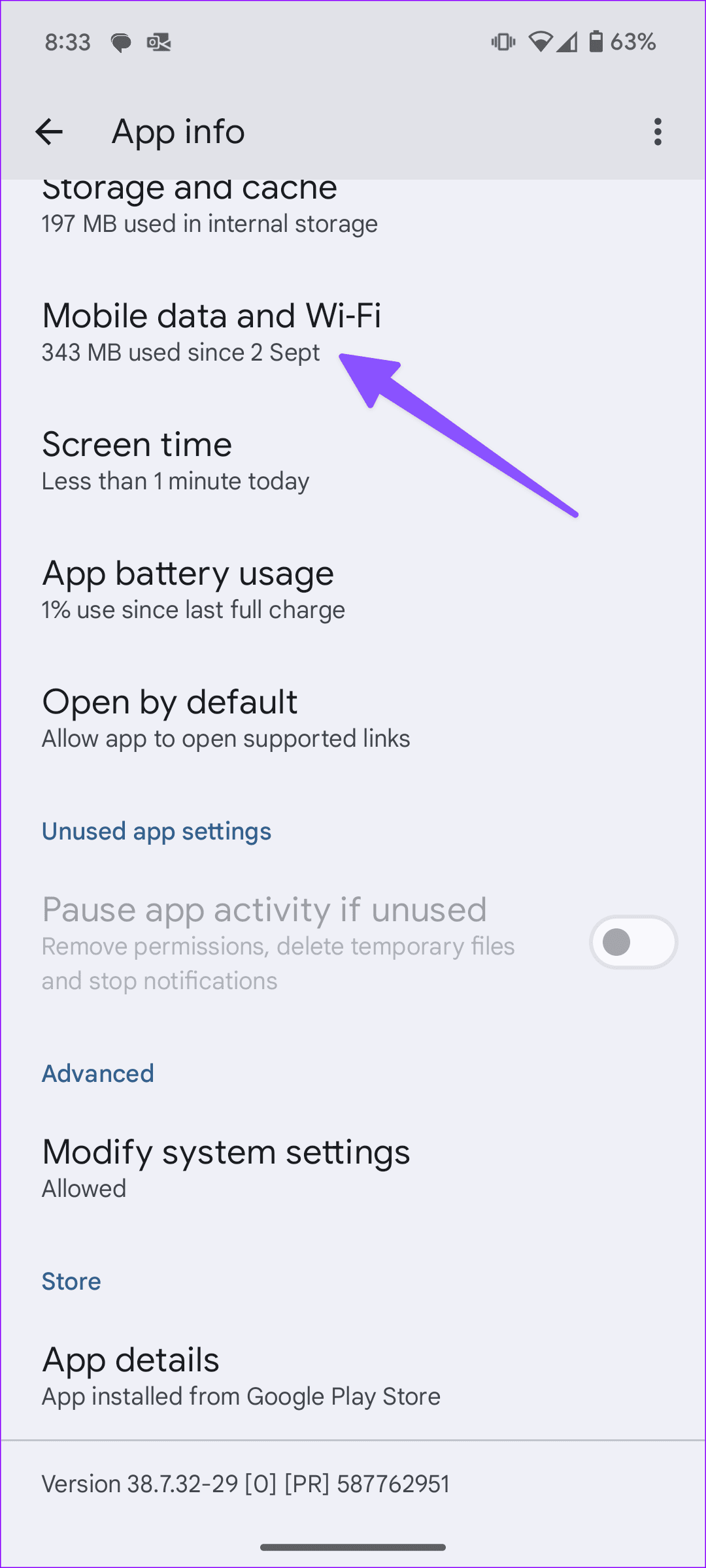
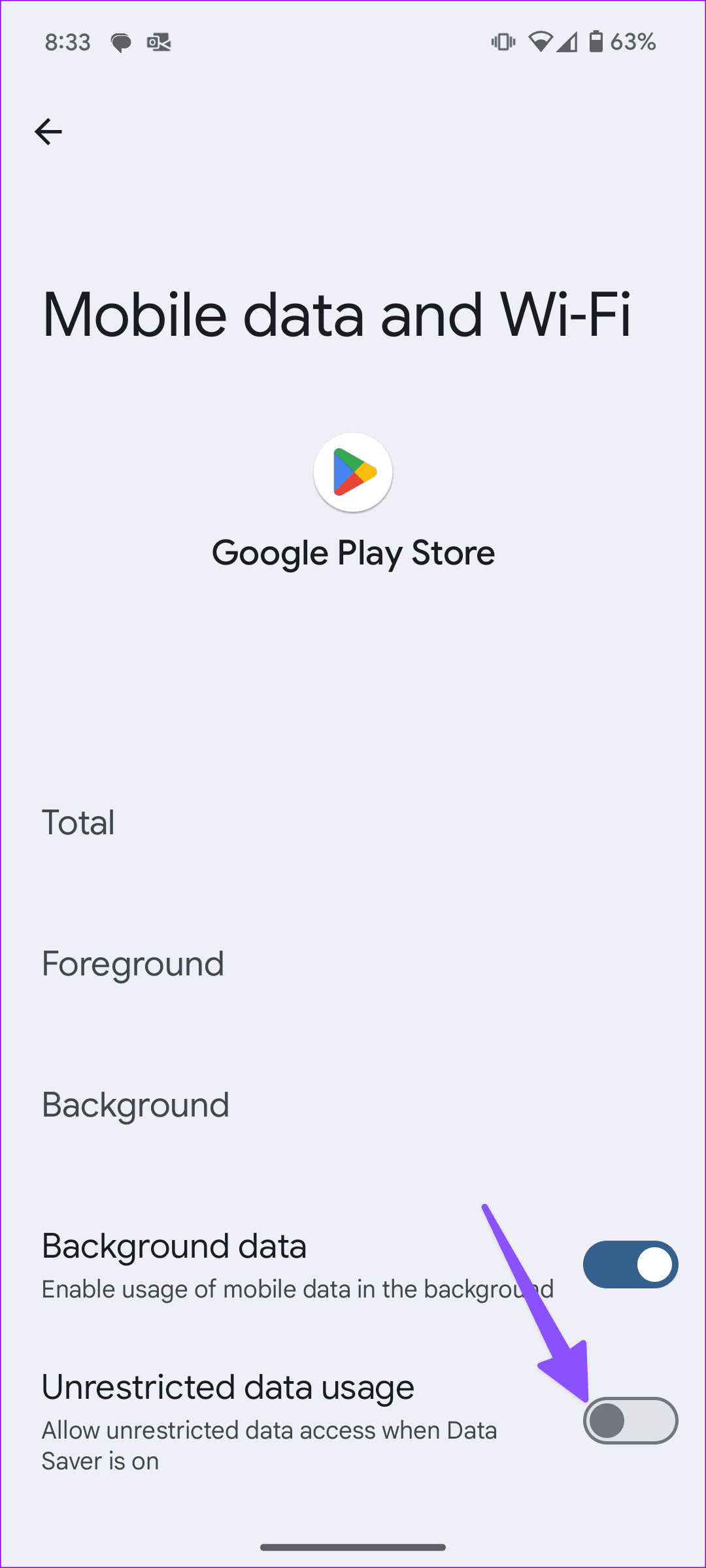
If you want to continue using the Data Saver mode on Android but don’t want the Play Store to be affected, you need to enable unrestricted data usage for the app.
Tap and Hold the Play Store app, select app info , go to the Mobile data & Wi-Fi menu, and turn on the Unrestricted data usage toggle.
Fix 2: Manually Update Apps
If apps aren’t updating automatically from the Play Store, here’s how you can download updates manually.
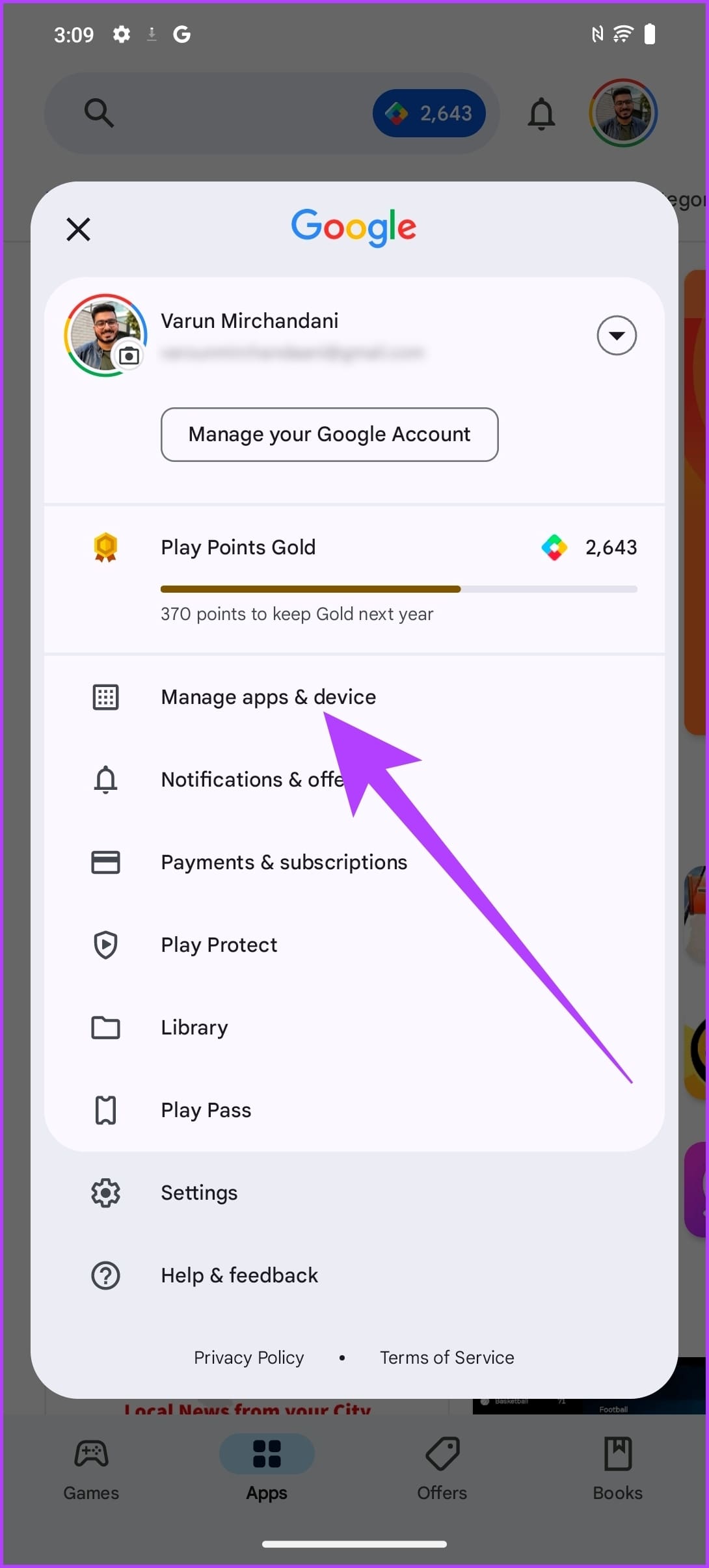
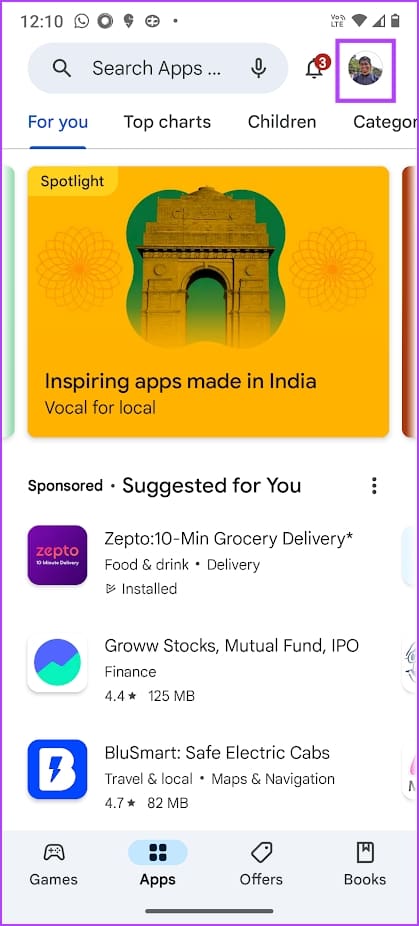
Step 1: Open Play Store, tap on your profile icon at the top right corner.
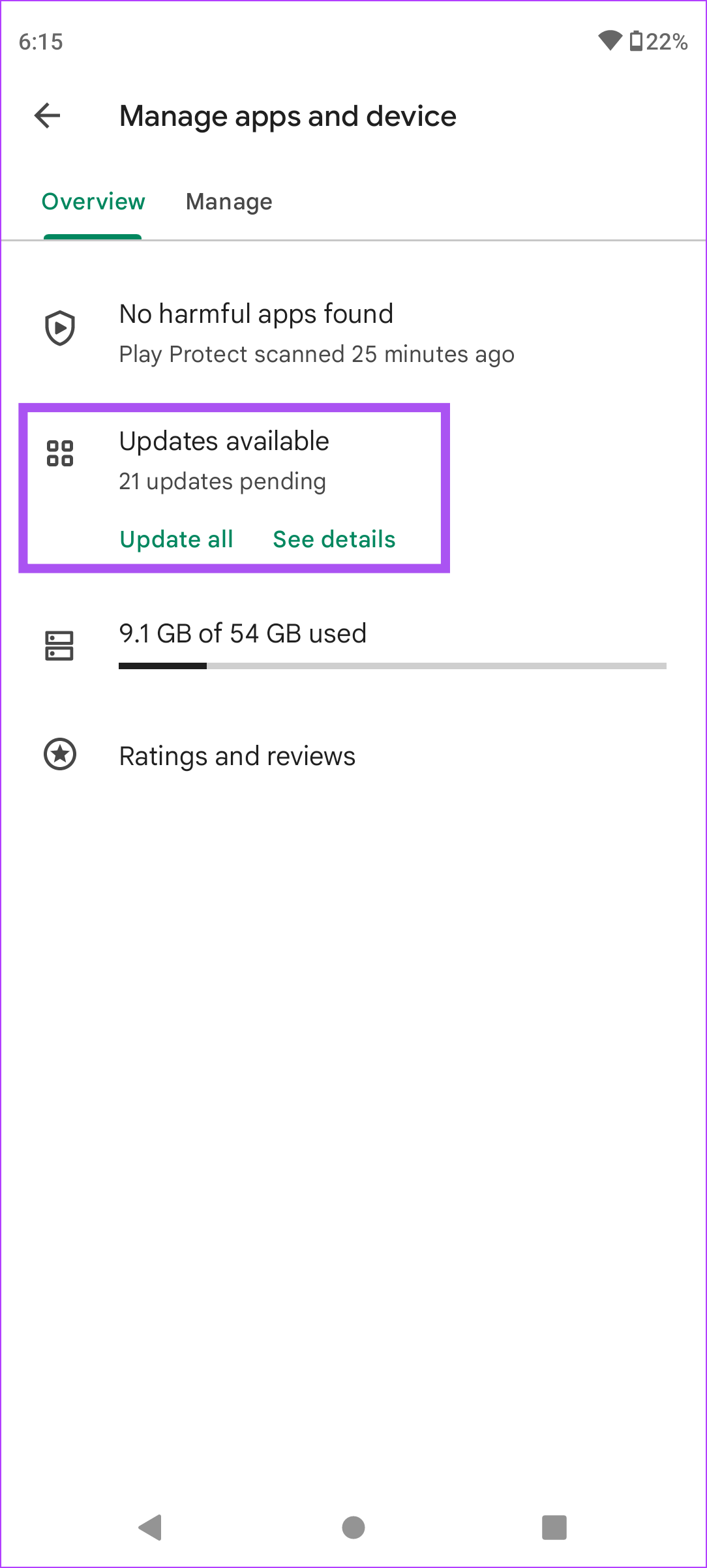
Step 2: Select Manage apps & device . Under the Updates available section, select Update All . Or you can tap on See details and view a list of apps you can update.
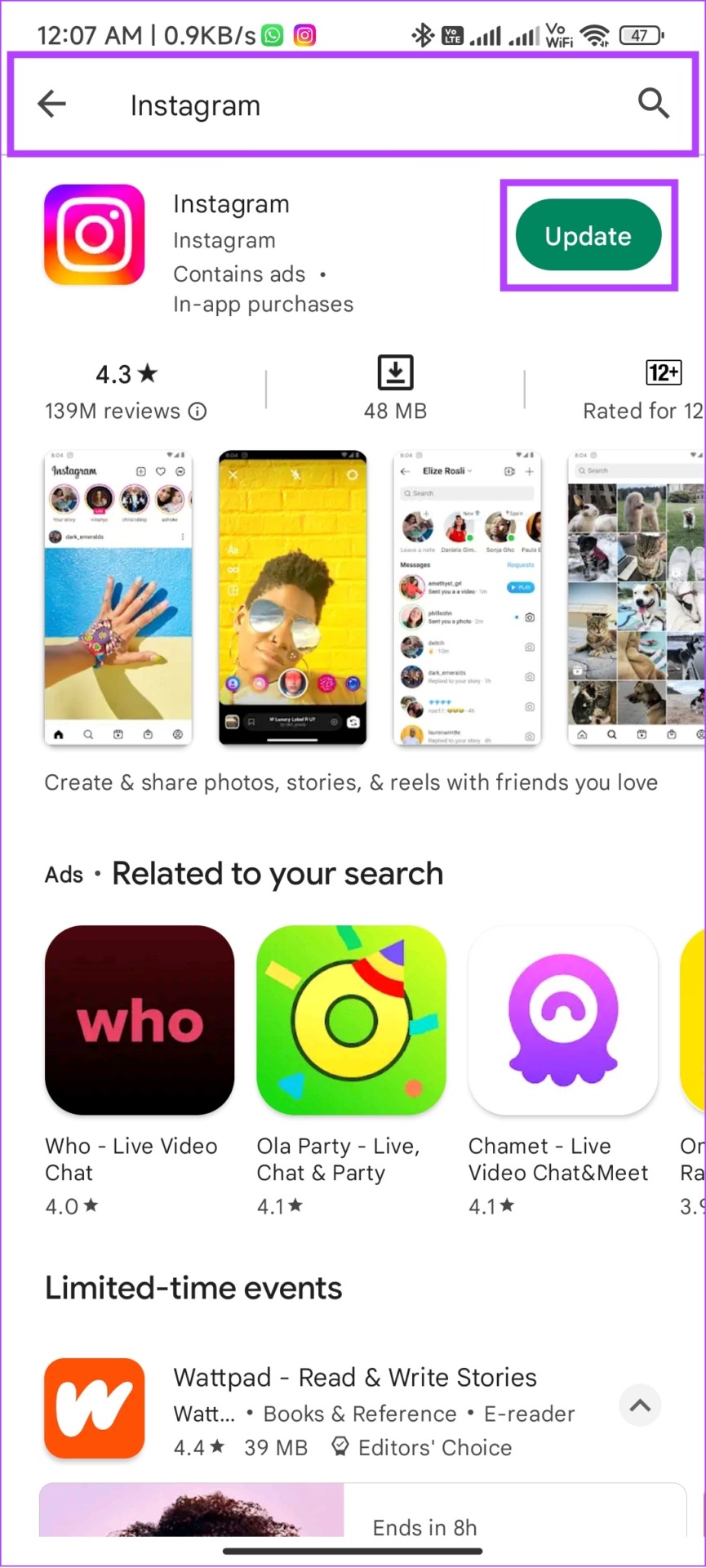
Alternatively, you can search for an app on the Play Store, and use the Update option.
Fix 3: Fix Issues With Play Store and Play Services
Updating apps from the Play Store uses several other companion system apps. If there are any issues with these apps, you won’t be able to download apps.
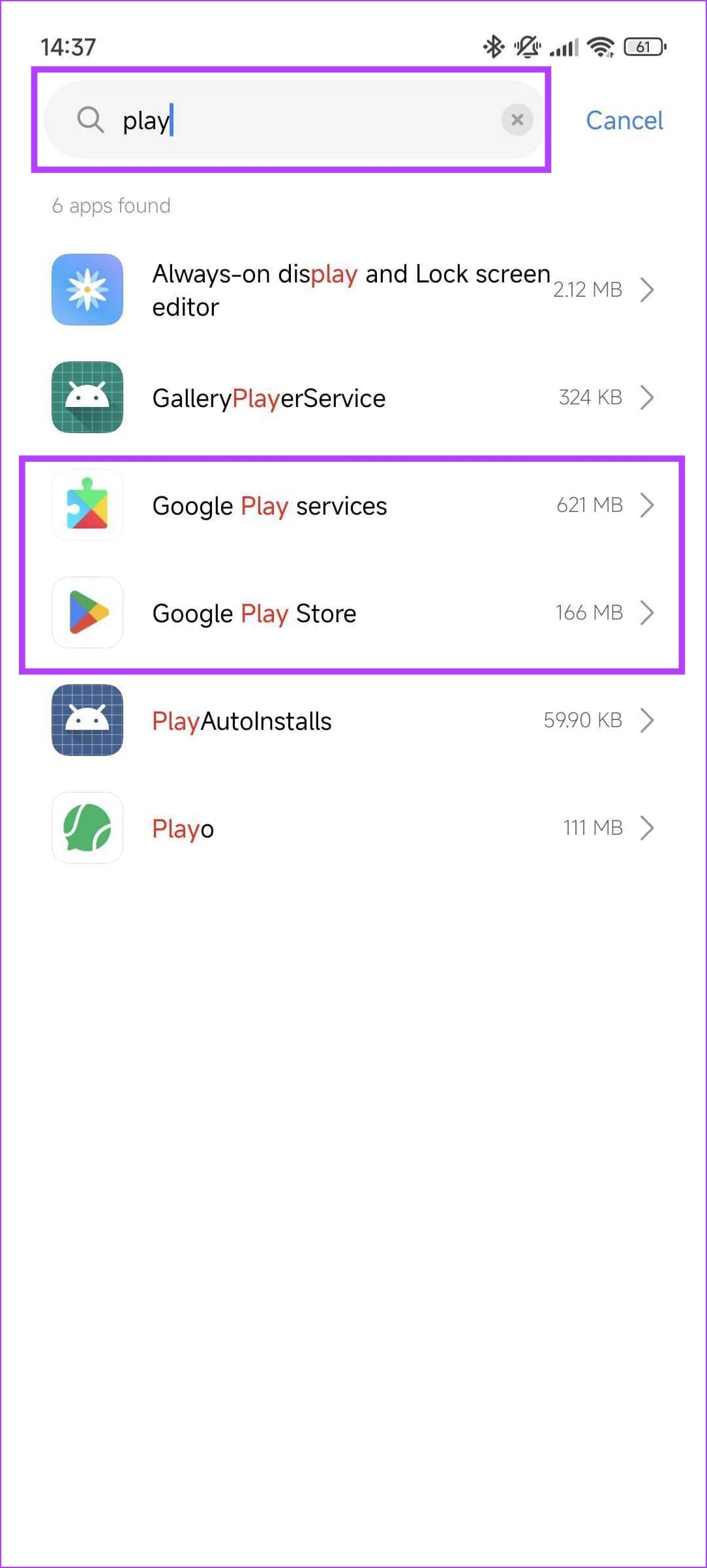
Step 1: Open the Settings app. Go to Apps > Manage apps . Find Google Play Store and Google Play Services from the list.
Note : If you don’t find them, open the list that says System Apps.
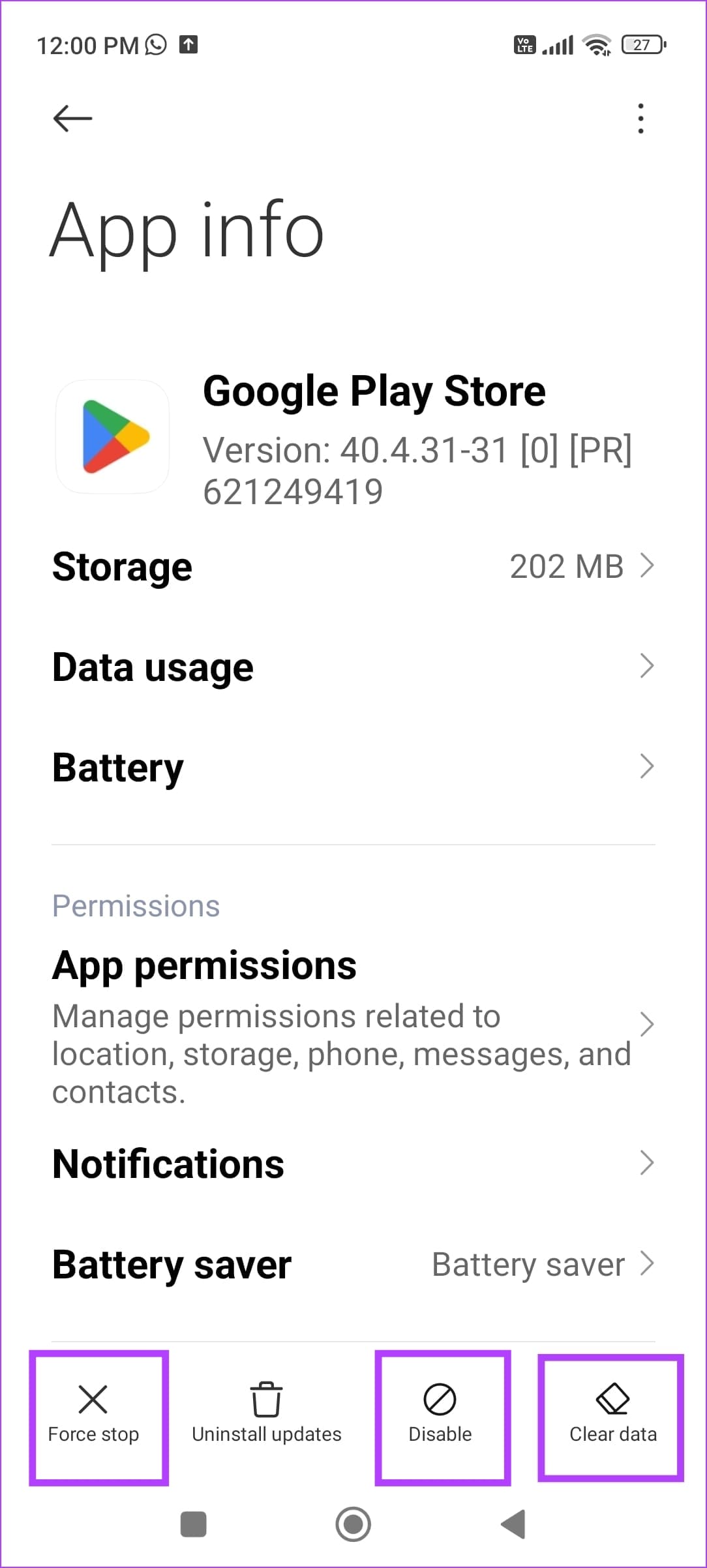
Once you open the app settings, here’s what you can try doing for both of these apps.
Clear Cache: This removes all the junk files from the app.
Force Stop: This stops the app from running, and can get rid of temporary bugs and glitches.
Uninstall Updates: If the issue stems from a recent update, reverting back to the factory version can help you fix the issue.
Also Read: 2 Ways to manually update Google Play Services
Fix 4: Sign Out and Sign In to Google Account
Removing and re-adding your Google account can get rid of any bugs and corrupted elements.
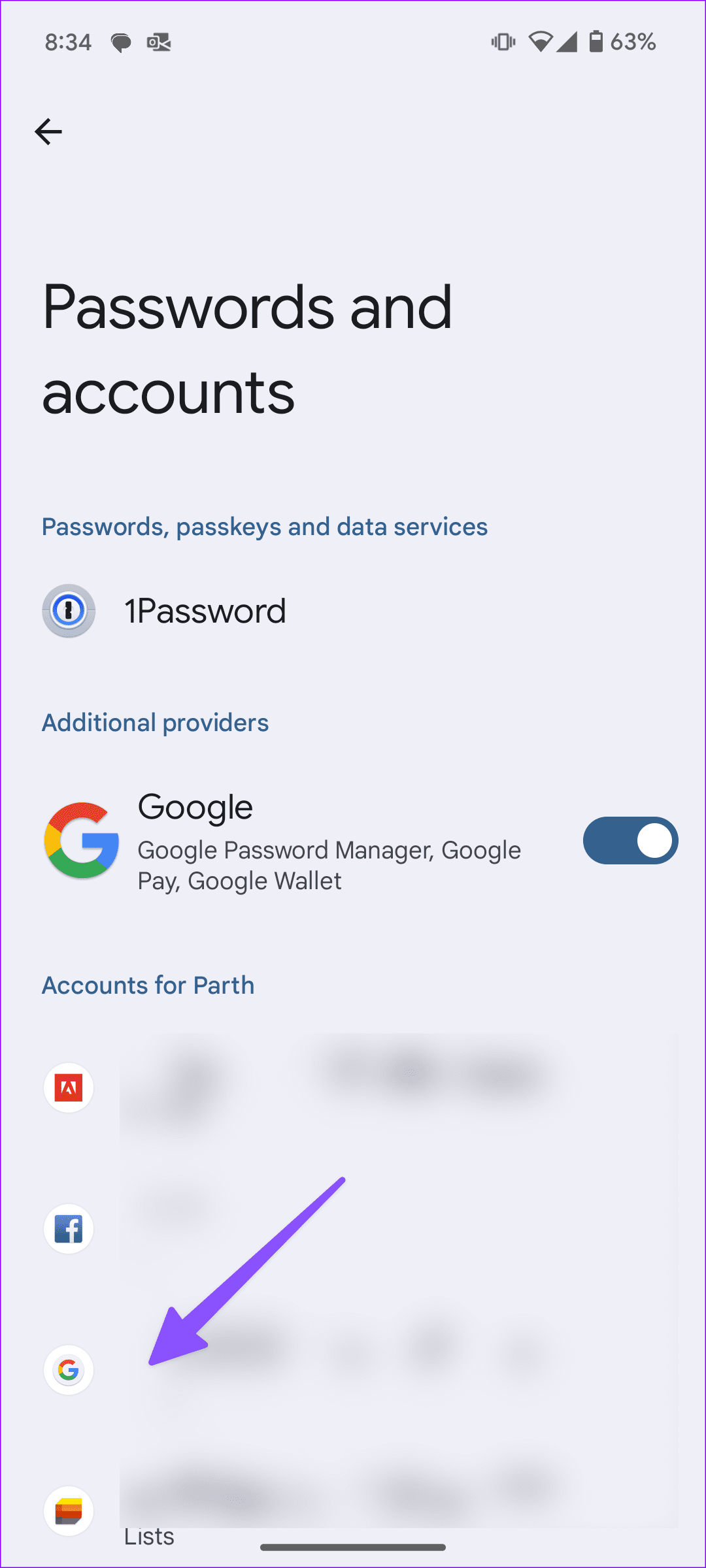
Step 1 : Open Settings and go to the Passwords and Accounts menu.
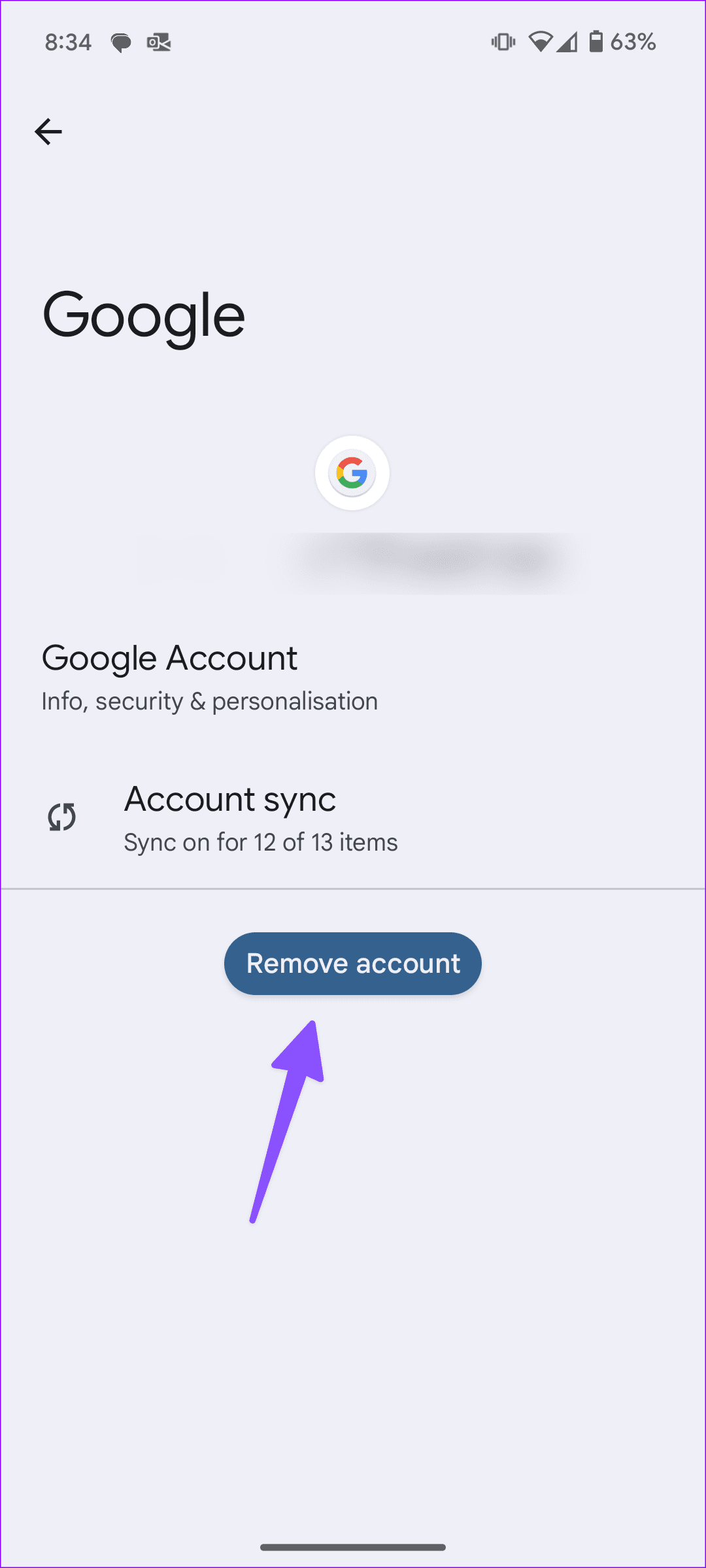
Step 2 : Select your Google account and tap on Remove account .
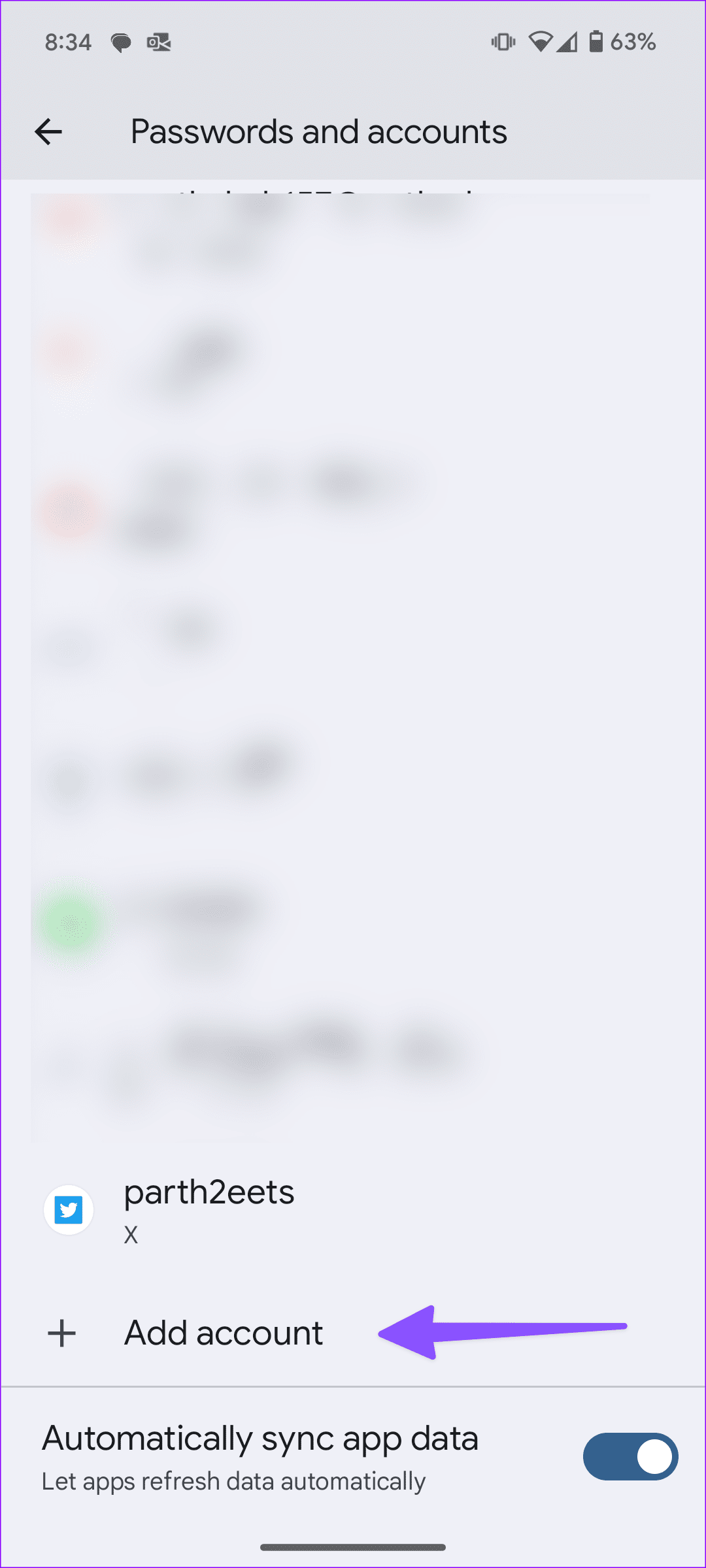
Step 3 : Go back to the Accounts menu tap on Add account and add your Google account again.
Fix 5: Use a Different Google Account to Update the App
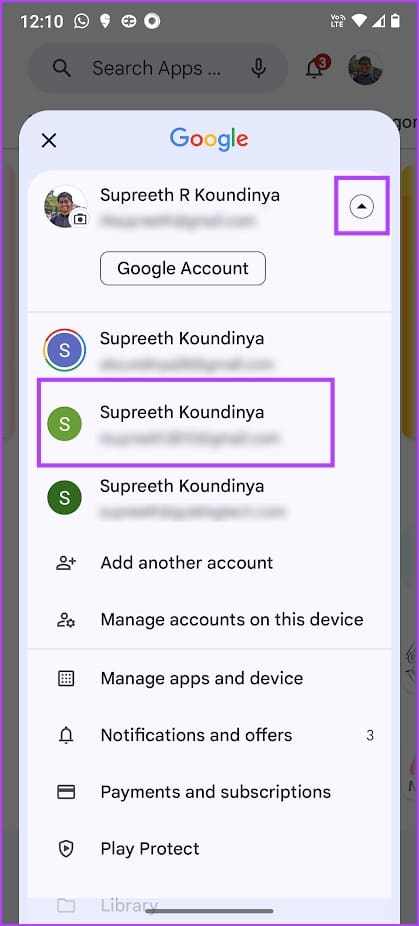
If there is an issue with the Google Account you are using the Play Store with, tap on your Profile icon, select the dropdown next to your account, and select a different Google account.
Was this helpful?
Submit Cancel
Thanks for your feedback!
Keep reading