Android
4 Ways to Fix Telegram Videos Not Playing on Android
Are you facing issues with Telegram videos on Android? Read along to learn to fix Telegram videos not playing on Android.
By Parth Shah
Quick Tips
For large video files on a slower internet connection, it’s best first to download the entire video and then play it
You can also use different video players like Google Photos or VLC Media Player to playback downloaded Telegram videos.
Method 1: Make Sure to Download the Full Video
Step 1: Open Telegram on Android and go to the Telegram group or channel . Find the video you want to download and check the video file size from the thumbnail. Once you start the download process, you will see the live progress from the same thumbnail.
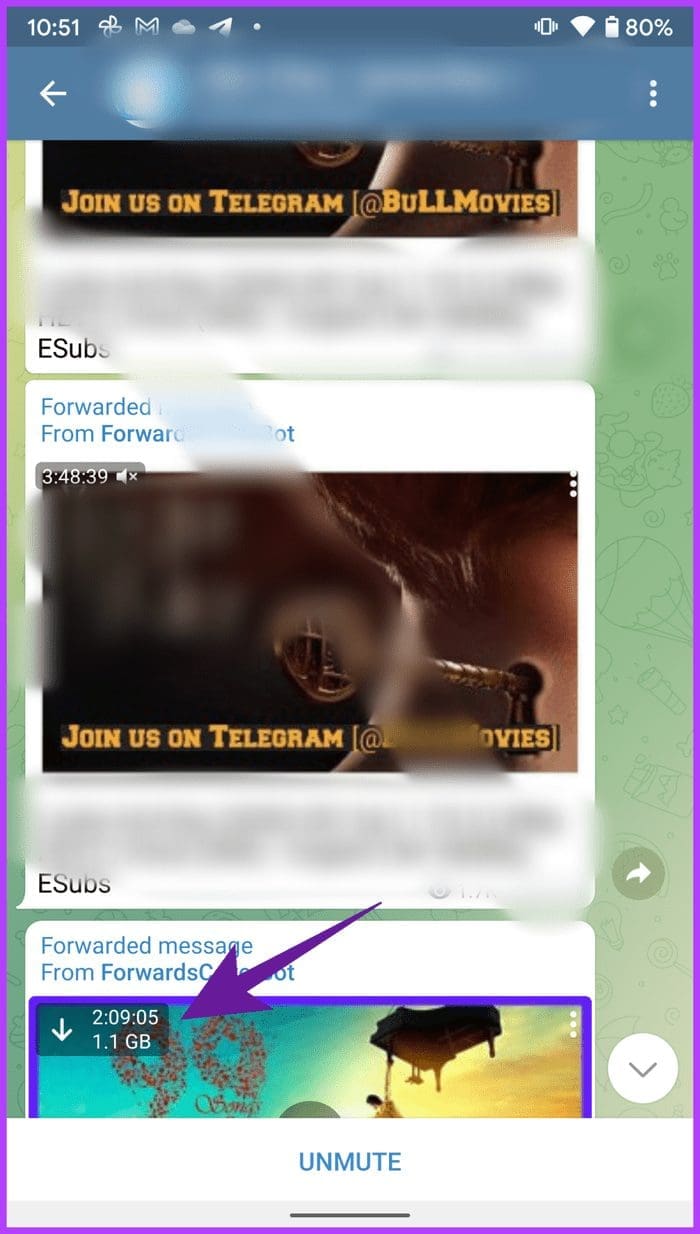
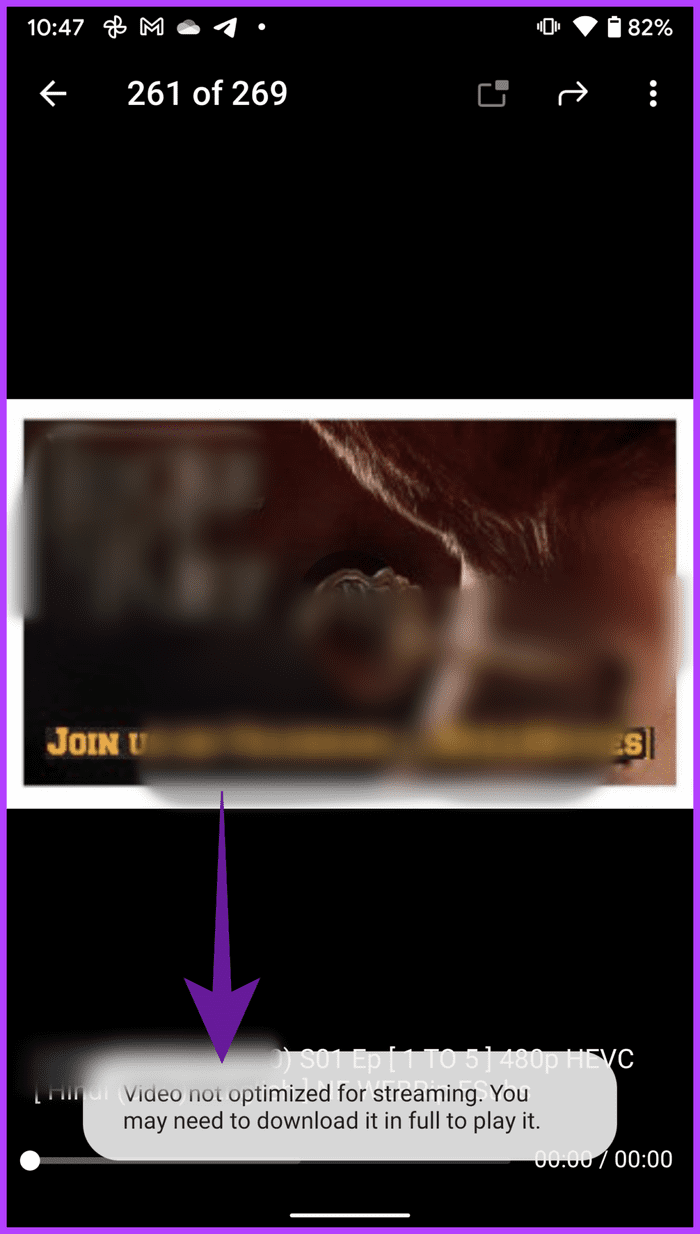
Step 2: If you use an Android phone with more than 4GB RAM, you can minimize the Telegram app and continue using your phone. If you notice the OS pausing the video download process in the background, you should keep Telegram open until it finishes the download process.
After the download process is over, you can tap on the three-dot menu on the video thumbnail and save it to your device’s storage .
Method 2: Play Videos in Google Photos
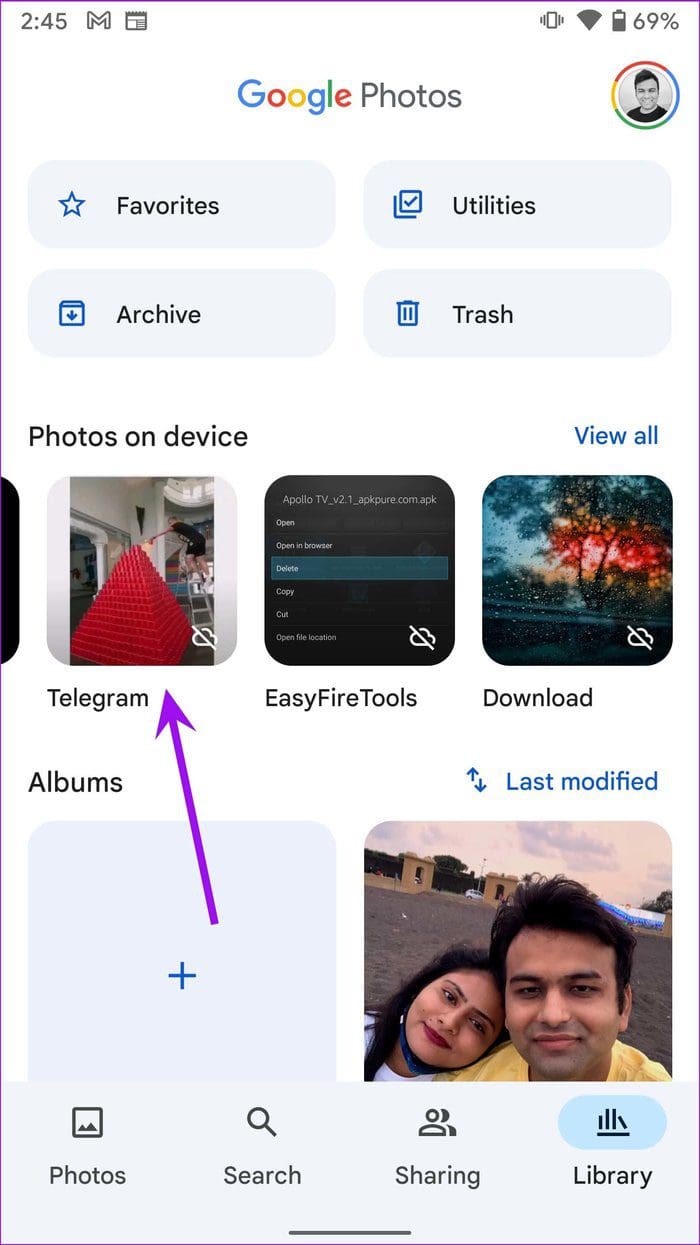
All the downloaded videos land in a separate Telegram folder in the Google Photos app on Android. Google Photos supports widely recognized video formats such as MP4 on Android and will play those videos without any issue.
Step 1: Open the Google Photos app on Android and navigate to Library . Find the Telegram folder and open it to start playing the video.
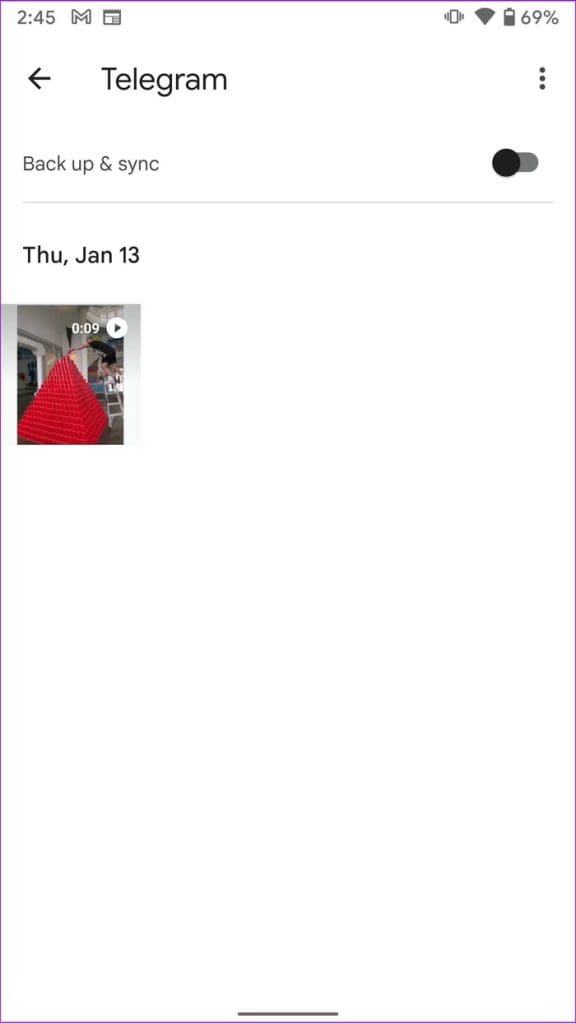
Step 2: If Google Photos supports the downloaded Telegram video, you will see the video thumbnail as shown in the screenshots above.
However, if you notice a black screen as a video thumbnail, it means that Google Photos cannot play the Telegram video, and you must get a helping hand from a third-party video player on Android.
Method 3: Use VLC Media Player
Most Android phones come with Google Photos as the default media player. While Google Photos nails the sharing, editing, and collaboration tricks, the video player leaves much to be desired. For instance, you won’t be able to play certain video files like MKV or FLV. Let us show you how to use a VLC media player and play any Telegram video on it.
Step 1: Download and install VLC Player on your Android phone, and give it the necessary permissions to scan the phone storage.
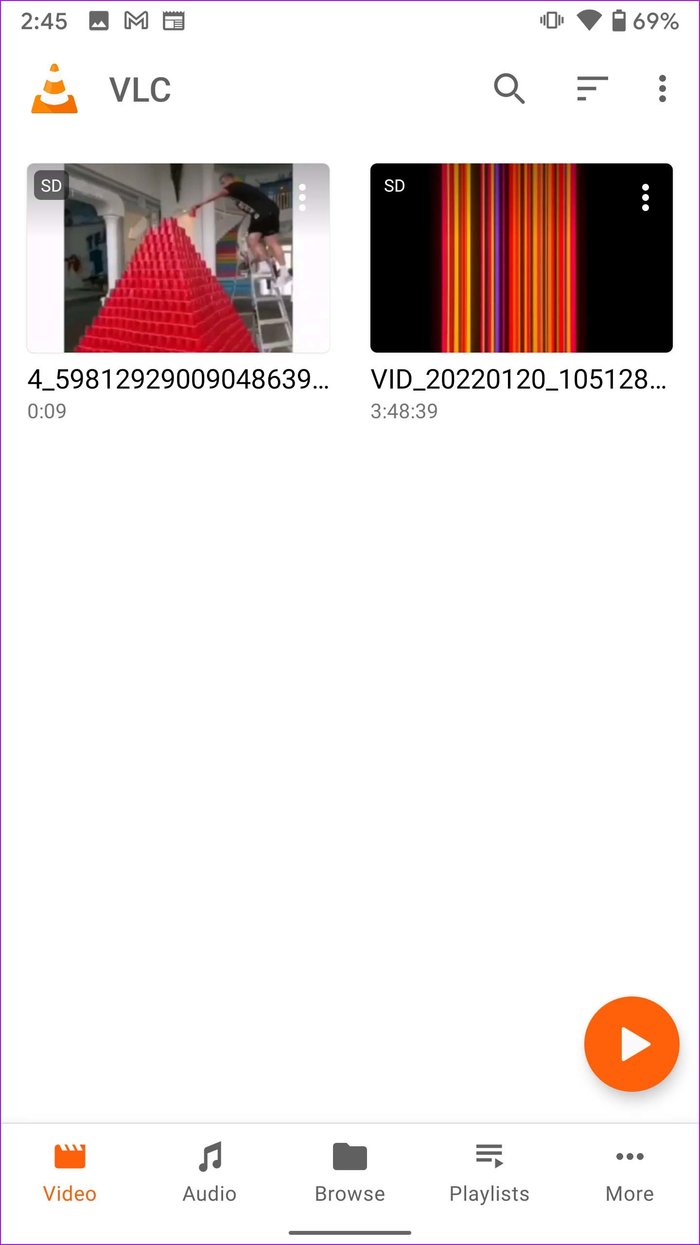
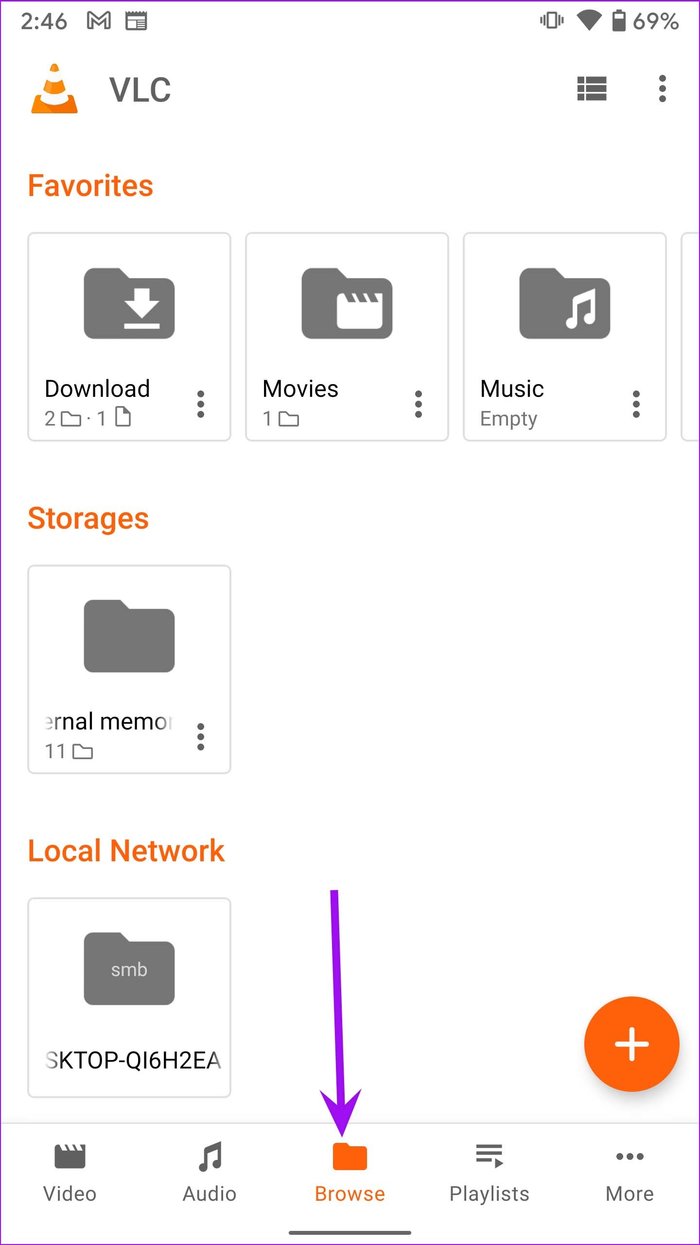
Step 2: VLC will find all the videos from the device storage and show them in the Video tab. If you still don’t see Telegram videos in the VLC home, you can move to the Browse tab and select video files from device folders.
Method 4: Use the Default Files App
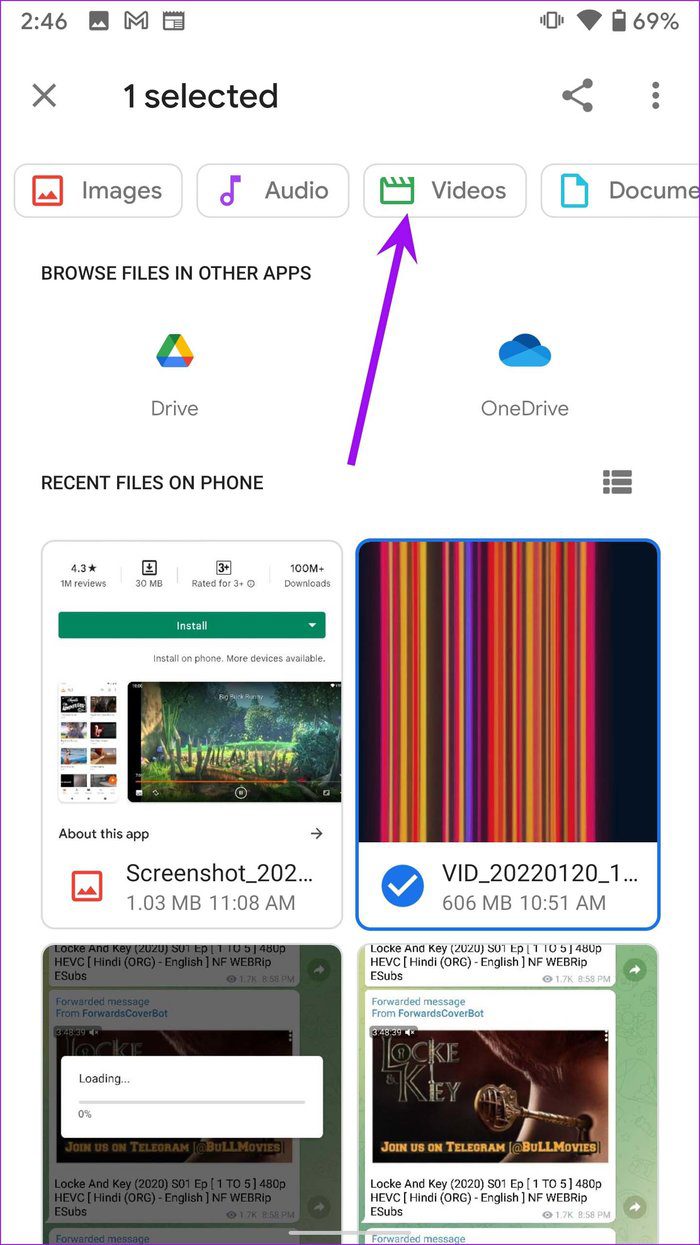
Step 1: Open the Files app on Android and tap on the Videos filter at the top.
Step 2: Find the Telegram video from the list and long-press on the video thumbnail. Next, tap on the three-dot menu at the top and select the Open with option.
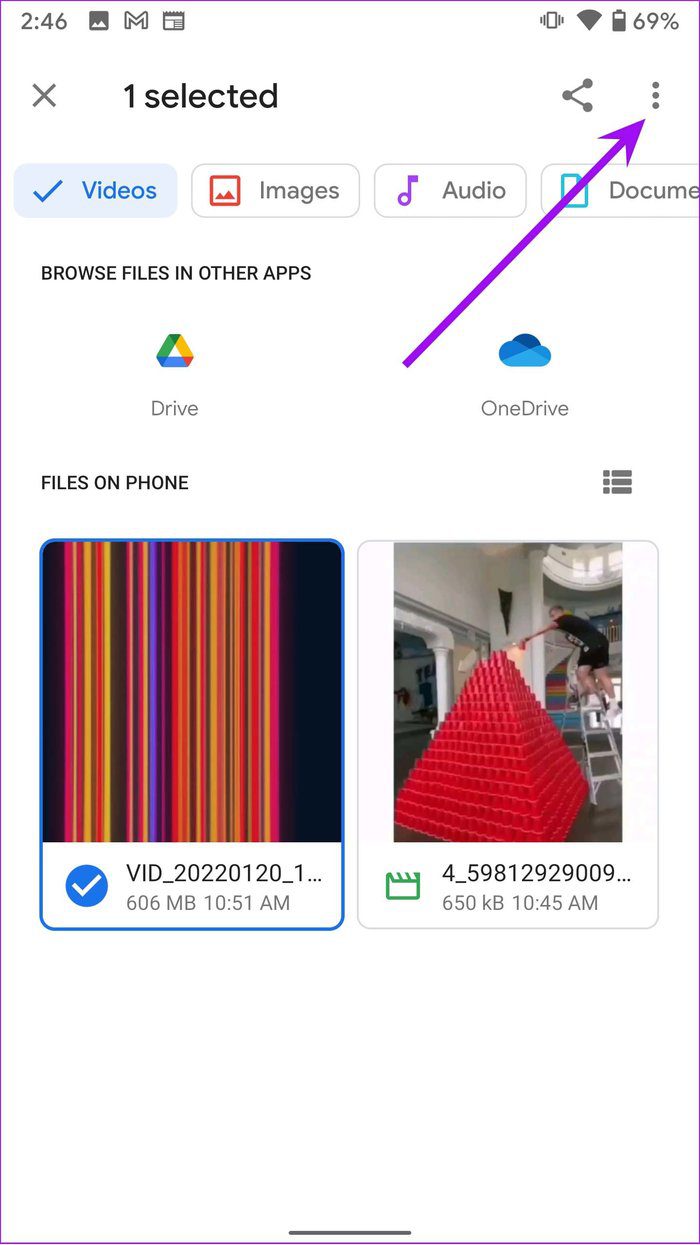
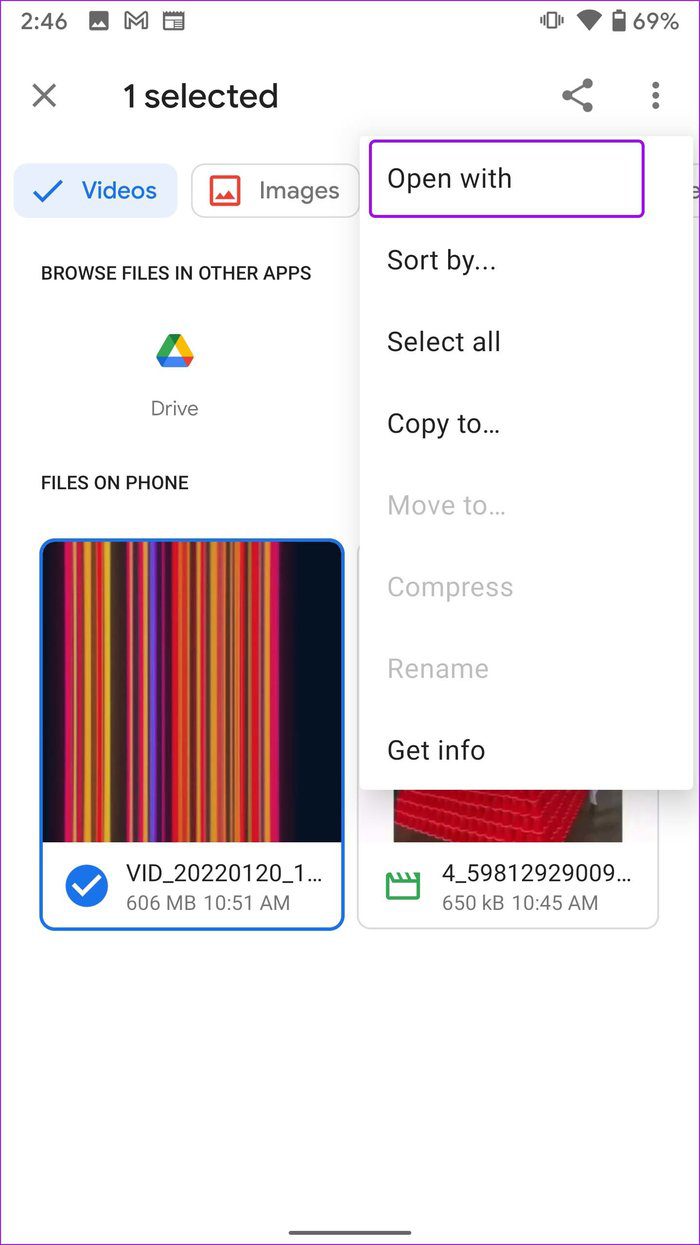
Step 3: Now, select VLC (or any other media app) from the ribbon at the bottom to start playing the video without any issues.
Was this helpful?
Submit Cancel
Thanks for your feedback!
Keep reading