Android
3 Fixes for Autocorrect Not Working on Android
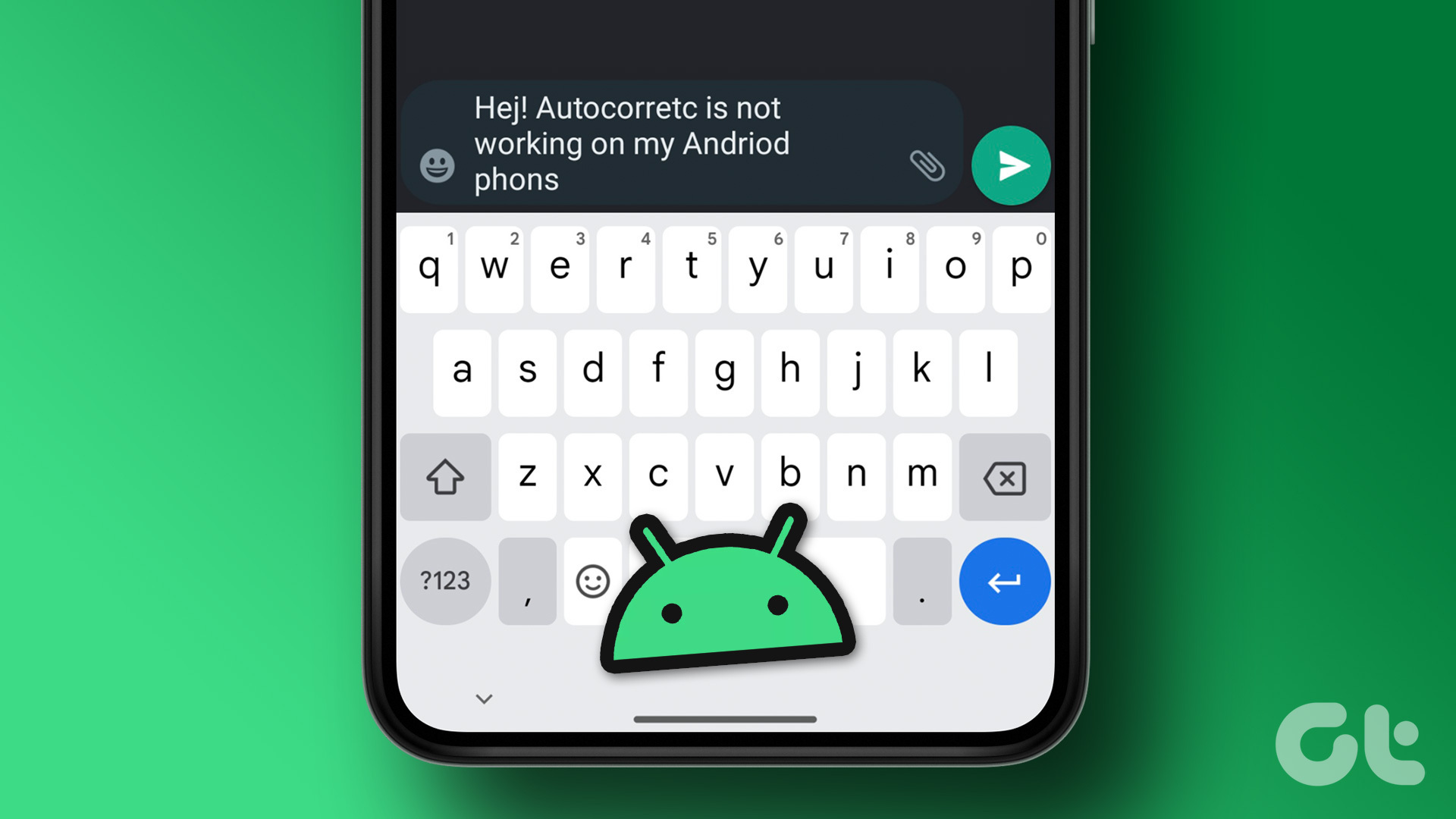
If the Autocorrect feature is not working on your Android phone, here are some solutions that will help you the fix the issue.
By Paurush Chaudhary
Quick Tips
Enable Spell Checker and Grammar Checker for your Android keyboard.
Check Autocorrect Settings for your keyboard. This can be checked for third-party keyboard apps as well.
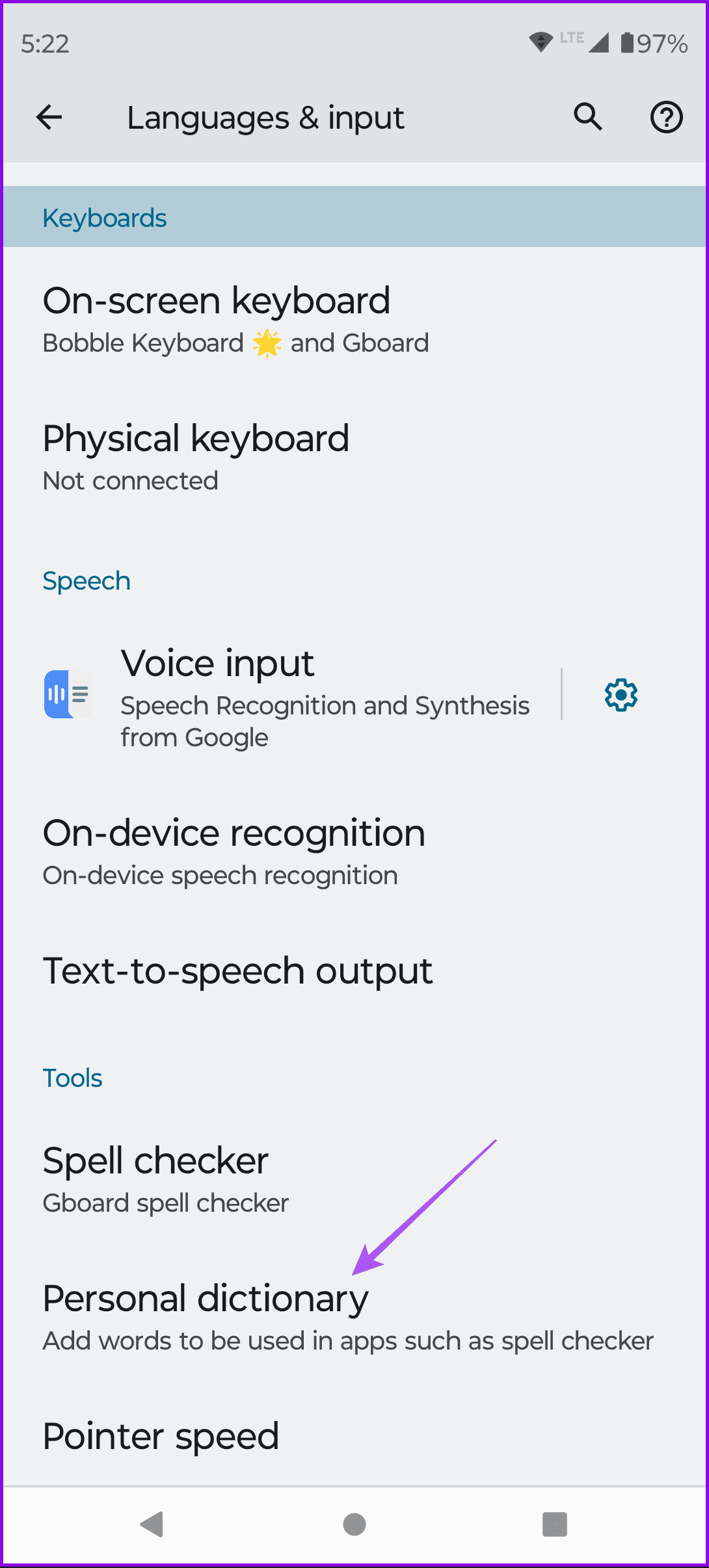
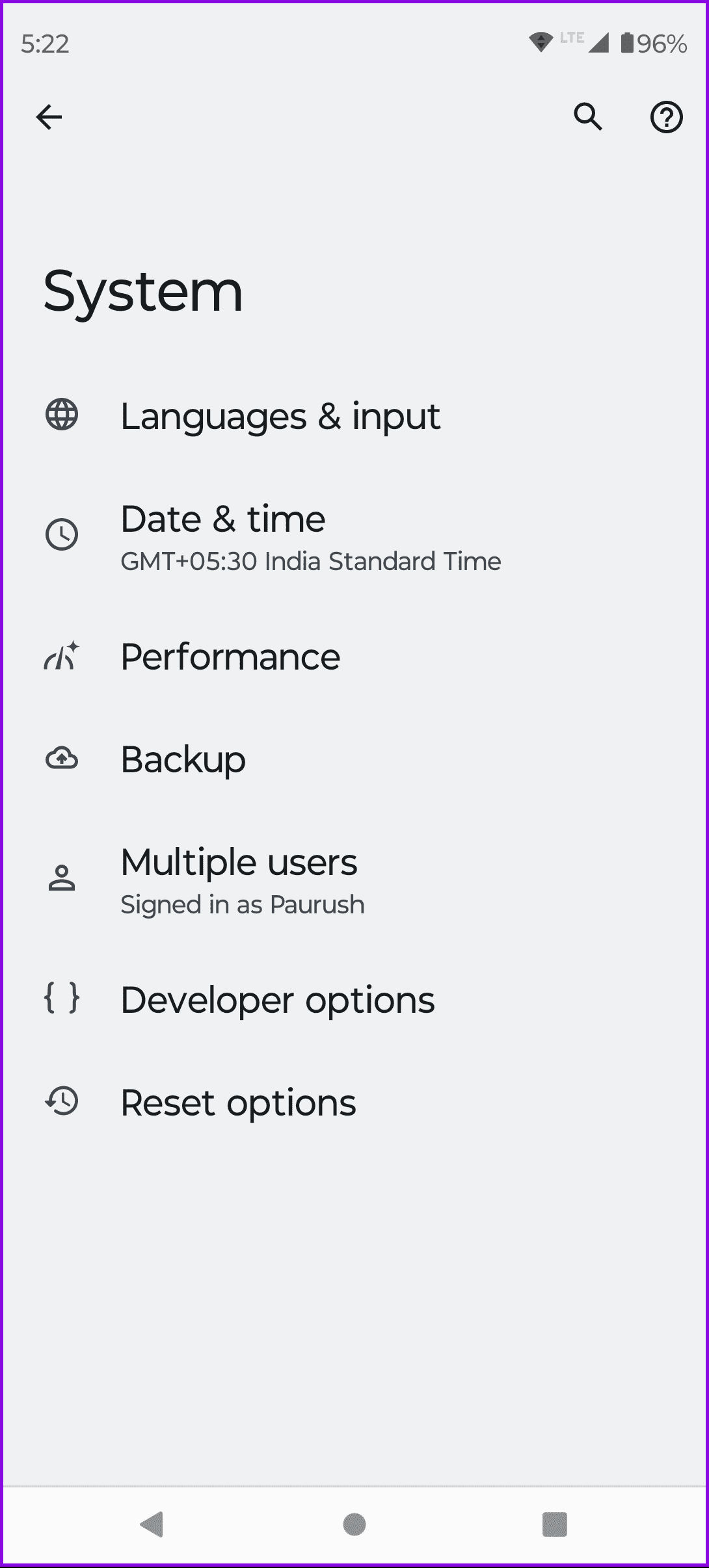
Delete learned words and data for your current keyboard on Android. Open Settings > System > Languages and input > Personal dictionary and delete any news words or data you have added.
Basic Fixes
Temporarily remove other keyboard languages: The autocorrect feature might not work for some other languages that you wish to use.
Force quit and relaunch the keyboard : You can force quit and relaunch whatever keyboard app you use to give it a fresh start.
Update your keyboard app: Always use the updated version of the Keyboard app on your Android phone.
1. Enable Spell Checker and Grammar Checker
These two features are responsible for enabling autocorrect on your Android phone.
Step 1: Open Settings on your Android phone and tap on System .
Step 2: Tap on Languages and Input and select Spell Checker .
Step 3: Enable the toggle for Use Spellchecker . Then, tap on Languages and ensure that you select your preferred language for Spell Checker.
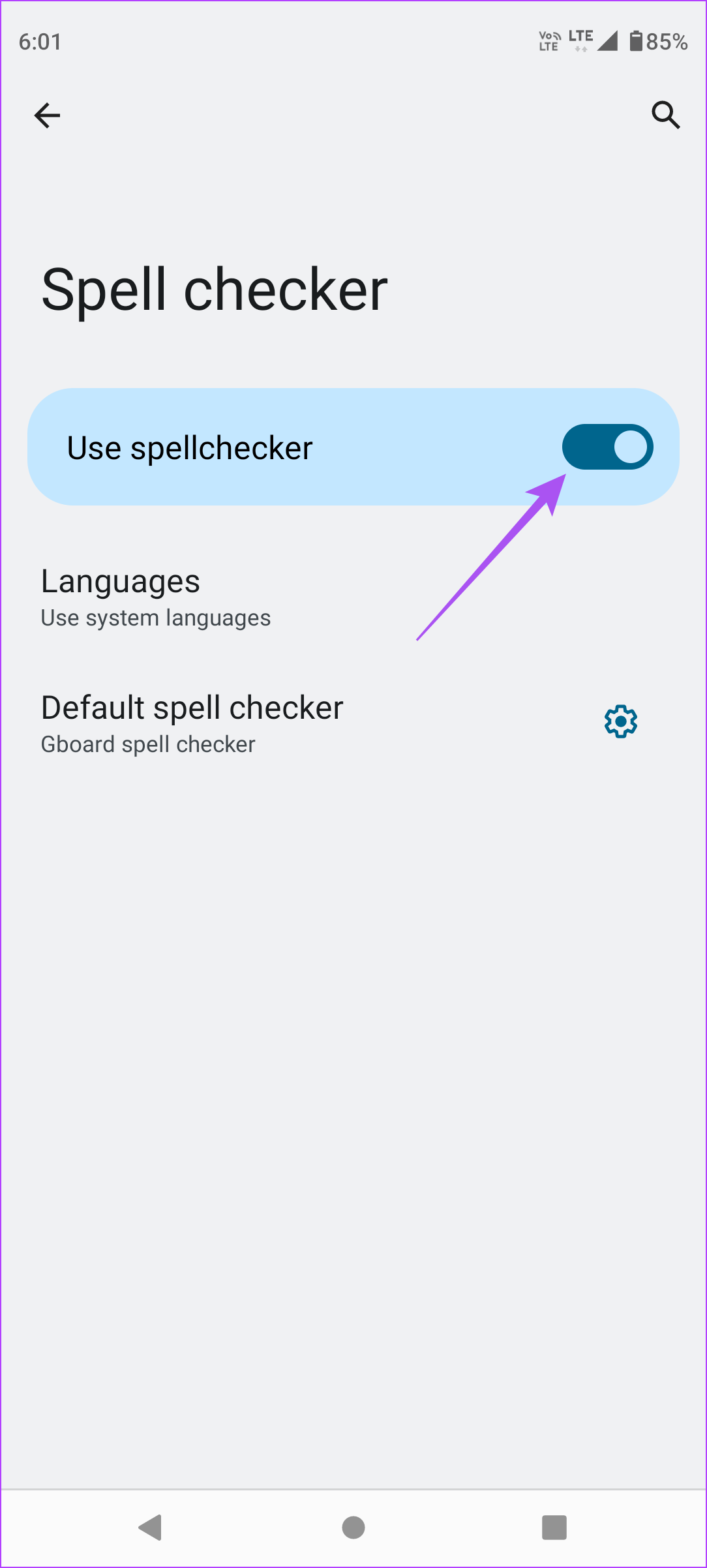
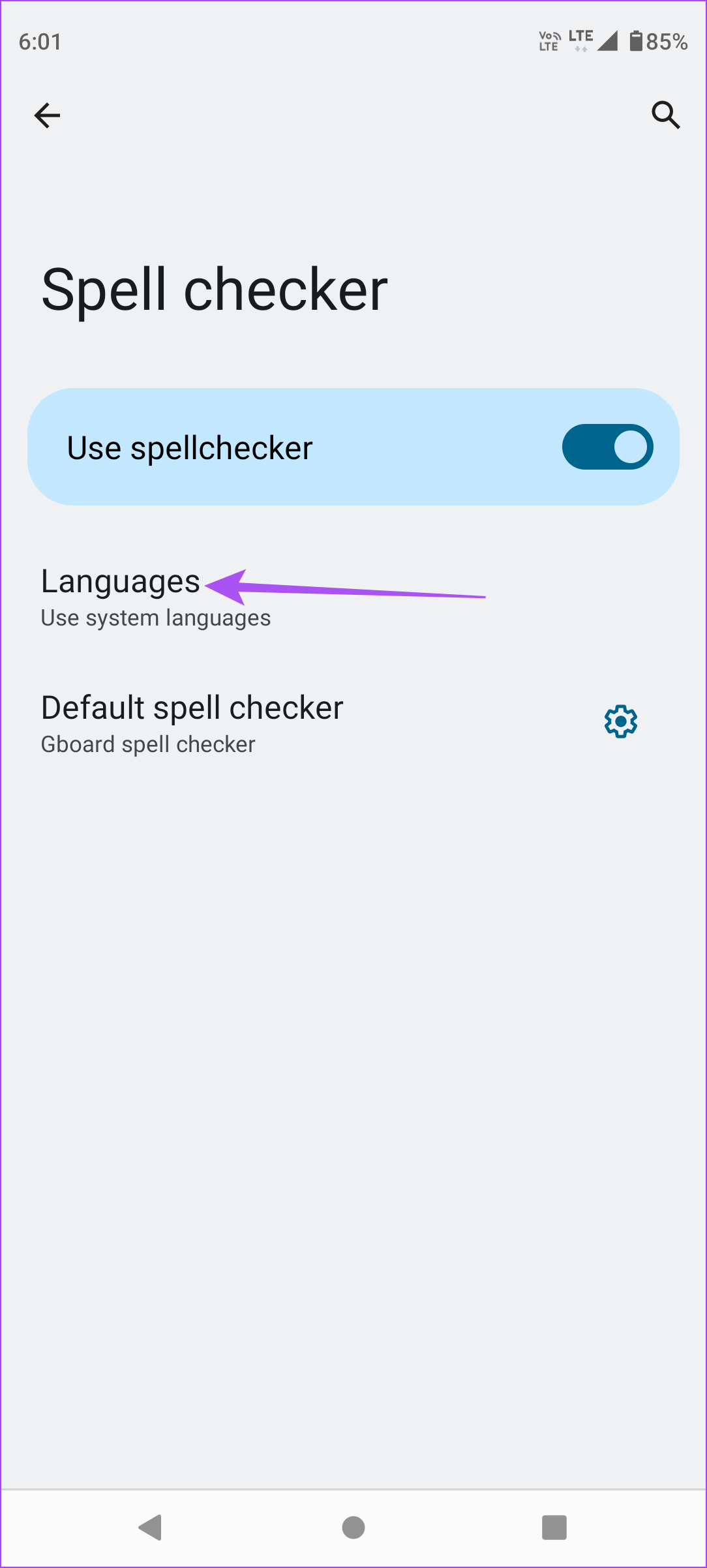
Step 4: Tap the Settings icon next to Default Spell Checker and enable the toggle for Grammar Check .
Fix 2: Check Autocorrect Settings for Your Keyboard
Whichever keyboard you use on your Android phone , check the autocorrect settings for the same.
For Gboard
Step 1: Open Settings on your Android phone and select System .
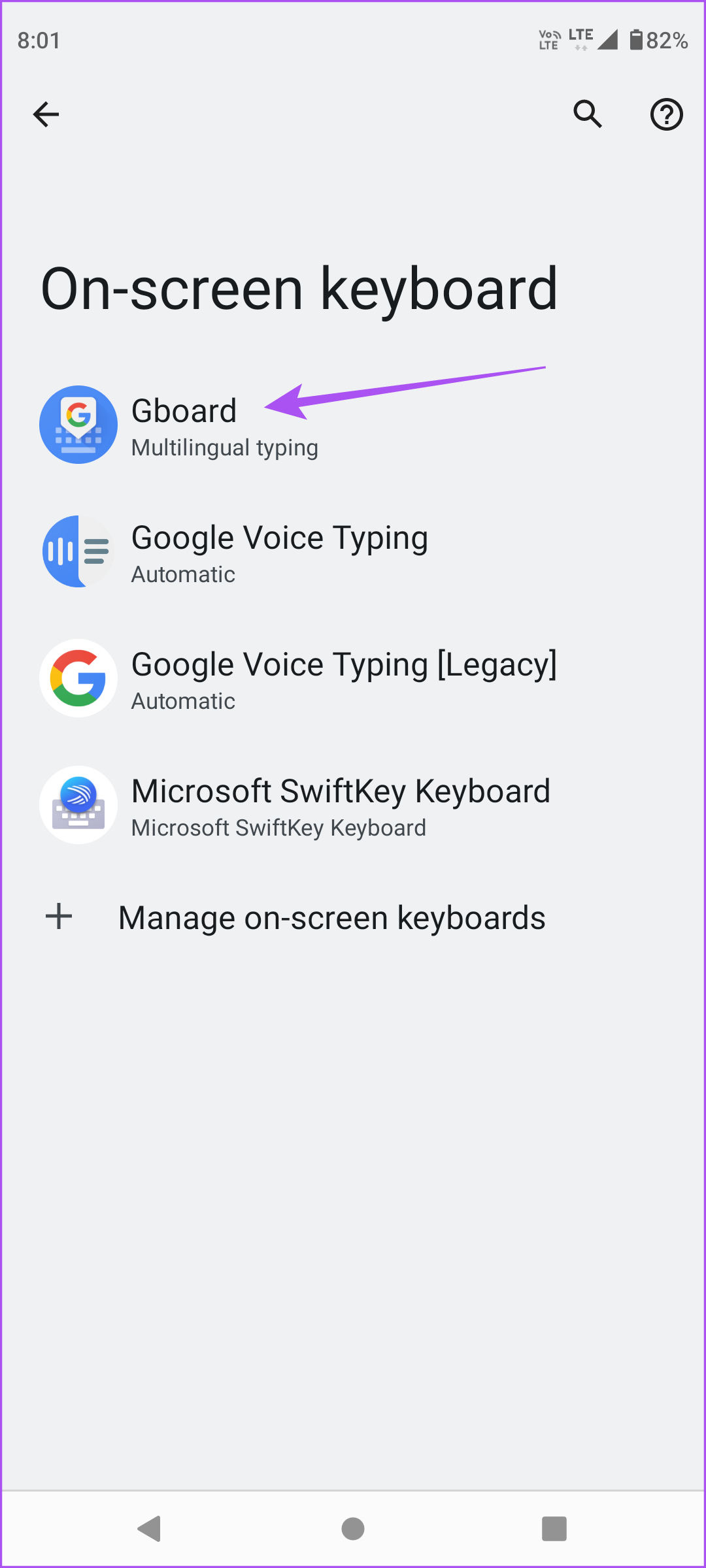
Step 2: Tap on Languages and input and select On-screen keyboard .
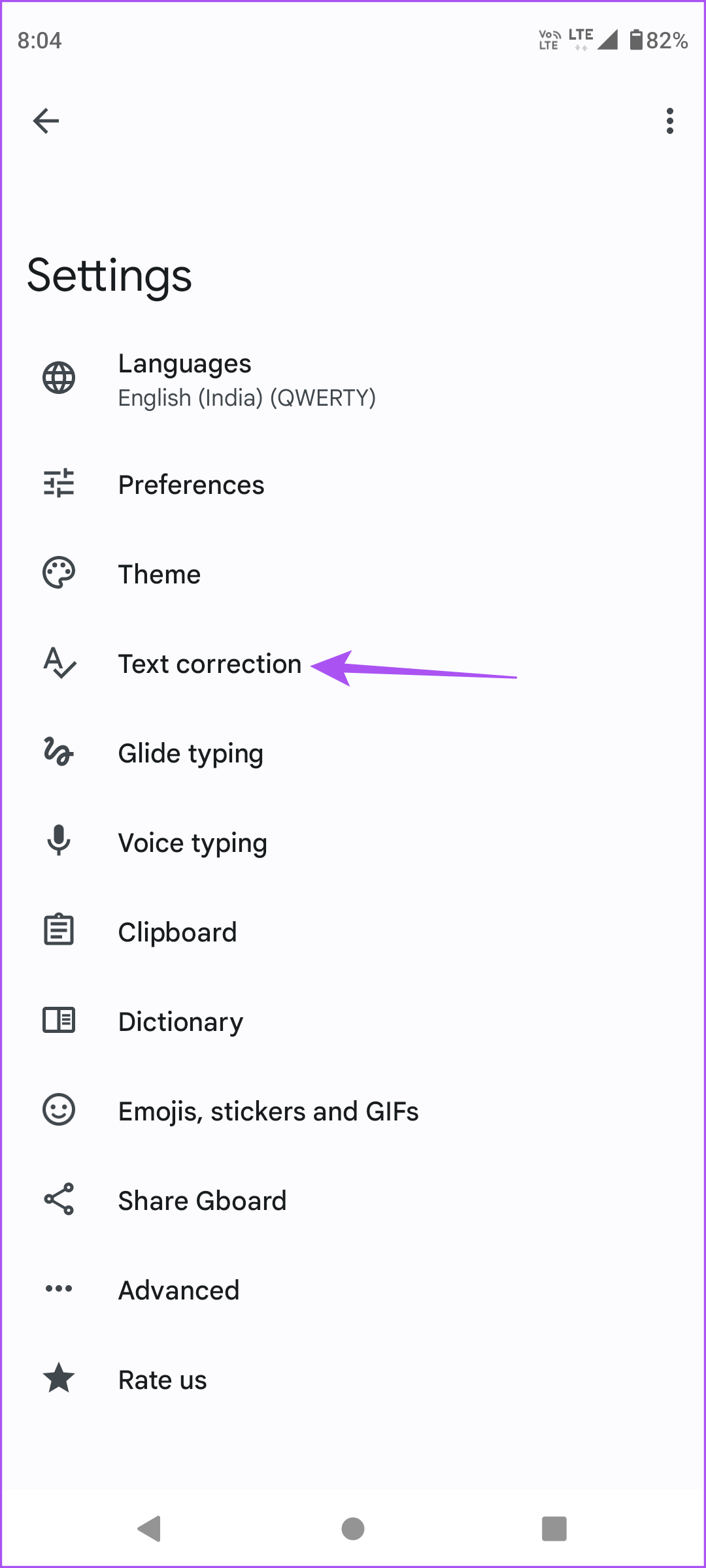
Step 3: Select Gboard and tap on Text correction .
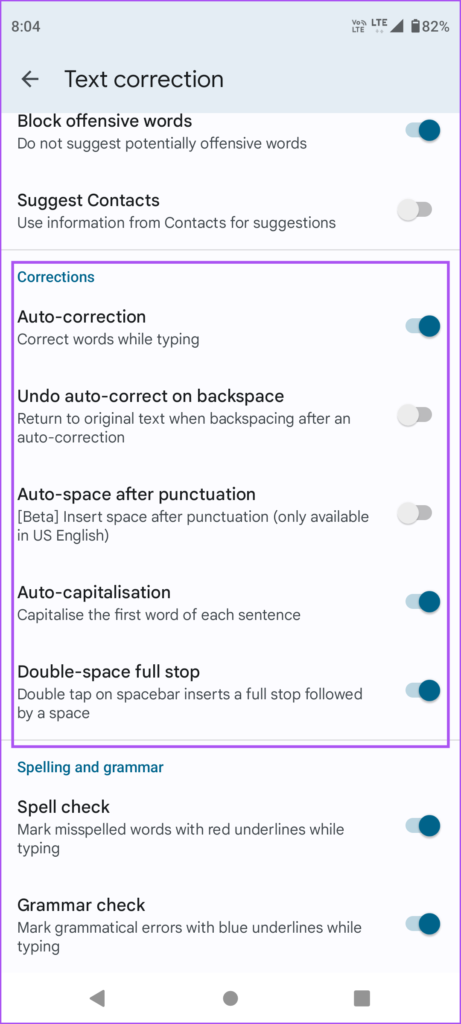
Step 4: Under Corrections, check if you have enabled options like Auto-correction , Auto-capitalization , and Auto-space After Punctuation .
For Microsoft SwiftKey
Step 1: Open Microsoft SwiftKey on your Android phone and select Typing .
Step 2: Check if you have enabled Autocorrect, Auto Capitalize , and Auto Space .
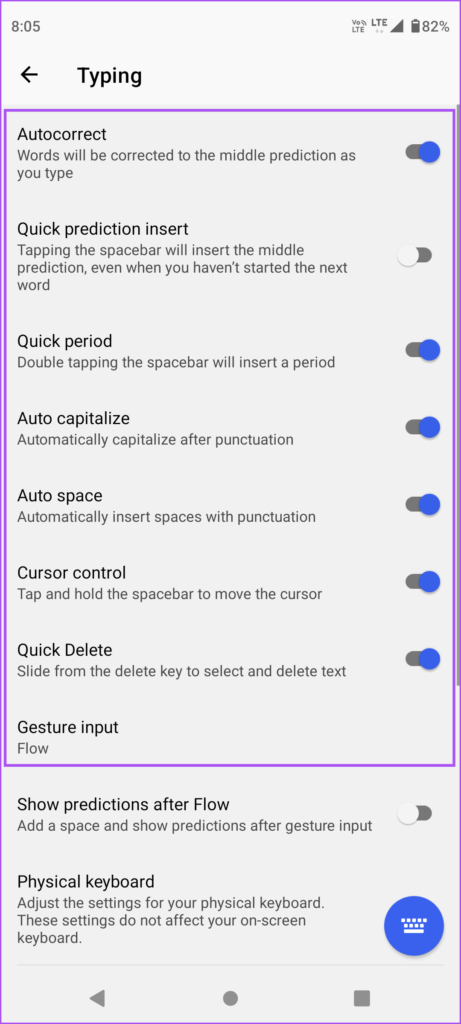
After enabling them, close Microsoft SwiftKey and launch the SwiftKey keyboard to check if the problem is solved.
Fix 3: Delete Learned Words and Data
Sometimes, the words you add to your personal dictionary get suggested instead of the correct spellings. So, try removing the learned words.
Open Settings > System > Languages and input > Personal dictionary and delete any news words or data you added.
You can also refer to our post if Voice-to-Text is not working on your Android phone .
Was this helpful?
Submit Cancel
Thanks for your feedback!
Keep reading