Android
How to Use Clipboard on Samsung Galaxy Phones
Here are the two best ways to enable and use the clipboard feature on your Samsung Galaxy phone to paste text and images quickly.
By Pankil Shah
Quick Tips
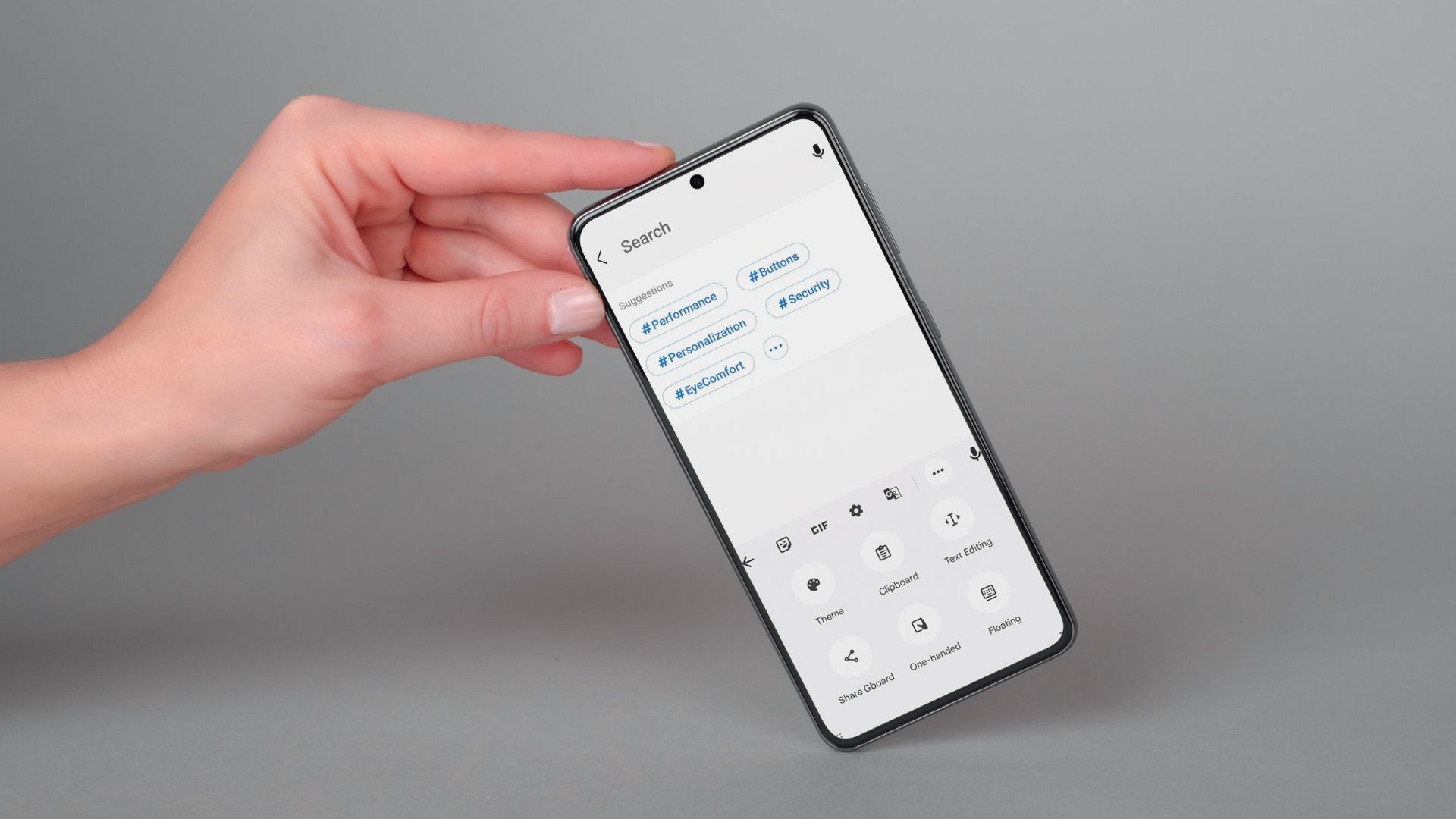
While copying and pasting items on Android is simple, it can only store one piece of information at a time.
You can use the clipboard feature in the Samsung Keyboard or Gboard.
You can also pin frequently used items in your clipboard for quick access.
Use Clipboard in Samsung Keyboard
You can use One UI’s native clipboard if Samsung Keyboard is your default keyboard app. The clipboard feature comes pre-enabled, making it easy to access it.
How to Access Samsung Keyboard’s Clipboard
To access the clipboard on your Samsung phone, long-press on a text field and select Clipboard from the menu. Then, scroll through your clipboard items and tap the text or image you want to paste.
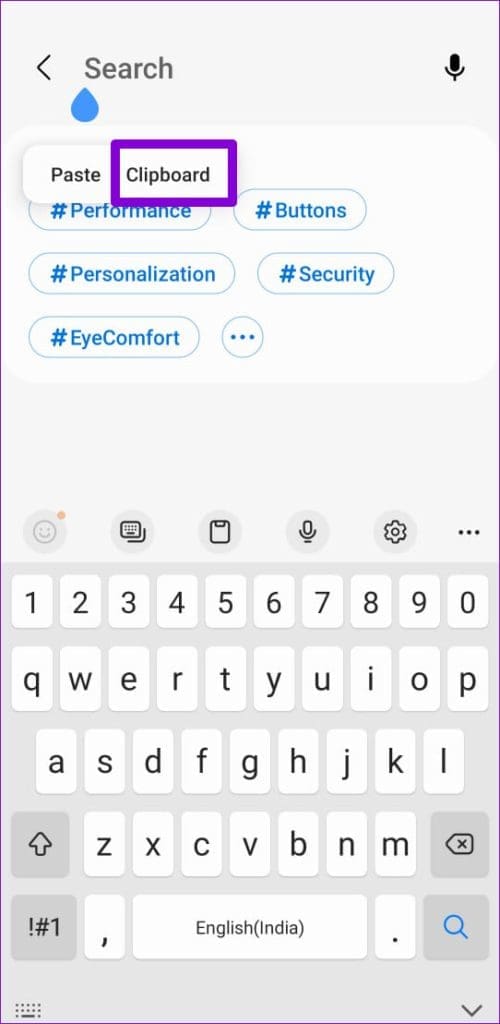
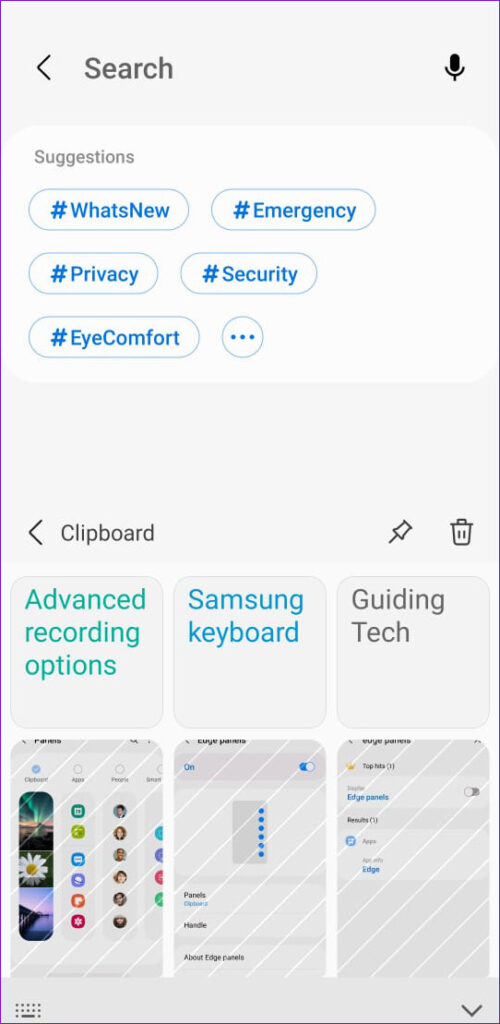
Alternatively, you can access the clipboard from the Samsung keyboard toolbar. If you haven’t already, here’s how to enable it.
Step 1: Open the Settings on your phone and navigate to General Management .
Step 2: Go to Samsung Keyboard settings and enable the Keyboard toolbar from the following screen.
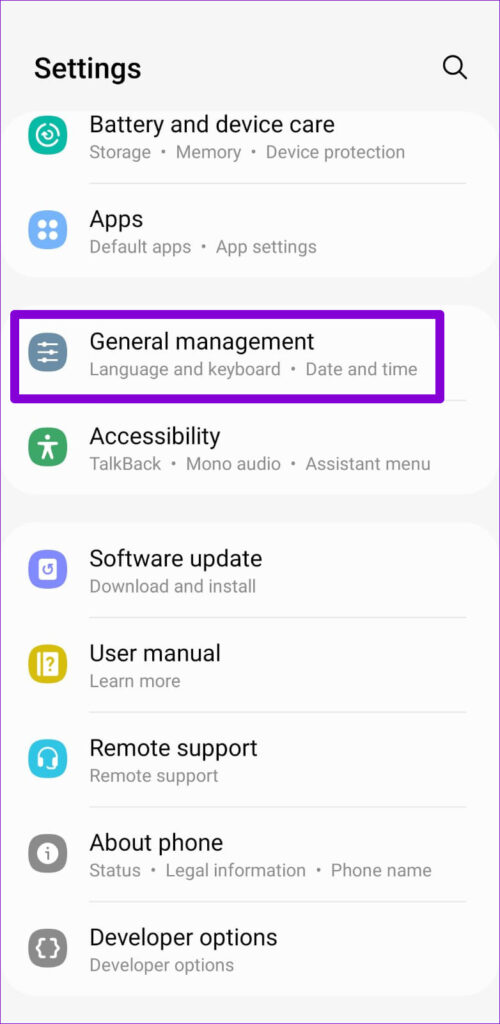
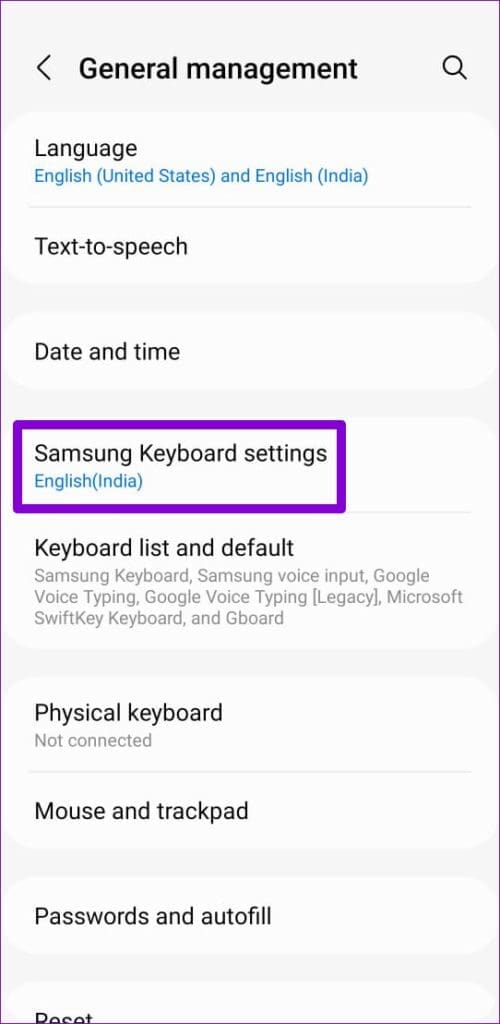
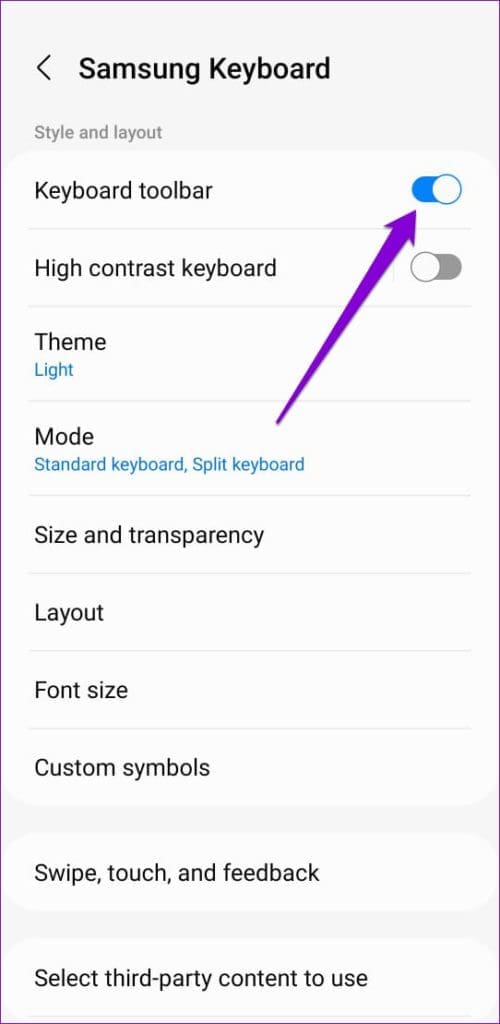
Step 3: After enabling the keyboard toolbar, tap on a text field to access the keyboard. Tap the three-dot icon and select Clipboard to view your copied items.
Optionally, you can add the clipboard shortcut to the toolbar to access it quickly.
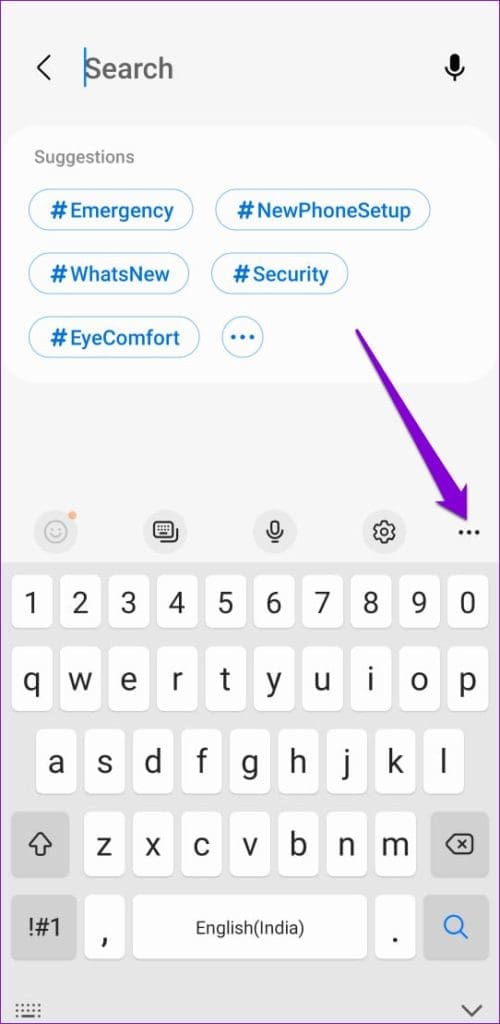
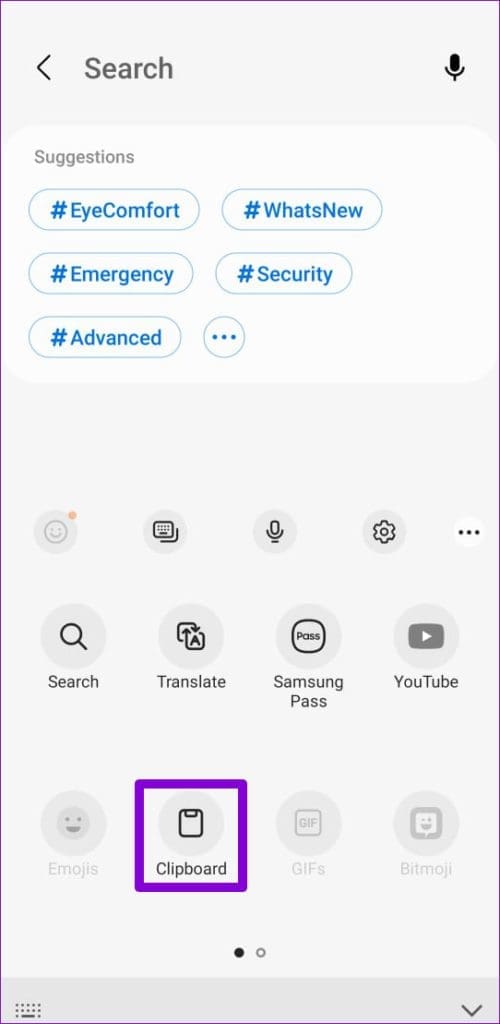
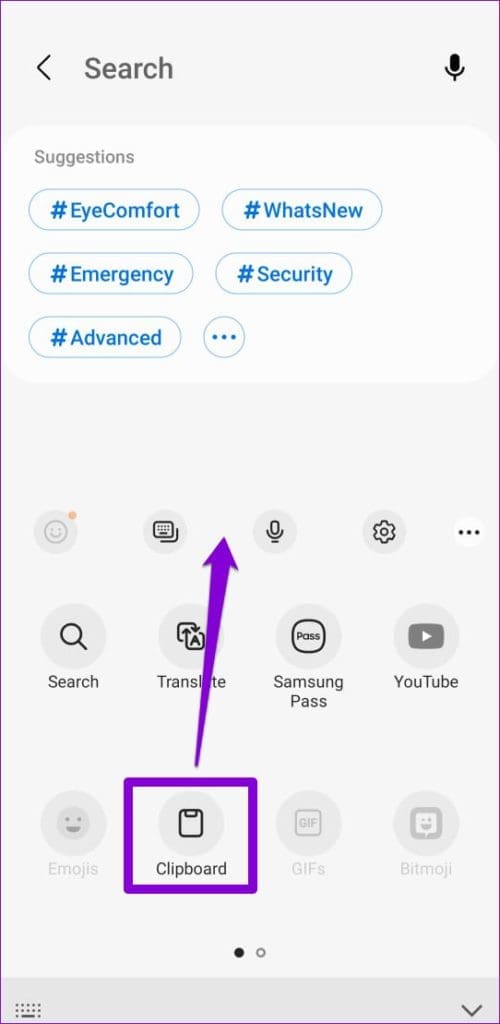
How to Use Samsung Keyboard’s Clipboard
You can view your clipboard items using either of the methods described above. Additionally, you can pin frequently used items or delete unnecessary ones from the clipboard. To do so, long-press on a clipboard item and select pin or delete .
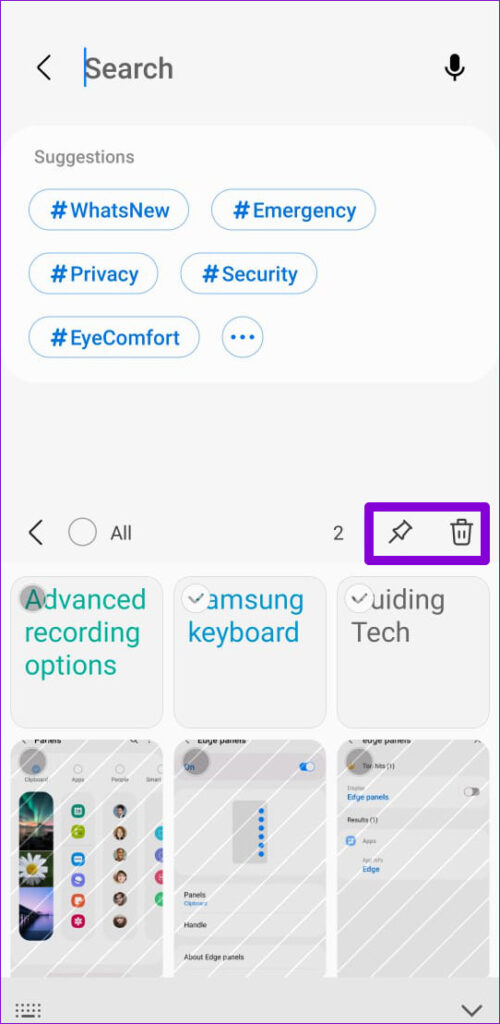
How to Use the Clipboard Feature in Gboard (Google Keyboard)
You can also take advantage of Gboard’s clipboard feature if that’s your preferred keyboard app. Here’s how to enable and use Gboard’s clipboard on your Samsung Galaxy phone.
Enable Gboard’s Clipboard
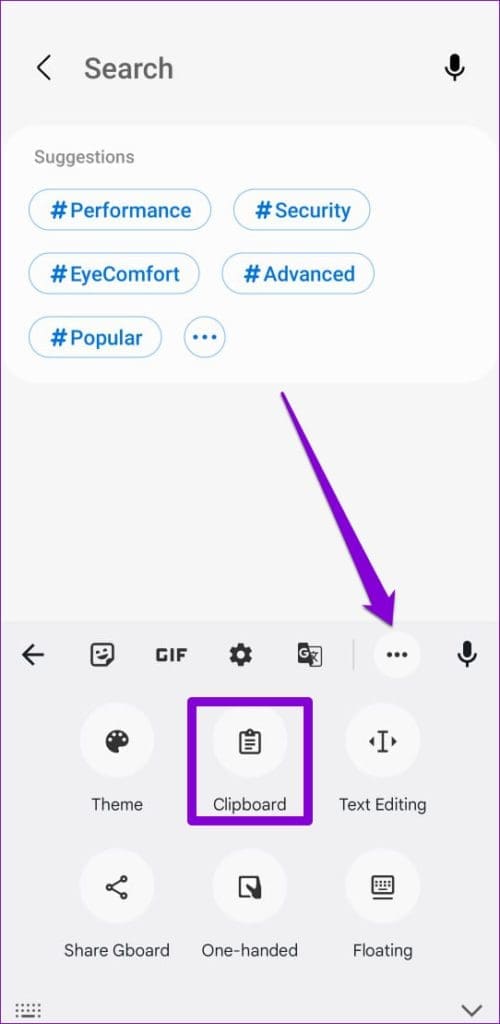
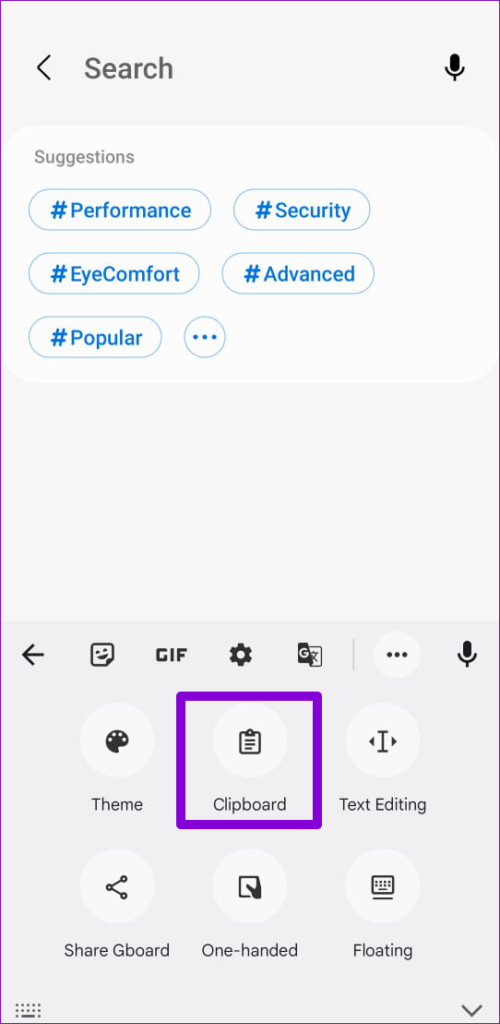
Step 1: Open Gboard by tapping a text field. Then, tap the three-dot menu icon and select Clipboard .
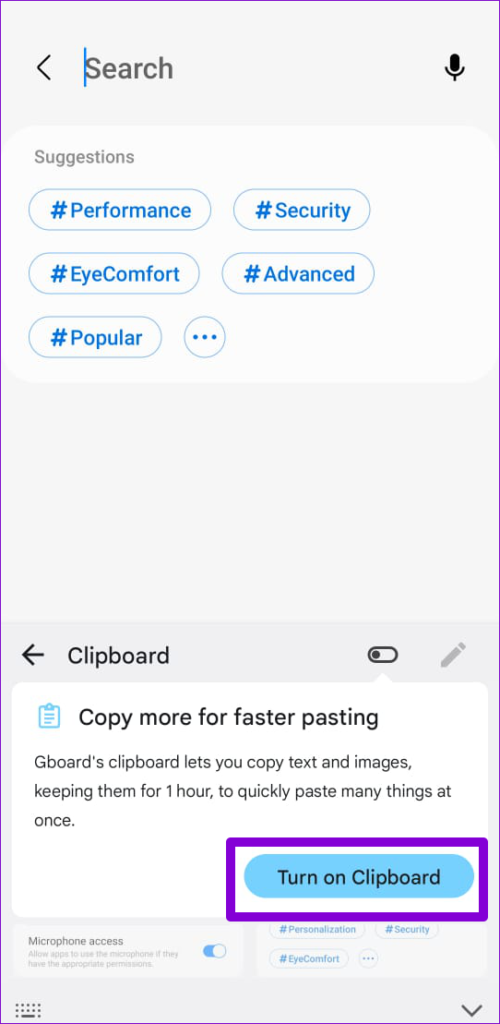
Step 2: Tap on Turn on Clipboard . Optionally, you can drag and drop the clipboard to the toolbar for easier access.
How to Use Gboard’s Clipboard
Once you enable Gboard’s clipboard, all the text and images you copy from the mobile browser or apps will appear in its clipboard.
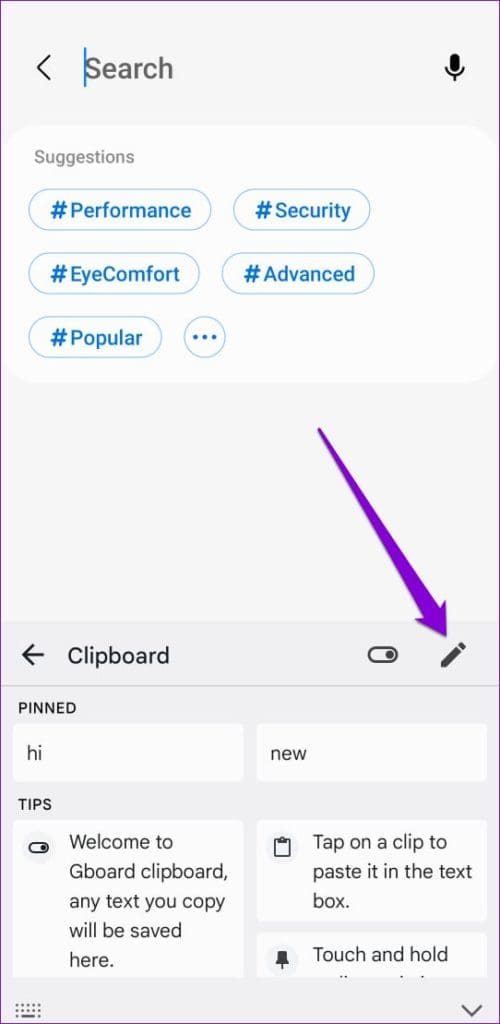
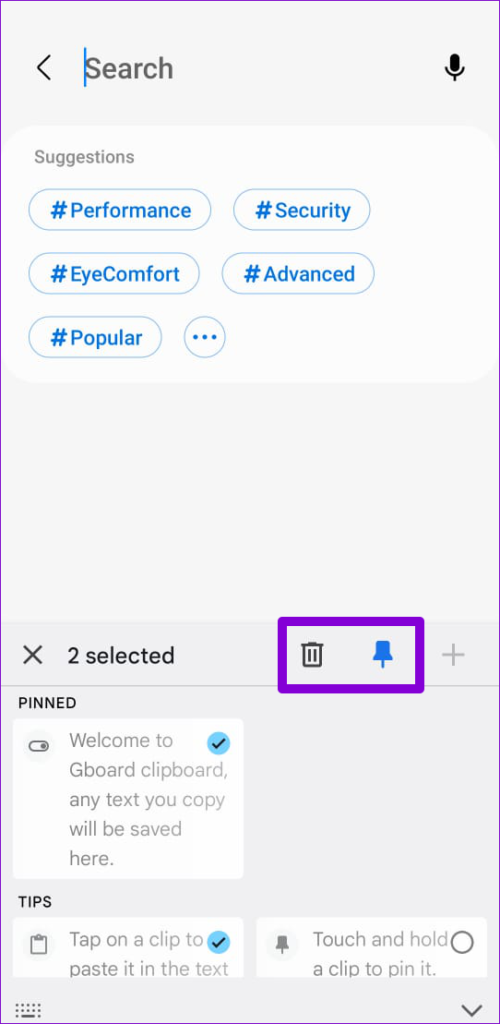
Step 1 : To manage the clipboard content, tap the pencil icon at the top-right corner of the keyboard and use the options at the top to pin or delete items.
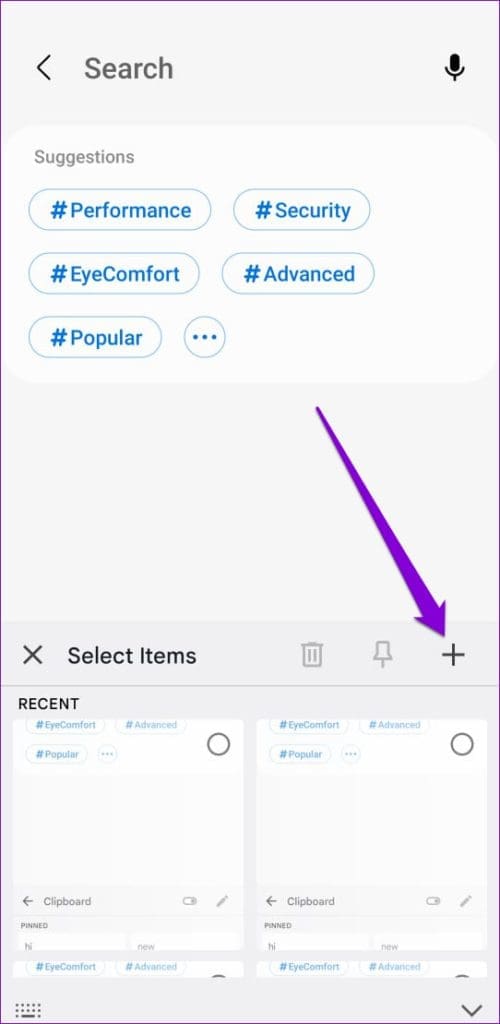
Step 2 : You can also add items manually to your clipboard by tapping the plus icon , typing your text in the Add a new item box, and hitting Save .
How to Configure Gboard’s Clipboard
Aside from the standard features, Gboard’s clipboard has some interesting features that you may find useful.
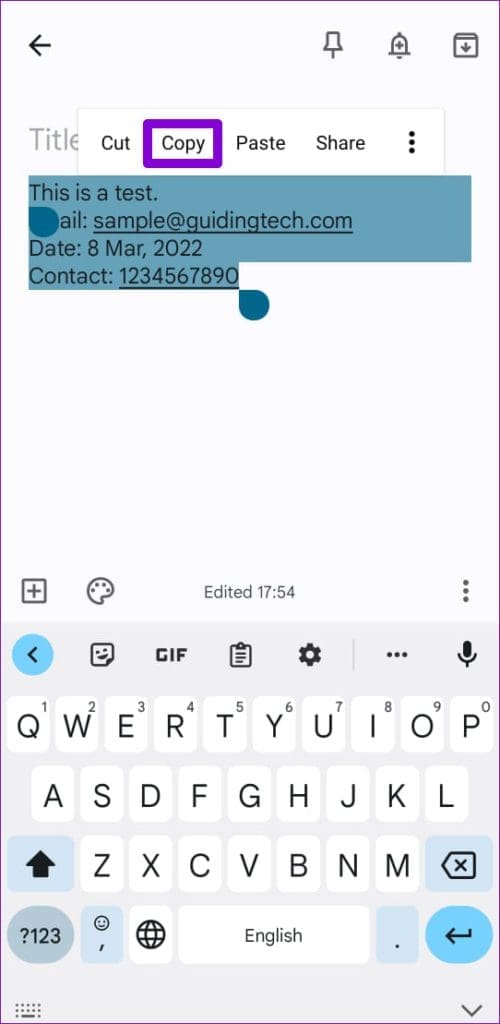
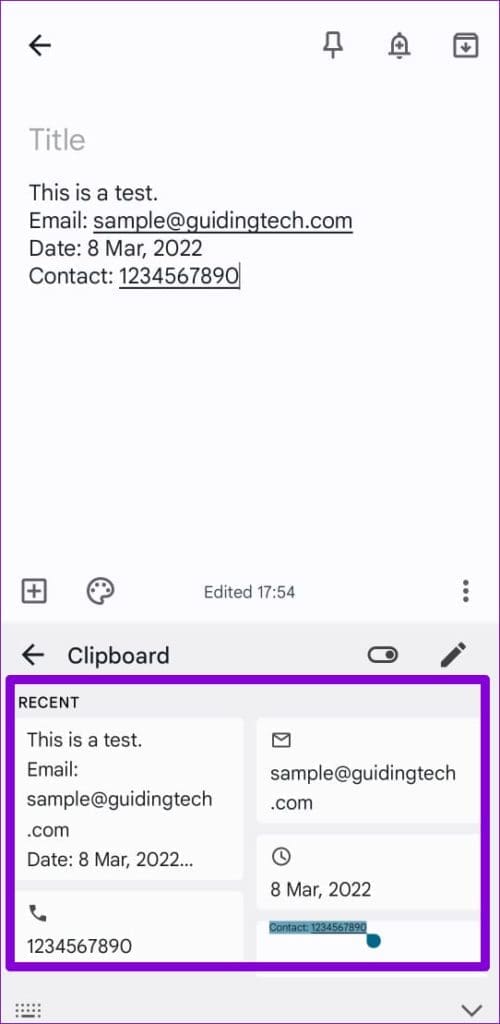
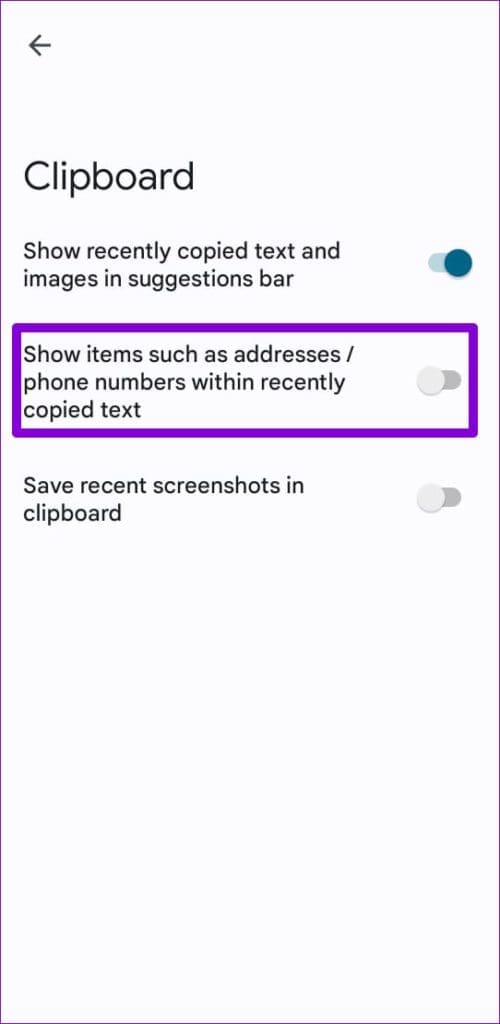
For instance, when you copy a text containing information like a phone number or email address, Gboard automatically puts that information in a standalone pill. This gives you the option to paste those items individually as well.
However, this feature can also clutter your clipboard with too many items. Thankfully, you can disable it by accessing Gboard’s settings.
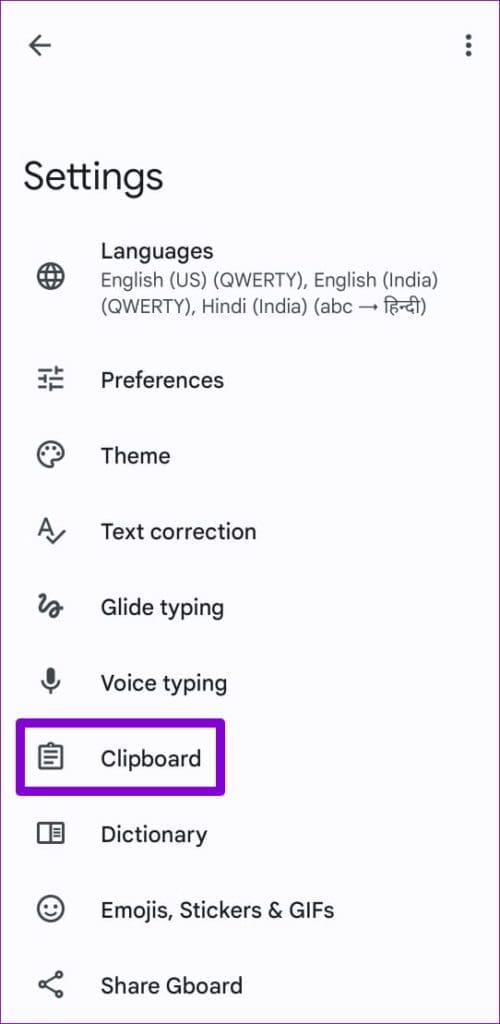
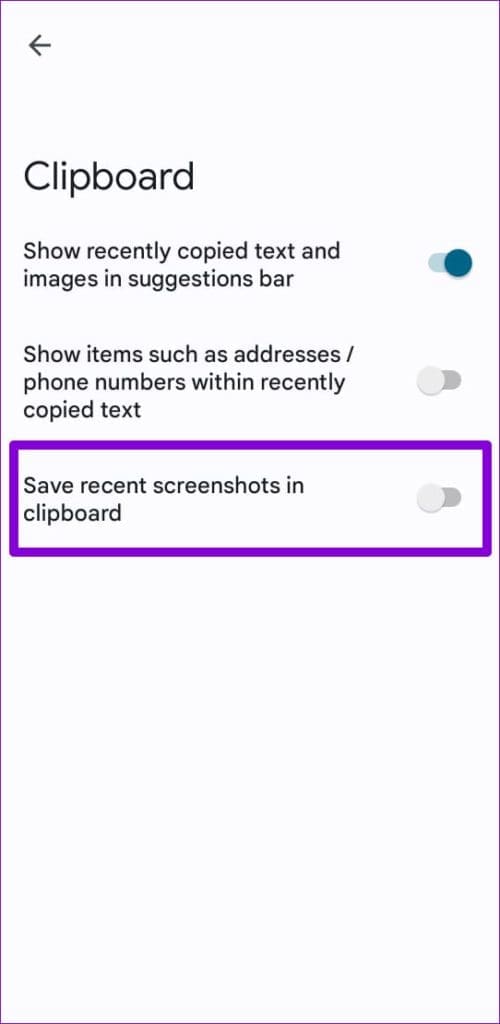
For that, open the Gboard app on your phone and tap on Clipboard . Then, turn off the toggle for Show items such as addresses/phone numbers within recently copied text . From the same menu, you can configure Gboard to save your recent screenshots automatically to its clipboard.
Was this helpful?
Submit Cancel
Thanks for your feedback!
Keep reading