Android
How to Check if Your Samsung Phone Is Original or Fake
Unsure about your phone's legitimacy? Let us have a look at 8 ways that can help you check if your Samsung phone is original or fake.
By Ankita Sharma
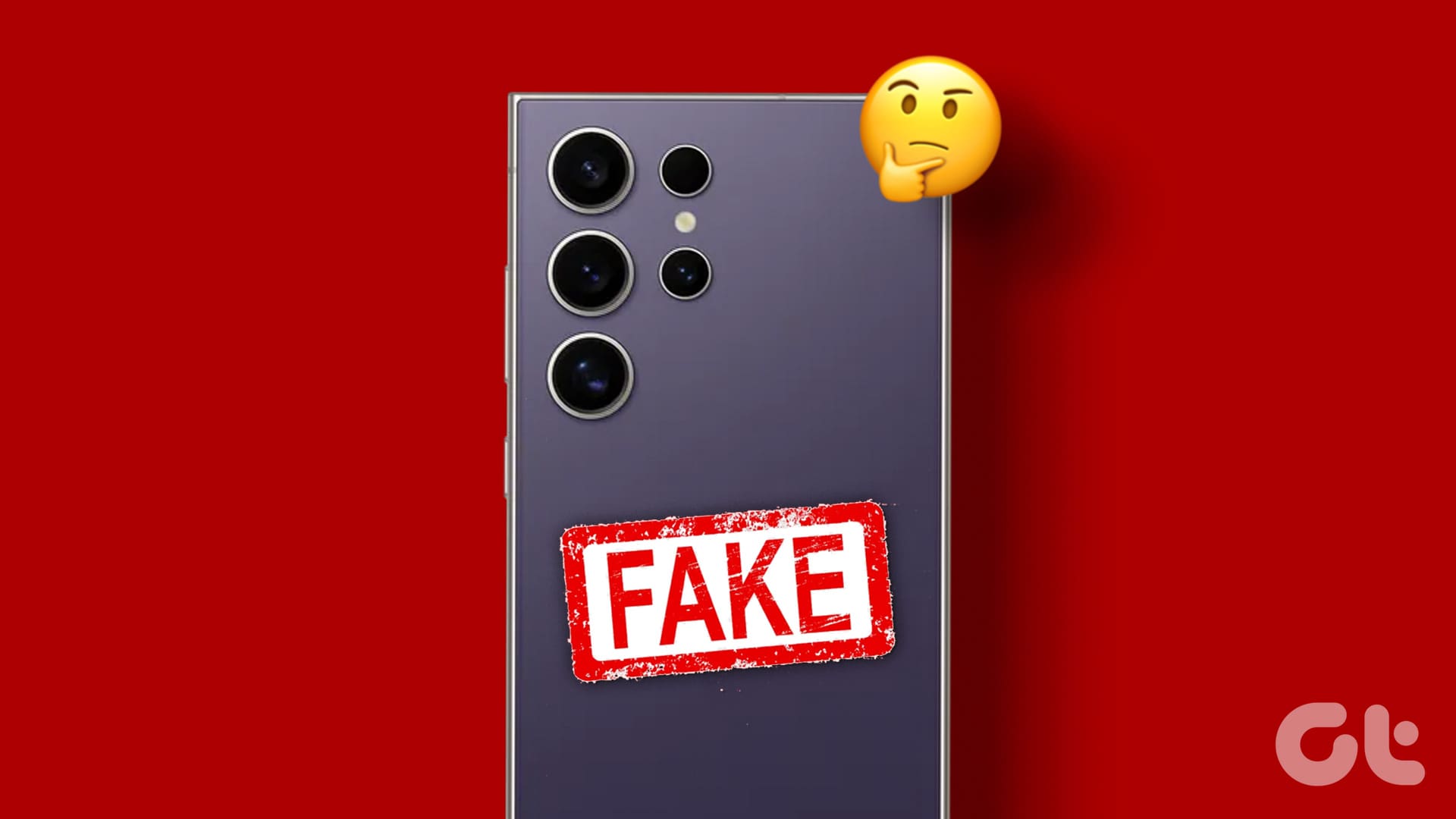
While buying phones online can help you get the best price for your desired Samsung phone, there might be times when a deal looks too good to be true. Hence, it is always better to check if the Samsung phone is original or fake once you receive the device. But how?
To verify if your Samsung phone is original or fake, consider a few things. Most counterfeit devices have visible details that make them stand out, like awkwardly placed camera lenses, mispronunciation or misplacement of the brand name/logo, uneven or missing device buttons, etc.
If you spot any such thing, you can contact the device retailer for further clarification. However, if such things are not visible or not too obvious, proceed with the below-mentioned checks.
1. Check Device IMEI Against the Box
Using a simple USSD code, you can check the IMEI number assigned to your Samsung phone. This is unique to every mobile device. Once visible, compare it with the IMEI details printed on the box your Samsung phone came in. If they match, there’s a good chance your phone is a genuine Samsung phone. Here’s how to do it.
Step 1: Open the Phone app and tap on Dialer.
Step 2: Open the keypad is visible, dial *#06# .
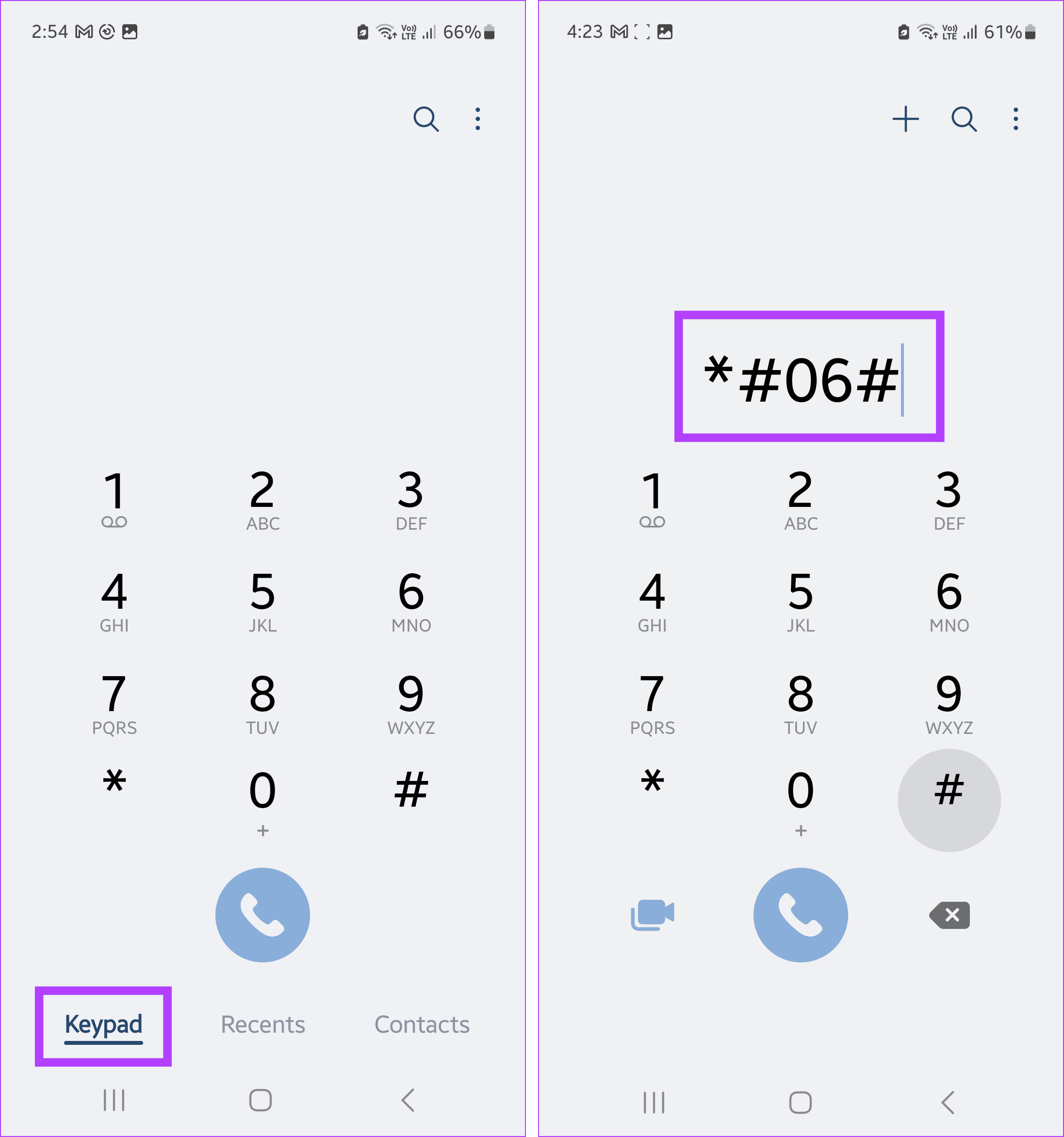
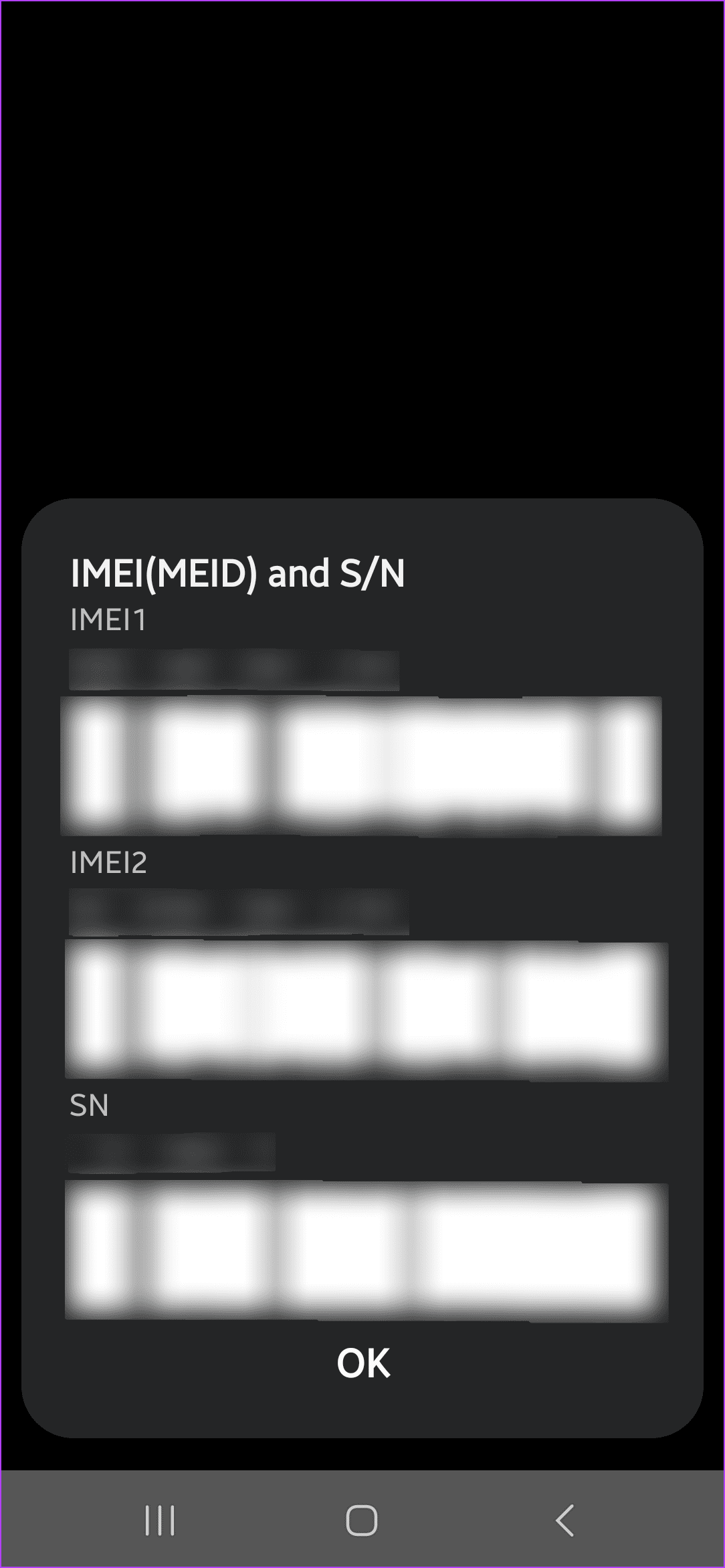
Step 3: Then, wait for your device’s IMEI to appear.
Step 4: Now, check the back or the side vignette on your Samsung phone’s box.
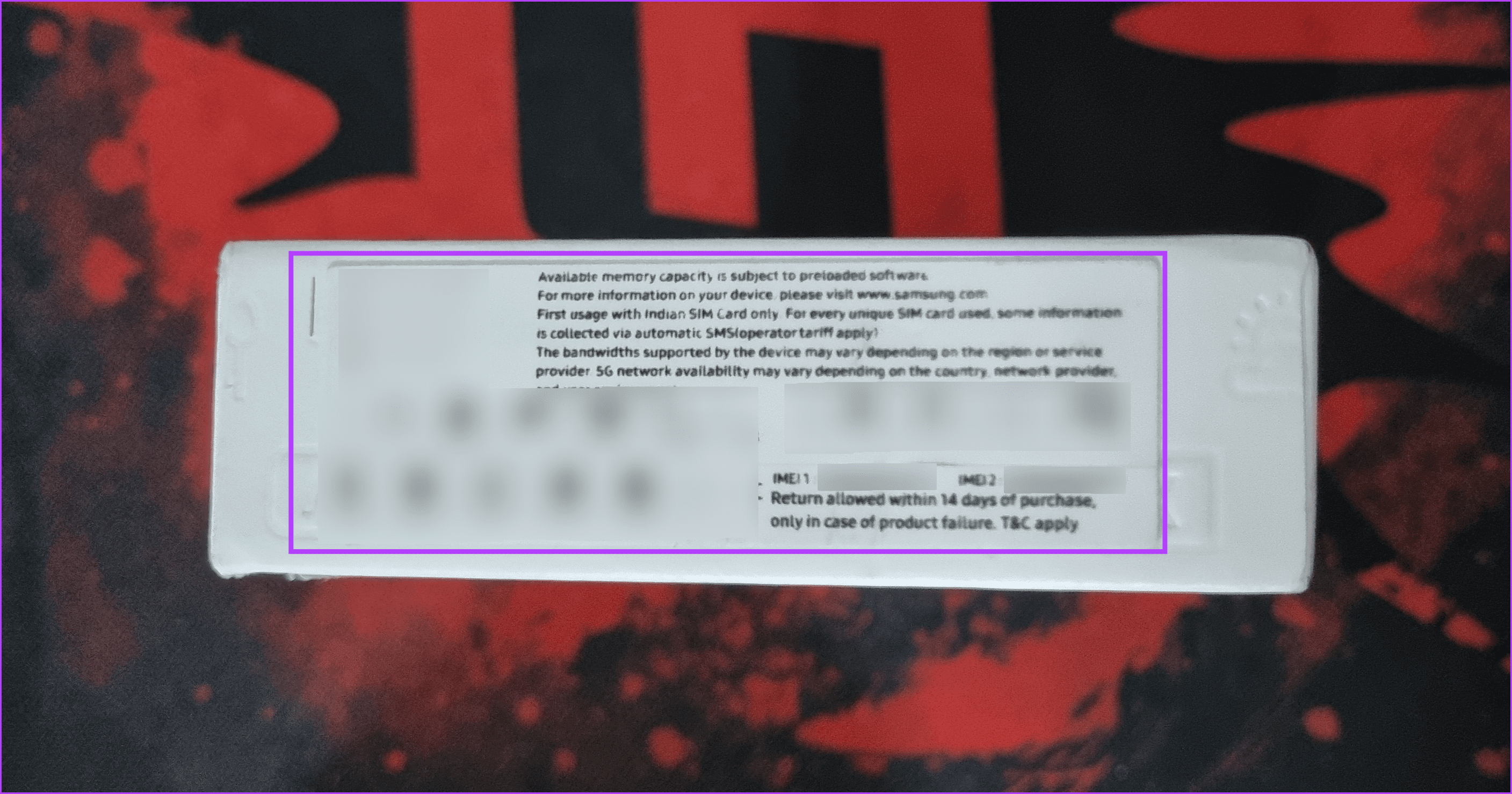
The IMEI numbers should be visible with a barcode underneath it. Compare this with the IMEI digits visible on your Samsung phone’s screen.
Also Read: IMEI vs. IMSI number: What you need to know about them
2. Try Opening the Diagnostic Tool
Most Samsung devices come pre-installed with a diagnostic tool. This can not only help diagnose device issues, especially if you’re giving it for repairs but also help ascertain the device’s legitimacy. This is because you can only launch the Diagnostic Tool app using the USSD code if your device is genuine. Here’s how to do it.
Step 1: Open the Phone app and tap on Keypad.
Step 2: Now, dial *#0*# .
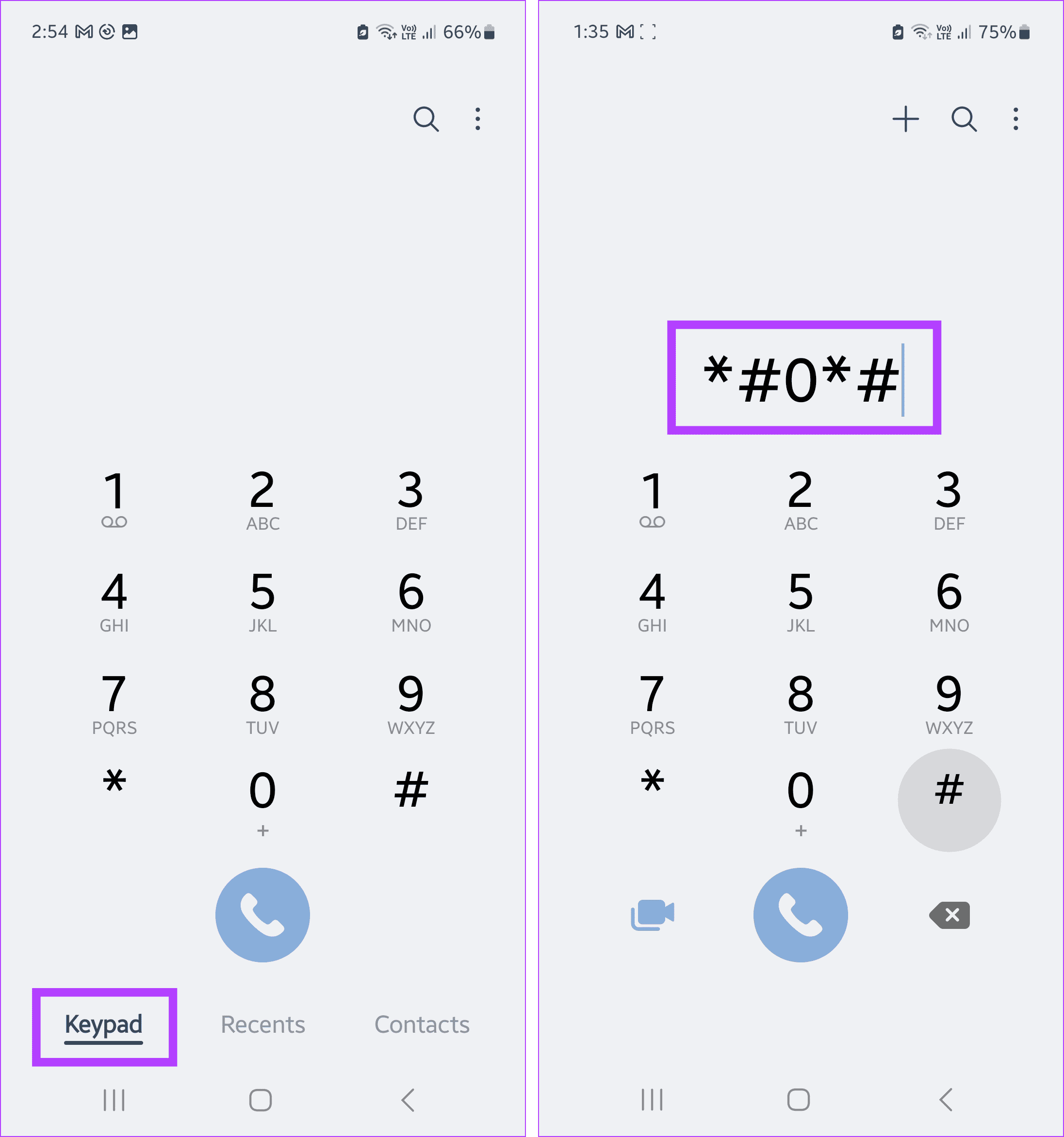
Step 3: This should automatically launch the Diagnostic Tool.
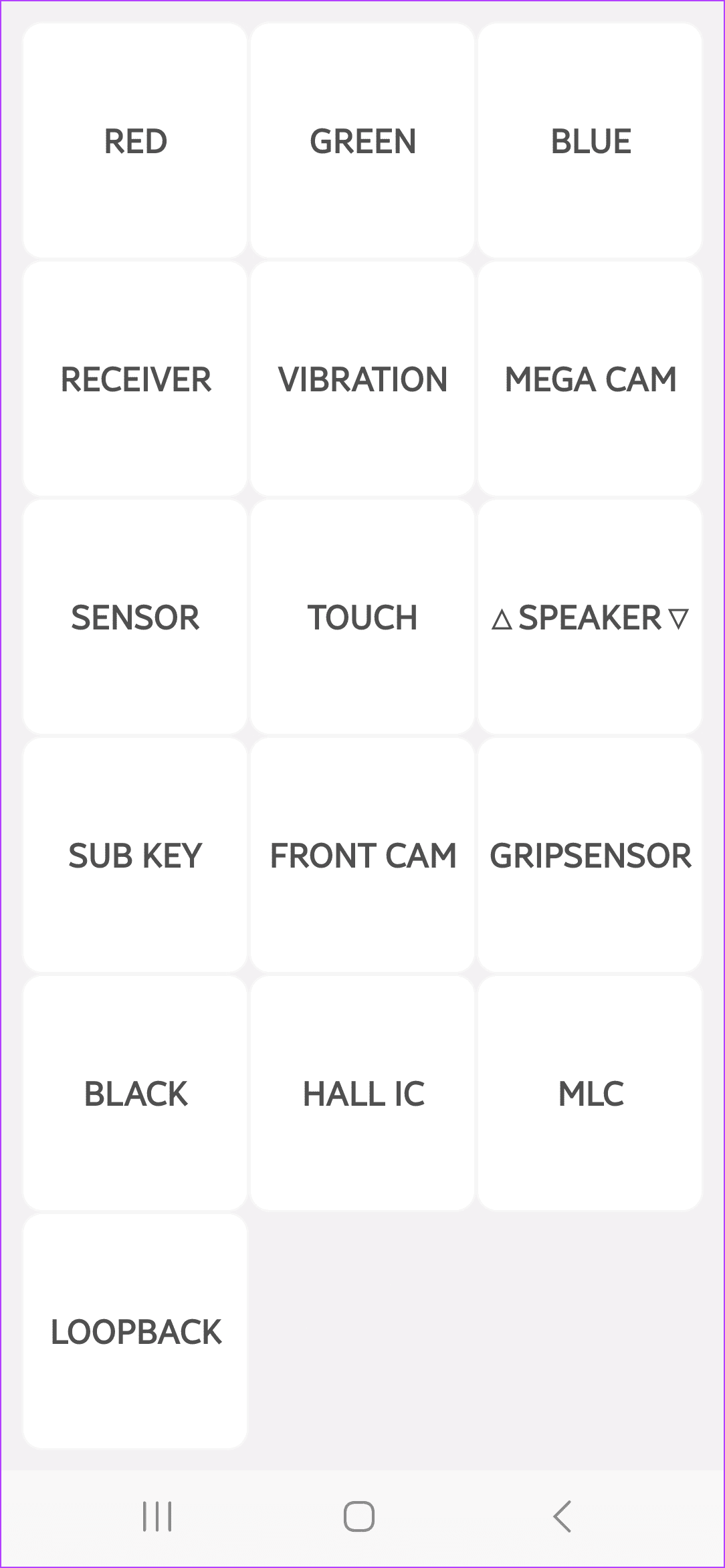
Here, use the on-screen options to run a diagnostic. If it works well, it means your Samsung product is genuine. You can tap on the Back button twice to exit the Diagnostic Tool.
3. Register the Product
If you’ve signed in to your Samsung account on your Samsung phone, there’s a good chance it has already registered the product to your account. Otherwise, you can manually register the product using the Samsung Members app as well. Please note you must be signed in to your account to see the relevant options. Once done, follow the below steps to complete the process.
Step 1: Open the Samsung Members app on your Samsung phone. From the menu options, tap on Support.
Step 2: Here, tap on Register.
Step 3: Scroll down to the ‘Manual input or barcode’ section and tap on Enter info.
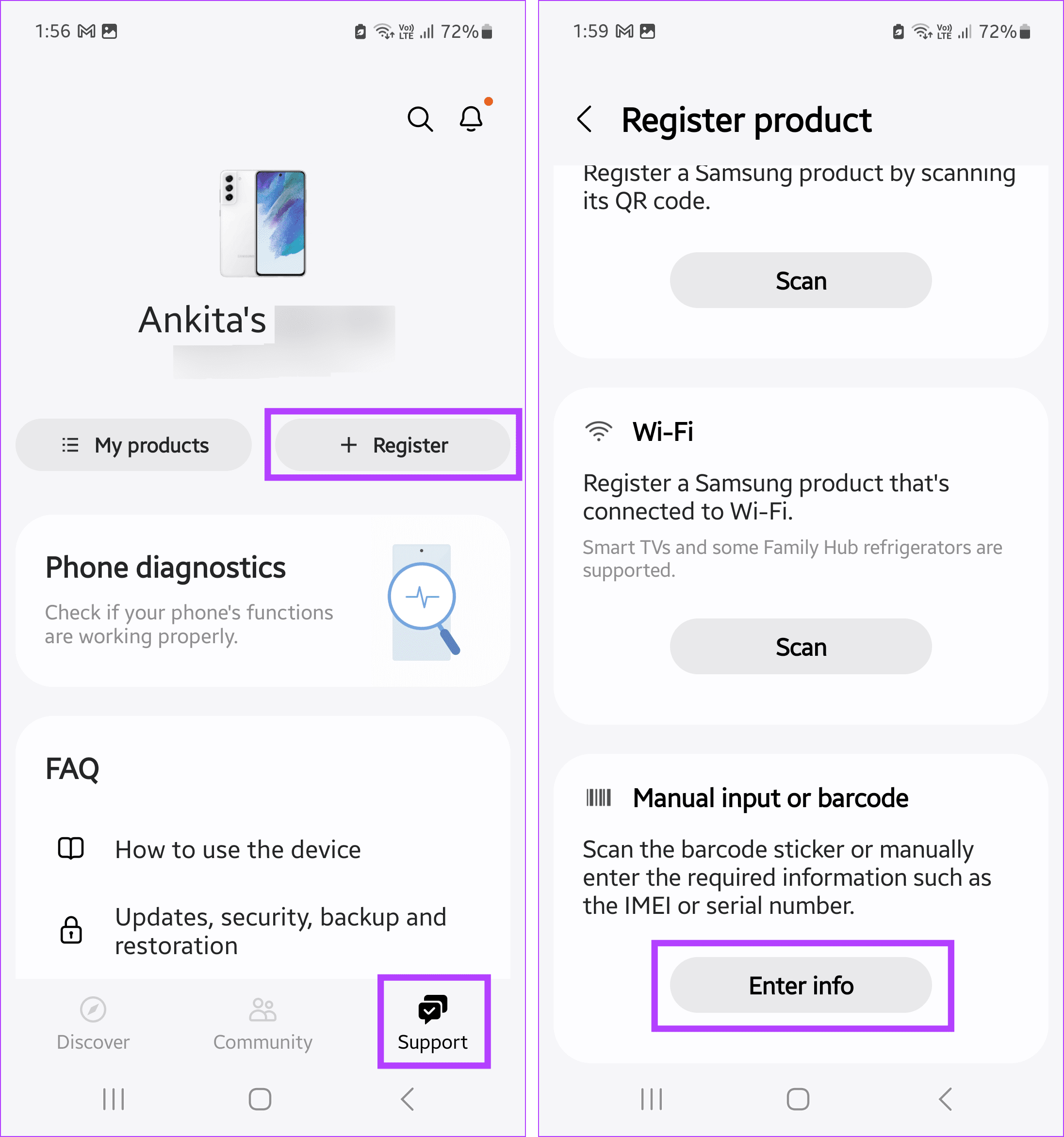
Step 4: From the list of products, select Phone.
Step 5: Here, enter your phone’s Model name and IMEI or MEID details.
These should be on the phone box or in the About phone section in the Settings app.
Step 6: Once the options become available, tap on Register.
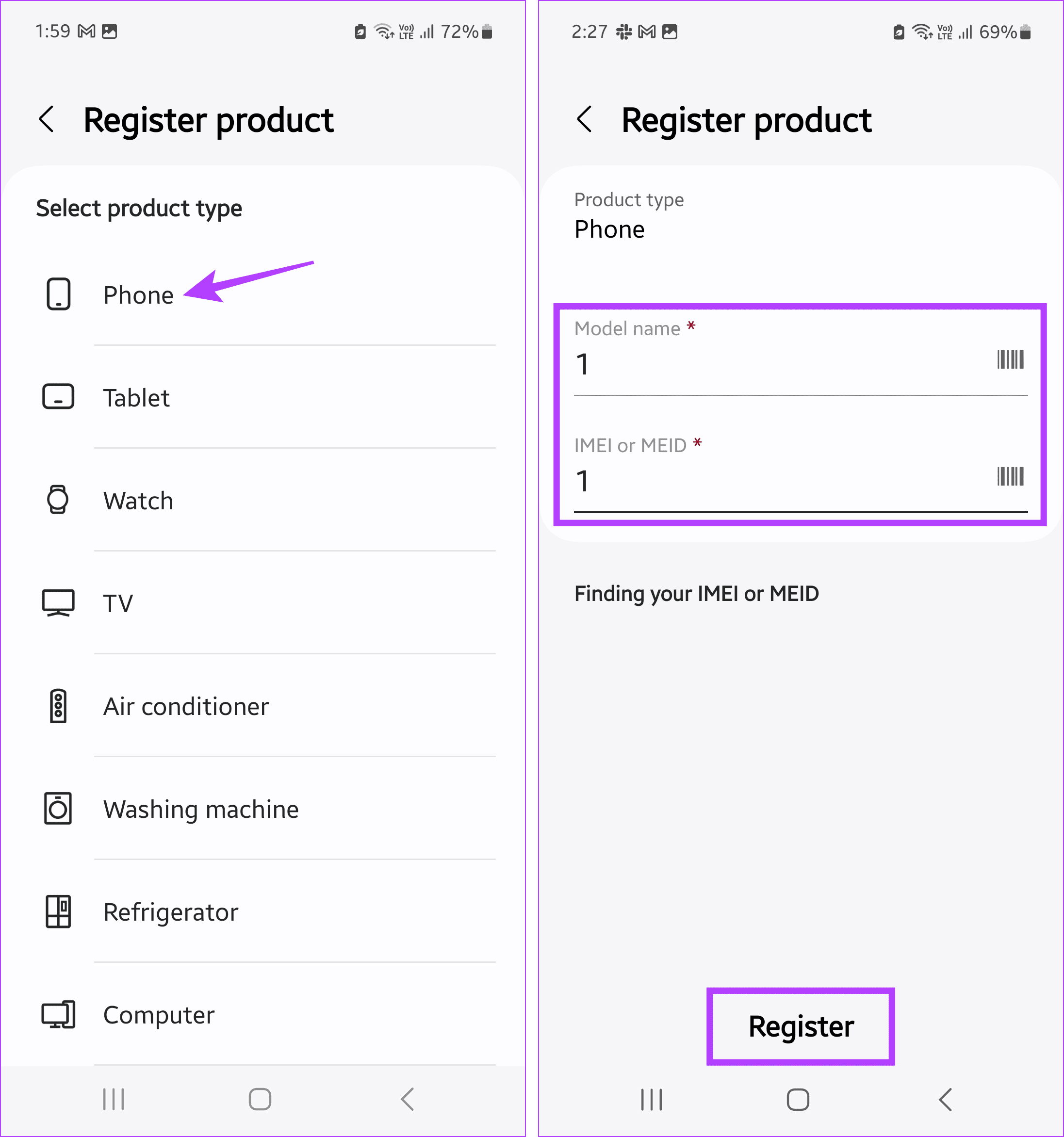
If your device successfully registers, it means you’re using a genuine Samsung phone.
4. Compare Device Features and Specs Against Website/Manual
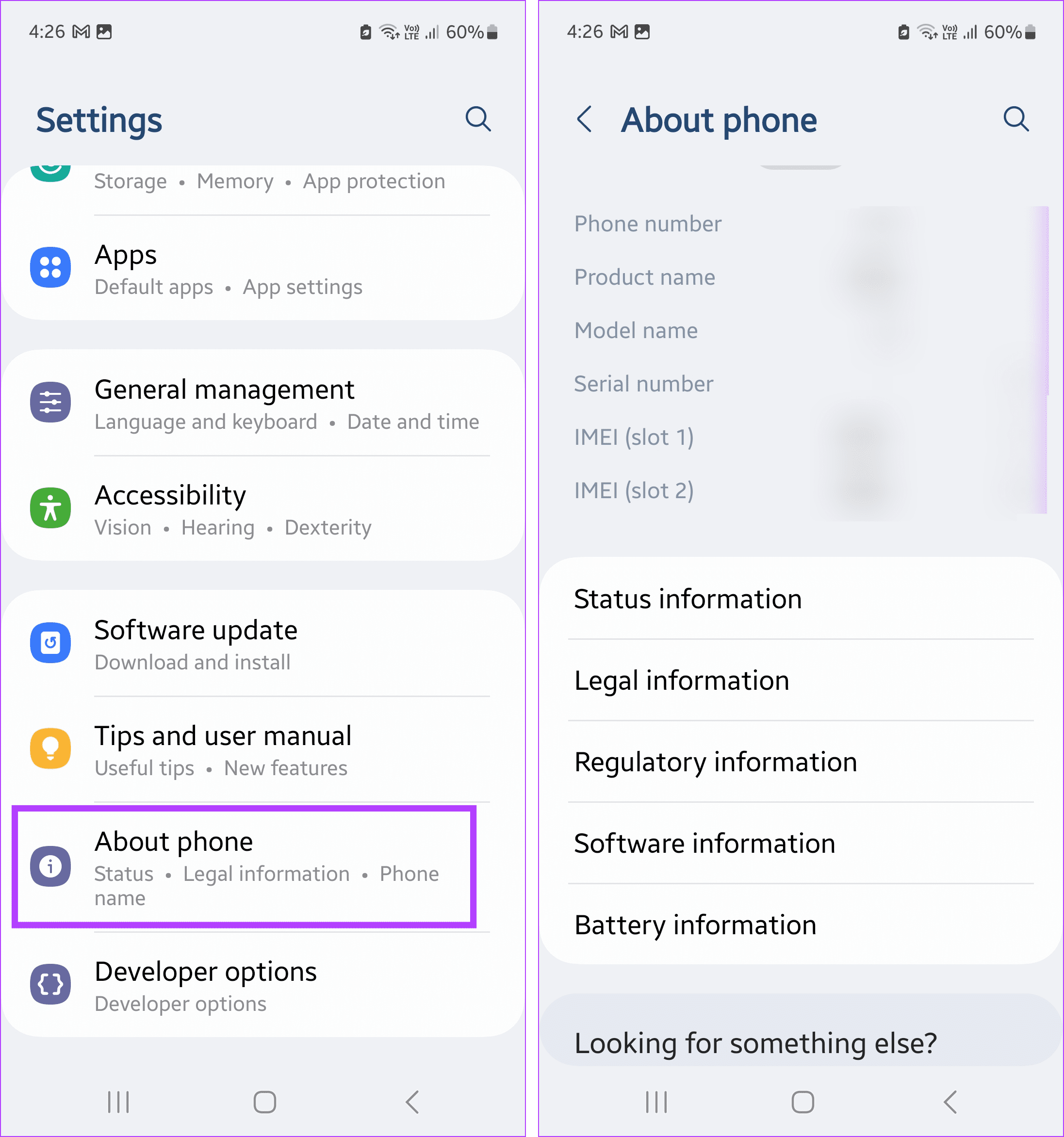
Your Samsung phone has most details related to your device’s software version, battery information, etc. You can see this information and compare it with what has been mentioned about your device on Samsung’s official website or in the manual in the box. Here’s how to see device information.
Step 1: Open the Settings app on your Samsung phone. Scroll down and tap on About phone.
Step 2: Go through the page and view the relevant device information.
Step 3: Then, visit Samsung’s website on any web browser.
Open Samsung's website
Look up your device using the search bar and compare the device details visible in the Settings app. You can also compare the physical device features and how they work, especially the camera, to check whether the phone is genuine.
5. Try Running Maintenance Mode
The Maintenance Mode feature on your Samsung phone allows you to lock your personal data when handing it over to someone else, like when giving the phone for repair. This is unique to Samsung and can be activated using a USSD code. This makes it a great way to verify your Samsung phone’s legitimacy as well. Follow the below steps to activate it.
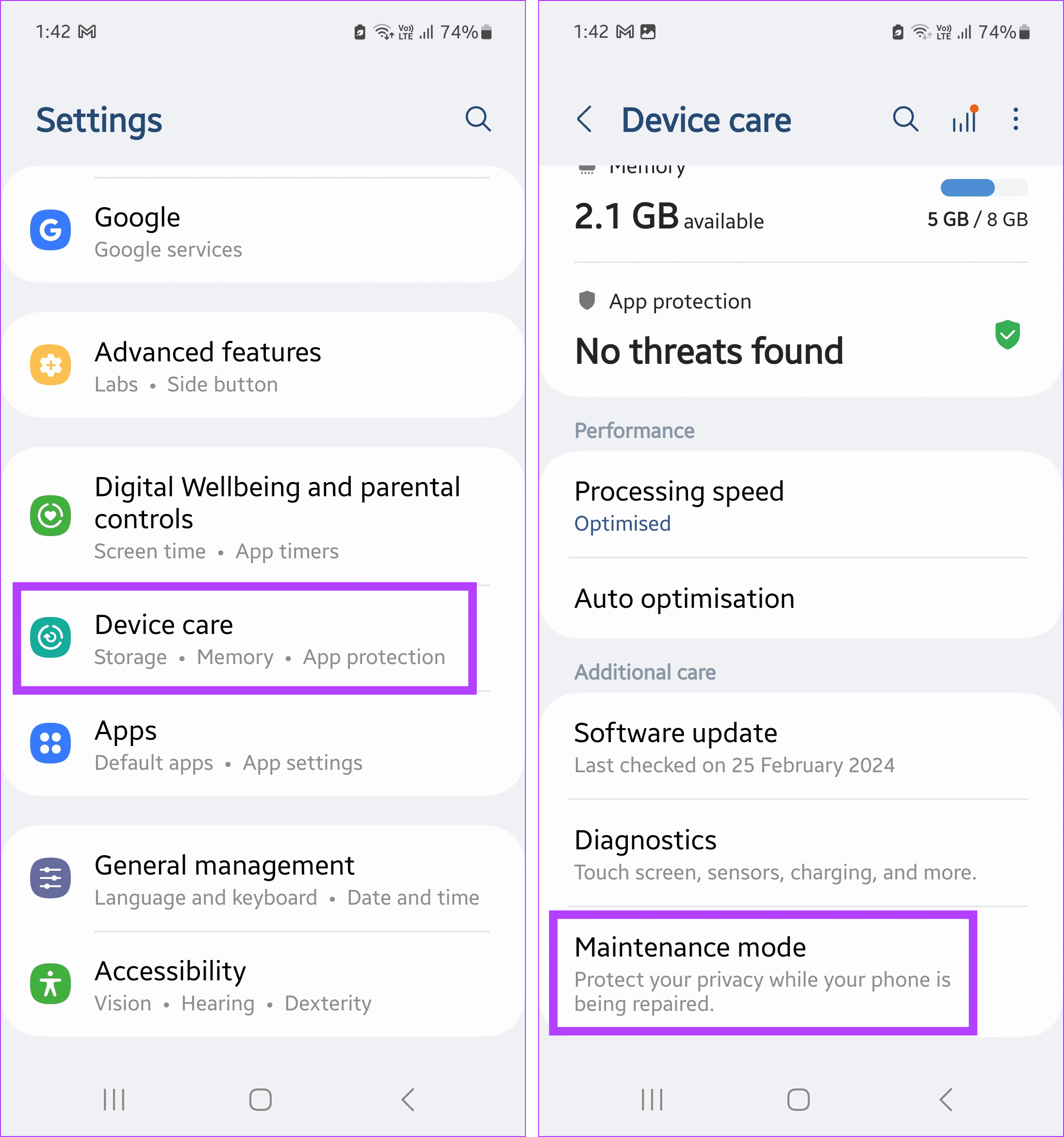
Step 1: Open Settings and tap on Device care.
Step 2: Scroll down and tap on Maintenance mode.
Step 3: Then, tap on Turn on.
Step 4: When prompted, tap on Restart.
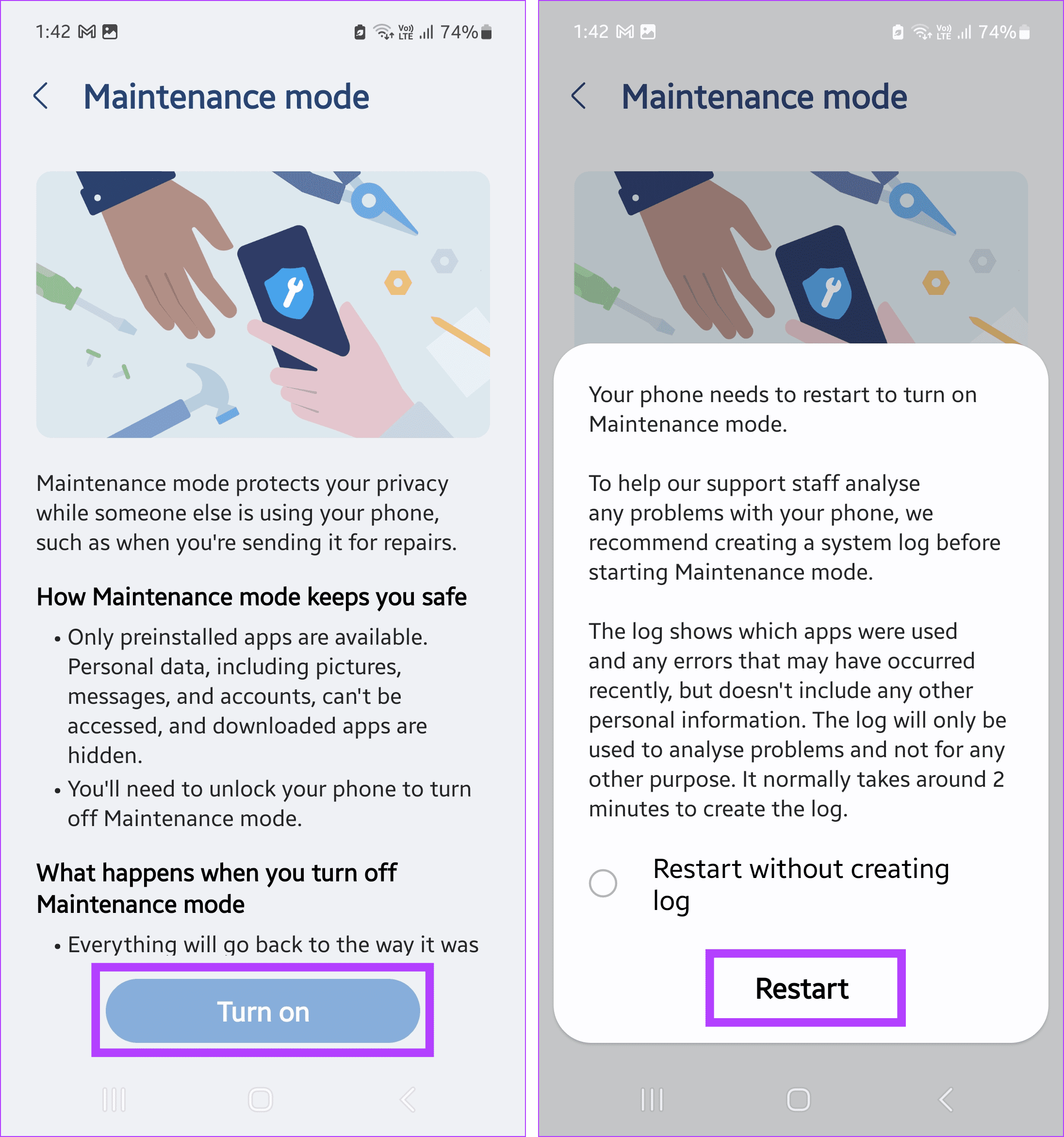
Once your device restarts, it should enter Maintenance Mode if the device is legitimate.
6. Check for Software Updates
Most Samsung devices receive regular software updates for at least 2-3 years. You can use this to verify Samsung phone legitimacy, as only authentic mobile devices will receive these updates. If an update is not visible, manually check for it. Here’s how.
Step 1: Open the Settings app and tap on Software update.
Step 2: Here, tap on Download and install.
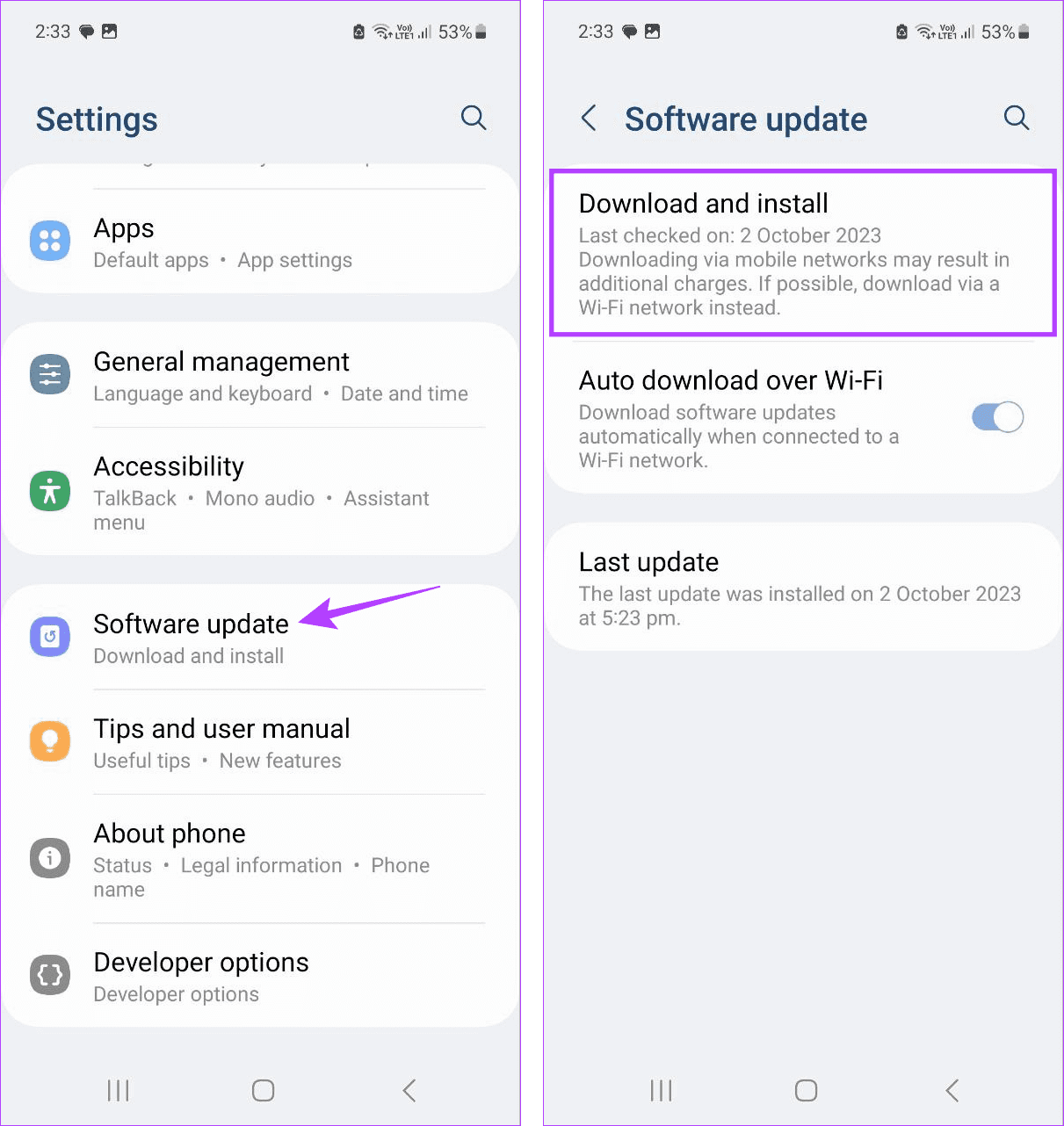
Wait for your Samsung device to check for updates. If available, download and install the software updates. The latest Android version should be reflected once your Samsung phone finishes restarting.
7. Try Using Bixby
While most Android devices use Google Assistant, Bixby is a bonus to Samsung phone users. To use this feature, reconfigure the Side button to open Bixby on your Samsung phone. Then, check if Bixby responds to commands and works as expected. Follow the below steps to do it.
Step 1: Open the Settings app and tap on Advanced features.
Step 2: Here, tap on Side button.
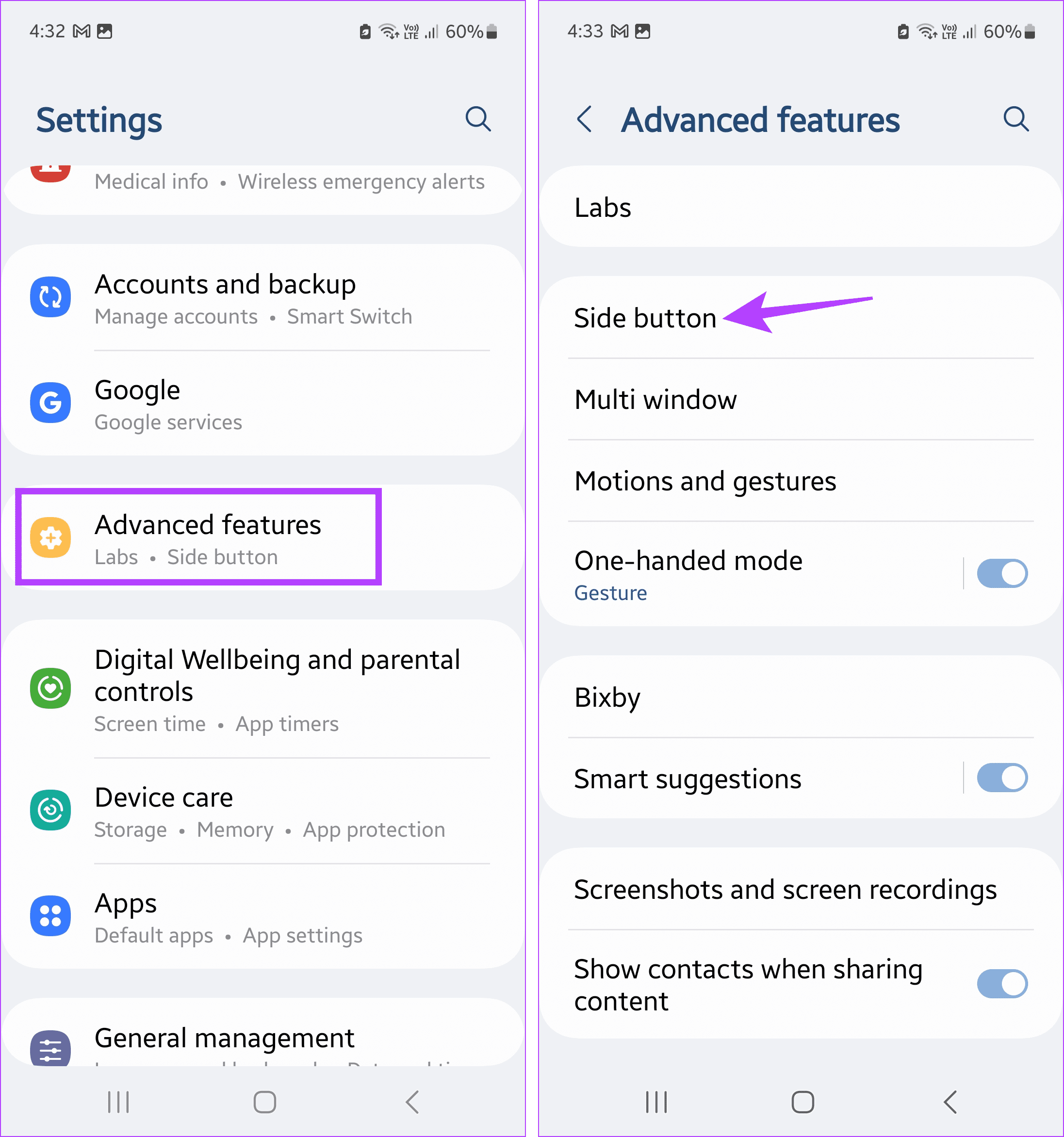
Step 3: Go to the Press and hold section and select the Wake Bixby option.
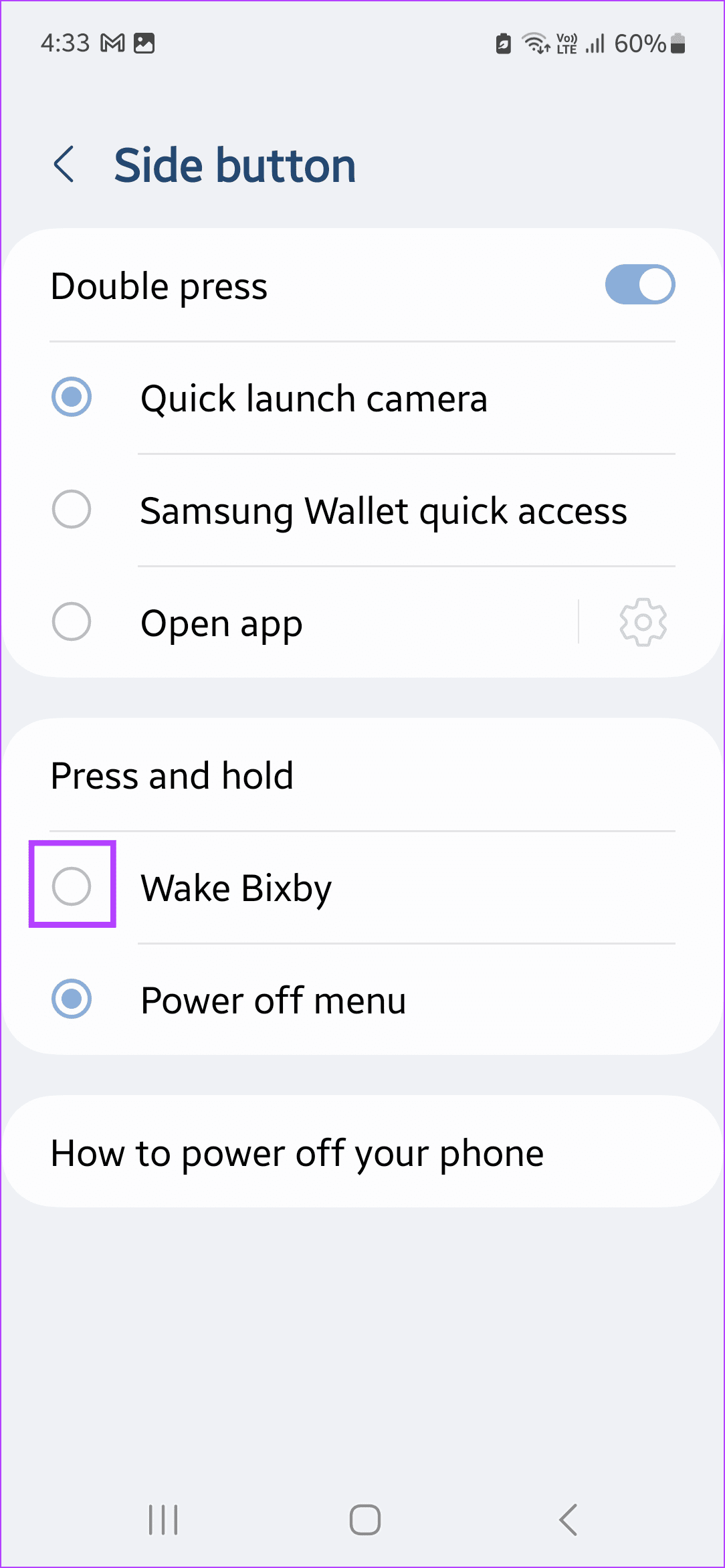
Now, press and hold the side button on your Samsung device to wake Bixby and give it a command. There can also be times when Bixby won’t work even on genuine Samsung phones. So, if you’re having trouble using the personal assistant, first troubleshoot the Bixby not working issue on your Samsung phone .
8. Verify Phone in a Samsung Store
One of the easiest and straightforward ways to check the authenticity of your Samsung phone is by taking it to a physical Samsung store or service center. Ensure to carry the purchase invoice and device box as well. Then, ask the store staff to verify the device using their system. If the device is genuine, the phone’s IMEI, serial number, etc., should pop up in their system.
Check the Authenticity of Your Samsung Phone
We hope this article helped you check if your Samsung phone is original or fake. If your device fails on multiple fronts, we advise you to at least go to Samsung and get the device checked before deciding. If the phone is the real deal, you can transfer the data from your previous mobile device using the Smart Switch app .
Was this helpful?
Submit Cancel
Thanks for your feedback!
Keep reading