Android
5 Ways to Convert Voice Recordings to Text on Android
Check our detailed guide and learn how to convert voice recordings to text on Android for seamless communication.
By Bhaskar Sharma
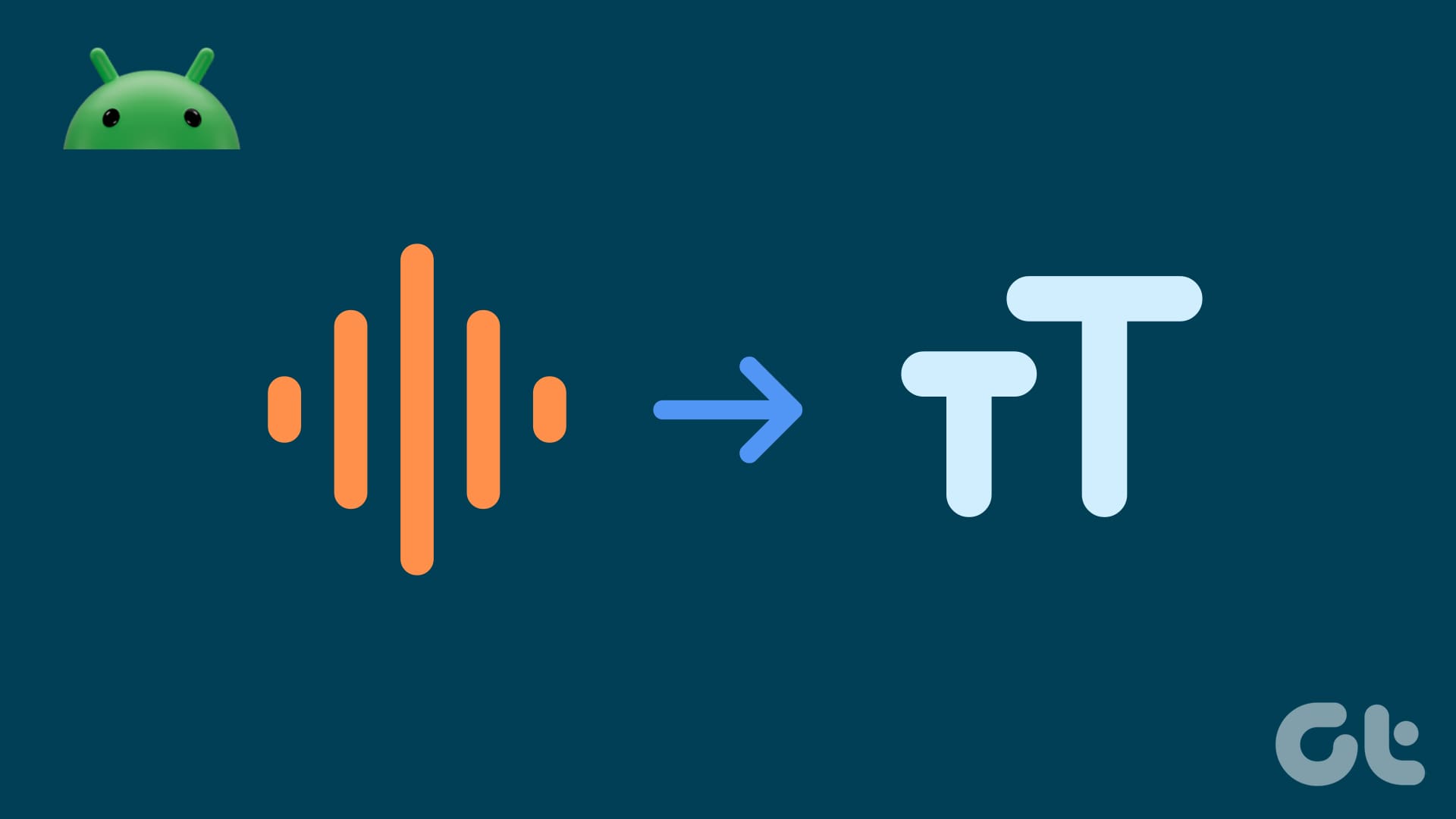
Tired of manually typing lengthy voice notes or audio recordings? Android devices offer several efficient ways to convert your spoken words into text. In this guide, we’ll walk you through easy ways to convert your voice recordings to text on your Android devices.
Whether you prefer greater accessibility while taking notes, want to quickly capture meeting minutes, or need to transcribe audio files for various purposes, your Android device has a solution. Let’s dive into the simple steps that transform your spoken word into easily editable text.
Method 1: Via Android’s Transcribe Feature
Whether you need to take quick notes, capture an interview, or record your thoughts, Live Transcribe & Notifications can help. This handy app instantly turns your speech into text, supporting multiple languages. You can save your transcripts for easy reference later. Here’s how to get started:
Step 1: Launch the Play Store on your Android device.
Step 2: Tap the search icon, type Live Transcribe and Notifications , and hit the Install button.
Download Live Transcribe & Notifications
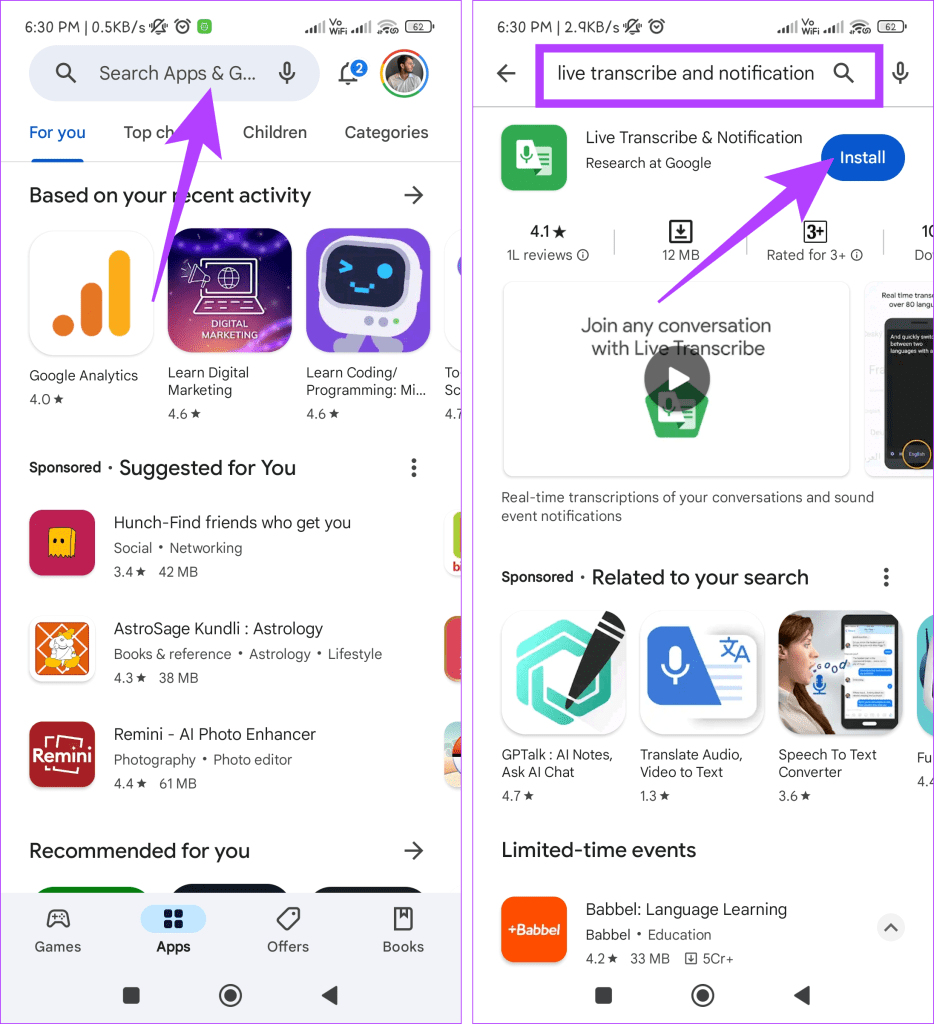
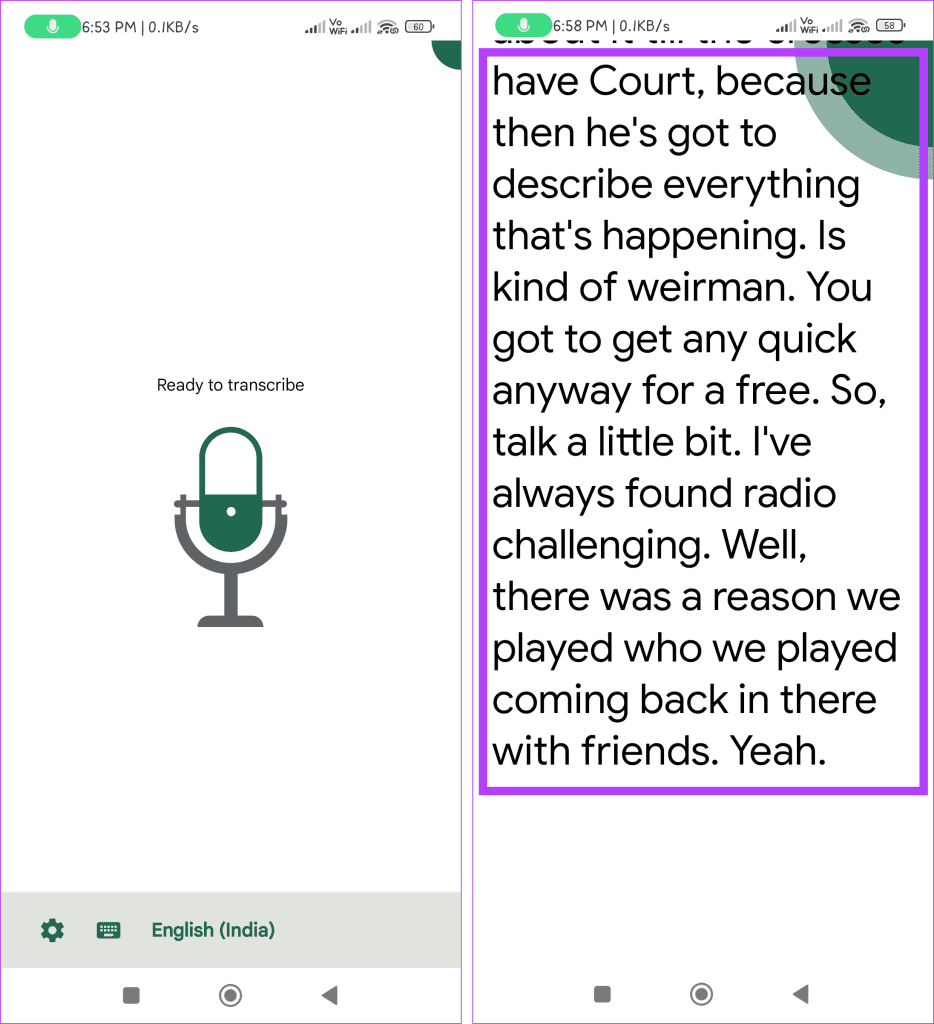
Step 3: Open the app and grant the necessary permissions.
Step 4: Use your phone’s microphone to speak, and the app will instantly transcribe your words into text.
Also Read: How to take Voice Notes on Android
Method 2: Using the Google Voice Recorder App
The Google Voice Recorder app for Android efficiently converts voice recordings to text. It ensures excellent audio recording and uses Google’s advanced speech-to-text technology to provide accurate transcriptions. Additionally, the application automatically stores text and audio versions, making it simple to access the original recording.
Although it comes pre-installed on Google Pixel devices , you can download it from alternative sources if you’re using a different Android device, as it’s currently unavailable on the Play Store. If you don’t have a Pixel phone, follow these steps to get the app:
Step 1: Open a web browser on your phone.
Step 2: Download and install the Google Recorder app from the link below.
Note: If you have a Pixel phone, you don’t need to download it.
Download Google Recorder APK
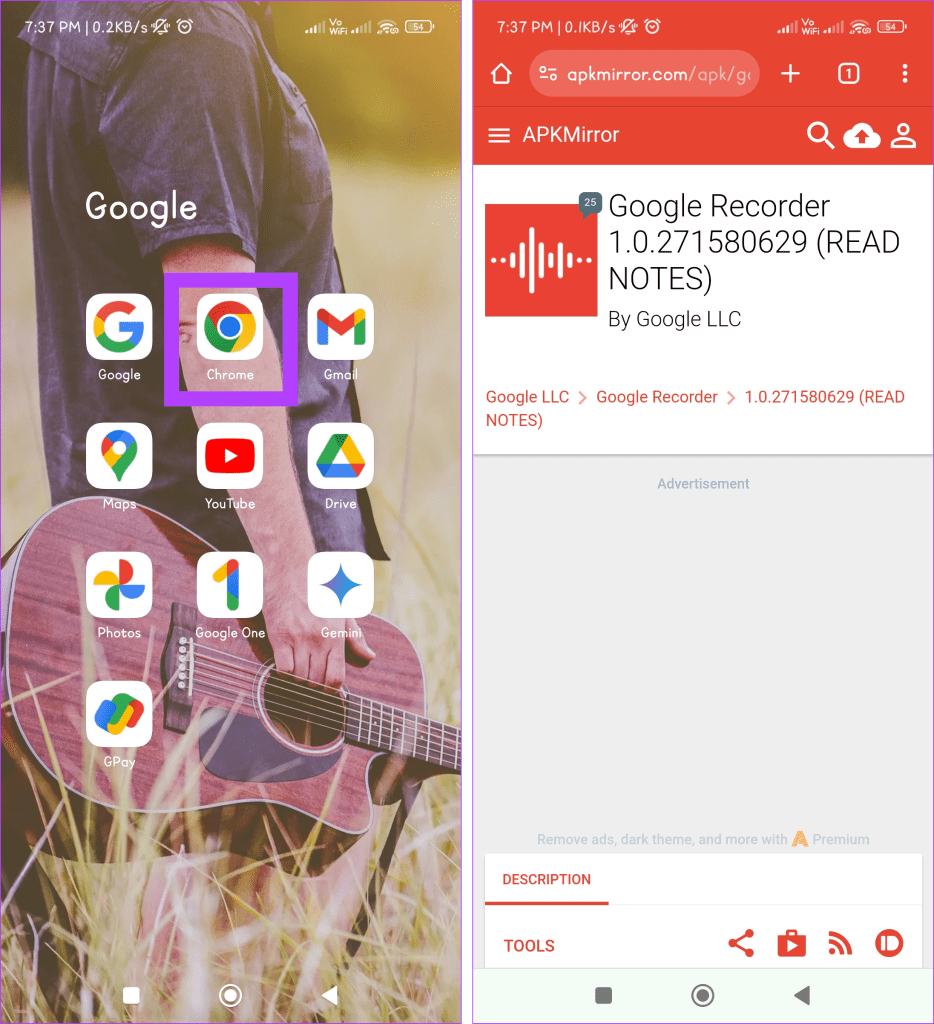
Once the app is installed, adhere to the steps below:
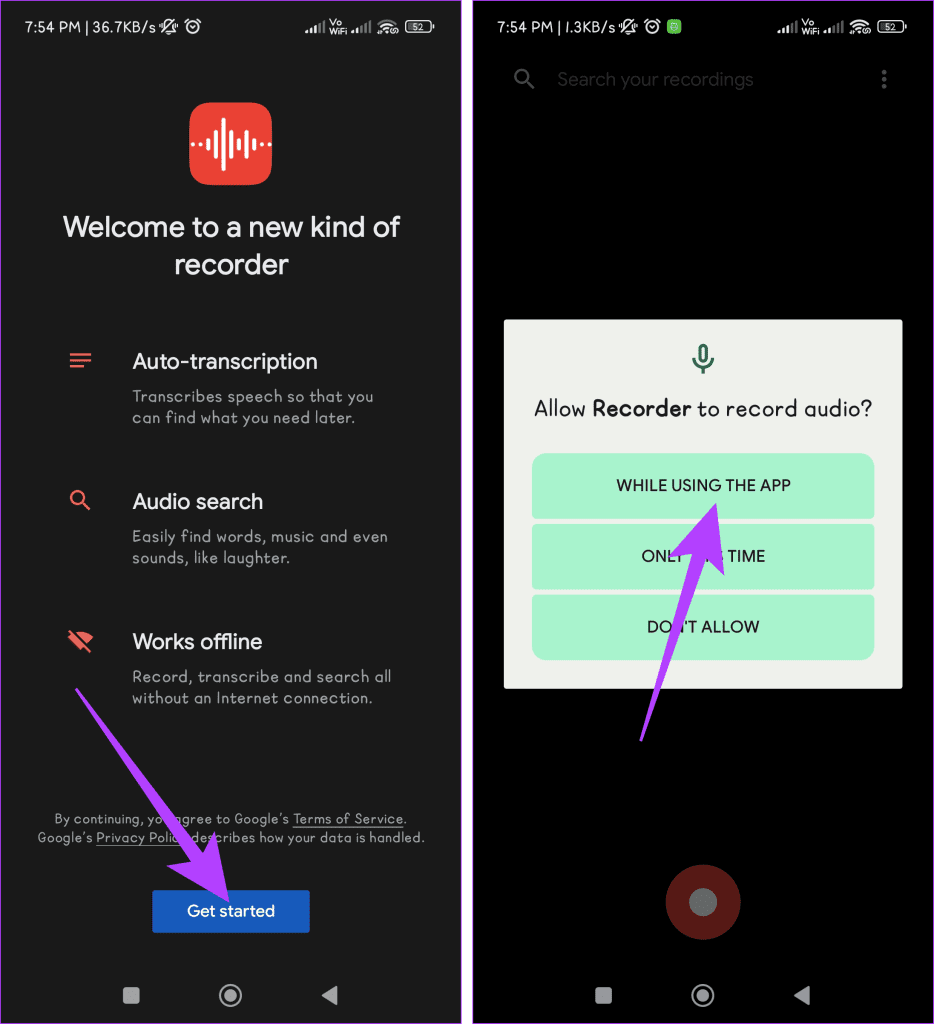
Step 1: Open the Google Recorder app on your Android phone.
Step 2: Tap the Get started button and grant the necessary permissions.
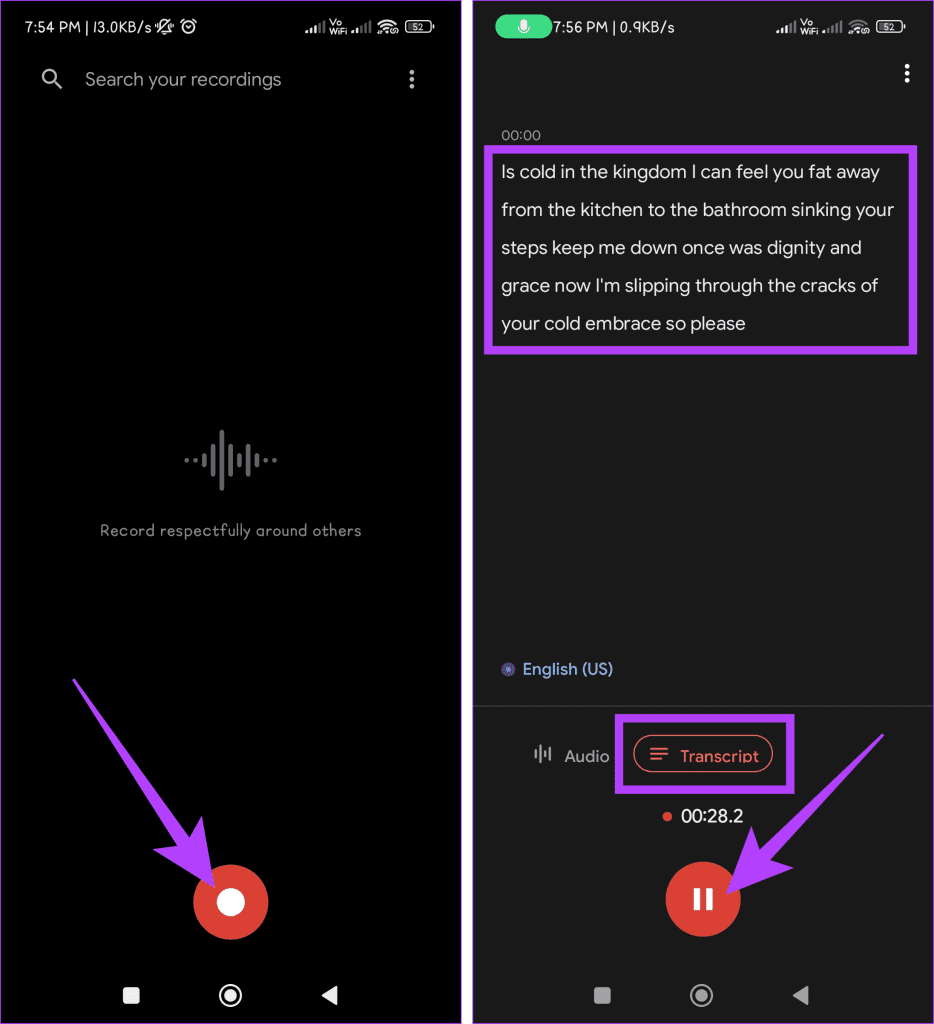
Step 3: Press the red button to start recording. Head to the Transcript tab to check the live text transcriptions. Tap the Pause button to end the recording.
Note: Non-Pixel users may face issues generating transcriptions when working with recorded voices.
Method 3: With the Help of Gboard
Transcribing audio to text has never been easier before. The Google Keyboard for Android allows you to transcribe your voice recordings into written text effortlessly. Follow the steps outlined below:
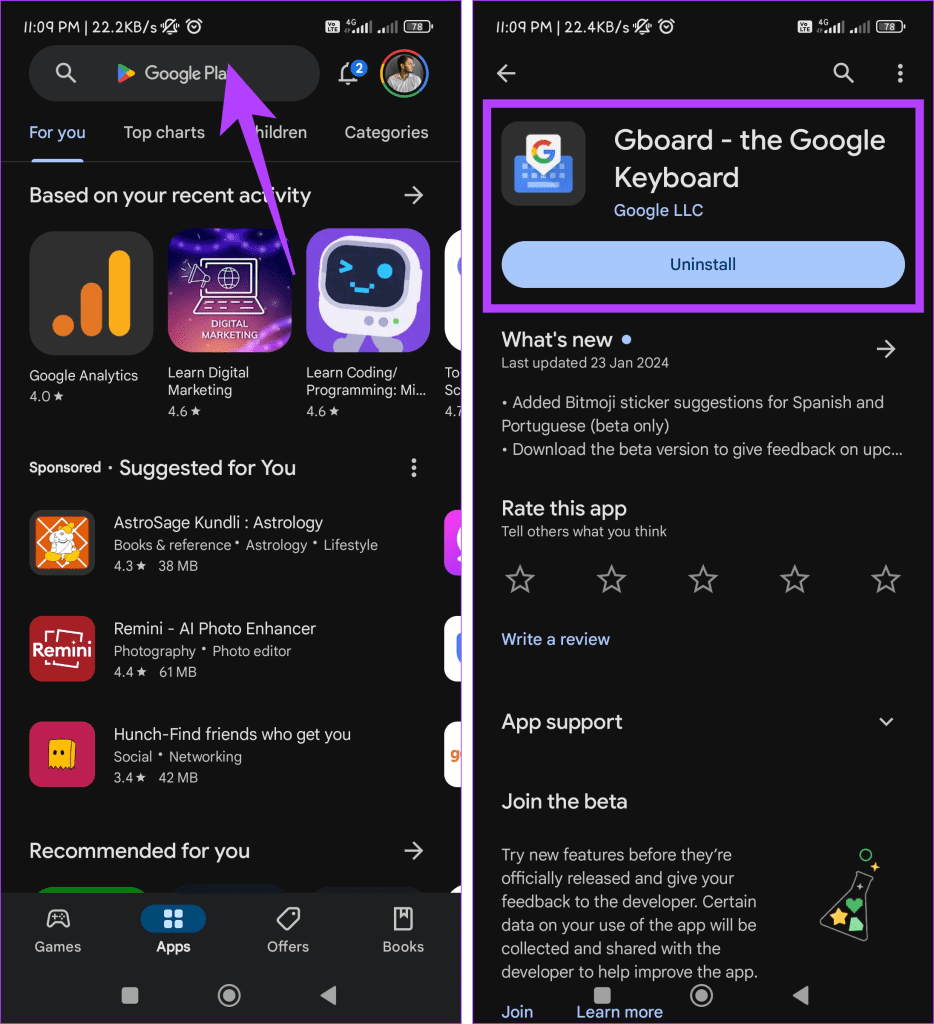
Step 1: Ensure you install the Gboard app on your Android device. You can download it from the Google Play Store if you haven’t already.
Note: Ensure that Gboard is your default Android keyboard.
Download Gboard
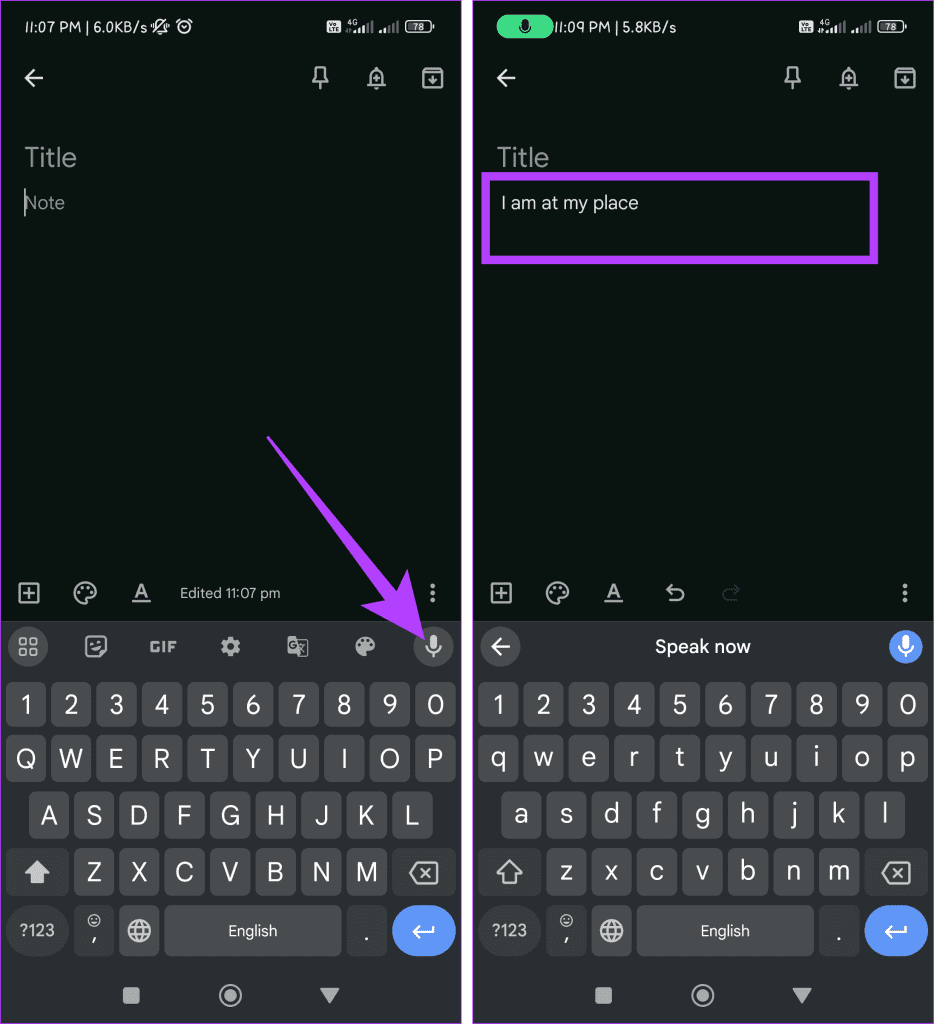
Step 2: Open the app or text field where you want to transcribe the live audio. This could be a messaging app, email, note-taking app, etc.
Step 3: Tap on an empty area to bring up the keyboard. Press the microphone icon and start speaking clearly and directly into your device’s microphone. Now, Gboard will transcribe your speech into text in real-time.
Method 4: Convert Audio Notes Into Text Notes Using Third-Party Apps
If you want to transcribe audio to text, there are multiple ways to do it. The methods we discussed earlier are good for transcribing what’s being said in real time. However, if you need a tool that can convert both live conversations and pre-recorded audio into text, we recommend the following two apps:
Transkriptor
Speech To Text
Let’s see how to use the Transkriptor app on your Android phone to turn live conversations or recorded audio into text. Follow these easy steps:
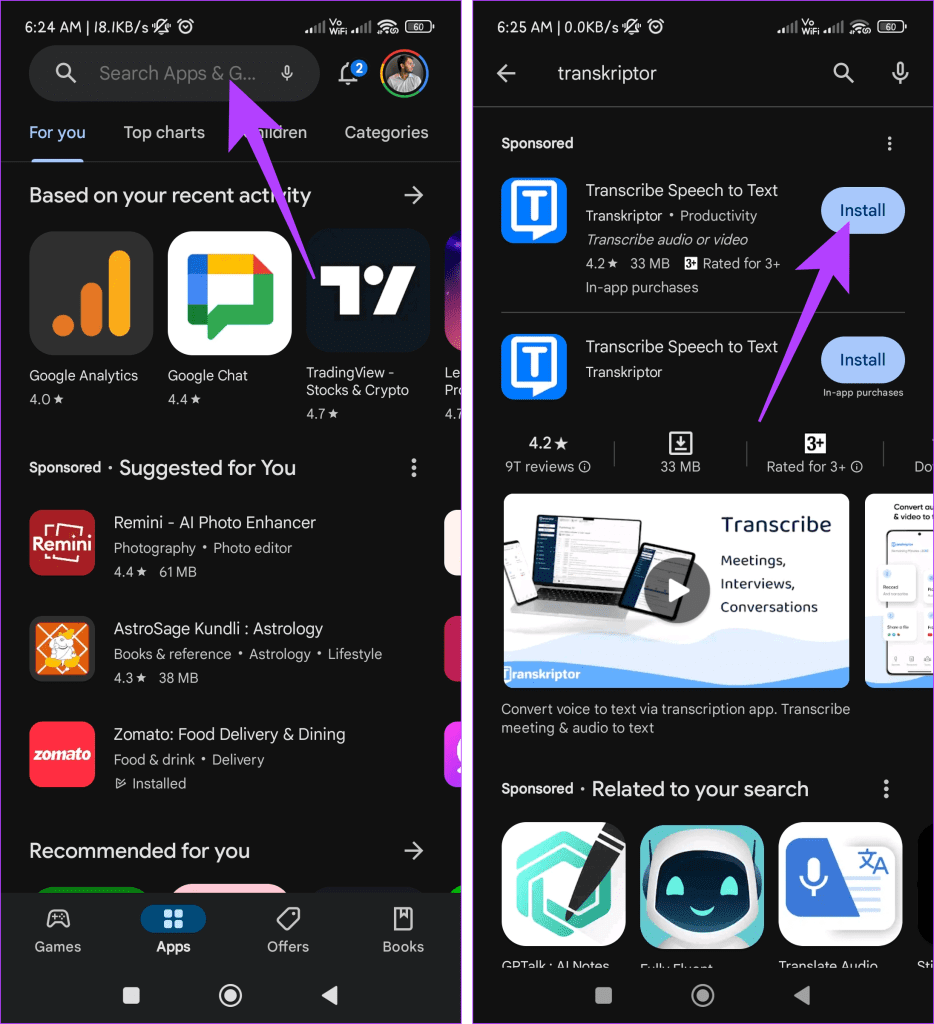
Step 1: Open the Play Store on your device.
Step 2 Search for the Transkriptor app and tap the Install button to get it.
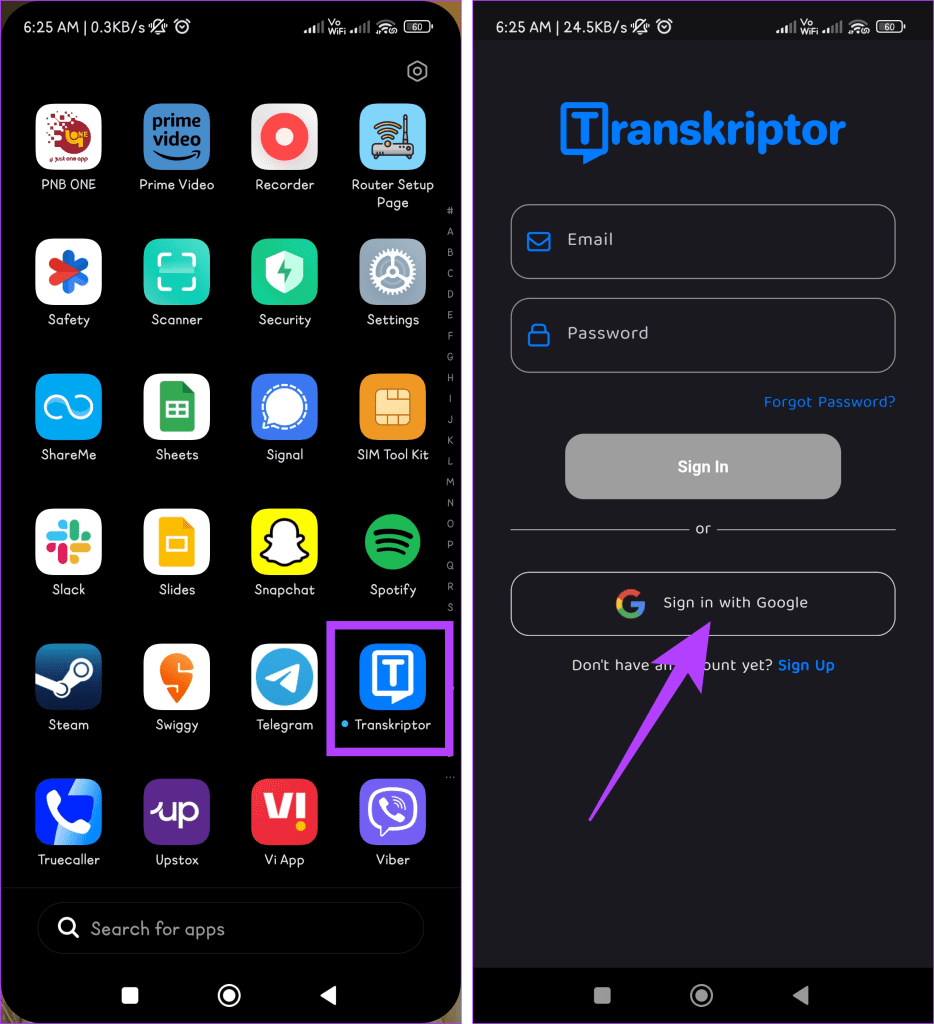
Step 3: Open the app and sign in or sign up.
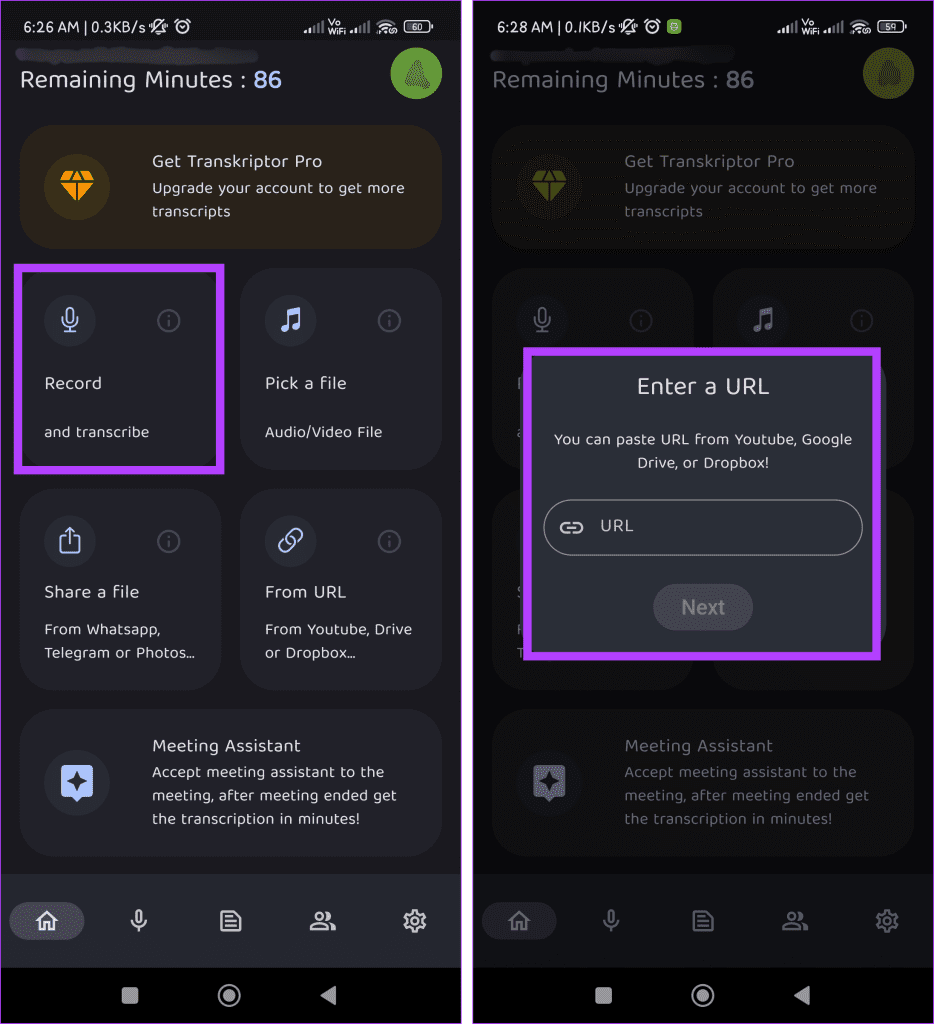
Step 4: Choose one of these options:
Record
Pick a file
Share a file
From URL
For this example, let’s choose Record.
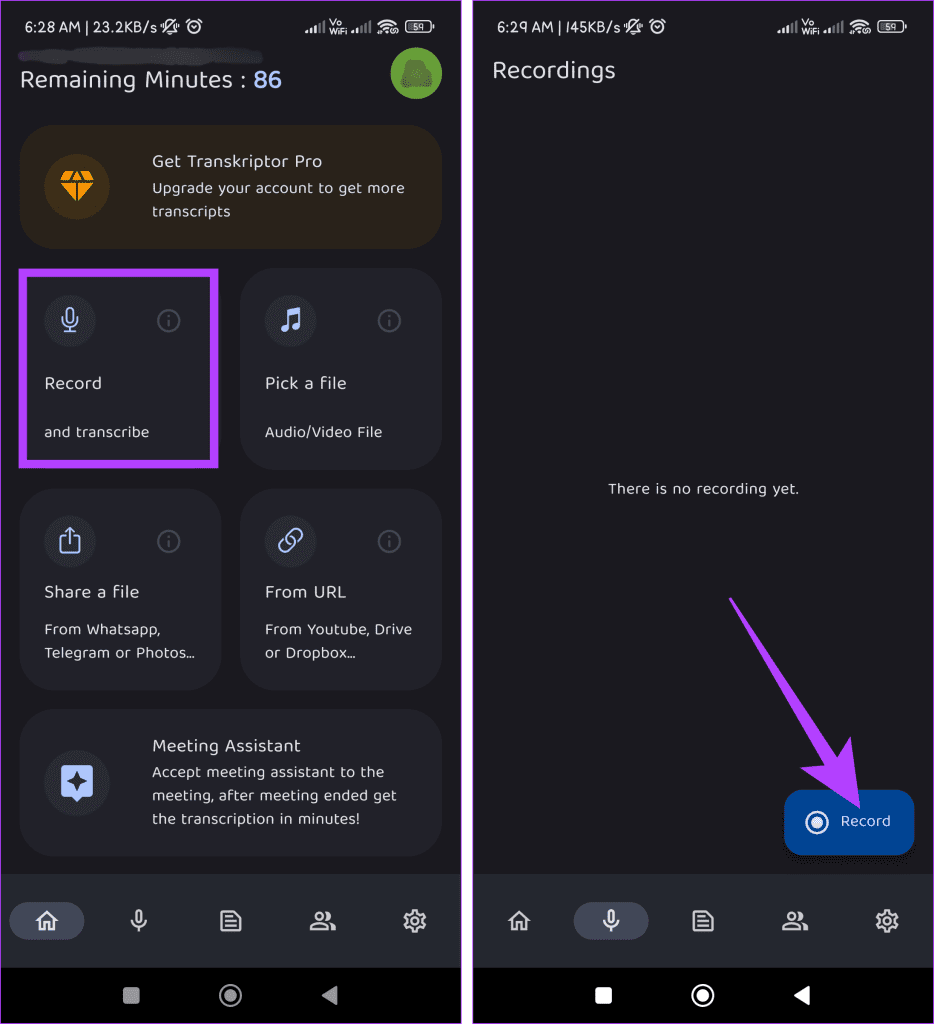
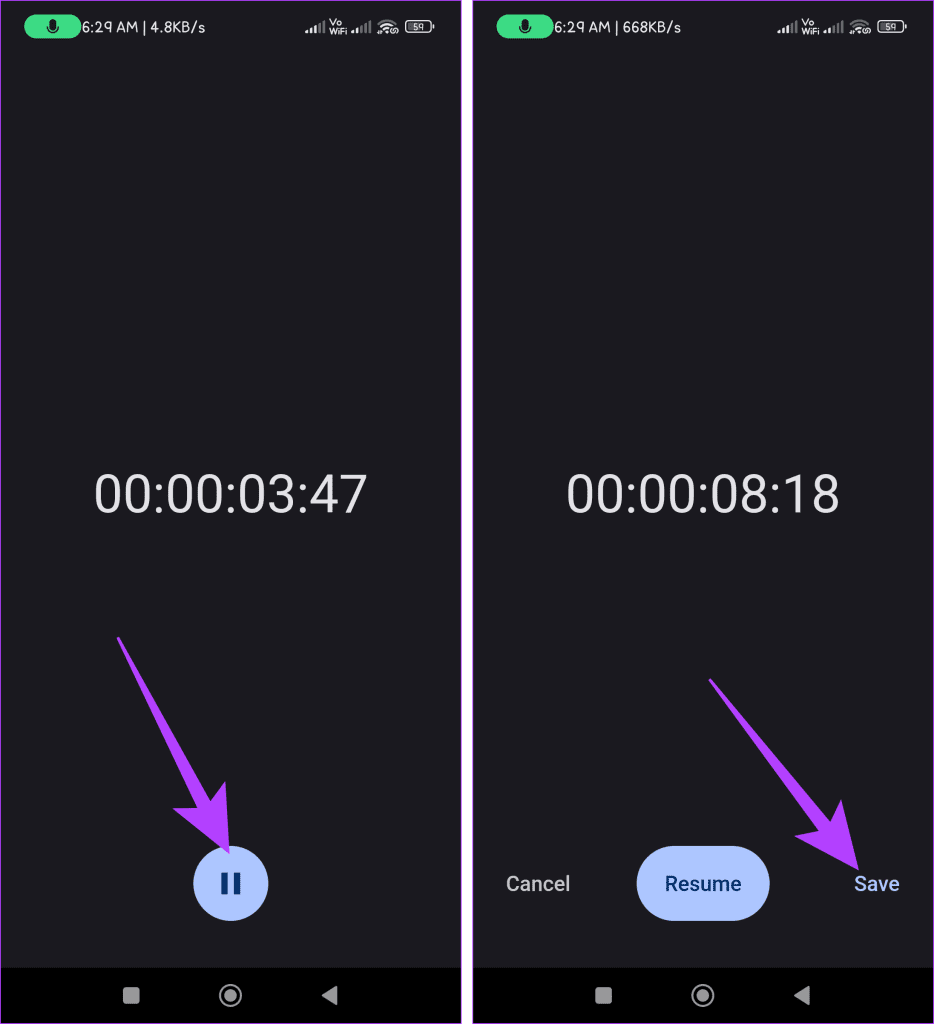
Step 5: Tap on the Record button. In the bottom right corner, tap Record again to start recording.
Step 6: Use the Pause button to stop recording. Now, choose to Resume or Save the recording.
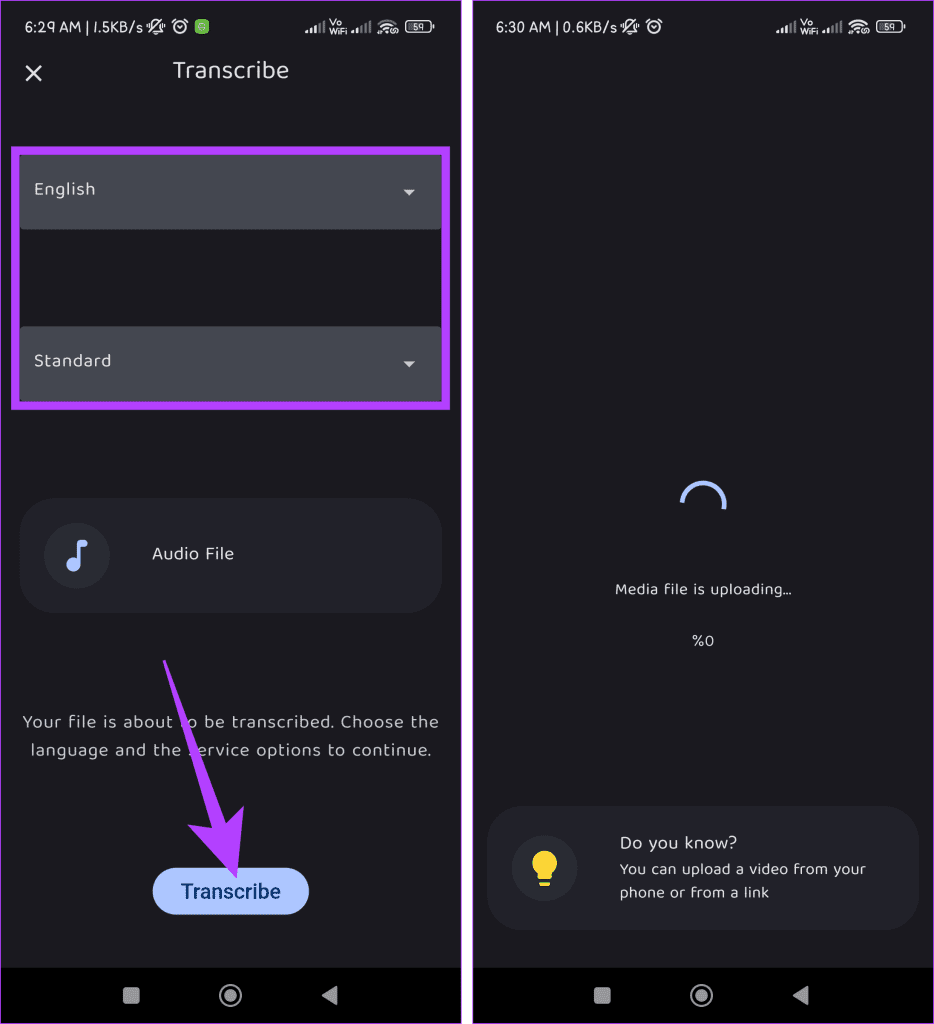
Step 8: Select English and Standard in the Transcribe window and hit the Transcribe button to start the audio file transcription, which may vary in duration based on its length.
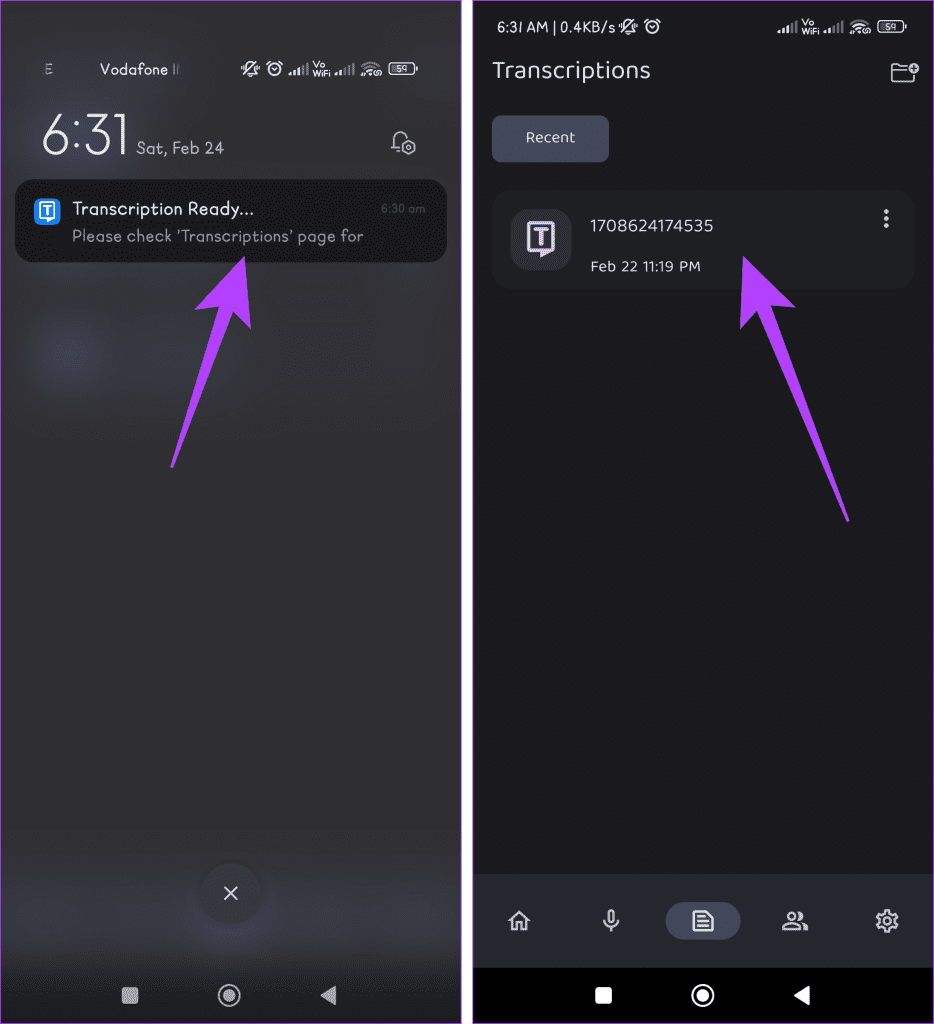
Step 9: Once done, you’ll get a notification and an email at your registered address. Tap the notification or go to the Transcriptions tab at home to check the transcription.
You can also review the transcription for timestamps by looking at the highlighted grey box indicating spoken content.
Also Read: How to fix microphone not working on Android
Method 5: Using Online Tools
This method could be a game-changer if you’re looking for an easy way to convert your voice recordings into text on your Android device without putting a strain on your device’s memory .
However, it’s important to note that a stable internet connection is essential for this process. Before proceeding, ensure your Android device is connected to a reliable network or Wi-Fi . Once confirmed, explore any of the tools mentioned below.
Notta.ai
Veed.io
Let’s learn how to use these online tools, focusing on Notta.ai. Here are the steps:
Step 1: Open a web browser. Go to the Notta.ai website and create a new account.
Visit Notta.ai
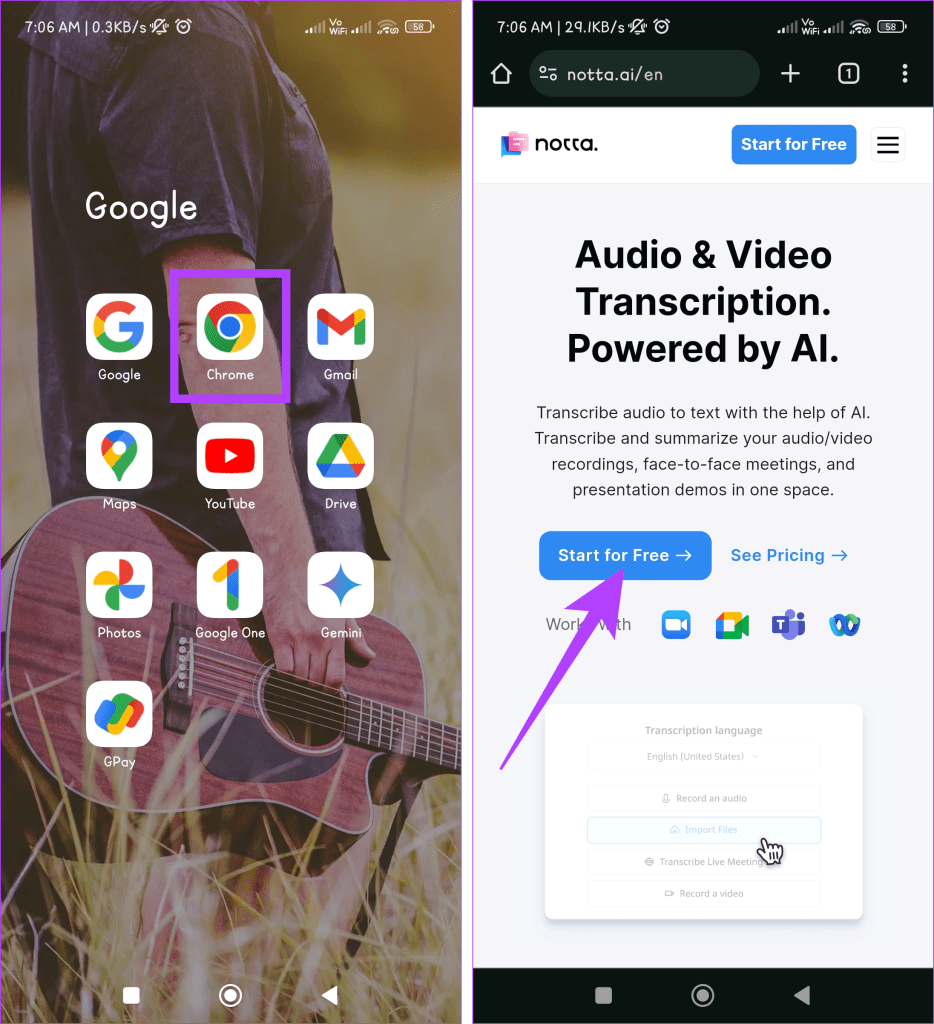
Step 2: Choose from the options below:
Record an audio
Import files
Transcribe live meetings
Record a video
For this demonstration, we’ll pick Record an audio.
Step 3: Click on the Record an audio button to start recording and press the Stop button when you’re done recording.
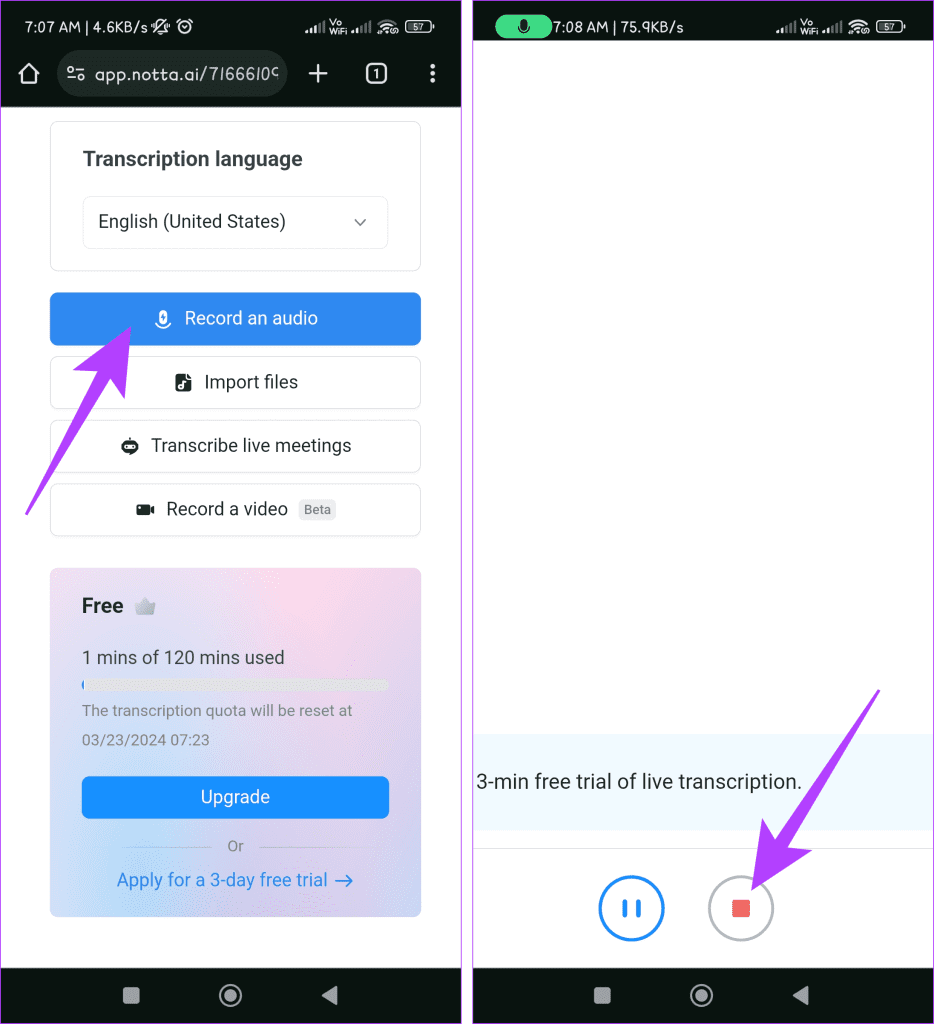
Now, wait for a bit, as the processing will take some time, and once completed, the tool will navigate you to the transcription window.
Audio Transcription Ready
The methods mentioned above are some of the quickest and easiest ways to convert your voice recordings to text on your Android devices. If you know of any other way, tell us in the comments.
Was this helpful?
Submit Cancel
Thanks for your feedback!
Keep reading