Android
3 Ways to Fix Unable to Add Another Google Account on Android
Unable to add your Google account on your Android phone? Don't worry, this guide has some tips that will fix the problem quickly.
By Pankil Shah
Quick Tips
Ensure that the automatic date and time feature is enabled on your phone.
Resetting Google Play Services and installing any pending Android updates can also help resolve this issue.
If the problem persists, you may need to reset all settings on your phone.
Try Basic Fixes
Rule out issues with your Google account: Google may not let you add your secondary Google account to your Android if it’s suspended or hacked. To overrule this possibility, you can try signing into your Google account on another phone or computer. That will determine whether the issue lies with your Google account or your Android.
Install Android updates: Bugs and glitches within Android or the custom skin on your phone could also result in such anomalies. Fortunately, both Google and phone manufacturers are usually quick to address and resolve these issues through subsequent updates. Hence, it’s a good idea to install any pending updates.
Fix 1: Enable Automatic Date and Time
Sign-in issues can also arise if your Android is set to an incorrect date or time . This is because Google uses time stamps to verify your identity when you sign in. If your phone’s date or time is incorrect, the time stamps won’t match, and you may encounter the “Couldn’t sign in” message.
To avoid this, it’s best to enable the automatic date and time feature on your phone using these steps:
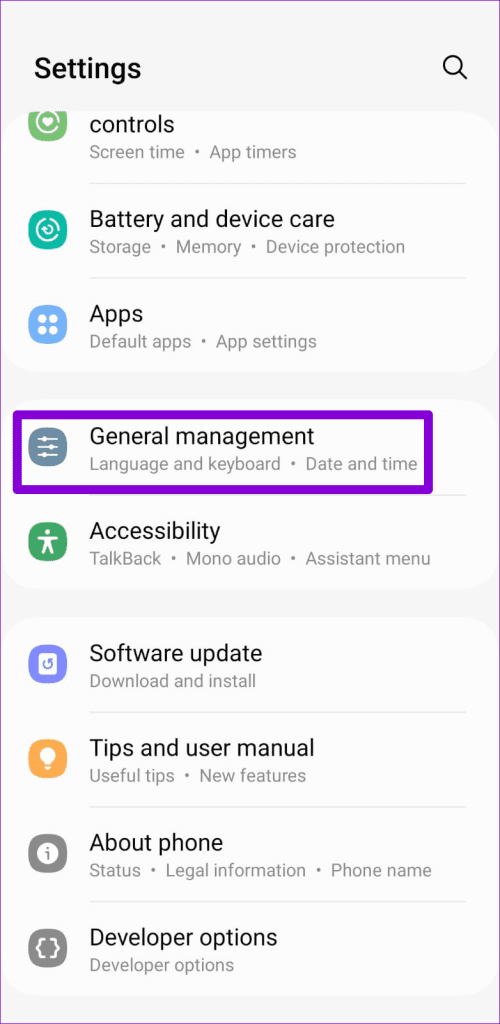
Step 1: Open the Settings app on your Android and tap General management .
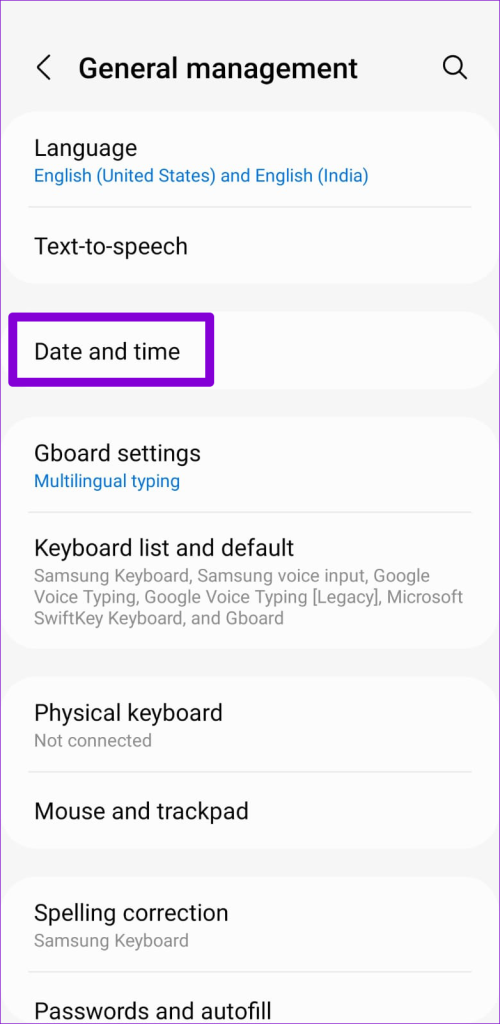
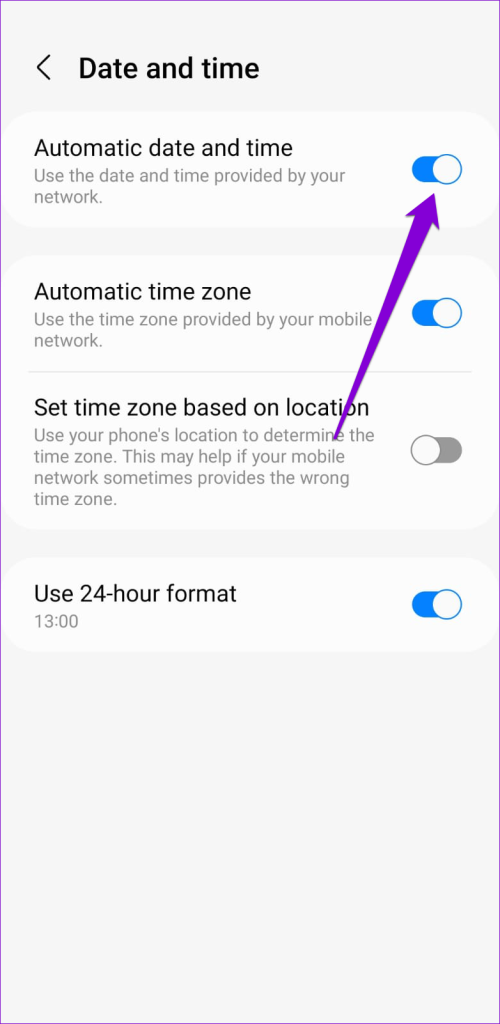
Step 2: Tap on Date and time and enable the toggle next to Automatic date and time .
Fix 2: Reset Google Play Services
Google Play Services connects your apps, Google services, and Android. If there’s an issue with Google Play Services , you may encounter difficulty adding your Google account on Android. Here’s what you can do to fix that.
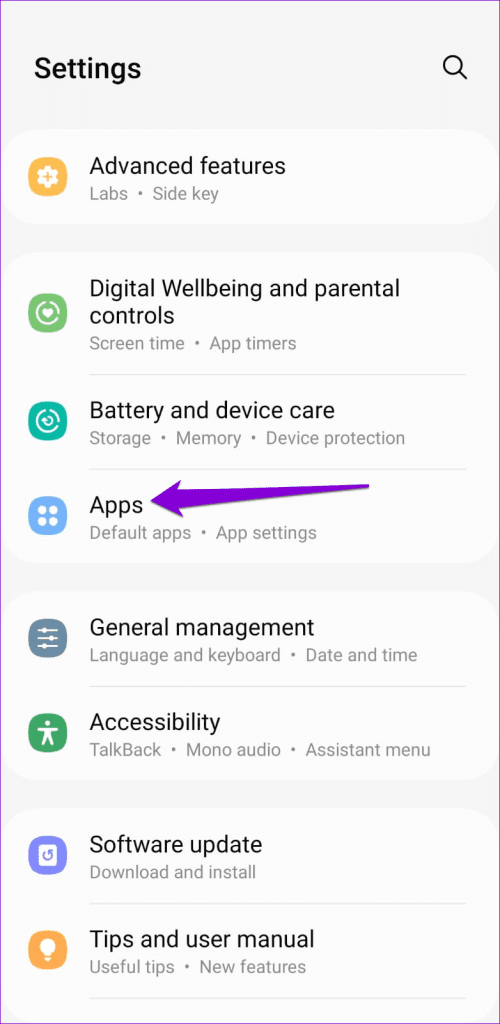
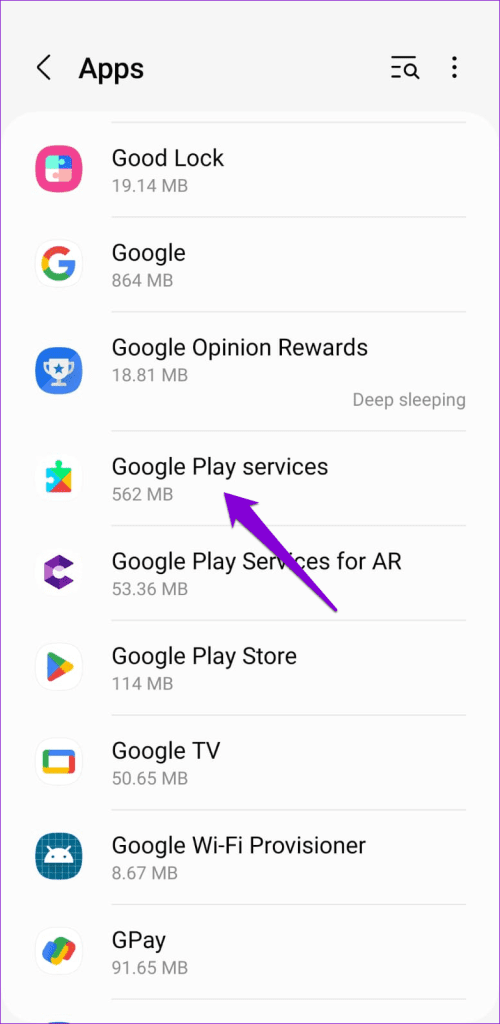
Step 1: Open the Settings app and navigate to Apps .
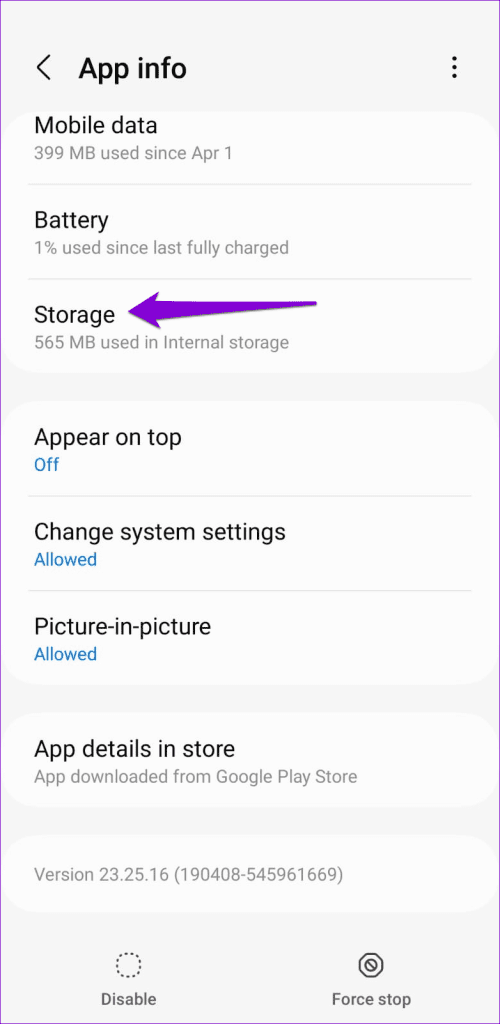
Step 2: Scroll down to find and tap on Google Play Services . Then, select Storage .
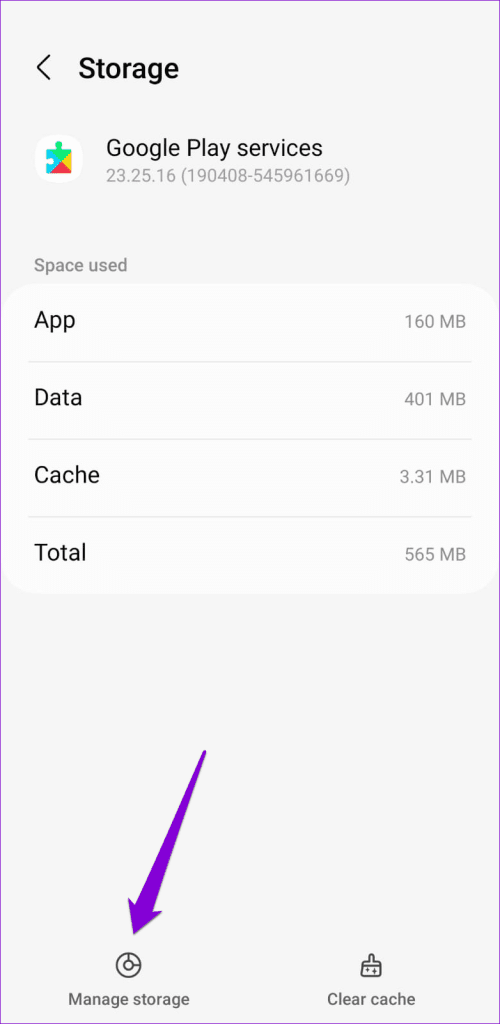
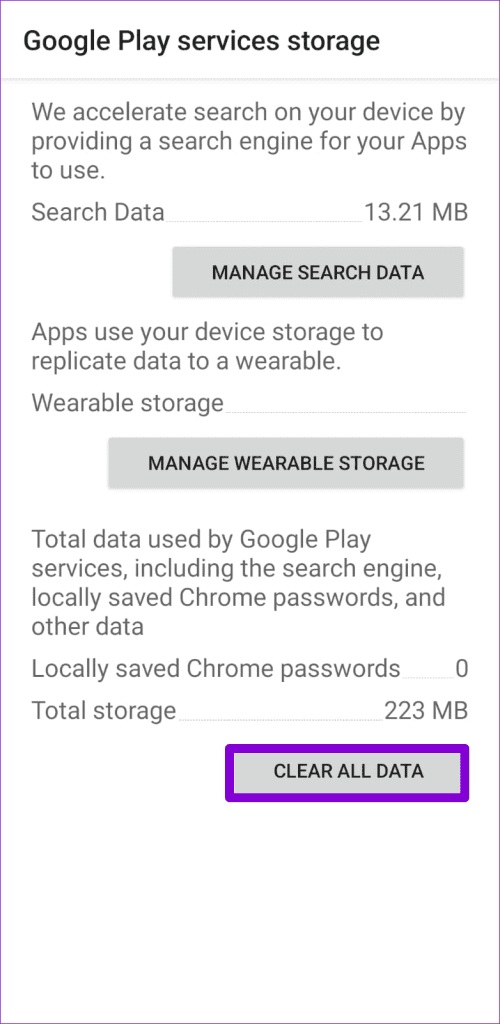
Step 3: Tap on Manage Storage at the bottom and hit Clear All Data .
Fix 3: Reset All Settings
If you still can’t add another Gmail (or Google) account to your Android, consider resetting it. This action will revert all the settings on your phone to factory default.
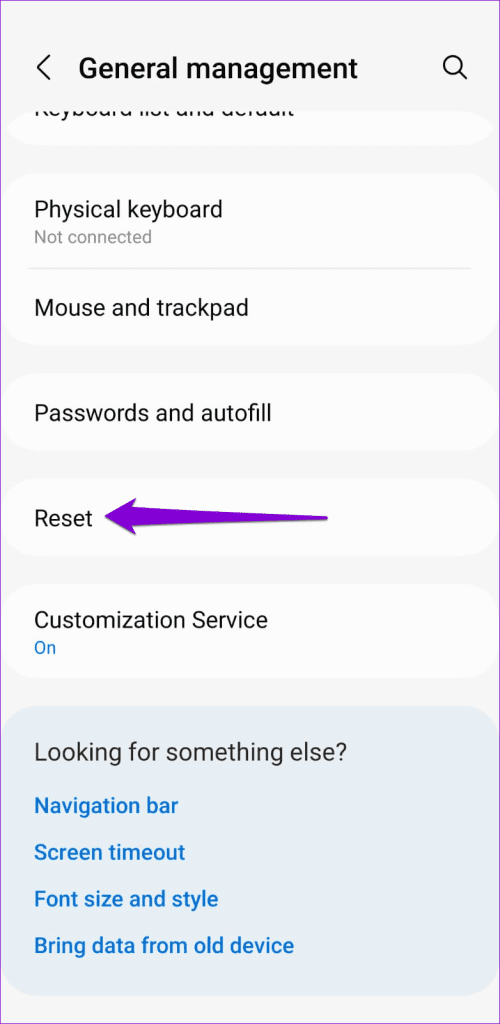
Step 1: Open the Settings app, tap on General management , and select Reset .
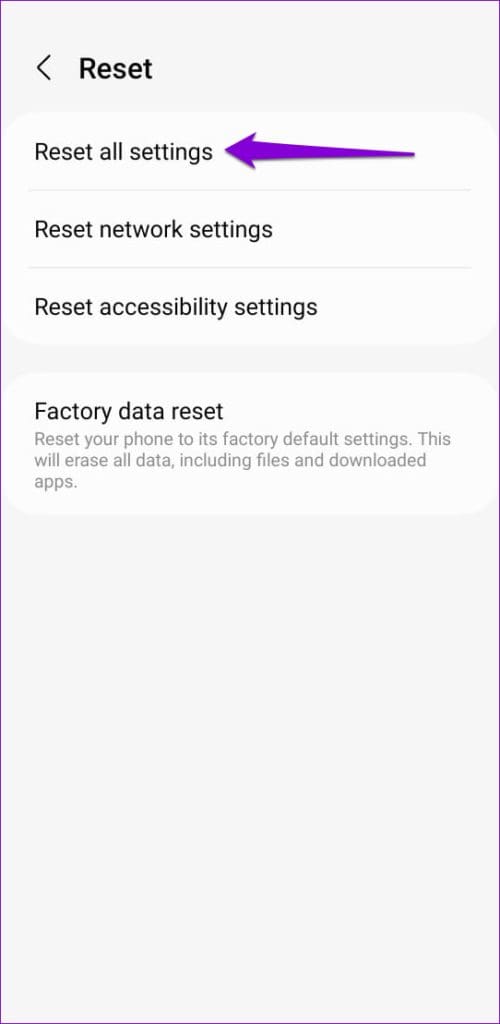
Step 2: Tap Reset all settings and select the Reset settings button in the following menu.
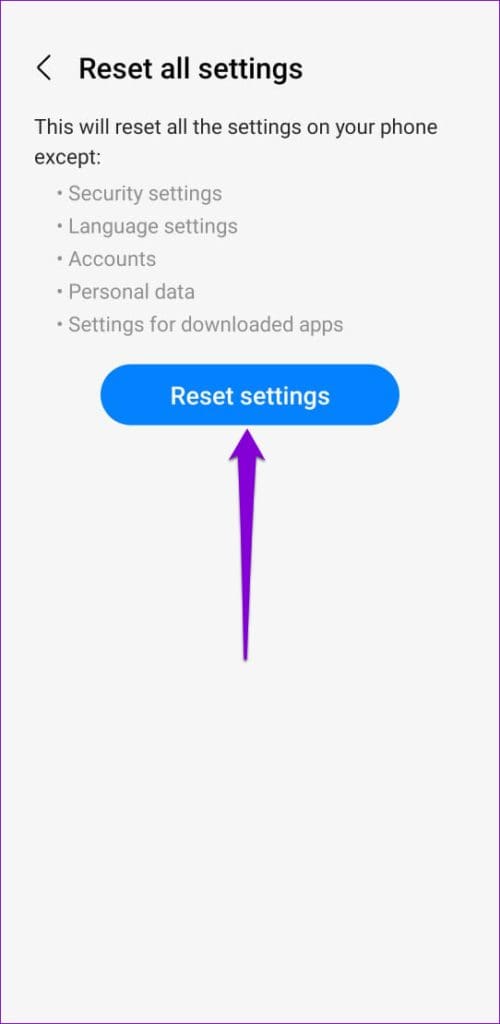
Wait for your Android to restore all the settings to factory defaults and then check if the issue is still there.
Was this helpful?
Submit Cancel
Thanks for your feedback!
Keep reading