Android
How to Fix Overnight Battery Drain on Android Phone
Why does my phone battery drain overnight - has this become an everyday concern? If your phone's battery is dropping check this out,
By Shachi Gambhir
Quick Tips
Adjust settings like Always On Display and Adaptive Battery to reduce power consumption and improve battery life.
Use the battery usage details to identify apps that are consuming excessive power and either uninstall them or optimize their background usage.
Basic Fixes:
Close background apps and restart your phone: Often, we ignore basic solutions that may be effective. For example, something as simple as swiping away all the background tasks can kill a process that is consuming battery.
Uninstall unwanted apps: There’s a high chance the new or unwanted app you installed is the culprit. In that case, uninstall the app to see if it makes a difference.
Close all apps running in the background: If you have opened several apps, then may still be running in the background even though not in primary use. You should make sure they are all closed.
Disable location services: Location services is another cause for this battery consumption when your phone is seemingly idle. You should turn it off.
Turn off Bluetooth, NFC, Wi-Fi, and mobile data: All these services are resource-intensive and will need some battery power while running.
Clear cache: When you clear the catch , you will prevent needed battery use by background apps.
Fix 1: Disable Always On Display
The Always On Display feature is one of a smartphone’s most useful features. It lets you quickly glance at the time, date, and notifications on your phone without turning on the screen. However, it is a battery hog and should be disabled when not in use.
Step 1: Open your phone’s Settings app and tap Display . Then , find the setting related to Always On Display and select it.
Note: Depending on the manufacturer, the setting may be referred to as Ambient Display , Peek Display , etc.
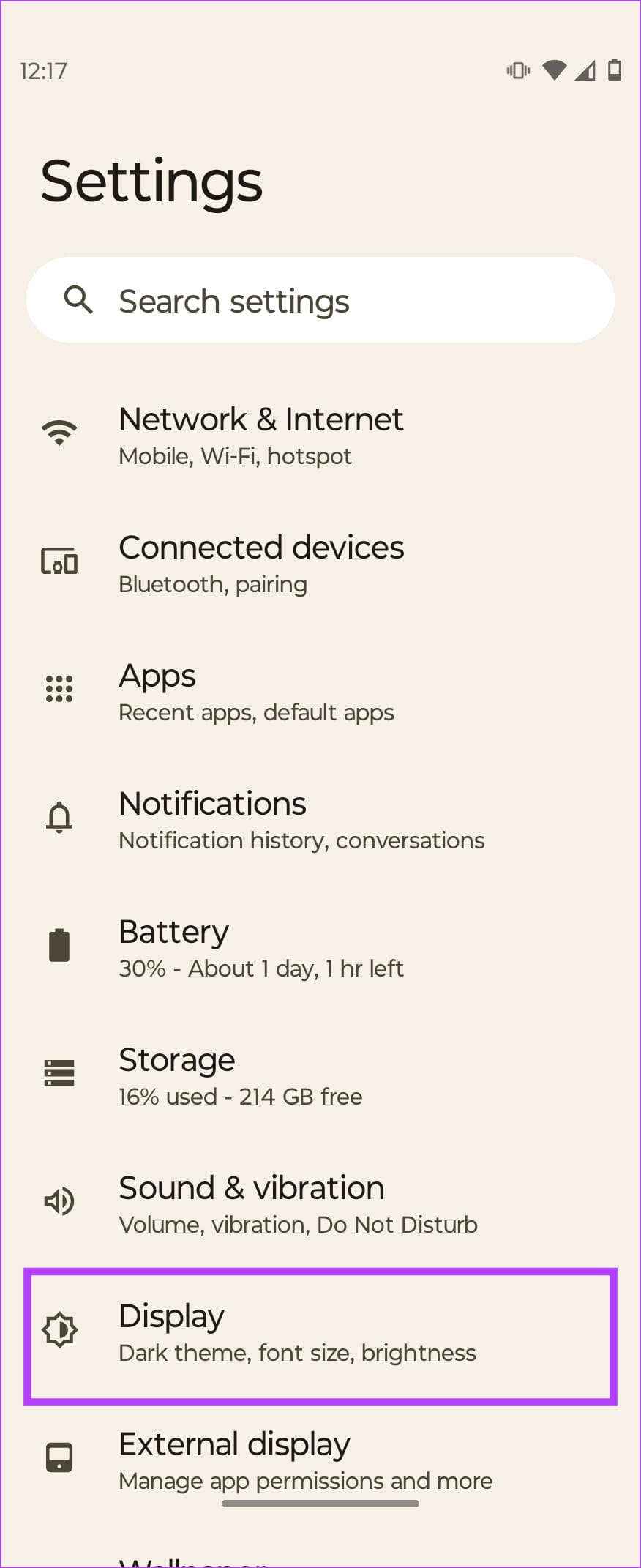
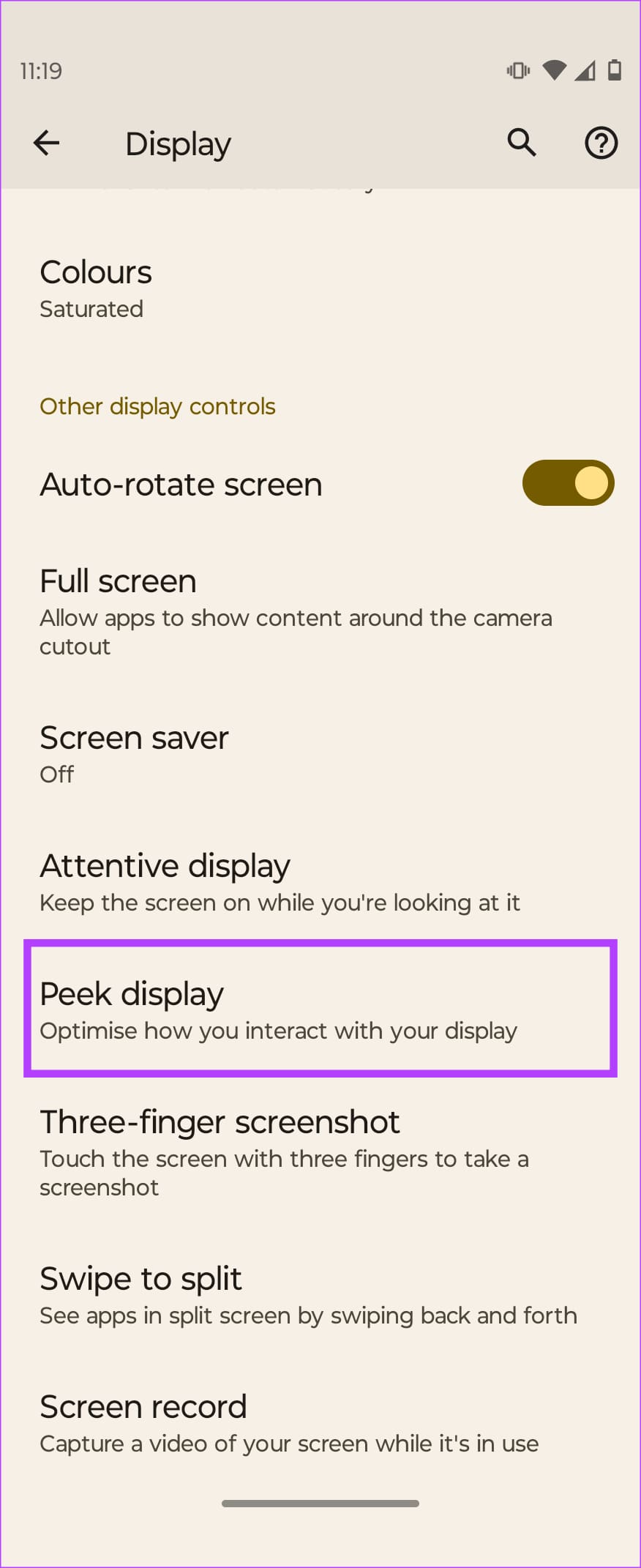
Step 2: If the toggle is right there next to the option, turn it off. If not, tap on the option and then toggle it off. When you wake up in the morning, turn the toggle back on.
If your phone has an Always On Display Schedule, turn that off, too, as it’s a proven solution that seems to have worked for users.
Tip: If you don’t want to turn the feature off and on every day, lay your phone face-down at night. This will cover the proximity sensor and prevent the display from turning on.
Fix 2: Enable Adaptive Battery
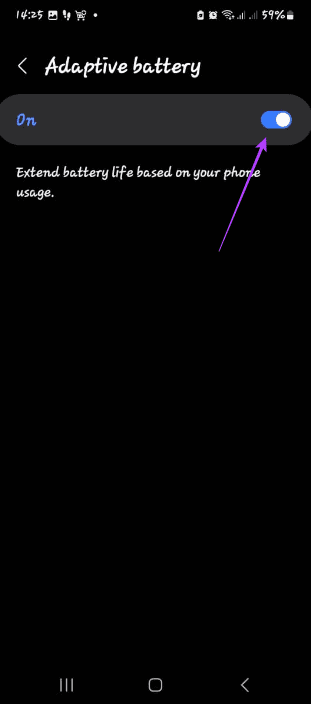
Adaptive Battery is a feature found on many Android devices that helps optimize battery life by learning your usage patterns and adjusting power consumption accordingly. When enabled, it will ensure you use the least amount of battery while you sleep.
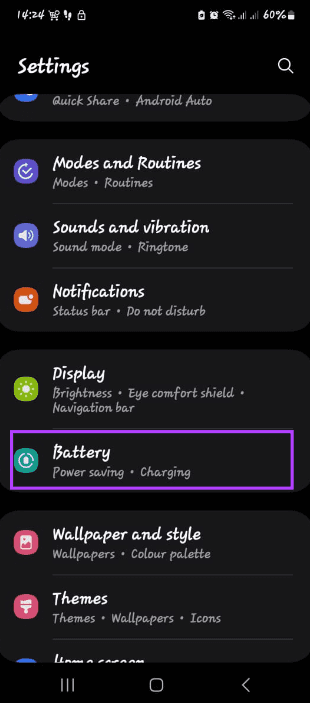
Step 1: Open Settings, tap Battery , then tap Background usage limit .
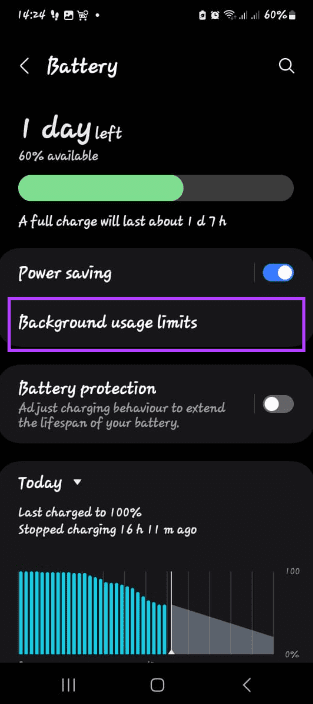
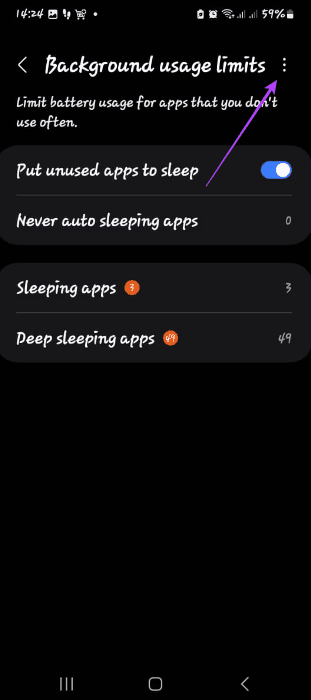
Step 2: Tap the 3 dots at the top right, and toggle on Adaptive battery .
Fix 3: Remove Additional Google Accounts
Several users have documented that having multiple Google accounts signed into their phones has resulted in unprecedented battery drain. If you, too, have one or more Google accounts on your device, try deleting them to see if it solves the issue.
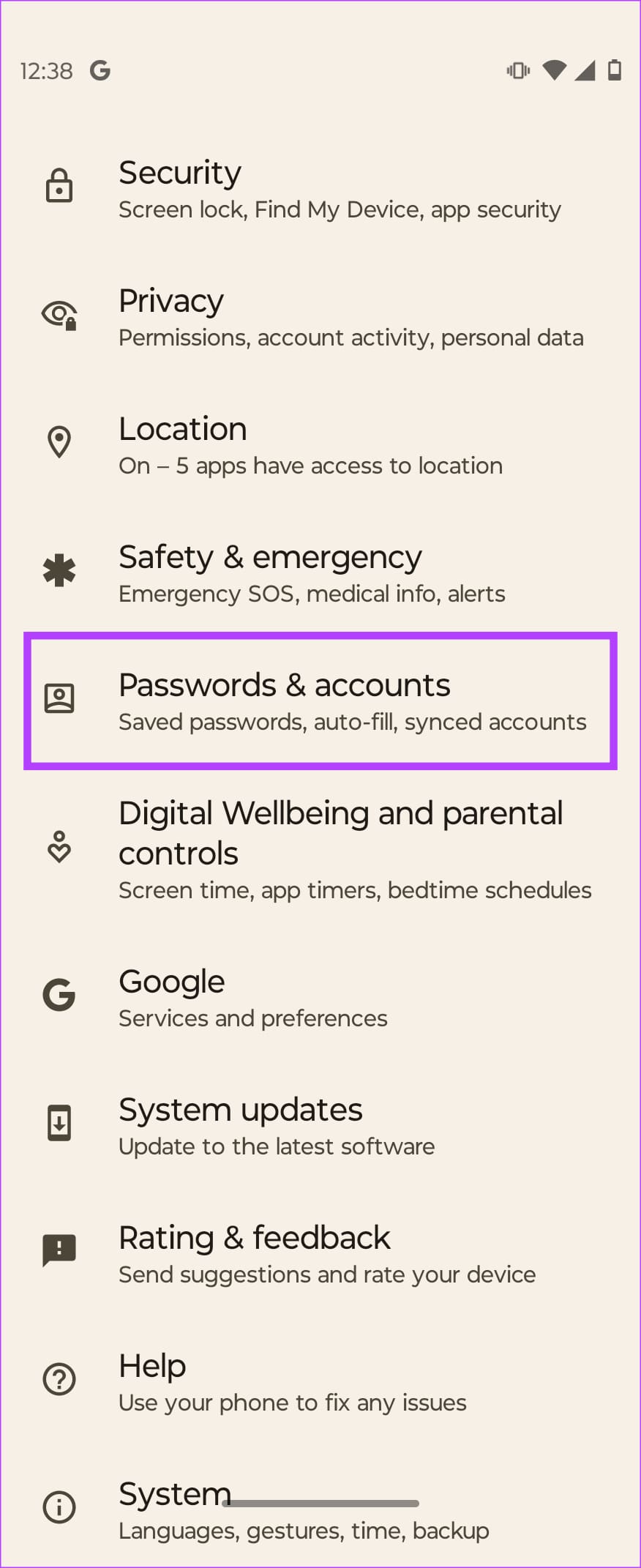
Step 1: Open the Settings app and go to Passwords & accounts . Check the list of accounts to see if you have more than one Google account signed in. If yes, select the account(s) that are not as important. Don’t select your primary account.
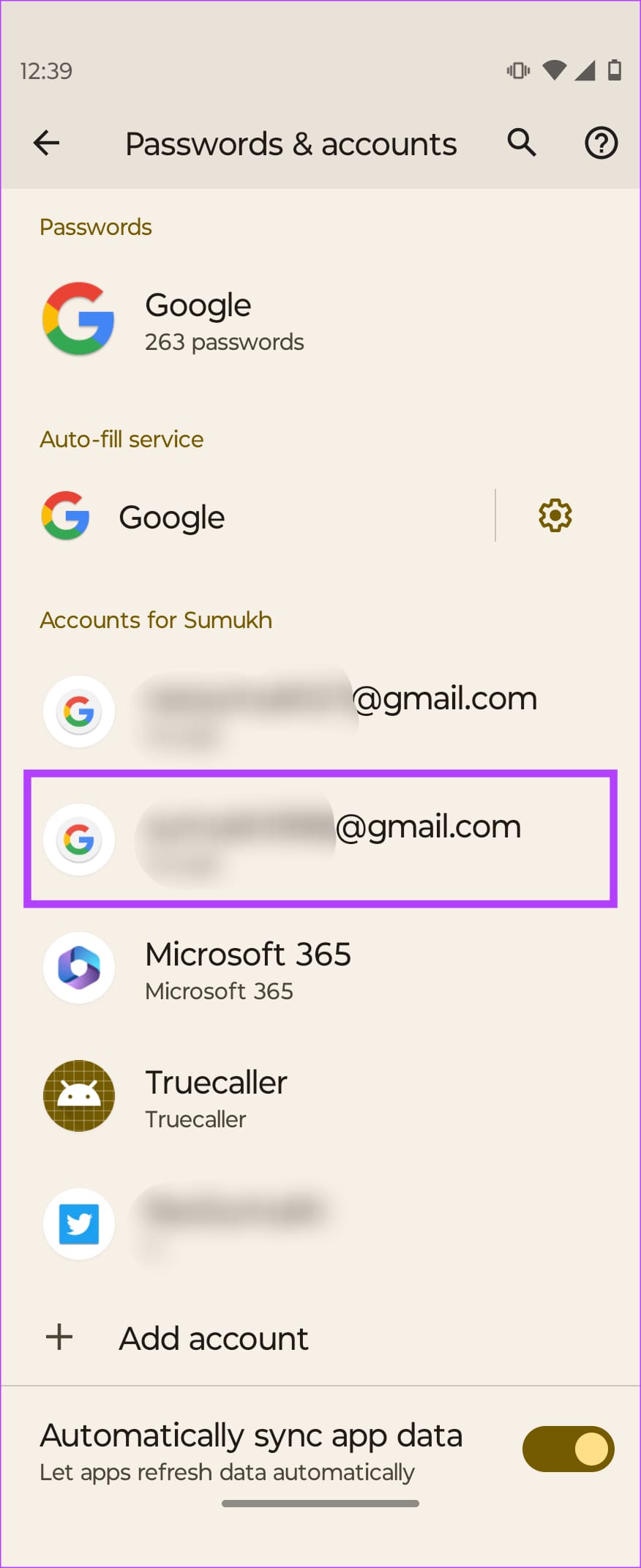
Step 2: Tap on Remove account . Confirm the option when prompted.

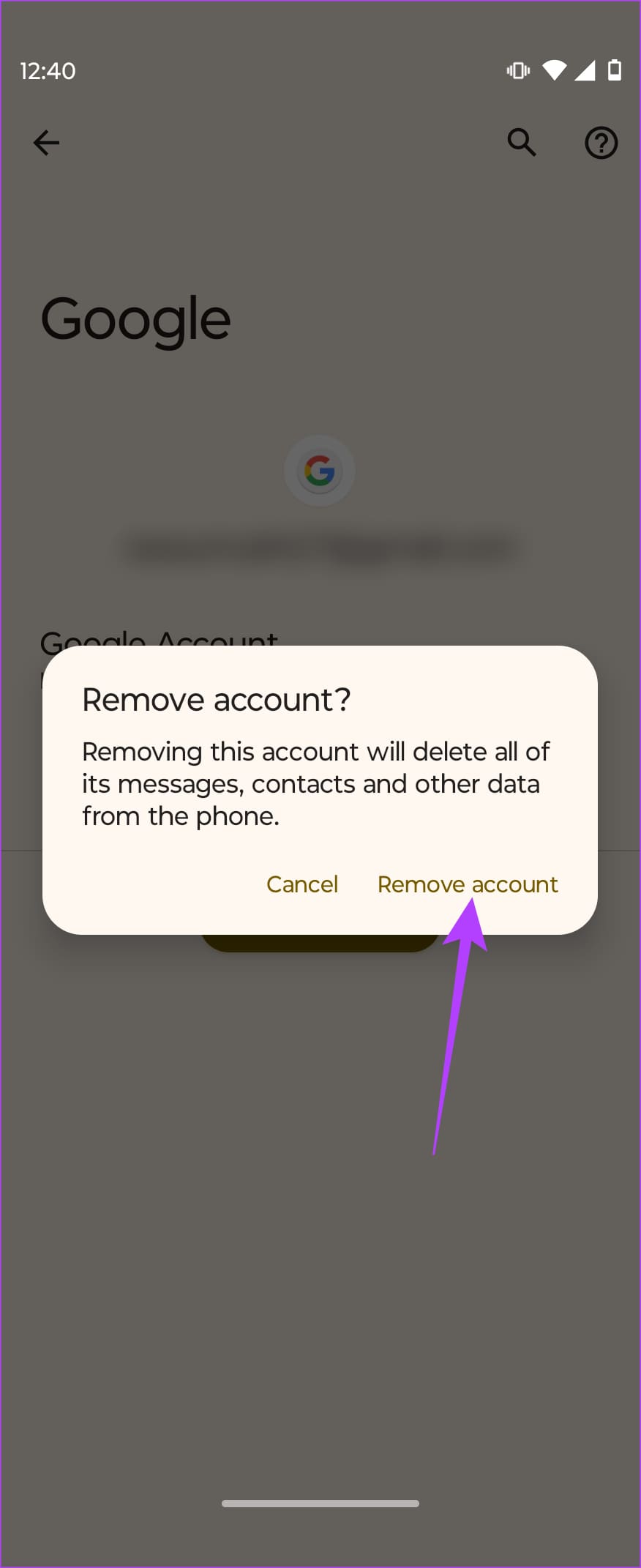
Observe the battery drain after this to see if it made a difference.
Fix 4: Check App-Wise Battery Consumption and Disable High-Consuming Apps
Some apps on Android are notorious for sucking on battery in the background. Whether it’s the Google app or the Chrome browser , chances are there’s an app consuming more power than required. The best way to determine the app is to check the detailed battery stats page on Android.
Step 1: Open the Settings app and go to the Battery menu. Then, select Battery Usage .
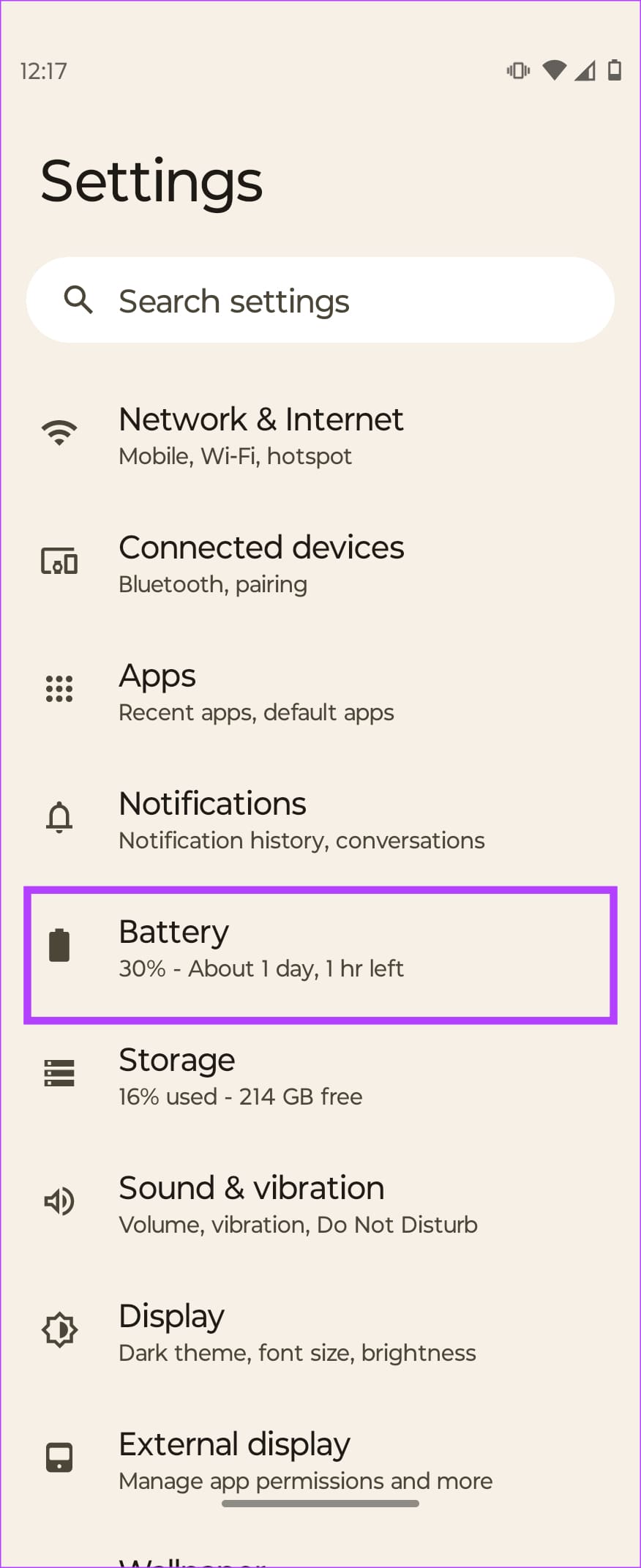
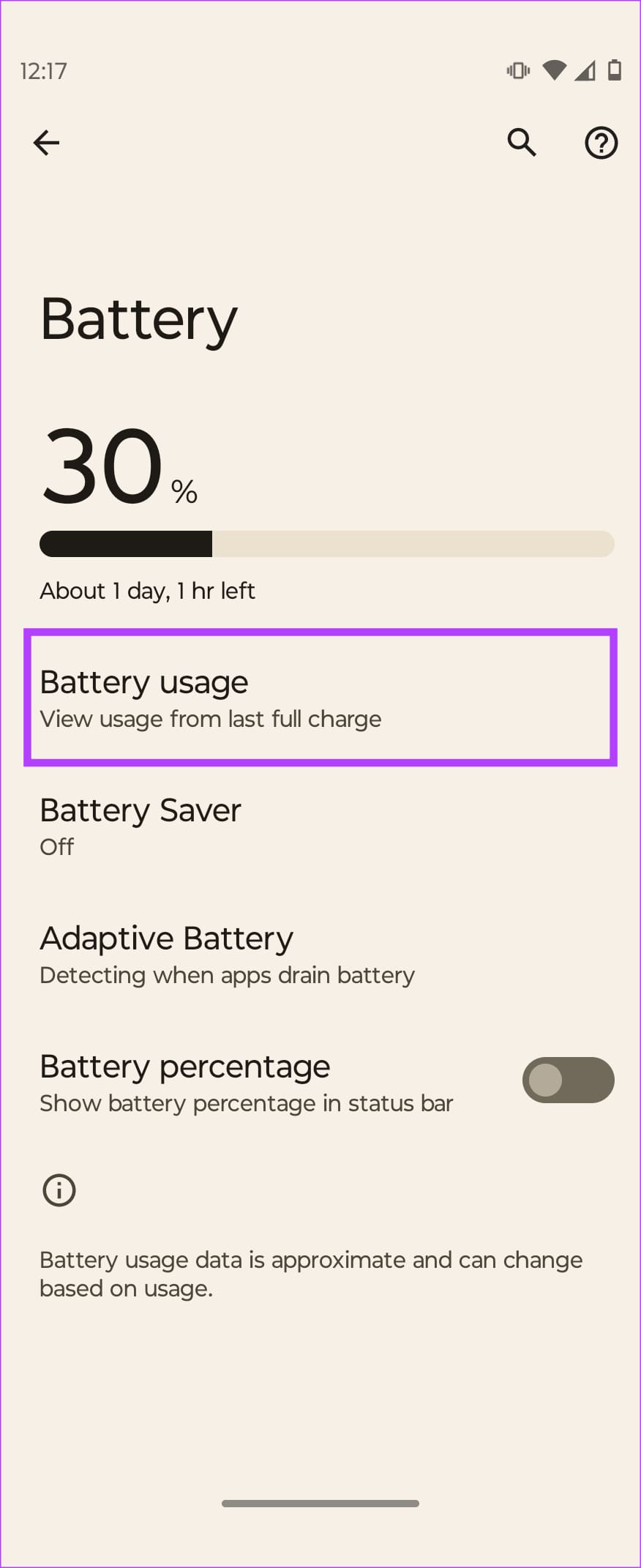
Step 2: Look at the list of apps below the graph. If you notice an app draining an unusual battery percentage, it’s time to uninstall it. If you can’t afford to uninstall the app, you can enable battery optimization and prevent the app from running in the background.
Step 3: In the Settings app, go to the Apps section and tap on See all apps .
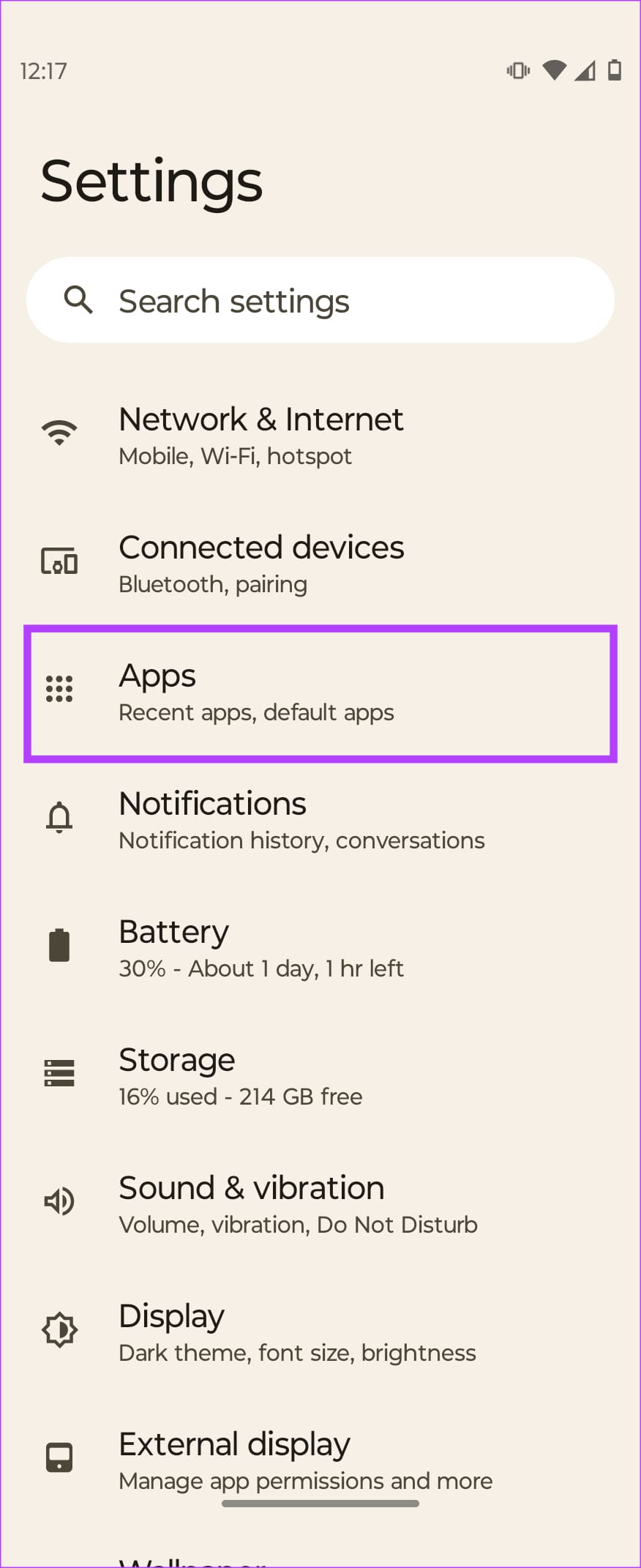
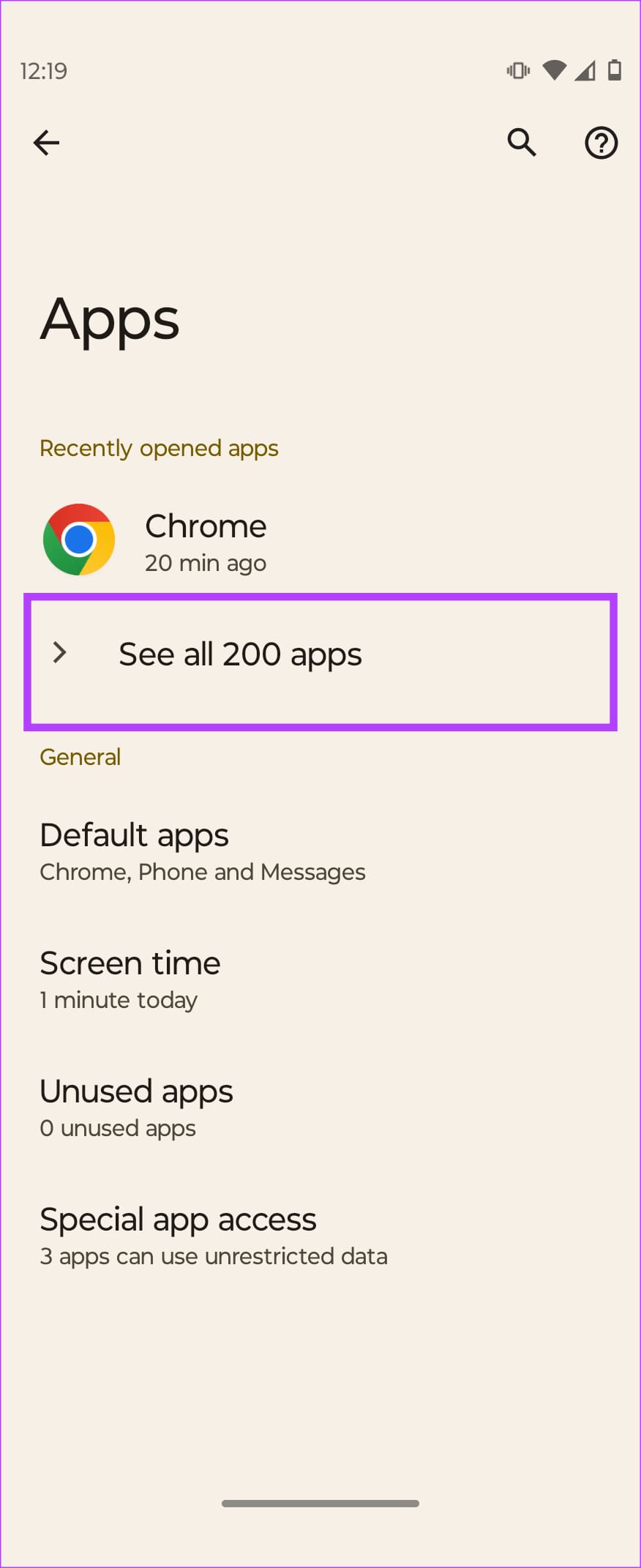
Step 4: Find the app draining the battery and tap on it. Then, select Battery .
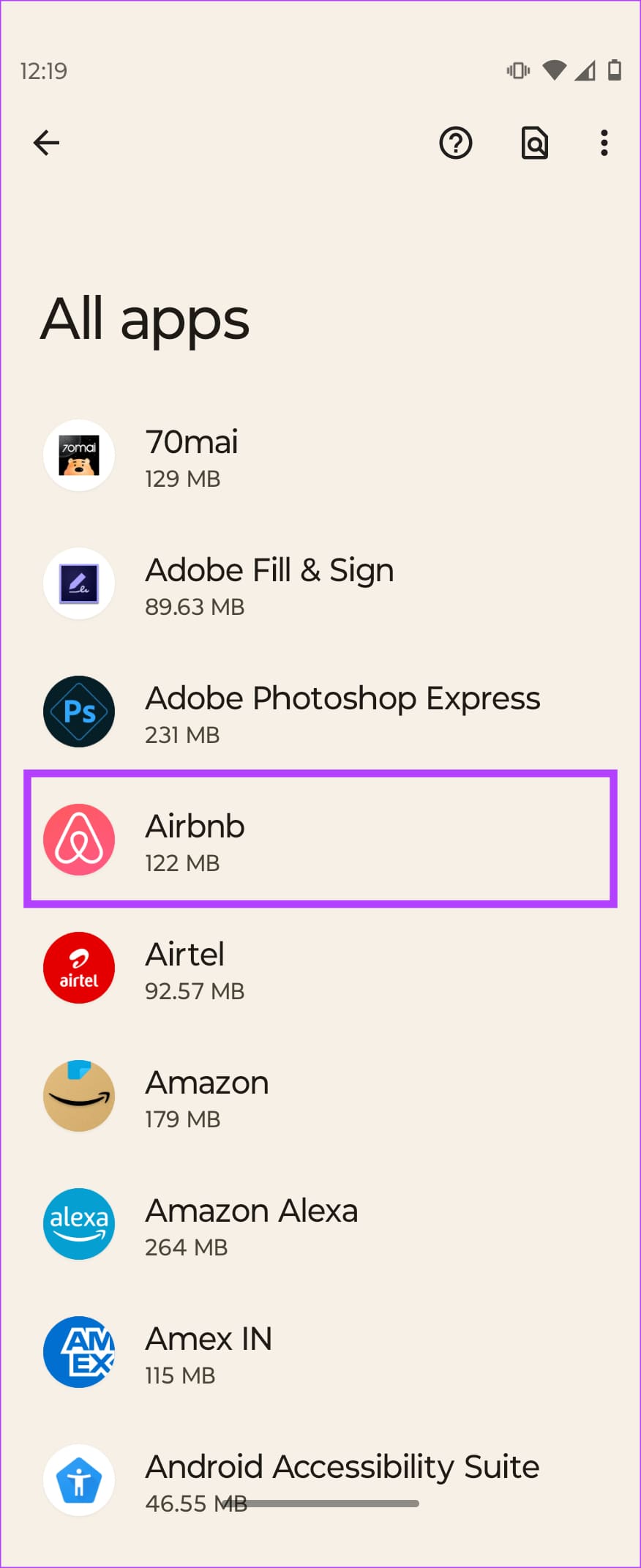
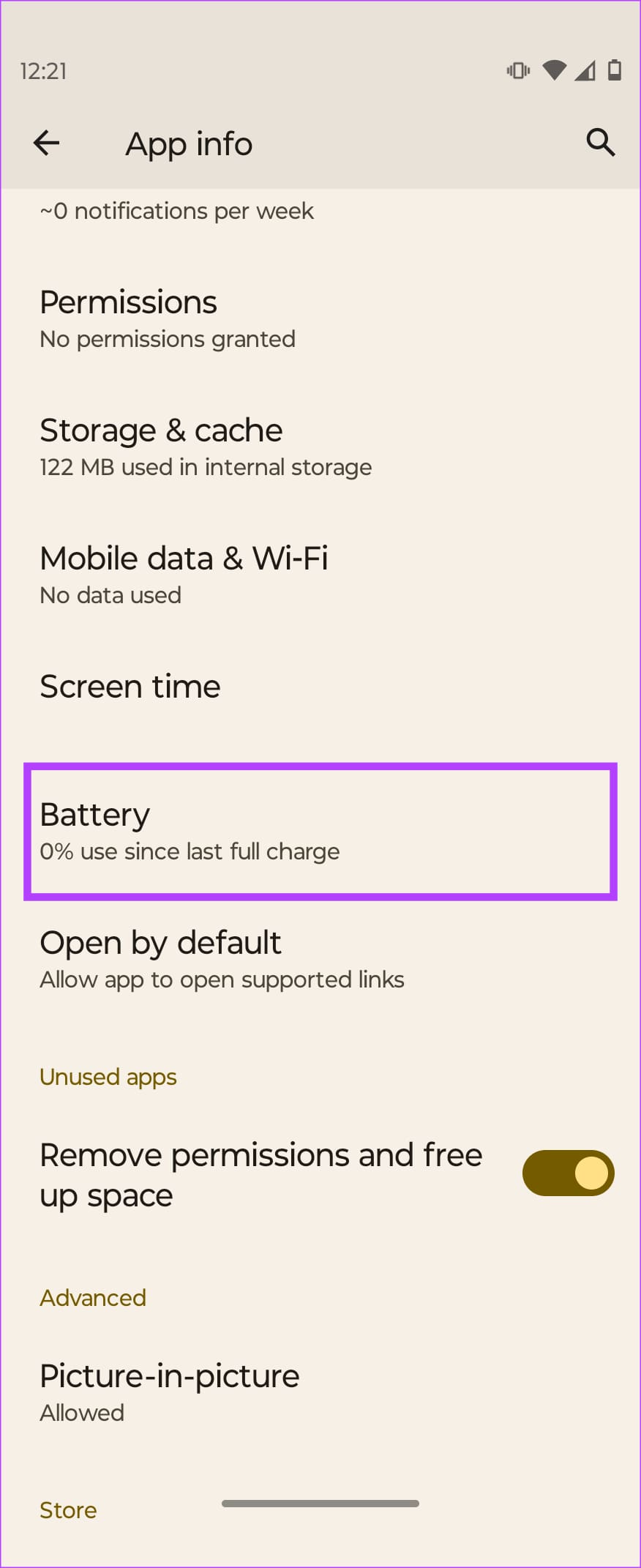
Step 5: Choose the Optimized option. Also, Force Stop the app once for good measure.
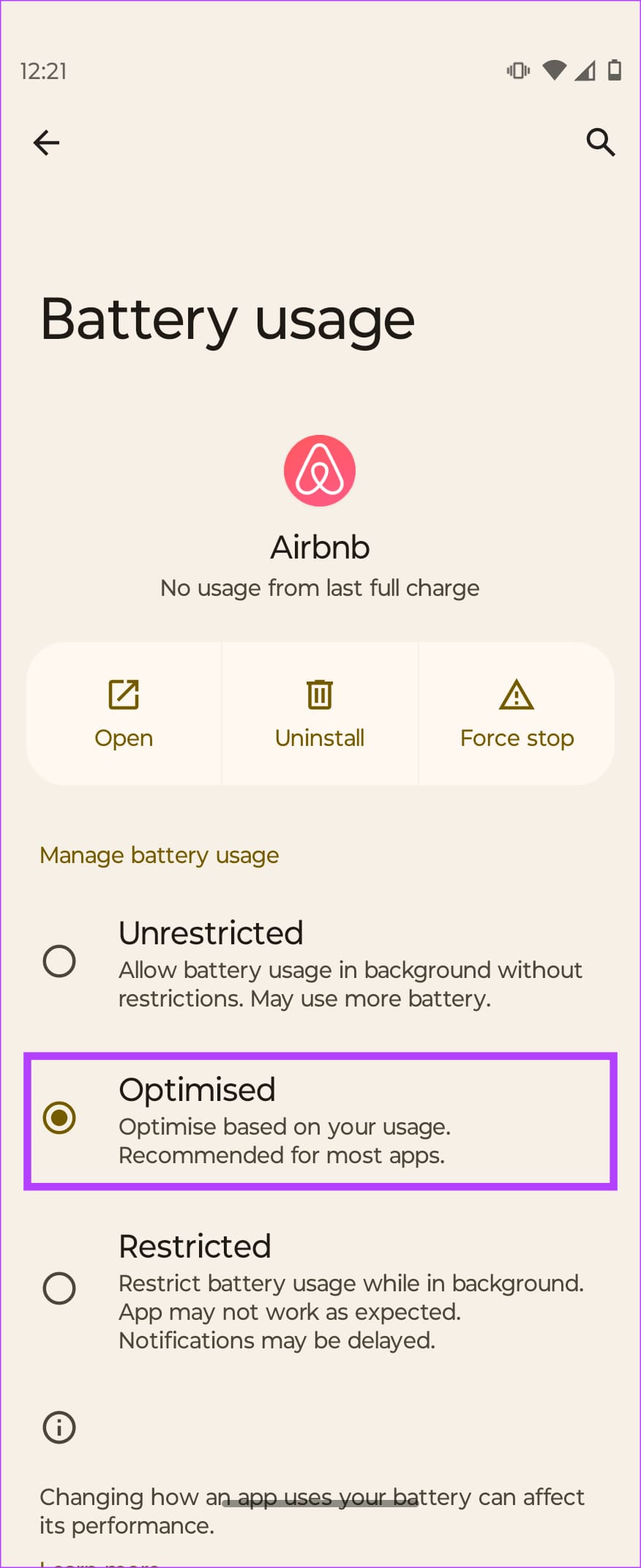
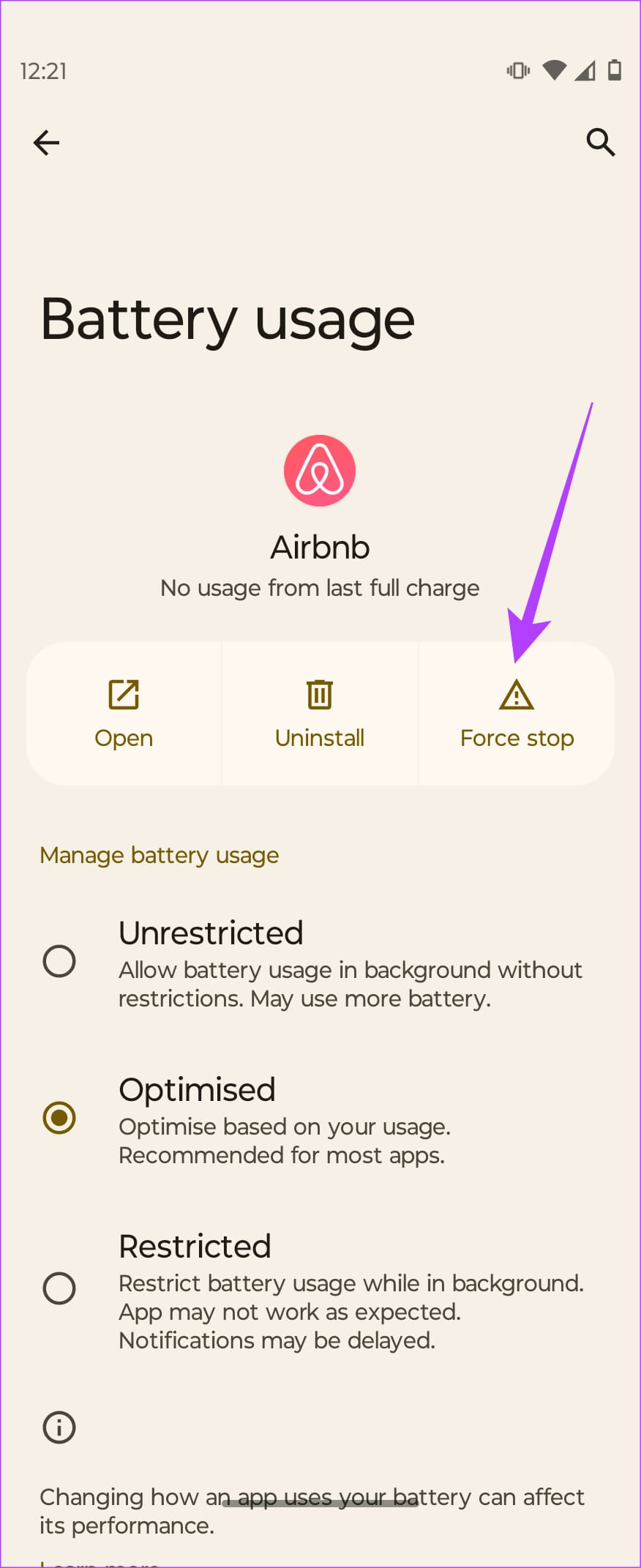
Now, the app will not start until you open it, which will prevent your phone’s battery from draining overnight.
Note: Don’t restrict the Clock app on your phone, as doing so would result in alarms not ringing on time. Setting an alarm doesn’t drain your phone’s battery.
Fix 5: Reset Your Phone
If all else fails, your last resort is to reset your phone to factory settings. A factory reset wipes all your data so you can start afresh. It also eliminates any bad setting or app that causes excessive battery drain overnight.
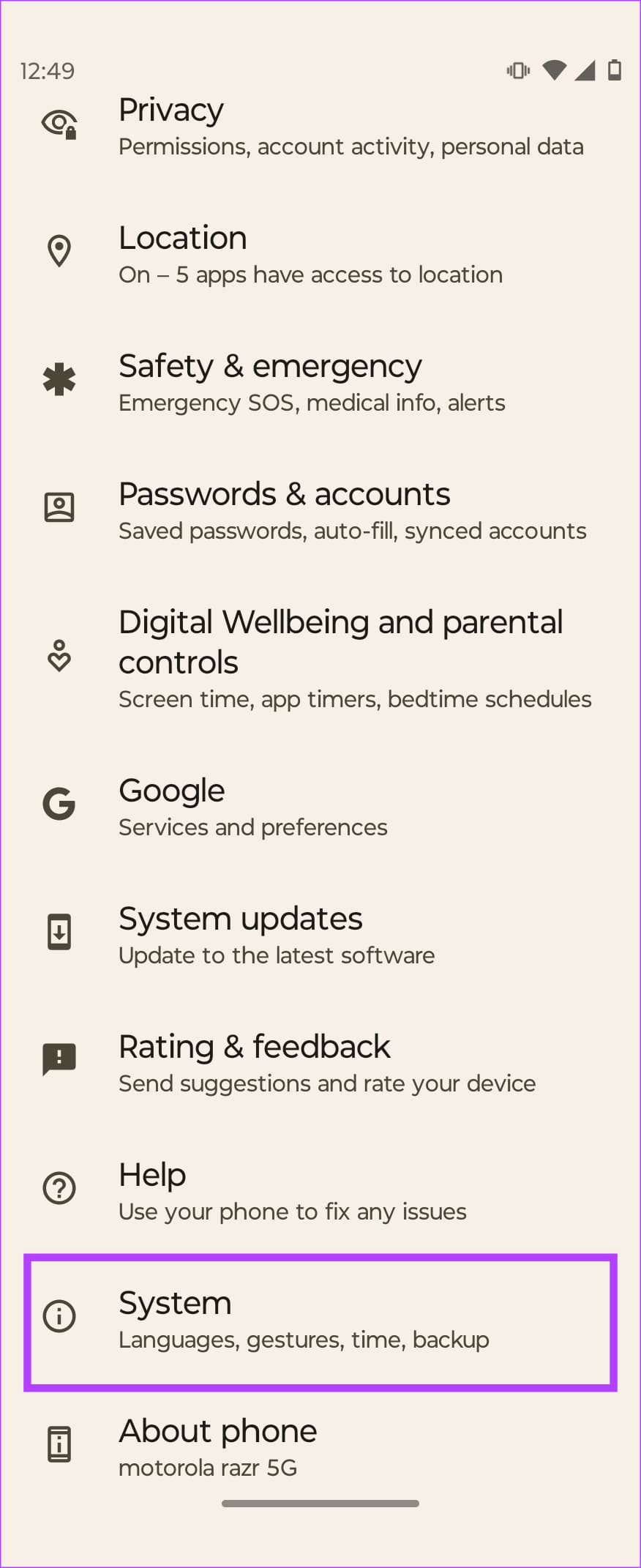
Step 1: Open the Settings app and go to System . Select Reset options.
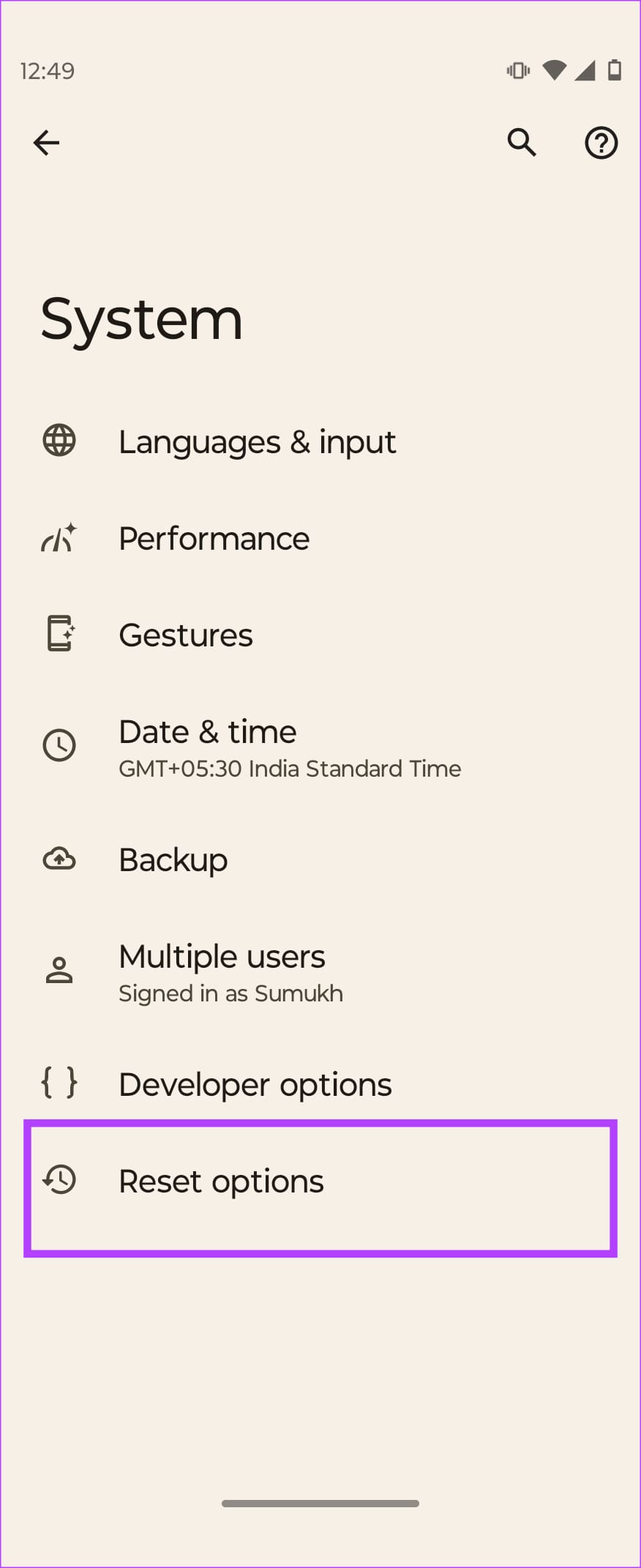
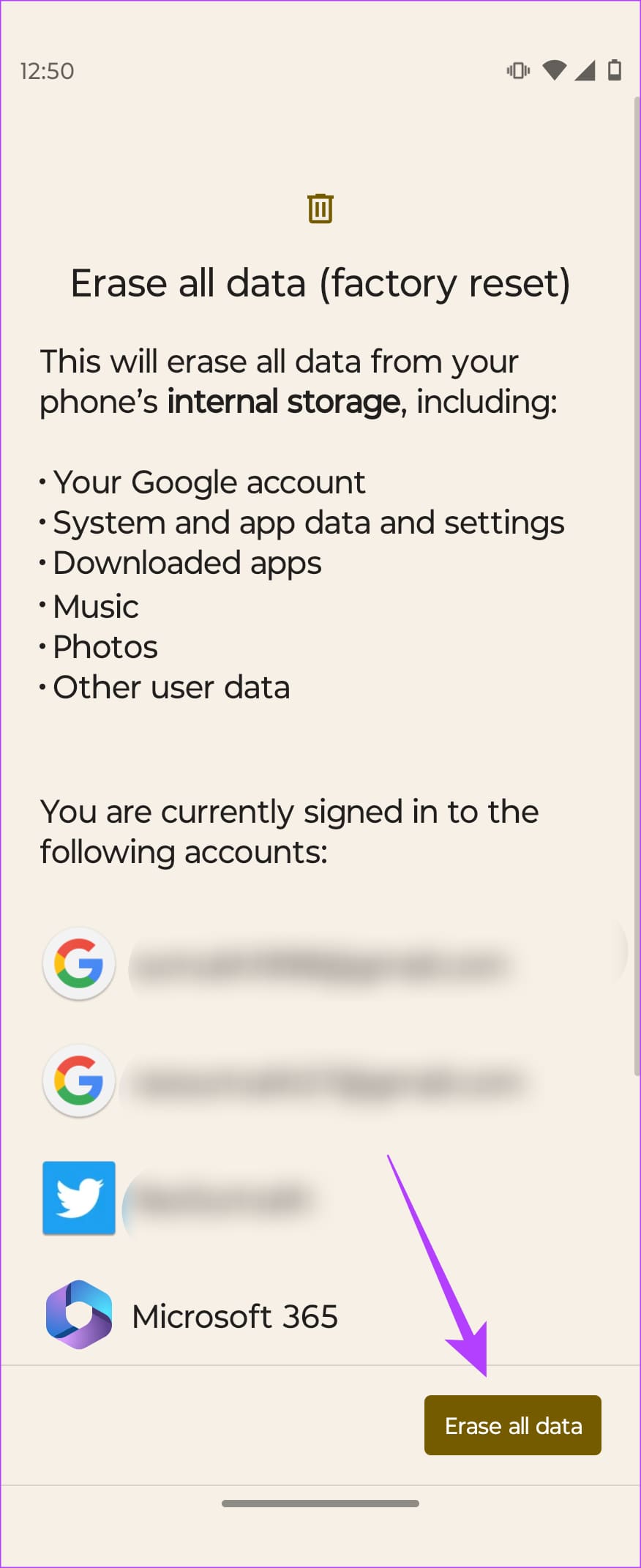
Step 2: Choose Erase all data (factory reset). Confirm by selecting Erase all data once again.

Once your phone is reset, set it up from scratch without restoring a backup. Sometimes, some backup files can also contain erroneous data that may lead to overnight battery drain.
Was this helpful?
Submit Cancel
Thanks for your feedback!
Keep reading