Android
4 Ways to Fix Android Phone Not Showing a Wi-Fi Network Name
Are you facing issues with finding a Wi-Fi network on your Android phone? Here are the best ways to fix Android phone not showing a Wi-Fi network name.
By Parth Shah
Quick Tips
Restart your smartphone, and the Wi-Fi router to refresh the network.
Move closer to the Wi-Fi router – your smartphone may be out of range.
Check if you’ve blocked your device from connecting to your Wi-Fi network.
Basic Fixes
Restart device: Restart your Android device to fix any temporary bugs and glitches.
Check Wi-Fi plan: Ensure you have an active Wi-Fi plan, and there’s enough bandwidth left.
Restart Wi-Fi router: Restart your Wi-Fi router to fix any bugs or glitches.
Check device limit: If you’ve added any restriction that limits the number of devices that can connect to your network, you will have to modify/remove it.
Move closer: Your Wi-Fi network may be out of range – move closer to the router and connect to it.
Fix 1: Join Using QR Code
If you can’t find the Wi-Fi network, here’s how you can join using a QR code from another device.
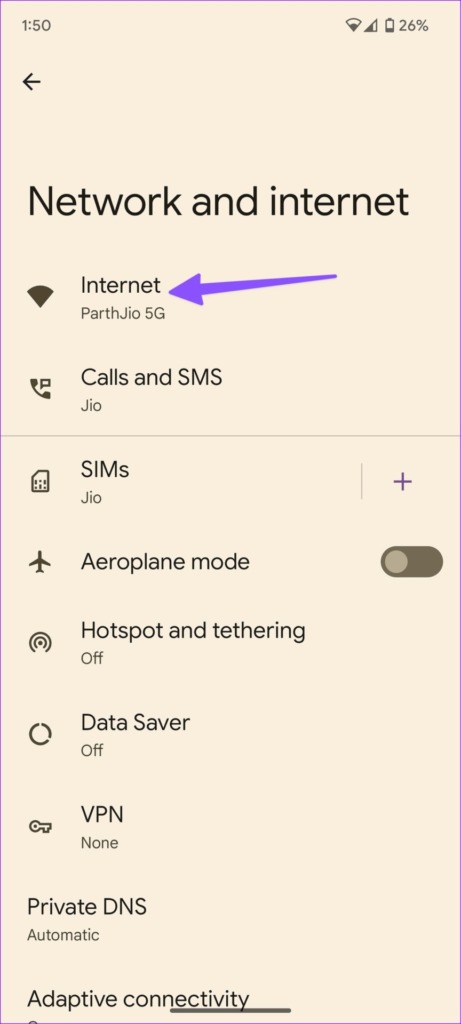
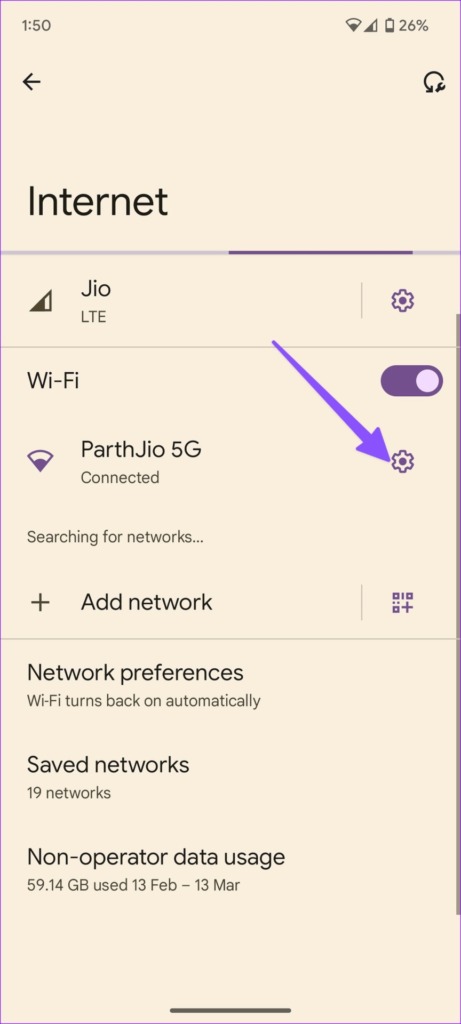
Step 1: Open Settings > Internet , and tap on the Settings icon next to the network you want to share.
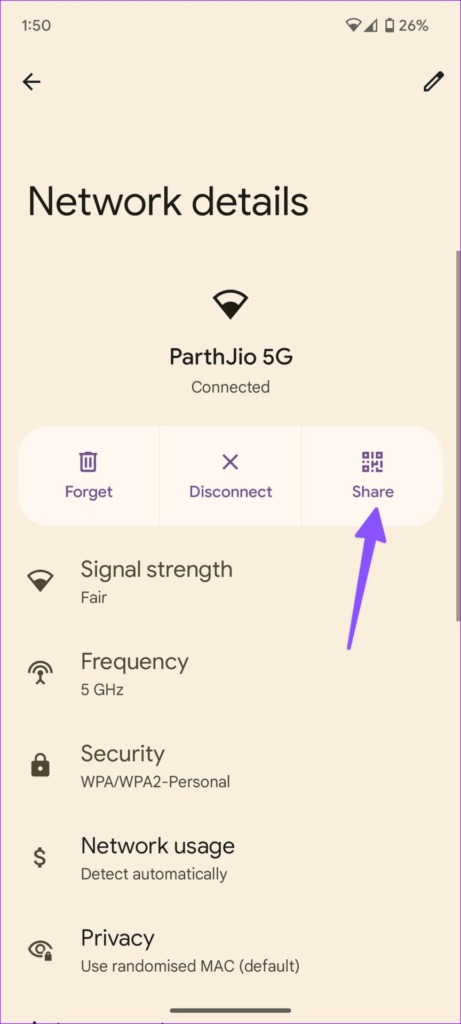
Step 2: Tap Share , and it creates a QR code on your phone.
Step 3: Grab your new Android phone and scan the QR code to join the network.
Also Read: How to fix QR code scanner not working on Android .
Fix 2: Unblock Device From Network
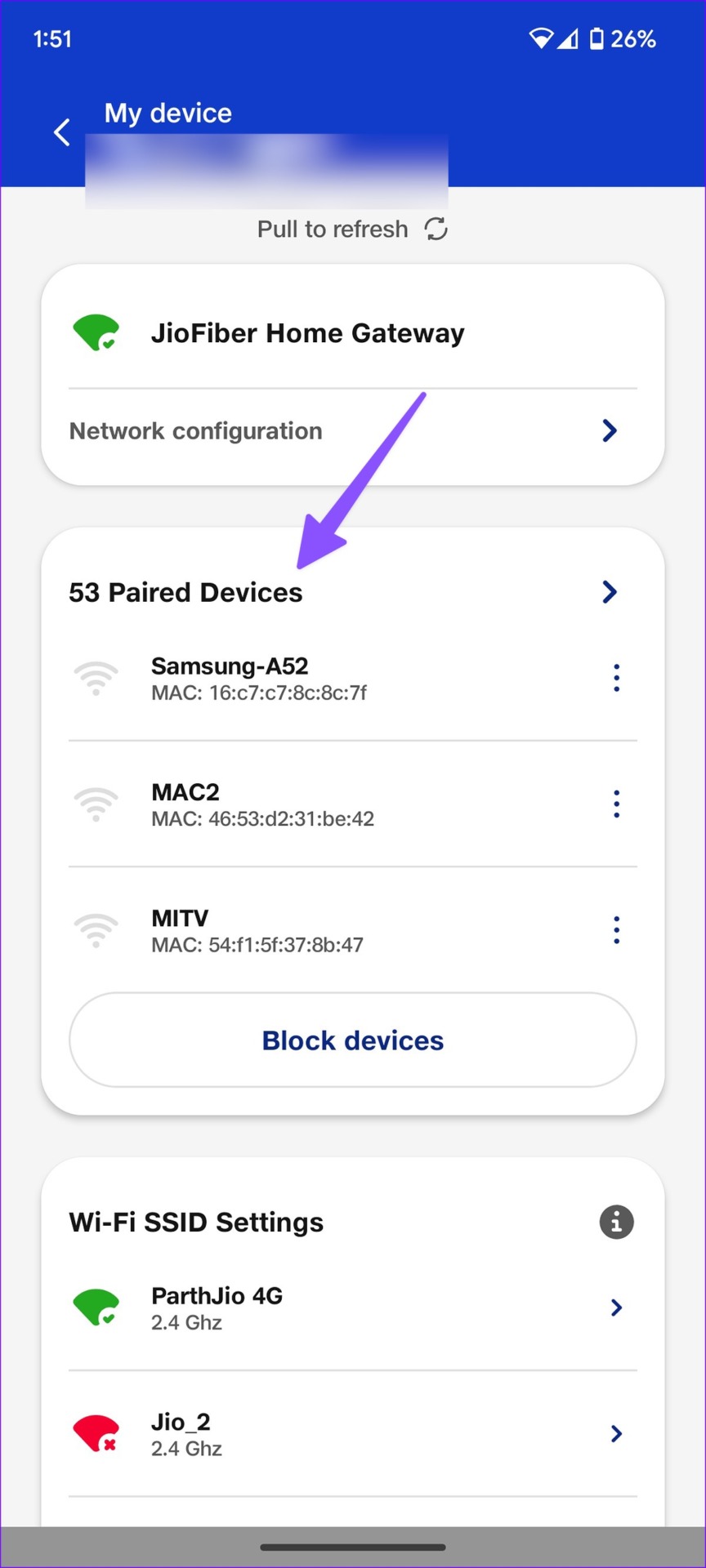
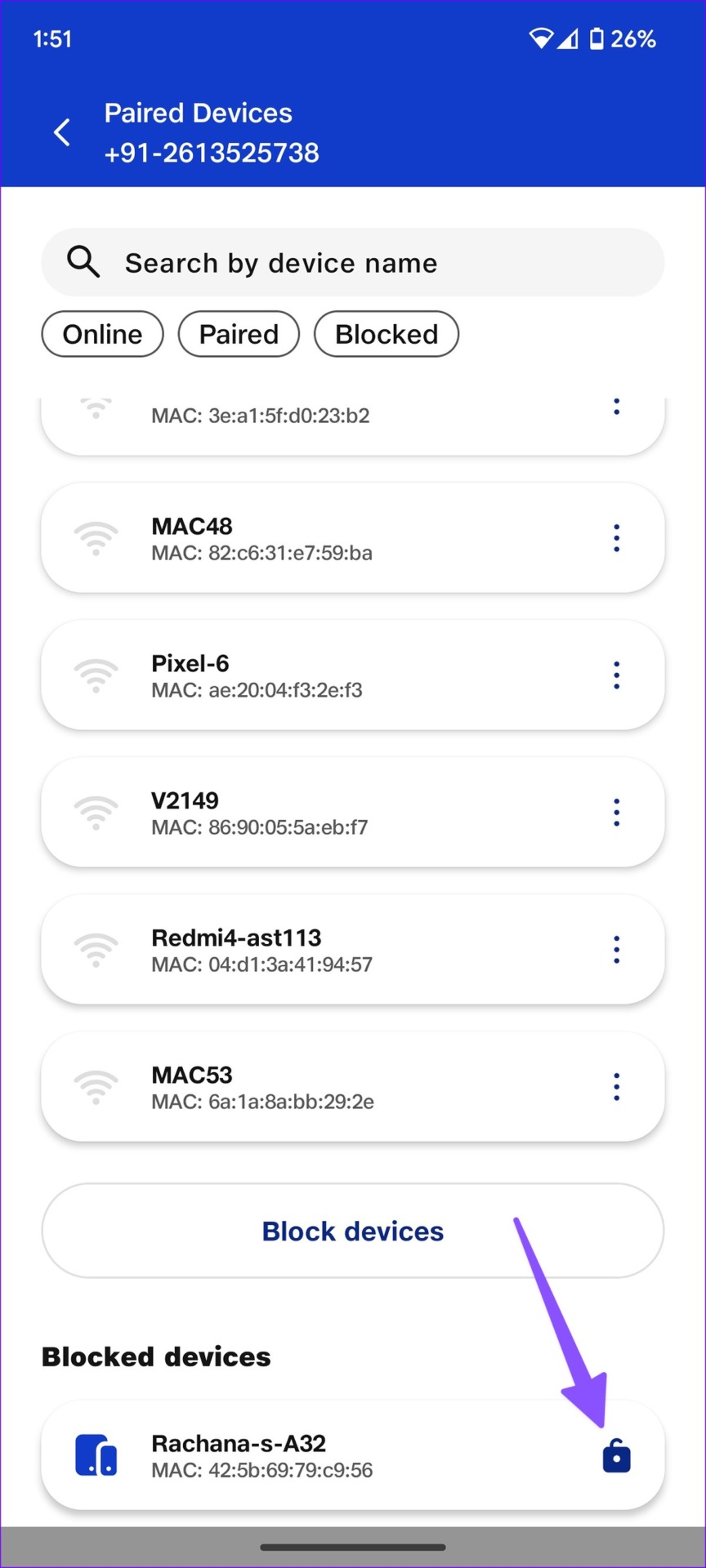
You will not be able to see the name of the Wi-Fi network if you’ve blocked your Android device from accessing it.
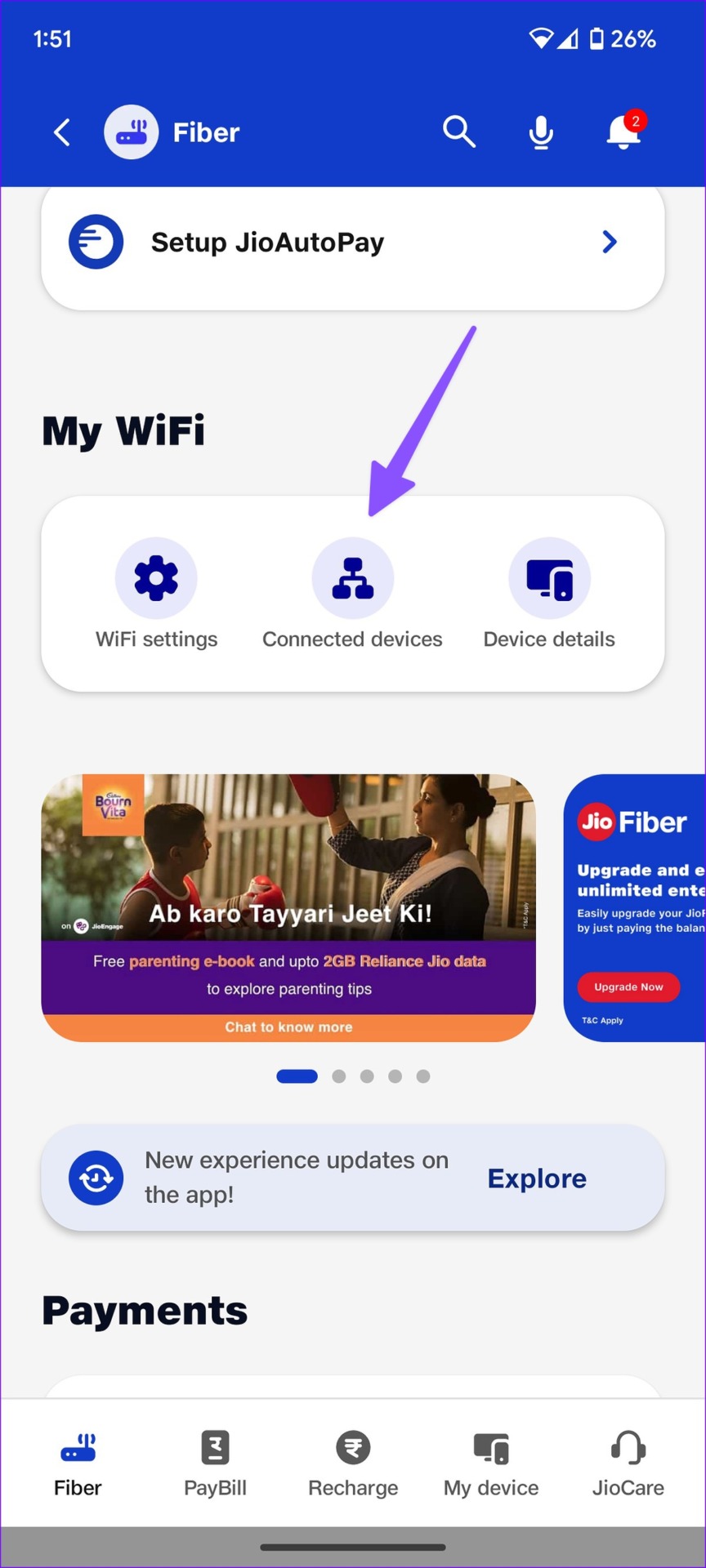
Open the app, or the control panel of your Wi-Fi network, and check if you’ve blocked your device. Contact your internet service provider for more assistance.
Fix 3: Refresh Internet
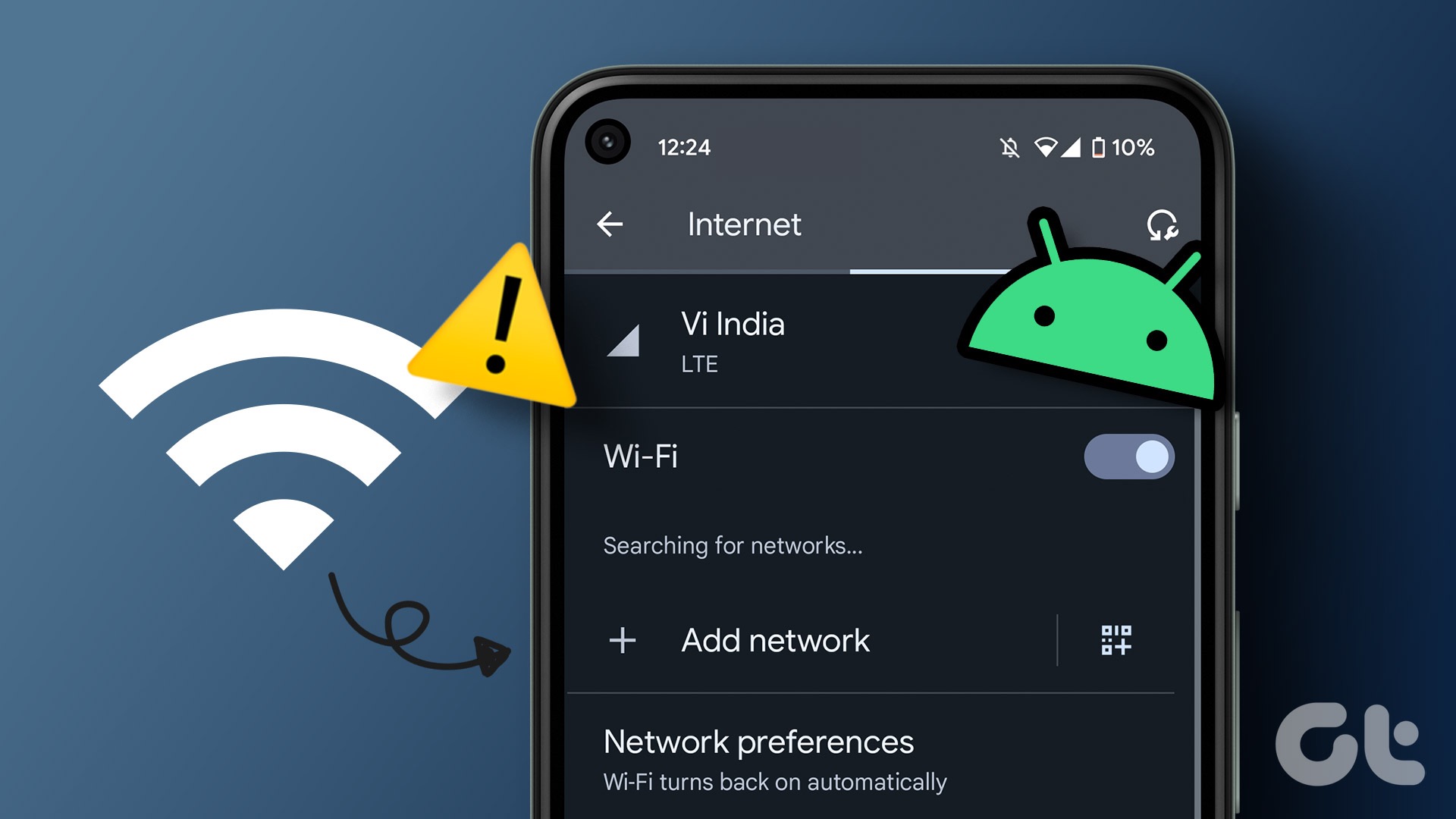
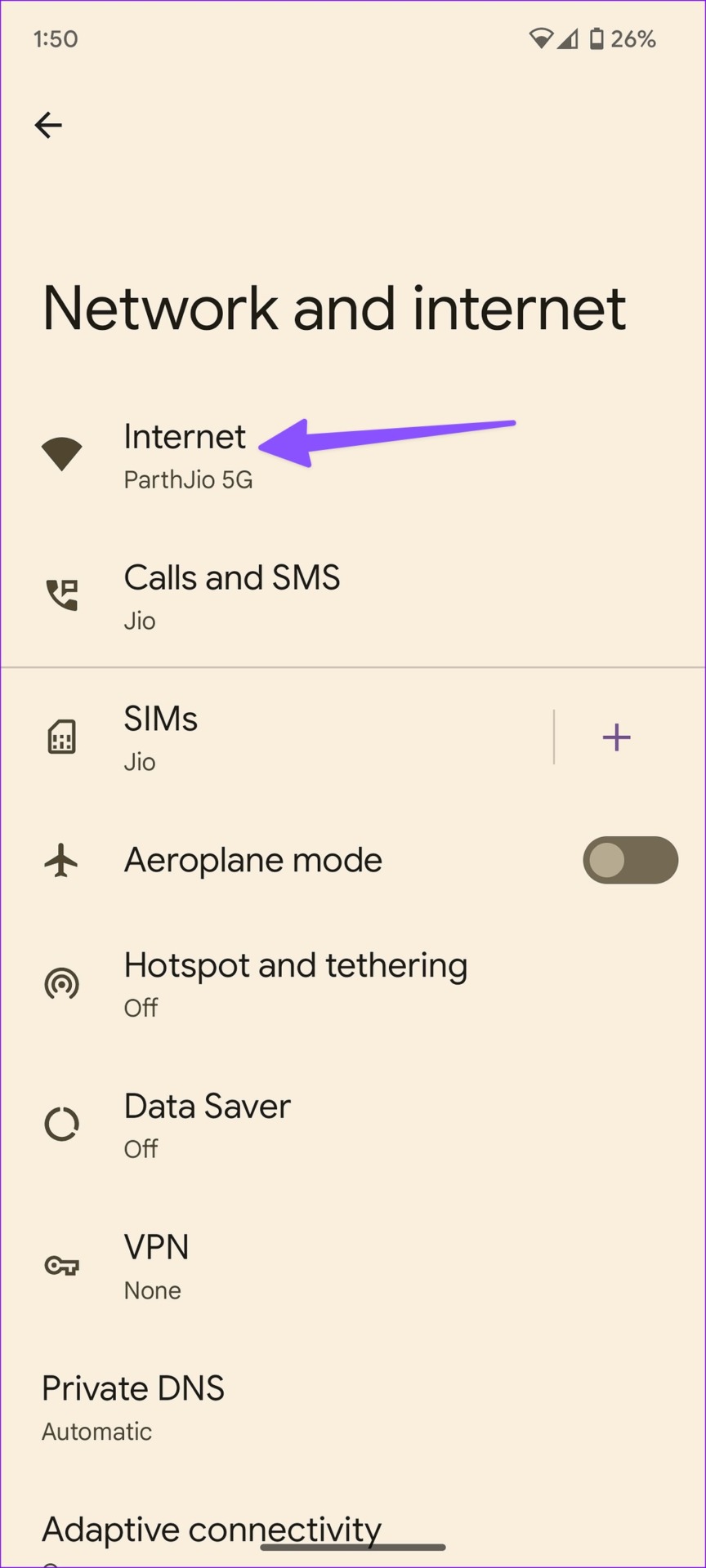
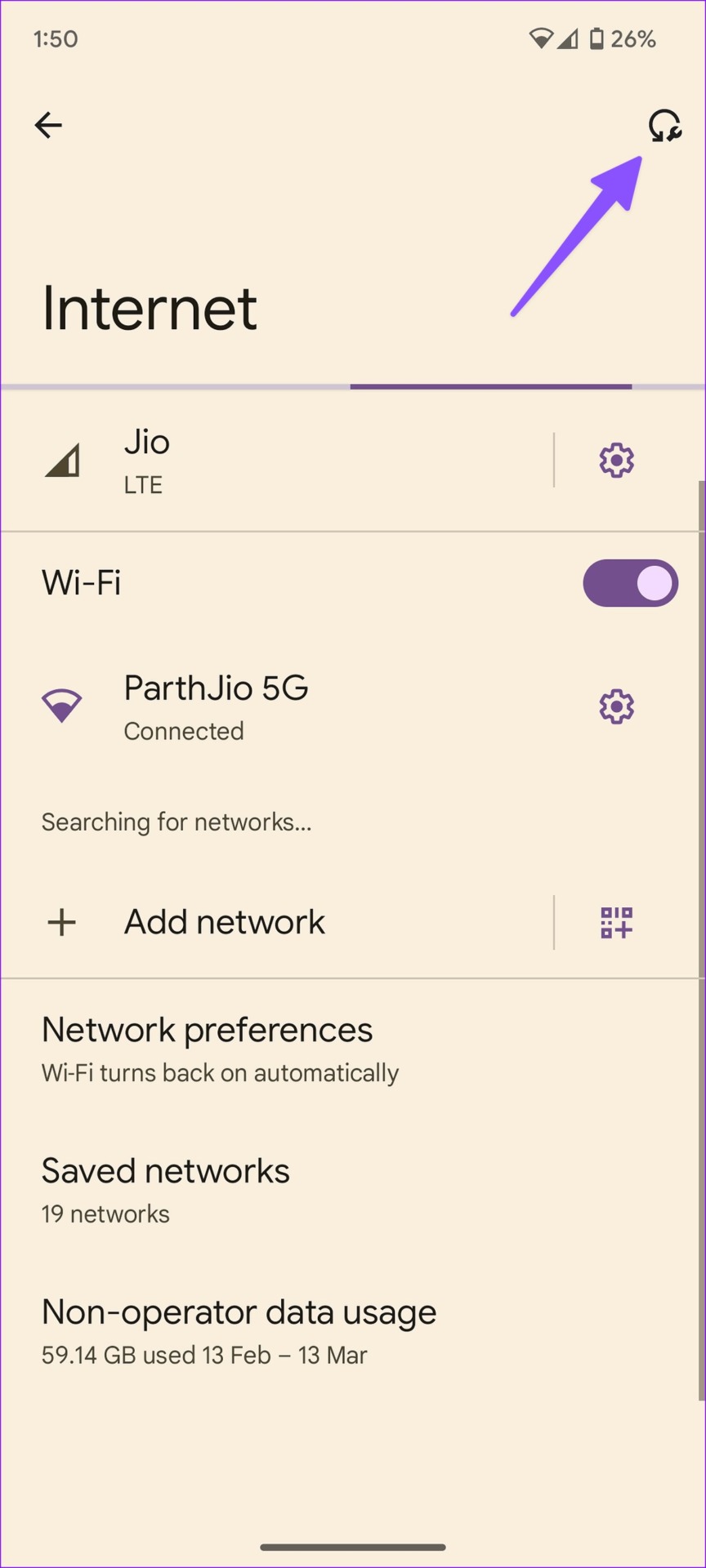
Refresh the Internet menu to try and discover your Wi-Fi network.
Open the Settings app , go to Network and Internet , tap on Internet, and use the Refresh option.
Fix 4: Reset Network Settings
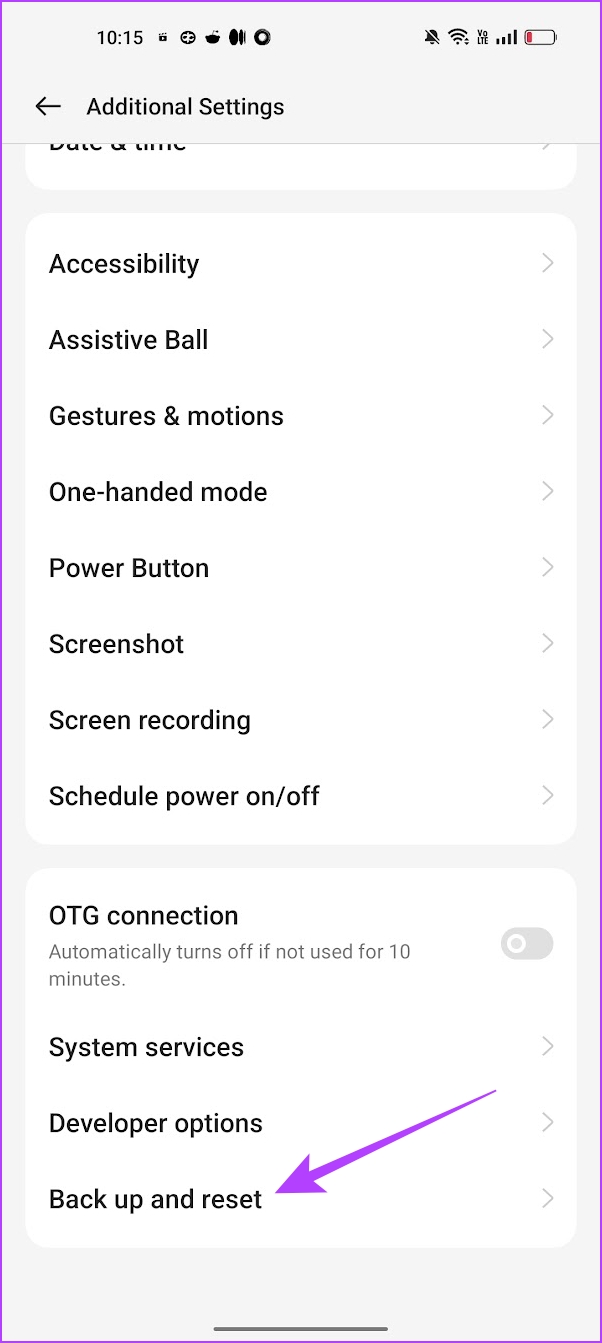
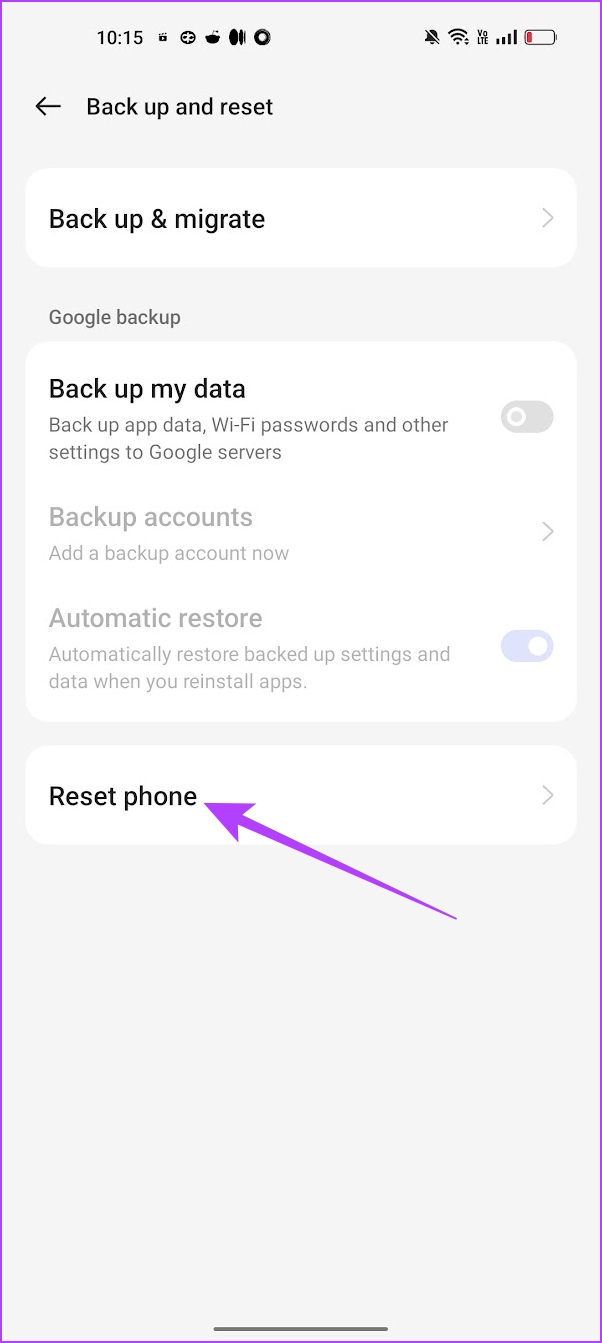
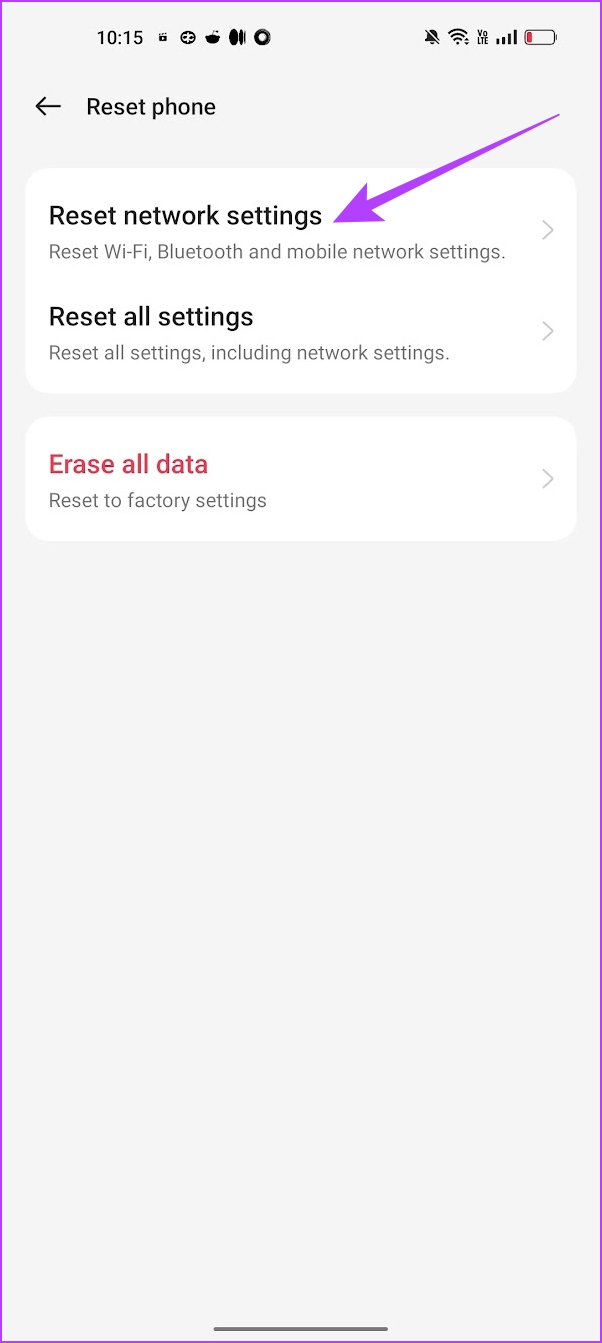
Resetting network settings can help erase any bugs that are affecting Wi-Fi on your Android device. Therefore, doing so can also fix the problem. Here’s how you can do it.
Open the Settings app, go to Back up and Reset > Reset Phone > Reset network settings .
Also Read: How to fix Android Wi-Fi not turning on .
Was this helpful?
Submit Cancel
Thanks for your feedback!
Keep reading
![9 Pet Care Apps in 2024 [Free and Paid]](https://bcdn.seocloud.biz/seo-articles/82a3ce5485f5bc506feb1226aca9bcb4/cover.jpg)