Android
6 Ways to Fix Incoming Calls Go Straight to Voicemail on Android
Are your incoming calls going straight to voicemail on Android? Here's what you can do to fix that efficiently.
By Pankil Shah
Quick Tips
Ensure Do Not Disturb is not enabled and you haven’t blocked any unknown numbers or contacts.
Make sure call forwarding and call barring services are turned off on your phone.
Consider resetting all network settings if calls go straight to voicemail despite all the correct settings.
Try Basic Fixes
Toggle the airplane mode: Turning the airplane mode on and off can help refresh your phone’s network connection. This should help resolve minor network-related problems causing your incoming calls to go to voicemail.
Remove and re-insert the SIM card: Issues with the SIM card can sometimes result in calls going straight to voicemail. You can try ejecting the SIM card from your phone and reinserting it to see if that helps.
Fix 1: Disable Do Not Disturb Mode
When the Do Not Disturb mode is active, your Android phone silences all incoming calls and notifications. As a result, any call you receive may go straight to voicemail without ringing. To avoid this, ensure that the Do Not Disturb mode is disabled on your phone.
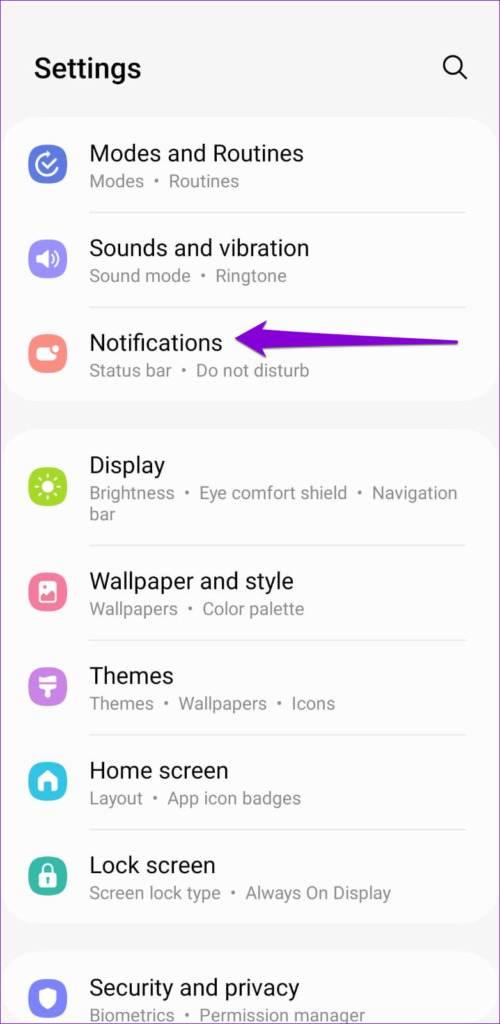
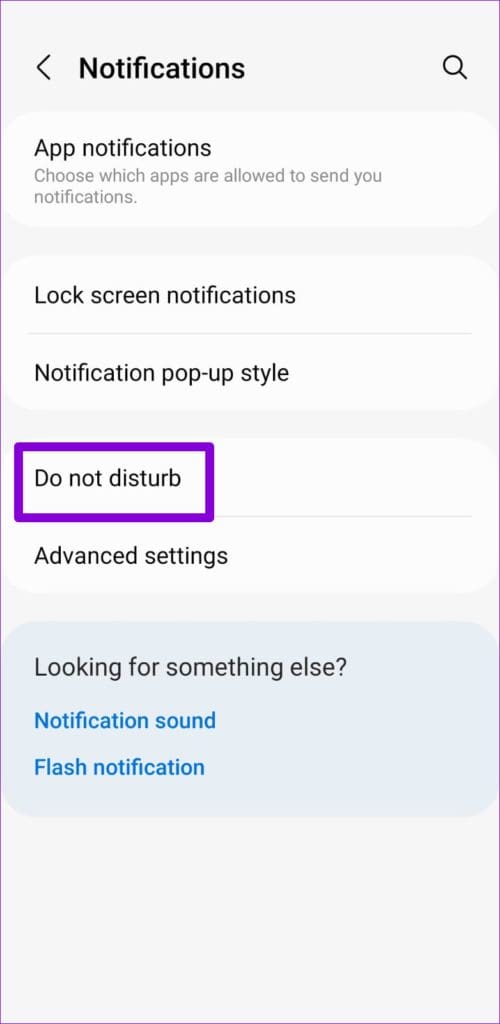
Step 1: Open the Settings app > tap on Notifications > select Do not disturb from the following menu.
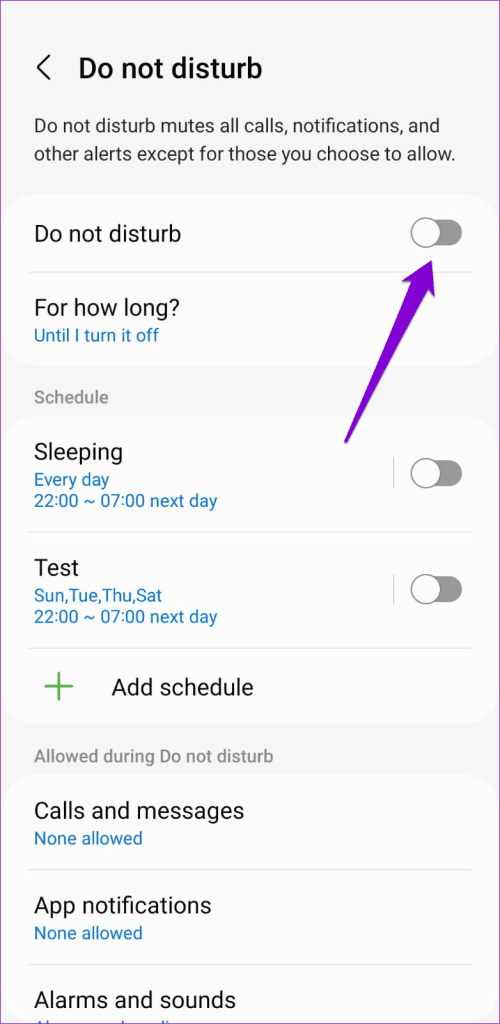
Step 2: Toggle off Do not disturb . Under Schedule, disable the toggles for DND schedules .
Fix 2: Disable Block Calls From Unknown Numbers
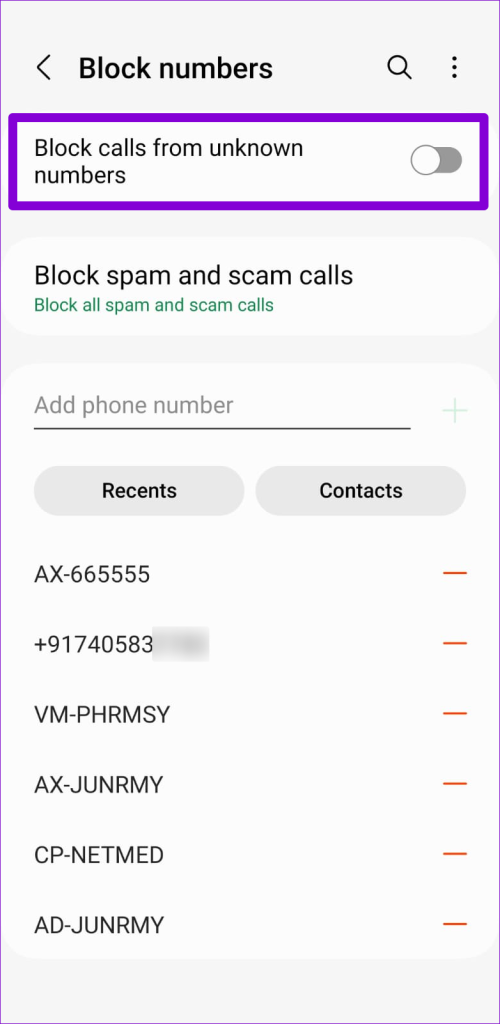
Your Android lets you block calls from unknown numbers. While that helps reduce spam, this feature can sometimes divert your important calls to voicemail. To avoid this, disable the Block calls from unknown numbers option by following the steps below.
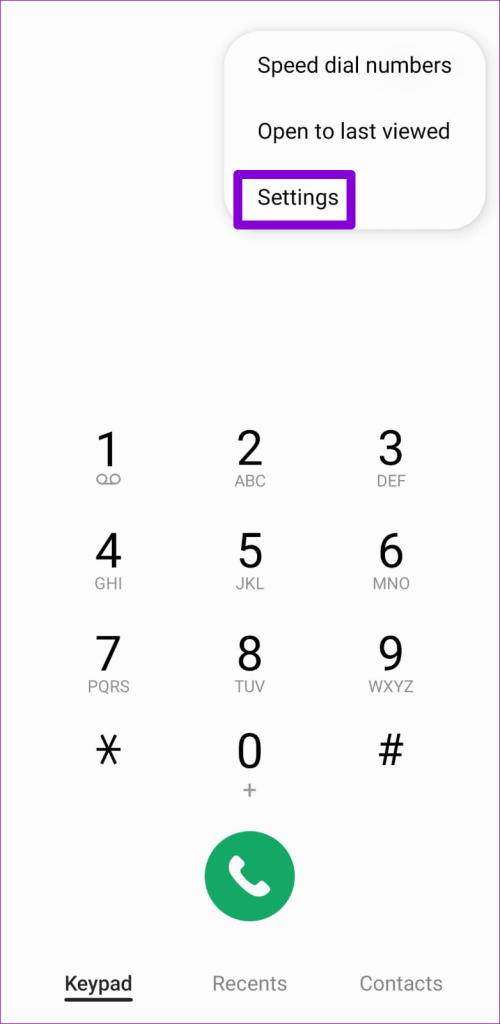
Step 1: Open the Phone app on your Android > tap the three-dot menu icon at the top right > select Settings .
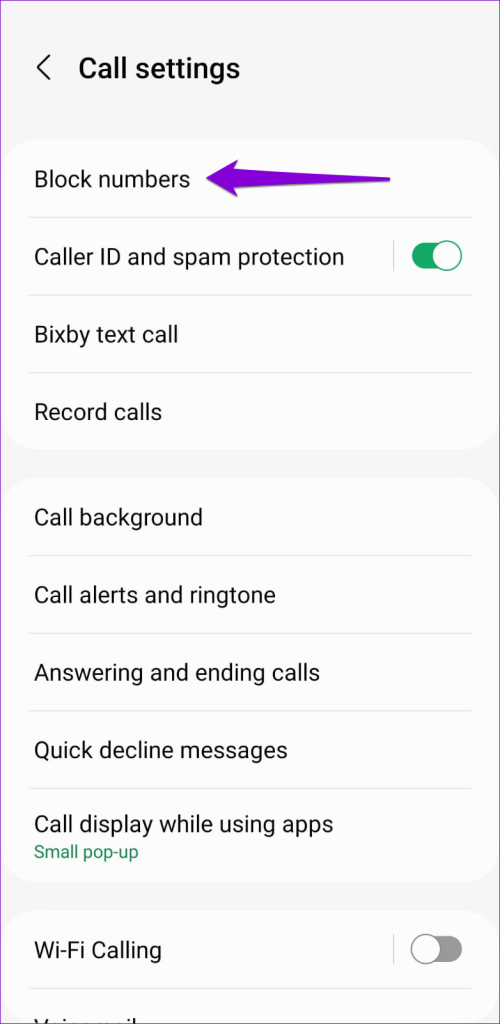
Step 2: Tap on Block numbers > disable the toggle for Block calls from unknown numbers .
Fix 3: Check Blocked Numbers
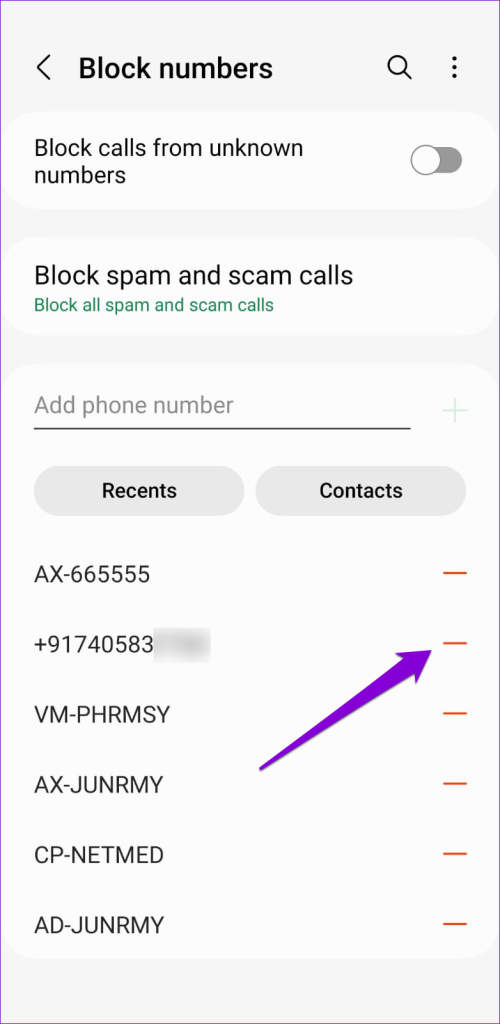
If your Android only sends calls from a specific contact to voicemail, you may have accidentally added the contact to the block list. To check whether this is the case, use these steps to view a list of blocked numbers on your Android.
Step 1: Open the Phone app on your Android > tap the three-dot menu icon at the top right > select Settings .
Step 2: Tap Block numbers to view a list of numbers you have blocked. Tap the minus icon next to the number or contact to unblock it.
Fix 4: Turn off Call Forwarding
Call forwarding is a useful feature to redirect your incoming calls to a specific number. To stop that, disable call forwarding on your phone using these steps:
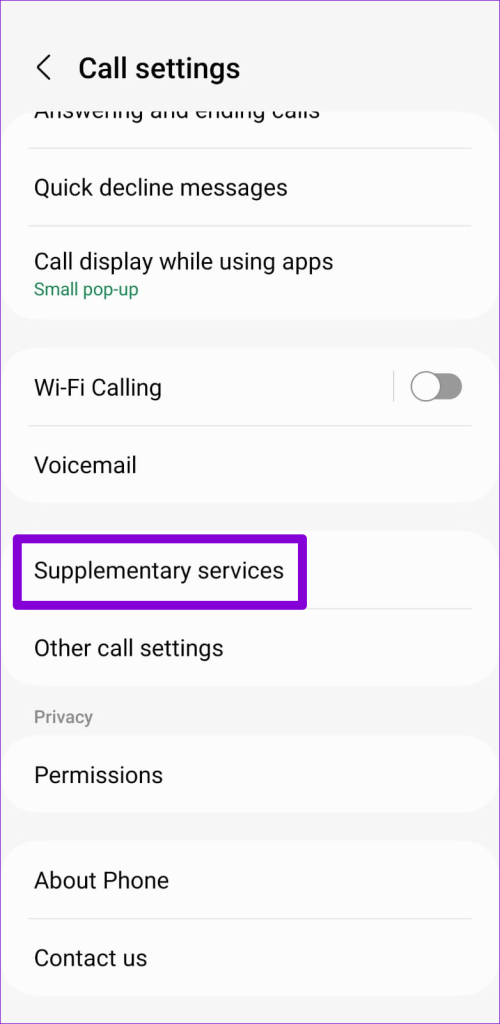
Step 1: Open the Phone app settings > tap on Supplementary services .
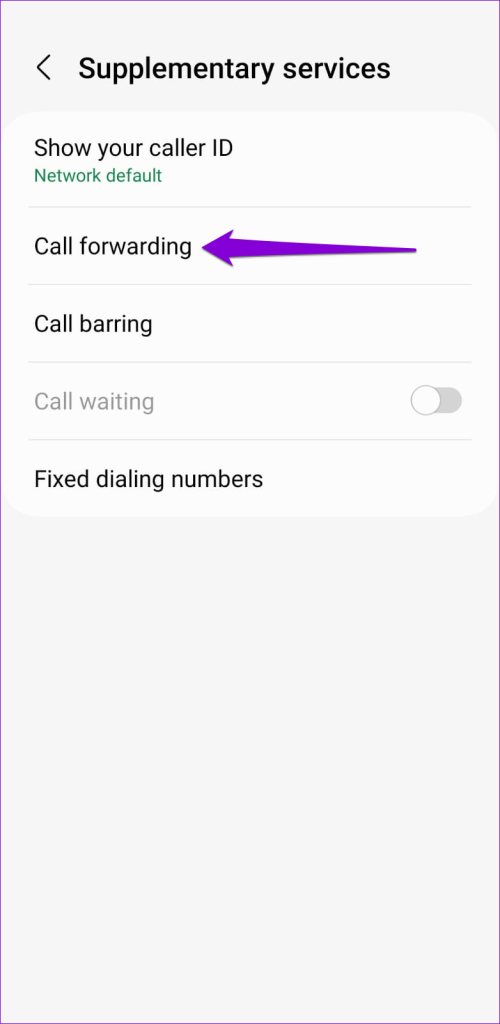
Step 2: Tap on Call forwarding > select Voice calls from the following menu.
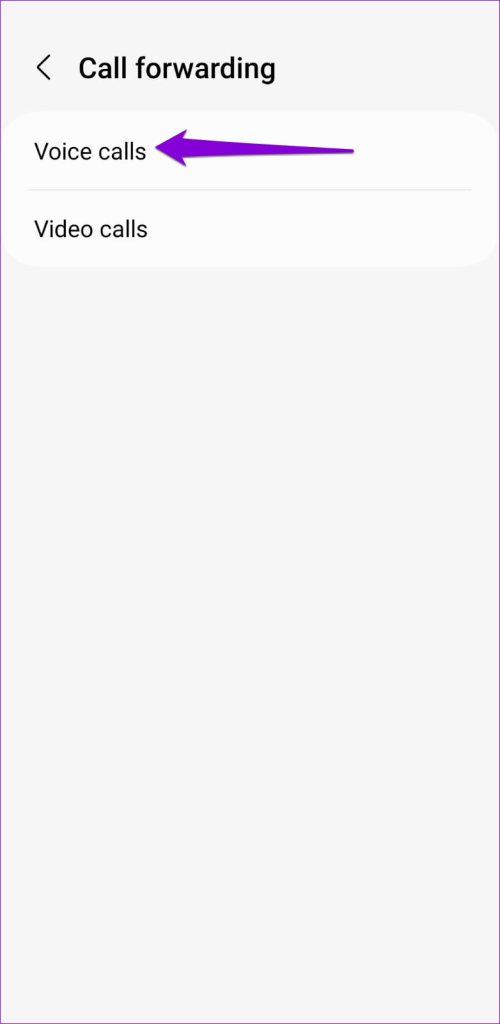
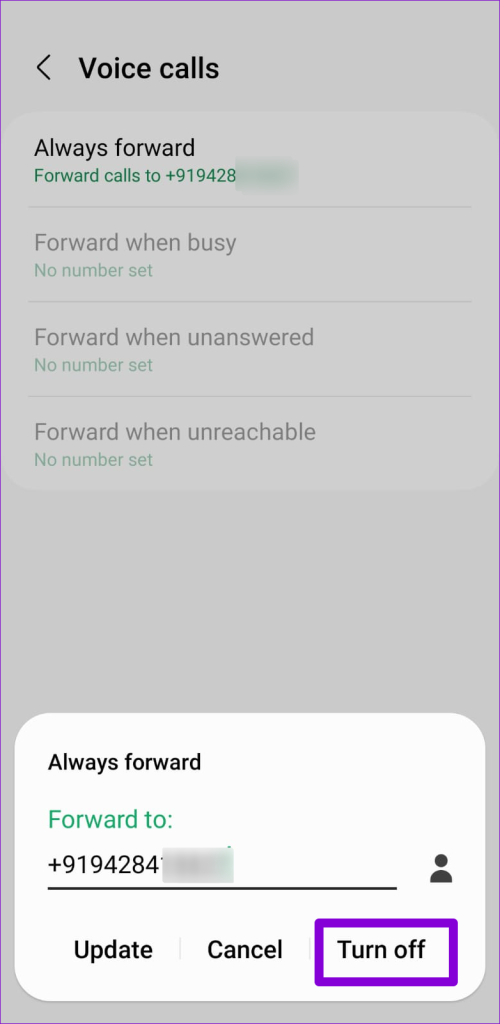
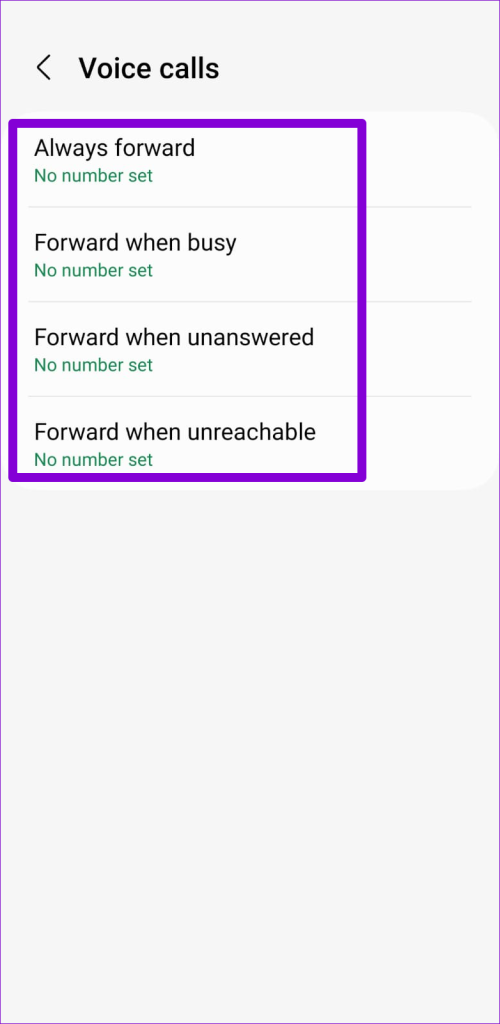
Step 3: Tap on Always forward > select Turn off . Similarly, turn off Forward when busy , Forward when unanswered , and Forward when unreachable .
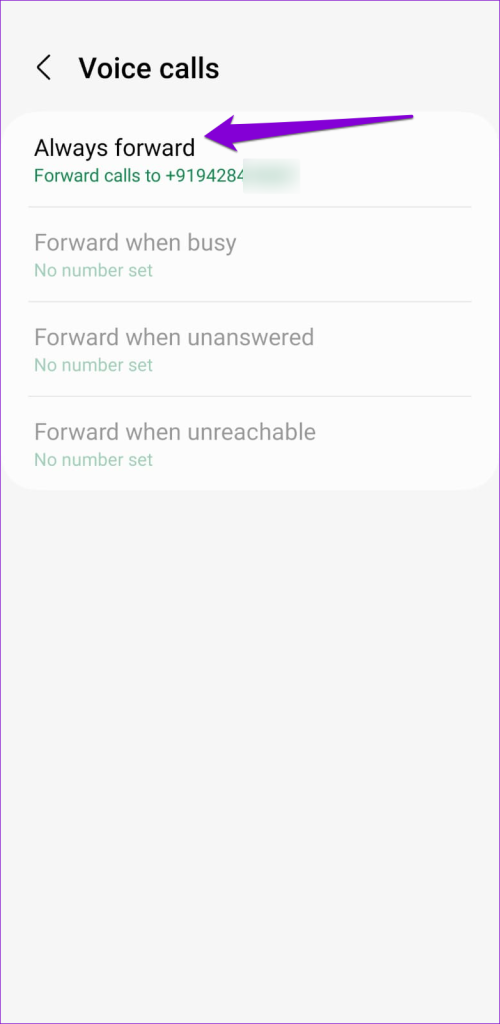
Fix 5: Turn off Call Barring
The call barring feature on your Android allows you to block specific types of incoming and outgoing calls, such as international calls or premium rate numbers. You must turn this feature off to stop your phone calls from going straight to voicemail.
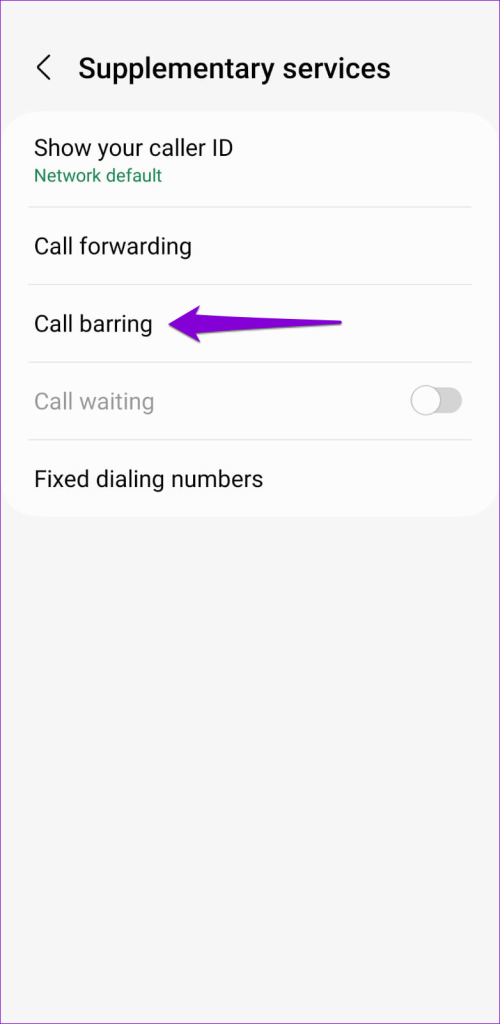
Step 1: Open the Phone app settings > tap on Supplementary services .
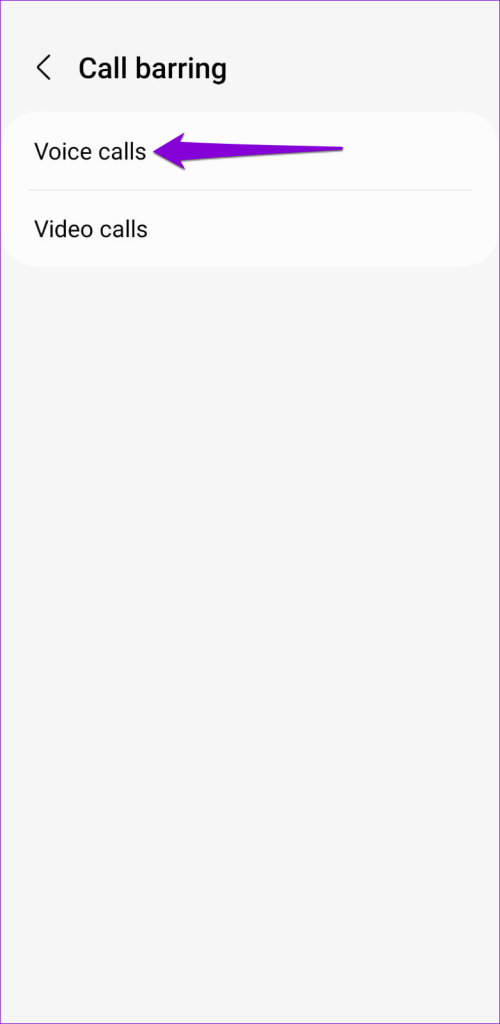
Step 2: Tap on Call barring > select Voice calls from the following menu.
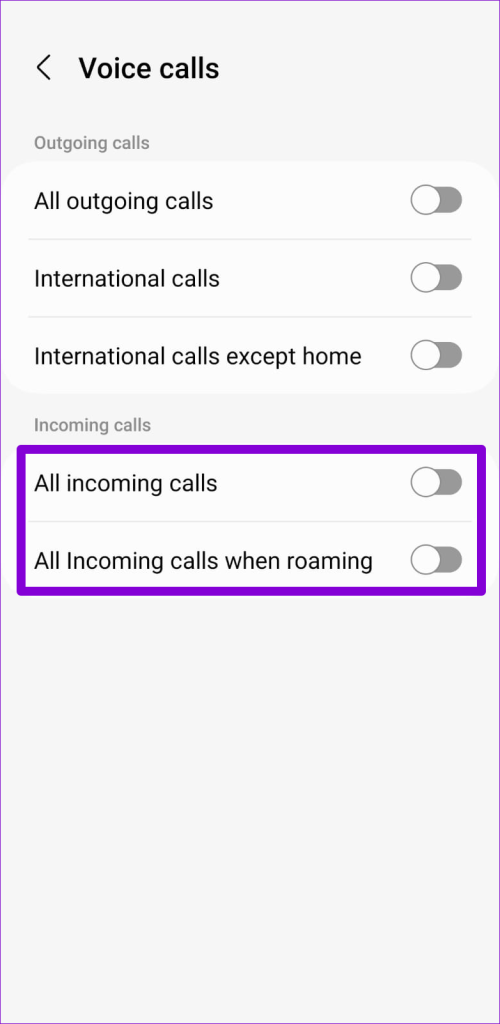
Step 3: Turn off the toggles for All incoming calls and All incoming calls when roaming .
Fix 6: Reset Network Settings
Resetting network settings on your Android allows you to restore all your custom network-related settings to their default configurations. If the issue is caused by misconfigured network settings, this should help fix it.
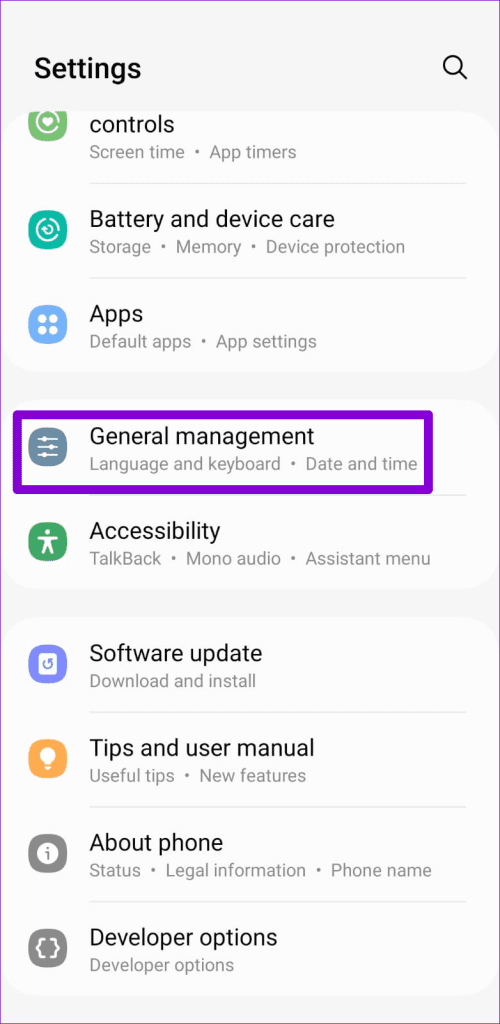
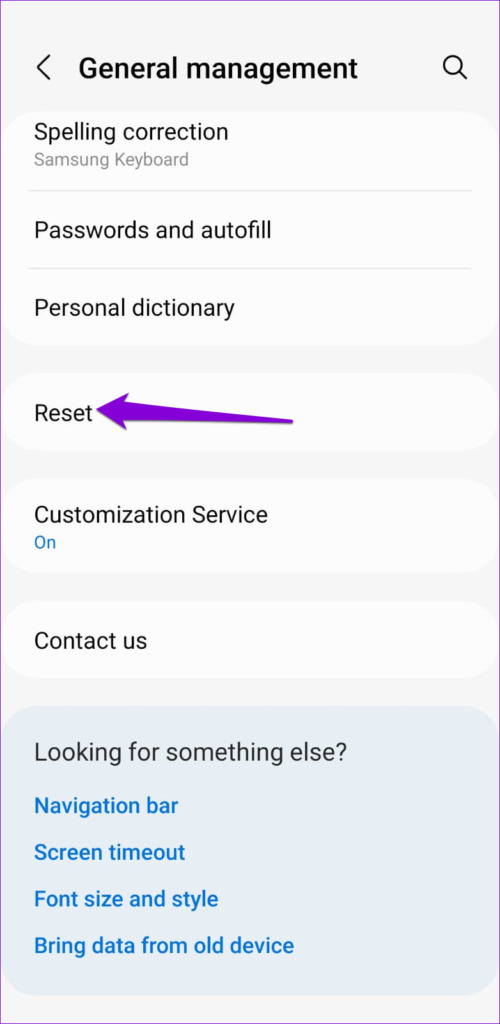
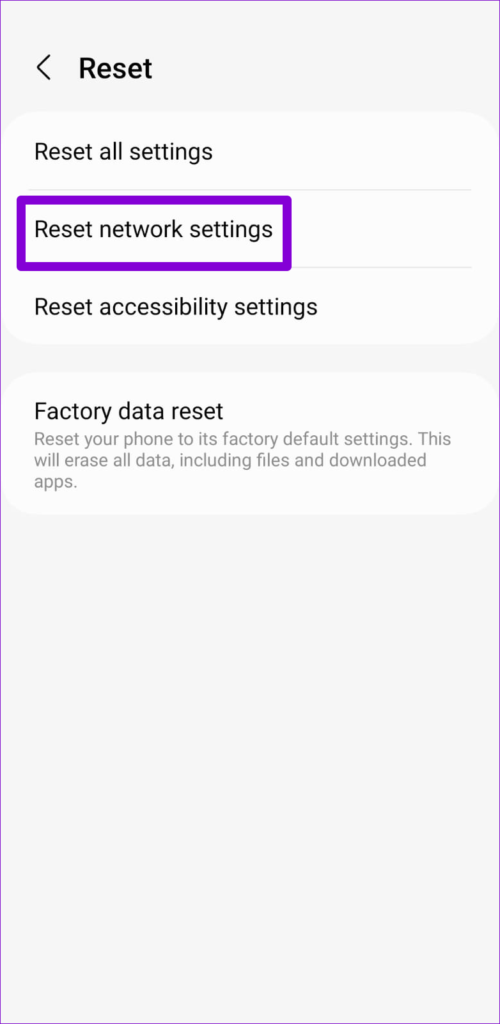
Step 1: Open the Settings app > head to General Management > Reset > Reset network settings .
Step 2: Hit the Reset settings button > enter your device PIN if required.
Was this helpful?
Submit Cancel
Thanks for your feedback!
Keep reading