Android
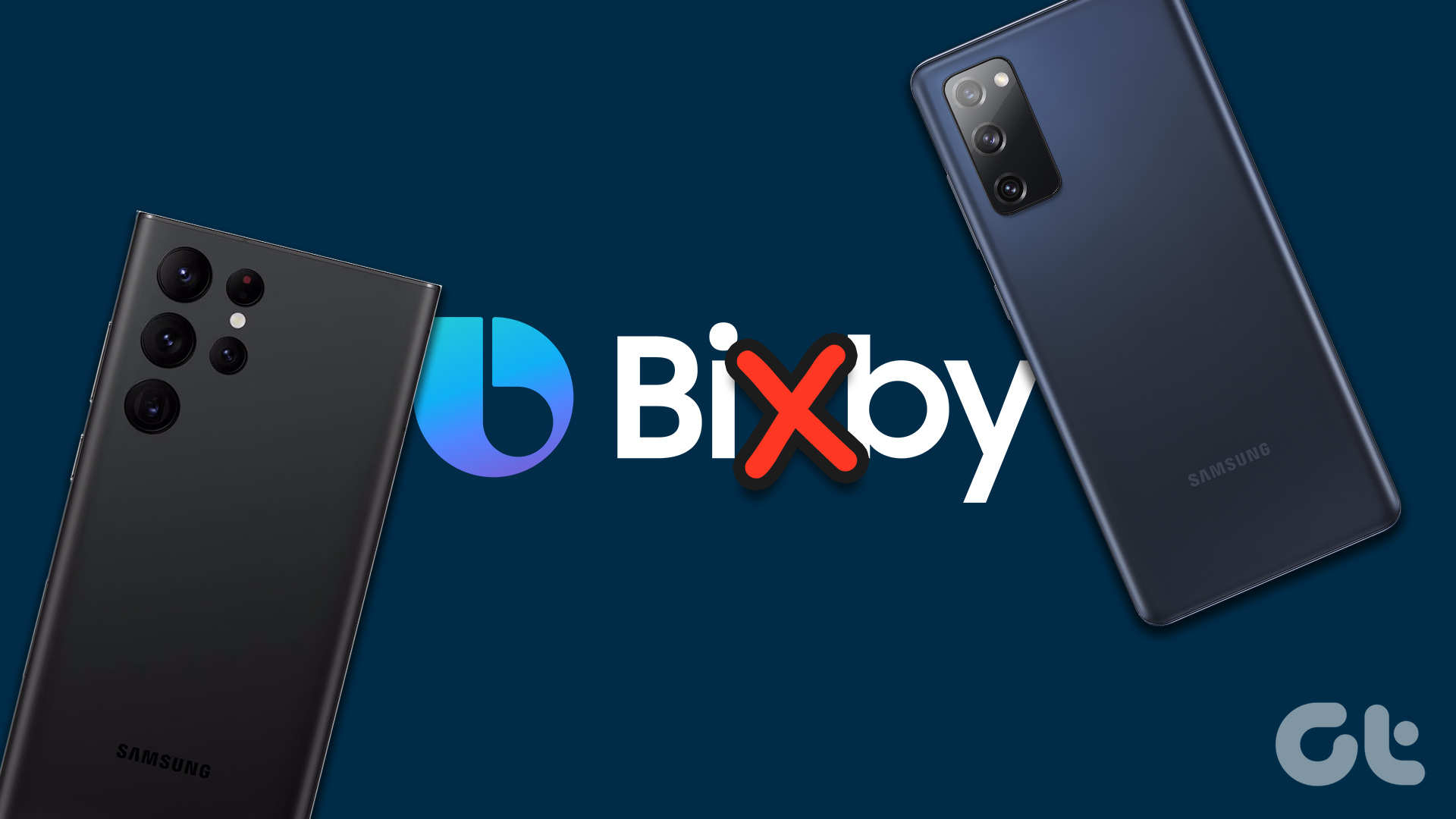
5 Ways to Fix Bixby Not Working on Samsung Galaxy Phones
If Bixby not responding to your voice or displaying errors on your Samsung Galaxy phone, here's how to get it working again.
By Pankil Shah
Quick Tips
If Bixby fails to respond to your commands or displays errors, ensure that you have allowed all the necessary permissions.
Check Bixby voice wake-up and language settings to verify that everything is correct.
You can try resetting Bixby on your phone if nothing else works.
Fix 1: Enable App Permissions for Bixby
Bixby requires a few permissions to access your phone’s microphone, location, sensors, and other features. If you’ve disabled any of these permissions, you must enable them to get Bixby working on your Samsung phone.
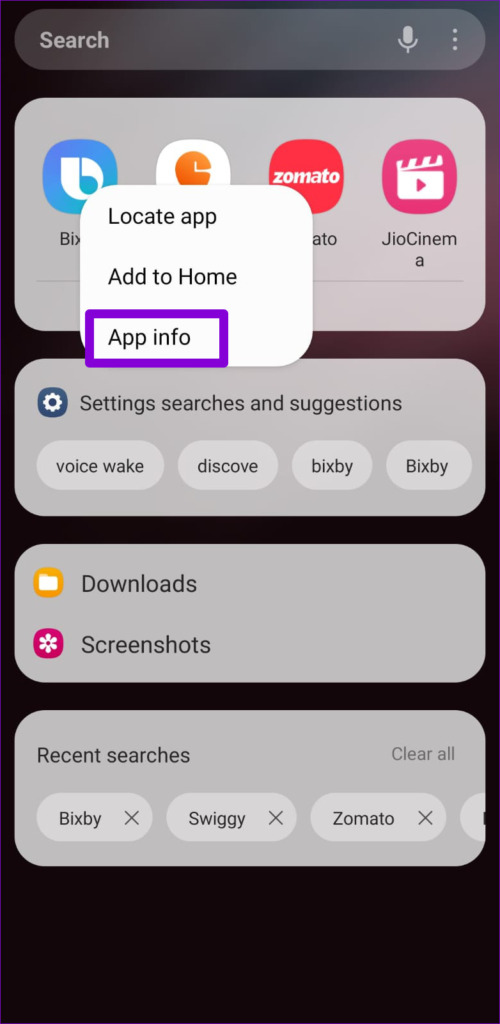
Step 1: Open the app drawer and search for Bixby. Long-press on the Bixby app icon and select App info .
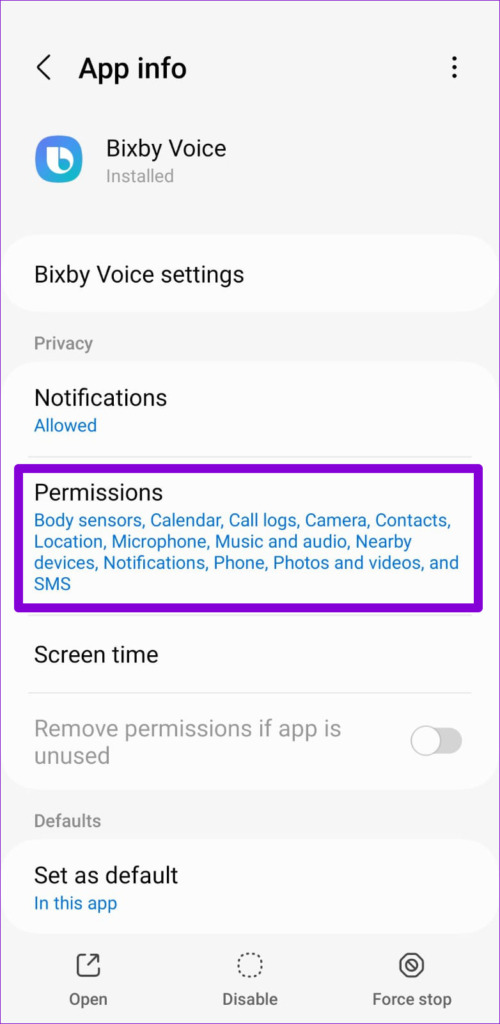
Step 2: Go to Permissions .
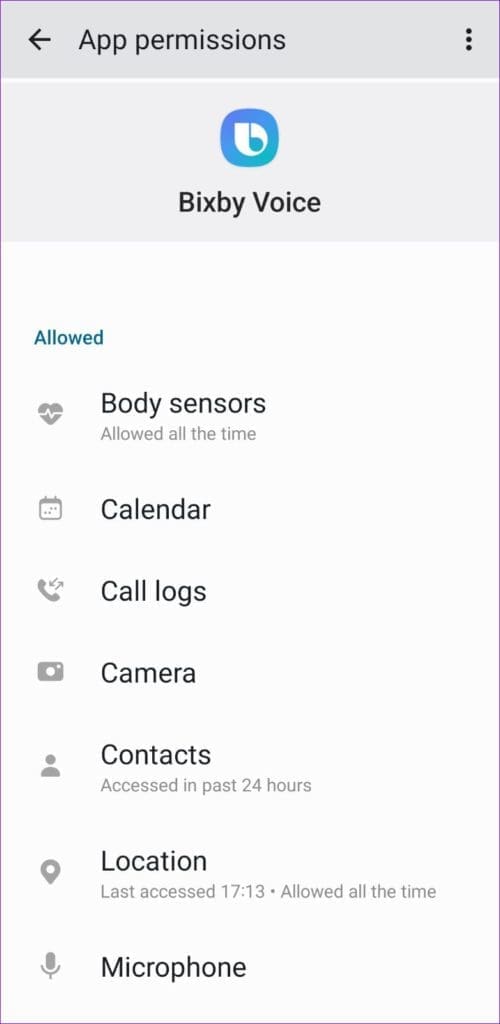
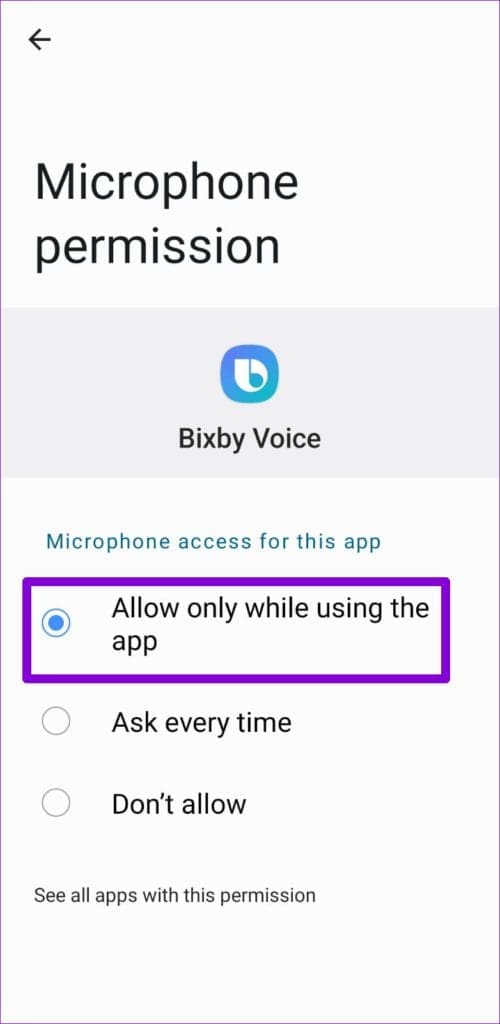
Step 3: Enable all the permissions one by one.
Fix 2: Enable Bixby Voice Wake-up
If Bixby is not responding to your voice, ensure the voice wake-up feature is enabled on your phone. Here’s how to check.
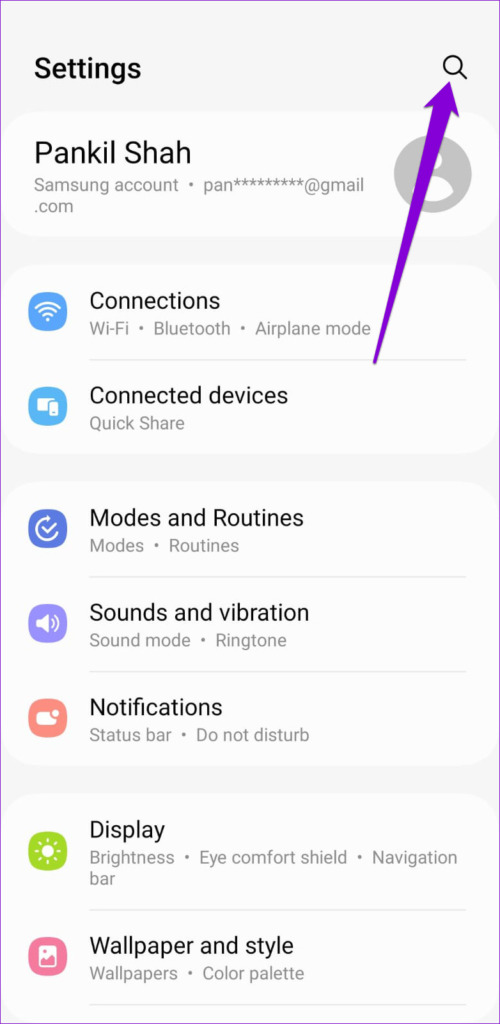
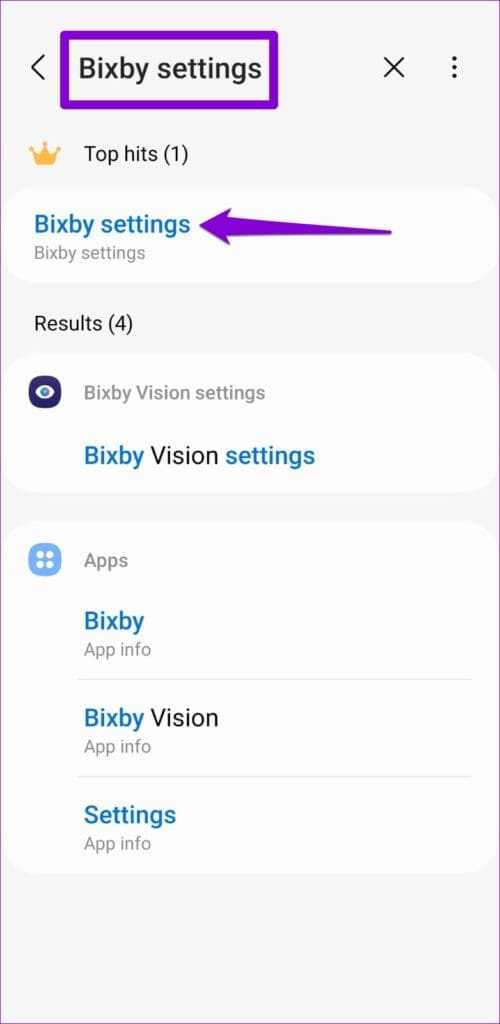
Step 1: Open the Settings app on your phone. Tap the search icon at the top, type Bixby settings , and select the first result.
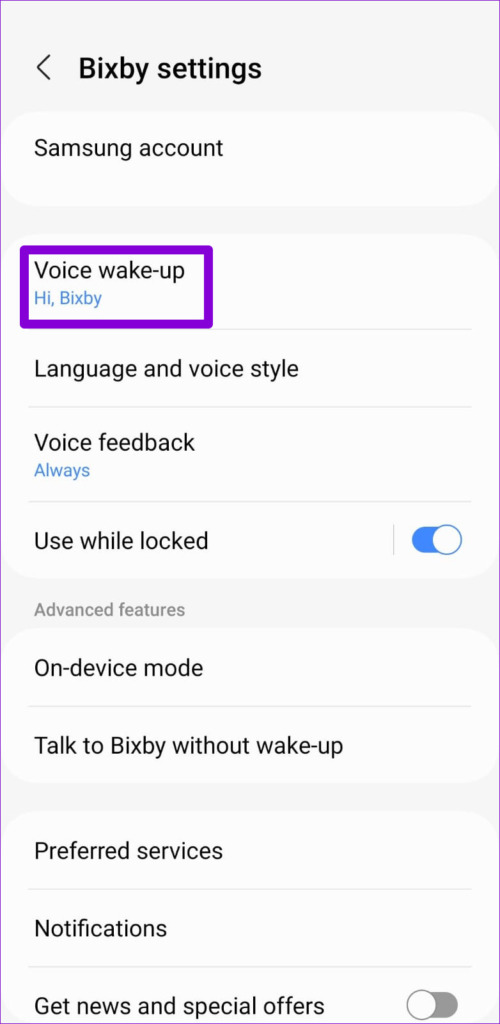
Step 2: Tap on Voice wake-up .
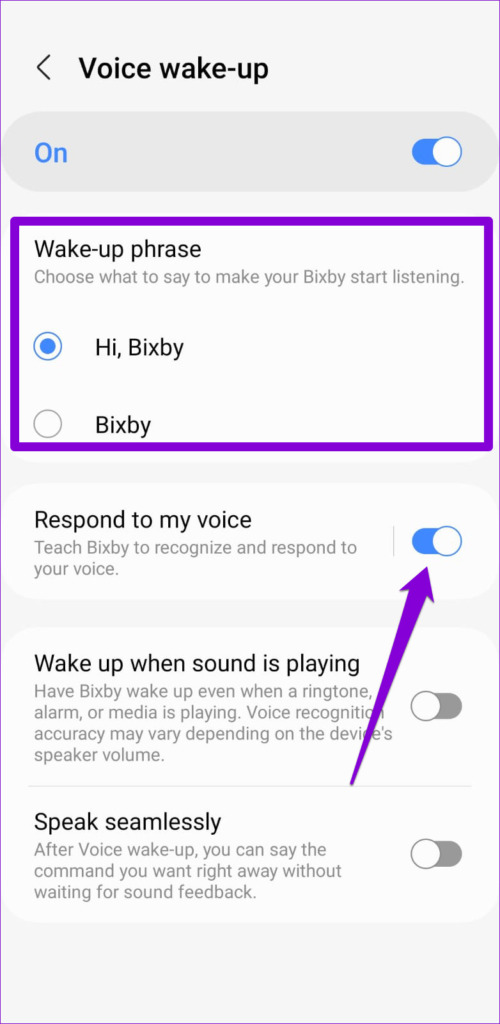
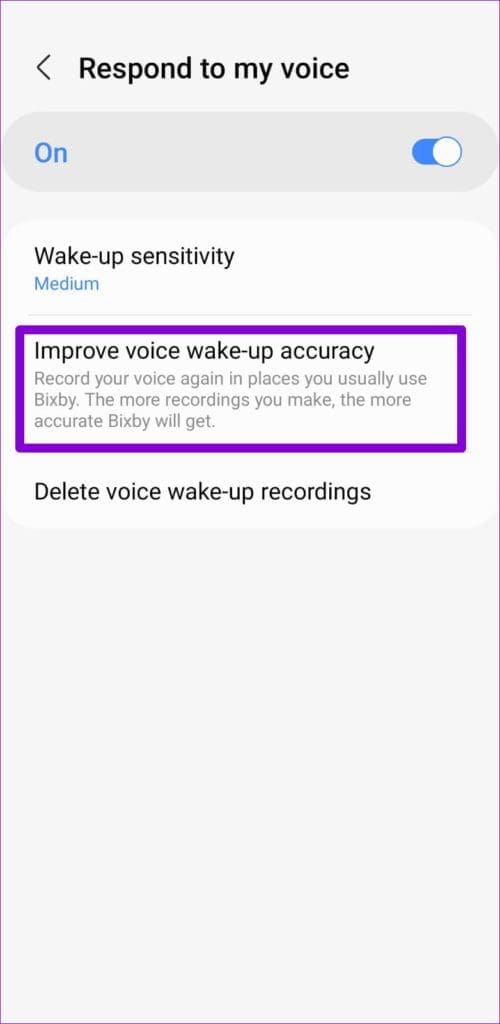
Step 3: Check the wake-up phrase and enable the toggle next to Respond to my voice .
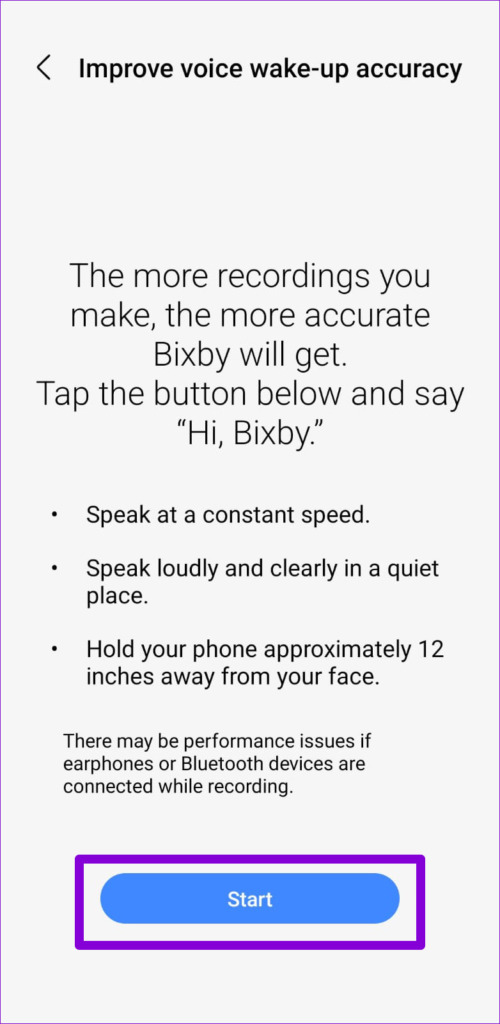
Step 4: Tap Respond to my voice and select Improve voice wake-up accuracy . Then, follow the on-screen prompts to register your voice recording.
Fix 3: Check Bixby Language and Region Settings
Bixby may struggle to respond to commands and queries if the specified language differs from your native one. Use the steps below to ensure Bixby is set to the correct language and region.
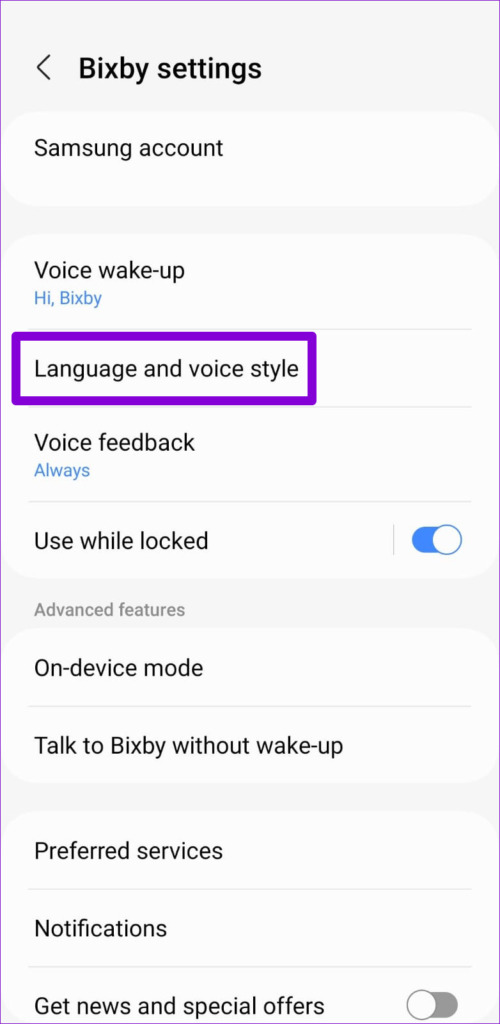
Step 1: Open the Bixby settings menu on your phone and tap Language and voice style .
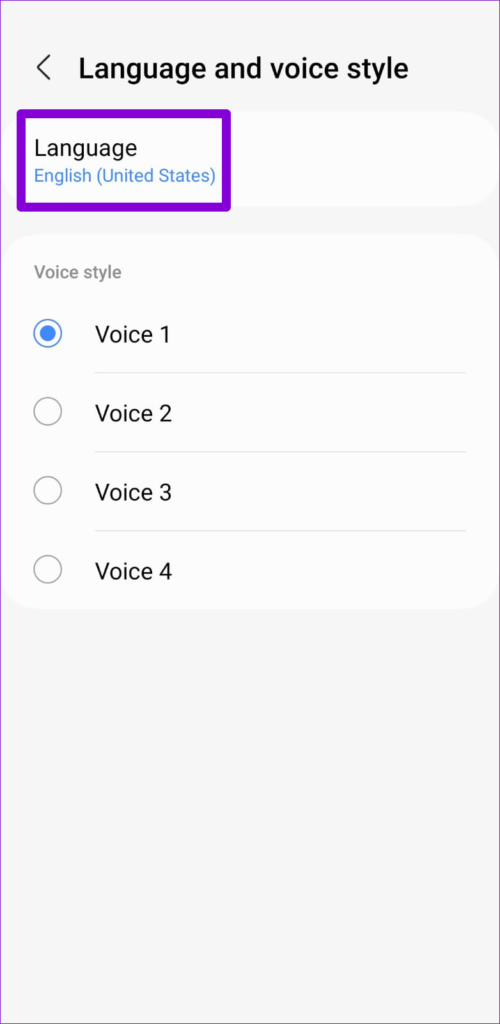
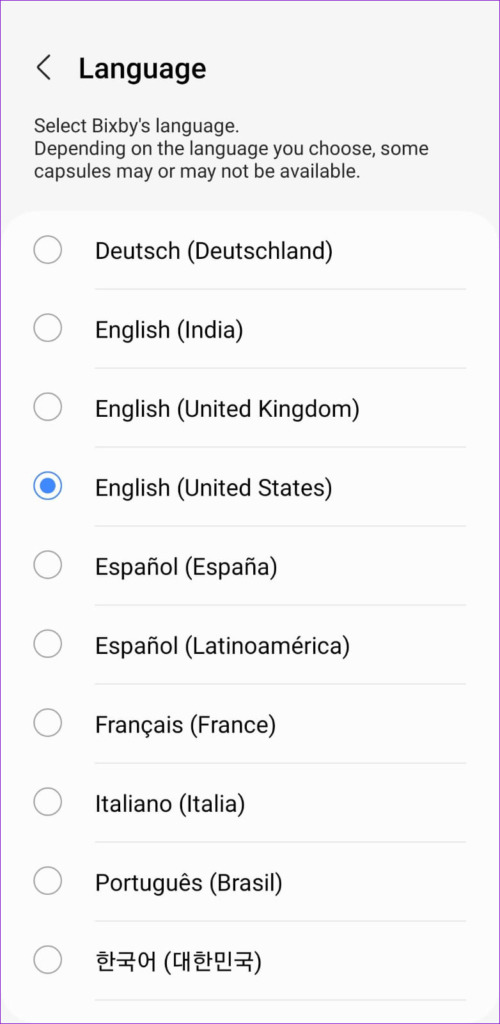
Step 2: Tap Language and select your preferred language from the following menu.
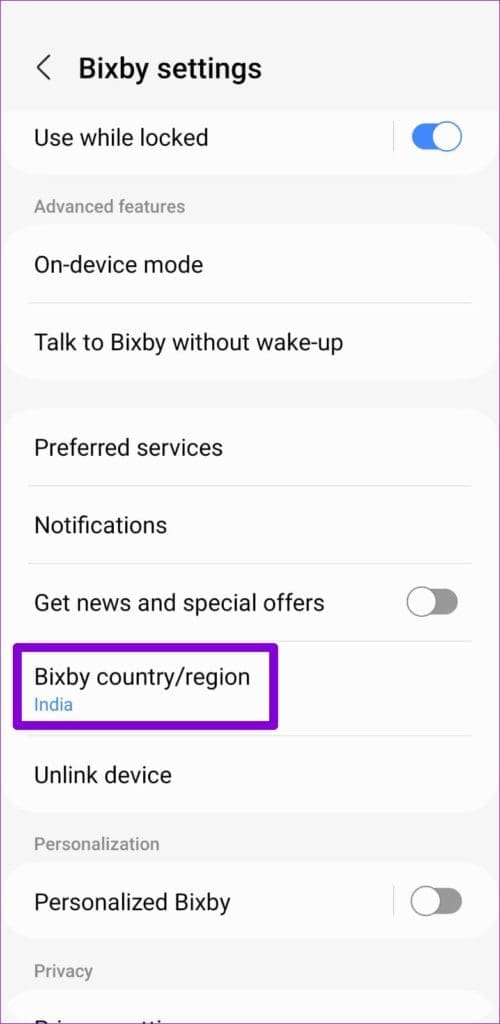
Step 3: Return to the Bixby settings page and tap Bixby country/region .
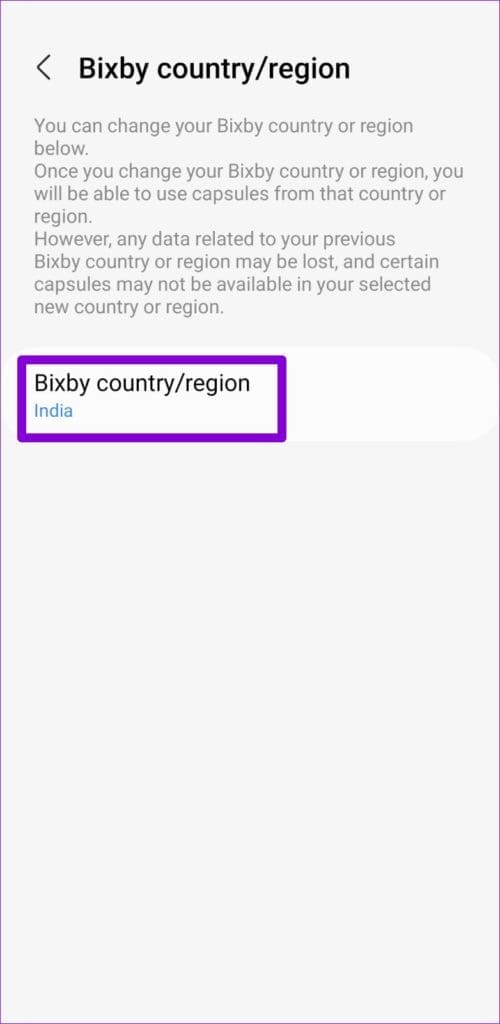
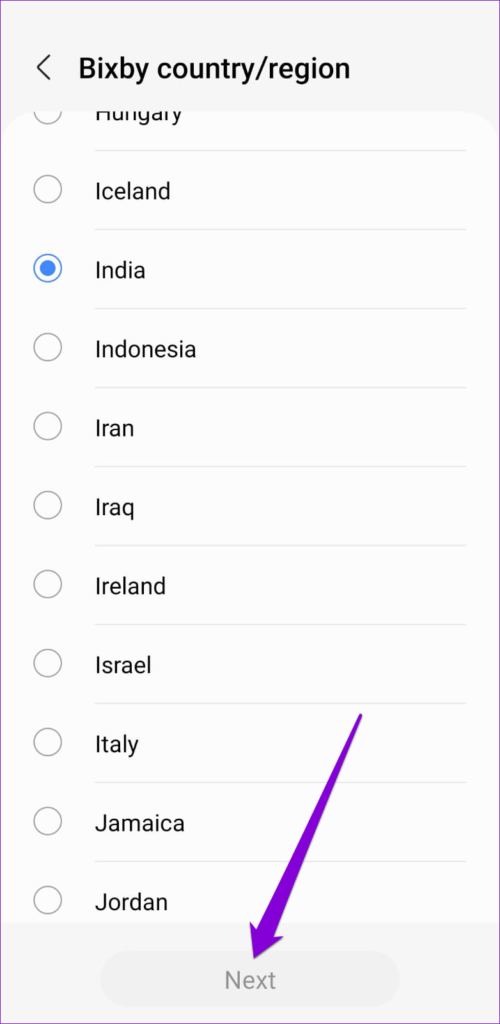
Step 4: Tap on Bixby country/region again and select your country. Then, tap Next to save the changes.
Fix 4: Disable Google Assistant
Your Samsung Galaxy phone comes with two digital assistants—Bixby and Google Assistant. At times, Bixby may not work on your Samsung phone if you’ve enabled Google Assistant on your phone . To avoid this, you must disable Google Assistant.
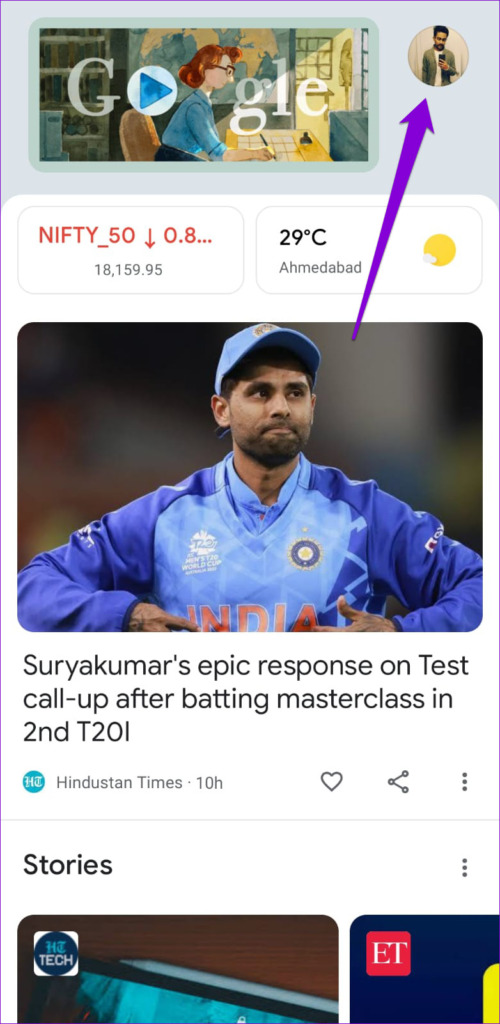
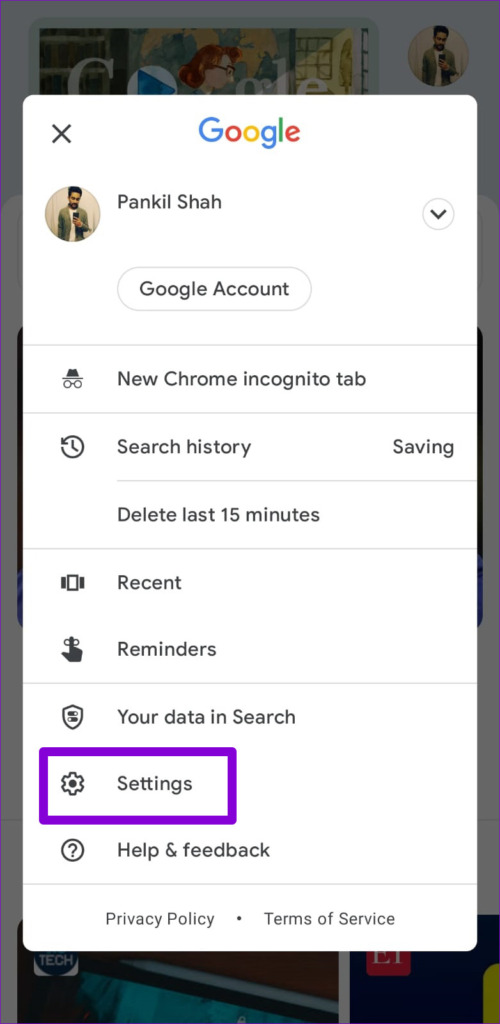
Step 1: Open the Google app on your phone. Tap on your profile icon in the top right corner and select Settings .
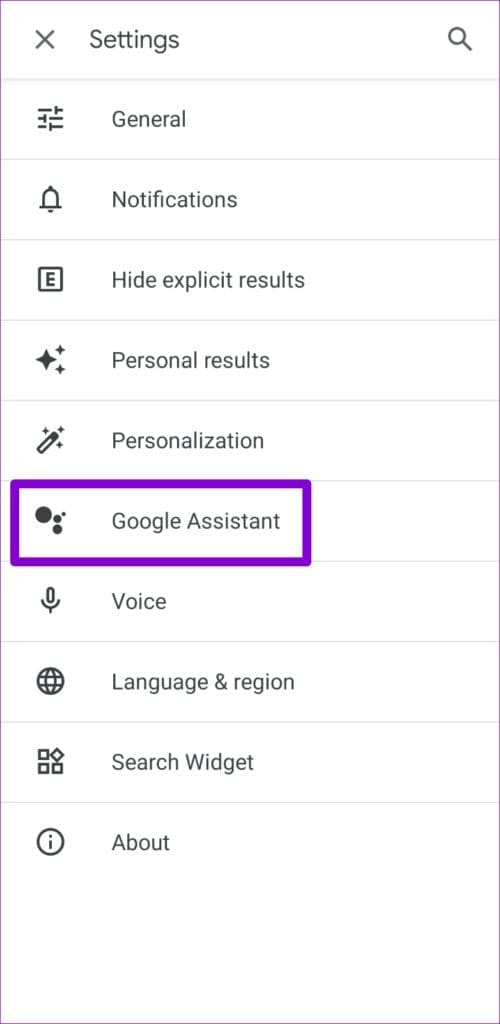
Step 2: Tap on Google Assistant .
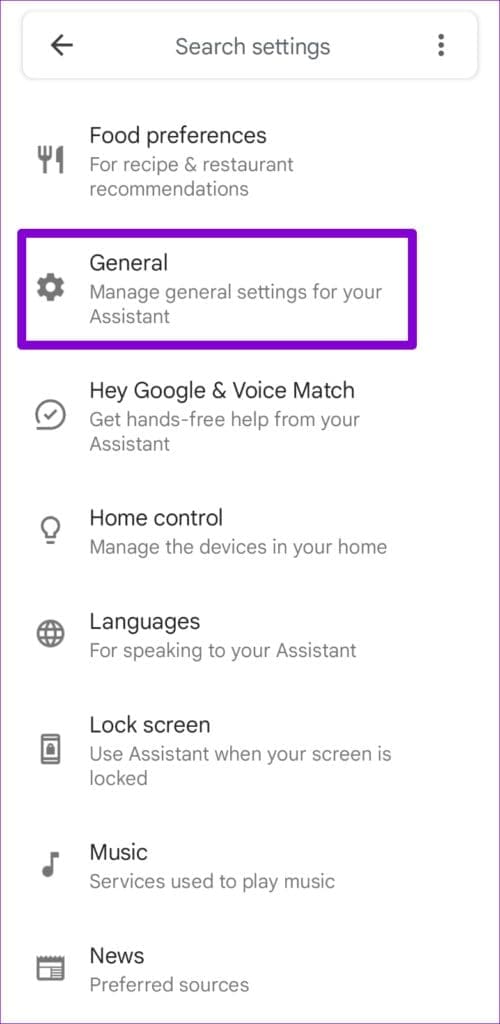
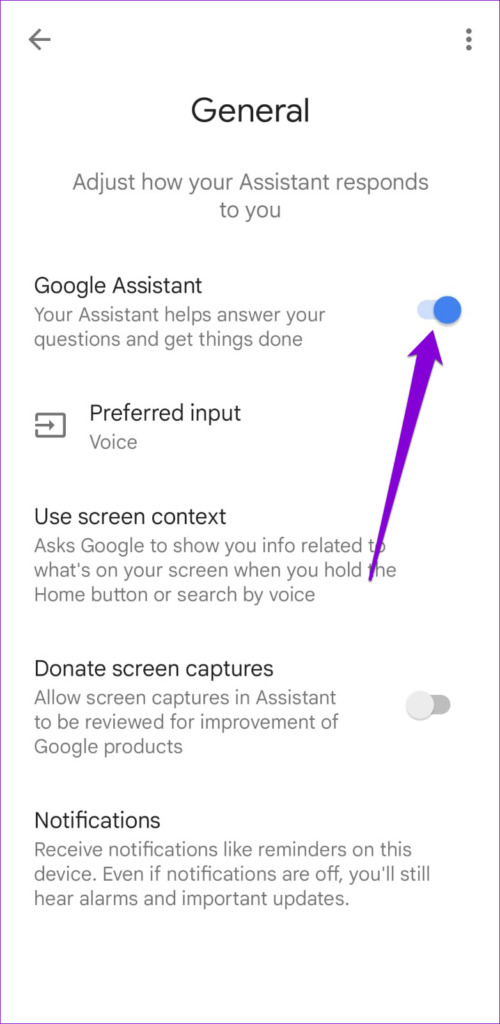
Step 3: Go to General and disable Google Assistant from the following menu.
Fix 5: Reset Bixby on Your Phone
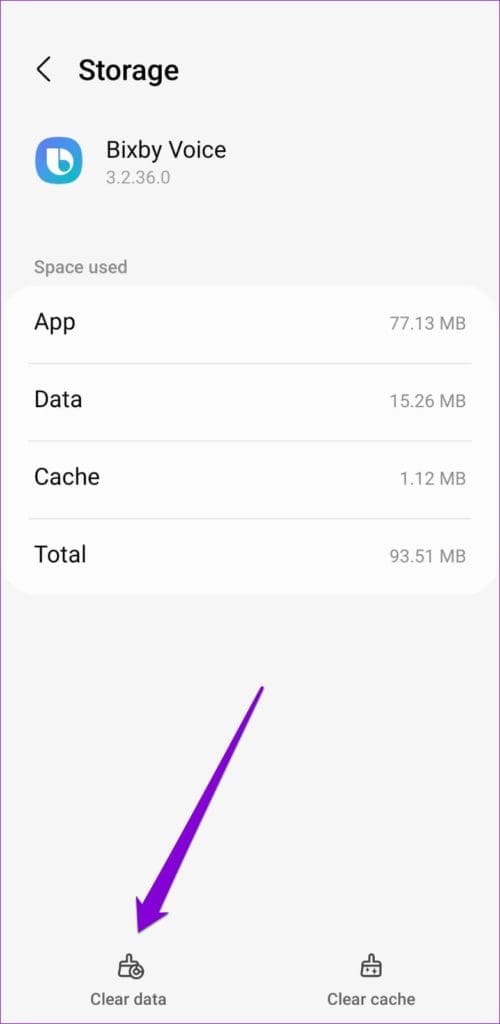
If nothing else works, reset Bixby on your phone and start over. This will delete all redundant app data, including cache, and restore Bixby to its default configurations.
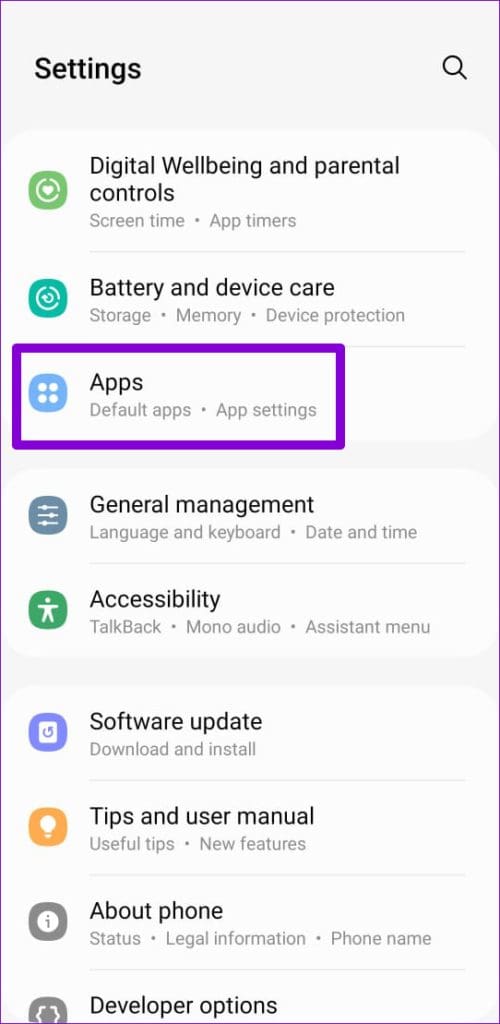
Step 1: Open the Settings app on your phone and go to Apps .
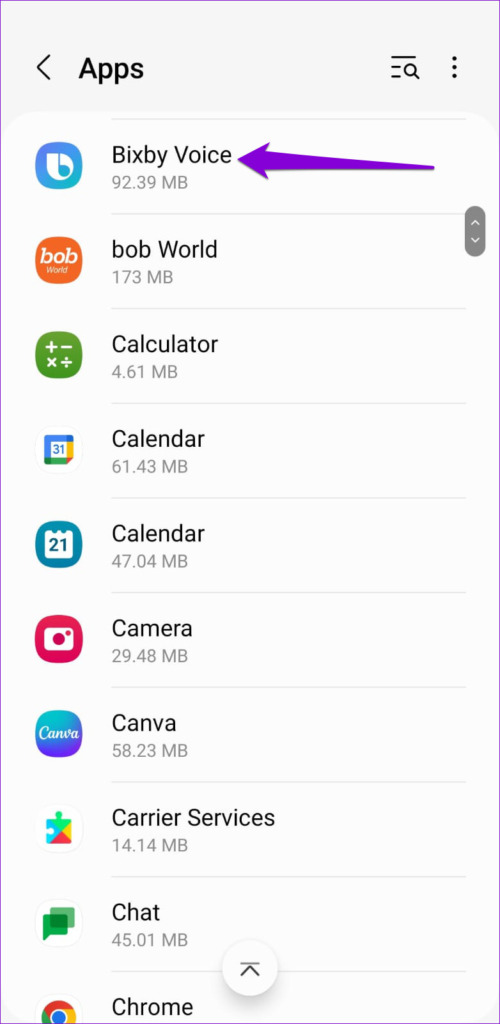
Step 2: Scroll down or use the search tool to locate Bixby Voice on the app list and tap on it.
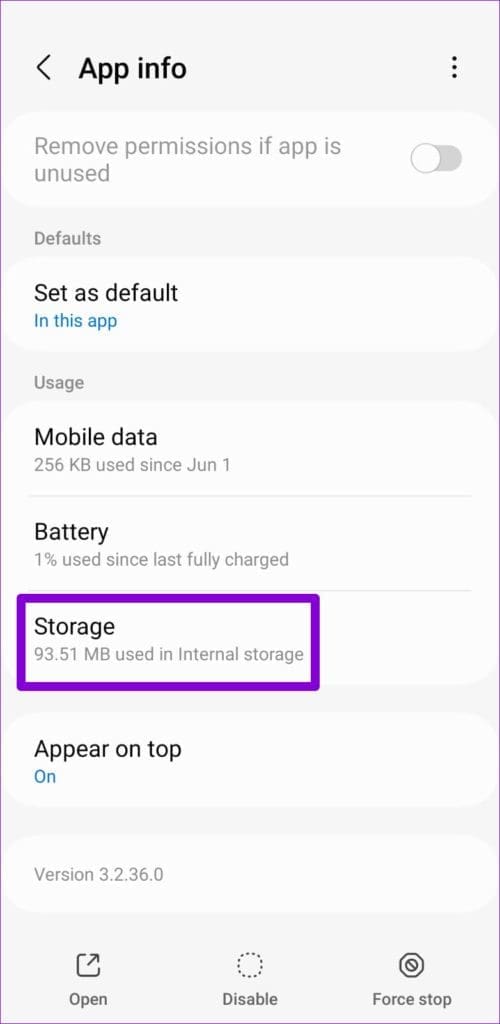
Step 3: Go to Storage and tap the Clear data option.
Was this helpful?
Submit Cancel
Thanks for your feedback!
Keep reading