Android
4 Ways to Fix Gmail Not Sending Emails on Android
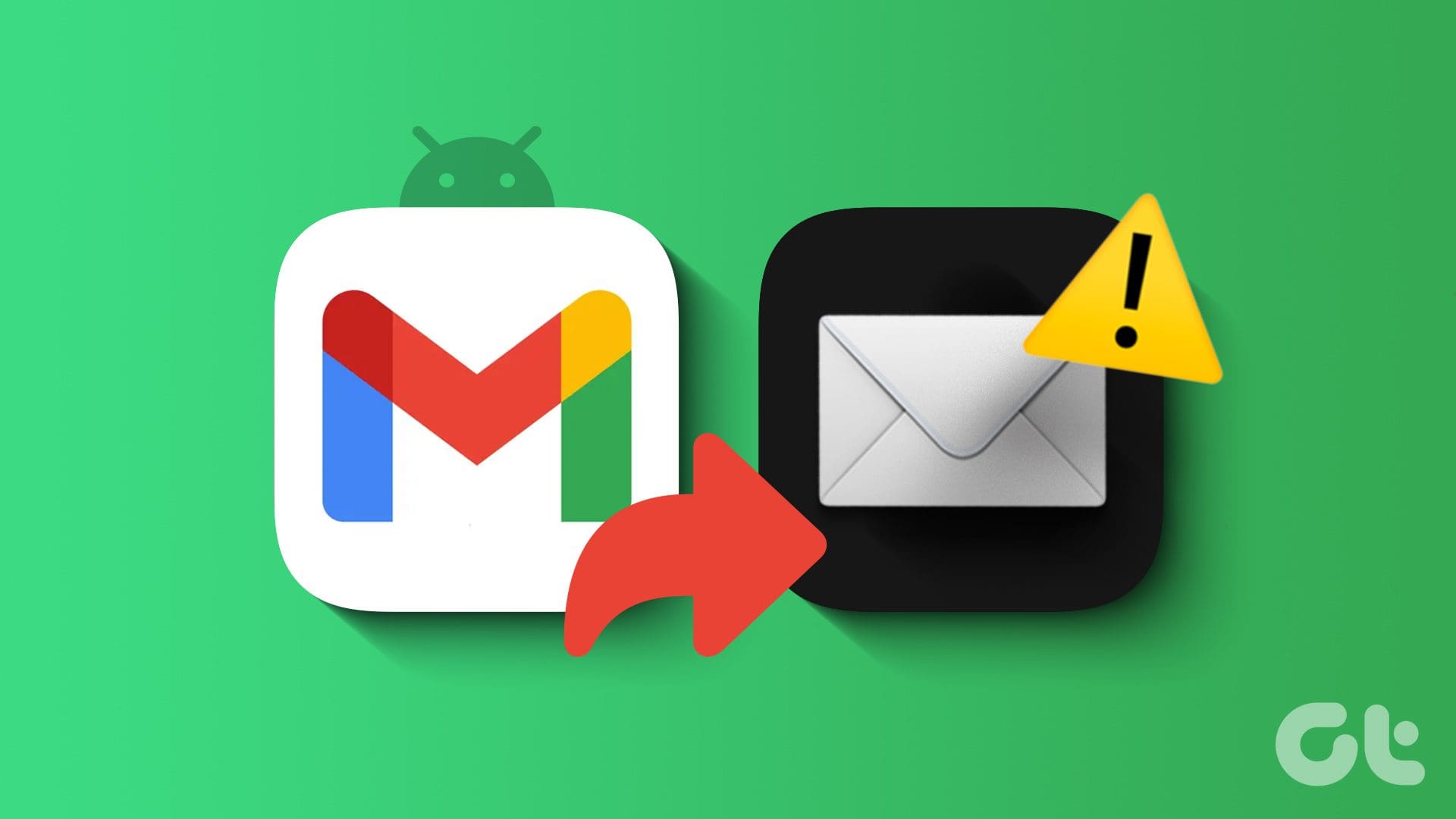
Do you often receive errors while sending an email in Gmail? Here are the best ways to fix Gmail not sending emails on Android.
By Parth Shah
Quick Fixes
Disable and enable the Gmail app on Android from App info.
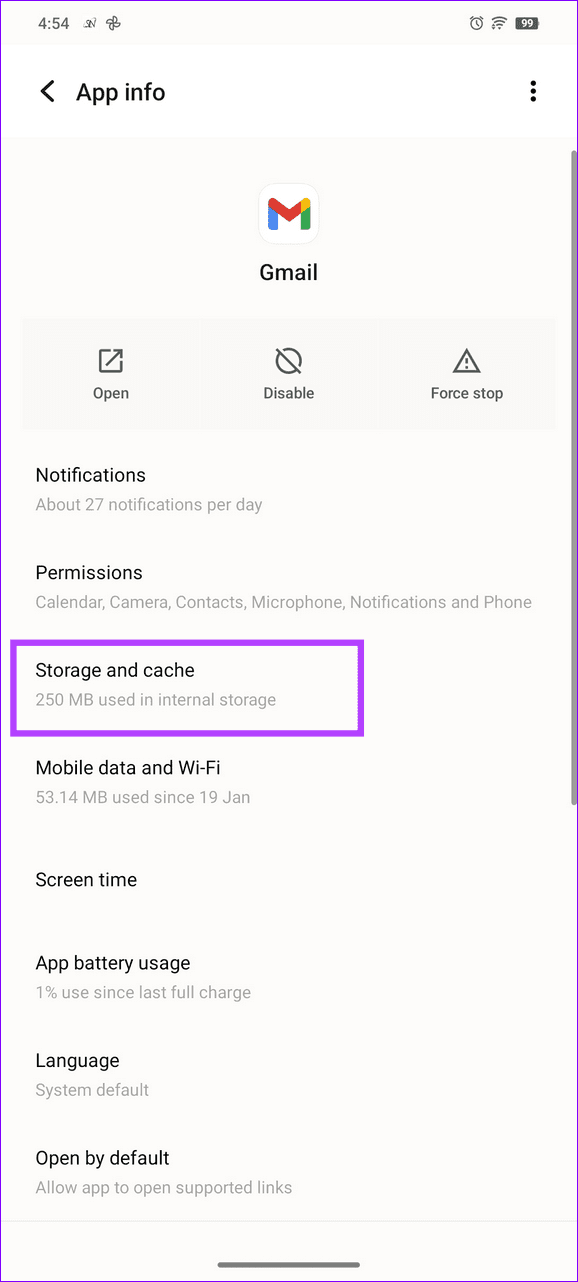
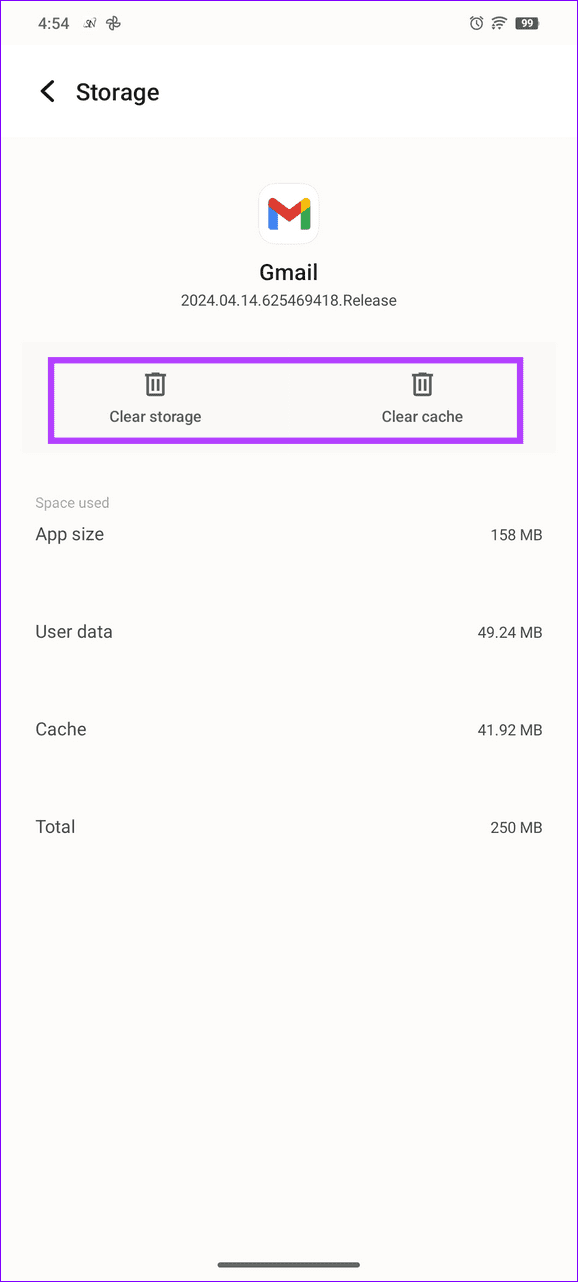
Clear the Gmail cache and app data under App info > Storage and cache.
Open Gmail app settings, select your Google account, and enable Sync Gmail.
Basic Fixes
Recheck the email address : Type the correct email address while composing and recheck it to avoid errors.
Check your network connection : Ensure your Android phone is connected to a good internet connection. Check the speed online .
Check Gmail server outage : Use Downdetector to check an active service outage.
Don’t attach large files : Gmail attachments have a 25MB file size limit. If your file is greater, Gmail automatically converts it to a Google Drive link instead of sending it as an attachment.
Inspect your Google account storage : Head to Google One and check your current account storage. If full, delete unnecessary files to reclaim the space and use Gmail without errors.
Update the Gmail app : Open the Google Play Store, search Gmail, and tap Update (if available).
Fix 1: Disable and Enable the Gmail App
Gmail may fail to send new emails on Android if its app malfunctions. Disable and enable the app manually to solve the issue.
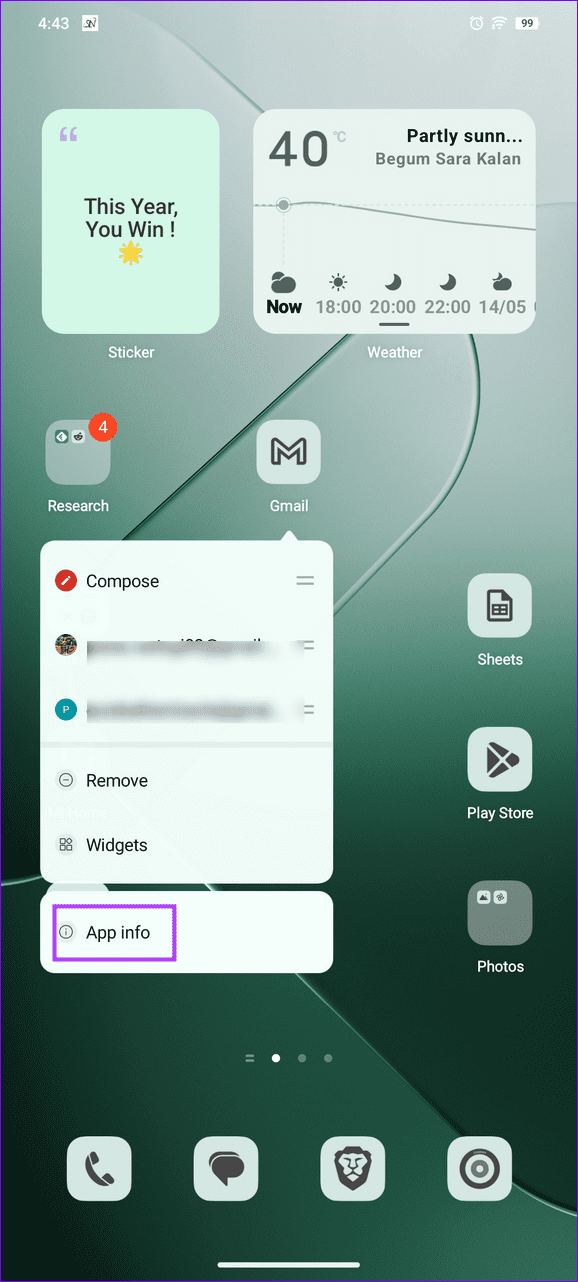
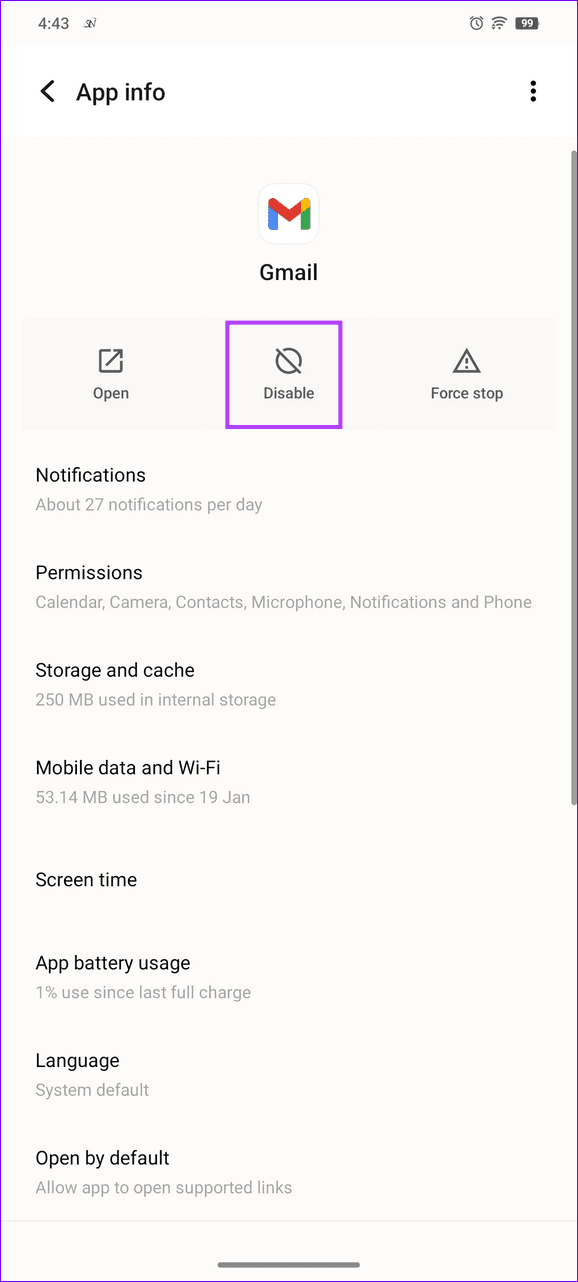
Step 1: Long-tap the Gmail icon > select App info > Disable > tap Disable app .
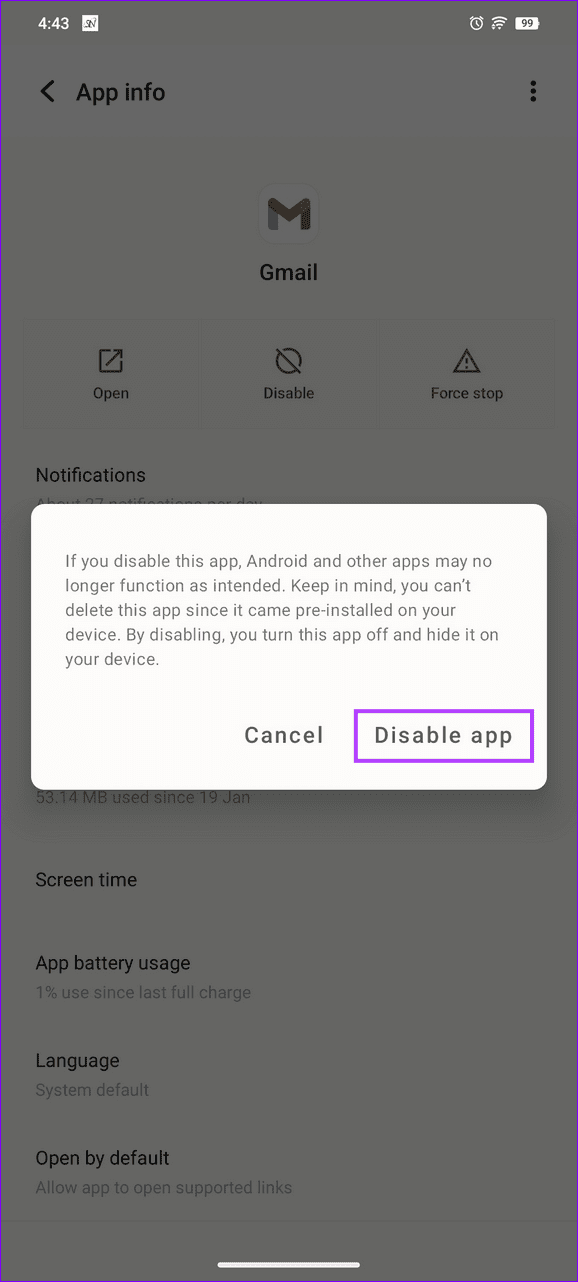
Step 2: Tap Enable after a few seconds to restore the app.
Fix 2: Ensure Gmail Sync Is Enabled
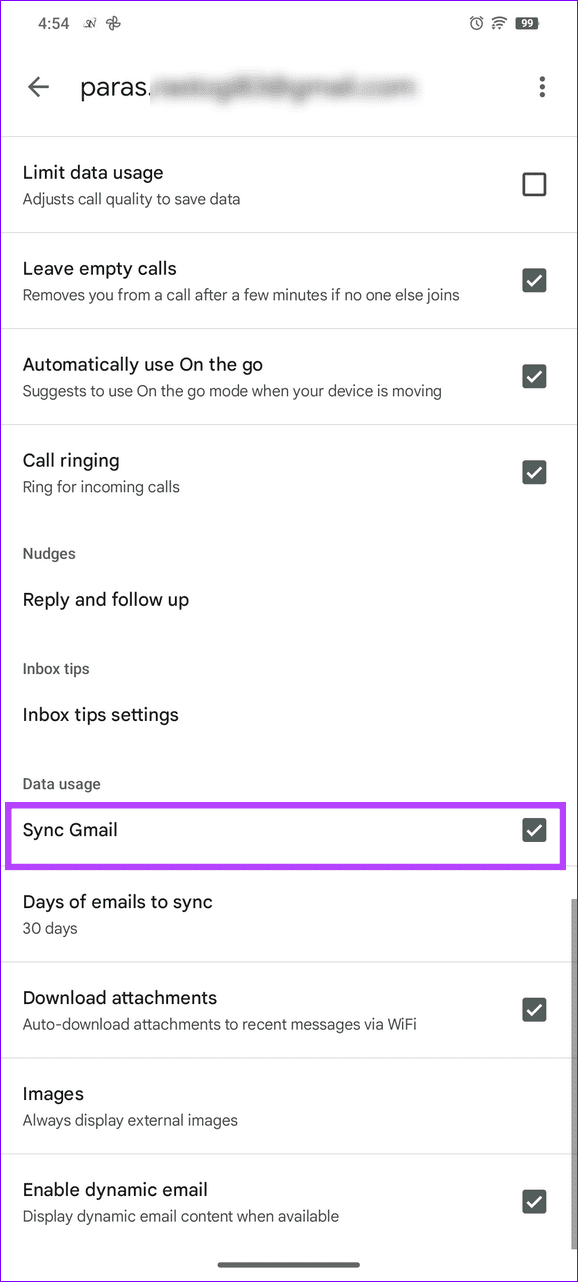
If the Gmail app doesn’t have the necessary permissions to sync emails, it’ll fail to send new ones. Head to the Gmail app settings to verify it is enabled.
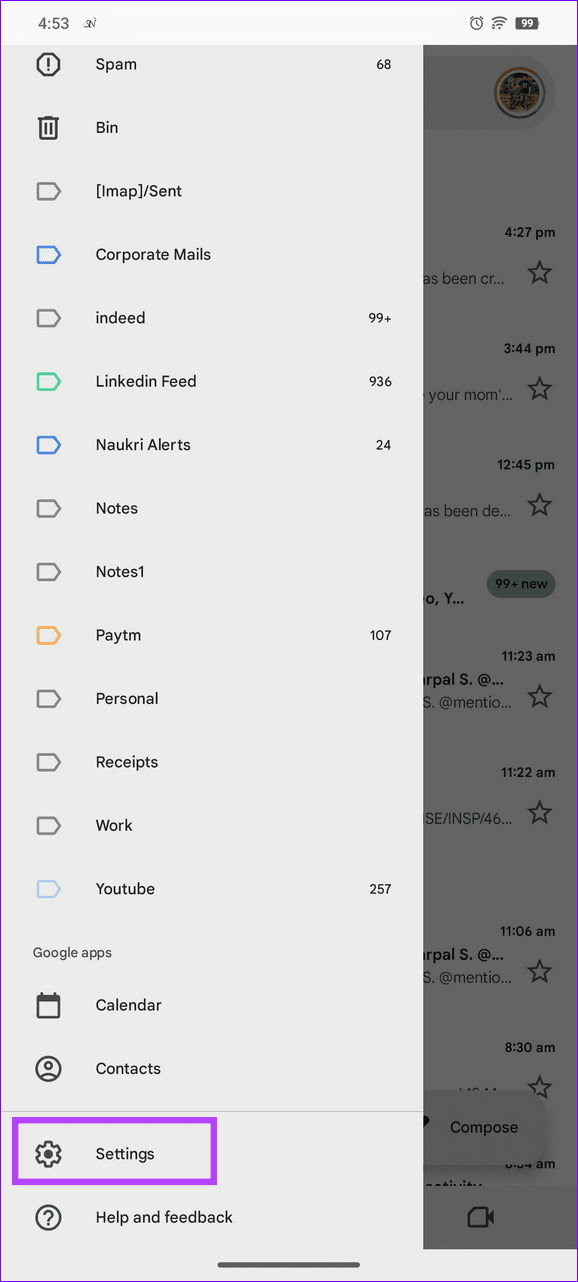
Step 1: Open Gmail, tap the Hamburger menu at the top left, and select Settings .
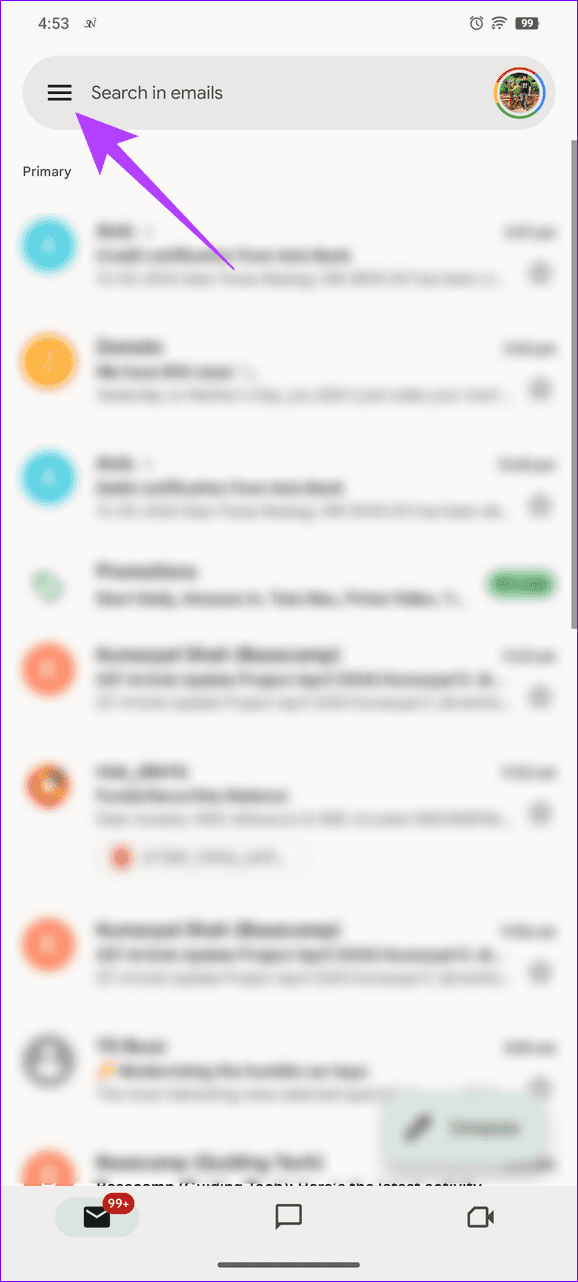
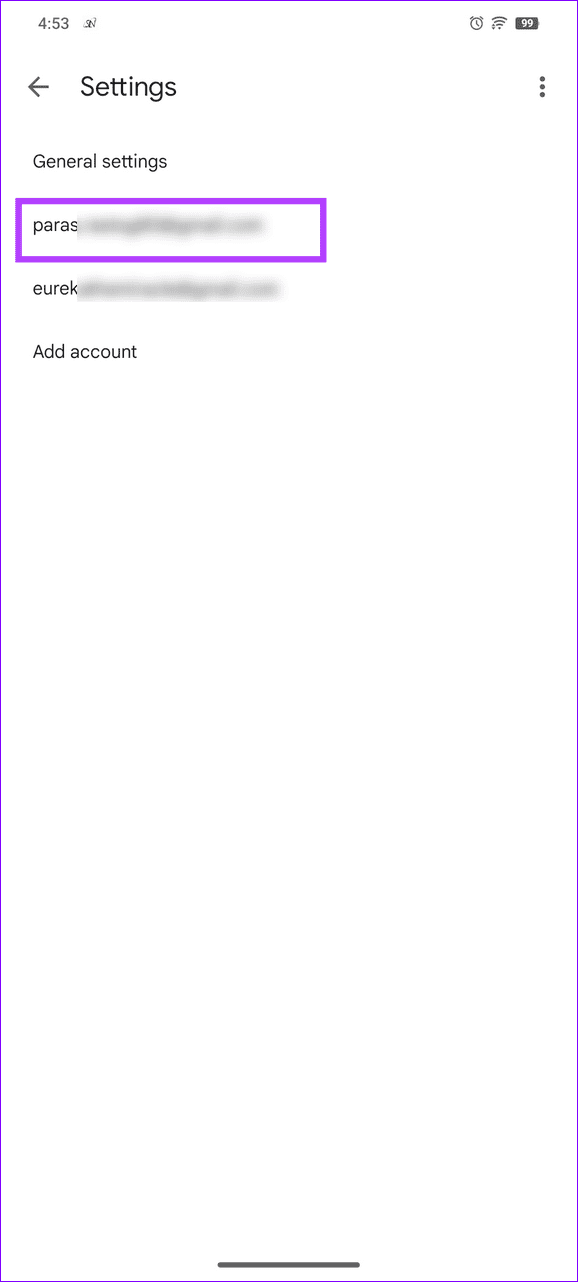
Step 2: Select your Google account, scroll to the bottom, and verify Sync Gmail is enabled.
Fix 3: Clear the Gmail Cache and App Data
Corrupt cache and app data are common causes of Gmail not sending emails on Android. Access Android settings to clear them manually.
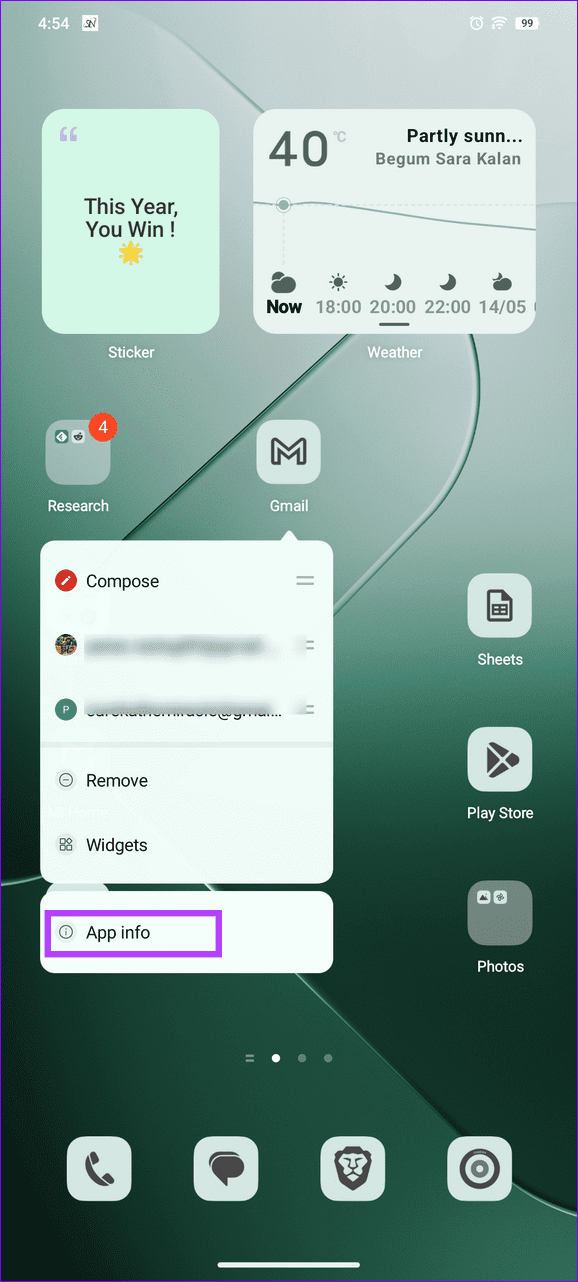
Step 1: Long-tap the Gmail icon > tap on App info > Storage and cache .
Step 2: Tap Clear cache , followed by Clear storage .
Fix 4: Re-Add Your Google Account
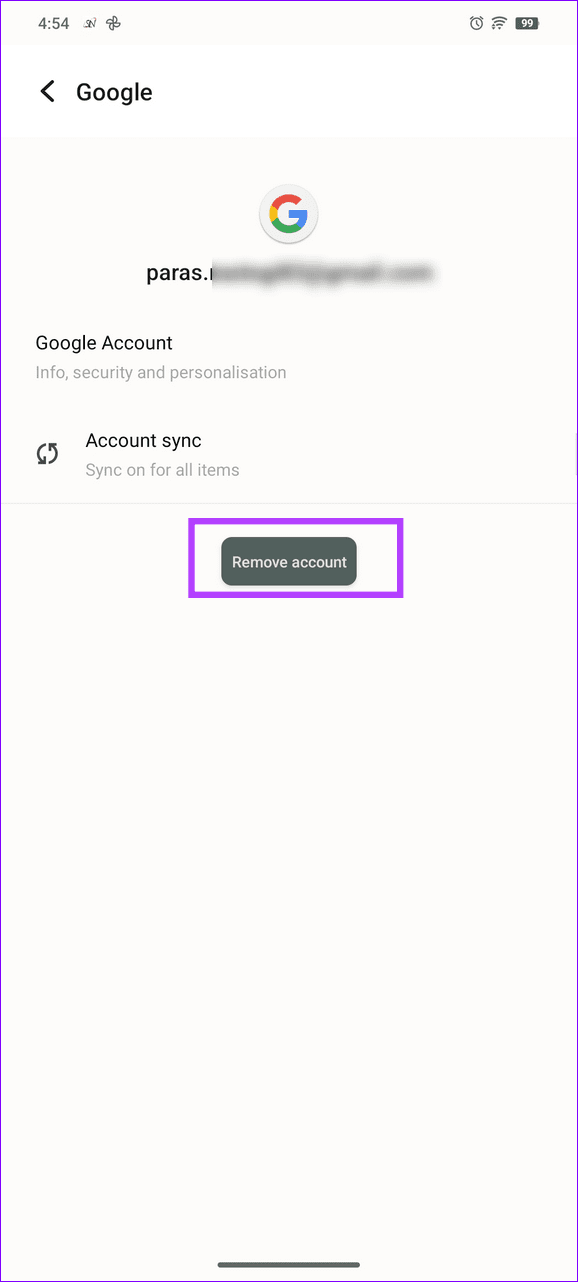
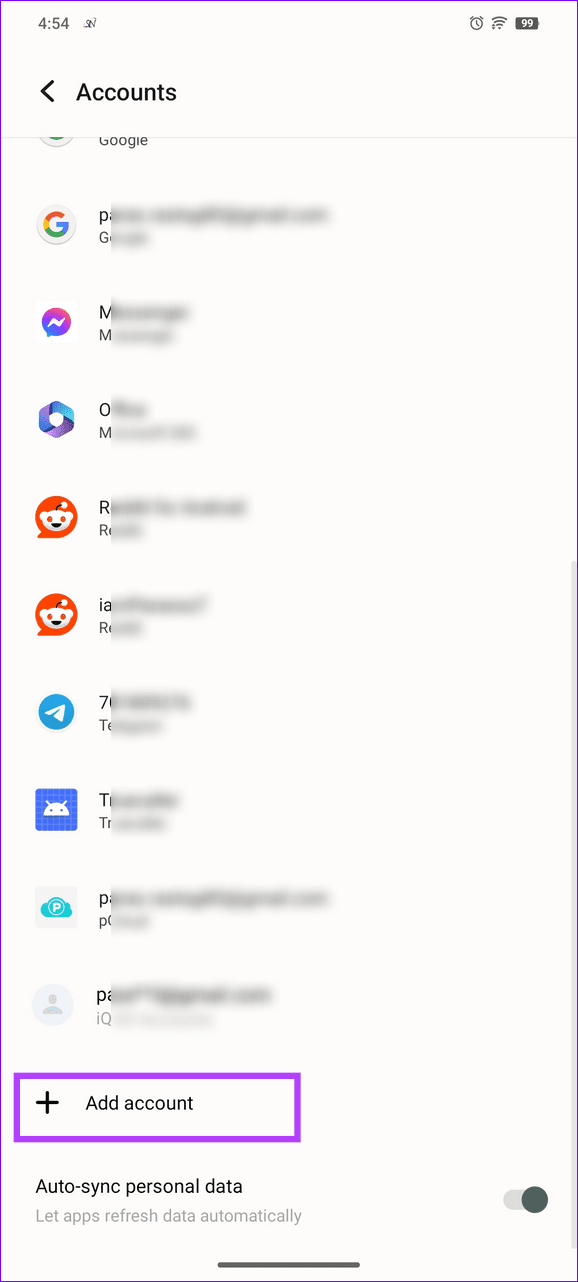
Incorrect Google account configuration can halt the Gmail app from sending new emails on Android. Remove your Google account and add it manually to restore normalcy.
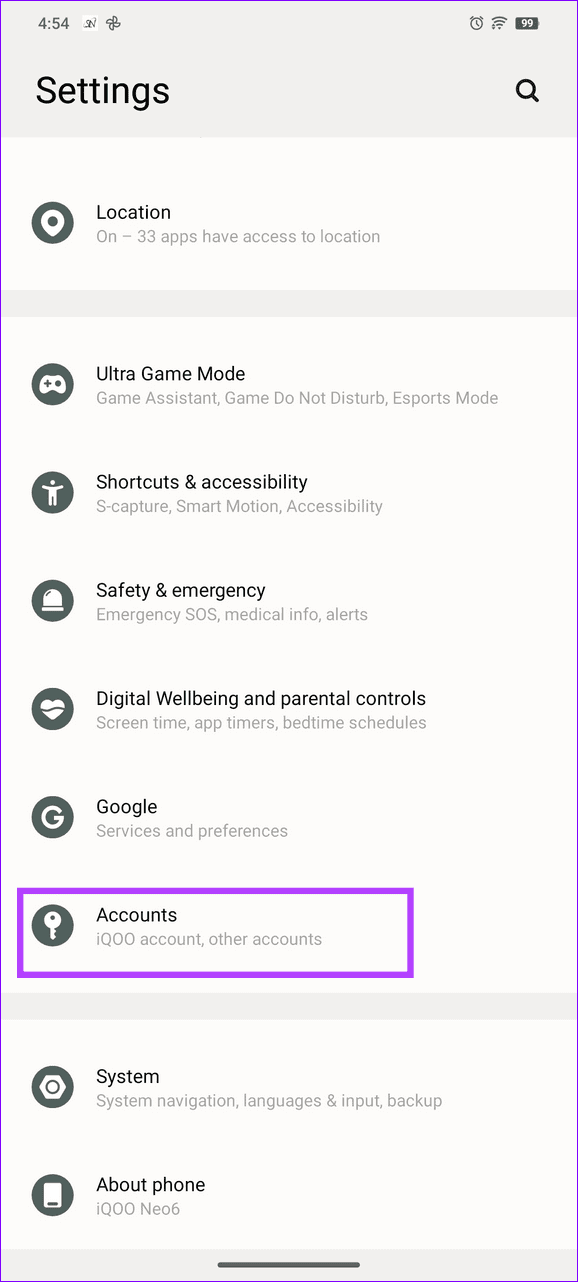
Step 1: Open the Settings app > select Accounts > tap your Google account .
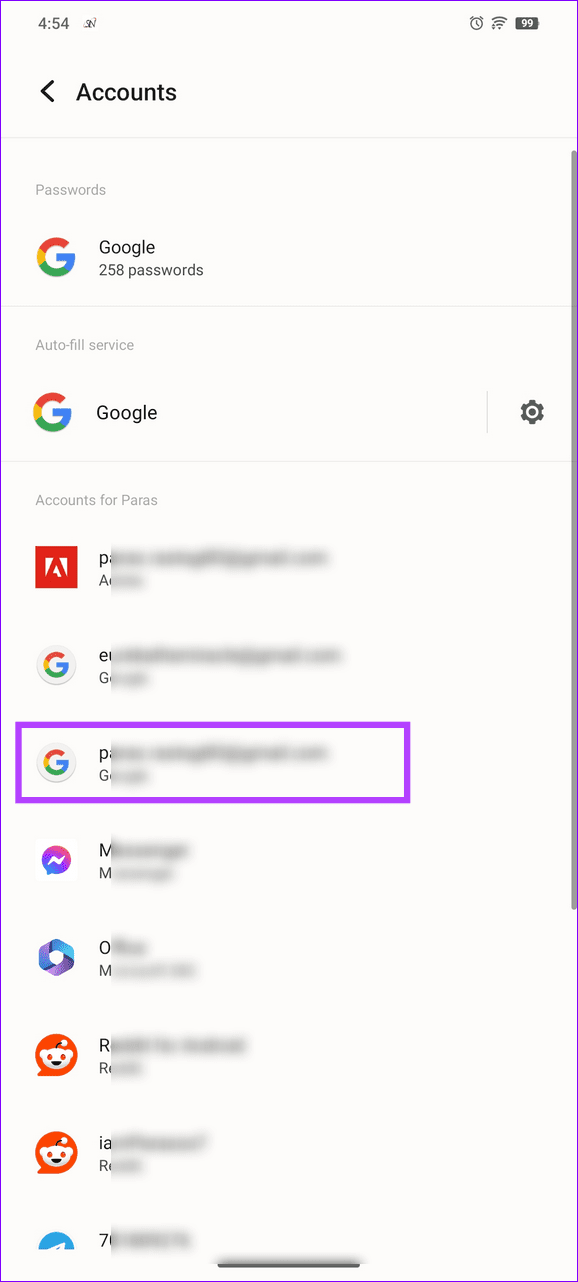
Step 2: Tap Remove Account . To re-add, select Add account , pick Google, and type your credentials to sign in.
Was this helpful?
Submit Cancel
Thanks for your feedback!
Keep reading