Android
4 Ways to Fix Google Play Store Won’t Connect to the Internet
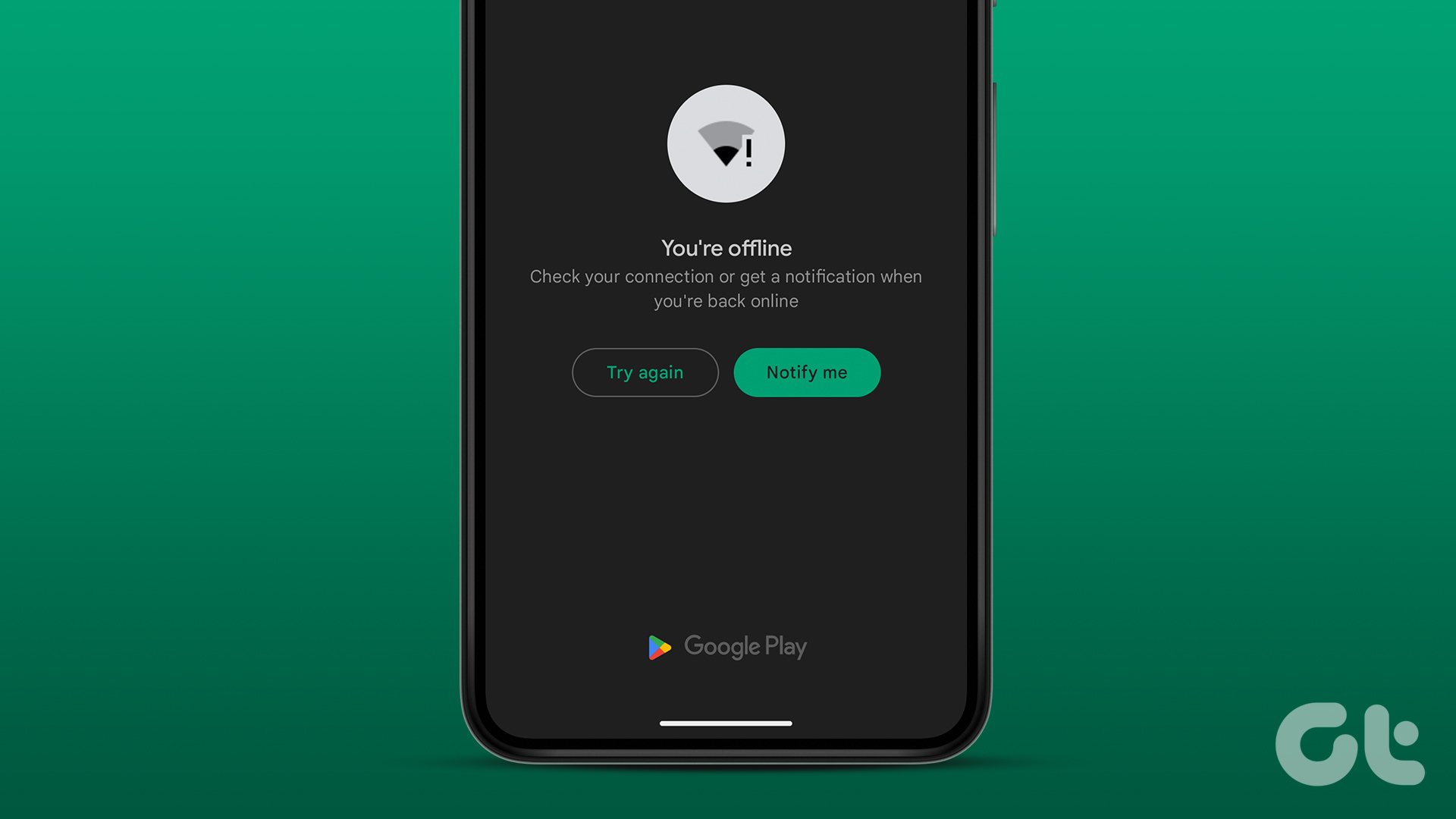
Is Google Play Store unable to connect to the internet on your Android? Here are some ways to fix it for good.
By Pankil Shah
Quick Tips
In most cases, clearing the Play Store cache or toggling airplane mode should solve the problem.
Ensure your phone is set to the correct date and time.
Consider uninstalling Play Store updates and reinstalling them if the issue remains.
Try Basic Fixes
Toggle airplane mode: Turning airplane mode on and off is an easy way to refresh all the network connections on your Android. If it’s just a minor network glitch preventing Play Store from connecting to the internet, toggling the airplane mode should help.
Temporarily disable VPN: Although a VPN connection protects your privacy and allows you to bypass region-specific restrictions , it can occasionally cause internet connectivity issues. To check for this possibility, you can temporarily disable the VPN connection on your phone.
Fix 1: Clear Play Store Cache
The Google Play Store accumulates cache data on your phone to perform certain tasks faster. Over time, this data could become outdated or corrupted for various reasons and conflict with app processes. You can try clearing this cache data and see if that gets the Play Store to work.
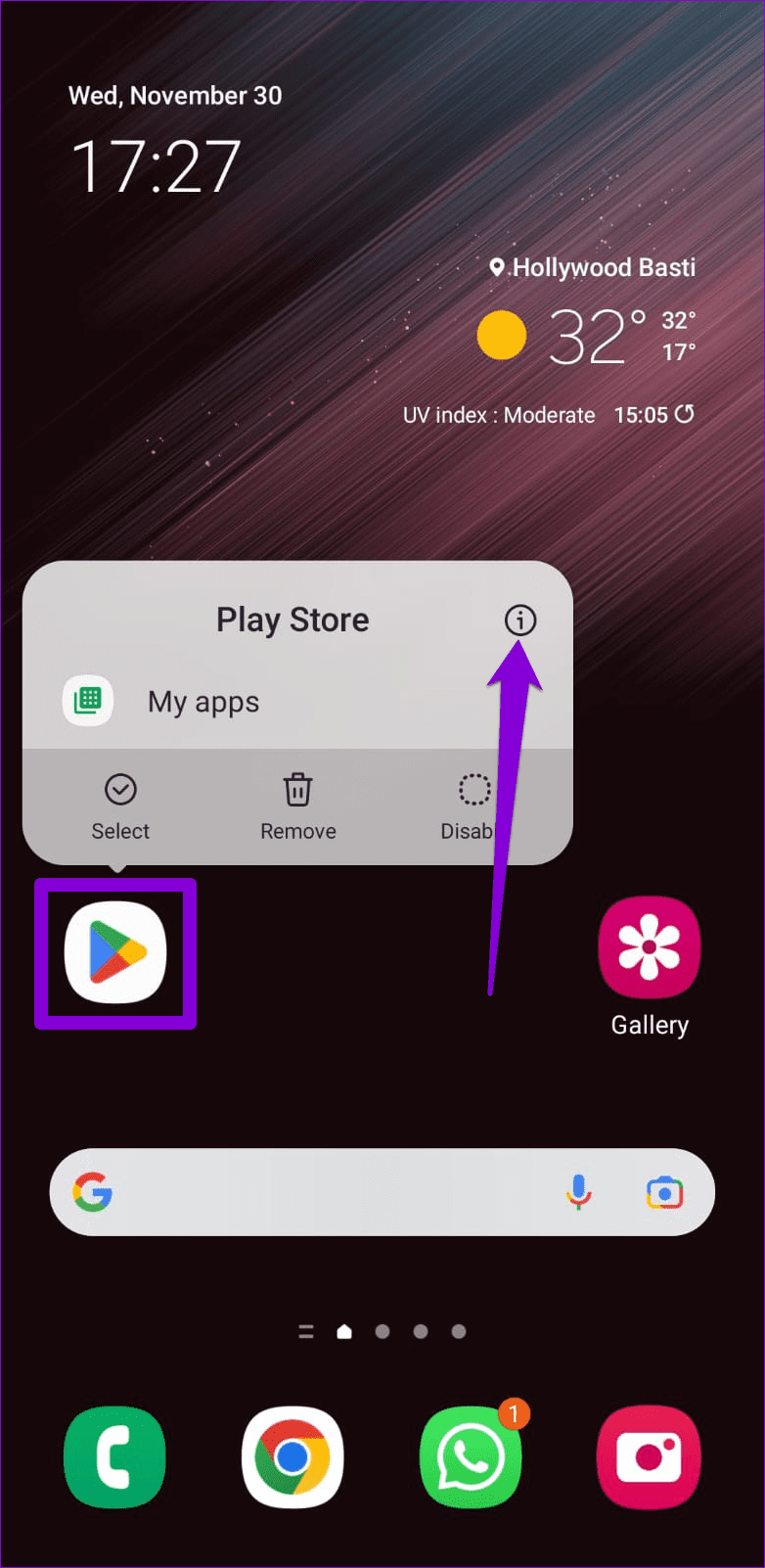
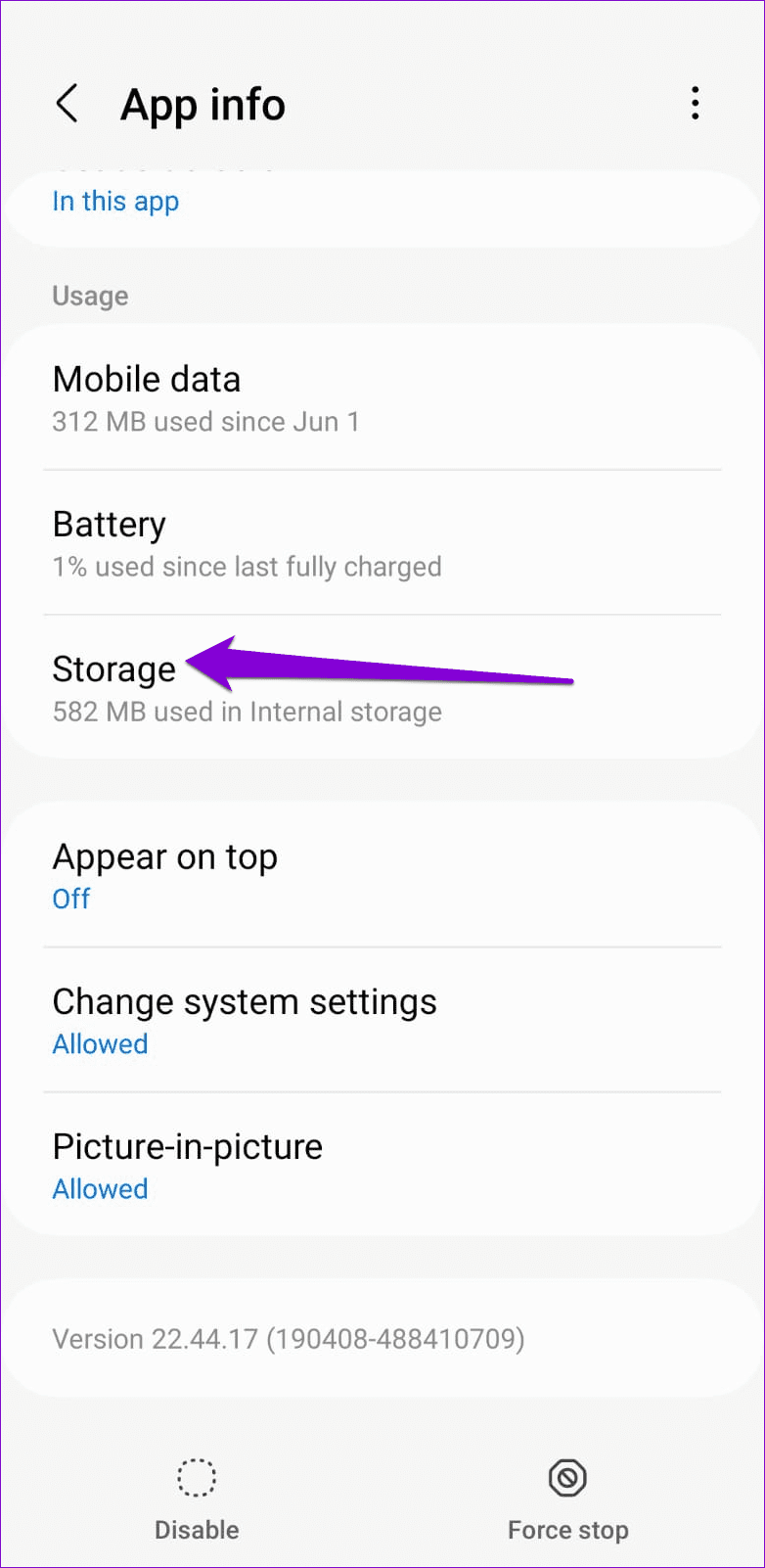
Step 1: Long-press the Play Store app icon and tap the info icon from the resulting menu.
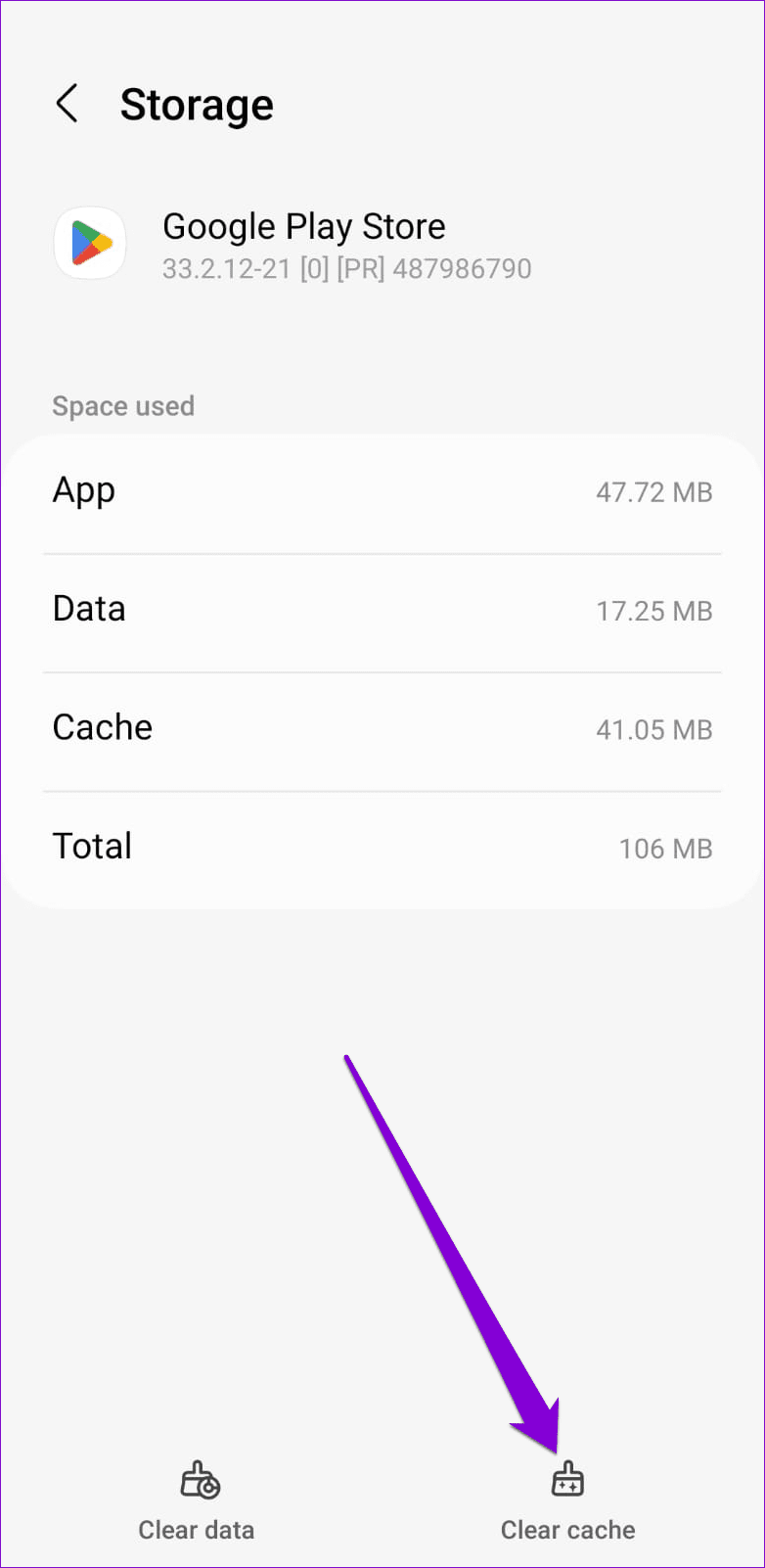
Step 2: Go to Storage and tap the Clear cache option at the bottom.
Fix 2: Check System Date and Time Settings
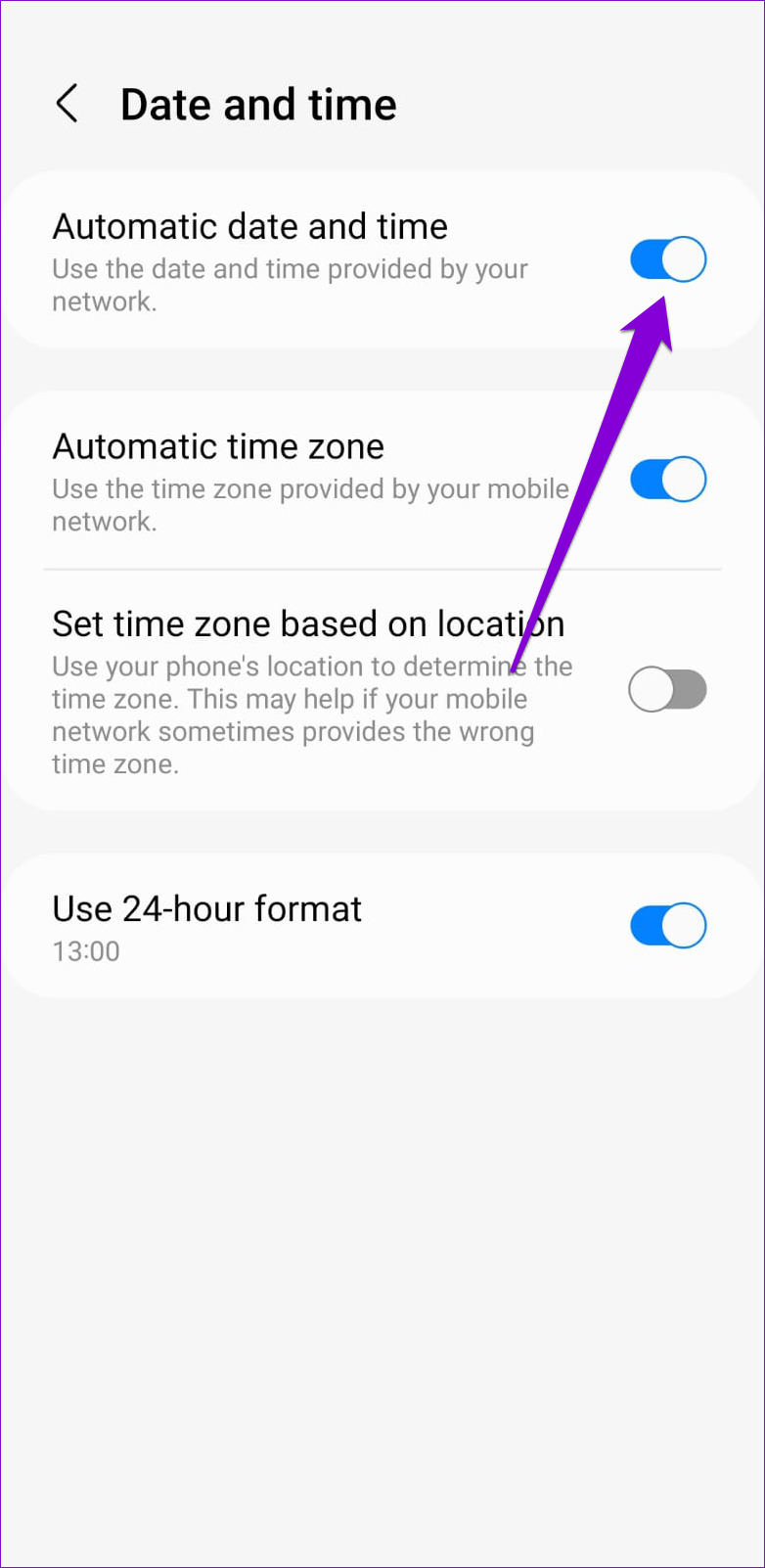
Having your phone set to an incorrect date or time can prevent the Play Store from connecting to the servers and lead to various errors. This usually happens when you disable the automatic date and time feature on your Android. Here’s how to enable it.
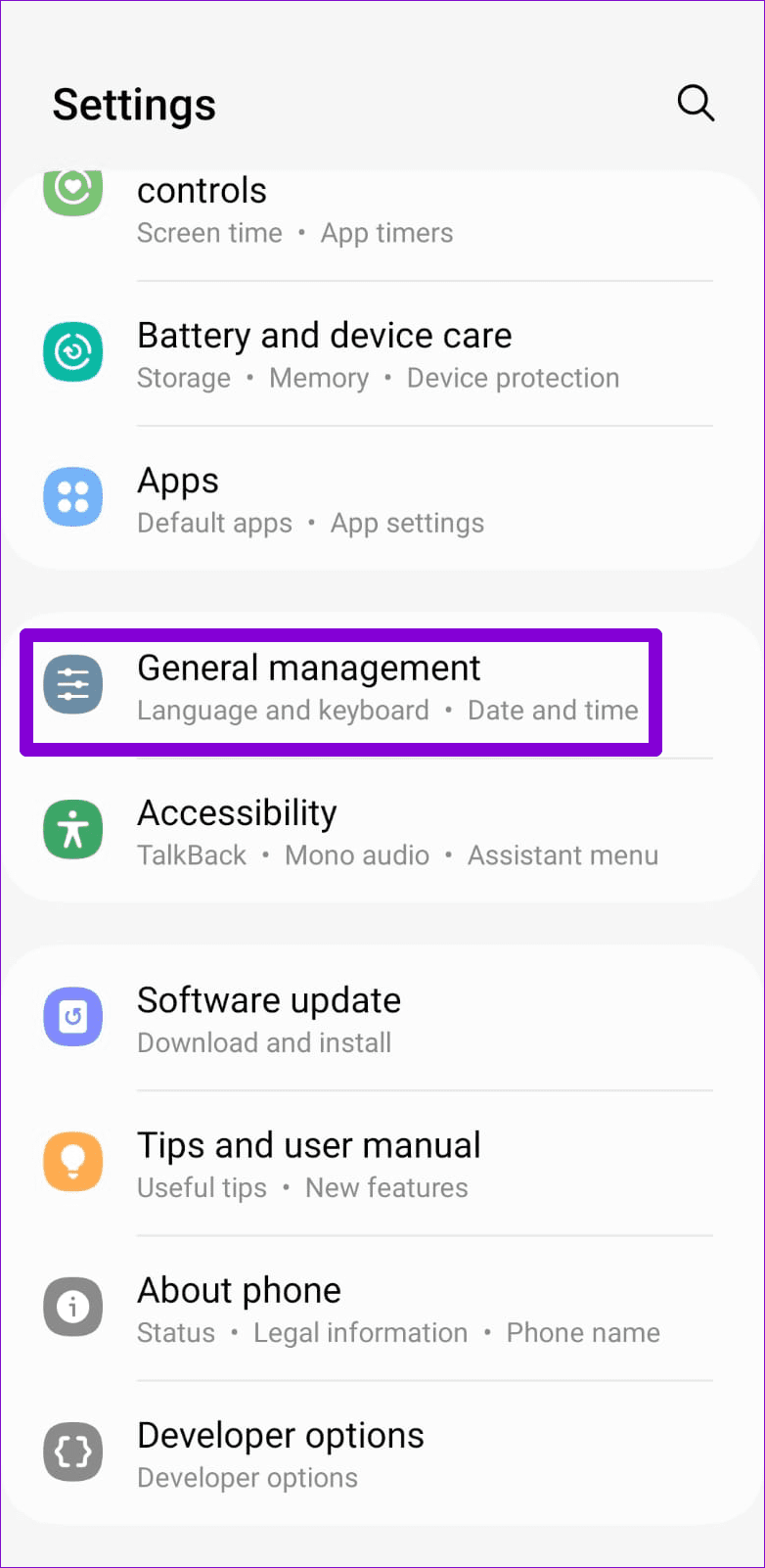
Step 1: Open the Settings menu on your phone and go to General management .
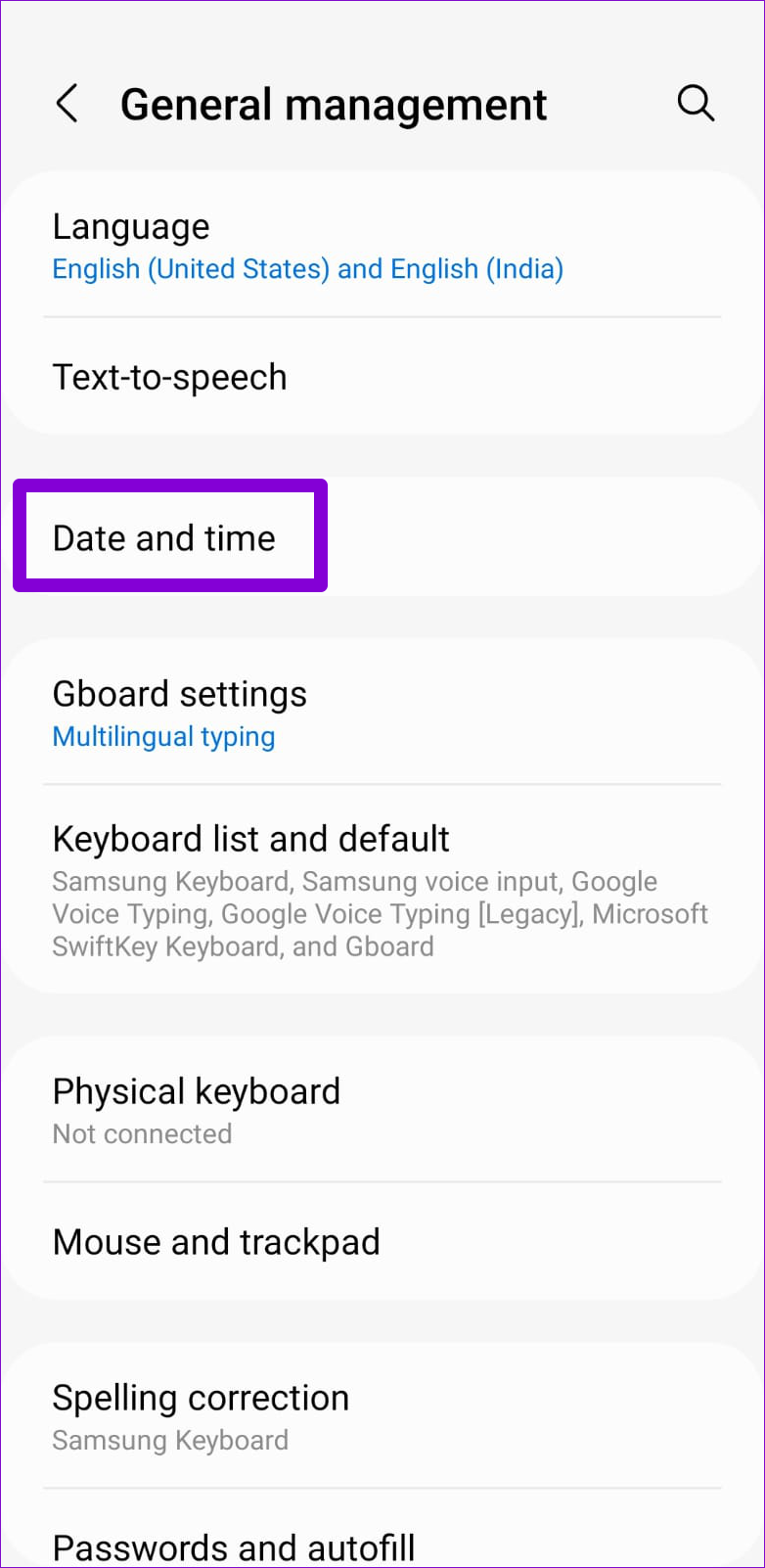
Step 2: Tap on Date and time and enable the toggle for Automatic date and time from the following menu.
Fix 3: Reset Google Play Services
Google Play Services is a system app that works behind the scenes to connect apps and Google services together. If Google Play Services is experiencing any issues, it may affect your other apps. In most cases, you can fix such issues by resetting Google Play Services on your phone.
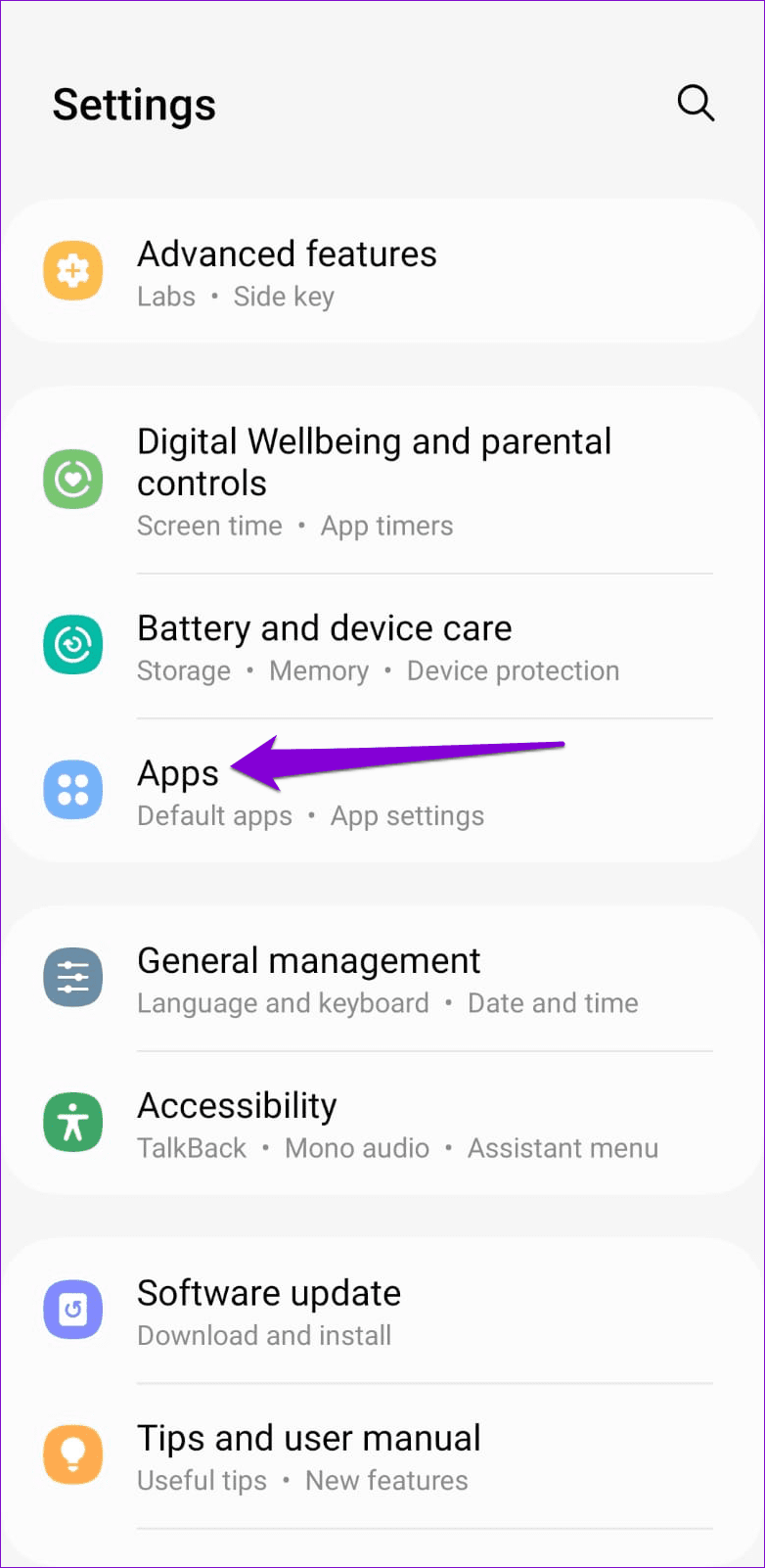
Step 1: Open the Settings app and navigate to Apps .
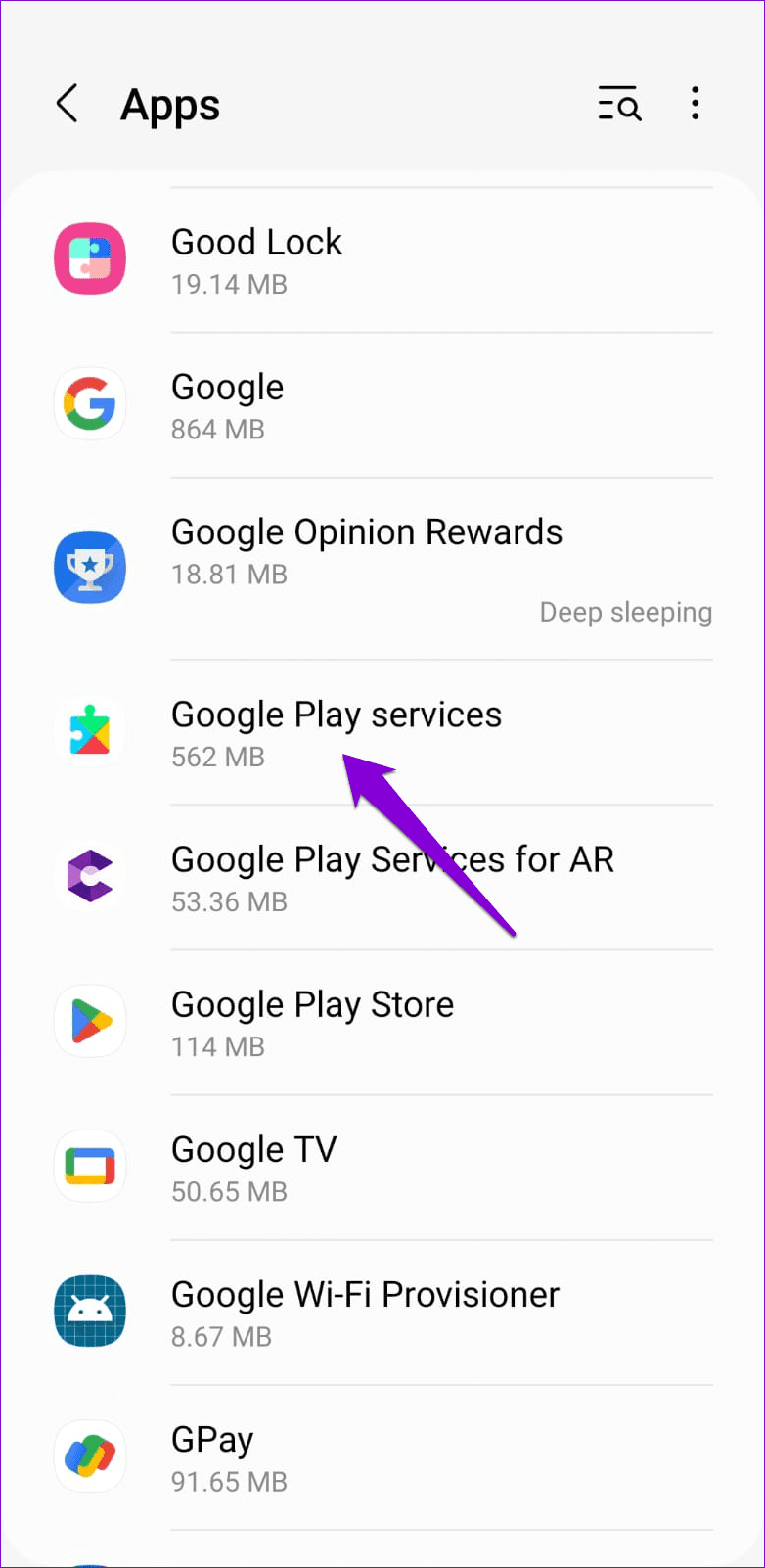
Step 2: Scroll down to tap on Google Play Services .
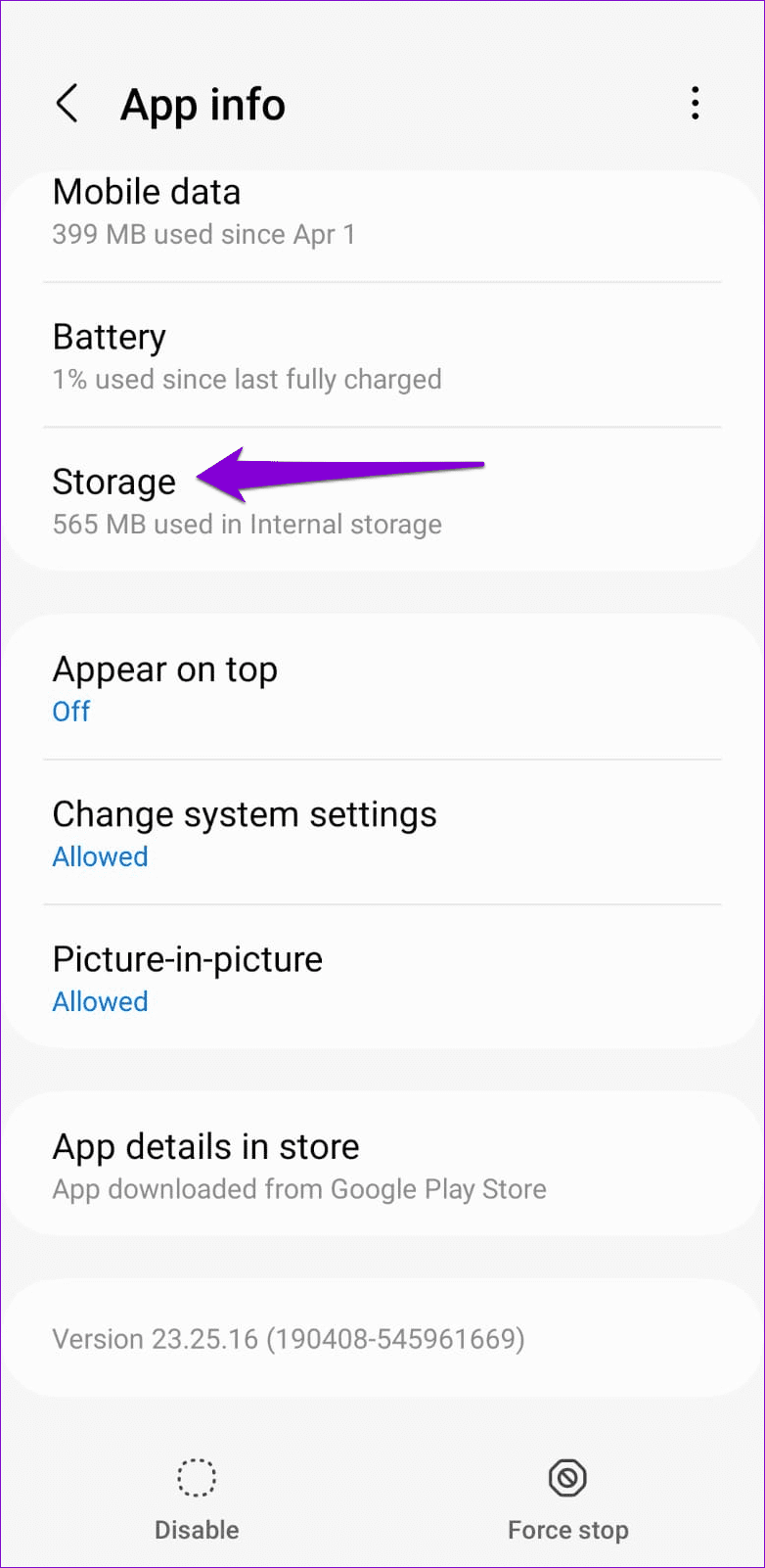
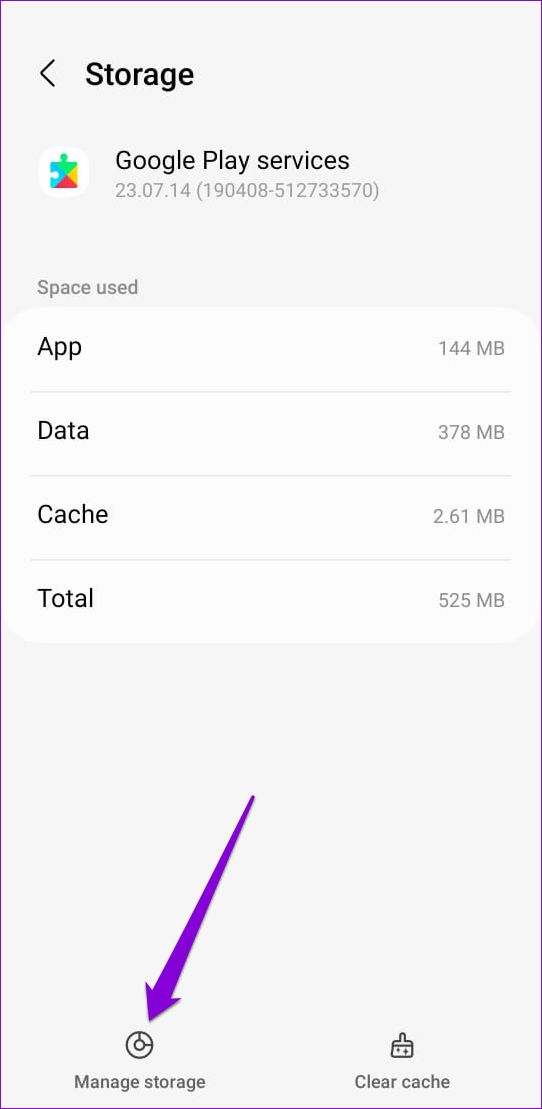
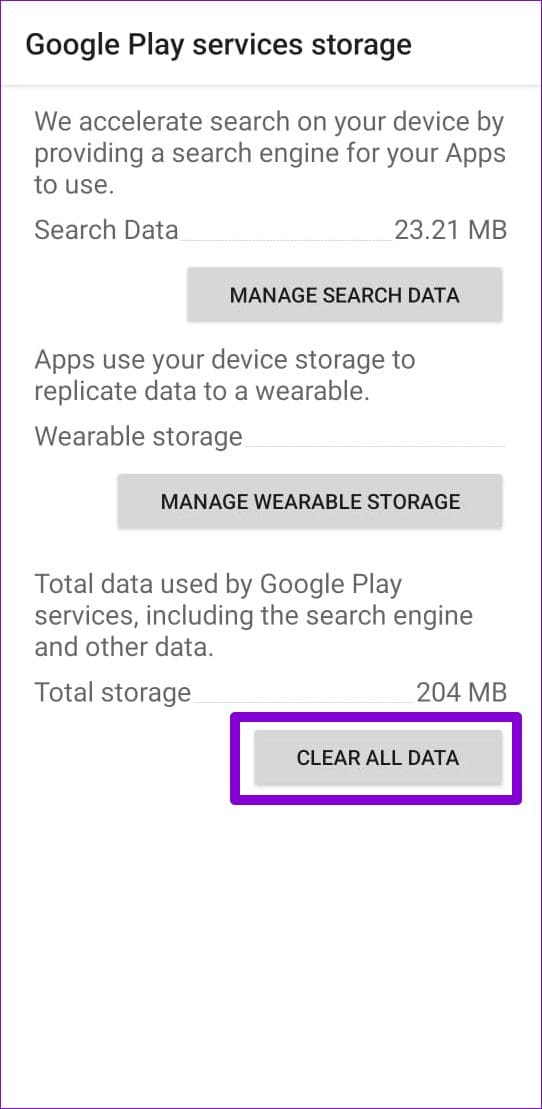
Step 3: Go to Storage > Manage storage and hit the Clear All Data button.
Fix 4: Uninstall Google Play Store Updates
The Google Play Store, like any other app, receives regular updates. Since these updates are installed automatically in the background, you may not notice them. It’s possible that a recent Play Store update installation has gone wrong and caused this issue. If that’s the case, uninstalling Play Store updates should help.
Step 1: Long-press on the Play Store icon and tap the info icon from the resulting menu.
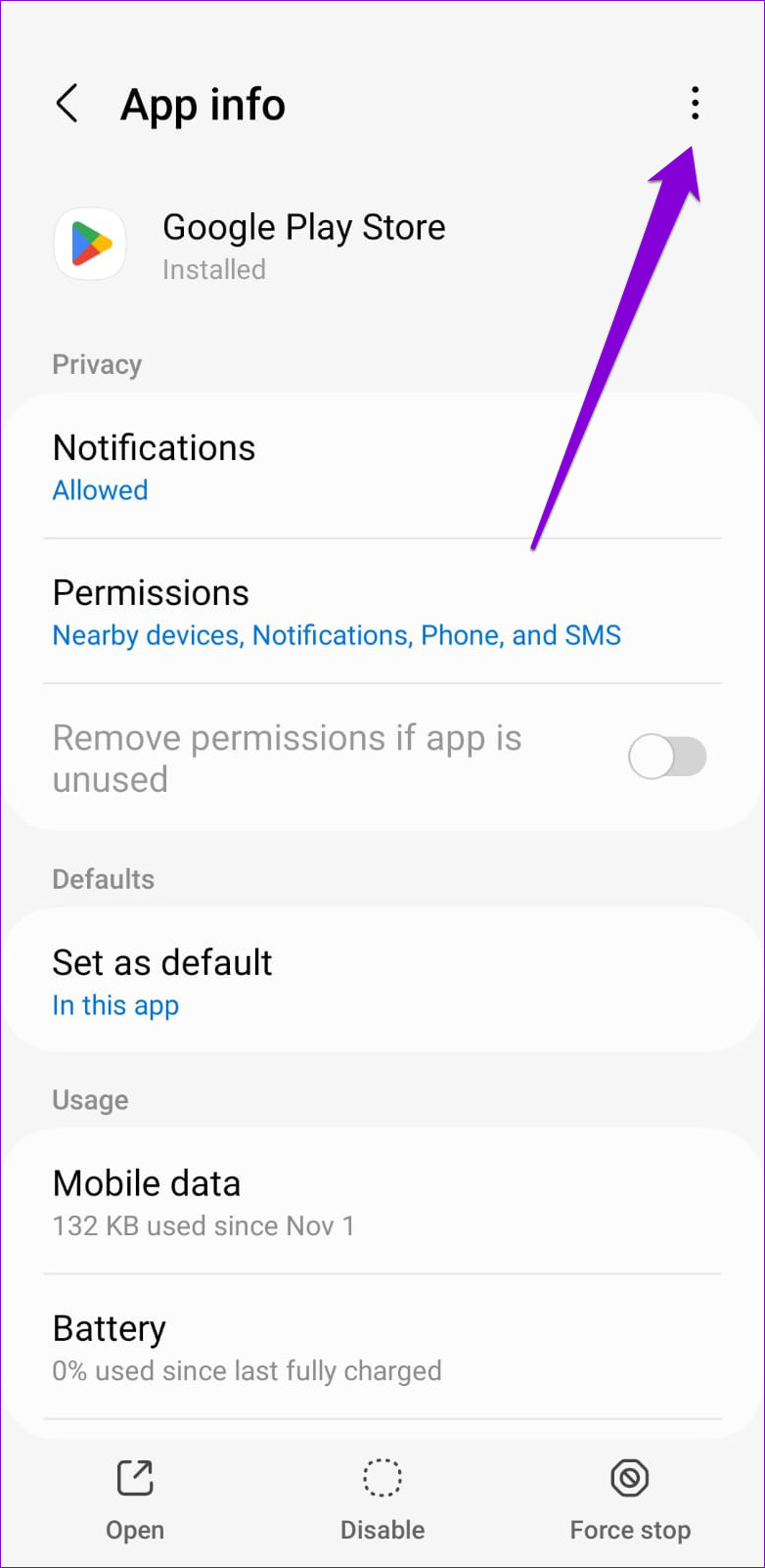
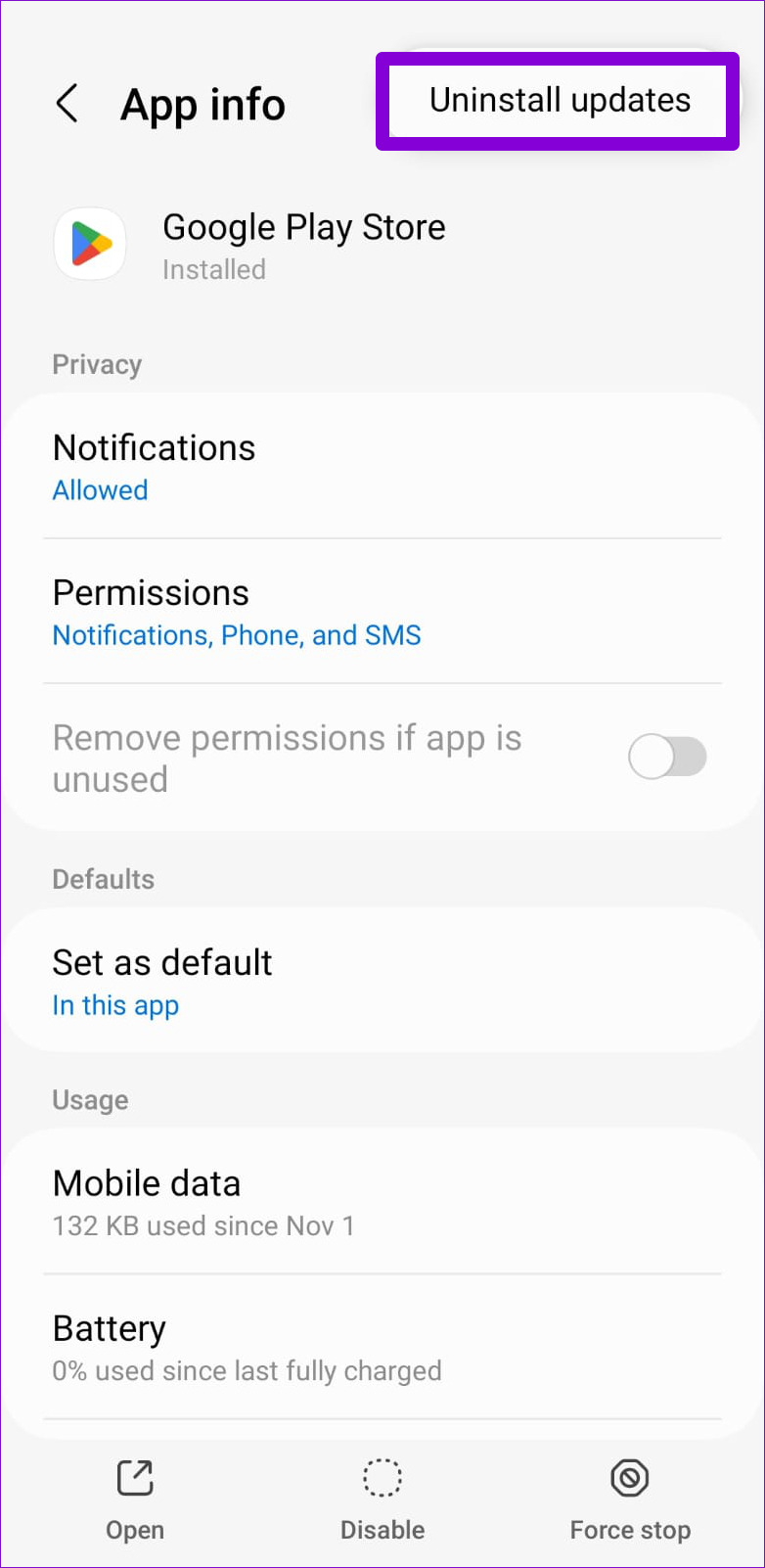
Step 2: Tap the three-dot menu icon in the top right corner and select Uninstall updates . Then, hit OK to proceed.
Open the Play Store again and see if it loads fine. If it does, you can update the Play Store app manually and start using it.
Was this helpful?
Submit Cancel
Thanks for your feedback!
Keep reading