Android
3 Fixes for Microsoft Outlook Not Receiving Emails on Android
Do you frequently miss important emails on Outlook? Here are the top ways to fix Outlook not receiving emails on Android.
By Parth Shah
Quick Tips
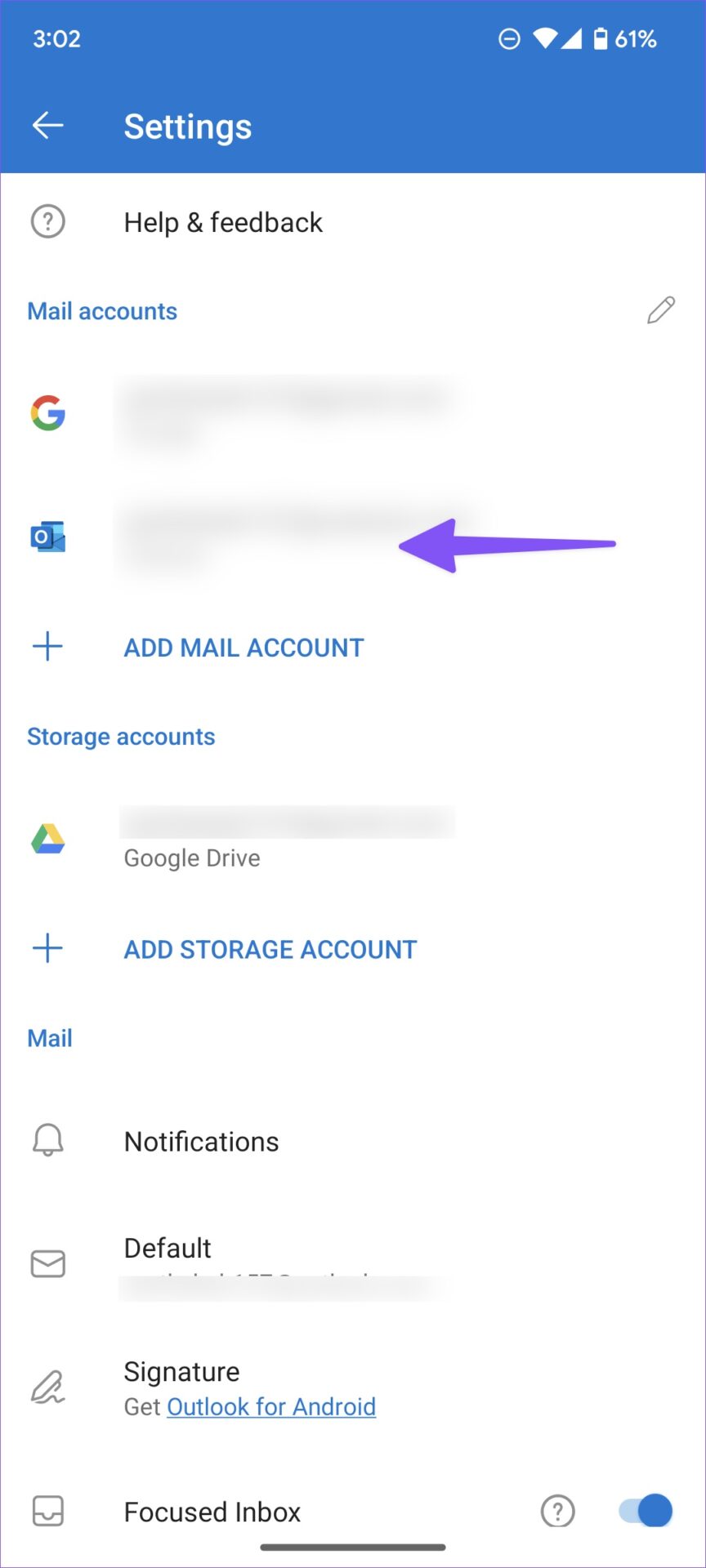
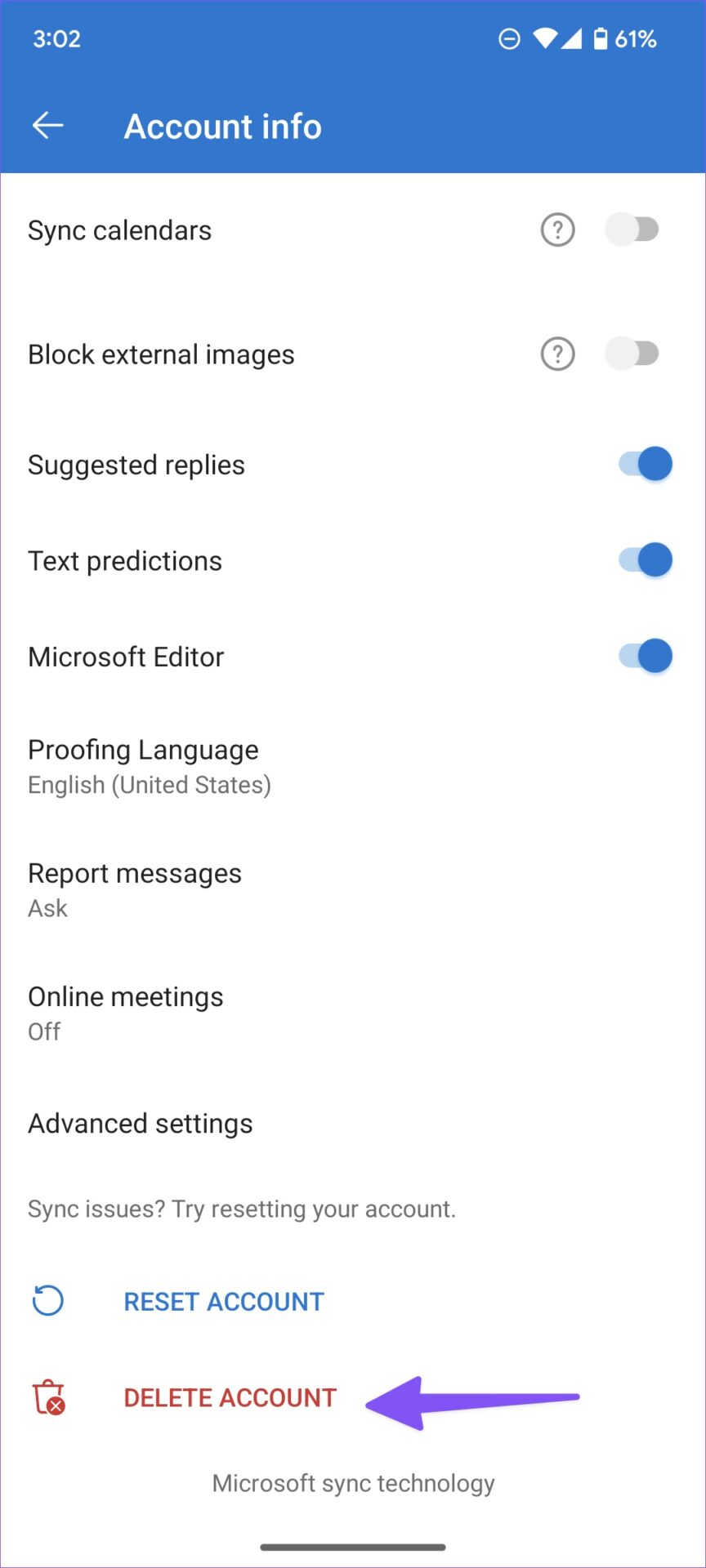
Open Outlook > Settings > Tap on your email account name > Delete account.
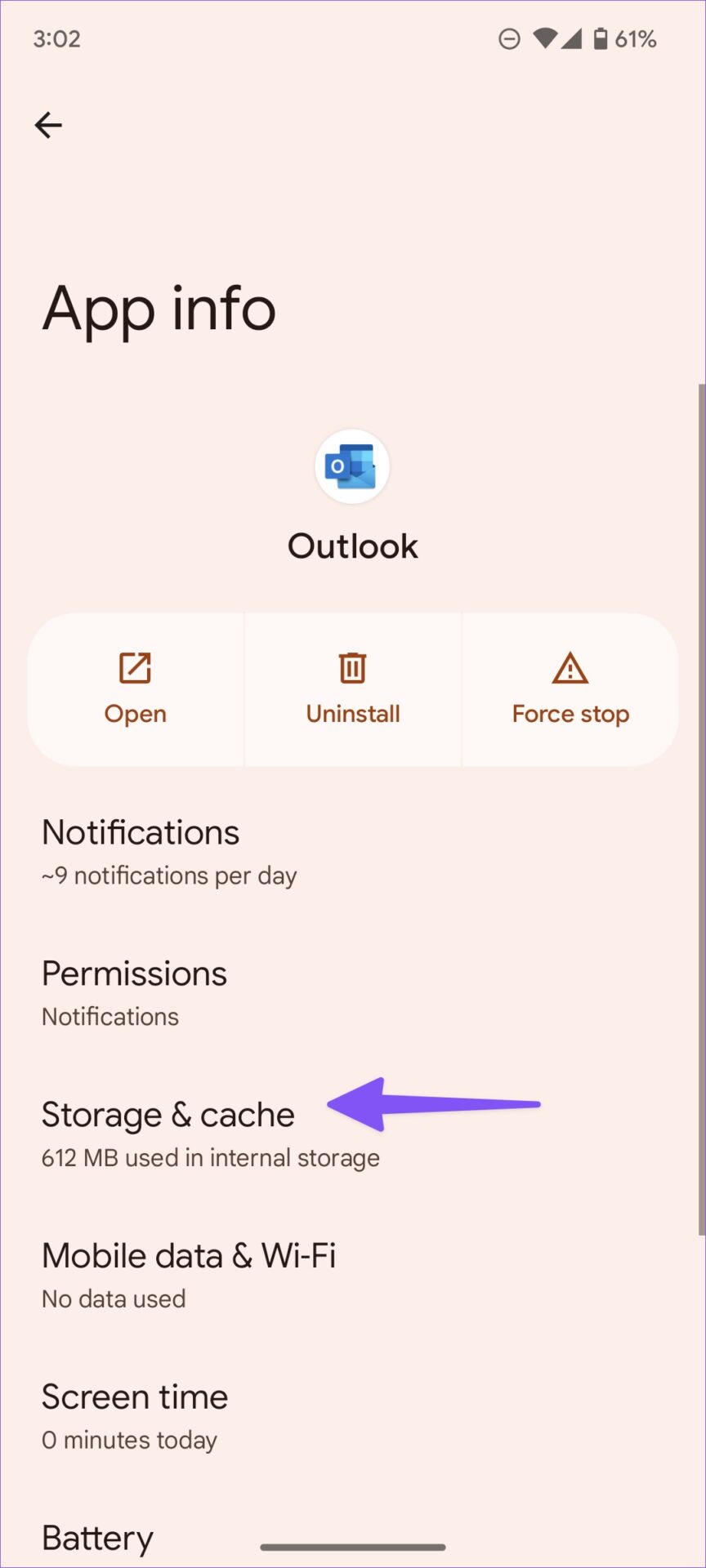
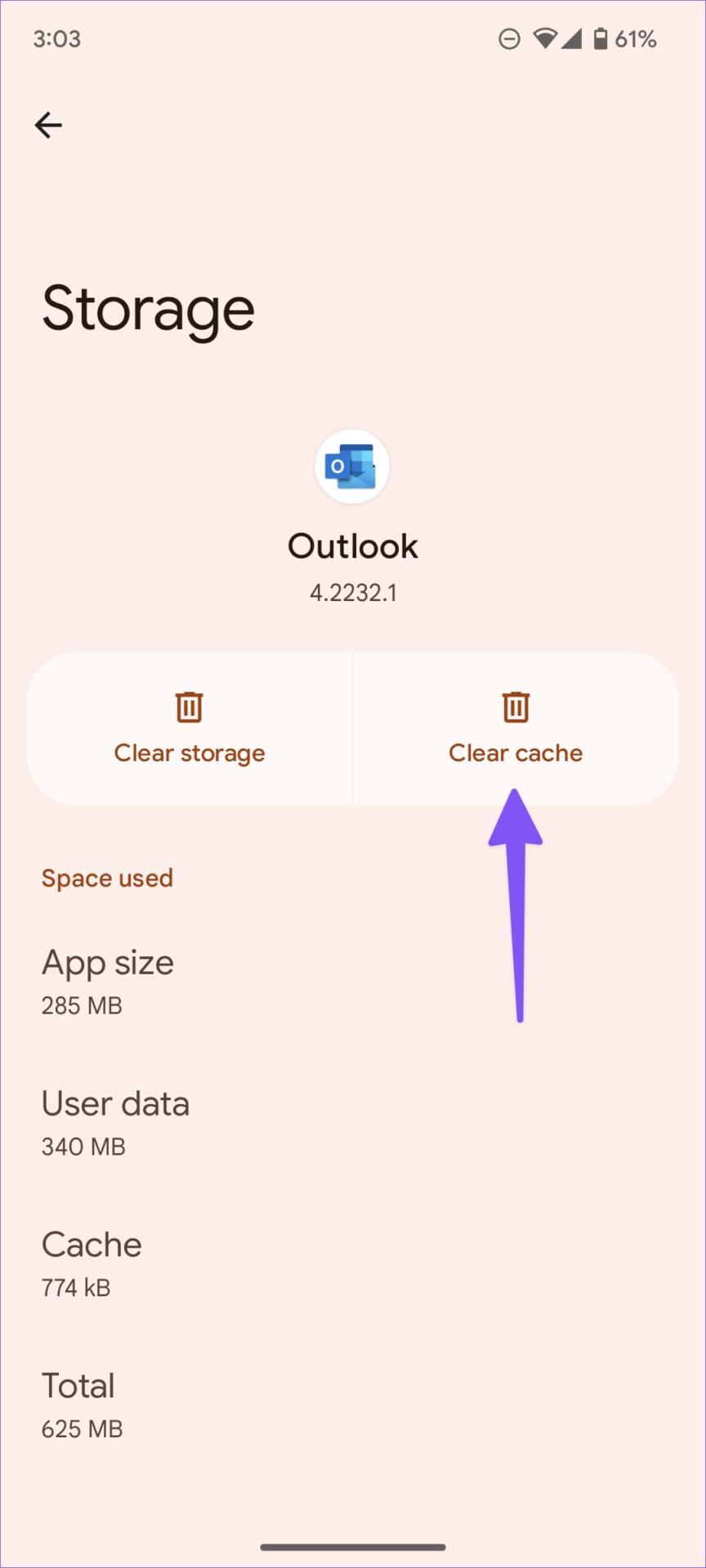
Open Outlook App Info > Storage and cache > Clear cache.
Open Outlook > Settings > Tap on your email account name > Reset account.
Basic Fixes
Check other inboxes: If you have multiple email accounts in the Outlook app, you might have opened the wrong one in the app.
Check outlook account storage status: Check how much storage is available on your Outlook account to store new emails.
Force quit and relaunch Outlook: Long-press the Outlook app icon > App Info > Force stop > Relaunch the app.
Update or Reinstall Outlook app: Install the latest version of the app on your Android phone.
Fix 1: Remove and Add the Account Again
Did you recently change the password for your email account? You must reauthenticate with the latest account details in Outlook to start receiving new emails again.
Step 1: Open Outlook > Settings .
Step 2: Select the troubling email account . Tap on Delete account and then confirm your decision .
Step 3: Return to Settings and then select Add mail account .
Step 4: Enter the email address and password to authenticate your account.
Fix 2: Clear Outlook App Cache
A corrupt Outlook cache may lead to the app not receiving emails issue on Android.
Open Outlook App Info > Storage and cache > Clear cache .
Fix 3: Reset Your Email Account
If you face syncing issues, Outlook allows you to reset an account. Go through the steps below.
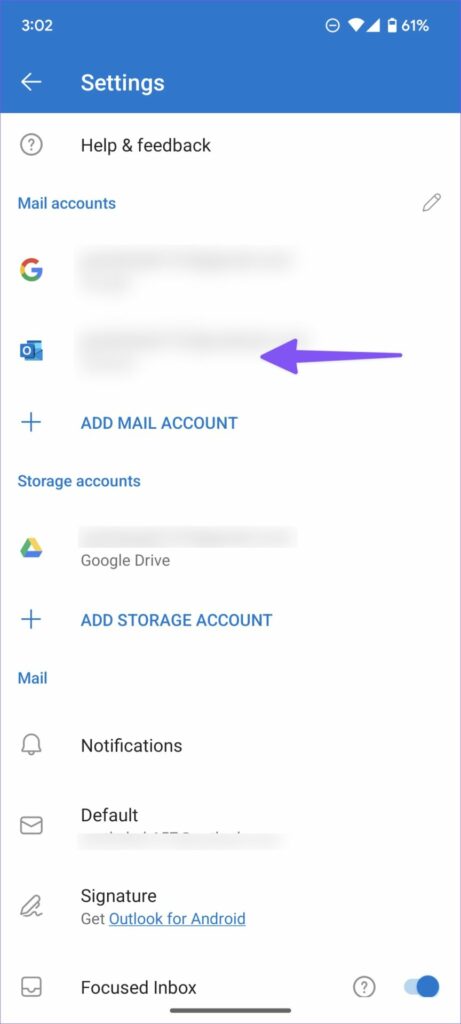
Step 1: Open Outlook > Settings .
Step 2: Select an email account and then tap Reset account from the following menu.
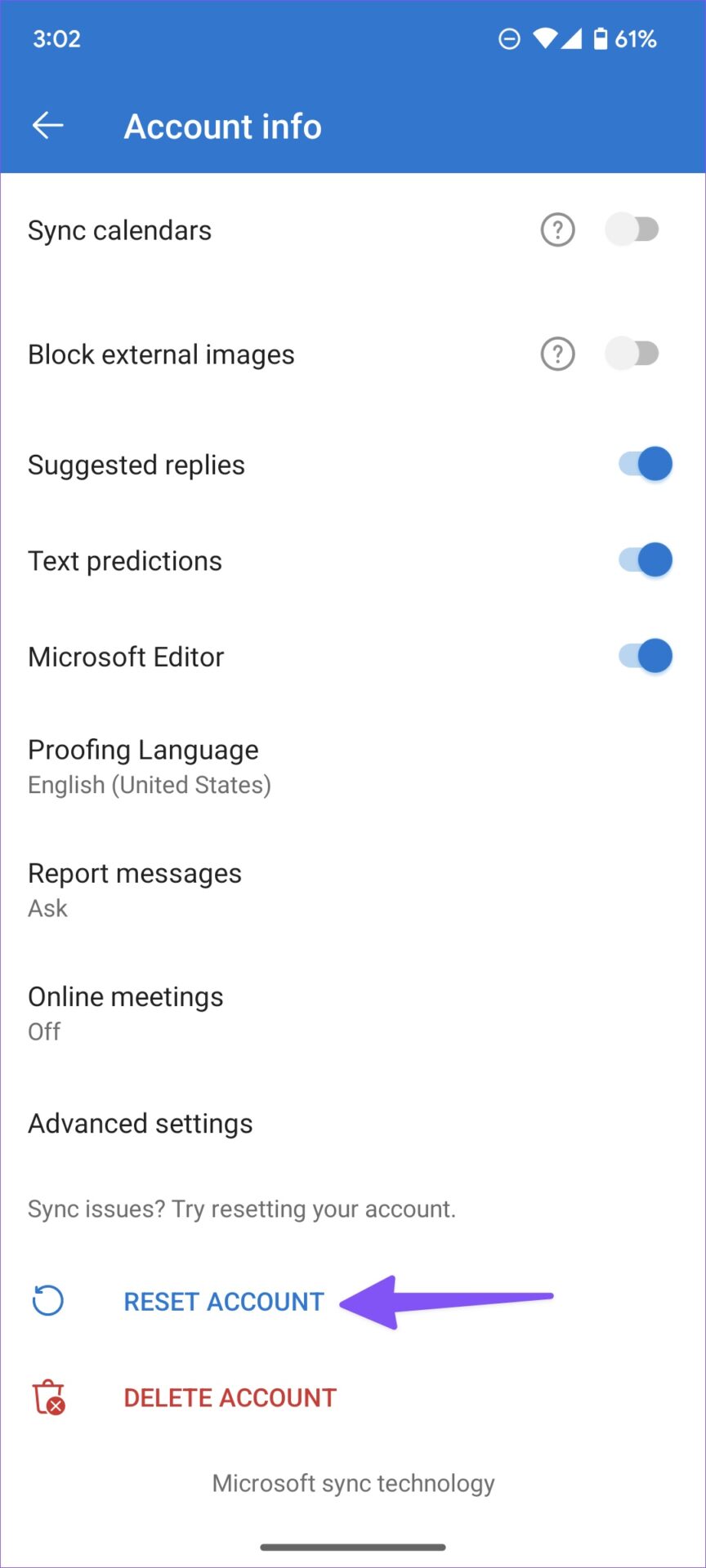
Step 3: Tap Continue to restart the Outlook app.
Tip: Check out our post if the Outlook app is not syncing emails on your Android phone.
Was this helpful?
Submit Cancel
Thanks for your feedback!
Keep reading