Android
5 Ways to Fix “No App Found to Open URL” Error on Android
Can't open links due to the ‘No app found to open URL’ error on Android? Here's how to troubleshoot the issue.
By Pankil Shah
Quick Tips
If the “No app found to open URL” error message appears only in a specific app, try restarting it.
Ensure you haven’t disabled any system apps on your phone, such as the Play Store.
You can try resetting app preferences or changing the default browser to fix this error.
Basic Fixes:
Install Android updates: Bugs and glitches within Android on your phone can trigger such errors. Hence, installing any pending software updates on your phone is a good idea.
Reinstall the problematic app: If a specific app displays the “No app found to open URL” error, try reinstalling it on your phone. This should help fix issues caused by corrupt data or an outdated app build.
Fix 1: Check Disabled Apps
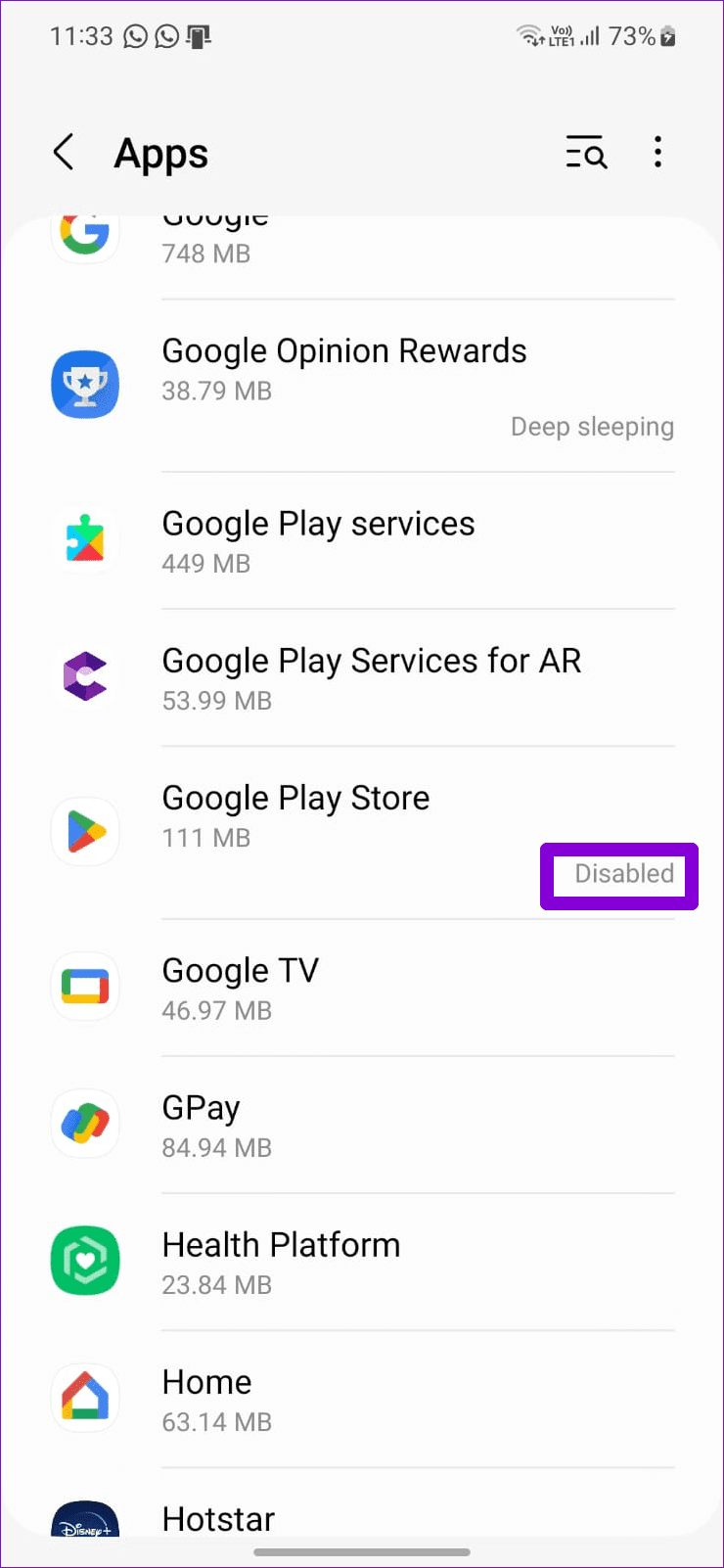
Errors like “No app found to open link” can appear if you’ve disabled any system apps on your phone . For instance, if you disable your phone’s default browser or an app like Play Store, you may receive such errors when you attempt to open links that require those specific apps.
To avoid this, go through your phone’s app list and ensure all system apps are enabled.
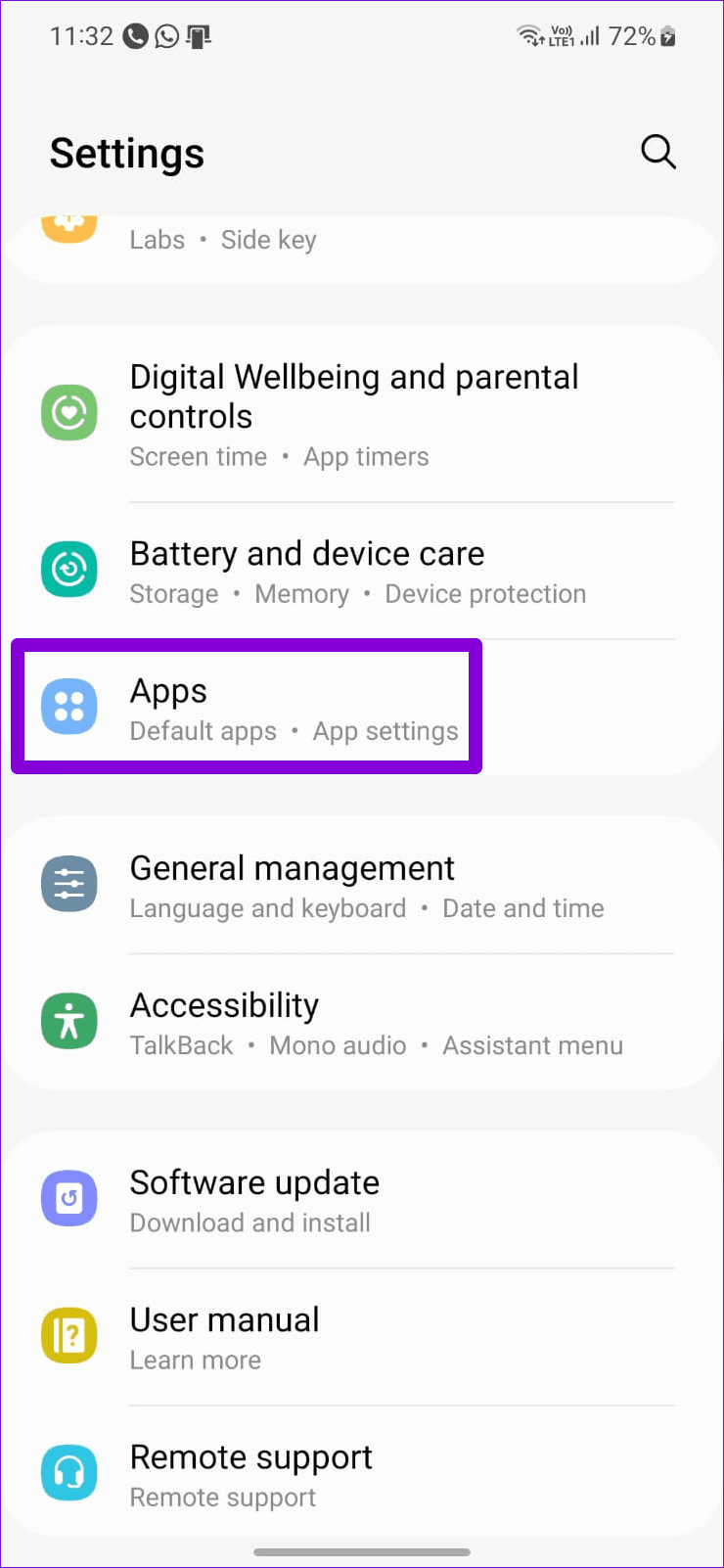
Step 1: Open the Settings app on your phone > navigate to Apps . Scroll through the list to find any disabled apps.
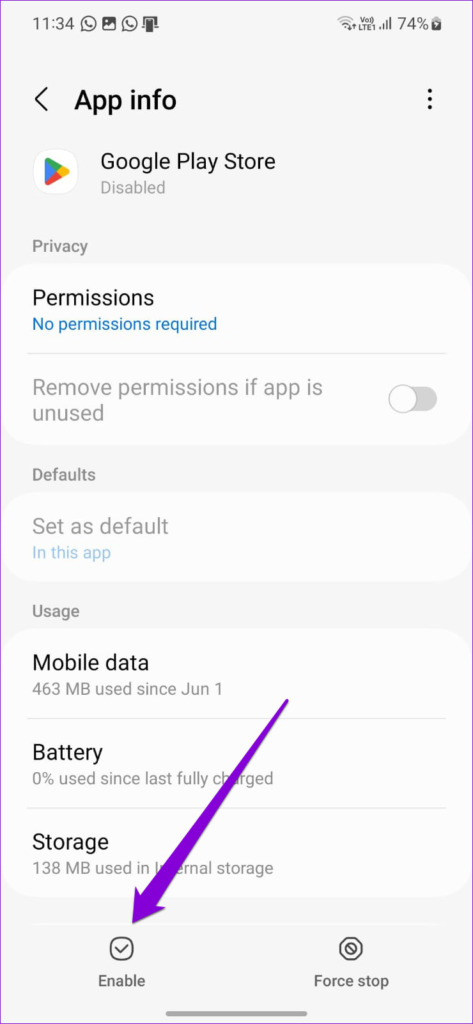
Step 2: Tap the disabled app and select Enable from the following menu.
Fix 2: Disable “Open Supported Links” for the Affected App
Another reason an app may show this error is if there’s an issue with its in-app browser. In that case, you can configure the app to use your default browser to open links. Here’s how:
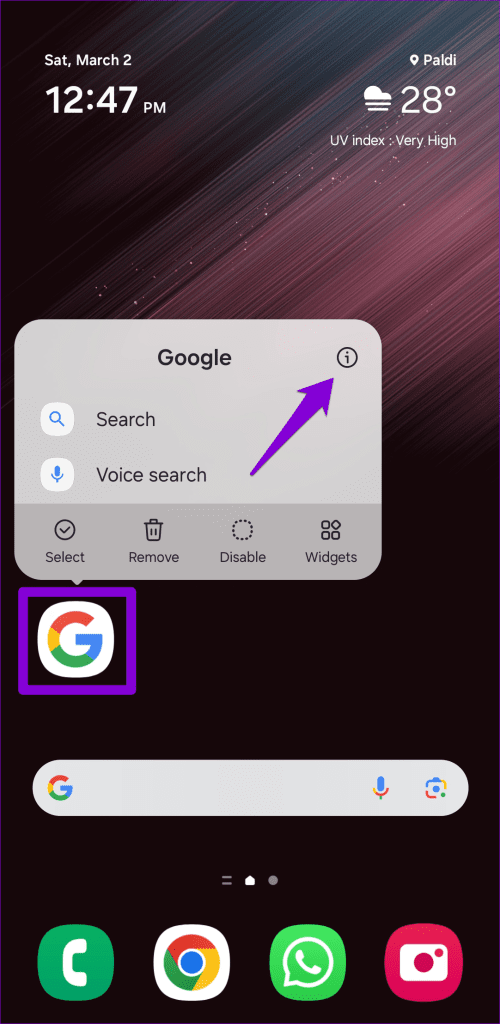
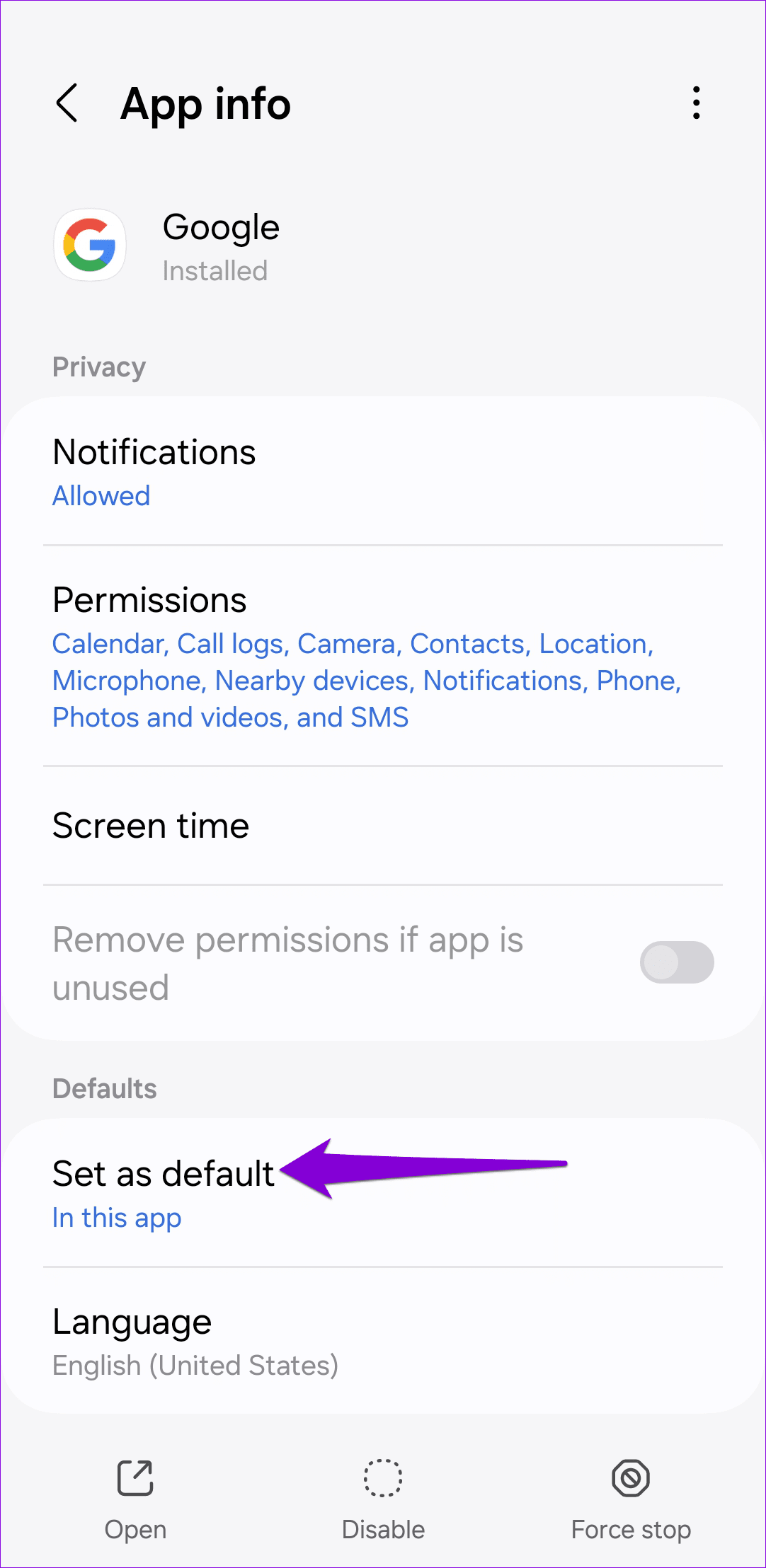
Step 1: Long-press the problematic app’s icon and tap the info icon from the resulting menu.
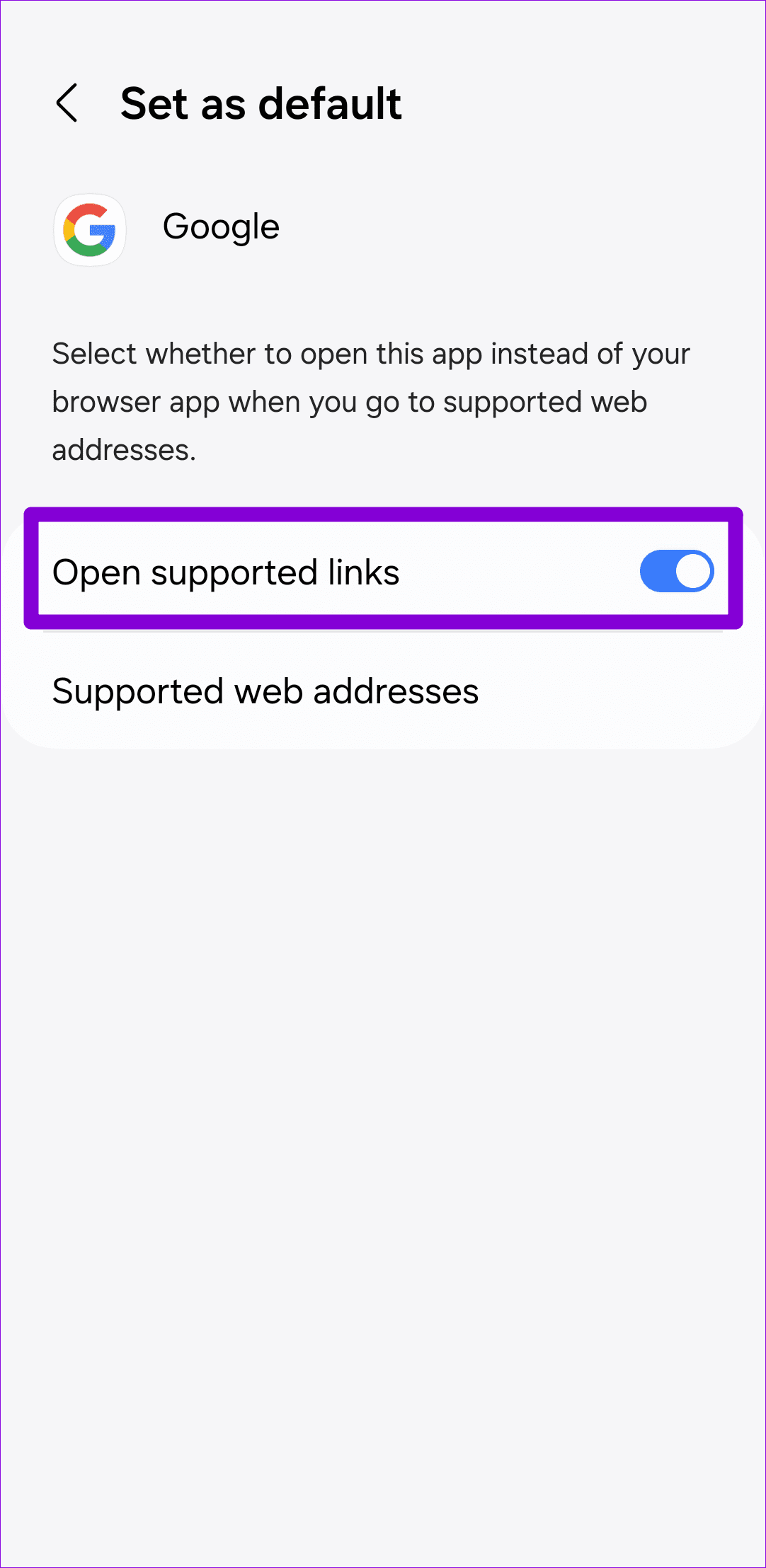
Step 2: Tap on Set as default and turn off the toggle for Open supported links .
Fix 3: Reset App Preferences
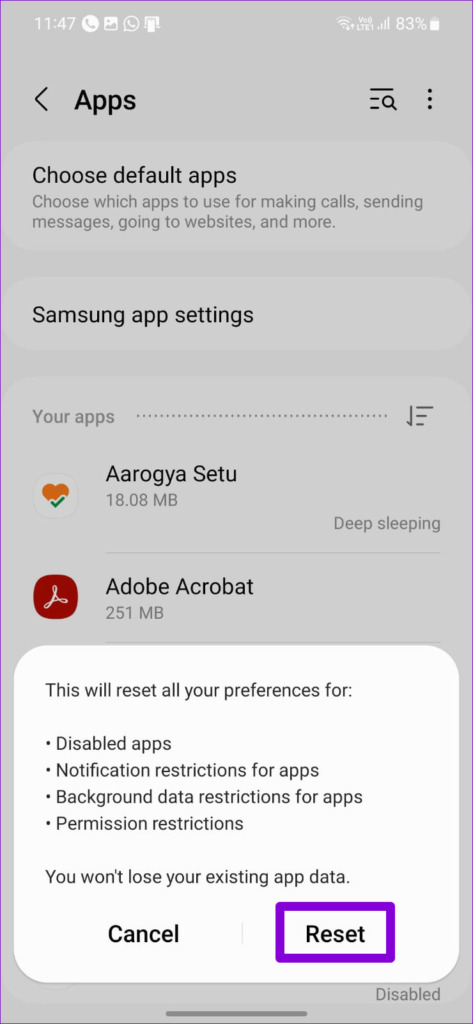
If the error persists, reset app preferences on your phone to fix it. This will reset all the app permissions and remove restrictions that may be triggering the error.
To reset app preferences on Android:
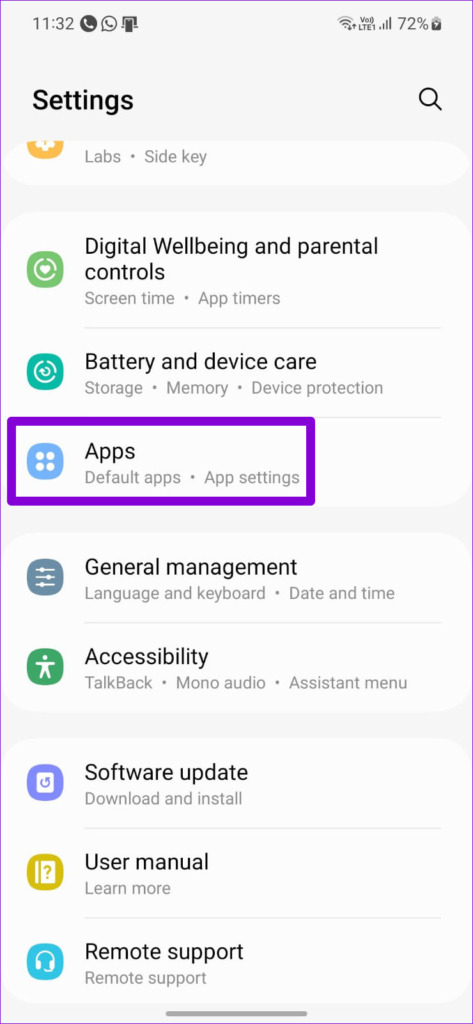
Step 1: Open the Settings app and navigate to Apps .
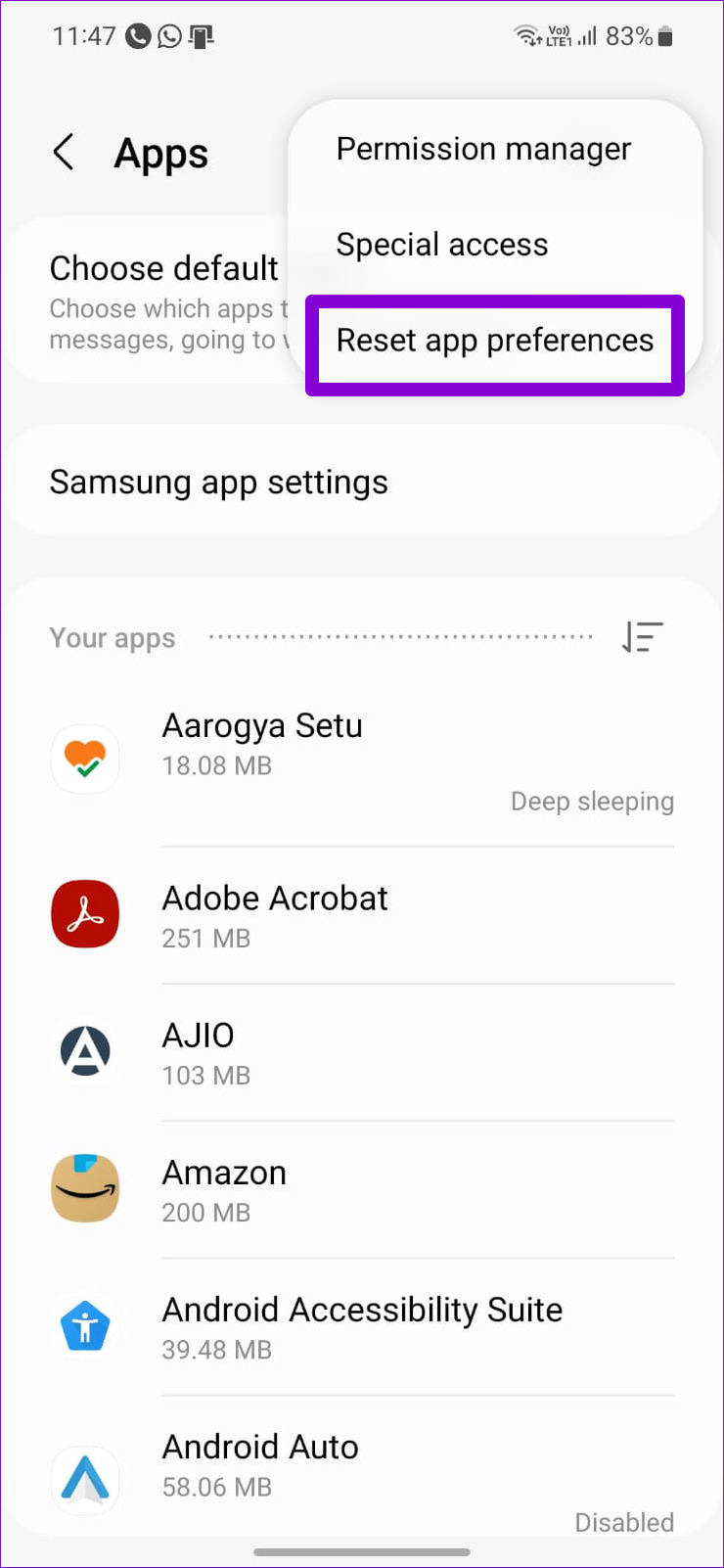
Step 2: Tap the three-dot menu icon at the top right corner and select Reset app preferences . Then, select Reset to confirm.
Fix 4: Change the Default Browser
Problems with the default browser app can also prevent apps from opening web pages. You can try changing your phone’s default browser to see if that helps.
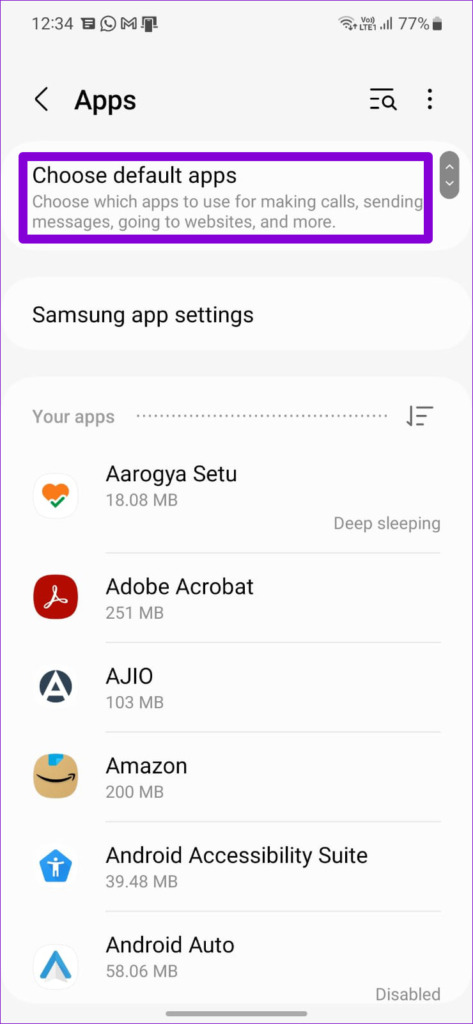
Step 1: Open the Settings app > go to Apps > Choose default apps .
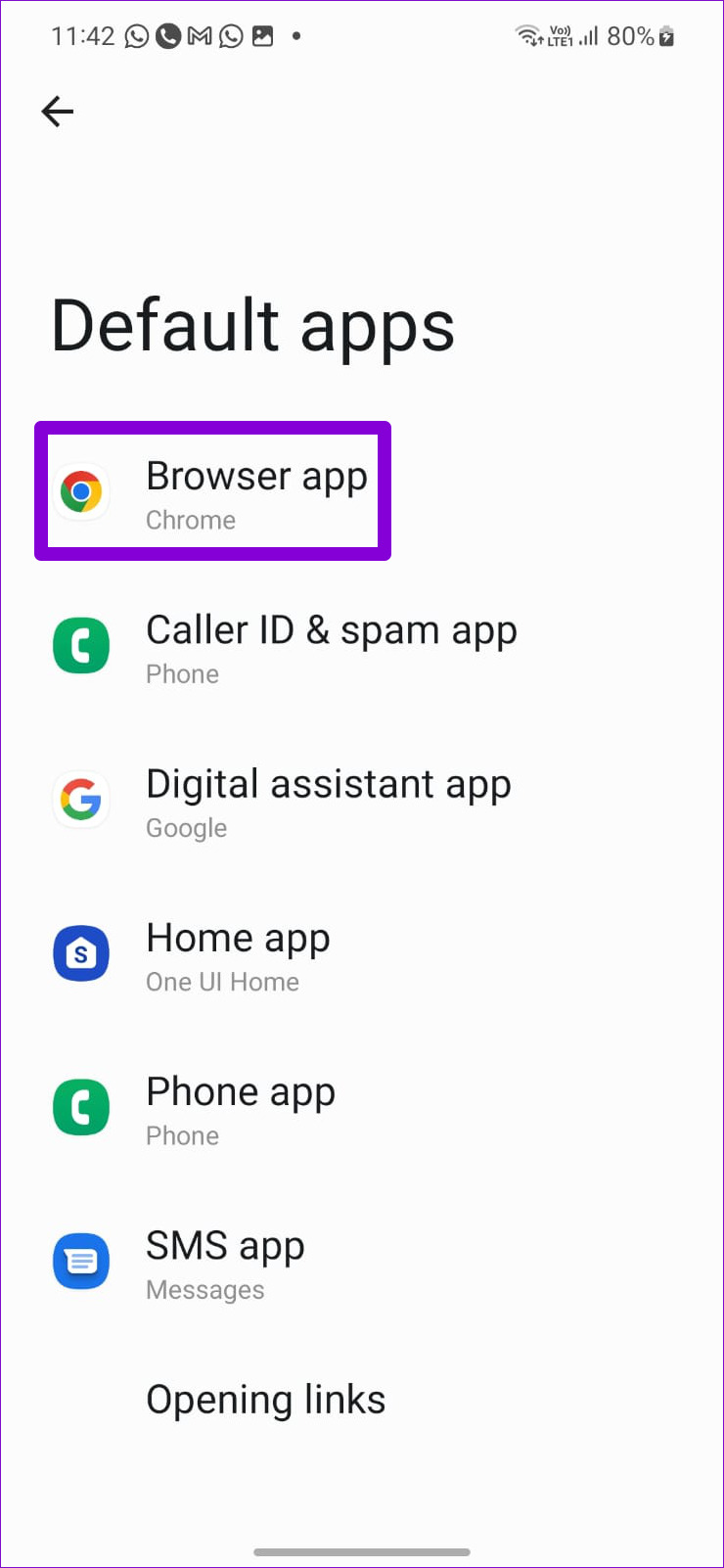
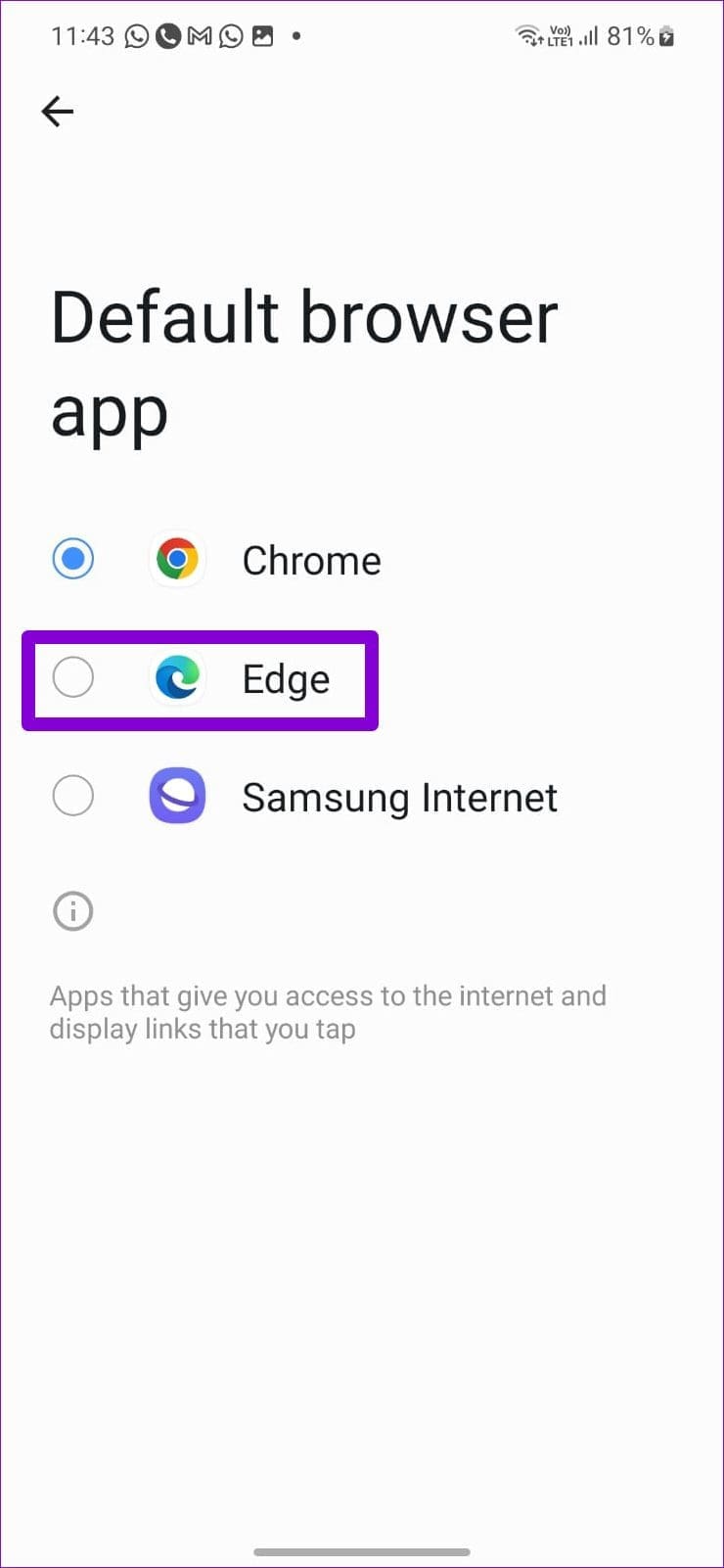
Step 2: Tap on Browser app and select a different browser .
Fix 5: Turn off Instant Apps
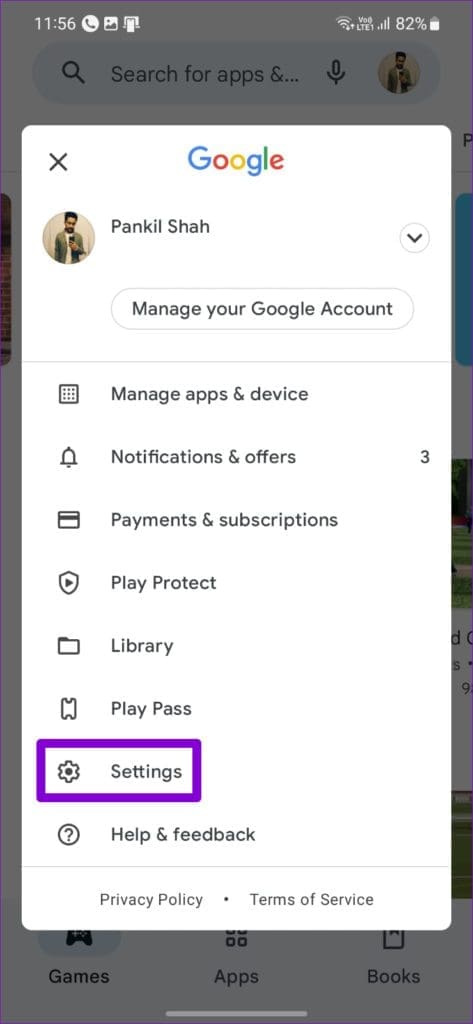
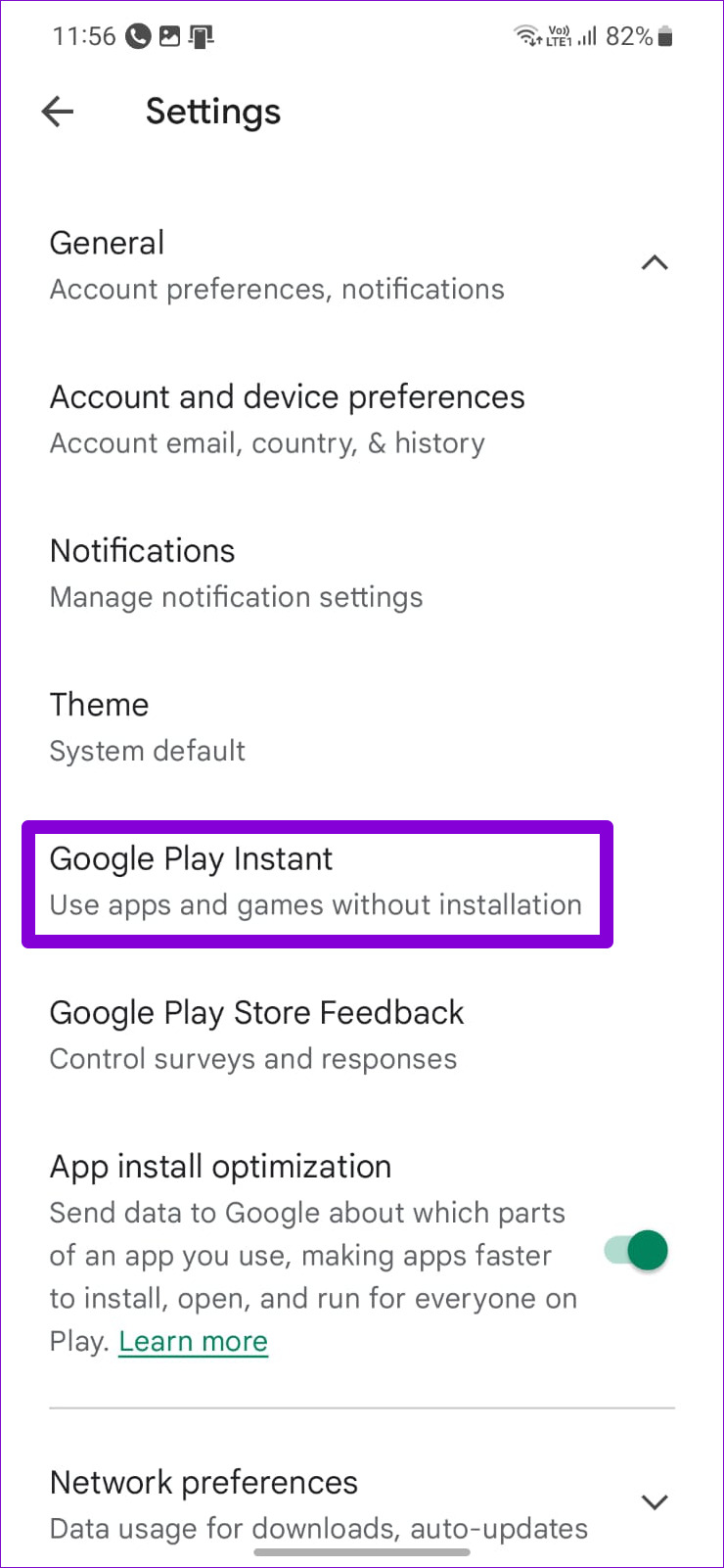
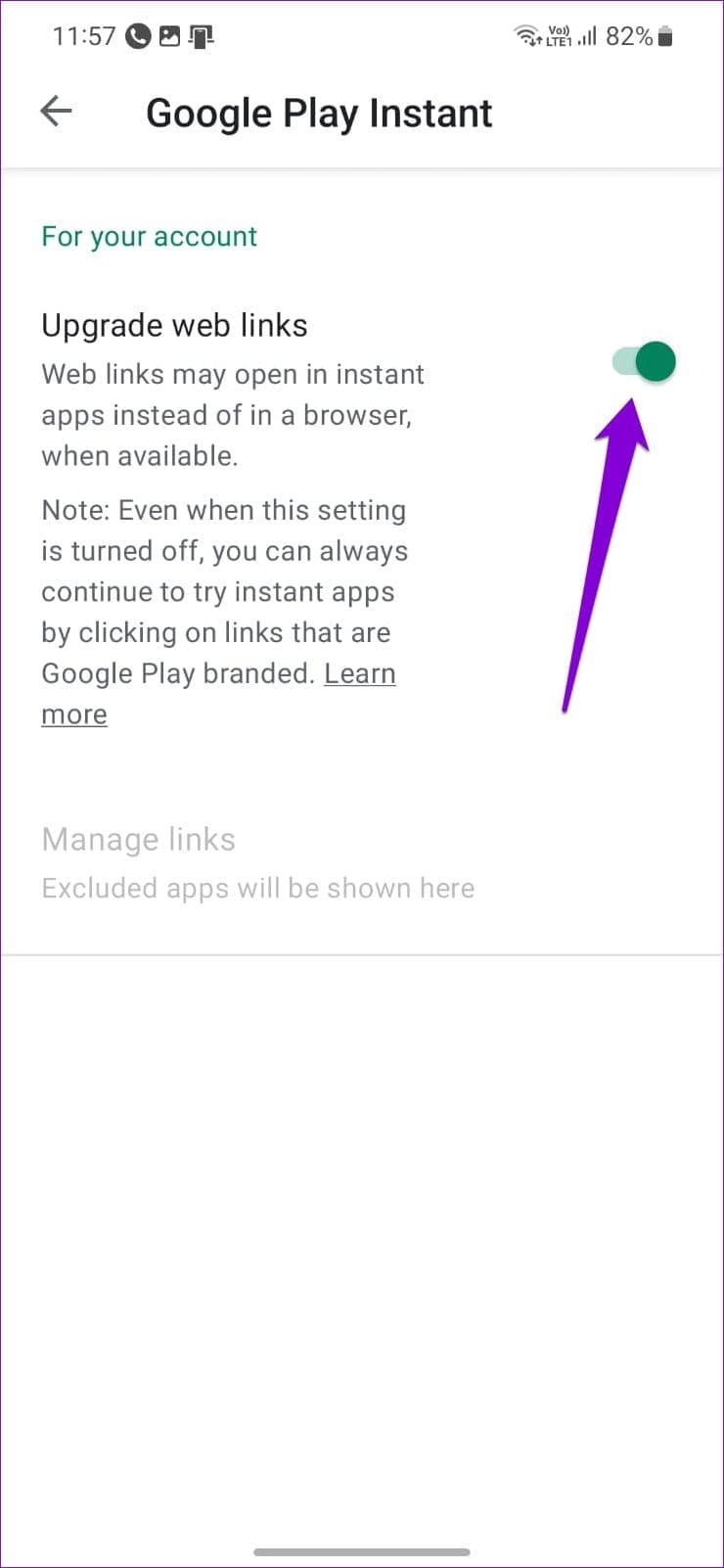
Google Play Instant is a useful feature that allows you to try native Android apps and games without installing them first. However, this feature can occasionally cause problems, resulting in the “No app found to open URL” error. To see if that helps, you can disable link loading through Instant apps.
Step 1: Open Google Play Store on your phone > tap your profile icon at the top-right corner > select Settings .
Step 2: Expand the General menu > tap on Google Play Instant . Then, toggle off Upgrade web links .
Was this helpful?
Submit Cancel
Thanks for your feedback!
Keep reading