Android
7 Ways to Fix Outlook App Not Syncing Emails on Android and iPhone
Is the Outlook app not syncing any emails on your Android or iPhone? Try out these tips to fix the underlying issue.
By Pankil Shah
Quick Tips
Resetting Outlook settings can help fix sync issues with the app.
Ensure Outlook is allowed to use data in the background on your Android or iPhone.
Consider updating the Outlook app and clearing its cache data if the issue remains.
Try Basic Fixes
Remove filters: In the Outlook app, tap the filter icon in the top right corner and select All messages to view all your emails.
Turn off battery saver mode: Enabling the battery-saver mode on your phone can impair Outlook’s ability to update emails automatically in the background. To avoid this, you must turn off your phone’s battery saver mode.
Update the Outlook app: App updates typically bring bug fixes and performance improvements to an app. If the sync issue is limited to the particular version of the app you’re using, updating the Outlook app from the Play Store (Android) or App Store (iPhone) should help.
Fix 1: Allow Outlook to Use Mobile Data (iPhone)
On your iPhone, iOS allows you to manage mobile data permissions for each app separately. If you’ve inadvertently disabled mobile data access for Outlook, the app will not sync emails unless you connect to a Wi-Fi network.
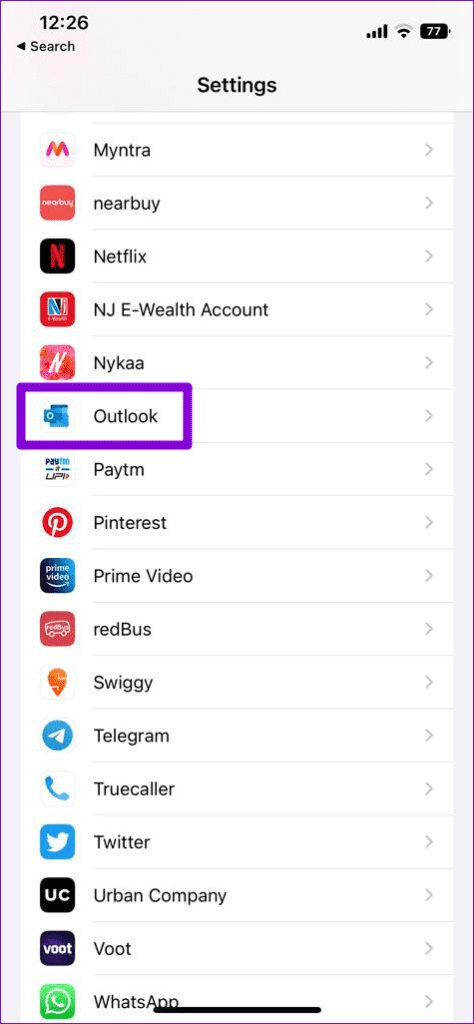
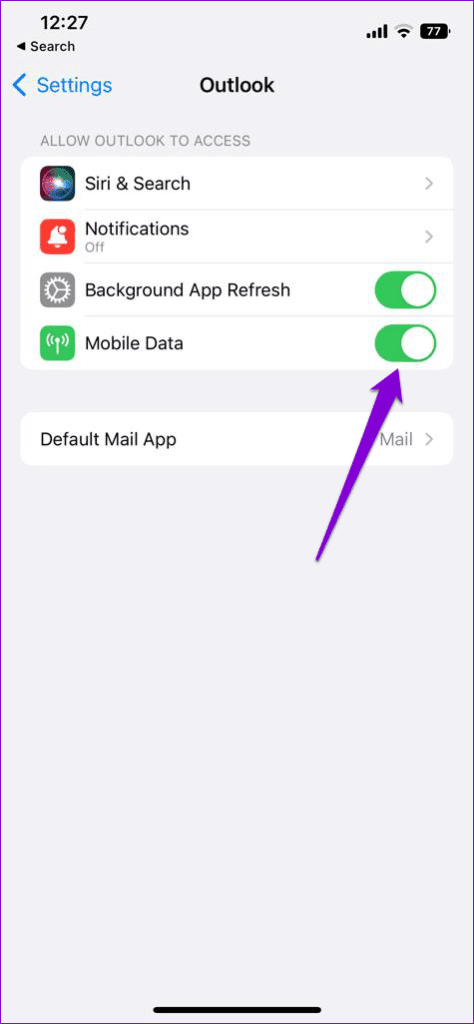
To allow mobile data permission to Outlook, open the Settings app and scroll down to tap on Outlook . Enable the toggle next to Mobile Data .
Fix 2: Reset Account Settings
If you’re having sync problems with only one of your accounts in the Outlook app, you can try resetting all settings for that account and see if that helps.
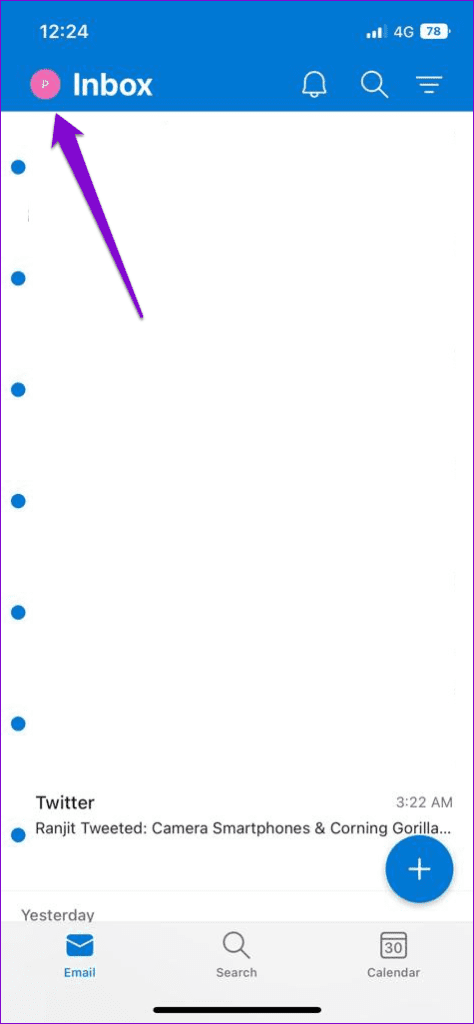
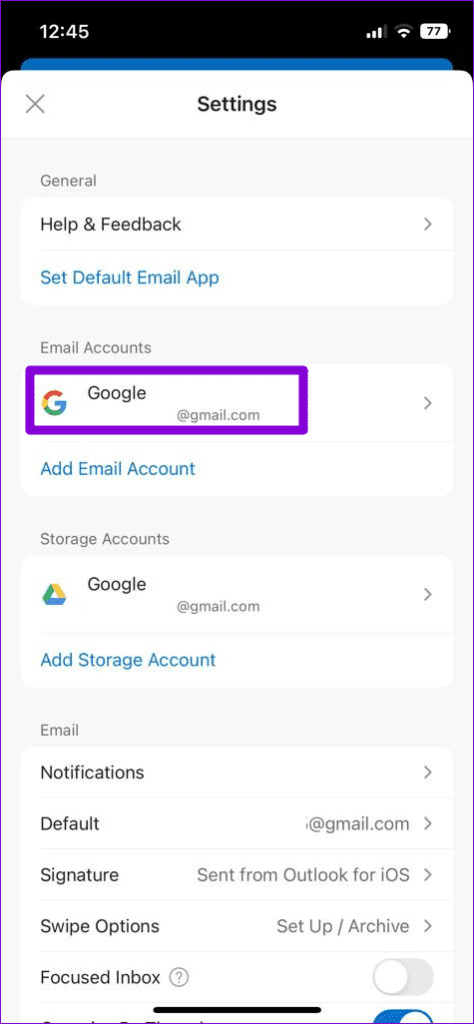
Step 1: In the Outlook app, tap on your profile picture in the top left corner. Then, tap the settings icon in the bottom left corner.
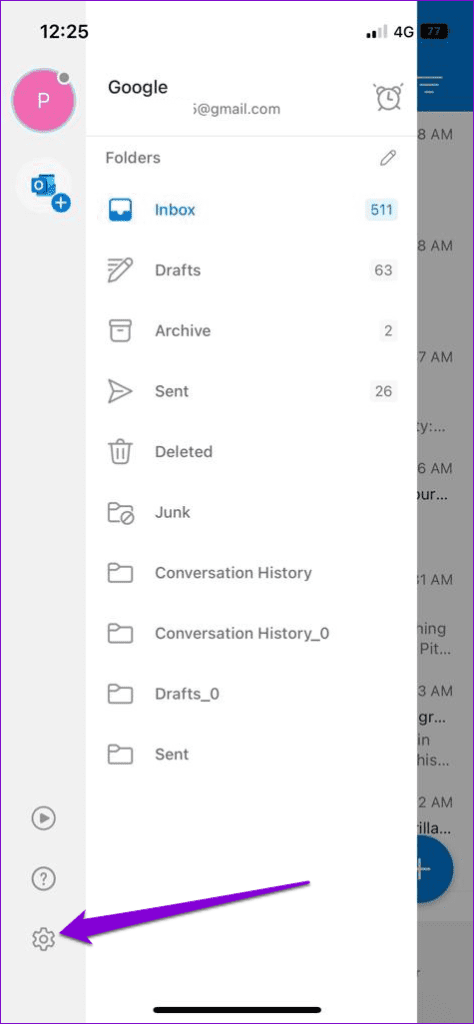
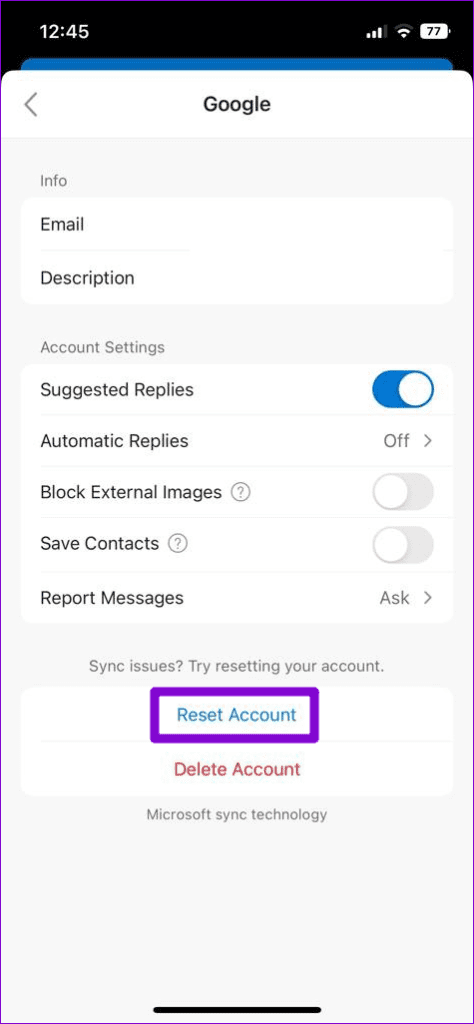
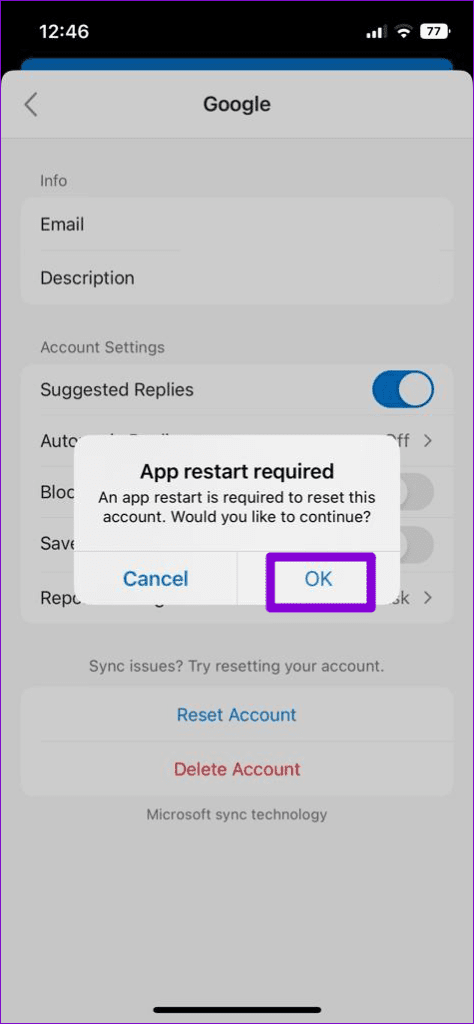
Step 2: Select your email account that is not syncing. Tap Reset Account and hit OK to confirm.
Fix 3: Disable Focused Inbox
Focused Inbox is a feature in the Outlook app that automatically separates your essential emails from the rest. This feature can sometimes be aggressive and move some of your important emails to a separate inbox. And you’ll feel that the app isn’t fetching new emails.
Hence, it’s best to disable this feature if you do not wish to miss out on any new emails.
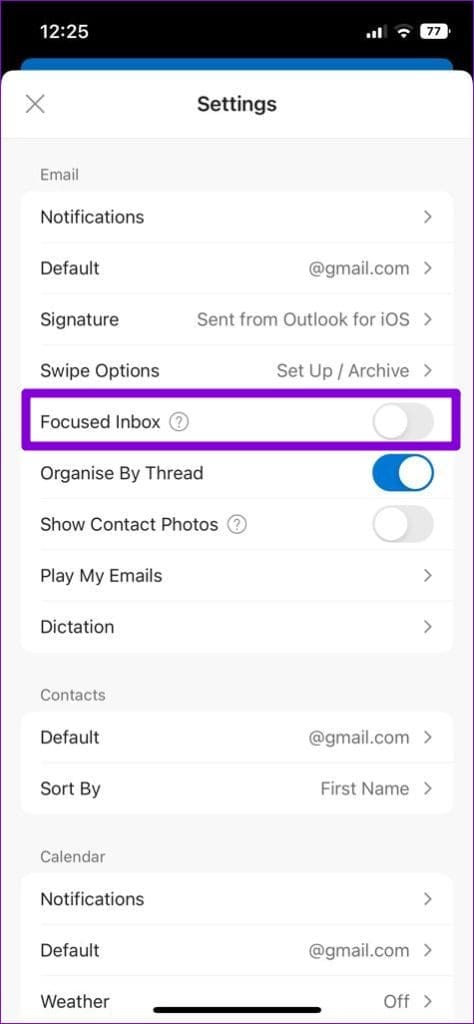
Step 1: In the Outlook app, tap on your profile picture in the top left corner. Then, tap the settings icon in the bottom left corner.
Step 2: Under the Email section, toggle off the switch next to Focused Inbox .
Fix 4: Enable Background App Refresh for Outlook (iPhone)
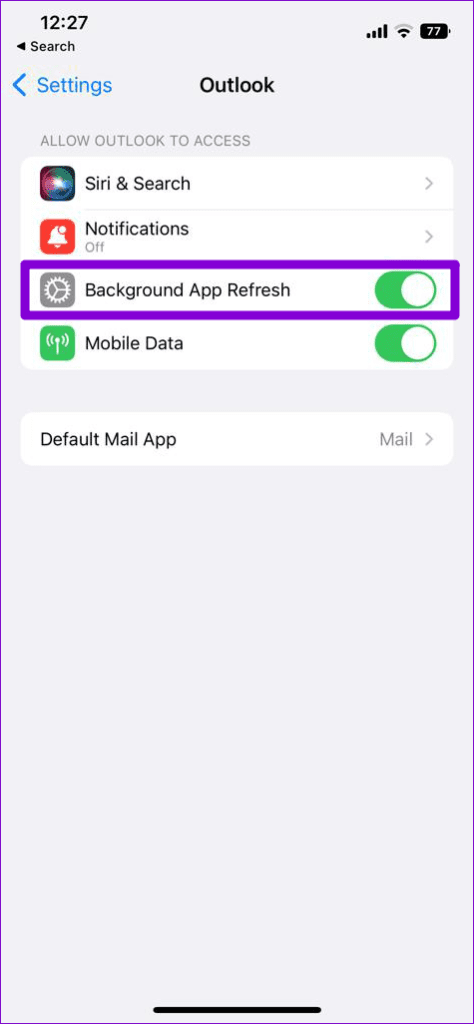
Background App Refresh is a feature in iOS that allows an app to sync data even when you’re not using it. If Background App Refresh is disabled for Outlook, the app will have trouble updating your emails automatically.
Open the Settings app and scroll down to tap on Outlook . Then, turn on the toggle next to Background App Refresh .
Fix 5: Allow Background Data Usage for Outlook (Android)
On Android, you need to check if you have disabled background data usage for the Outlook app. If you have, Outlook won’t sync emails unless you open it.
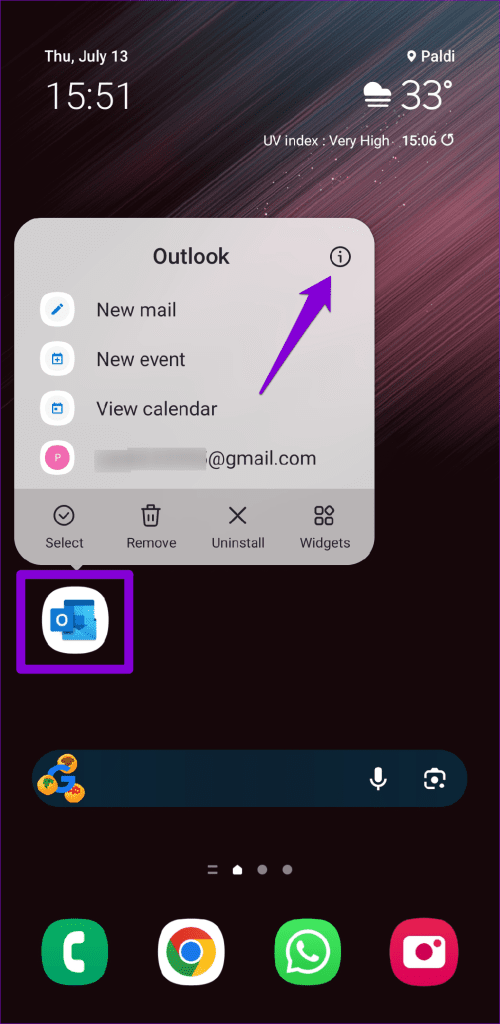
Step 1: Long press on the Outlook app icon and tap the info icon from the resulting menu.
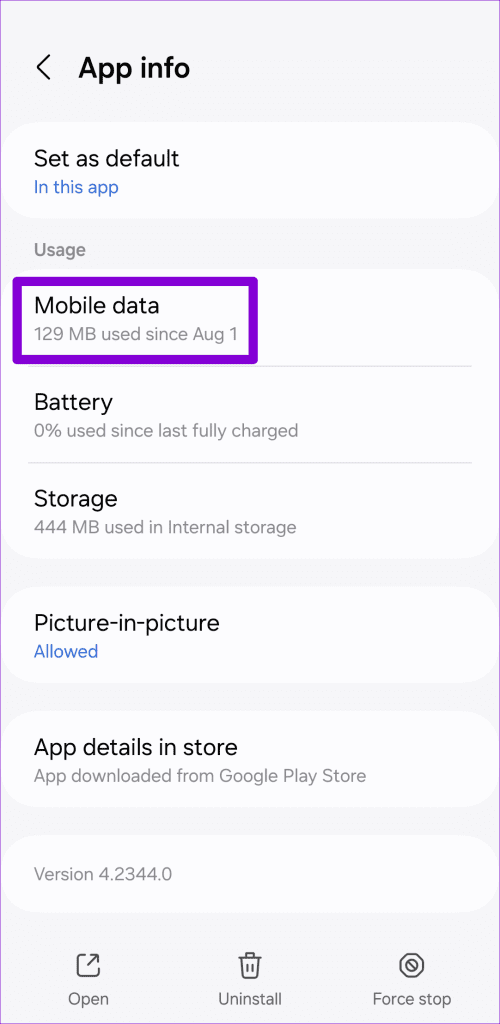
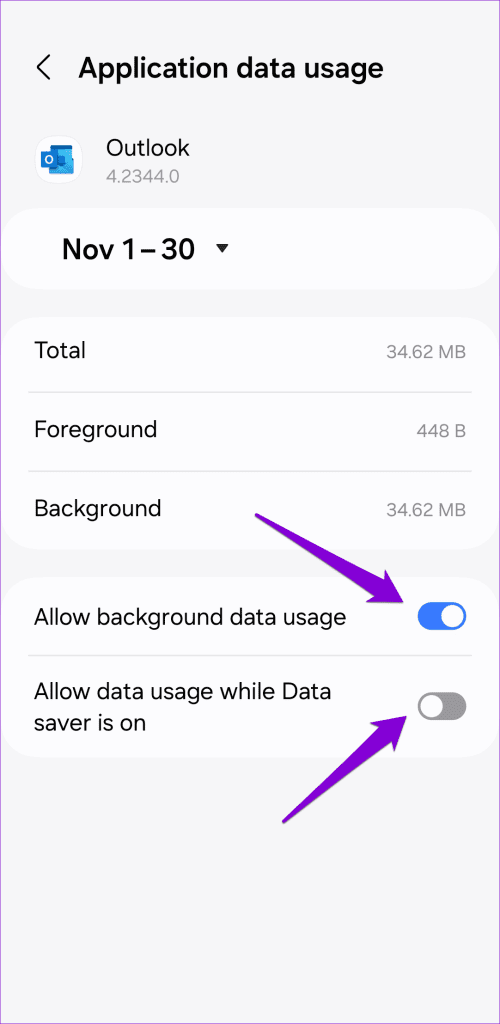
Step 2: Tap on Mobile data and enable the toggles next to Allow background data usage and Allow data usage while Data saver is on .
Fix 6: Remove and Re-add Email Account
Authentication issues with your email account can also prevent Outlook from syncing emails. If that’s the case, removing your account from the app and adding it back should help. Here’s how to do it.
Step 1: In the Outlook app, head to the settings menu.
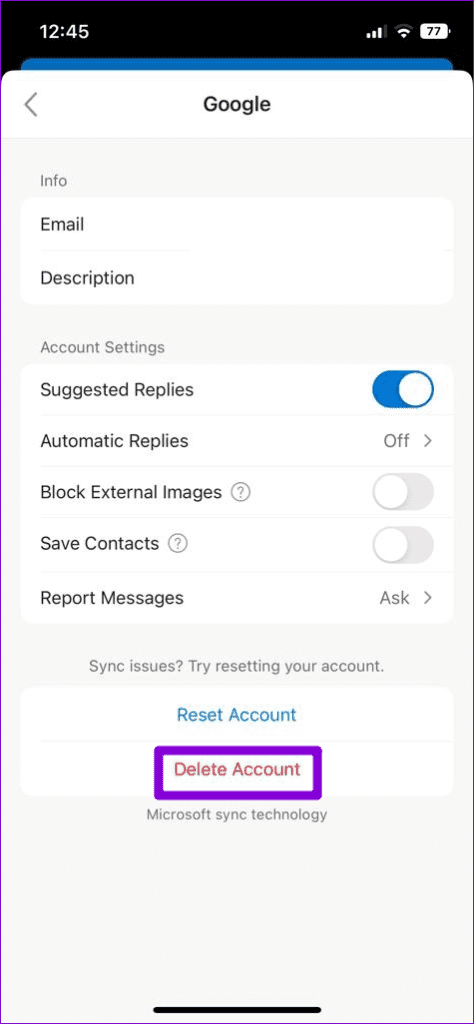
Step 2: Select your email account and tap the Delete Account option in the following menu.
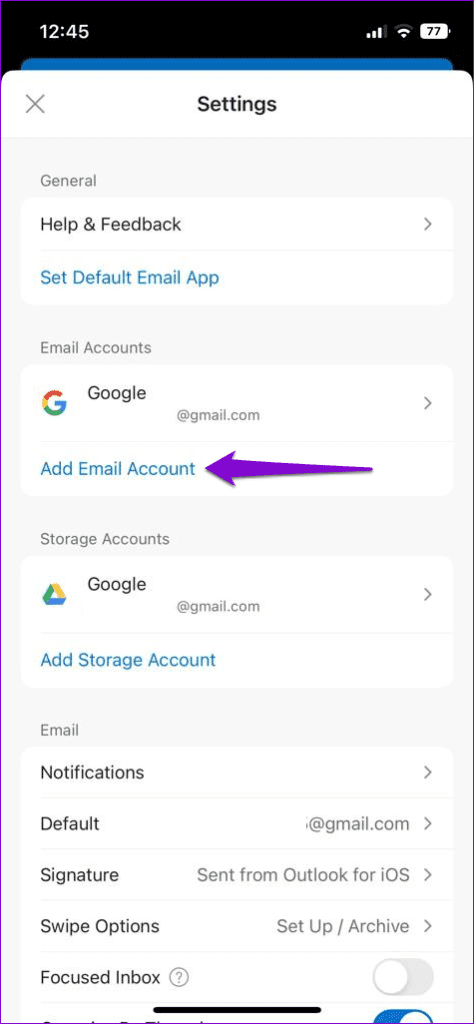
Step 4: Return to the Settings menu and tap on Add Email Account to sign in with your account.
Fix 7: Clear App Cache
Another thing you can do when Outlook is not downloading or updating new emails on your Android is clear the app cache. This will remove any temporary files that may be causing the issue.
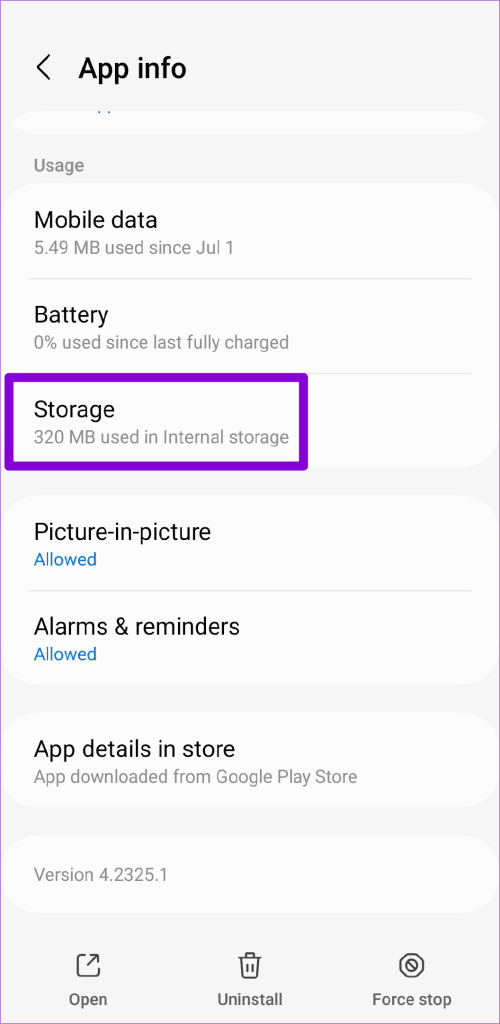
Step 1: Long press on the Outlook app icon and tap the info icon from the resulting menu.
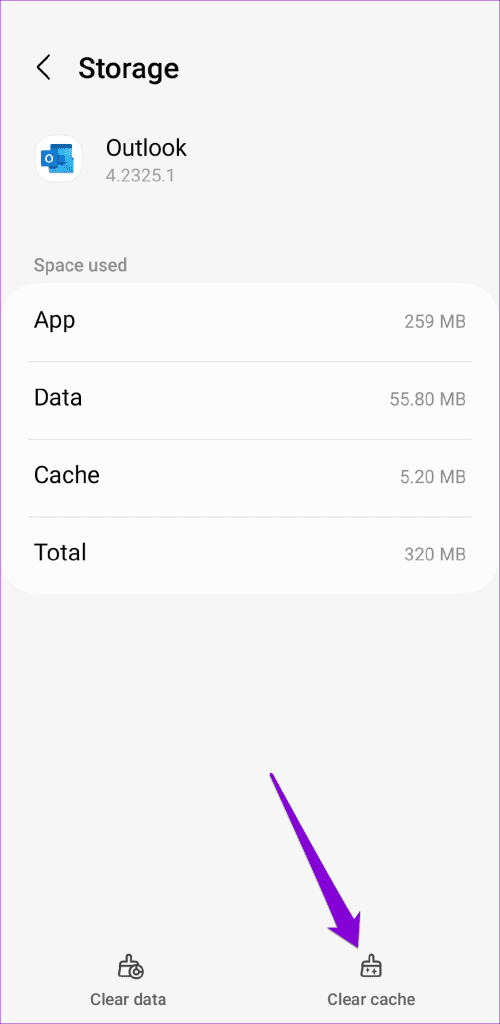
Step 2: Go to Storage and tap the Clear cache option at the bottom.
Was this helpful?
Submit Cancel
Thanks for your feedback!
Keep reading