
Android
3 Ways to Fix Photos and Videos Not Loading on Facebook Messenger
Facebook Messenger not loading any photos or videos on your phone? Apply these troubleshooting tips to fix the issue.
By Pankil Shah
Quick Tips
In most cases, updating the Facebook and Messenger app should get the photos and videos to load as usual.
Consider disabling the data saver option in Messenger as it can prevent media from loading at times.
You may have to uninstall and reinstall the Messenger app if nothing else works.
Try Basic Fixes
Update the Messenger app: Using an outdated version of the Facebook app on your Android or iPhone can trigger the “This media is no longer available” error in the Messenger app. Hence, it’s a good idea to update the Facebook app from the Play Store (Android) or App Store (iPhone) . While you are at it, you should also update the Messenger app.
Check if Messenger is down: Another reason why you may have trouble loading media or messages is if the Facebook Messenger servers are down. You can visit a website like Downdetector to check if others are experiencing similar issues.
Fix 1: Allow Facebook Messenger to Use Mobile Data (iPhone)
On iOS, you can manage mobile data permissions for each app separately. If you’ve inadvertently disabled mobile data access for the Messenger app, it won’t load photos and videos when you’re not connected to Wi-Fi. Here’s how you can change that.
Step 1: Open the Settings app on your iPhone.
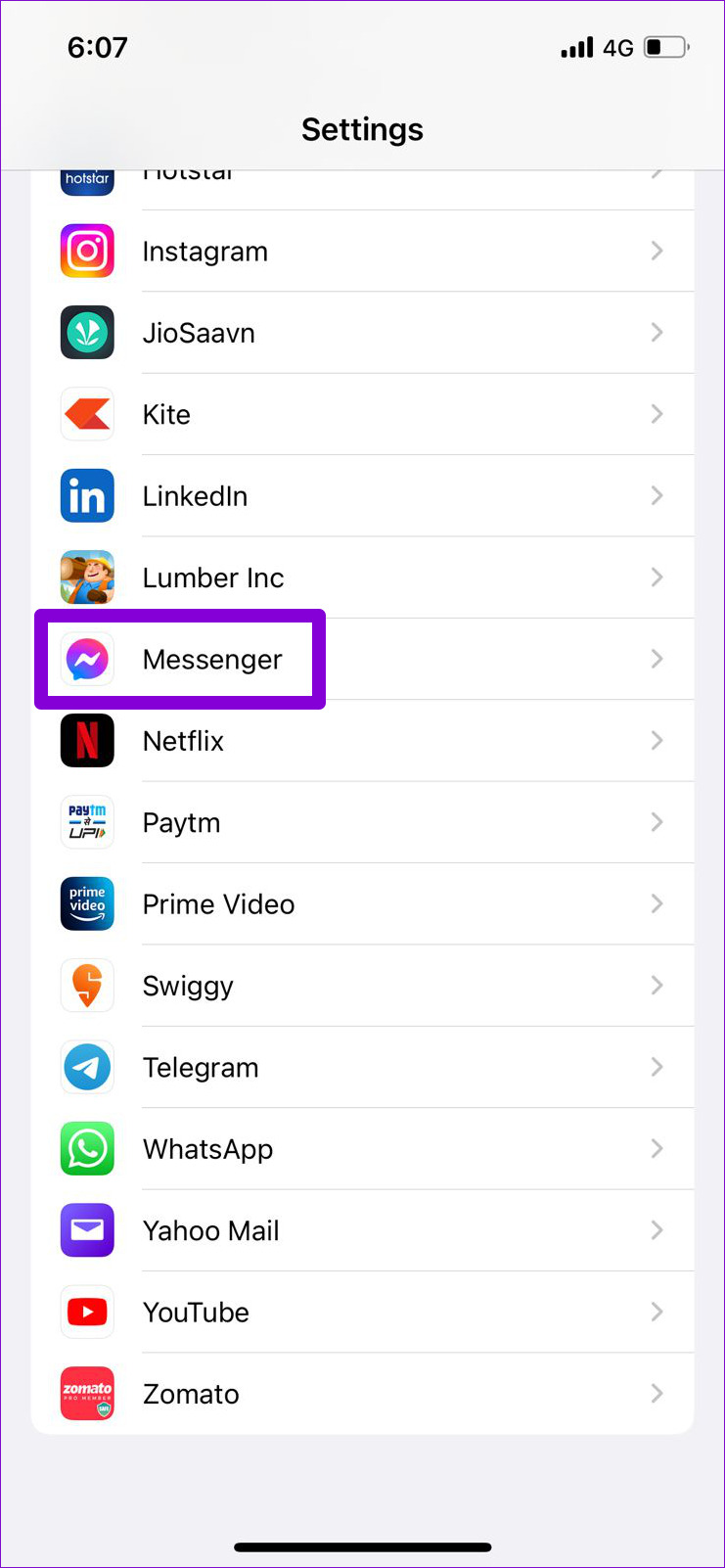
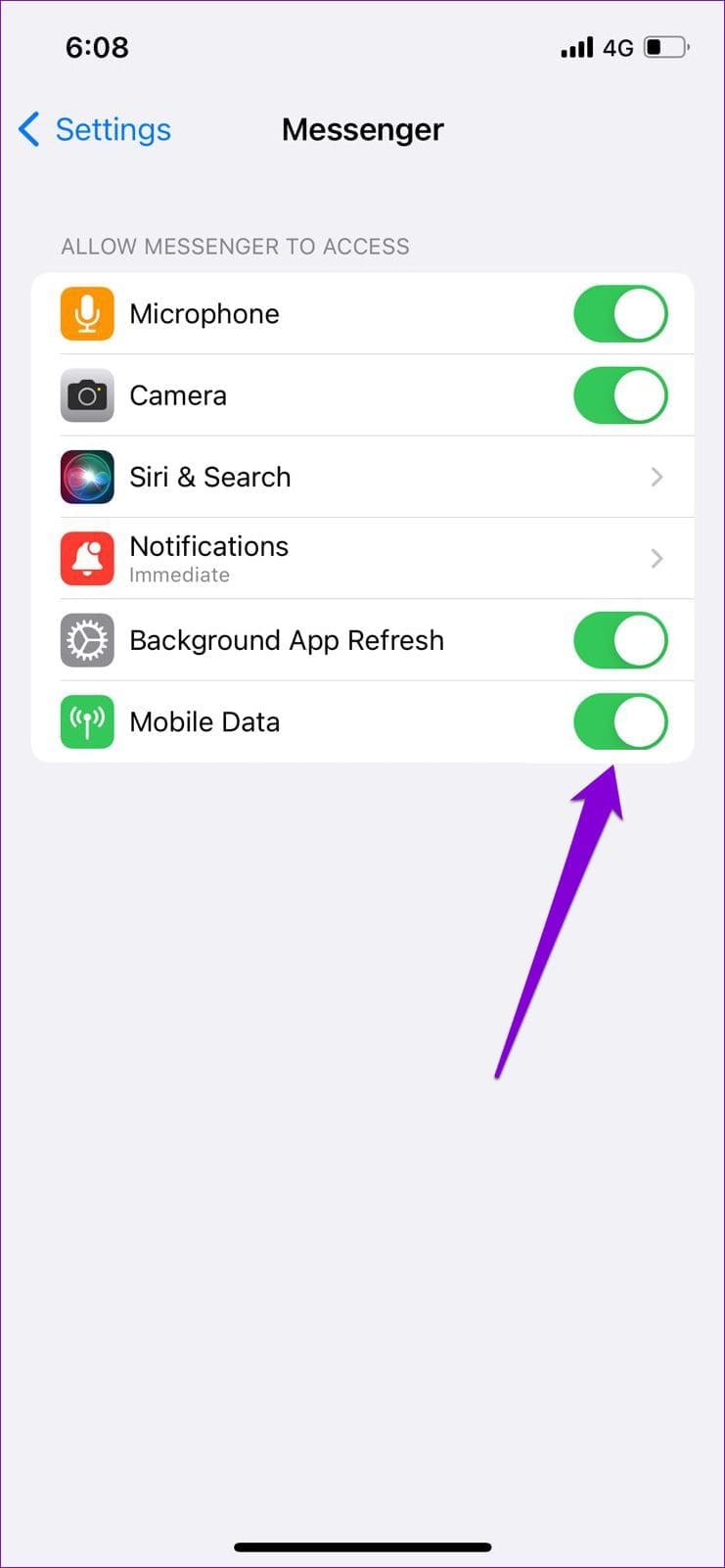
Step 2: Scroll down to tap on Messenger and turn on the toggle on the switch next to Mobile Data .
Fix 2: Disable Messenger Data Saver Mode (Android)
Messenger for Android includes the Data Saver feature, which is useful if you have a limited data plan . However, this feature occasionally prevents the app from downloading photos and videos. You can try disabling it to see if it helps.
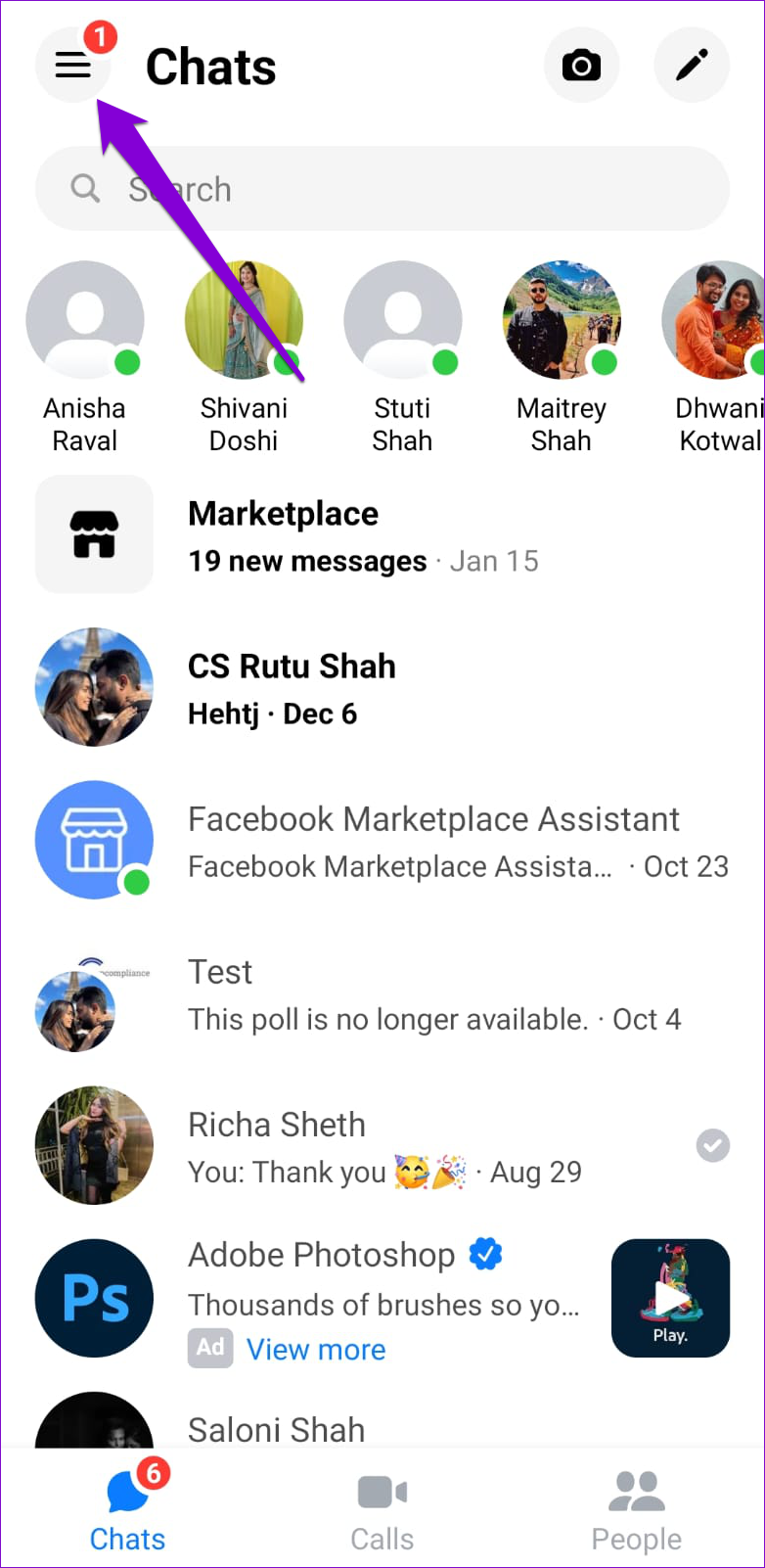
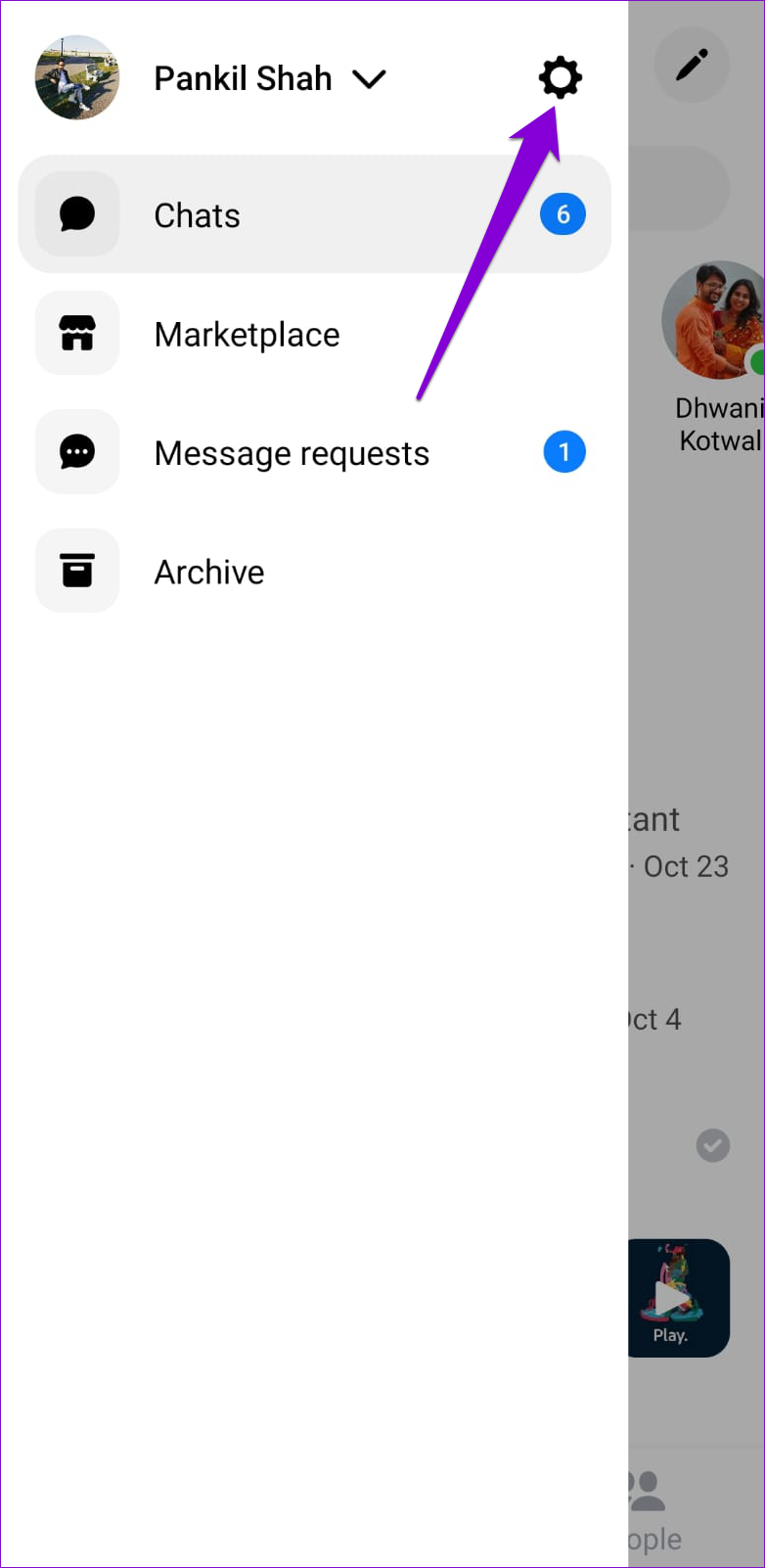
Step 1: Open up Messenger on your phone. Tap on your profile picture in the top left corner and then tap the gear icon .
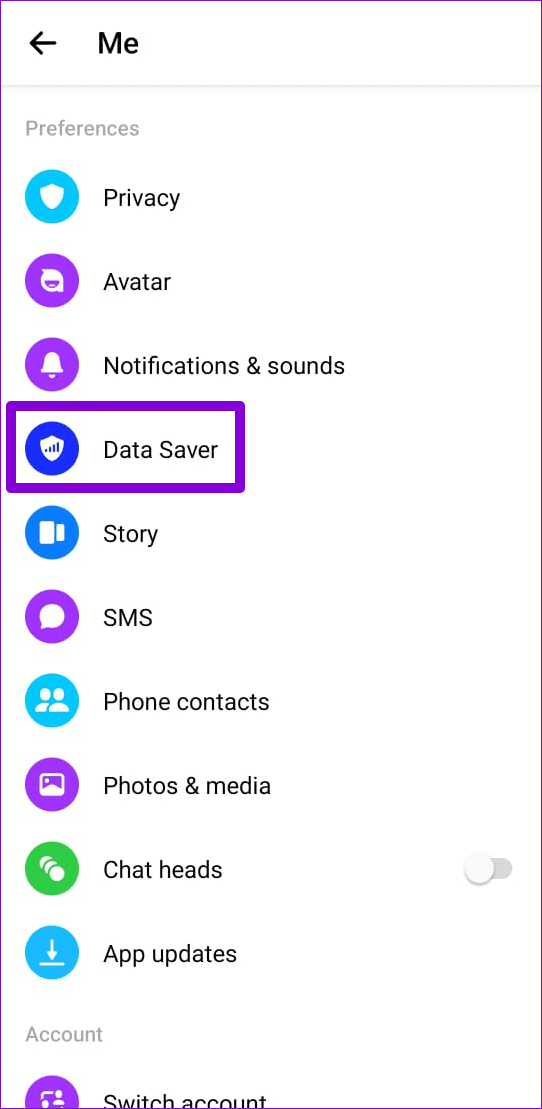
Step 2: Under Preferences, tap on Data Saver and disable it from the following menu.

Fix 3: Uninstall and Reinstall the Messenger App
If nothing else works, you can consider reinstalling the Messenger app on your Android or iPhone. Several users on an Apple Community post reported fixing the photos and videos not loading issue in Messenger with this trick. You can also give it a try.
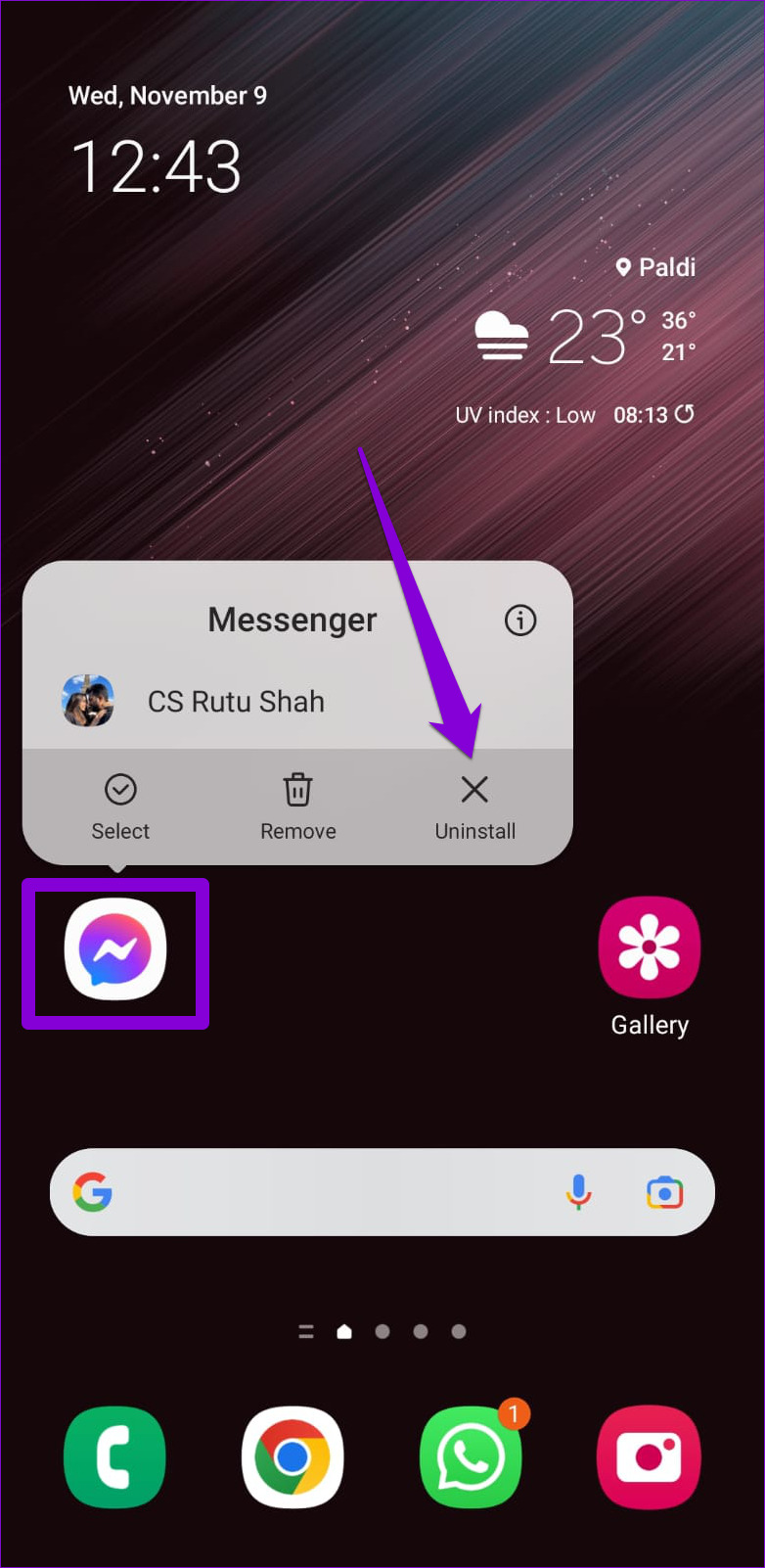
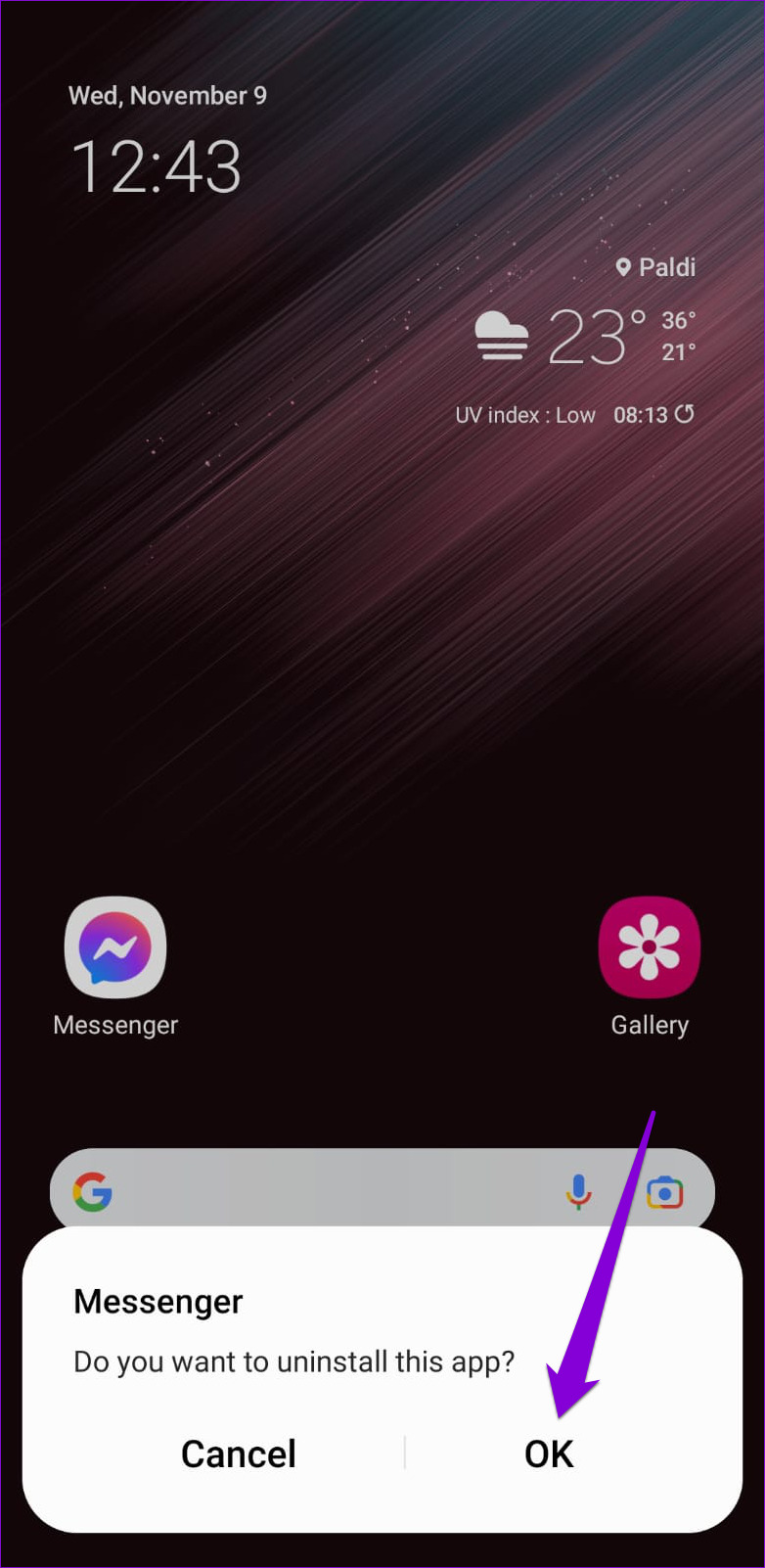
To delete Messenger from your Android, long-press on its app icon and select Uninstall . Then, tap OK to confirm.
If you’re using Messenger on your iPhone, press and hold its app icon and select Remove App from the resulting menu. Select Delete App when prompted.
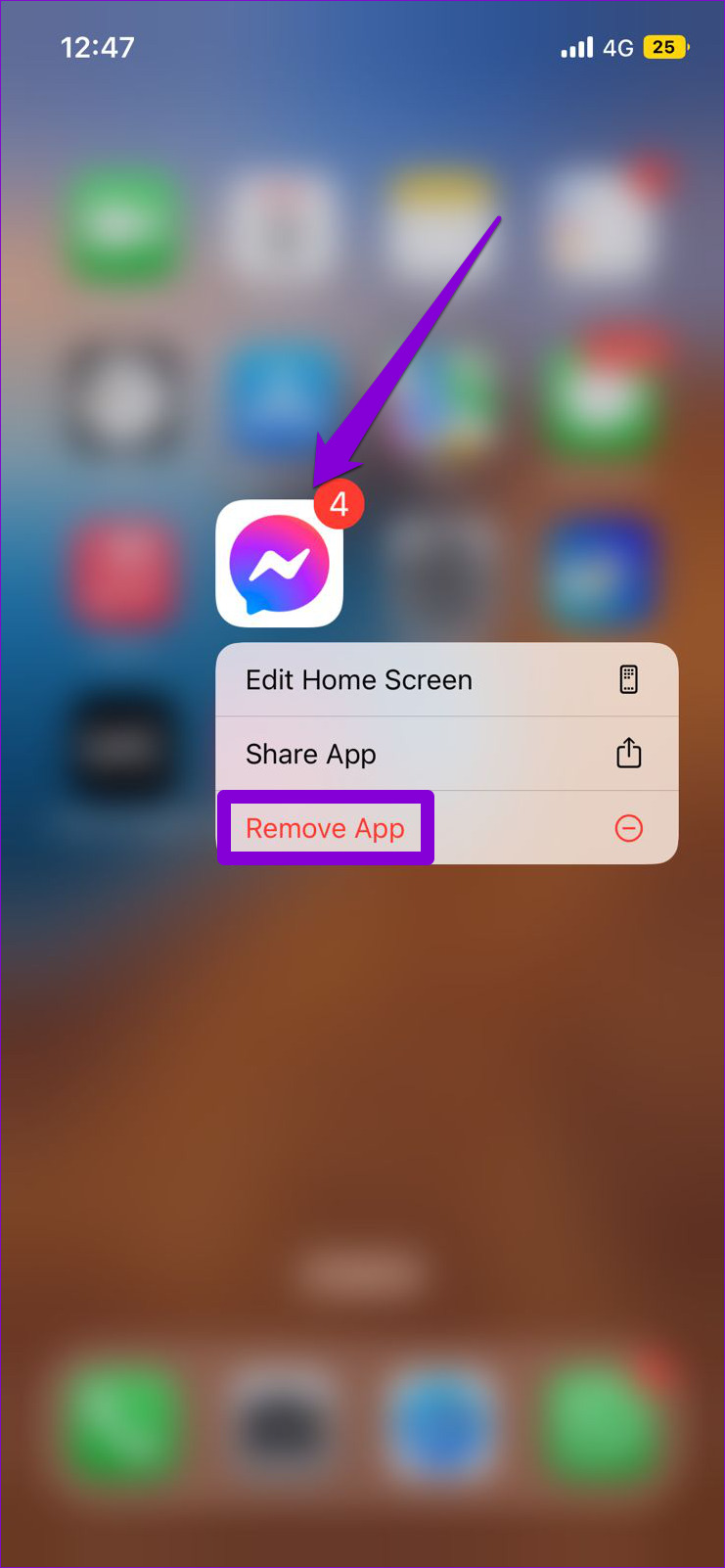
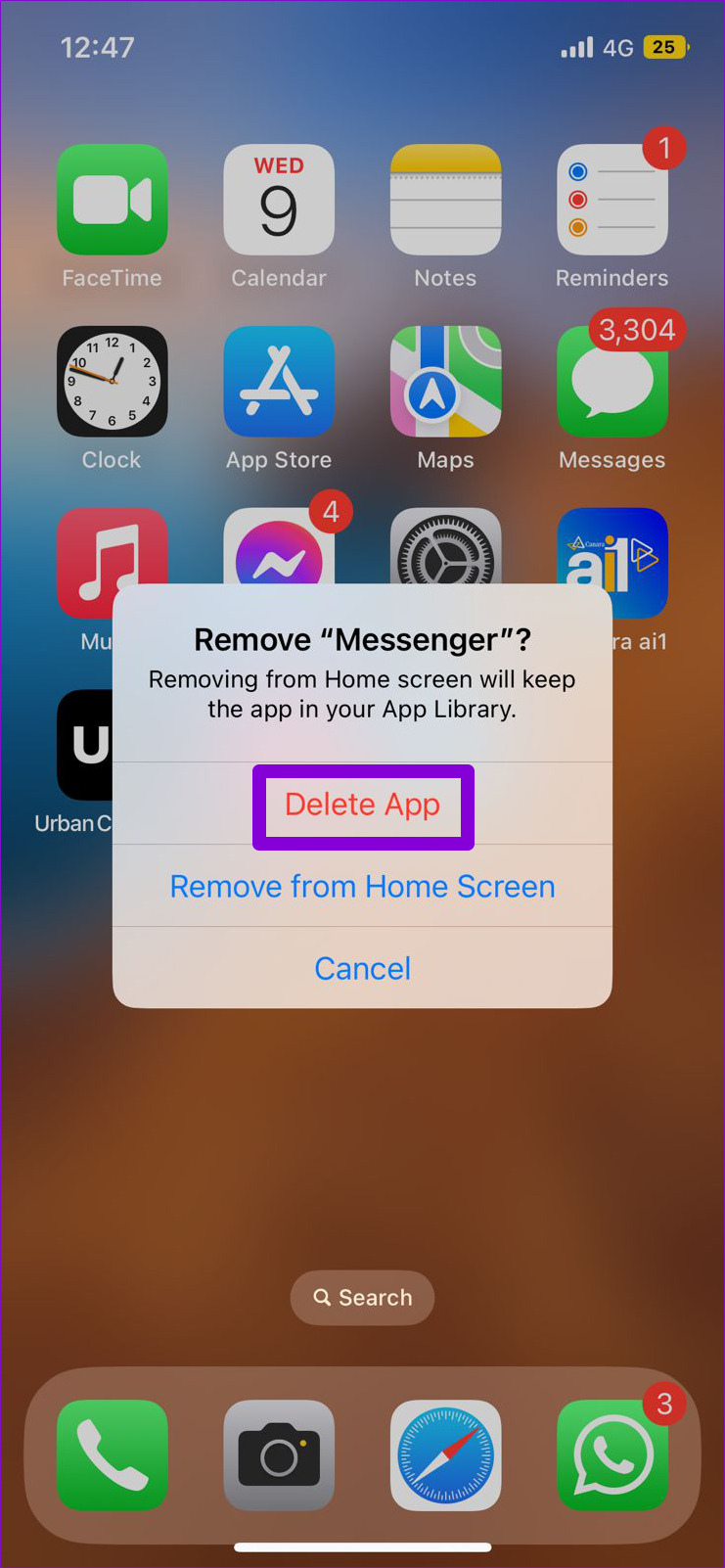
Once removed, head over to the Play Store or App Store to download the Messenger app. After that, you should not encounter any issues.
Was this helpful?
Submit Cancel
Thanks for your feedback!
Keep reading
![9 Pet Care Apps in 2024 [Free and Paid]](https://bcdn.seocloud.biz/seo-articles/82a3ce5485f5bc506feb1226aca9bcb4/cover.jpg)