Android
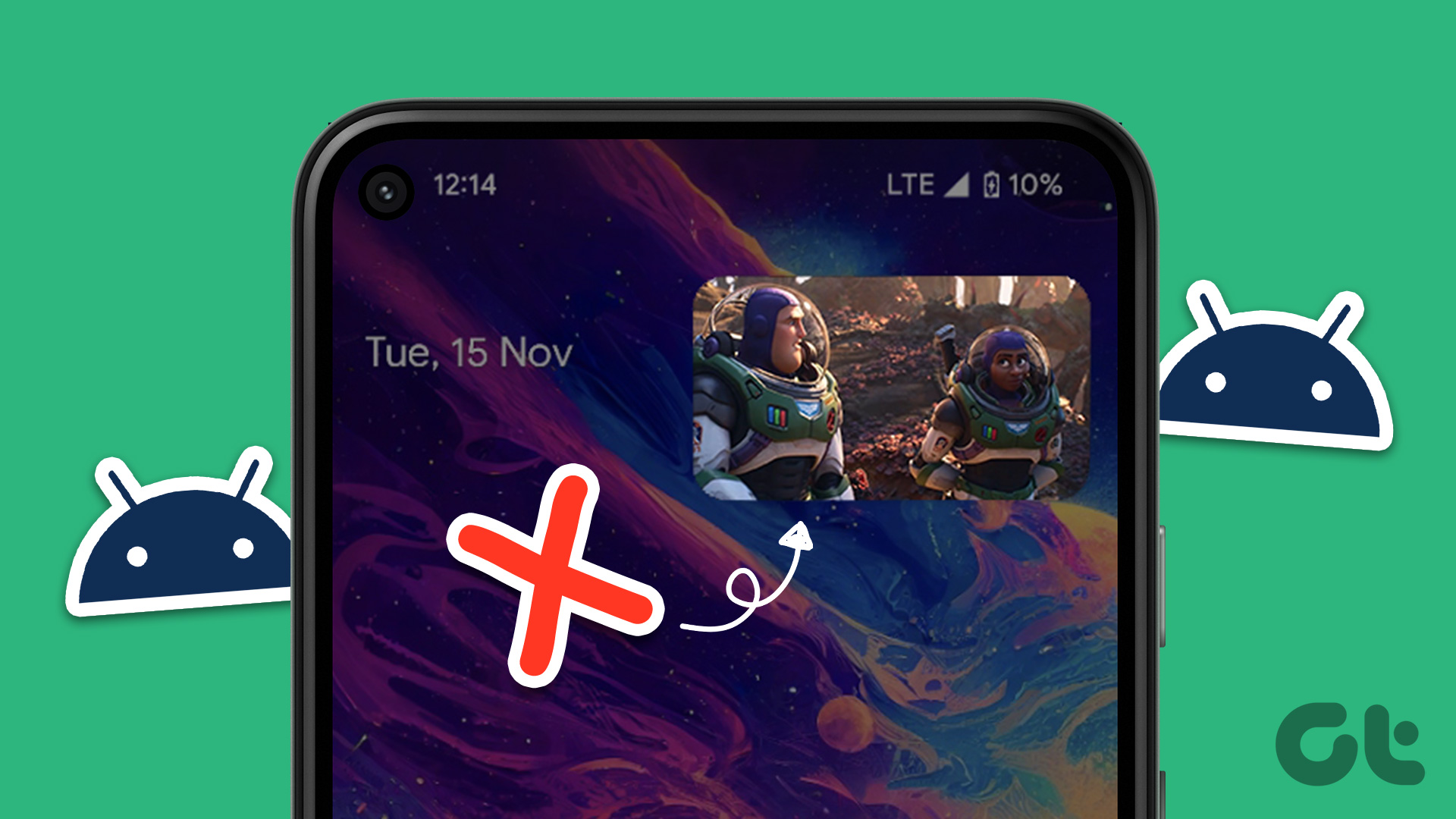
4 Ways to Fix Picture-In-Picture Mode Not Working on Android
Unable to use picture-in-picture mode on your Android phone? Follow these tips to get it working again.
By Pankil Shah
Quick Tips
Ensure you have enabled the picture-in-picture permissions for your apps on your phone.
If the picture-in-picture mode is not working in a specific app, confirm that the app supports it.
Try booting your phone into safe mode to check if one of your third-party apps is causing the issue.
Try Basic Fixes
Update the problematic app: If the picture-in-picture mode is not working due to a buggy app build, you should be able to fix it by updating the app.
Install software updates: Another thing you should do is install pending Android updates. This should help fix issues caused by a buggy or outdated build.
Fix 1: Allow Apps to Create a Picture-In-Picture Window
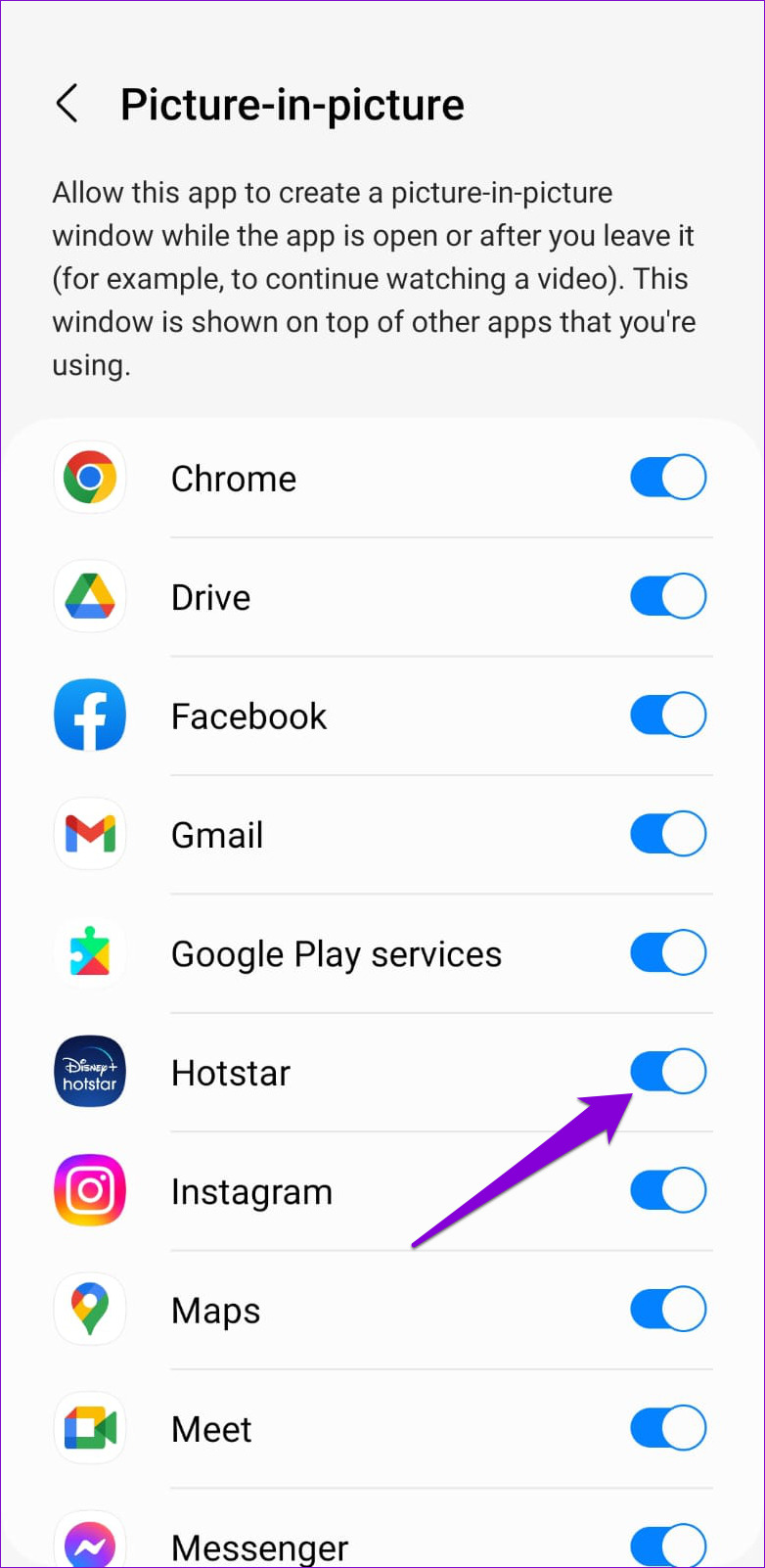
Apps on Android require special permissions to create a picture-in-picture window. To start, you need to ensure that your preferred apps have the required permission to use this feature. Here’s how to check.
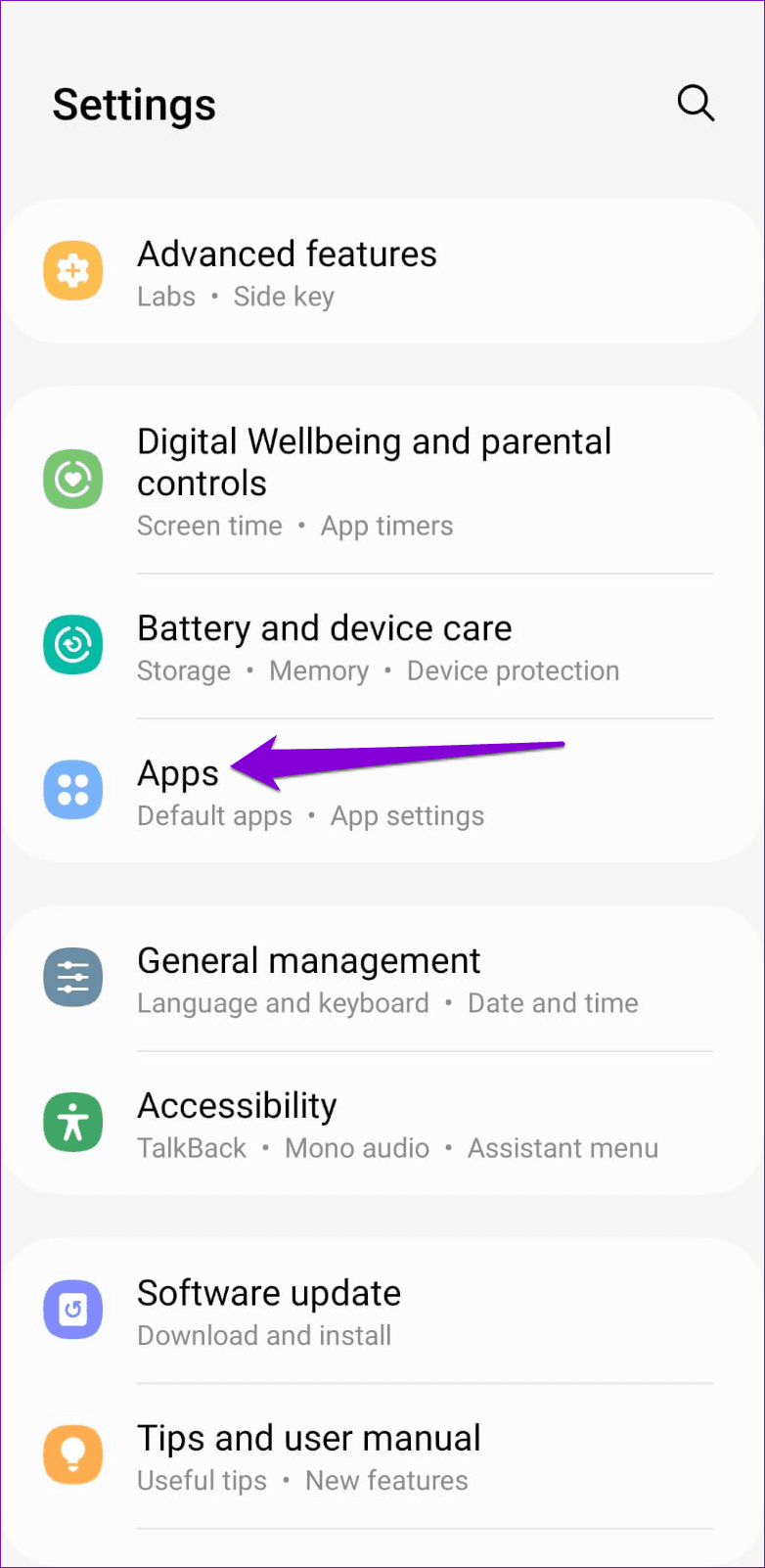
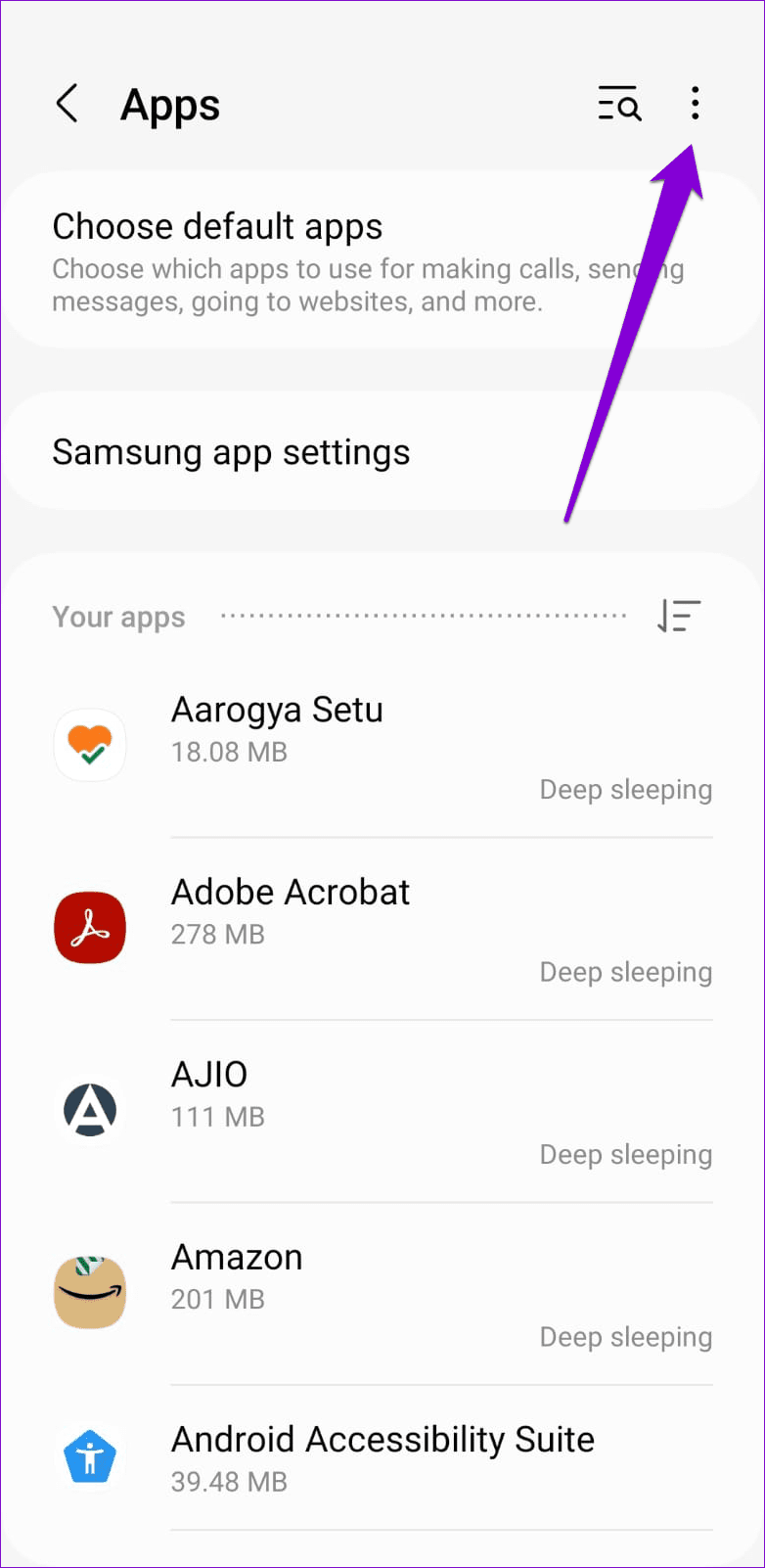
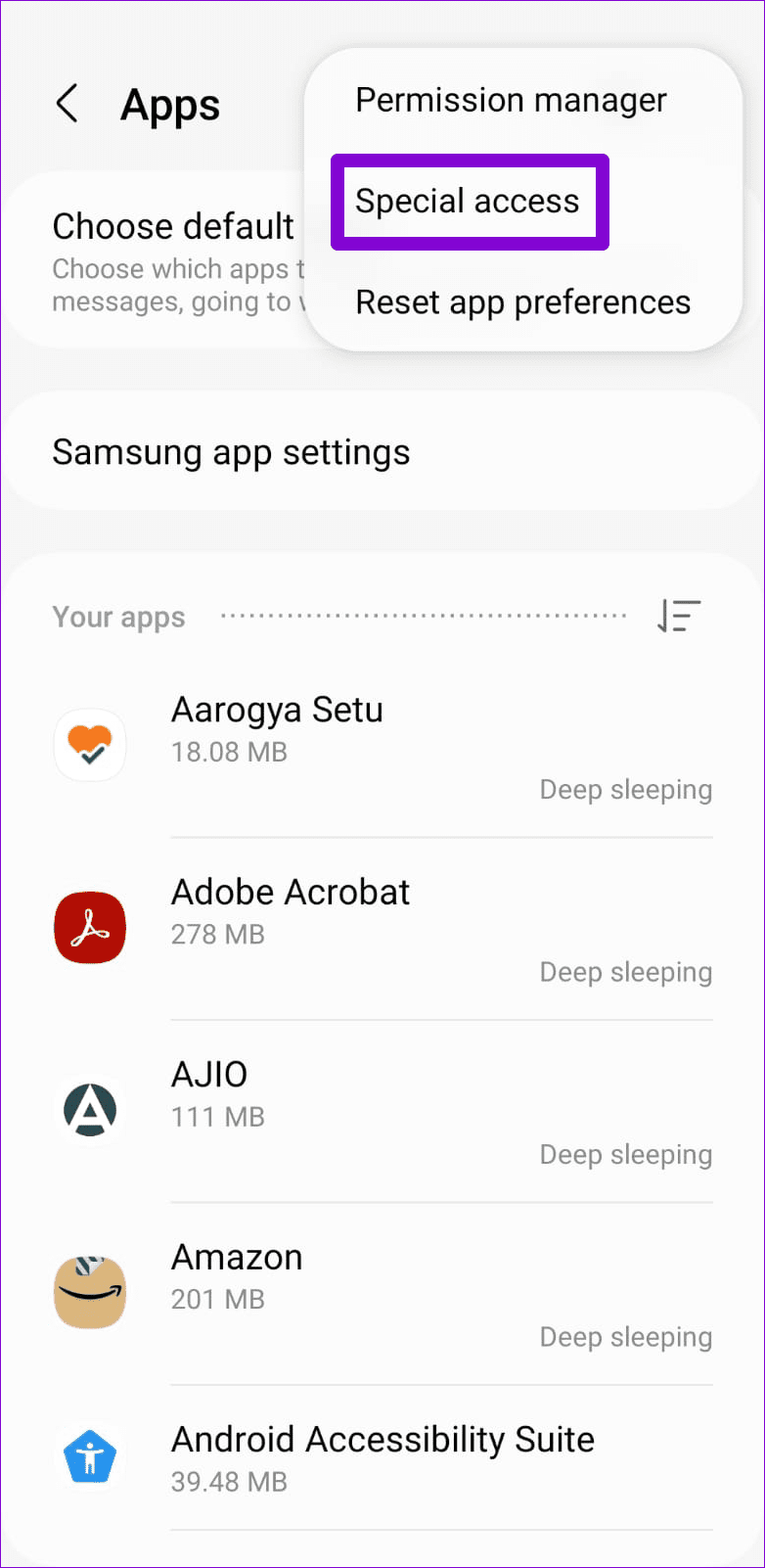
Step 1: Open the Settings app and navigate to Apps . Tap the three-dot menu icon in the top right corner and select Special access .
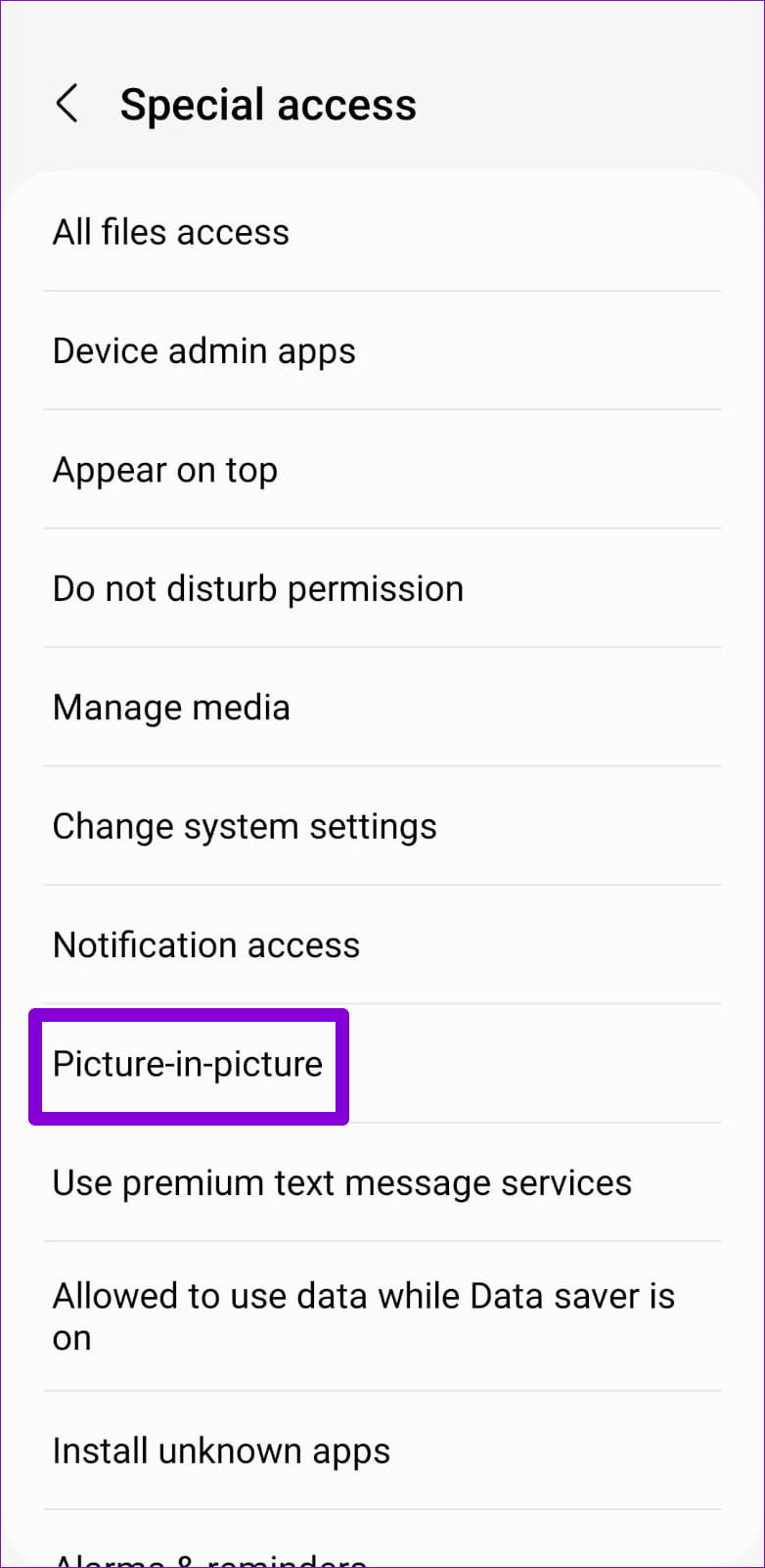
Step 2: Tap on Picture-in-picture .
Step 3: On the app list, use the toggles to allow your preferred apps to create a picture-in-picture window.
Fix 2: Enable Picture-In-Picture From App’s Settings
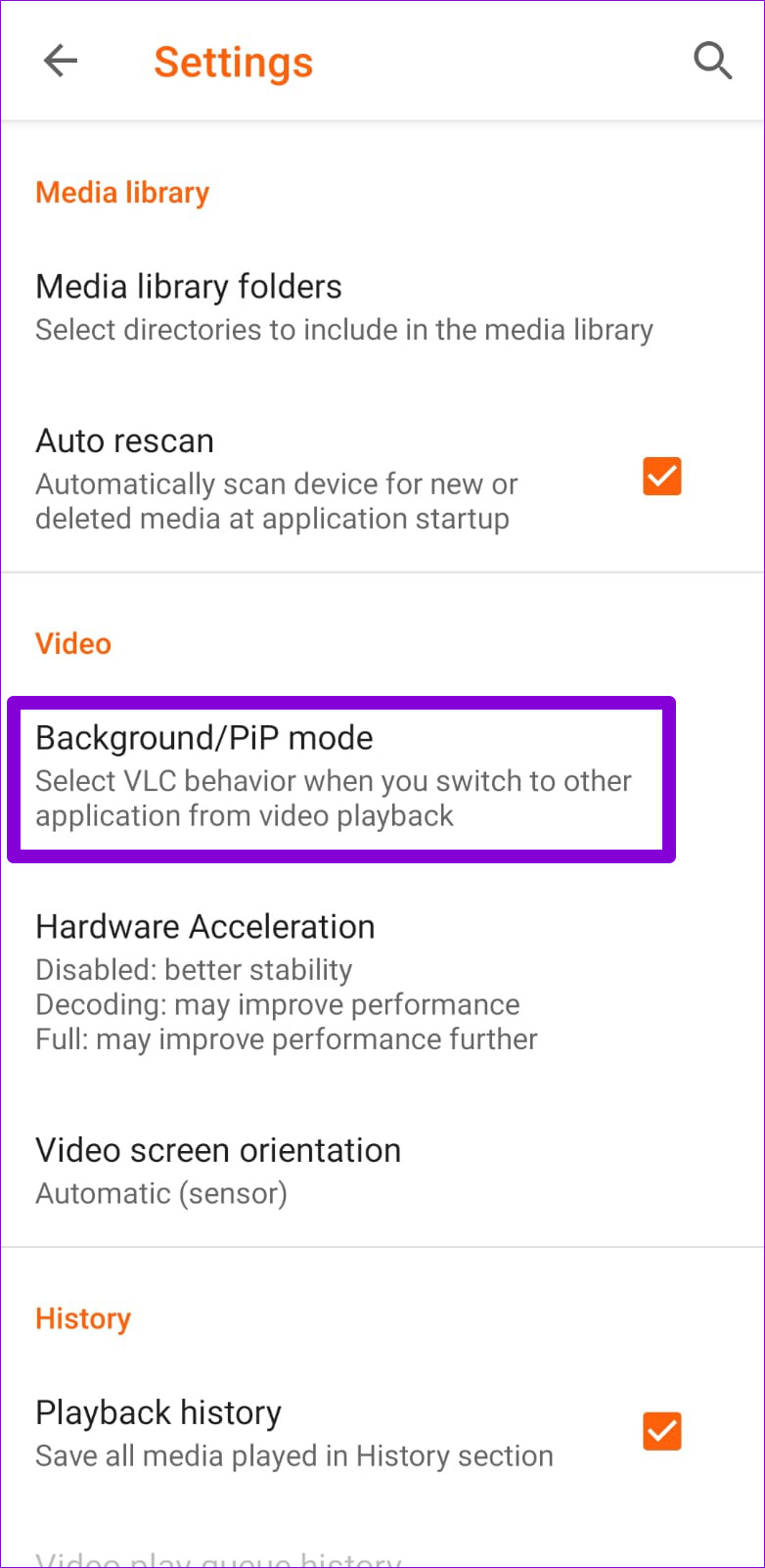
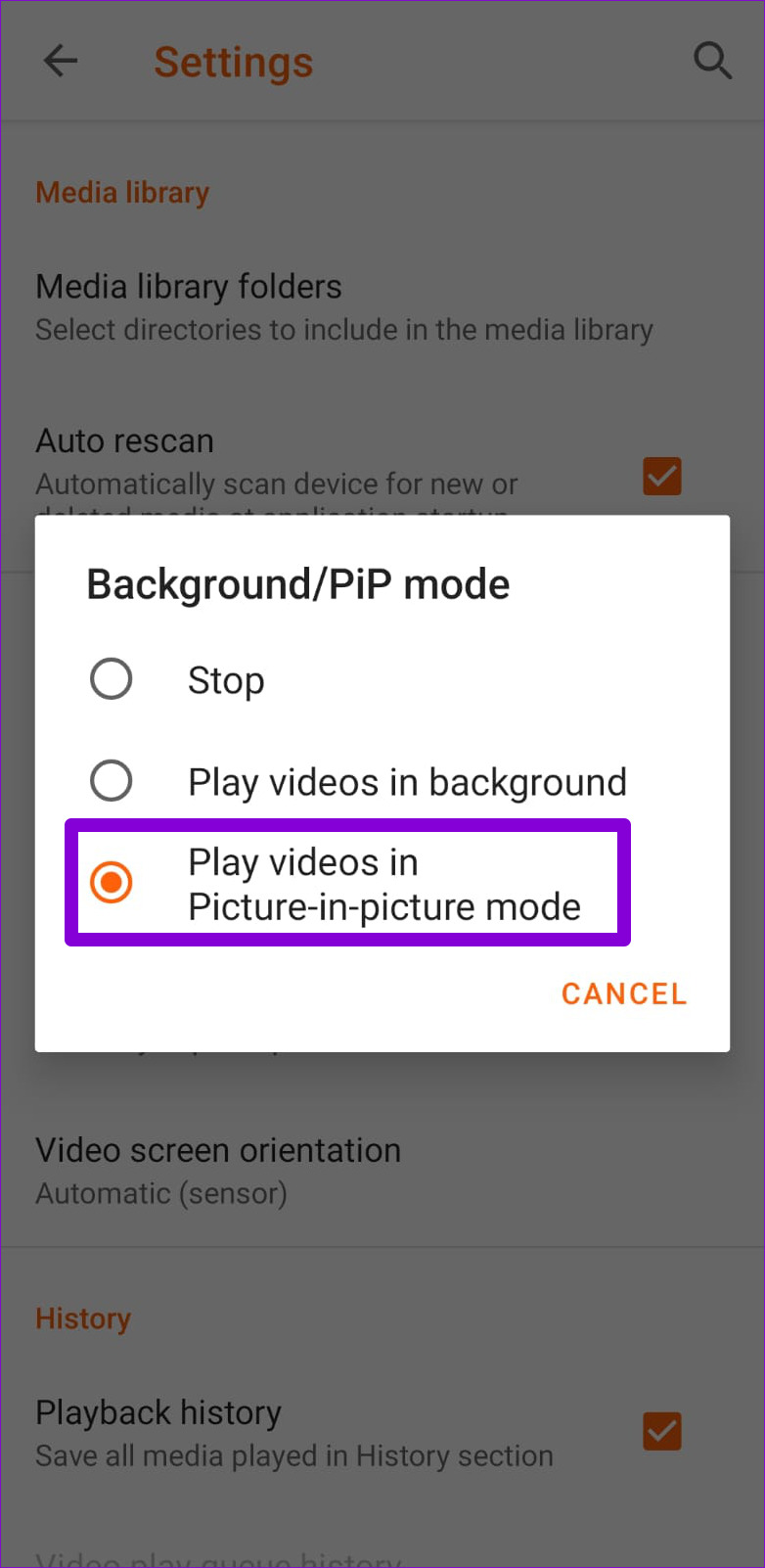
Aside from system settings, you should check your app’s settings menu to see if the picture-in-picture mode is disabled from there. Several apps, including YouTube, VLC, and others, let you enable or disable the picture-in-picture mode directly from the in-app settings menu.
Go through your app’s settings page and enable picture-in-picture mode from there.
It’s worth noting that some streaming apps (for example, Disney+) do not allow you to view content in picture-in-picture mode unless you have a premium account. For YouTube, you can only watch videos in picture-in-picture mode for free if you live in the United States. If you live outside of the US, you must have a YouTube Premium account to use the picture-in-picture mode.
Fix 3: Clear Cache for the Problematic App
If the issue with picture-in-picture mode only affects a single app, the problem is likely to be with the app rather than your phone. You can try clearing cache data for the problematic app to see if that helps.
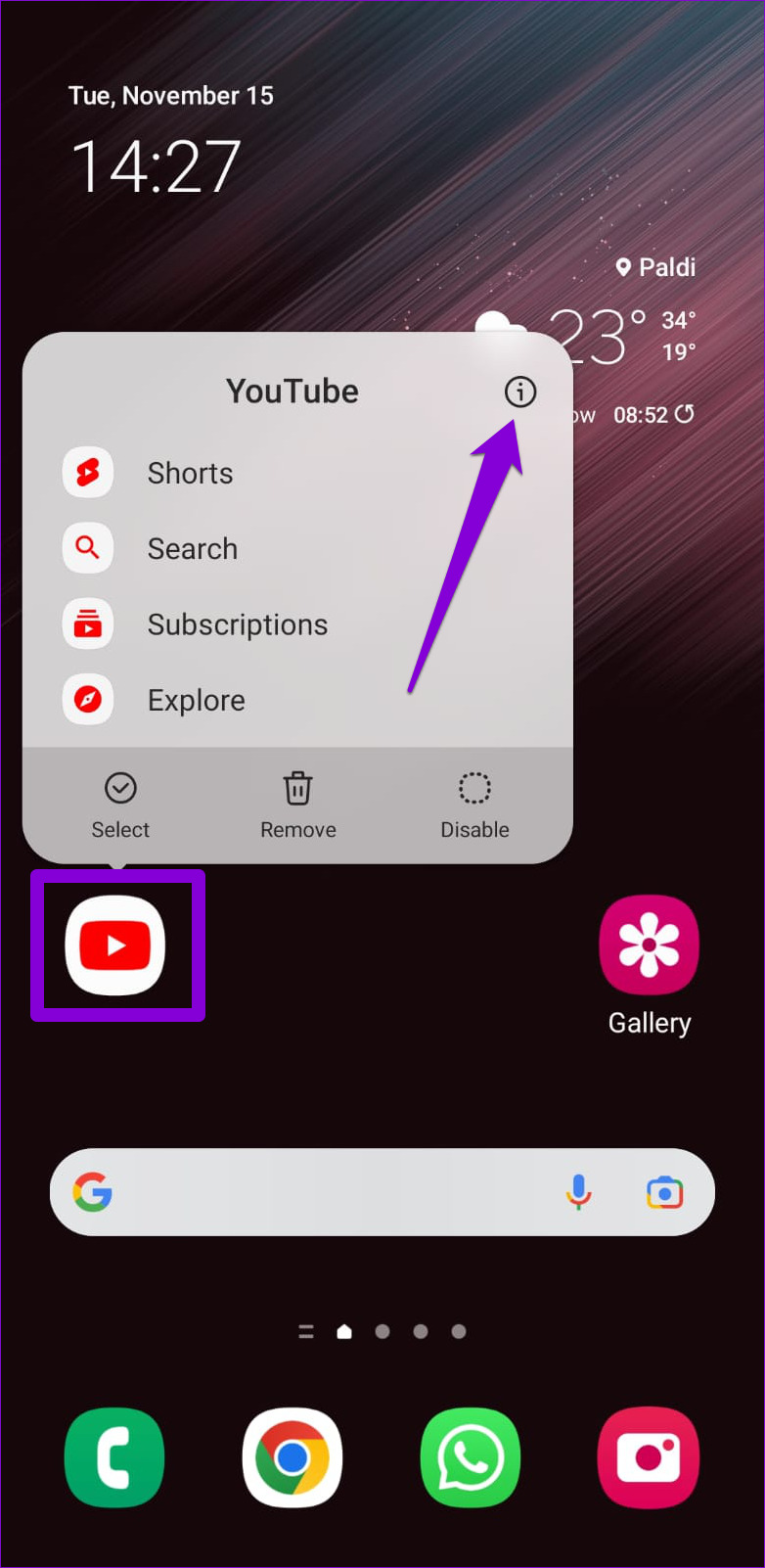
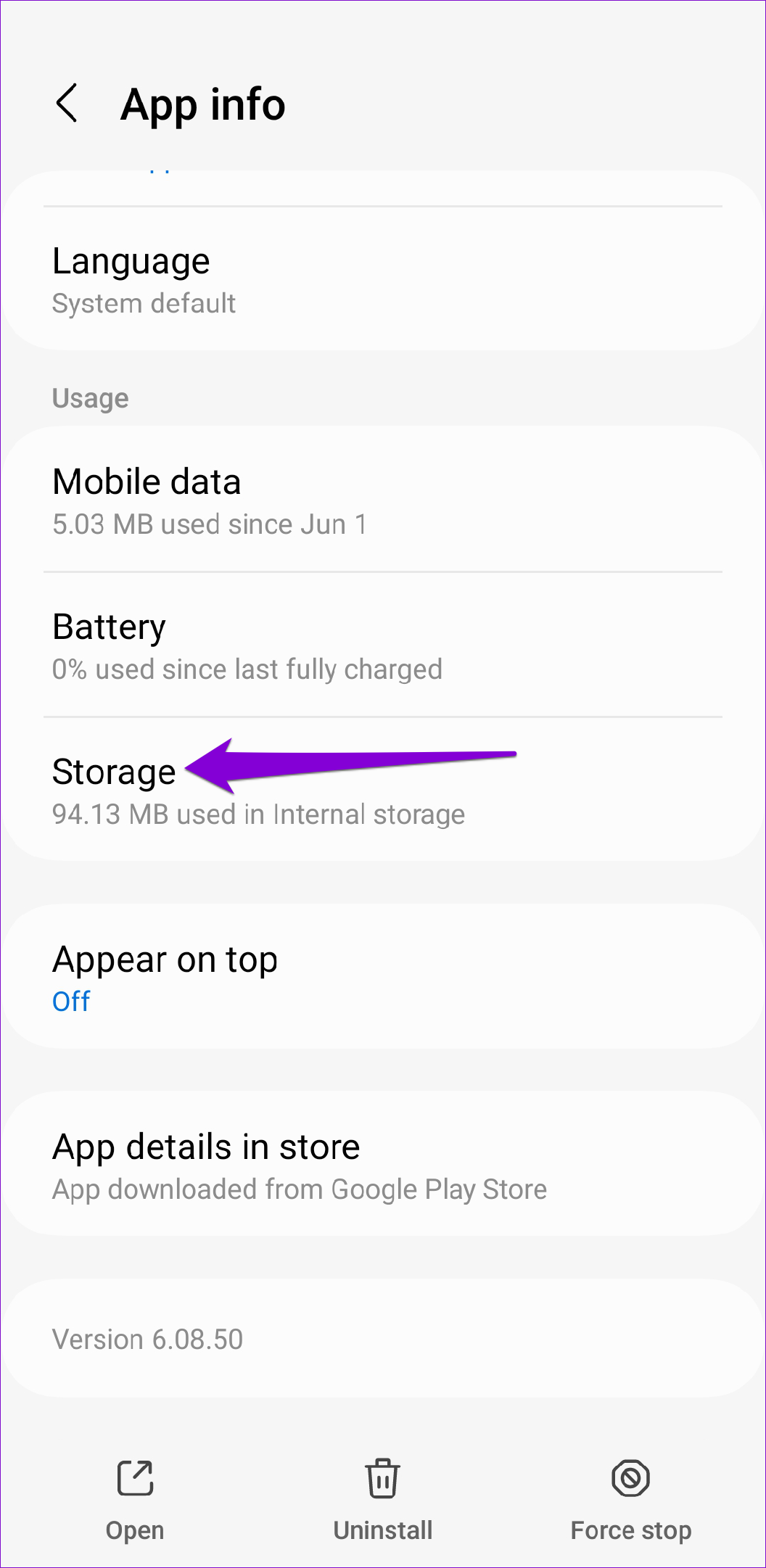
Step 1: Long-press on your app and tap the info icon from the menu that appears.
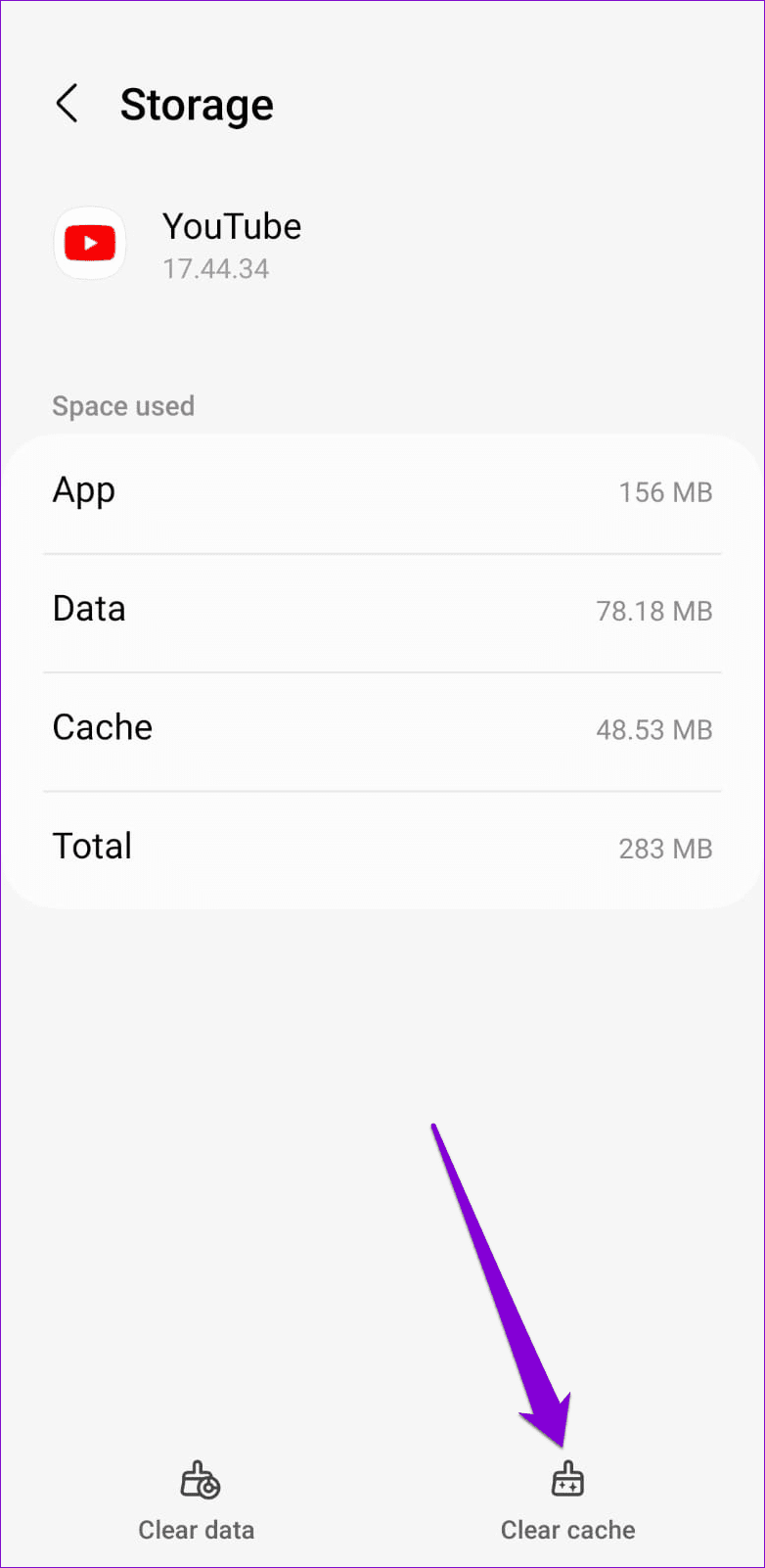
Step 2: Go to Storage and tap the Clear cache option in the bottom right corner.
Fix 4: Try Safe Mode
Several Reddit users managed to fix the YouTube picture-in-picture mode by booting into Safe Mode and turning the feature off and back on. You can also give this method a try if nothing else works.
Since all your third-party apps, such as Netflix, Prime Video, and others, will be unavailable during Safe Mode, you can try toggling the picture-in-picture mode permissions for those apps (refer to steps in Method 1) from the Settings menu.
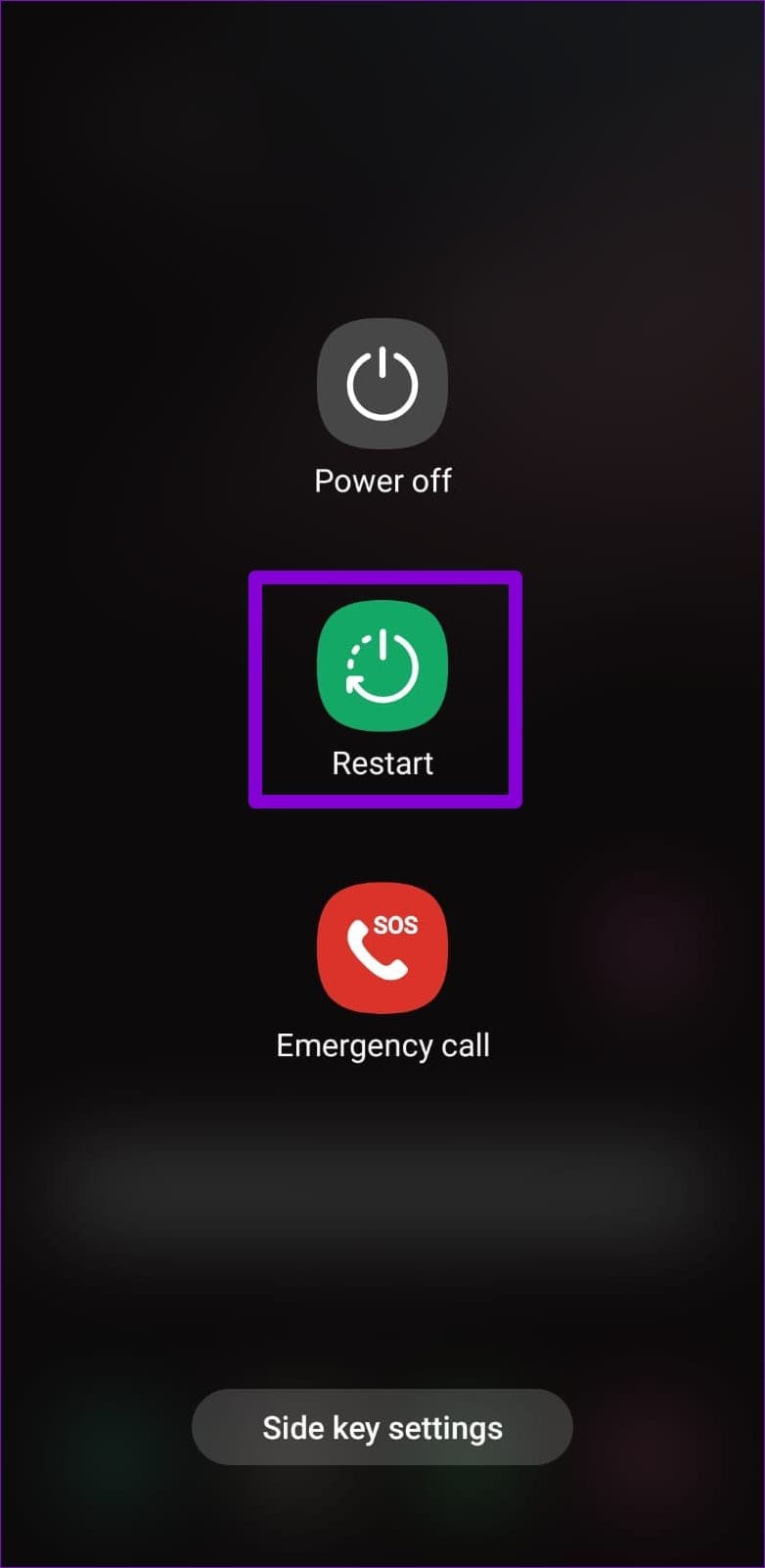
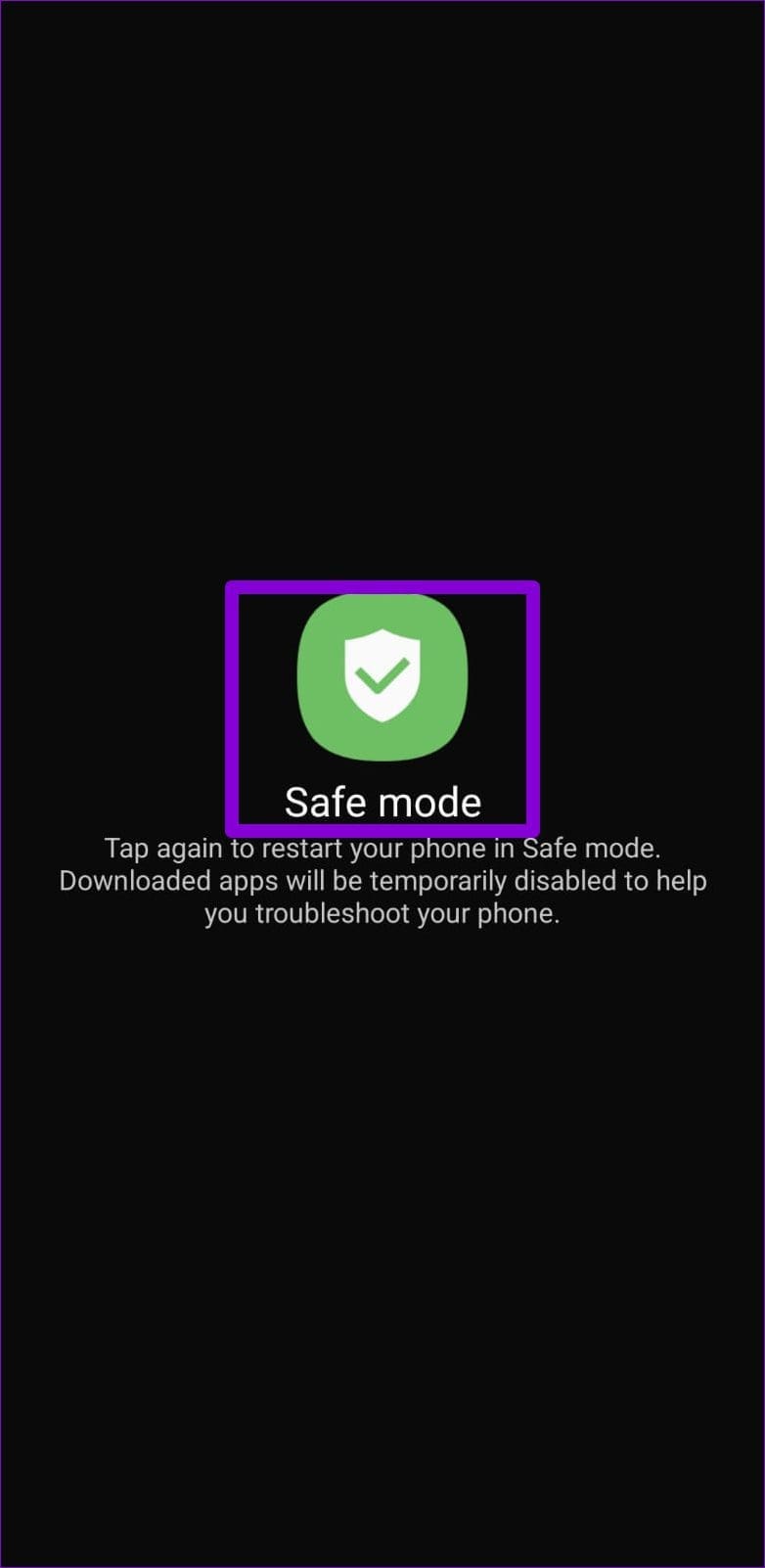
To boot your phone in Safe Mode, press and hold the power button to open the power menu. Long-press on the Restart option and tap the green checkmark to enter Safe Mode.
After toggling the picture-in-picture mode, restart your phone to exit Safe mode and then try using the feature.
Was this helpful?
Submit Cancel
Thanks for your feedback!
Keep reading