Android
3 Fixes for Android Keyboard Not Working in the YouTube App
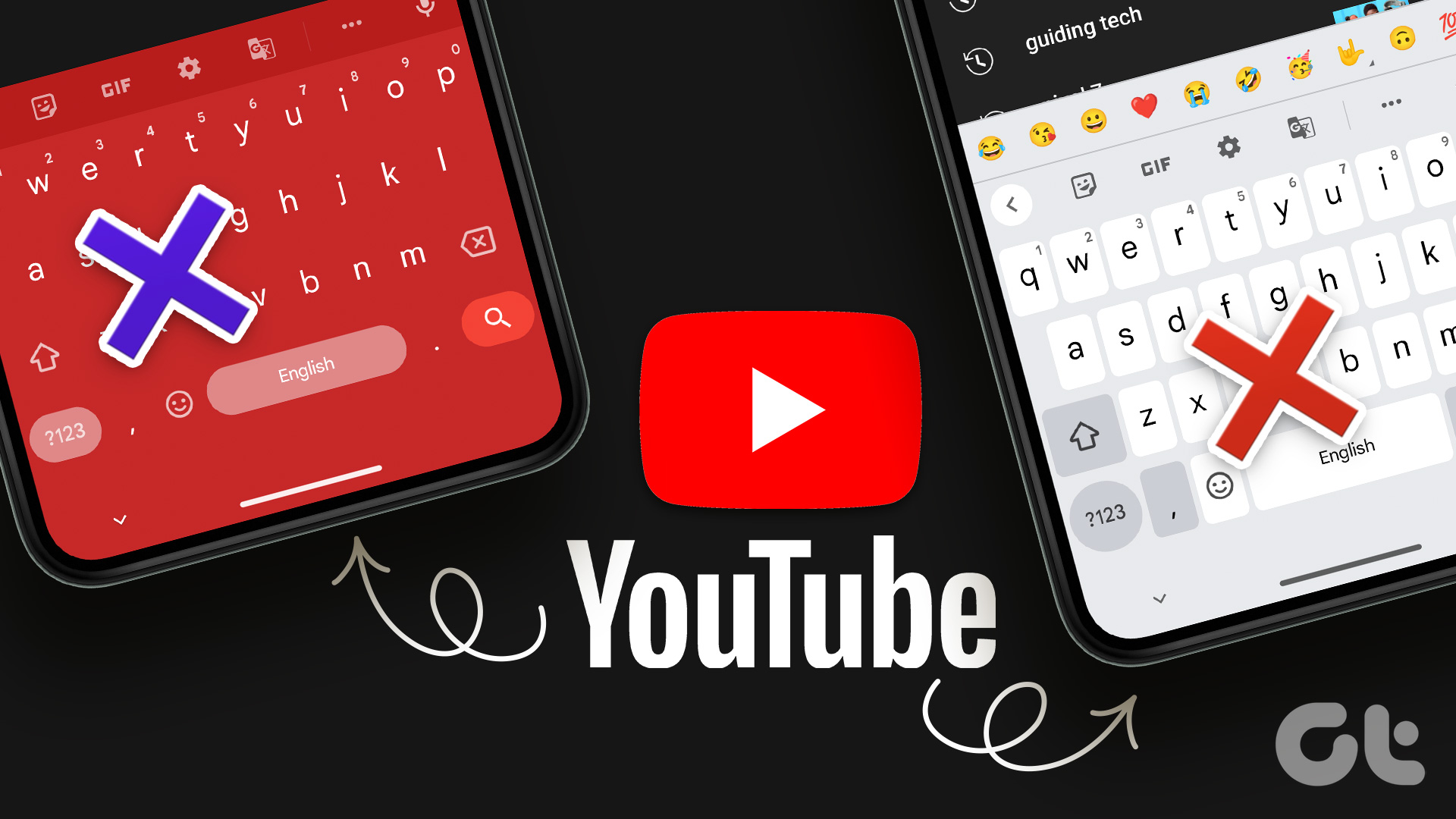
If the Android keyboard is not working in the YouTube app on your Android phone, here are the best solutions to fix the problem.
By Paurush Chaudhary
Quick Tips
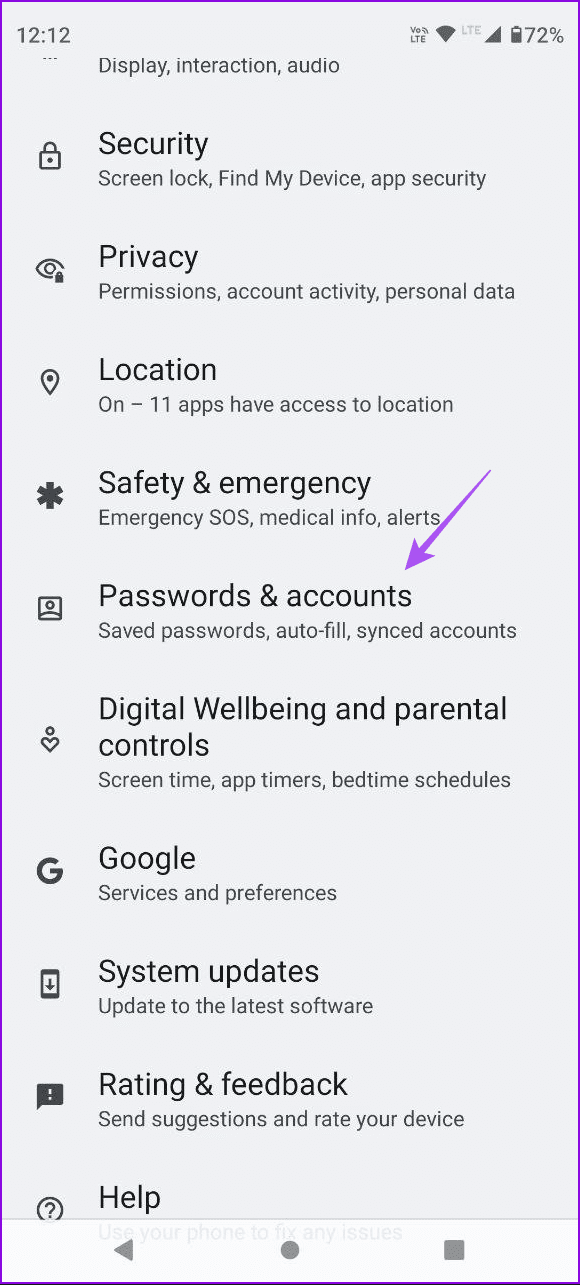
Open Settings > Passwords and accounts > Google account > Remove account > Add your Google account again.
Clear the Android keyboard and YouTube app cache on your device.
Open Settings > System > Reset options > Reset > Erase all data (factory reset) > Erase all data.
Basic Fixes
Force quit and relaunch YouTube and Android keyboard: This will give the apps a fresh start on your device.
Update or reinstall the apps: Install the latest version of the apps to eliminate bugs or glitches causing the issue.
Fix 1: Log In Again to Your Google Account
You can log out and log in again to your Android phone. This should fix the issue with the Android keyboard.
Step 1: Open Settings > Passwords and accounts .
Step 2: Tap on your Google account and select Remove account.
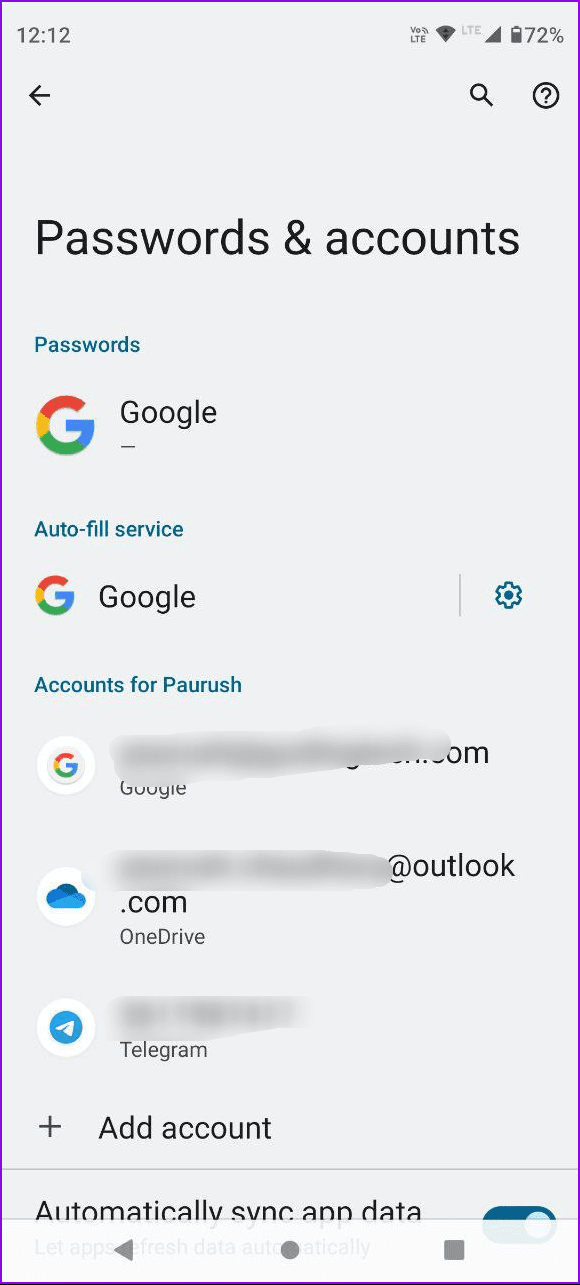
Step 3: Sign in again and check if the problem is solved.
Fix 2: Clear Android Keyboard and YouTube App Cache
To improve your typing experience and suggestions, the Android keyboard collects your data while you use it for different apps. Try clearing the Android keyboard cache to see if it works in the YouTube app. We also suggest the same for the YouTube app.
Step 1: Open Settings > Apps > All Apps .
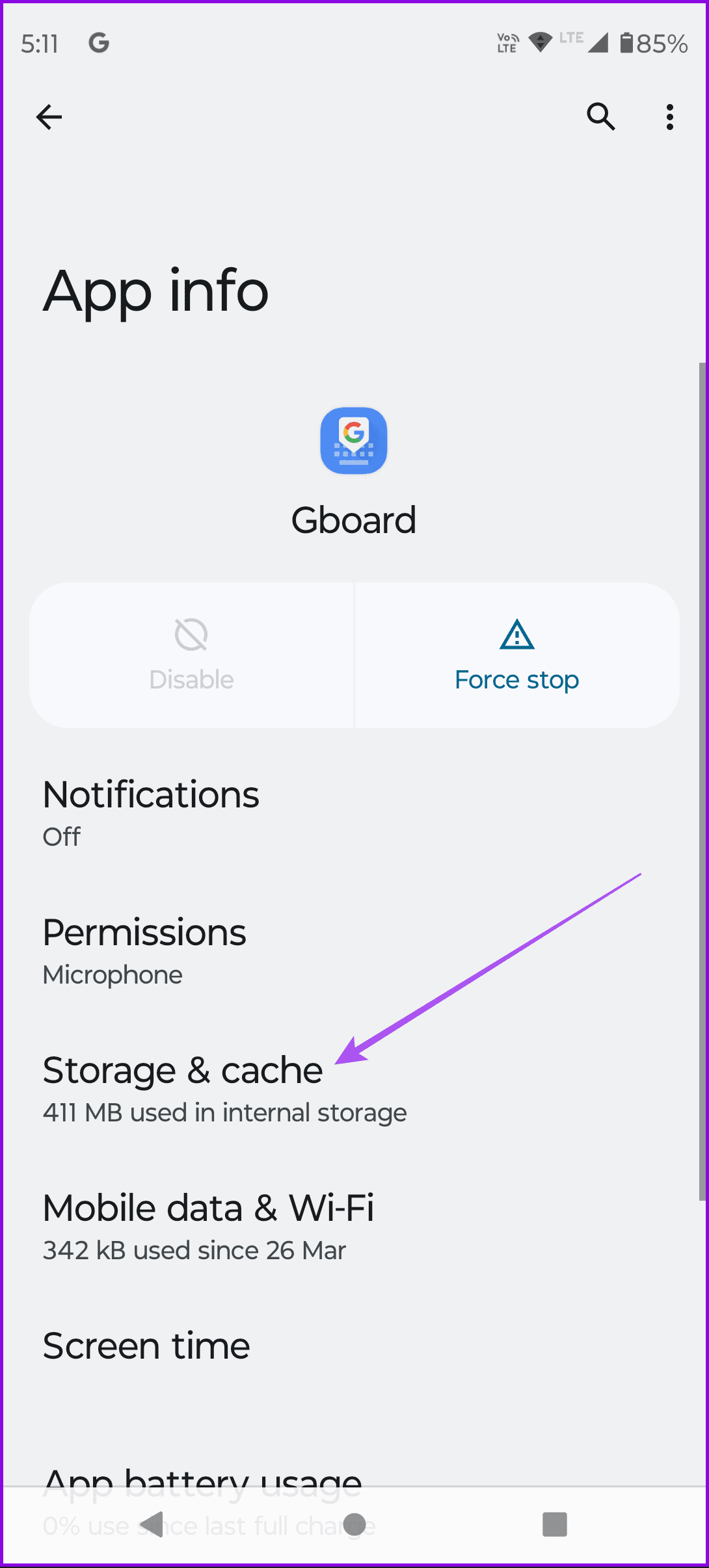
Step 2: Select Gboard .
Step 3: Tap on Storage and cache and select Clear cache .
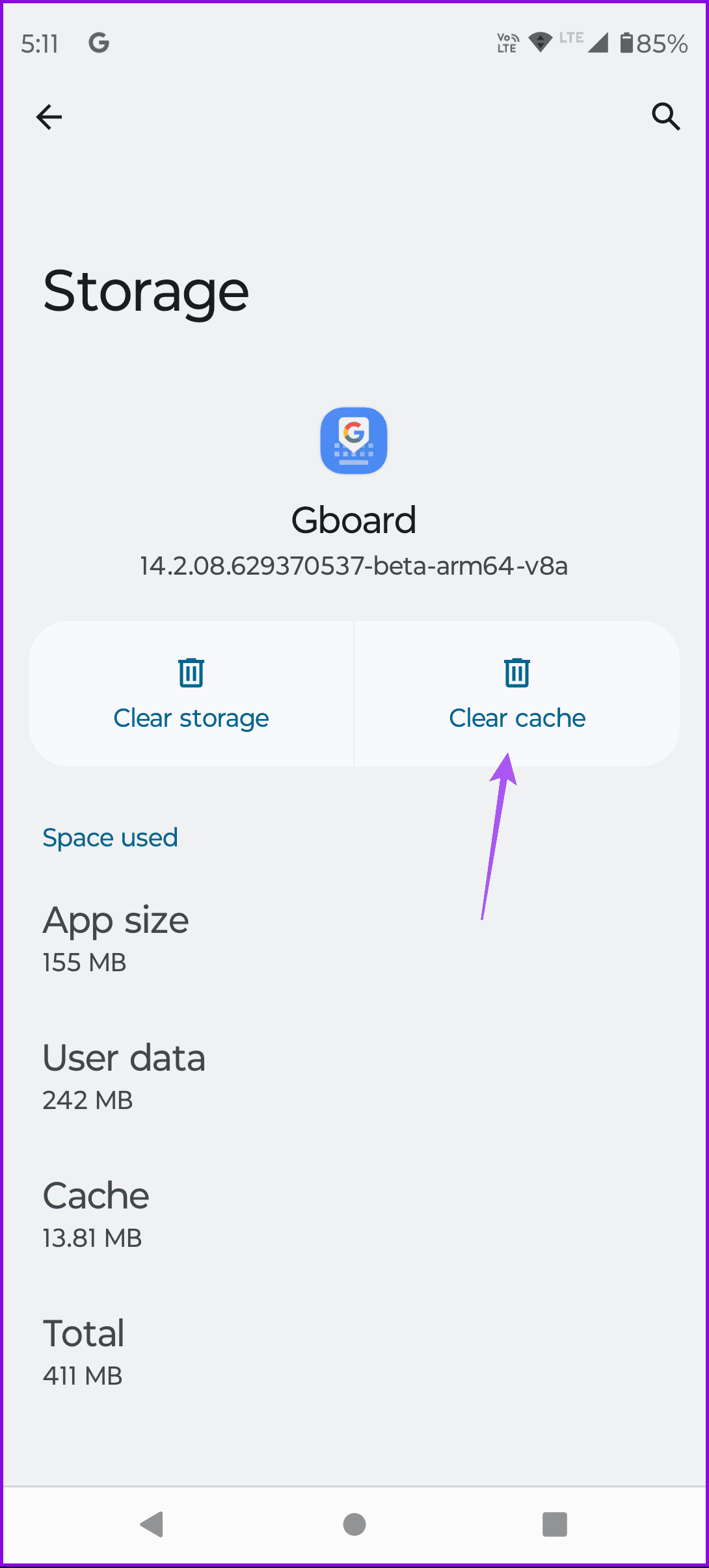
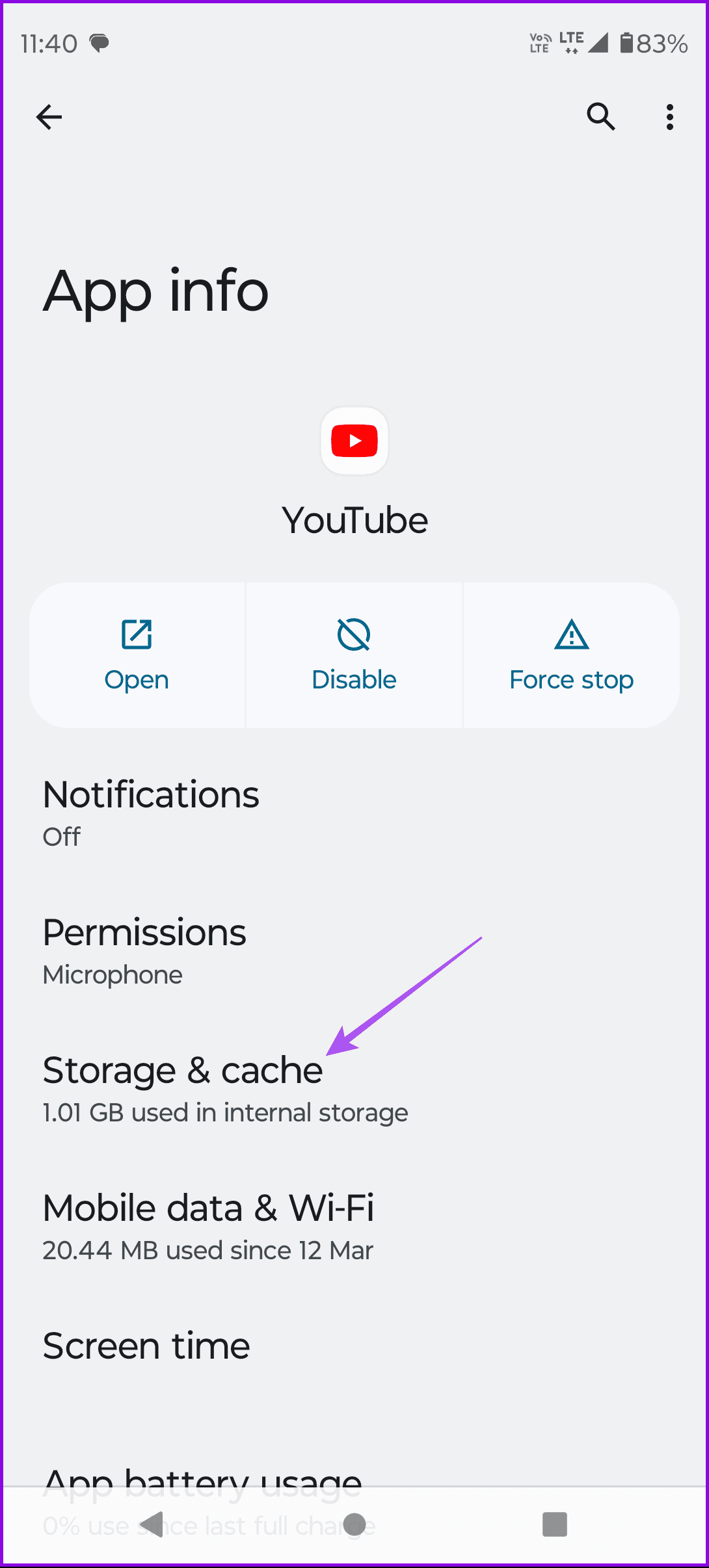
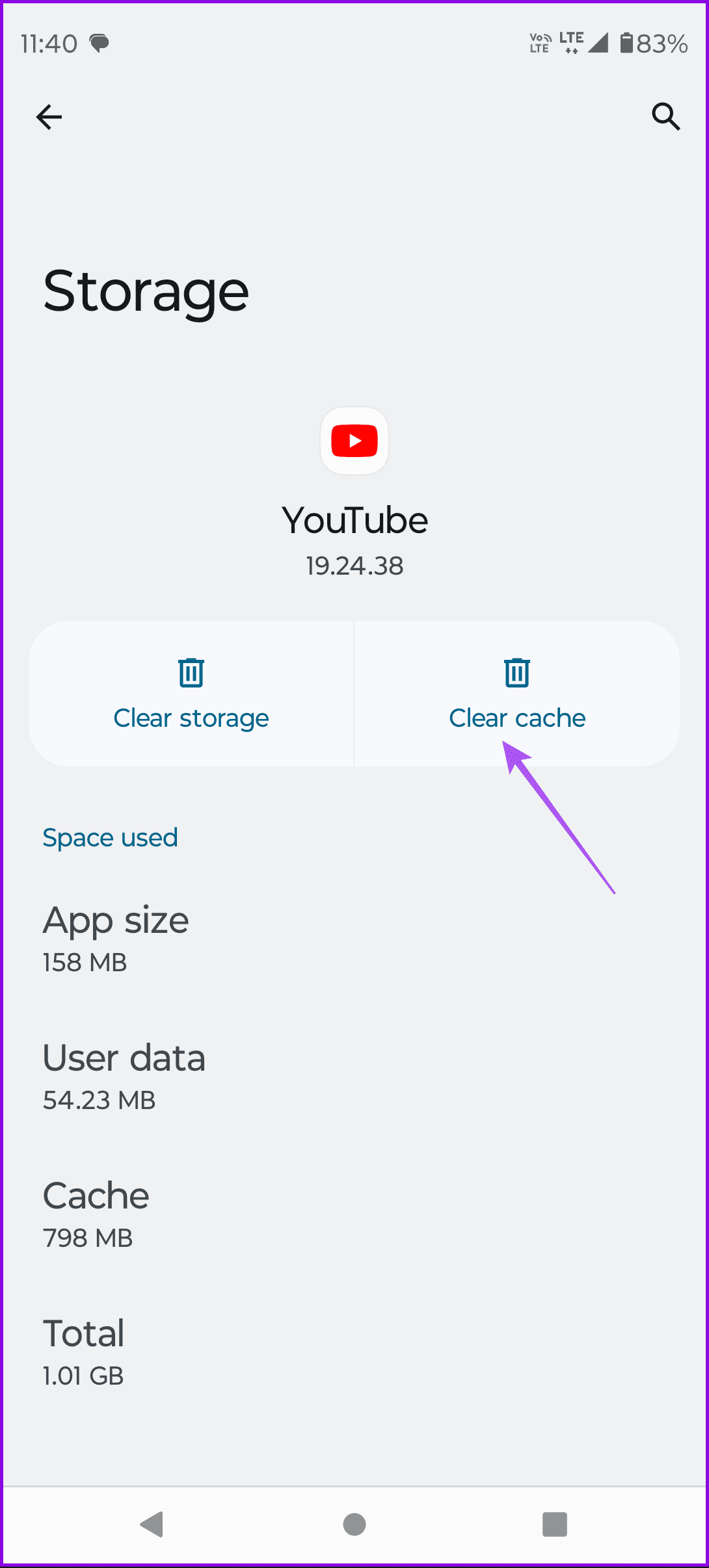
Step 4: Close App Info and go to YouTube App Info .
Step 5: Select Storage and cache . Then, choose Clear cache .
Fix 3: Reset All Settings
This process will remove your current apps and preferences on your Android device. Your device will be wiped clean, and you must set everything up from scratch.
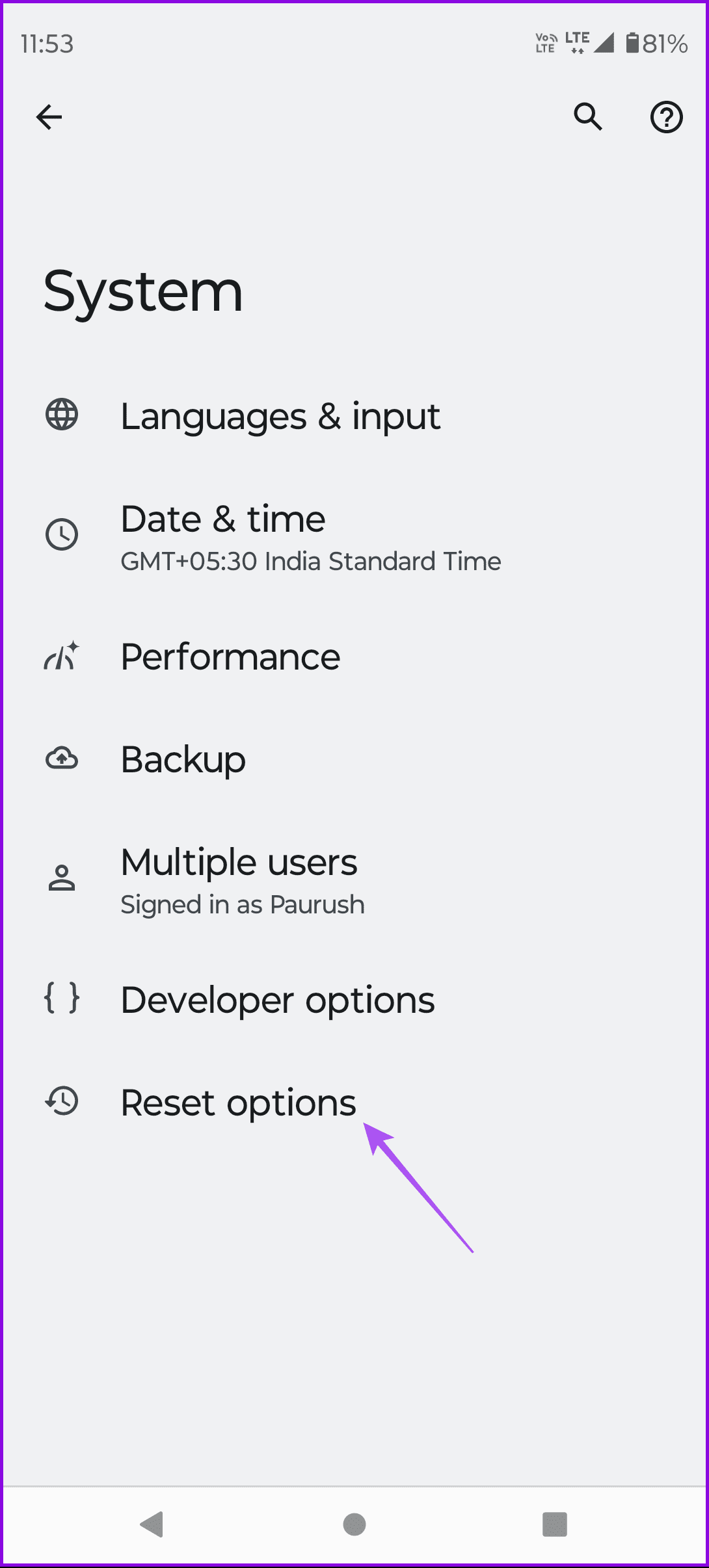
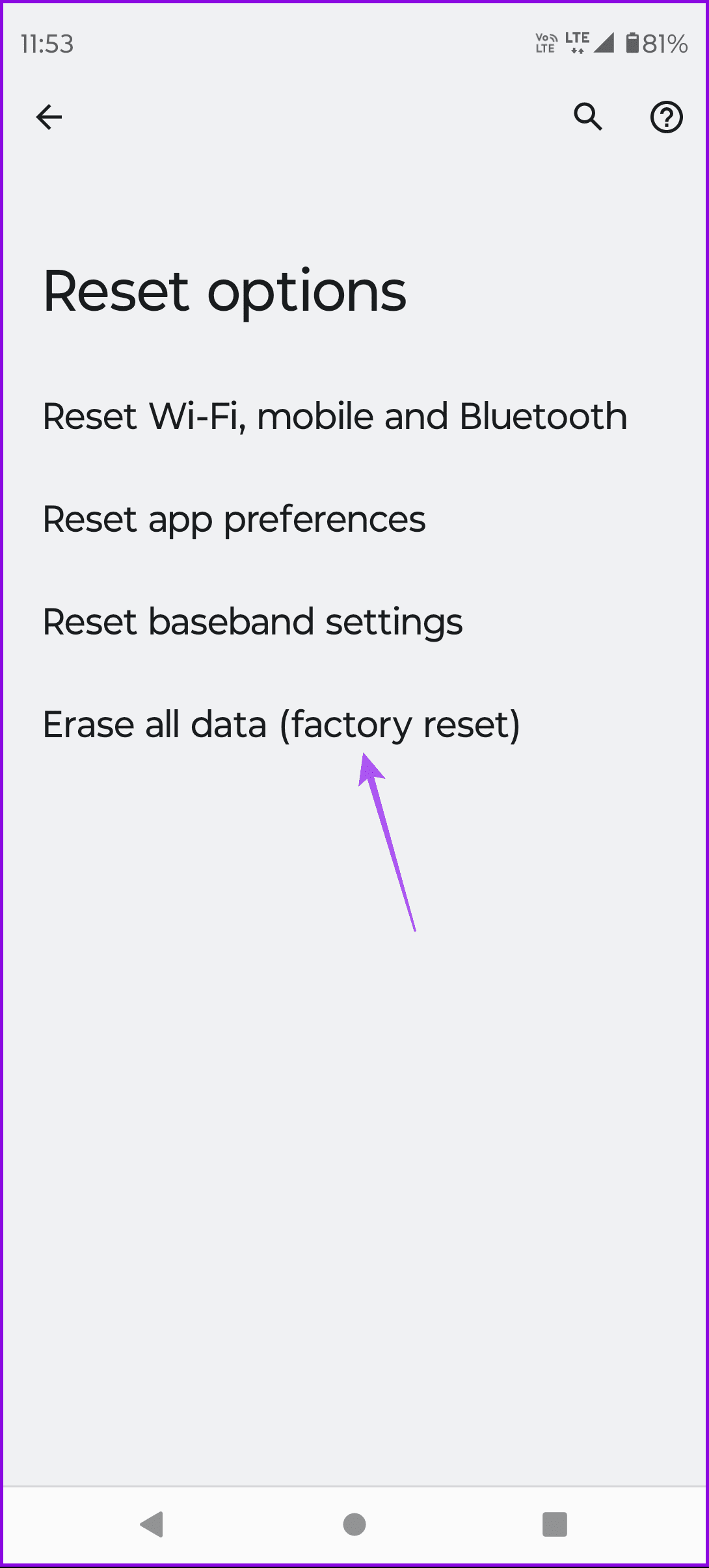
Open Settings > System > Reset options > Reset > Erase all data (factory reset) > Erase all data.
Alternative: Install a Third-Party Keyboard If Nothing Works
If the Android keyboard fails to work properly, try installing third-party keyboards from the Play Store. You can install SwiftKey , which is a reliable third-party keyboard.
Tip: Learn how to change keyboard on your Android phone .
Was this helpful?
Submit Cancel
Thanks for your feedback!
Keep reading