Android
How to Add Google Search Bar to Home Screen on Android and iPhone
Deleted the search bar widget from the home screen? Learn how to add Google search bar to home screen on Android and iPhone.
By Mehvish
Quick Tips
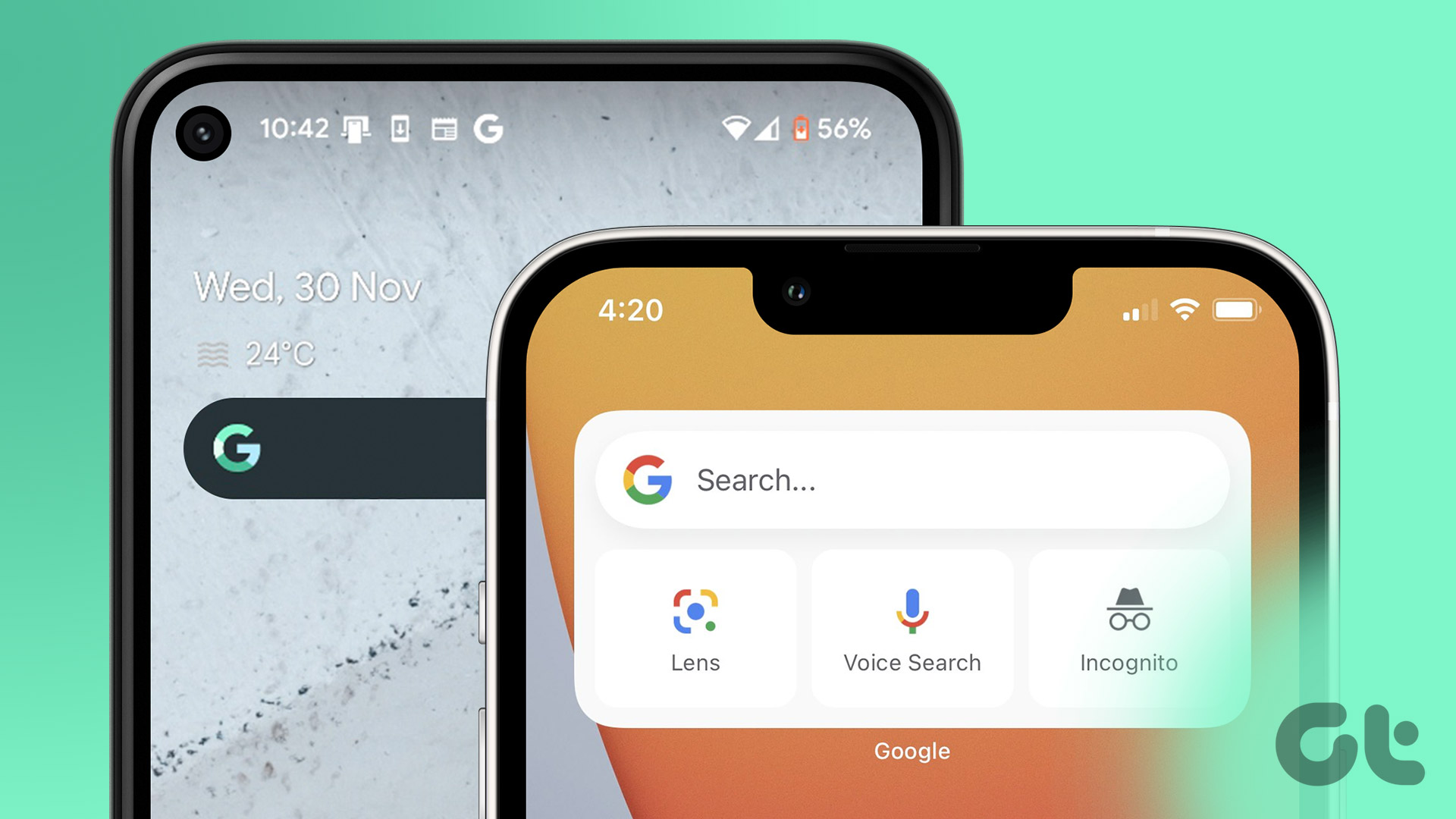
On Android, tap and hold an empty space on the home screen, select widgets and select the Google Search widget.
On your iPhone, download the Google Search app and set it up to add the widget to your home screen.
Open the Google app, go to Settings > Widgets to customize the theme, and the icons on the Google Search widget.
On Android
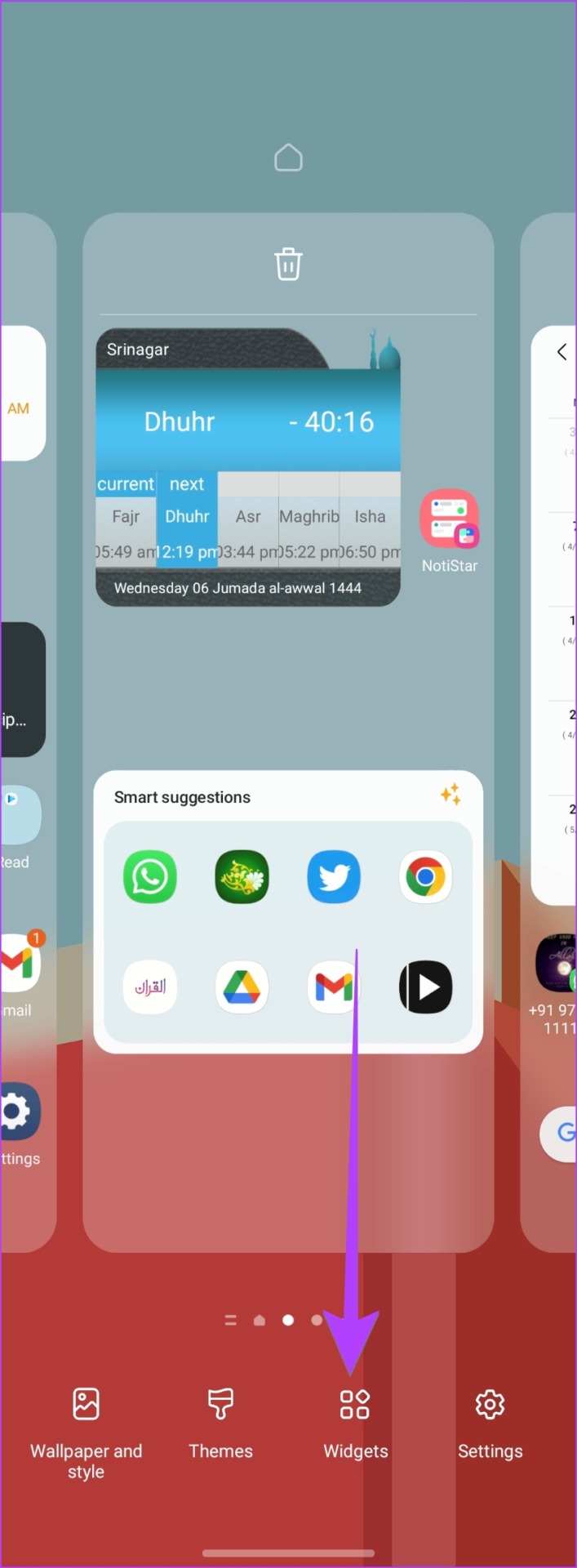
Step 1: Tap and hold a space on your home screen, and tap on Widgets .
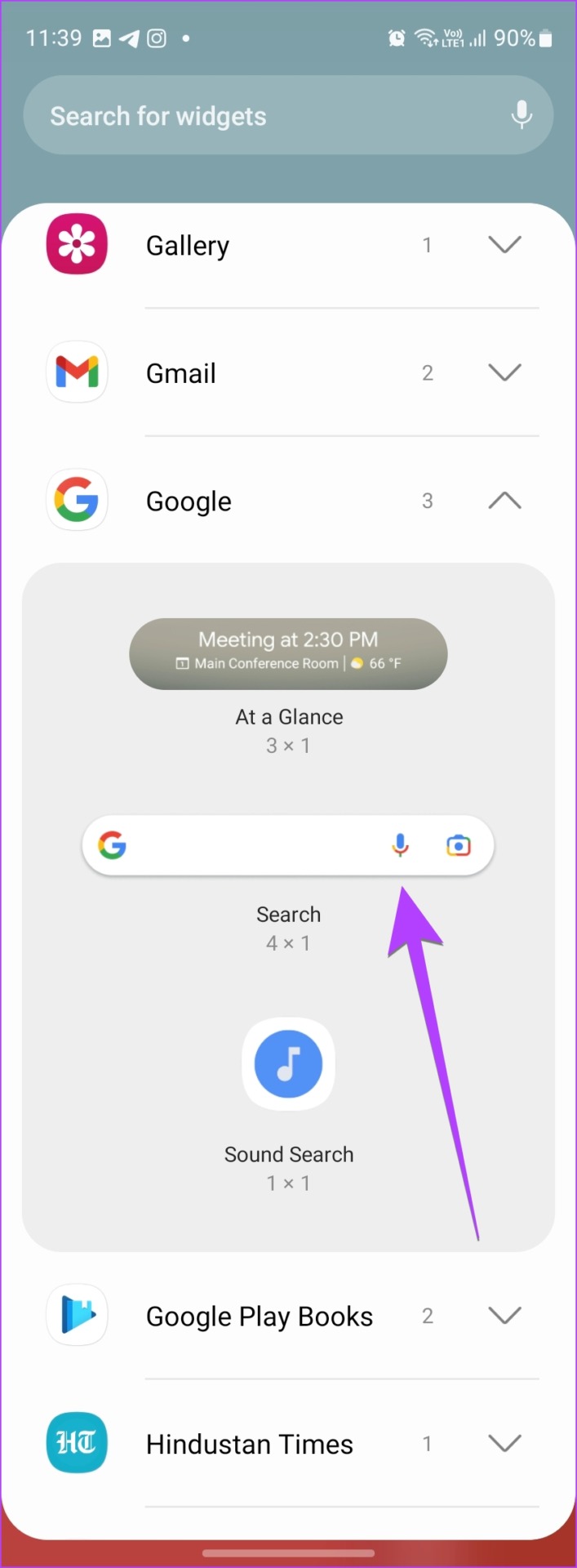
Step 2: Scroll down and look for the Google section. Touch and hold the search widget and drag it to the home screen.
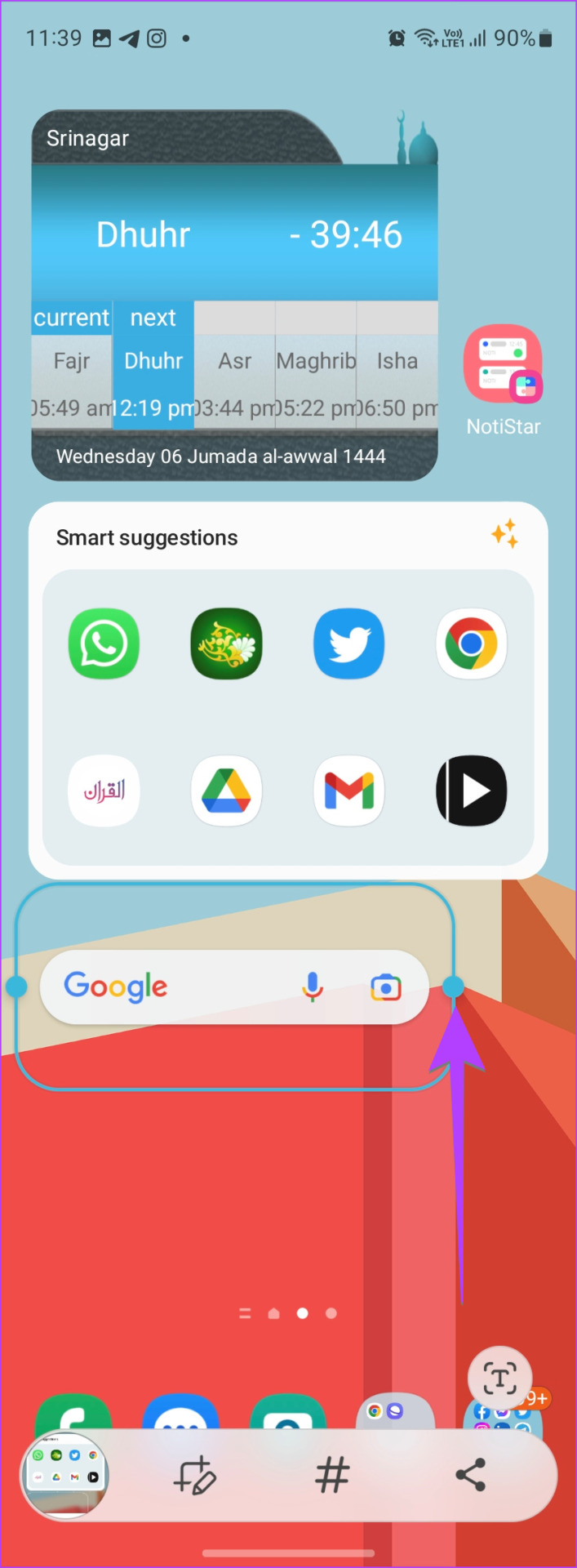
Step 3: You will notice a box around the widget. Drag the box along one of the dots to change the size of the widget. Then, tap anywhere on the screen to place the Google search bar widget.
Customize the Google Search Bar Widget
On Android, you can customize the Google search bar by changing its color, shape, and transparency in addition to changing the style of the Google logo in it.
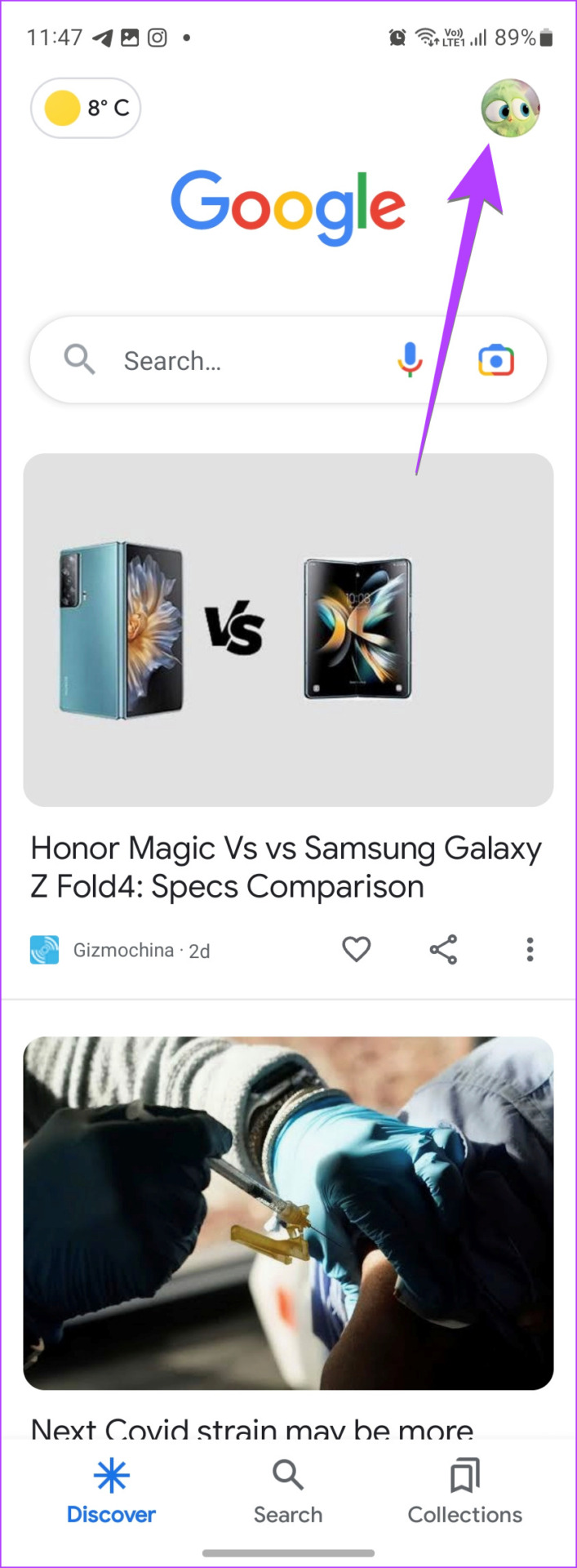
Step 1: Open the Google app on your phone.
Step 2: Tap on the profile picture icon at the top and select Settings from the menu.
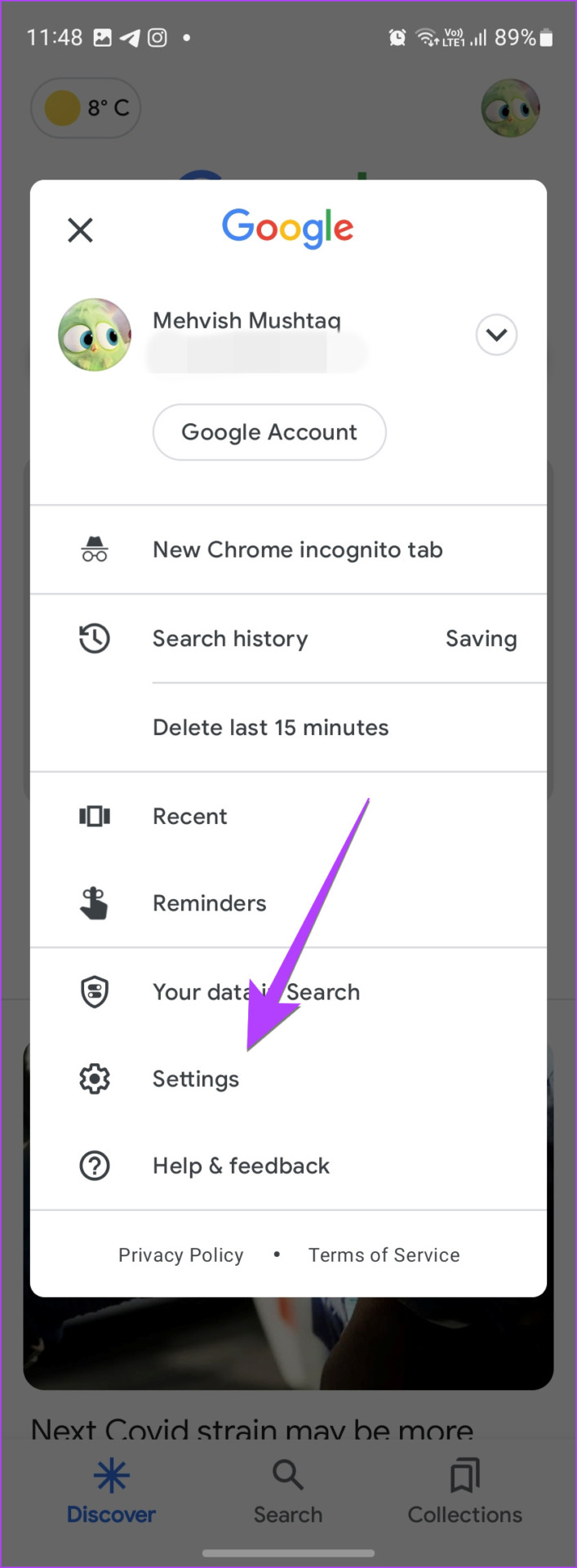
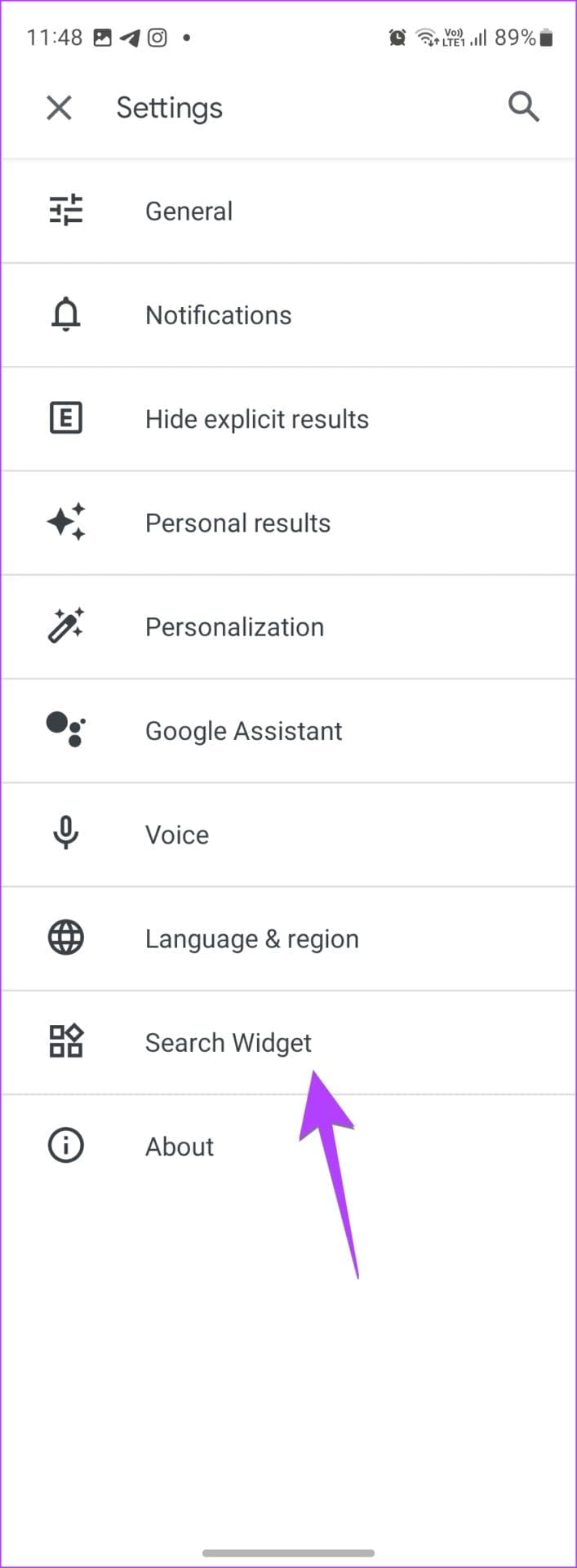
Step 3: Go to the Search widge t. Now, you can enable or disable Google Doodles on the widget using the available slider.

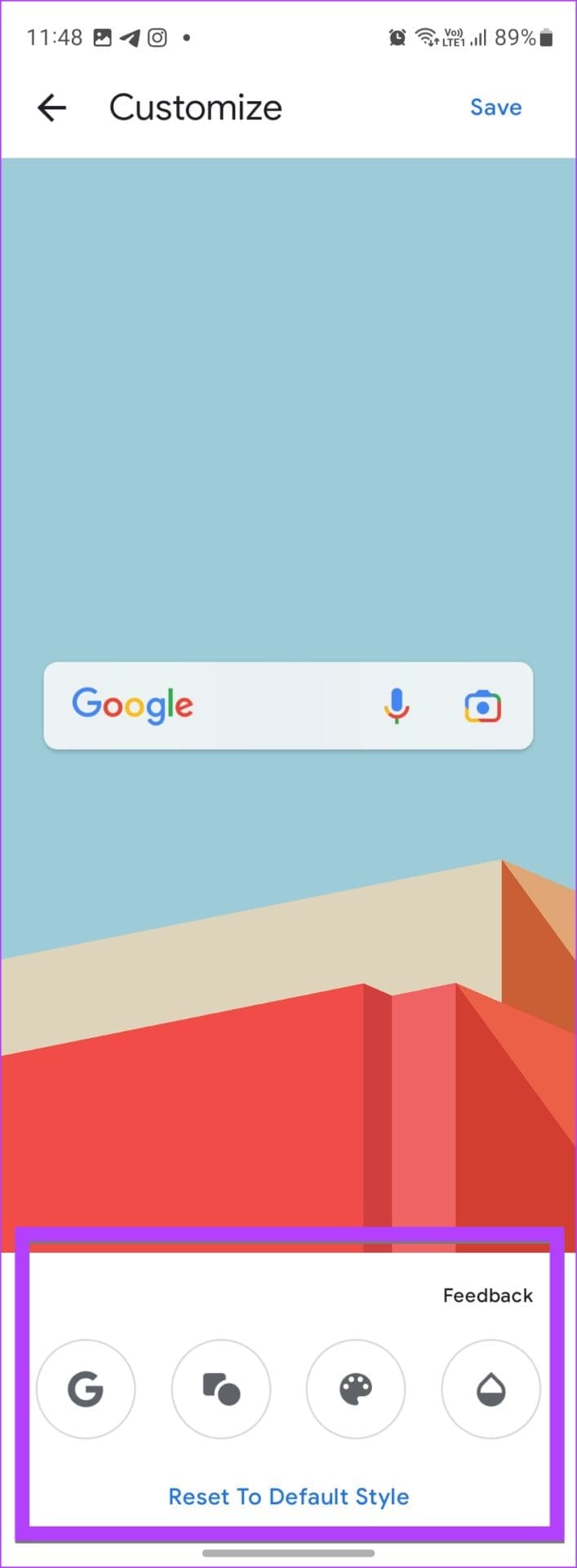
Step 4 : To customize the widget further, tap on Customize widget . Use the customization buttons at the bottom to customize your widget’s color, transparency, and logo style. When done, tap the Save button at the top.

Also Read: ChatGPT vs. Google Search: Which should you pick and why
On iPhone
The Google search bar is available as a widget on the iPhone as well. You need to download the Google Search app on your iPhone.
After installing the Google app, open it at least once before adding the search bar widget.
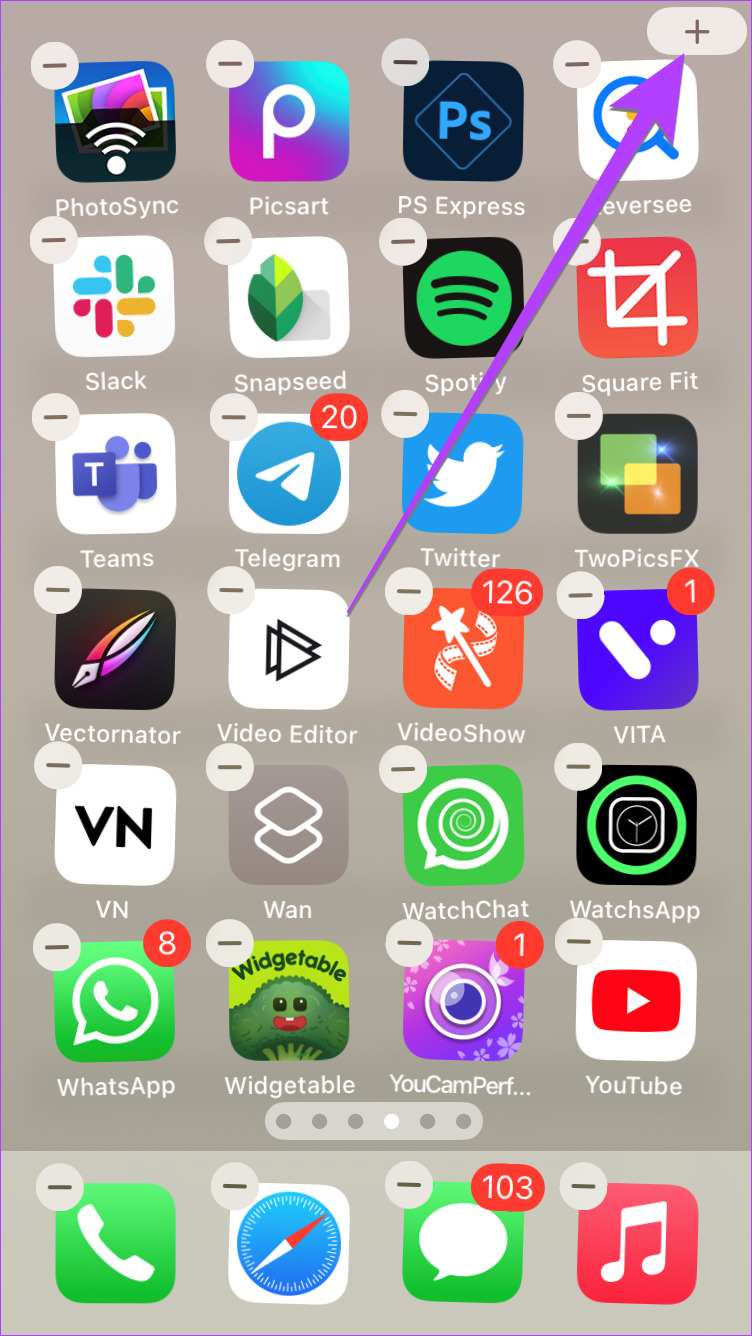
Step 1 : Go to your iPhone’s home screen and tap and hold anywhere until the icons start jiggling.
Step 2: Tap on the + (Add) icon at the top. Scroll down and tap on the Google section to expand it.
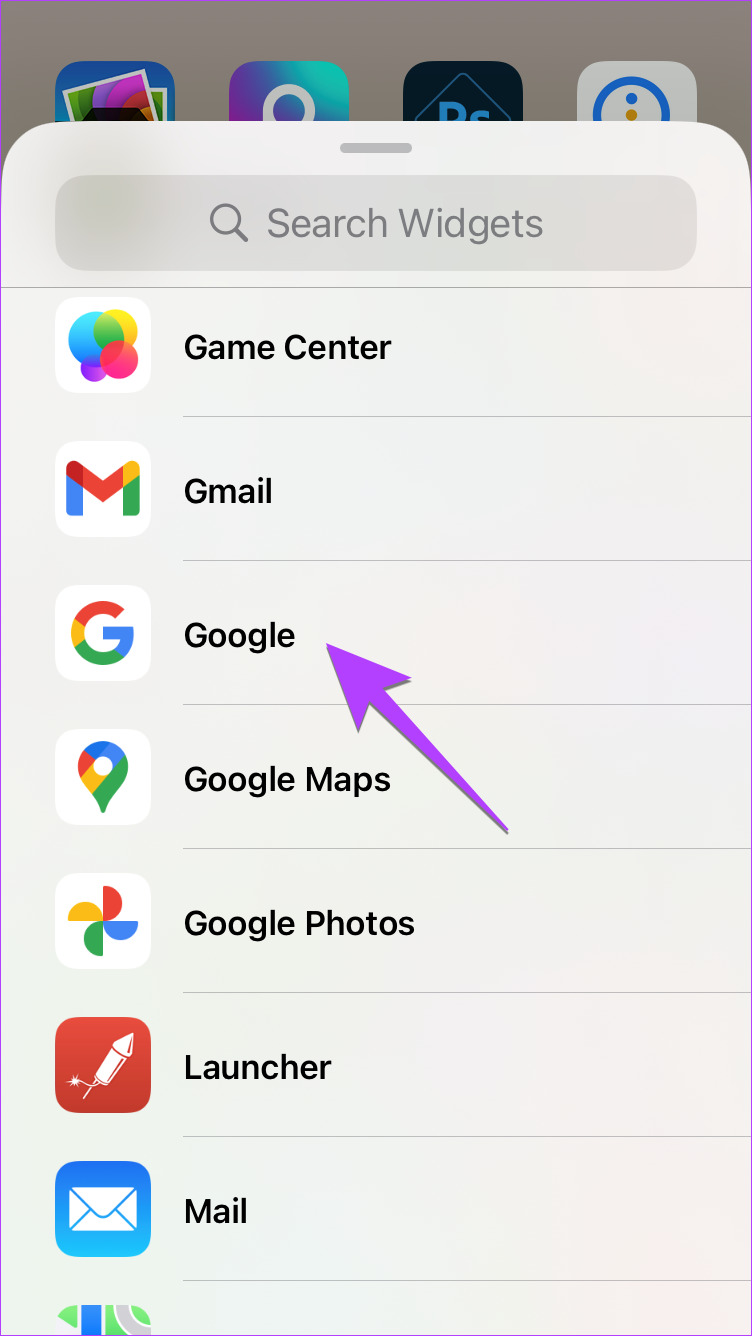
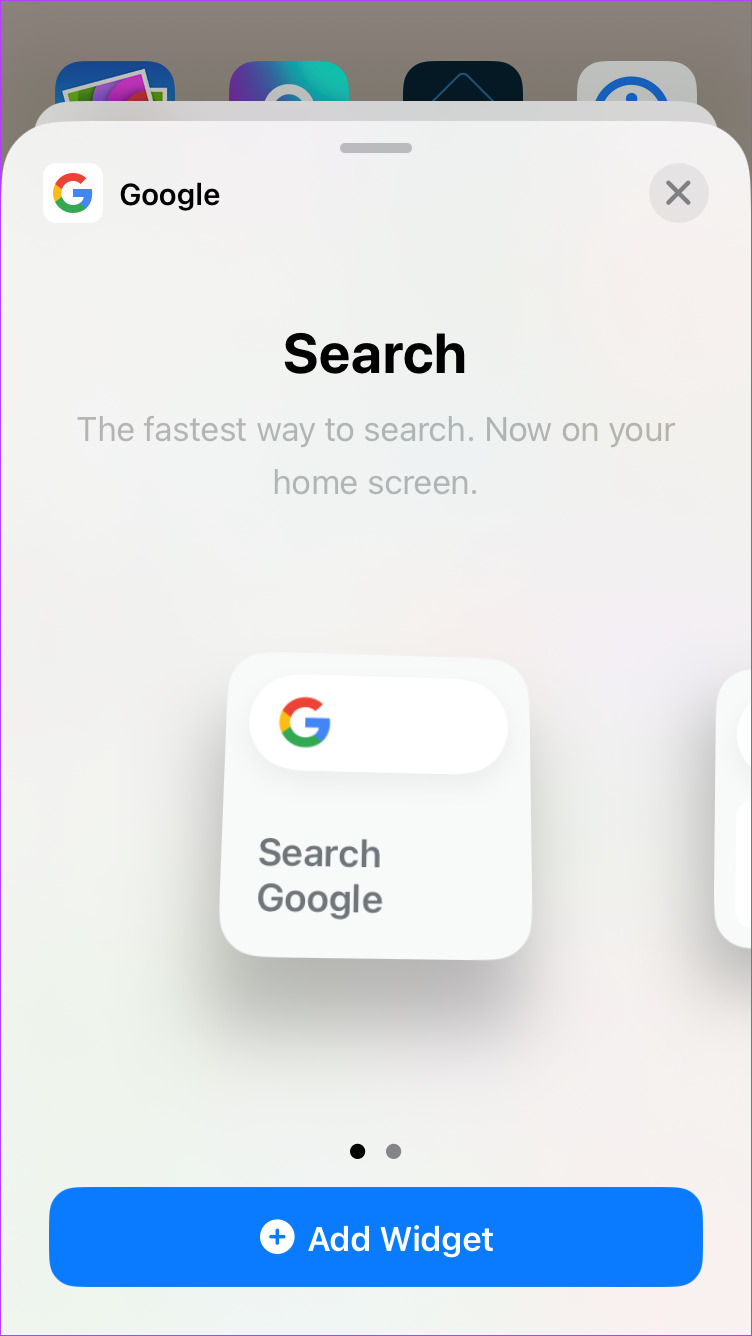
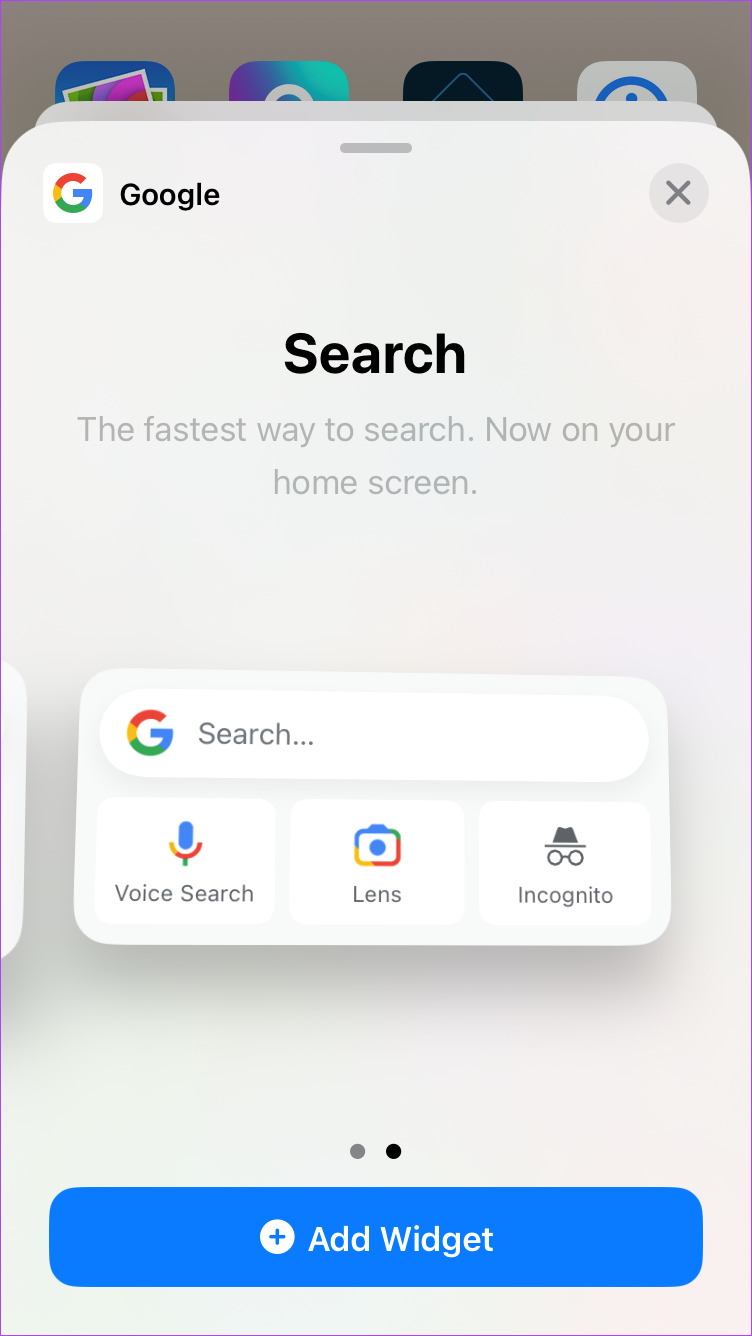
Here you will find two search bar widgets.
The first is a smaller widget that only shows the search bar. Swipe left to access the second widget.
The second Google search bar grants you quick access to Google search, voice search, Google Lens, and the ability to turn on Incognito mode.
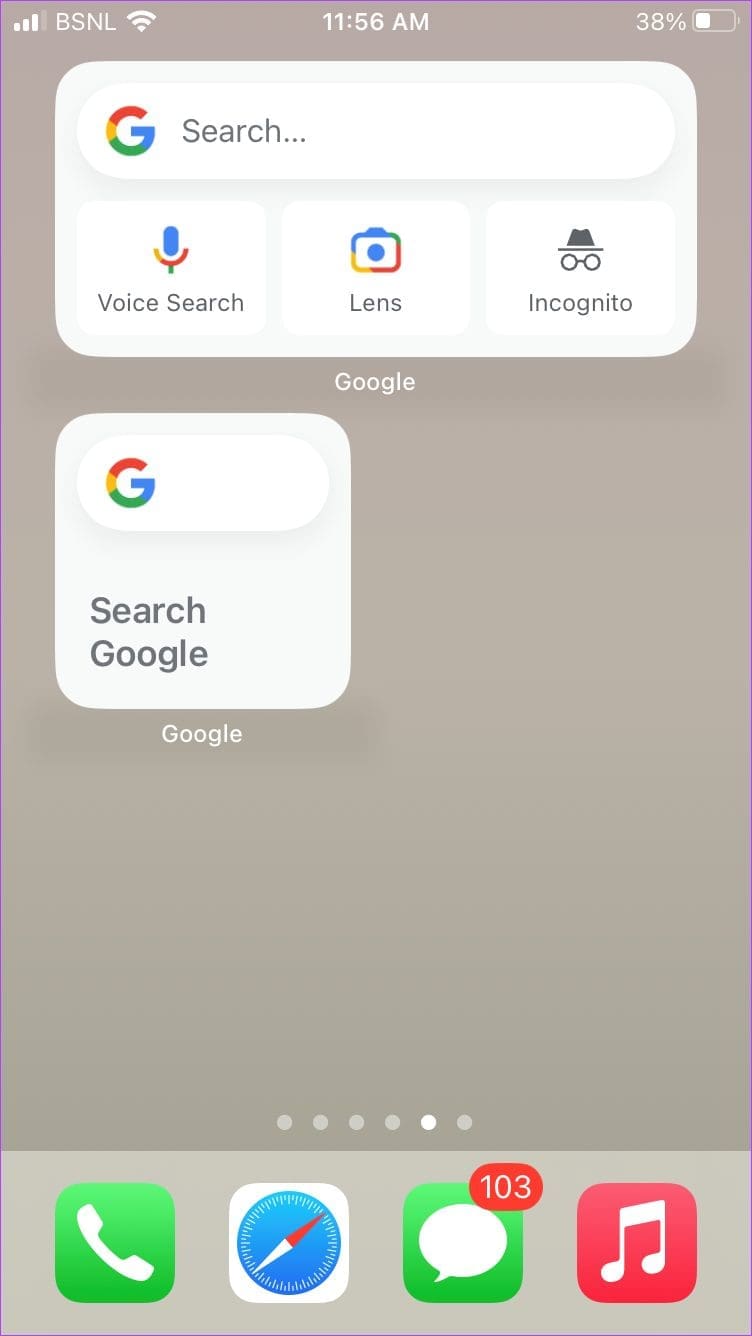
Step 3 : Tap on the Add widget button under the desired Google search bar widget to add it to your home screen. Or long-press the preferred widget and drag it to your home screen.
Customize the Google Search Bar Widget on Your iPhone
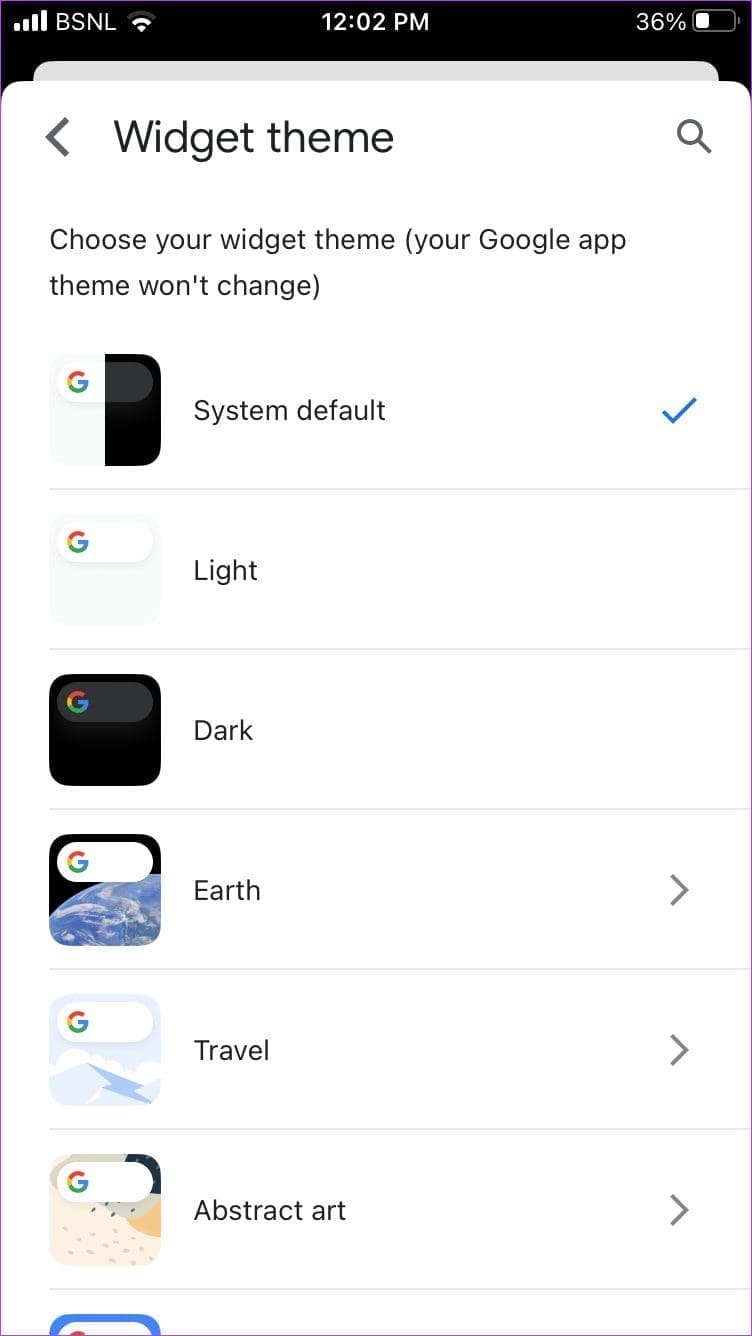
On iPhone, you can change the Google search bar widget’s theme and enable the dynamic content option as shown in the following steps:
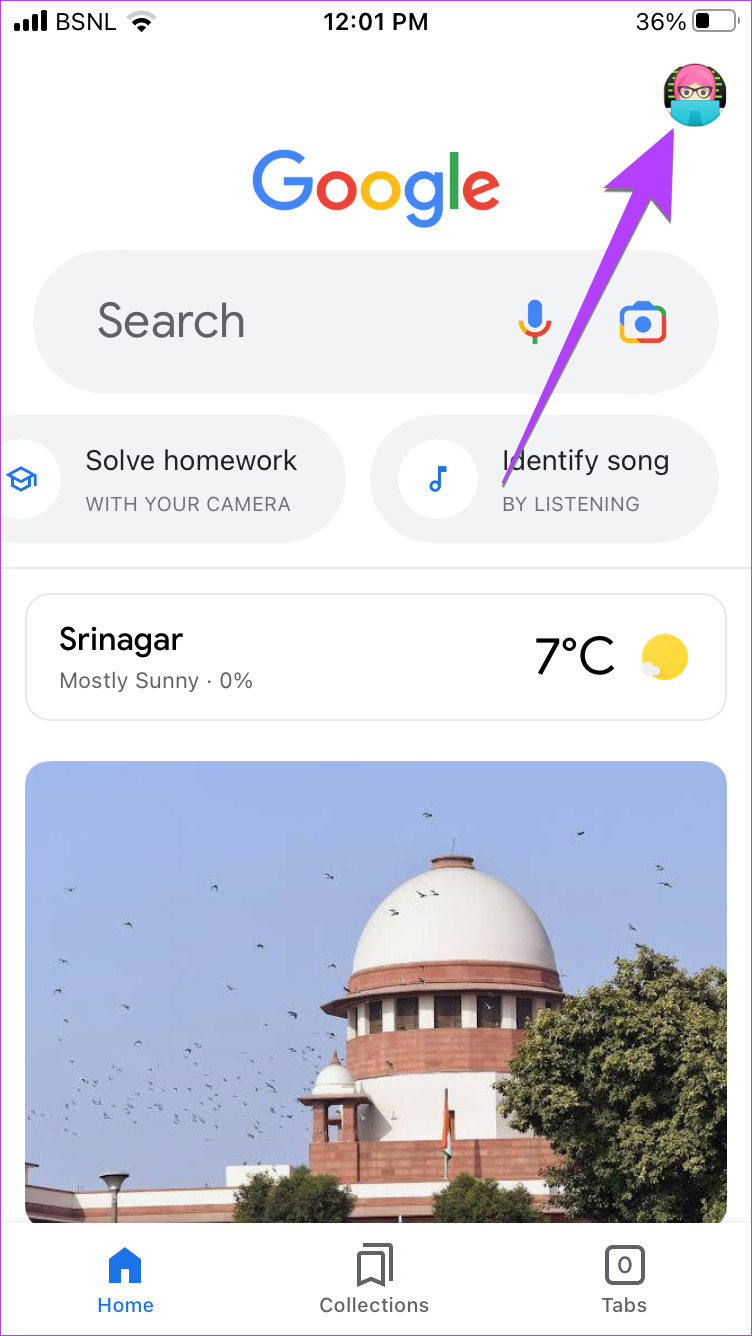
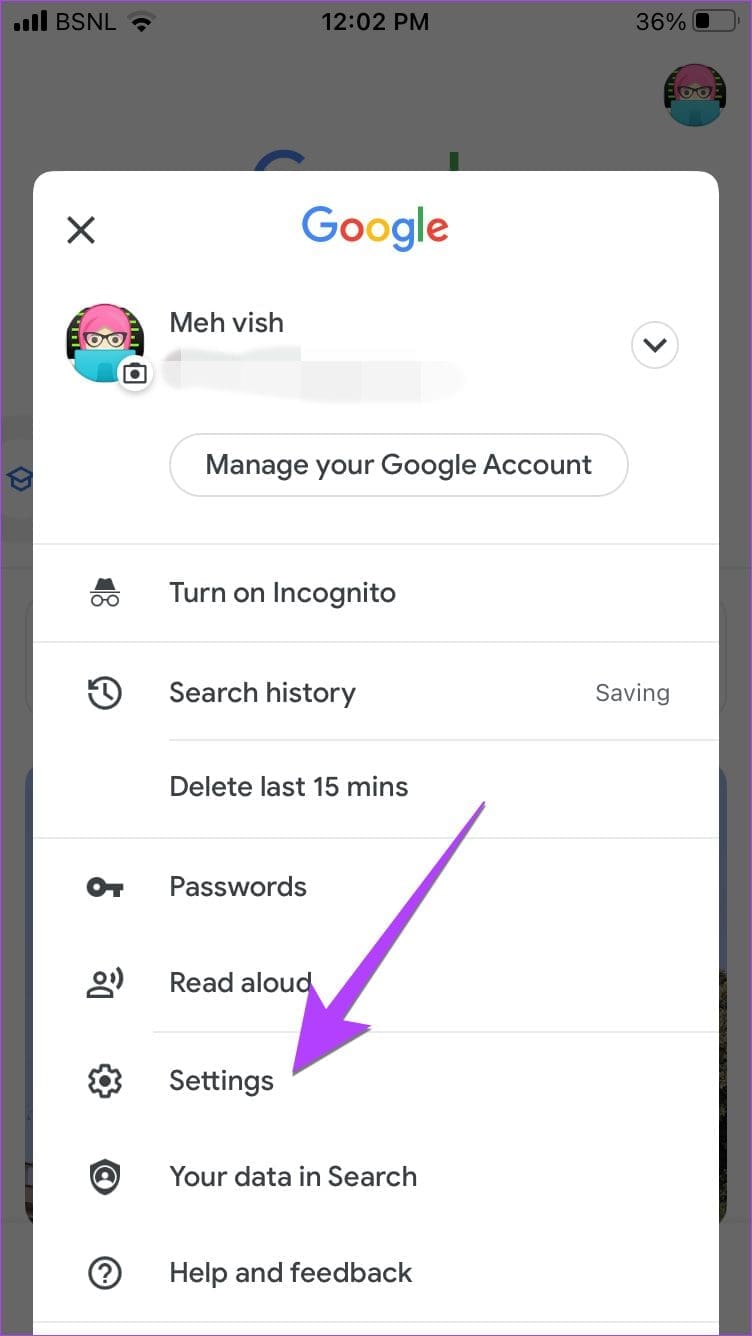
Step 1: Launch the Google app and tap on the profile picture at the top.
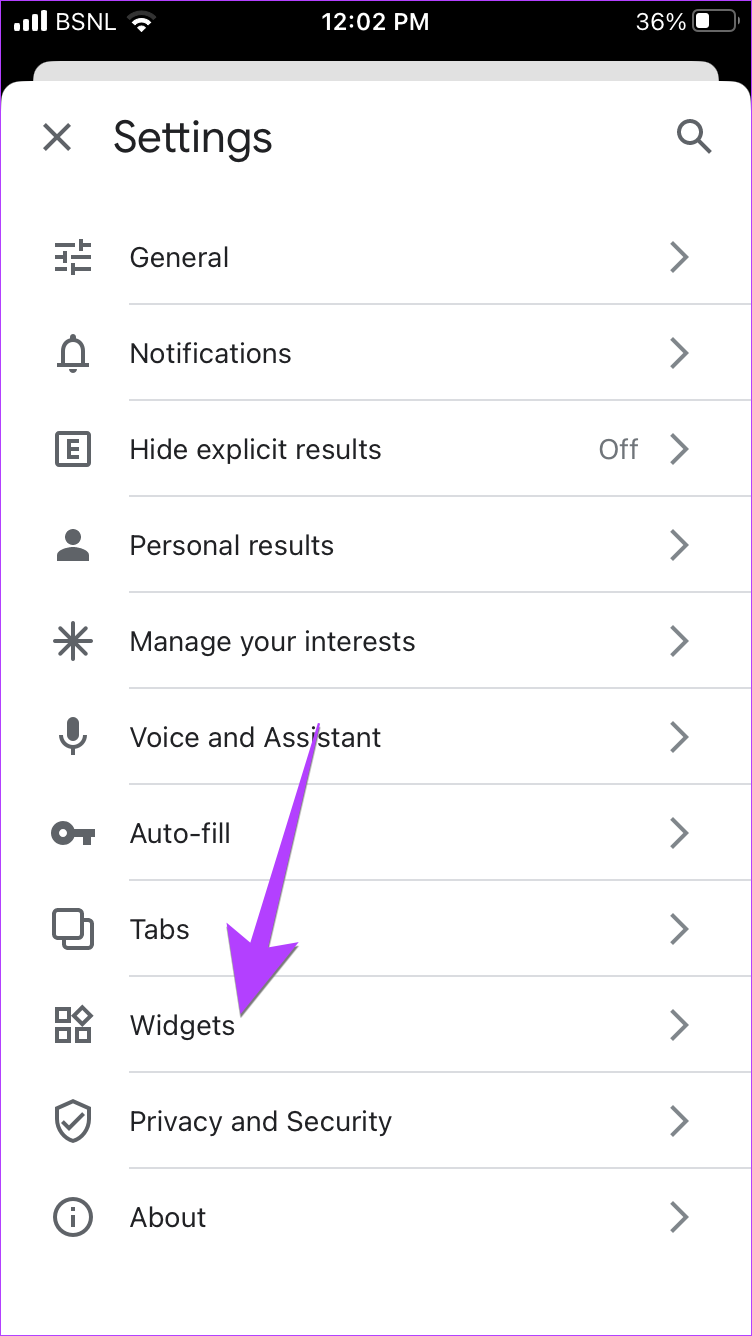
Step 2 : Go to Settings followed by Widgets .
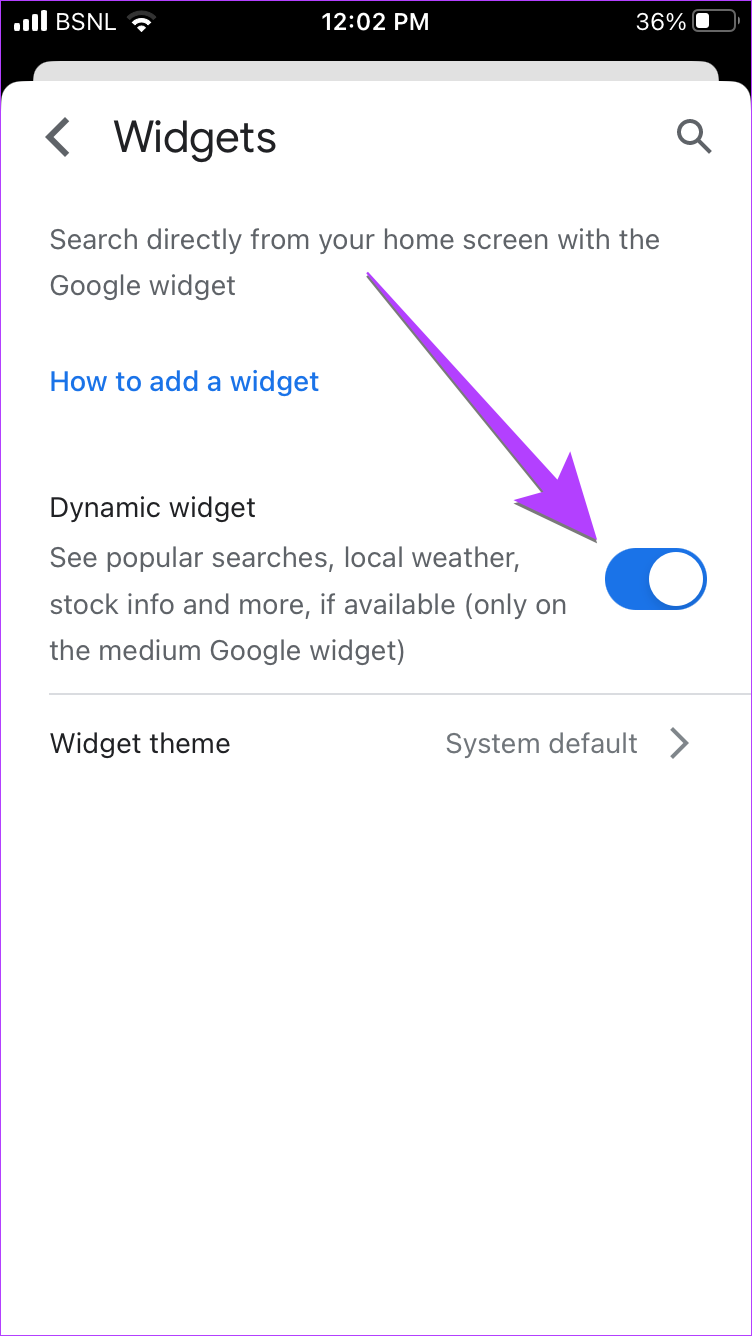
Step 3: Enable the toggle next to the Dynamic widget if you want to see popular searches, local weather, stock info, and similar content on the Google widget.
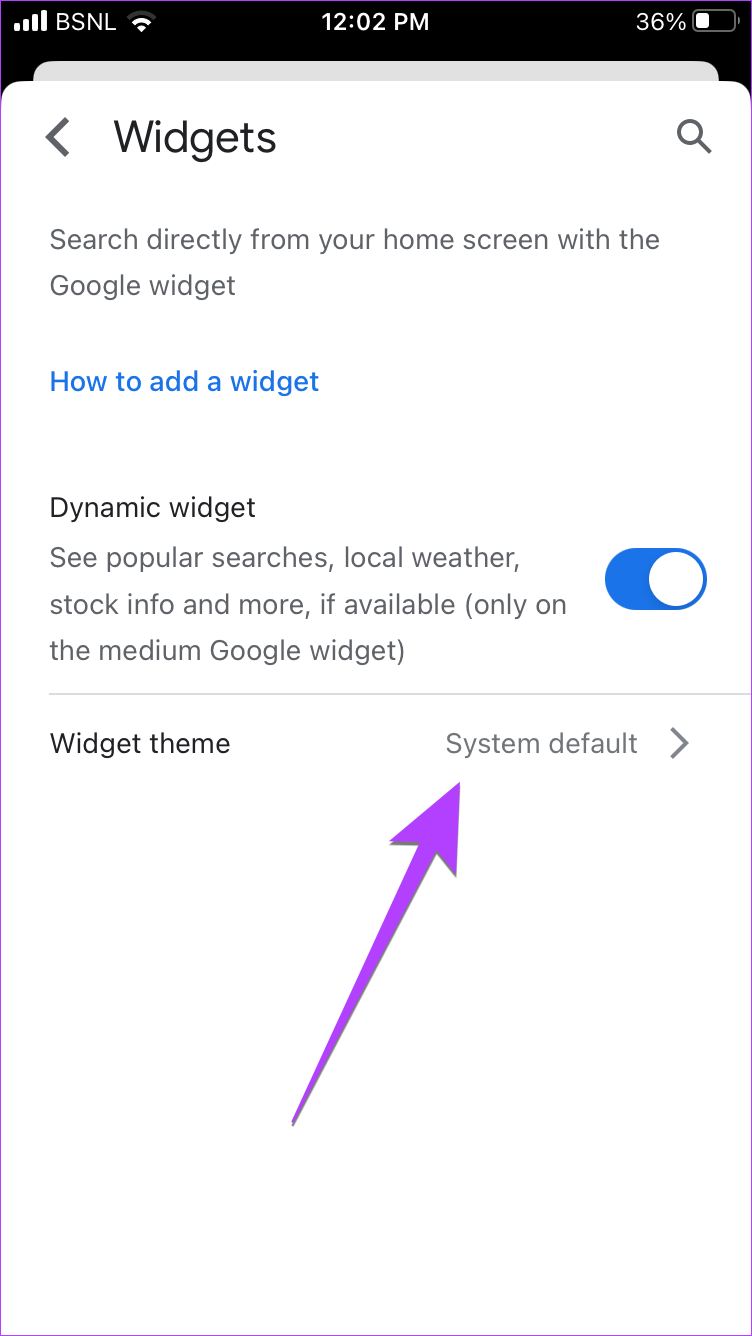
Step 4: Tap on the Widget theme and choose the preferred theme of your choice by tapping on it.
Also Read: 15 best home screen layout ideas on iPhone
Was this helpful?
Submit Cancel
Thanks for your feedback!
Keep reading