Android
4 Ways to Clear Cache in Samsung Galaxy Phones
Want to free up storage space on your Samsung phone? Learn how to clear cache of one, multiple, or all apps on Samsung Galaxy phones.
By Mehvish
Quick Tips
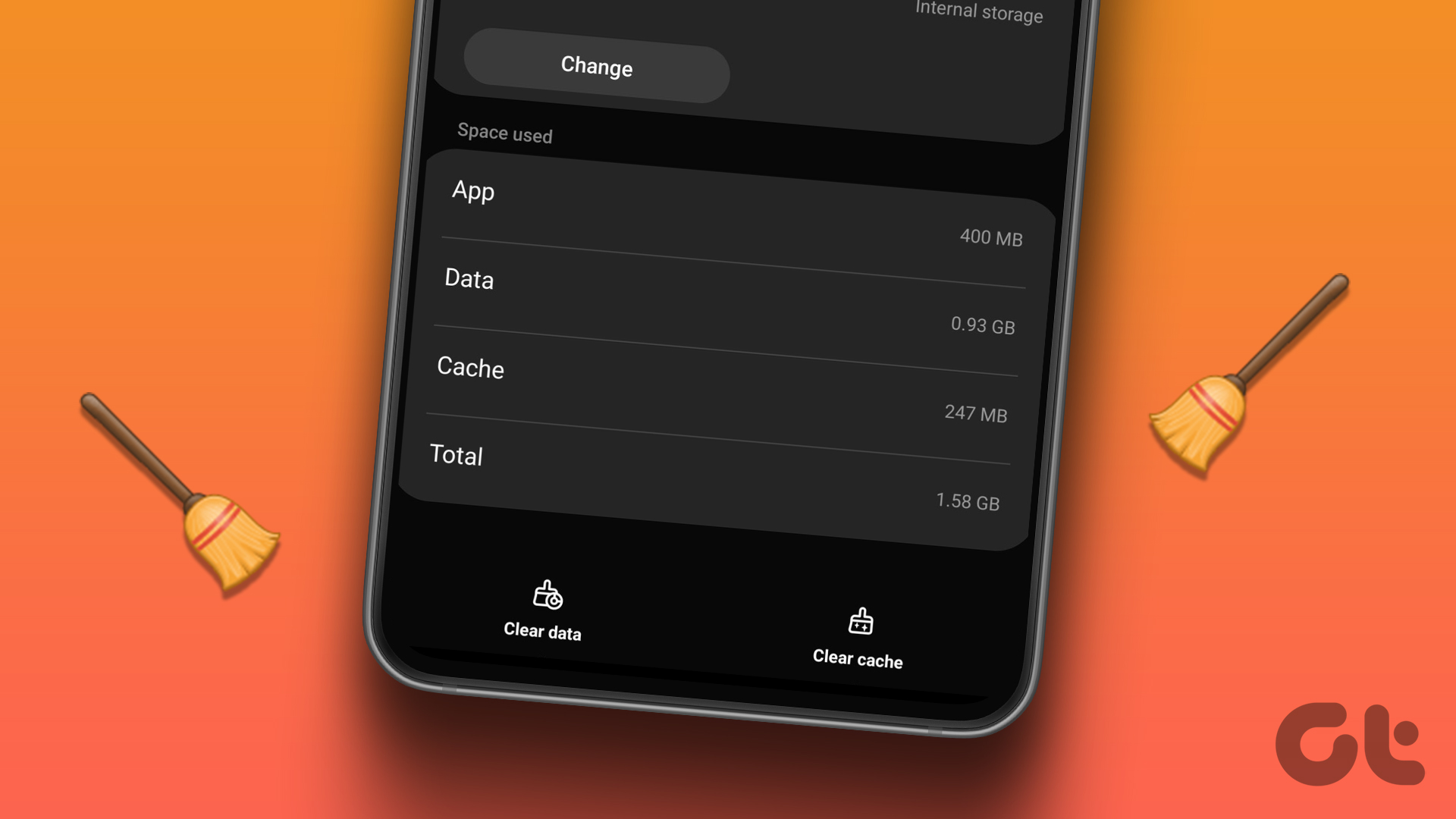
Clear Cache for One App: Go to Settings > Apps > Select App > Storage > Clear cache.
Clear Cache for All Apps: Go to Settings > Battery and Device care > Optimize now.
Using Third-Party Apps: Install an app like 1TapCleaner, grant permissions, and clear cache for individual or all apps.
Method 1: Clear Cache of One App on a Samsung Phone
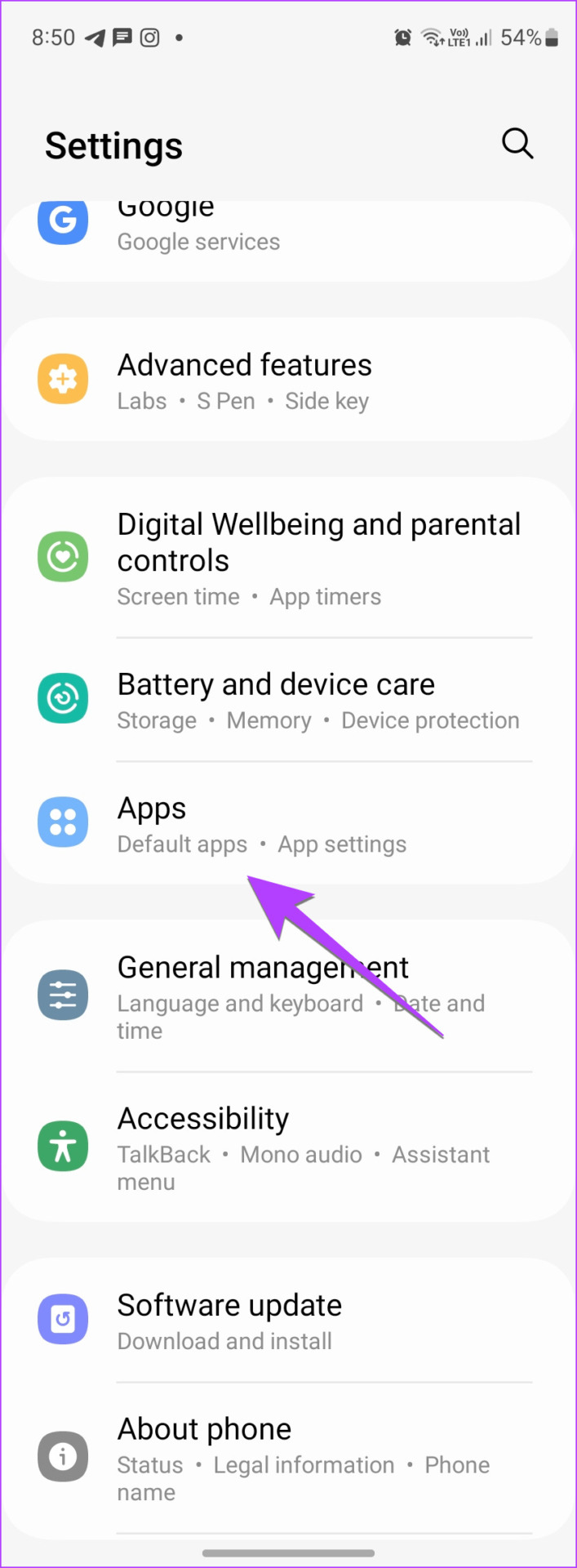
Step 1: Open Settings on your phone and go to Apps .
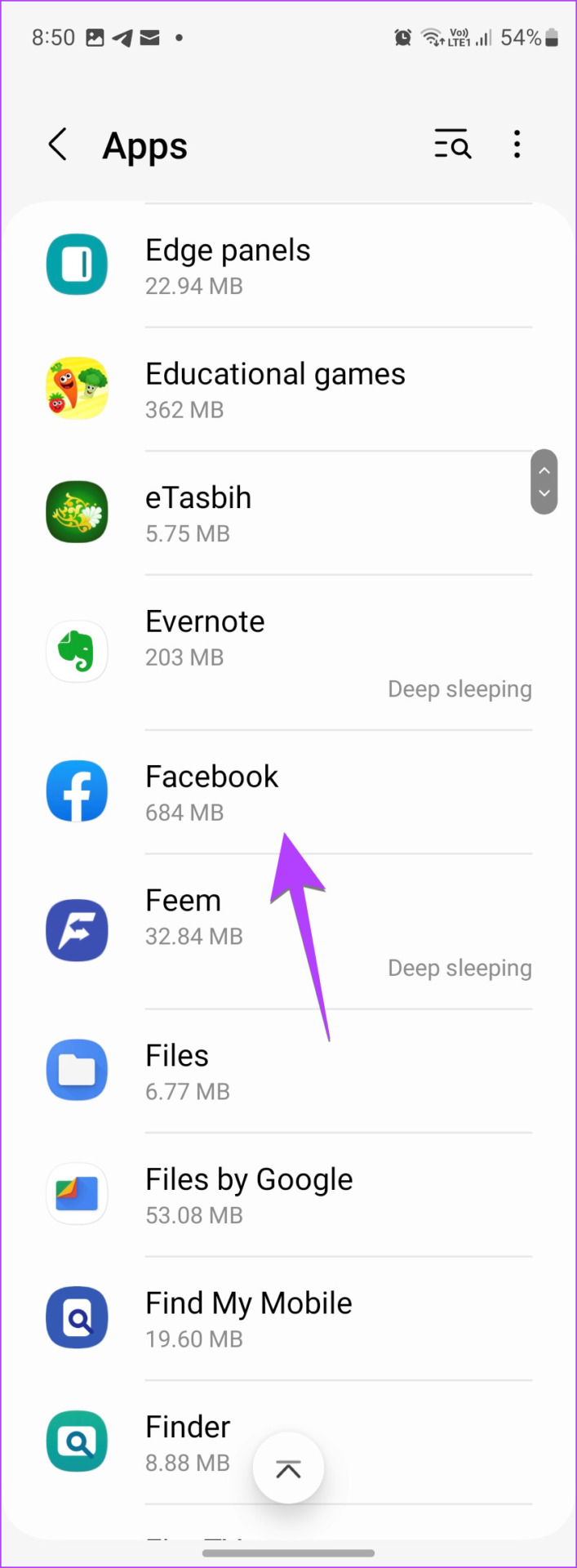
Step 2: Find the app whose cache you want to clear. Let’s say Facebook. Tap on it.
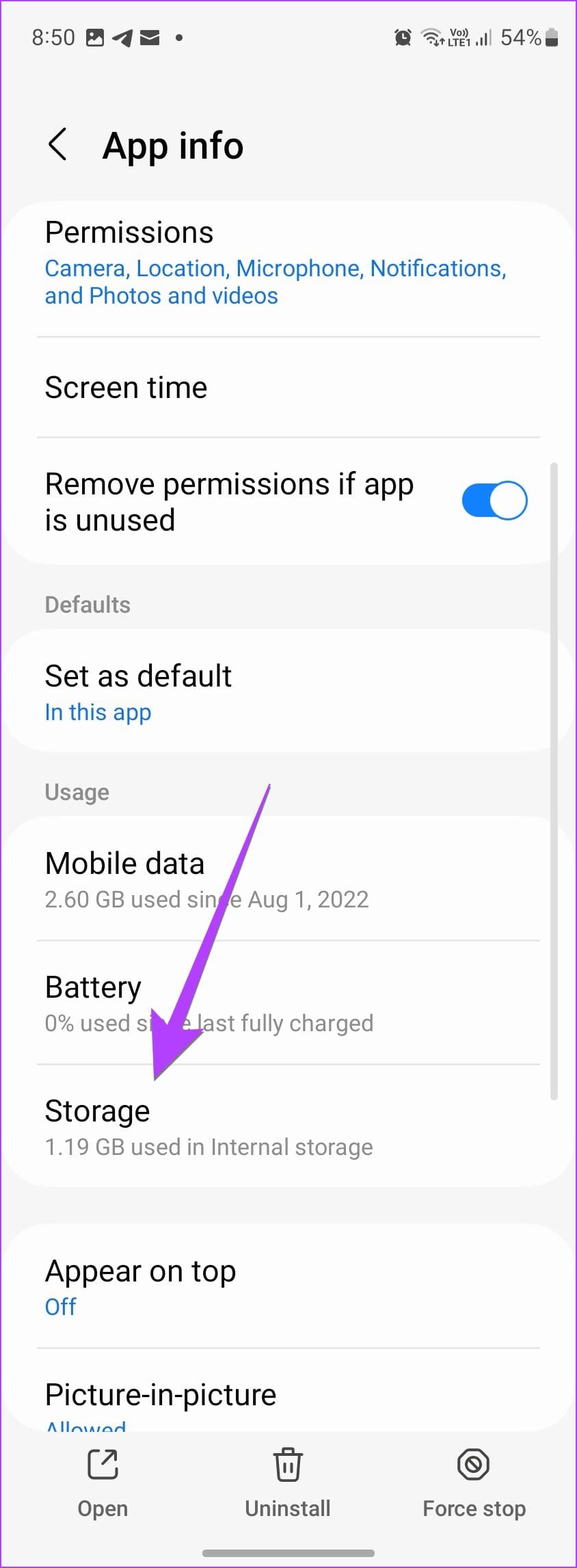
Step 4: Tap Storage .
Step 5: Tap Clear cache at the bottom.
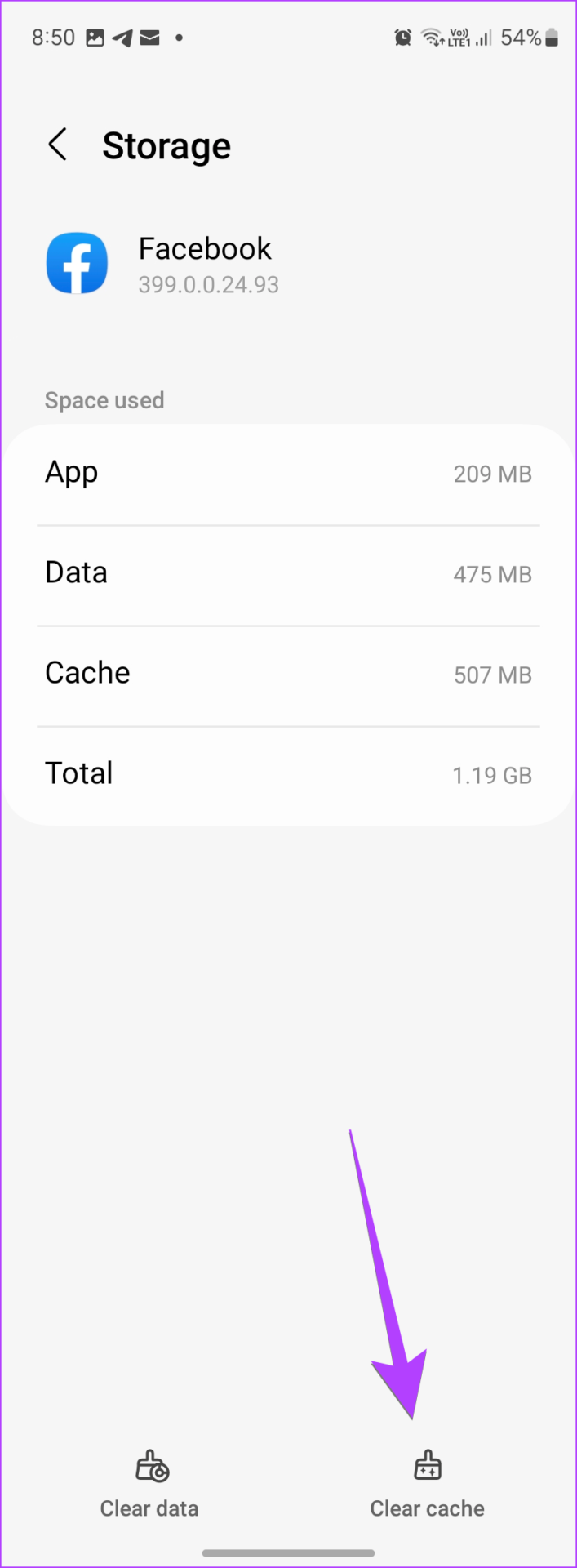
Step 6 : Similarly, clear the cache of other apps. Then, restart your phone.
Method 2: Clear Cache of All Apps at Once on Samsung Galaxy Phones
Step 1: Open Settings on your Samsung Galaxy phone.
Step 2 : Go to Battery , followed by Device care .
Step 3: Tap Optimize now .
This will close background apps, scan your device for malware, manage battery usage, and clear cache on some phones.
Note : If you don’t see the cache cleared in the optimization result, follow the next step.
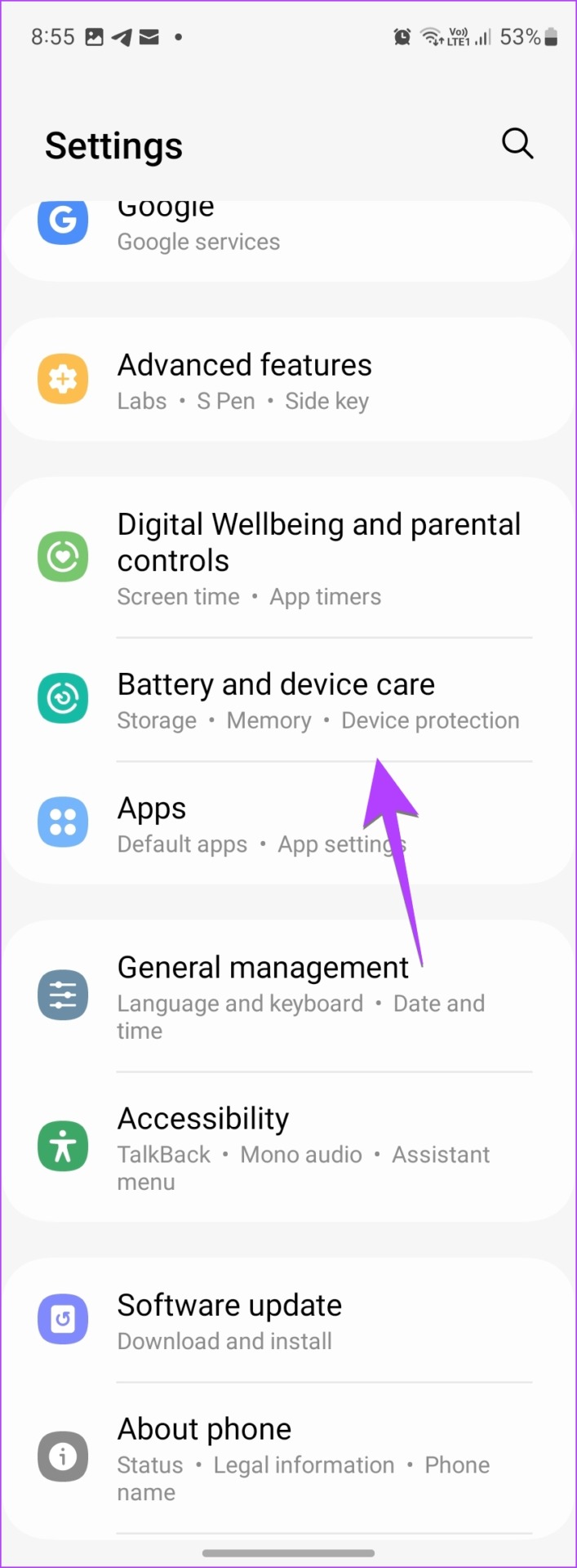
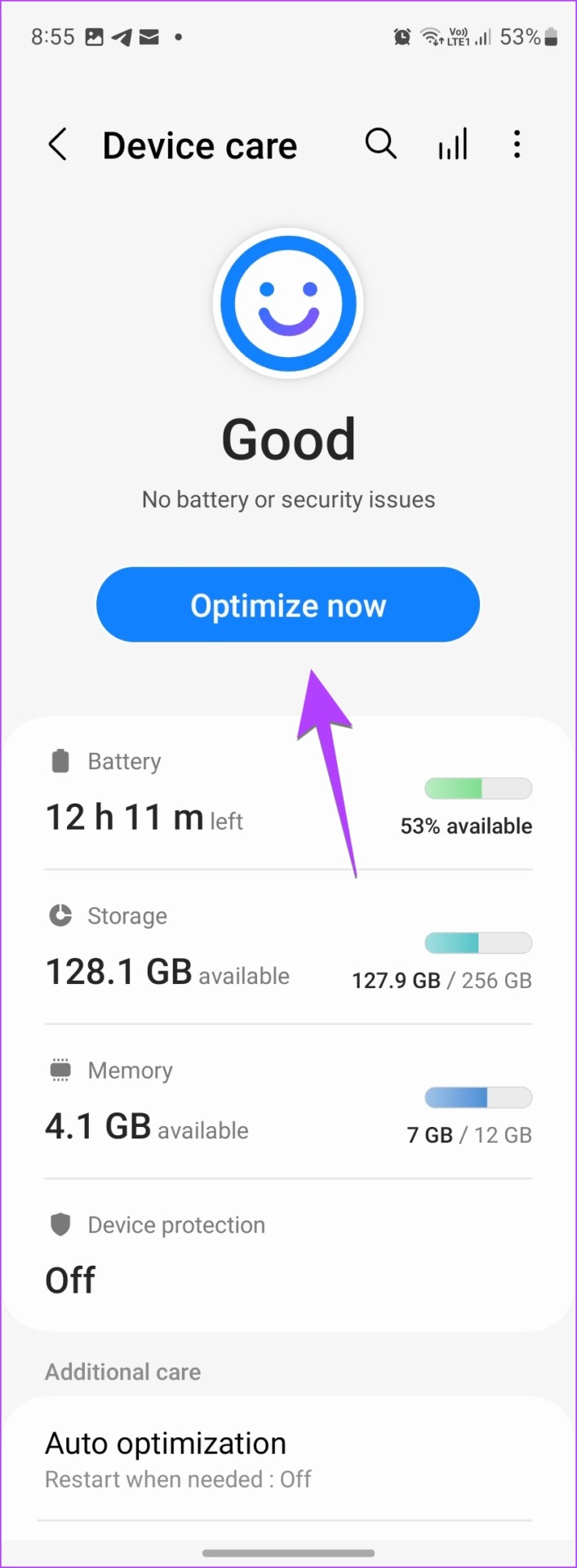
Step 4: Then, go to Storage , followed by the Clear now button.
Method 3: Clear Cache of Multiple Apps on Samsung Phone
You can also use third-party apps to clear the cache of individual, multiple, or all apps at once. In addition to that, these apps show the cache size of all the apps at once.
Step 1 : Install and open the 1TapCleaner app from the Play Store.
Step 2: Open the app and grant the necessary permissions.
Step 3: Now, tap on Cache cleaner in the app.
You will see a list of all currently installed apps, with the one utilizing the most cache memory located at the top.
Step 4 : To clear the cache for an individual app, tap on it and press the Clear cache button on the next screen.
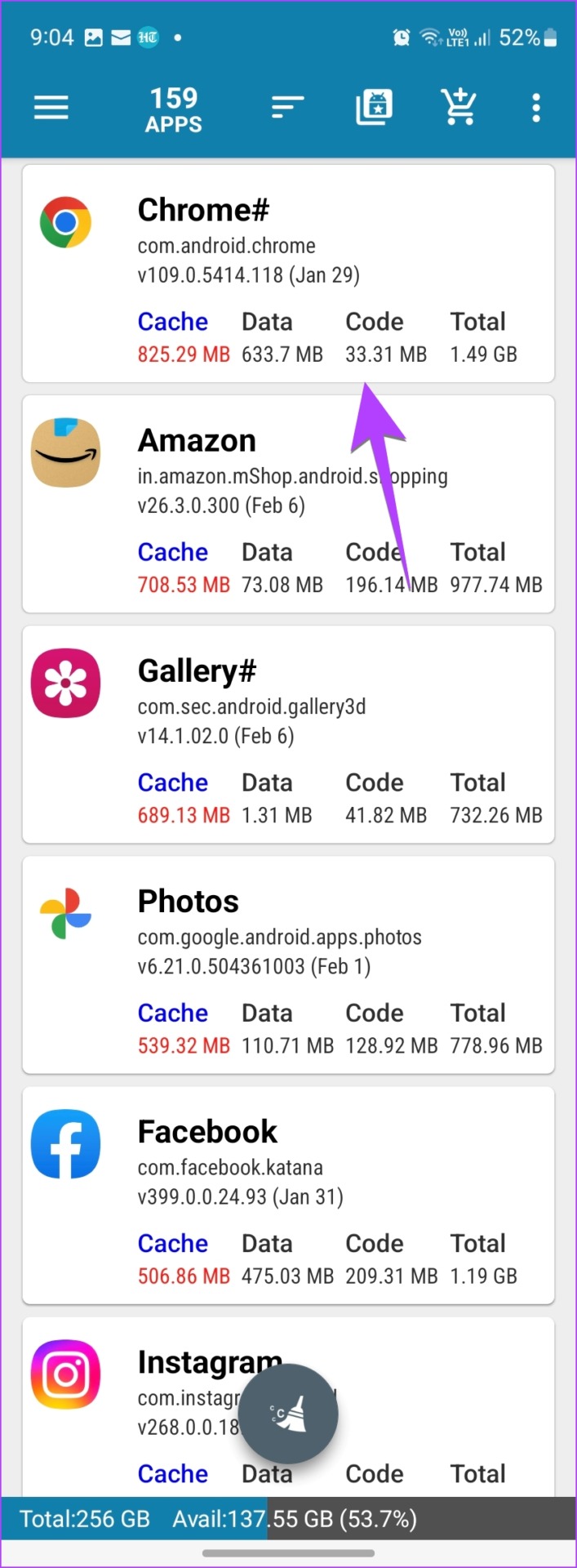
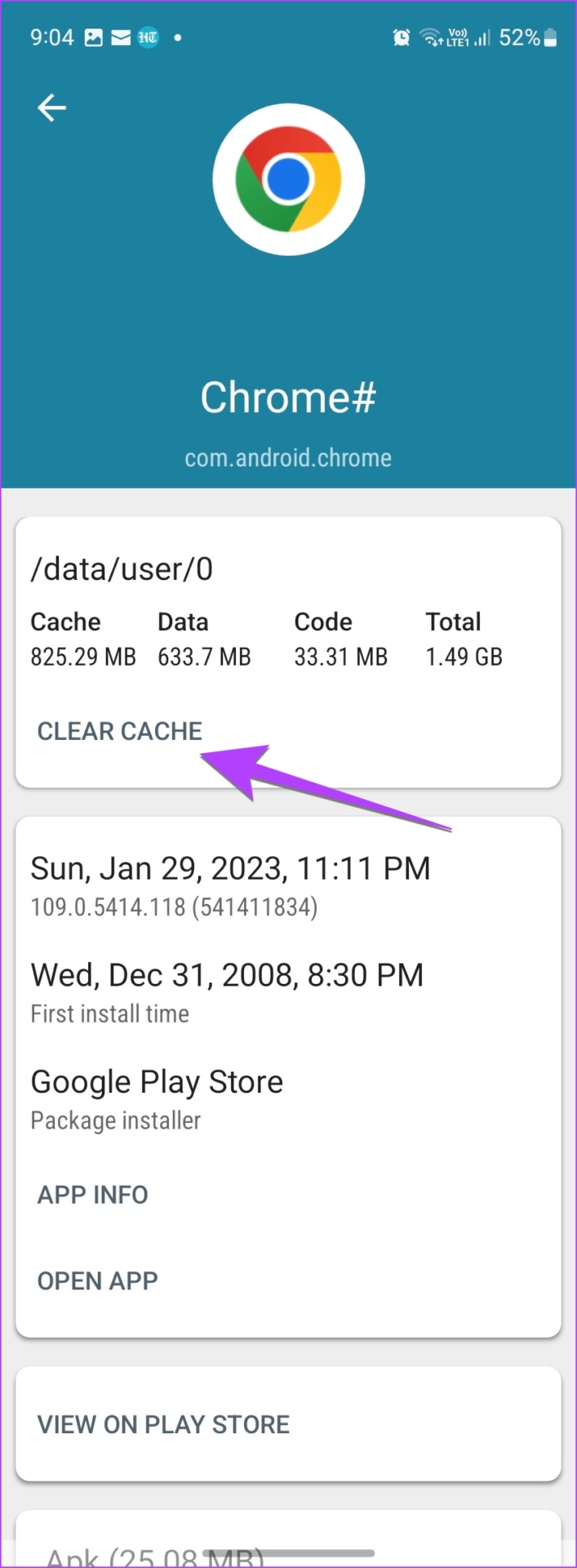
Step 5: To clear the cache of all or multiple apps, go back to the previous screen and tap on the Brush button at the bottom.
Step 6: You will see the total occupied cache size on the next screen. Tap again on the Brush button .
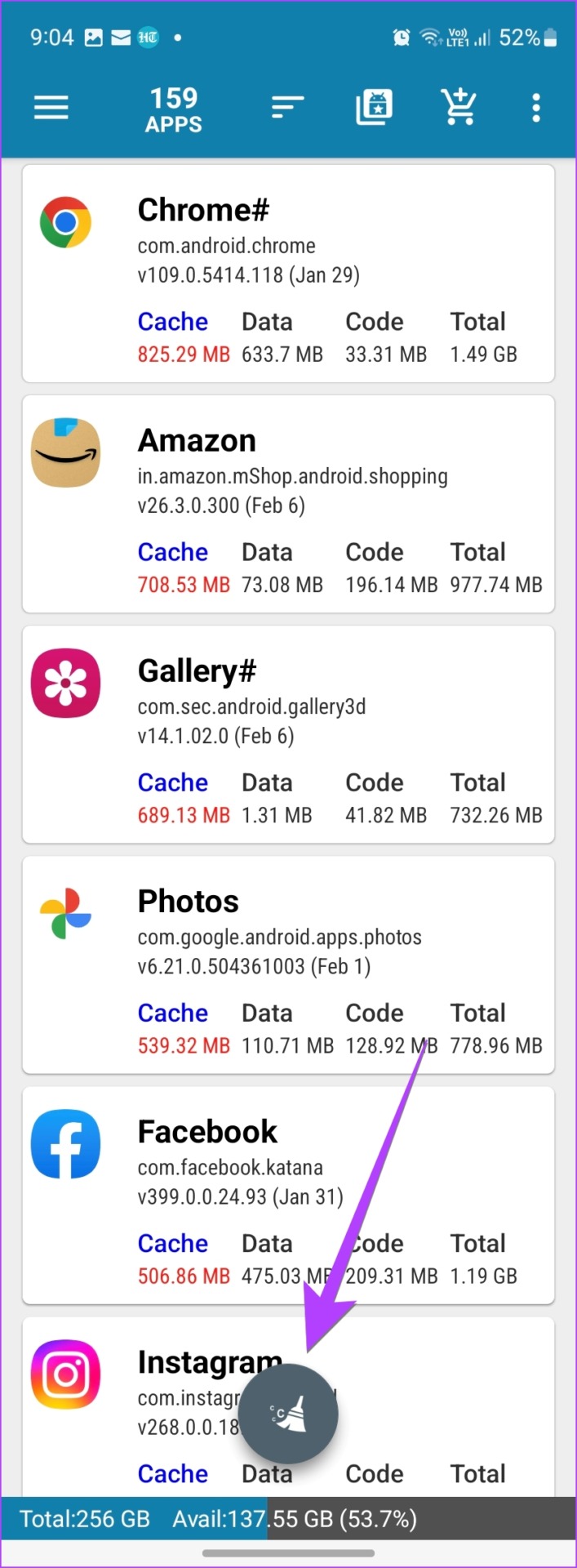
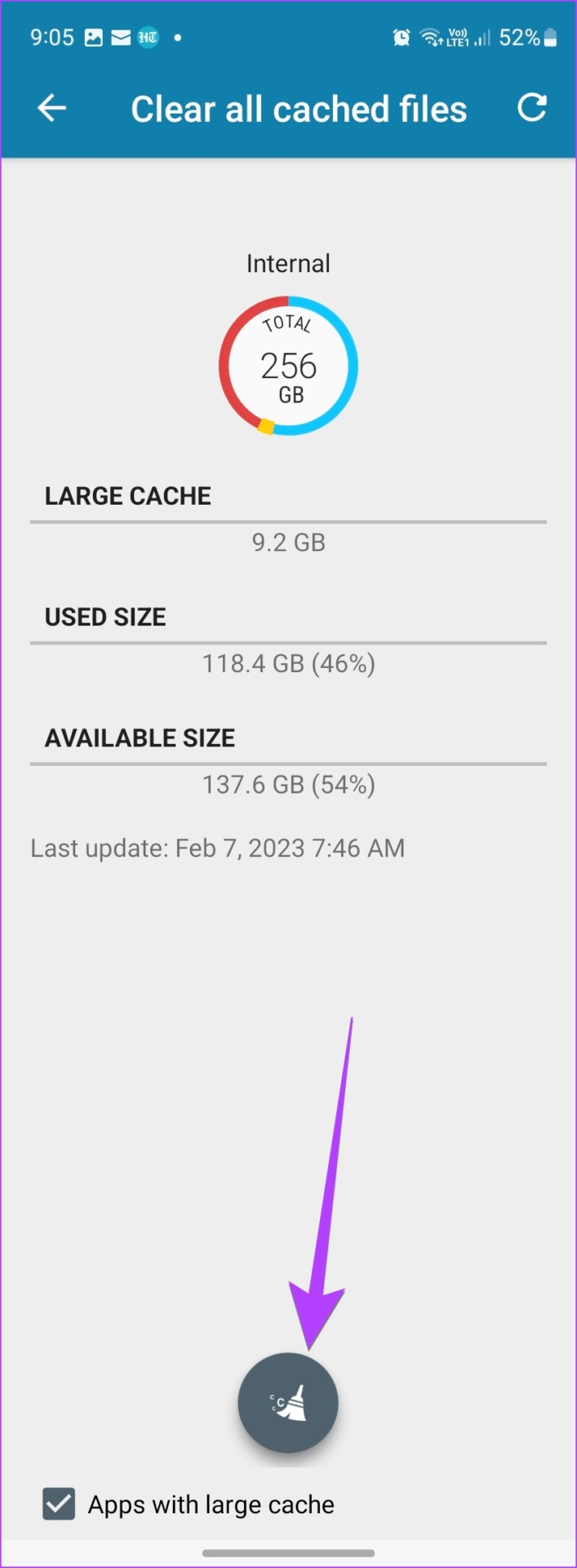
By default, all the apps will be selected. If you want to clear the cache for all of them, tap on the Brush button .
You might need to grant accessibility permission to clear the cache.
Method 4: Delete Cache and Cookies on the Samsung Internet Browser
Step 1: Open the Samsung Internet app on your phone.
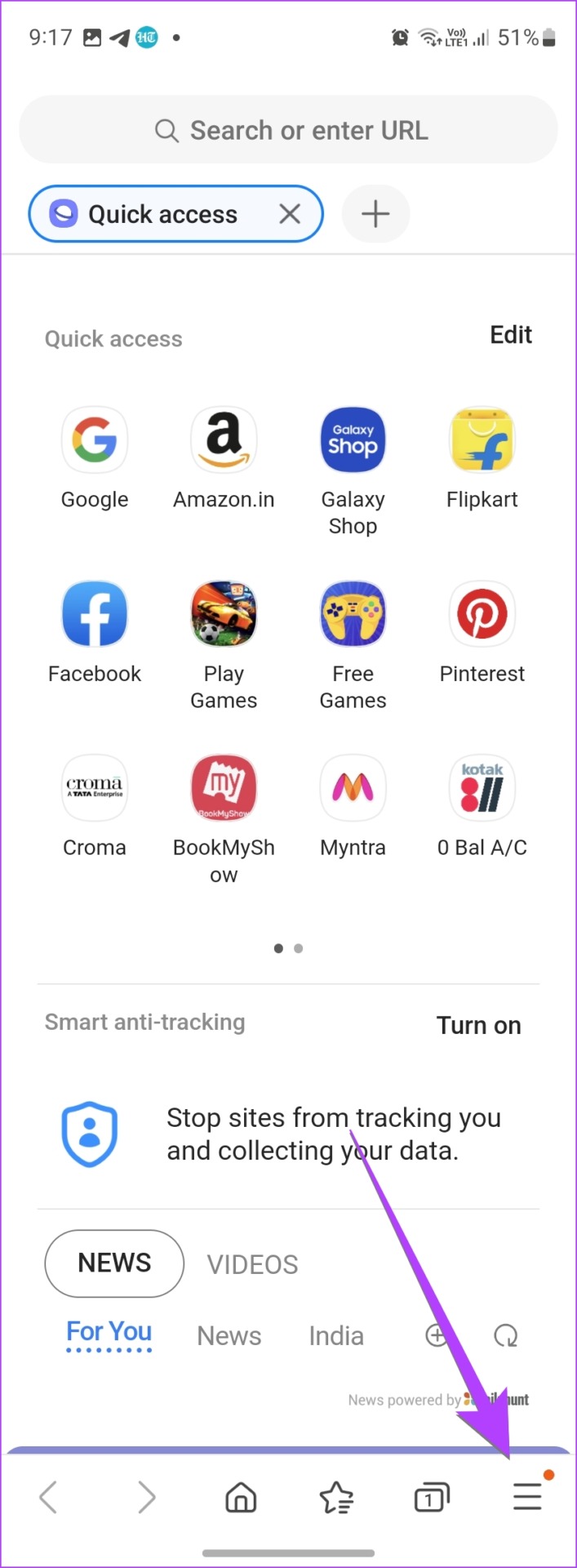
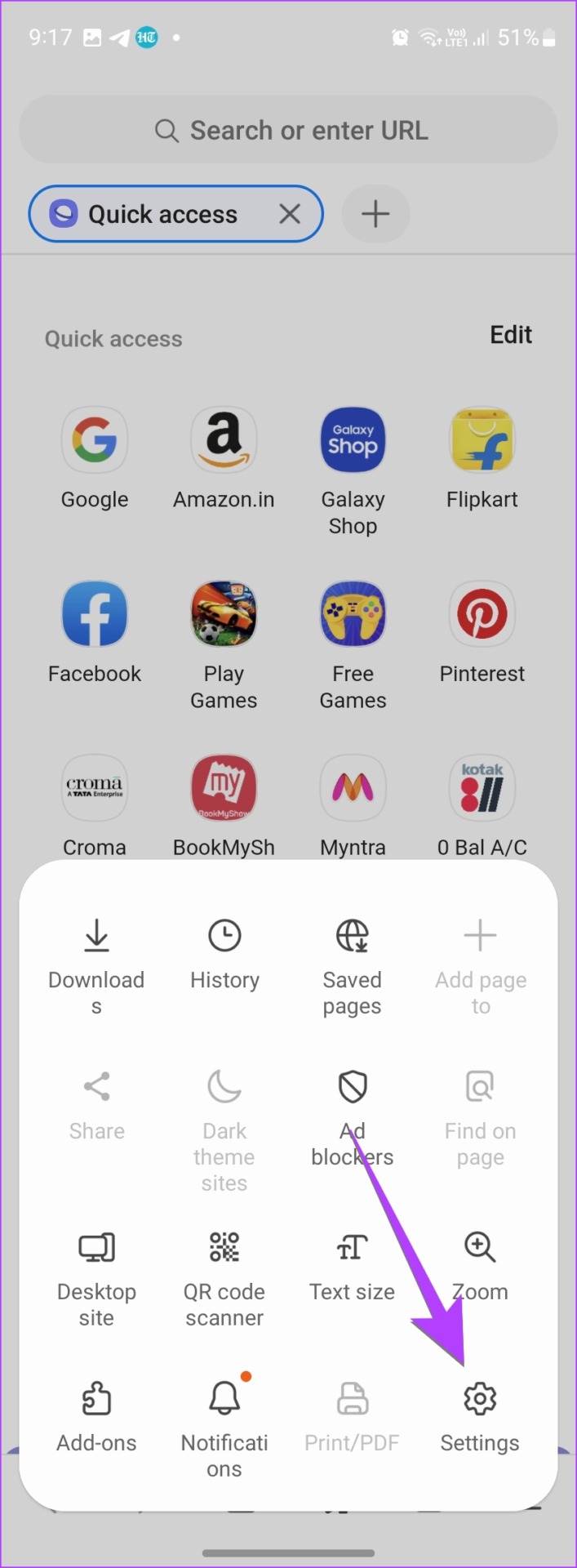
Step 2: Tap on the three-bar icon at the bottom and select Settings from the menu.
Step 3: Go to Personal browsing data and tap on Delete browsing data .
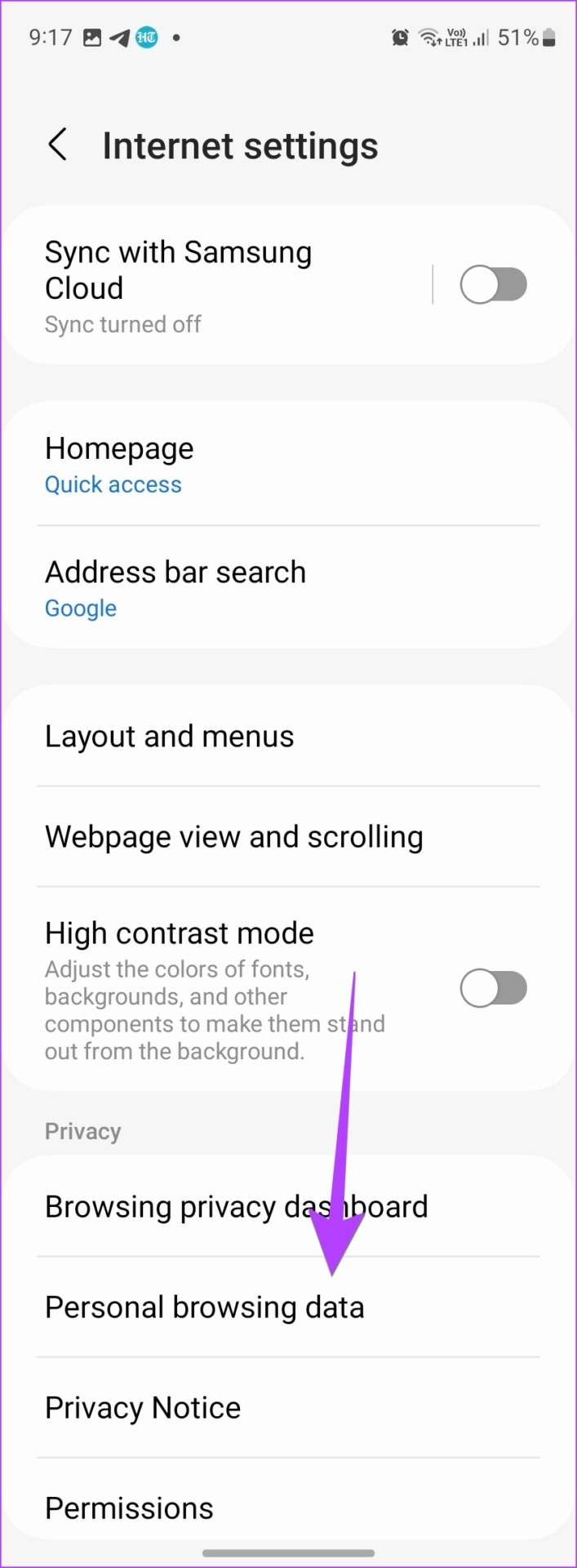

Step 4: Select the items that you want to delete. In this case, select Cookies and site data, and Cached images and files . Then, tap on the Delete data button at the bottom.
Note : Deleting cookies will sign you out of the websites where you are logged in on your Samsung Galaxy phone. You can also clear browsing data by selecting Browsing history.
FAQs About Clearing Cache on Samsung Galaxy Phone
1. What’s the difference between clearing cache and data? Clearing the cache will delete temporary files that accumulate over time. On the contrary, clearing data will delete the actual data associated with the app. For instance, chats will be deleted in WhatsApp. Learn the difference between clearing cache and data.
2. When to clear the cache of apps? Clearing the cache is not advised because apps save temporary data to make them run faster. However, some poorly designed apps do not properly manage the app cache. Furthermore, the app cache accumulates over a long period of time. So, you can clear the cache occasionally but not regularly, such as daily or weekly.
Clearing the cache helps free up storage on your Samsung Galaxy phone. Check out other ways to free up storage on your Samsung phone.
Was this helpful?
Submit Cancel
Thanks for your feedback!
Keep reading