Android
How to Clear Keyboard History on Android Smartphones
Is auto-correct constantly getting in your way of texting? Here's how you can stop that by clearing keyboard history on Android.
By Ankita Sharma
Quick Tips
Open Gboard settings > Advanced > Delete learned words and data > confirm > turn off Personalization toggle.
Go to General management settings on your Samsung phone and reset the Samsung Keyboard settings.
Open Settings > System > Languages & input > Virtual keyboard > select third-party keyboard and clear history.
How to Erase Keyboard History in Gboard
Features like auto-corrections and keyboard history are auto-enabled to make your Gboard typing efficient. To give you more control over your data, here’s how to erase all your data and reset Gboard on your Android device.
Method 1: Delete Saved Words in Gboard
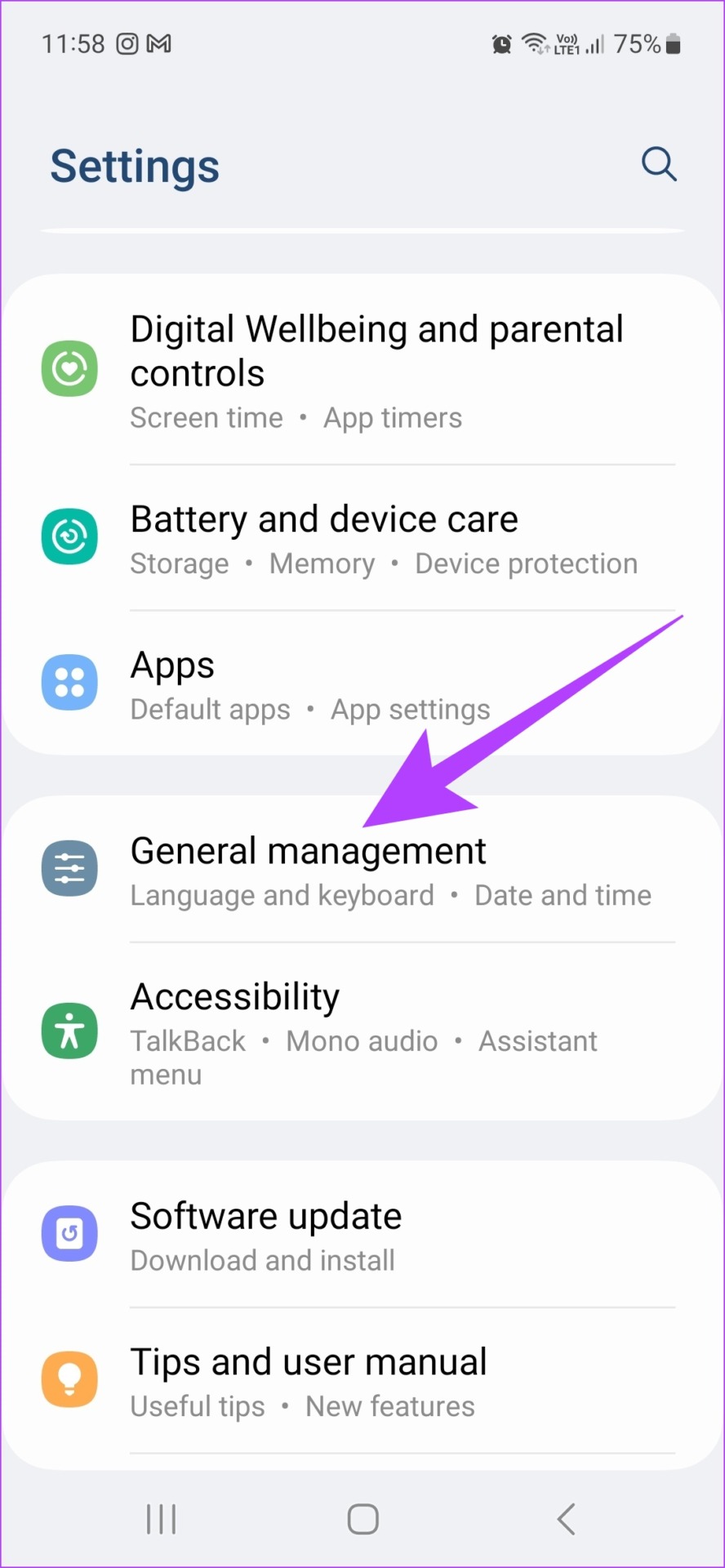
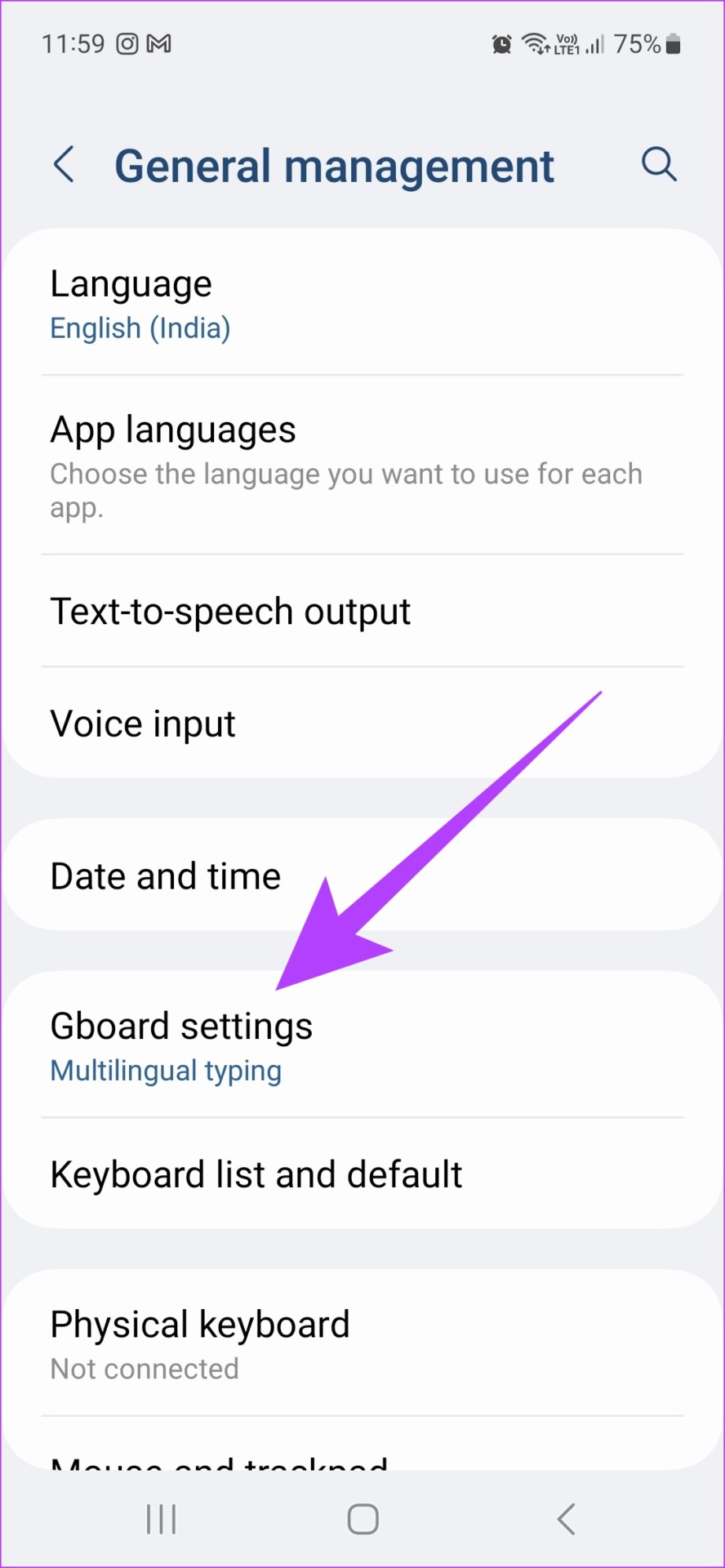
Step 1: Open Settings and go to General management . Tap on Gboard settings .
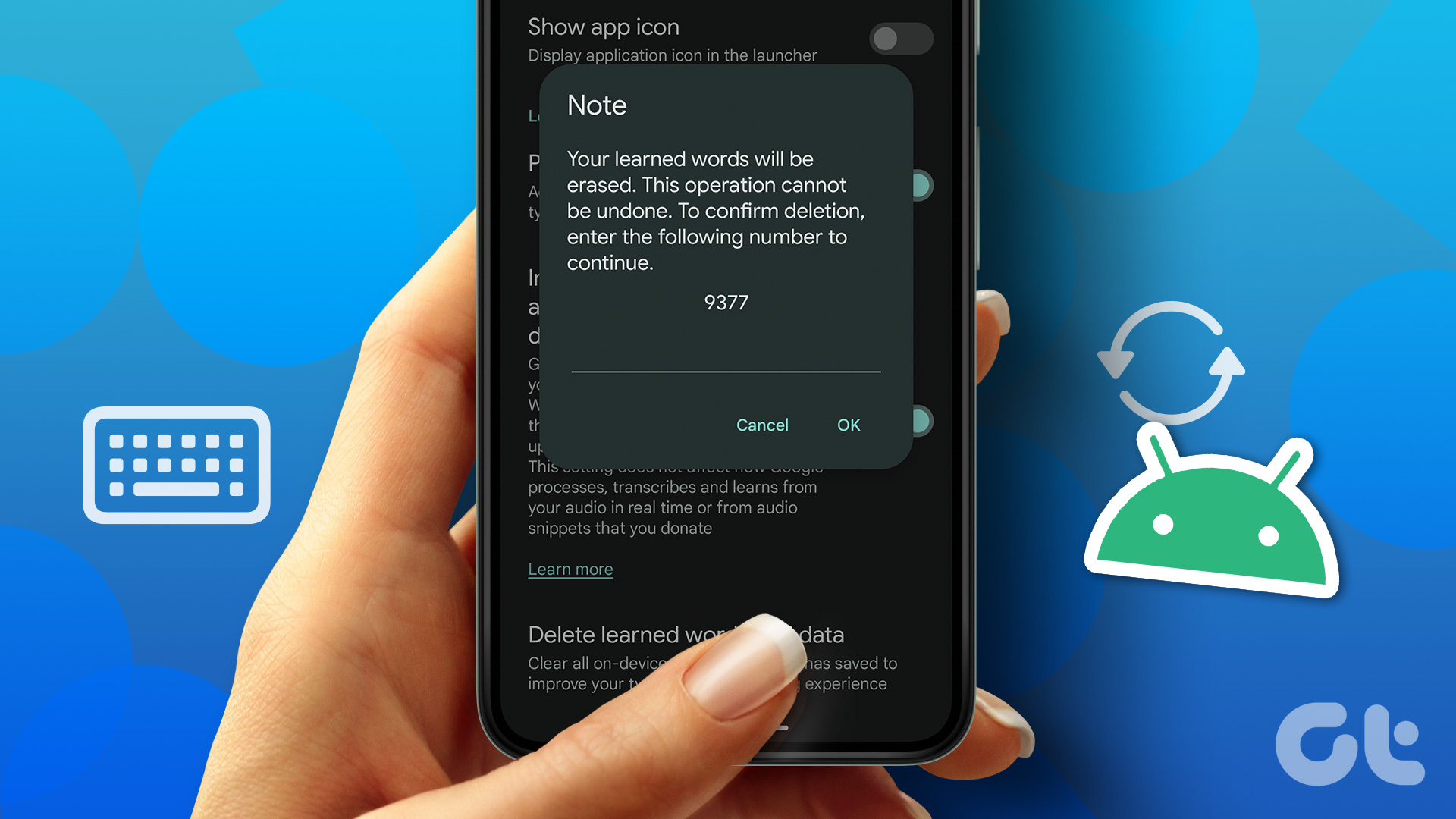
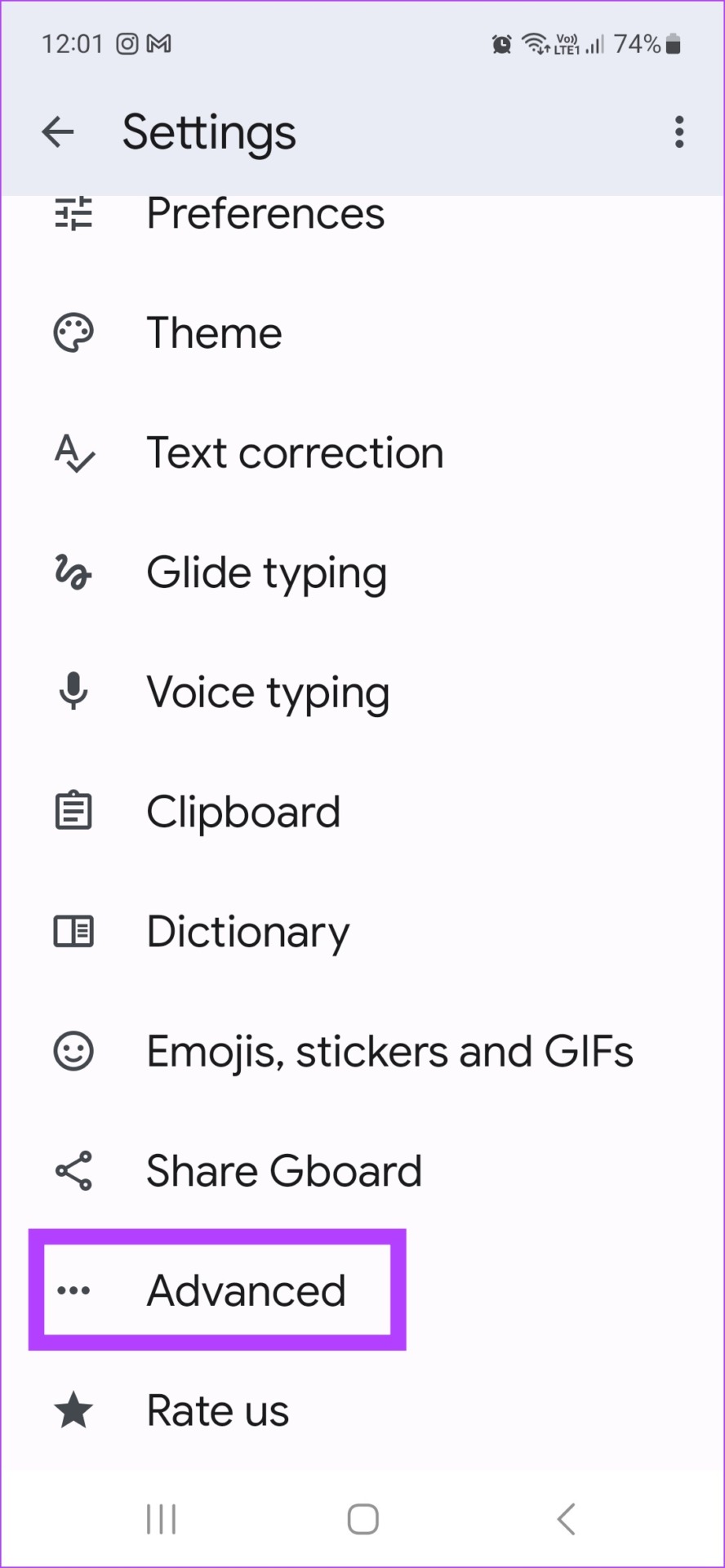
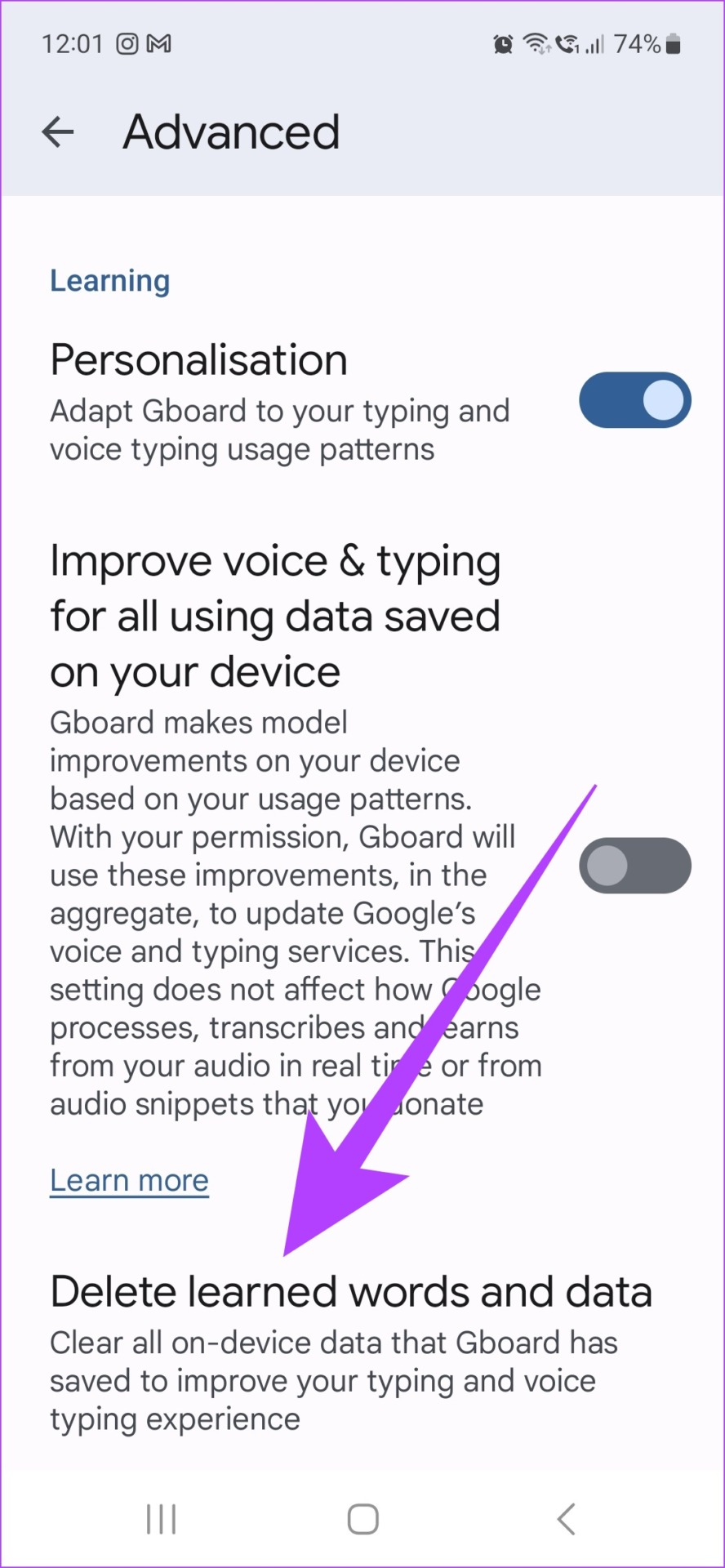
Step 2: Tap on Advanced . Here, tap on Delete learned words and data .
Step 3: Enter the number provided and tap on OK .
Step 4: Then, disable personalization by turning off the Personalization toggle.
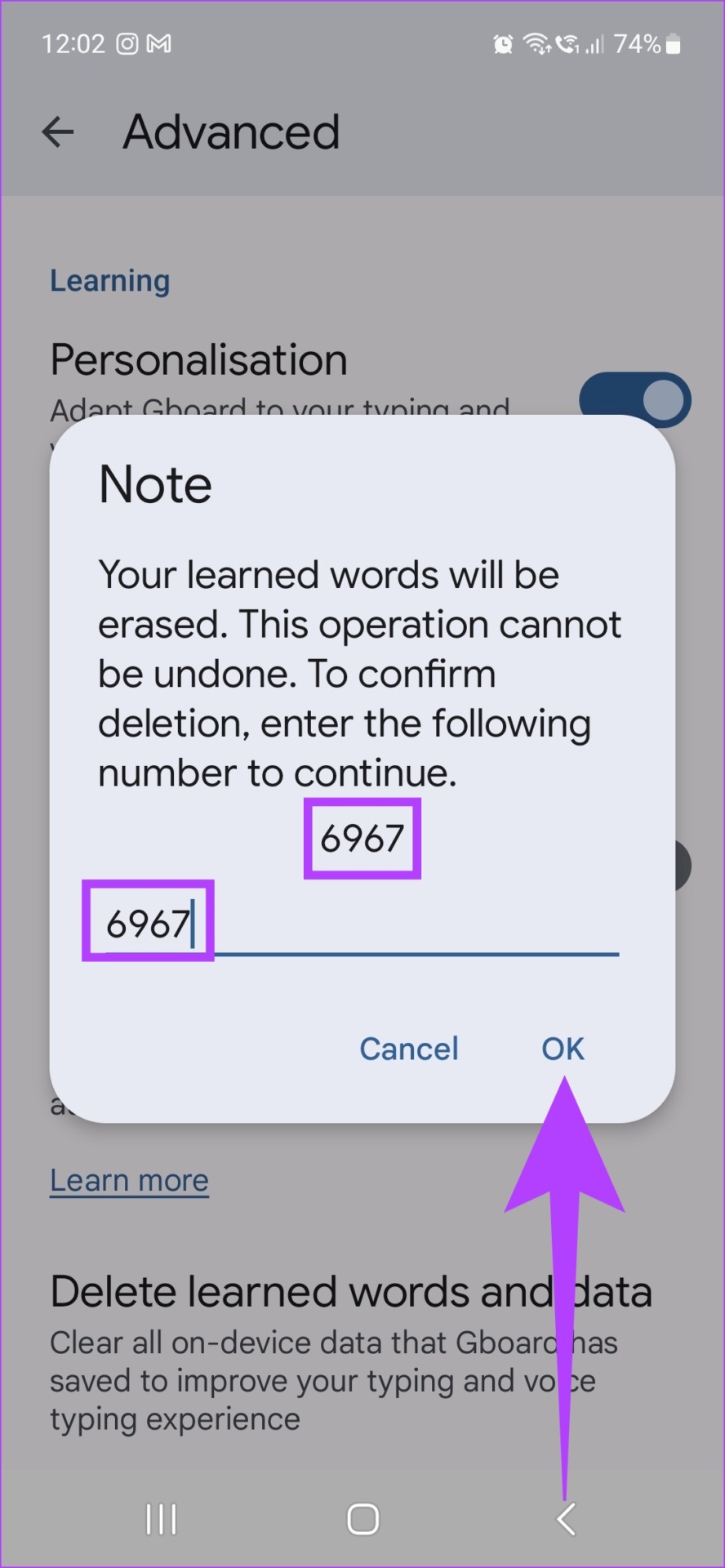
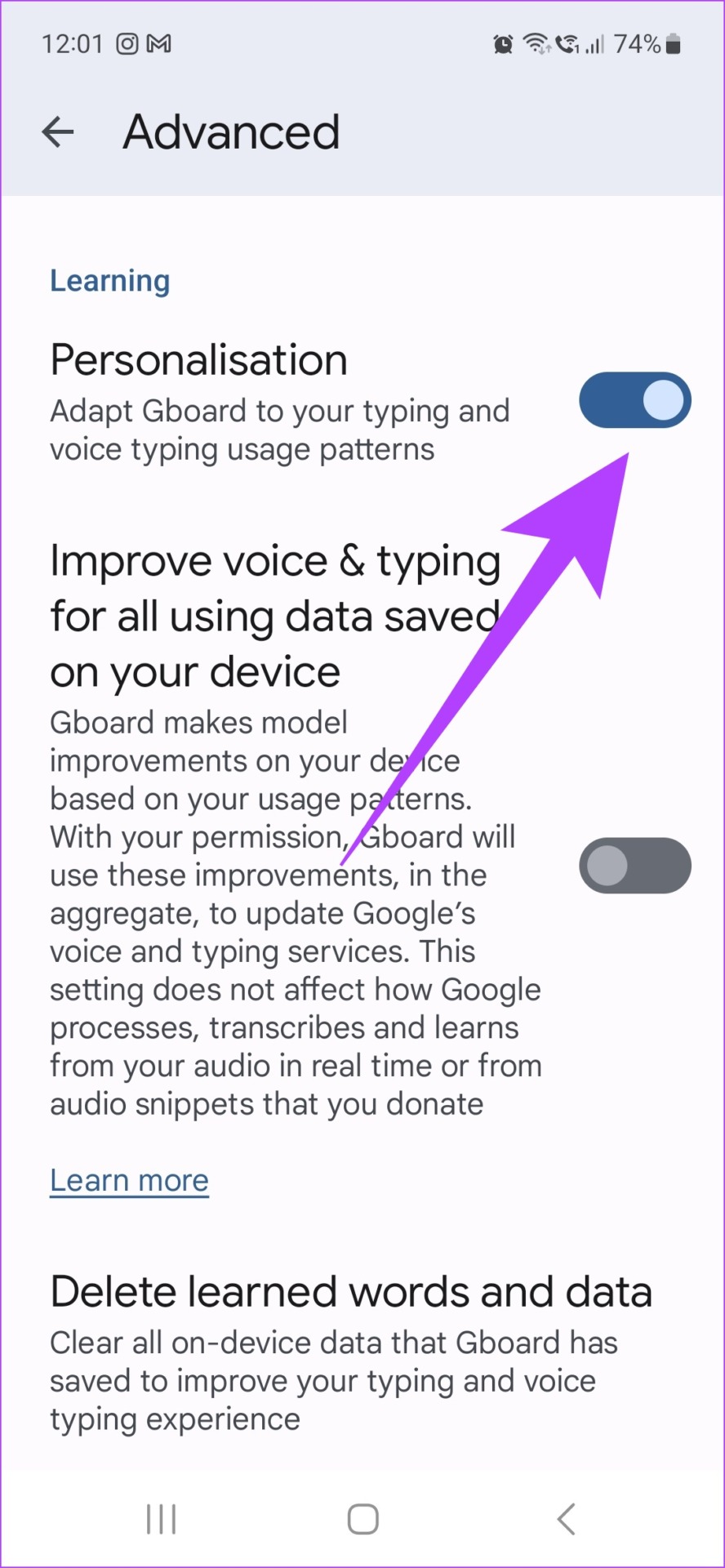
You can also turn off predictive text by going to the Text correction setting in the Gboard menu and turning off Auto-correct.
Method 2: Clear All Data and Cache for Gboard
To effectively clear all Gboard data, go to your device’s settings and clear all Gboard’s data and cache. Here’s how to do it.
Step 1: Open Settings and go to Apps . Tap on Gboard .
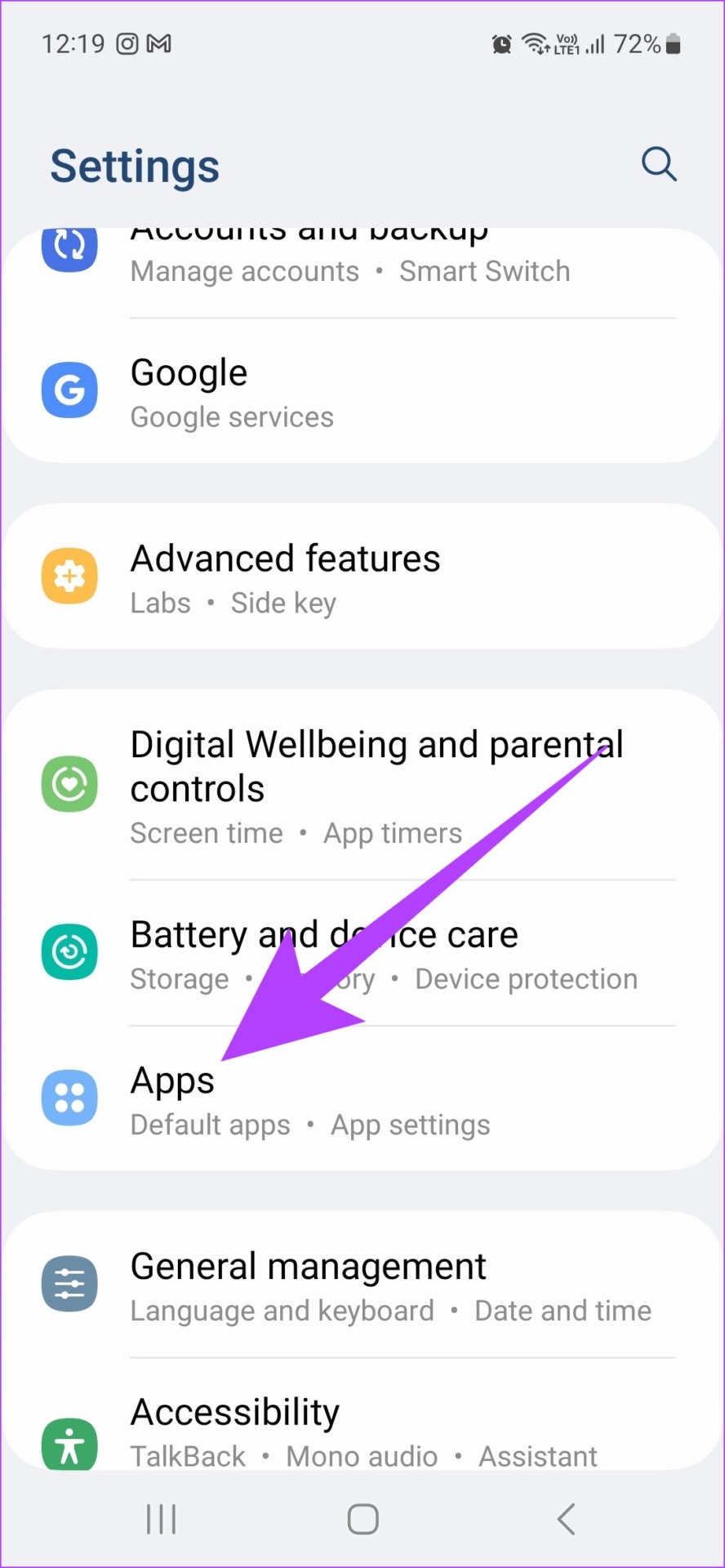
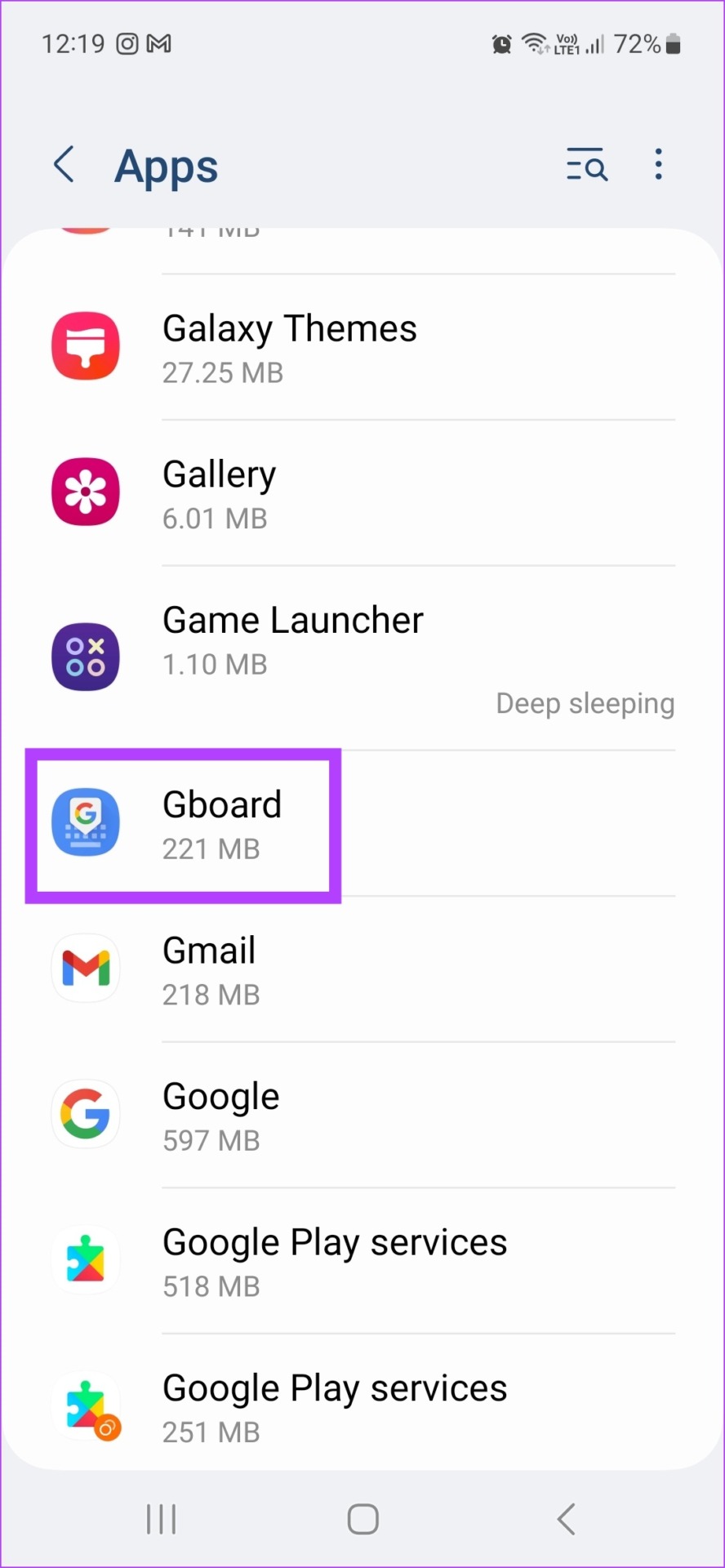
Step 2: Scroll down and tap on Storage . Tap on Clear cache .
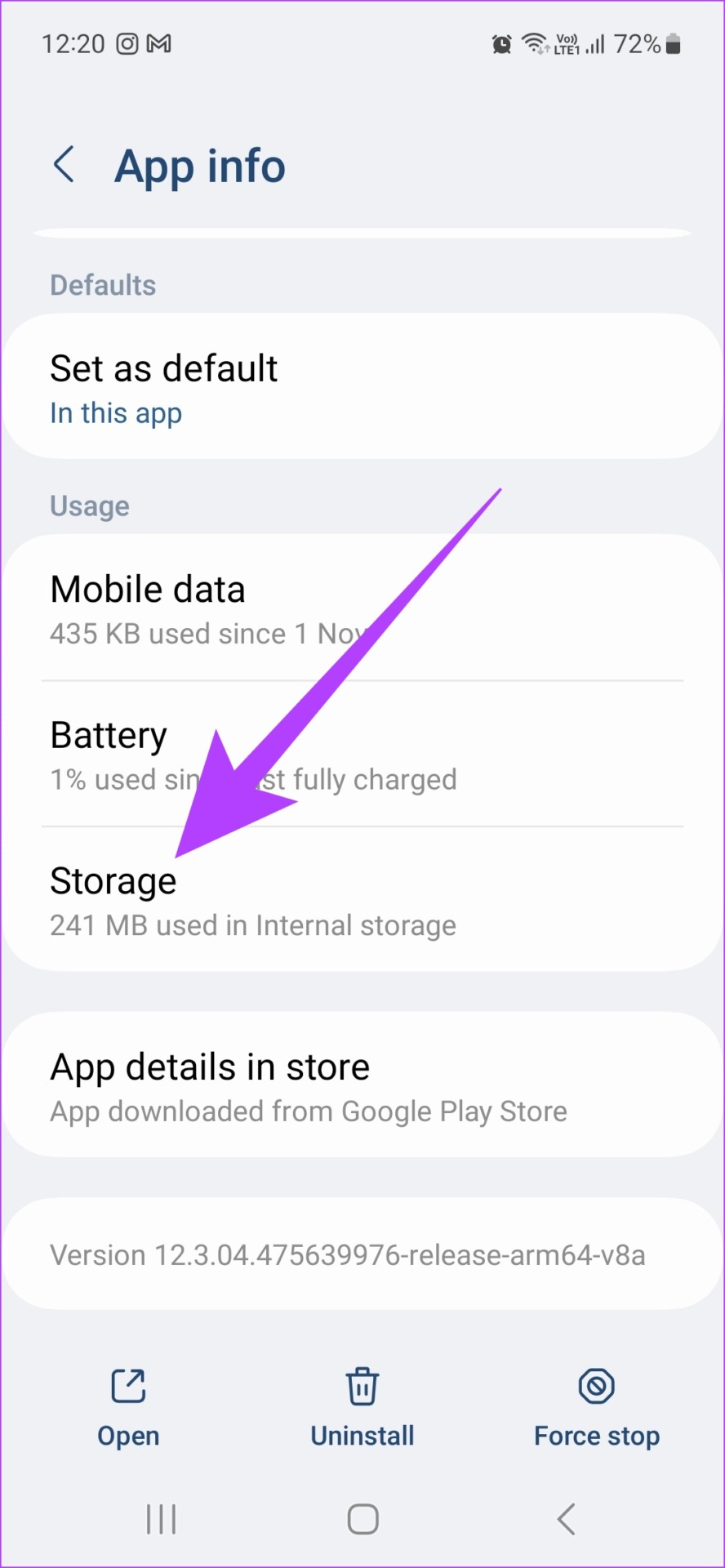
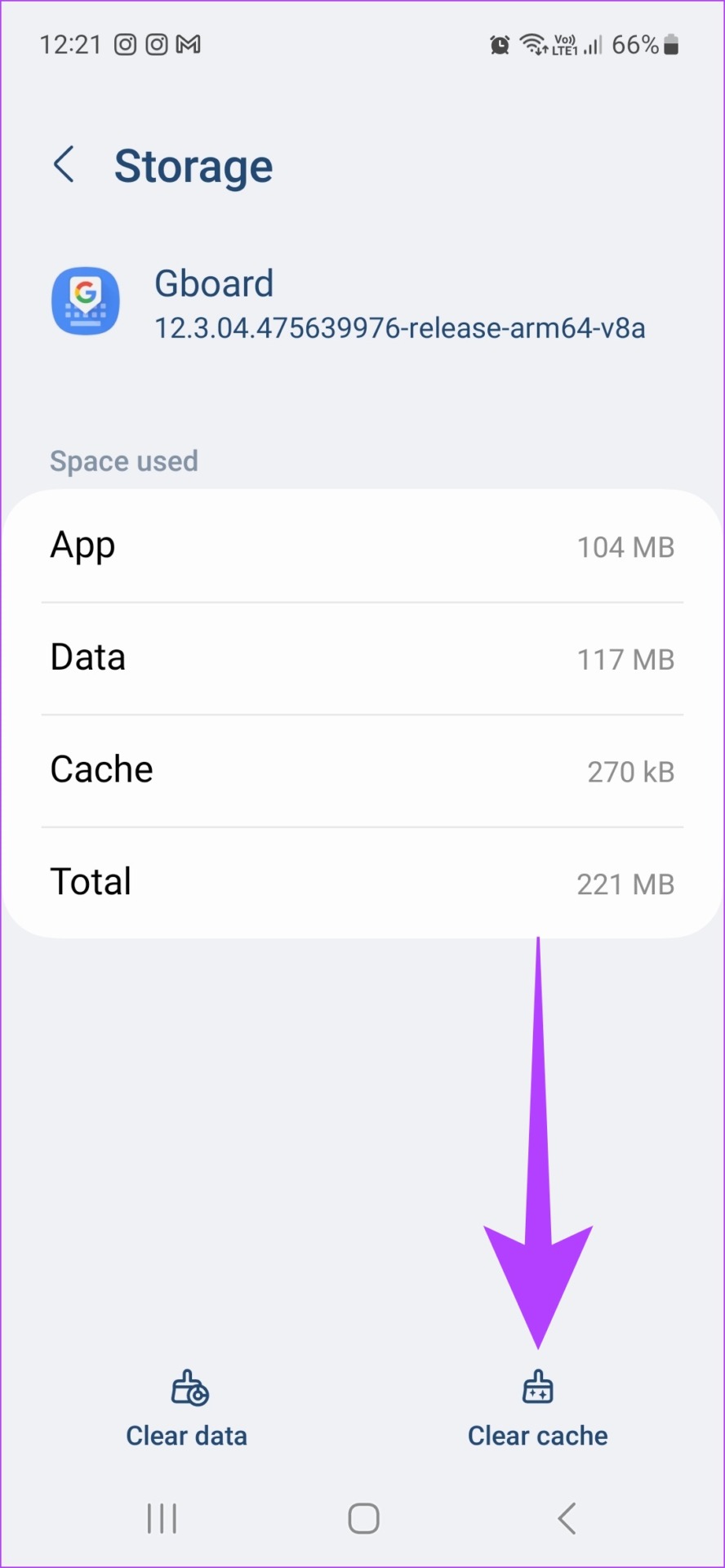
Step 3: Then, tap on Clear data and select Delete to confirm.
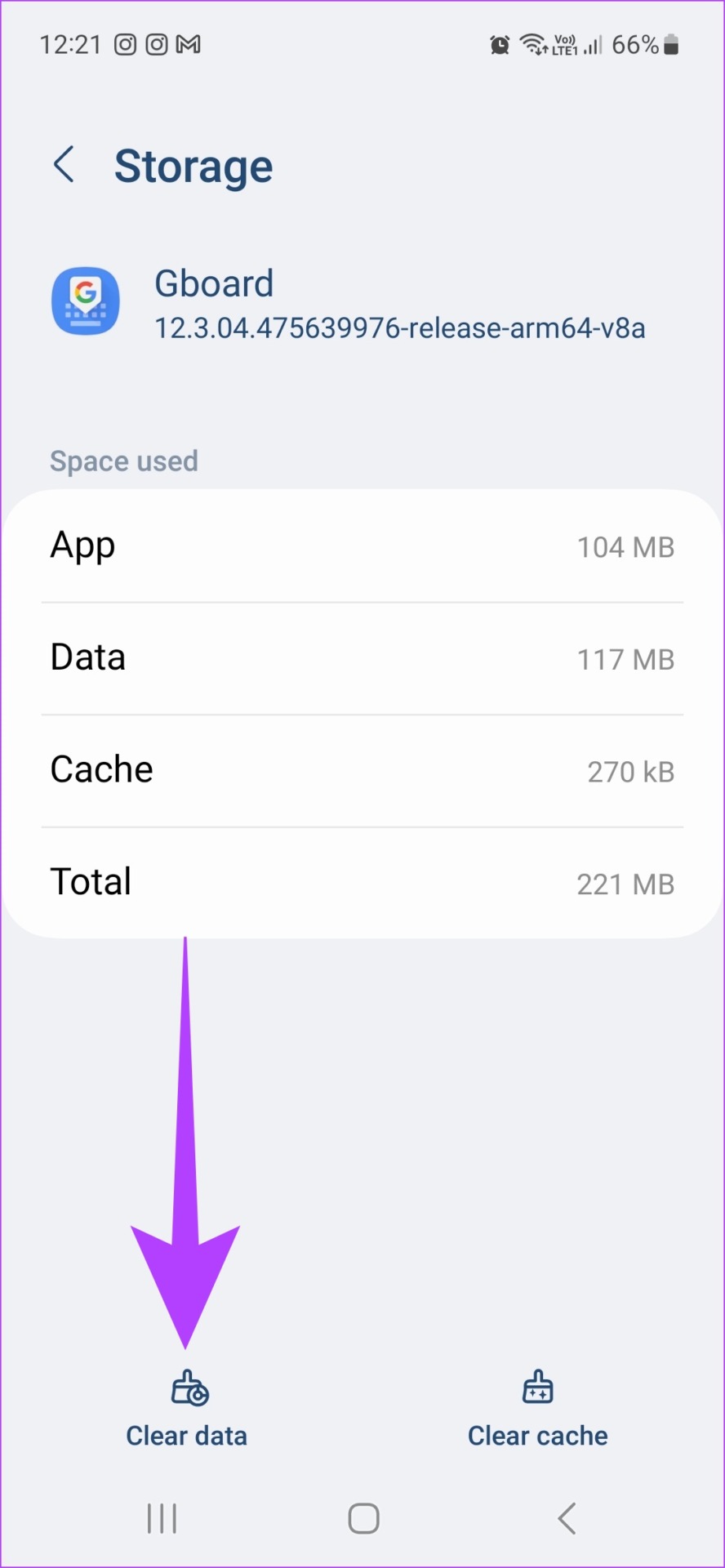
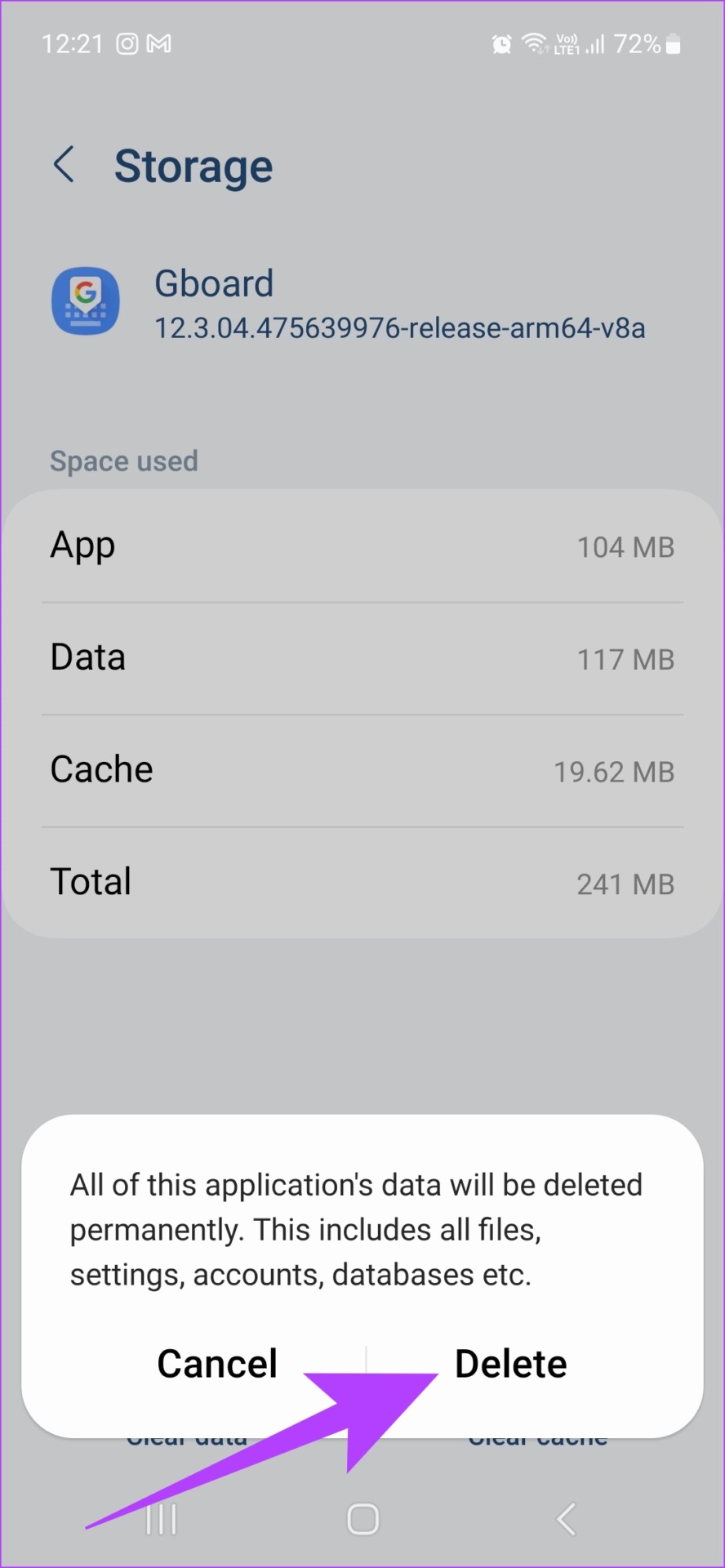
This will clear all the data and cache for Gboard on your device. Thus, completely erasing Gboard keyboard history.
How to Delete Keyboard History on Samsung Phones
Most Samsung devices nowadays come equipped with their native Samsung Keyboard app with the option for personalized suggestions and history already enabled. Here’s how to delete keyboard history and other personalized data from your Samsung Keyboard.
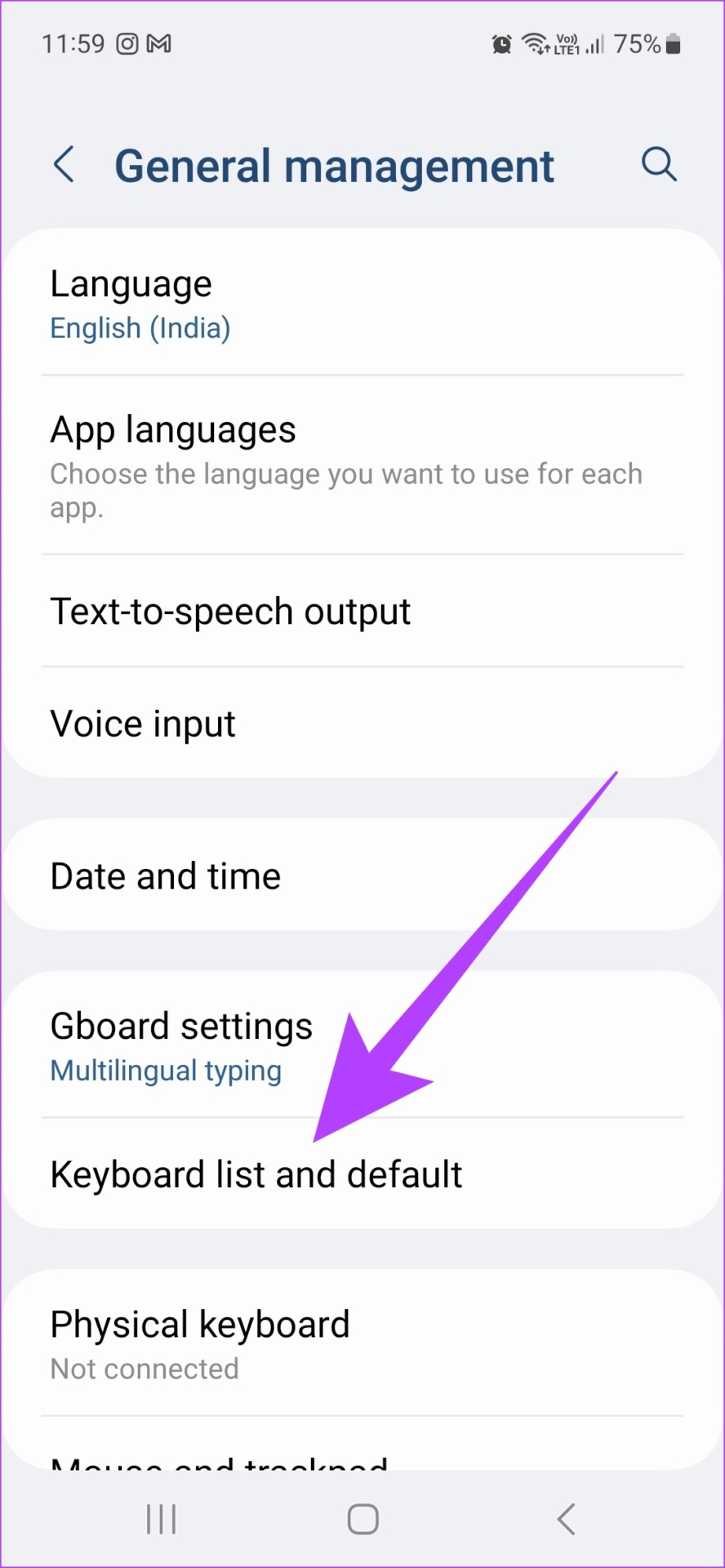
Step 1: Open Settings and tap on General management .
Step 2: Tap on Keyboard list and default . Then, tap on Samsung Keyboard .
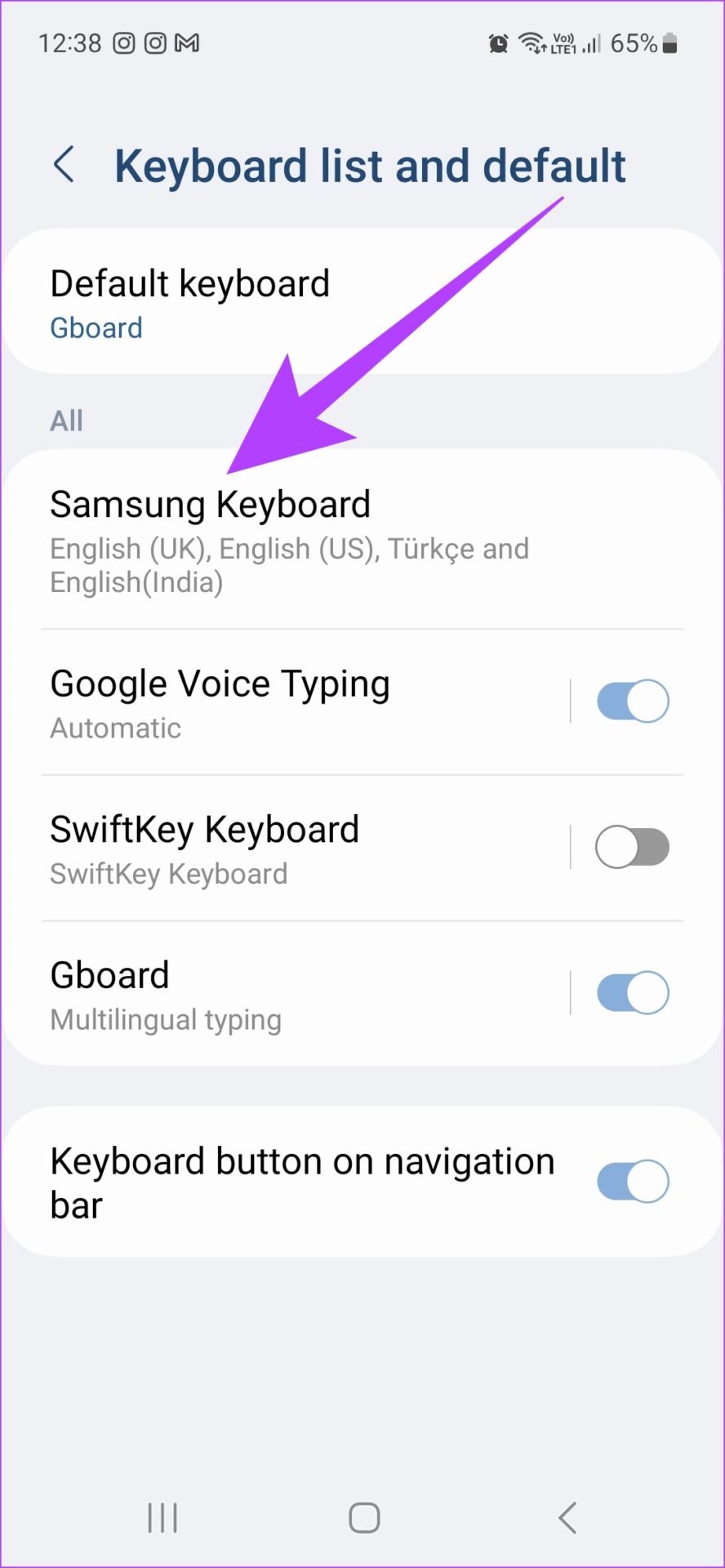
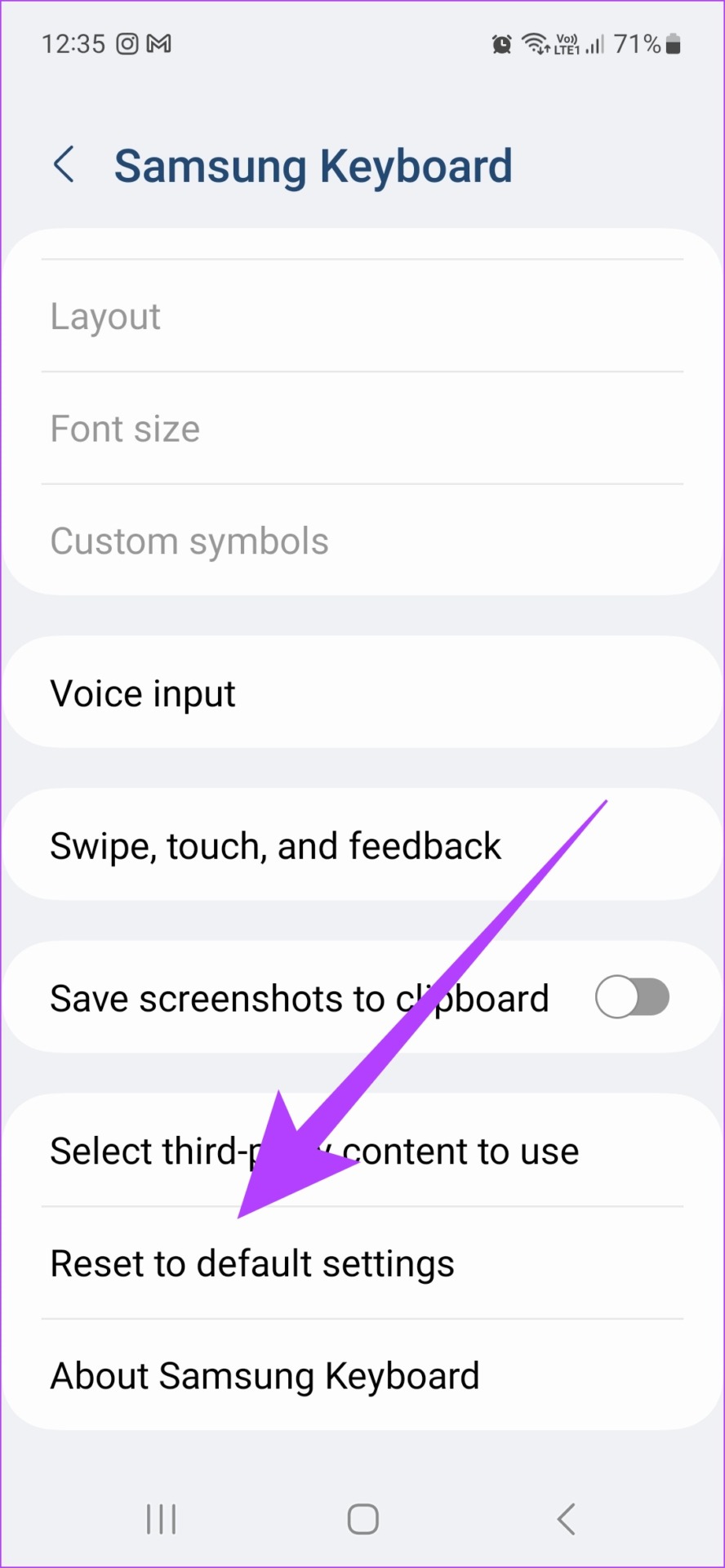
Step 3: Scroll down and tap on Reset to default settings .
Step 4: Then, tap on Reset keyboard settings and tap on Reset to confirm.
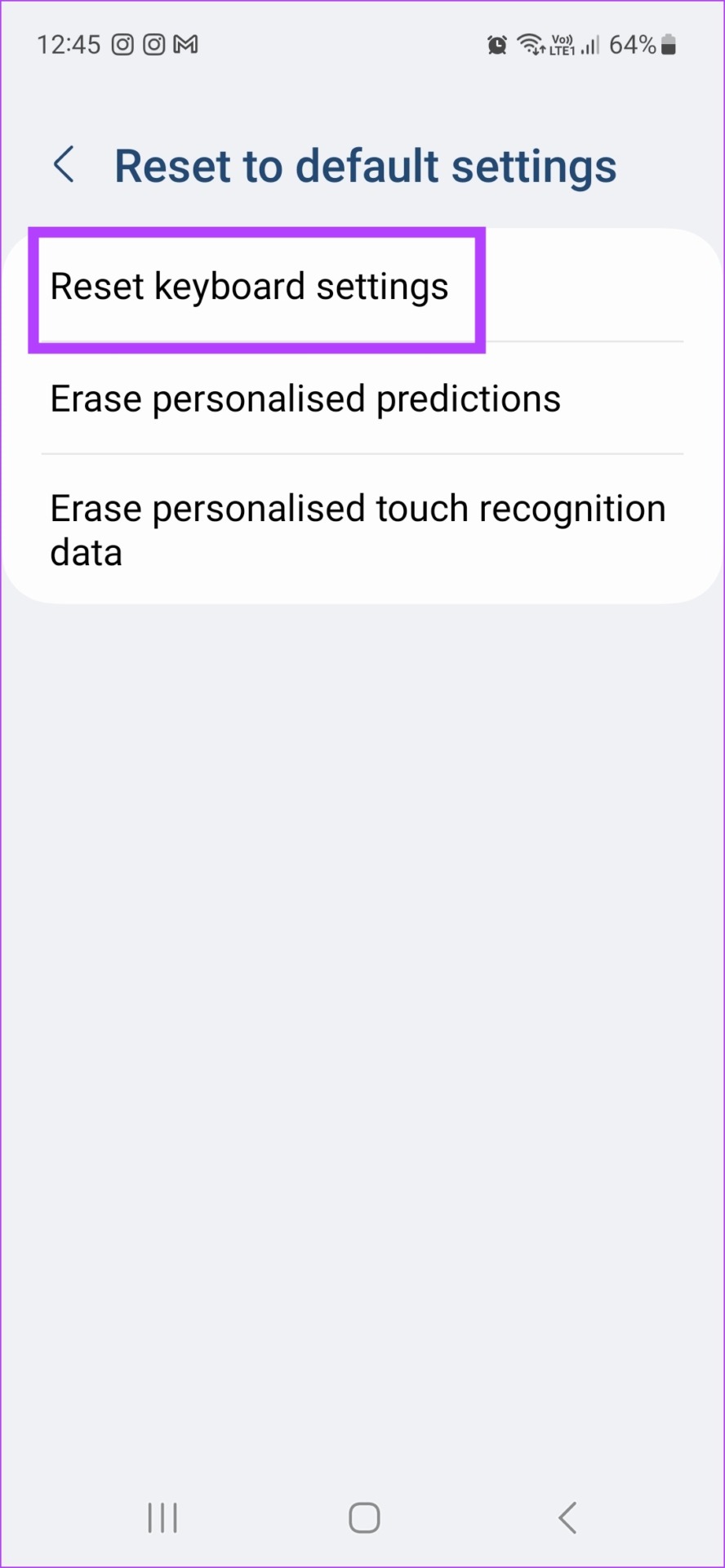
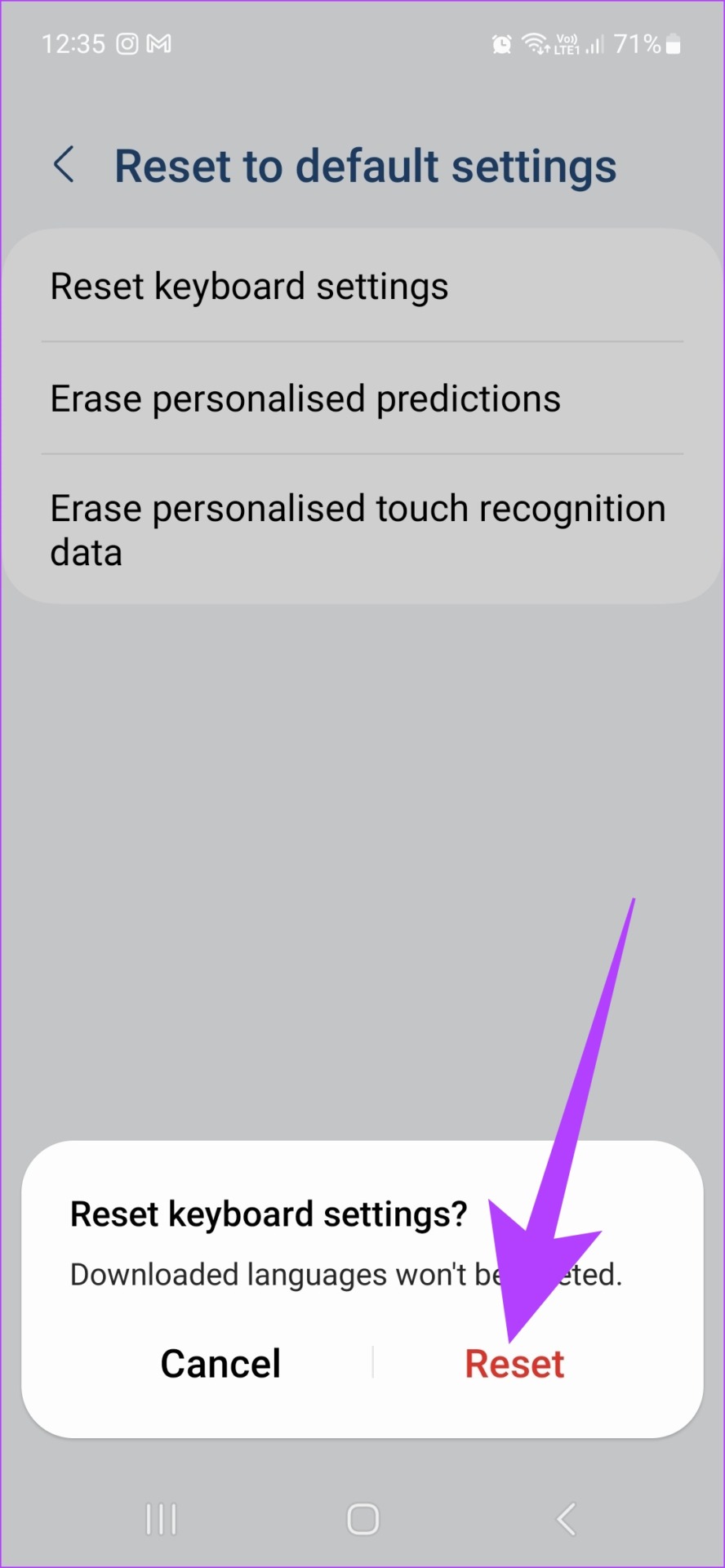
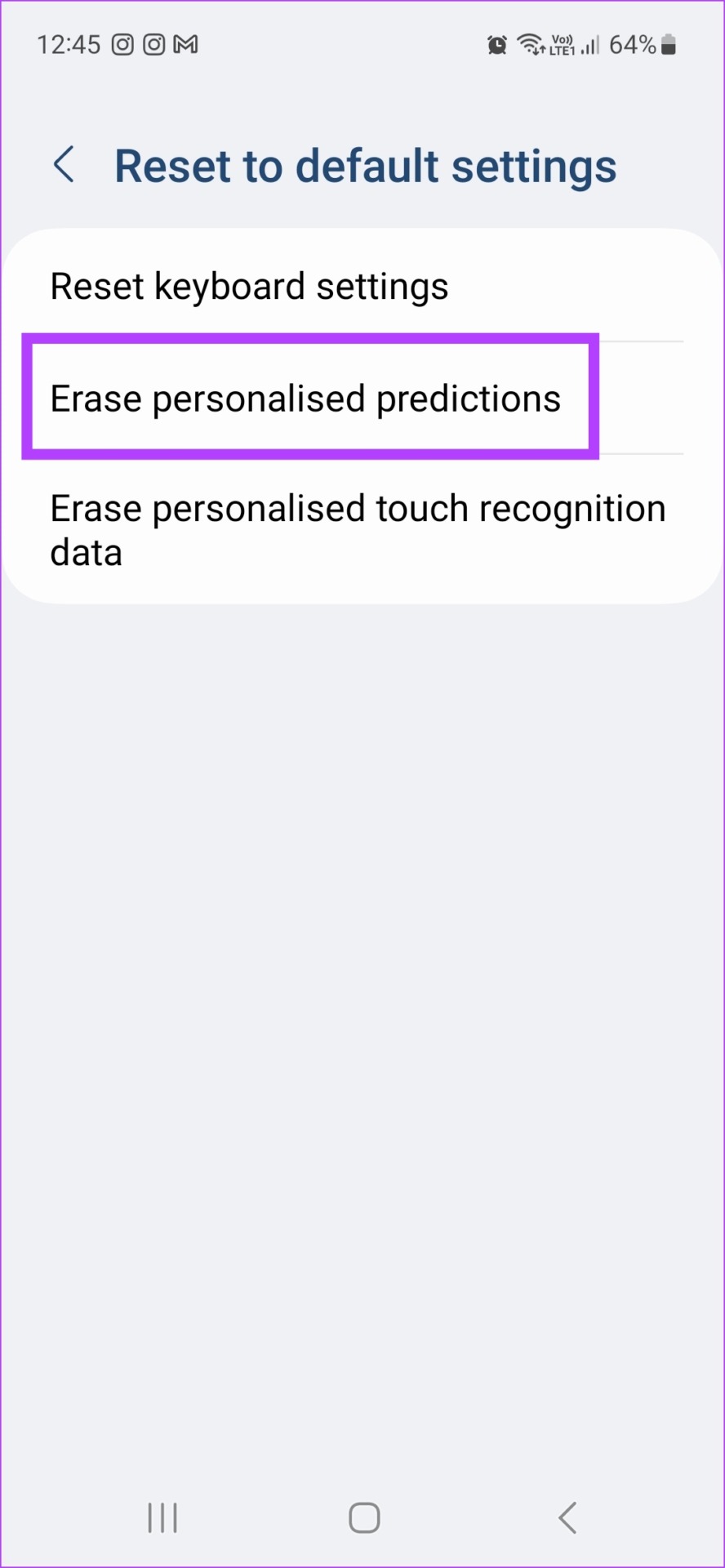
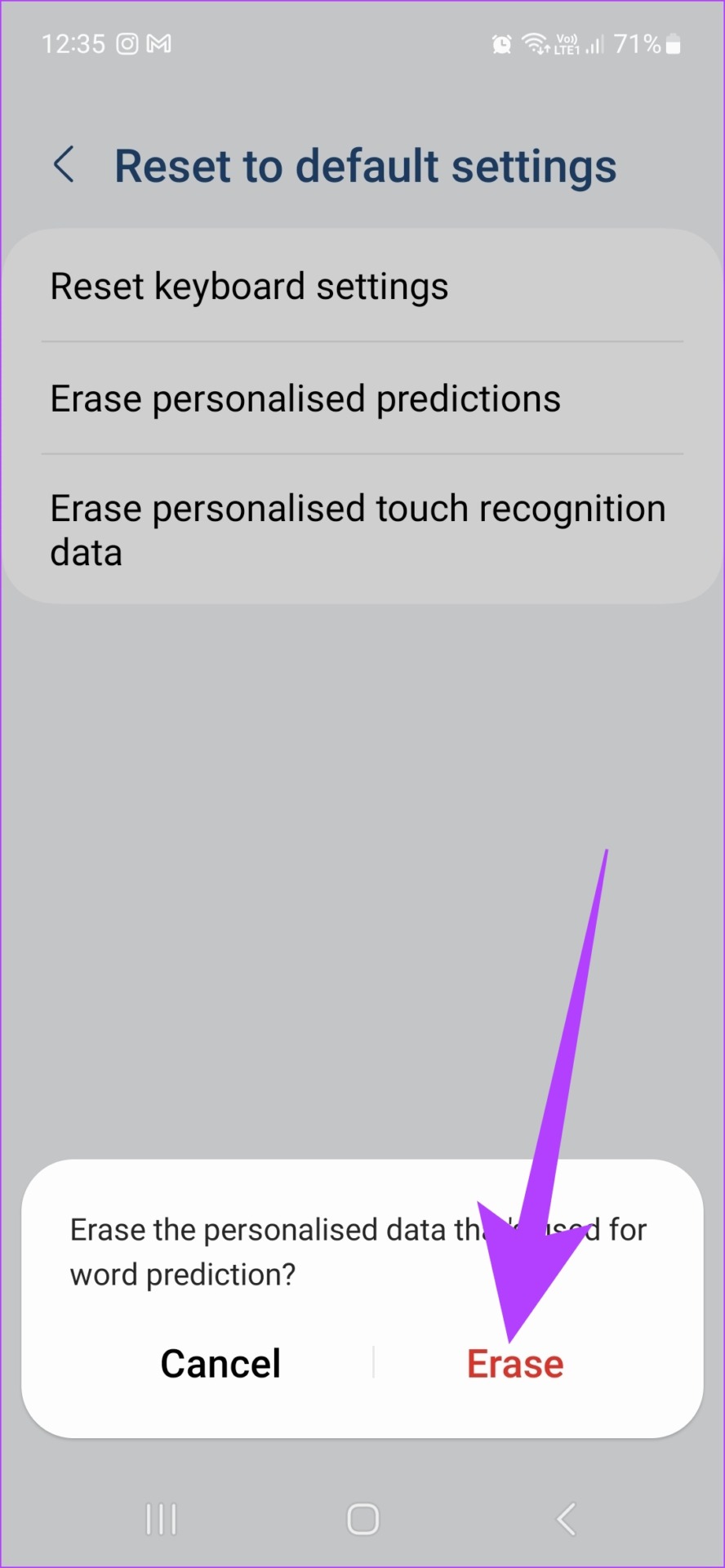
Step 5: Tap on Erase personalized predictions and select Erase to confirm.
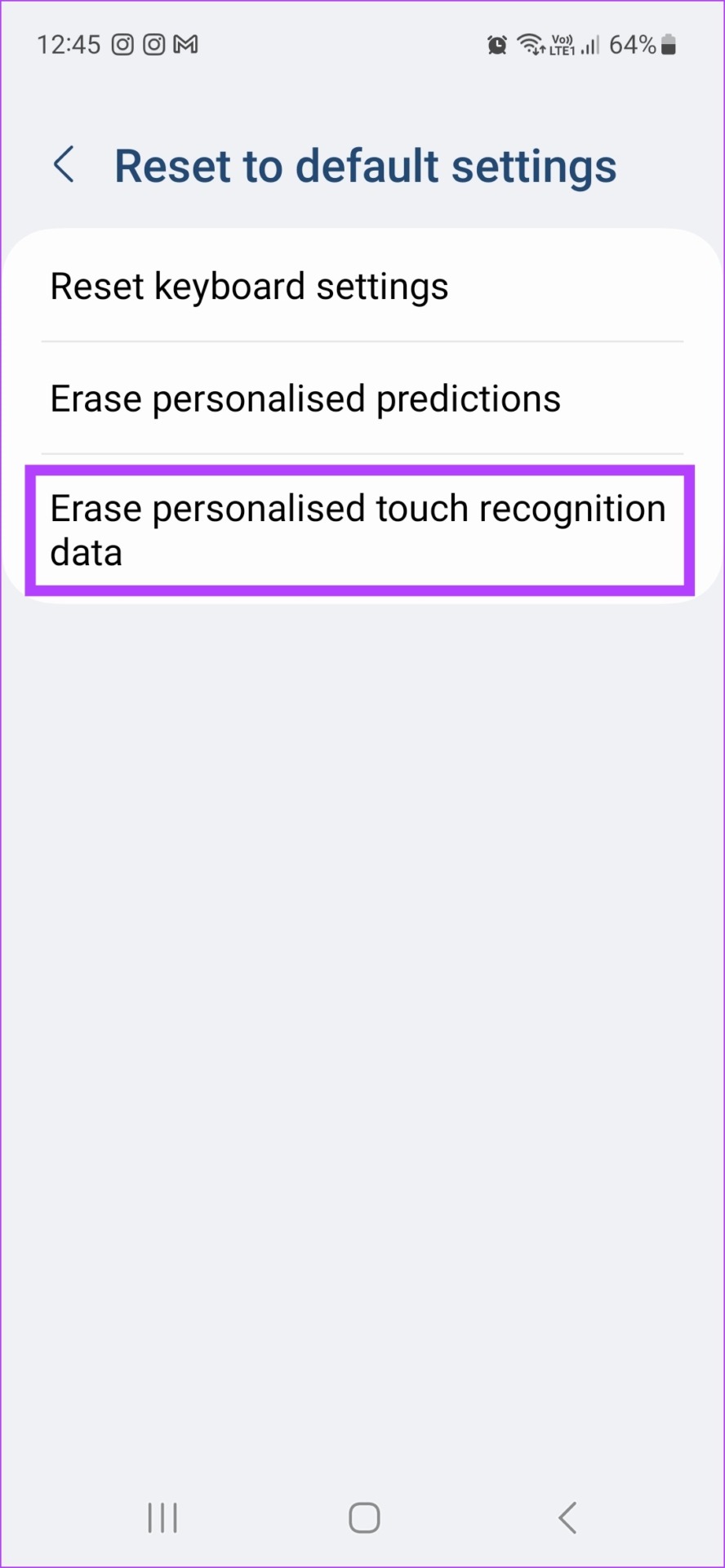
Step 6: Finally, tap on Erase personalized touch recognition data . Tap on Erase .
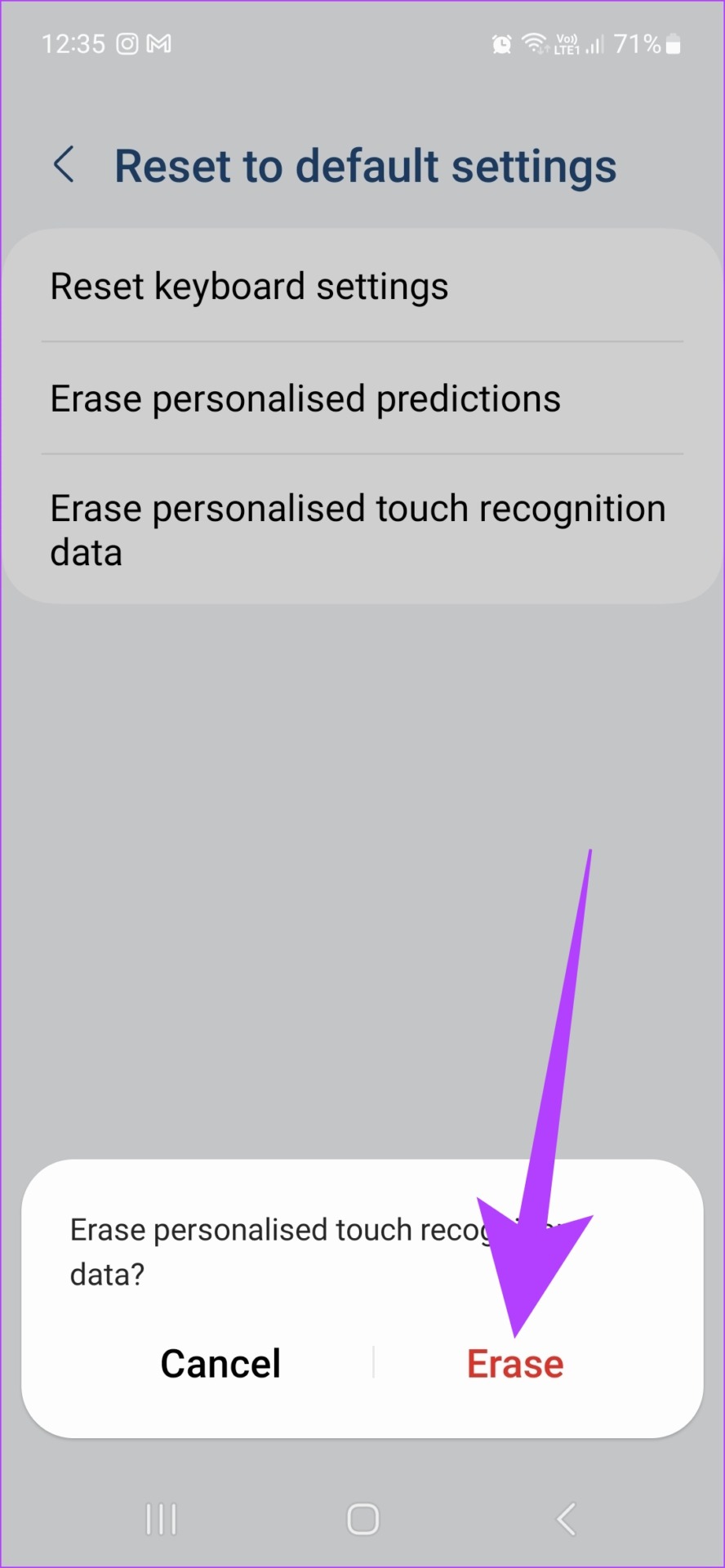
All Samsung Keyboard user data is now deleted. You can also turn off predictive text by going to the Samsung Keyboard settings and turning the Predictive text toggle off.
How to Clear History on Other Android Keyboards
Besides Gboard and Samsung Keyboard, other Android keyboards are also available that might come pre-installed with the device or have been separately installed by the user . So, to clear the history and remove learned words in other Android keyboards, follow these steps.
Step 1: Open Settings and go to your device’s System settings.
Step 2: Tap on Languages & input and go to Virtual keyboard .
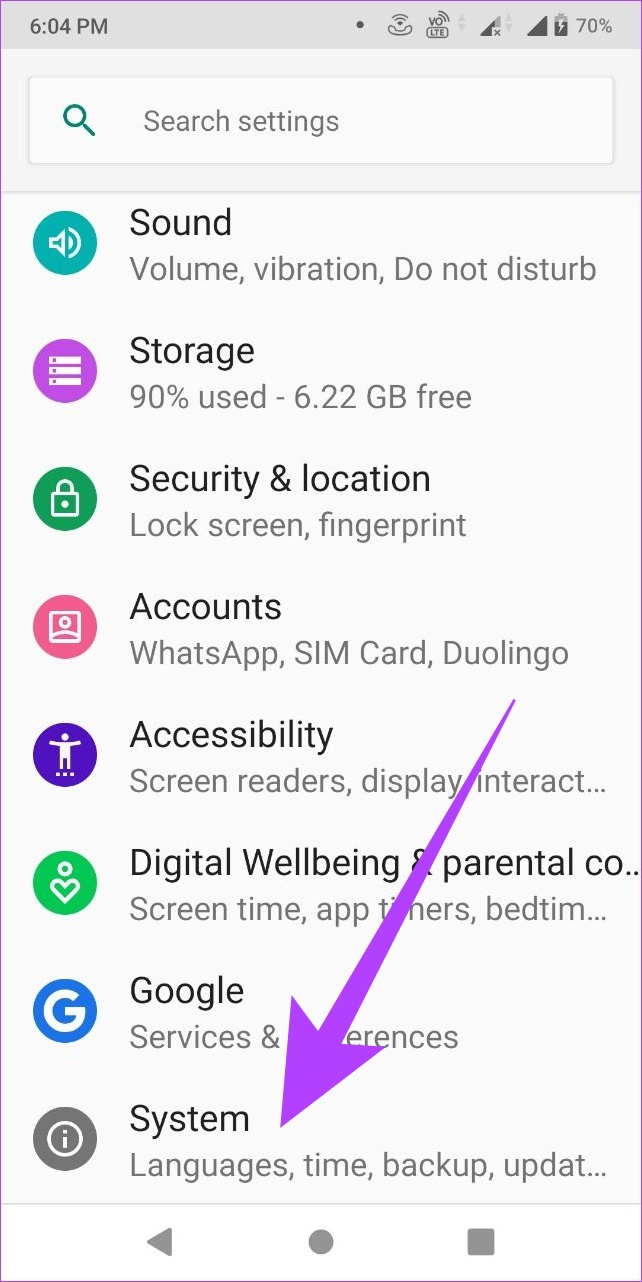
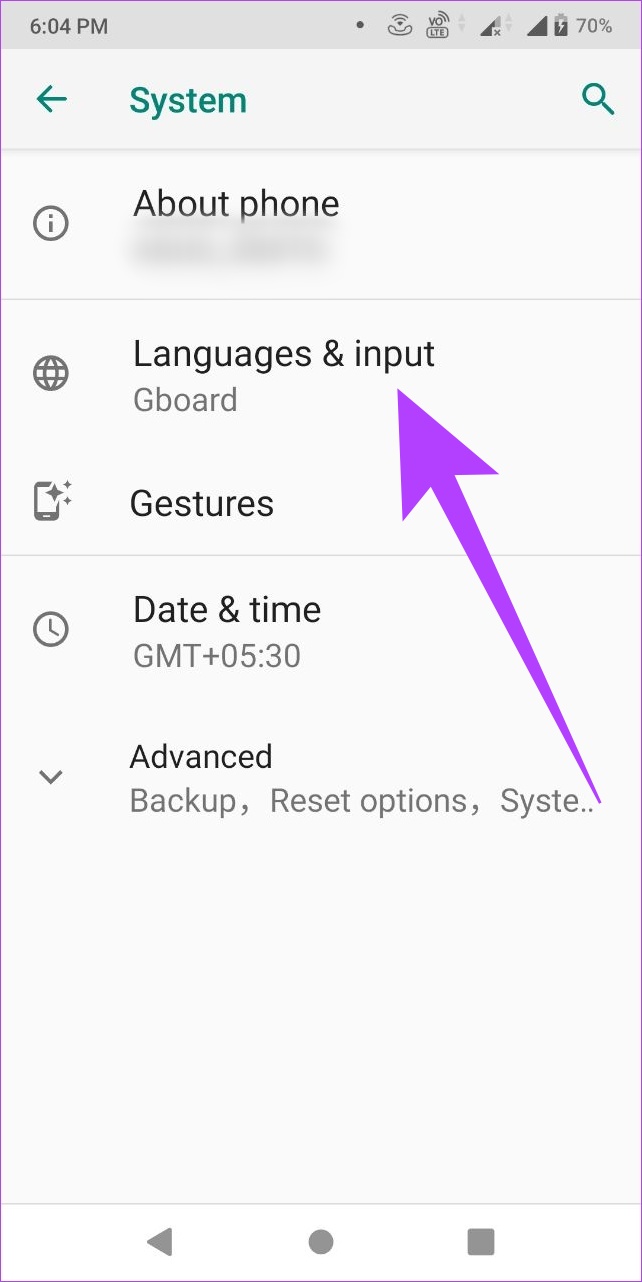
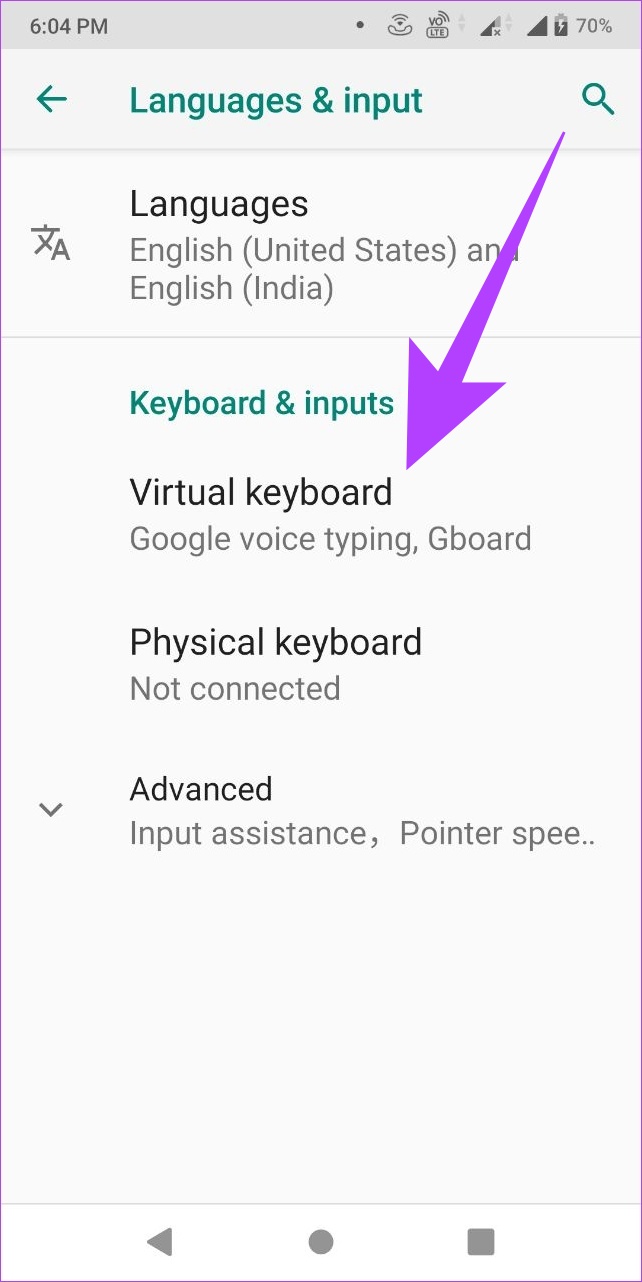
Now, select your default keyboard app and tap on clear all data/reset data. Additionally, you can also turn off predictive text from the keyboard’s settings menu.
FAQs
1. Will resetting the data delete my previous custom keyboard settings as well? Yes, resetting the keyboard data will also delete all previously saved custom settings.
2. Can I recover my keyboard history after deleting it? No, once it has been deleted, keyboard history cannot be restored.
3. Will clearing keyboard history also delete my previous texts? No, clearing keyboard history will not affect your texts.
Was this helpful?
Submit Cancel
Thanks for your feedback!
Keep reading