Android
How to Enable, Disable, and Manage App Permissions on Android
Protect your privacy better by learning how to enable, disable, and manage app permissions on your Android phone.
By Pankil Shah
Quick Tips
Reviewing app permissions on your Android phone is a good practice for controlling what data apps can access.
You can modify permissions for an app by visiting its app info page on Android.
Enable the Remove permission if app is unused option if you want Android to revoke permissions for apps you haven’t used in a while automatically.
How to Enable or Disable Permissions for an App on Android
When you use an app for the first time, it requests permission to access your location, camera, contacts, and more. If you previously accepted all those prompts without much thought, you can always modify those permissions later. Here’s how:
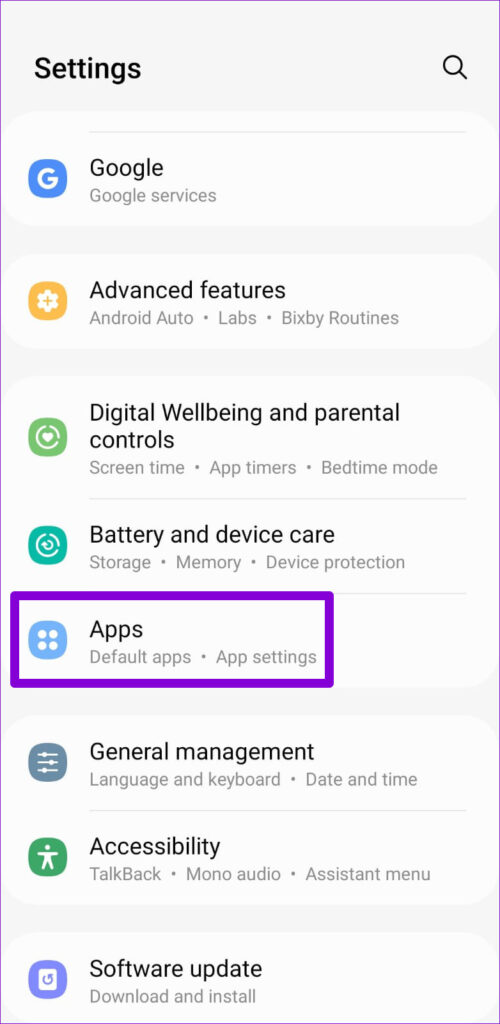
Step 1: Open the Settings app on your phone > go to Apps .
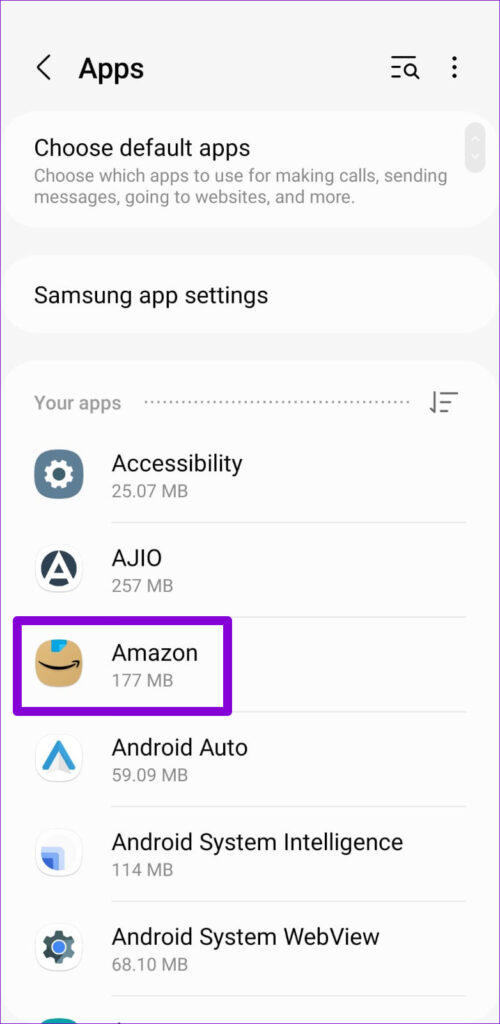
Step 2: Find and tap the app for which you want to modify permissions.
Step 3: Tap on Permissions .
Step 4: Go through each permission and allow or disallow them as you see fit.
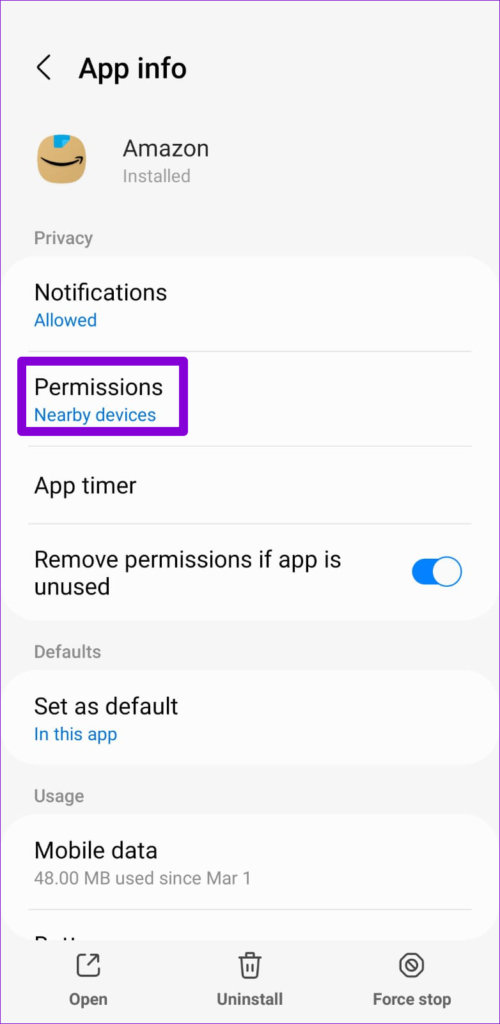
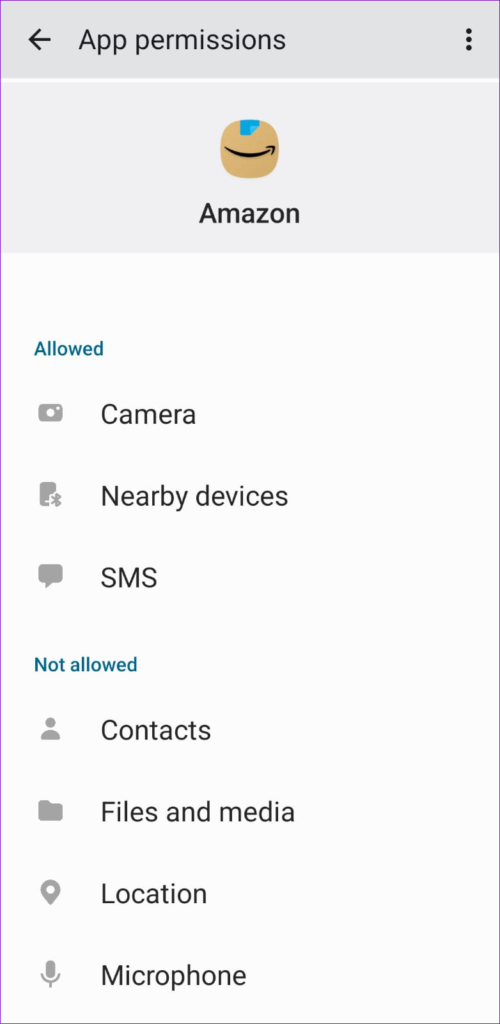
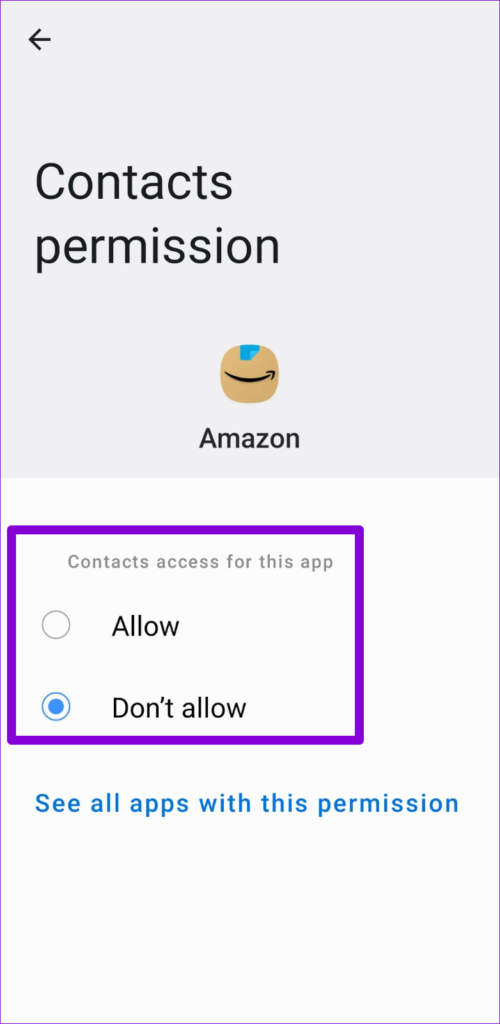
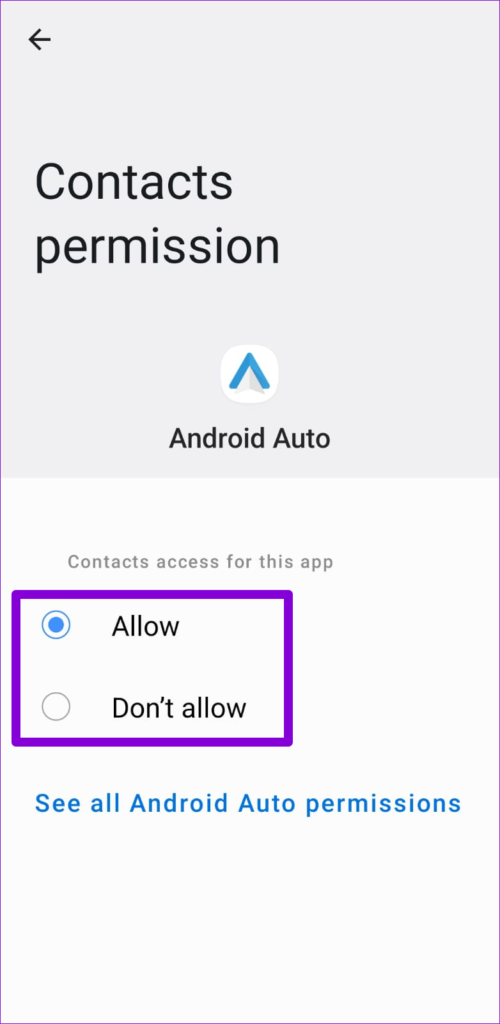
The options available when modifying permissions will vary based on the specific permission. Generally, you will find two standard options in most categories: Allow or Don’t allow.
For permissions such as camera, microphone, and location, you may see additional options like Allow only while using the app and Ask every time.
How to Enable or Disable Permissions for Multiple Apps at Once
If you need to manage specific permissions for multiple apps at once, your Android phone allows you to enable or disable app permissions based on categories. For example, this method will save you time if you want to manage location permissions for all your apps at once .
Step 1: Open the Settings app on your phone > tap on Privacy .
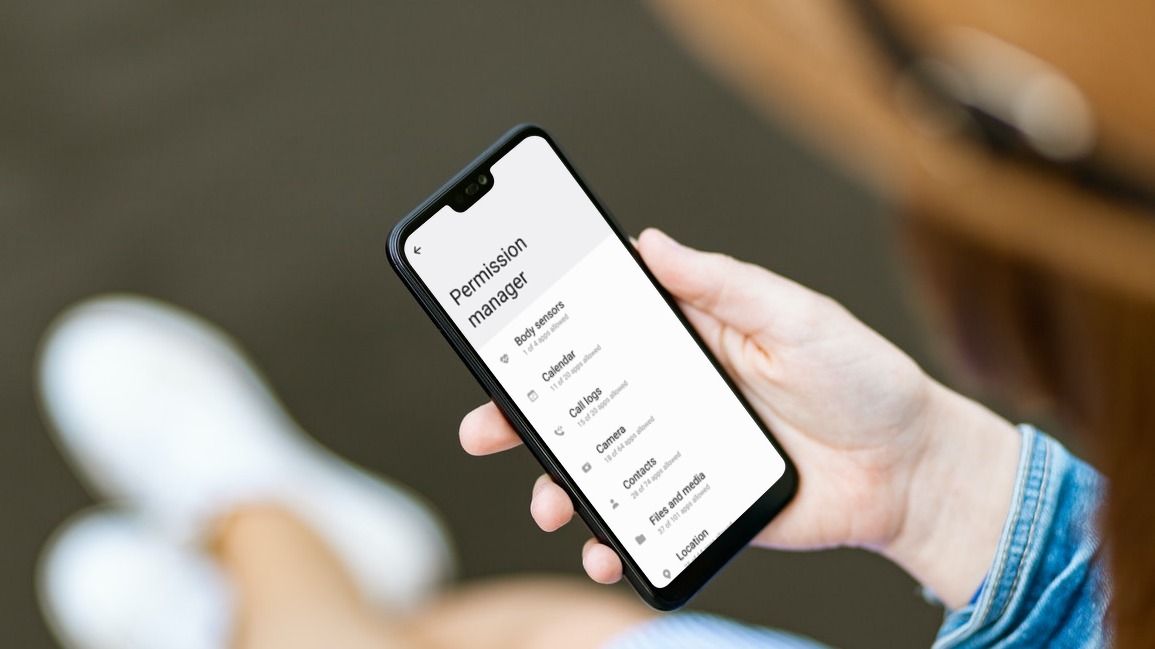
Step 2: Tap on Permission manager .
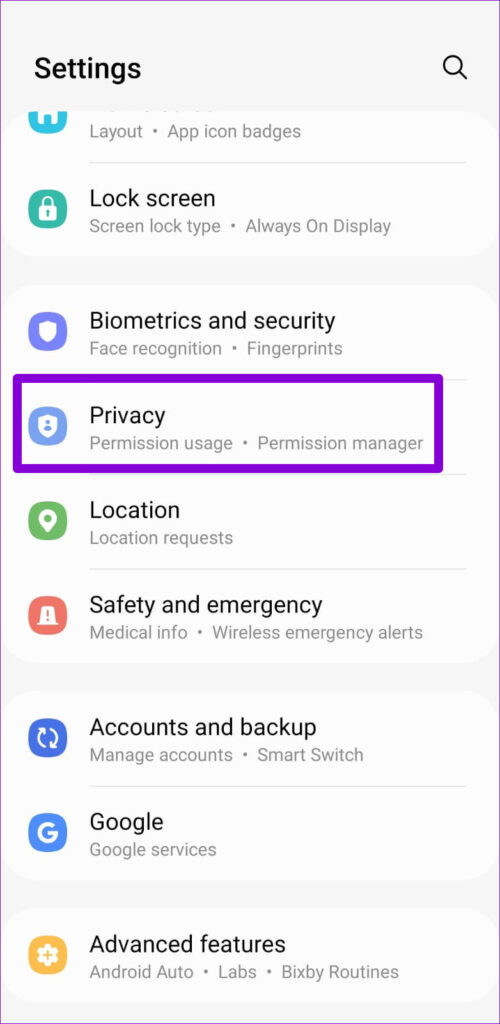
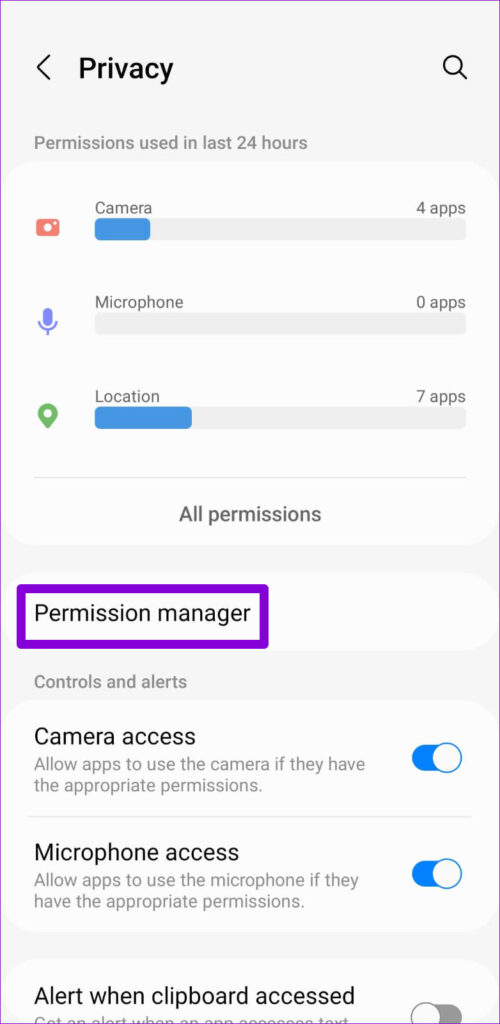
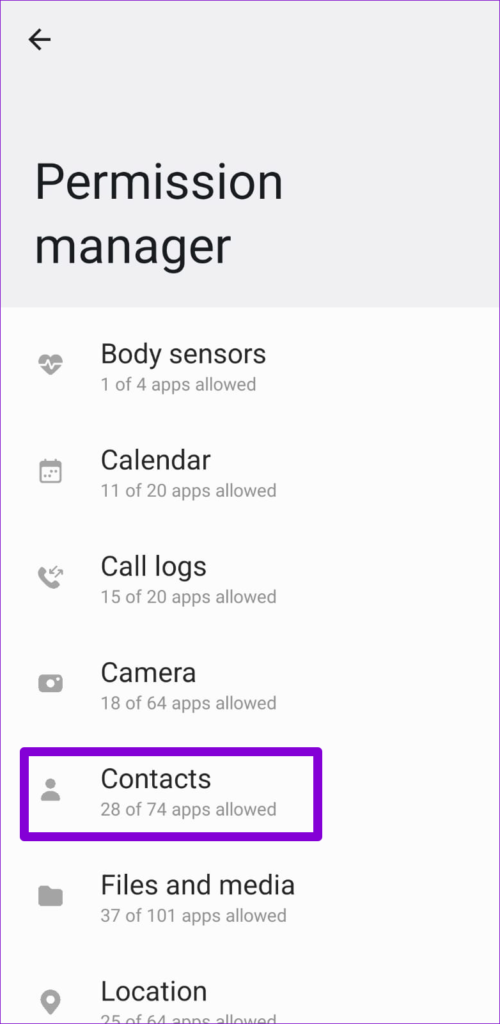
Step 3: You’ll find various app permissions such as Camera, Contacts, Microphone, and more. Tap the permission you wish to configure. For this example, we’ll select Contacts .
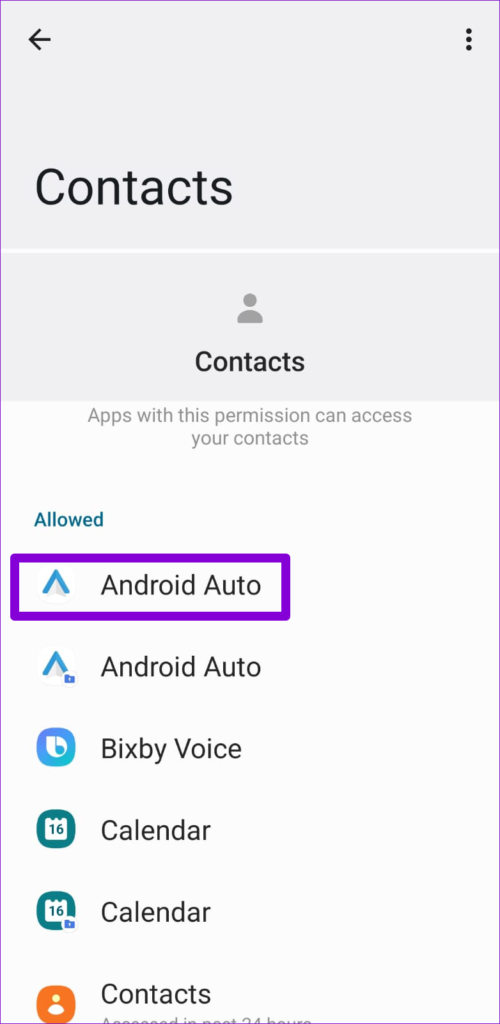
Step 4: Go through each app to allow or disallow permission to use contacts.
Bonus: How to Automatically Revoke Permissions for Unused Apps
Your Android phone allows you to revoke permissions for apps you haven’t used in a while . This feature is useful to prevent infrequently used apps from accessing sensitive information. Here’s how you can enable it:
Note: This option is only available for phones running on Android 11 or above.
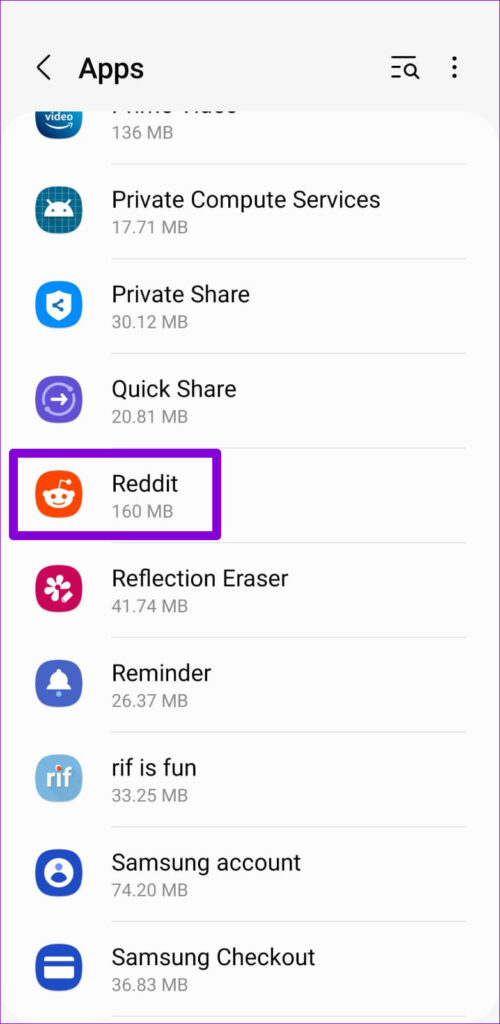
Step 1: Open the Settings app > scroll down and tap on Apps .
Step 2: Select the app whose permission you’d like to revoke after prolonged inactivity. On the app info page, enable the toggle for Remove permission if app is unused .
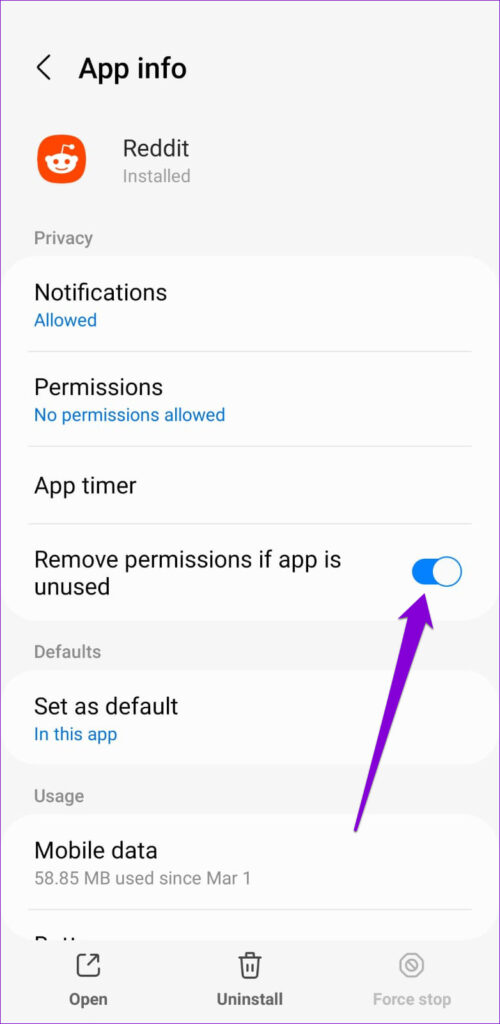
Once enabled, Android will automatically revoke app permissions if you don’t use the app for a few months. There isn’t a specific time frame to estimate or set for this action. Fortunately, Android sends a notification whenever permissions are revoked.
Was this helpful?
Submit Cancel
Thanks for your feedback!
Keep reading