Android
3 Ways to Fix ChatGPT App Not Working on Android and iPhone
Is the ChatGPT app not working on your Android or iPhone? Here are some effective tips to get it back up and running again.
By Pankil Shah
Quick Tips
Ensure ChatGPT servers are not facing an outage and restart the app to fix any temporary issues with it.
Allow the ChatGPT app all the necessary permissions to function on your phone.
Update the ChatGPT app and clear its cache data if the app continues to throw errors.
Try Basic Fixes
Turn off your VPN connection: Problems with your VPN connection can prevent the ChatGPT app from communicating with the server and make it unresponsive. To determine if that’s the case, you can temporarily disable your VPN connection and try using the app again.
Check ChatGPT’s server status: At times, server congestion or other related issues can impact the performance of the ChatGPT app on your Android or iPhone. OpenAI maintains a server status page that can help you determine whether the problem originates from the server side.
Update the app: If the ChatGPT app is still not loading, you can consider updating it as a last resort. Doing so will help fix any issues caused by known bugs. Open the Play Store (Android) or App Store (iPhone) to update the ChatGPT app and see if that helps.
Fix 1: Allow the Necessary Permissions
ChatGPT, like any other app, requires a few permissions to work properly on your phone . For instance, it needs to access your microphone so that you can interact with it using your voice. If you have denied any permissions to the app, it may not work as expected.
On Android
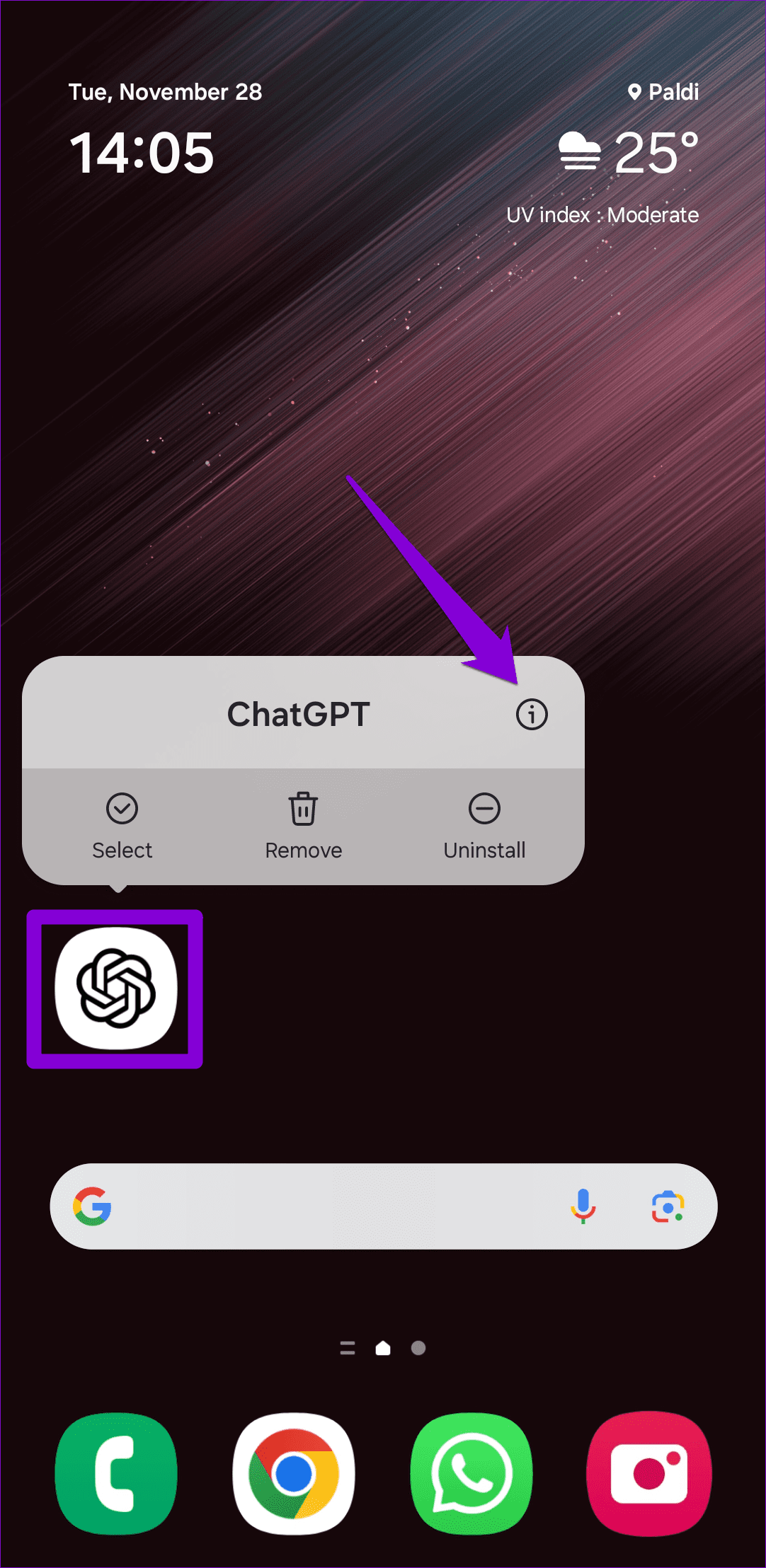
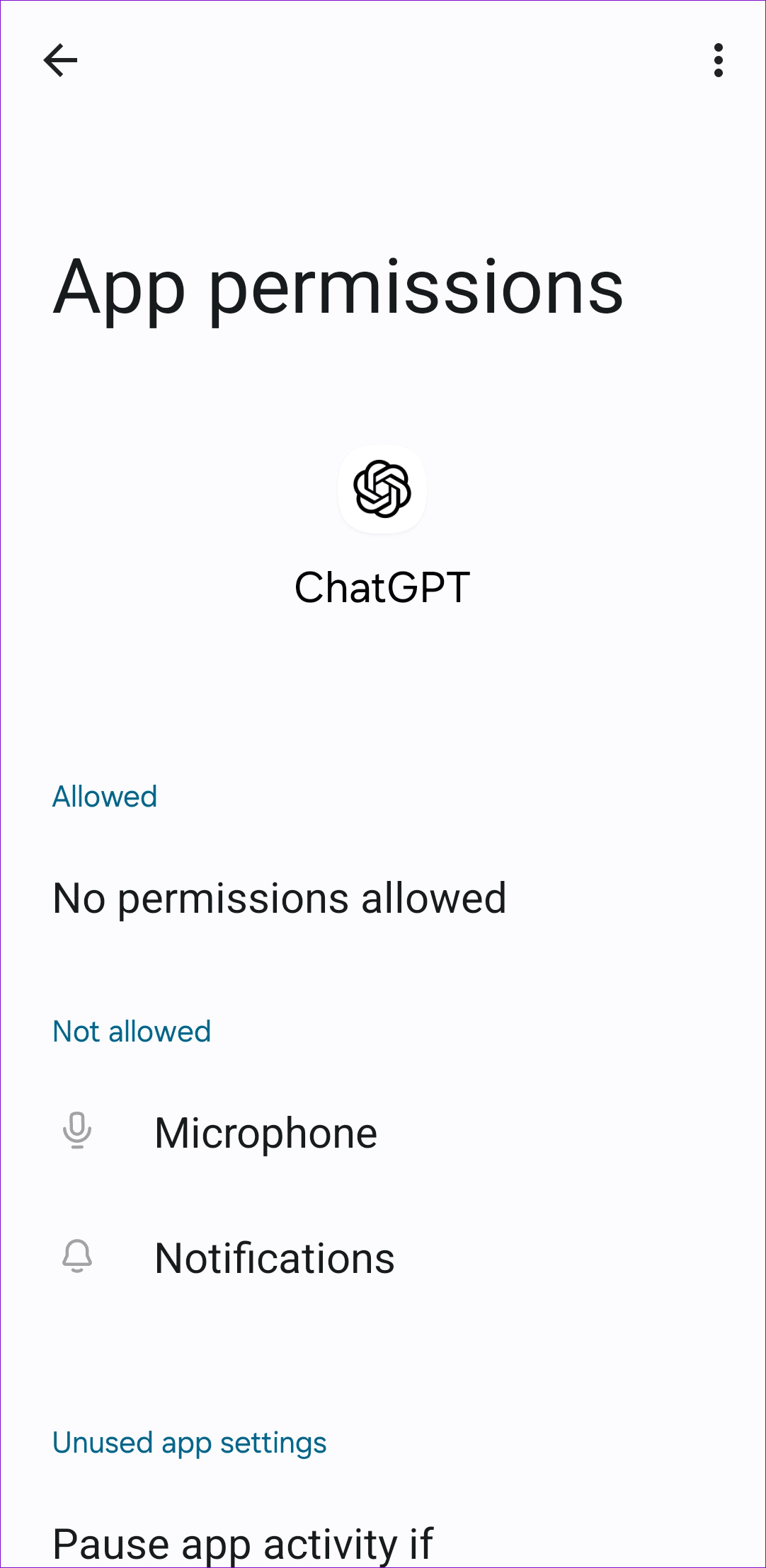
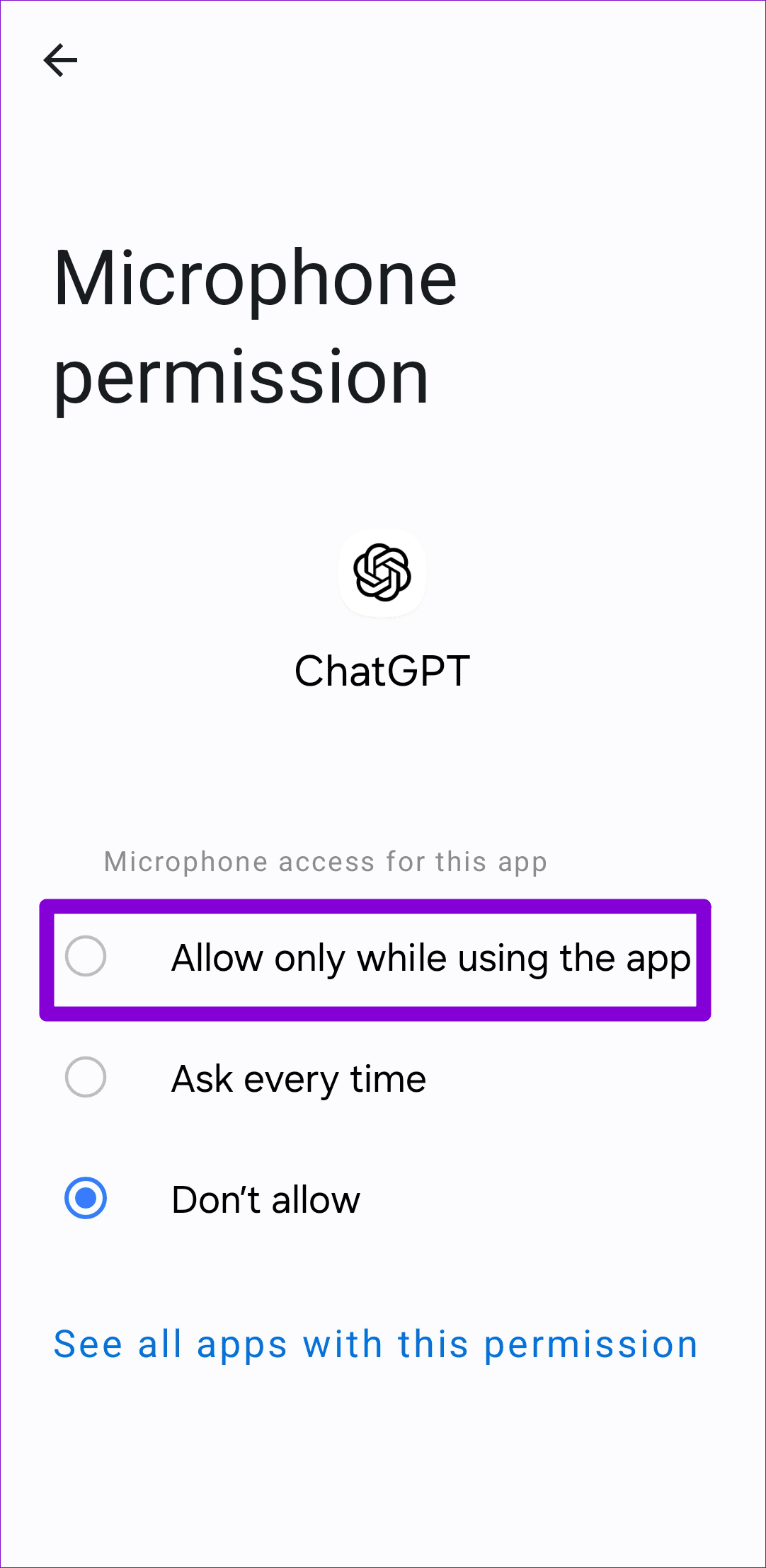
Step 1: Long press on the ChatGPT app icon and tap the info icon from the resulting menu. Then, go to Permissions .
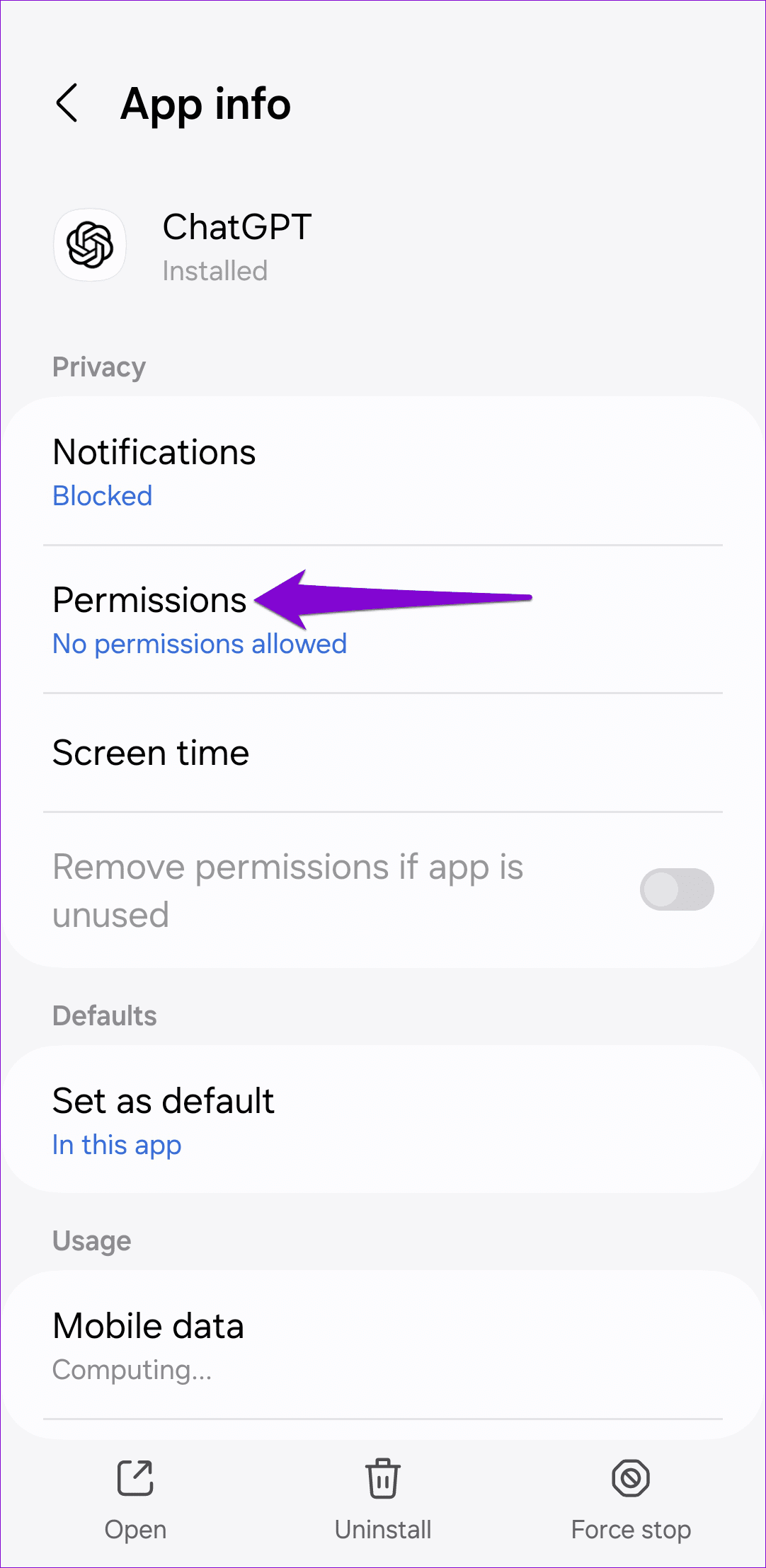
Step 2: Go through each permission one by one and allow them.
On iPhone
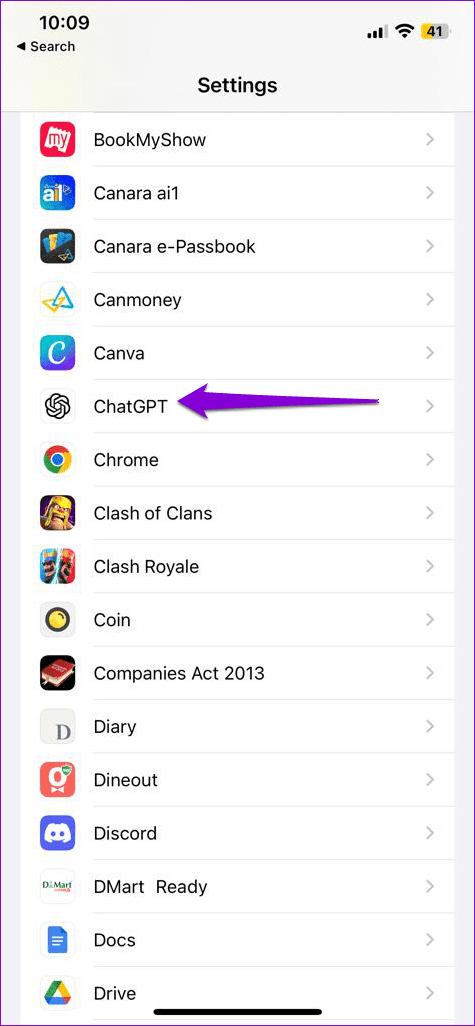
Step 1: Open the Settings app on your iPhone.
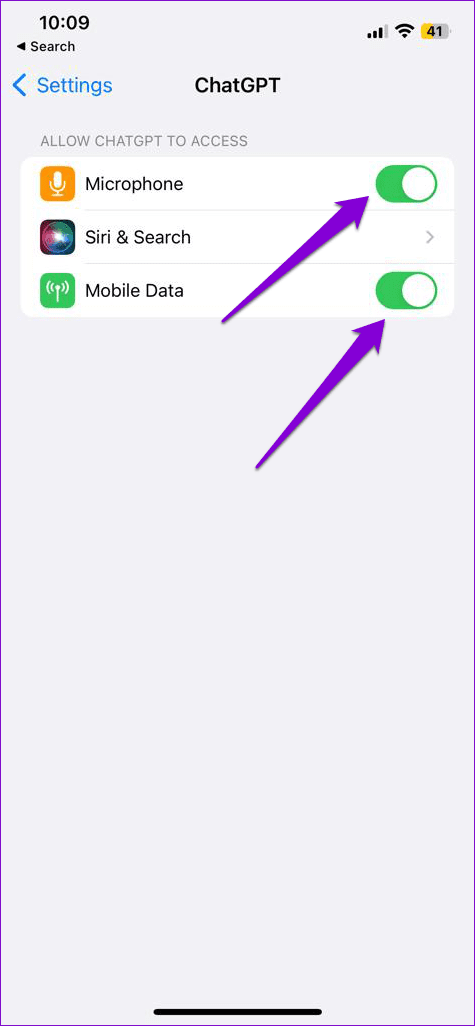
Step 2: Scroll down to tap on ChatGPT and enable the toggles in the following menu to allow the necessary permissions.
Fix 2: Sign Out and Sign Back In
Signing out of the ChatGPT app and signing back in is a good way to refresh your session and resolve any account-specific issues . So, if restarting the app doesn’t help, try removing and re-adding your account in the ChatGPT app using the steps below.
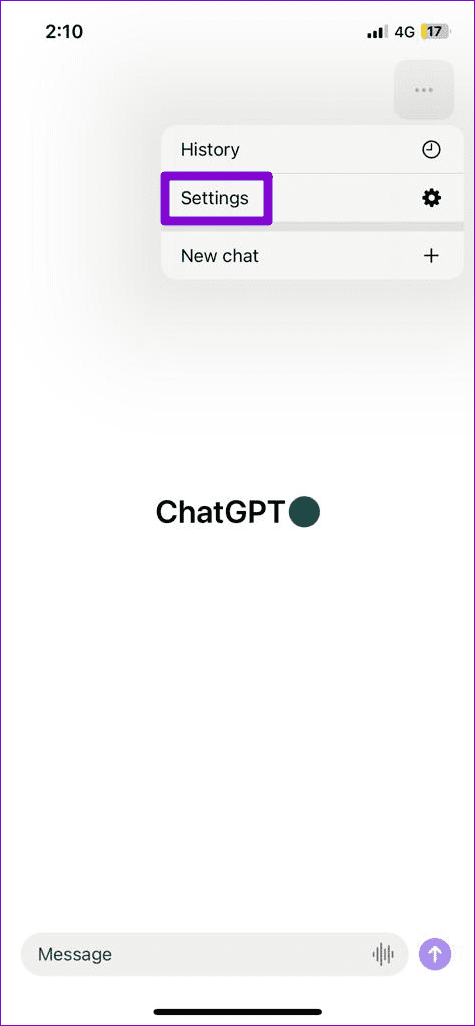
Step 1: Open the ChatGPT app on your phone. Tap the three horizontal dots menu icon at the top-right corner, and select Settings.
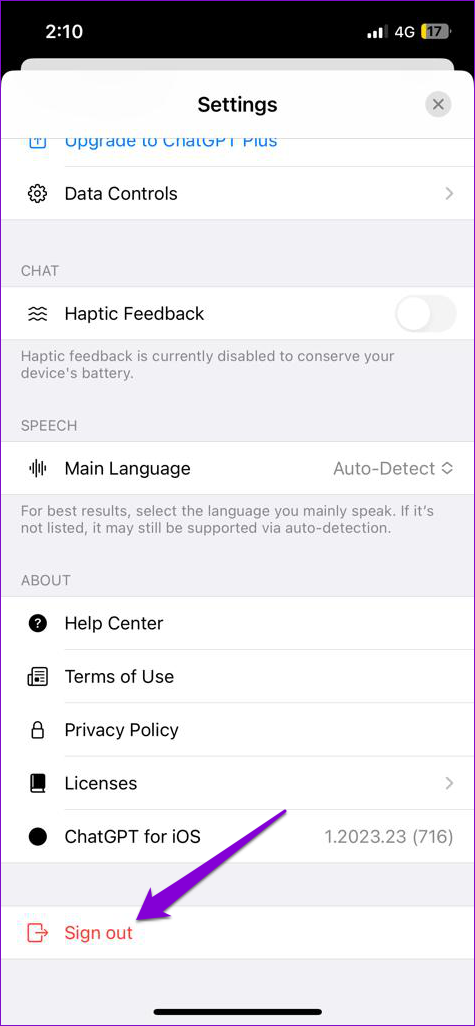
Step 2: Scroll down to tap on Sign out. Then, sign back into the app and see if it works.
Fix 3: Clear App Cache (Android)
This is a rudimentary fix that can help fix issues with any Android app, including ChatGPT. Doing so will delete any temporary files associated with the app that may be causing the problem.
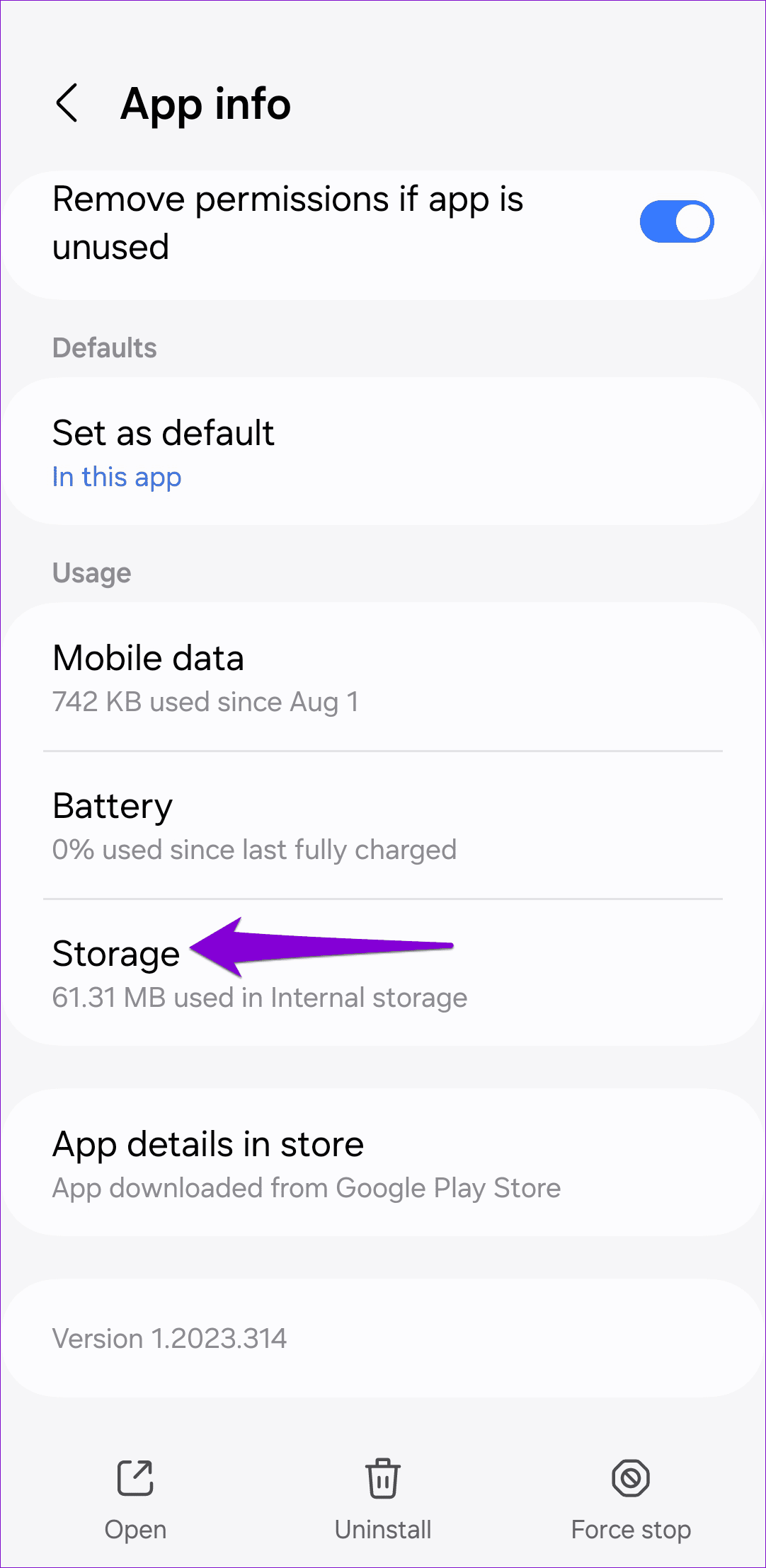
Step 1: Long press on the ChatGPT app on your phone and tap the info icon from the resulting menu.
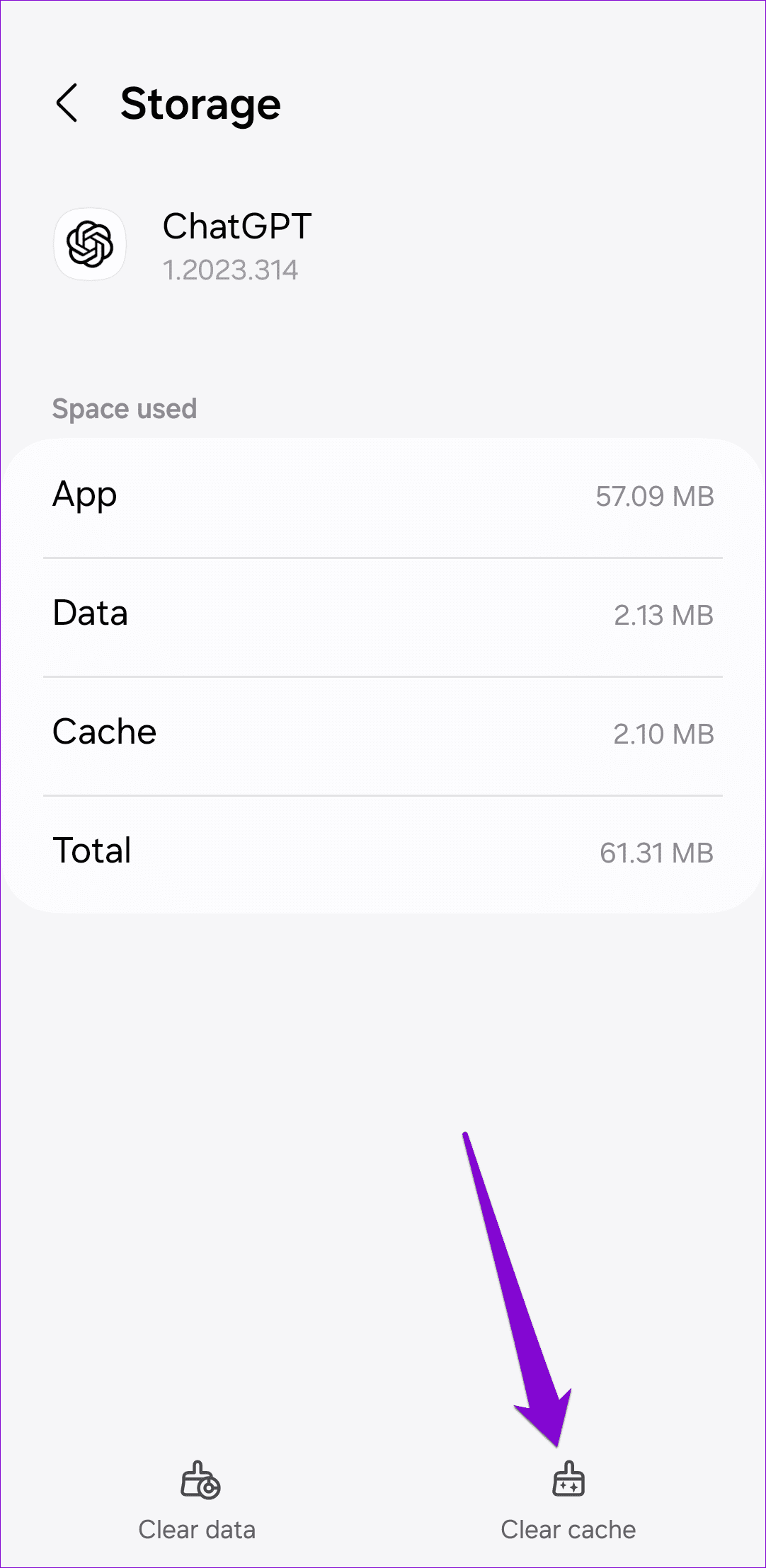
Step 2: Go to Storage and tap the Clear cache option at the bottom.
Was this helpful?
Submit Cancel
Thanks for your feedback!
Keep reading
![9 Pet Care Apps in 2024 [Free and Paid]](https://bcdn.seocloud.biz/seo-articles/82a3ce5485f5bc506feb1226aca9bcb4/cover.jpg)