Android
How to Turn Off Sent Message Sound on iPhone and Android
Don't want to hear the swoosh sound when you send a message? Here's how you can turn off such sounds in popular messaging apps!
By Supreeth Koundinya

Notifications and sounds tell you about new messages, but some sounds, like the one when you send a message from your phone, may be unnecessary. If you’re annoyed by these and want a quiet texting experience, we’ll show you how to turn off the sent message sound on your iPhone and Android devices.

For example, you wouldn’t want everyone around you to know you’re texting. Moreover, it can also get distracting if you’re having a conversation and hear a sound for every message sent and received in the chat. In this article, we’ll show you how to disable the chat sounds for popular messaging apps on your smartphone.
How to Turn Off Sent Message Sound on iPhone
Here’s how to disable the sound for sent messages on your iPhone. Let’s begin with the default messaging app, iMessage.
1. Turn Off the Swoosh Sound When Sending Text on iMessage
If you want to turn off the swoosh sound when you hit send on iMessage, there’s bad news. You cannot turn off the sent message sound on iMessage on your iPhone.
You must turn off alerts entirely so as not to receive sound alerts for incoming message notifications. We’d love for Apple to explain the rationale behind this limitation because we’re struggling to find one.
That said, here’s how to disable sound alerts on iMessage.
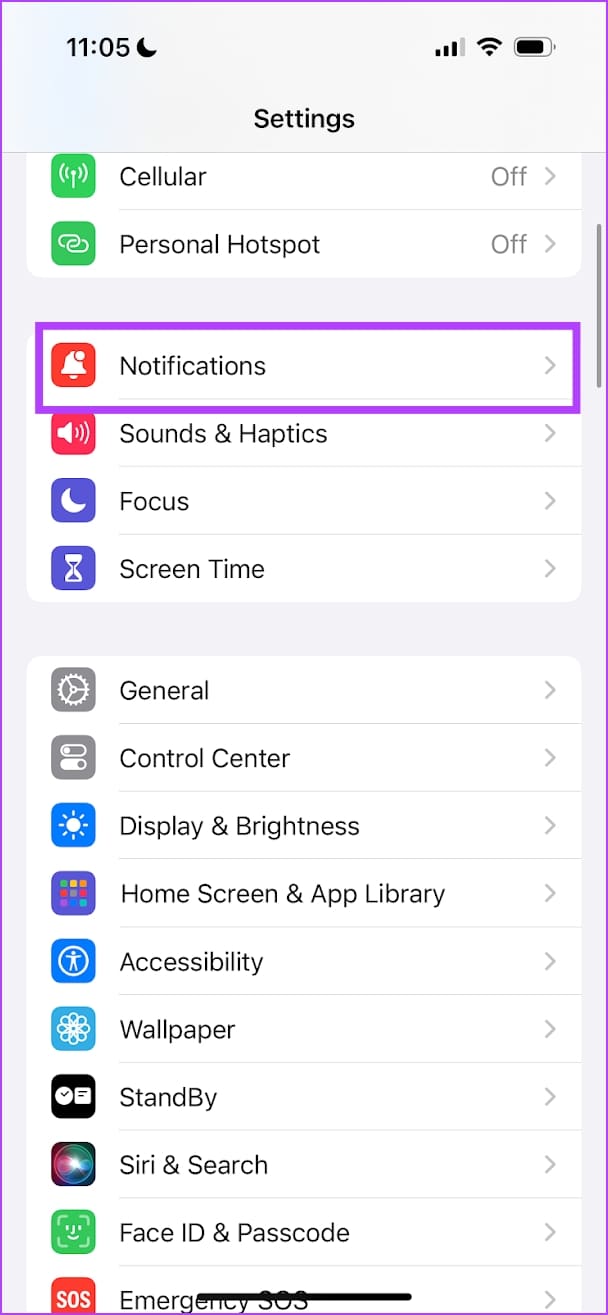
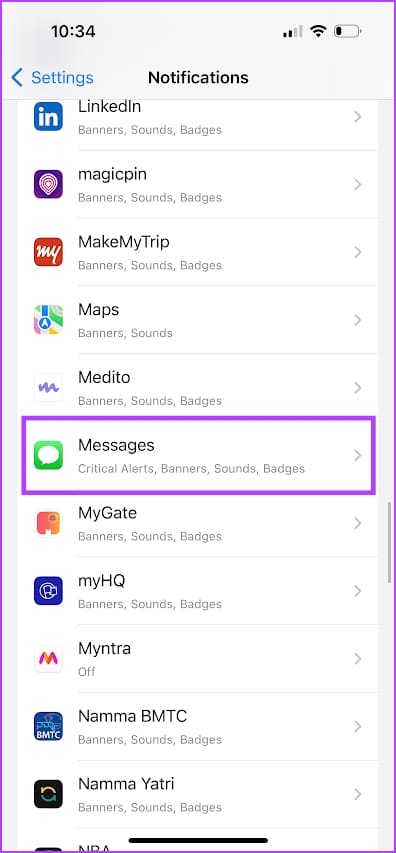
Step 1: Open the Settings app. Tap on Notifications, scroll down, and tap on Messages.
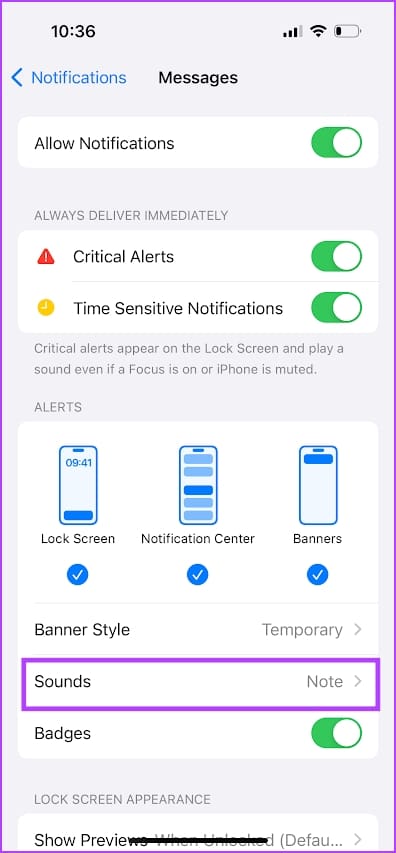
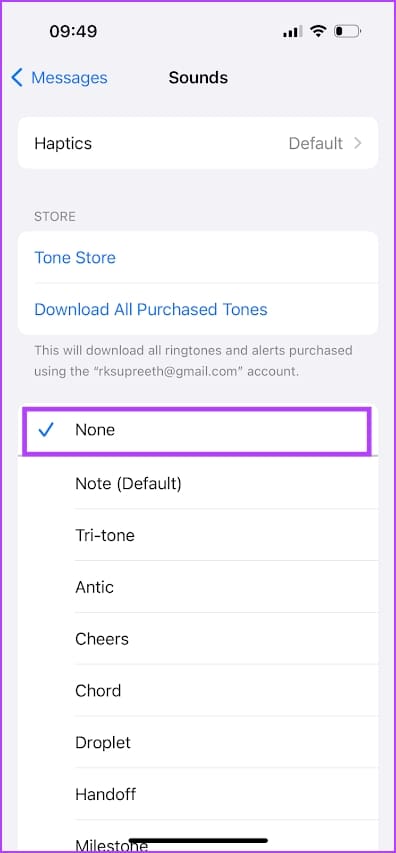
Step 2: Under the Alerts menu, tap on Sounds and select None.
2. Mute Conversation Sounds on WhatsApp
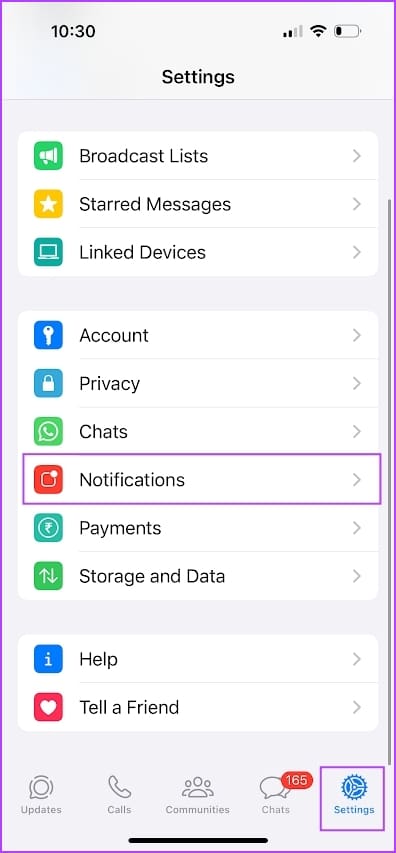
Step 1: Open WhatsApp on your iPhone. Go to the Settings menu and select Notifications.
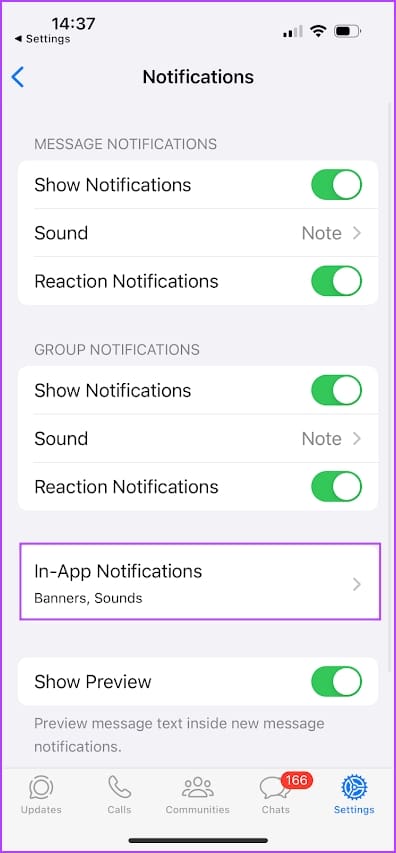
Step 2: Tap on ‘In-App Notifications’.
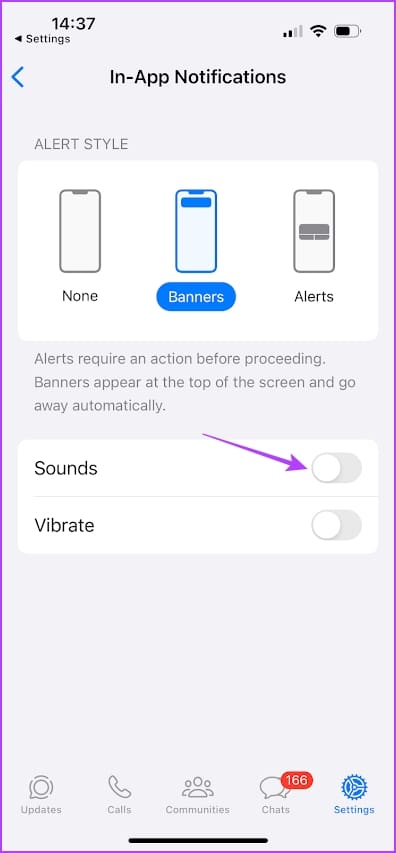
Step 3: Turn off the toggle for Sounds.
Also Read : How to set custom notification sound for specific contacts on WhatsApp
3. Disable Conversation Sounds on Telegram
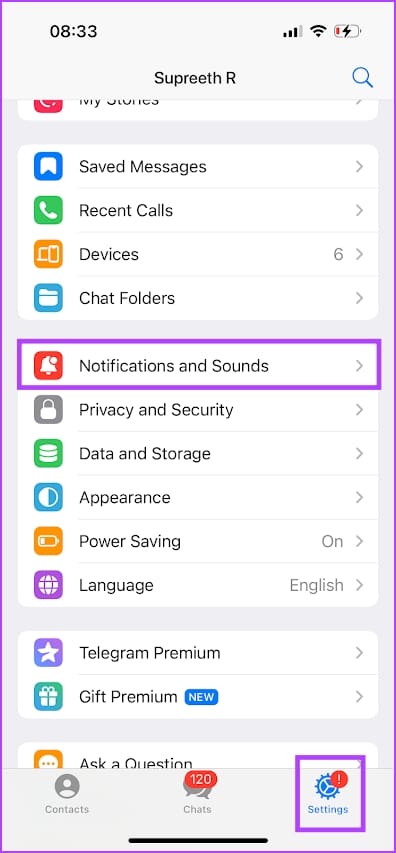
Step 1: Open the Telegram app and go to the Settings tab.
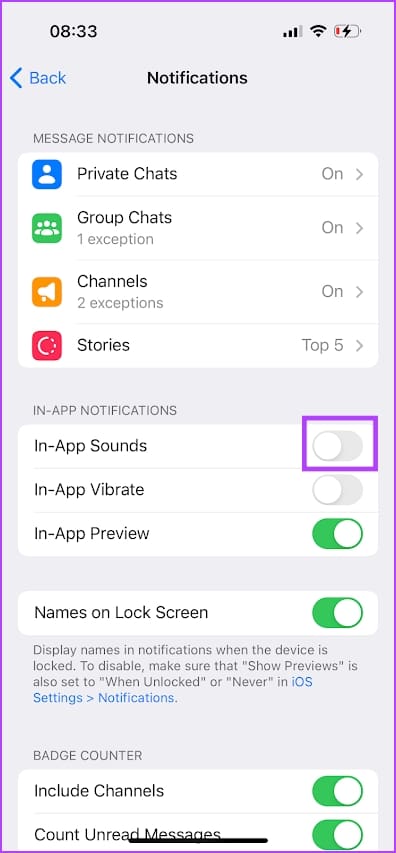
Step 2: Select ‘Notifications and Sounds’. Turn off the toggle for ‘In-App Sounds’.
Also Read : How to set custom notification sounds for messaging apps on iPhone
How to Disable Sent Message Sound on Android
Here’s how you can disable the sent message sound on popular messaging apps on your Android device. Let’s begin with the default messaging app.
1. Disable the Outgoing Message Sound on the Default Messaging App
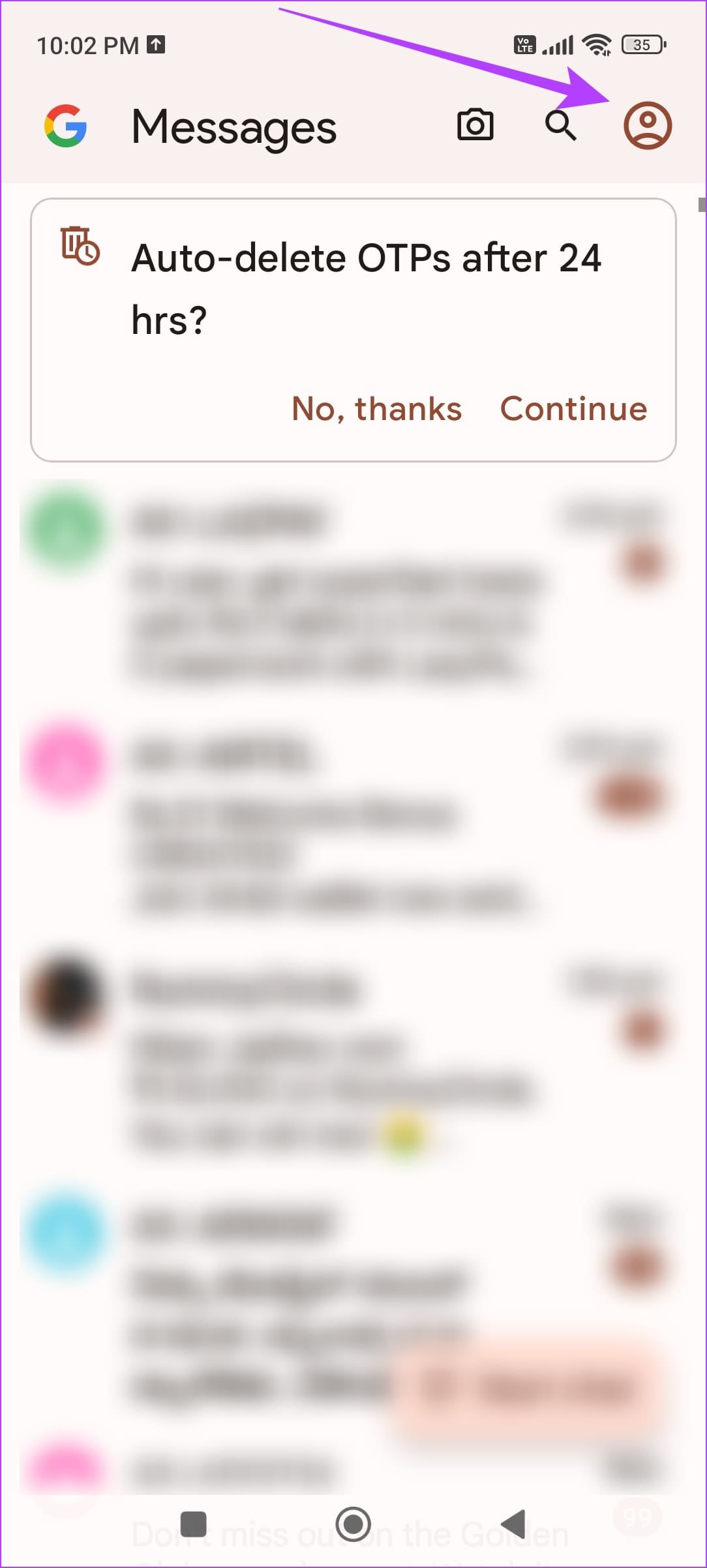
Step 1: Open the Messages app on your Android device. Tap on the profile picture icon in the top right corner.
Step 2: Tap on Messages settings.
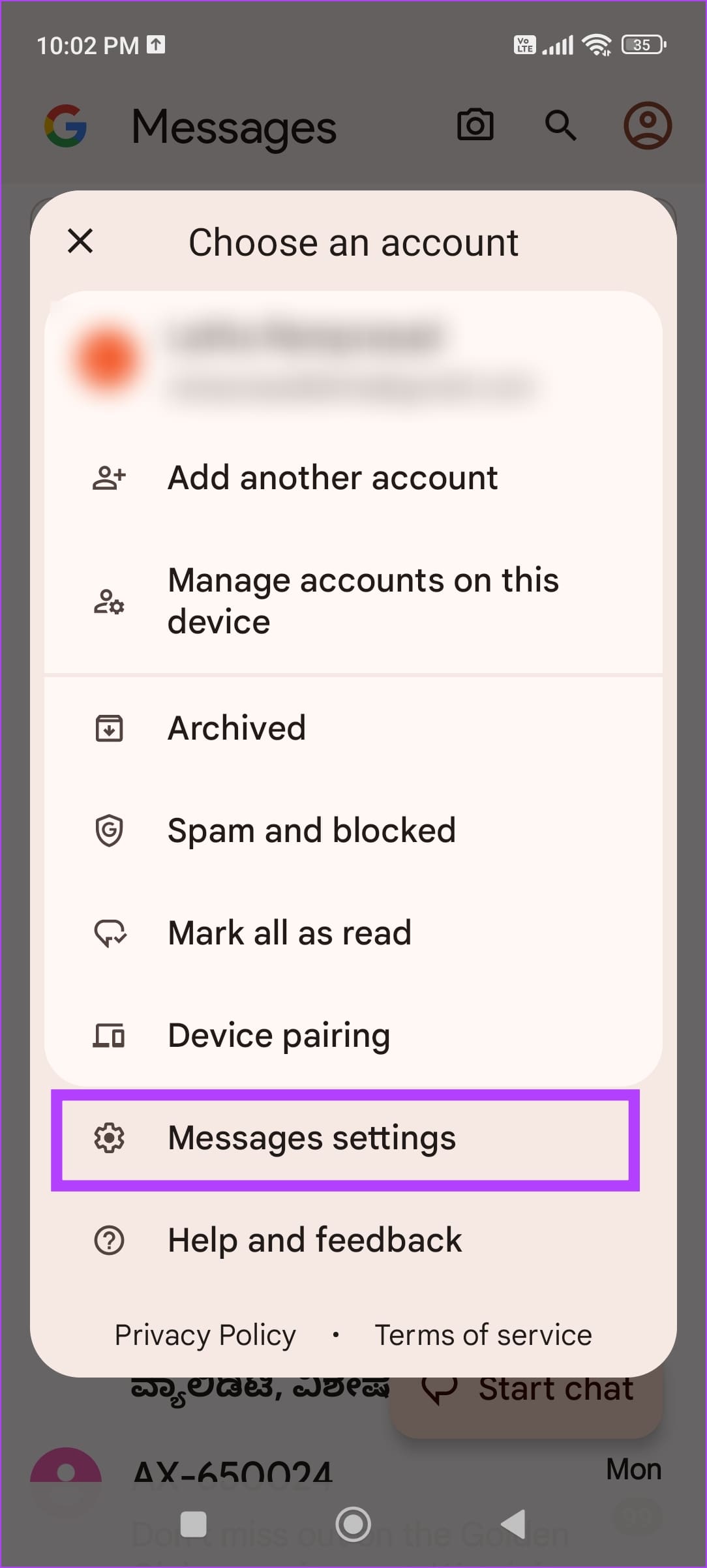
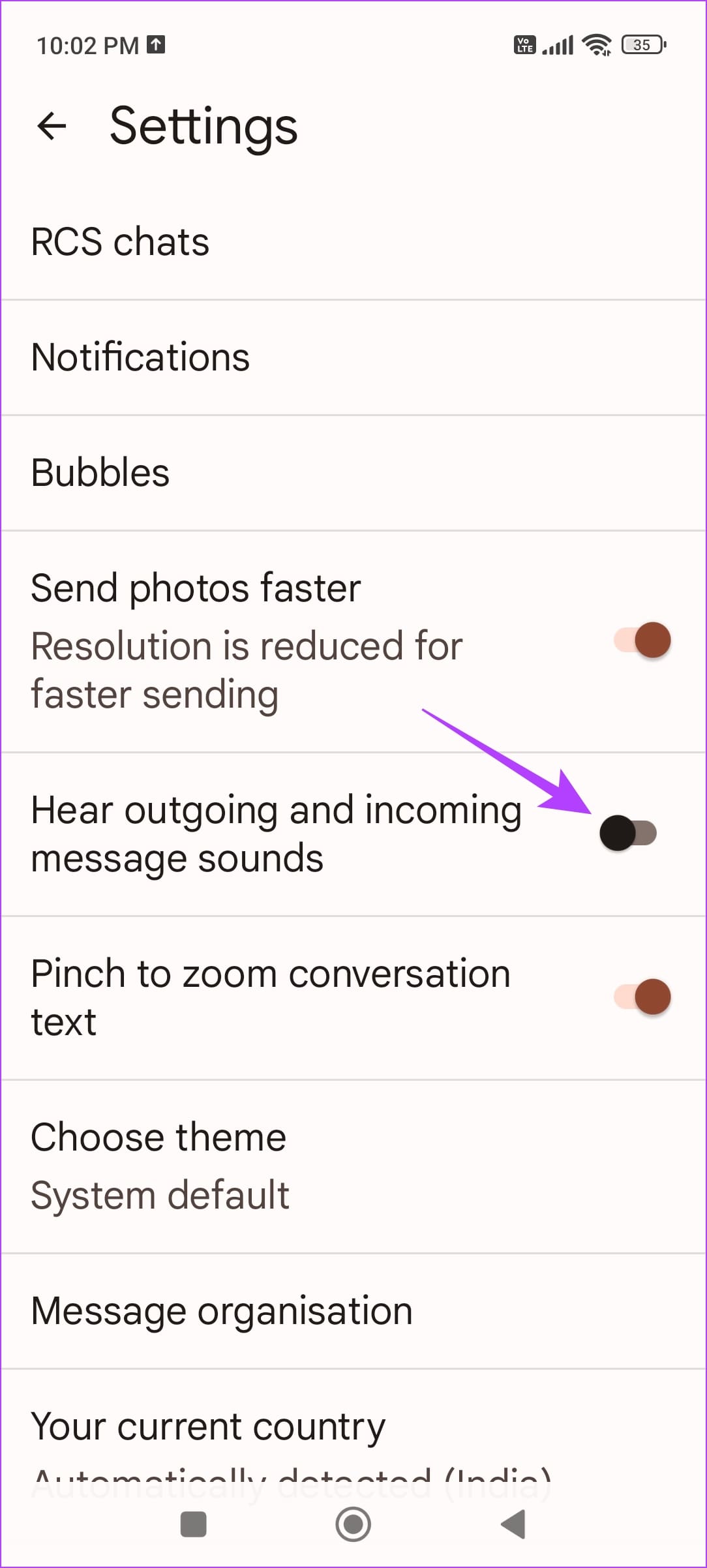
Step 3: Turn off the toggle for ‘Hear Outgoing and Incoming Message Sounds’.
2. Turn off Conversation Sounds on WhatsApp
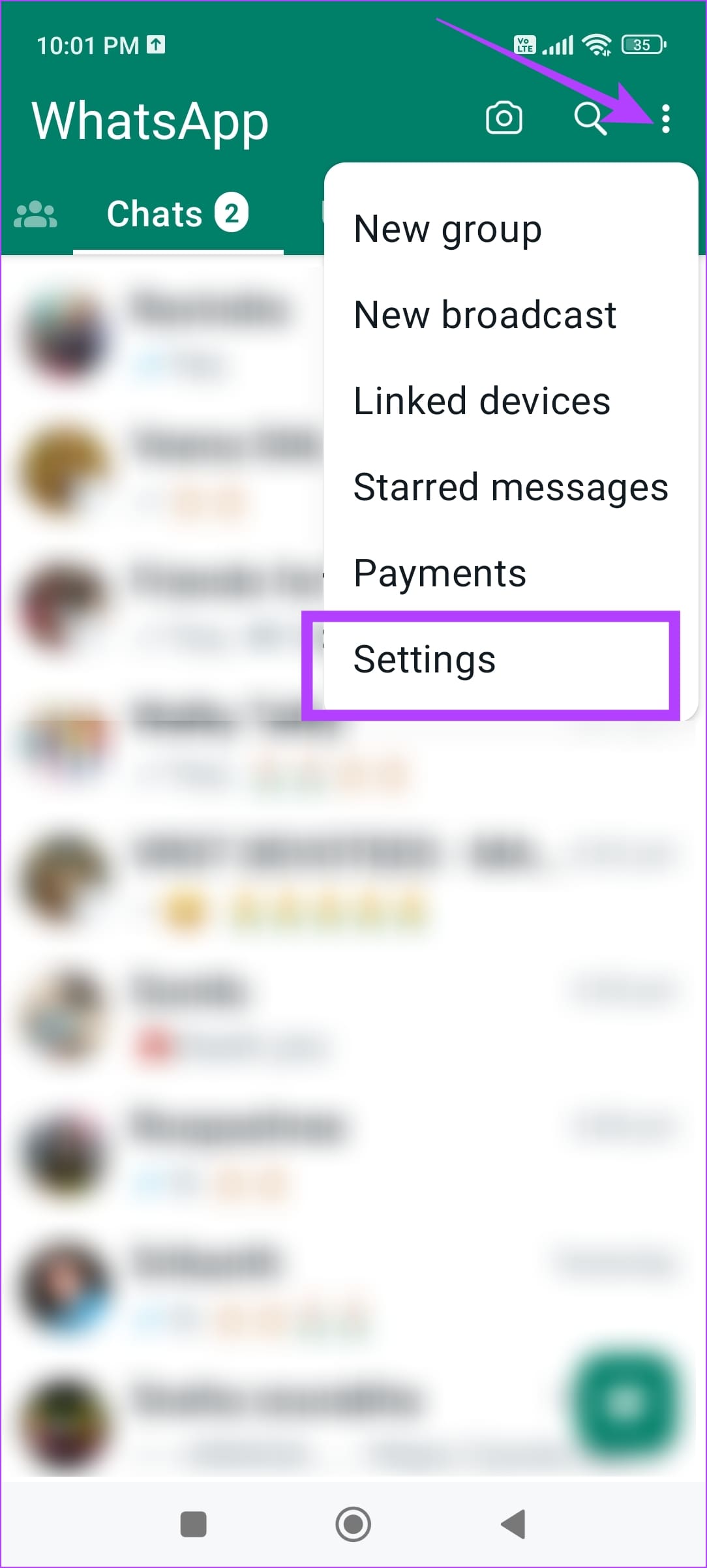
Step 1: Open WhatsApp and tap on the three dots icon in the top right corner. Tap on Settings.
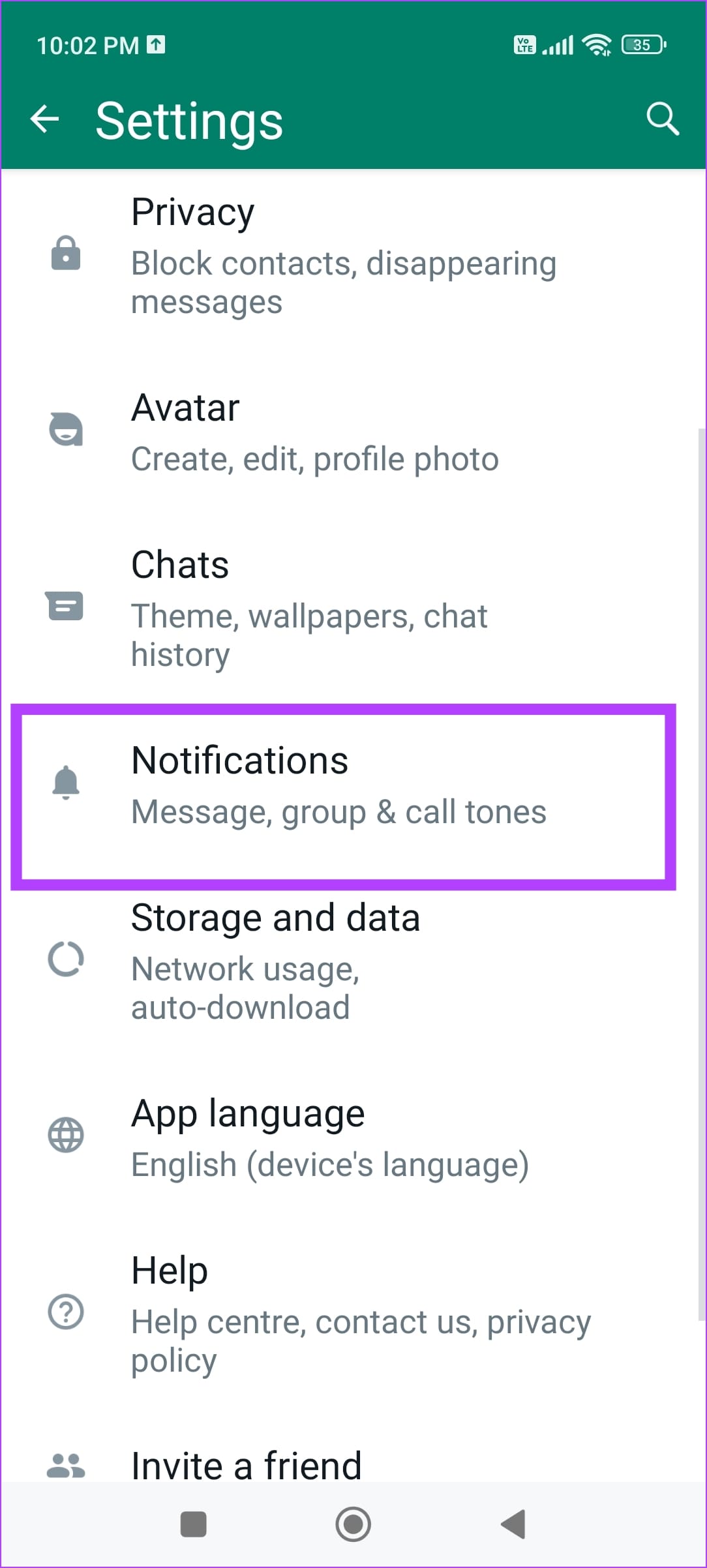
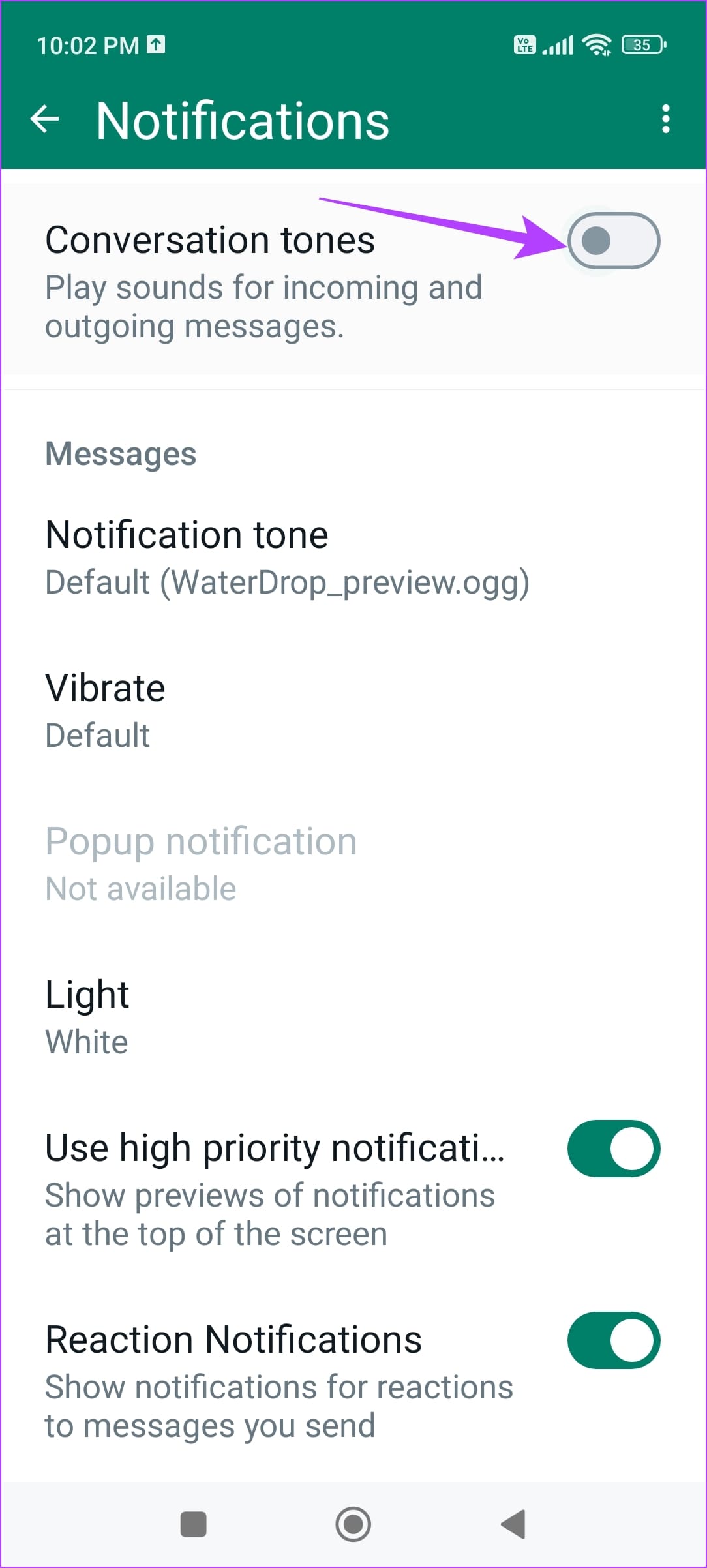
Step 2 : Tap on Notifications and turn off the toggle for Conversation tones.
3. Disable Conversation Sounds in Telegram
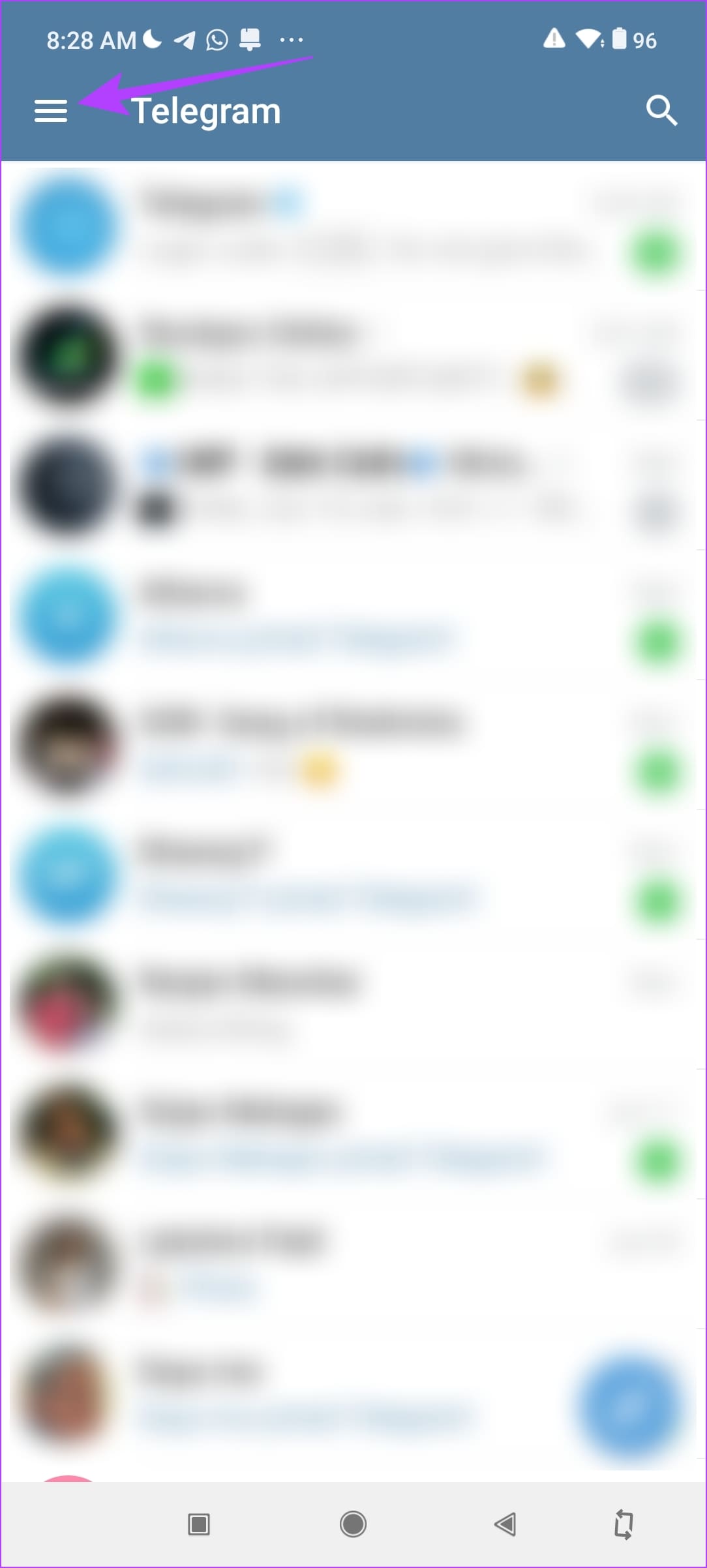
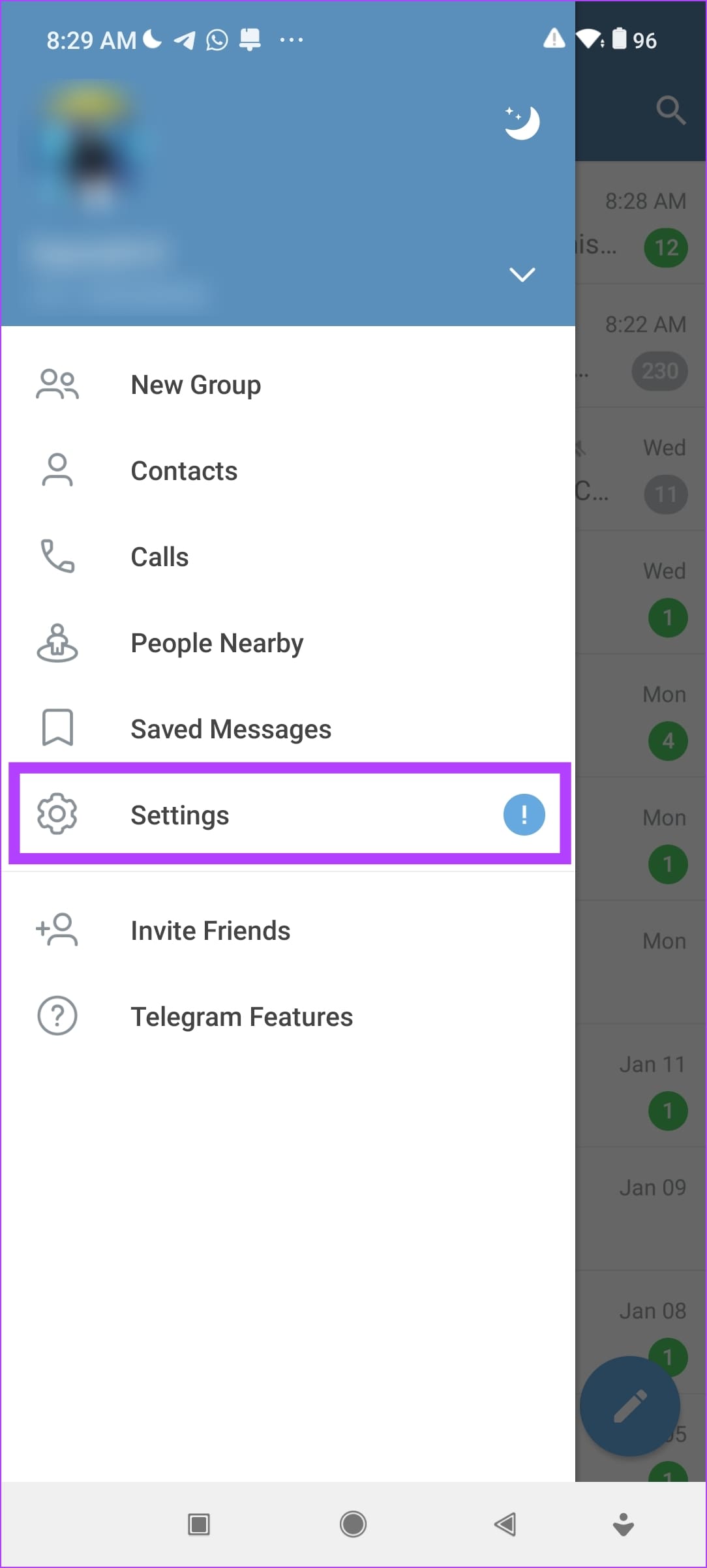
Step 1: Open the Telegram app. Tap on the hamburger menu icon in the top left corner and select Settings.
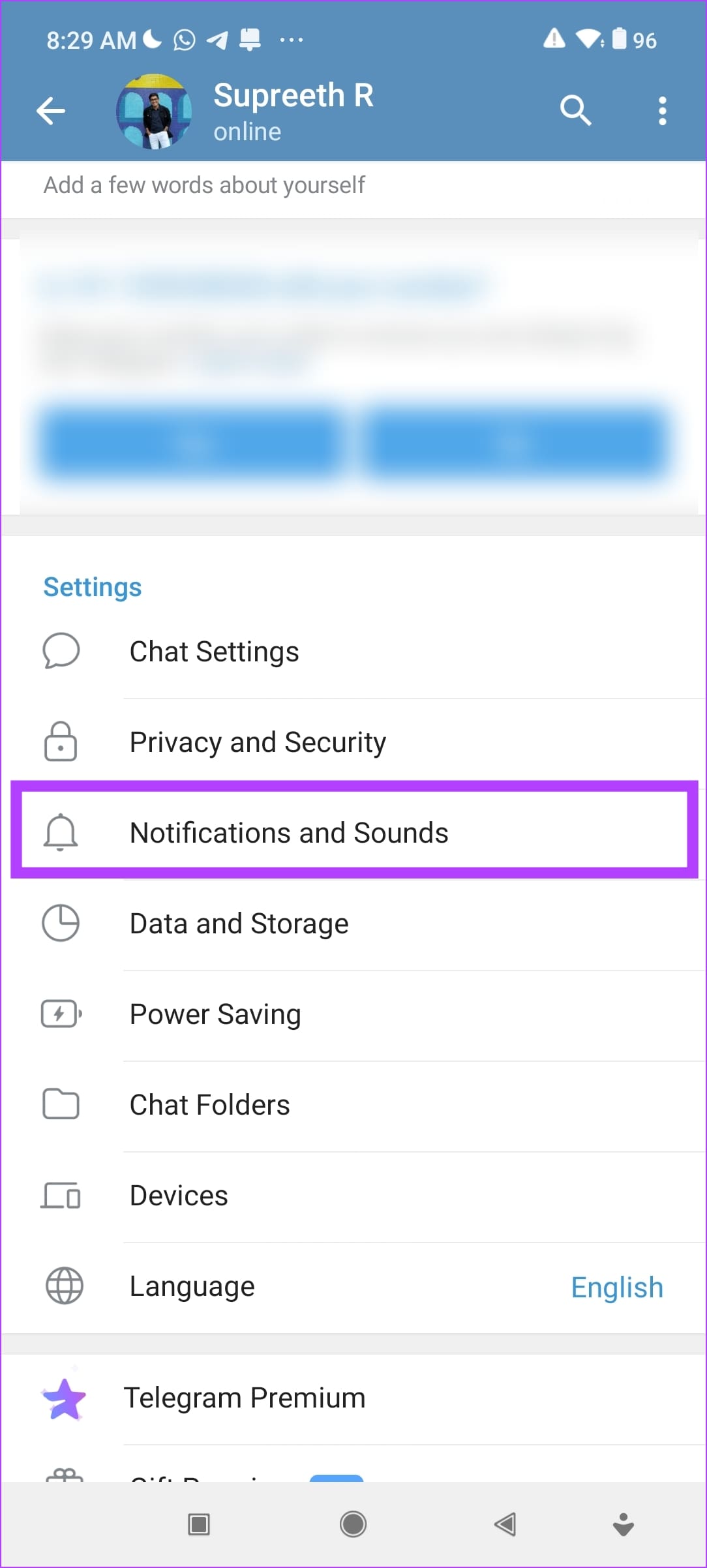
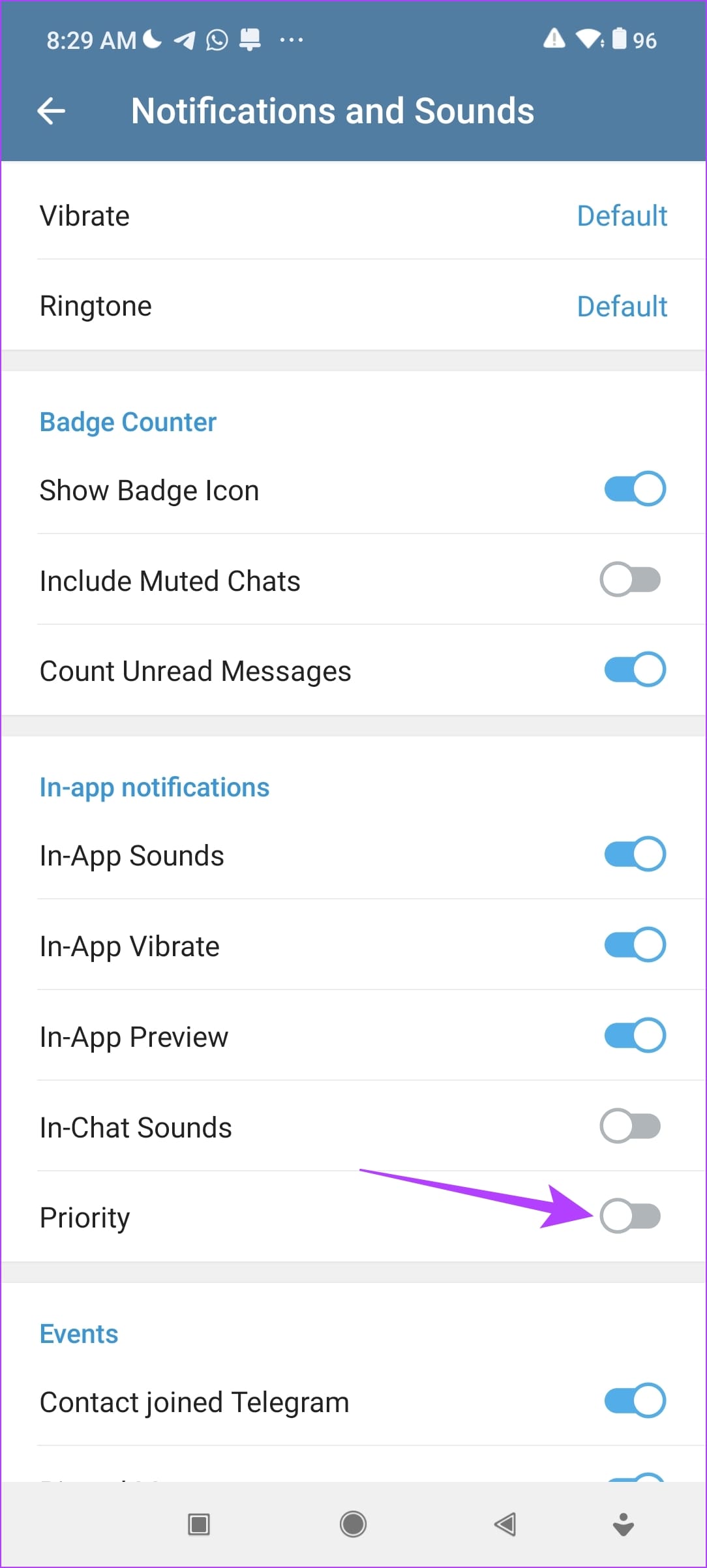
Step 2: Select ‘Notifications and Sounds’. Turn off the toggle for ‘In-Chat Sounds’.
Also Read : How to add custom notification sounds on Telegram
There you go. That is how you can turn off the sound for sent messages on popular apps on your iPhone and Android devices. If you have any further questions, look at the FAQ section below.
FAQs for Disabling Text Message Sounds
1. How do I mute a single chat on WhatsApp? To mute a specific chat on WhatsApp, open the chat, long-tap on the contact or group name, and select Mute notifications.
2. Can I disable only the incoming message sounds in a WhatsApp chat? No. You cannot disable just the incoming message sound on WhatsApp. Turning off conversation sounds disables it for both incoming and outgoing messages.
3. Can I change the sent message sound in iMessage chat on iPhone? No. You cannot change the sent message sound on iMessage on iPhone.
Remove Outgoing Message Sound Easily
We hope this article helps you turn off the outgoing message sound on your iPhone and Android devices. In the near future, we hope Apple adds a toggle to turn off the in-chat sounds on iMessage. We’re sure many of you find these alerts unnecessary.
Was this helpful?
Submit Cancel
Thanks for your feedback!
Keep reading