Android
4 Ways to Fix Gmail App Not Downloading Attachments
Does the Gmail mobile app fail to download attachments on iPhone and Android? Here are the best ways to fix the problem.
By Parth Shah
Quick Tips
Ensure there’s no problem with the internet connectivity.
Check the storage space on your Android device.
When you open an attachment on Gmail, manually download and save it to your local storage.
Basic Fixes
Check network connection: Ensure there’s no problem with network connectivity on your smartphone.
Check storage: Ensure there’s enough storage space left on your Android /iPhone to accommodate new downloads.
Restart Gmail: Restart the Gmail app to fix temporary bugs and glitches.
Fix 1: Save Gmail Attachments
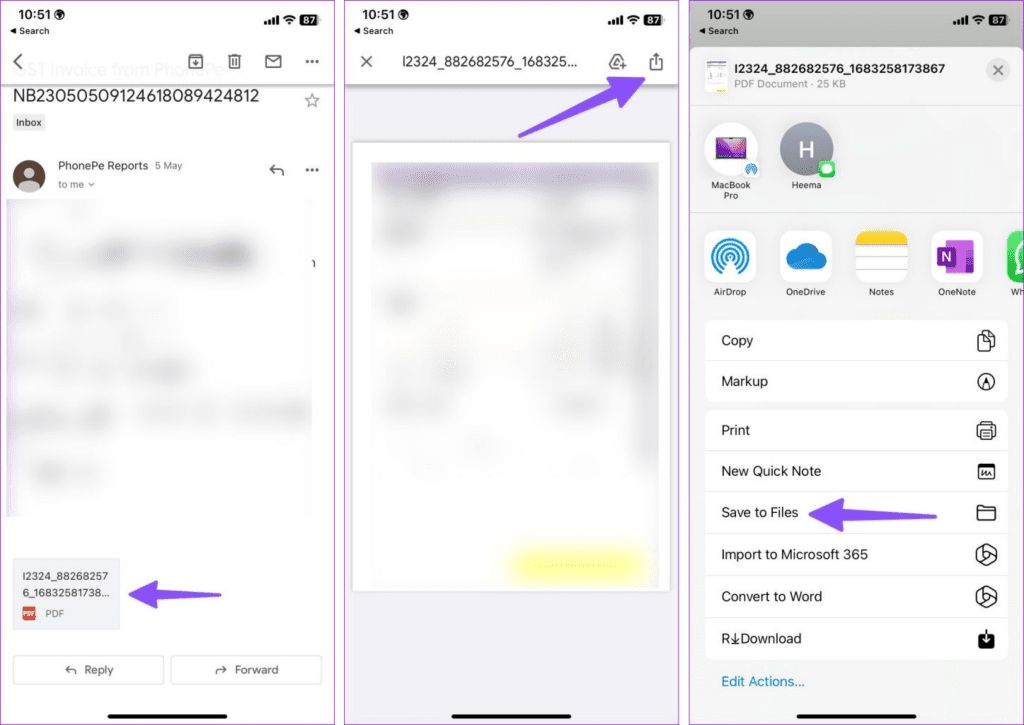
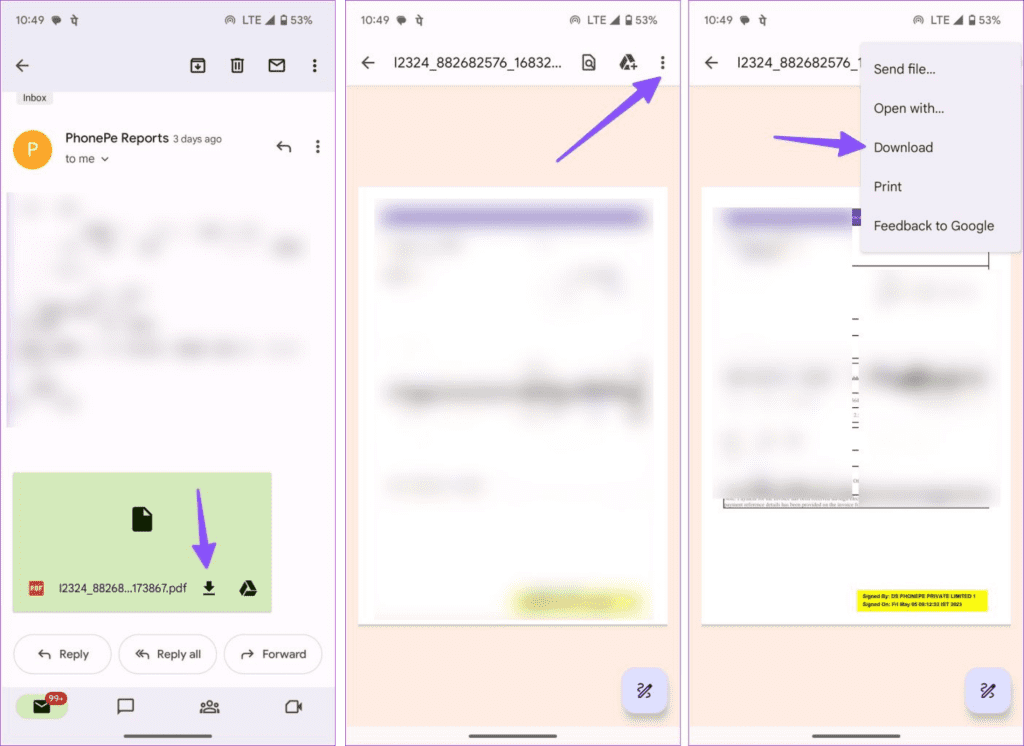
When you tap on an attachment, Gmail opens the file on your phone. It doesn’t automatically download the attachment to the device storage. You need to save the file manually.
iPhone
Step 1: Open the Gmail app on your iPhone and select an email.
Step 2: Tap on an attachment . Hit the Share icon at the top and tap Save to Files .
Android
Step 1: Launch the Gmail app on your phone and open an email.
Step 2: Tap the download button to save the file or upload it to Google Drive.
Step 3: Open the attachment and tap the three-dot menu at the top right corner. Select Download .
Also Read: How to fix Gmail not sending emails on Android
Fix 2: Enable Mobile Data for Gmail
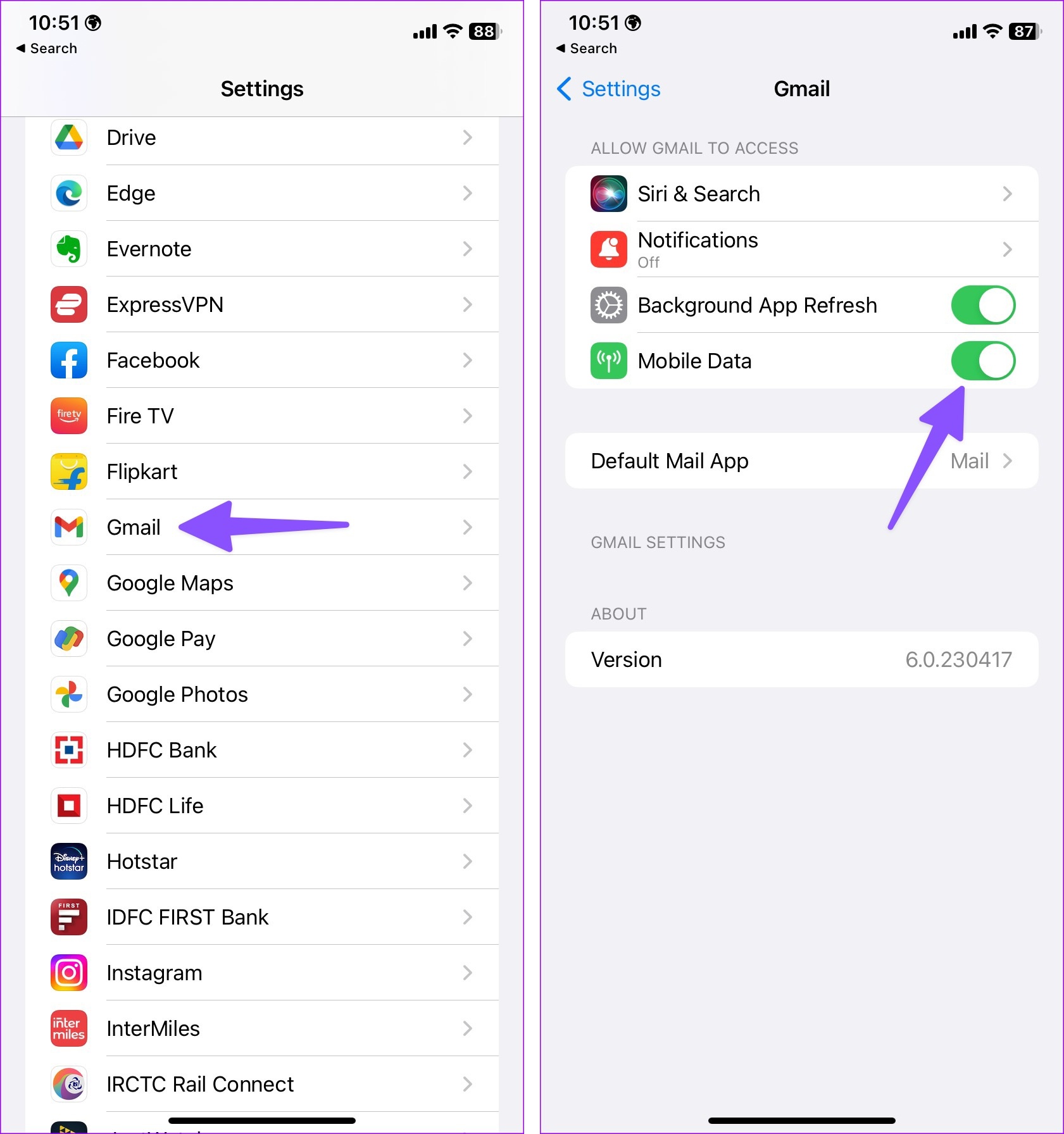
Did you disable mobile data permission for Gmail? Gmail fails to download attachments until you connect to a Wi-Fi network or enable mobile data access.
On iPhone
Step 1: Open the Settings app and scroll to Gmail.
Step 2: Enable the Mobile Data toggle and try downloading the attachment again.
On Android
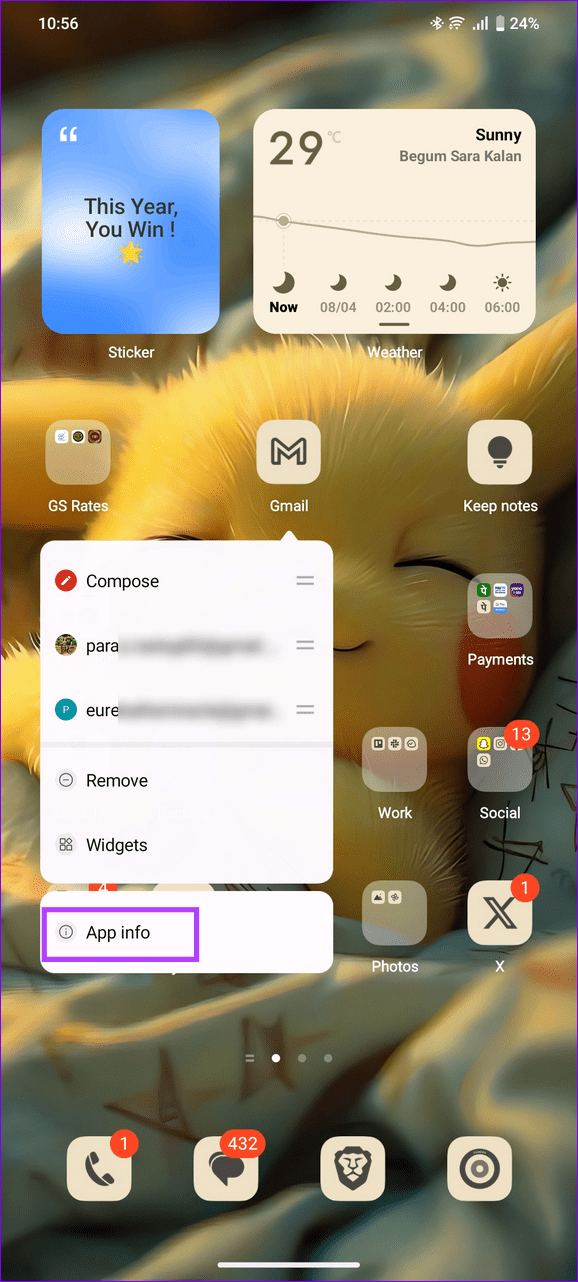
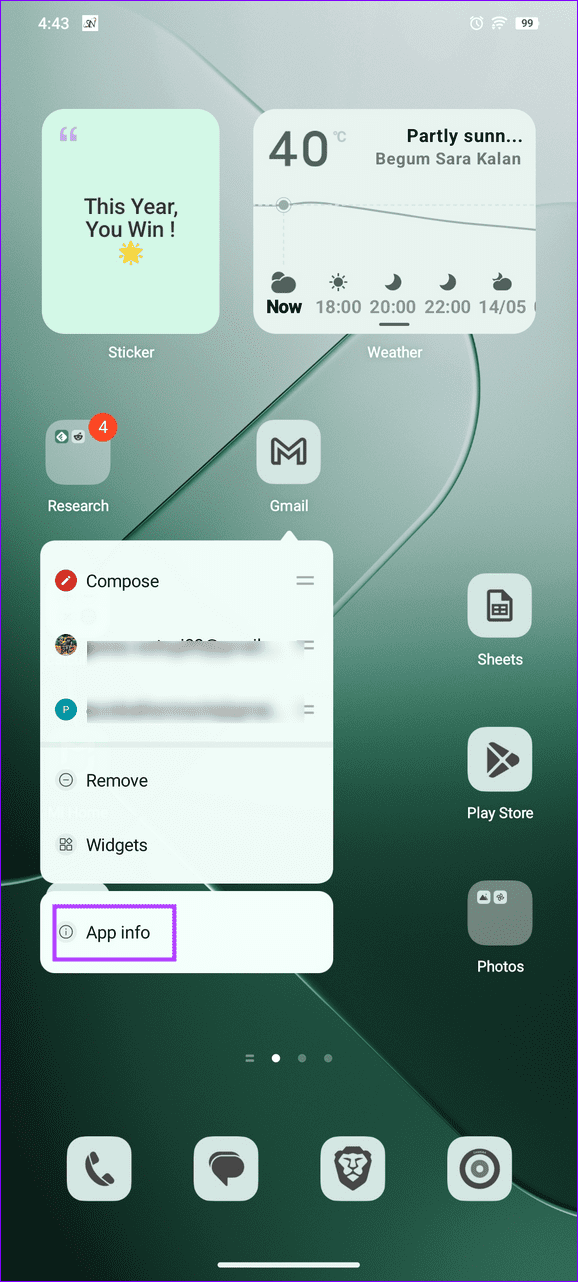
Step 1: Tap and hold the Gmail app icon, and tap on select App Info .
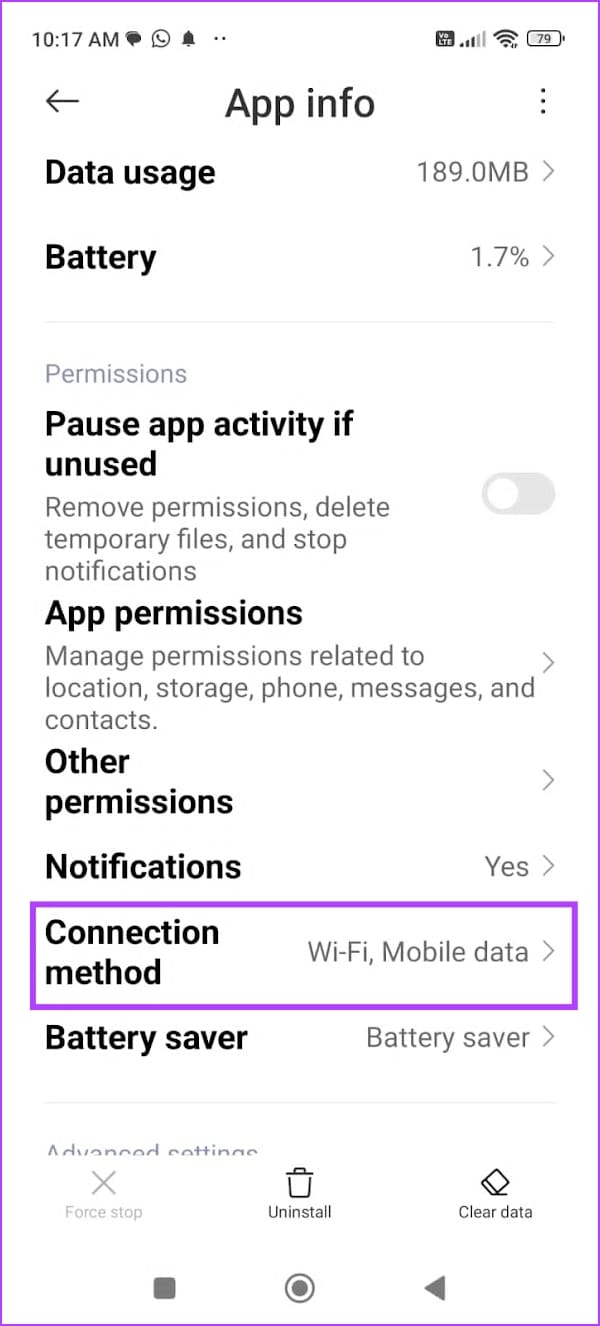
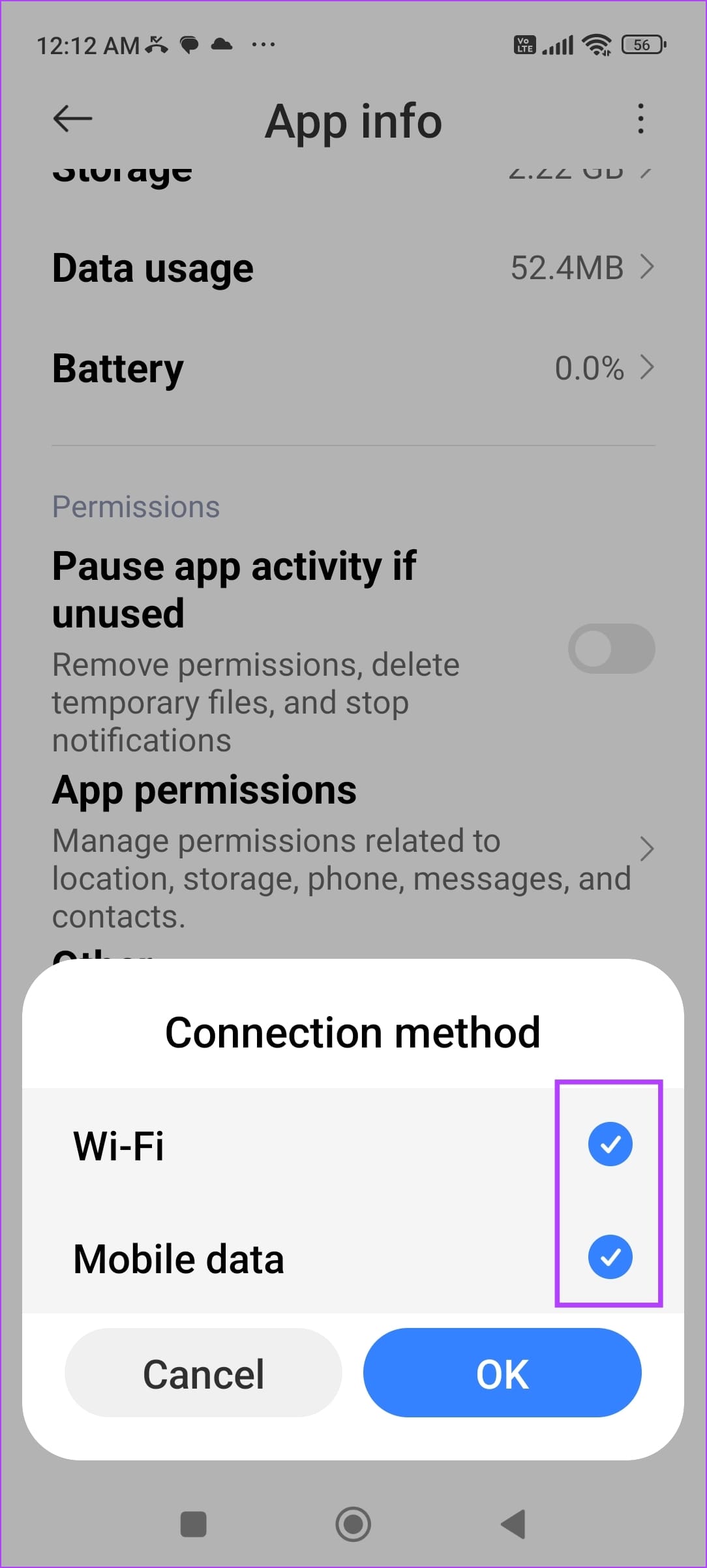
Step 2: Tap on Connection method , and ensure both Wi-Fi and Mobile data are selected.
This ensures the app has permission to use both Wi-Fi and mobile data to access the internet. However, these settings may vary on your device – we’ve used a Xiaomi device to illustrate the example.
Also Read: How to attach files on Gmail on iPhone and Android
Fix 3: Check for the Attachment Password
Attachments such as your bank statements and credit card bills come protected with a password to prevent unauthorized access.
When you open or download such attachments, the file asks for a combination of letters and numbers to access it.
Usually, companies send the password combination instructions with the email. You can read the email, look for the relevant password, and use it to open and save the attachment.
Fix 4: Clear Cache
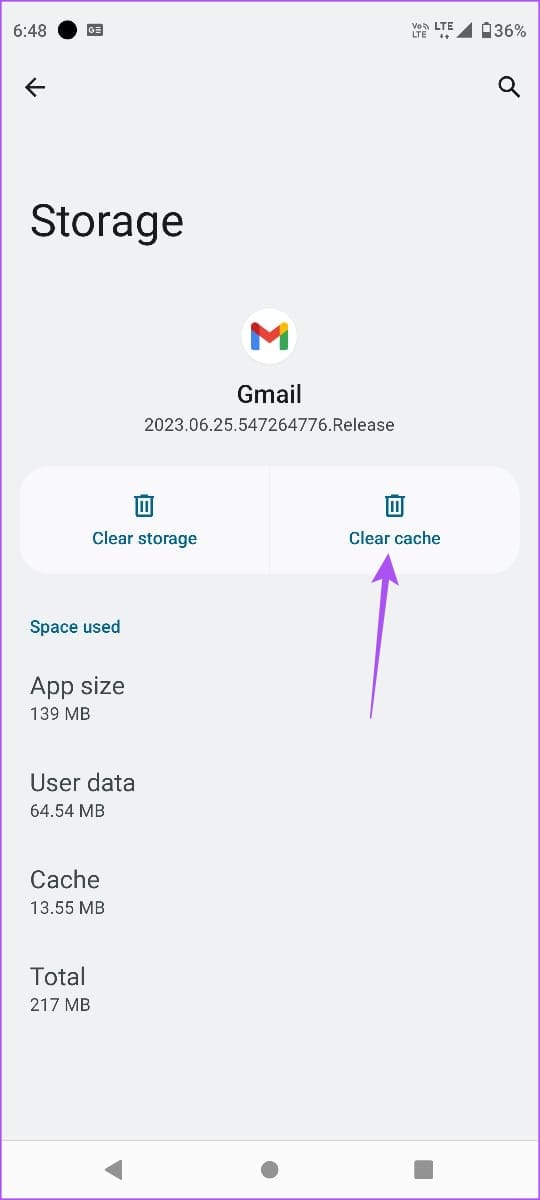
Clear cache to remove junk files that may be causing the issue with the Gmail app on your phone.
On Android
Step 1: Tap and hold the Gmail app icon, and select App info .
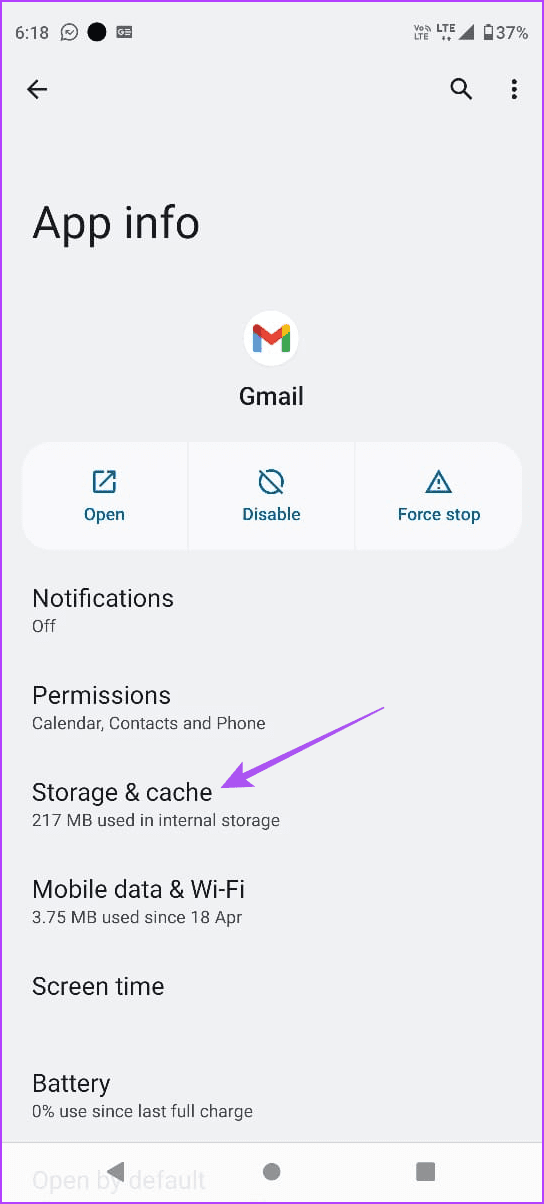
Step 2: Tap on Storage & cache > Clear Cache .
Was this helpful?
Submit Cancel
Thanks for your feedback!
Keep reading