Android
2 Ways to Fix Wrong Order of Messages on Samsung Galaxy Devices
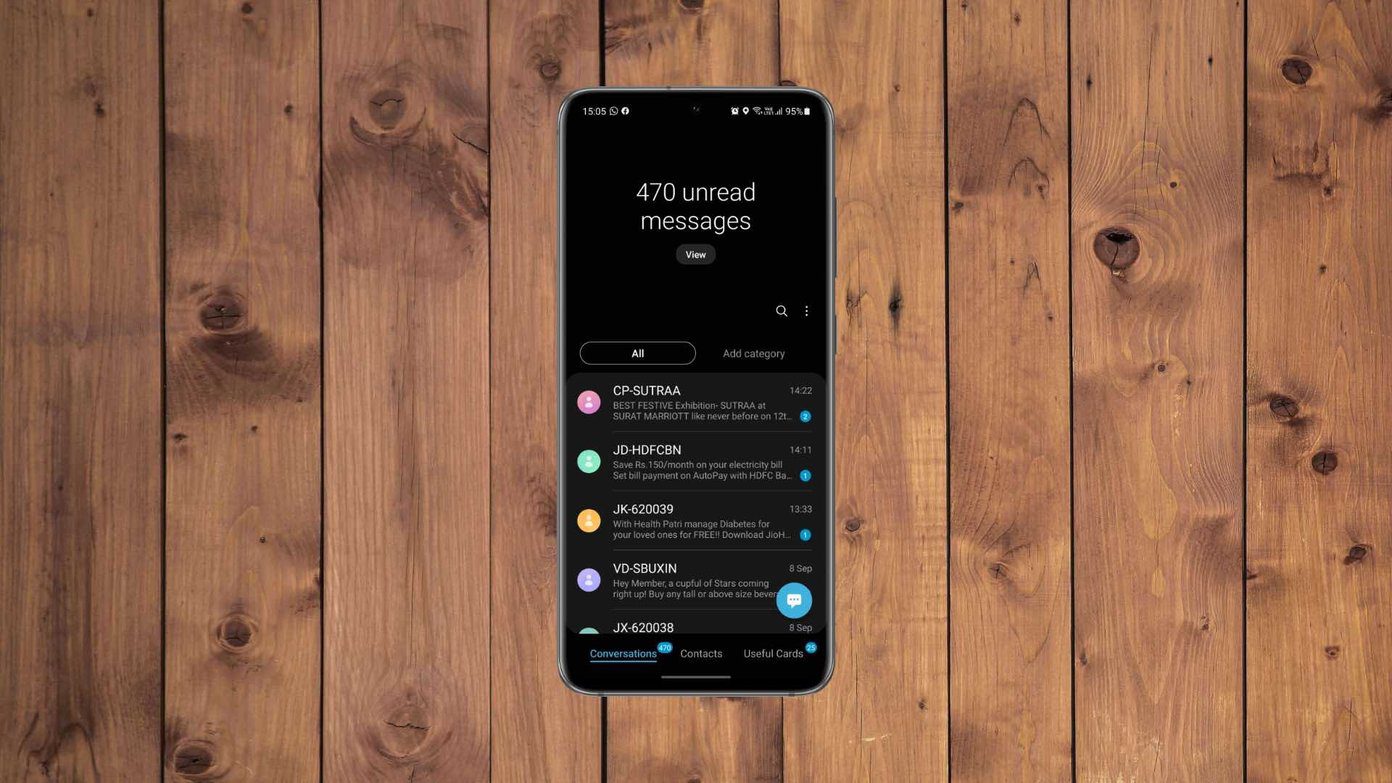
Are you seeing the wrong order of messages on your Galaxy phone? That's not how it's supposed to work. Let's fix the issue.
By Parth Shah
Quick Tips
Allow your phone to automatically fetch timezone details. This should rearrange the messages accordingly when you change timezones.
You can reset all device settings. This will remove any errant custom settings that might cause messages to appear out of order.
If the issue is recurrent, try switching to other apps, like Google Messages.
Basic Fixes:
Restart the Samsung Messages app: A temporary bug or glitch can cause the messages to appear out of order. So, close and reopen the Samsung Messages app to see if this fixes the issue.
Clear the app cache: The app cache helps decrease the loading time for apps like Samsung Messages. But if they do not function properly, clear this app cache on your Samsung phone.
Check for app updates: If this issue is due to an app bug, an app update is likely available to fix it. So, check and install the latest app updates for the Samsung Messages app.
Fix 1: Set Device Date and Time to Automatic
If you recently changed timezones and your Samsung device’s date and time settings are set to manual, the message order might become jumbled. To fix this, you can set your device to automatically fetch date and time data based on your current timezone. Here’s how.
Note: While this will fix the order of your current messages, certain previously received messages might still appear out of order on the Samsung Messages app.
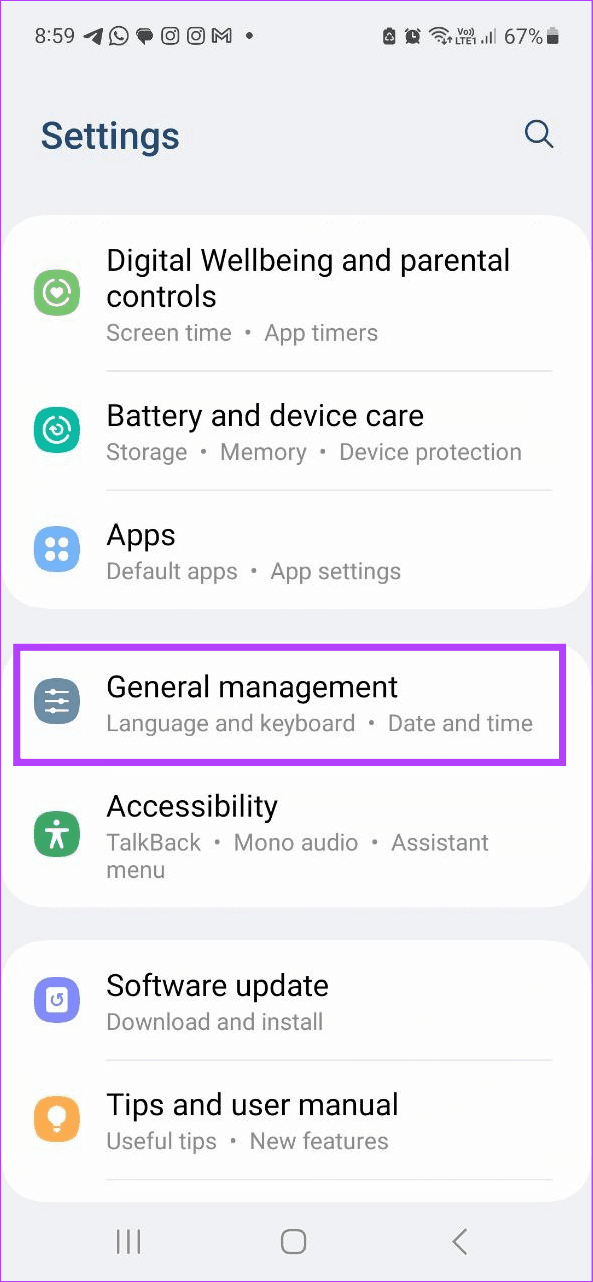
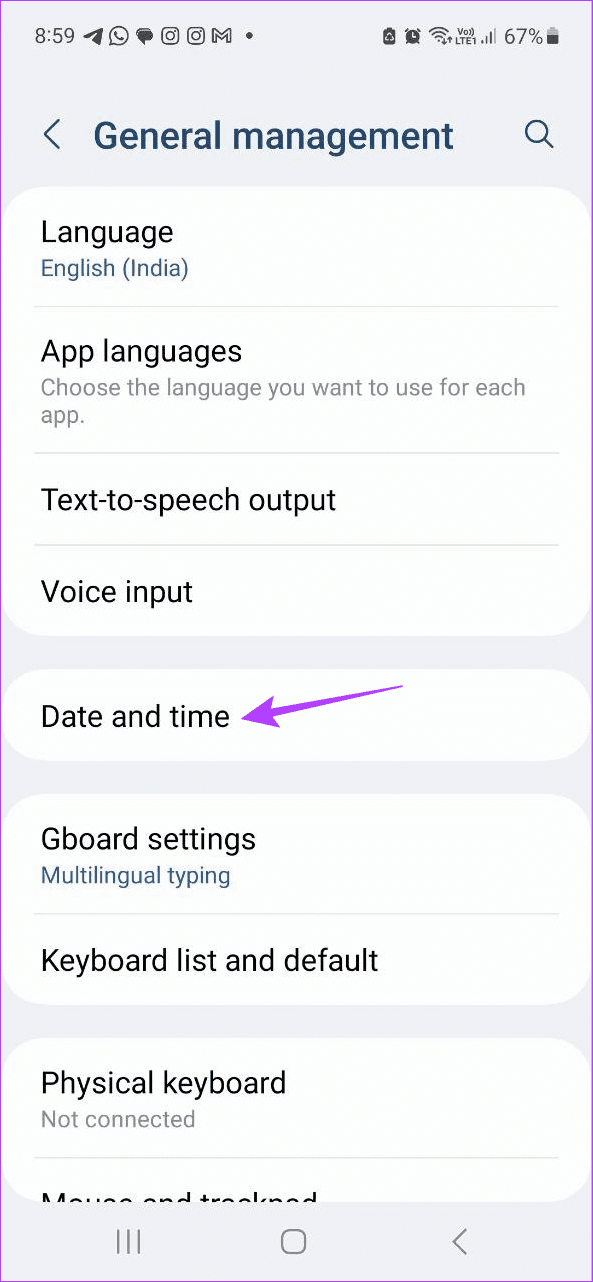
Step 1: Open the Settings app and tap on General management > Date and time .
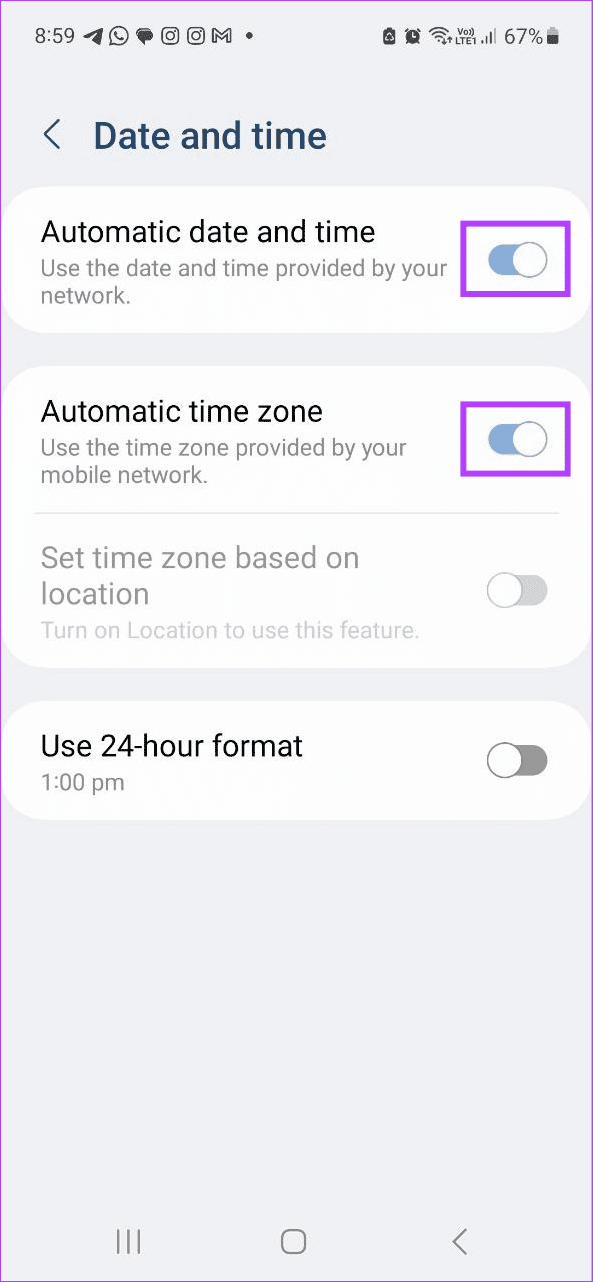
Step 2: Here, turn on the toggles for Automatic date and time and Automatic time zone .
Fix 2: Reset All Settings
Incorrect app or device settings can cause the messages in the Samsung Messages app to show out of order. So, you can reset all device settings and check again. Please note that this will reset all device settings, including account data and security settings.
Tip: If you’re not too keen on deleting all device settings, try resetting the network settings first. If this doesn’t work, proceed with the below steps.
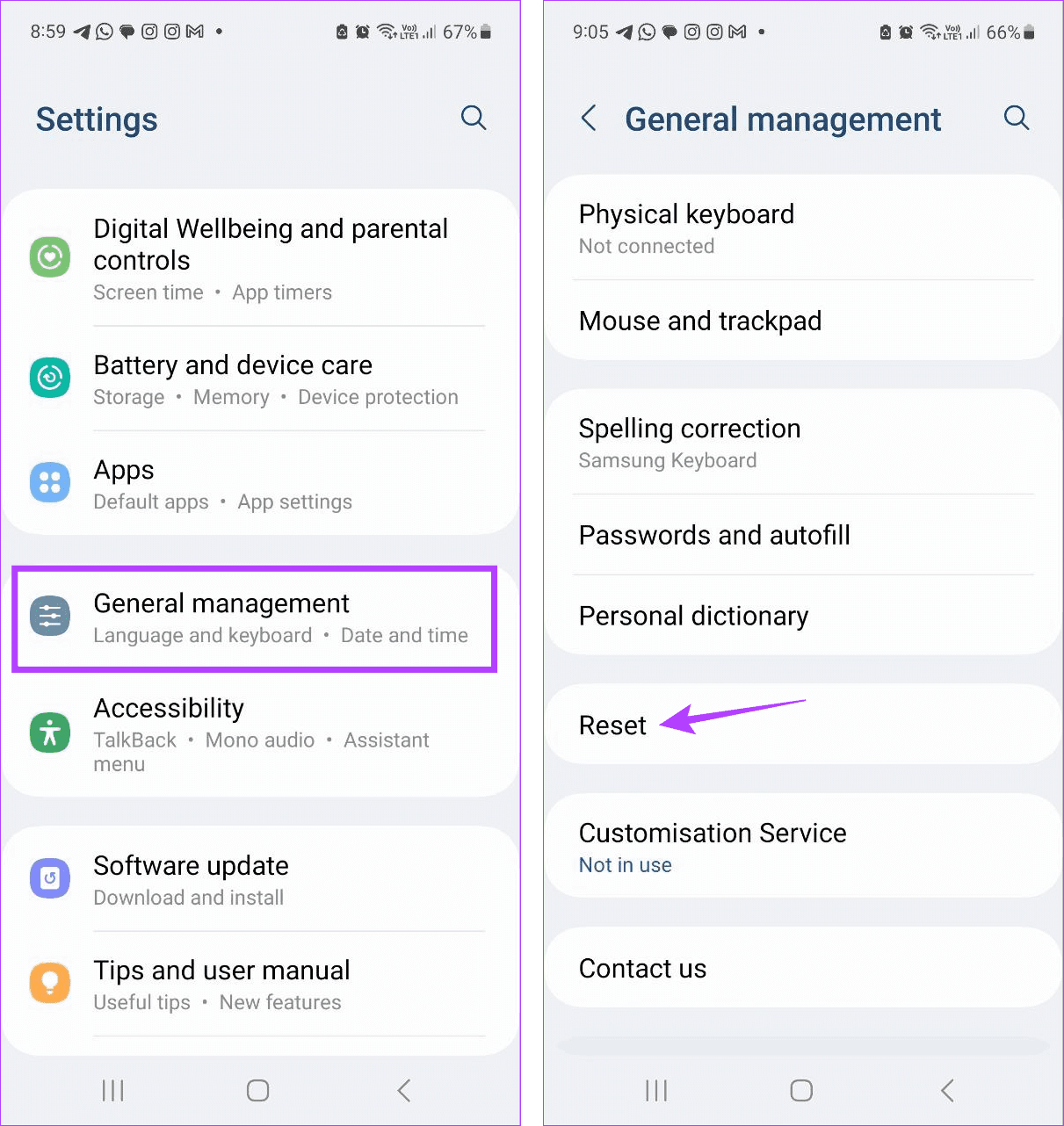
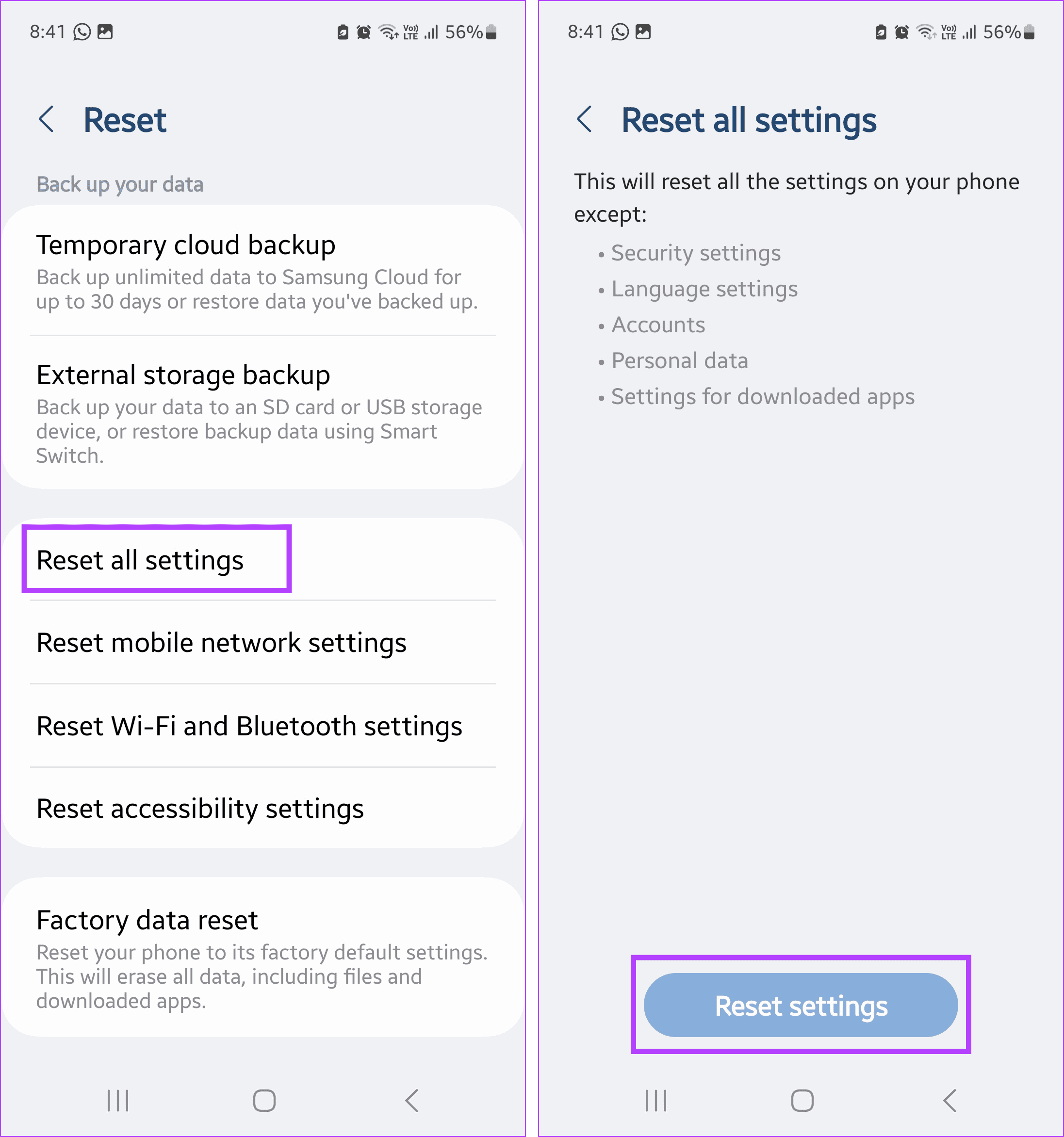
Step 1: Open the Settings app > tap on General management > Reset .
Step 2: Here, tap on Reset all settings . Then, tap on Reset settings to confirm. If prompted, enter your device password or PIN to finish the process.
Once the reset is done, open the Samsung Messages app and see if the order of messages has been corrected.
Bonus Tip: Try Using Another App
If you face frequent issues with the Samsung Messages app, switch to other apps like Google Messages. You can also transfer Samsung Messages data to Google Messages and keep your previous messages. However, ensure you change the default messaging app before starting.
Was this helpful?
Submit Cancel
Thanks for your feedback!
Keep reading