Android
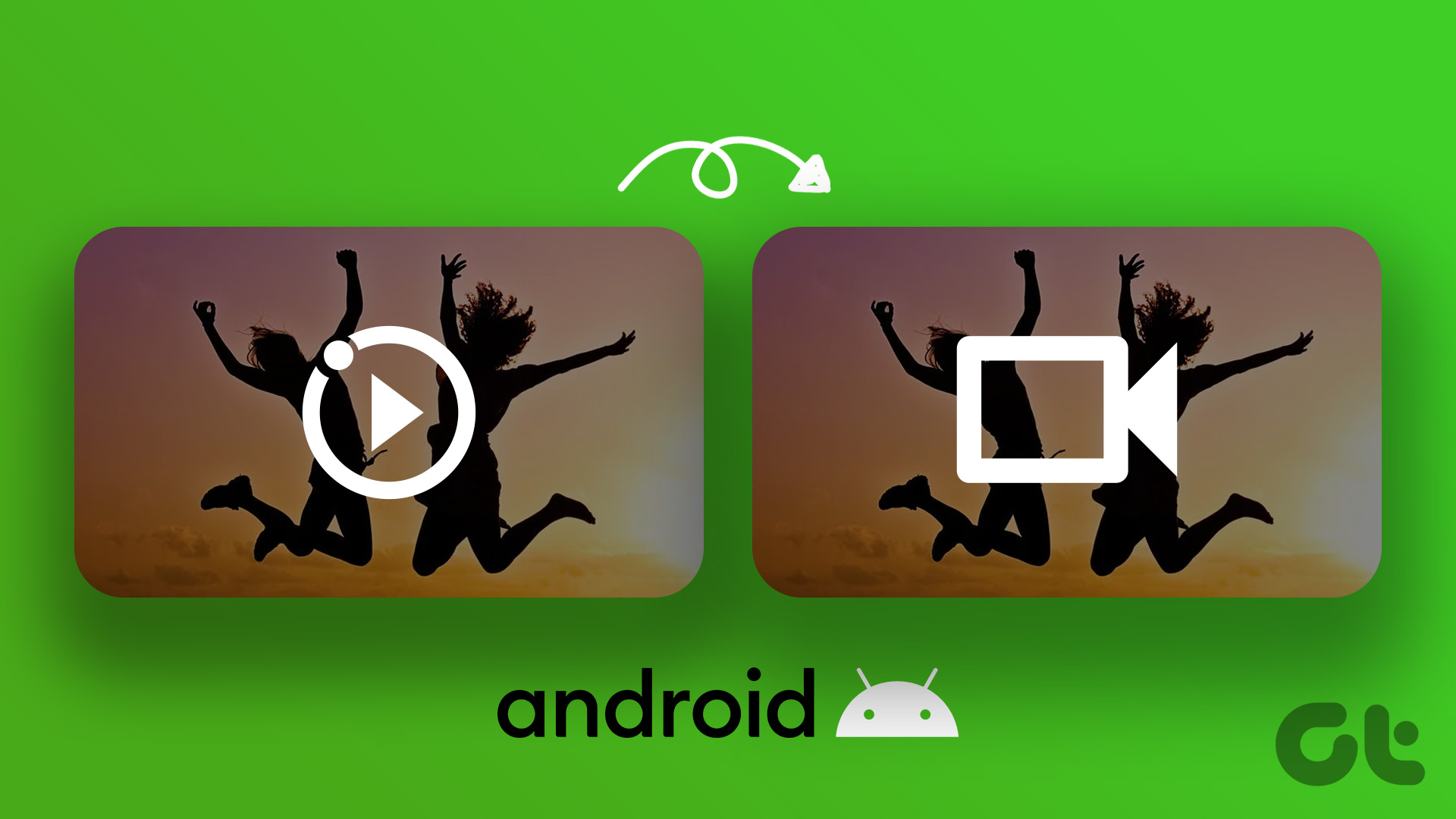
How to Save Live Photo as Video or GIF on Android
Want to share motion photos on Android? Learn how to save live photos as videos or GIFs in Google Photos and Samsung Gallery.
By Mehvish
Quick Tips
Open a motion photo in the Google Photos app, swipe up, select Export, and choose between the video/GIF format.
On your Samsung device, open Gallery, open the motion photo, select the three-dots icon, select Export, and choose the format.
Additionally, you can select the length, speed, and playing mode of your GIF in the Samsung Gallery app.
On Google Photos
Here’s how you can download the motion photo as a video or GIF .
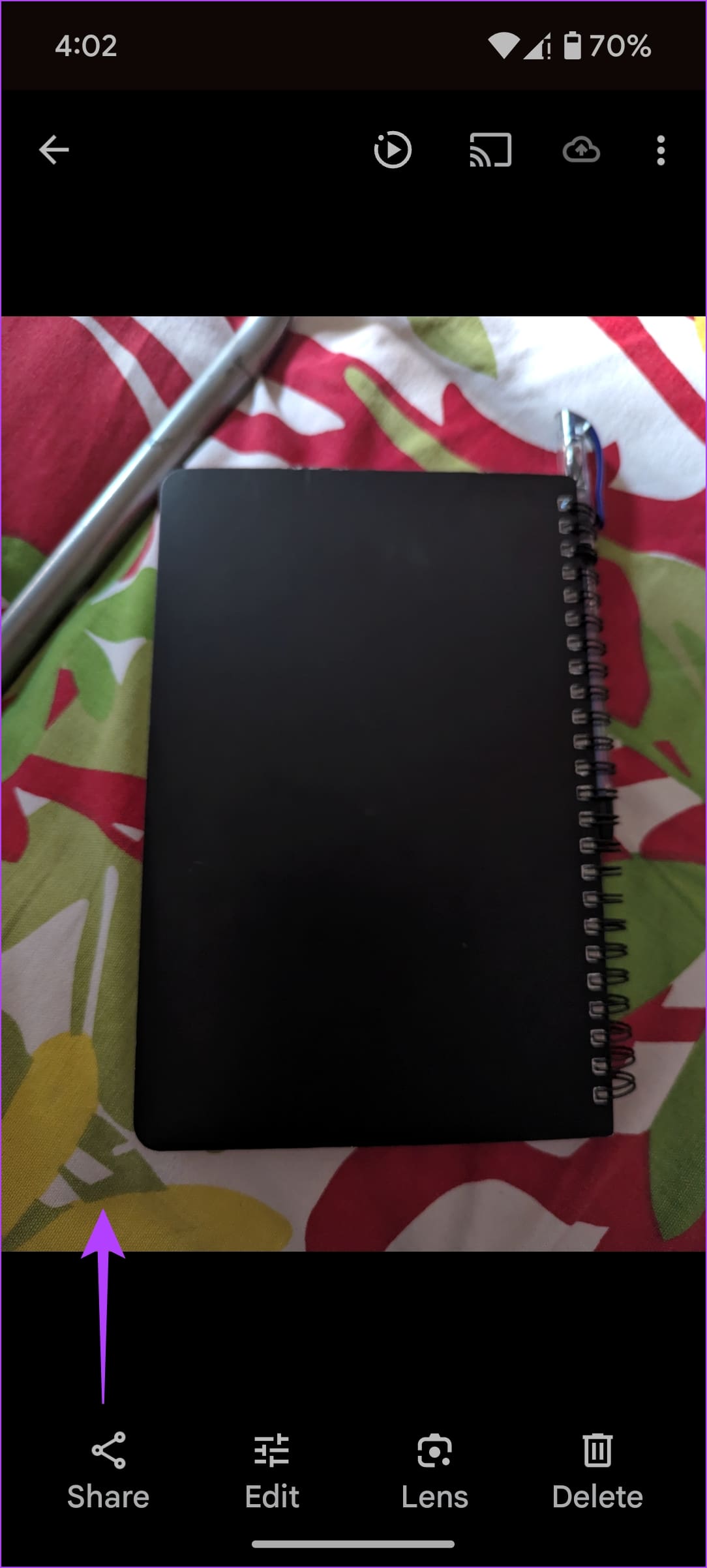
Step 1: Open the motion photo in Google Photos, and Swipe Up on it.
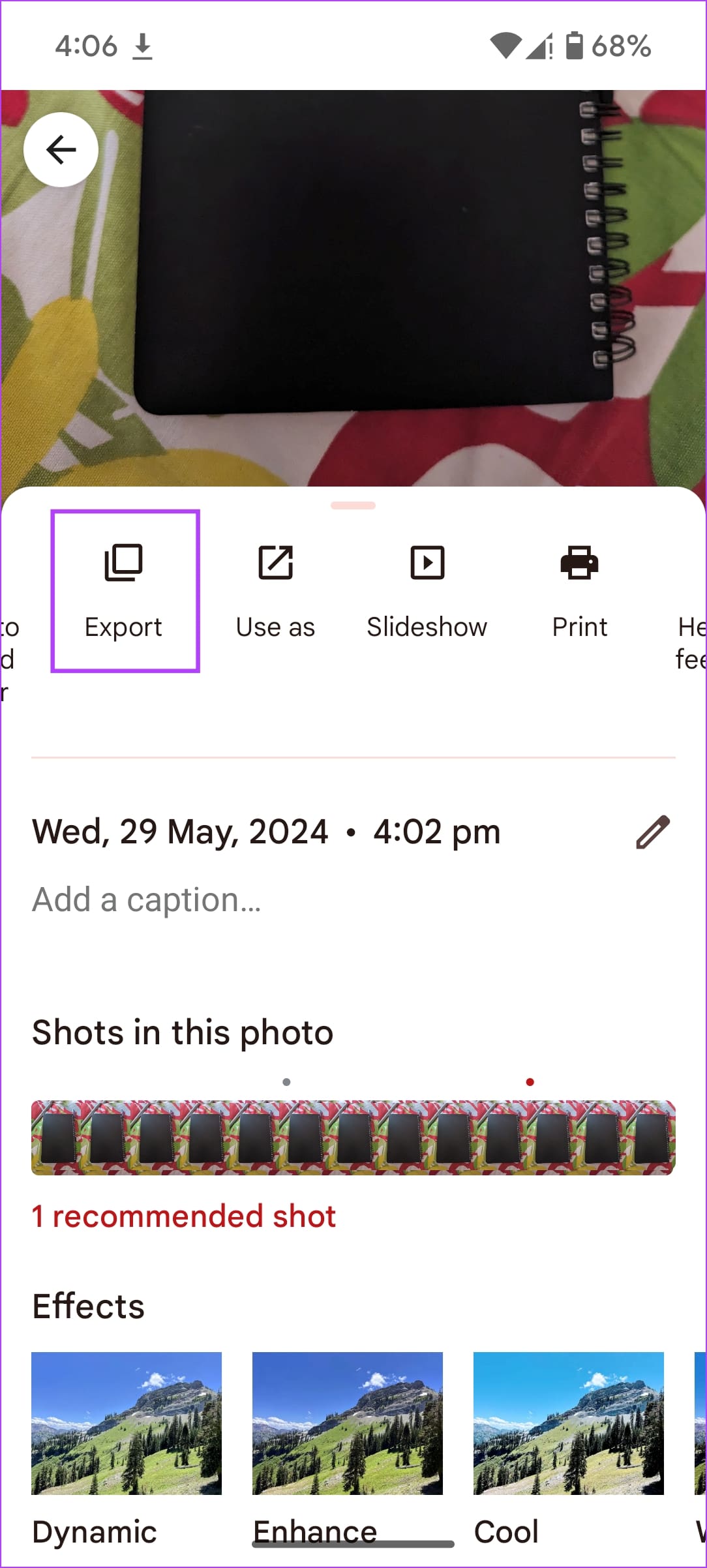
Step 2: Swipe left in the list of options, and select Export .
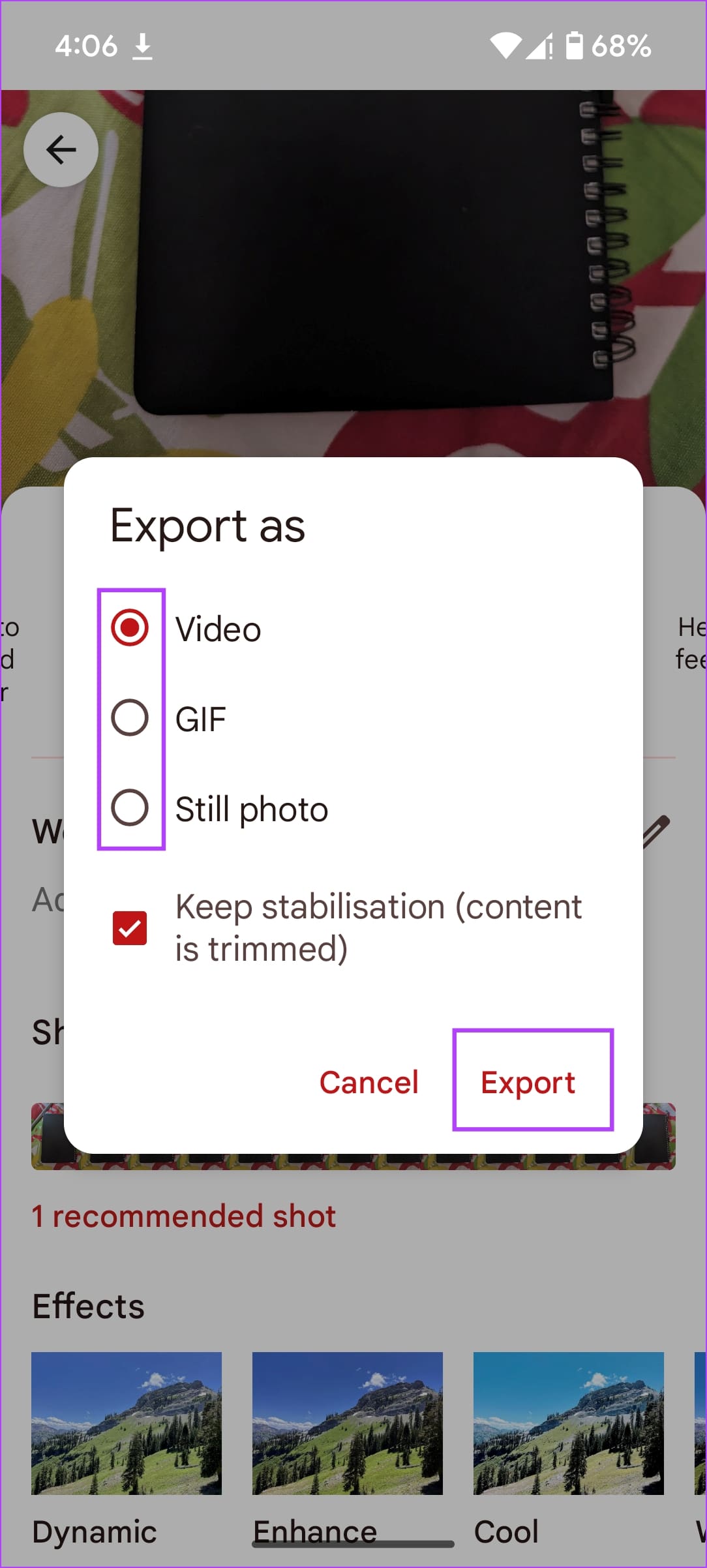
Step 3: Select a format of your choice and tap on Export. You can then share it using any social media app.
On Samsung Phones
Samsung Gallery app also offers the functionality of saving motion photos as videos or GIFs.
Step 1: Launch the Samsung Gallery app on your phone.
Step 2: Open the motion photo that you want to export as a video or GIF.
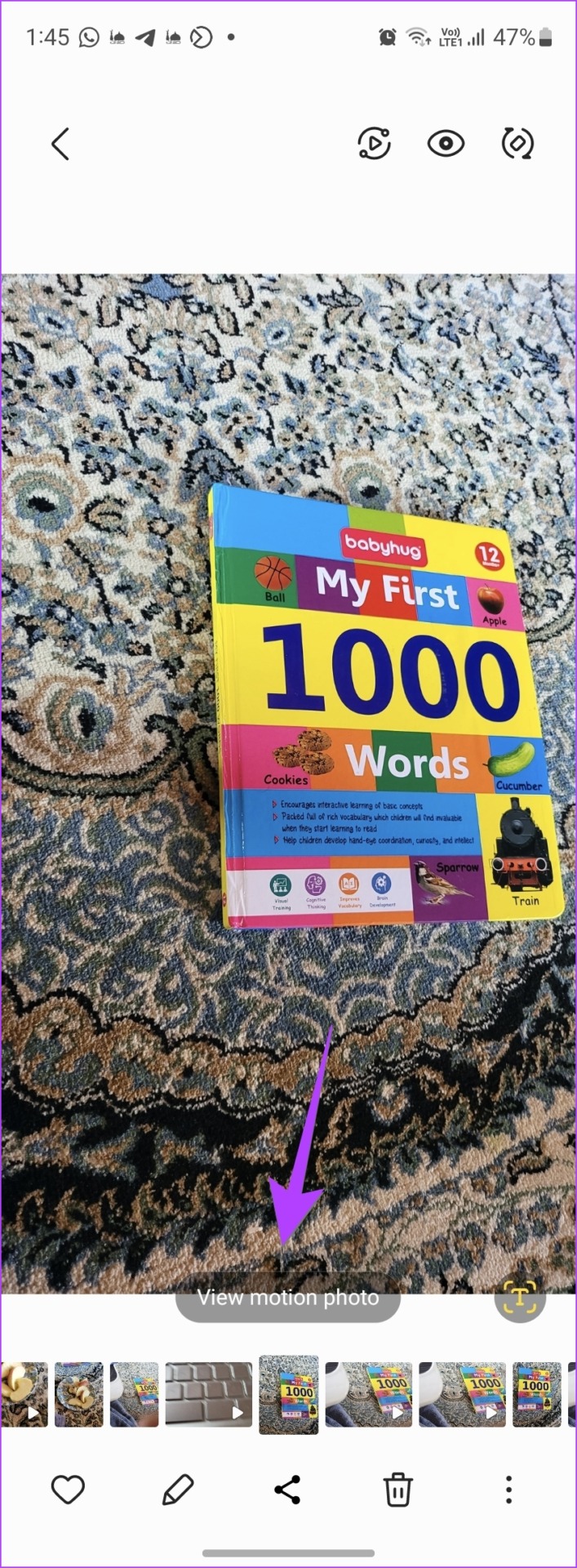
If you aren’t sure whether the photo is a motion photo, look for the ‘View motion photo’ button at the bottom. This indicates that the image is a motion photo.
Step 3: Tap on the three-dot icon at the bottom of the photo and select Export from the menu.
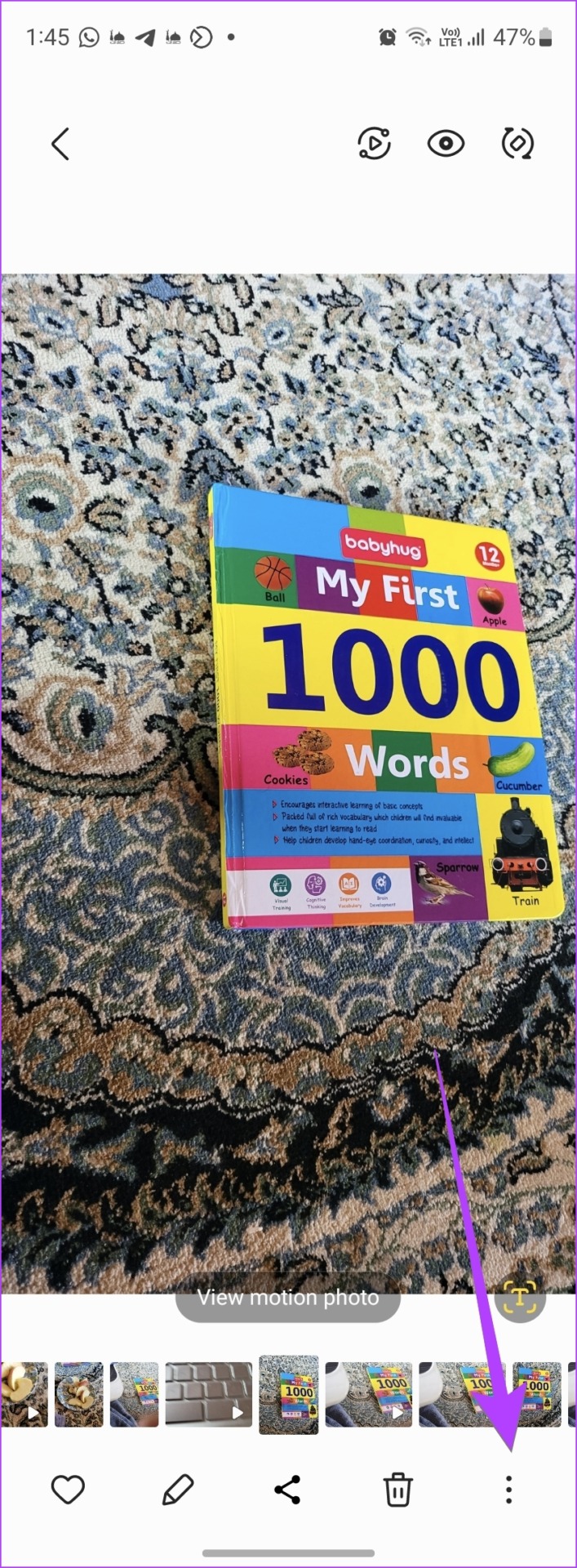
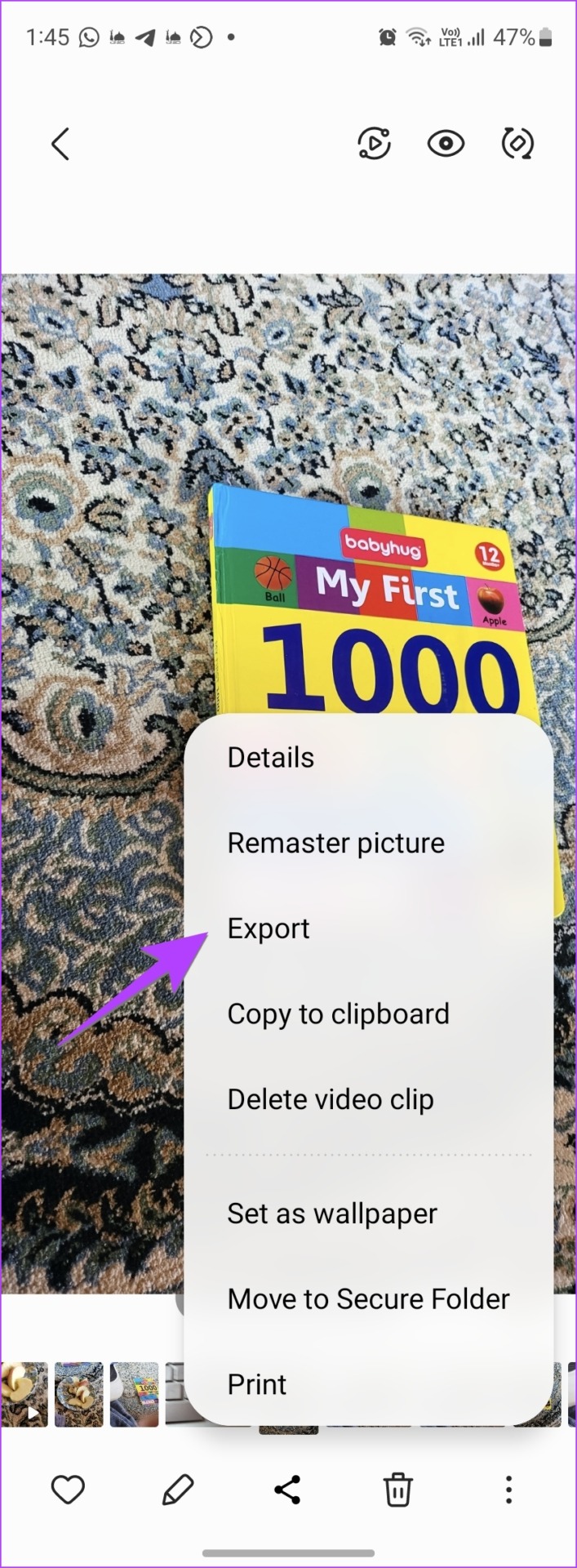
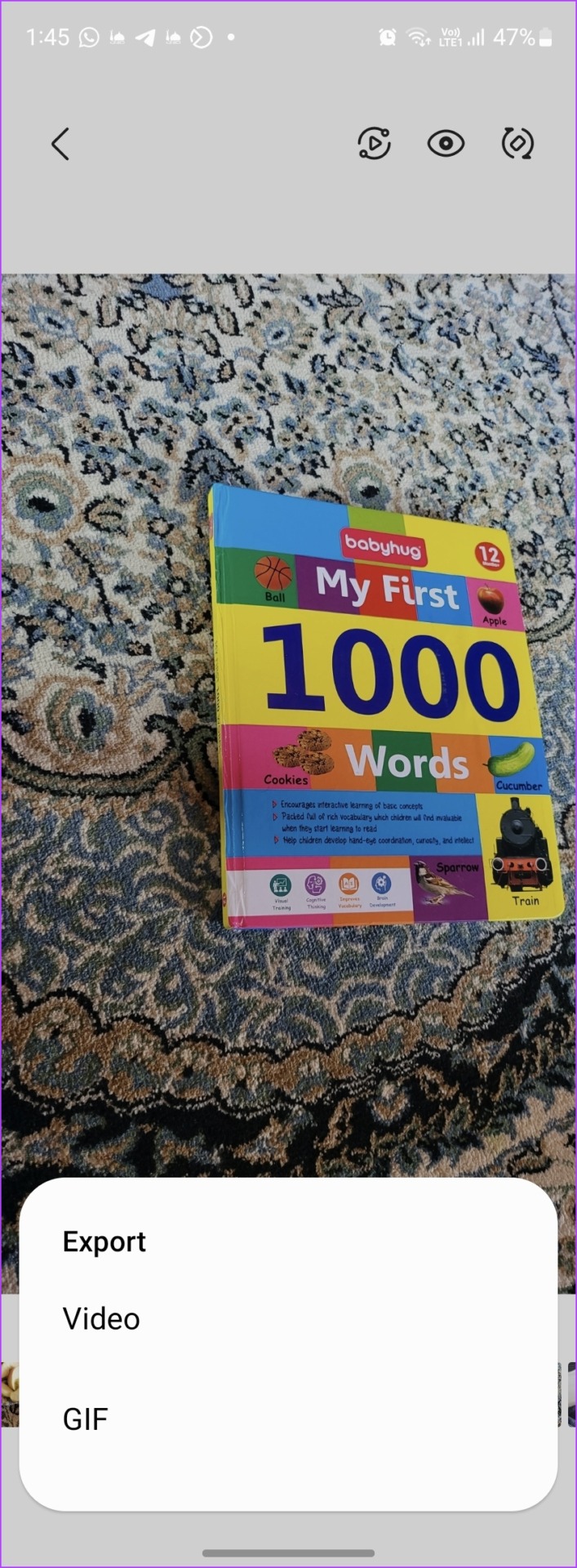
Step 4: You will get two options to export the motion photo: video or GIF . Choose the desired option to save it. Tapping on the Video option will immediately convert the motion photo and save the video on your phone. You will find it in the Gallery app.
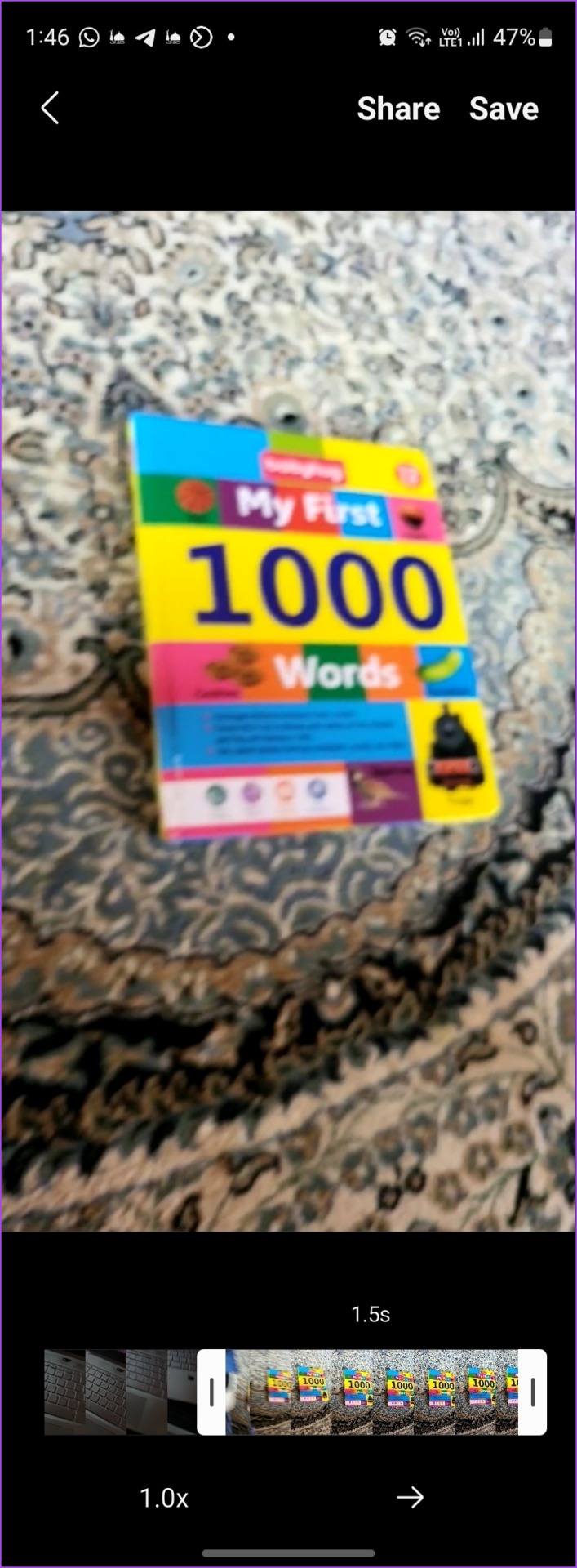
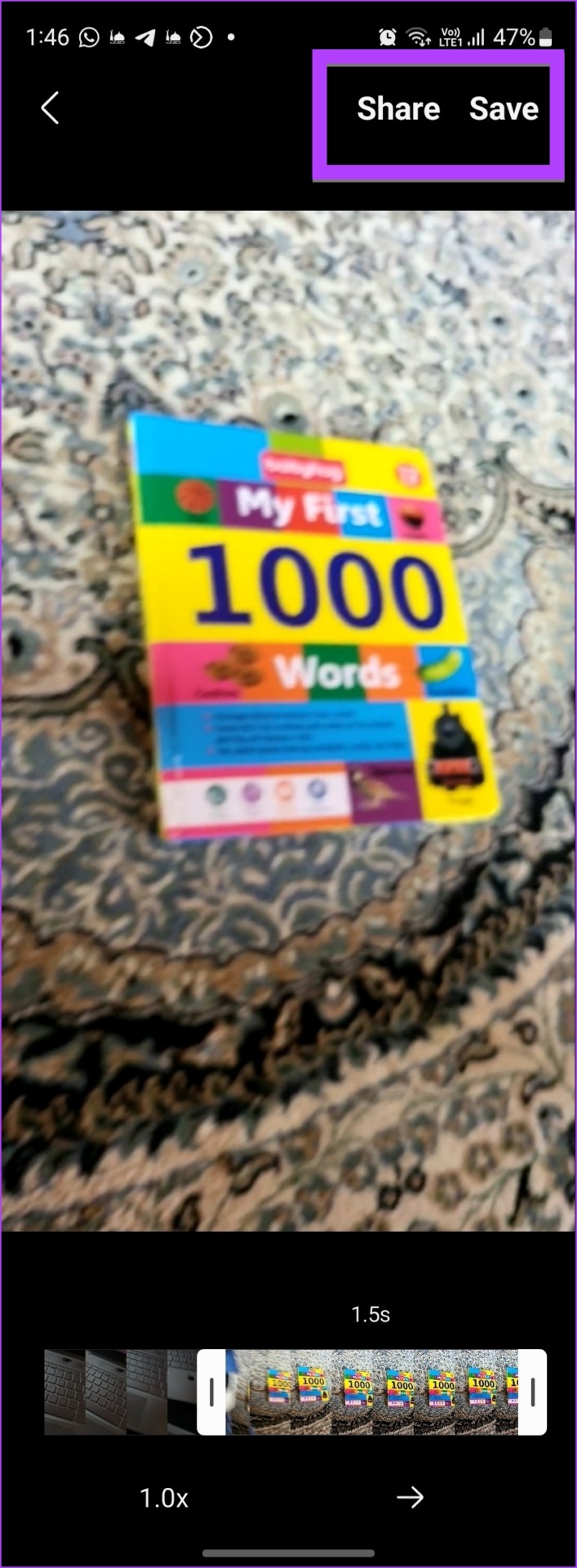
Step 5: Tap on the GIF option to open the GIF customization screen. Here, you can select the length, speed, and playing mode of your GIF.
Use the scrollbar at the bottom to trim or adjust the GIF length.
Tap on the 1.0x speed option to increase or decrease the GIF speed.
Tap on the arrow at the bottom to play the video in the forward direction, backward, or back and forth.
Step 6: Once you have customized the GIF, tap on Save at the top to download the GIF. Besides, tap on the Share button to send the motion photo as a GIF to your friends via any app.
Check out other ways to make a GIF on your Samsung Galaxy phone.
Also Read: How to fix Samsung Gallery not showing all pictures
Was this helpful?
Submit Cancel
Thanks for your feedback!
Keep reading