Android
How to Unlist Your Phone Number From Truecaller
Concerned about your online privacy? Here's how you can unlist your phone number from Truecaller by following a few steps on your phone.
By Sumukh Rao

Truecaller is a great way to find out who called you from an unknown phone number. It’s also handy to identify and block spam calls that may otherwise waste your time. Since Truecaller works both ways, it’s also beneficial to other users who want to call you.

If you’ve registered your phone number with Truecaller, anyone can easily enter your phone number in the app and find out to who the number belongs. That’s clearly a breach of privacy for many.
If you don’t want your phone number to be searchable so easily, the best option is to unlist your phone number from Truecaller. Here’s how you can do it.
Why Unlist Your Phone Number From Truecaller
If you prefer that your phone number remains private and you don’t want others to find out it belongs to you, unlisting your phone number from Truecaller is your best option. Truecaller has a huge database of phone numbers from users worldwide. Unlisting your phone number will remove it from the database.
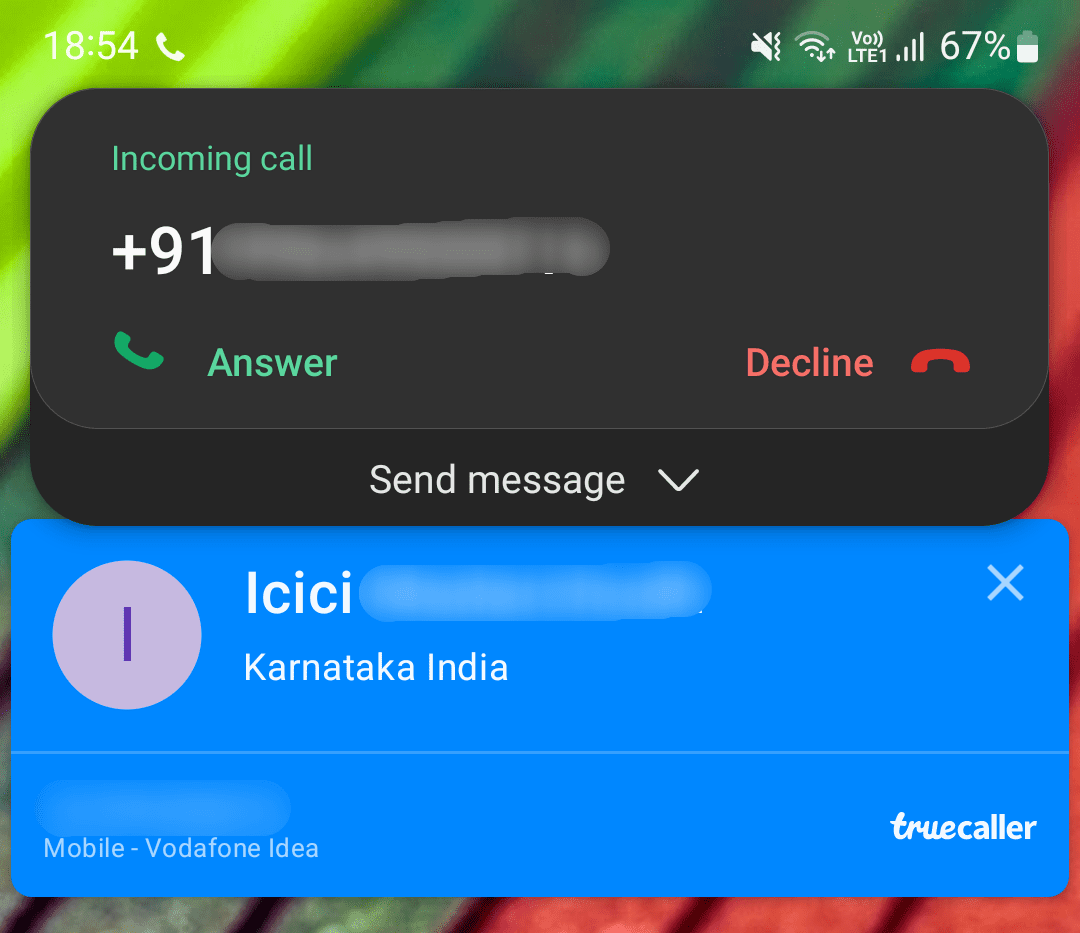
After unlisting your phone number, if someone searches for it on Truecaller, they will not be able to see who it belongs to.
How to Unlist Your Phone Number From Truecaller
If you have decided to unlist your phone number from Truecaller for reasons related to privacy, here’s how you can do it.
Note that you can unlist your phone number from Truecaller via the website only after deactivating your account from the app. Here’s the process to do it.
Deactivate Truecaller Account From the Android App
For Android users, deactivating the Truecaller account is pretty easy, if they have the app installed. Even if your phone dialer Truecaller integration, it’ll help to get the Truecaller app on Android.
Step 1: Open the Truecaller app on your Android.
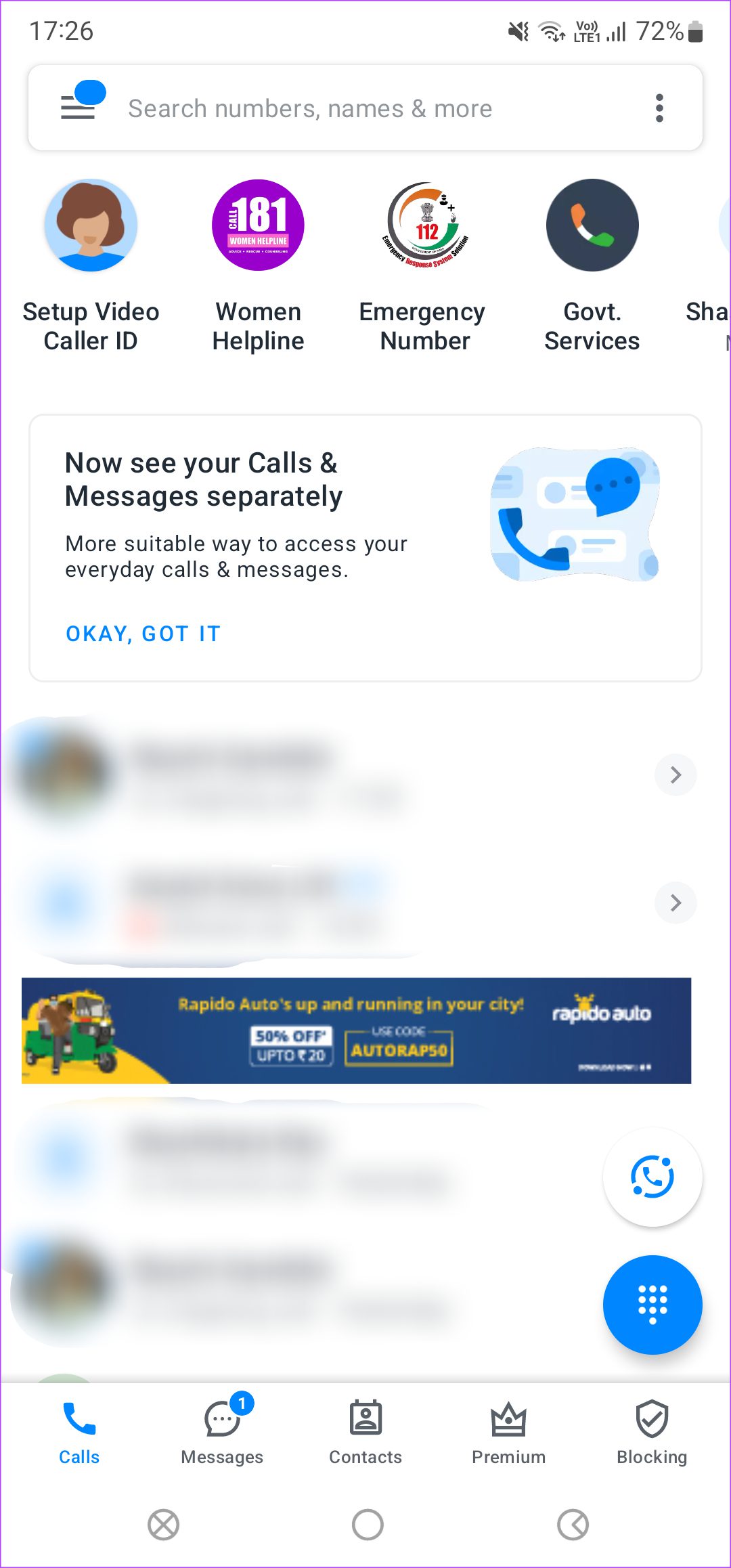
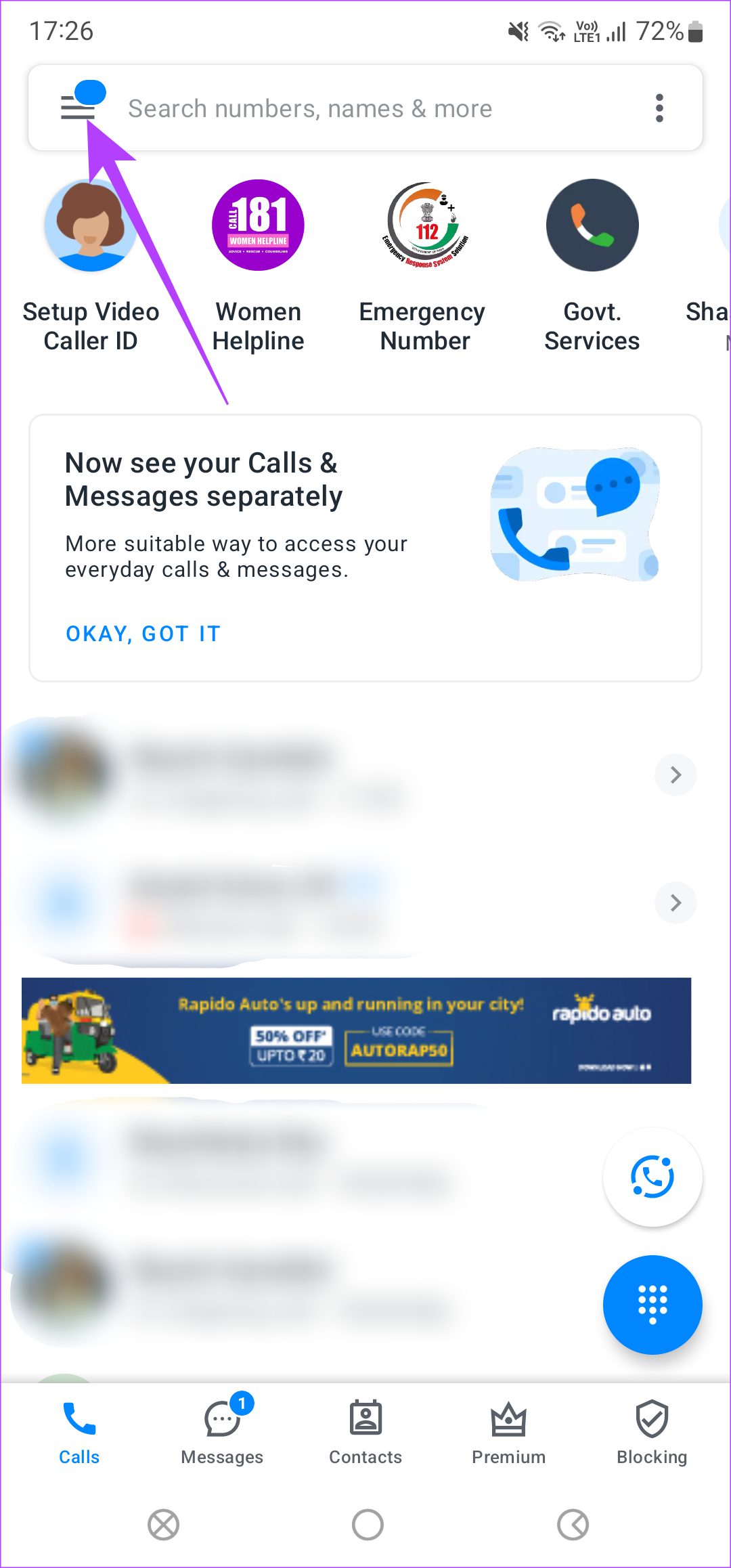
Step 2: Tap on the hamburger menu in the top-left corner.
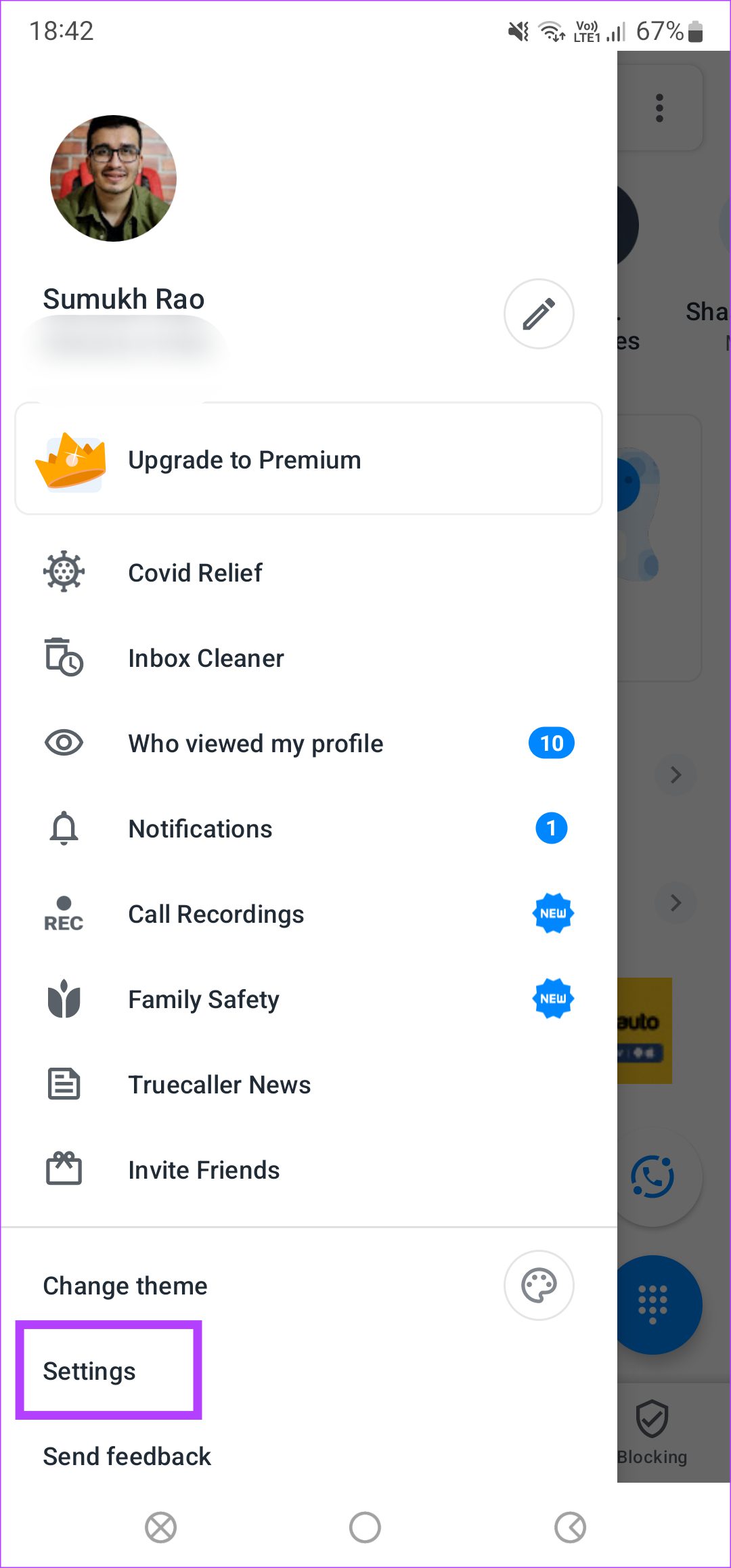
Step 3: Select Settings.
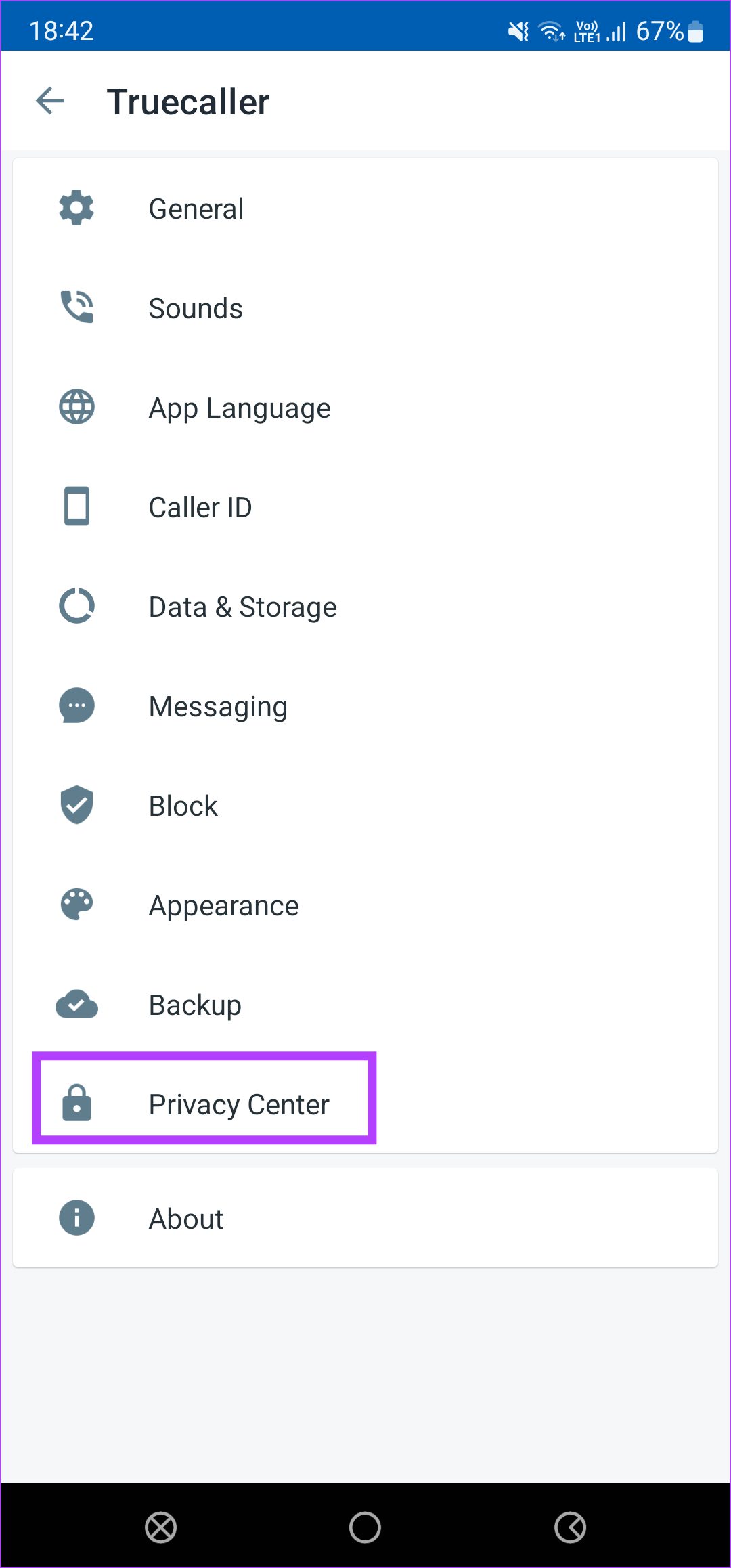
Step 4: Now, tap on Privacy Centre.
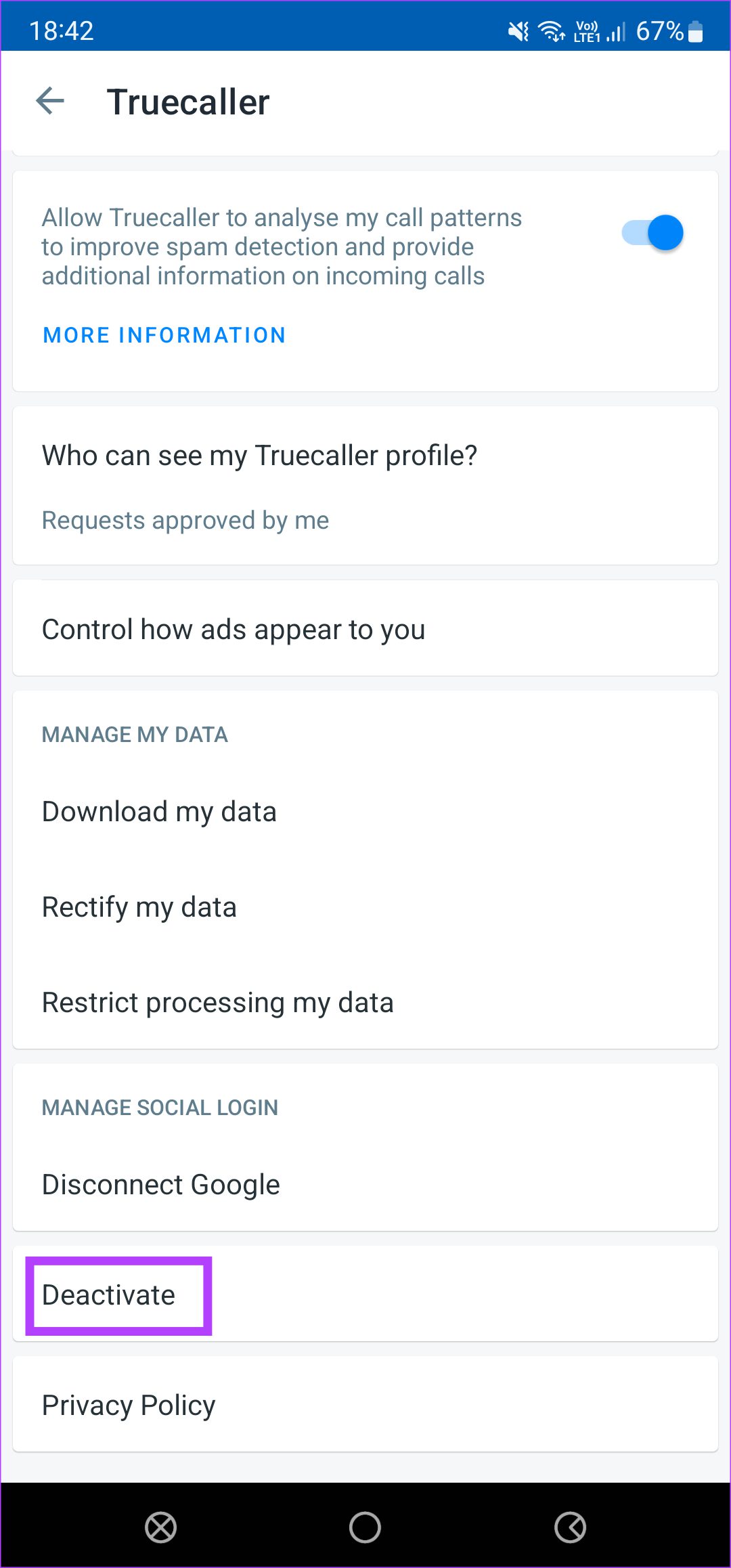
Step 5: Scroll down and select Deactivate.
Step 6: Select Yes in the prompt.
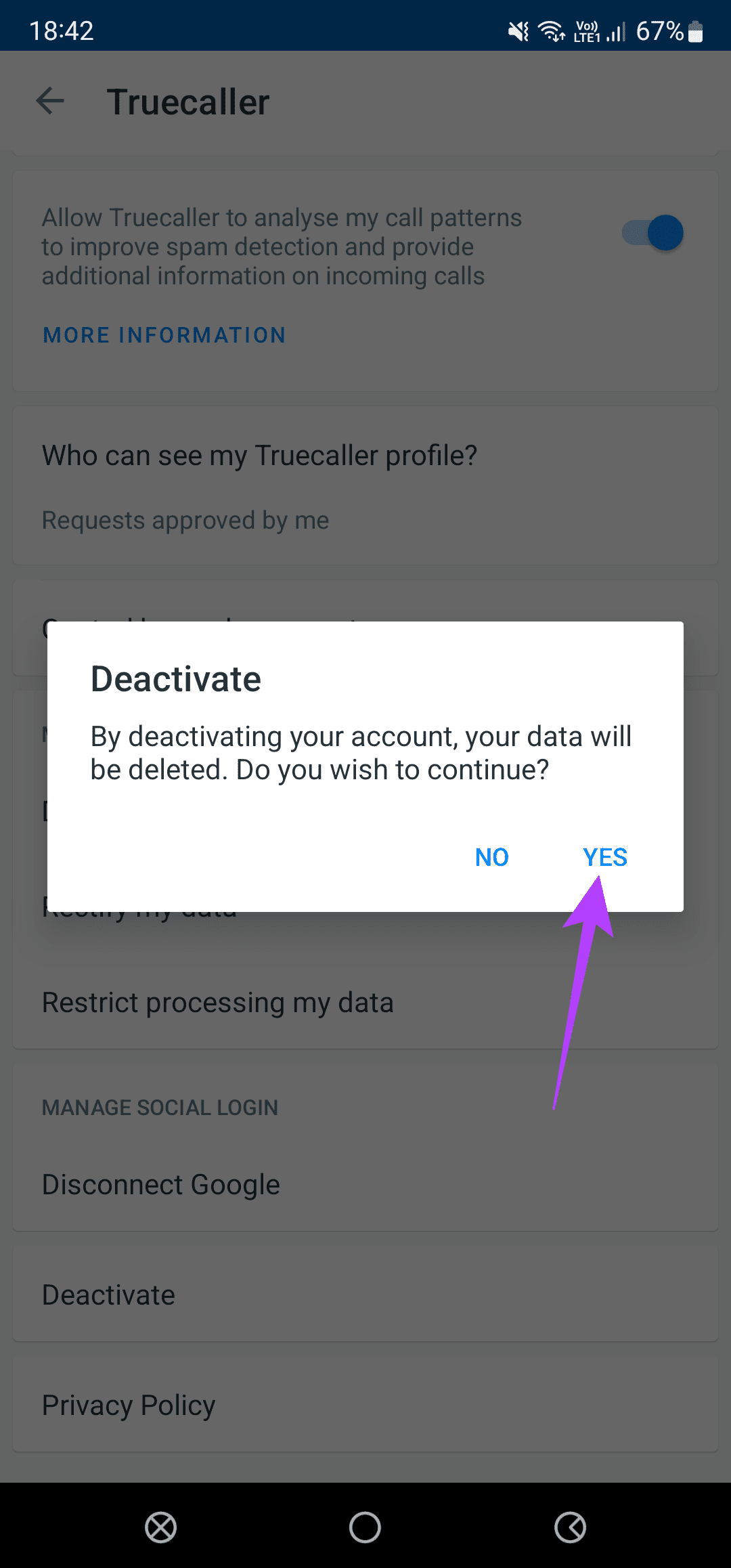
Step 7: Tap on Yes again in the new prompt.
How to Deactivate Truecaller Account From the iOS App
Getting rid of your Truecaller account from iPhone is a little different than Android, mostly because of the interface.
Step 1: Open the Truecaller app on your iPhone.
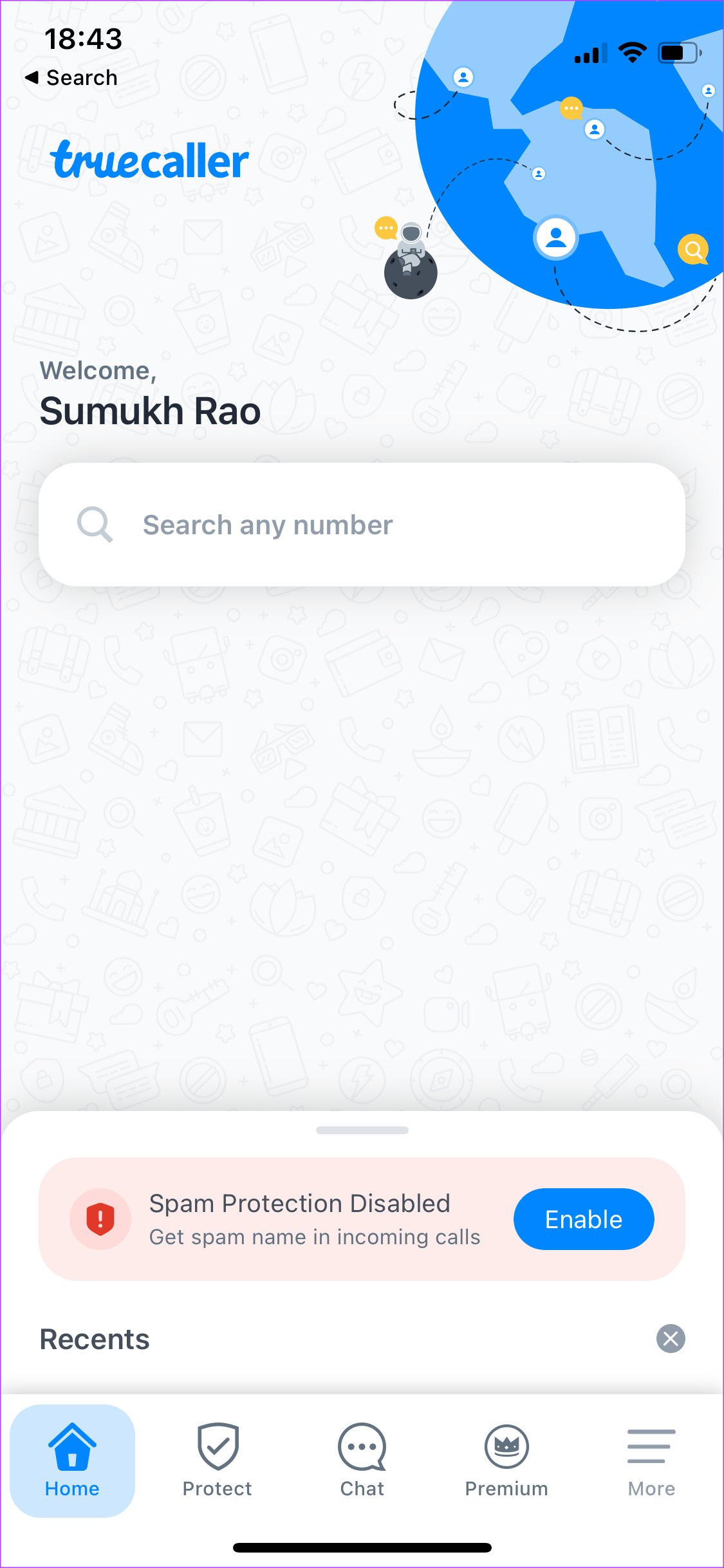
Step 2: Tap on the More button in the bottom-right corner of the app.
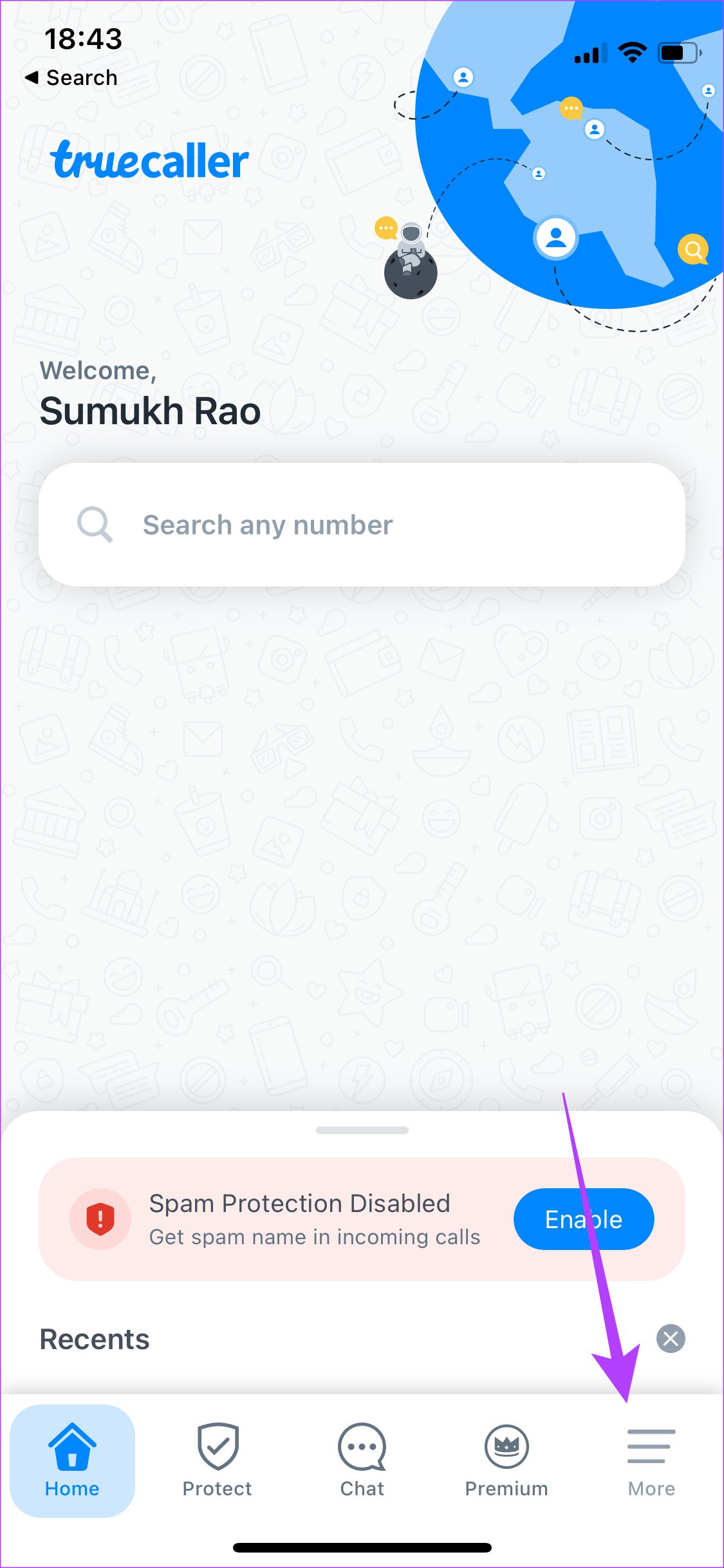
Step 3: Select the Settings option.
Step 4: Now, go to Privacy Center.
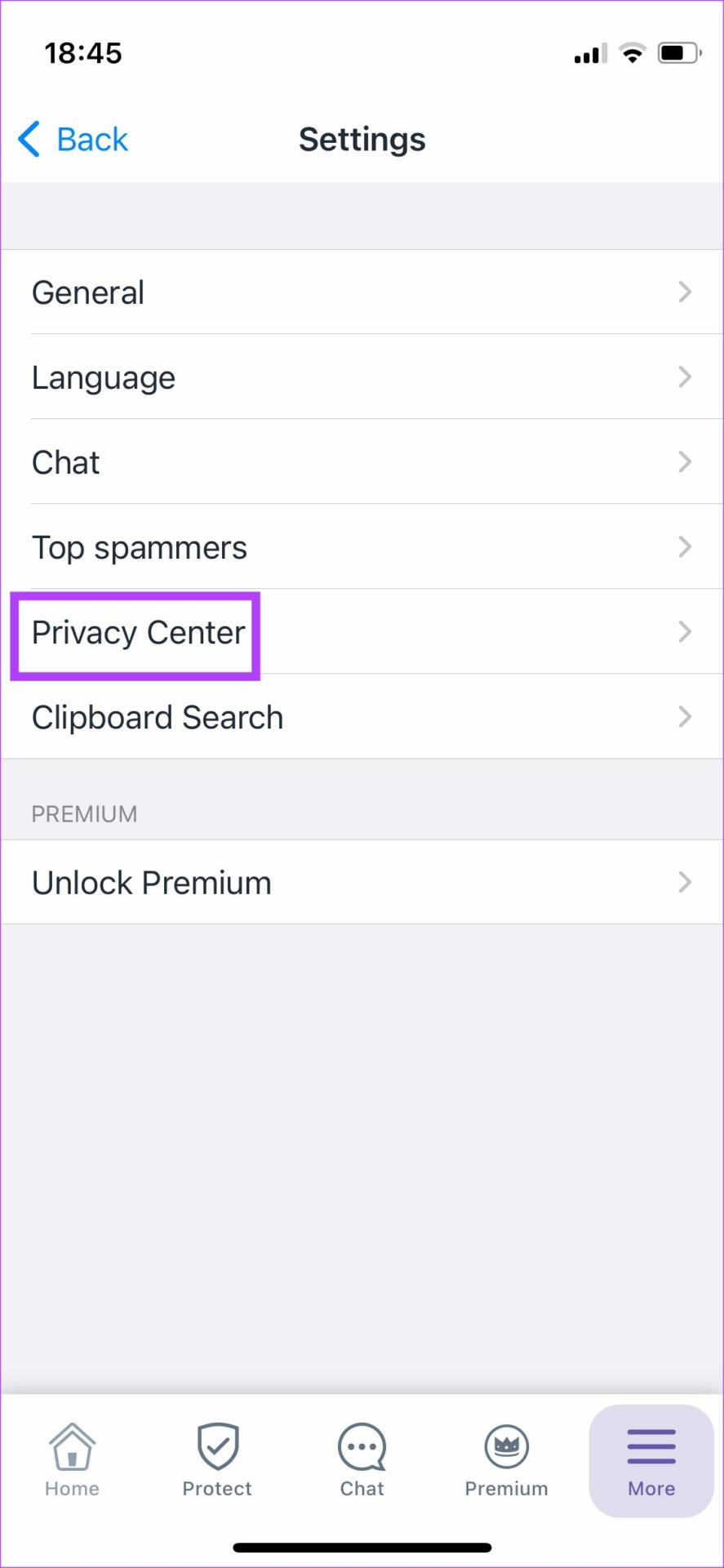
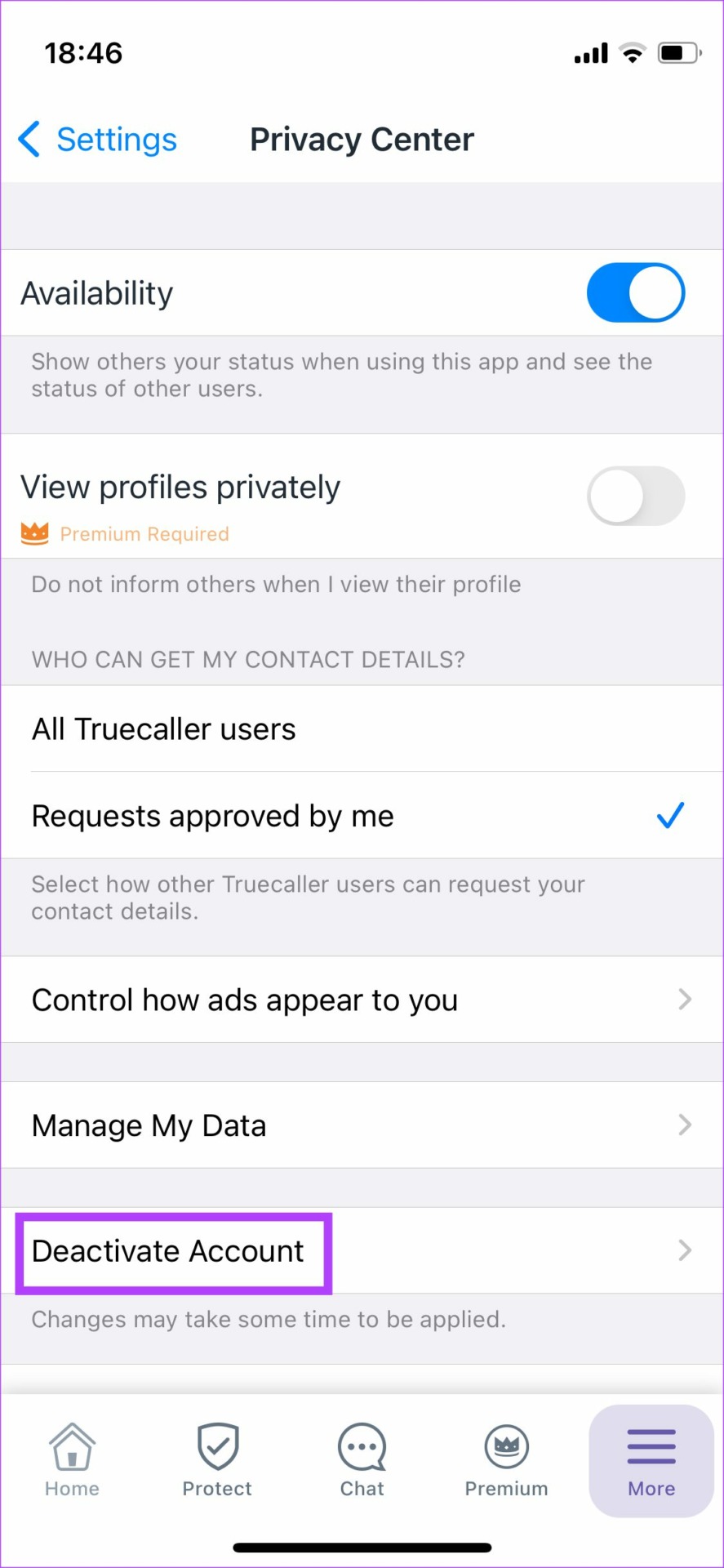
Step 5: Tap on Deactivate Account.
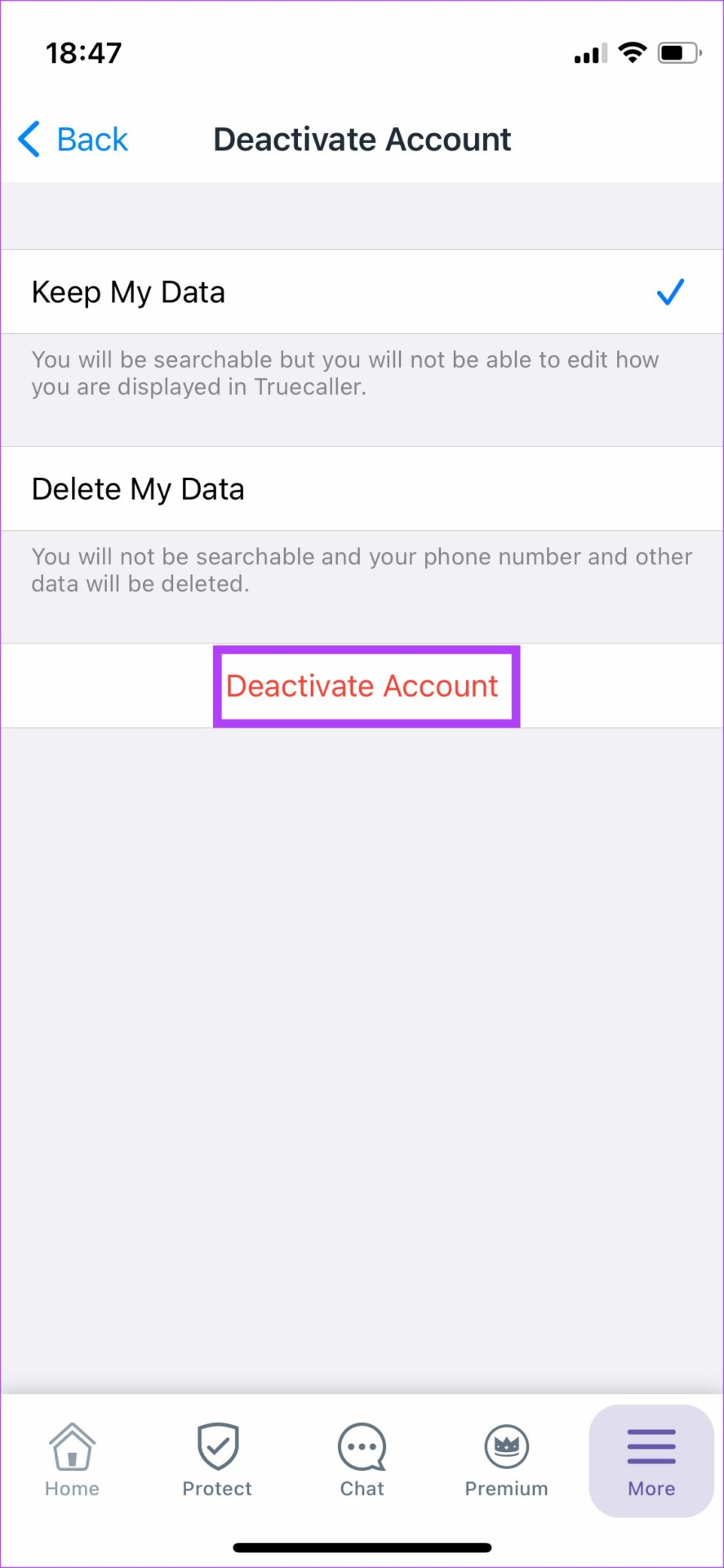
Step 6: You will see two options – Keep My Data and Delete My Data. Choose Delete My Data if you want Truecaller to wipe everything related to your account.
Step 7: Tap on the Deactivate Account option once again. Truecaller will deactivate your account.
How to Unlist Phone Number From Truecaller via Website
After deactivating your Truecaller account from the app, you can go to the official website and apply for your phone number to be unlisted.
Step 1: Head over to the Truecaller Unlisting portal.
Truecaller Unlisting Portal
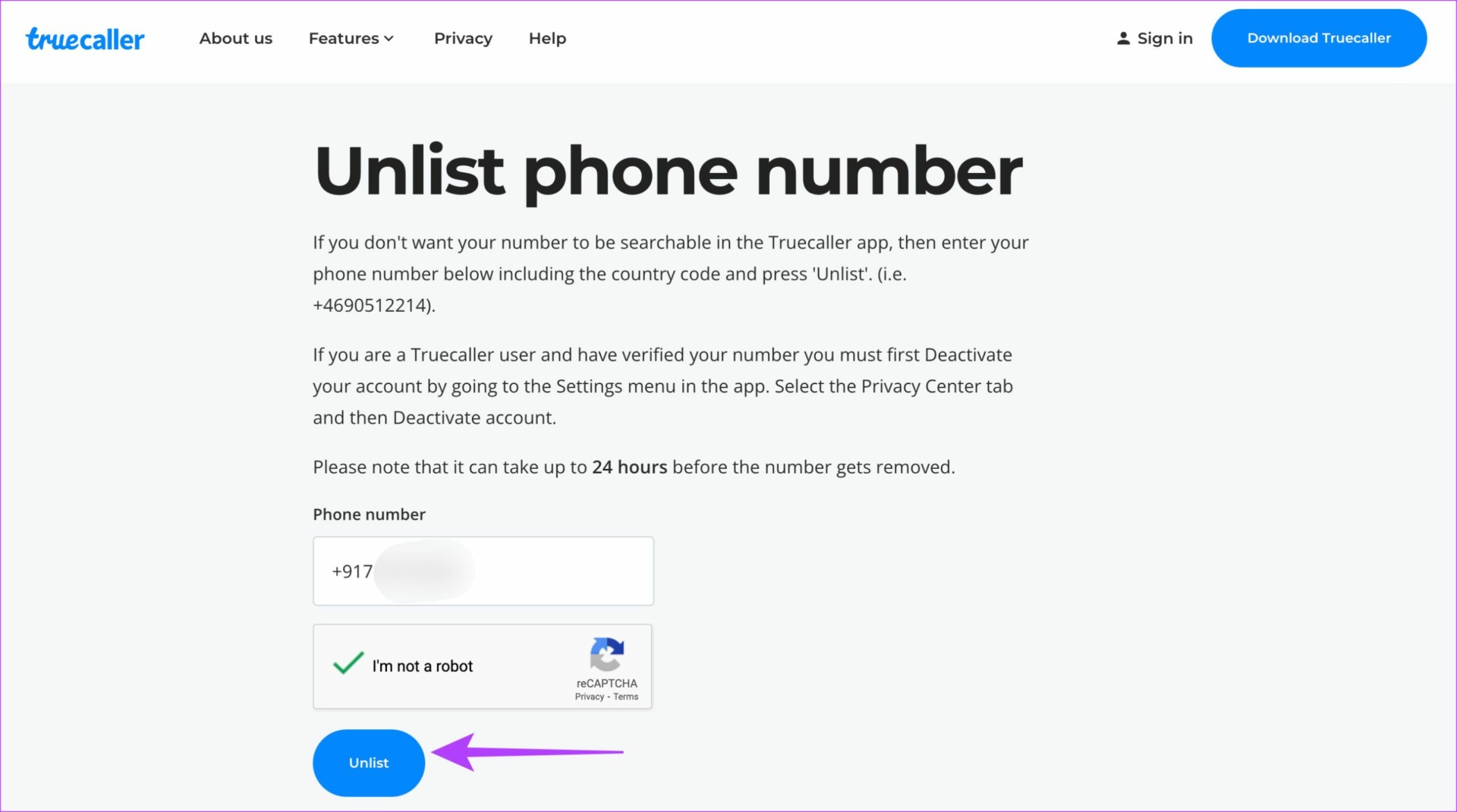
Step 2: Enter your phone number on the website along with the country code.
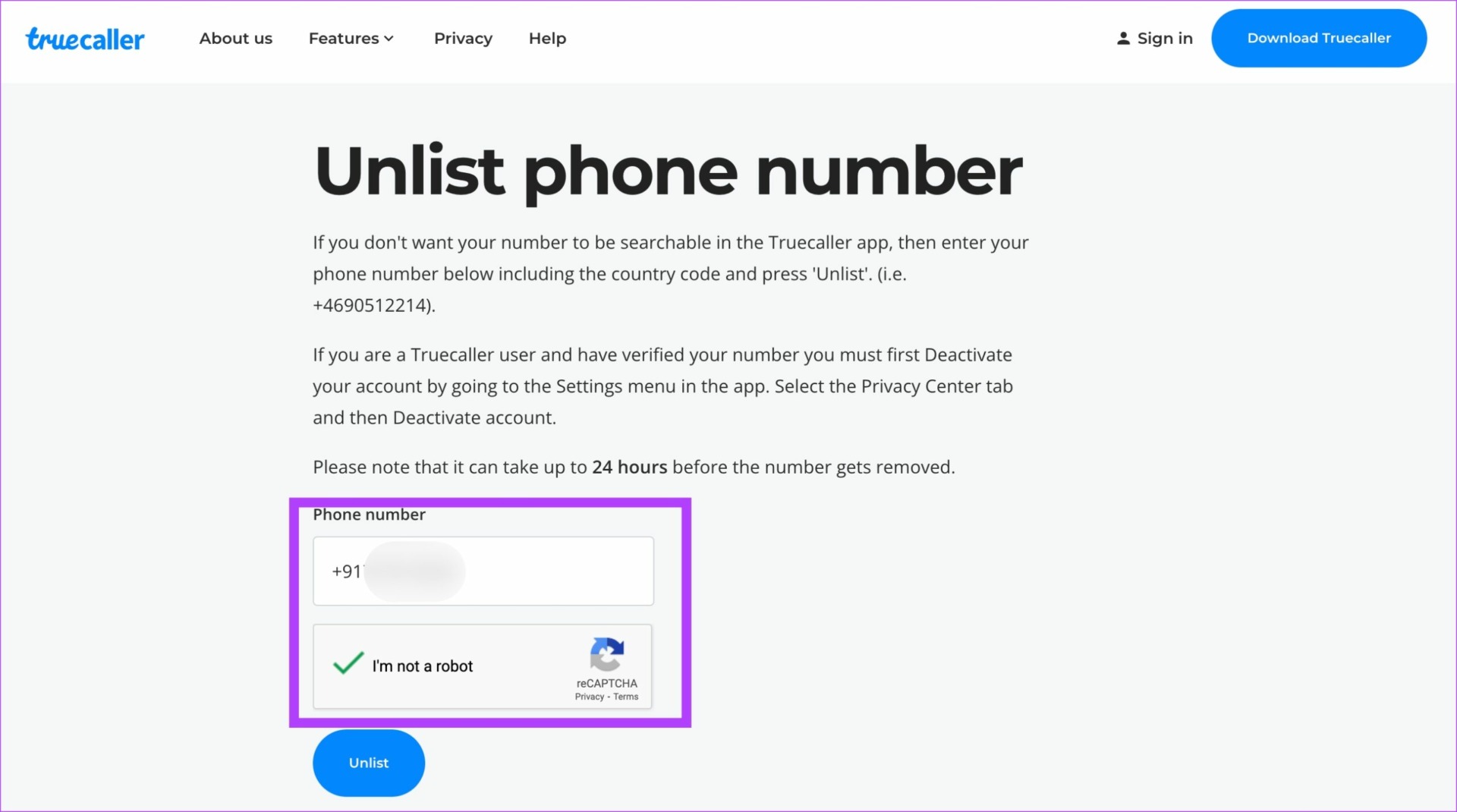
Step 3: Complete the Captcha and click on Unlist button.
Step 4: Click on Unlist again in the prompt.
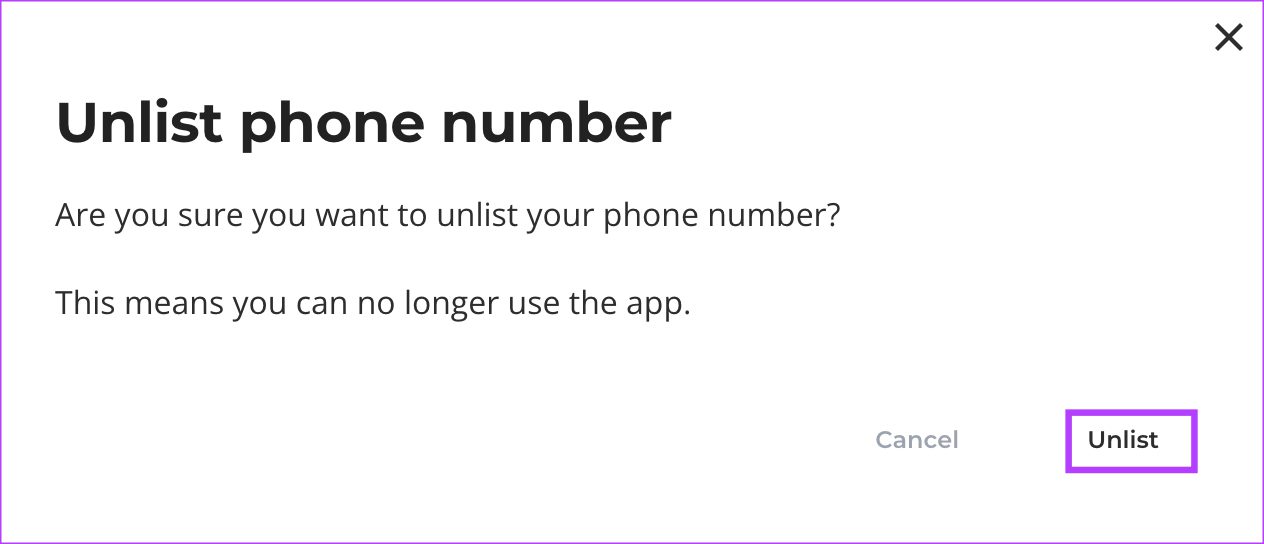
You have now successfully applied for your phone number to be unlisted from Truecaller. The process might take up to 24 hours after which your phone number will be removed from the platform. At this point, it’s also a wise idea to uninstall the Truecaller app from your phone.
How to Uninstall Truecaller on Android
After you’ve deactivated your Truecaller account and unlisted your number from the service, the last step is to remove the app from your Android.
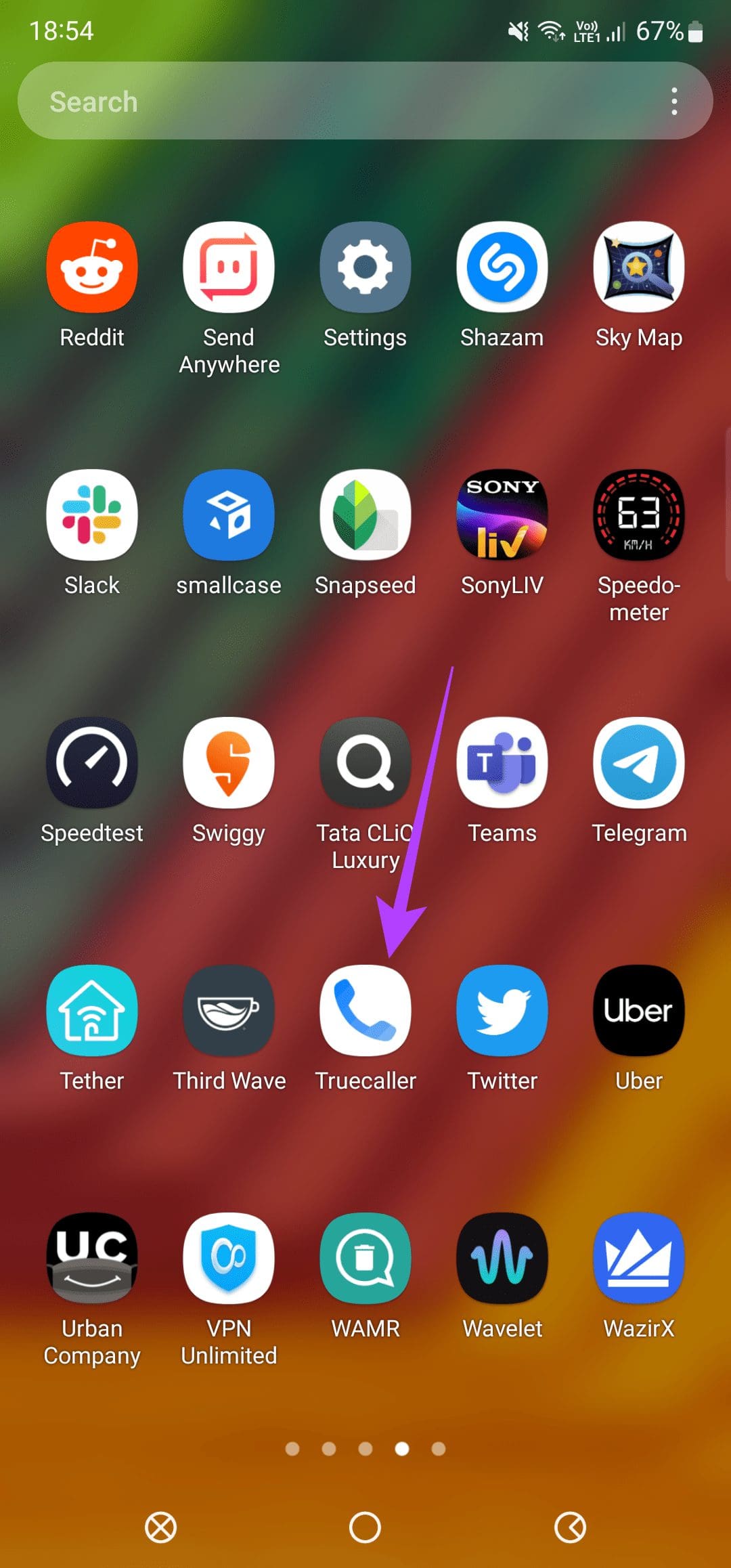
Step 1: Open the app drawer on your Android phone and scroll to the Truecaller app.
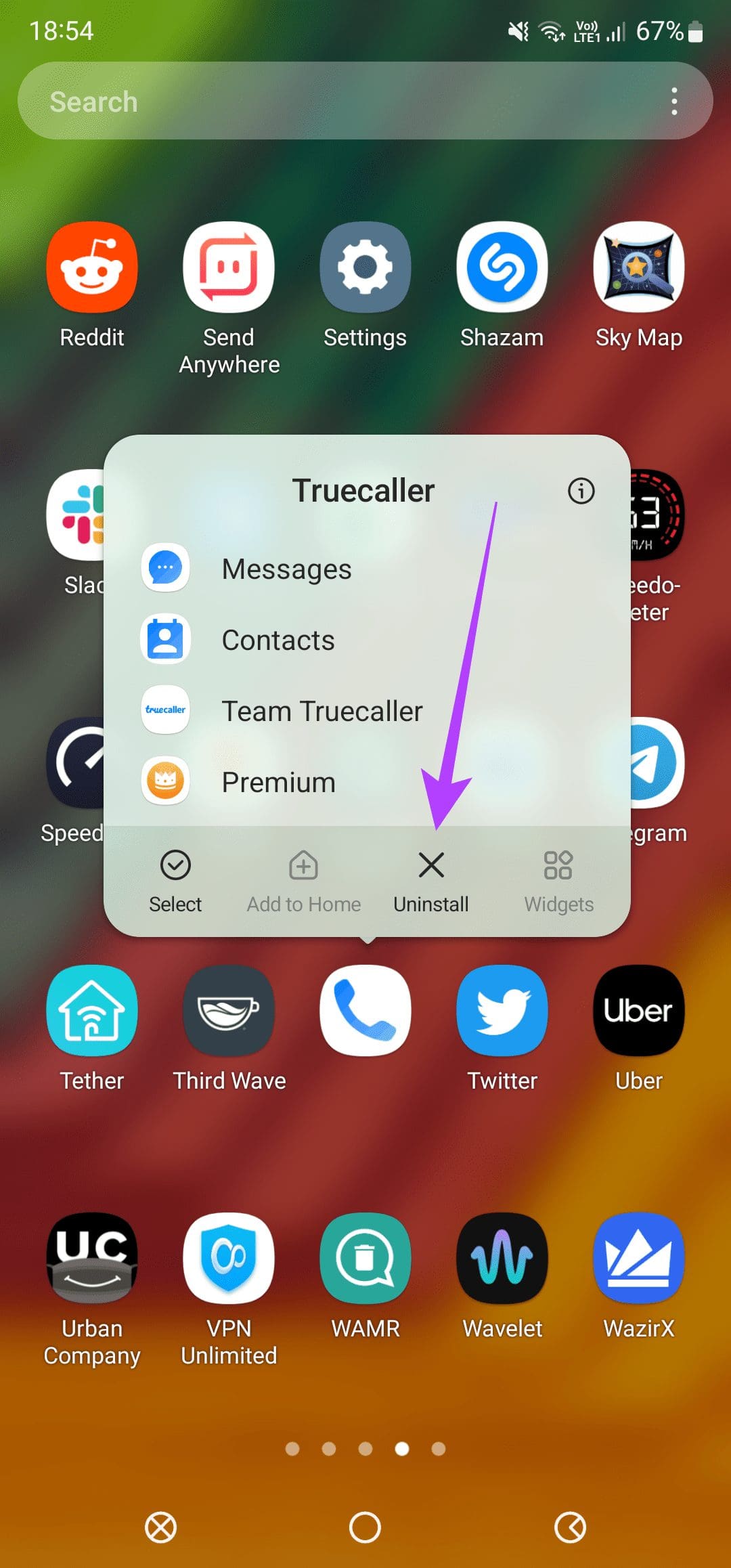
Step 2: Tap and hold the Truecaller icon.
Step 3: Select Uninstall.
How to Uninstall Truecaller on iPhone
Similarly, you’ll need to delete the Truecaller app from iPhone after deactivating your account and unlisting your number.
Step 1: Navigate to the home screen with the Truecaller app on your iPhone or use the App Library.
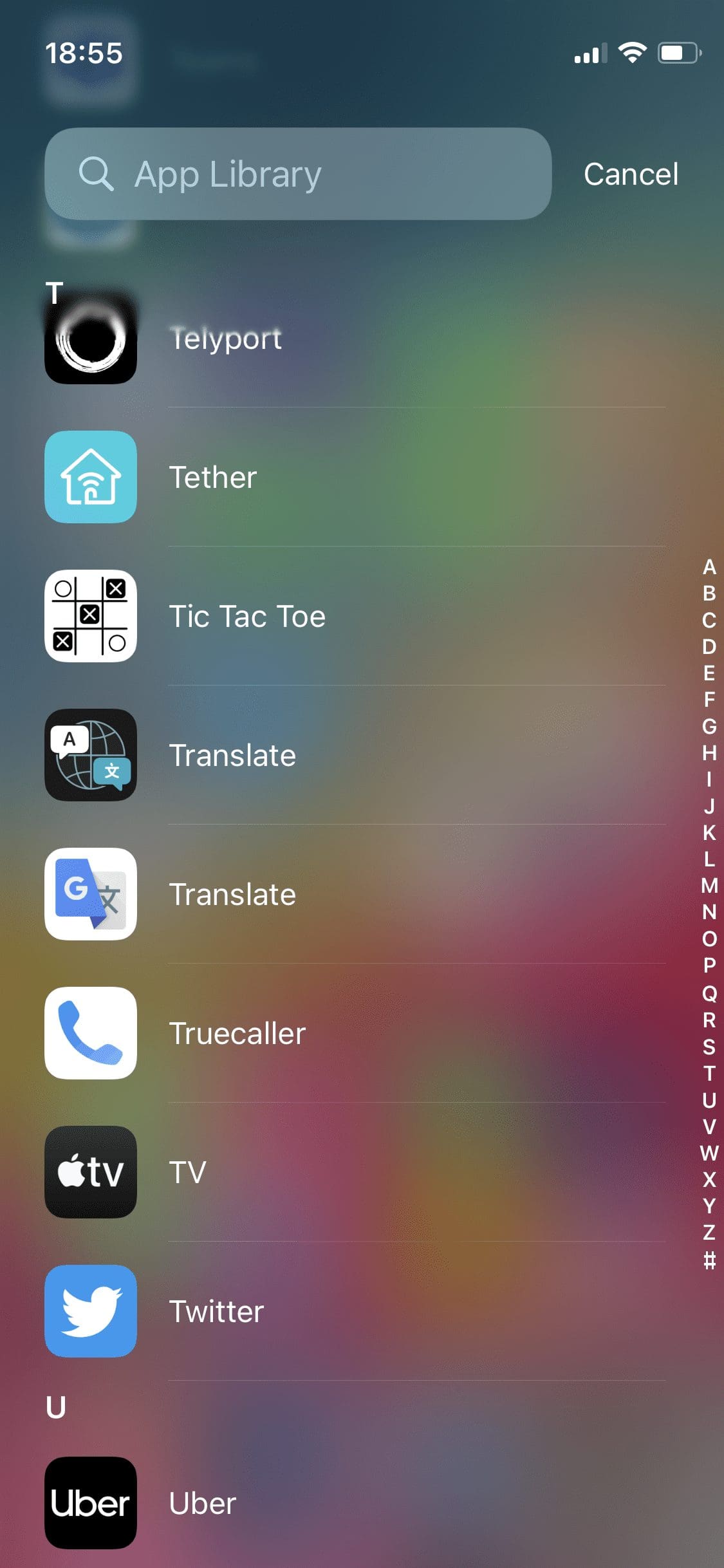
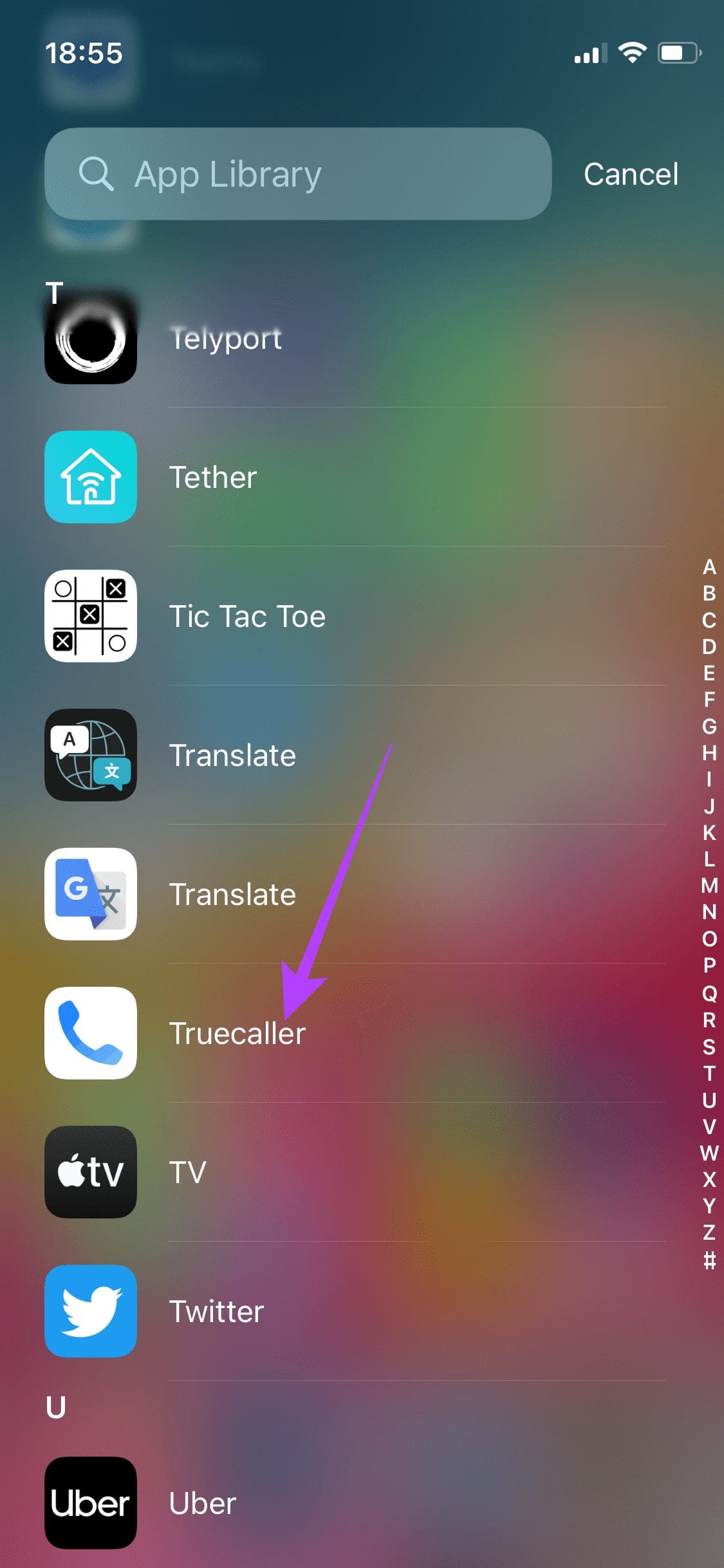
Step 2: Tap and hold the Truecaller app icon.
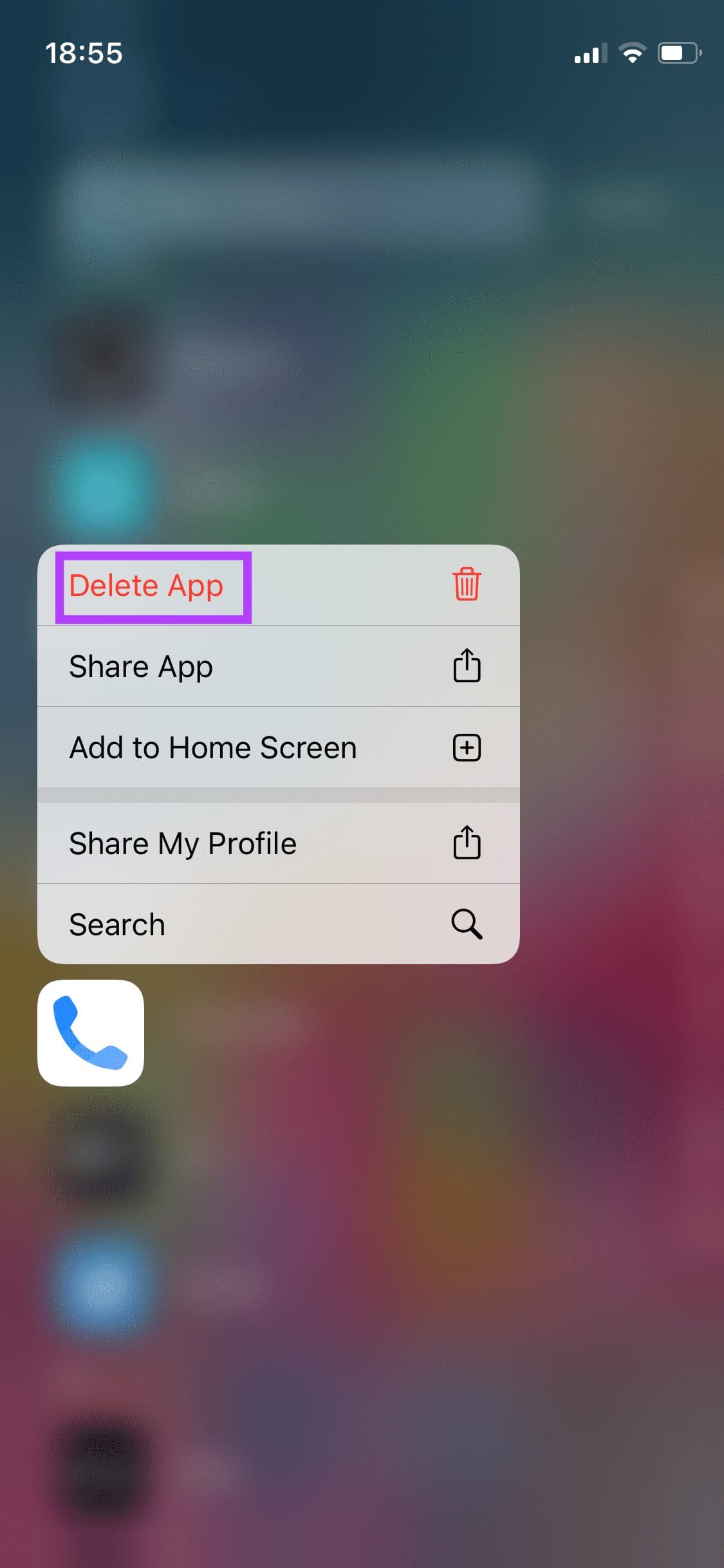
Step 3: Select Delete App.
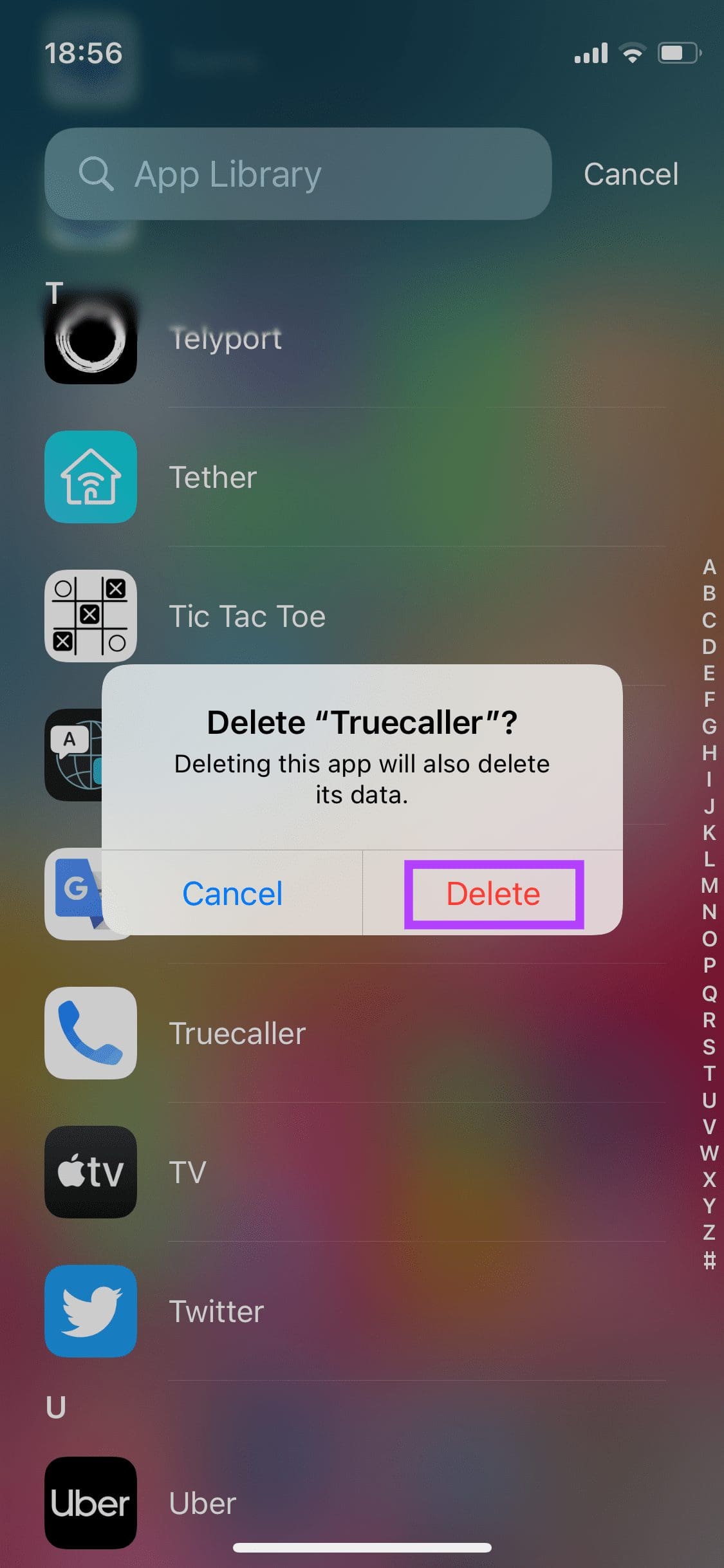
Step 4: Tap on the Delete option once again.
Can You Use Truecaller After Unlisting Your Phone Number
You cannot have it both ways, unfortunately. If you wish to continue using Truecaller to detect and block spam calls or search for others’ phone numbers, you can’t do that if you unlist your number.
The solution to this problem would be to use an alternate mobile number to register for Truecaller. That will ensure your actual number stays unregistered while you get all the benefits of Truecaller by using a secondary SIM card.
Maintain Privacy by Unlisting Phone Number From Truecaller
With your phone number unlisted, your data is less like to appear for the spam callers and companies. Suppose you still wish to search for phone numbers on Truecaller and don’t care about the spam protection or call blocking features, you can do so by visiting the Truecaller website . Then, choose to log in via your Microsoft account or a similar alternative that doesn’t have your contacts linked to it.
Was this helpful?
Submit Cancel
Thanks for your feedback!
Keep reading