Android
How to Use Modes and Routines on Samsung Galaxy Phones
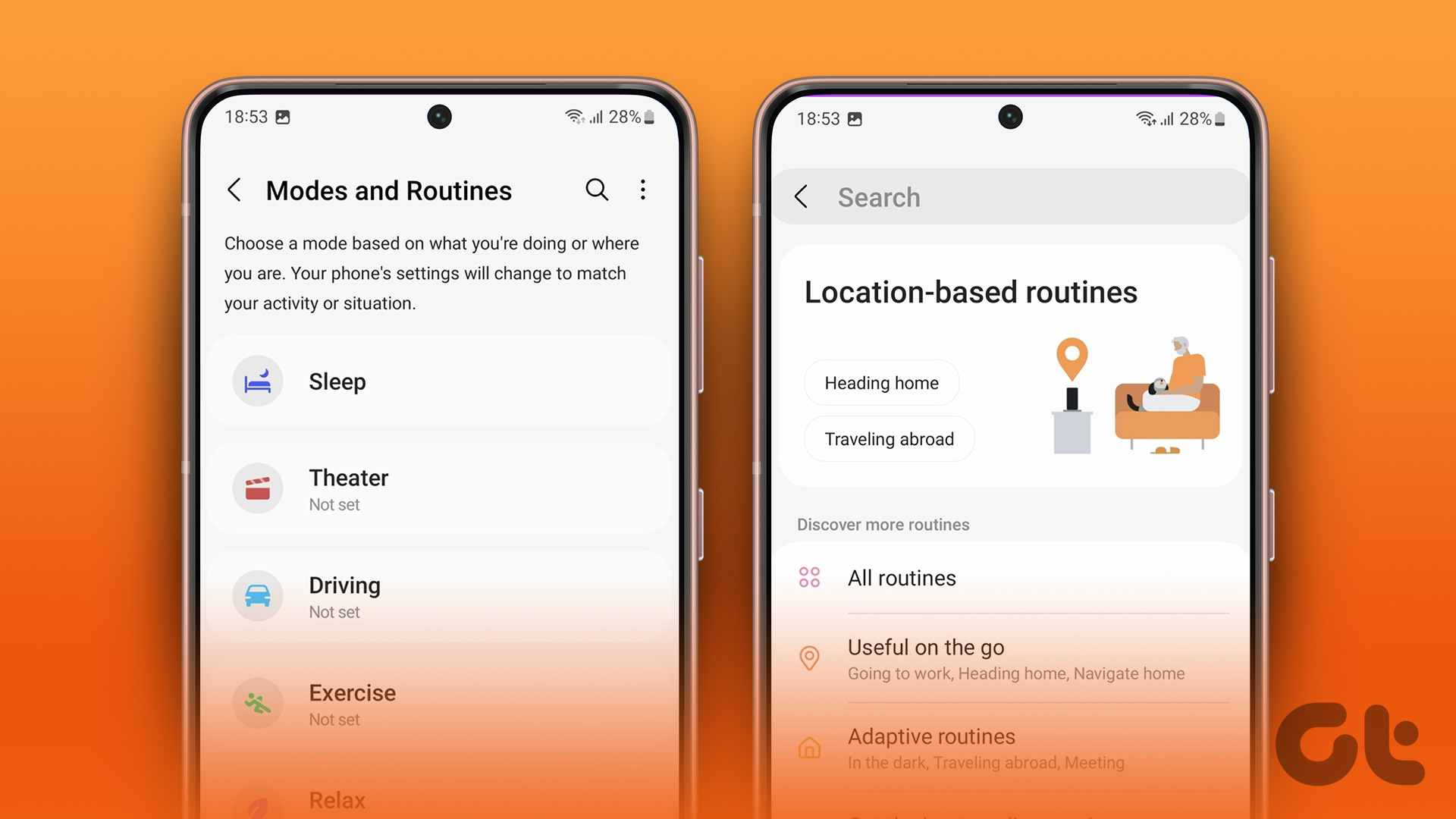
Modes and Routines let you automate several tasks on your Samsung phone. Here's how you can set it up on your Samsung Galaxy phone.
By Parth Shah
Quick Tips
Modes and Routines are neat features in One UI for the Samsung Galaxy phone
They let you perform tasks and change device settings automatically based on what you are doing
Basic fixes
You can select a mode based on your current activity or location, and One UI changes device settings to match the situation.
Samsung includes several built-in modes, such as Sleep, Driving, Exercise, Relax, and Work. You can also create custom ones based on your requirements.
Method 1: How to Use Default Modes on Samsung Galaxy Phones
First, we will show you how to use one of the built-in Modes and move to create custom ones. Let’s set up the Driving mode on your Samsung phone.
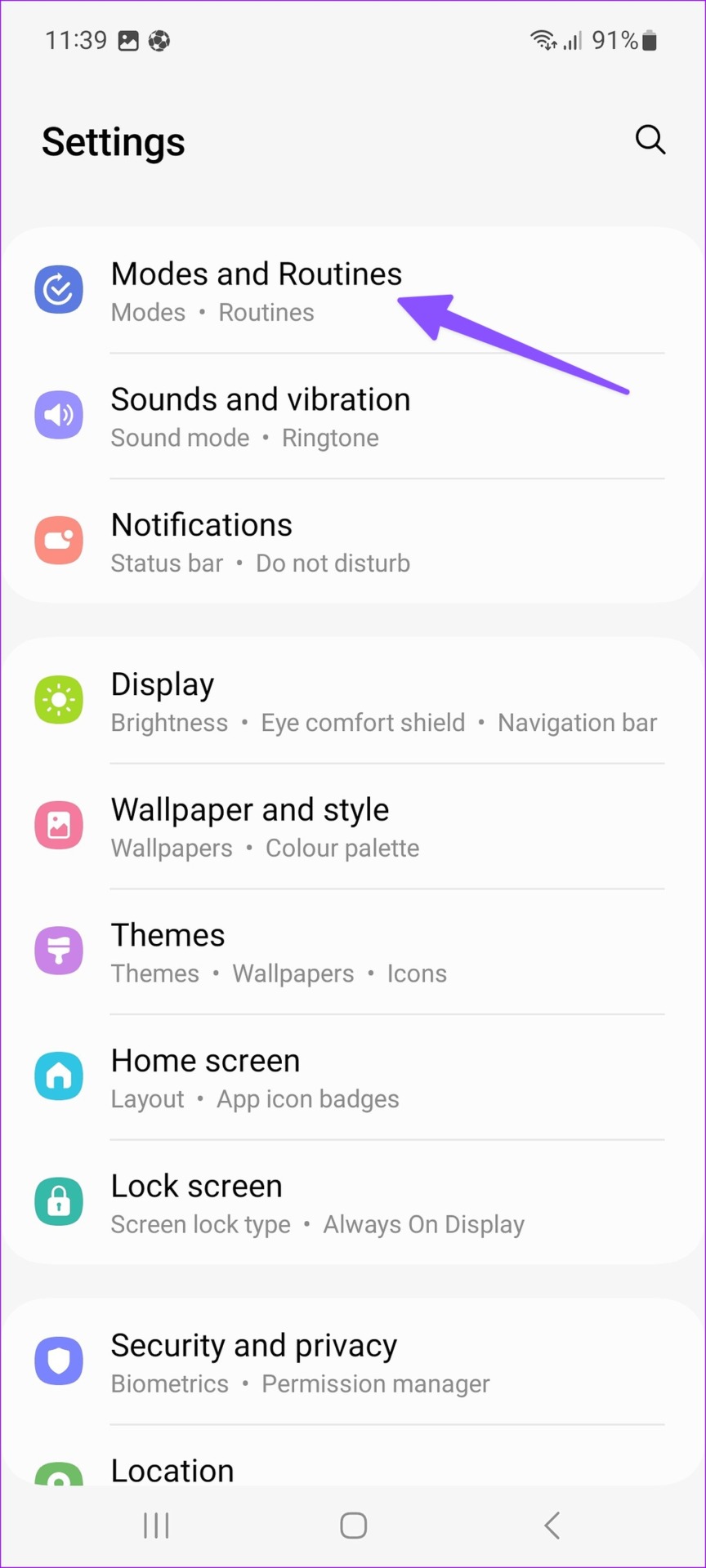
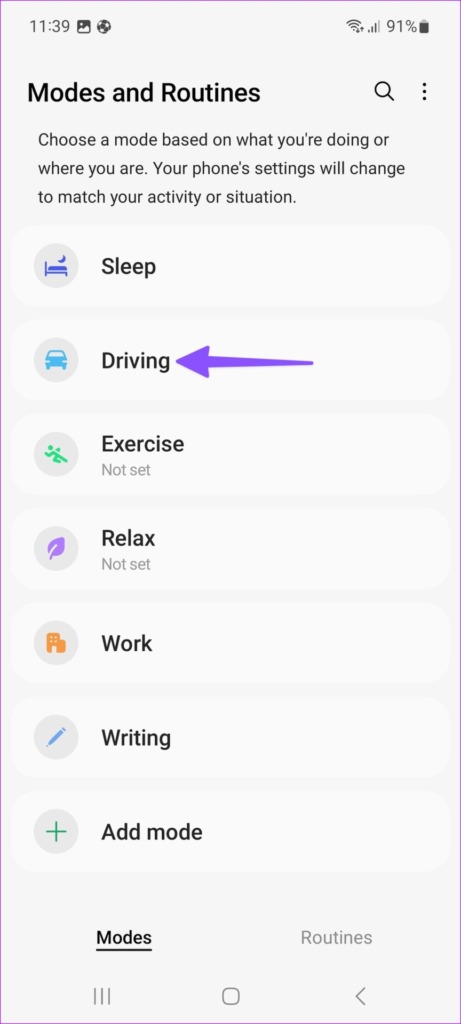
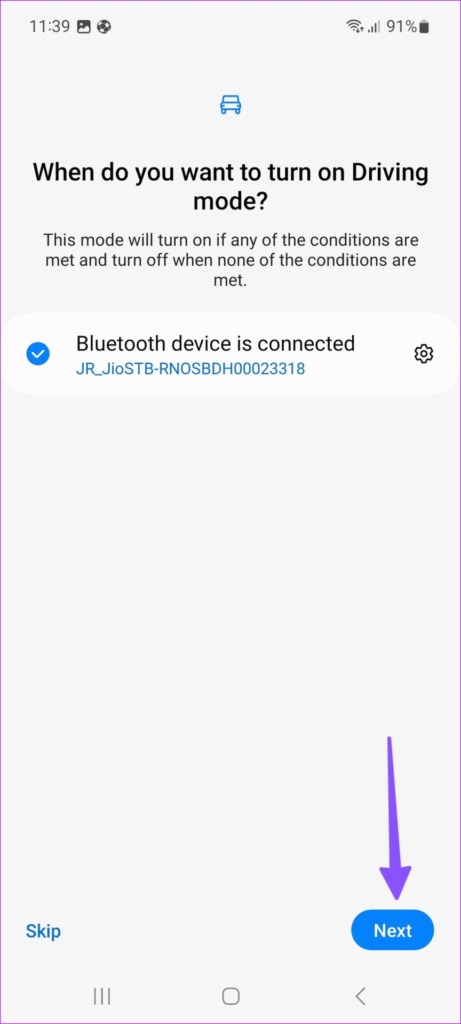
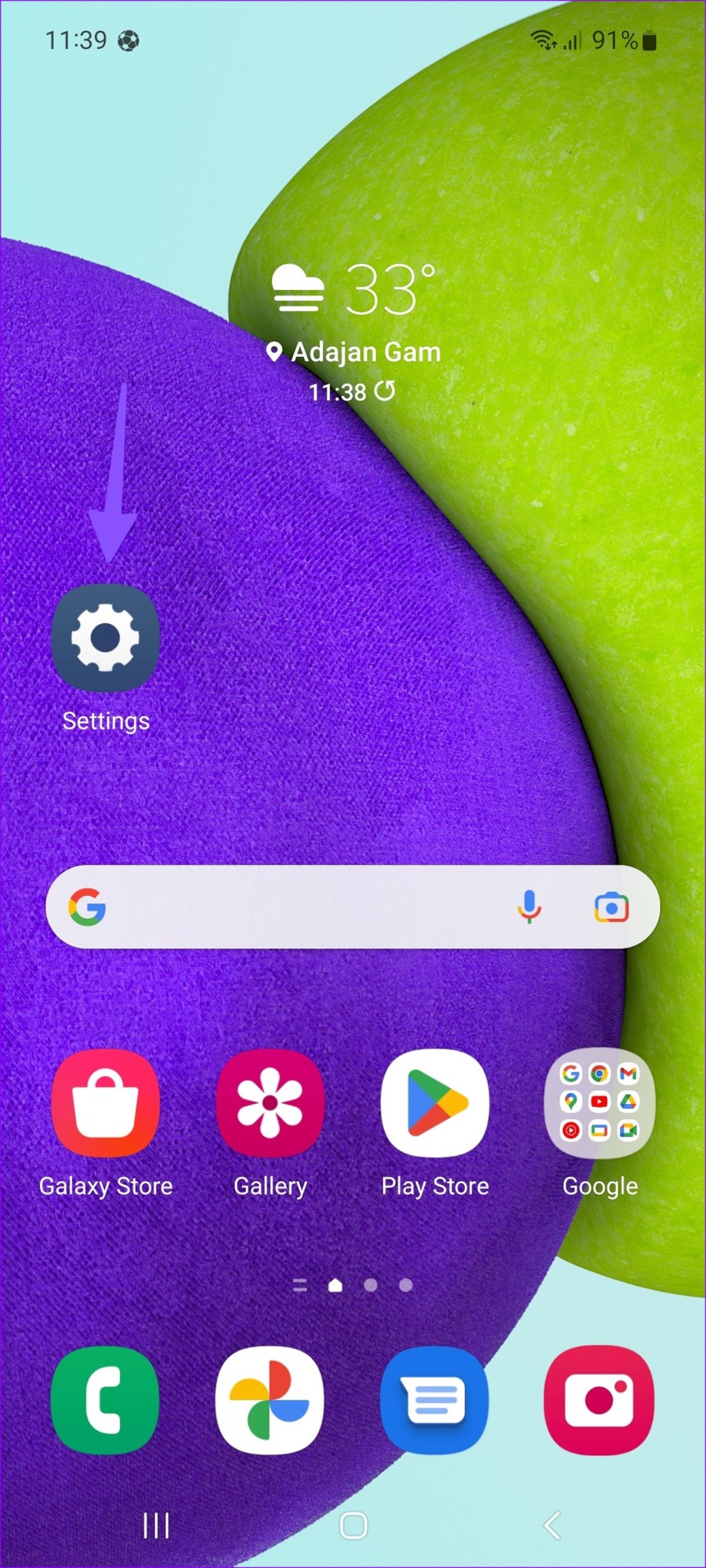
Step 1: Open the Settings app on your Galaxy phone. Select Modes and Routines. You can automatically turn on Driving mode when your phone connects to your car Bluetooth . Tap Next .
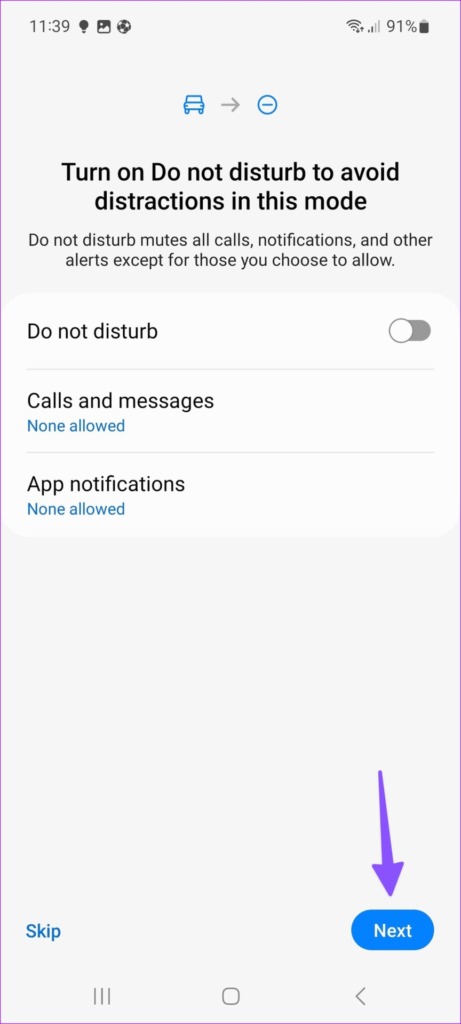
Step 2 : Enable DND on during Driving mode and make an exception for selected contacts and apps.
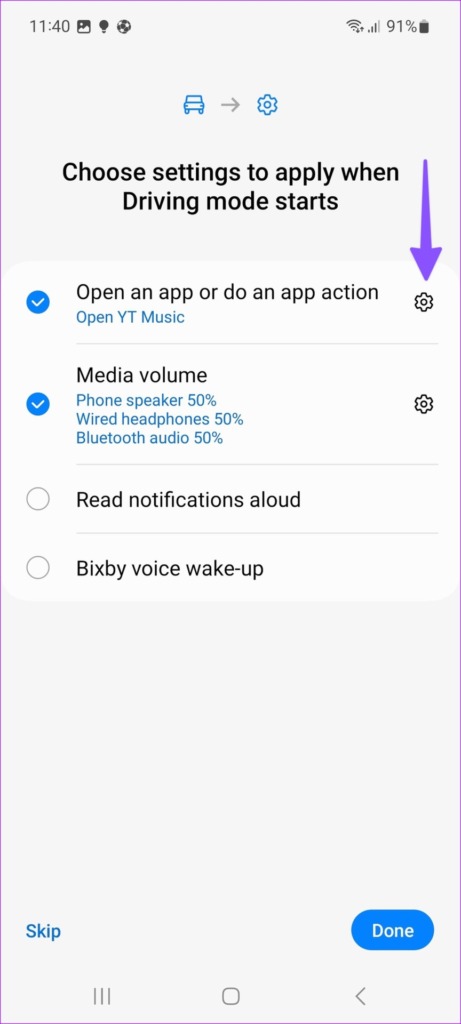
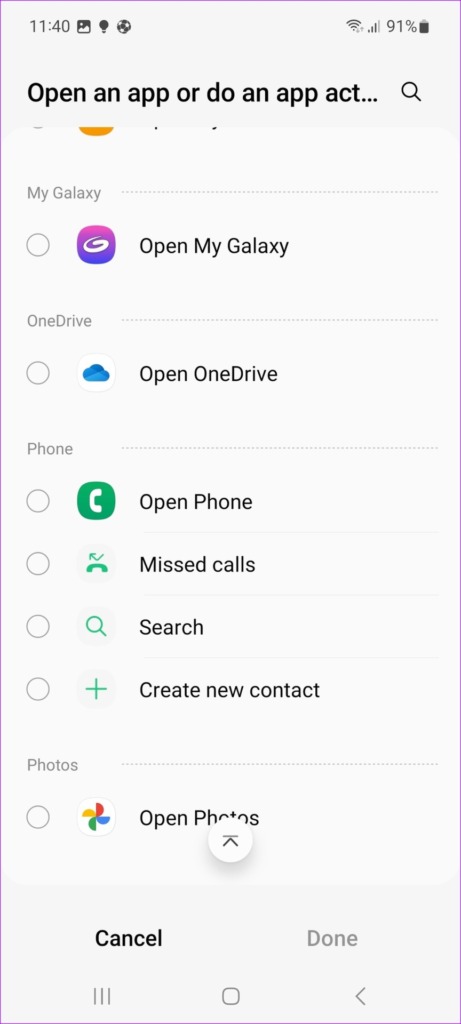
Step 3: Choose settings to apply when Driving mode starts. You can perform an app action (open Downloads menu in YouTube Music or open Google Maps), change media volume, allow the system to read notifications aloud, and enable Bixby voice wake-up. The possibilities are endless.
Method 2: How to Create a Custom Mode on Samsung Galaxy Phones
One UI only comes with five Modes. You can also create a custom one based on your preference. Go through the steps below.
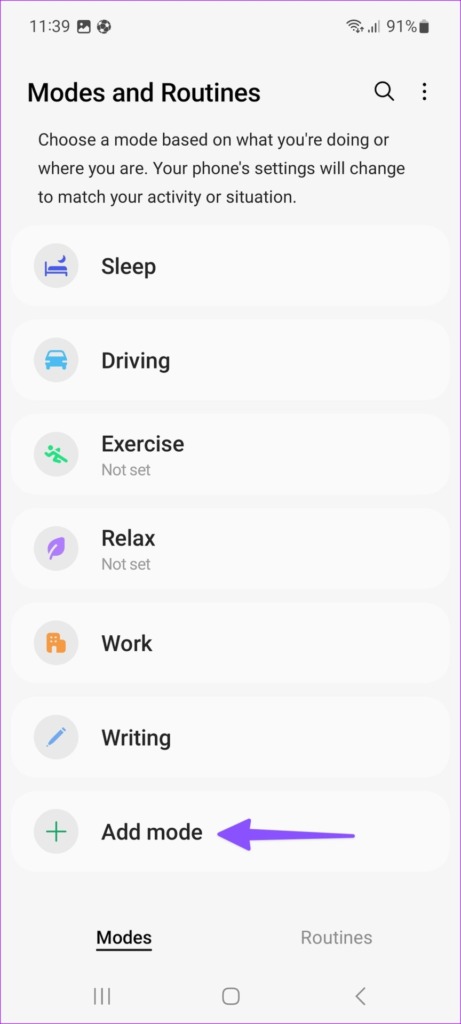
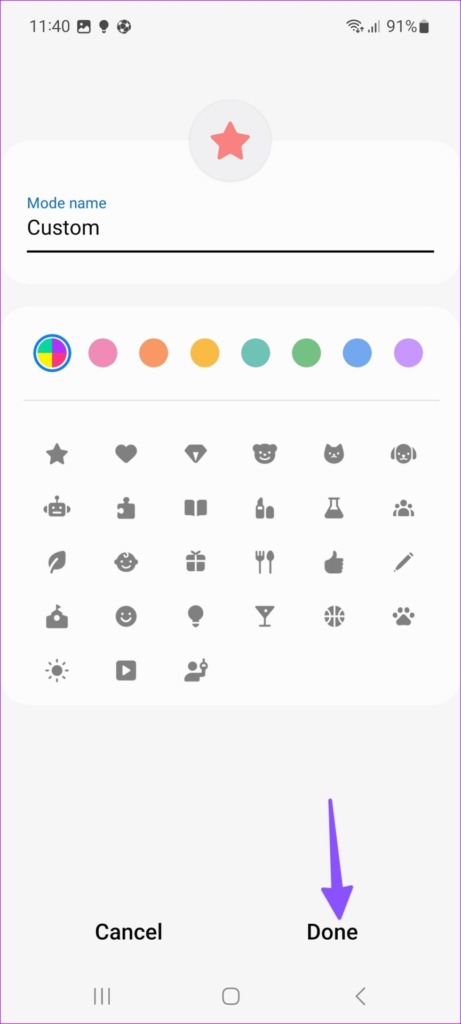
Step 1: Open the Settings app on your Galaxy phone. Select Modes and Routines . Select ‘ Add mode .’ Enter mode name, select color, and set an icon for it.
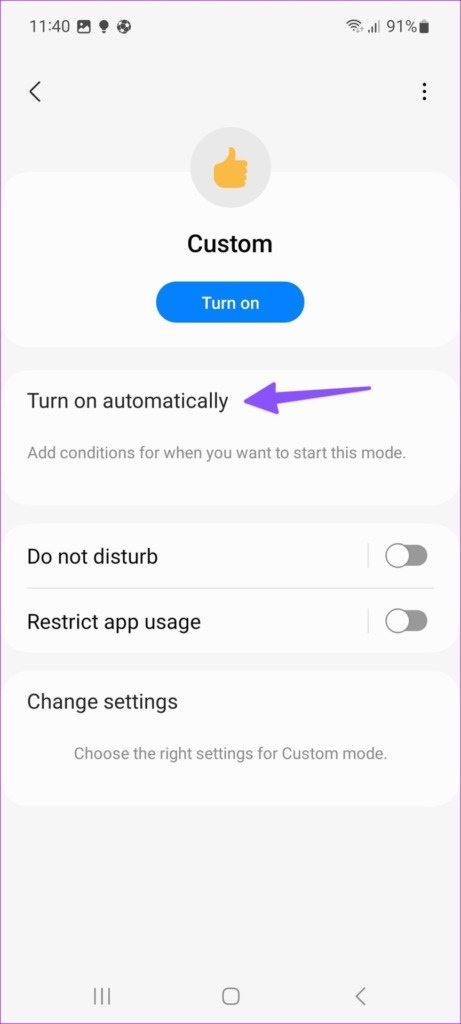
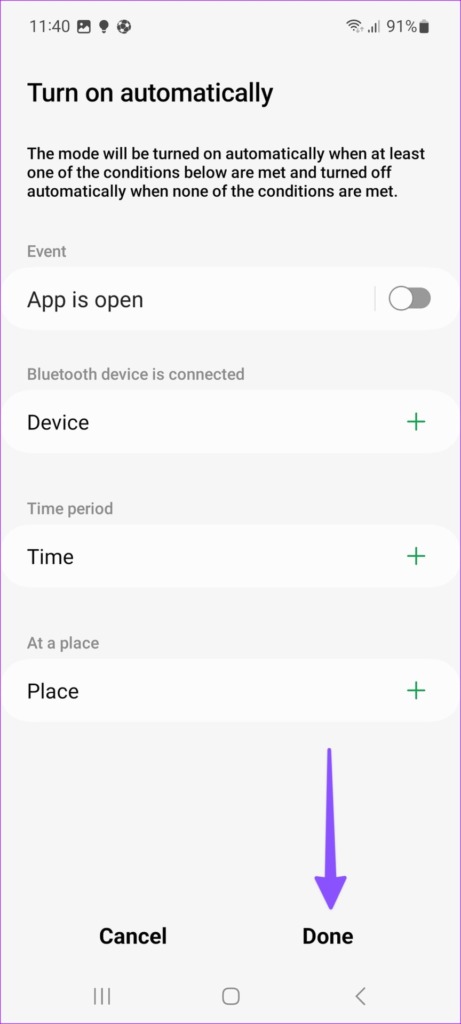
Step 2: Tap ‘ Turn on automatically ’ and set conditions for when you want to start this mode.
What Are Routines on Samsung Galaxy Phones
Routines are Samsung’s take on IFTTT (If This Then That). You can create several criteria and automate actions based on it. For example, when you reach your office, your Samsung phone triggers a routine based on your location and automatically enable DND, lowers the brightness, and turns on Wi-Fi.
Method 1: How to Use Default Routines on Samsung Galaxy Phones
One UI packs several routines to choose from. Here’s how you can use them.
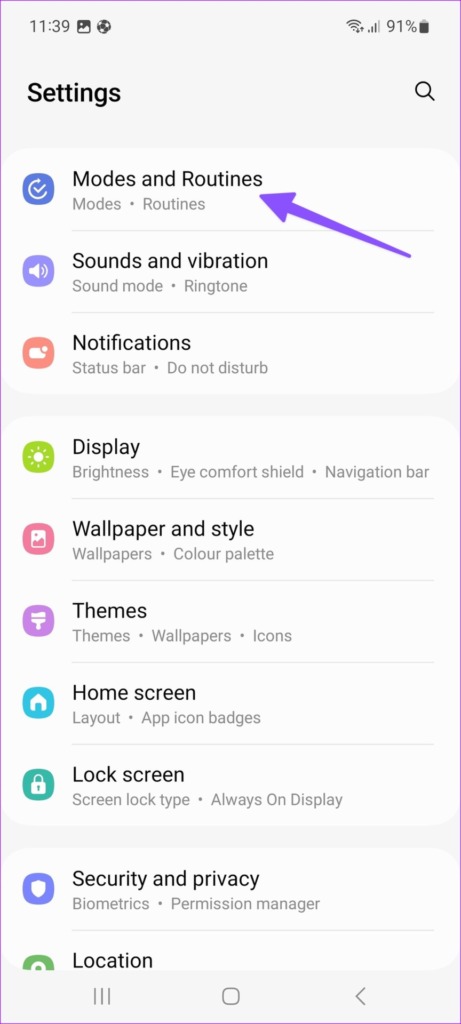
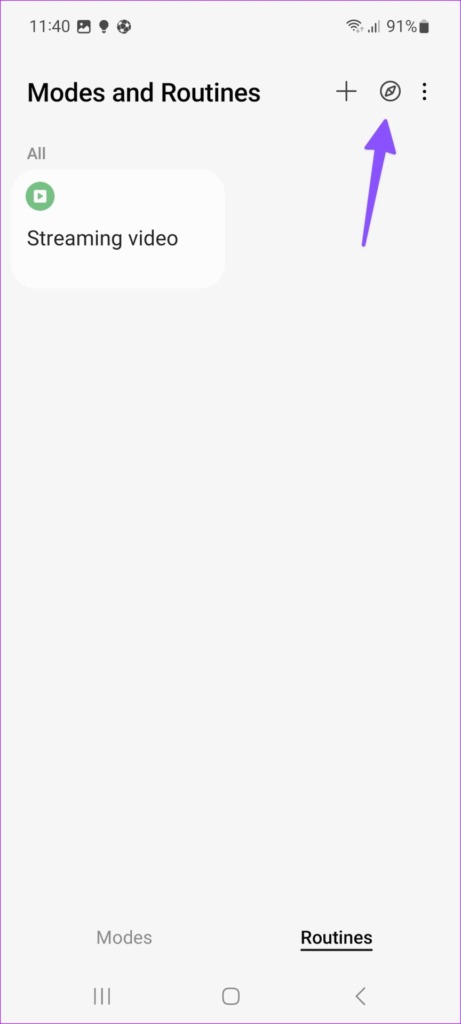
Step 1: Open the Settings app on your Galaxy phone. Select Modes and Routines . Move to Routines tab and select the explore button at the top
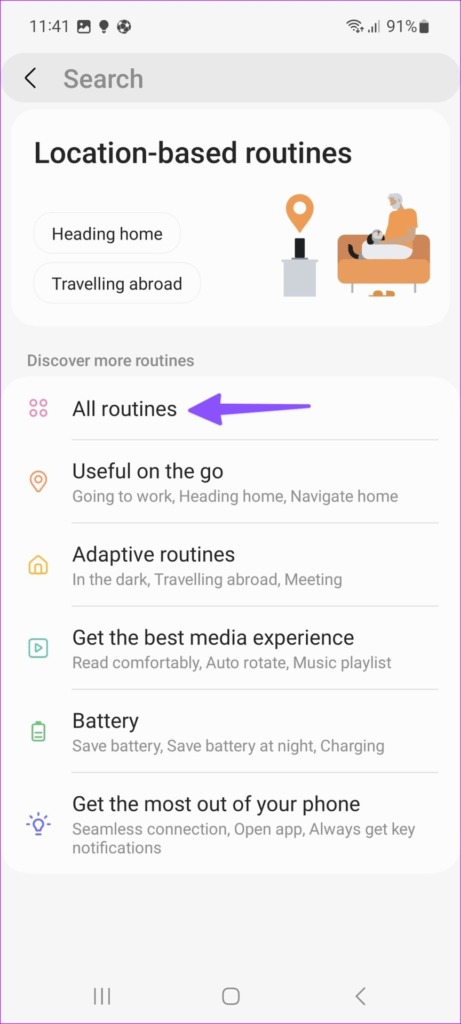
Step 2: Select All Routines and the select ‘ Streaming video .’
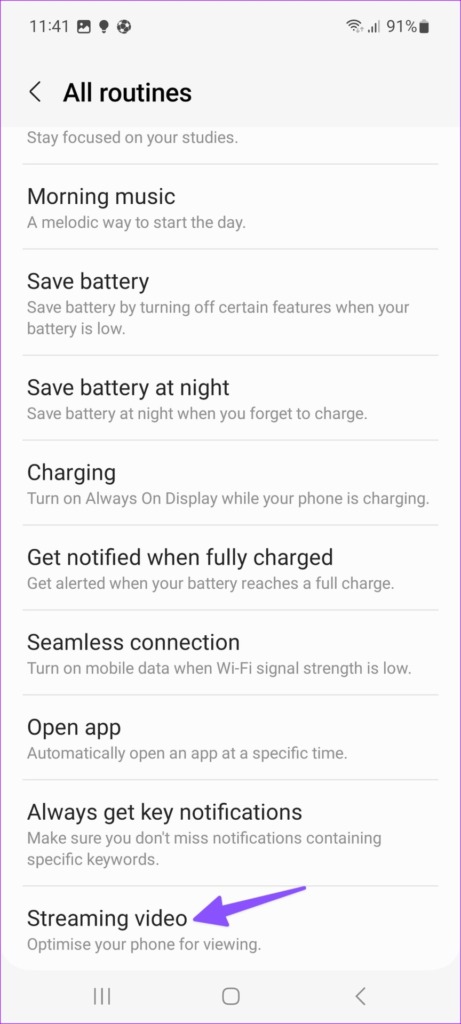
Now whenever you open a streaming app such as YouTube, Netflix, or Prime Video, the system enables Wi-Fi, Dolby Atmos, DND, and screen orientation.
Similarly, you can enable ‘ Always On Display ‘ when you charge your phone, disable ringtone, sound, notifications, and system volume when you reach school, and more.
Was this helpful?
Submit Cancel
Thanks for your feedback!
Keep reading